by Sandro Pereira | Jun 30, 2020 | BizTalk Community Blogs via Syndication
In the past, I wrote several blog post about Configuring BizTalk Server Host and Host Instances according to some of the Best Practices:
The reason I end up creating a new version for BizTalk Server 2016 was that previous scripts only did 90% of the work, and they were intended to be used on “day zero” of your environment, i.e., after you finish installing your environment.
So, I update my previous script to add more functionalities, mainly:
- Configure the Default Send Handler as the Send Handler for each existing static and Dynamic Send Ports
- Configure Receive Handlers from all the existing Receive locations
With these missing functionalities added to the script, it will configure or reconfigure 100% of your environment. You can use it on “day zero” or in an already up and running environment. Of course, this was optimized to BizTalk Server 2016 (but it can be executed in all precious BizTalk Server previous versions).
Why a new version dedicated to BizTalk Server 2020?
There are two reasons why I decide to create this new script, specific only to BizTalk Server 2020:
- The previous scripts don’t run properly in BizTalk Server 2020;
- And BizTalk Server 2020 now has support to Group Managed Service Accounts;
The first reason is very simple. The previous scripts will not work giving you an invalid credential error even though you are putting the correct credentials has Gaurav Sood kindly reported to me.
The reason why this error is happening was because one undocumented change that product group made on the MSBTS_HostInstance WMI Class and now the method Install has a new mandatory parameter:
- IsGmsaAccount: a boolean that will define whether or not we will use Group Managed Service Accounts
Now the method parameters will be:
- System.Management.ManagementBaseObject Install(System.String Logon, System.String Password, System.Boolean GrantLogOnAsService, System.Boolean IsGmsaAccount)
- Logon: String containing the logon information used by the host instance;
- Password: String containing the password for the host.
- GrantLogOnAsService: Boolean determining whether the ‘Log On As Service’ privilege should be automatically granted to the specified logon user or not. This flag only has effect when the HostType property is set to In-process.
- IsGmsaAccount: a boolean that will define whether or not we will use Group Managed Service Accounts
- If true, the password can be empty;
The second reason is related to the first one. Now BizTalk Server 2020 has support Group Managed Service Accounts (gMSA) and since I’m changing this script I also want to add support to this feature.
What is Host and a Host Instances?
The BizTalk Host is a logical process and security boundary within BizTalk Server that represents a logical set of zero or more run-time processes in which you can deploy BizTalk Server services and artifacts (such as adapter handlers, receive locations, and orchestrations). Each host has a security group assigned to it and may contain multiple host instances, each on an individual machine, that perform the work of the host.
In another hand, a host instance is the physical instance of a host on a computer running BizTalk Server. Each host instance belongs to exactly one host, and the service account of the host instance belongs to the security group of the host. The security group may be used to grant permissions to physical resources such as databases for use by any host instances in the host.
What is an Adapter Handler?
An adapter handler is an instance of a BizTalk host in which the adapter code runs. When you specify a send or receive handler for an adapter you are specifying which host instance the adapter code will run in the context of. An adapter handler is responsible for executing the adapter and contains properties for a specific instance of an adapter.
The default BizTalk Server configuration will only create one in-process host, “BizTalkServerApplication”, that will be associated as a receive and send adapter handler for all of the installed adapters, with the exception of HTTP, SOAP, WCF-BasicHttp, WCF-WSHttp, and WCF-CustomIsolated adapter receive handlers that can only be running in an isolated host.
How can I automate this task?
Windows PowerShell is a Windows command-line shell designed especially for system administrators and can be used by BizTalk administrators to help them in automating tasks.
This is a simple script that will configure the following components in your environment:
- Create Host and Host Instance according to some of the best practices: two Receive host and host instances (one 32-bits and one 64-bits); two Send host and host instances (one 32-bits and one 64-bits); One Host and Host Instance to process Orchestrations and one Host and Host Instance for tracking;
- Create Receive and Send Handlers for each adapter;
- And finally, associate the correct Receive and Send Handlers to each existing receive and send ports present in your environment
Download
THIS POWERSHELL IS PROVIDED “AS IS”, WITHOUT WARRANTY OF ANY KIND.
The script can be found and download on GitHub:
 PowerShell to Configure BizTalk Server 2020 Host, Host Instances and Handlers
GitHub
The post BizTalk Server 2020: PowerShell to Configure Host, Host Instances and Adapter handlers according to some of the Best Practices appeared first on SANDRO PEREIRA BIZTALK BLOG.

by Lex Hegt | Jun 18, 2020 | BizTalk Community Blogs via Syndication
In Atomic Scope, the Tracking screen is where you get an overview of your business transactions involving Microsoft BizTalk Server and Azure resources that are tracked by the product. Here, you can learn whether all your on-premise and/or hybrid transactions are being processed successfully and view these transactions in every detail.
In our next Atomic Scope webinar, we will be doing a deep dive into the capabilities of the Tracking screen of the product. Among other things, we will show
- How to search for specific transactions
- View all the details of executed transactions
- How Atomic Scope supports batched messages
- What can be done in case something went wrong?
Also, the webinar attendees will get a special sneak-peek on the new features from Atomic Scope v7, which will just have been released at the time of the webinar. These features include
- Graphical Business Process Designer – A new and more powerful way to define the workflows of your respective business process transactions
- Dynamic Email Template Engine – Create flexible and rich email templates to send informative email alerts
If you want to want to have complete insight into your business processes in one portal, then this webinar is for you. We look forward to meeting you during the webinar!
The webinar will take place at:
Date: Thursday, June 25th
Time: 10 AM BST
Save your Spot!
So, if you want to want to have complete insight into your business processes in one portal, then this webinar is for you. The registration process is very simple. Just click here to register and leave your details. Shortly we will send you the confirmation mail. We look forward to meeting you during the webinar!
Also, if you think you cannot attend the webinar at the specified time, no worries! Go ahead and register, our team will make sure to send you the webinar recording.
Also, if you wish to know more about the webinar, feel free to check out the web site!
The post Webinar Spoiler: Discover How to Track Your Hybrid Business Transactions in a Smarter Way appeared first on BizTalk360.
by Sandro Pereira | Jun 15, 2020 | BizTalk Community Blogs via Syndication
In the last blog post, we analyzed the daily BizTalk Developer’s improved tasks which are provided by BizTalk NoS Ultimate; Build Project, Deploy assembly, and Fast register/unregister in GAC. Today, we will continue to analyze the list of available features present in this Visual Studio extension, focusing on the developing features that will improve your productivity significantly.
Locate It
How many times do you open your old or new project and several files are opened in the Visual Studio MDI window, and you want a simple way to locate a file in your project’s structure? For example:
- You are working in a transformation and you need to:
- locate the map file to specify a TestMap Input Instance
- locate a specific schema in the Solution Explorer in order to change the structure of the Schema
- You have used another BizTalk NoS Ultimate features to open the map, pipeline, or schema and now you need to find it on the solution explorer
If you don’t know exactly where it is, you need to check the full path of the map or the schema and then manually navigate in the solution explorer to the file that you want.
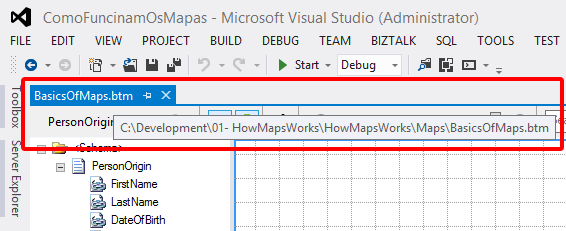
Finally, you will have an easy way to accomplish this! This will save us much time in the developing process, for me this is basic stuff and this is a timesaver feature!
Note: Even if you don’t have the Solution Explorer Window opened, this feature will find the file that you are looking for and will automatically open (or give the proper focus to) the Solution Explorer window.
You can access these features by:
- On the Visual Studio MDI window, right-click in tab with the name of the file and select Locate it! option

As you can see in the picture below, the result is that the project will be expanded and the desired file will be selected:
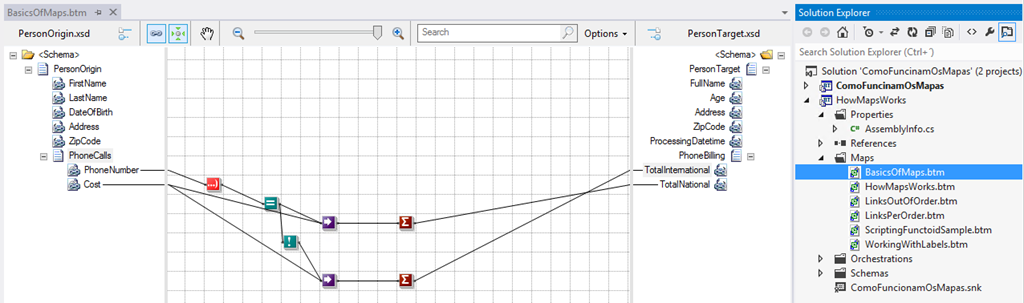
Again, this is very useful for a BizTalk Developer because he needs to locate the file to test or generate schema instances or test, validate or debug maps or other artifacts.
Test Pipeline
There are many ways to test BizTalk pipelines, for example:
- Using the Biztalk Pipeline Framework to create unit testing
- Using the Pipeline.exe tool
- By deploying them and testing in execution time (BizTalk Administration Console) with real messages
But to be honest, there isn’t a proper build-in support feature in Visual Studio to test our custom pipelines.
Once again, BizTalk NoS Ultimate will provide that for you. This feature will allow us to easily test our custom pipelines, directly from Visual Studio, by simply right clicking on the pipeline, expand BizTalk NoS Testing, and select the Test Pipeline option:
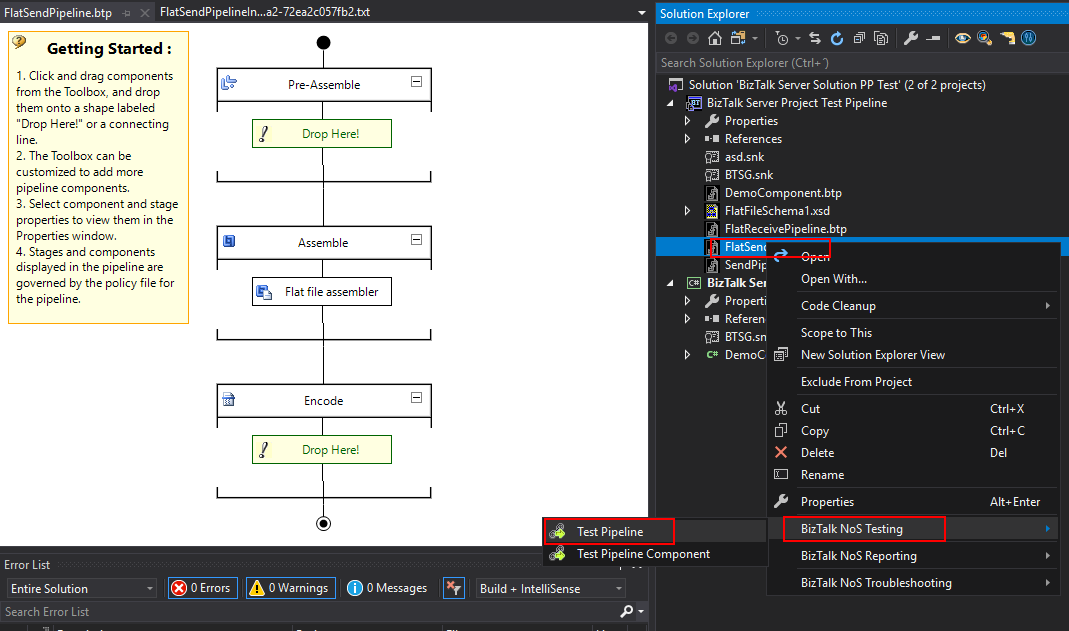
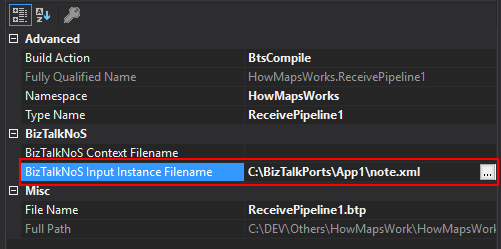
- First, you need to go to the Properties window of the pipeline and set the BizTalk NoS Input Instance Filename property, with an instance of the message that you want to try against the pipeline
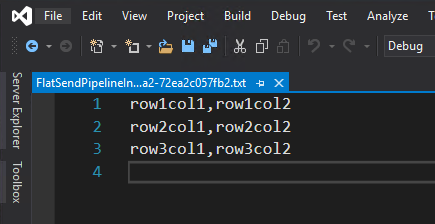
- It will show you the result of the pipeline test directly in VS IE
Test Pipeline Component
As the previous, one testing or debugging a custom pipeline component can be a challenge and most of the time you will need to test them in runtime. If you want to debug them then you will need to attach the pipeline component code to the BizTalk process in Visual Studio.
Once again, there isn’t a proper build-in feature in Visual Studio to test and debug our custom pipeline components. Now with NoS, you will be able to debug your pipeline component without having to deploy and run them in runtime. Now, from Visual Studio, you will be able to attach this test execution to an external process without caring about BizTalk environment by:
- Right-click on the pipeline that contains the custom pipeline component that you want to try, expand BizTalk NoS Testing, and select the Test Pipeline Component option:
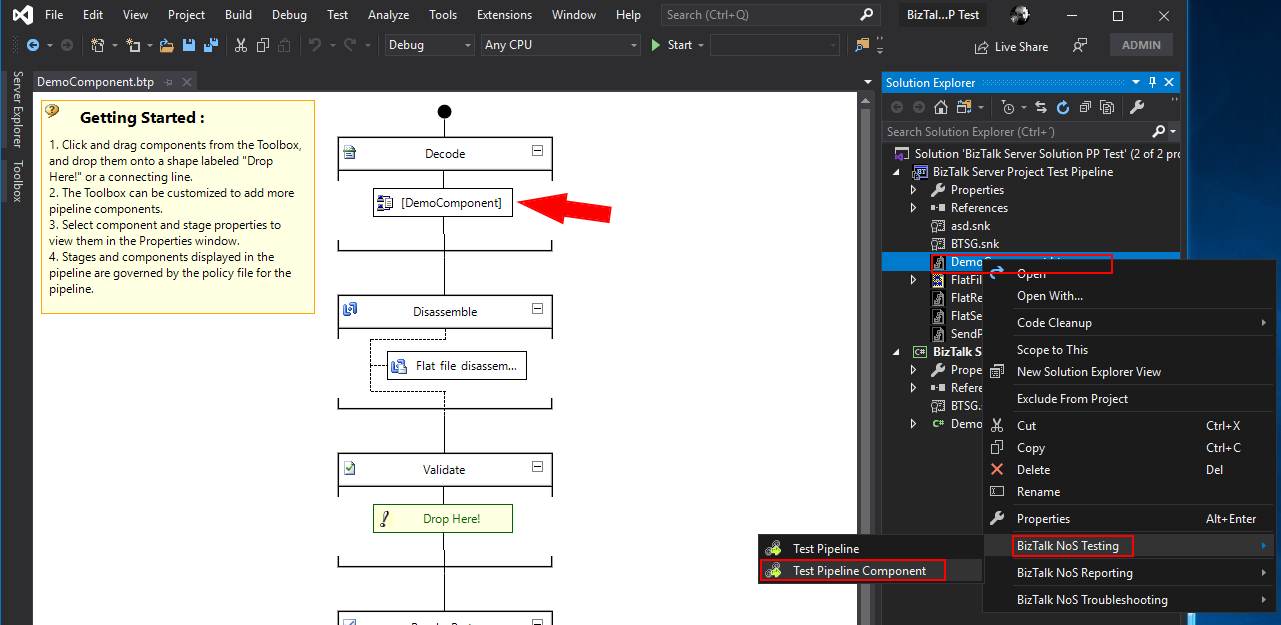
-
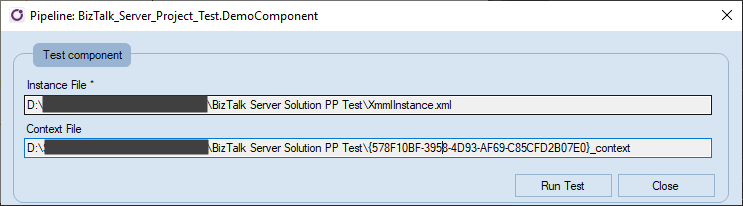
- This will automatically attach Visual Studio to a process called BTSG.TestPipeline.exe process (the title will also contain the name of our pipeline)
- Make sure that the instance of a message is correct and make sure that you have set breakpoints in your custom pipeline component, and then click Run Test
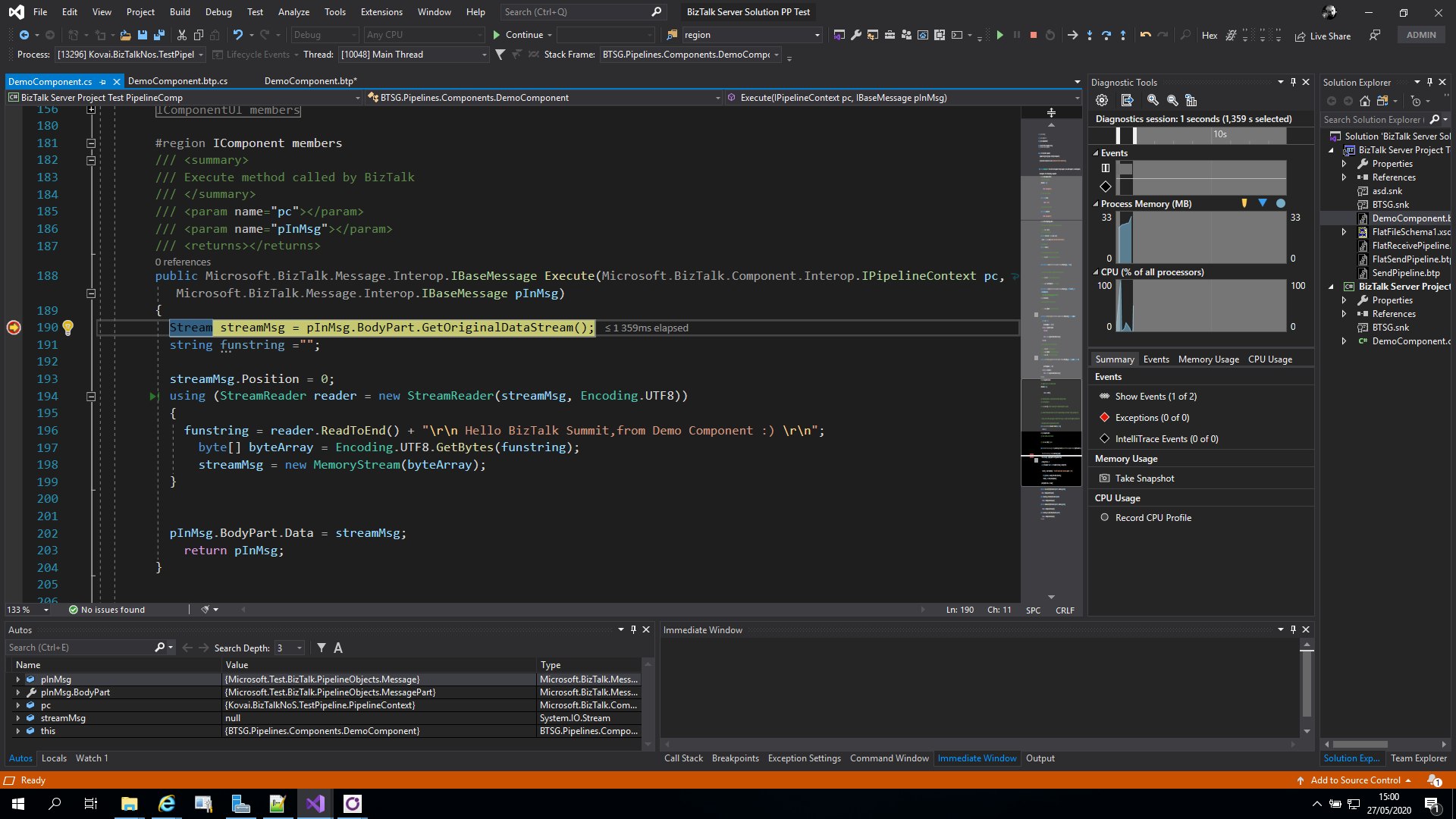
- You should be able to start debugging your custom pipeline component code.
I hope you are enjoying these features and stay tuned because this extension has more! Feel free to try this amazing extension for BizTalk Server here: Download BizTalk NoS Ultimate for BizTalk Server 2020.
The post BizTalk NoS Ultimate: Features Overview (Part IV) appeared first on BizTalk360.
by Sandro Pereira | Jun 10, 2020 | BizTalk Community Blogs via Syndication
In the last blog post, we analyzed the report capabilities of BizTalk NoS Ultimate – Reflector and Refactor. Today, we will continue to analyze the list of available features present in this Visual Studio extension, focusing on the daily BizTalk Developer’s improved tasks.
These are, what I call, simple tasks that will improve the BizTalk developer experience which will reduce the development and deployment time in new or existent BizTalk projects.
Build Project
You are probably thinking, why do I need another Build option? The reason is simple: sometimes we have a huge solution with several projects inside, and in these situations trying to build one simple project with the out-of-the-box Visual Studio option can be a challenge. It will take a huge amount of time trying to build the project because of all of the dependencies.
The option in NoS will build the desired project without any interaction with the Visual Studio design environment, making this operation faster than the native build operation in Visual Studio.
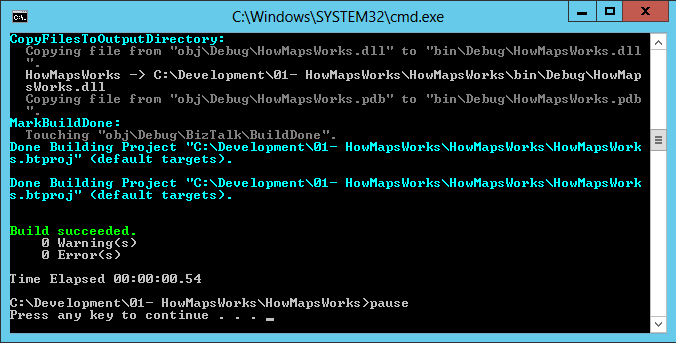
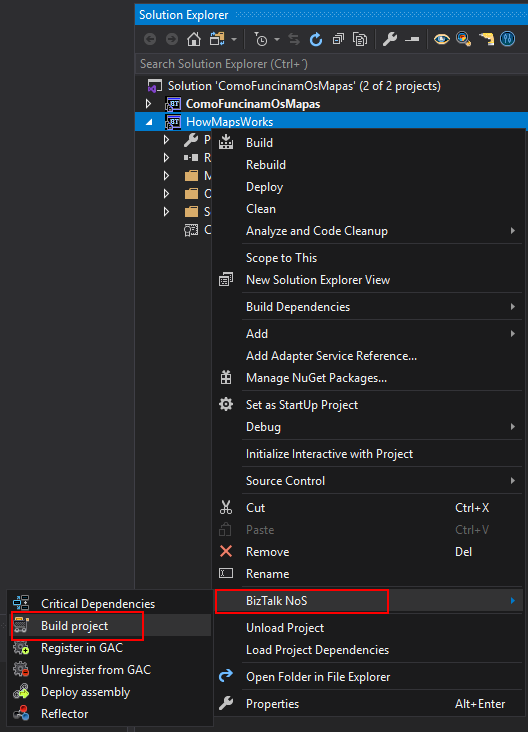
You can access these features by:
- Right-click on your project name, expand BizTalk NoS and select the Build project option
Fast Register/Unregister in GAC
How many times have you desired to have a simple easy and quick way to install a DLL, and (why not) also uninstall, in the Global Assembly Cache (GAC), and why not directly from your favourite developer tool: Visual Studio? Instead, we need to install DLL’s using the Gacutil.exe tool, and don’t get me wrong, it is an excellent tool, but it is not practical in the day-by-day work!
Finally, now you have this option!
You can access these features by:
- Select your project name, expand BizTalk NoS and select the Register in GAC or Unregister from GAC option
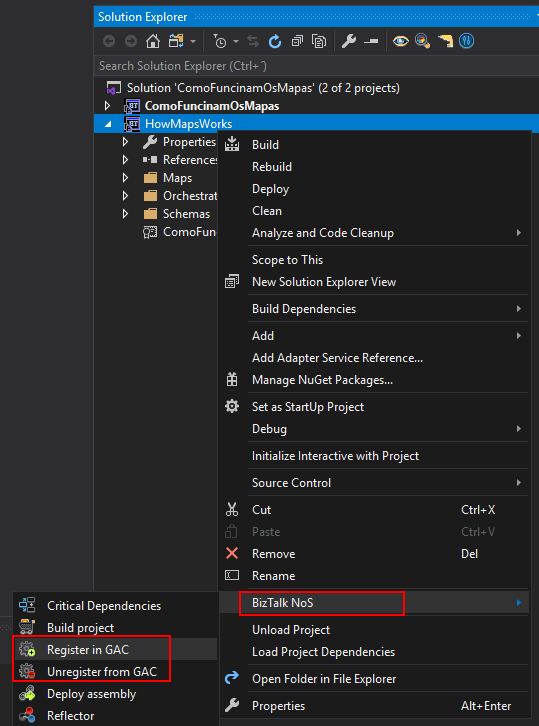
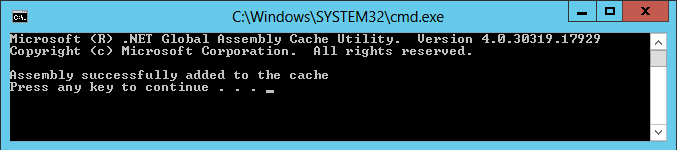
Note: This works with all DLL’s, it doesn’t have to be a BizTalk DLL, you can easily register a C# Helper Class used by BizTalk Projects into the GAC with this functionality.
Deploy Assembly
Again you are probably thinking, why do I need another Deploy option? And the reasons are exactly the same as the Build project option which we described earlier.
This operation will deploy a single BizTalk assembly directly from the Visual Studio without trying to deploy also all of its BizTalk Server project dependencies.
You can access these features by:
- Select your project name, expand BizTalk NoS and select the Deploy assembly option
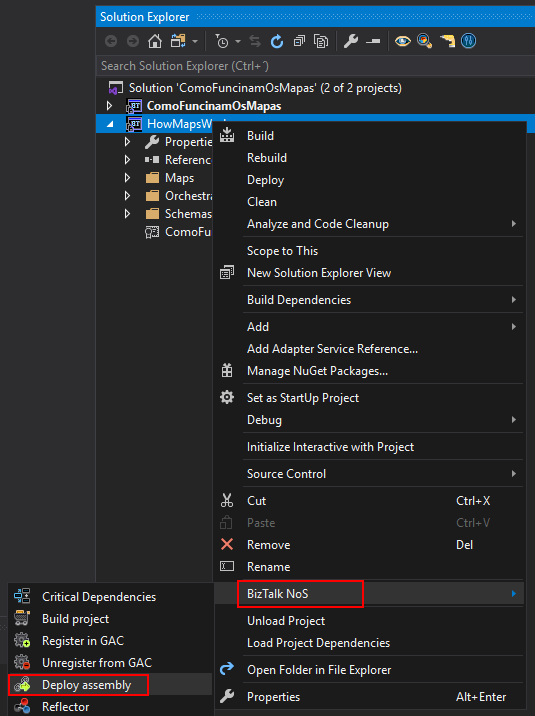
The equivalent we have to this feature is the add/update resources from the BizTalk Server administration console.
What’s the purpose of this feature? In some situations, you just simply don’t want to use the Visual Studio out-of-the-box functionality, as it will deploy all the dependencies and other stuff which will take a huge amount of time. What we want sometimes is only to deploy one specific assembly easily and fast.
This option will allow you to make this directly from Visual Studio, making this operation faster than the native deploy operation on Visual Studio.
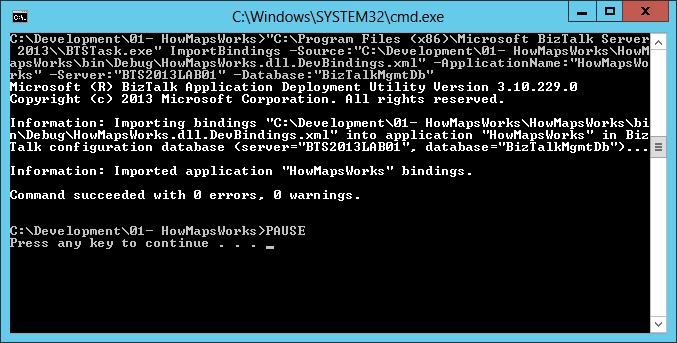
I hope you are enjoying these features and stay tuned because this extension has more! Feel free to try this amazing extension for BizTalk Server here: Download BizTalk NoS Ultimate for BizTalk Server 2020.
The post BizTalk NoS Ultimate: Features Overview (Part III) appeared first on BizTalk360.
by stephen-w-thomas | Jun 3, 2020 | BizTalk Community Blogs via Syndication
This blog is an extraction of the session “BizTalk360 – The past, the present, and the future” presented by the CEO of Kovai.co, Saravana Kumar at Integrate 2020.
This blog gives an overview of how BizTalk360 started and how the challenges have been enhanced and what will be future of BizTalk360.
About Saravana
He is a hard-core technical person and Microsoft MVP since 2007. As he was working in the BizTalk Server integration space for a decade. He found himself challenging to while work with BizTalk Server projects to manage and monitor the applications and other components. Hence the birth of BizTalk360.
The origin story of BizTalk360
BizTalk360 was founded in 2011. It’s almost 10 years now. Saravana started this as a hobby project, an idea evolved in one of the MVP summit in 2010. The birth of BizTalk360 started and from there, and now it is an essential tool for enterprises that uses Microsoft BizTalk Server.BizTalk360 is completely a web-based admin console that provides a solution to Operations, Monitoring, and Analytics your BizTalk Server environment.
Interesting topics Covered
BizTalk360 – 10 years Journey (Past)
New Features (Present)
What’s next? BizTalk360 – v10 (Future)What is BizTalk360?
The business that uses BizTalk Server usually relies on standard admin console to manage their day to day activities but that won’t sufficient to do complete operational, Monitoring, and Analytical activities. Other third-party solutions like SCOM and custom development solutions are not matured enough to fill the gaps in BizTalk Server. Moreover, in an analytics perspective, BizTalk admins doesn’t have any clue about what is happening in the system? Our tool BizTalk360 is a single operational, Monitoring, and Analytics for the Microsoft BizTalk Server.
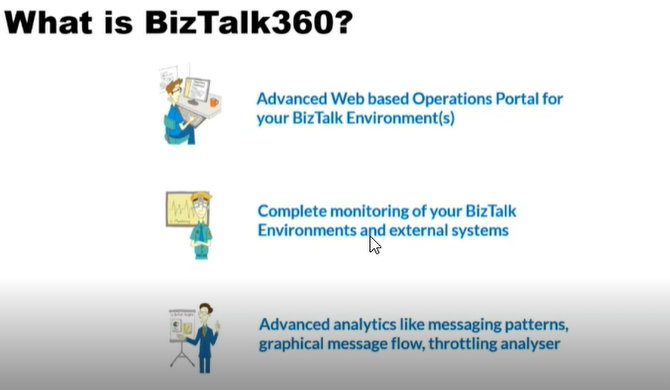
A single tool to improve your productivityBizTalk360 addresses some of the key features. Consider if you don’t have a BizTalk360 environment and the way you manage the BizTalk server environment is by using at least seven of the below productivity tools. Such as
- BizTalk admin Console
- SQL Management Studio
- Event viewer
- Performance Monitor
- BAM portal
- ESB Portal
- BizTalk Health Monitor
- Monitoring Consoles
Dashboard
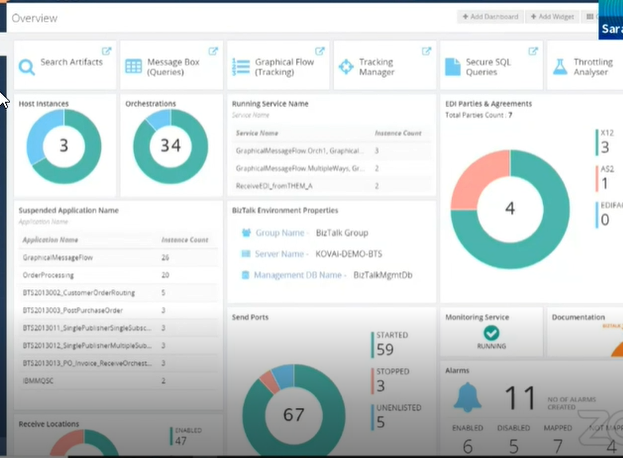
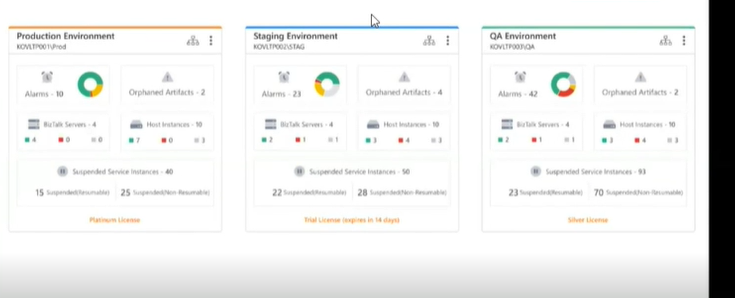
The main challenge in the admin console is that there is not an efficient way to get an overview of their BizTalk server environment status. Whereas in BizTalk360, a customized dashboard is available in order to view the overall health of your BizTalk Server in a single view In this way, you can bring in your business people to support your BizTalk environments.
Event Viewer
When it comes to troubleshooting operational problems in the BizTalk Server, the first-place admins/support person will look is the admin console. If they can’t find anything obvious, their next point of search is the Event Viewer. To address these challenges, “Advanced Event Viewer“ came into existence where all the events from all the BizTalk/ SQL server are stored in a central database.
Performance Tools
BizTalk360 aims to offer an out of box tool with similar capabilities as the Performance Monitor tool in Windows servers. Analytics offers a visual display of the most important performance counters in a consolidated way and arranged on a single screen so that the information can be monitored in a glance.
Business Activity Monitoring (BAM)
BizTalk360 comes with an integrated BAM portal that allows the business users to query BAM views, perform activity search, view the user permissions, and the activities time window.
ESB exception management framework
Even though the Exception management framework itself is a stable offering and fully supported by Microsoft still it is missing some important capabilities like
- Bulk Edit/Resubmit – It is very important since when there is a failure you will typically have 10’s-100’s of failed messages for the same reason.
- Auditing – There is no ability to trace all the activities like edit, resubmit actions.
To address all those challenges as highlighted
Our tool provides a rich ESB exception dashboard with a full search/filter/display of exception details.
BizTalk Health Monitor
BHM is a tool that can be used to analyze and fix issues in the BizTalk server environment. The predecessor of the BHM tool, Message Box Viewer (MBV), was initially built as a hobby project by one of the Microsoft Support Persons.
User Access Policy
On the left-hand side of the image is the standard admin console. Basically standard admin console doesn’t provide any access/security. There is no restriction on users. Once the user gets control of the BizTalk admin console. Users will be able to view the entire admin console.
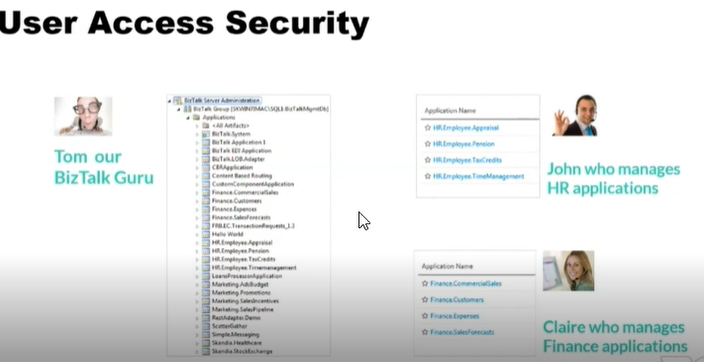
In the shown example,
Tom is our BizTalk360 admin who has all access to all the integrations in the BizTalk server but John from HR and Claire from finance altogether from different teams. They must not be provided with the same permission as Tom.
This sort of application isolation security has been provided in BizTalk360.
Governance and Audit
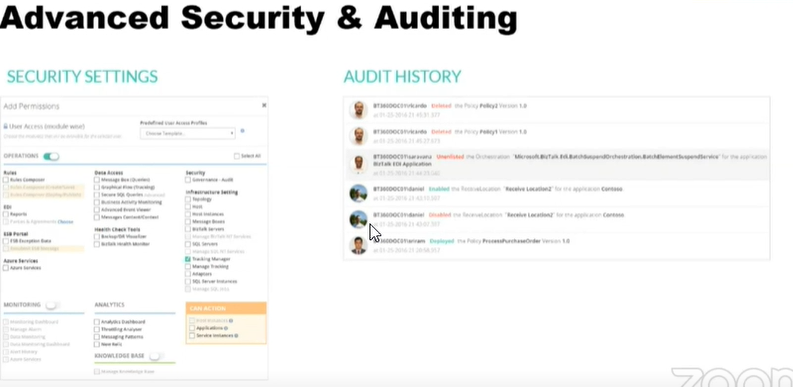
The standard BizTalk server Admin console doesn’t come with any in-built auditing capabilities for user activities. Once someone has access to BizTalk Admin Console that is, pretty much entire BizTalk support team, they are free to perform any activities without a traceIn the BizTalk server, if any of the host instances is in stop state or if any of the host instances goes down, such activity has not been traced. In BizTalk360, the auditing section comes as an in-built tool to trace what’s been done in the BizTalk server console.
Advanced Tooling
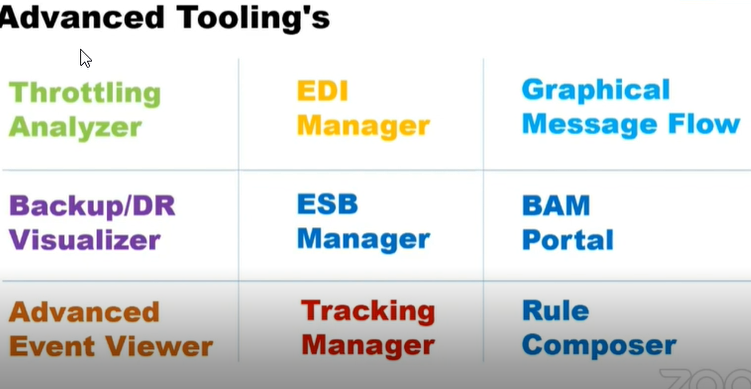
Some of the advanced tools that have been developed in BizTalk360 in the past 10 years.
- Throttling Analyser
- EDI Manager
- Graphical Message Flow
- Backup/DR visualizer
- ESB manager
- BAM Portal
- Rules Composer
- Tracking Manager
Throttling analyzer
The idea behind the BizTalk360 throttling analyzer is to simplify the complexity in understanding the BizTalk throttling mechanism and provide a simple dashboard view. This helps people to understand the throttling conditions in their BizTalk environment, even when they do not have very deep technical expertise
Graphical Message Flow
In standard admin console, it is time-consuming as everything is stored in a flat-file format. Especially, if you got a more complex, very loosely coupled system the challenges get worse diagnosing/understanding the message flow. And another disadvantage is, when somebody has access to the tracking queries, confidential information might be revealed to unauthorized people.
In BizTalk360, it assists to visualize the entire message flow in a single view where it encapsulates
- All service instances
- Send port
- Orchestration
- Receive port details
Rules Composer
For example, if users want to roll out rule dynamically on Christmas, users need to seek help from development and this can be time consuming process as well. BRE is a simplified tool that will empower business user to manage business rules in a complex business process
Monitoring
Another key capability of BizTalk360 is Monitoring. The tool provides extensive monitoring which ensure your health of the BizTalk server environment. BizTalk being a middleware, it is always connected to various systems, we make sure that all the connected systems are in a healthy state.IBizTalk360 comes with integrated systems like
- SQL
- MSMQ
- IBMMQ
- Web End Points
- Azure Service Bus
- Web Jobs
- SFTP locations
- Disks
We are super proud to convey that no other product provides a complete monitoring tool for the BizTalk server.
Over 20 years of experience in field and that has been covered in Monitoring which meets up the customer requirements.
On a confident note, there is no other product in the market which serves 100% BizTalk Server monitoring.
Biztalk360 can be integrated with your current Enterprise Monitoring Stack
- Service now
- AppDynamics
- Dynatrace
- New Relic
BizTalk360- 10 years of innovationFor the last 9 years, consistently there will be 4-5 releases happening every year. For more information regarding release taken in every year.
Consistently, we are filling in the gaps Microsoft has left for the global BizTalk server Customers.
To align with the latest migration of Biztalk application in the cloud, the same has been brought in BizTalk360.
BizTalk360 has become the de-facto tool for BizTalk server customers. Used by over 600 large enterprises including Microsoft.
The Future
One of the biggest change its been take up is rewriting the entire UI in a new way. Backend API are pretty solid, but front end its initially started with silver light. In the upcoming years, UI will be complete change to Angular 8
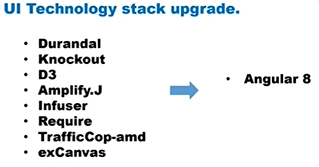
Currently, the development team is working on the up-gradation of UI in BizTalk360.
Continued Innovation
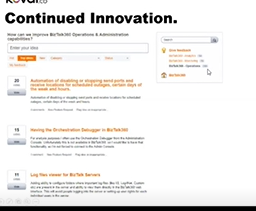
The above mentioned is the user forum and based on the customer’s feedback, if it is appropriate it’s been added to the product for every release.
Wrap Up
In this blog post, we discussed, what is the past, present, and future of BizTalk360. Still, there are lots of announcements and feature enhancements that are yet to come. Stay tuned for further updates. Happy Learning!
The post BizTalk360 – The past, present and the future appeared first on BizTalk360.
by nadeemahamed.riswanbasha | Jun 3, 2020 | BizTalk Community Blogs via Syndication
This blog is a transcript of the session “RPA in Enterprise Integration” presented by Kent Weare, Microsoft Power CAT PM Lead – RPA & BOTS at Integrate 2020.
In this session, Kent will introduce the new service and then demo many different scenarios where RPA can be used in the enterprise.
Agenda
- What is a Bot?
- Bots and the Power Platform
- What is RPA and Why Should I care?
- Demo
- Call to Action
What is a Bot?
A bot is a software application that is programming to do certain tasks. Bots are automated, which means they run according to their instructions without a human user needing to start them up. Bots often imitate or replace a human user’s behaviour. Typically, they do repetitive takes, and they can do them much faster than human users could.
Next, Kent discussed about two kinds of Bots. They are Robotic Process Automation (RPA) Bot and another one is Conversational Chat Bots.
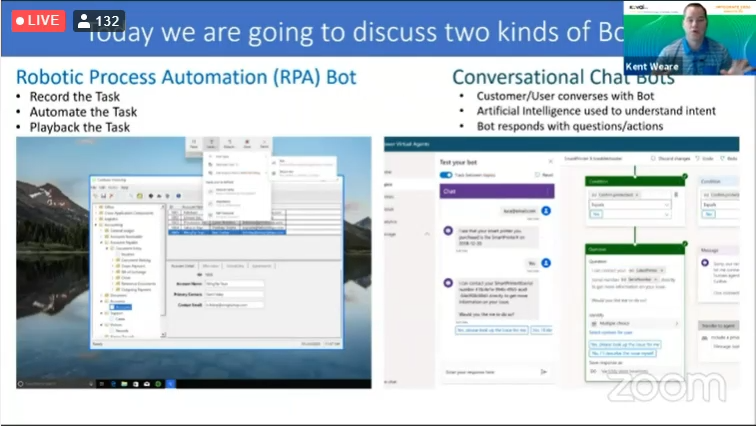
Robotic Process Automation (RPA) is typically used to perform time-consuming tasks on legacy platforms where integration is not possible or expensive. This tool help organisations accelerate their digital transformation projects without having to replace legacy systems or develop expensive integration solutions.
Conversational bots allow users to interact with your web service through text, interactive cards, and task modules. Example of Chat Bots like Facebook messenger, web chat, WeChat etc. Conversational bots can be scoped to handling a few simple commands or complex, artificial-intelligence-powered and natural-language-processing virtual assistants.
Microsoft Power Platform
The ‘Power Platform’ is a collective term for four Microsoft products: Power BI, PowerApps, Power Automate (previously known as Flow) and Power Virtual Agents.
Power BI
Make informed, confident business decisions by putting data-driven insights into everyone’s hands.
Power Apps
Turn ideas into organizational solutions by enabling everyone to build custom apps that solve business challenges.
Power Virtual Agents
Easily build chatbots to engage conversationally with your customers and employees—no coding required.
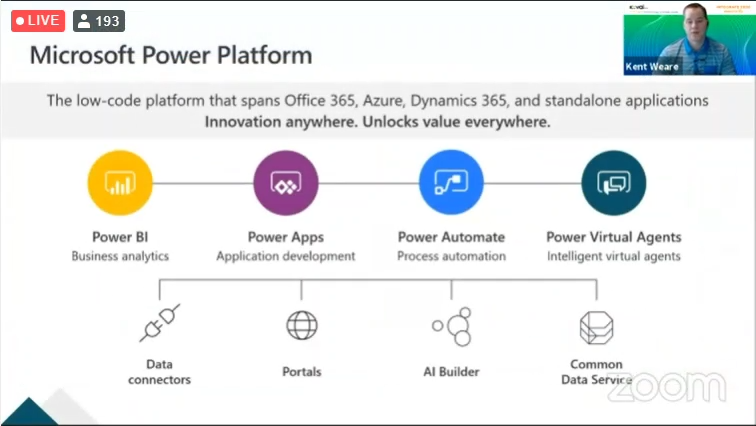
Power Automate
Microsoft recently released a new service in Power Automate (formerly known as Microsoft Flow) that provides makers with Robotic Process Automation (RPA) capabilities. RPA can be used to integrate legacy applications like web and desktop applications into modern automation solutions
Demo – Hello world Power Automate – UI Flow
Step 1: Log on to flow.microsoft.com
Step 2: Select My flows > UI flows > New.
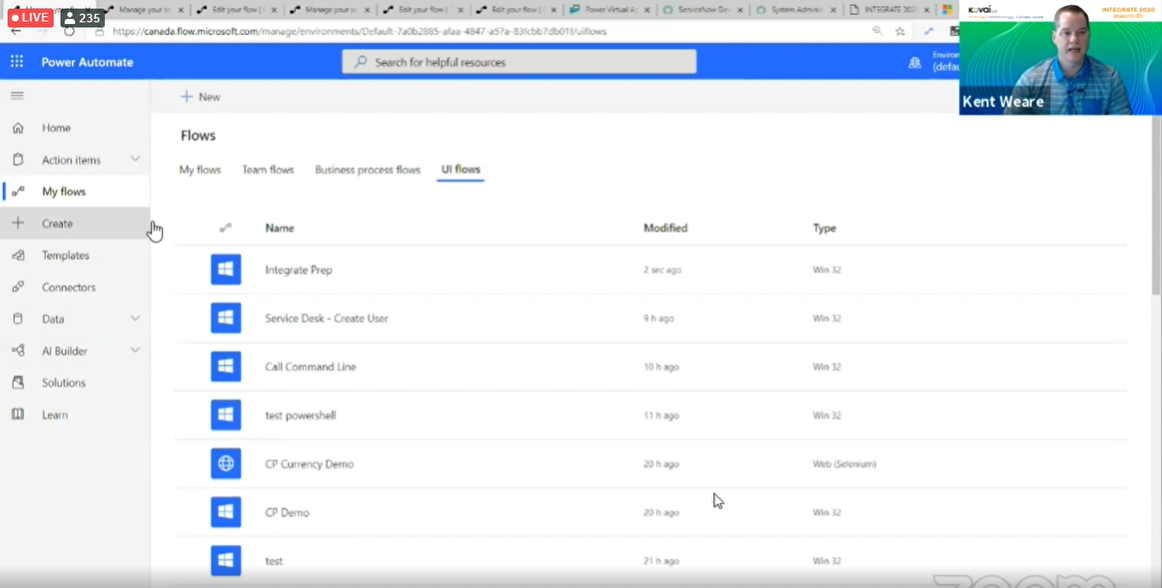
Step 3: Select Web app > Next
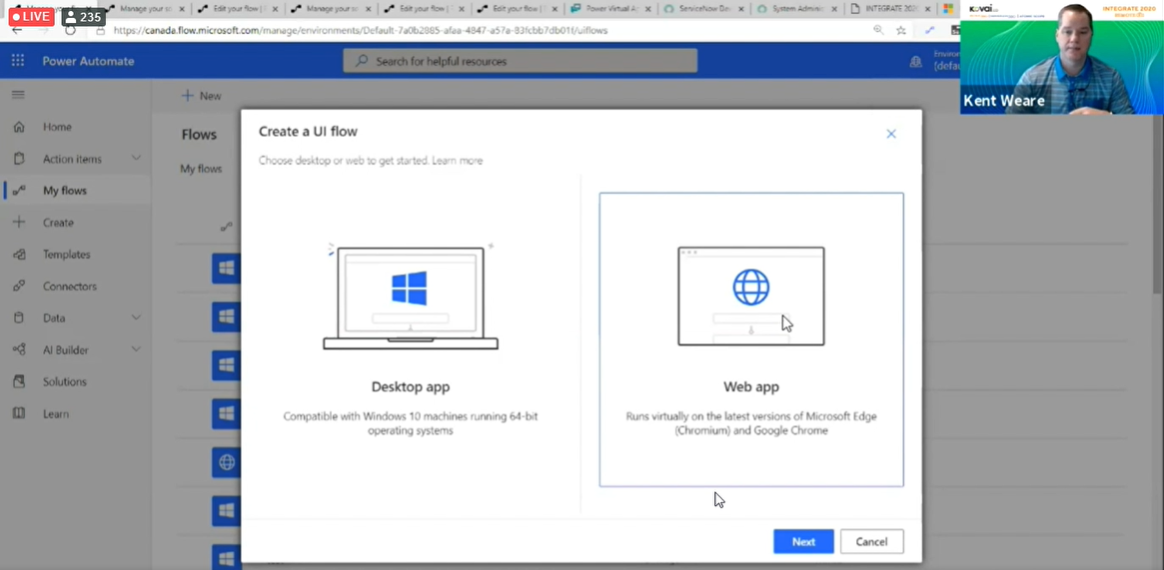
Step 4: Enter a name for your UI flow into the Flow name field.
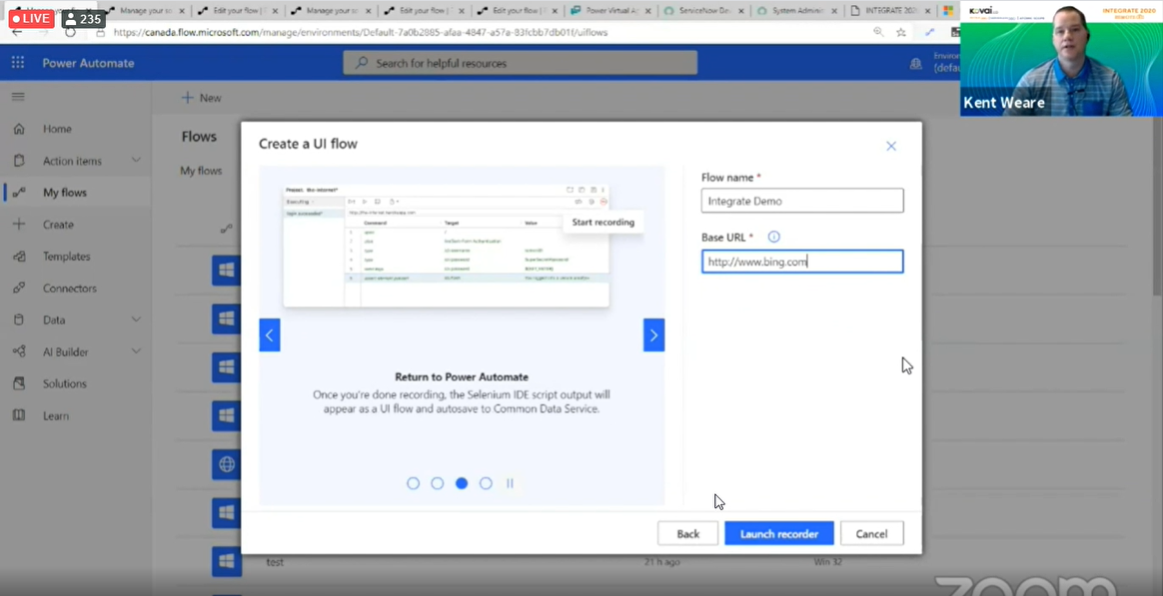
Step 5: Enter the URL for the Website you want to automate into the Base URL field, and then select Launch recorder. The Selenium IDE launches.
Step 6: In Selenium IDE, select the red REC button in the top right side of the screen to launch the recorder. The URL you chose in the previous step opens.
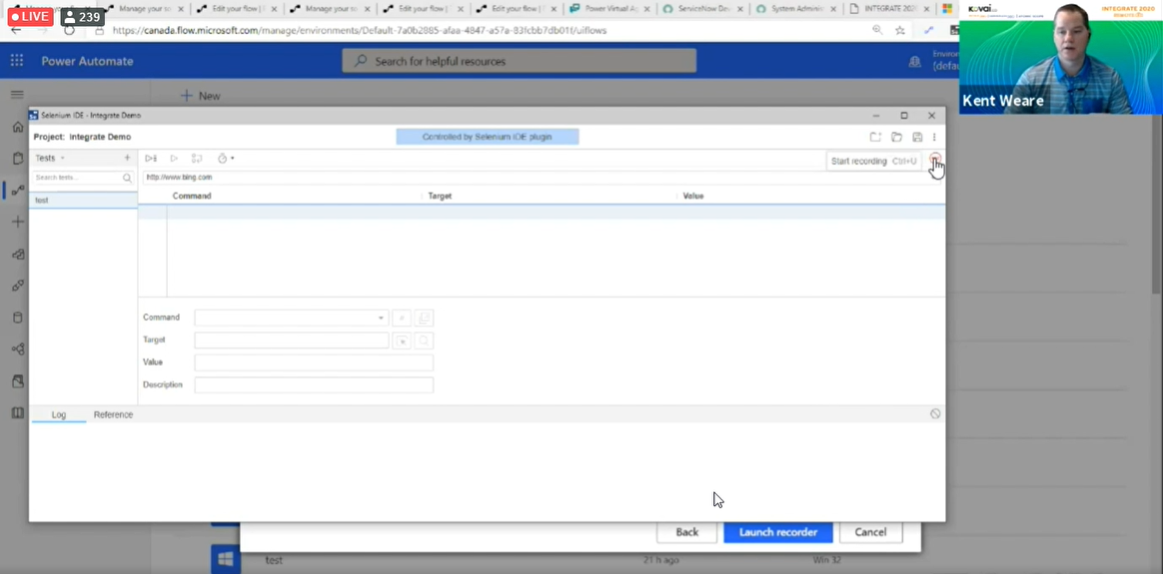
Step 7: Perform the actions that you want to record on the website.
Step 8: When you are finished recording, select on the red Stop button in the top right corner of the Selenium IDE.
Step 9: Select the Run current test button from the top left side of the screen to see the UI flow you just created run.
Step 10: Select the Save project button in the top right of the Selenium IDE. This close, and then uploads the project.
Time Sheet Scenario
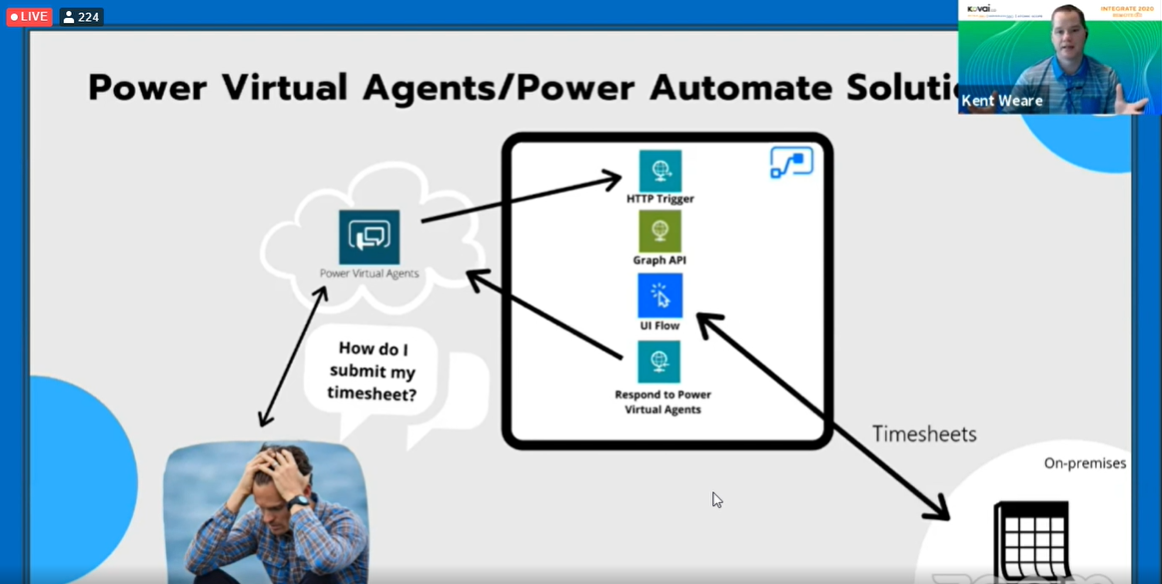
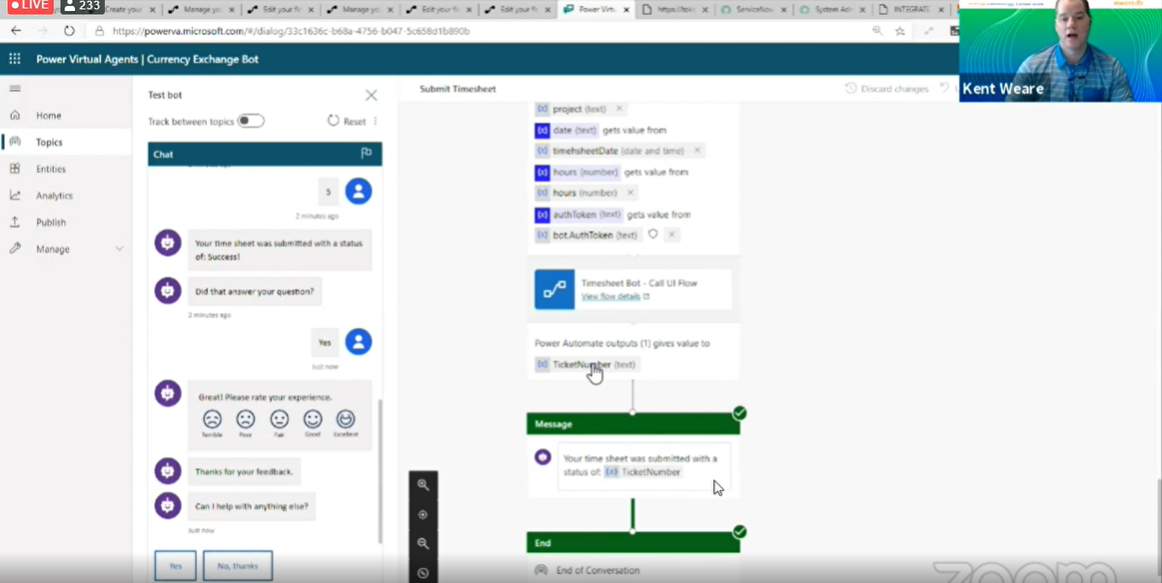
In this scenario is that we have a legacy timesheet application that requires us to be on the corporate intranet in order to fill in our timesheet. But, since we have UI Flows available to us, we can just provide our time entry details to the bot and UI Flows will take care of inputting that information into our timesheet application.
Our architecture includes creating a flow that exposes an HTTP Trigger. We will then retrieve details about the person submitting the timesheet by looking up their details in Graph based upon the Authorization token that is provided from Power Virtual Agents. We will subsequently call a UI Flow where our data will be inputted into the timesheet application. From there we will return our status back to the bot conversation so that our user knows that their timesheet has been successfully saved.
Summary
The use of RPA will help with routine, mundane and repetitive task. This blog covers various scenarios covered on topic “RPA in Enterprise Integration”. The key parts of discussion focus on the RPA, Chat Bot, Power Automate and Power Virtual Agents. The discussion extended with Demo of Time Sheet applications using Power Automate and Power Virtual Agents.
The post RPA in Enterprise Integration appeared first on BizTalk360.
by Sivaramakrishnan Arumugam | Jun 2, 2020 | BizTalk Community Blogs via Syndication
Introduction
This blog is an extraction of the session “Setting up a highly available BizTalk Server in Azure” in the Integrate 2020 event presented by Samuel Kastberg, Senior Premier Field Engineer at Microsoft.
It gives you an overview of setting a highly available BizTalk Server in Azure using BizTalk2020 at a very high level. More and more it is common to install BizTalk environments in Azure. As especially Production environments require high availability, today Samuel gives guidance on HA related topics like network configuration, load balancing and alternatives for clustering SQL Server
Things we will focus on
- Focus on BizTalk Server 2020
- No consideration on moving to Azure Integration services
- Things that are different/ specific to Azure
Considerations
When you are setting up the BizTalk server environment, we have lots of considerations. When it comes to Azure just as on-premises you have set of rules and it will vary on how your environment works, your requirements, organization policies, what kindly of policies were followed.
Here are some important aspects,
Governance
- Rules, requirements from Organizations
Set of Products what you are working
- BizTalk server
- SQL
- MSDTC
- MSMQ
- IIS
Clustering
Networking
- Load balancer
- Network Security Group (NSG)
- Application Gateway
Provisioning Automation
- ARM templates
- Scripting, e.g. PowerShell
Performance
- Expectations
- Measure
- Resource Sizing
Governance
When it comes to Governance, it will be considered based on your organization’s flexibility.
Things like,
- What set of policies and rules to be used?
- How the resources will work in Azure?
We need to determine first-hand with the owners or administrators of the corresponding Azure subscription. For Example,
- Who is the owner of different things?
- Who can perform different sets of actions?
And for resources, the following are the important aspects to be considered
- They will be placed in the Azure subscription under the resource groups.
- In order to organize the resources in the subscriptions, it will be different from business to business. For example, some customers have one subscription for everything and different subscriptions for different environments (Dev, QA, Production)
- This way it is easy for the admins or decision-makers to determine the privileges to be given for each environment.
- To organize the resources, it is important to device the plan like whether all the machines should be in the same resource group or hub (BizTalk Servers and SQL servers in different groups).
- And of course, who will be the owner of the resources is differs from customers to customers.
- Resource tagging is another important criterion where you need to tag the resources in order to identify different environments (Dev, QA, Production)
Cost Management
This is one of the essential criteria when you are working with Azure as the bill will be paid every month based on resource usage. Basically, a license in the Azure costs the difference between different products. Users will pay in advance for the resources or pay per usage. Purely, it depends on what kinds of enterprise you have with the Azure.
Tip: Azure pre-purchased License cost will be cheaper than when you pay as go.
Resource Provisioning is an essential task, you need to determine where you will organize your files and how to use it?
Security
Security is another important aspect to be considered. You need to have your account, groups, and determine the access control between your Azure Active Directory and the hub with networking security.
Networking
Basically, BizTalk will access to different folders in the on-prem solutions. And, communicate with SQL servers, Services (Http, Https), and other infrastructure elements. To have a seamless connection, the proper plan needs to devise with your infrastructure team.
Products
If we look at a little bit on the product side that is necessary to set up highly available here are some of the products SQL Server, MSMQ, BizTalk Server, MSDTC.
Here are some important aspects to be considered,
SQL server
- Only IAAS is supported (the only version of SQL that supports SQL transactions)
- Licensing BYOL or pay as you go
- Backup BYOL or pay as you go
- Backups to Blob storage
Tip: In Azure, it is cheaper with blob storage than using the file.
SQL Server High Availability (HA)
- Availability Groups that own its own storage
- Failover Cluster instance (FCI)
- Shared Storage
MSMQ HA
- Shared Storage
- Storage spaces direct
BizTalk server
- Licensing BYOL or pay as you go
BizTalk server HA
- Clustering for single instance hosts
- Enterprise SSO Master Secret Server
- Application gateway for incoming HTTP traffic
MSDTC HA
- Clustering and configure the Load Balancer
- Fixed port
- Use the same cluster role as SQL
- Shared storage
Clustering
For the clustering,
- Networking, you must use a load balancer to route traffic.
- Shared storage (will see the alternative solutions).
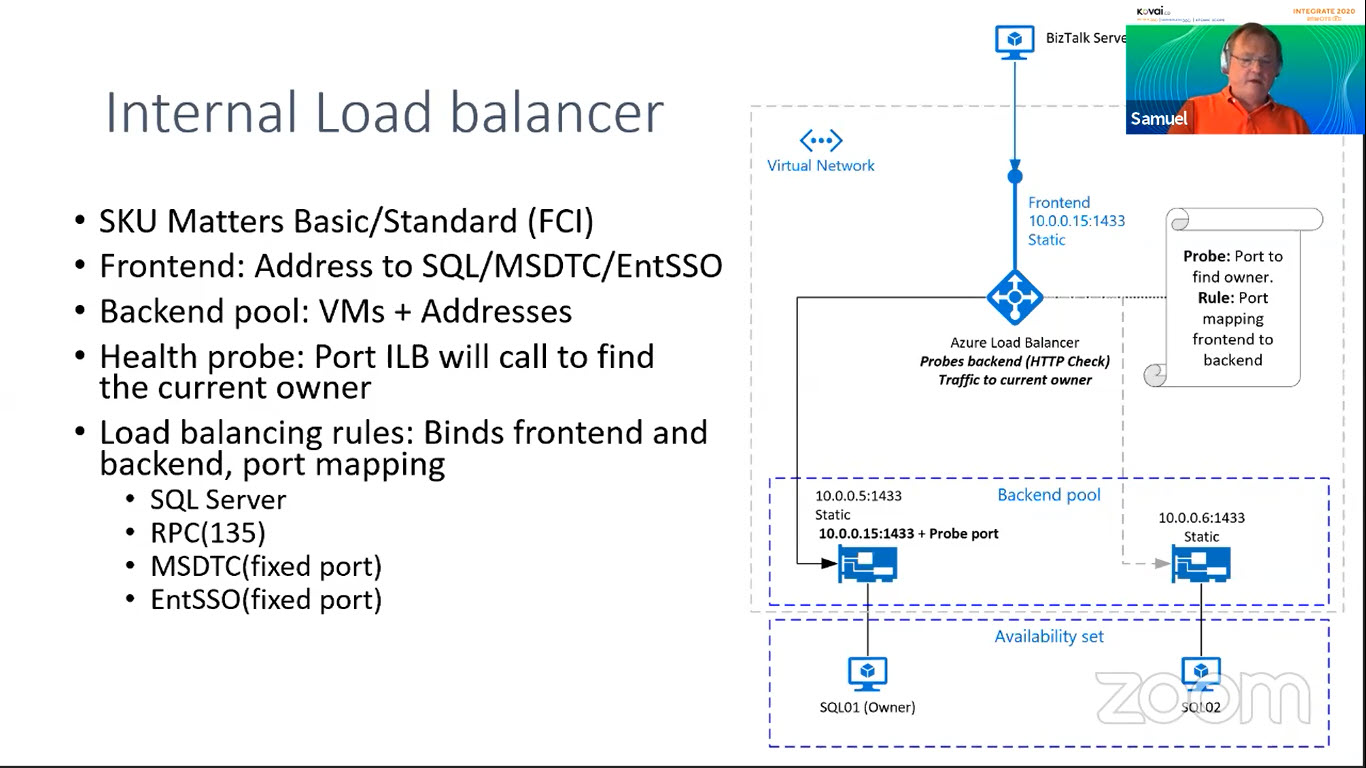
Internal load balancer
Let’s see the structure of the Internal load balancer
SKU Matters
There are two SKU Matters available as Basic and Standard for the load balancer. In the standard, there is always needed to have the network security group and the network card you select should be in standard SKU’s.
Frontend
- The front end is the service address. It could be SQL, MSDTC, EntSSO, etc.,
- Backend pool is the virtual machines and address
- To identify which machine is the current owner of the service, the health probe should be configured. This way load balance will ping and check the currently available service.
Load Balancing Rules
It will bind the front and the backend.
Port mapping is taken place here to determine only one port to be configured.
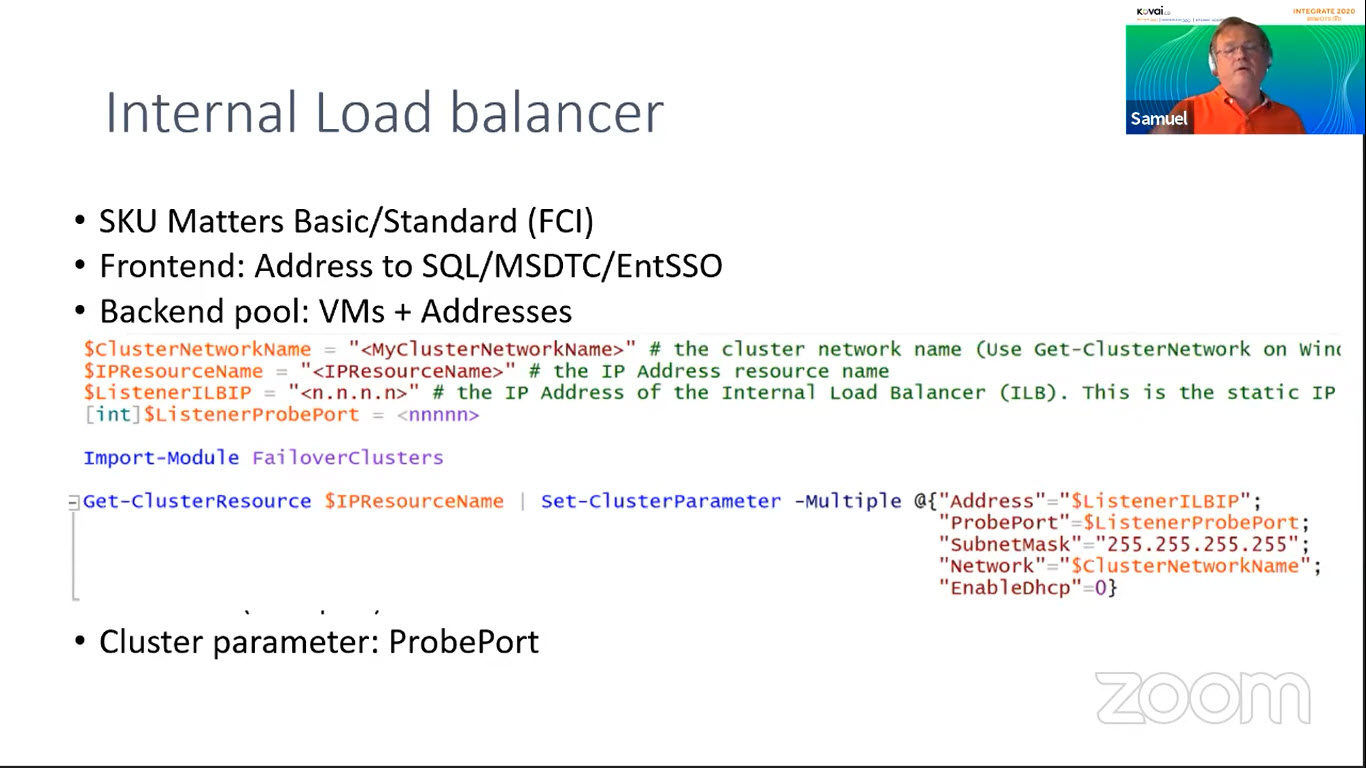
The other parameter is the Cluster. The ProbePort parameter needs to be set as it will check the health of the load balancer.
Shared storage
This will be needed for clustering when you use Fail over clustering,
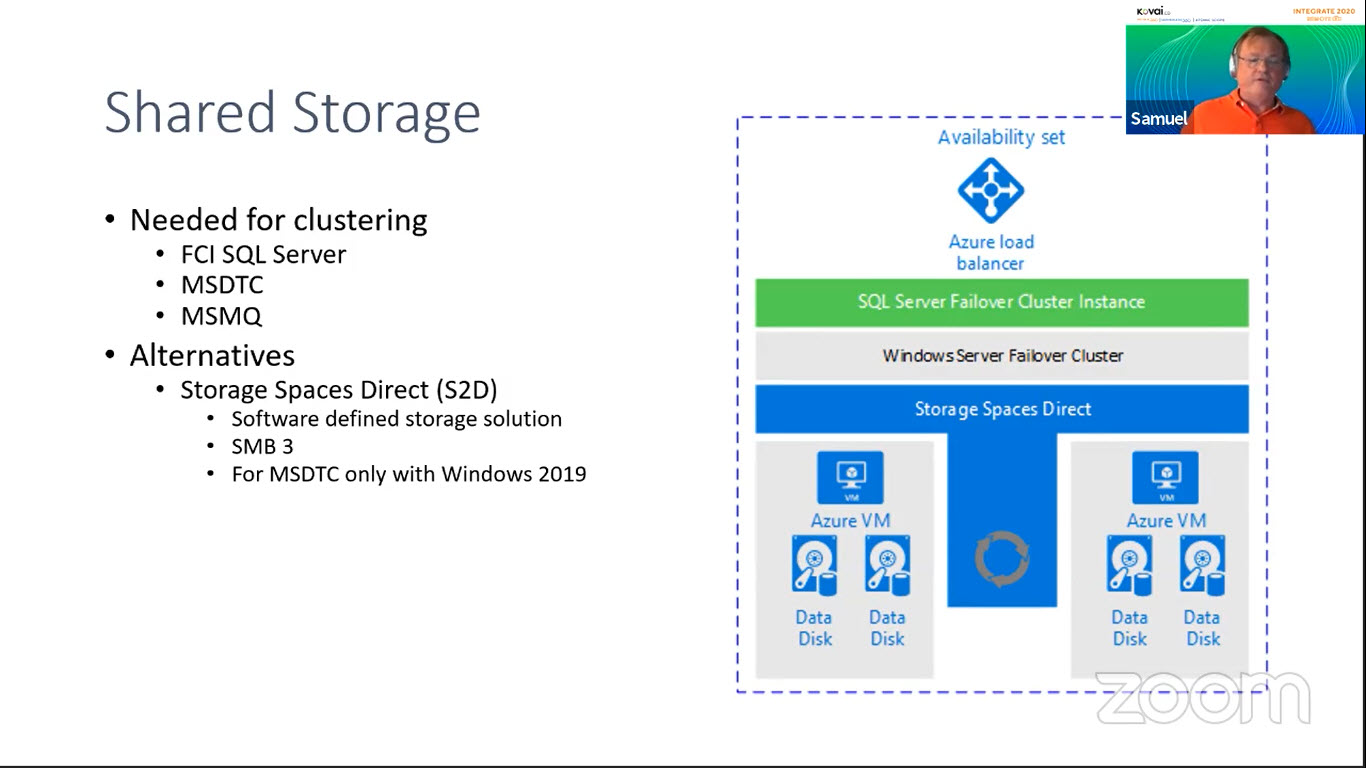
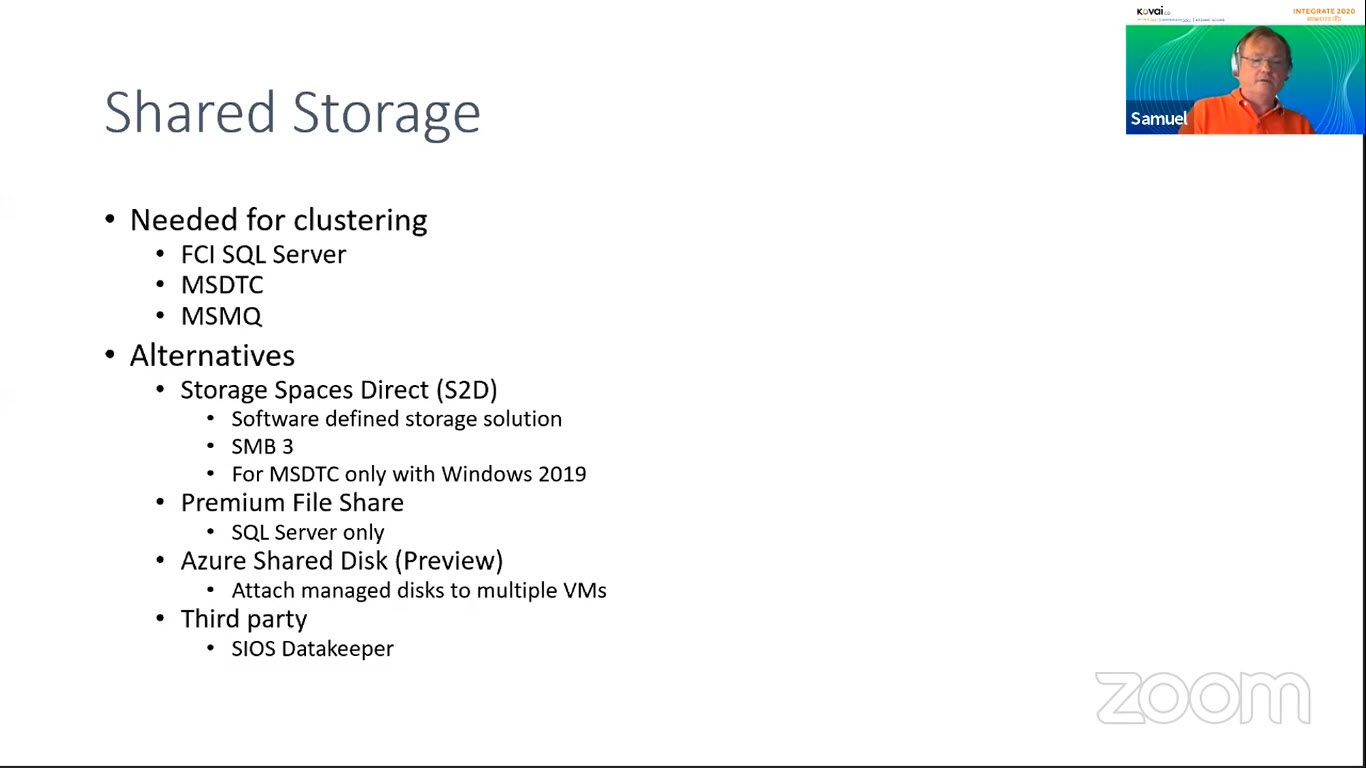
MSMQ, MSDTC. So, there are alternatives, storage spaces direct which is a software-defined storage solution that uses SMB3. The synchronization is happening for a number of VM’s that have two or more disks dedicated to the specific storage spaces. You can create disk areas that represent the clusters and used by the services. For MSDTC, It is only available for Windows 2019 and onwards.
Performance
Virtual machines are coming in different editions, that are optimized to handle different kinds of workloads on the size that matters. It is one of the important aspects that we must look into it,
Selected VM size/option
- Optimized for different workloads
- Size matters for disk speed
- Review what you need CPU/Memory
- Remember licensing – BYOL/Pay as you go
Disk speed/size
- Size matters, size of the disk, and VMS affects IOPS that can be reached.
- Measure with e.g. Diskspd
- Baseline with your current environment
- Compare with your Azure Disks
Resources/References
- MSDTC Supported configurations
- Storage Spaces Direct
- Azure Shared Disks
- Azure VM Storage Performance and Throttling
Conclusion
It was indeed a fantastic session by Samuel. I hope it gives you an overview of setting up a highly available BizTalk Server in Azure using BizTalk2020 at a very high level. Happy clustering!
The post Setting up a highly available BizTalk Server in Azure appeared first on BizTalk360.

by Priyadharshini | Jun 1, 2020 | BizTalk Community Blogs via Syndication
This blog is an extraction of the session “BizTalk 2020 and Beyond” in Integrate 2020 Remote event presented by Valerie Robb, Senior Program Manager at Microsoft.
It gives a detailed overview of BizTalk Server 2020 and future of BizTalk On Premise solutions. This session has also update on BizTalk Migration Tool. BizTalk Solutions
BizTalk Server 2020
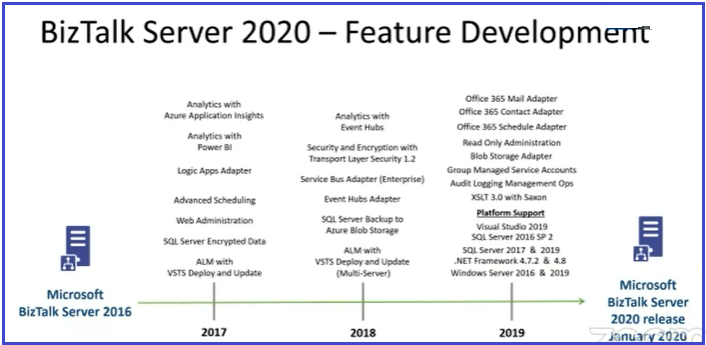
Valerie started the session with Microsoft has announced the release of BizTalk Server 2020 early this year 15th January. Explained what’s new features How the features of BizTalk Server 2020 have been developed year on year (2017, 2018 & 2019) after BizTalk Server 2016.
BizTalk Beyond 2020 Version
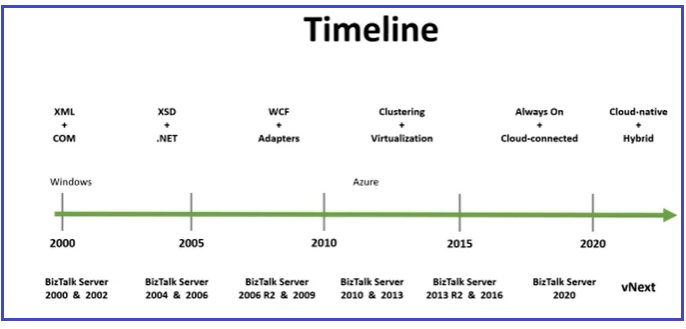
It’s most anticipated announcement from Microsoft Product Team about the future of BizTalk Server. BizTalk Product Team have the plan about the vNext version with Cloud Native and Hybrid Solutions. However, timeline to release of next version is not determined, but It could be as like of BizTalk Server 2016 incremental updates (Service Pack). It’s too early to predict the next version of BizTalk Server, it’s purely based on platforms which runs on and update which version of Visual Studio/ SQL Server supports.
BizTalk Migration Tool
Announcement of BizTalk to Azure Integration Tool is the next major update in the session. The following are the highlights of BizTalk Migration Tools;
- Command Line Tool to assist with Migrating
- Runs against BizTalk MSI files to gather information about the BizTalk solution
- Currently in development – Fall availability planned
- Will be Open Source as designed to be extensible and written in C#
- Migration Tool has divided into six stages, each with their own interfaces;
- Discover
- Parse
- Analyze
- Report
- Convert
- Verify
AIM
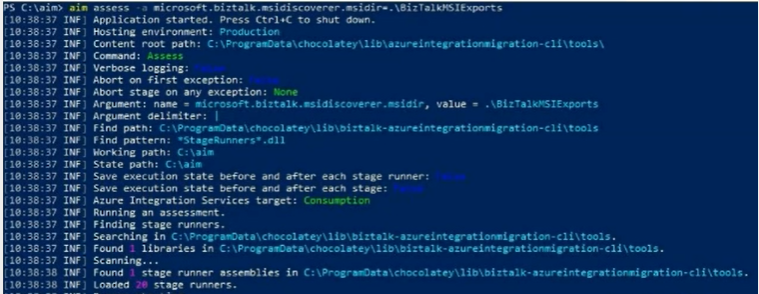
Azure Integration Migration is the abbreviation for the tool command line. It starts the migration with assess command with source path to BizTalk MSI Directory. It will assess the BizTalk MSI and point the hosting environment with Azure CLI Tools.
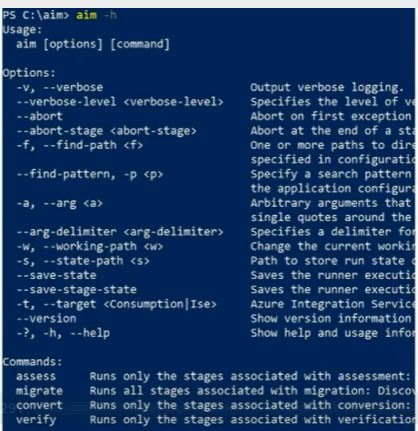
Migration Tool has other command line options
- Migrate: This command will execute the following stages in migration process
- Discover
- Parse
- Analyze
- Report
Convert: Runs only the stages associated with conversion stage
Verify: Runs only the stages associated with verification stage
Migration Report
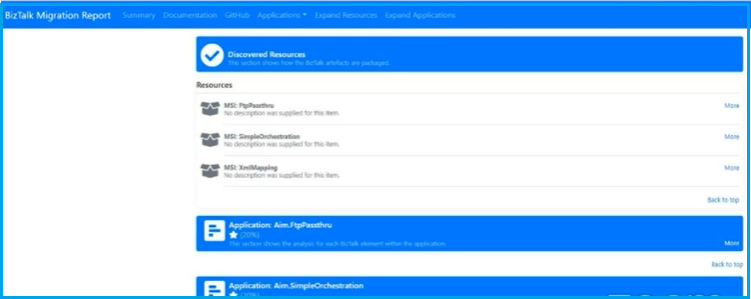
Azure Integration Migration Tool will generate report with detailed information about
- Discovered Resources
- Each Application Artifacts migration – for example FTP Adapter is migrating to FTP Connector in Azure, some manual intervention is needed to authenticate the FTP Server
Migration Path
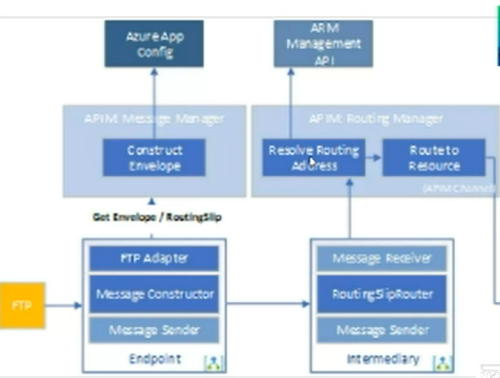
Next, speaker explains how the resources are associated in Azure. Explained how Logic Apps able to send message using FTP and other connectors, how will use Routing to upload to the subscriber(s). For Example, Logic Apps use the Integration Account to converted Flat File schema into XML Schema.
Service Bus Topics
Demonstrated content-based routing and abilities to use context properties with the Service Bus Topics and APIM Routing Manager.
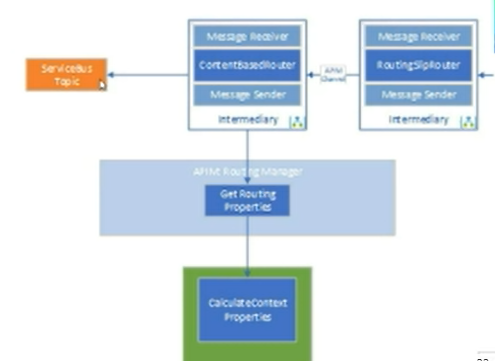
It is initial migration tool with basic information being migrated to Azure. There are gaps needs to be filled based on the customer feedback. BizTalk to Azure Integration Migration Tool is opened source and user can extensible the tool to migrate the BizTalk Applications to Azure.
- BRE is not part of migration tool
- EDI(X12), EDIFACT is not possible now
Conclusion
Microsoft has encouraged the customers of BizTalk On-premise to use the latest Azure Technologies. AIM is in initial phase to migrate the BizTalk Solutions from on-prem to Cloud. Future will be focused on Cloud Native + Hybrid integration.
The post BizTalk 2020 and Beyond appeared first on BizTalk360.

by Sandro Pereira | Jun 1, 2020 | BizTalk Community Blogs via Syndication
INTEGRATE (formerly known as BizTalk Summit) is the primary conference for professionals working in the Microsoft Integration space and once again is back this time REMOTE due to the COVID-19 issue around the word. It will be the first-ever INTEGRATE REMOTE conference that will happen from June 1 to 3, 28 speakers – 12 MVPs, 15 Microsoft PM and 1 former MVP – will address the entire Microsoft Integration Platform landscape on topics like BizTalk Server, Logic Apps, Service Bus, Event Grid, Event Hubs, Power Automate, API Management, Azure Functions and many more.
And once again I will be there delivering a session – since the first BizTalk Summit event, I’m a constant presence as a speaker at these events – about BizTalk Server! This time on a session about: Migration Path to BizTalk Server 2020.
About my session
Session Name: BizTalk Server 2020: Migration Path
The goal of this session to demystify and clarify the BizTalk Server migration process and help both implementation teams as decision-makers to be aware of all the considerations that need to be taken into account when planning your migration to BizTalk Server 2020 and hopefully helping you carry out these tasks.
INTEGRATE 2020 Remote Registration
You are still on time to register for the conference here. Use my coupon discount INT2020-SPEAKER-SANDRO to get 15% discount!
The post Join me at INTEGRATE 2020 Remote | JUNE 1-3, 2020 | BizTalk Server 2020: Migration Path appeared first on SANDRO PEREIRA BIZTALK BLOG.
by stephen-w-thomas | May 22, 2020 | BizTalk Community Blogs via Syndication
Author Credits: Martin Peters, Senior Consultant at Codit
During deployments of BizTalk application, it is common practice to put BizTalk360 in maintenance mode before the deployment and switch to normal mode again after the deployment.
This avoids alerts being sent to various people due to stopping and starting of BizTalk during the deployment. If you are using Azure DevOps to deploy BizTalk applications automatically, you do not want to have a manual process to put BizTalk360 in and out of maintenance mode.
The good news is that BizTalk360 provides a set of APIs which allow you to automate this.
An article from Senthil Palanisamy named BizTalk Application Deployment Using Azure Pipeline with BizTalk360 API’s inspired me to implement this for a customer. In Senthil’s blog, Powershell scripts are used to access the BizTalk360 APIs and turn the maintenance mode off and on. But, as more and more customers are using Azure DevOps and BizTalk360, you need a copy of the PowerShell scripts. The PowerShell scripts might change over time (changes, bug fixing), so the next step is to put the PowerShell scripts under version control and create a DevOps extension.
The DevOps extension is maintained on GitHub, and compatible changes are automatically distributed to all organizations using this extension.
Single Server Scenario
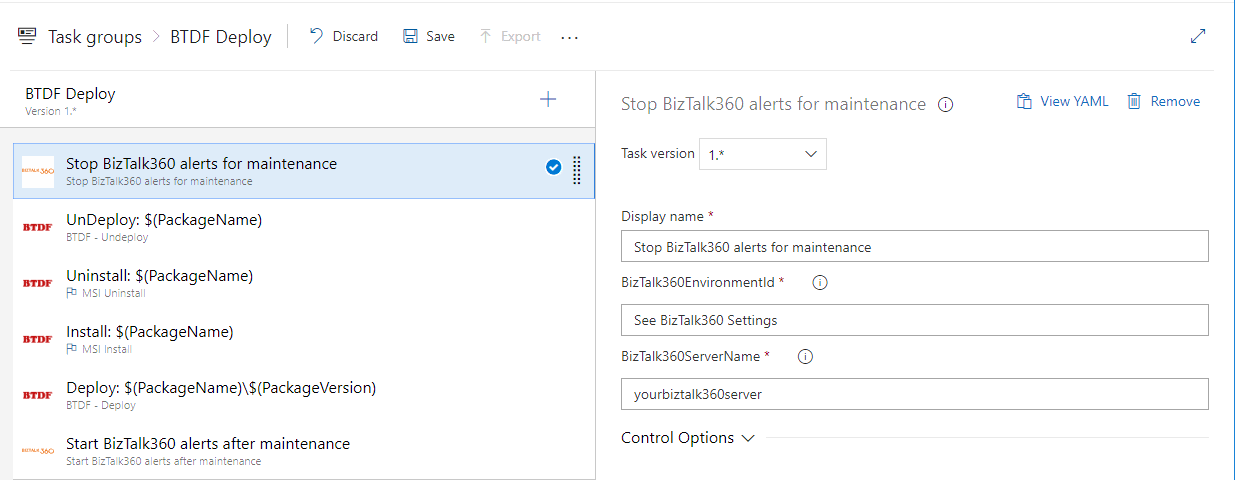
When your Test, Acceptance, and Production environment consist of a single server, you can create a task group and use this in the release pipeline. Note that in this example, the task group uses the BTDF extension, which is useful if you are using the BizTalk Deployment Framework for deployments.
The BizTalk360 tasks require the hostname of the server where BizTalk360 is installed and the Environment ID. You can find the Environment ID in http://<yourbiztalk360server>/BizTalk360/Settings#api.
Note: You must have a license to use the BizTalk360 API.
If you do not have a license, please contact your BizTalk360 representative. The BizTalk360 API offers an extensive API that allows you to automate other tasks as well.
Multi-Server Scenario
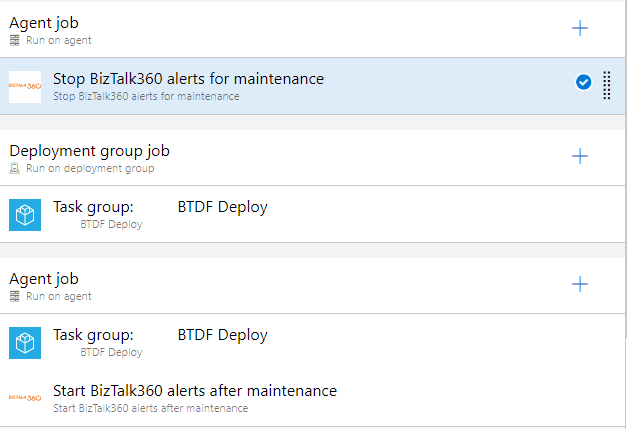
In a multi-server scenario, you want to put BizTalk360 in maintenance mode before deployment to the first server and out of maintenance mode after deployment to the last server. This case, your release pipeline might look like;
You can find the DevOps extension on the VisualStudio Marketplace.
The source code is available on GitHub. Please feel free to make any improvements, enhancements, etc.
The post BizTalk360 Maintenance Mode with BizTalk Deployments via Azure DevOps appeared first on BizTalk360.