by Sandro Pereira | Feb 15, 2019 | BizTalk Community Blogs via Syndication
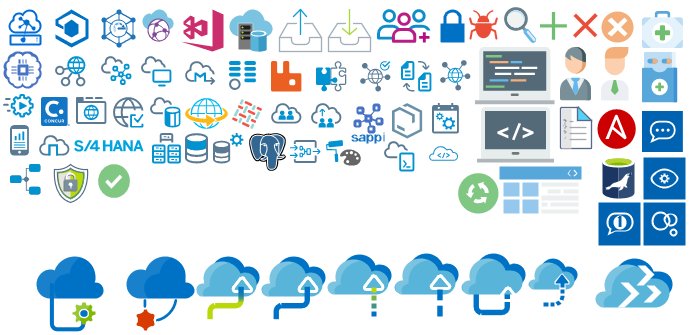
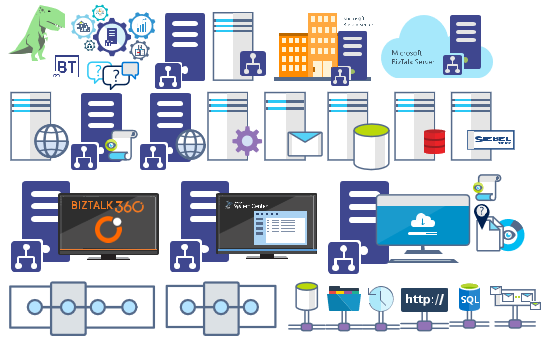
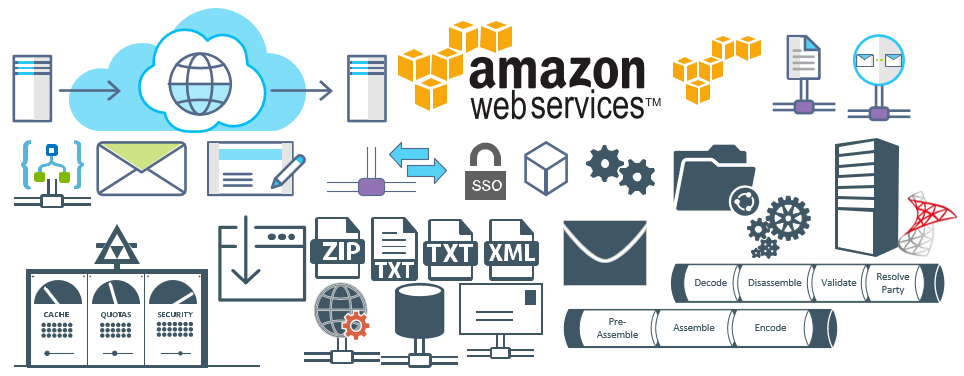
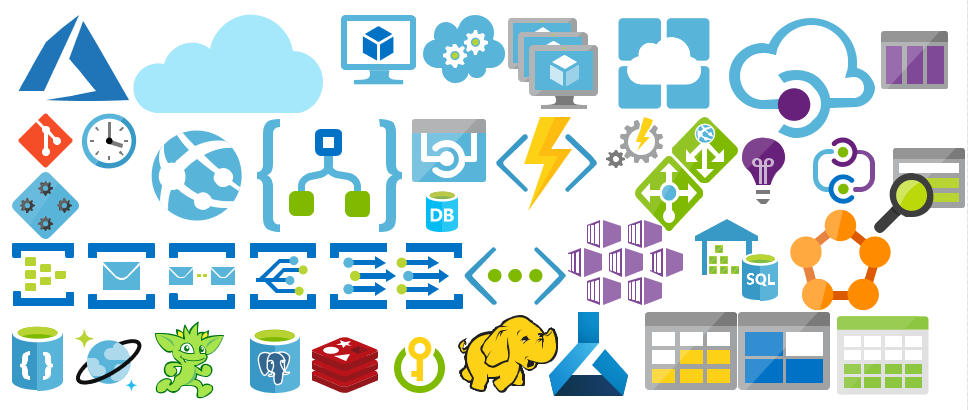
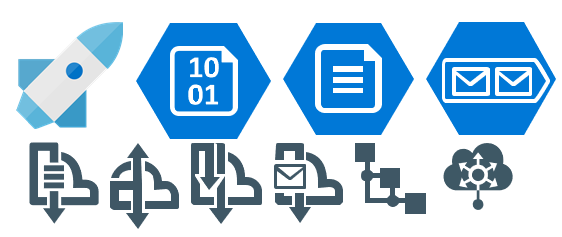
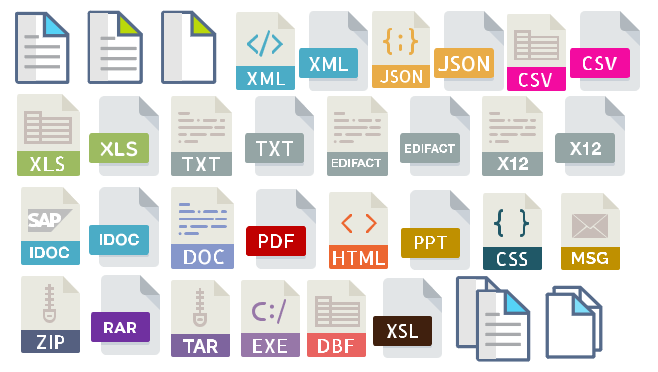
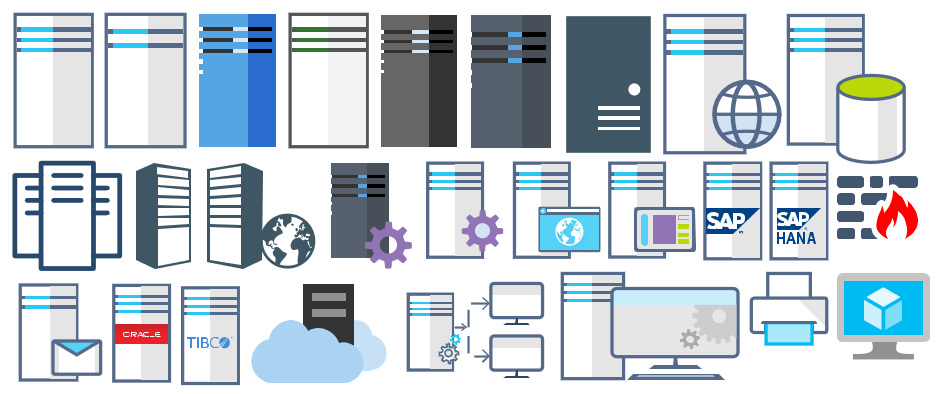
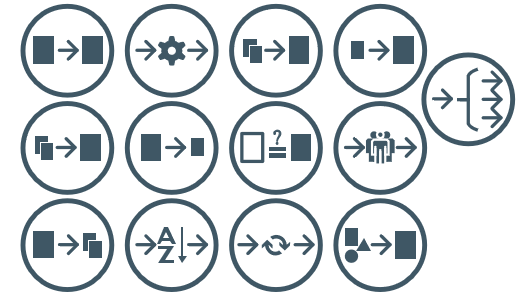
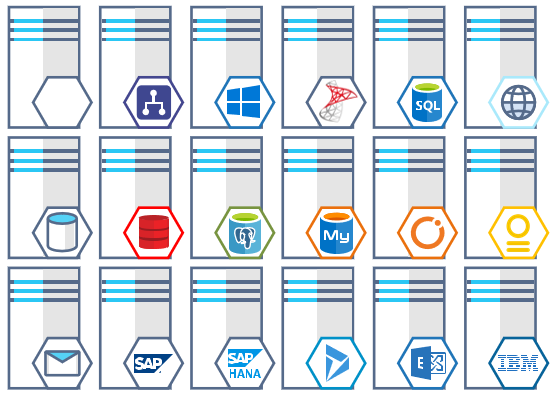
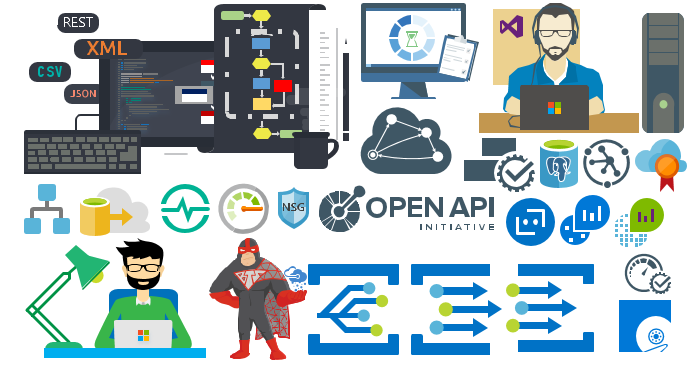
Microsoft Integration, Azure, BAPI, Office 365 and much more Stencils Pack it’s a Visio package that contains fully resizable Visio shapes (symbols/icons) that will help you to visually represent On-premise, Cloud or Hybrid Integration and Enterprise architectures scenarios (BizTalk Server, API Management, Logic Apps, Service Bus, Event Hub…), solutions diagrams and features or systems that use Microsoft Azure and related cloud and on-premises technologies in Visio 2016/2013:
- BizTalk Server
- Microsoft Azure
- Azure App Service (API Apps, Web Apps, Mobile Apps, and Logic Apps)
- Event Hubs, Event Grid, Service Bus, …
- API Management, IoT, and Docker
- Machine Learning, Stream Analytics, Data Factory, Data Pipelines
- and so on
- Microsoft Flow
- PowerApps
- Power BI
- PowerShell
- Infrastructure, IaaS
- Office 365
- And many more…
- … and now non-related Microsoft technologies like:

What’s new in this version?
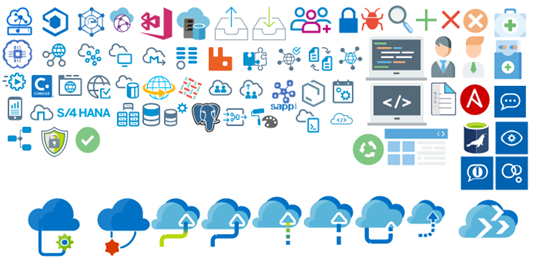
- New shapes: new shapes were added to existing modules like Generic, Azure, AI, Developer, Files or Users. But in particular a new module was born:
- MIS SAP Stencils contains stencils that will represent some SAP services
You can download Microsoft Integration, Azure, BAPI, Office 365 and much more Stencils Pack for Visio from:
 Microsoft Integration, Azure, BAPI, Office 365 and much more Stencils Pack for Visio (18,6 MB)
GitHub
Or from:
Microsoft Integration and Azure Stencils Pack for Visio 2016/2013 v3.1.0 (18,6 MB)
Microsoft | TechNet Gallery
Author: Sandro Pereira
Sandro Pereira lives in Portugal and works as a consultant at DevScope. In the past years, he has been working on implementing Integration scenarios both on-premises and cloud for various clients, each with different scenarios from a technical point of view, size, and criticality, using Microsoft Azure, Microsoft BizTalk Server and different technologies like AS2, EDI, RosettaNet, SAP, TIBCO etc. He is a regular blogger, international speaker, and technical reviewer of several BizTalk books all focused on Integration. He is also the author of the book “BizTalk Mapping Patterns & Best Practices”. He has been awarded MVP since 2011 for his contributions to the integration community. View all posts by Sandro Pereira
by Sandro Pereira | Jan 28, 2019 | BizTalk Community Blogs via Syndication
What started to be a Microsoft Integration Stencil Packs is now almost a full Microsoft stack stencil package that includes Microsoft Integration, Azure, BAPI, Office365, devices, products, competing technologies or partners and much more Stencils Pack it’s a Visio package.
This package contains fully resizable Visio shapes (symbols/icons) that will help you to visually represent On-premise, Cloud or Hybrid Integration and Enterprise architectures scenarios (BizTalk Server, API Management, Logic Apps, Service Bus, Event Hub…), solutions diagrams and features or systems that use Microsoft Azure and related cloud and on-premises technologies in Visio 2016/2013:
- BizTalk Server
- Microsoft Azure
- Azure App Service (API Apps, Web Apps, Mobile Apps, and Logic Apps)
- Event Hubs, Event Grid, Service Bus, …
- API Management, IoT, and Docker
- Machine Learning, Stream Analytics, Data Factory, Data Pipelines
- and so on
- Microsoft Flow
- PowerApps
- Power BI
- PowerShell
- Infrastructure, IaaS
- Office 365
- And many more
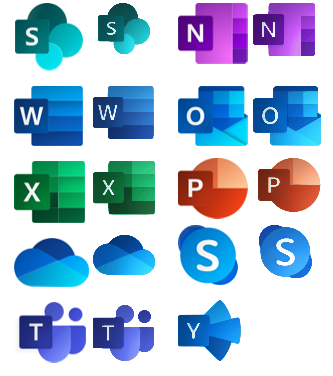
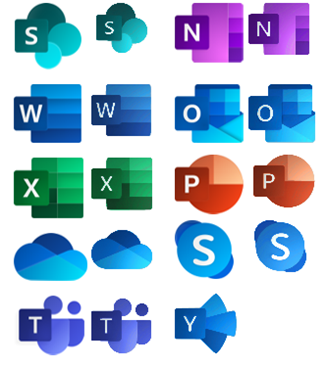
This new small update includes the new Office365 icons that were recently announced by Microsoft. It includes an additional of 19 new shapes and some reorganization.
The Microsoft Integration Stencils Pack v3.1.1 is composed of 22 files:
- Microsoft Integration Stencils v3.1.0
- MIS Additional or Support Stencils v3.1.0
- MIS Apps and Systems Logo Stencils v3.1.0
- MIS AI Stencils v3.1.0
- MIS Azure Additional or Support Stencils v3.1.0
- MIS Azure Others Stencils v3.1.0
- MIS Azure Stencils v3.1.0
- MIS Buildings Stencils v3.1.0
- MIS Databases Stencils v3.1.0
- MIS Deprecated Stencils v3.1.0
- MIS Developer Stencils v3.1.0
- MIS Devices Stencils v3.1.0
- MIS Files Stencils v3.1.0
- MIS Generic Stencils v3.1.0
- MIS Infrastructure Stencils v3.1.0
- MIS Integration Patterns Stencils v3.1.0
- MIS IoT Devices Stencils v3.1.0
- MIS Office365 v3.1.1
- MIS Power BI Stencils v3.1.0
- MIS PowerApps and Flows Stencils v3.1.1
- MIS Servers (HEX) Stencils v3.1.0
- MIS Users and Roles Stencils v3.1.0
You can download Microsoft Integration, Azure, BAPI, Office 365 and much more Stencils Pack for Visio from:
Microsoft Integration, Azure, BAPI, Office 365 and much more Stencils Pack for Visio (18,6 MB)
GitHub
Or from:
Microsoft Integration and Azure Stencils Pack for Visio 2016/2013 v3.1.1 (18,6 MB)
Microsoft | TechNet Gallery
Author: Sandro Pereira
Sandro Pereira lives in Portugal and works as a consultant at DevScope. In the past years, he has been working on implementing Integration scenarios both on-premises and cloud for various clients, each with different scenarios from a technical point of view, size, and criticality, using Microsoft Azure, Microsoft BizTalk Server and different technologies like AS2, EDI, RosettaNet, SAP, TIBCO etc. He is a regular blogger, international speaker, and technical reviewer of several BizTalk books all focused on Integration. He is also the author of the book “BizTalk Mapping Patterns & Best Practices”. He has been awarded MVP since 2011 for his contributions to the integration community. View all posts by Sandro Pereira
by Sandro Pereira | Nov 13, 2018 | BizTalk Community Blogs via Syndication
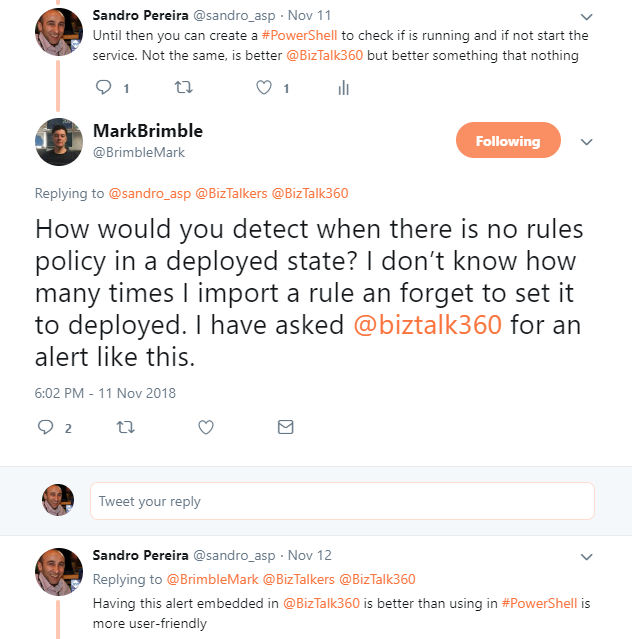
After a tweet exchange with Mark Brimble a fellow “BizTalker” that I respect and admire, I realized that I had developed a PowerShell script some time ago to monitoring BRE Policies that could help him solve his problem. The initial question or need he was facing was:
- How would you detect when there is no rules policy in a deployed state? I don’t know how many times I import a rule an forget to set it to deployed…
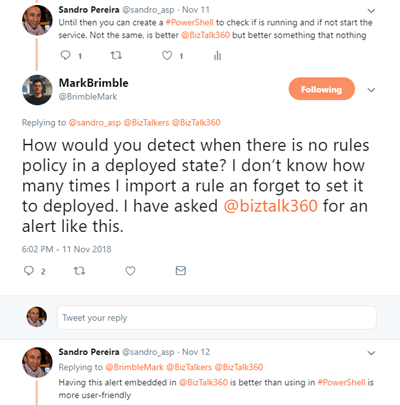
This is a common problem, and to be honest, I sometimes forget what is the correct state of a policy: Deployed or Published. (the correct answer is Deployed). And unfortunately, there isn’t a simple solution to solve this need and the solutions that I found was:
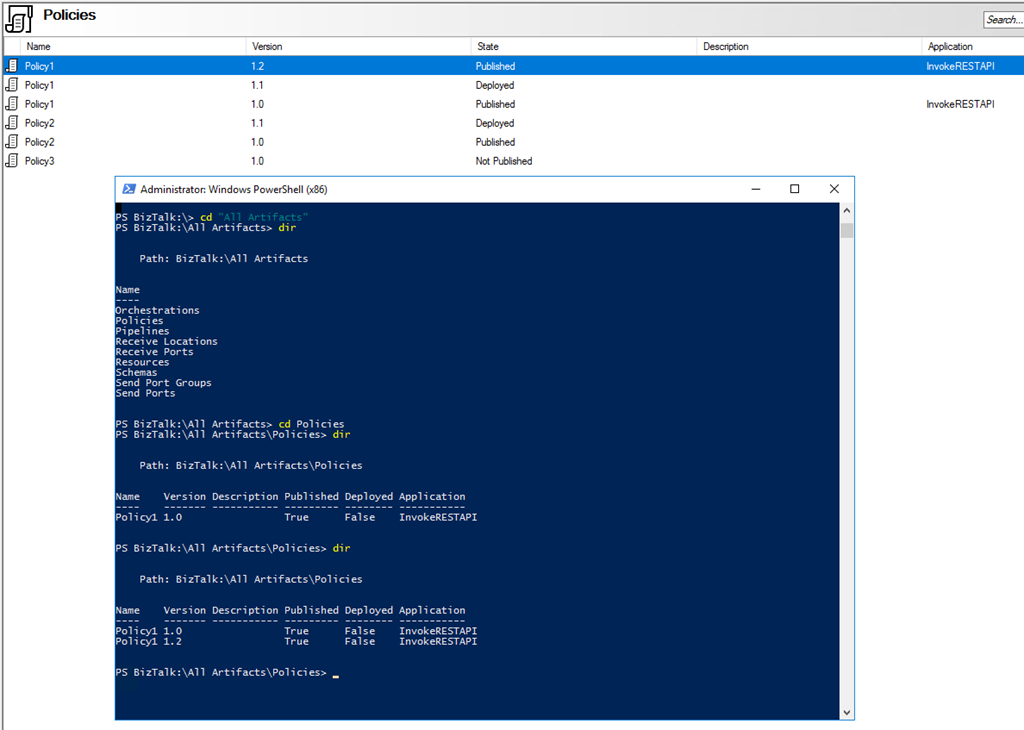
- Using BizTalkFactory PowerShell Provider that nowadays come with BizTalk Server (“SDKUtilitiesPowerShell” folder)
- Create my own monitor script – more work involved
Using BizTalkFactory PowerShell Provider is quite simple, but it has some limitations for what I would like to archive, for example, it only shows the policies that are bound to a particular BizTalk Application.
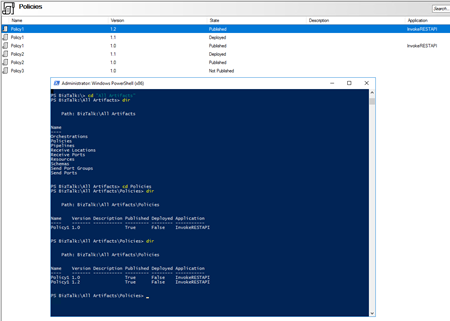
And I would like to know and have visibility to all of them because you don’t need to bind a policy to a BizTalk Application on the BizTalk Administration Console to use that policy.
And for that reason, I decide to create my own monitor script that I can easily change and optimize for my scenarios.
The problem I faced in the past was in fact quite similar to what Mark Brimble was describing, maybe with some small differences but the end goal is the same, so I decide to help him (at least try) and publish this PowerShell script.
The purpose of this PowerShell script is to:
- Monitor BRE Policies and check if the highest version of a given policy is on Deployed state
- If not notify someone (your BizTalk administration team);
So how can PowerShell help us?
With this script, you can be able to monitor your BizTalk Server BRE Policies, highest versions, that aren’t in the deployed state. Only if the script finds any non-compliance, an email notification will be sent.
Taking this sample:
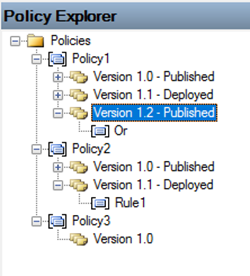
The result will be a notification that includes two warnings:
- Policy1 is in a non-compliance state because version 1.2 is not deployed
- Policy2 is in a compliance state
- Policy3 is in a non-compliance state because version 1.2 is neither published nor deployed (this is optional, but I choose to include in my monitoring script)
This script is a combination of a PowerShell script and a SQL Server Script that allows you to set:
- Set your email notification settings:
#Set mail variables
[STRING]$PSEmailServer = "mySMTPServer" #SMTP Server.
[STRING]$SubjectPrefix = "MBV Notification Report -  "
[STRING]$From = "[email protected]"
[array]$EmailTo = ("[email protected]")
- And configure a SQL Server script, that in fact were the magic happens. The SQL Script will have the ability to check what rules are in a non-compliance state:
/****** Sandro Pereira & José Barbosa - DevScope  ******/
;with
cteHist as (
        select h.* from [BizTalkRuleEngineDb].[dbo].[re_deployment_history] h
join (select strname, max(dttimestamp) as dttimestamp from [BizTalkRuleEngineDb].[dbo].[re_deployment_history] group by strname) q on h.strName=q.strName and h.dtTimeStamp=q.dttimestamp
),
ctetDeployed as (
        SELECT StrName, nMajor, nMinor, nStatus
                                                FROM   (
                                                   SELECT StrName, nMajor, nMinor, nStatus
                                                                , row_number() OVER(PARTITION BY StrName ORDER BY nMajor, nMinor DESC) AS rn
                                                   FROM   [BizTalkRuleEngineDb].[dbo].[re_ruleset]
                                                   ) sub
                                                WHERE  rn = 1
)
select * from ctetDeployed d
where nStatus = 0
or exists (select 1 from cteHist h  where h.strName=d.strname and bDeployedInd=0)
The following Windows PowerShell script is a fragment that will help us demonstrate the monitoring capabilities:
$mydata = invoke-sqlcmd -inputfile $sqlQuery -serverinstance $server

Foreach ($log in $mydata)
{
    #Create mail body content
    $mailBody += "..."
}
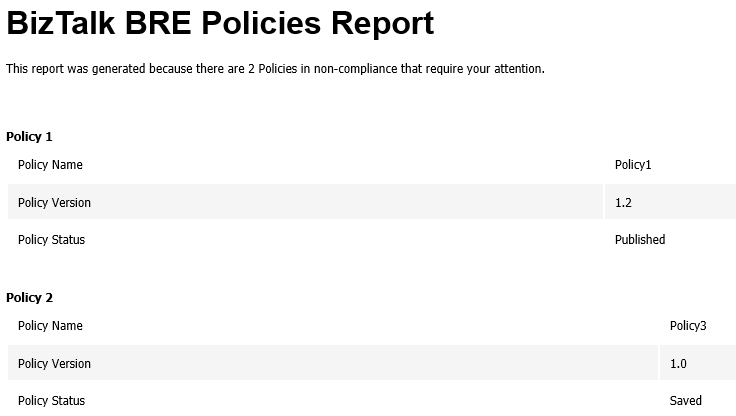
Here is example expected report output from running the Windows PowerShell script sample, if any of the BRE Policies are in an unwanted state.
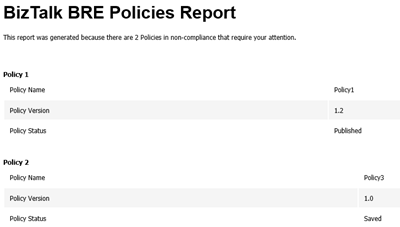
Note: This type of script must be viewed as a complement to the tools mentioned above or used in the absence of them. The script should also be adjusted to your needs.
THIS POWERSHELL & SQL SCRIPT ARE PROVIDED “AS IS”, WITHOUT WARRANTY OF ANY KIND.
Special thanks to my coworker José Barbosa for helping me optimize the SQL Server script!
The script can be found and download on Microsoft TechNet Gallery:
Monitoring BRE Policies in your BizTalk environment with PowerShell (18.0 KB)
Microsoft TechNet Gallery
Author: Sandro Pereira
Sandro Pereira lives in Portugal and works as a consultant at DevScope. In the past years, he has been working on implementing Integration scenarios both on-premises and cloud for various clients, each with different scenarios from a technical point of view, size, and criticality, using Microsoft Azure, Microsoft BizTalk Server and different technologies like AS2, EDI, RosettaNet, SAP, TIBCO etc. He is a regular blogger, international speaker, and technical reviewer of several BizTalk books all focused on Integration. He is also the author of the book “BizTalk Mapping Patterns & Best Practices”. He has been awarded MVP since 2011 for his contributions to the integration community. View all posts by Sandro Pereira
by Sivaramakrishnan Arumugam | Jul 24, 2018 | BizTalk Community Blogs via Syndication
We are excited to launch version 8.8 of BizTalk360, where we have added improvements to existing features and resolved quite a few numbers of outstanding support tickets which were raised by our customers.
As others are excited, I’m even little bit more excited about the BizTalk360 new version release. The reason being, in this release every person in the team has transformed and performed as a DevOps in BizTalk360. Everyone on the team provided their contribution in the form of developing a new feature, enhancing an existing feature, testing, documenting, writing blogs and so on.
DevOps Transformation
2017 was a special year for BizTalk360 product support, we had learned many new things. We started this year with a lot of training. We all product support engineers underwent product training with the help of the respective developers who developed the product features and with the QA who tested.
In 2018, we evolved ourselves from support engineers to QA cum Product Support engineer this year!!! As a product-based and a start-up company, we have improved ourselves and have learned from previous practices.
Being a support engineer for a long time, I have been involved in the development activity. I take this opportunity to thank everyone in and out of BizTalk360 for this wonderful opportunity.
The Development Process of v8.8
This time we have changed our development process from Agile to Kanban as well. As the process changed, we are in a situation to monitor each task what we do.
In the version 8.7, few of us evolved as a DevOps and worked along with the release. With the hands-on experience in the version 8.7, we planned our 8.8 from the requirement of the features to the post-release validation.
Here is the task list what we followed in 8.8.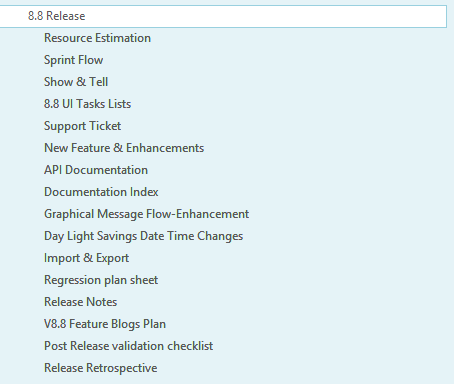
Sprint plan
We planned for 2 months duration with 4 sprints, each sprint holding 2 weeks of duration in this release. As we have our own priority (like Support, QA, Dev involved) based on our availability, the tasks were allocated in each sprint.
During the completion of a sprint and to start another sprint, the feature allocated must be in the deliverable state.
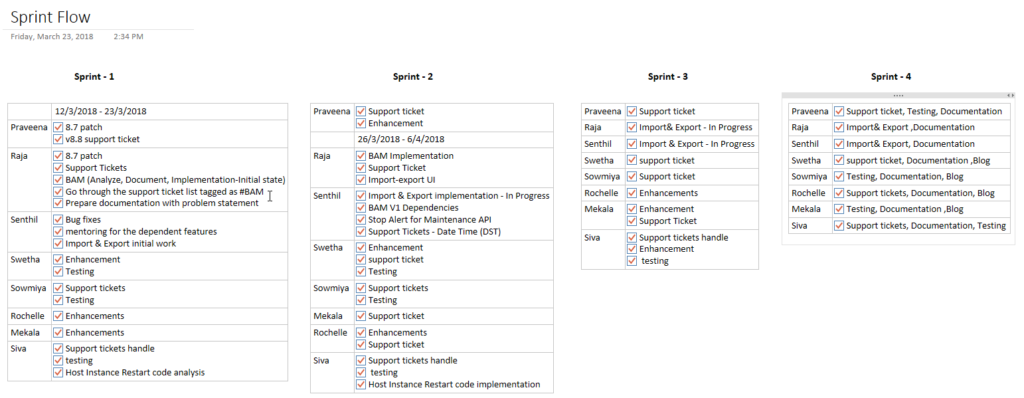
Task plan
The tasks will be assigned to the individuals based on the nature of their jobs. The assigned tasks must be completed before sprint completion. When I say fixing or enhancement of the feature for the sprint, it doesn’t mean just development. It includes:
- development
- testing
- documentation of the feature
- support document
- mock Release notes
Documentation
For the Release Notes, we took a complete list of the development tasks and decided what needed to be added in the Release Notes and the support documentation.
If it’s a feature enhancement, we will change the existing documentation according to the feature enhancement. For a new feature, we created a new article in our support portal (https://assist.biztalk360.com). Also, we prepared a rough Release Notes article.
Screenshot of mock release notes.
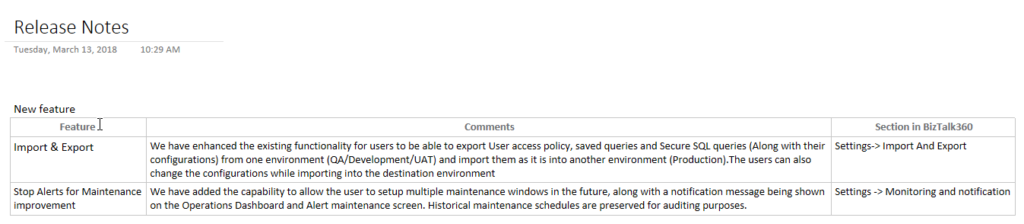
Once we complete a feature enhancement or a new feature document, we will send it to one of the team members for internal review. After review, we will pass it on to the Documentation team to add or make changes to the support document.
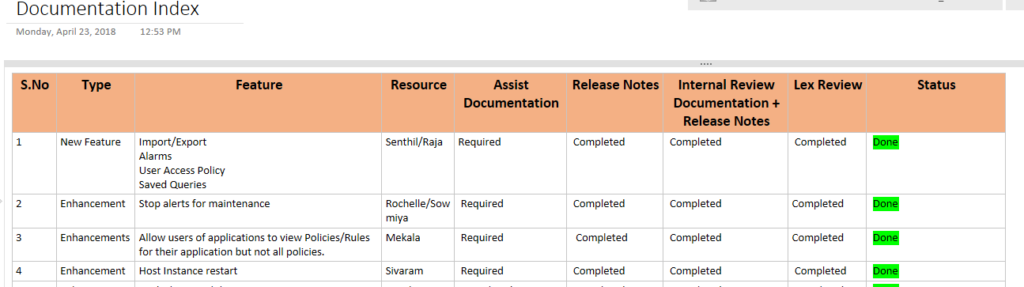
Here is a part of the list of the documentation index what we had done in 8.8.
Post-release validation
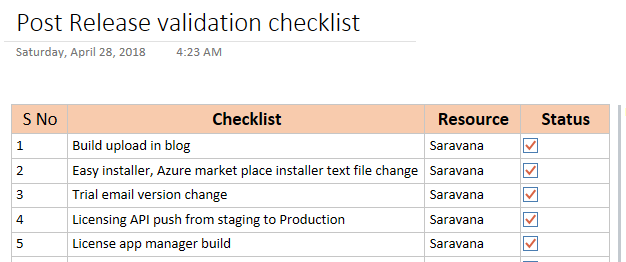
The process does not end once the product is ready for release. We do have few activities for the post-release validations to make the release complete and we were also involved in these activities. The activities include the tasks needed to be done before the product is announced to the public.
Here is the sample list of post-release validation list.
Daily Stand-up
Meetings are always helpful for the team coordination and understand the activities and make sure everyone on the team is on the same page. Daily stand-up is one another way to update our daily task, to reveal our technical challenges what we had faced on the day before, the tasks what we have worked and what we are going to work on the day.
If there are any challenges faced, any one of the people from the team or from other teams will help you out to overcome the problem. Also, we get feedback and suggestion on the tasks. If we have any technical dependencies we will convey in the meeting so that within a team all will get to know who is working on what. It helped us to complete the task on time.
Along with the task update, we will also verify the development progress, testing, documentation of the feature, support and mock release notes.
Show and Tell
As the name implies, we show our developed feature and tell the progress of our development activity to the team. This is something different from the Daily stand-up as we would showcase the tasks performed for the entire week and demo the feature developed to have the feedback from the management.
Show and tell is conducted every Monday afternoon. We will showcase what we developed during the meeting to our CEO along with the external team members to get their feedback and suggestion. Based on the suggestion we will make changes.
Challenges what we faced
It is not that much easy to transform from a QA and Technical Support engineer to DevOps even though we handle technical things.
From our side, at the very beginning stage, we faced a problem with the priority and time consumption. At a very earlier stage, I was not able to focus completely on the development since we are handling the support. We receive support cases and our priority is to solve the tickets as soon as possible. We could overcome this by the practice in various sprints.
“Success is where preparation and opportunity meet”
From my personal point of view, since we handled from the requirement to post-release validation I would like to name it as contribute360. I personally take this opportunity once again to thank everyone in and out of BizTalk360 for this wonderful opportunity and believing in us. We are looking forward to much more opportunity.
Feedback portal
>>Which feature would you like to see coming in BizTalk360 in upcoming releases? <<
Now we would like to request you, our customers, to please take the time to fill this questionnaire. This helps us to prioritize the next upcoming feature tasks and will let us know what your main pain points are. This way we can further improve the product and make it a usable as possible for you.
Author: Sivaramakrishnan Arumugam
Sivaramakrishnan is our Support Engineer with quite a few certifications under his belt. He has been instrumental in handling the customer support area. He believes Travelling makes happy of anyone. View all posts by Sivaramakrishnan Arumugam

by Sandro Pereira | Apr 17, 2018 | BizTalk Community Blogs via Syndication
Microsoft Integration, Azure, BAPI, Office 365 and much more Stencils Pack it’s a Visio package that contains fully resizable Visio shapes (symbols/icons) that will help you to visually represent On-premise, Cloud or Hybrid Integration and Enterprise architectures scenarios (BizTalk Server, API Management, Logic Apps, Service Bus, Event Hub…), solutions diagrams and features or systems that use Microsoft Azure and related cloud and on-premises technologies in Visio 2016/2013:
- BizTalk Server
- Microsoft Azure
- Azure App Service (API Apps, Web Apps, Mobile Apps and Logic Apps)
- Event Hubs, Event Grid, Service Bus, …
- API Management, IoT, and Docker
- Machine Learning, Stream Analytics, Data Factory, Data Pipelines
- and so on
- Microsoft Flow
- PowerApps
- Power BI
- PowerShell
- Infrastructure, IaaS
- Office 365
- And many more…

What’s new in this version?
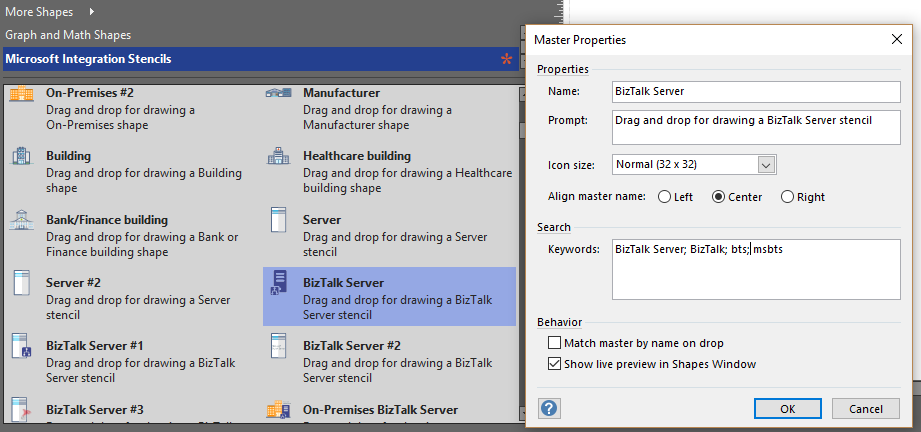
With the growing number of stencils in this package, it was becoming hard to find or look for the right shape/representation and based on some feedback I received from the community and some tips, I focused most of the work in this new version in providing search capacity to this package, but it wasn’t the only one:
- Search Capabilities: Defining the correct metadata information and keywords for all the shapes for a better search functionality.
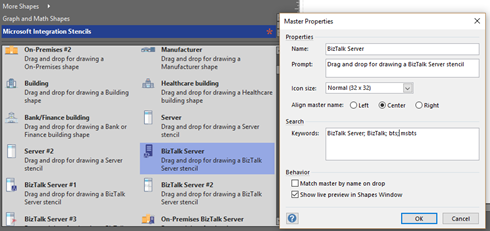
- New shapes: of course, that has happened in all other versions, new shapes were added, in particular: Generic, Microsoft Flow and PowerApps shapes


You can download Microsoft Integration, Azure, BAPI, Office 365 and much more Stencils Pack for Visio from:
Microsoft Integration, Azure, BAPI, Office 365 and much more Stencils Pack for Visio (18,6 MB)
GitHub
Or from:
Microsoft Integration and Azure Stencils Pack for Visio 2016/2013 v3.1.0 (18,6 MB)
Microsoft | TechNet Gallery
The post New version of Microsoft Integration, Azure, BAPI, Office 365 and much more Stencils Pack for Visio is now available on GitHub appeared first on SANDRO PEREIRA BIZTALK BLOG.

by Sandro Pereira | Jan 19, 2018 | BizTalk Community Blogs via Syndication
Microsoft Integration (Azure and much more) Stencils Pack it’s a Visio package that contains fully resizable Visio shapes (symbols/icons) that will help you to visually represent On-premise, Cloud or Hybrid Integration and Enterprise architectures scenarios (BizTalk Server, API Management, Logic Apps, Service Bus, Event Hub…), solutions diagrams and features or systems that use Microsoft Azure and related cloud and on-premises technologies in Visio 2016/2013:
- BizTalk Server
- Microsoft Azure
- BizTalk Services
- Azure App Service (API Apps, Web Apps, Mobile Apps and Logic Apps)
- Event Hubs
- Service Bus
- API Management, IoT, and Docker
- Machine Learning, Stream Analytics, Data Factory, Data Pipelines
- and so on
- Microsoft Flow
- PowerApps
- Power BI
- PowerShell
- Infrastructure, IaaS
- And many more…

I start this project because at the time I didn’t find nice shapes – graphically beautiful and resizable shapes – to produce BizTalk Server topologies diagrams and high-level overview of integrating processes. The project grew as community member asked for new shapes and during the last few years I have been updating and publishing new shapes, particularly associated with Azure services, which has a very low release cadence.
This time I cannot say it was an update because was actually a complete makeover and the reasons behind this decision are mainly these 2:
- The Project Become Huge: more than 1000 shapes, and due to the project structure that I decide to implement at the time, it became a little difficult to maintain since even I had difficulty finding and organizing all the shapes and there were several duplicate shapes (some were purposely duplicated and still are).
- A Fresh New Look: at the time, almost all the shapes were blue – not a beautiful blue but an obsolete annoying blue – so I decide to use, in almost the cases, a monochrome approach opting for a darker color – but after all these years it was already a little worn and needing for a new modern look and this time I decided to follow the look that Microsoft is implementing in Microsoft Docs – in fact, several stencils were collect from there – a more light and multicolored approach.
- You liked the old aspect? Do not worry, I still kept the old (monochrome) shapes but moved to support files.
What’s new in this version?
Is this version all about a fresh and modern new look? No, it is not. That was indeed one of the main tasks, but in addition:
- New shapes: 571 new forms have been added – many of them are in fact a redesign of the existing features to have a modern look – but it is still an impressive number. Making a total of 1883 shapes available in this package.
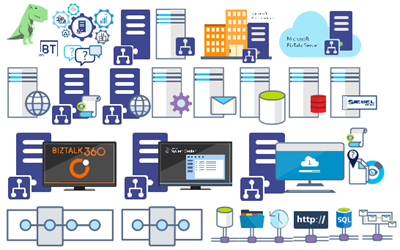
- The package structure changed: It is more organized – went from 13 files to 20 – which means that more categories were created and for that reason, I think it will be easier to find the shapes you are looking for. The Microsoft Integration (Azure and much more) Stencils Pack v3.0.0 is now composed of 20 files:
-
- Microsoft Integration Stencils v3.0.0
-
- MIS Additional or Support Stencils v3.0.0
-
- MIS Apps and Systems Logo Stencils v3.0.0
-
- MIS Azure Additional or Support Stencils v3.0.0

-
- MIS Azure Others Stencils v3.0.0

-
- MIS Azure Stencils v3.0.0

-
- MIS Buildings Stencils v3.0.0

-
- MIS Databases Stencils v3.0.0

-
- MIS Deprecated Stencils v3.0.0

-
- MIS Developer Stencils v3.0.0
-
- MIS Devices Stencils v3.0.0

-
- MIS Files Stencils v3.0.0
-
- MIS Generic Stencils v3.0.0

-
- MIS Infrastructure Stencils v3.0.0
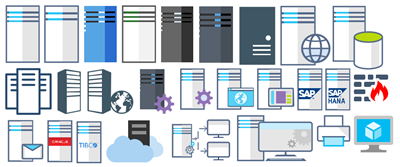
-
- MIS Integration Patterns Stencils v3.0.0
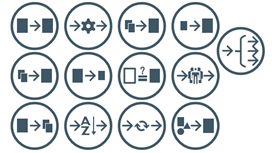
-
- MIS IoT Devices Stencils v3.0.0

-
- MIS Power BI Stencils v3.0.0

-
- MIS PowerApps and Flows Stencils v3.0.0

-
- MIS Servers (HEX) Stencils v3.0.0
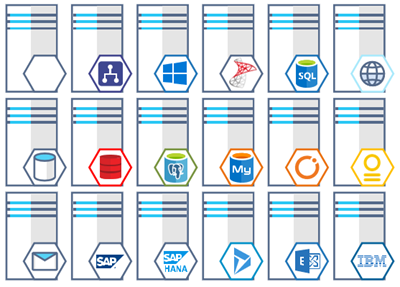
-
- MIS Users and Roles Stencils v3.0.0

You can download Microsoft Integration (Azure and much more) Stencils Pack from:
Microsoft Integration Stencils Pack for Visio 2016/2013 v3.0.0 (16,6 MB)
Microsoft | TechNet Gallery
Author: Sandro Pereira
Sandro Pereira lives in Portugal and works as a consultant at DevScope. In the past years, he has been working on implementing Integration scenarios both on-premises and cloud for various clients, each with different scenarios from a technical point of view, size, and criticality, using Microsoft Azure, Microsoft BizTalk Server and different technologies like AS2, EDI, RosettaNet, SAP, TIBCO etc. He is a regular blogger, international speaker, and technical reviewer of several BizTalk books all focused on Integration. He is also the author of the book “BizTalk Mapping Patterns & Best Practices”. He has been awarded MVP since 2011 for his contributions to the integration community. View all posts by Sandro Pereira

by Sandro Pereira | Sep 29, 2017 | BizTalk Community Blogs via Syndication
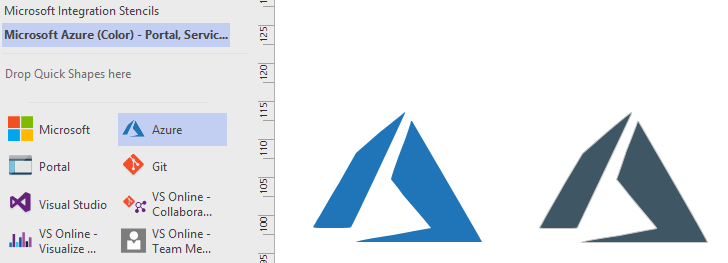
This is probably the quickest and smallest update that I made in my Microsoft Integration (Azure and much more) Stencils Pack: only 1 new stencil and I only do it for its importance, since it is definitely one of Microsoft’s fastest growing business these days, and the Ignite context: the new Azure logo.
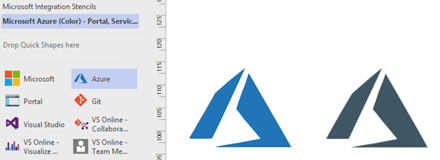
This will be probably the first Visio pack containing this shape.
The Microsoft Integration (Azure and much more) Stencils Pack v2.6.1 is composed by 13 files:
- Microsoft Integration Stencils v2.6.1
- MIS Apps and Systems Logo Stencils v2.6.1
- MIS Azure Portal, Services and VSTS Stencils v2.6.1
- MIS Azure SDK and Tools Stencils v2.6.1
- MIS Azure Services Stencils v2.6.1
- MIS Deprecated Stencils v2.6.1
- MIS Developer v2.6.1
- MIS Devices Stencils v2.6.1
- MIS IoT Devices Stencils v2.6.1
- MIS Power BI v2.6.1
- MIS Servers and Hardware Stencils v2.6.1
- MIS Support Stencils v2.6.1
- MIS Users and Roles Stencils v2.6.1
That will help you visually represent Integration architectures (On-premise, Cloud or Hybrid scenarios) and Cloud solutions diagrams in Visio 2016/2013. It will provide symbols/icons to visually represent features, systems, processes and architectures that use BizTalk Server, API Management, Logic Apps, Microsoft Azure and related technologies.
- BizTalk Server
- Microsoft Azure
- · Azure App Service (API Apps, Web Apps, Mobile Apps and Logic Apps)
- API Management
- Event Hubs
- Service Bus
- Azure IoT and Docker
- SQL Server, DocumentDB, CosmosDB, MySQL, …
- Machine Learning, Stream Analytics, Data Factory, Data Pipelines
- and so on
- Microsoft Flow
- PowerApps
- Power BI
- Office365, SharePoint
- DevOpps: PowerShell, Containers
- And many more…
You can download Microsoft Integration (Azure and much more) Stencils Pack from:
Microsoft Integration Stencils Pack for Visio 2016/2013 (11,4 MB)
Microsoft | TechNet Galler
Author: Sandro Pereira
Sandro Pereira lives in Portugal and works as a consultant at DevScope. In the past years, he has been working on implementing Integration scenarios both on-premises and cloud for various clients, each with different scenarios from a technical point of view, size, and criticality, using Microsoft Azure, Microsoft BizTalk Server and different technologies like AS2, EDI, RosettaNet, SAP, TIBCO etc. He is a regular blogger, international speaker, and technical reviewer of several BizTalk books all focused on Integration. He is also the author of the book “BizTalk Mapping Patterns & Best Practices”. He has been awarded MVP since 2011 for his contributions to the integration community. View all posts by Sandro Pereira
by Sandro Pereira | Sep 19, 2017 | BizTalk Community Blogs via Syndication
I decided to update my Microsoft Integration (Azure and much more) Stencils Pack with a set of 24 new shapes (maybe the smallest update I ever did to this package) mainly to add the Azure Event Grid shapes.
One of the main reasons for me to initially create the package was to have a nice set of Integration (Messaging) shapes that I could use in my diagrams, and during the time it scaled to a lot of other things.
With these new additions, this package now contains an astounding total of ~1311 shapes (symbols/icons) that will help you visually represent Integration architectures (On-premise, Cloud or Hybrid scenarios) and Cloud solutions diagrams in Visio 2016/2013. It will provide symbols/icons to visually represent features, systems, processes, and architectures that use BizTalk Server, API Management, Logic Apps, Microsoft Azure and related technologies.
- BizTalk Server
- Microsoft Azure
- Azure App Service (API Apps, Web Apps, Mobile Apps and Logic Apps)
- API Management
- Event Hubs & Event Grid
- Service Bus
- Azure IoT and Docker
- SQL Server, DocumentDB, CosmosDB, MySQL, …
- Machine Learning, Stream Analytics, Data Factory, Data Pipelines
- and so on
- Microsoft Flow
- PowerApps
- Power BI
- Office365, SharePoint
- DevOpps: PowerShell, Containers
- And much more…
The Microsoft Integration (Azure and much more) Stencils Pack v2.6 is composed by 13 files:
- Microsoft Integration Stencils v2.6
- MIS Apps and Systems Logo Stencils v2.6
- MIS Azure Portal, Services and VSTS Stencils v2.6
- MIS Azure SDK and Tools Stencils v2.6
- MIS Azure Services Stencils v2.6
- MIS Deprecated Stencils v2.6
- MIS Developer v2.6
- MIS Devices Stencils v2.6
- MIS IoT Devices Stencils v2.6
- MIS Power BI v2.6
- MIS Servers and Hardware Stencils v2.6
- MIS Support Stencils v2.6
- MIS Users and Roles Stencils v2.6
These are some of the new shapes you can find in this new version:
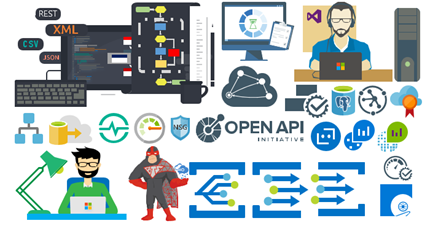
- Azure Event Grid
- Azure Event Subscriptions
- Azure Event Topics
- BizMan
- Integration Developer
- OpenAPI
- APIMATIC
- Load Testing
- API Testing
- Performance Testing
- Bot Services
- Azure Advisor
- Azure Monitoring
- Azure IoT Hub Device Provisioning Service
- Azure Time Series Insights
- And much more
You can download Microsoft Integration (Azure and much more) Stencils Pack from:
Microsoft Integration Stencils Pack for Visio 2016/2013 (11,4 MB)
Microsoft | TechNet Gallery
Author: Sandro Pereira
Sandro Pereira lives in Portugal and works as a consultant at DevScope. In the past years, he has been working on implementing Integration scenarios both on-premises and cloud for various clients, each with different scenarios from a technical point of view, size, and criticality, using Microsoft Azure, Microsoft BizTalk Server and different technologies like AS2, EDI, RosettaNet, SAP, TIBCO etc. He is a regular blogger, international speaker, and technical reviewer of several BizTalk books all focused on Integration. He is also the author of the book “BizTalk Mapping Patterns & Best Practices”. He has been awarded MVP since 2011 for his contributions to the integration community. View all posts by Sandro Pereira
by shadabanwer | Jun 20, 2017 | BizTalk Community Blogs via Syndication
Hi,
I’m writing this post to demonstrate how we can create multiple remote agent on a single server to do the parallel deployment to the BizTalk/WCF servers. Bamboo comes with the concept of local agents and remote agents. Remote agents are installed on the individual servers for the artefact/solution deployment. Remote agent runs on a windows wrapper service, whenever there is a new server, the project team need to install Remote Agent and run the services. This is trouble with large organisation, and Remote agents are not free.
Follow the below steps to create multiple Remote Agent on one/two/three particular dedicate machine for Bamboo.
| Sr No. |
Task |
Description |
| 1. |
Download Remote Agent |
Download bamboo-agent-installer-5.14.1.jar from bamboo agent page
|
| 2. |
Copy jar file
|
Copy .jar file to a folder.
|
| 3. |
Create Remote Agent 1 – <ServerName>.<Env>.<Domain>.lan
|
Follow the below steps to install Remote Agent 1.
1 – Open CMD prompt, CD into the folder where .Jar file exists.
2- Run the below command.
java -Dbamboo.home=d:bamboo-1 -jar atlassian-bamboo-agent-installer-5.14.1.jar http://<AgentServer>/agentServer/
The process will stop and ask to approve the remote agent. Login to the Bamboo portal, navigate to Agents, click on Agent Authentication under Remote Agents. Approve the operations. Process will resume.
3- After the completion of the above, navigate to the folder D:bamboo-1Conf.
4- Open the file wrapper.conf
5- Edit the file with the below information:
wrapper.console.title=Bamboo Remote Agent 1
wrapper.ntservice.name=bamboo-remote-agent-1
wrapper.ntservice.displayname=Bamboo Remote Agent 1
6. Navigate to d:bamboo-1bin. Run the following .bat file in order as per below:
InstallBambooAgent-NT
StartBambooAgent-NT
7. A Service name “Bamboo Remote Agent 1” will get installed and started. Use bamboo user to login to the service.
|
| 4. |
Remote Agent 1 – <ServerName>.<Env>.<Domain>.lan
|
This remote agent will appear on the online remote agents tab under Remote Agents.
|
| 5. |
Create Remote Agent 2 – <ServerName>.<Env>.<Domain>.lan (2) |
Follow the below steps to install Remote Agent 1.
1 – Open CMD prompt, CD into the folder where .Jar file exists.
2- Run the below command.
java -Dbamboo.home=d:bamboo-2 -jar atlassian-bamboo-agent-installer-5.14.1.jar http://<AgentServer>/agentServer/
The process will stop and ask to approve the remote agent. Login to the Bamboo portal, navigate to Agents, click on Agent Authentication under Remote Agents. Approve the operations. Process will resume.
3- After the completion of the above, navigate to the folder D:bamboo-2Conf.
4- Open the file wrapper.conf
5- Edit the file with the below information:
wrapper.console.title=Bamboo Remote Agent 2
wrapper.ntservice.name=bamboo-remote-agent-2
wrapper.ntservice.displayname=Bamboo Remote Agent 2
6. Navigate to d:bamboo-2bin. Run the following .bat file in order as per below:
InstallBambooAgent-NT
StartBambooAgent-NT
7. A Service name “Bamboo Remote Agent 2” will get installed and started. Use bamboo user to login to the service.
|
| 6. |
Create Remote Agent 3 – <ServerName>.<Env>.<Domain>.lan (3)
|
Follow the below steps to install Remote Agent 1.
1 – Open CMD prompt, CD into the folder where .Jar file exists.
2- Run the below command.
java -Dbamboo.home=d:bamboo-3 -jar atlassian-bamboo-agent-installer-5.14.1.jar http://<AgentServer>/agentServer/
The process will stop and ask to approve the remote agent. Login to the Bamboo portal, navigate to Agents, click on Agent Authentication under Remote Agents. Approve the operations. Process will resume.
3- After the completion of the above, navigate to the folder D:bamboo-3Conf.
4- Open the file wrapper.conf
5- Edit the file with the below information:
wrapper.console.title=Bamboo Remote Agent 3
wrapper.ntservice.name=bamboo-remote-agent-3
wrapper.ntservice.displayname=Bamboo Remote Agent 3
6. Navigate to d:bamboo-2bin. Run the following .bat file in order as per below:
InstallBambooAgent-NT
StartBambooAgent-NT
7. A Service name “Bamboo Remote Agent 3” will get installed and started. Use bamboo user to login to the service.
|
| 7. |
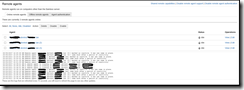
Three Remote Agents available.
|
 |
Once the remote agent is created you need to create PowerShell script using New-PSSession and Remote connection, something like :
$LocalDir= "${bamboo.biztalk.server}C$Users${bamboo.remote_username}Documents"
$session = New-PSSession  -ComputerName $biztalk_server  -ConfigurationName Microsoft.PowerShell32
$LastExitCode = Invoke-Command -Session $session -File "${LocalDir}US_Controller_BizTalk_Database.ps1"  -ArgumentList "undeploy","$list","$biztalk_sql_instance","$log_dir"
Some people might disagree with this approach, but if we can create multiple local agents on the same server then why not remote agents?
Many Thanks.
Regards,
Shadab
by Tord Glad Nordahl | Aug 14, 2014 | BizTalk Community Blogs via Syndication
We all know that debatching should be done in the receive pipeline, I’ve yet to see any really good scenarios where you shouldn’t, but I know there is some (debatching in the orchestration can give you a huge performance loss in BizTalk).
So, I am the admin, and I rarely do development (after all, drag and drop development isn’t challenging enough for me).
I sometimes use BizTalk to help me do some jobs I’d rather not do manually. Like inserting something in a database if I have a million rows in an XML message, or if just want to play drag and drop with my kids. And I came into a case where debatching an XML file was essential for me and my kids in order to have some fun (the oldest 2 and 4 years, they need a little challenge). I looked at a few articles on the internet and none of them were really “easy to understand”. So I decided to make one on my own. Let’s just put this post in the “DevOps” category. In this example I’m using VS 2013 and BizTalk 2013 R2.
- Create a new BizTalk Project (I called mine “SimpleDebatching“) but you can name it anything you want, it won’t impact any other code in this tutorial
- Right click your project in the “Solution Explorer” and choose “Add” and “New item…“
- Click once on “Schema” and add a friendly name to it. I called mine “Orders“
- Rename the “Root” name into “Order“.
- Right click the root name “Order” and choose “Insert Schema Node” and “Child Field Element“
- Do step 5 a total of four times with the following names “orderId“, “orderDate“, “orderPrice” and “orderStatus“
- If you now open the schema we named “Orders” and expand all the elements it will look like this

- And now a pet on your back, you’re doing great
- Now that we’ve come so far we need to understand the meanings of an envelope, people will trick you and tell you some technical ways of it.. Don’t mind them. its like any envelope, it has something in it, one or multiple papers/records.
- In the “Solution Explorer” right click the project and choose “Add” and “New Item…“
- Again, click once on “Schema” and give it a friendly name. In this case I called it “OrdersEnvelope“
- The “Schema Editor” pops up and we can see the root name is… “root“.
- Rename the root name into “OrderEnvelope“
- Right click “OrderEnvelope” and choose “Insert Schema Node“, and choose “Child Record”
- Name this child record “Orders“
- Get a cup of Coffee…
- Right Click the node “Orders” and choose “Insert Schema Node“, and choose “Any Element“
- Now click once on the “<Schema>” and take a look at the “Properties” window
- Locate the option “Envelope” change this from “(Default)” to “Yes” (do this for the “OrdersEnvelope” schema)
- Now go to the root node (OrderEnvelope) in the “OrdersEnvelope” schema and look at the “Properties” window again, find the “Body XPath“
- click the “magic/ellipse” button and drill till you see “Orders”
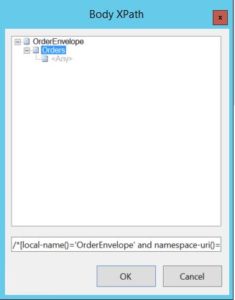
- Choose “Orders” and click “OK“.
- Pooof, and your schema “OrderEnvelope” is updated with the correct XPath
- Look at your self, and understand we still haven’t written one sentence of code..
- Go back to the “Solution Explorer” and right click the solution “SimpleDebatching“, choose “Add” and “New Item” and pick the “Receive Pipeline” name this “ReceiveAndDebatch“
- The Pipeline Component “drag and drop windows” appears.
- Expand the “Toolbox” windows and drag the “XML Disassembler” and drop it on the “Disassembler in the main window
- Click the newly added XML Disassembler and look at the properties window and find “Document Schema” click the ellipse button and locate your document schema “Orders”
- When you find this, click on it and hit the “Add” button, you will see the schema moving from the left window to the right
- Click “OK“
- Do the same with “Envelope Schema” but locate the “OrdersEnvelope” schema instaed
- Click “Add” and “OK“
- Now in order for us to deploy this code to BizTalk we need to do a few things
- Look at the “Solution Explorer” and right click the “Solution” Choose “Properties“
- In the “Properties window” that appear click “Deployment“
- Update the “Application Name” to “SimpleDebatching“
- Now we need to sign our assembly, so click the “Signing” and tick the box that says “Sign the assembly“
- From the drop down choose “<new…>” and create a new key
- Hit “CTRL+S” to save it
- Now back in the “Solution Explorer” right click it and choose “Deploy“
- Your code will now be deployed to your environment
- Open “BizTalk Administration Console” and locate your application “SimpleDebatching“
- Create a new Receive Port and name it “ReceiveDebatchPort“
- Create a receive location for this Receive Port and anme it “ReceiveDebatchLocation“
- Update the receive pipeline to your newly created recive pipeline “ReceiveAndDebatch“
- Create a new send port and name it “SendDebatch“
- Update the send pipeline to “XMLTransmit“
- Add a filter to your Receive Port by chooseing “BTS.ReceivePortName” and the value “ReceiveDebatchPort“
- Now restart your host instance and start the application.
- You can create a test message by generating an instance from the schema “OrdersEnvelope“
- Replace the “<any>” tag with a generated instance from the “Orders” schema (the more you add, the more records)
- Put the file in the in folder and see what happens.
So, you’ve done it, made a cool application, with drag and drop.. no coding.
Thanks for The help Erik Thue. 🙂 the best BT Dev in Bouvet