On January 15, 2020, Microsoft has announced the much-awaited release of BizTalk Server 2020 for public usage. Ever since Microsoft Product Team announced BizTalk Server 2020 in Integrate 2019 event, there has been a lot of expectations about the new release. BizTalk Server 2020 is an important update with key features and addresses some of the existing challenges. This version has support for newer platforms like Visual Studio 2019, Windows Server 2019, Windows SQL Server 2019. BizTalk Server 2020 requires the following Hardware and Software requirements.
New features that are shipped in this version are Analytical capabilities (Publish tracking data to Azure), Application Life Cycle Management with VSTS, Management APIs, Advanced Scheduling, TLS 1.2 Support, API Management, gMSA Account, Adapters (Event Hubs, Office 365, Blob) and more additional updates, like SSO Affiliate application support in SFTP Adapter. Partially disabled receive locations etc., Some of the features that are in the release have been updated with BizTalk Server 2016 feature packs (Automatic Deployment with VSTS in BizTalk Server and Manage API are part of Feature Pack 1 update)
These features are helpful to Administrators and BizTalk Developers/Deployment Team with common updates like Adapters support. In this blog, we are focusing on the features that Developers, Administrators /Deployment team can take advantage of.
XSLT 3.0 Support and Custom XSLT Transform
Automatic Deployment with VSTS in BizTalk Server
Manage API
Publish API Services to Azure API Management
Custom XSLT Transform
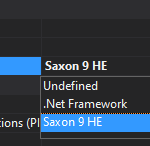
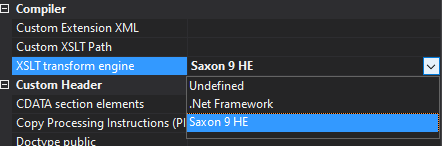
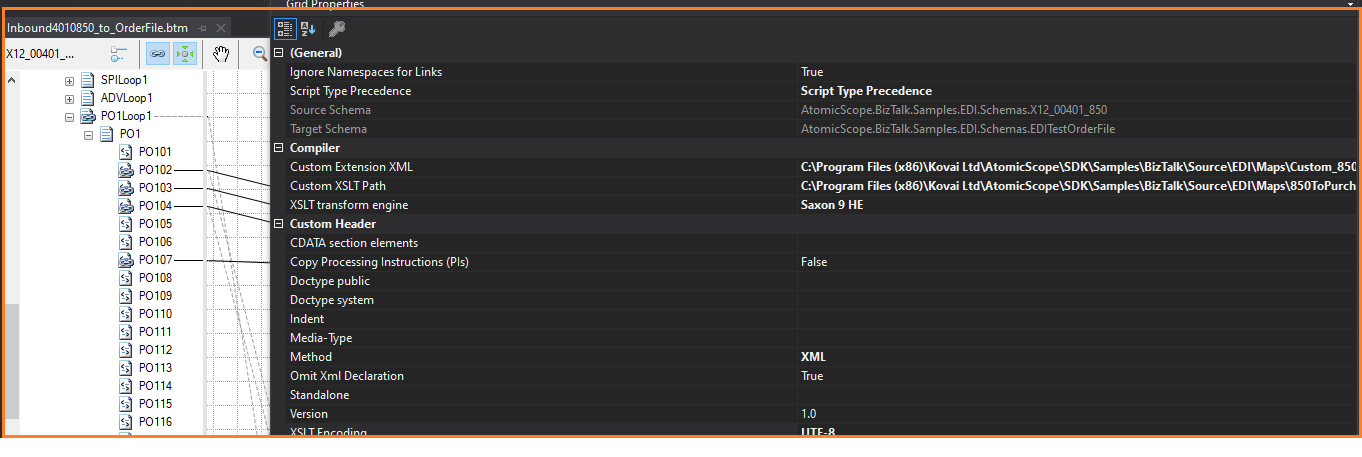
From this version of BizTalk Server on, the BizTalk Mapper has the ability to select the Custom XSLT Transform (Saxon 9 HE) or .Net Framework. BizTalk’s default XSLT engine implementation is based on .Net Framework, however, this support is limited to XSLT 1.0. By using this new property “XSLT transform engine”, other XSL transform engines can be configured at the map level.
XSLT 3.0
Support of XSLT 3.0 in BizTalk Server 2020 will help the developer to use any XSLT version in schema transformation in BizTalk Mapper. Developers can customize the XSLT based on their business requirements. XSL Functions can be defined, and it provides the option to choose the dynamic transform functionality.
What is Saxon-HE?
Saxon-HE is an open-source tool for processing XML documents using XSD schema and XSL Transform. Users can start using Saxon-HE 9 engines if they needed XSLT3.0 support during data transformation.
Let us take a business scenario in which EDI X12 850 data needs to be transformed into a purchase order. Saxon HE 9 XSLT will be used to transform the 850 by XSL Path and Custom extension XML to Purchase Order XML (XSLT3.0 will support the JSON Format in XPath Transform).
Note: Saxon 9 doesn’t support embedded scripting. As a result, functoids shipped as part of BizTalk may not function well with Saxon-HE 9.
Extend to other Custom XSLT Engines
Starting with BizTalk Server 2020, users can extend the custom XSLT transform engine in the BizTalk Mapper. Users can implement a custom XSLT transform engine by defining the XSLT transform implementation which is derived from abstract class Microsoft.XLANGs.BaseTypes.ITransform2 in assembly Microsoft.XLANGs.BaseTypes.dll.
Follow this article to know how to extend Custom XSLT with different Transform engines.
Automatic Deployment with VSTS in BizTalk Server
The deployment of BizTalk Applications can be a cumbersome process, as it can be hard to manage the artefacts binding information of different environments. Automatic Deployment of BizTalk Server with Visual Studio Team Services is released as part of the BizTalk Server 2016 Feature Pack1 update. Now, all the feature pack updates of BizTalk Server 2016 are clubbed into the BizTalk Server 2020 release. With Azure DevOps Service, users will be able to automate the deployment process through configuring a VSTS agent.
The VSTS Admin creates the build and releases definitions in Azure CI/CD pipelines. Developers will take advantage of the CI pipeline to build the BizTalk Applications and check-in the source code into Git or VSTS repositories. The CD pipeline will be used to deploy the BizTalk Applications into different environments (DEV, QA & Production).
You can follow the steps to create a deployment pipeline as mentioned in this article.
Manage API
BizTalk Server Developers can take advantage of REST APIs to customize their Business requirements through the exposed APIs covering the following areas in BizTalk Management Service. Management data APIs are endpoints that let you remotely update, add, and query the status of different Artifacts in your BizTalk Server environment.
Parties & Agreements
Applications
Batches
Business Profiles, Role Links
Fallback Settings
Hosts
Operational Data
Orchestrations, Receive Locations, Receive Ports, Send Ports and Send Port Groups
Policies
Protocol Types
Resources
Schemas and Transforms
Installation
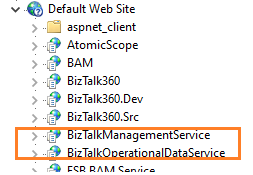
REST APIs are installed as part of the BizTalk Server 2020 Setup. It has been configured in IIS.
BizTalkManagementService
BizTalkOperationalDataService
Swagger Definitions
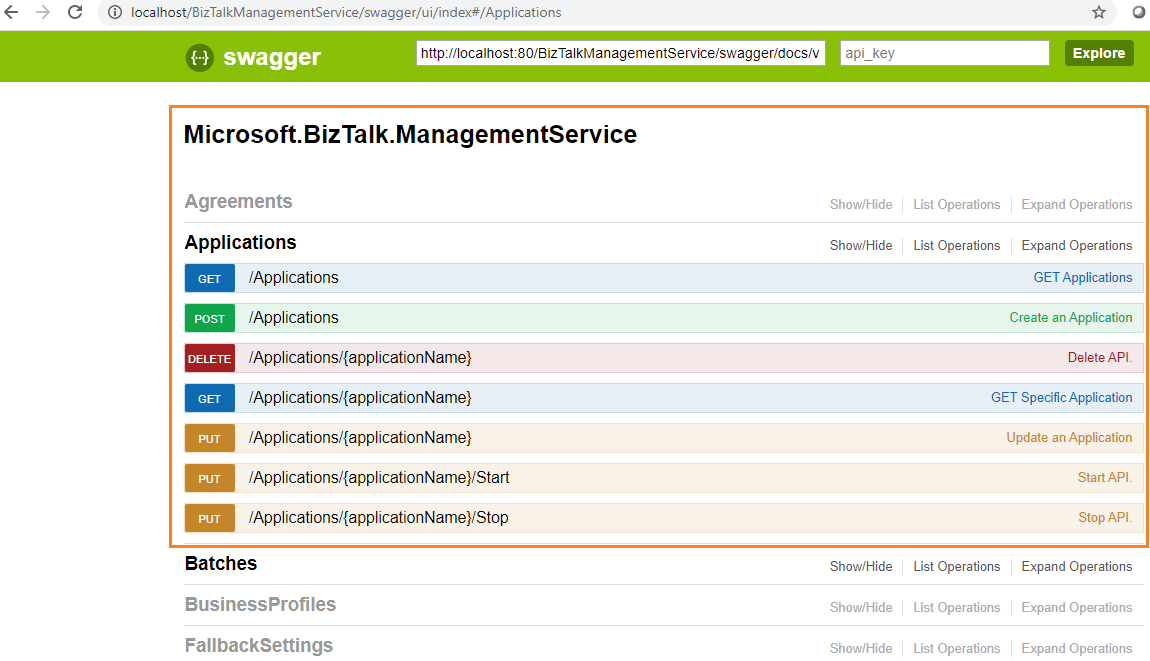
The endpoints are added using REST and come with a swagger definition. Users can access the Swagger definitions of the installed Management Service APIs. With the swagger definitions, developers can benefit from knowing the input and output parameters of each API method. Users can try out/test API methods through Swagger definitions.
http://localhost/BizTalkManagementService/swagger
Publish WCF-Basic HTTP methods to Azure API Management
Starting from BizTalk Server 2020, WCF-Basic HTTP API endpoints can be published to Azure API Management. It will provide the option to monitor and manage the API methods from the Azure Portal.
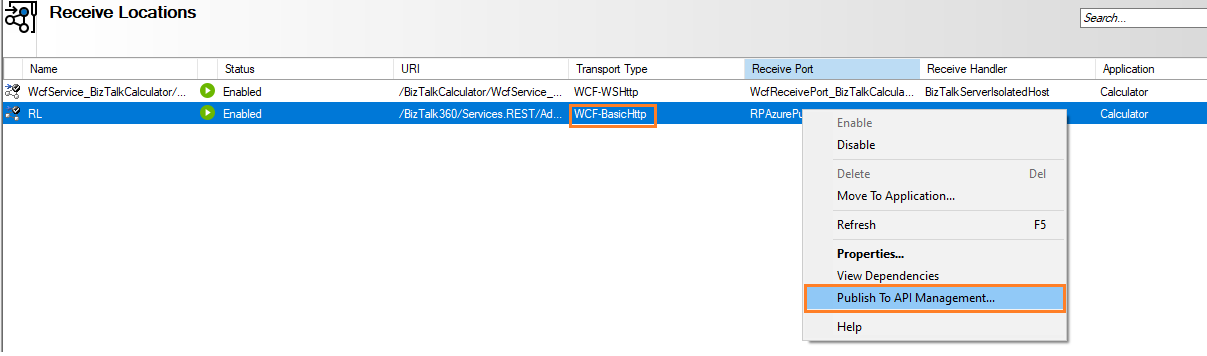
The option to publish to API Management is only available for the Receive Locations of WCF-Basic Http Adapter type. Prior to publishing API methods, create the API Management Service in the Azure Portal.
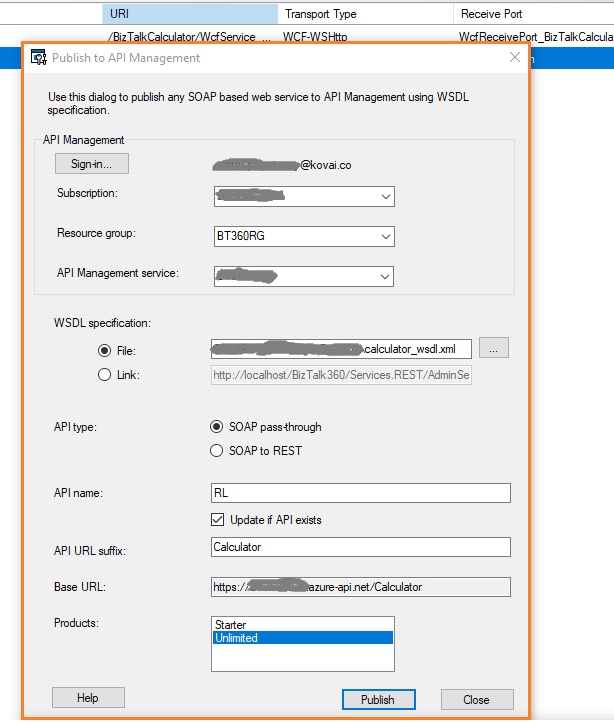
Users can publish the API methods to the Azure API Management Service:
Right-click the WCF-Basic HTTP Adapters and select the “Publish to API Management “option
In the Publishing Dialogue, sign in to the Azure Portal
Select the Azure Subscriptions, Resource Group, and API Management Service
WSDL Specifications can be published by choosing either WSDL file or Http URL with single WSDL
Mention the API Name
Then click on the Publish button
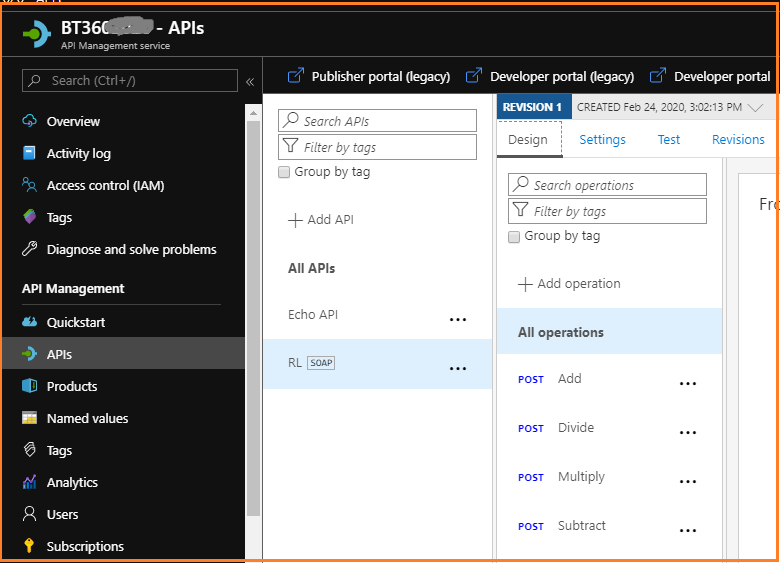
Once the WCF HTTP APIs are published successfully, you can view the published APIs under the selected API Management Service. Now the user has the facility to test or push the API methods to higher environments.
Conclusion
As integration solution has started to focus on Azure Serverless technologies, Microsoft has started to provide Hybrid integration capabilities. It will provide the options for the users to choose the solution that suits their business case. With the release of BizTalk Server 2020, more Azure Service offerings like Backup the BizTalk databases, API Management Service are introduced. Along with Logic Apps Adapter, these new features will help you build flexible integration solutions. Happy Integration!
During our last premier event, INTEGRATE 2019, the Microsoft product group announced the new version release of BizTalk Server 2020. This version has been released in mid-January 2020. A most awaited moment comes into real; BizTalk 2020 is public now! To know more about the exciting new features, take a look at our Founder Saravana Kumar blog “BizTalk Server 2020 – Why it’s a Game-Changer?”.
In this blog post, I will be covering the new features shipped in BizTalk Server 2020, in terms of Operation and Administration. Yes, this version brought in quite a number of new capabilities to make the life of admin/support people easier. Let’s take a look at the features one by one in detail in the coming sections.
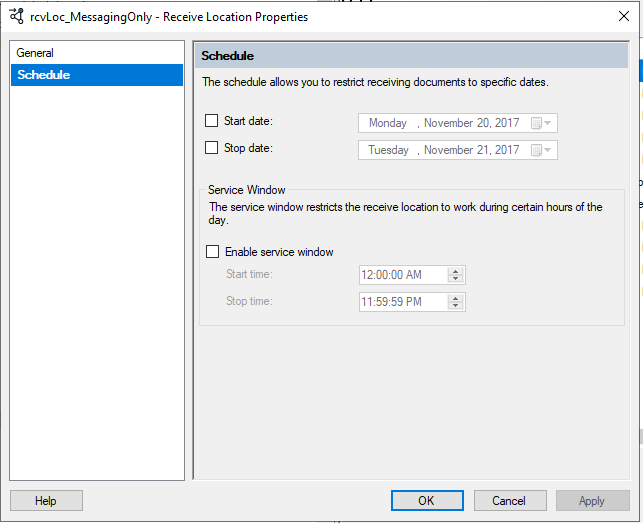
Scheduling
In BizTalk Server, there is an option available to schedule receiving or transmitting the messages on certain days and hours. However, there is no scheduling available to specify the preferred time zones and at a specific time on a daily, weekly or monthly basis. Therefore, the administrator relayed on other tricks to achieve this business scenario as below:
Windows Task Scheduler – To drop a file to the specified Receive Location
SQL Adapter – Implementing a simple stored procedure that creates a “dummy” message that initiates the process
BizTalk Scheduled Task Adapter – An in-process receive adapter that executes a prescribed task on a daily, weekly or monthly schedule.
Advanced Scheduling
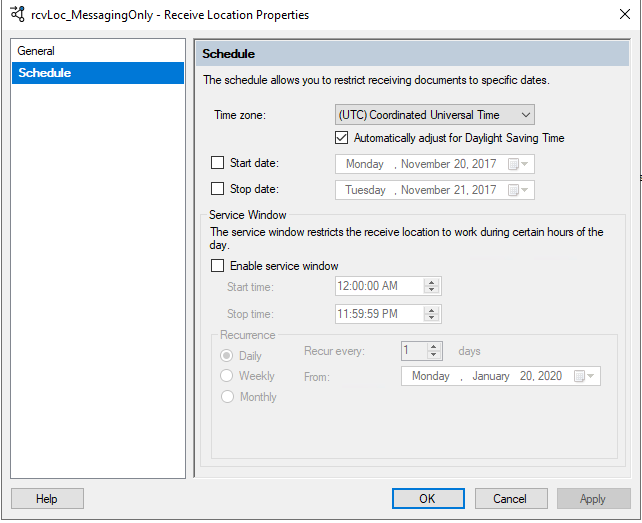
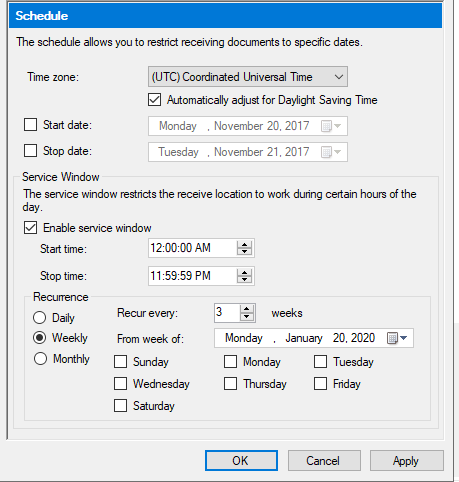
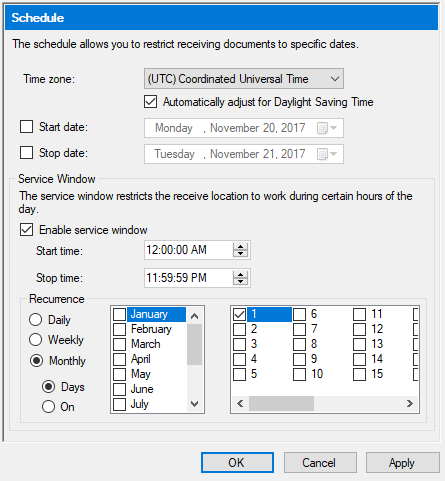
Now with BizTalk Server 2020, the new advanced scheduling comprises all the options which administrators wanted for scheduling.
New Options:
The preferred time zone can be set based on the business scenario
Automatically adjust for daylight saving time
Recurrence options like daily, weekly, and monthly
Local time can be confusing, as all the places on earth use their own local time for the smooth functioning of the large-scale business spread across the world. (Ex: companies with abroad partners, railways, ). Until the previous versions, there won’t be any option available to set the preferred time zone for message processing. With this new option, the time zone can be set according to the business needs along with the automatic setting daylight-saving.
Another exciting capability is recurrence. To achieve this formerly, Admins used various tricks to process the messages. With this new capability, they can set daily, weekly and monthly schedules as per the needs.
Daily – Configure the number of recurring days and from which date the recurrence will be active
Weekly – Configure the number of recurring days, from when the recurrence will be active and on which weekdays the recurrence must be active
Monthly – Configure which months and which days the recurrence should take place
Backup to Azure Blob Storage
To align with the latest trend, BizTalk Server 2020 has this exciting capability to extend its support in hybrid solutions. With this feature, you can configure the BizTalk Server job to back up your BizTalk databases and log files into the Azure Blob storage account.
To configure this job, you will need to:
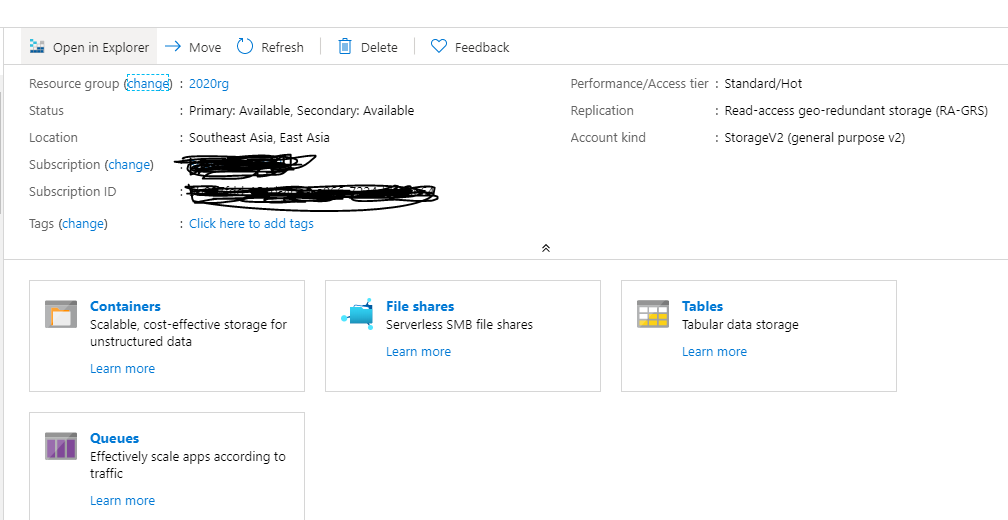
Create a general-purpose Azure Storage account
Create a container within your Blob Storage account
Create stored access policy and shared access storage
Create SQL Credential using the SAS
Create a general-purpose Azure Storage account
An Azure Storage account contains all your Azure Storage data where all the saved data is highly available, secure, and scalable at any point in time. Then the storage account is ready to create the container.
Creating a Container
All the database backup files are stored in the Blobs. For that, you must first create a container.
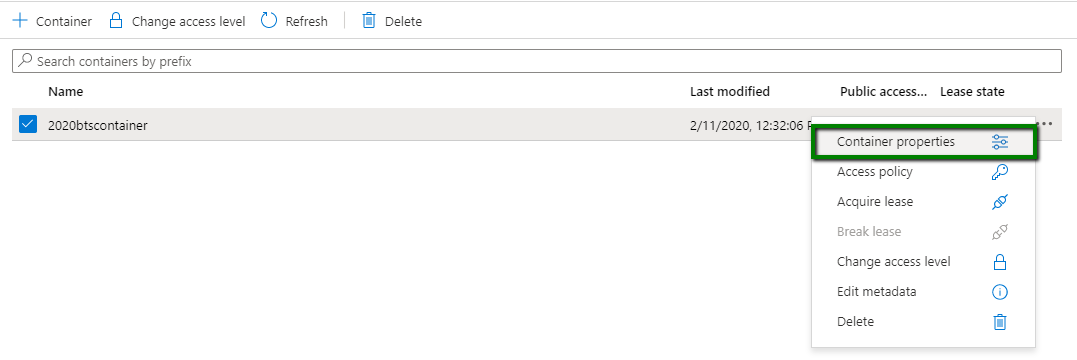
Once the container is created, click on the ellipsis button at the end of the row and look for the property “Container properties”.
In the opened window, copy the URL value as highlighted in the below screenshot. This URL will be used to create the credentials in the SQL Server and as well as configure the backup jobs.
Shared Access Signature
A shared access signature is a URI that grants restricted access rights to the container in the Azure Storage account. A stored access policy provides an additional level of control over shared access signatures. When using this, you need to create a policy on a container with at least read, write and list rights.
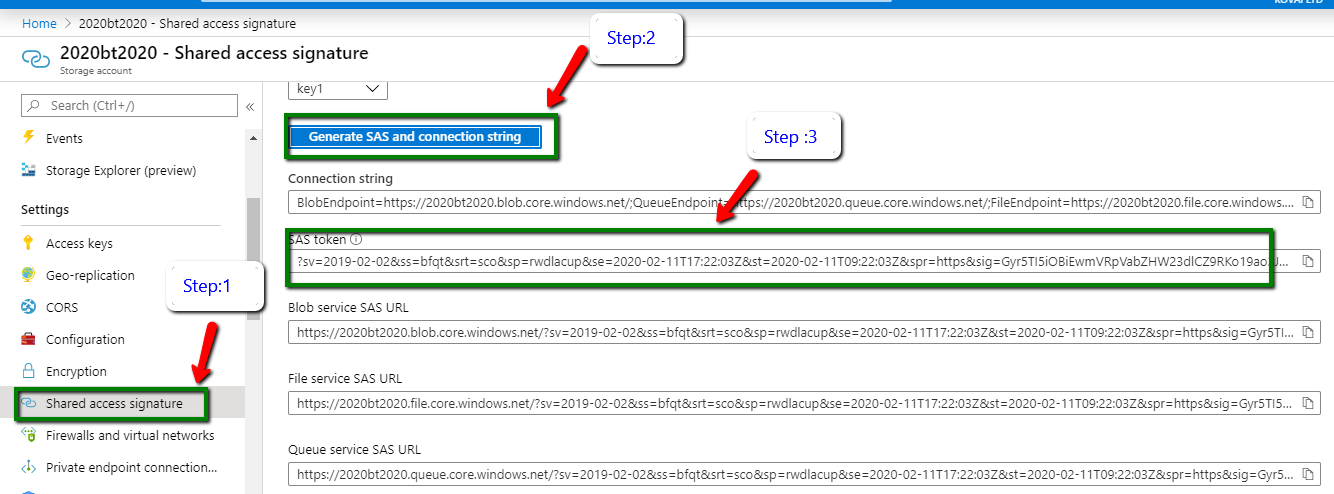
In the Azure Storage account you have created, look for the menu “Shared access signature” and click on the “Generate SAS and connection string”, as shown in the below screenshot.
All the connection strings and URLs will be generated and listed in the below section. There you require the SAS token to create the credentials.
Create SQL Credential
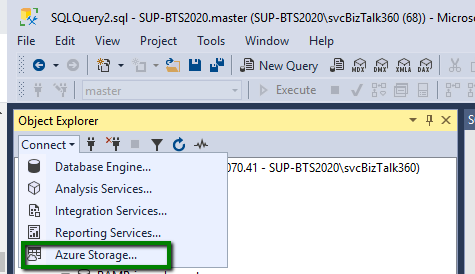
This is the final step, where you need to create a credential in SQL Server in order to connect with the blob storage. As mentioned in the screenshot, Open the new query and click on the menu “Azure Storage”.
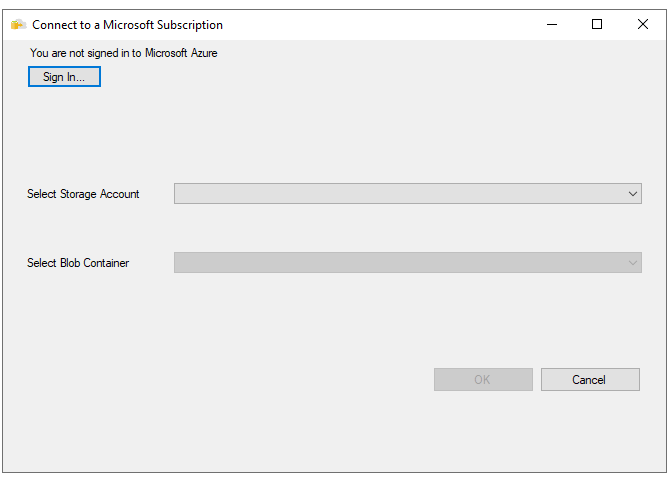
In the next wizard, you are prompted to sign in the respective Azure account where the container is created. Once after the sign-in, select the respective storage account and the container and click ok.
After the successful sign-in, execute the below query with the correct parameters.
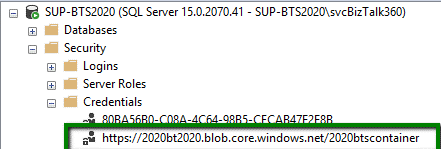
Once the query is successfully executed just navigate to Security -> Credentials. You can see the new shared access signature in the credential folder. Now everything is set for the database backup to Azure Blob.
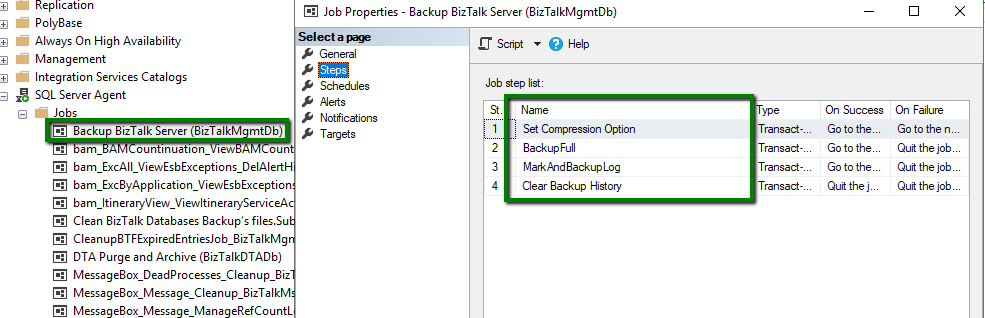
Once the credentials are created, you need to configure the BizTalk Server backup job as mentioned in this article.
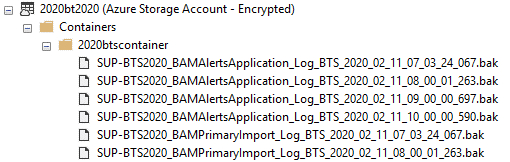
After the successful configuration, you need to run the backup job. Once the execution is completed, all the BizTalk Server database backups are available in the Blobs as you see in the below screenshot.
Audit Log
Until the previous versions of BizTalk Server, it is a completely black box for the administrators where they are not sure about who does what in the environment since all support persons have elevated access to the BizTalk and SQL Servers and no auditing is taking place.
BizTalk Server 2020 can audit the application and its artifact activities performed by the users. All the auditing activities are stored in the BizTalk Management DB -> bts_auditlog table.
Admins can get an insight about,
Who has done the action?
In which Server with the Artifact id, artifact name, and the corresponding operation
Payload information
At which specific date and time the particular action took place
The new audit API lists all the auditing activities performed by the users. The result will be returned in the JSON format.
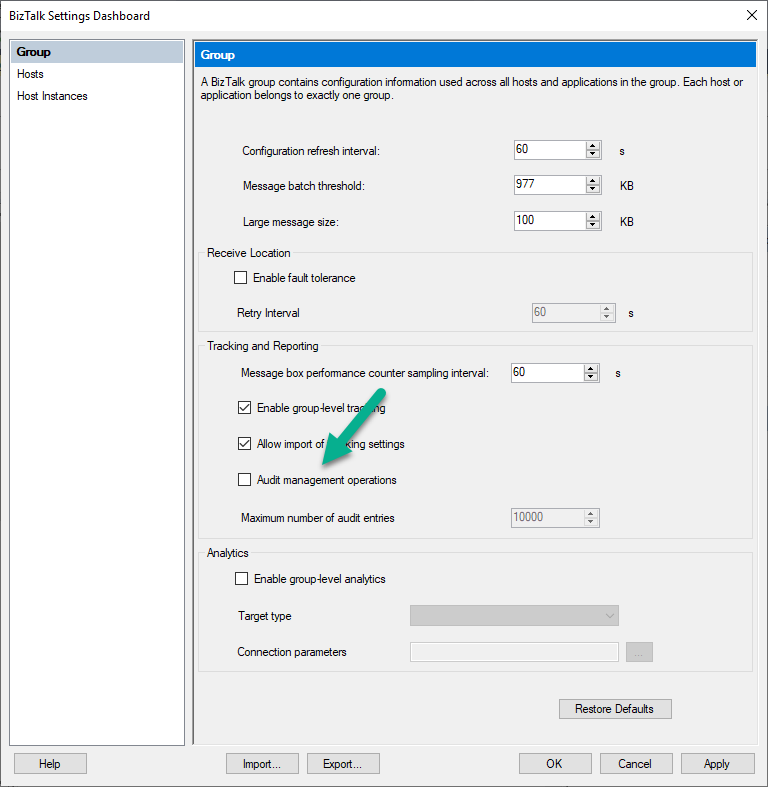
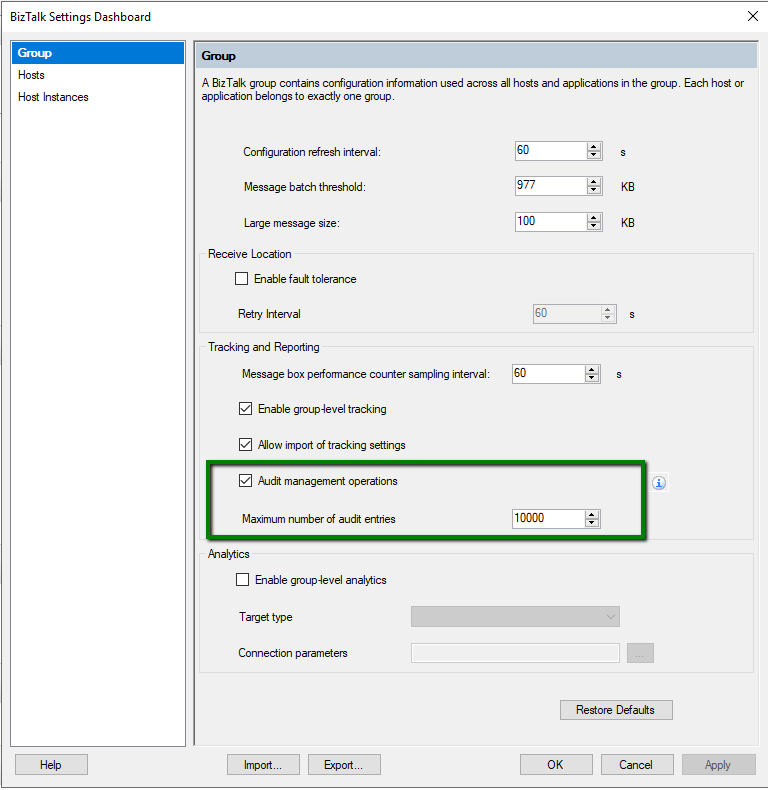
After installing and configuring the BizTalk Environment, the next is to enable the Global level Audit Management operations, as shown in the picture.
The following are the detailed list of the activities audited by the BizTalk Server,
Applications
Receive Ports
Receive Locations
Orchestrations
Send Port Groups
Service Instances
Binding file importing activity is audited as well.
Artifacts which don’t have auditing capabilities:
Policy
No Auditing
Resources
No Auditing
Schemas
No Auditing
Party
No Auditing
Host Instance
No Auditing
Note: Only the admin users can view the auditing activities performed by other users.
New Read-Only Operator Role
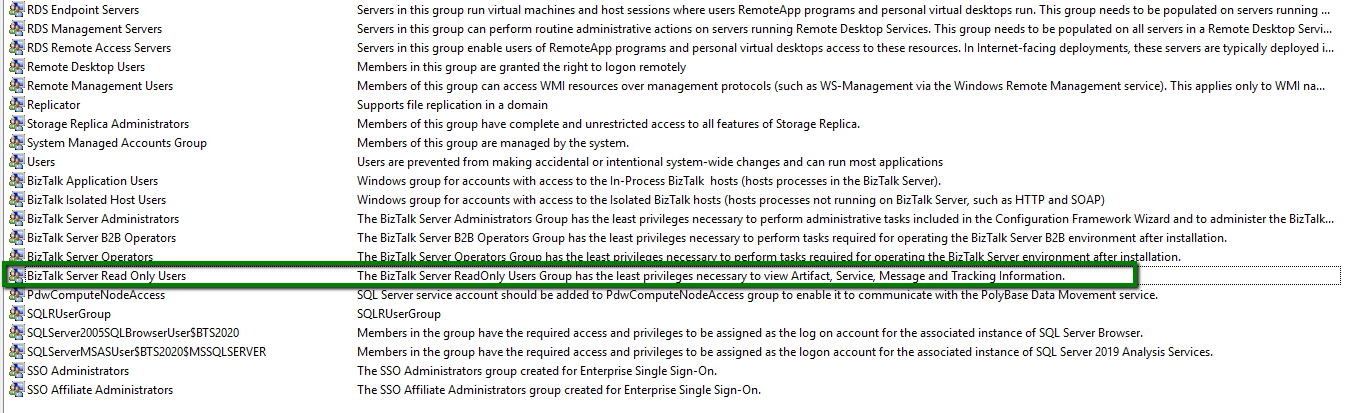
The new role “BizTalk Server Read-Only Users”, is completely providing read-only access to the users. This role will be useful to facilitate the dev-ops scenario.
With this new role, users are restricted to perform actions against,
Application and Artifacts
Service Instances
Changing port configuration
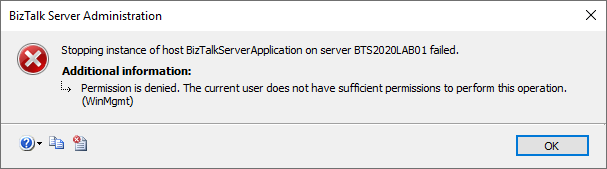
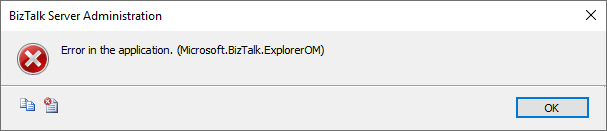
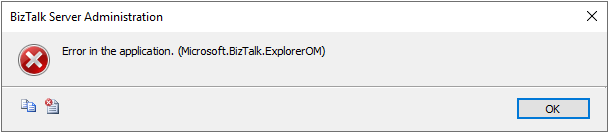
If a user, who is in the Read-only Operator role, tries to do any actions, these actions will be restricted by BizTalk Server and the user will get an error message like below.
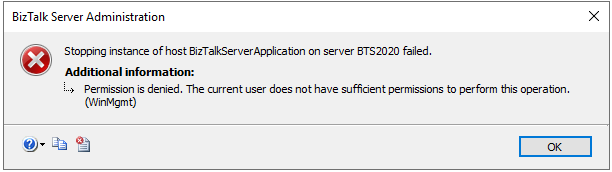
When the user tries to change the host instance status, the error message will be different, as shown below.
Group Managed Service Accounts
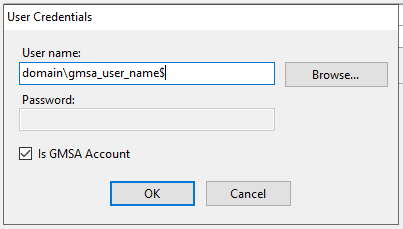
Group managed service provides automatic password management. The main reason behind this is to delegate the management of passwords to other administrators. When this option is enabled, users don’t need to provide the passwords to handle the services. This specific option will be shown when you run the BizTalk Server custom configuration. The features support gMSA have a “Is gMSA account” setting. Once this setting is enabled, the password property disables.
gMSA is supported for the features,
BizTalk Runtime
Business Rules Engine
BAM Tool
Rest API
BizTalk TMS
Note: gMSA is not available when BizTalk is configured with a Basic Configuration.
You can find more information about gMSA in this article.
Conclusion
Microsoft released many useful features to ease the Operation and Administration capability for support/admin people. BizTalk Server 2020 promises the on-going commitment of Microsoft in this platform. We are in the process of creating some great guides and materials related to BizTalk Server 2020. (Ex: Detailed upgrade guide from previous versions). If you are interested, comment below with your answers for the following two questions along with your mail id, we will keep you in the loop.
What version of BizTalk Server are you using?
Is BizTalk Server 2020 migration in your scope?
Here are a few detailed blogs on BizTalk Server 2020, hope you will find them useful.
Do you feel difficult to keep up to date on all the frequent updates and announcements in the Microsoft Integration platform and Azure iPaaS?
Integration weekly update can be your solution. It’s a weekly update on the topics related to Integration – enterprise integration, robust & scalable messaging capabilities and Citizen Integration capabilities empowered by Microsoft platform to deliver value to the business.
As most of us are aware, starting with BizTalk Server 2013 and newer versions, Microsoft BizTalk ESB Toolkit is integrated with the BizTalk Server setup.
The wait is over, BizTalk Server 2020 is out now! On 15th of January 2020, Microsoft announced the release of BizTalk Server 2020. We got an opportunity to install and configure the ESB toolkit using BizTalk Server 2020.
While installing and configuring ESB we faced a huge challenge and surprise, that the ESB Portal was missing!!! In this blog, we would like to share our experience with you all that we gained and how we configured the ESB portal.
We would like to start from scratch, right from the installation of ESB in BizTalk Server 2020.
Prerequisites
Choose Windows Server 2019 (Preferred) / 2016
Install Visual Studio 2019 – Required for BizTalk Server Developer Tools and SDK.
.NET Framework 4.7 – BizTalk projects created in Visual Studio require the Visual Studio build target to be set to your .NET Framework version
Microsoft SQL Server 2019 (Preferred) – 2017 / 2016 SP2
Install Enterprise Library 5.0 from the link- http://www.microsoft.com/en-us/download/details.aspx?id=15104
Install Microsoft Report Viewer Redistributable 2008 from the link – http://www.microsoft.com/en-us/download/details.aspx?id=577
Add Roles & Features
IIS with IIS 6 compatibility Tools(complete)
Windows Authentication & Basic Authentication (Under: Web Server(IIS) -> Security
WCF & HTTP Activation for both .Net 3.5 and 4.5/4.7
Installing ESB
Close any programs you have opened.
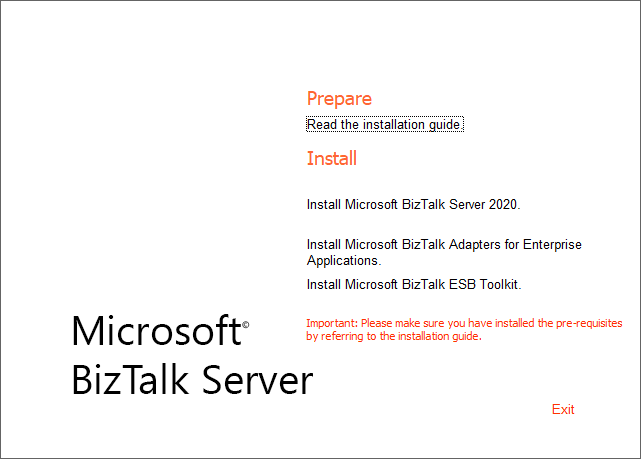
Run the BizTalk Server 2020 setup.exe file as Administrator
On the BizTalk Server installation Start page, click InstallMicrosoft BizTalk ESB Toolkit
On the License Agreement page, select “Yes, I accept the terms of the license agreement” and then select Next
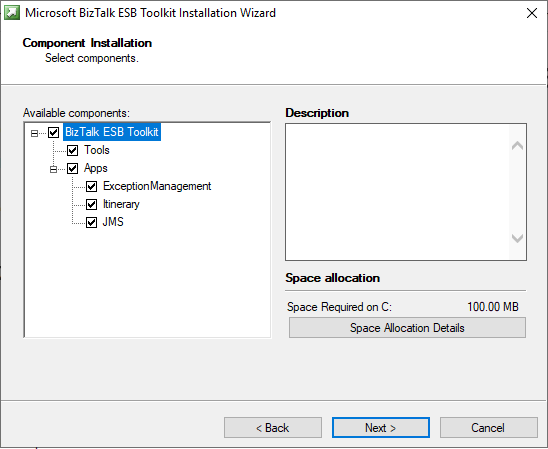
In the Component Installation page, select the components you want to install, and then select Next
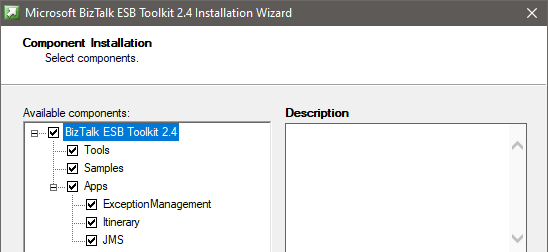
Note: If you observe the installation wizard, you may find the ESB Toolkit version is missing while comparing it with the BizTalk Server 2016.
In the Summary, review the installation details that you chose, and then select Install
On the Installation completed page, Select Finish to close the installation wizard. An install log file is created, similar to C:UsersyourUserNameAppDataLocalTempSetup(xxxxxx).htm
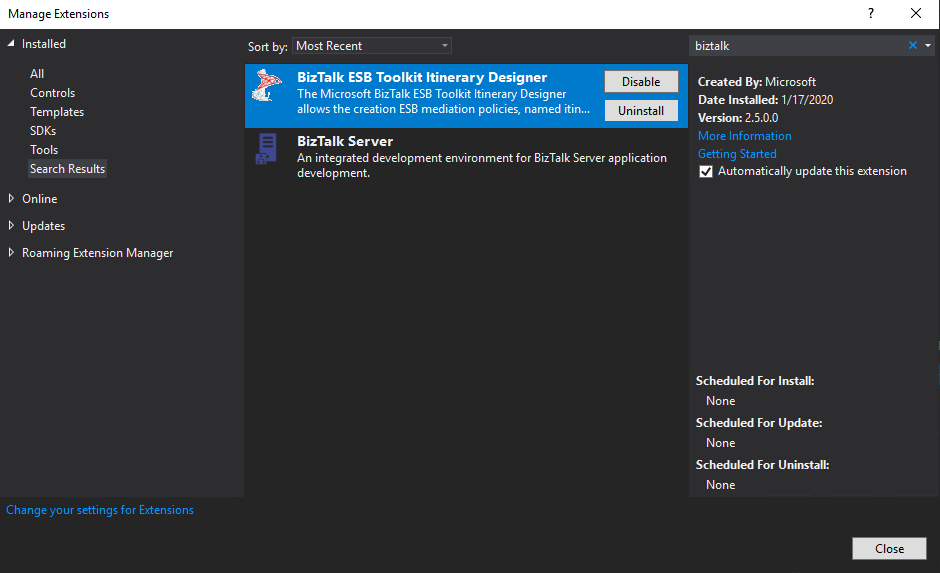
Starting with BizTalk Server 2020, to install the Itinerary Designer, also install the BizTalk ESB Toolkit Itinerary Designer extension in Visual Studio
Using Visual Studio 2019 -> Continue without code -> Extensions -> Manage Extensions -> Install BizTalk ESB Toolkit Itinerary Designer
Note:
You must configure BizTalk Server before configuring BizTalk ESB Toolkit
You must run the ESB Configuration Tool as an administrator
Configuring Microsoft BizTalk ESB Toolkit
From the Start menu, type ESB Configuration Tool or Scroll and select Microsoft BizTalk ESB Toolkit, and then select ESB Configuration Tool
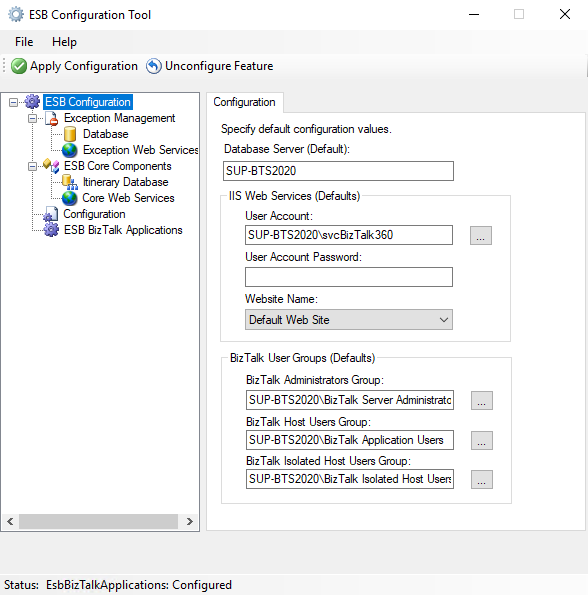
In the ESB Configuration Tool, from the left pane, select ESB Configuration.
On the right pane, for Database Server: specify the database server where the databases, which are required for BizTalk ESB Toolkit, are created
In the IIS Web Services box, specify the User Account credentials under which the applications required for BizTalk ESB Toolkit are created. Also, specify the name of the website in IIS under which the applications are created
The BizTalk User Groups box lists the default user groups which are available for ESB configuration
Note: At this stage, you can click “Apply Configuration” towards the top of the ESB Configuration Tool to configure the Microsoft BizTalk ESB Toolkit with the default settings. However, if you want to do a custom configuration, you can perform the remaining steps as well. In such a case, the values you specify in the subsequent steps take precedence over the default values.
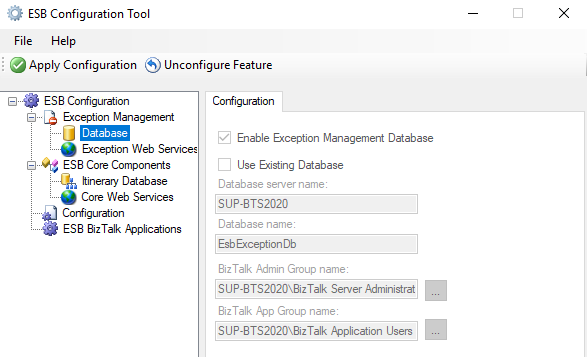
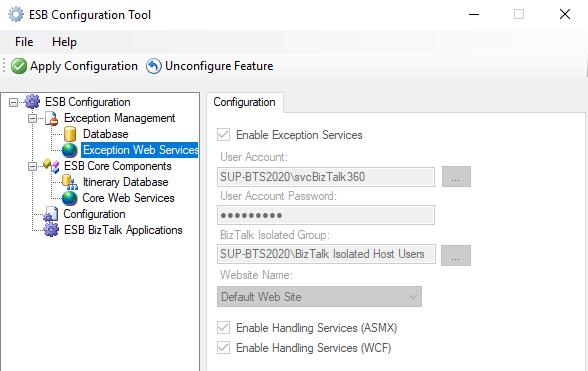
In the left pane, expand ESB Configuration, expand Exception Management, and then:
If you don’t want to configure an exception management database, then select Database, and uncheck the Enable Exception Management Database
If you want to use an existing database instead of creating a new database, then select Database, and select Use Existing Database. Enter the database server name and the database name
If you don’t want to configure exception web service, then select Exception Web Services, and uncheck Enable Exception Services. If you want to run these services under a different website, you can enter that here
In the left pane, expand ESB Core Components, and then:
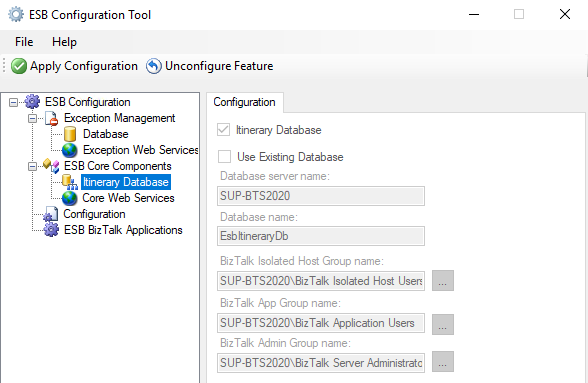
If you don’t want to configure an itinerary database, then select Itinerary Database, and uncheck Itinerary Database
If you want to use an existing itinerary database, then select Itinerary Database and select Use Existing Database. Enter the database server name and the database name
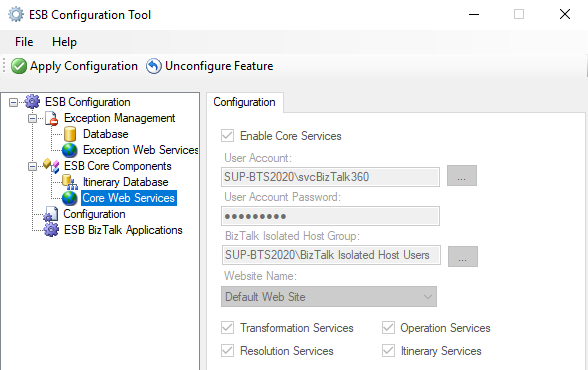
If you don’t want to configure these web services, then select Core Web Services, and uncheck Enable Core Services. If you want to run these services under a different website, you can enter that here
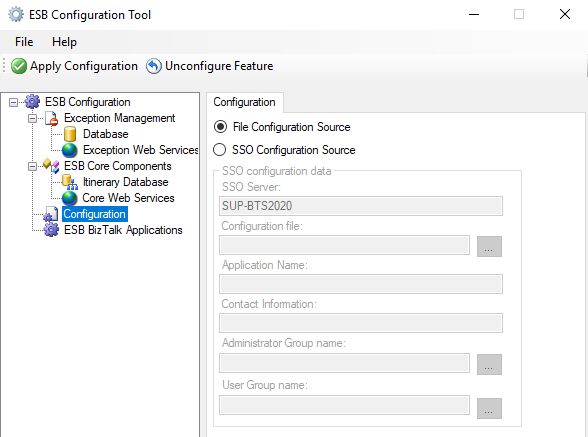
In the left pane, select Configuration
If you are installing and configuring the BizTalk ESB Toolkit in a single server environment, select File Configuration Source.
If you are setting up a multiple-machine deployment, select the SSO Configuration Source, and then enter the following:
SSO Server: Enter the name of the SSO server
Configuration file: Click the ellipsis, and then browse to the esb.config file (Program Files (x86)Microsoft BizTalk ESB Toolkit)
Application Name: Enter a name for the SSO application. For example, enter ESB Toolkit
Contact Information: Enter a valid email address the appropriate contact information in the following format: [email protected]
Administrator Group Name: Select the ellipsis, and then browse to the appropriate admin group
User Group Name: Select the ellipsis, and then browse to the appropriate group
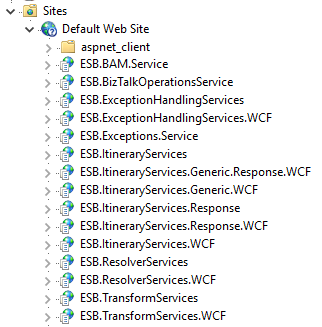
Click Apply Configuration. Open IIS and notice that the applications required for BizTalk ESB Toolkit are now created under the website you specified while configuring BizTalk ESB Toolkit.
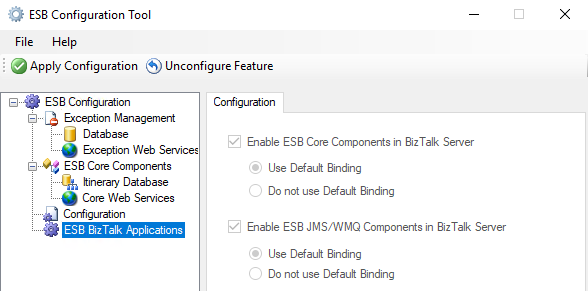
In the ESB Configuration Tool, select ESB BizTalk Applications, and then:
Select Enable ESB Core Components in BizTalk Server to create the application in the BizTalk Server Administration console. Select Use Default Binding to bind this application to the default host. Select Do not use Default Binding, if you do not want to bind the application to the default host. In this scenario, you must explicitly bind the application to a host once the application is created.
Select Enable ESB JMS/WMQ Components in BizTalk Server to create the application in the BizTalk Server Administration console. Select Use Default Binding to bind this application to the default host. Select Do not use Default Binding if you do not want to bind the application to the default host. In this scenario, you must explicitly bind the application to a host once the application is created.
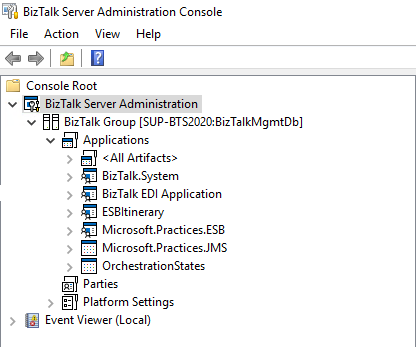
Click Apply Configuration to create the applications you selected. Verify that the applications are created in the BizTalk Server Administration console.
Verify Your Installation
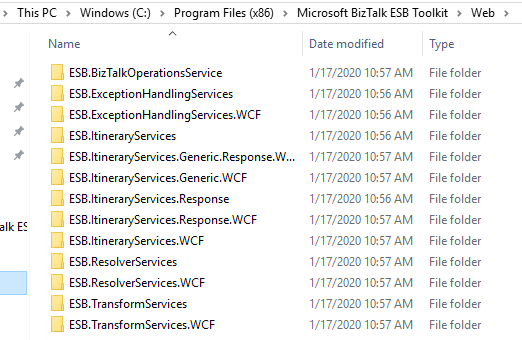
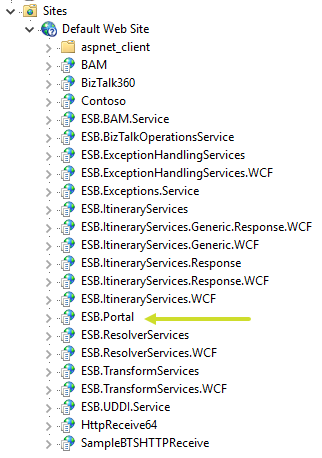
To ensure if the site has been configured correctly, navigate to the folder C:Program Files (x86)Microsoft BizTalk ESB ToolkitWeb. Compare the folders and subfolders, and the sites under IIS -> Sites -> Default Web Site.
Open the BizTalk Server Administration console and notice that the ESB applications is now installed and present in our console.
Finally, ensure the availability of the “EsbExceptionDb” and “EsbItineraryDb” in the database.
ESB Portal Findings
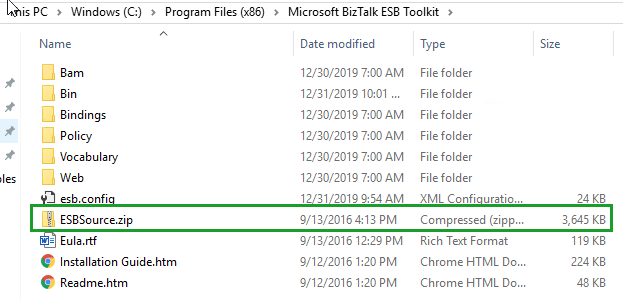
Once after the installation and configuration of ESB Toolkit, if you have a look at the installation folder to configure ESB Portal, you will find that the file “ESBSource.zip” is missing…!!!
Once after the configuration in BizTalk Server 2016, you will be able to find the ESBSource.zip file. But it is not available in BizTalk 2020.
*Screenshot from BizTalk Server 2016 ESB Toolkit installed folder location
*Screenshot from BizTalk Server 2020 ESB Toolkit installed folder location
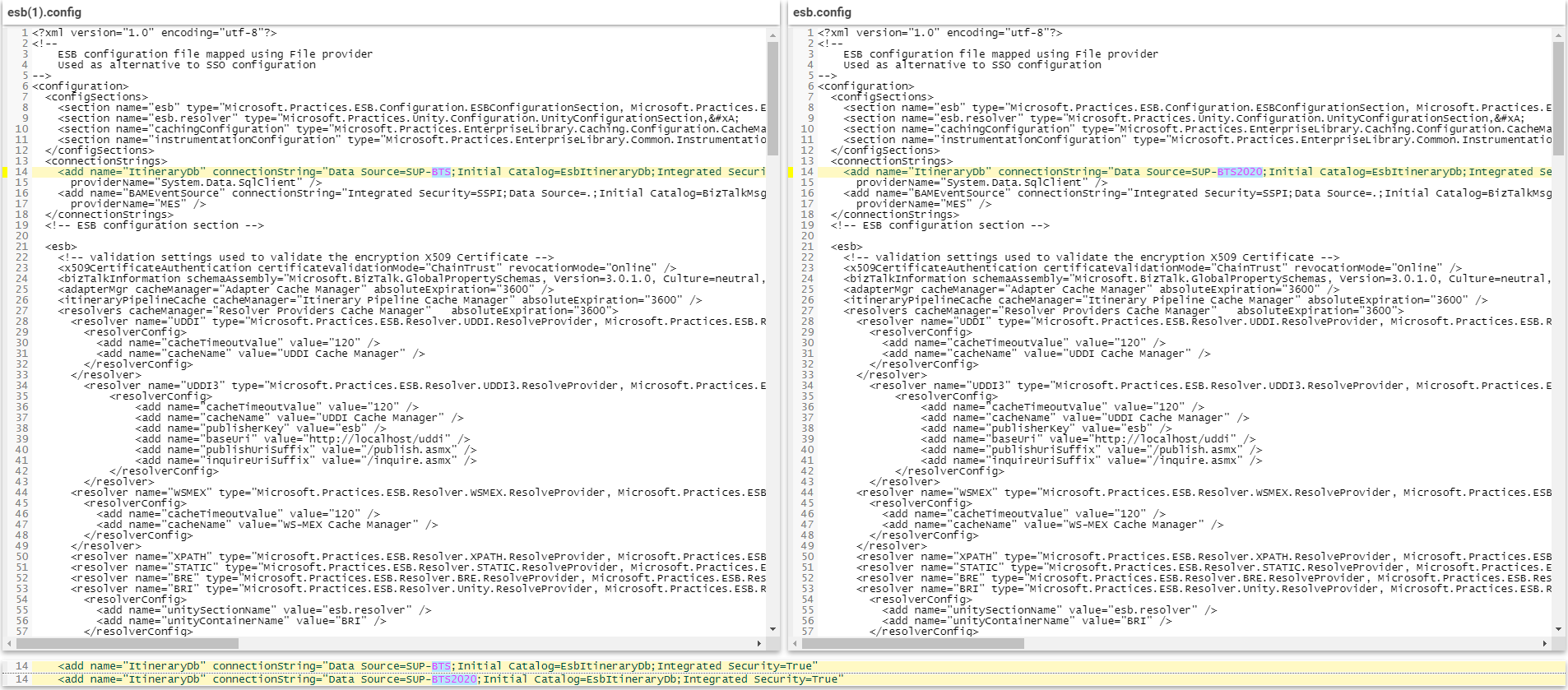
But, if you want to use the default ESB portal, you need the “ESBSource.zip” file to create it, or if you have another option, you can build your custom portal. We have compared the esb.config file to check if any changes have been done. When we checked the file, we found out that no changes have been done in the latest file. So, we thought of using the same portal in BizTalk server 2020 that was already used in the BizTalk server 2016.
To be able to use the existing ESB portal, we have copied the “ESBSource.zip” file from BizTalk Server 2016 and pasted inside the BizTalk Server 2020 folder C:Program Files (x86)Microsoft BizTalk ESB Toolkit.
ESB Portal Installation and Configuration
To install the default ESB portal
Create a folder in your C: drive and name it as Projects. Now, unzip ESBSource.zip file from the download location into the C:ProjectsMicrosoft.Practices.ESB folder
Once after extraction, Remove the Read-only attribute from all files in C:ProjectsMicrosoft.Practices.ESB folder
Install Microsoft Report Viewer Redistributable 2008 from http://www.microsoft.com/en-us/download/details.aspx?id=577
Note: Leave step 4 and 5 if you have already done it earlier
In Visual Studio 2019, open ESB.Portal.sln found in C:ProjectsMicrosoft.Practices.ESBSourceSamplesManagement PortalESB.Portal
When Visual Studio 2019 starts converting the solution to the current format, a dialog pops up that warns you about ESB.Portal.Setup.vdproj file not being supported in Visual Studio 2019. Click OK. Wait until the solution opens
In the Solution Explorer, add Microsoft.Practices.ServiceLocation.dll as a reference to the ESB.BAM.Service.Implementation project. This assembly is found in C:Program Files (x86)Microsoft Enterprise Library 5.0Bin
Save all files in the solution
Rebuild ESB.Portal solution
Close Visual Studio
Run Management_Install.cmd file found in C:ProjectsMicrosoft.Practices.ESBSourceSamplesManagement PortalInstallScripts
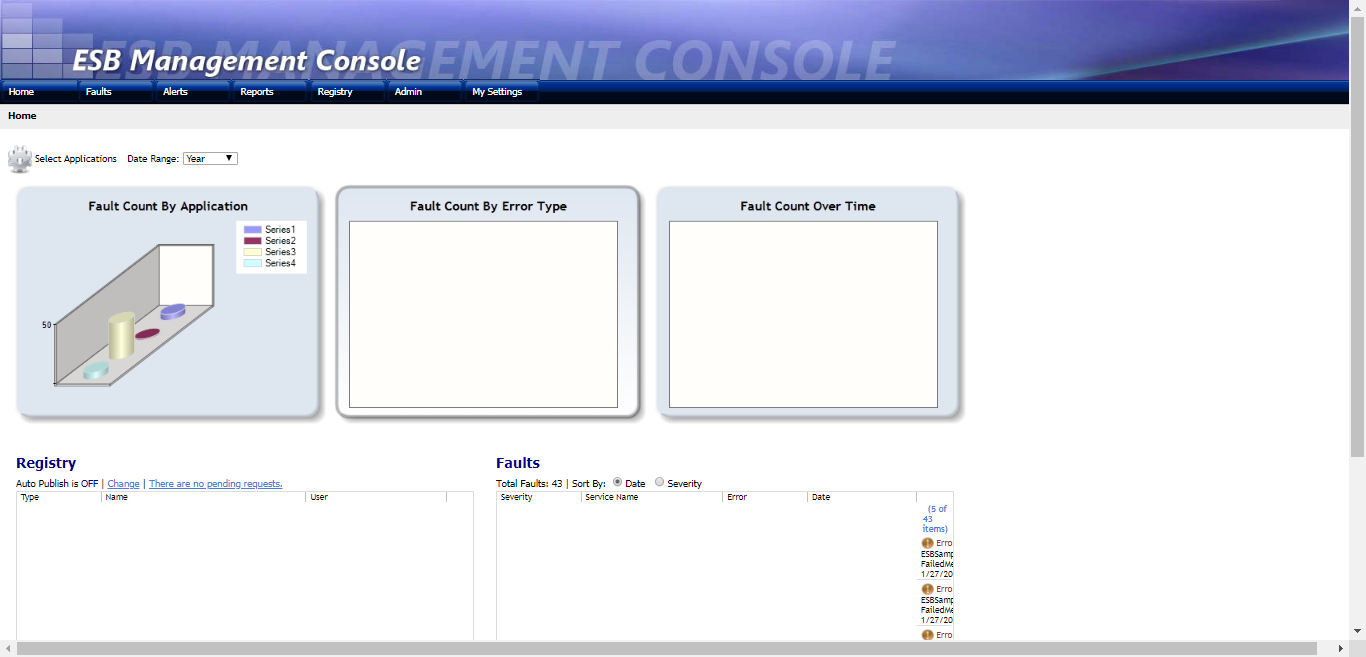
If you can successfully run the Management_Install.cmd without any error/exception, the portal will be configured. Now when you open Internet Explorer and navigate to http://localhost/ESB.Portal you should see the ESB Management Console home page.
If you face any issues/exceptions when you run the Management_Install.cmd and the portal is not created, follow the below steps.
Open PowerShell as an Administrator and run the following command:
set-executionpolicy unrestricted
Open a command prompt as an administrator and run the following command to ensure WCF script maps are registered:
Make sure that the UDDI Service is installed from BizTalk Server Setup before running the UDDI Publisher Tool. Run the UDDI Publisher tool (you can install it at %ESB Install Folder%BinMicrosoft.Practices.ESB.UDDIPublisher.exe). Now, continue to the next step, even though you might get some errors.
Navigate to SamplesManagement PortalInstallScripts from the command prompt run the following commands
Now, without any errors/exceptions, the portal should be configured. Check if the ESB.Portal is available in IIS. When you open Internet Explorer and navigate to http://localhost/ESB.Portal you should see the ESB Management Console home page.
Phew!!! That’s how we configured ESB Portal.
Hub for Modern and Legacy World
Now we will come to the second option, custom portal…!
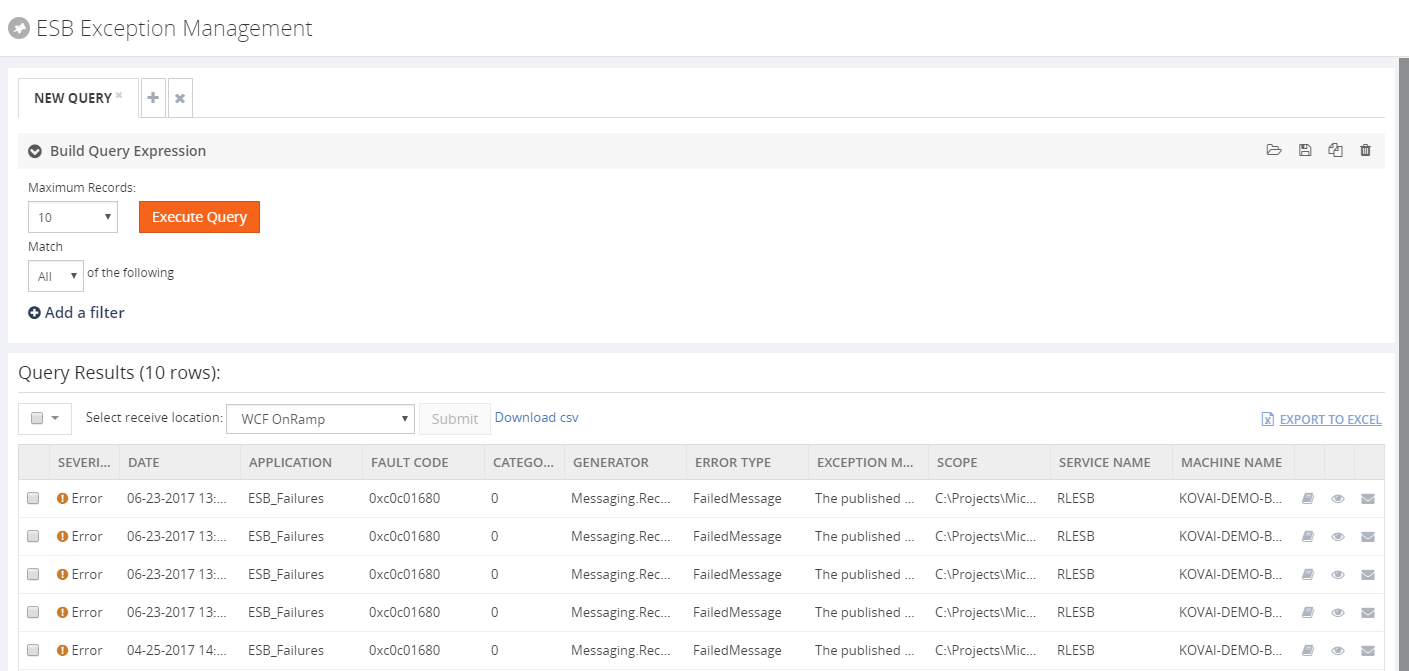
Even though the Exception Management framework is very robust and strong, the Exception Management Portal that comes out of BizTalk Server is not that easy to configure as we have experienced.
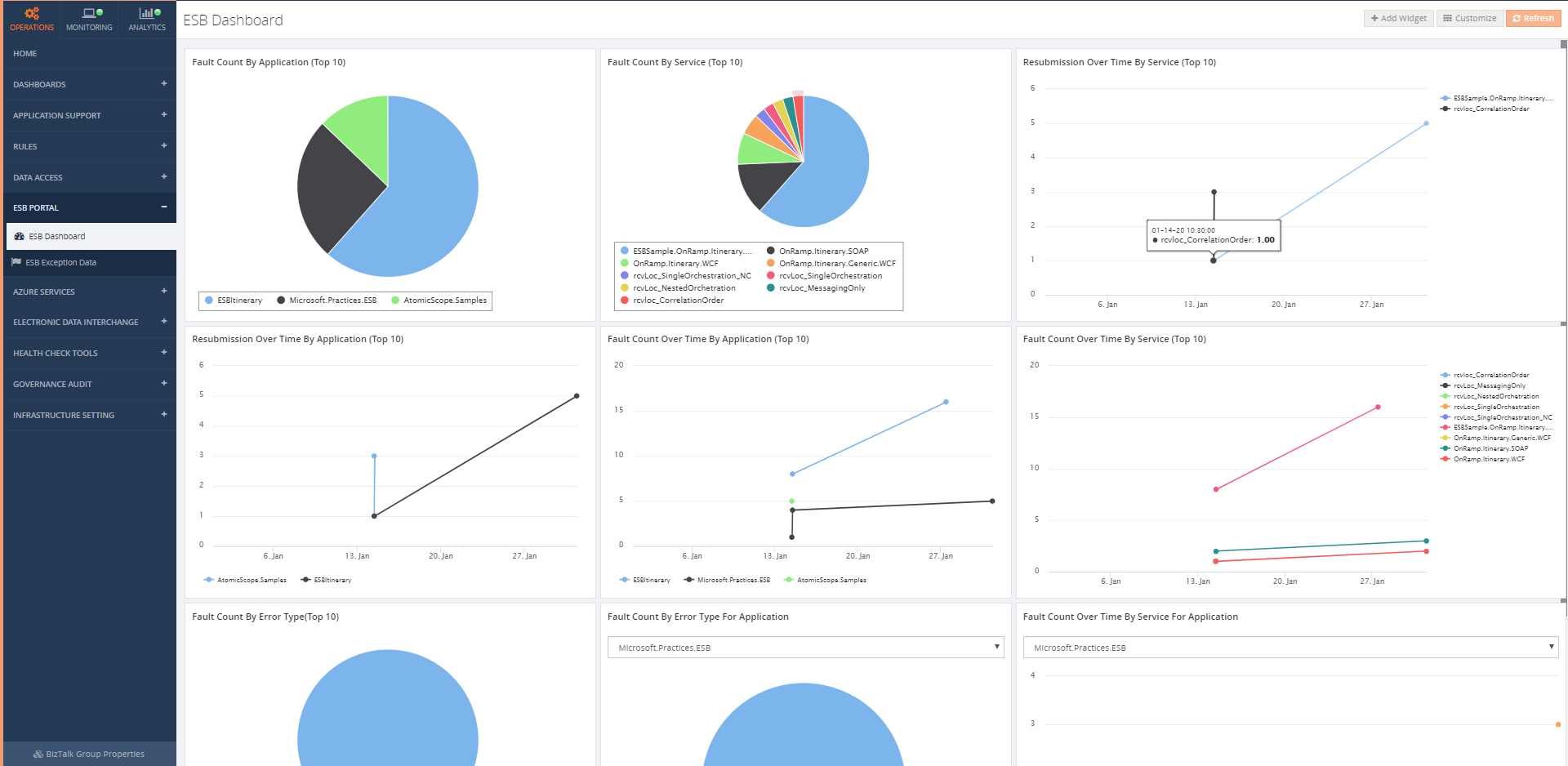
Firstly, the portal from the ESB Toolkit can be replaced with a portal within BizTalk360. BizTalk360 addresses these challenges in several ways. As with all features within BizTalk360, this portal is protected with security and auditing.
You don’t need to configure the default ESB portal. We want to mention here that a few of our customers haven’t installed the ESB portal.
Instead, they are using BizTalk360’s ESB Portal alone and from the portal, they are performing actions successfully.
To be able to repair ESB Faults, there is an Edit and Resubmit feature in BizTalk360. To make the repair even easier, you can write and associate Knowledge Base articles to the ESB Faults. So, in case of recurring problems, you can simply document the solution in such a KB article and associate it with the ESB Fault, thereby making repairs in the future easier.
How much time will it take to configure ESB portal within BizTalk360?
All you need to do to configure the ESB Exception management framework within BizTalk360, is to simply provide the connection string to your ESB exception database, relevant to your BizTalk Environment.
That’s it! You are set (takes about 3 minutes, definitely not more than that).
Check the below blogs to know more about BizTalk360 ESB Portal.
For those of you who are not aware of BizTalk360, I would like to give a short intro and we are excited to announce that after working with Microsoft for the past few months, we are now fully supporting Microsoft BizTalk Server 2020 with our latest release.
Why not give BizTalk360 a try? It takes about 10 minutes to install on your BizTalk environments. Get started with the free 30 days trial.
And of course, this was my answer: @WSilveiraNZ a new BizTalk Server 2020 sticker is being made… just to let you know #msbts but then Coen Dijkgraaf joined and asked if the sticker would be available on time for Global Integration Bootcamp?
I was undecided
about whether to publish or wait to INTEGRATE to be a surprise. But I at the
end I decided to create not one but two stickers:
On to published during the INTEGRATE event… spam alert: it is awesome!
And this one above to publish now in order for you all to grab it and go to a graphics shop to make your BizTalk Sticker. A simple and clean BizTalk Server 2020 sticker identical to the logo that I publish this week: BizTalk Server 2020: a new unofficial logo
This package is a collection of 3 different image formats of the new BizTalk
Server 2020 sticker, two of them are available in vector
format that will allow you to use and resize without losing quality:
BizTalkSticker.ai
BizTalkSticker.pdf
BizTalkSticker-01.png
All of the
resources are in the original size ready to print in a graphics shop.
Thanks to Cristóvão Silva (Graphic & Web Designer @ DevScope) for helping me creating these resources.
I hope you enjoy!
Download
BizTalk Server 2020 sticker Microsoft | TechNet Gallery
BizTalk Server 2020 was officially released in the middle of January, January 15, 2020, to be more accurate. And you may be asking, why haven’t I written a post about this new version yet.
The answer is simple. I think this version should be properly analyzed, tested by us, and then we can talk about it. And for me, it all starts with installing and configuring the product, and this is where you will find the big differences between the previous version, BizTalk Server 2016 for this new version. You may have a quick overview of that on my twitter handle: https://twitter.com/sandro_asp:
It is not yet available, but for now, I can tell you that I have finished my BizTalk Server 2020 installation and configuration guide – 122 pages guide describing detail instructions to install all the features of the product – I think I may be the first one installing and configuring BAM Portal and is running properly. The installation guide will be published soon but for now, is under review.
It is a sign that you like it, but, once again, this is not the official logo. The official logo was released by Microsoft when BizTalk Server 2016 was launched and at that time Microsoft decided to drop the fancy Server icon from the logo and the version identification, now it is a simple generic logo with just Text that will be consistent in this and further versions of BizTalk Server. You may find the official logo here: Because BizTalk Server 2016 is almost here… take a look to the new BizTalk Server logotype.
But people sometimes prefer to use the “old” format just because it specifies the version, so it is easier to associate with the last version or a specific version of the product. And that was the main reason for me to create that logo.
Nevertheless, during BizTalk Server 2016 release, Microsoft also updated or released a BizTalk Server icon/stencil that you may find in the official BizTalk Server twitter handle:
So I decided that my first blog post after BizTalk Server 2020 was launched, it would be about updating my unofficial BizTalk Server logo and this time it would combine:
The official BizTalk Server icon with the official BizTalk Server logo.
Plus the version number.
And the end
result is this:
This package is a collection of 4 different image formats of the new Unofficial BizTalk Server 2020 logotype, two of them are available in vector format that will allow you to use and resize without losing quality:
BizTalkLogo.ai
BizTalkLogo.pdf
BBizTalkLogo-01.jpg
BizTalkLogoWhite-01.png
Thanks to Cristóvão Silva (Graphic & Web Designer @ DevScope) for helping me creating these resources.
Download
New Unofficial BizTalk Server 2020 logo in vector format Microsoft | TechNet Gallery
Do you feel difficult to keep up to date on all the frequent updates and announcements in the Microsoft Integration platform and Azure iPaaS?
Integration weekly update can be your solution. It’s a weekly update on the topics related to Integration – enterprise integration, robust & scalable messaging capabilities and Citizen Integration capabilities empowered by Microsoft platform to deliver value to the business.
At our annual event Integrate, Microsoft announced last year that BizTalk Server 2020 should have released in the first quarter of 2019. Only two weeks in the new year, Microsoft has released BizTalk Server 2020 (v3.13.717.0)! In this blog, we want to update you on what’s new in this version of the product.
No Changes in Available Editions
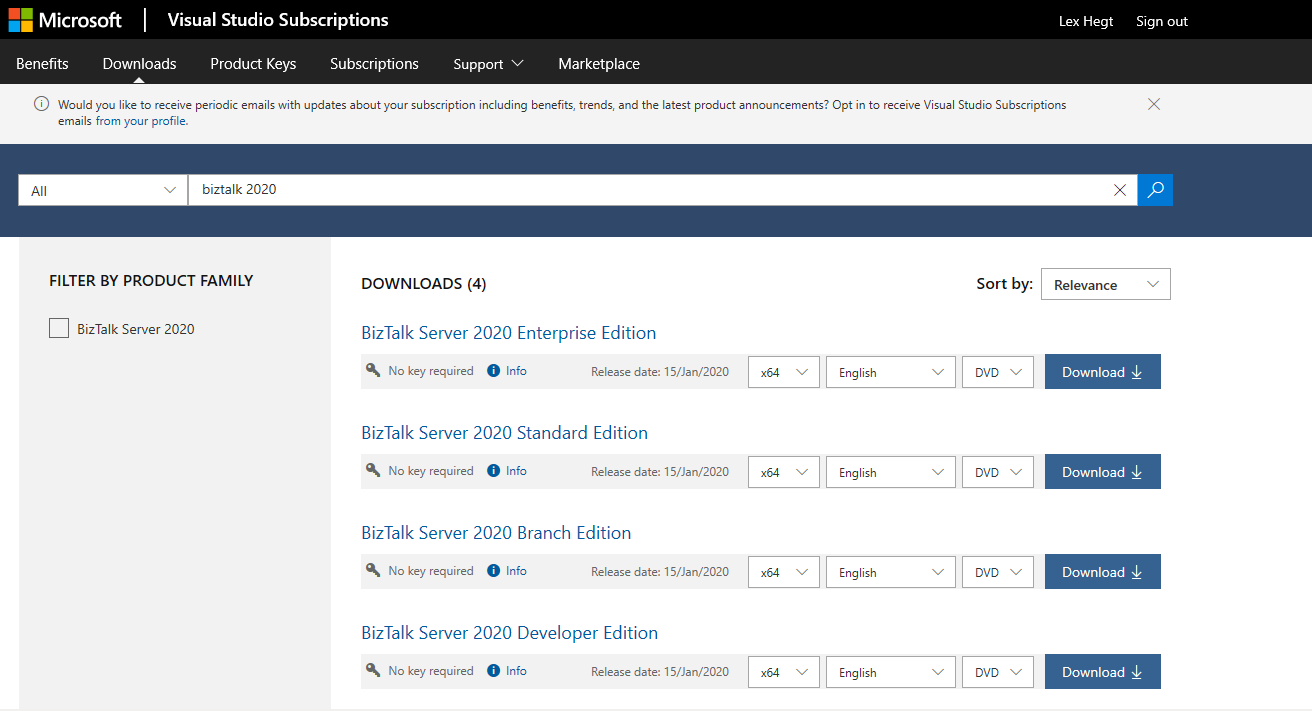
Similar to earlier versions of the product, BizTalk Server 2020 comes in 4 flavors:
Microsoft BizTalk Server 2020 Developer
Microsoft BizTalk Server 2020 Branch
Microsoft BizTalk Server 2020 Standard [to do: changed limitations]
Microsoft BizTalk Server 2020 Enterprise
You can download these products when you have an Enterprise MSDN account.
New Features in BizTalk Server 2020
During Integrate 2019, Paul Larsen, the Program Manager who is responsible for BizTalk Server, already highlighted which new features are coming in BizTalk Server 2020. You can read a recap about Paul’s session here.
As you can understand from Paul’s session, we were already expecting platform alignment. More importantly, BizTalk Server 2020 contains all features from BizTalk Server 2016, including the 3 Feature Packs, which have been released.
But, let’s have a look at some of the new features and capabilities.
Support for newer platforms
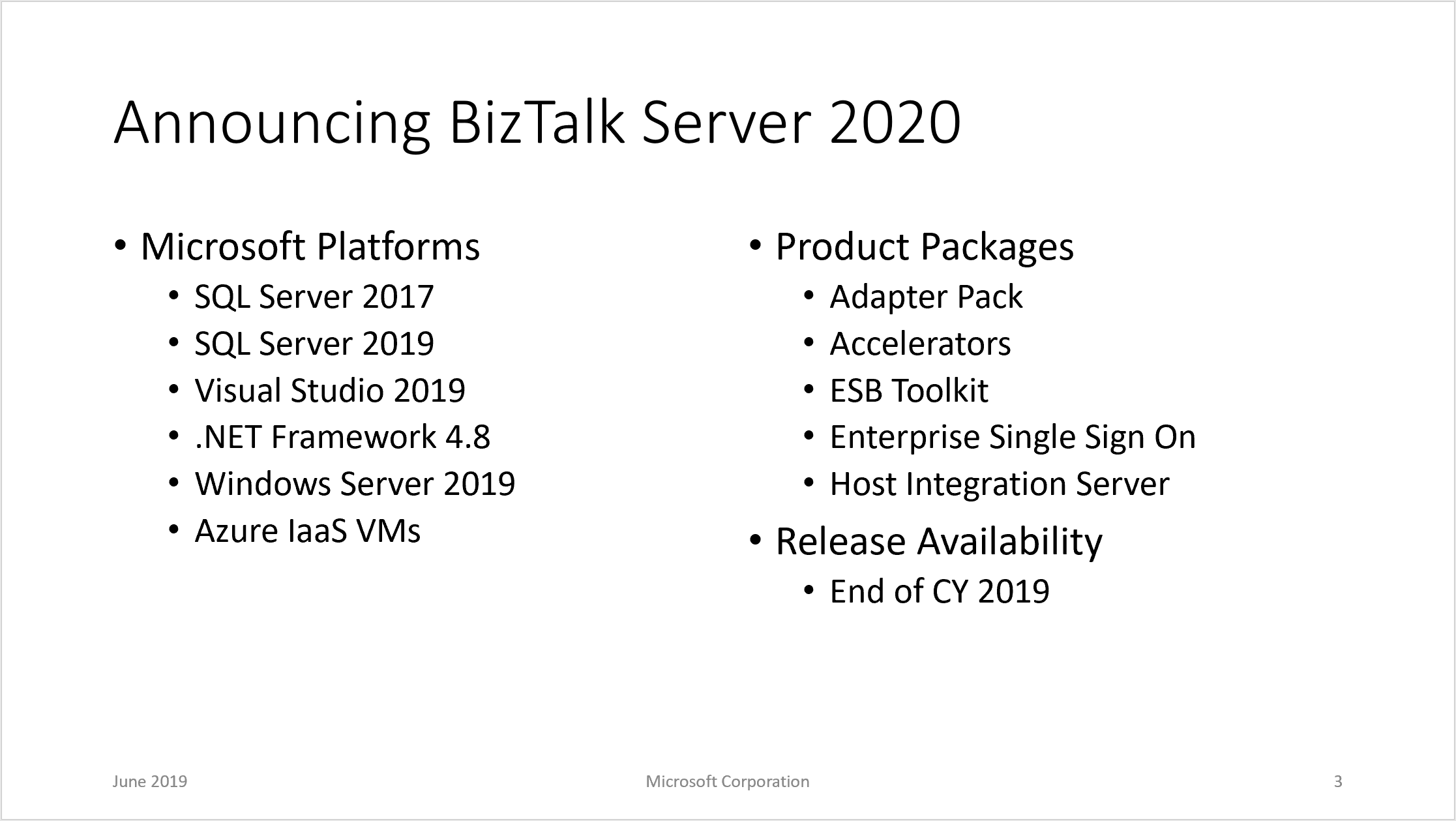
BizTalk Server 2020 adds support for the following Microsoft platforms:
– Visual Studio 2019
– Windows Server 2019, Windows Server 2016, Windows 10
– SQL Server 2019, SQL Server 2017, SQL Server 2016 SP2
– Office 2019, Office 2016
Operational Data Monitoring and Analytics.
Leverage the power of Azure (Application Insight and Event Hub) for deep data storage and Power BI for reporting and viewing of data.
Using Visual Studio Team Services, you can define multi-server deployments of BizTalk Server 2020, and then maintain those systems throughout the application lifecycle.
Using the new Event Hub Adapter, BizTalk Server can send and receive messages with Azure Event Hubs, where BizTalk Server can function as both an event publisher and subscriber, as part of a new Azure cloud-based event-driven application.
Leverage the power of BizTalk in newer office automation workflows by integrating with Adapters that allow you to send or receive Office 365 emails, receive or transmit Office 365 calendar events, and create Office 365 contacts.
Making BizTalk further secure by maintaining audit trails of all management operations.
New Read-Only Operator role
Brand new read-only operator role in facilitating the dev-ops model, where access to production stamp is provided without the ability to update anything.
Additional updates
· Move to new long term supported Microsoft OLEDB Driver for SQL Server
· Support for SSO Affiliate applications in the SFTP adapter
· SQL Availability Group support for BAM DTS Package via SSIS Catalog
· Partially disabled receive locations
· Throughput improvements for Dynamic Send Ports with Ordered Delivery
Deprecated and Removed Features
Some features of the product are deprecated or removed from the product. Here’s the list:
Based on the above lists, and besides the already expected features and improvements, a few features catch the eye.
Audit Log
Until now, no auditing was available for any operations performed against the BizTalk environment. Luckily, from BizTalk Server 2020 on, the Administration console provides auditing of operations. To be able to use this feature, you will have to turn it on in the Group Settings screen.
The auditing data is stored in the Management database, and you can access it via the Operational Services. At the moment, the supported operations are:
Creating, updating and deleting ports
Suspending, resuming and terminating service instances
Adding, updating and removing BizTalk applications
Importing binding files
Although this is a good start, multiple important operations are still missing; think of starting/stopping of ports, orchestrations, and host instances. We hope that Microsoft adds such operations in the future.
Earlier, Microsoft has announced that .NET 4.8 will be supported.
New Read-Only Operator role
The BizTalk Operator role has changed. Where before, it was possible to perform actions like stopping/starting ports and changing the port configuration, this role is now completely read-only. This can certainly be useful for facilitating DevOps scenarios.
When accessing the BizTalk Server 2020 Admin console as a BizTalk Operator, all the operations are still accessible. However, when an operator tries, for example, to stop a port, an error message shows up, and the operation becomes blocked. Unfortunately, the error message is not always clear that the operation is blocked due to insufficient permissions.
BAM Portal is Deprecated
Microsoft has decided to deprecate the BAM portal. Probably due to the new capabilities to push data to Azure, they decided to deprecate the old-fashioned BAM portal. In case you are using BAM, and you are considering upgrading to BizTalk Server 2020, you can still install and configure the BAM portal from the BizTalk installer and configuration wizard; you won’t be left in the dark.
Deprecated and Removed Adapters
Multiple updates in this area as well. For example, Microsoft deprecates the POP3 and the SMTP adapters in favor of the Office 365 adapters, which appeared in the BizTalk Server 2016 Feature Packs. Next, the old SQL adapter has been removed and replaced by the WCF-SQL adapter, and the JDE OneWorld and the WCF-NetTcpRelay adapter have both been deprecated.
BizTalk360 Support of BizTalk Server 2020
The BizTalk360 product team has eagerly followed the developments around BizTalk Server 2020, and we are glad that BizTalk Server 2020 has been released. For BizTalk360, it is evident that the product must support all recent versions of BizTalk Server.
That’s why we made the latest released versions of BizTalk360 and Atomic Scope compatible with BizTalk Server 2020!
Conclusion
BizTalk Server 2020 has been released. This is the 11th version of the product since its inception in 2000. Although we have already seen most of the features of this release (in the BizTalk Server 2016 Feature Packs), this is still a useful release. Especially when you are still on versions older than BizTalk Server 2016, it will certainly be worth upgrading or migrating to this release.
Do you feel difficult to keep up to date on all the frequent updates and announcements in the Microsoft Integration platform and Azure iPaaS?
Integration weekly update can be your solution. It’s a weekly update on the topics related to Integration – enterprise integration, robust & scalable messaging capabilities and Citizen Integration capabilities empowered by Microsoft platform to deliver value to the business.
On 15th of January 2020, Microsoft announced the release of BizTalk Server 2020. There was a lot of buzz on social media about the release. Pretty much all of the posts were highlighting and excited about the new set of features that got shipped in the product.
Even though the release came with a bunch of exciting new features like any other regular software product updates, there are some important points to note, especially for people who invested heavily in Microsoft BizTalk Server for the past 2 decades.
BizTalk Server 2020 is not just a simple software update it’s a game-changer and beginning of a new era.
Two decades of past
That’s how long Microsoft BizTalk Server is in the market.
The first version came in 2000, and now we are in 2020 and excited about the new release “BizTalk Server 2020”. Microsoft consistently released a new version every 2-4 years once for the past 20 years (2000, 2002, 2004, 2006, 2006 R2, 2009, 2010, 2013, 2013 R2, 2016 and now 2020) – i.e 11 major releases.
There are very few products in the history of software sustained a two decades life span and still going strong. On Microsoft land I can only think of a few products like Windows, Office, SQL Server are the ones which reached this milestone.
I’m feeling lucky enough to be one of them who worked on this amazing piece of technology for 20 years now. For most of the software developers out there, our career is pretty much determined by our initial few months/years after graduation and where we end up. For some people, you become programmers, again depending on what technology stack you got initial opportunities, some become data guys like DBA’s, IT administrators, and in the modern era new things like AI/ML, Big Data, etc. For me, it was/is BizTalk Server and Integration in general.
In the past 20 years, I have seen various technologies come and go. We ourselves were bitten by choosing a wrong one for BizTalk360 in the initial days. Microsoft Silverlight as our front-end, the thing that looked flashy and promised to change the way Rich Internet Applications (RIA) are build quietly died and we ended up wasting full 1 year rebuilding everything in HTML5. We finally released version 7.0 back in Oct 2013 fully revamped in HTML5
Unless otherwise, the product solves a core problem well, the chances of sustainability for this long is pretty slim.
One decade of future commitment
When Microsoft releases a server product like BizTalk Server, they commit for 10 years of product support commitment. 5 years of regular support and another 5 years of extended support for you to comfortably run your production systems without worrying about the end of life.
BizTalk Server 2020 is Microsoft’s commitment to existing customers who invested in BizTalk Server and future customers the product is supported until 2030.
It’s very important for large enterprises to get this commitment. As I mentioned earlier, you cannot afford to make wrong bets (like what we did on the front-end technology for BizTalk360 using Microsoft Silverlight), you simply end up with wasted time, money and more importantly opportunity. For us, that one year was a very painful period, with limited resources instead of building exciting new features for our customers, we ended up redoing the same thing.
It’s not easy
Even for a large organization like Microsoft, it’s not easy to maintain and improve a legacy matured product like BizTalk Server.
During my long-standing relationship with BizTalk Server in this 20 years period, I have personally dealt with at least 4-5 different completely different sets of teams at Microsoft. This is what I have witnessed
“People will come, people will go but the product stays.”
I can imagine it will be such a hard job to bring people on board to get up to speed understanding such a vast platform and innovate on top of that mixing the old and new era. In spite of the challenges, Microsoft still continued and innovated constantly for the past 20 years.
What goes behind the scene?
On every release, one of the important updates will be platform alignment. BizTalk Server relies on four important underlying platforms, the core Windows Operating System, SQL Server for data, Visual Studio for development tools and finally Microsoft Office for certain dependencies like BAM.
BizTalk Server 2020 supports the following platforms
Visual Studio 2019
Windows Server 2019, Windows Server 2016, Windows 10
SQL Server 2019, SQL Server 2017, SQL Server 2016 SP2
Office 2019, Office 2016
Supporting these new platforms is not always just a recompile of your code. For instance, the team had spent nearly 3 years rebuilding the tools for Visual Studio 2019. Some of the BizTalk Server toolings like Mapper and Orchestration designer is complex. Visual Studio 2019 changed the complete plugin-architecture and significant work has gone behind the scene to make it work.
There are few areas Microsoft does not highlight on the release notes, but that takes a significant amount of time for the product group like accelerators and adapters. Microsoft BizTalk Server is a central middleware hub supporting various industry standards like HL7, SWIFT, etc, these specifications change regularly as well, in every release they need to make sure they support the latest standards.
In a similar way, all those connecting BizTalk adapters like SAP, Oracle, JD Edwards, Peoplesoft, etc all need to be retested and realigned.
Being a global product there are a ton lot of legal procedures they need to pass through before a 20 year old product like BizTalk Server is released to the public.
You probably are not aware, some of the high-end military/defense teams across the world use BizTalk Server, it’s not that easy to commit a new release when you have such sensitive customers.
I remember having a conversation with one of the product owners of BizTalk Server in the past, how tough the whole legal process before they can get a go-ahead for the release.
Hub for modern and legacy world
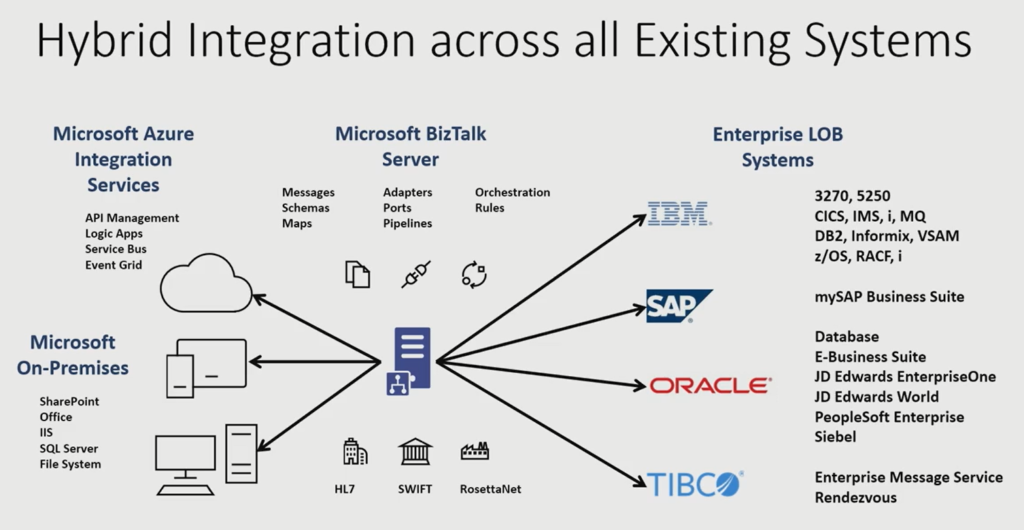
If you look carefully at how Microsoft is positioning BizTalk Server 2020, it’s positioning it as a hub/window between the legacy and modern world.
The fact is, however the new cloud technology stack spans out and promises to change the world, there will always be an on-premise dependency. It will take at least another few decades (or never), for 100% cloud-native organizations to evolve.
Oh! Do you know still some of the big bank’s core systems are still running on IBM Mainframes built-in 1960 and ’70s?
For the past 10 years, in the enterprise world, it’s always a hybrid scenario, where certain things are best suited for on-premise and certain things are best suited for the cloud, you mix and match the tech stack that’s suitable for your business.
The below picture depicts how Microsoft BizTalk Server can act as a glue between the on-prem and the cloud world and get most of the benefit out of both.
There are a lot of features that shipped with BizTalk Server 2020 supporting this vision.
New customers – is BizTalk Server the right technology?
If you are on a hunt for choosing your middleware platform, it’s not an easy decision to make. With a ton of new products available in the market and each product requiring months of learning to understand the capabilities, it’s never going to be easy to compare and test everything.
But sometimes you need to go with the proven technology and the future vision of the product. BizTalk Server sustained 20 years of constant improvement (a release pretty much every 2-3 years once 2000, 2002, 2004, 2006, 2006 R2, 2009,2010, 2013, 2013 R2, 2016), a lot of features and underlying architecture are robust and scalable to sustain such a long time period.
This long history of the product is such an important decision-making factor.
And the future commitment from Microsoft gearing towards the cloud makes it a perfect candidate for any organization to bet on this middleware platform.
Why BizTalk Server developers and administrators must be excited?
Learning a complex product like BizTalk Server is time consuming long term commitment. It takes years of work and the right projects to fully understand the product and its capabilities. If you have invested your time in the past few years being a BizTalk Developer or Administrator it’s a great time to be excited with the commitment from Microsoft on the future of BizTalk Server.
BizTalk360 is ready for BizTalk Server 2020
For those of you who are not aware of BizTalk360. I would like to give a short intro and excited to announce after working with Microsoft for the past few months, we are now fully supporting Microsoft BizTalk Server 2020 with our latest release.
We are a 3rd party product providing advanced monitoring and management capabilities for Microsoft BizTalk Server. Out of the box, BizTalk Server comes with a management console called “BizTalk Admin Console”, which does a great job for people to manage and operate your BizTalk Server environments. However, the tool lacks a lot of advanced capabilities like web-based management console, advanced user access security features, advanced toolings like throttling analyzer, topology viewer, messaging patterns viewer, health dashboards, etc.
Monitoring for a platform like BizTalk Server is so crucial, but BizTalk Server doesn’t come out of the box with any monitoring capabilities. The customers need to rely on Microsoft SCOM or 3rd party products like BizTalk360. SCOM management packs for BizTalk Server is not updated for many years and it comes with only minimal monitoring capabilities.
BizTalk360 is a widely used product in the market with over 650 large enterprises helping them to manage/operate and monitor their BizTalk Server environments. BizTalk360 supports BizTalk Server 2013, 2013 R2, 2016 and now 2020.


















 #msbts but then

 BizTalk Server 2020 sticker