by Gautam | Jun 28, 2020 | BizTalk Community Blogs via Syndication
Do you feel difficult to keep up to date on all the frequent updates and announcements in the Microsoft Integration platform and Azure iPaaS?
Integration weekly update can be your solution. It’s a weekly update on the topics related to Integration – enterprise integration, robust & scalable messaging capabilities and Citizen Integration capabilities empowered by Microsoft platform to deliver value to the business.
Microsoft Announcements and Updates
Community Blog Posts
Video
Podcasts
How to get started with iPaaS design & development in Azure?
- Robust Cloud Integration with Azure
- Microsoft Azure for Developers: What to Use When
- Serverless Computing: The Big Picture
- Azure Logic Apps: Getting Started
- Azure Logic Apps: Fundamentals
- Microsoft Azure Developer: Creating Enterprise Logic Apps
- Microsoft Azure API Management Essentials
- Azure Functions Fundamentals
- Cloud Design Patterns for Azure: Availability and Resilience
- Architecting for High Availability in Microsoft Azure
Feedback
Hope this would be helpful. Please feel free to reach out to me with your feedback and questions.

by Saranya Ramakrishnan | Jun 23, 2020 | BizTalk Community Blogs via Syndication
Microsoft has released BizTalk Server 2020 with a bunch of exciting new features.
To know more about the stirring features, look at our series of blogs
In this blog article, I will be covering an exciting new feature on how to send the BizTalk tracking data to Azure Event Hub and Application Insight.
You have configured various tracking options for orchestrations, send ports, receive ports, and pipelines using the BizTalk Server Administration console.
Follow the below Steps to Send the Tracking Data to Azure
As we know, if we enabled the tracking on the artifacts carefully, it gives us very helpful information to diagnose the issues without affecting performance. The same applies to enable analytics. It is very important that you plan as per your information needs but also for your performance needs.
Enable Analytics at the Environment Level
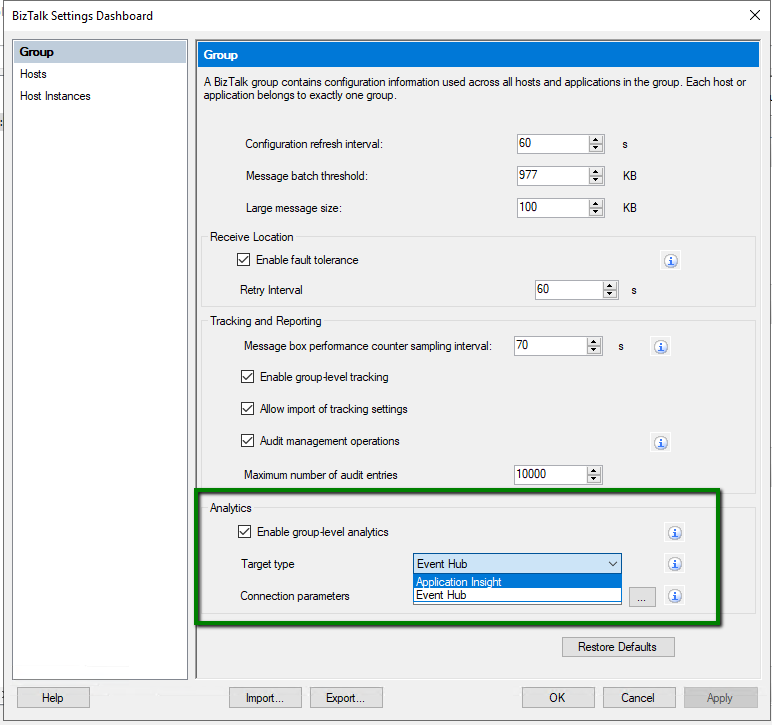
Enable group-level analytics by selecting BizTalk group settings. Select “Enable group-level analytics” and choose the target where you wish to push the data, either Application Insights or Event Hub, as you can see below.
Enable Analytics at Artifact Level
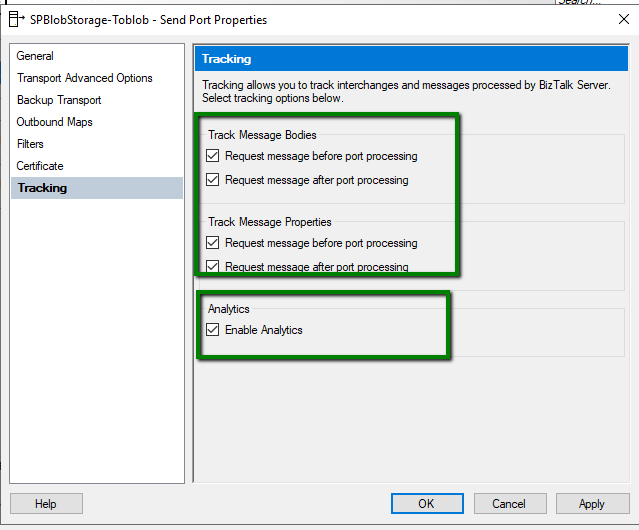
- Right-click on the artifacts (Sendport, Receive Location, Orchestrations) and enable tracking
- To start transmitting the tracking data to Azure, enable Analytics as below
Sending Your Tracking Data to Application Insights
Azure Applications Insights is a very popular Application Performance Management service, especially for web developers. It helps the developers to find performance issues with their applications and diagnose them.
- Sign in to the Azure portal, and create an Application Insights resource
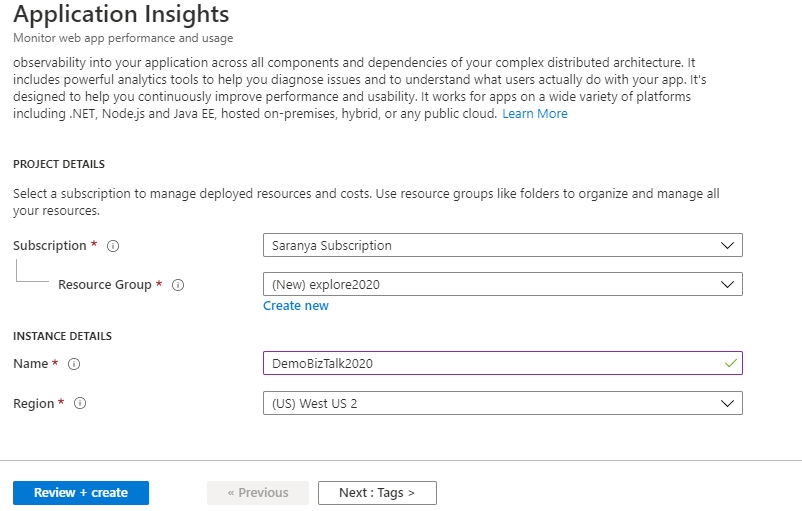
- In the BizTalk group settings, select the target type as “Application Insights”
- Sign in to Azure portal and select the subscription to update Analytics -Application Insights details as shown below
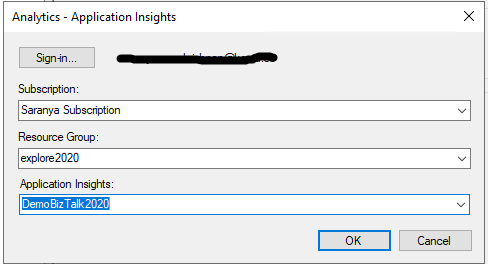
Sending your tracking data to Event Hubs
- Sign in to the Azure portal, and create an event hub namespace
- In BizTalk group settings, select the target type as “Event Hub ”
- Sign in to Azure portal and select the subscription to update Analytics -Event Hub connection details as below
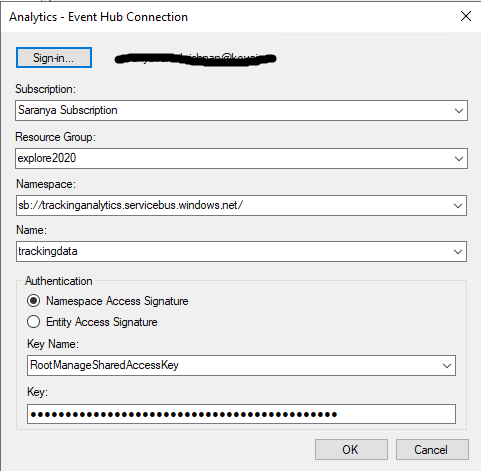
Once it’s done, you can view the data in the event log capture or you can configure the receive location with the Event Hub adapter and route it to the desired location. Since Event Hub capture is the easiest way to load/process streaming data into Azure, you can send/receive large volumes of messages between BizTalk Server and Azure Event Hubs using the Event Hub Adapter.
For instance, you can save and process all your tracking data in an Event Hub using the EventHub Adapter.
- You can configure the EventHub Adapter in a Receive Location to receive a message from Event Hubs. Configure the namespace and EventHub details as shown below. The publisher/subscriber can connect to the Event Hub by using a shared access signature token.
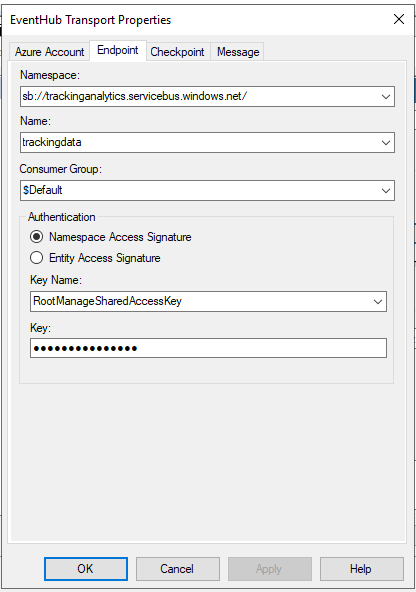
- Create a Send Port which listens to this Receive Location. The tracking data received from Eventhub will be similar to what is shown below.
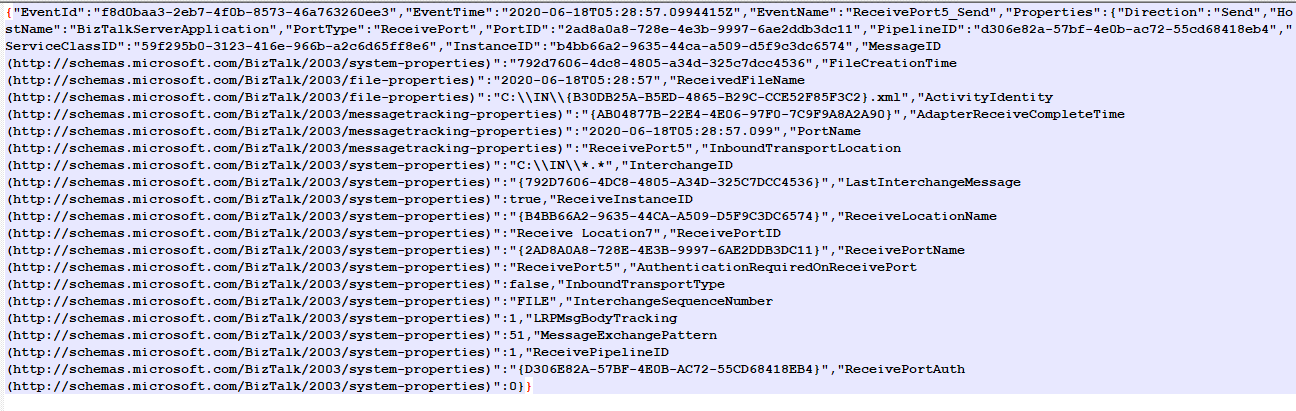
Azure has solid data visualization offerings such as Power BI and the OMS portal. You can publish tracking data to Power BI and start visualizing data https://docs.microsoft.com/en-us/biztalk/core/configure-the-operational-data-feed-for-power-bi-with-biztalk-server.
Conclusion
BizTalk360 is now compatible with BizTalk Server 2020. Why not give BizTalk360 a try! It takes about 10 minutes to install on your BizTalk environments and you can witness and check the security and productivity of your own BizTalk Environments.
The post BizTalk Server 2020 – Send Tracking Data to Azure appeared first on BizTalk360.

by shadabanwer | Jun 23, 2020 | BizTalk Community Blogs via Syndication
I was working on one of the API which needed using certificate (SSL) connectivity to the external API exposed by third-party. We stored this certificate in Key Vault and reference it to azure app services (Web API). I used arm template to add Certificate (.pfx) from Azure KeyVault in the TLS/SSL settings of Web APP Service.
Below is the Arm Template to get the Certificate from Key Vault and deploy the Web APP in the Application Services Environment (ASE).
{
  "$schema": "https://schema.management.azure.com/schemas/2015-01-01/deploymentTemplate.json#",
  "contentVersion": "1.0.0.0",
  "parameters": {
    "appServiceName": {
      "type": "string"
    },
    "storageAccountName": {
      "type": "string",
      "metadata": {
        "description": "Storage Account name"
      }
    },
    "appServicePlanResourceGroup": {
      "type": "string",
      "metadata": {
        "description": "Azure service plan resource group"
      }
    },
    "appServicePlanName": {
      "type": "string",
      "metadata": {
        "description": "Azure Service Plan name"
      }
    },
    "applicationInsightsName": {
      "type": "string",
      "metadata": {
        "description": "The name of the app insights instance for the workload"
      }
    },
    "keyVaultName": {
      "type": "string"
    },
    "keyVaultResourceGroup": {
      "type": "string"
    },
    "BaseUrl": {
      "type": "string"
    },
    "CertkeyVaultSecretName": {
      "type": "string"
    }
  },
  "variables": {
    "applicationInsights": {
      "apiVersion": "2015-05-01",
      "name": "[parameters('applicationInsightsName')]"
    },
    "keyVault": {
      "apiVersion": "2015-06-01",
      "name": "[parameters('keyVaultName')]",
      "resourceId": "[resourceId(parameters('keyVaultResourceGroup'), 'Microsoft.KeyVault/vaults', parameters('keyVaultName'))]"
    }
  },
  "resources": [
    {
      "apiVersion": "2015-08-01",
      "name": "[parameters('appServiceName')]",
      "type": "Microsoft.Web/sites",
      "location": "[resourceGroup().location]",
      "tags": {
        "displayName": "Website"
      },
      "identity": {
        "type": "SystemAssigned"
      },
      "dependsOn": [
        "Microsoft.Web/certificates/CertificateName"
      ],
      "properties": {
        "name": "[parameters('appServiceName')]",
        "serverFarmId": "[resourceId(parameters('appServicePlanResourceGroup'), 'Microsoft.Web/serverfarms', parameters('appServicePlanName'))]",
        "siteConfig": {
          "use32BitWorkerProcess": false,
          "alwaysOn": true,
          "ftpsState": "FtpsOnly"
        },
        "httpsOnly": true
      },
      "resources": [
        {
          "name": "appsettings",
          "type": "config",
          "apiVersion": "2015-08-01",
          "dependsOn": [
            "[resourceId('Microsoft.Web/sites', parameters('appServiceName'))]"
          ],
          "properties": {
            "ApplicationInsights:InstrumentationKey": "[reference(resourceId(resourceGroup().Name, 'Microsoft.Insights/components', variables('applicationInsights').name), variables('applicationInsights').apiVersion).InstrumentationKey]",
            "Web:BaseAddress": "[parameters('BaseUrl')]",
            "Web:ClientCertificateThumbprint": "[reference(resourceId(resourceGroup().Name, 'Microsoft.Web/certificates','CertificateName'), '2016-03-01').thumbprint]",
            "WEBSITE_LOAD_CERTIFICATES": "*"

          }
        }
      ]
    },
    {
      "type": "Microsoft.Web/certificates",
      "name": "CertificateName",
      "apiVersion": "2016-03-01",
      "location": "[resourceGroup().location]",
      "properties": {
        "keyVaultId": "[variables('keyVault').resourceId]",
        "keyVaultSecretName": "[parameters('CertkeyVaultSecretName')]",
        "serverFarmId": "[resourceId(parameters('appServicePlanResourceGroup'), 'Microsoft.Web/serverfarms', parameters('appServicePlanName'))]"
      }
    },
    {
      "apiVersion": "2014-04-01",
      "name": "[parameters('applicationInsightsName')]",
      "type": "Microsoft.Insights/components",
      "location": "[resourceGroup().location]",
      "dependsOn": [
        "[resourceId('Microsoft.Web/sites/', parameters('appServiceName'))]"
      ],
      "tags": {
        "[concat('hidden-link:', resourceGroup().id, '/providers/Microsoft.Web/sites/', parameters('appServiceName'))]": "Resource",
        "displayName": "AppInsightsComponent"
      },
      "properties": {
        "applicationId": "[parameters('appServiceName')]"
      }
    }
  ]
}
When this deployment run on Azure Portal, it error out with the following error message.
Status Message: {“Code”:”Conflict”,”Message”:”Another certificate exists with same thumbprint xxxxxxxxxxxxxxxxxxxxxxxxxxxx at location Australia East in the Resource Group RG-AE-Dev.”,”Target”:null,”Details”:[{“Message”:”Another certificate exists with same thumbprint xxxxxxxxxxxxxxxxxxxxxxxxxxxx at location Australia East in the Resource Group RG-AE-Dev.”},{“Code”:”Conflict”},{“ErrorEntity”:{“ExtendedCode”:”53008″,”MessageTemplate”:”Another certificate exists with same thumbprint {0} at location {1} in the Resource Group {2}.”,”Parameters”:[“xxxxxxxxxxxxxxxxxxxxxxxxxxxx”,”Australia East”,”RG-AE-Dev”],”Code”:”Conflict”,”Message”:”Another certificate exists with same thumbprint xxxxxxxxxxxxxxxxxxxxxxxxxxxx at location Australia East in the Resource Group RG-AE-Dev.”}}],”Innererror”:null}
I couldn’t find any other certificate in the key vault with the same thumb print, Then I ran the below Powershell command to find all the certificate included in the Resource Group.
# Change these to your appropriave values
$SubscriptionId = "xxxxxxxxxxxxxxxxxxxxxxxxxxxx"
$ResourceLocation = "Australia East"
$ResourceGroupName = "RG-AE-Dev"
$ResourceName = "CertificateName"
$KeyVaultName = "AZ-KeyVault"
$KeyVaultId = "/subscriptions/xxxxxxxxxxxxxxxxxxxxxxxxxxxx/resourceGroups/RG-AE-ICC-Dev/providers/Microsoft.KeyVault/vaults/AZ-KeyVault"
$KeyVaultSecretName = "certificatesecret"
$ServerFarmId = "/subscriptions/xxxxxxxxxxxxxxxxxxxxxxxxxxxx/resourceGroups/RG-AE-Dev/providers/Microsoft.Web/serverfarms/AustraliaEastPlan"
# Log in and select the correct subscription
Login-AzureRmAccount
Set-AzureRmContext -SubscriptionId $SubscriptionId
$ResourceLocation -PropertyObject $PropertiesObject -ResourceGroupName $ResourceGroupName -ResourceType Microsoft.Web/certificates -ApiVersion 2018-02-01 -Force
# List certificates
 Get-AzureRmResource -ResourceGroupName $ResourceGroupName -ResourceType Microsoft.Web/certificates -IsCollection -ApiVersion 2018-02-01
This Powershell command list down all the certificates, and I found that the same certificate is installed with the different name, thus the same Thumb Print.
Then I navigated to the Resources.Azure.com -> Subscriptions -> resourceGroups->providers->Microsoft.Web->certificates
I found this certificate with the different name, I needed to remove it using actions (DELETE) . Re-run the deployment and yes all success now.
Thanks

by Gautam | Jun 22, 2020 | BizTalk Community Blogs via Syndication
Do you feel difficult to keep up to date on all the frequent updates and announcements in the Microsoft Integration platform and Azure iPaaS?
Integration weekly update can be your solution. It’s a weekly update on the topics related to Integration – enterprise integration, robust & scalable messaging capabilities and Citizen Integration capabilities empowered by Microsoft platform to deliver value to the business.
Microsoft Announcements and Updates
Community Blog Posts
Video
Podcasts
How to get started with iPaaS design & development in Azure?
- Robust Cloud Integration with Azure
- Microsoft Azure for Developers: What to Use When
- Serverless Computing: The Big Picture
- Azure Logic Apps: Getting Started
- Azure Logic Apps: Fundamentals
- Microsoft Azure Developer: Creating Enterprise Logic Apps
- Microsoft Azure API Management Essentials
- Azure Functions Fundamentals
- Cloud Design Patterns for Azure: Availability and Resilience
- Architecting for High Availability in Microsoft Azure
Feedback
Hope this would be helpful. Please feel free to reach out to me with your feedback and questions.

by Lex Hegt | Jun 18, 2020 | BizTalk Community Blogs via Syndication
In Atomic Scope, the Tracking screen is where you get an overview of your business transactions involving Microsoft BizTalk Server and Azure resources that are tracked by the product. Here, you can learn whether all your on-premise and/or hybrid transactions are being processed successfully and view these transactions in every detail.
In our next Atomic Scope webinar, we will be doing a deep dive into the capabilities of the Tracking screen of the product. Among other things, we will show
- How to search for specific transactions
- View all the details of executed transactions
- How Atomic Scope supports batched messages
- What can be done in case something went wrong?
Also, the webinar attendees will get a special sneak-peek on the new features from Atomic Scope v7, which will just have been released at the time of the webinar. These features include
- Graphical Business Process Designer – A new and more powerful way to define the workflows of your respective business process transactions
- Dynamic Email Template Engine – Create flexible and rich email templates to send informative email alerts
If you want to want to have complete insight into your business processes in one portal, then this webinar is for you. We look forward to meeting you during the webinar!
The webinar will take place at:
Date: Thursday, June 25th
Time: 10 AM BST
Save your Spot!
So, if you want to want to have complete insight into your business processes in one portal, then this webinar is for you. The registration process is very simple. Just click here to register and leave your details. Shortly we will send you the confirmation mail. We look forward to meeting you during the webinar!
Also, if you think you cannot attend the webinar at the specified time, no worries! Go ahead and register, our team will make sure to send you the webinar recording.
Also, if you wish to know more about the webinar, feel free to check out the web site!
The post Webinar Spoiler: Discover How to Track Your Hybrid Business Transactions in a Smarter Way appeared first on BizTalk360.

by Sandro Pereira | Jun 17, 2020 | BizTalk Community Blogs via Syndication
A few months ago, my dear friend Wagner Silveira asked me if I was interested in giving a talk at the Auckland Connected Systems User Group since they were planning to start doing online events in the user group because of COVID-19 and they were planning to invited speakers from overseas, since now this was an online event, and that one of the first names that were dropped was mine.
I usually never say no to these invites, I love doing talks about topics I care and love, especially doing it locally in person, but in this case, and the way the invite was made, I couldn’t refuse… but be aware I still plan to visit New Zealand in the future!
Nevertheless, it will be a challenge. I need to be awake at 6 AM to deliver this session! I can’t say that this will be the first time I will deliver a session with a coffee cup in the hand because I still remember the first time I went to Norway, in the old days of the BizTalk Crew, and because of a problem in Oslo airport, my flight was forced to land in Sweden. So, I had to travel all night without sleeping to be in Stavanger at 9 AM to know that the schedule was changed, and I was delivering the first session! Since that day, I question myself if Tord Nordahl is my friend.
Logic Apps: Best practices, tips and tricks
I would like you to invite you to join us at the Auckland Connected Systems User Group meeting that will happen on June 30, 2020. This will be the first time I will be delivering a session in the user group but I hope it will be the first of many.
Abstract: Logic Apps: Best practices, tips and tricks
Azure Logic Apps helps you build powerful integration solutions by automating your workflows without writing a single line of code. In this session, I will be highlighting 10 tips you should know for being more productive and building more reliable, effective Logic Apps. We will also do a reflection to your existing Logic Apps processes and will go through a list of must-have best practices, tips, and tricks that will allow you to build more reliable and effective workflows. At the same time, these will allow you to be more productive and document your workflows from the beginning
Join us and reserve your presence at the Auckland Connected Systems User Group meeting it is free!
The post Auckland Connected Systems User Group| June 30, 2020 | Logic Apps: Best practices, Tips and Tricks appeared first on SANDRO PEREIRA BIZTALK BLOG.

by Sandro Pereira | Jun 15, 2020 | BizTalk Community Blogs via Syndication
In the last blog post, we analyzed the daily BizTalk Developer’s improved tasks which are provided by BizTalk NoS Ultimate; Build Project, Deploy assembly, and Fast register/unregister in GAC. Today, we will continue to analyze the list of available features present in this Visual Studio extension, focusing on the developing features that will improve your productivity significantly.
Locate It
How many times do you open your old or new project and several files are opened in the Visual Studio MDI window, and you want a simple way to locate a file in your project’s structure? For example:
- You are working in a transformation and you need to:
- locate the map file to specify a TestMap Input Instance
- locate a specific schema in the Solution Explorer in order to change the structure of the Schema
- You have used another BizTalk NoS Ultimate features to open the map, pipeline, or schema and now you need to find it on the solution explorer
If you don’t know exactly where it is, you need to check the full path of the map or the schema and then manually navigate in the solution explorer to the file that you want.
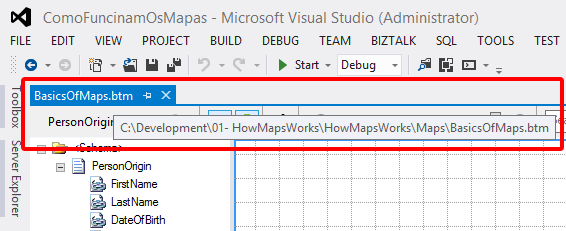
Finally, you will have an easy way to accomplish this! This will save us much time in the developing process, for me this is basic stuff and this is a timesaver feature!
Note: Even if you don’t have the Solution Explorer Window opened, this feature will find the file that you are looking for and will automatically open (or give the proper focus to) the Solution Explorer window.
You can access these features by:
- On the Visual Studio MDI window, right-click in tab with the name of the file and select Locate it! option

As you can see in the picture below, the result is that the project will be expanded and the desired file will be selected:
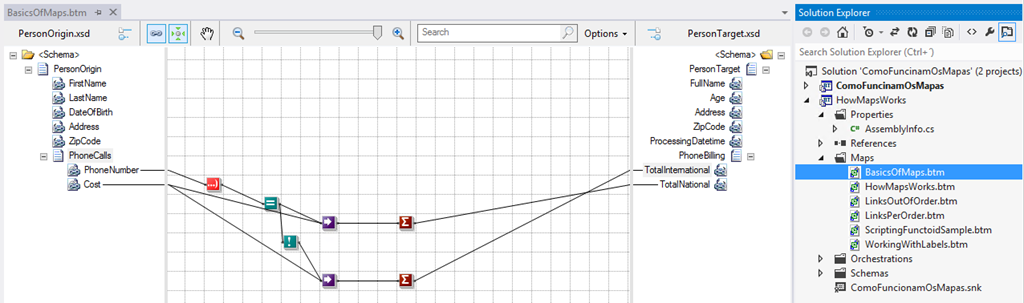
Again, this is very useful for a BizTalk Developer because he needs to locate the file to test or generate schema instances or test, validate or debug maps or other artifacts.
Test Pipeline
There are many ways to test BizTalk pipelines, for example:
- Using the Biztalk Pipeline Framework to create unit testing
- Using the Pipeline.exe tool
- By deploying them and testing in execution time (BizTalk Administration Console) with real messages
But to be honest, there isn’t a proper build-in support feature in Visual Studio to test our custom pipelines.
Once again, BizTalk NoS Ultimate will provide that for you. This feature will allow us to easily test our custom pipelines, directly from Visual Studio, by simply right clicking on the pipeline, expand BizTalk NoS Testing, and select the Test Pipeline option:
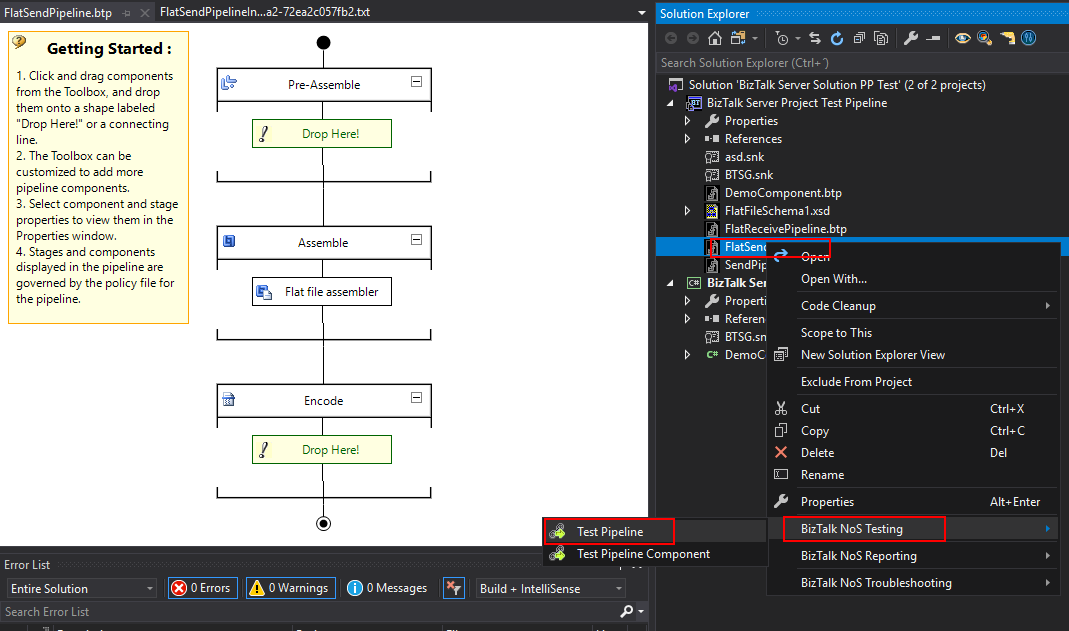
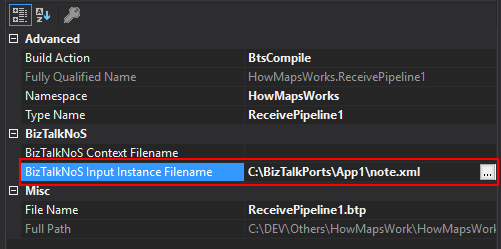
- First, you need to go to the Properties window of the pipeline and set the BizTalk NoS Input Instance Filename property, with an instance of the message that you want to try against the pipeline
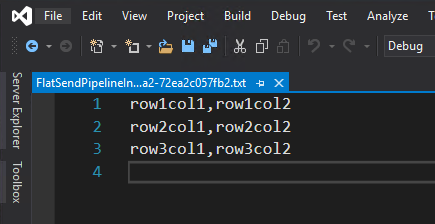
- It will show you the result of the pipeline test directly in VS IE
Test Pipeline Component
As the previous, one testing or debugging a custom pipeline component can be a challenge and most of the time you will need to test them in runtime. If you want to debug them then you will need to attach the pipeline component code to the BizTalk process in Visual Studio.
Once again, there isn’t a proper build-in feature in Visual Studio to test and debug our custom pipeline components. Now with NoS, you will be able to debug your pipeline component without having to deploy and run them in runtime. Now, from Visual Studio, you will be able to attach this test execution to an external process without caring about BizTalk environment by:
- Right-click on the pipeline that contains the custom pipeline component that you want to try, expand BizTalk NoS Testing, and select the Test Pipeline Component option:
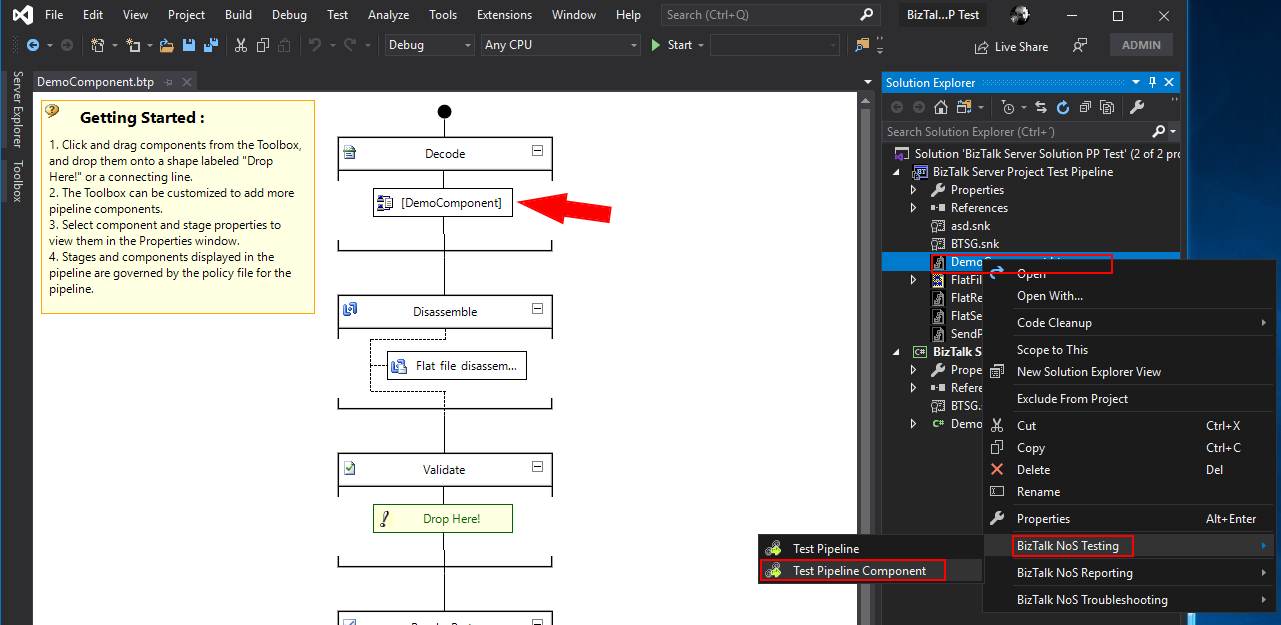
-
- This will automatically attach Visual Studio to a process called BTSG.TestPipeline.exe process (the title will also contain the name of our pipeline)
- Make sure that the instance of a message is correct and make sure that you have set breakpoints in your custom pipeline component, and then click Run Test
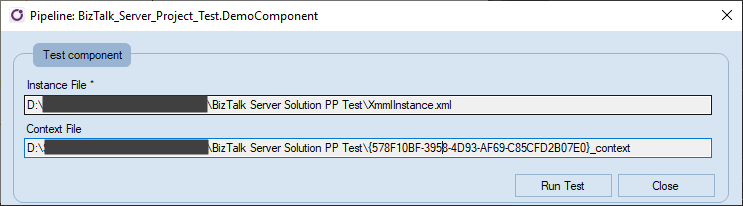
- You should be able to start debugging your custom pipeline component code.
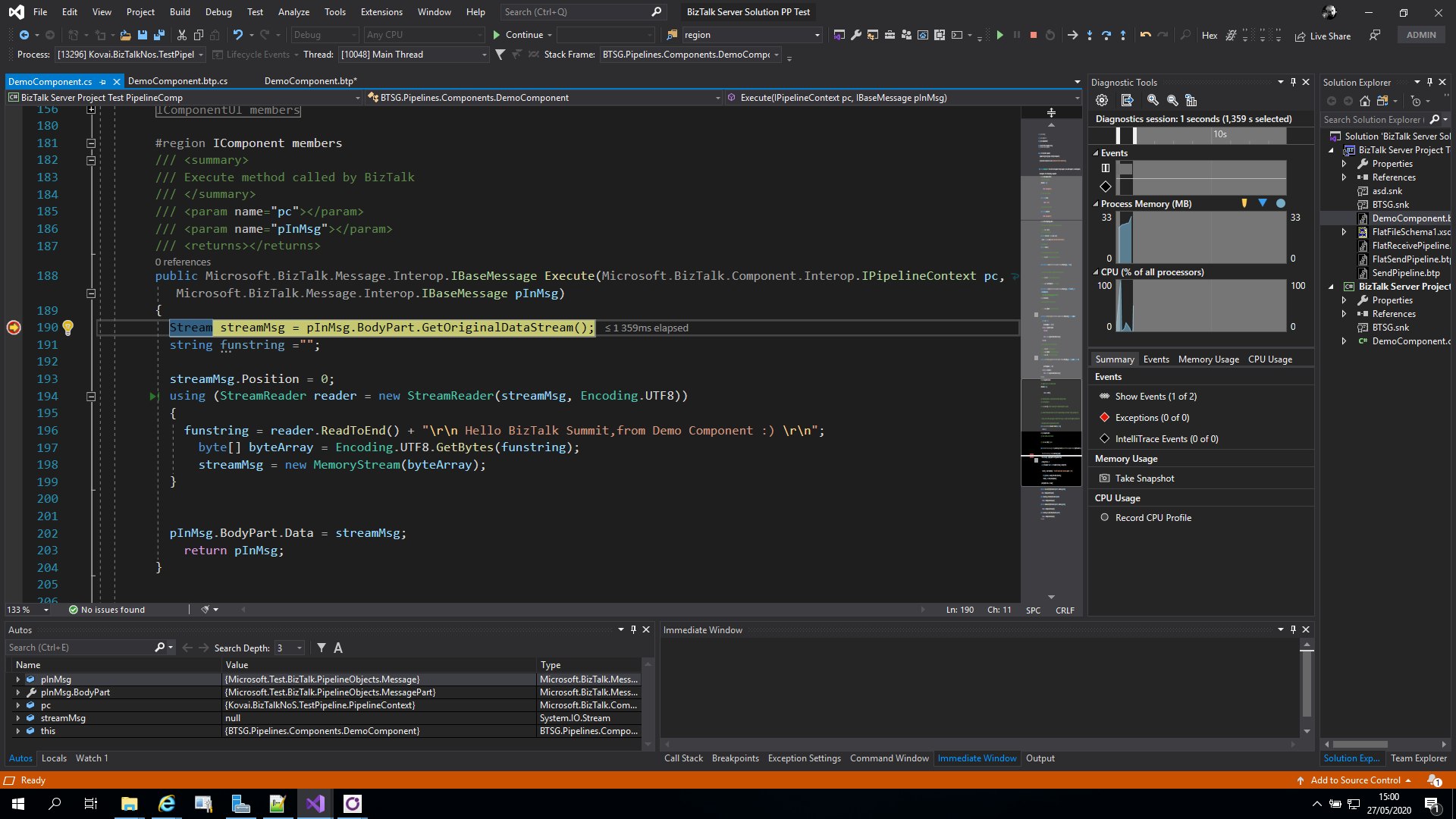
I hope you are enjoying these features and stay tuned because this extension has more! Feel free to try this amazing extension for BizTalk Server here: Download BizTalk NoS Ultimate for BizTalk Server 2020.
The post BizTalk NoS Ultimate: Features Overview (Part IV) appeared first on BizTalk360.

by Sandro Pereira | Jun 15, 2020 | BizTalk Community Blogs via Syndication
It was with great pleasure that I presented, last May, 25 another session in the Integration Monday series this time about Logic Apps: Best practices, Tips, and Tricks, this was my eleventh talk in this community in 4 years of existence. I can say that I am one of the most regular speakers at the Integration User Group only behind Michael Stephenson that has 13 talks.
Logic Apps: Best practices, tips, and tricks
Azure Logic Apps helps you build powerful integration solutions by automating your workflows without writing a single line of code. In this session, I will be highlighting 10 tips you should know for being more productive and building more reliable, effective Logic Apps. We will also do a reflection to your existing Logic Apps processes and will go through a list of must-have best practices, tips, and tricks that will allow you to build more reliable and effective workflows. At the same time, these will allow you to be more productive and document your workflows from the beginning.
I hope you enjoy and find it an interesting session. Also, I advise you to visit and view the history of sessions that have taken place every Monday in the Integration User Group – Integration Monday series.
My other talks at Integration Monday – Integration User Group
The post Logic Apps: Best practices, Tips, and Tricks video and slides are available at Integration Monday appeared first on SANDRO PEREIRA BIZTALK BLOG.
by Gautam | Jun 15, 2020 | BizTalk Community Blogs via Syndication
Do you feel difficult to keep up to date on all the frequent updates and announcements in the Microsoft Integration platform and Azure iPaaS?
Integration weekly update can be your solution. It’s a weekly update on the topics related to Integration – enterprise integration, robust & scalable messaging capabilities and Citizen Integration capabilities empowered by Microsoft platform to deliver value to the business.
Microsoft Announcements and Updates
Community Blog Posts
Videos
Podcasts
How to get started with iPaaS design & development in Azure?
- Robust Cloud Integration with Azure
- Microsoft Azure for Developers: What to Use When
- Serverless Computing: The Big Picture
- Azure Logic Apps: Getting Started
- Azure Logic Apps: Fundamentals
- Microsoft Azure Developer: Creating Enterprise Logic Apps
- Microsoft Azure API Management Essentials
- Azure Functions Fundamentals
- Cloud Design Patterns for Azure: Availability and Resilience
- Architecting for High Availability in Microsoft Azure
Feedback
Hope this would be helpful. Please feel free to reach out to me with your feedback and questions.

by Sandro Pereira | Jun 10, 2020 | BizTalk Community Blogs via Syndication
In the last blog post, we analyzed the report capabilities of BizTalk NoS Ultimate – Reflector and Refactor. Today, we will continue to analyze the list of available features present in this Visual Studio extension, focusing on the daily BizTalk Developer’s improved tasks.
These are, what I call, simple tasks that will improve the BizTalk developer experience which will reduce the development and deployment time in new or existent BizTalk projects.
Build Project
You are probably thinking, why do I need another Build option? The reason is simple: sometimes we have a huge solution with several projects inside, and in these situations trying to build one simple project with the out-of-the-box Visual Studio option can be a challenge. It will take a huge amount of time trying to build the project because of all of the dependencies.
The option in NoS will build the desired project without any interaction with the Visual Studio design environment, making this operation faster than the native build operation in Visual Studio.
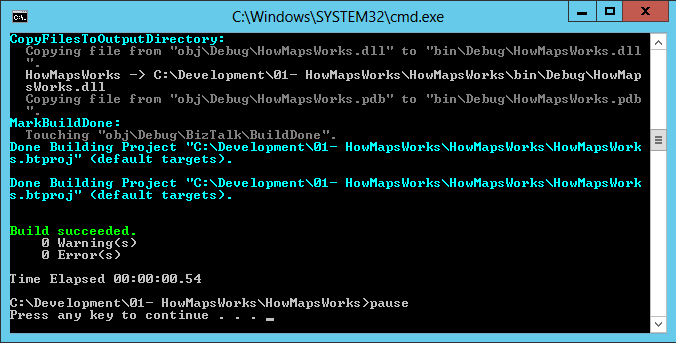
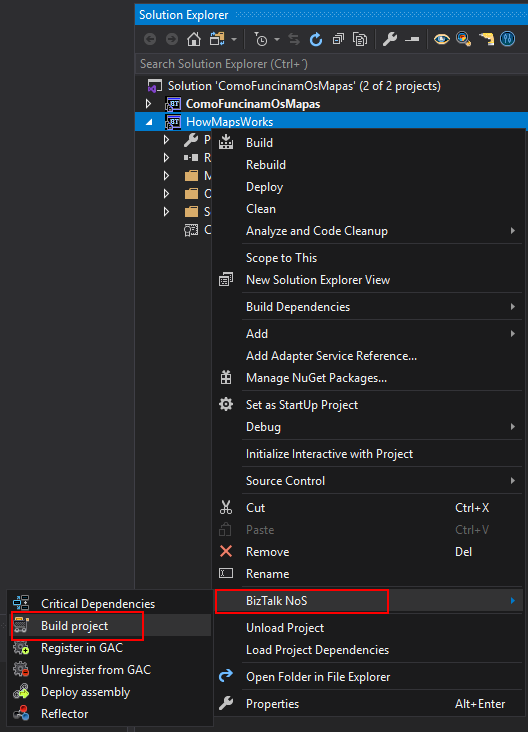
You can access these features by:
- Right-click on your project name, expand BizTalk NoS and select the Build project option
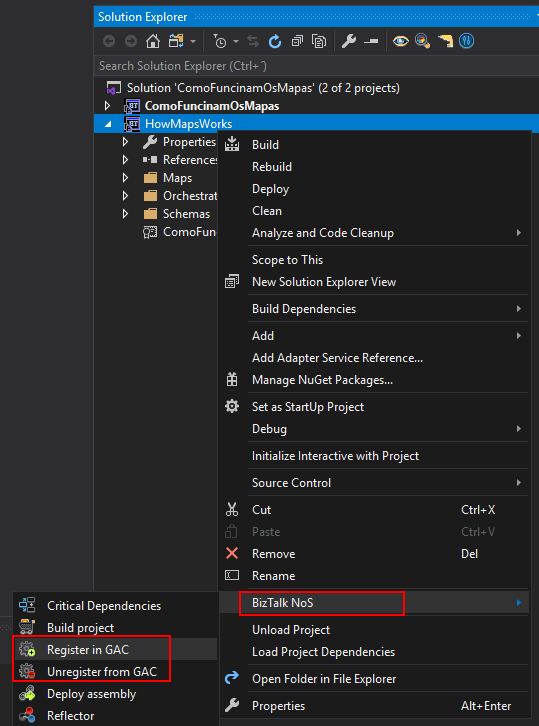
Fast Register/Unregister in GAC
How many times have you desired to have a simple easy and quick way to install a DLL, and (why not) also uninstall, in the Global Assembly Cache (GAC), and why not directly from your favourite developer tool: Visual Studio? Instead, we need to install DLL’s using the Gacutil.exe tool, and don’t get me wrong, it is an excellent tool, but it is not practical in the day-by-day work!
Finally, now you have this option!
You can access these features by:
- Select your project name, expand BizTalk NoS and select the Register in GAC or Unregister from GAC option
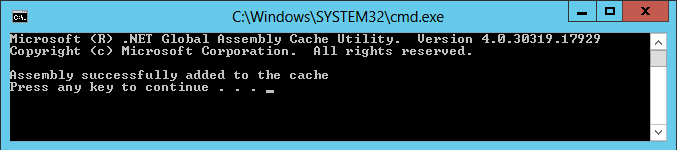
Note: This works with all DLL’s, it doesn’t have to be a BizTalk DLL, you can easily register a C# Helper Class used by BizTalk Projects into the GAC with this functionality.
Deploy Assembly
Again you are probably thinking, why do I need another Deploy option? And the reasons are exactly the same as the Build project option which we described earlier.
This operation will deploy a single BizTalk assembly directly from the Visual Studio without trying to deploy also all of its BizTalk Server project dependencies.
You can access these features by:
- Select your project name, expand BizTalk NoS and select the Deploy assembly option
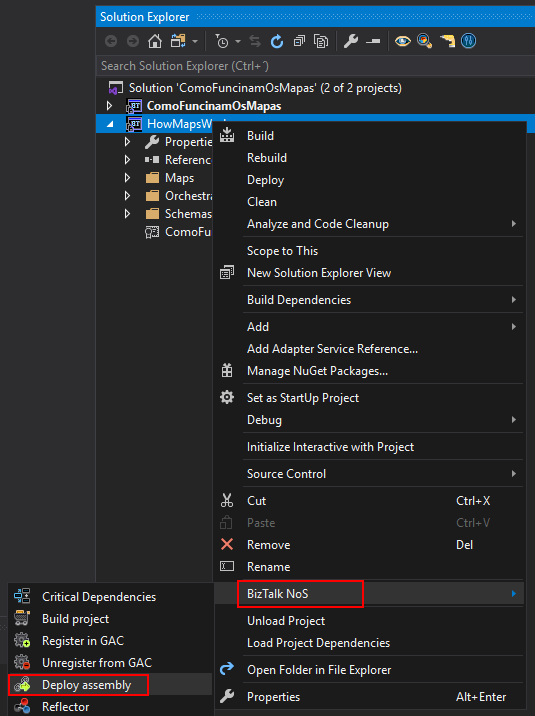
The equivalent we have to this feature is the add/update resources from the BizTalk Server administration console.
What’s the purpose of this feature? In some situations, you just simply don’t want to use the Visual Studio out-of-the-box functionality, as it will deploy all the dependencies and other stuff which will take a huge amount of time. What we want sometimes is only to deploy one specific assembly easily and fast.
This option will allow you to make this directly from Visual Studio, making this operation faster than the native deploy operation on Visual Studio.
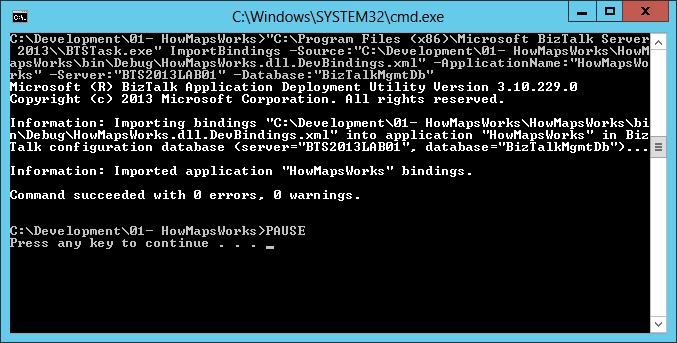
I hope you are enjoying these features and stay tuned because this extension has more! Feel free to try this amazing extension for BizTalk Server here: Download BizTalk NoS Ultimate for BizTalk Server 2020.
The post BizTalk NoS Ultimate: Features Overview (Part III) appeared first on BizTalk360.