In the last post we talked about building a Logic App from scratch and gave a few hints on what we would change to prepare for CI/CD.
In this post, we will show you how to prepare your Logic App and template files, how to set and rename your parameters and will hint on how it will correlate with the Azure Pipeline.
So lets recap. We saw that the needed requirements are having VS installed, Azure SDK, Logic Apps for Visual Studio tools extension and an active Azure subscription. We built a new Azure Resource Group project with the Logic Apps template and added a few actions to our LA, nothing too fancy, just enough to show what’s needed.
Now, let’s look at how we will change the code to get it ready.
Changing the JSON code to prepare it for CI/CD is simple but requires attention, because if not done properly, you won’t be able to deploy your template and it might take you a while to find where the problem is. Even though VS gives you a few hints, because Intellisense helps, it might still not explain why it’s failing.
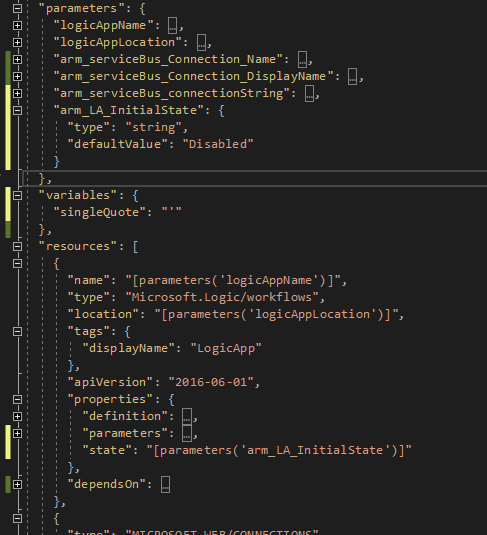
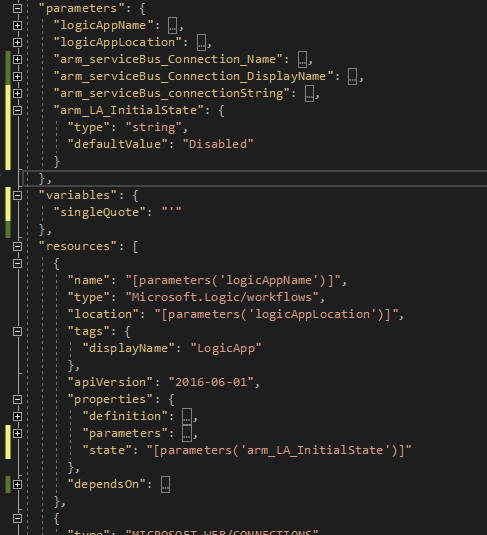
The first thing I like to do is to rename the connection parameters, having “servicebus_1_connectionString” is just horrible and does not help you understand what kind of connection you have. For this case, because we only have one connection, I’ll rename it to “arm_serviceBus_connectionString”, because we’re using an ARM (Azure Resource Manager) template and because this is the type of parameter. I will also add a template variable, named “SingleQuote”, which will be, as you’ve might have guessed, a single quote mark.
If you have other connectors, I suggest you continue changing names to match the same naming convention. It will help you and others to know what that is supposed to be.
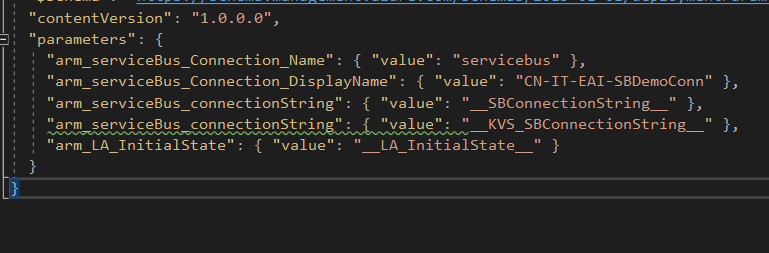
After the Logic App file is taken care of, you will also need to apply these changes in the Parameters file.
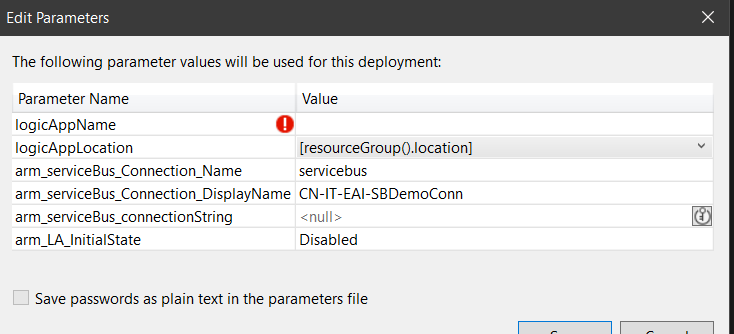
By default, it will be almost empty, just having the logicAppName parameter with a Null value. This will make your deployment fail, because the template isn’t valid.
In fact, you won’t even be able to deploy it, because VS is smart enough to prompt you for the missing values, taking the default ones from the LogicApp.
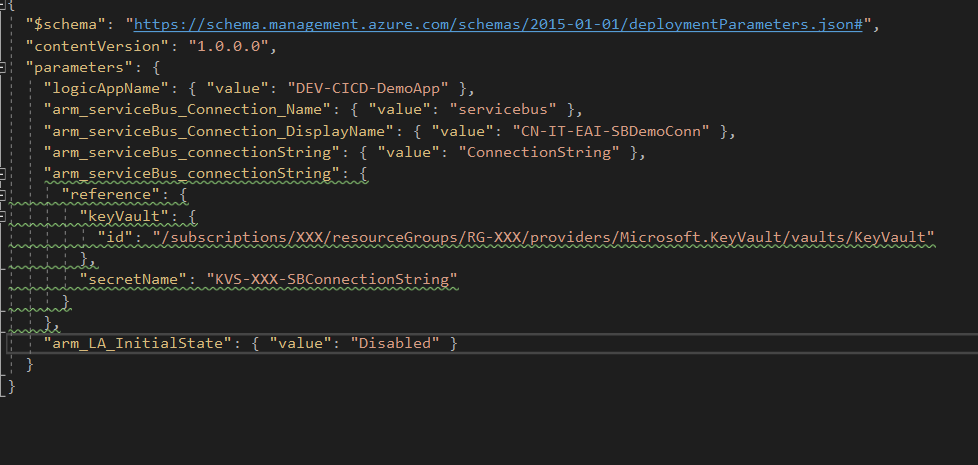
At this point, we’re no longer dealing with the definition, we’re dealing with the values we want the Logic App parameters to have. So, “type” and “defaultValue” no longer apply, you should use “value” directly or, if you’re dealing with KeyVault secrets, you can just reference KV and the secret name.
In this example, I’m setting the SB connection string both ways, to show how it can be done.
If you’ve done everything right, you’re Logic App should be deployed without any fuss.
Now comes the fun part, that is dealing with the Parameters Template file. It is incredibly difficult to do this and it’s going to take several hours. So grab that coffee and get confortable.
You will need to change your values to a token and an identifier, to later use in the Pipeline and releases.
Wow, that took us… 30 seconds, maybe. I’m exhausted and I need a break. You can even get that KV value with the token, you just need to change the identifier to the KV secret name.
We’re sweating over here with all this work.
In the next blog post, we will build the Pipeline and give the hints for the Release as well.
Do you feel difficult to keep up to date on all the frequent updates and announcements in the Microsoft Integration platform and Azure iPaaS?
Integration weekly updates can be your solution. It’s a weekly update on the topics related to Integration – enterprise integration, robust & scalable messaging capabilities and Citizen Integration capabilities empowered by Microsoft platform to deliver value to the business.
This time, while trying to configure a simple feature that usually doesn’t require too much effort, just selecting the checkbox, I got a different error message:
[2021-10-18 23:53:24:0397 Error EDIAS2Config] Failed to deploy BAM activity definitions. Please make sure that all BAM related Data Transformation Services (DTS) packages are removed along with the BAM databases. (Microsoft.BizTalk.Configuration.EDIAS2.Utility) Failed to execute process: C:Program Files (x86)Microsoft BizTalk ServerTrackingbm.exe. (Microsoft.BizTalk.Configuration.EDIAS2.Utility) Microsoft (R) Business Activity Monitoring Utility Version 3.13.717.0
Copyright (C) Microsoft Corporation. All rights reserved.
Using ‘BAMPrimaryImport’ BAM Primary Import database on server ‘SERVER-NAME’…
Deploying Activity… Done.
ERROR: The BAM deployment failed.
The alerts were not deployed.
Cannot start service BAMAlerts on computer ‘.’.
The service did not start due to a logon failure
(Microsoft.BizTalk.Configuration.EDIAS2.Utility)
Once again, for you to have a better perspective, we didn’t perform a full configuration in one shot because of issues happening during the configuration process. In this case, we took the approach of configuring feature by feature step-by-step. And this wasn’t the first time we were trying to configure this feature.
Cause
This isn’t the same issue that I reported in the previous post, but they are related since the origin of the problem was the same. There was a domain policy that disabled the user’s right to log on as a service, causing the services to stay stopped if, for some reason, you restart the services.
And that was one of the main reasons for this installation to become a nightmare. In this particular case, the BAMAlerts service was stopped, which was causing this error.
Also, because this wasn’t the first try to install this feature, you need to ensure that you have removed BAM artifacts that were probably created successfully. Avoid other types of errors once you give it another try to configure that feature.
Solution
You have several actions to perform to solve once and for all this issue:
Ensure you have removed all the EDI/AS2 BAM resources by accessing the tracking folder using the command line console in administration mode:
Usually, the path is: C:Program Files (x86)Microsoft BizTalk ServerTracking
After that, make sure that all BizTalk Server services, including Enterprise Single Sign-On and BAMAlerts is running
And then give another try configuring this feature.
Now, that will solve the issue momentarily. Nevertheless, to put in a correct configuration, you need to ask the security team to Restore user’s right to log on as a service for the BizTalk Services on the BizTalk Server machine.
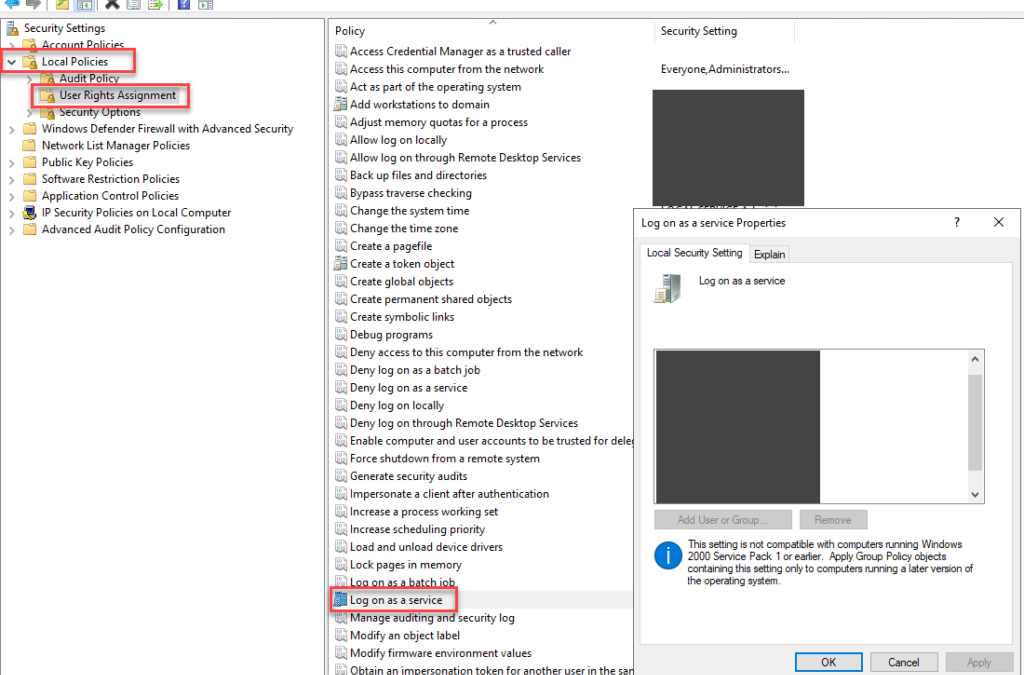
In a normal situation, you could fix that by:
Sign in with administrator privileges to the computer from which you want to provide Log on as Service permission to accounts.
Go to Administrative Tools, click Local Security Policy.
Expand Local Policy, click User Rights Assignment. In the right pane, right-click Log on as a service and select Properties.
Click Add User or Group option to add the new user.
In the Select Users or Groups dialogue, find the user you wish to add and click OK.
Click OK in the Log on as a service Properties to save the changes.
If the right to log on as a service is revoked for the user account, restore it on a domain controller or a member server (standalone) depending on your situation.
This could be a valid error message if it weren’t for the simple little detail that we are dealing with a High-availability multi-server BizTalk Server installation. That means that the SQL Server was installed in another machine(s)… and yes, Microsoft SQL Server Integration Services was installed on the SQL Server as Analysis Service and all the pre-requirements of BizTalk Server 2020.
And again, yes. SQL Server Management Studio (SSMS) 18.4 was installed on the BizTalk Server box. So why the hell that when I was trying to configure BAM features, I was getting the following error message:
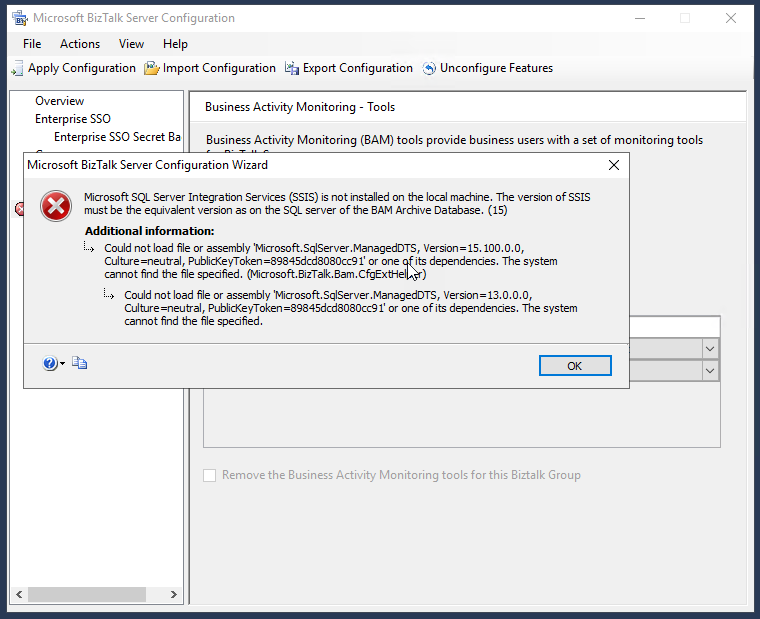
BizTalk Server 2020 BAM Configuration: Microsoft SQL Server Integration Services (SSIS) is not installed on the local machine. The version of SSIS must be the equivalent version as on the SQL server of the BAM Archive Database. (15)
Could not load file or assembly ‘Microsoft.SqlServer.ManagedDTS, Version=13.0.0.0′,Culture=neutral, PublicKeyToken=89845dcd8080cc91’ or one of its dependencies. The system cannot find the file specified.
Cause
This is something that always annoyed me since Microsoft decided to separate the SSMS from the default installation. So, on one hand, it is great that clients can update to a recent version of the tool. Still, on the other hand, it complicates specific previous simple tasks like performing the configuration of BizTalk Server features in special BAM features.
By design, the latest SSMS only includes the latest version of SSIS assemblies.
I have been using this SSMS 18.4 version in almost all my BizTalk Server installations. But also, in most of my recent installations, my clients didn’t want me to install BAM because they were not using this feature. The reason I use SSMS 18.4 version is because it was the latest version available before BizTalk Server 2020 was released.
I have tried to uninstall this SSMS version and install a previous one – 17.9.1 – to solve this issue, but by doing that, I got a ton of other problems with the based features of BizTalk Server like SSO and Runtime. So I decide to keep using SSMS 18.4.
Trying to find the correct version of the SSMS may be an inglorious Task.
I saw comments and suggestions to solve this issue that I would do in a BizTalk Server environment like:
Installing SSIS on the BizTalk Server machine and re-run BizTalk configuration
Installing SSDT (SQL Server Data Tools) full ISO on the BizTalk Server machine and re-run BizTalk configuration
or by installing the Client Tools SDK from SQL Server installation media on BizTalk machine and re-run BizTalk configuration – this was, in fact, a possible alternative
But again, this issue is related without a doubt with problems related to assemblies reference mismatch.
Solution
You have several solutions on the table to solve this issue.
Solution 1: Install side-by-side SSMS 17.9.1
Note: do not uninstall SSMS version 18.4. Leave both side-by-side.
I know this is a little ridiculous, but it solves the problem.
Solution 2: Assembly redirect at the machine level (machine.config)
To solve this problem by using Assembly Binding Redirection in the machine configuration file (Machine.config) you should change both:
I have to say that I saw bizarre error messages during these long years as a consultant, but this one gained direct entry into my TOP 10 for a straightforward fact: there isn’t a SQL Adapter on BizTalk Server 2020. The adapter was deprecated since BizTalk Server 2006 R2, and they decided to remove it in this last version of the product. So, when I saw this error message appearing on the BizTalk Server Configuration Console:
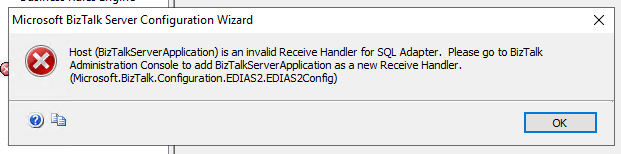
Host (BizTalkServerApplication) is an invalid Receive Handler for SQL Adapter. Please go to BizTalk Administration Console to add BizTalkServerApplication as a new Receive Handler (Microsoft.BizTalk.Configuration.EDIAS2Config)
Humm… what? Humm…
I have done hundreds of installations during more than 15 years working in BizTalk Server, and many of these installations were BizTalk Server 2020, but I never faced this issue before.
On a small note, because of issues happening during the configuration process, I didn’t perform a full configuration in one shot. In this case, we took the approach of configuring feature by feature, step-by-step.
Cause
BizTalk Server 2020 Cumulative Update 2 and then try again to configure this feature. But I soon realized that this wasn’t the issue, neither the solution since the problem continues to happen. But, again, I have done several BizTalk Server 2020 installations since this last version was released and never got this error. And some of them were almost immediately when 2020 was announced and available.
I was almost ready to install the old and deprecated SQL Adapter in BizTalk Server 2020 to see if that solved the issue when I decided to have a look at the services and see if all the services were running. Shocking surprise Enterprise Single Sign-On Service wasn’t running… So again, this time I decided to start the SSO service and then try again to configure this feature… and everything worked. I was able to configure this feature in BizTalk Server 2020.
Yes, for sure you need the Enterprise Single Sign-On (ENTSSO) Service running to perform the BizTalk Server configuration. This is the first step of the BizTalk Server configuration, and without it, you cannot configure the rest of the features. However, clearly this problem, or in this case, the error message description presented to the user making the configuration, is what I call a problem between the chair and the keyboard. Someone forgot to fix these validations or update the validations made by the BizTalk Server Configuration Console.
Solution
The solution is simple:
Ensure that Enterprise Single Sign-On (ENTSSO) Service is running before you perform any configuration in BizTalk Server because all the features will rely on it.
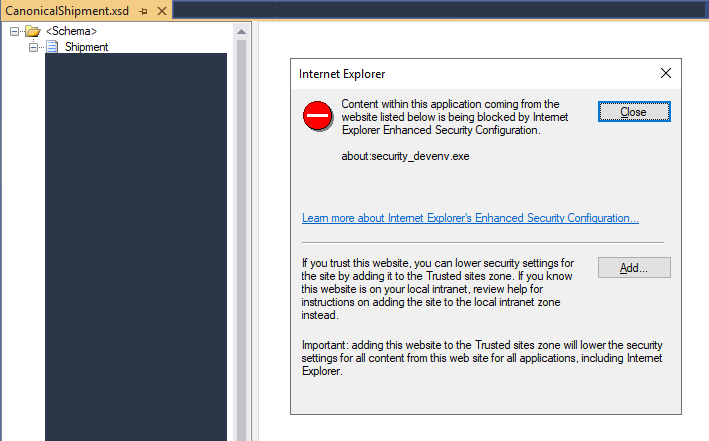
I have been working on a new BizTalk Server project on a new client for a few weeks. Now that we are beginning the development phase, I was getting annoying with an Internet Explorer security blocking windows every time I try to open a schema document on Visual Studio with the BizTalk Server Schema Editor:
Internet Explorer
Content within this application coming from the website listed below is being blocked by Internet Explorer Enhanced Security Configuration:
about:security_devenv.exe
To be honest, I initially ignored this issue and immediately clicked on the Close button, and everything would work as usual. But starting to work every day on the project and facing this issue every time I tried to open a Schema was simple to annoying.
Cause
We don’t need the IE to develop BizTalk Schemas, but the XSD viewer, in fact, opens an IE embedded inside Visual Studio. And that is the reason for this issue.
I typically don’t get this “warning” message because I usually turn off Internet Explorer Enhanced Security Configuration on my BizTalk Servers.
Solution
The solution is simple:
You can turn off Internet Explorer Enhanced Security Configuration by:
Start by running the Server Manager, if it is not already open, from either:
On the Windows taskbar, click the Server Manager button
On the Start screen, click Server Manager
In the Server Manager Dashboard, from the scope pane (on the left side) click on Local Server
In the Server Properties for the Local Server, you’ll see the option for IE Enhanced Security Configuration. Click On to change the option
A dialog box appears, letting Internet Explorer Enhanced Security Configuration be enabled/disabled separately for normal users and administrators; turn off both. After disabling both options, click OK
Click the Refresh button at the top of the Server Manager and the IE Enhanced Security Configuration should now show as Off
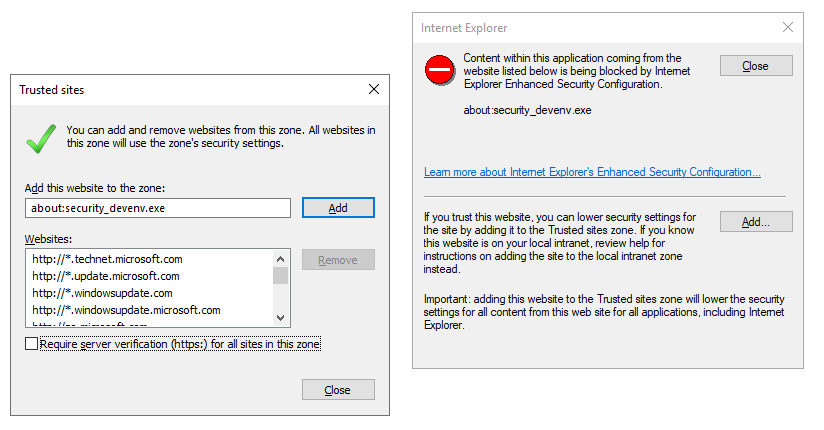
Or, if don’t want to turn off Internet Explorer Enhanced Security Configuration , you can on the blocking pop-up window click on Add
On the Trusted sites window, make sure Require server verification (https:) for all sites in this zone is not marked and then click Add
After one of these two options/settings that annoying blocking behavior inside Visual Studio will be gone.
I’m always “happy” to discover new errors and warnings regarding any technology day by day… but honestly, I try to avoid them! Today, actually a few hours ago, while helping a client to install the SSO Master Secret Server on a brand new BizTalk Server environment, we got the following unexpected warning:
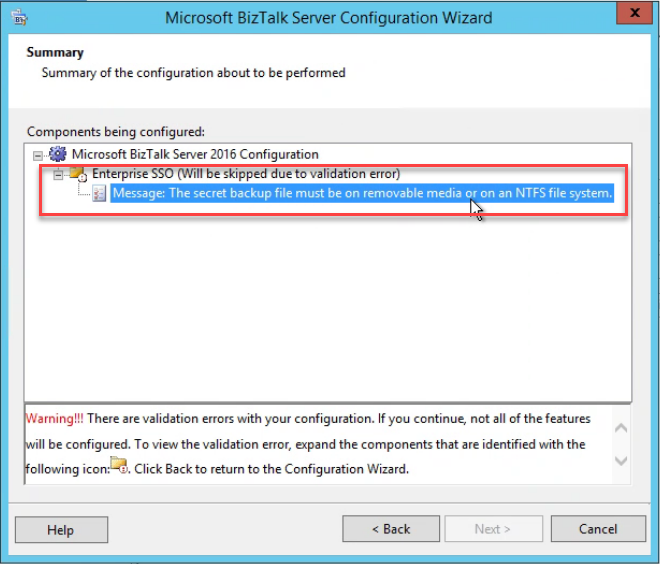
Enterprise SSO (Will be skipped due to validation error:
Message: The secret backup file must be on removable media or on an NTFS file system
First of all, do not continue with the installation process if that option is available. In this case, luckily, the Next button is disabled.
Cause
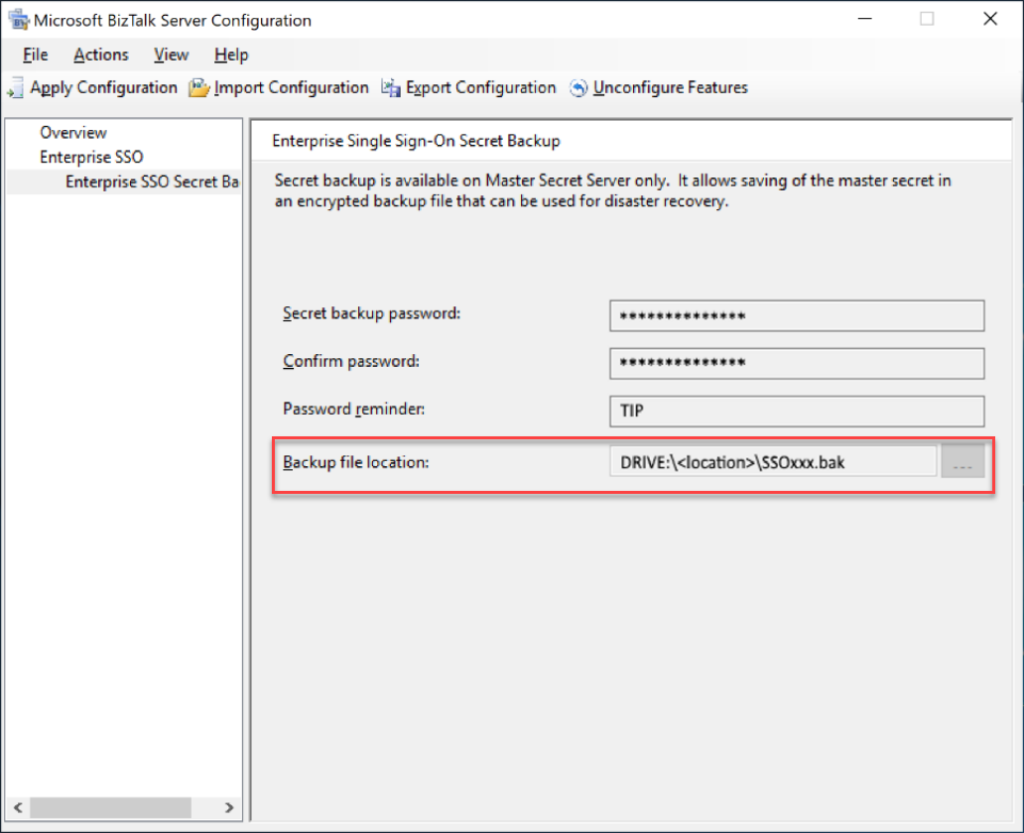
In this particular case, we were trying to back up the secret backup file on a different location rather than the default specified folder. And for some reason, while copy and paste the path we put an incorrect and inexistence drive on the path, for example:
SD:Program Files(x86)…SSoxxx.bat
And what we were trying to set up was:
D:Program Files(x86)…SSoxxx.bat
Solution
The solution is simple:
Go back on the BizTalk Server Configuration wizard
On the main panel, select Enterprise SSO Secret Backup option on the left tree
and fix the path to the correct place to store the backup file
While going through my adventure on a BizTalk Server + Host Integration Server (HIS) project and mainframe connectivity, I’m trying to migrate an old HIS2006 solution to BTS2016 + HIS2016. Just ten years of evolution, I notice that:
Many things on HIS2006 are not compatible with HIS2016.
You may found some new limitations and new features.
Luckily Microsoft provides tools to migrate several components, especially the TI resources.
HIS Tools have changed:
SNA Manager is quite the same. Maybe some screens and options are a bit different.
TI Manager is no longer available. Now we have a different tool called TI Configuration Tool with the same goals as the previous one. However, the way we configure Host-Initiated Processing (HIP) and Windows-Initiated Processing (WIP) is different nowadays.
The HIS documentation is quite limited, and you will not find much information about it.
I have to say I’m lucky to have good friends, and because of that, I have been learning a lot with my dear friend Steve Melan, that is the best expert I know regarding HIS.
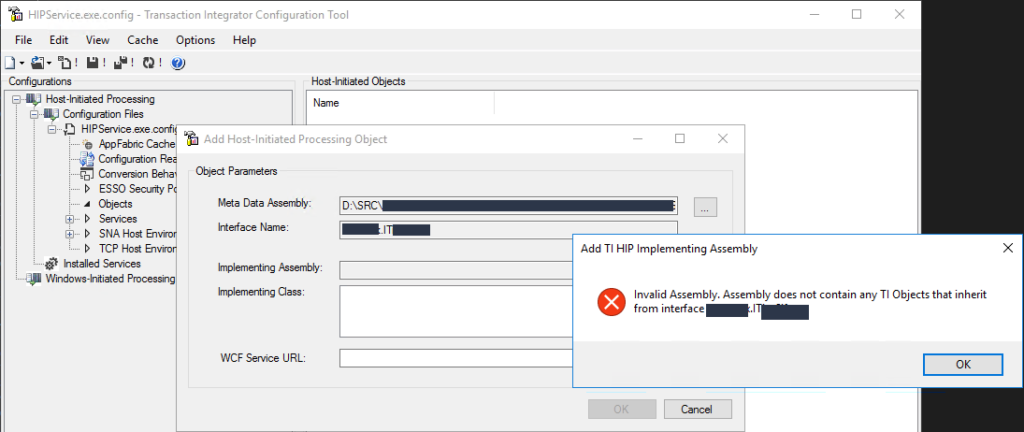
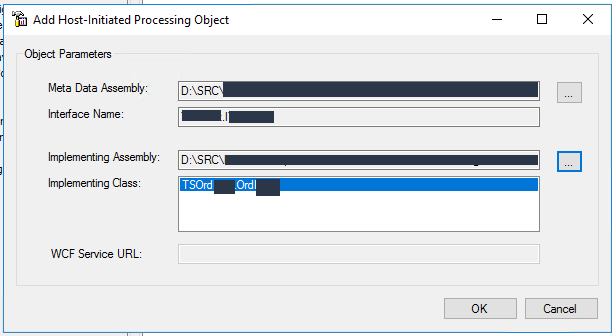
The last strange (all of them are strange) issue I encountered while trying to Add Host-Initiated Processing (HIP) Object on my HIP configuration by using the Transaction Integration (TI) Configuration Tool was:
Add TI HIP Implementing Assembly
Invalid Assembly. Assembly does not contain any TI Objects that inherit from interface: namespace.interface
Or in other cases:
Invalid Assembly. Unable to load one or more of the requested types. Retrieve the LoaderExceptions property for more information.
Cause
As I told you before, many things changed from HIS2006 to HIS2016, and migrate the Host Application projects is not direct – Visual Studio does not migrate the project as it does for a C# project or BizTalk Server project. Instead, you need to migrate the resources using the TIConversionTool and then import them to your Visual Studio Host Application project.
And you need to make sure that you are not breaking anything like methods and interface names. And then, you need to reference these new resources (DLL containing the .Net Server Definition) on your interface implementation project. This interface implementation is a C#, or VB, class library project. Then, inside that project, you need to create a class that implements the inherited .Net Server Definition interface and provides the implementation of all the members defined within the interface – in this case, all the operations or COBOL programs in that Host Application .Net Server Definition.
My problem was that this interface implementation was also a very old project, compiled in .NET 2.0. For some reason, I yet not completely understood, and despite successfully migrating them to .NET4.6.1, I couldn’t make it fully compatible with the HIP, and I always got these two issues above.
Solution
The resolution was, in fact, quite simple. Basically, I create a new C# class library project from scratch and copy-paste all the existing code to the new one, recreating the old one manually.
Surprise… everything work perfectly! And then, I could create the HIP object.
An example of a Host Application .Net Server Definition interface implementation is something like this:
using RemoteOrder;
using System;
using System.Collections.Generic;
using System.Linq;
using System.Runtime.Remoting;
using System.Runtime.Remoting.Channels;
using System.Runtime.Remoting.Channels.Tcp;
using System.Text;
using System.Threading.Tasks;
using IHIPServices;

namespace TestOrders
{
    public class OrderImplementation : IHIPServices
    {
        void IHIPServices.GetOrders(ref string value)
        {
            /*
             * Implement the logic
             *
            */
        }
    }
}

What you need to be aware of are:
It should reference these two HIS assemblies:
Microsoft.HostIntegration.TI.ClientContext
Microsoft.HostIntegration.TI.ServerContext
It should reference the Host Application .Net Server Definition assembly
In this case, represented by IHIPServices
Implement the interface members
In this case, represented by IHIPServices.GetOrders(ref string value)
In the last blog post of this series I address a “strange” behavior – maybe strange is not the best work. They are not issues, but definitely, they could have a better user experience – about Sign-in to Azure doesn’t respond.
Today we are going to address a new one, make note that all of them will be related to the Logic App Adapter Azure Authentication (Sign-in to Azure) that you can find on the Endpoint Address Configuration Logic App Details Page.
Incorrect Sign-In account information
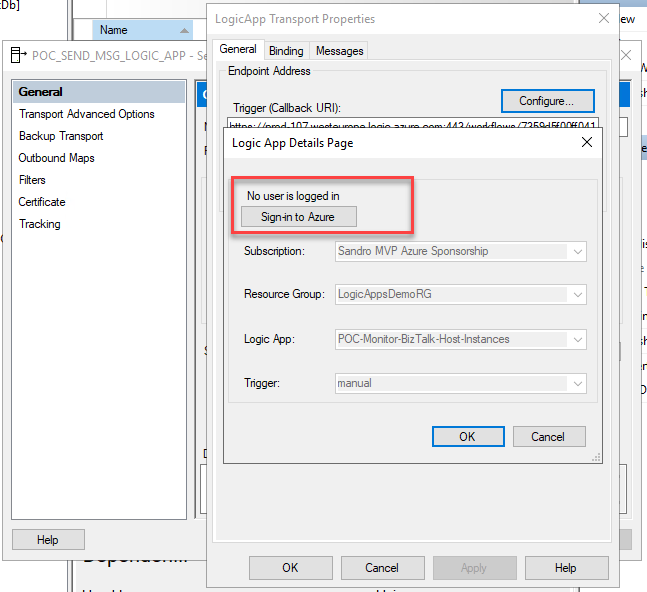
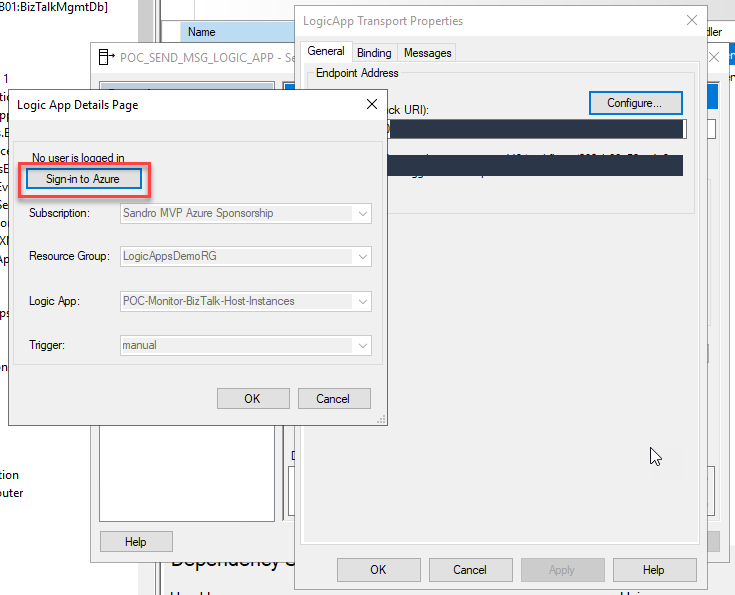
In the first blog post, we address the behavior of No user is logged in. Although the lack of this information is not critical to the send port’s correct functioning, I mention that it would be helpful for those who manage the platform to have this information available.
In this case, let’s assume that after a while (one week or one month later), we go to that send port, and what we see is No user is logged in…
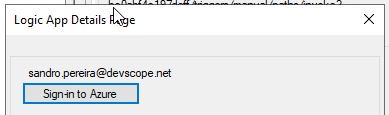
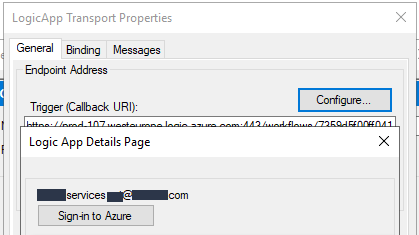
Or even we create the port, and there is an account defined there, let’s say my email account.
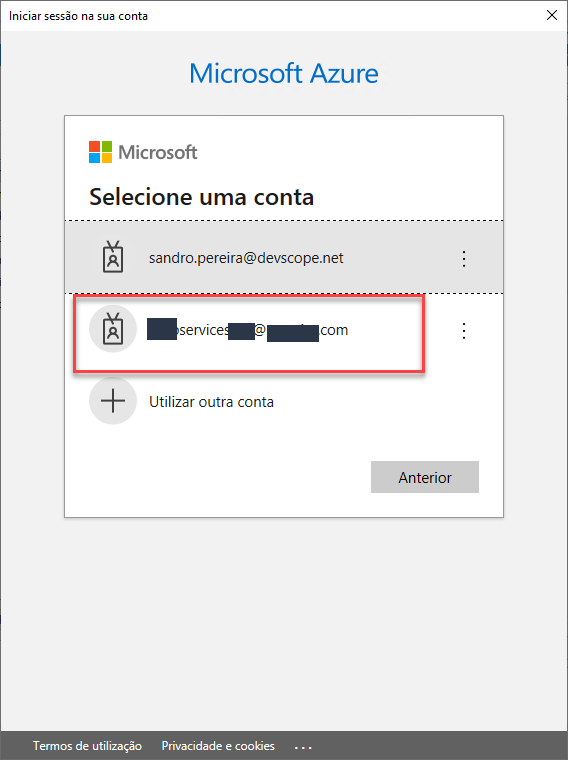
If we click on Sign-in to Azure once again, no matter if there is an account display there or not. This will pop up a Log in to your account window and let’s assume:
but now we are going to select a different account
Note: sorry for the picture to be in Portuguese
After we select the account the password will be asked. You type the password and click begin log in (begin session) and for some reason, a screen asking additional information will be showed to define phone number, email, and security questions.
If you don’t want to define this information, or you are not responsible to perform this configuration and decide to abort this process by click Cancel.
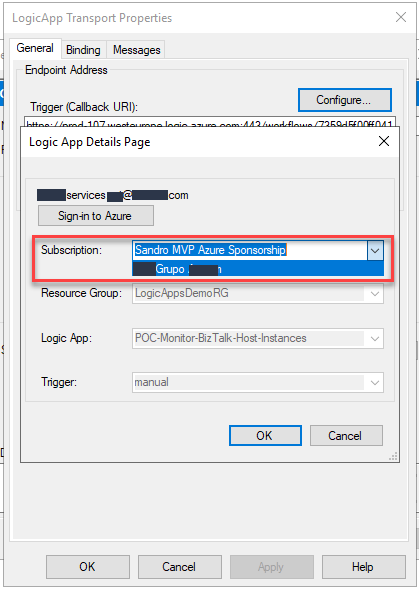
Once you get back to the Logic App Details Page on the BizTalk Server Administration Console the account you try to define to authenticate on Azure to define this port will sow the user you define on the process you just aborted. Despite being strange is not incorrect because in fact, you did authentic on Azure and you are able to see different subscription:
The Resource, Logic App and Trigger are gray because the user I used doesn’t have access to that subscription but instead to a different one
Now, if I say: upps!! I made a mistake. Let’s cancel this process and click three times on the cancel button to be sure I discard any change I did. Once we go again to the configuration of that port, what we will see is precisely the previous account being display there!
Again, this is not entirely wrong. What is displaying there is the last user you used to authenticate on Azure… but it is not correct in terms of user experience and it may induce BizTalk Server Administration in error. It was not that user that we used to define the configuration of that port, and neither this account has access to that subscription!
In my opinion, the last user account that successfully defined or made chances on the port should always be displayed.
And the only way to not see that information on that port is to close the Administration Console and open it again. After that at least you will see No user is logged in. This is also not an ideal situation, and it could mislead administrators once again.
On the first blog post of this series I address a “strange” behavior – maybe strange is not the best work. They are not issues, but definitely, they could have a better user experience – about No user is logged in.
Today we are going to address a new one, make note that all of them will be related to the Logic App Adapter Azure Authentication (Sign-in to Azure) that you can find on the Endpoint Address Configuration Logic App Details Page
Sign-in to Azure doesn’t respond
I work a lot with several clients in Portugal and outside Portugal. If it was already expected before this COVID-19 pandemic, it is now almost mandatory to work with several VPNs tools and configurations to access their environments.
Some of these VPN configurations allow me to continue to have internet access on my laptop. Others have this annoying behavior to cut access to the internet. In the current world situation with homework that we are, or need to be, online to speak with the team and clients, having no internet access because of a VPN is not a good situation. To avoid this situation or have a better experience, aka not stay offline, I usually install these VPN tools on my Virtual Machines. By doing this strategy, my laptop stays with internet access, but my VM doesn’t have. And it was in one of these situations I found this “strange” behavior.
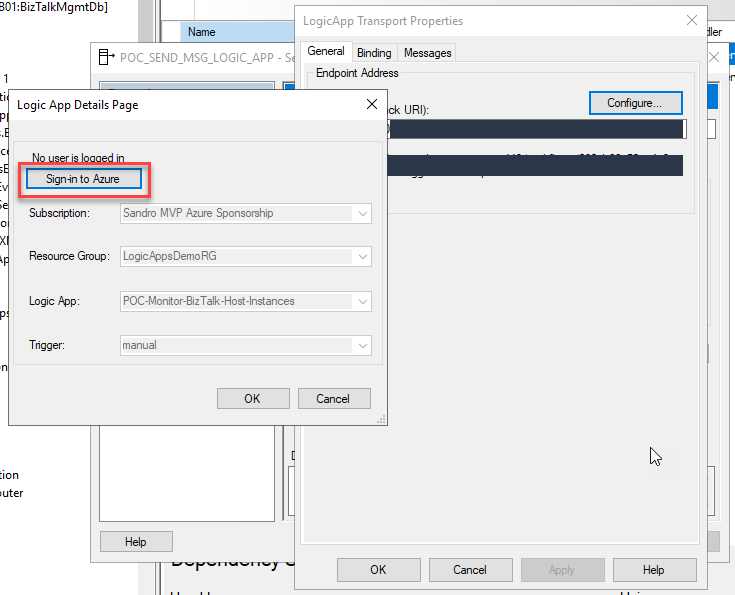
When I access my Logic App Send Port configuration details on BizTalk Server Administration Console, I try to click several times on the Sign-in to Azure button:
But to my surprise, without any response or action to be presented. It seems that the button was not responding. Sometimes, after a few minutes, a blank pop-up window appears, but it disappears after a minute or so. And this without presenting any error or warning message!
I then realized that I was connected to a VPN, and my machine was without internet access:
Of course, when I turned off the VPN and my VM had access to the internet again, everything started to work as expected.
This is simply a bad user experience implementation. It should at least pop up a warning message that couldn’t connect with Azure or to the internet.