After working with BizTalk Server Logic App Adapter for a while, I saw some configurations “strange” behaviors – maybe strange is not the best work. They are not issues, but definitely, they could have a better user experience.
All of them are related to the Logic App Adapter Azure Authentication (Sign-in to Azure) that you can find on the Endpoint Address Configuration Logic App Details Page
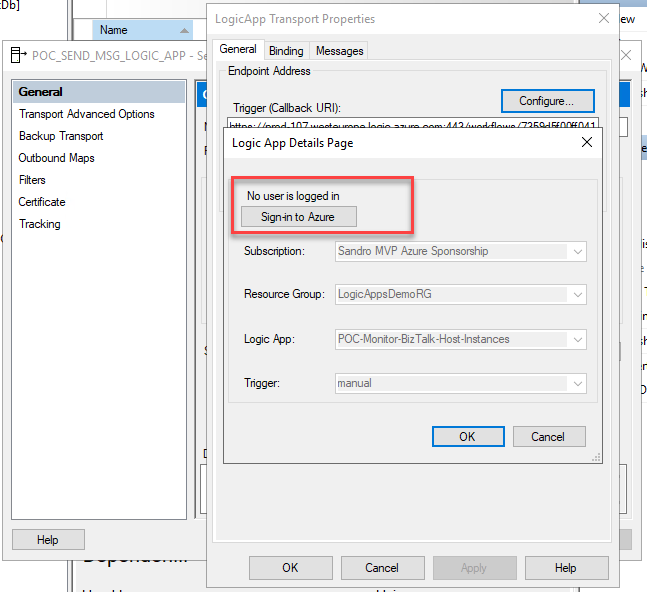
No user is logged in
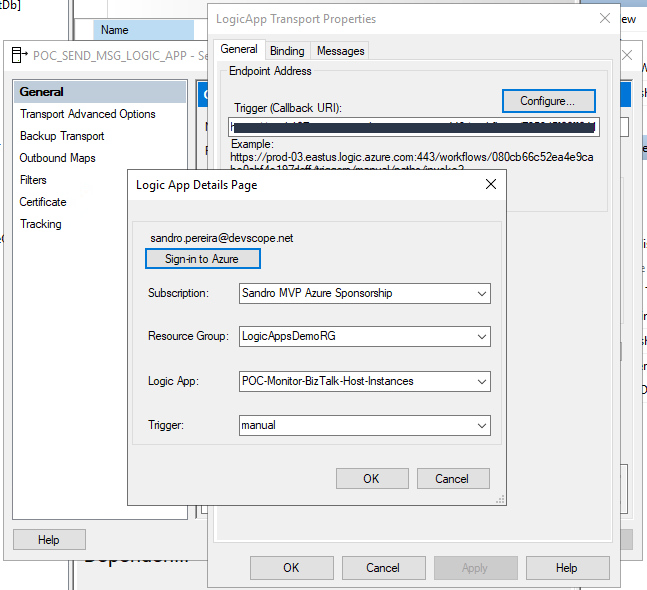
Once you configure the Logic App port, in this case, a send port, you need to sign in to Azure. This will pop up a window where you need to enter your account and password (Multi-factor Microsoft Authenticator). After that, you will see an identical configuration to what is shown in the picture below:
Account
Subscription
Resource Group
Logic App
and Trigger
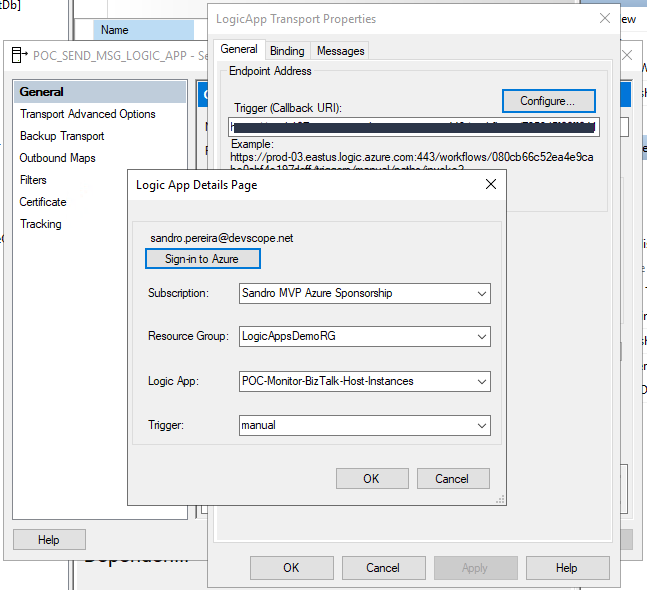
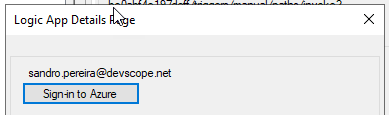
If you then finish the configuration of the port, everything will be ok, and if you return later to the configurations onto that same send port, you will still be able to see that the account that I used to authenticate was my personal account:
However, if you close the BizTalk Server Administration Console, once you open again and access the configuration of that send port, you still be able to see the following information:
Subscription
Resource Group
Logic App
and Trigger
But you no longer be able to identify what account that was used to authenticate on Azure.
Although the lack of this information is not critical, I think it would be helpful for those who manage the platform to have this information available.
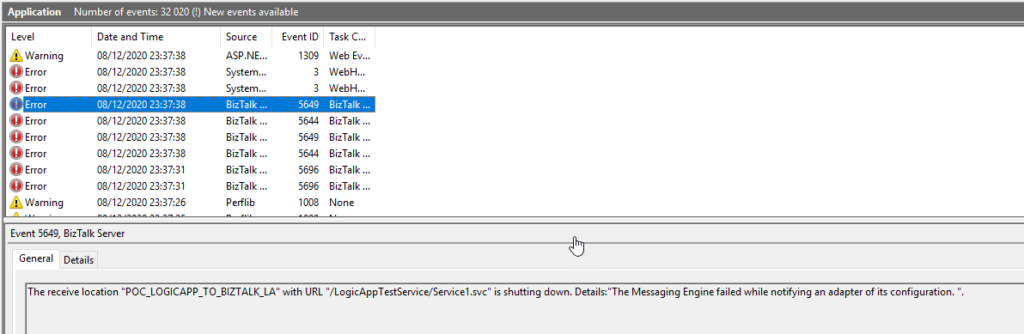
A few months ago, I was playing around with BizTalk Server hybrid Integration, in this case, trying to send messages from Logic App to BizTalk Server by using the Send message action of the Logic app BizTalk Server connector. While I conducted the first set of tests, I realized my Logic App was failing to send the message to BizTalk Server. On the BizTalk Server machine, I found that BizTalk Server was throwing the following error while receiving the message:
The Messaging Engine encountered an error when creating the receive adapter “LogicApp”. The Assembly is: “Microsoft.BizTalk.Adapter.LogicApp.Runtime.LogicAppReceiver, Microsoft.BizTalk.Adapter.LogicApp.Runtime”. The error occurred because the component does not implement the mandatory interface “IBTTransportControl”.
The Messaging Engine failed to add a receive location “POC_LOGICAPP_TO_BIZTALK_LA” with URL “/LogicAppTestService/Service1.svc” to the adapter “LogicApp”. Reason: “80070057”.
The receive location “POC_LOGICAPP_TO_BIZTALK_LA” with URL “/LogicAppTestService/Service1.svc” is shutting down. Details:”The Messaging Engine failed while notifying an adapter of its configuration. “.
The Messaging Engine failed to add a receive location “POC_LOGICAPP_TO_BIZTALK_LA” with URL “/LogicAppTestService/Service1.svc” to the adapter “LogicApp”. Reason: “80070057”.
The receive location “POC_LOGICAPP_TO_BIZTALK_LA” with URL “/LogicAppTestService/Service1.svc” is shutting down. Details:”The Messaging Engine failed while notifying an adapter of its configuration. “.
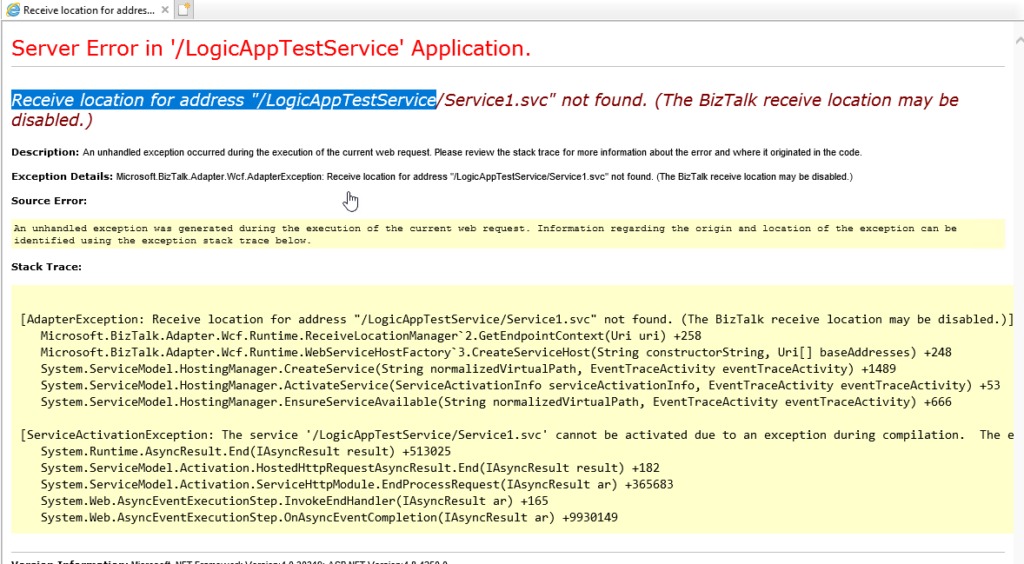
Exception: System.ServiceModel.ServiceActivationException: The service ‘/LogicAppTestService/Service1.svc’ cannot be activated due to an exception during compilation. The exception message is: Receive location for address “/LogicAppTestService/Service1.svc” not found. (The BizTalk receive location may be disabled.). —> Microsoft.BizTalk.Adapter.Wcf.AdapterException: Receive location for address “/LogicAppTestService/Service1.svc” not found. (The BizTalk receive location may be disabled.)
at Microsoft.BizTalk.Adapter.Wcf.Runtime.ReceiveLocationManager`2.GetEndpointContext(Uri uri)
at Microsoft.BizTalk.Adapter.Wcf.Runtime.WebServiceHostFactory`3.CreateServiceHost(String constructorString, Uri[] baseAddresses)
at System.ServiceModel.ServiceHostingEnvironment.HostingManager.CreateService(String normalizedVirtualPath, EventTraceActivity eventTraceActivity)
at System.ServiceModel.ServiceHostingEnvironment.HostingManager.ActivateService(ServiceActivationInfo serviceActivationInfo, EventTraceActivity eventTraceActivity)
at System.ServiceModel.ServiceHostingEnvironment.HostingManager.EnsureServiceAvailable(String normalizedVirtualPath, EventTraceActivity eventTraceActivity)
— End of inner exception stack trace —
at System.ServiceModel.ServiceHostingEnvironment.HostingManager.EnsureServiceAvailable(String normalizedVirtualPath, EventTraceActivity eventTraceActivity)
at System.ServiceModel.ServiceHostingEnvironment.EnsureServiceAvailableFast(String relativeVirtualPath, EventTraceActivity eventTraceActivity)
Process Name: w3wp
Process ID: 8068
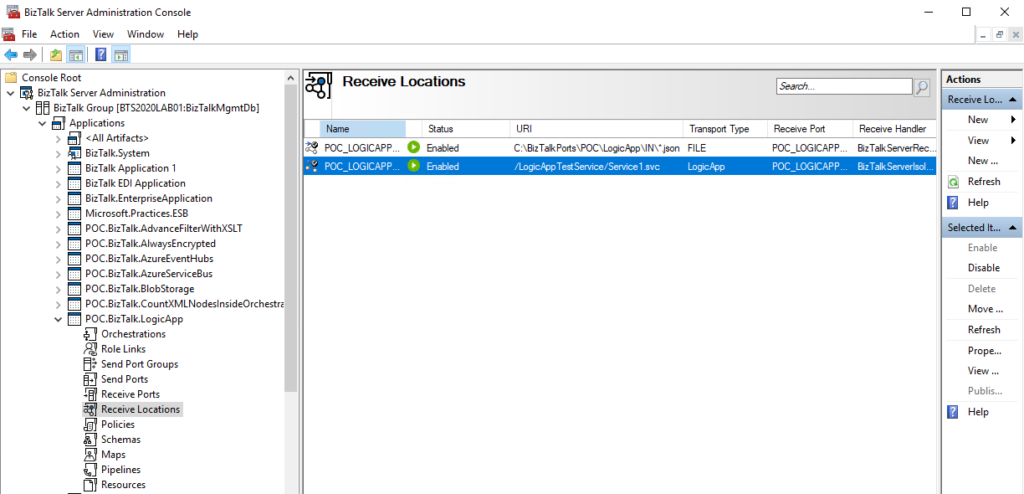
I faced similar issues in the past with other adapters (HTTP, WCF, SOAP, …). However, I knew that I had published the service on IIS with the correct App Pool, privileges and the BizTalk Server receive port associated with this server was running (Enabled).
Nevertheless, my first action was to validate the I could access that URL on the browser, and to my surprise, it was failing!
Luckily I found a very good post written by my friend Ahmed Taha explaining the reason why that was happening and the solution
Cause
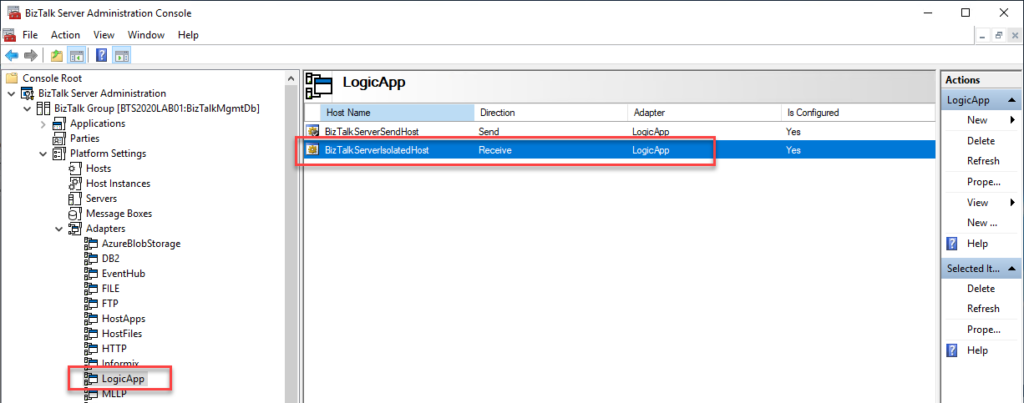
The reason for this issue is a bug on the default BizTalk Server 2020 configuration tool that assigns the Logic App Receive Adapter to an In-Process host. The correct setting is to be bound to the Isolated host.
Solution
The resolution is simple but a little annoying.
First, you need to remove the adapter from all assigned send ports and receive locations from all your BizTalk Server applications.
YYou can optimize this process using PowerShell, or if you were lucky like me that only have one receive port and one send port, you could easily do that manually..
The next step is to remove/un-register the Logic App adapter from BizTalk Server. You can do that by running the following VB script:
RemoveLogicAppAdapter.vbs: script to un-register the Logic App adapter from the BizTalk Server
These steps resolved the Logic App Adapter Handler Receive configuration issue in BizTalk Server 2020 and correctly bound it to the Isolated host. So if you try now to configure your receive port, it should work fine.
Final note: BizTalk Server Cumulative Update 2 already provide a hotfix to this issue:
After applying this fix, new receive handlers will be added as Isolated receive handler. However, any existing in-process LogicApp receive handlers need to be deleted manually. So basically, you need to reconfigure all your Receive Locations to use the Isolated host and then delete the receive handlers bounded to the In-Process host.
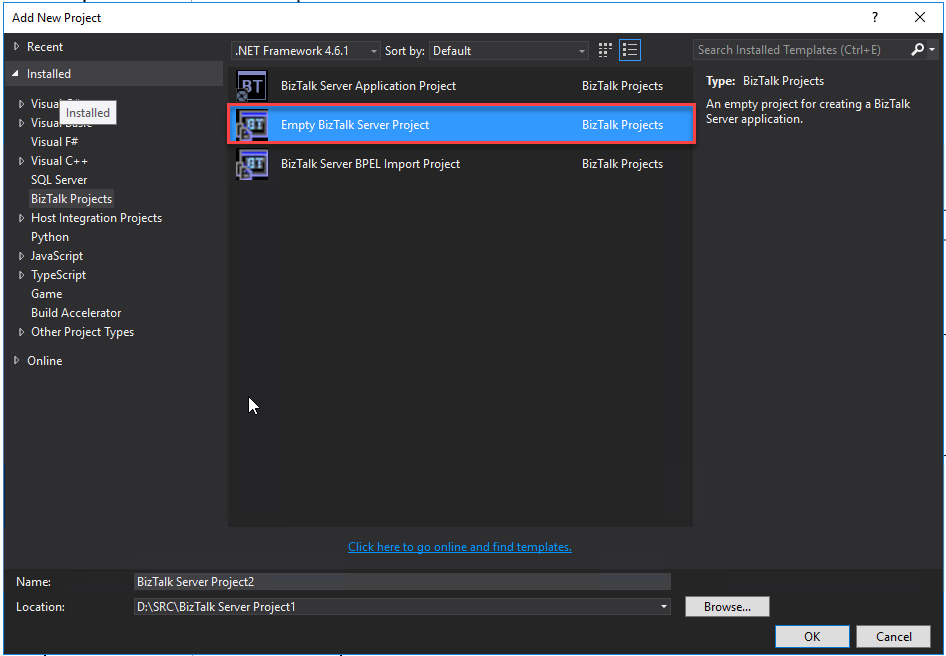
A few days ago, I wrote a blog post about a similar topic, but in that case, it was the BizTalk Server Application Project Visual Studio that was missing. In fact, at that point, the Empty BizTalk Server Project Visual Studio template was also missing in the development environment.
It is not a common situation in a BizTalk Server Development environment, but I cannot say that this is the first time I have found this issue.
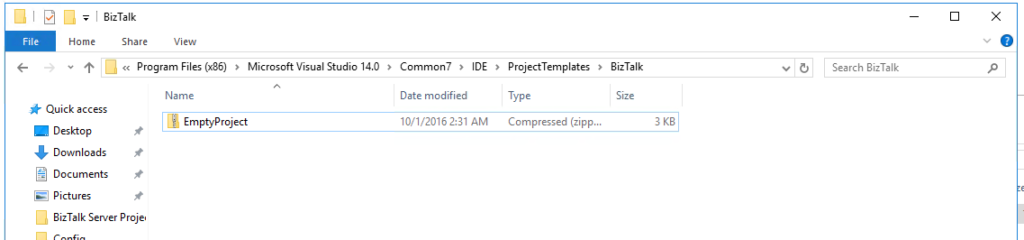
I tried to see if the project template was available on the local system. Normally VS stores the available templates at Program Files(x86) -> Microsoft Visual Studio 14.0 -> Common7 -> IDE -> ProjectTemplates, but the template was there:
Cause
I don’t know very precisely why Visual Studio was not loading the most critical BizTalk Server Visual Studio template, and it is hard to find the proper cause of this issue.
Of course, this problem was not related to the lack of installation of the development tools and the SDK. The Developer tools and SDK component was installed during the BizTalk Server installation.
On a quick search over this issue, I found several mentions that you could solve this issue by installing the template available on the Visual Studio Marketplace. According to the documentation, this template is available for Visual Studio 2015, 2017 (?), and 2019.
Note: I don’t know any version of BizTalk Server that works on Visual Studio 2017
However, trying to install this template using the marketplace, I got a dependency alert for Visual Studio MPF 16.0. I try to follow the instructions provide by Microsoft to overcome this problem in which you can get more information here, but without any practical effect.
So, I went applying the traditional method to solve the problem of the missing template.
Solution
To fix this issue, the solution is quite simple:
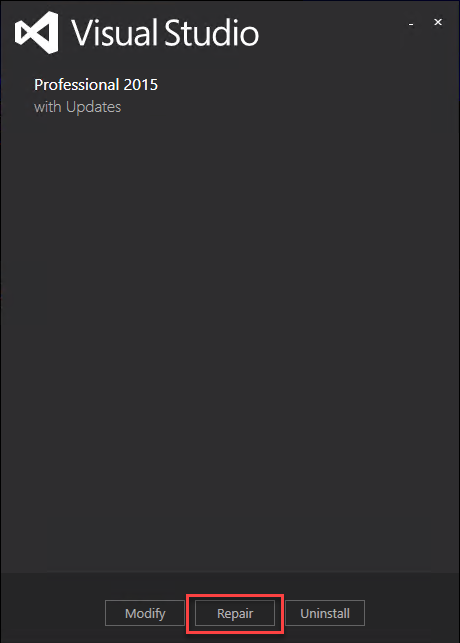
You need to Repair the Visual Studio installation
After you repair the Empty BizTalk Server Project will be available
Yesterday I was troubleshooting a WCF-OracleDB issue on BizTalk Server 2016, and I got surprised, or not, by the lack of information that I was receiving about the problem that was happening. We usually get some minor help from the adapter that throws a short error message description like:
table or view does not exist
The provider is not compatible with the version of Oracle client
This is because either (a) ambient transaction is present and the TNS alias is longer than 39 characters
PL/SQL: ORA-00917: missing comma
Could not load file or assembly ‘Oracle.DataAccess, Version=2.111.7.0, Culture=neutral, PublicKeyToken=89b483f429c47342’ or one of its dependencies. The system cannot find the file specified.
and these are just a few examples that you can find in my blog. Nevertheless, this time, I was getting a simple:
The Messaging Engine failed to add a receive location “TEST” with URL “oracledb://ServerAddress:PortNumber/ServiceName/ServiceType” to the adapter “WCF-OracleDB”. Reason: “Microsoft.ServiceModel.Channels.Common.ConnectionException —> Oracle.DataAccess.Client.OracleException at Oracle.DataAccess.Client.OracleException.HandleErrorHelper(Int32 errCode, OracleConnection conn, IntPtr opsErrCtx, OpoSqlValCtx* pOpoSqlValCtx, Object src, String procedure, Boolean bCheck, Int32 isRecoverable) at Oracle.DataAccess.Client.OracleException.HandleError(Int32 errCode, OracleConnection conn, IntPtr opsErrCtx, Object src) at Oracle.DataAccess.Client.OracleConnection.Open() at Microsoft.Adapters.OracleCommon.OracleCommonConnectionWrapper..ctor(String connectionString, OracleCommonExecutionHelper executionHelper) at Microsoft.Adapters.OracleDB.OracleDBConnection.Microsoft.ServiceModel.Channels.Common.IConnection.Open(TimeSpan timeout) — End of inner exception stack trace — at Microsoft.Adapters.OracleDB.OracleDBConnection.Microsoft.ServiceModel.Channels.Common.IConnection.Open(TimeSpan timeout) at Microsoft.ServiceModel.Channels.Common.Design.ConnectionPool.GetConnection(Guid clientId, TimeSpan timeout) at Microsoft.ServiceModel.Channels.Common.Design.ConnectionPool.GetConnectionHandler[TConnectionHandler](Guid clientId, TimeSpan timeout, MetadataLookup metadataLookup, String& connectionId) at Microsoft.ServiceModel.Channels.Common.Channels.AdapterChannelListener1.OnOpen(TimeSpan timeout) at System.ServiceModel.Channels.CommunicationObject.Open(TimeSpan timeout) at System.ServiceModel.Dispatcher.ChannelDispatcher.OnOpen(TimeSpan timeout) at System.ServiceModel.Channels.CommunicationObject.Open(TimeSpan timeout) at System.ServiceModel.ServiceHostBase.OnOpen(TimeSpan timeout) at System.ServiceModel.Channels.CommunicationObject.Open(TimeSpan timeout) at Microsoft.BizTalk.Adapter.Wcf.Runtime.WcfReceiveEndpoint.Enable() at Microsoft.BizTalk.Adapter.Wcf.Runtime.WcfReceiveEndpoint..ctor(BizTalkEndpointContext endpointContext, IBTTransportProxy transportProxy, ControlledTermination control) at Microsoft.BizTalk.Adapter.Wcf.Runtime.WcfReceiver2.AddReceiveEndpoint(String url, IPropertyBag adapterConfig, IPropertyBag bizTalkConfig)”.
Cause
Diagnose a problem is typically not an easy task. That becomes even harder if no error details are provided. Nevertheless, if you face this issue, my experience tells that some ORACLE required components are missing on your BizTalk Server environment.
This was the conclusion I got with the help of good ORACLE expert friends that are working with me on the project.
Solution
The solution is to install all the ORACLE necessary components based on Microsoft documentation: the Oracle Data Access Components (ODAC) 32 and 64 bits.
The easier way for you to solve this issue is by simply use Oracle client resources. In my case, I tend to use: Oracle 12C client 32 bit and Oracle 12C 64-bit Client:
Double-click on setup.exe
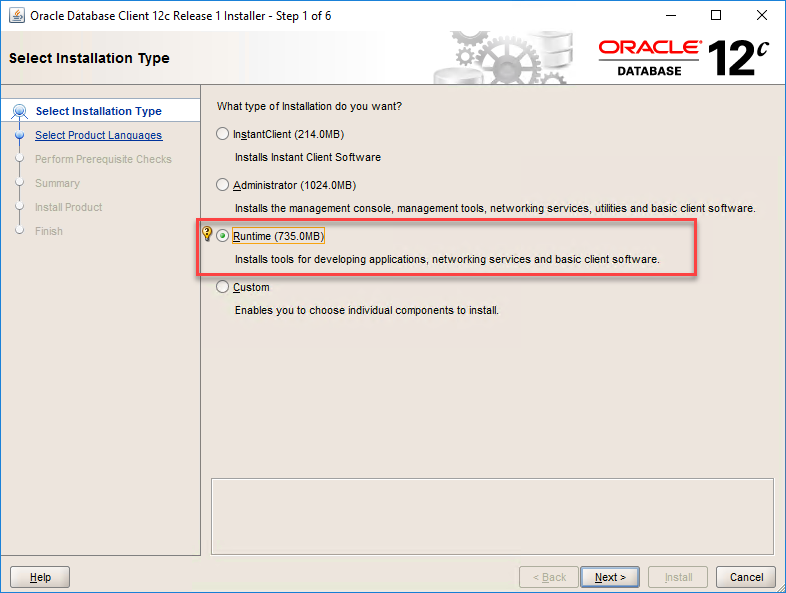
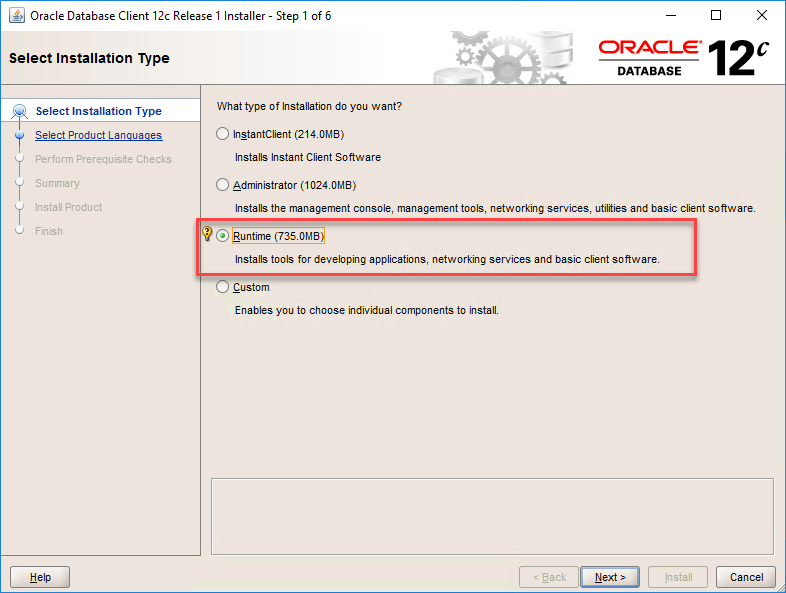
On the Select Installation Type page, select the Runtime option
This will probably install more components that you need but at least will install all the necessary components
On the Select Product Languages page, leave the default language. English, and click Next.
On the Specify Oracle Home User page, select the option Use Windows Buit-in Account, and click Next.
On the Specify Installation Folder screen, review the installation paths and click Next.
On the Perform Prerequisites Checks screen, wait for the wizard finish doing the checks necessary and it will automatically jump to the Summary page.
On the Summary screen, review the summary and click Install.
After that, I was able to successfully communicate with the Oracle database.
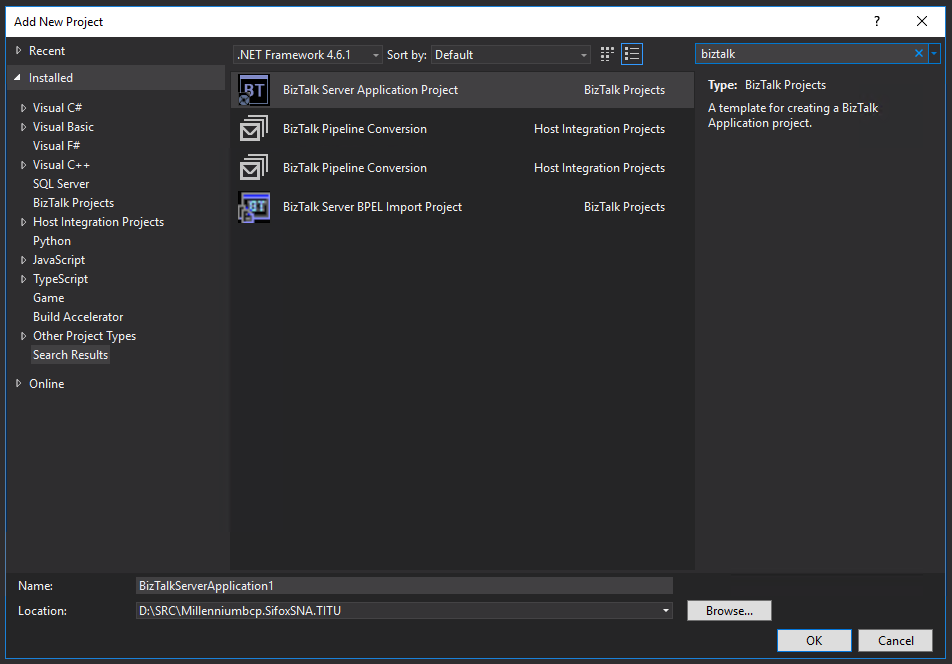
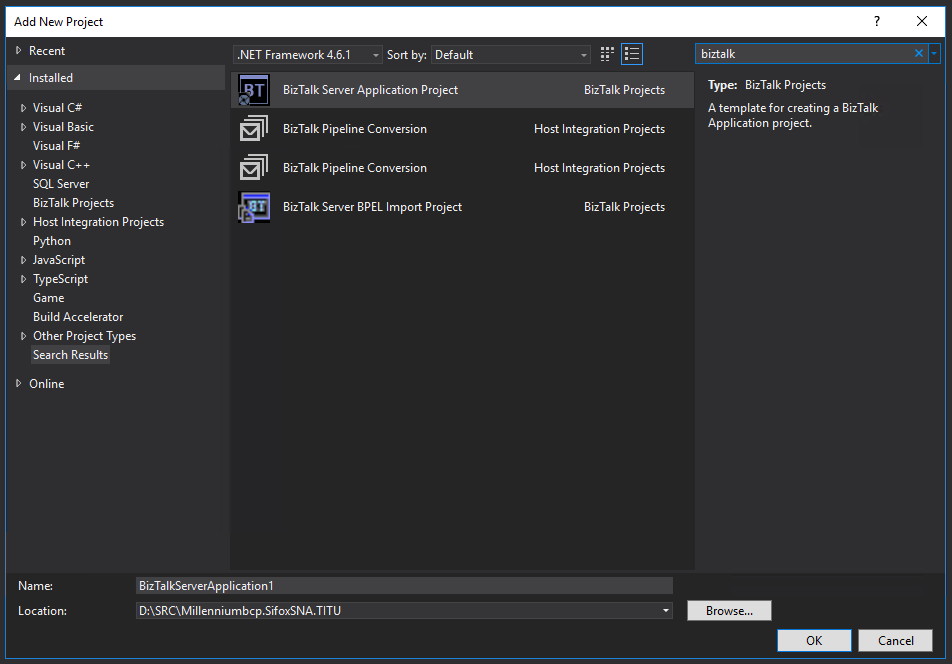
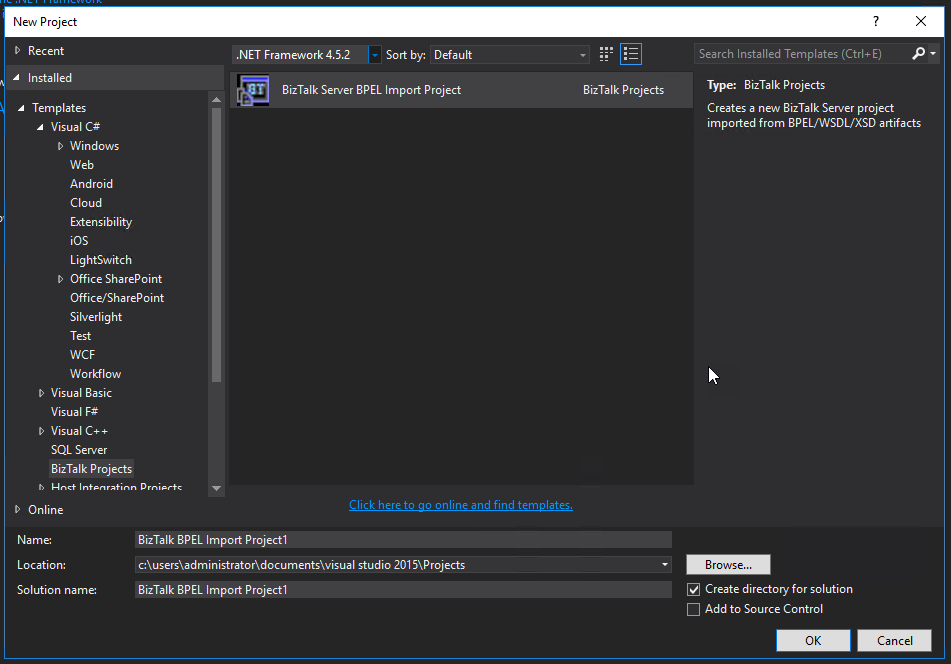
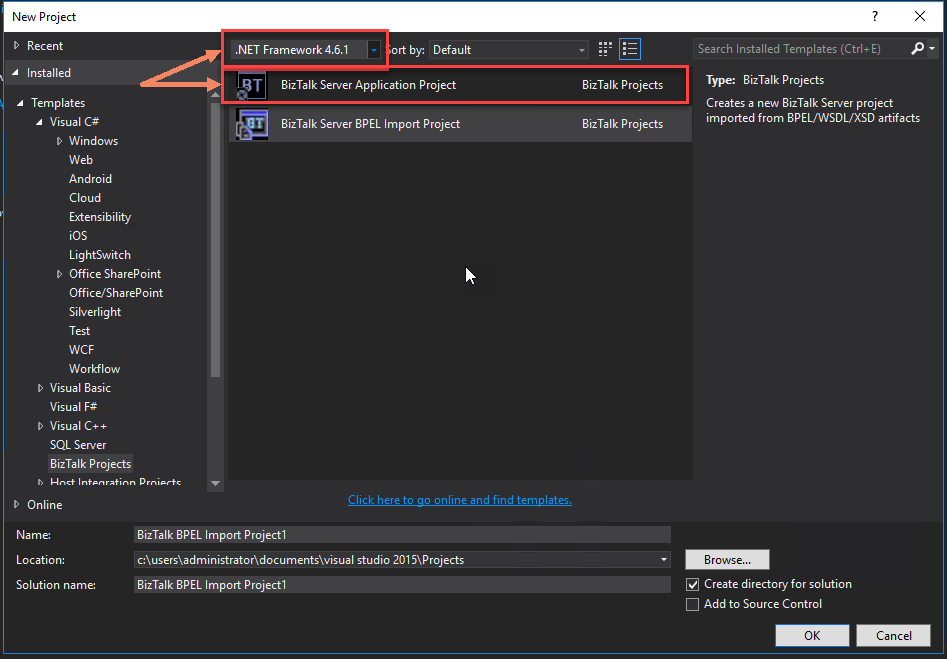
Today, I encountered a “strange behavior” on one of my BizTalk Server 2016 clients. When I opened Visual Studio to create a new BizTalk Server project, I realized that the “BizTalk Server Application Project” template was missing from the available list. Instead, I could only find “BizTalk Server BPEL Import Project”. This was the first time I encountered this behavior/issue.
That was a bit strange. I already had in the past situations where none of the Visual Studio BizTalk templates were present. So basically, we need or repair Visual Studio or repair BizTalk Server installation to solve the issue.
Cause
All Visual Studio BizTalk Server 2016 projects need to be compiled on .NET Framework 4.6.1 (minimum and by default) or .NET Framework 4.7.x (Starting with CU2) and .NET Framework 4.8 (Starting with CU7).
That means that the Visual Studio BizTalk Server Application Project template is only available if you select the .NET Framework 4.6.1 or above. In my case, the template was not missing. It wasn’t showing because, for any reason, I could find the selected .NET Framework when I opened VS was 4.5.2.
Solution
To fix this issue, the solution is quite simple:
On the New Project window, on the .NET framework combo box present in the top of the windows, select the option .NET Framework 4.6.1
And the project template will be available for you to use.
Do you feel difficult to keep up to date on all the frequent updates and announcements in the Microsoft Integration platform and Azure iPaaS?
Integration weekly updates can be your solution. It’s a weekly update on the topics related to Integration – enterprise integration, robust & scalable messaging capabilities and Citizen Integration capabilities empowered by Microsoft platform to deliver value to the business.
Do you feel difficult to keep up to date on all the frequent updates and announcements in the Microsoft Integration platform and Azure iPaaS?
Integration weekly updates can be your solution. It’s a weekly update on the topics related to Integration – enterprise integration, robust & scalable messaging capabilities and Citizen Integration capabilities empowered by Microsoft platform to deliver value to the business.
This week during a BizTalk Server 2016 installation – yes, I know it wasn’t my choice, otherwise, it was a BizTalk Server 2020 – I got for the very first time an issue regarding the Redistributable CAB file. Of course, during the installation process, you can choose “Automatically install the redistributable prerequisites from the web”, but in this case, the machine didn’t have access to the internet and had several security restrictions, so we end up selecting the option: “Automatically install the redistributable prerequisites from a CAB file”.
Notice that we have already downloaded the CAB file and I personally have used this file on several occasions.
So while we were trying to install the pre-requirements, the installation failed, and we got the following error on the error log file:
“The redistributable CAB file does not have a valid signature.“
Cause
Honestly, I don’t precisely know the causes for this issue. However, as I mentioned before, I used this strategy and this CAB file in other installations with success without ever facing this error. I think that was related to security constraints on the machine.
Solution
The solution is simple, this screen to select the CAB files only shows if the pre-requirements are missing – if you have all necessary components installed the installation wizard will skip the step to install the components. So what we can do is manually install the pre-requirements before we start the BizTalk Server installation. And to do that we need to:
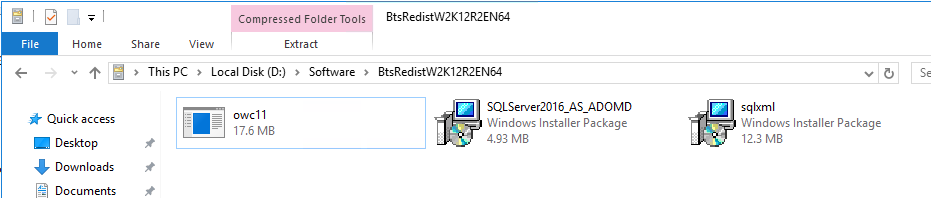
Open the CAB file by double-click the CAB file
And install all the 3 files inside
owc11
SQLServer2016_AS_ADOMD
sqlxml
After that, you can run the BizTalk Server installation wizard. This problem will be already solved.
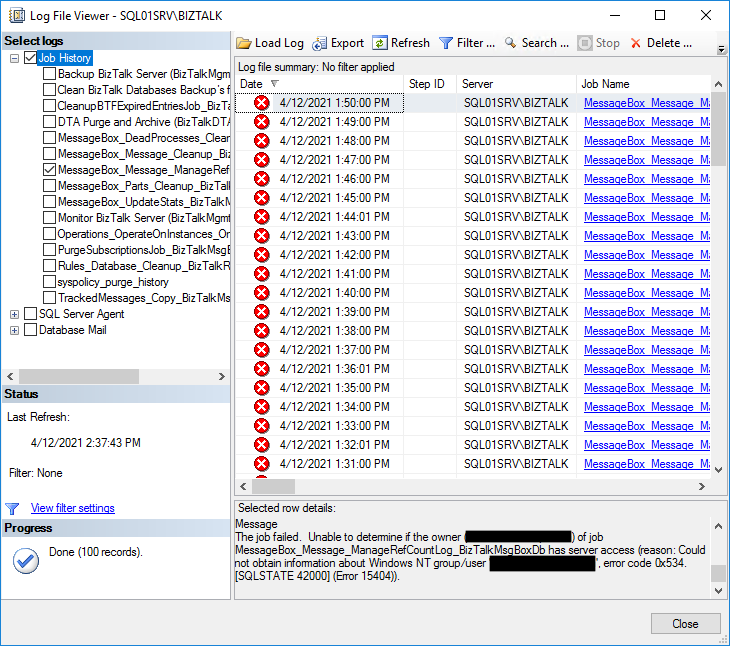
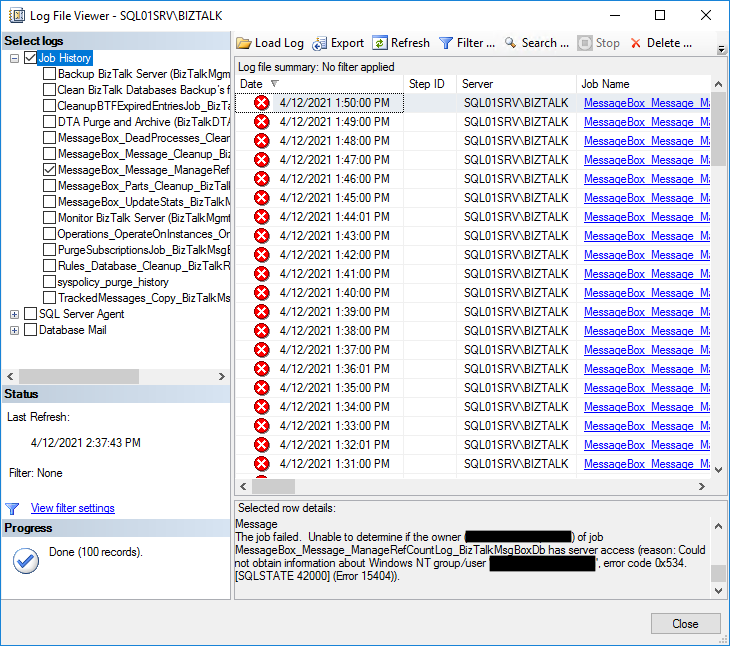
I recently received a request for help from a customer about a problem that has started to occur with SQL Server jobs in BizTalk Server. Everything was working fine for the last few months until they begin receiving the following errors while the SQL Jobs was trying to execute:
The job failed. Unable to determine if the owner (domainusername) of job MessageBox_Message_ManageRefCountLog_BizTalkMsgBoxDb has server access (reason: Could not obtain information about Windows NT group/user ‘domainusername’, error code 0x534. [SQLSTATE 42000] (Error 15404)).
Cause
Actually, the reason for this error was quite simple, and it is an error that can happen relatively often if we do not take the necessary steps.
In this case, the user that performed the BizTalk Server installation and configuration was a personal account that was a member of the BizTalk Server Administration group, and by default, he is configured as the owner of that jobs. However, at some point, the employee left or terminated the contract and his account was terminated or disabled and that is the reason for that error started to happen.
Solution
The solution is simple, we need to change the owner. And to do that, we need:
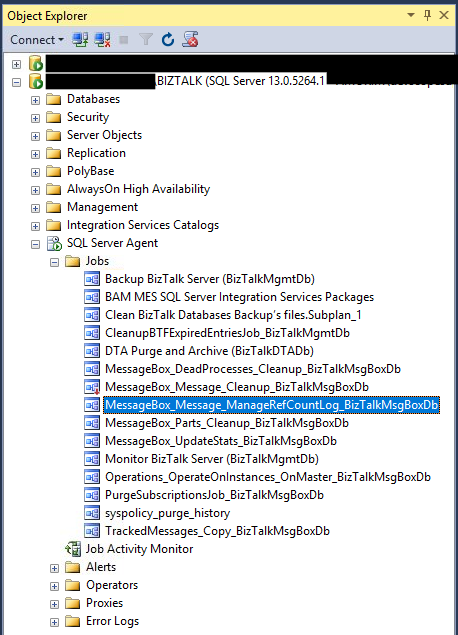
Open the SQL Server Management Studio.
Expand SQL Server Agent, and then Jobs.
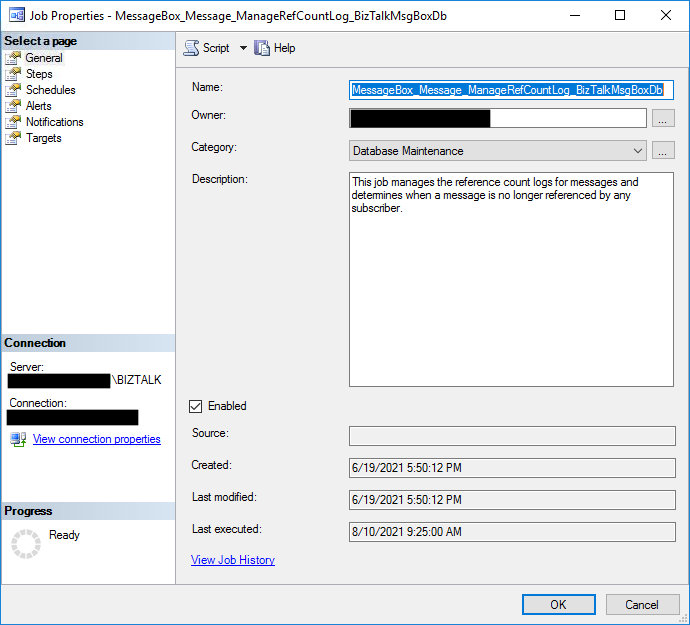
Right-click on job name, in this case, MessageBox_Message_ManageRefCountLog_BizTalkMsgBoxDb and select Properties
In the Owner field, select the sa account, or any other account, as the job owner using the ellipsis button
Do that steps for all the BizTalk Server SQL Jobs.
Do you feel difficult to keep up to date on all the frequent updates and announcements in the Microsoft Integration platform and Azure iPaaS?
Integration weekly updates can be your solution. It’s a weekly update on the topics related to Integration – enterprise integration, robust & scalable messaging capabilities and Citizen Integration capabilities empowered by Microsoft platform to deliver value to the business.