by Nino Crudele | Jul 21, 2017 | BizTalk Community Blogs via Syndication
Agile is a word I really like to use now in the integration space, in my last event, the Integrate 2017, I started to present this my concept.
As we see the business’s dynamics are changing very fast, companies require fast integration every time more, sending and integrating data very easily and fast is now a key requirement.
There are many options now to obtain that, however some of them are better in some specific situation than the others.
During my last event, I presented how I approach to the agile integration using Microsoft Azure and some example with BizTalk Server as well.
Following these concepts, I started a new project called Rethink121, I like the idea to rethink technologies in different ways and this is what my customers appreciate more.
Most of the time we start using a technology following the messages provided by the vendor, without exploring other new possibilities and ways, I think is important to evaluate a technology like a little kid evaluates his first toy.
During the session, I shown some scenarios like, how to get fast and easy hybrid integration, BizTalk performance, concepts like agile and dynamic integration, cognitive integration.
Many people have been impressed by the demos, some other made me many questions and asking more about that, a new concept and a new view always creates a lot questions because it stimulates the creativity and the curiosity.
During the session, I have shown a BizTalk solution sample sending a flat file between a REST and a WCF endpoint and using a pipeline and a map to send and receive flat data between the endpoints.
The process executed by BizTalk Server was able to achieve that in 80 milliseconds for a single message in request response, I have shown how is possible to achieve real time performances in BizTalk Server without change the solution and reusing all the artefacts as is.
Do to that I use my framework named SnapGate which is able to be installed inside BizTalk Server and improve the performances.
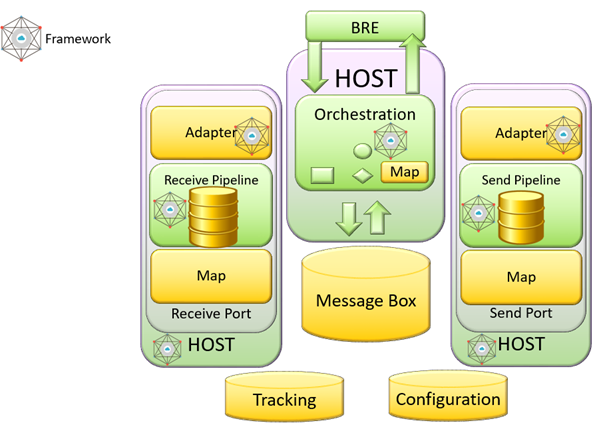
The time spent to execute the single request response using SnapGate was around 4 milliseconds, quite impressive result.
I have shown the generic BizTalk adapter which is able to extend the BizTalk integration capabilities without any limit, the adapter is able to be extended using PowerShell or even a simple .Net code in 5 minutes.
I explain the concept of agile integration and how I approach and how I use the technologies, I like to map the BizTalk Server architecture to Microsoft Azure to better explain that.
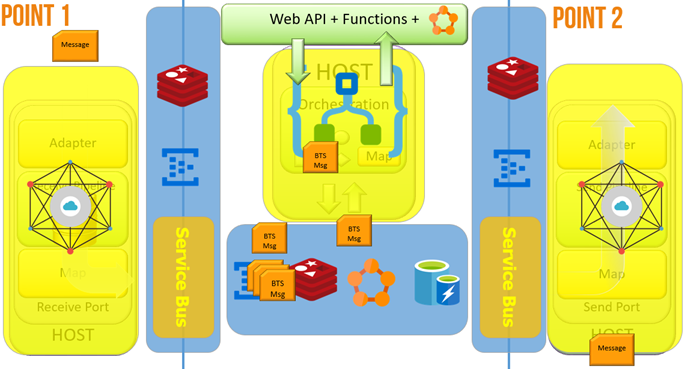
During the demo, I have shown a scenario able to demonstrate how to send and integrate data across the world in very fast ways, the key point of this demo were:
- The system was able to integrate data and create new integration points in real time
- The system was using PowerBI in real-time and using normal graphs and PowerBI feature in real time.
- The system was learning by itself about how to integrate these points and we don’t need to physically deploy our mediation stack.
Starting form a single integration point in London
I started a new integration point in Birmingham and the integration point in London started synchronising the adaptation layer with Birmingham and sending exchange messages between them
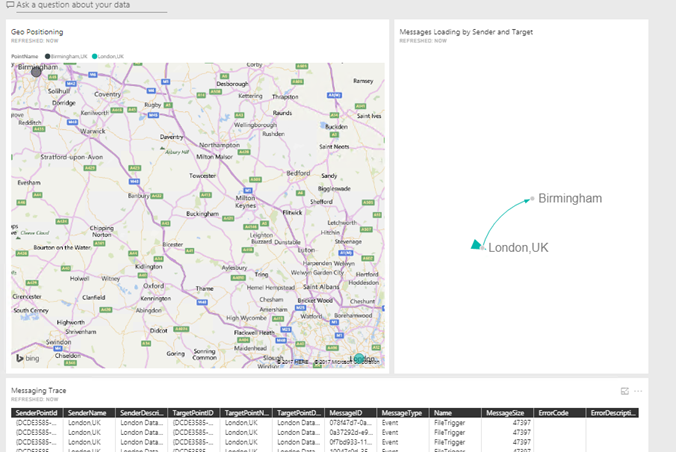
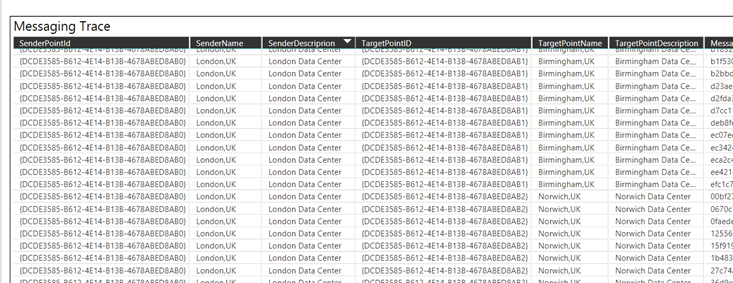
I started other more to show how much easy can be integrate new point and exchange data between them without care about to deploy any new feature, the system learns by itself, we can call this cognitive integration.
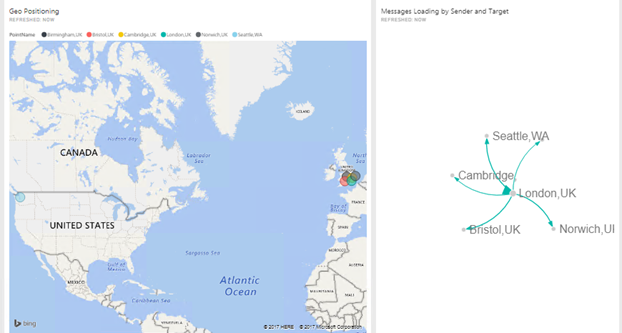
There are so many innovative aspects to consider here, the possibility to have fast hybrid integration at very low cost, integrate data fast and easy, the possibility to integrate PowerBI in real time data analytic scenario.
A last thing, many people asking me about BizTalk server and its future, well, the list below are the technologies I most like to use and how, I have shown this slide during the session.
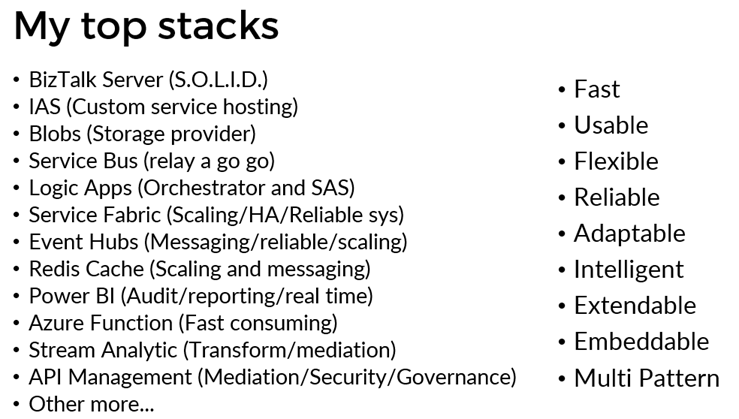
There is one thing only I can say, BizTalk Server is S.O.L.I.D.
I will explain more in detail about agile and cognitive integration in my next session in the Integration Monday in September, see you there.
Author: Nino Crudele
Nino has a deep knowledge and experience delivering world-class integration solutions using all Microsoft Azure stacks, Microsoft BizTalk Server and he has delivered world class Integration solutions using and integrating many different technologies as AS2, EDI, RosettaNet, HL7, RFID, SWIFT. View all posts by Nino Crudele
by Duncan Barker | Jul 20, 2017 | BizTalk Community Blogs via Syndication
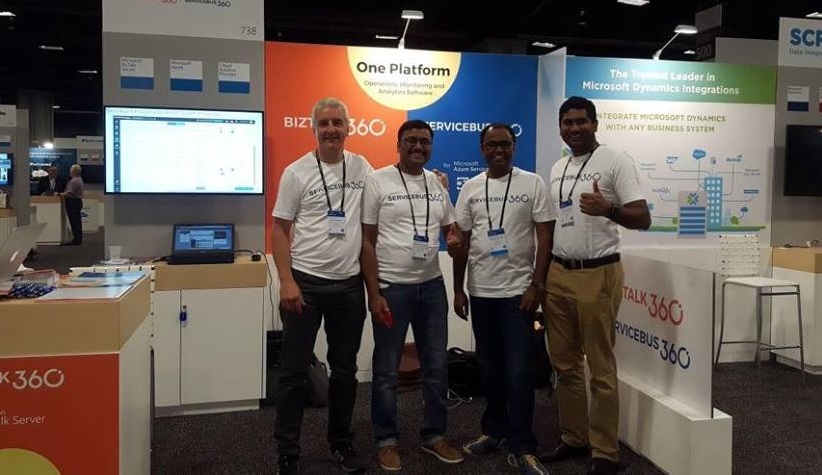
If you ever needed proof that BizTalk360, the company, had arrived on the global stage, our presence at Microsoft Inspire 2017 in Washington DC, USA (9-13 July) was evidence enough.
An audience consisting of 18,000 Microsoft Partners, a Convention Centre the size of 2 football stadiums, a keynote speech by Satya Nadella, CEO of Microsoft…need I go on?
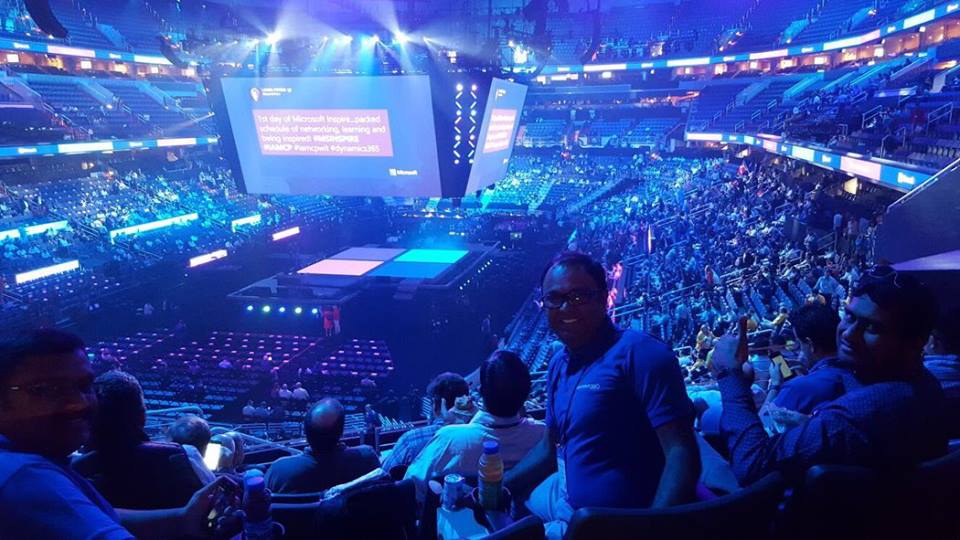
It is clear that BizTalk360 now has the confidence to approach such events with a certain swagger – we belong in such esteemed company and we will continue to aim high.
Admittedly taking a booth for the first time at such an event is a challenge to a company of our size and the results of people stopping by to talk to us will become evident in the coming months. We are pleased to say in 3 days we had a lot of meaningful conversations. It was exciting to explain our story and products to Microsoft Partners from as far afield as China, Singapore, Slovenia, and Romania. The goal for us in attending such event is mainly around the brand building for ServiceBus360 and BizTalk360 and to explore new partnerships opportunities, sometimes in countries where we are not represented.
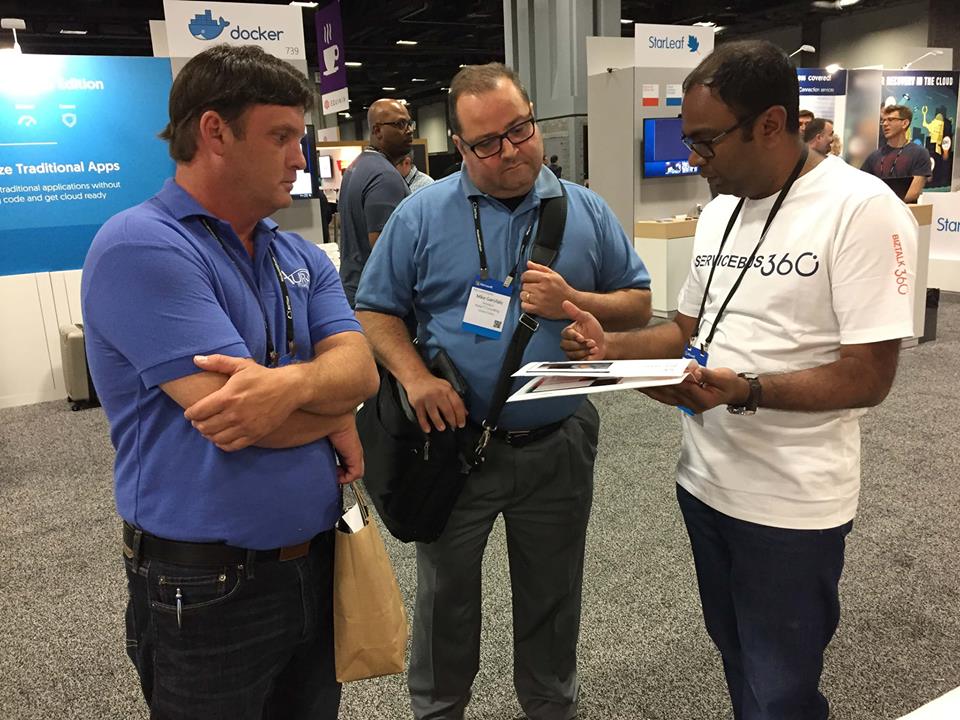
Arun, my colleague, and I were lucky to be able to accompany Saravana, CEO, on this adventure. However, it would not have happened without the efforts of all the BizTalk360 Team, we were supported by a massive team effort behind the scenes. The booth was immaculately laid out thanks to the efforts of the Marketing Team who designed the banners and backboards. The brochures we handed out looked top notch – I could go on – all in all, it felt like all 50 of us were on show to the world and we passed with flying colours.
We stood shoulder to shoulder with some of the most innovative minds and products. Our existing Partners were proud to be associated with our brand and spent some time with us at the booth. CEOs and Sales Directors from Matricis (Canada), Sword (France), Mexia (Australia), Codit (NL, France & UK), Solidsoft Reply (UK), Motion10 (NL), IT Synergy (Colombia), Integration Team (Belgium), Cellenza (France), Elisa (Finland) and Microsoft Product Managers like Jim Harrer and Kevin Lam all stopped at our booth and posed for a photo opportunity – please see our social media output.
Furthermore, I should add all of us had a huge amount of fun and I am grateful for the opportunity to see the beautiful city of Washington DC for the second time in my life.
Microsoft should be congratulated for putting on such a great show – the after-parties included an evening at the Natural History Museum and a concert by the American singer, Carrie Underwood, at the Baseball Stadium.
Participation at Microsoft Inspire 2018 in Las Vegas depends to a large extent on the results from Microsoft Inspire 2017. It was, if you pardon the pun, inspiring and we are honoured to be part of the global Microsoft community.
In conclusion, all the efforts of the BizTalk360/ServiceBus360 team to help us present such unique products with innovative features in such a professional way to a global audience is to be applauded.
Well done everyone!
Related Links:
Inspire Day 1 in Pics
Inspire Day 2 in Pics
Inspire Day 3 in Pics
Author: Duncan Barker
Duncan is the Business Development Manager of BizTalk360, committed to spreading the word about the difference BizTalk360 can make to your company and trying to expand the whole BizTalk360 community. He is responsible for coordinating the company’s outbound message and welcomes any enquiry from BizTalk users to discuss how they can connect with us. View all posts by Duncan Barker
by Steef-Jan Wiggers | Jul 19, 2017 | BizTalk Community Blogs via Syndication
Serverless is hot and happening. Hence, it is not a buzzword, but a new interesting part of Computer Science, which is amazing and also a driver of the second machine age, which we are currently experiencing. I read two books sequentially recently: Computer Science Distilled and the Second Machine Age.
The first book dealt with the concepts of Computer Science. And few aspects in it caught my attention like breaking a problem into smaller pieces. Hence, in Azure I could use functions to solve partial of a complete problem or process parts of a large workload. The second book discusses the second machine age around automation, robotics, artificial intelligence and so on. And little repetitive tasks can be build using Functions. Azure Functions to be precise that can automate those little tasks. Thus, why not consolidate my little research of the current state of Azure Functions into a blog post with the context of both books in the back of my mind.
Serverless
Serverless computing is a reality and Microsoft Azure provides several platform services that can be provisioned dynamically. Resources are allocated without you worrying about scale, availability and security. And the beauty of it all is you only pay what you use.
Azure Functions is one of Microsoft’s serverless capabilities in Azure. Functions enable you to run pieces of code in Azure. Cool eh! And can be run independently, in orchestration or flow (durable functions), or as a part of a Logic App definition or Microsoft Flow.
You provision a Function App, which acts as a container for one or more functions. Subsequently, either attach a price plan to it, when you want share resources with other services like web app or you choose a consumption plan (pay as you go).
Finally, you have the function app available and you can start adding functions to them. Either using Visual Studio that has templates for building a function or you use the Azure Portal (Browser). Both provide features to build and test your function. However, Visual Studio will deliver intellisense and debugging features to you.
Function Types
Functions can be build using your language of choice like C#, F#, JavaScript, or Node.js. Furthermore, there are several types of functions you can build such as a WebHook + API function or a trigger based function. The latter can be used to integrate with the following Azure Services and SaaS solutions :
- Cosmos DB
- Event Hubs
- Mobile Apps (tables)
- Notification Hubs
- Service Bus (queues and topics)
- Storage (blob, queues, and tables)
- GitHub (webhooks)
- On-premises (using Service Bus)
- Twilio (SMS messages)
The integration is based upon a binding and trigger, key concepts with Azure Functions. Bindings provide a way to connect to in- and outputs of earlier mentioned services and solutions, see Azure Functions triggers and bindings concepts.
WebHook + API function
A popular quick start template for Azure Functions is WebHook + API function. This type of function is supported through the HTTP/WebHook binding and enables you to build autonomous functions that can be (re)used is various types of applications like a Logic App.
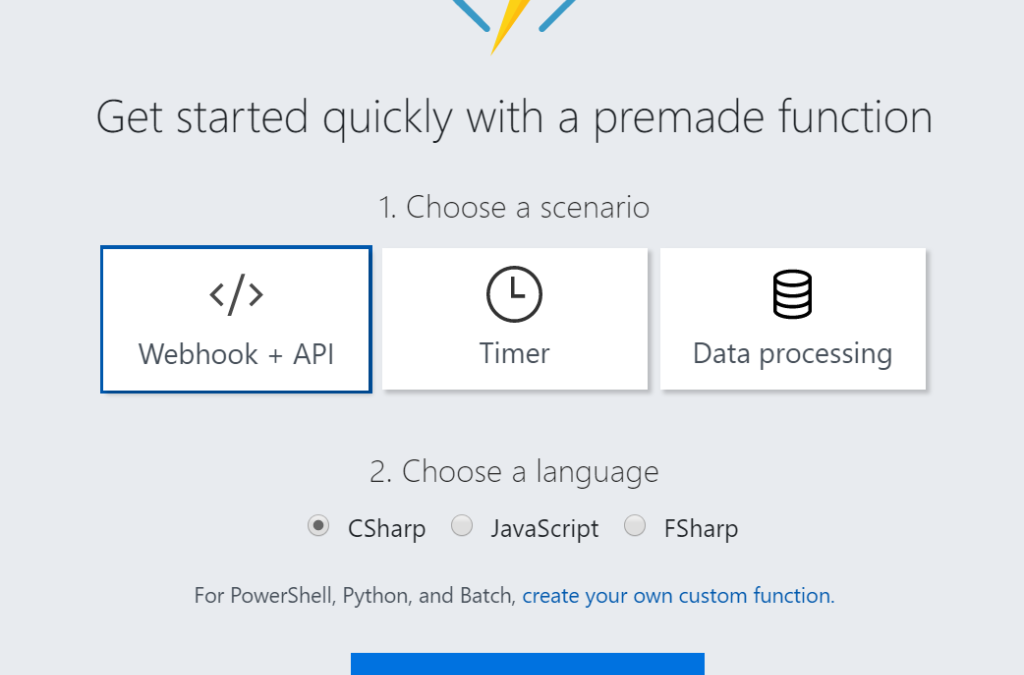
After provisioning a Function App you can add a function easily. As shown below you can select a premade function, choose CSharp and click Create this function.
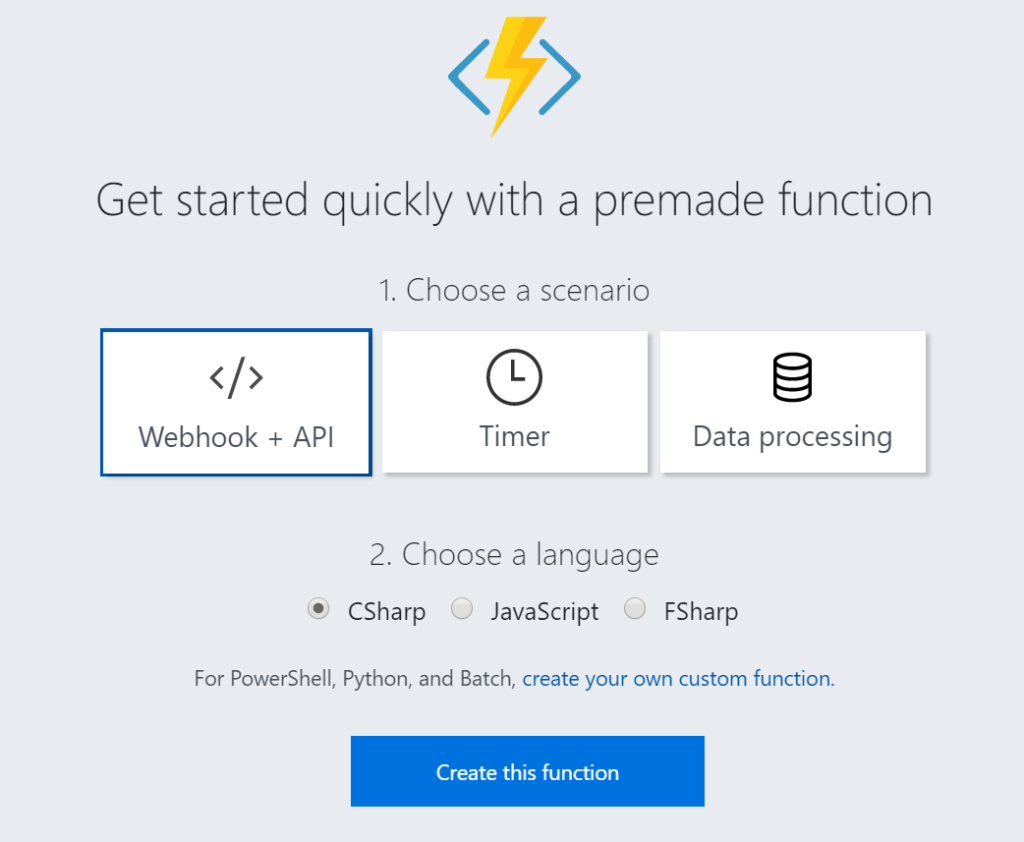
A function named HttpTriggerCSharp1 will be made available to you. The sample is easy to experiment with. I changed the given function to something new like the screenshot below.
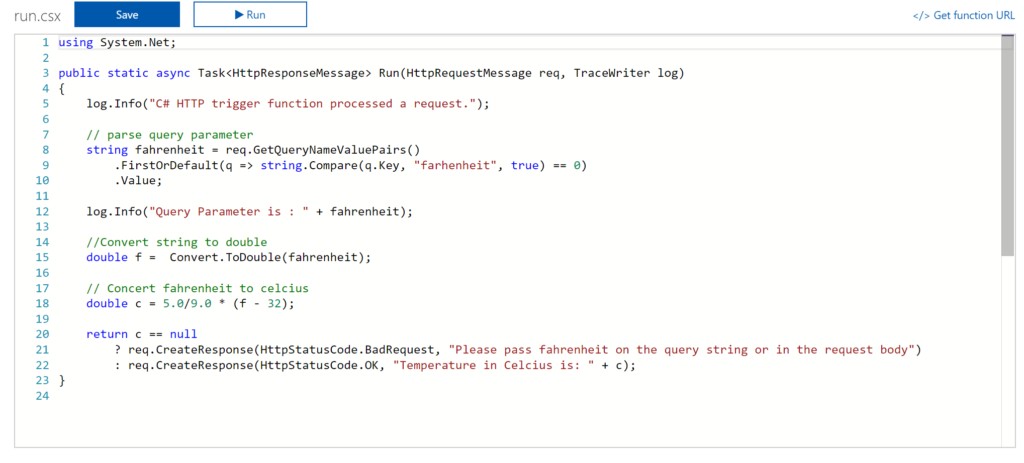
And now it gets interesting. You can click Get Function URL as the function is publically accessible that is if you know the function key. By clicking the Get Function URL you’ll receive an URL that looks like this:
https://myfunctioncollection.azurewebsites.net/api/HttpTriggerCSharp1?code=iaMsbyhujlIjQhR4elcJKcCDnlYoyYUZv4QP9Odbs4nEZQsBtgzN7Q==
And the code resembles the default function key, which you can change through the Manage pane in the Function App blade.
Since your function is accessible you can call it using for instance postman.
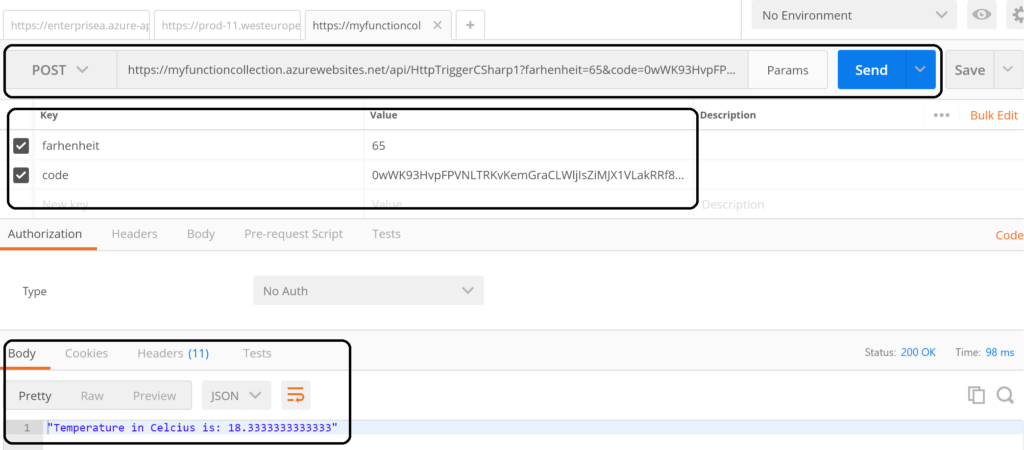
The screenshot above shows an example of a call to the function endpoint . The request includes the function key (code). However, a call like above might not be as secure as you need. Hence, you can secure the function endpoint by using API Management Service in Azure. See Using API Management to protect Azure Functions (Middleware Friday) blog post. The post explains how to do that and it’s more secure!
Integrate and Monitor
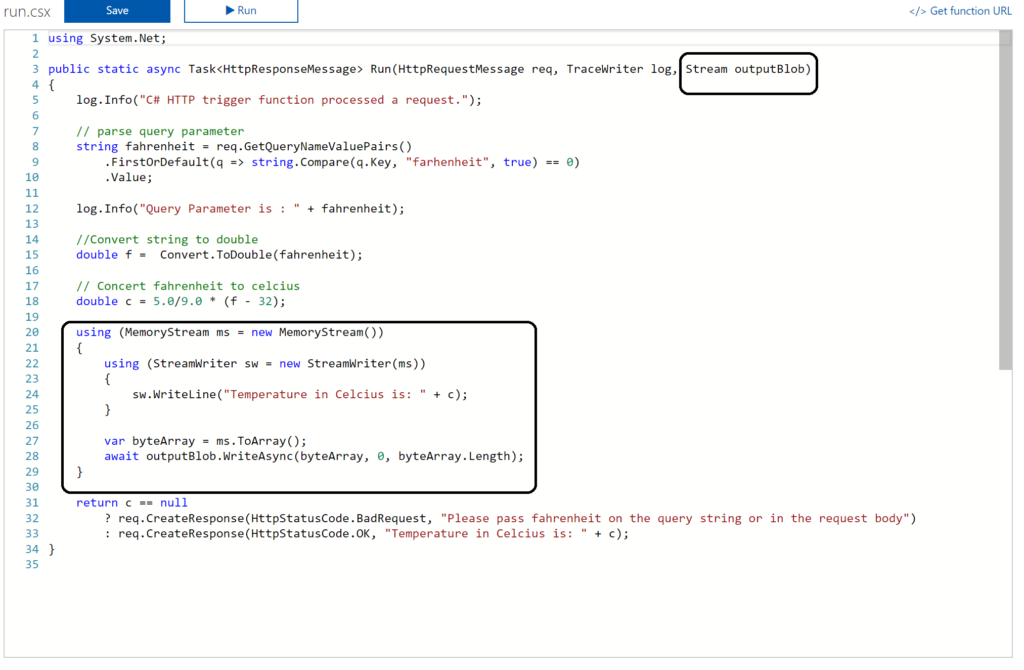
You can bind Azure Storage as an extra output channel for a function. Through the Integrate pane I can add an extra output to the function. Configure the new output by choosing Azure Blob Storage, set Storage Account Connection and specify the path.
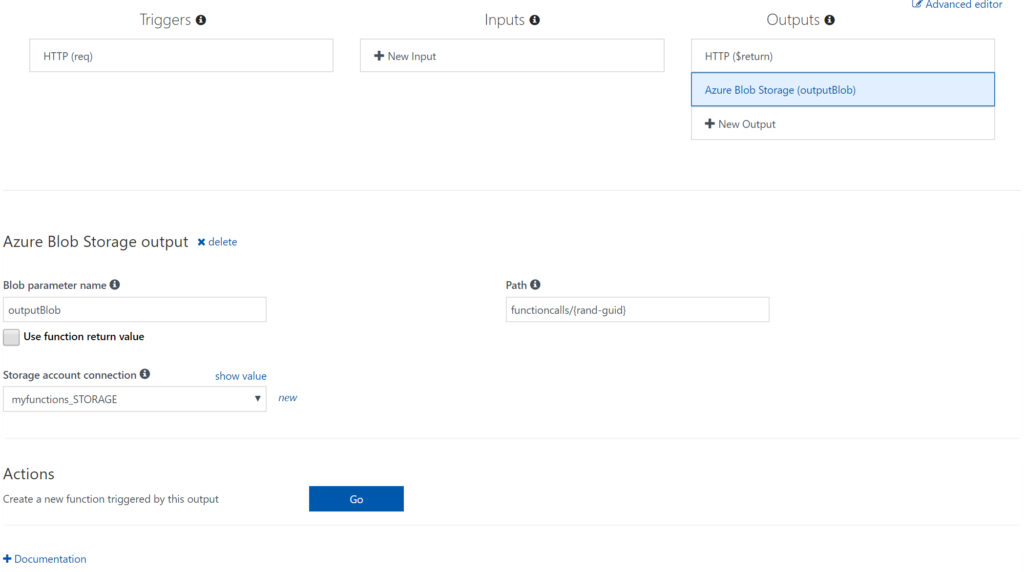
Next you have to update the Function signature with outputBlob parameter and implement the outputBlob.
Finally, you can monitor your functions through the Monitor pane, which provides you some basic insights (logs). For a more richer monitoring experience, including live metrics and custom queries, Microsoft recommends using Azure Application Insights. See also Monitoring Azure Functions.
Visual Studio Experience
Azure Functions can be build with Visual Studio. Now the templates are now available after a default installation of Visual Studio. You need download them. Visual Studio 2017 the templates for Azure Functions are available on the marketplace. For Visual Studio 2015 read this blog post, which includes the steps I did for my Visual Studio 2015 installation.
Once the templates are available in your Visual Studio version (2015 or 2017) you can create a FunctionApp project. Within the created FunctionApp project you can add functions. Right click the project and select Add –> New Azure Function. Now you can choose what type of function you can build. You will have a similar experience as with the portal.
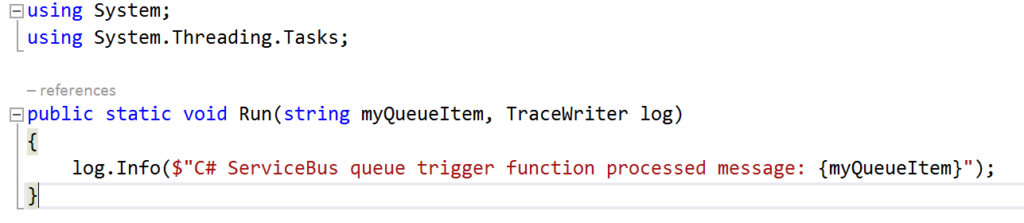
For instance you can create a ServiceBusTrigger Function (WindSpeedToBeaufort), which will be triggered once a message arrives on a queue (myqueue).
As a result you will see the following code once you hit Create:
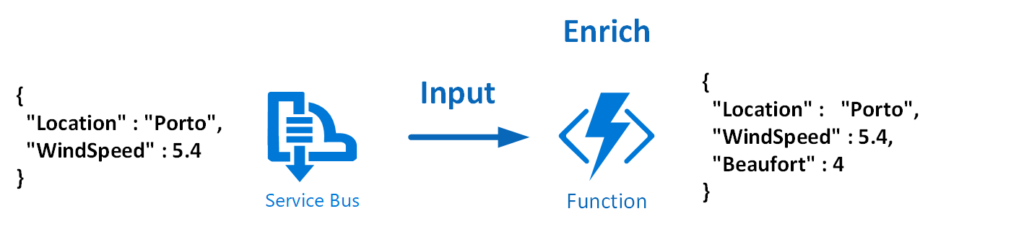
Now let’s work on the function so it will resemble the diagram below:
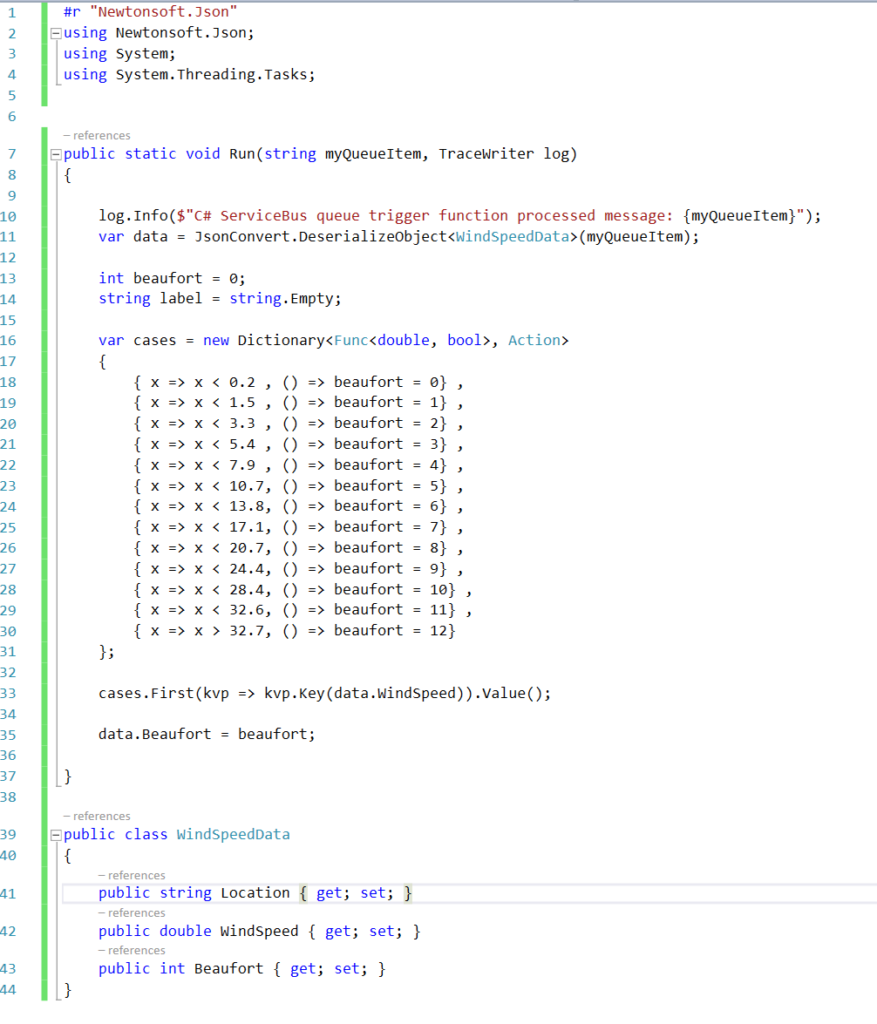
To modify the function that does the above the necessary code is shown below:
And the json.setting needs to be renamed to local.settings.json, the function.json needs modification to:
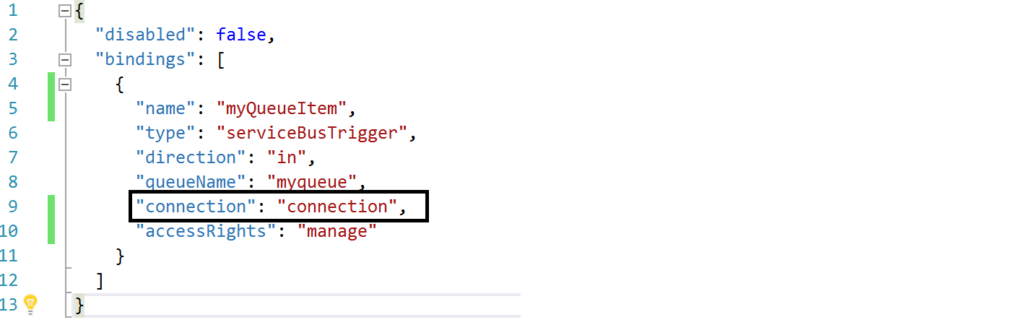
The connection string is moved to the local.settings.json as depicted below:

Most of all this change is important, otherwise you will run into errors.
Debugging with Visual Studio
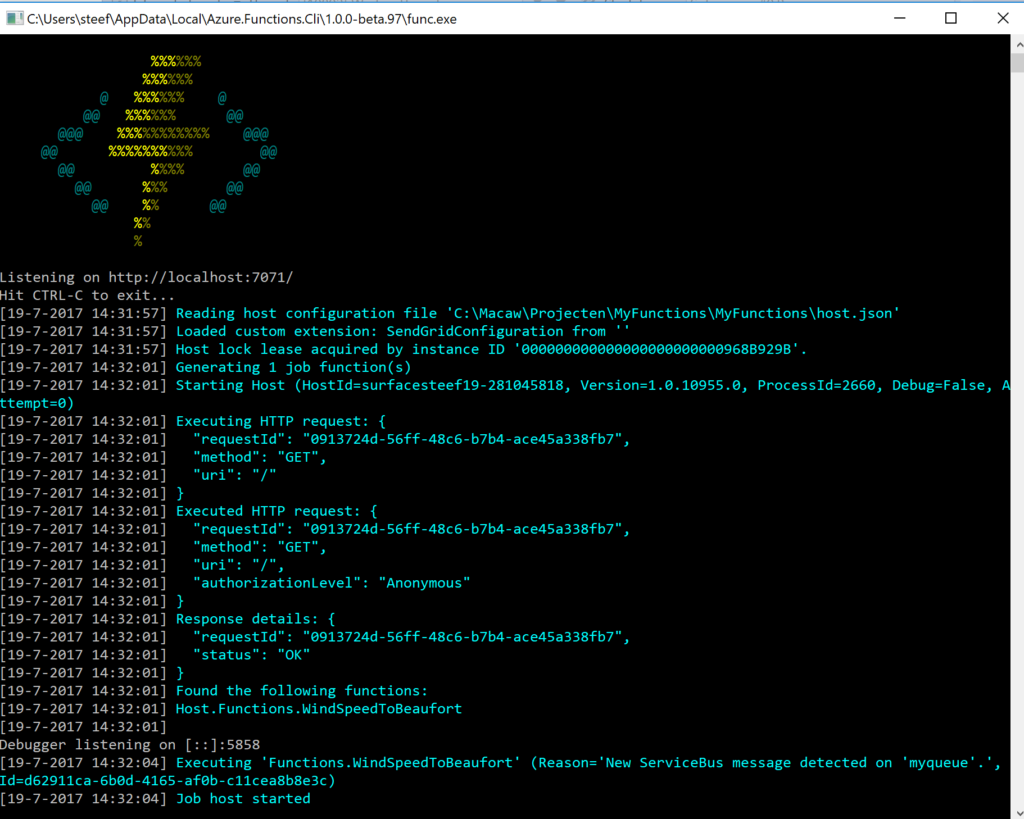
Visual Studio provides the capability to debug your custom function. Compile and start a debug instance. A command line dialog box will appear and your function is running (i.e. hosted and running).
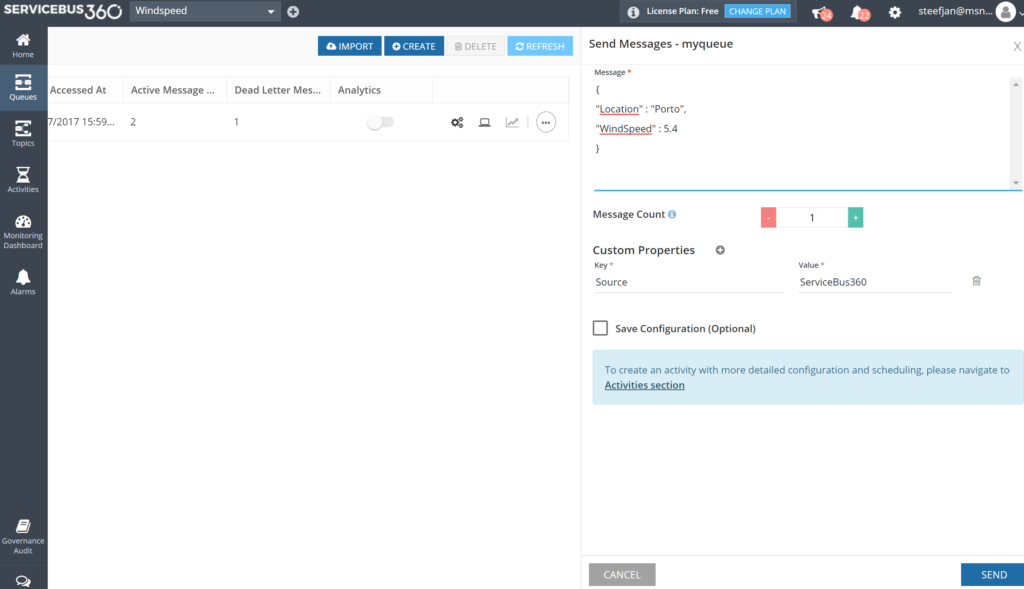
To debug our function in this blog a message is sent to myqueue using the ServiceBus360 service.
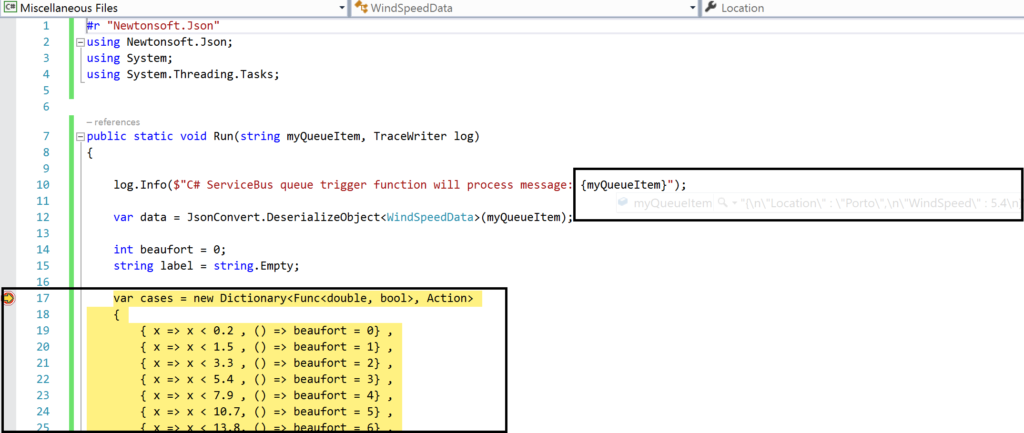
Once the message arrives at the queue it will trigger the function. Hence, the debugging can start on the position in the code, where a breakpoint has been set.
And the result of execution will be visible in the command line dialog box:
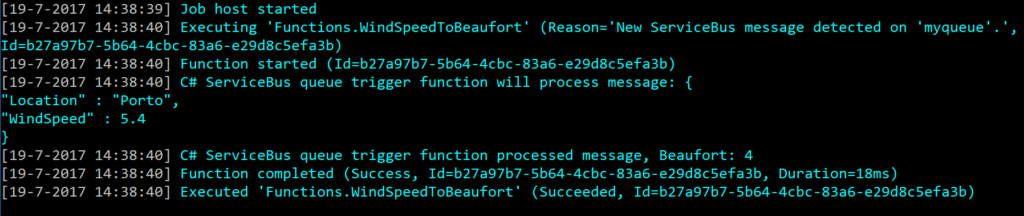
In conclusion this is the debugger experience you will have with Visual Studio. Combined with having intellisense while developing your function.
Deployment
You have build and tested your function to your satisfaction in Visual Studio. Now it’s time to deploy it to Azure, therefore you right click the project and choose publish. A dialog will appear and you can choose AppService. Subsequently, if you are logged in with your Azure Credentials you will see based on the subscription one or more resource groups.
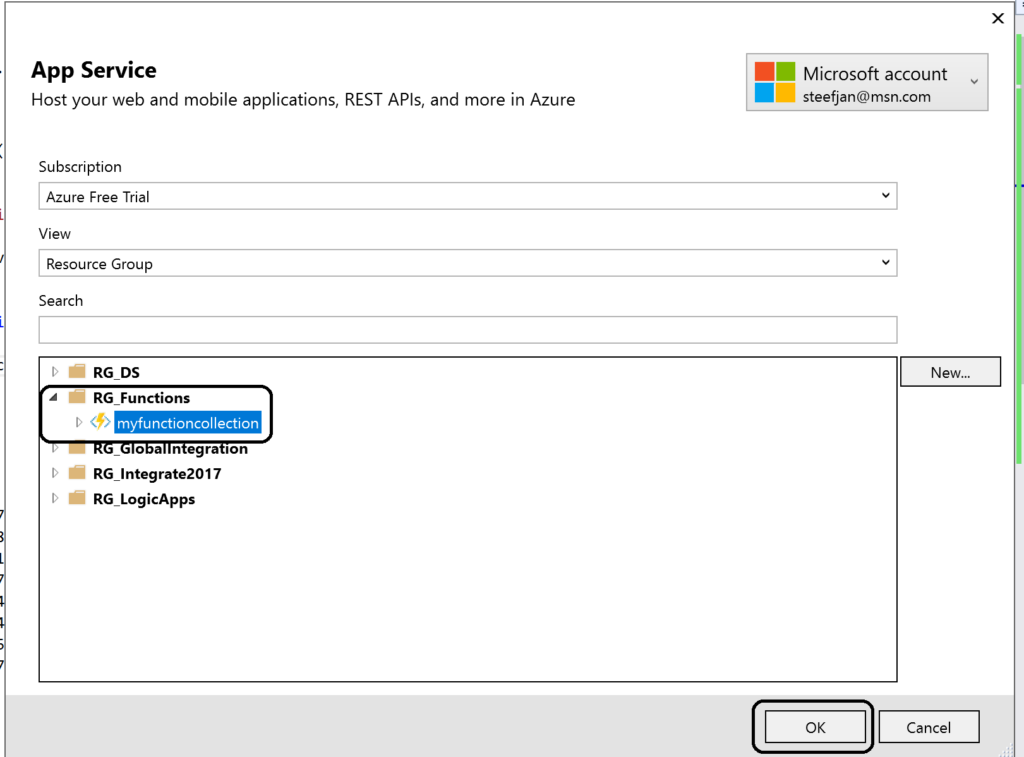
You can click OK and proceed with next steps to publish your function to the desired resource group –> function app. However, this will in the end not work!
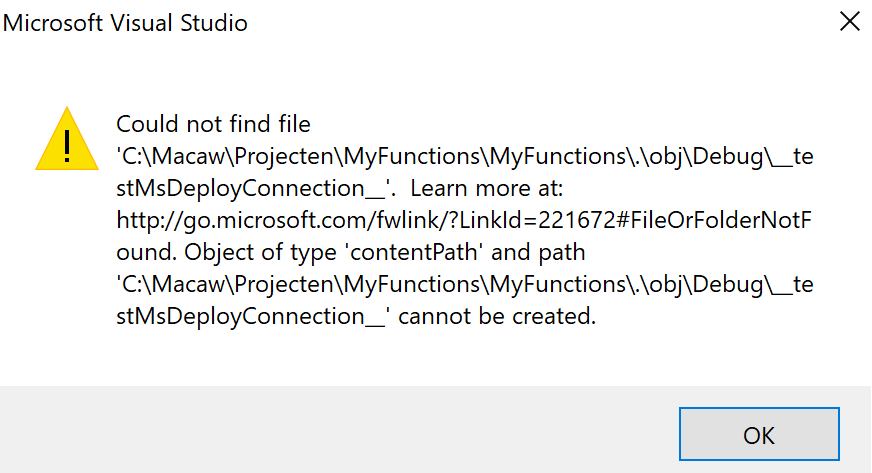
As a result you will need a workaround as explained in Publishing a .NET class library as a Function App at least that’s what I found online. However, I as able to deploy it. However, I stumbled on another error in the portal:
Error:
Function ($WindSpeedToBeaufort) Error: Microsoft.Azure.WebJobs.Host: Error indexing method ‘Functions.WindSpeedToBeaufort’. Microsoft.Azure.WebJobs.ServiceBus: Microsoft Azure WebJobs SDK ServiceBus connection string ‘AzureWebJobsconnection‘ is missing or empty.
Hence, not a truly positive experience. In the end it’s missing a setting i.e. application setting of the Function App.
Anyways, another walkaround is to create add a new function to existing function app. Choose ServiceBusTrigger template, create it and finally copy the code from the local project into the template over the existing code. In conclusion this works as now you see a setting for the Service Bus connection string in the application setting and the reference in the function.json file.
Considerations
There are some considerations around Azure Function you need to be aware of. First of all the cost of execution, which determines whether you will choose a consumption or app plan. See Function Pricing and use the calculator to have a better indication of costs. Also consider some of the best practices around functions. These practices are:
- Azure Functions should do just one task,
- finish as quickly as possible,
- be stateless
- and be idempotent.
See also Optimize the performance and reliability of Azure Functions.
Finally, be aware of the fact that some features of Azure Functions are still preview like Proxies, Slots and the Visual Studio Tools.
Resources
This blog contains several links to some resources you might like to explore. An excellent starting point for a researching Azure functions is https://github.com/Azure/Azure-Functions. And if you are interested how Functions can play a role in Logic Apps have a look at this blog post: Building sentiment analysis solution with Logic Apps.
Explore Azure Functions, go serverless!
Cheers,
Steef-Jan
Author: Steef-Jan Wiggers
Steef-Jan Wiggers is all in on Microsoft Azure, Integration, and Data Science. He has over 15 years’ experience in a wide variety of scenarios such as custom .NET solution development, overseeing large enterprise integrations, building web services, managing projects, designing web services, experimenting with data, SQL Server database administration, and consulting. Steef-Jan loves challenges in the Microsoft playing field combining it with his domain knowledge in energy, utility, banking, insurance, health care, agriculture, (local) government, bio-sciences, retail, travel and logistics. He is very active in the community as a blogger, TechNet Wiki author, book author, and global public speaker. For these efforts, Microsoft has recognized him a Microsoft MVP for the past 7 years. View all posts by Steef-Jan Wiggers
by Rochelle Saldanha | Jul 17, 2017 | BizTalk Community Blogs via Syndication
Recently in one of our support tickets, a customer enquired on whether Microsoft Teams as a notification channel would be implemented in upcoming releases, as he heard of it in the INTEGRATE 2017 event, where Saravana introduced ServiceBus360 and Teams was one of the notification channels there.
Therefore, I thought if I could provide an alternate workaround to achieve the same in BizTalk360. This often occurs in Support where if we don’t have the functionality currently in the product, we do strive to provide a similar working functionality by discussing it with the development team. Here is my implementation of the feature request by using Logic Apps & WebHook Notification Channel.
Create the Channel in Microsoft Teams
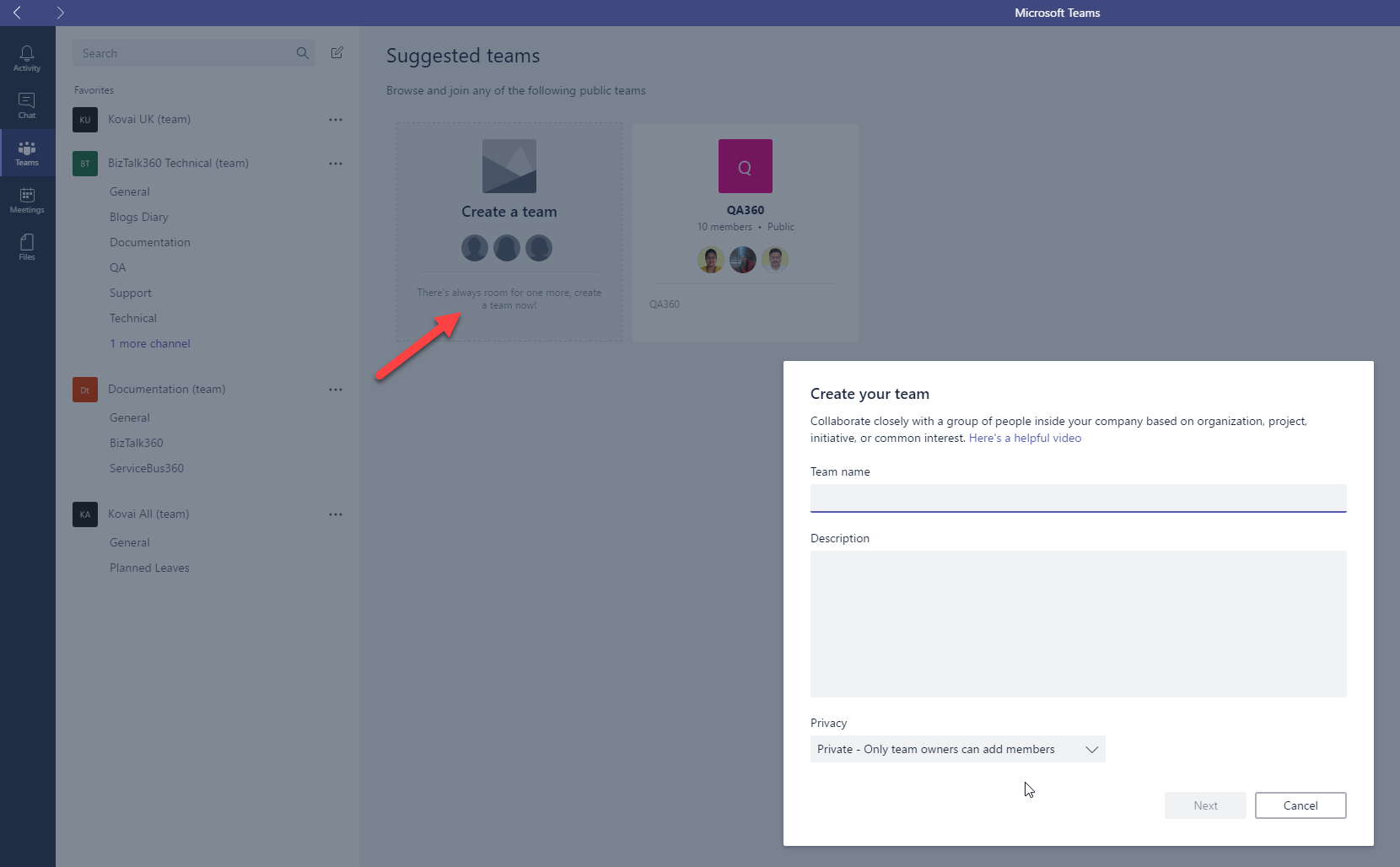
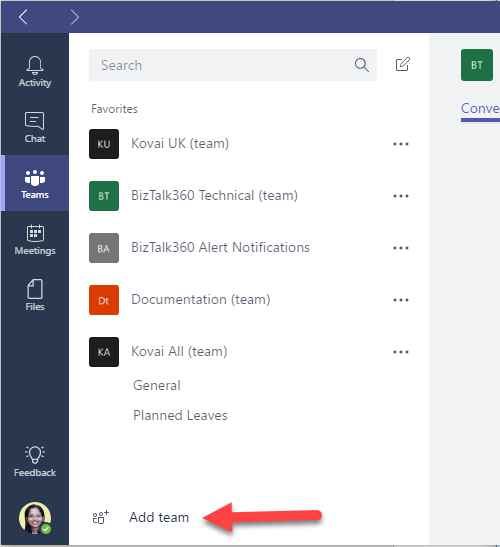
Once the Team has been given a suitable name and was successfully created, then we can create a new channel for that Team. (Click the … near the newly created Team and choose ‘Add channel’.
Once the Channel has been created we can use the Team name & Channel Name in the Azure portal as the destination for the Post Message (Teams).
This can be achieved via Logic Apps or by creating a custom Notification channel. We will have a quick look at both the implementations.
1. Implementation via Logic Apps
Configuration in Logic Apps:
So I created a Demo Logic App, and here is a screenshot of the design used.
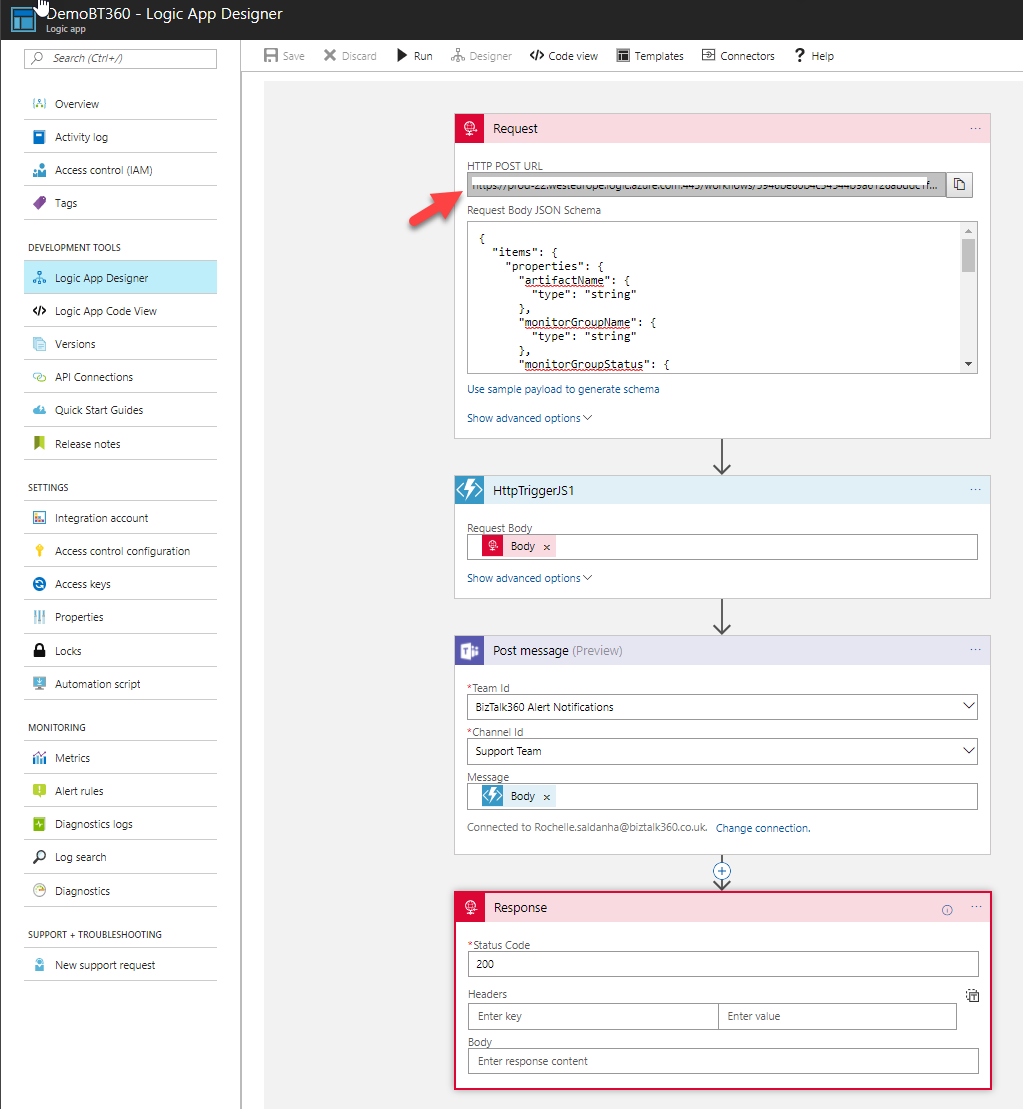
I’ve used a Request-Response and added an Azure function to help Parse the JSON response received from the BizTalk360 Notification channel and then passed that composed message to a Post message action for Microsoft Teams. Azure will ask you to authenticate your login (Teams) and then allow you to select the specific Team and Channel from Microsoft Teams.
In the 1st Request, you will also need to supply the Request Body JSON Schema or use sample Payload to generate the schema. Please refer to this code for the Schema I used.
Azure Function Code implementation
To access the code used for the Azure function, please access this code at Github website.
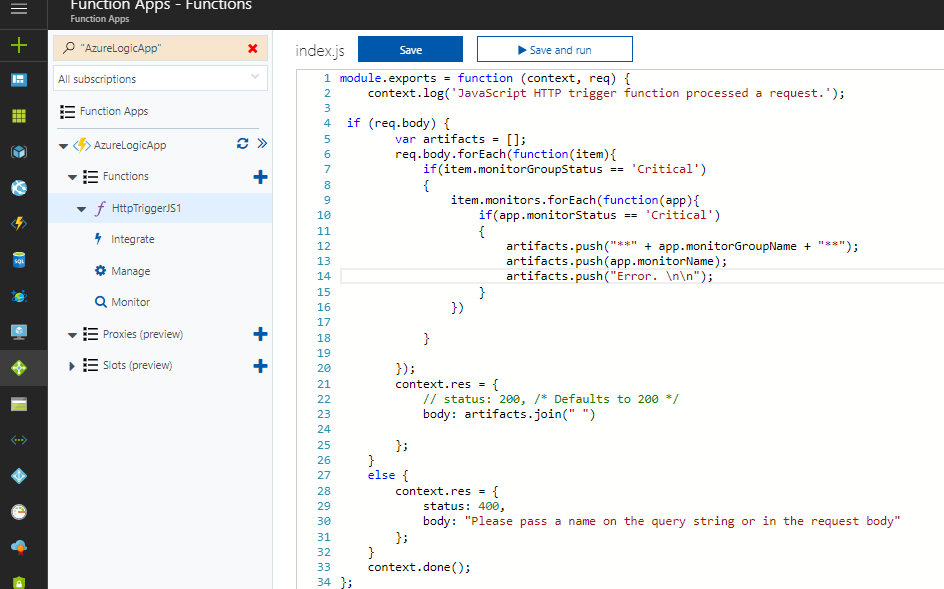
Configuring BizTalk360 WebHook Notification Channel for the Logic App
Please refer to this article which describes how to set up Webhook notification Channel.
https://assist.biztalk360.com/support/solutions/articles/1000245561-adding-a-webhook-notification-channel
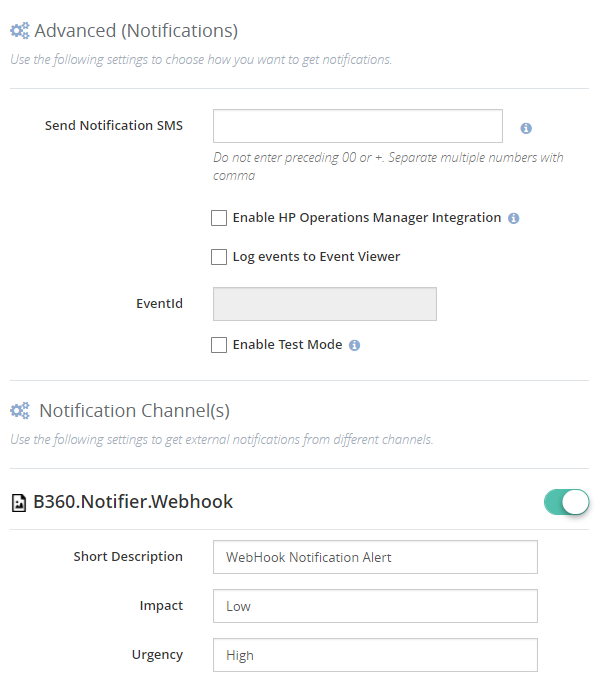
You can get the URL for the Web API from the Logic App – refer to the screenshot earlier provided and the arrows identify where to get the URL from. Use that in configuring the BT360 webhook notification channel.
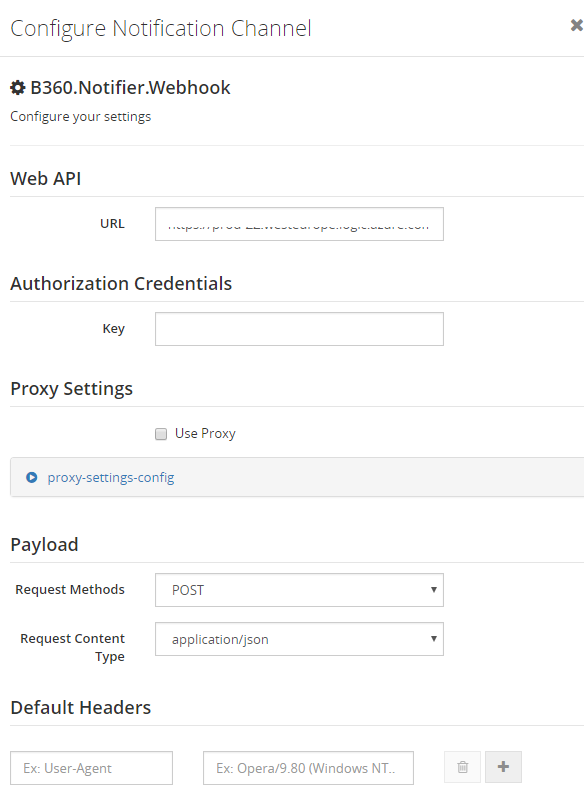
Once the WebHook Notification Channel is configured, you can select it as the notification option in the specific Alarm
Receiving the Notifications
Once the Threshold is violated, similar to the Email notifications, you will now see a notification in Microsoft Teams.
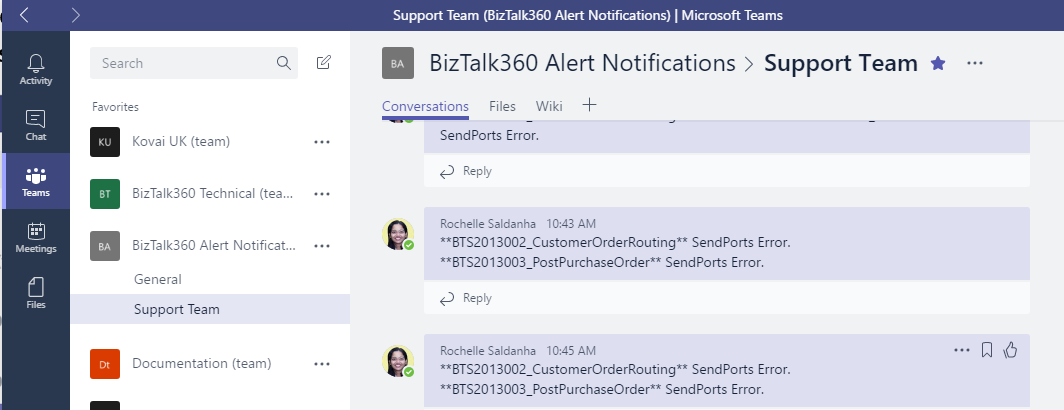
While I have parsed the JSON message and only displayed the Application Name & Artifact Name that has the error, you can choose and customize your error messages as required.
2. Implementation via Custom Notification Channel
You can read these articles which show how to create a custom notification channel.
https://blogs.biztalk360.com/introduction-custom-notification-channel-sdk-biztalk360/
https://assist.biztalk360.com/support/solutions/articles/1000217940-adding-a-new-custom-notification-channel
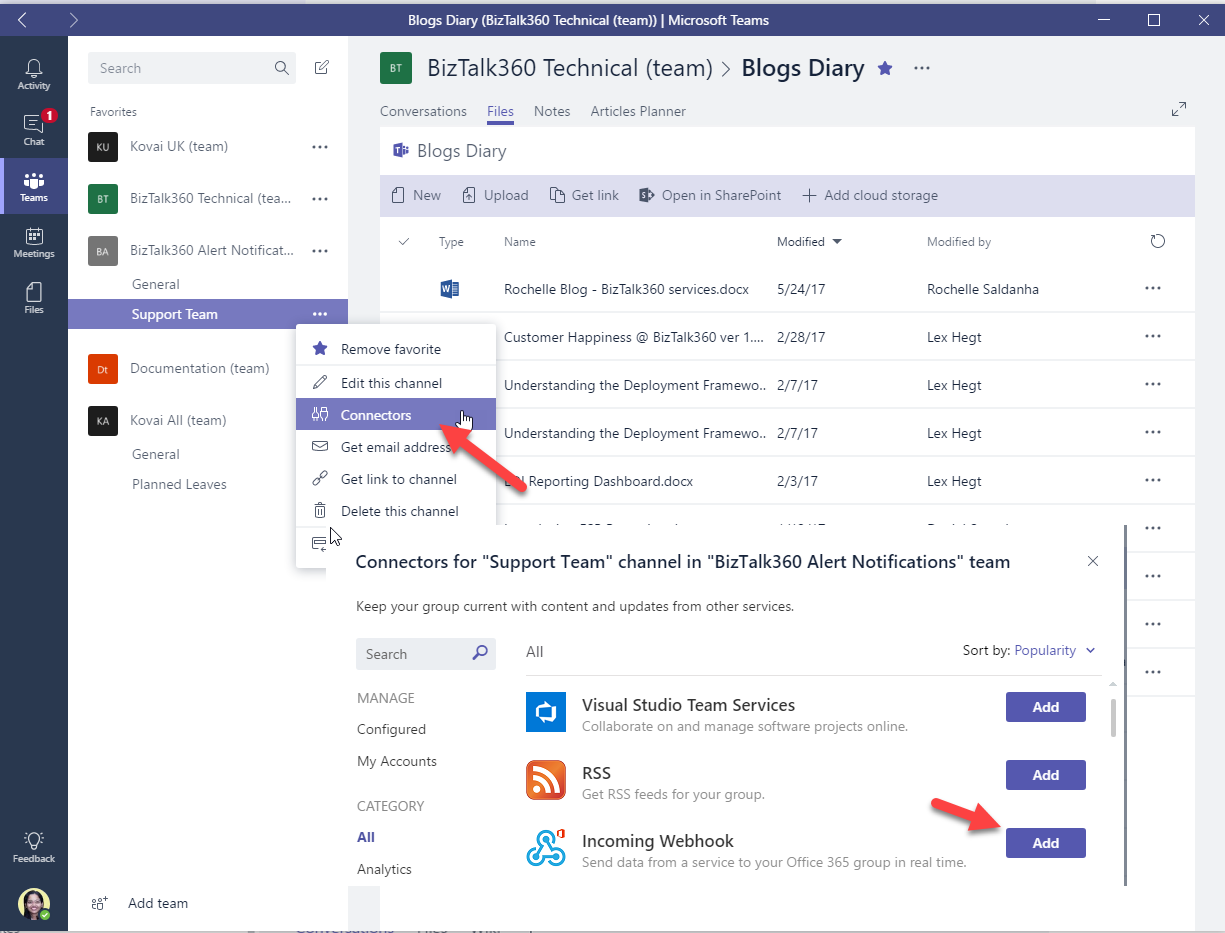
You need to select the WebHook Connector from Microsoft teams. You need to copy the WebHook URL which you will then enter the code in the custom notification channel.
You then need to setup the Custom Notification Channel as mentioned in the blogs.
Then you only need to add this code to the FileChannel.cs file either instead of after the successful completion of File notification completed. Again I have only output Alarm Name and an Error string. Please customize as required.
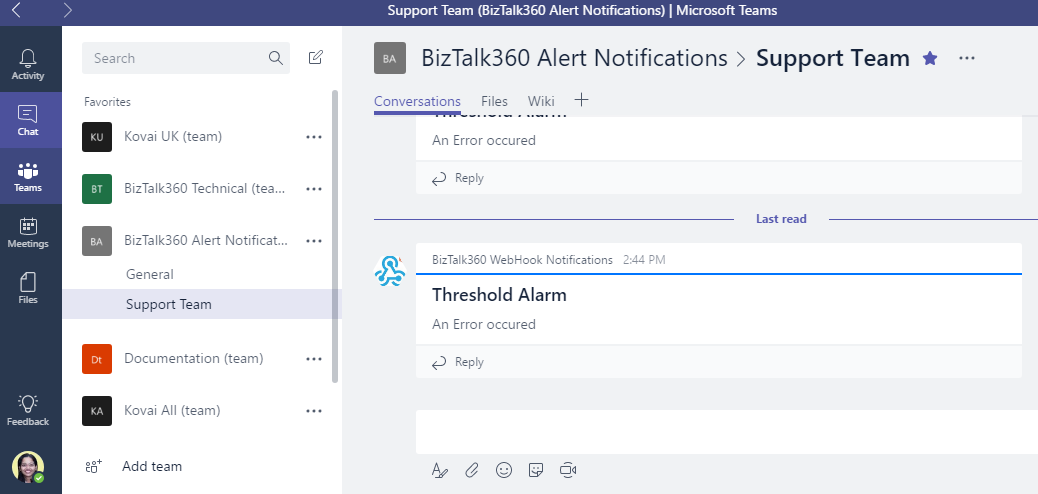
So I hope this blog gave you a good idea as to how you can integrate Teams with BizTalk360 Notifications.

by Gautam | Jul 16, 2017 | BizTalk Community Blogs via Syndication
Do you feel difficult to keep up to date on all the frequent updates and announcements in the Microsoft Integration platform?
Integration weekly update can be your solution. It’s a weekly update on the topics related to Integration – enterprise integration, robust & scalable messaging capabilities and Citizen Integration capabilities empowered by Microsoft platform to deliver value to the business.
If you want to receive these updates weekly, then don’t forget to Subscribe!
On-Premise Integration:
Cloud and Hybrid Integration:
Feedback
Hope this would be helpful. Please feel free to let me know your feedback on the Integration weekly series.

by Mohan Nagaraj | Jul 12, 2017 | BizTalk Community Blogs via Syndication
Yes, it has been 6 months since we launched Middleware Friday! Saravana announced the launch of Middleware Friday in the first week of this year. After a fair success from Integration Monday events under Integration User Group, Saravana and Kent had the idea to experiment this concept of short video blogs on some interesting Integration topics and interviews from industry leaders. In a larger view, Middleware Friday is something very much like a short news update on the latest Integration trends posted on every Friday.
Six Months and 26 sessions later…
We’ve had 23 sessions from Kent Weare and 3 guest sessions from Steef-Jan Wiggers (both of them are eminent MVP’s, and active community members) till date, with topics ranging from Logic Apps, Power Apps, Service Bus, Power BI, Cognitive Services, Serverless Integration, HTTP Connectors, API Management and lots more. We would like to extend our thanks to the speakers and attendees for making the #MiddlewareFriday sessions a success. We’re not done yet! One of the hardest parts in conducting these kinds of video logs is being short and yet deliver fair technical output that would help the viewer. We are very pleased with the outcome so far.
Protecting Azure Logic Apps with Azure API Management
Azure Logic Apps and Service Bus Peek-Lock
Logic Apps and Cognitive Services Face API – Part 1
Microsoft PowerApps and Cognitive Services Face API – Part 2
Serverless Integration
Logic Apps and Power BI Real-Time Data Sets
Azure Monitoring, Azure Logic Apps and Creating ServiceNow Tickets
Monitoring Azure Service Bus Queues and Topics using ServiceBus360
Azure Logic Apps and SAP – Part 1
Azure Logic Apps and SAP – Part 2
Azure Logic Apps and HTTP Connector
Using API Management to protect on-premises BizTalk endpoints
Global Integration Bootcamp – March 25, 2017, New York
Using API Management to protect Azure Functions
Introduction to Azure Functions Proxies
Azure Logic Apps and Azure EventHubs
BizTalk Server 2016 First Look
BizTalk Server 2016 + Logic Apps – Thunder and Lightning
BizTalk Server 2016 Feature Pack 1
Task Management Face off with Logic Apps and Flow
Austin City Limits with Stephen W. Thomas
Azure Logic Apps – Retry Policy
Azure Logic Apps – Azure Active Directory Connector
Azure Event Hubs: Auto-Inflate
INTEGRATE 2017 Preview Show
INTEGRATE 2017 Highlight Show
Over the course of next few weeks until further communication, Kent will be moving his time schedule to summer hours. Therefore, Middleware Friday episodes will be published every alternate week.
Author: Mohan Nagaraj
Mohan as a Senior Technical Writer responsible for product documentation and all other content related activities. He combines his passion for business, technology, and writing to spread the word about BizTalk360. Mohan is responsible to work with cross functional teams to visualize and create product documentation and marketing content. He feels writing is so much fun and it is satisfying to capture the company’s soul & passion and make it live through documentation. View all posts by Mohan Nagaraj
by Gautam | Jul 10, 2017 | BizTalk Community Blogs via Syndication
Do you feel difficult to keep up to date on all the frequent updates and announcements in the Microsoft Integration platform?
Integration weekly update can be your solution. It’s a weekly update on the topics related to Integration – enterprise integration, robust & scalable messaging capabilities and Citizen Integration capabilities empowered by Microsoft platform to deliver value to the business.
If you want to receive these updates weekly, then don’t forget to Subscribe!
On-Premise Integration:
Cloud and Hybrid Integration:
Feedback
Hope this would be helpful. Please feel free to let me know your feedback on the Integration weekly series.
by Steef-Jan Wiggers | Jul 7, 2017 | BizTalk Community Blogs via Syndication
Integrate 2017, a well-organized Microsoft Integration focused event, took place from 26 to 28 of June at Kings Place in London. It attracted 380 plus attendees from 50 different countries and had 28 speakers from around the globe including the Microsoft Product Group. I did a session around Logic Apps from the consumer, end user, and business perspective and used sentiment analysis as for my demo.
Context
To provide you some context. Logic App service was the most prominent technology during the three-day event. This Azure Service became general available a year ago and is starting to build momentum as premier cloud integration capability. Most of all, the service fits rather well in the complete Azure Platform with its connectors to a wide variety of other Azure services and in addition, it connects with SaaS solutions such as Twitter, Zendesk, Salesforce, ServiceNow, PagerDuty, and Slack.
During Integrate 2017 I talked about empowering business with Logic Apps. And my goal was to show the audience the value of Logic Apps for the business. The service is a true iPaaS service according to the definition Wikipedia provides online. And it is a part of Azure, which is multi-tenant, has a subscription model or in the case of Logic Apps it’s consumption based (micro-billing), provides pre-built ready available connectors, deployment/manage/monitoring through the platform.
iPaaS
If you look at how for instance Gartner describes iPaaS then again Logic Apps are a true cloud-native integration platform. Consumers of Logic Apps in Azure can implement data, application, API and process integration projects spanning cloud-resident and on-premises endpoints. I will quote the Gartner report here:
“This is achieved by developing, deploying, executing, managing and monitoring “integration flows” (aka “integration interfaces”) — that is, integration applications bridging between multiple endpoints so that they can work together.”
And the iPaaS capabilities typically include according to Gartner:
• Communication protocol connectors (FTP, HTTP, AMQP, MQTT, Kafka, AS1/2/3/4, etc.)
• Application connectors/adapters for SaaS and on-premises packaged applications
• Several data formats (XML, JSON, ASN.1, etc.)
• Data standards (EDIFACT, HL7, SWIFT, etc.)
• Mapping and transformation of data
• Quality of data
• Routing and Orchestration
• Integration flow development and lifecycle management tools
• Integration flow operational monitoring and management
• Full lifecycle API management
Looking at the above capabilities than Logic Apps in combination with Integration Account and API Management provide those capabilities.
Gartner Quadrant
Logic Apps are positioned in Gartner Quadrant in the Visionaries box, which means that the vendor of the service is able to execute lower than the leaders (in the Quadrant vendors like Dell Boomi and Informatica), have a smaller install base, certain immaturity, timid marketing, reactive sales operation and lack of strategic commit to the market.
My take on that is that Logic Apps is relatively new in the iPaaS market.
- A year ago it became general available. And it is maturing at a fast pace with new feature releases every two weeks with an expanding set of connectors.
- Sales representation from Microsoft at Integrate 2017.
- And finally, the commitment is strong with the Pro Integration Product Group presence at various conferences throughout 2017. This year they have or will attend Ignite, Build, Integrate2017 Europe, Inspire (former WPC), Integrate 2017 US, Integration Bootcamp, Global Integration Bootcamp, Global Azure Bootcamp, and smaller User Group meetings worldwide.
Hence I struggle a bit with the classification of the current state of Logic Apps. I strongly feel the service is close to the border of visionary and leader. It has promised to become a true iPaaS leader.
Benefits
Business can reap the benefits from this service as the attention is towards solving the problem(s) it is facing. Logic Apps is a part of a large Platform. And it can deliver solutions fast as there’s no need for procuring servers, or other infrastructure related capabilities. This accounts for the business that has transformed their business to the cloud and requires cloud-native solutions. That’s what fit for purpose with Logic Apps. And the costs are less and time to market of your solutions is fast.
Use Cases
The connectors provided by Logic App can help you build solutions for various enterprise scenarios. For instance, you leverage cognitive services to identify a person to subsequently grant him access to resources, start an onboarding process, or provide access to a facility. An example of leveraging Cognitive Services is to perform text analysis on tweets, which I will explain in further detail later in this post.
The text analysis can be useful to detect sentiment in a tweet. Particularly on a #hashtag, for instance, a person like Trump, product or service. I mention President Trump here as the current US President uses this social media service quite extensively. And the tweets he produces are evaluated intensively for stock trading.
Dynamics 365
Other thinkable use cases evolve around the Dynamics 365 CRM Online connector. This connector provides connectivity to Dynamics CRM that provides various features like customer service automation, marketing campaigns, and social engagements.
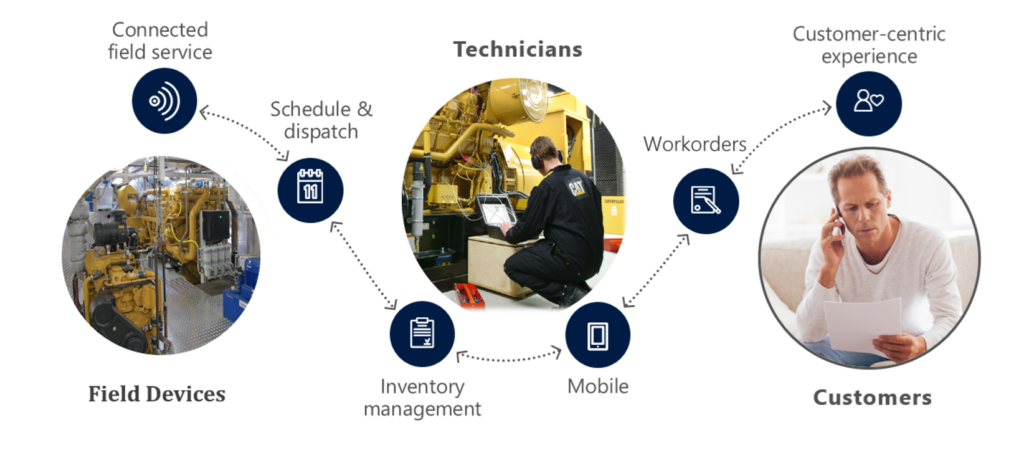
Dynamics 365 has several capabilities or flavors; one is Dynamics for Field Service, which provides a complete Field Service management solution, including service locations, customer assets, preventative maintenance, work order management, resource management, product inventory, scheduling and dispatch, mobility, collaboration, customer billing, and analytics. Therefore, during integrate I talked about leveraging this solution in combination with IoT devices. The picture below shows the data flow from device to the Dynamic Field Service features.
Data from a device can be consumed by IoT Hub service in Azure and pushed to the service bus queue, which can be read by Logic App. The Logi App forwards the data into Dynamics Field Service through the CRM connector. In conclusion, a Logic App or number of them can be part of an end-to-end solution for various field services.
The previous paragraph discussed one of the many use cases possible including Logic Apps. Moreover, there are many other scenarios thinkable since Logic Apps are a part of a bigger platform, which means you leverage them with other Azure Services or create flows to move data around. With sentiment analysis, you can detect sentiment within a text using one of the Cognitive Services API’s. The way sentiment analysis API functions are that it returns a numeric score between 0 and 1 on a given text. Scores close to 1 indicate positive sentiment and scores close to 0 indicate negative sentiment. A score of 0.5 is neutral. With Logic Apps, you can receive tweets within a certain interval (occurrence) based on filter i.e. hashtag and feed the body into Detect Sentiment action.
Sentiment Analysis Solution
To build a solution leveraging the capabilities Cognitive Services deliver with a Logic App, Azure Storage Account, Azure Function and Power BI you need to set up these services up.
Cognitive Service
The setup of the first is basically provisioning of a Cognitive Service instance i.e. API. In the Azure Portal, you find the Cognitive Service in the marketplace. Subsequently, you click on the service you specify a name, choose a subscription, and subsequently which API you like to use.
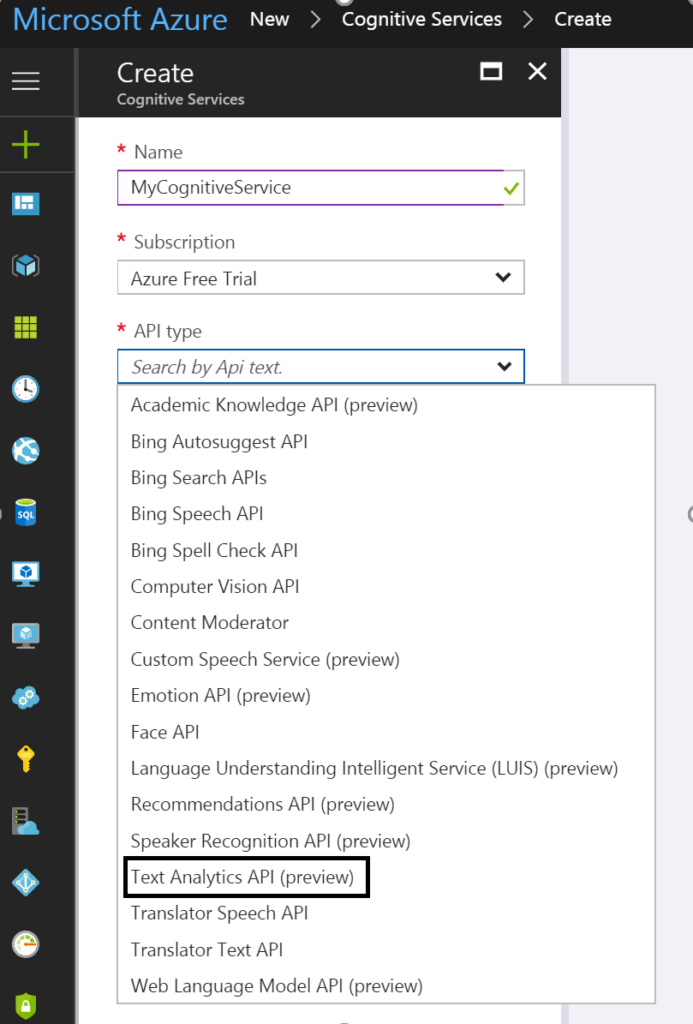
To detect sentiment analysis in a text you need to choose Text Analytics API, which as the time of writing is still in preview. The Text Analytics API is only available in region West US, and pricing of service varies depending on the tier you require. Below you can see the different pricing options.
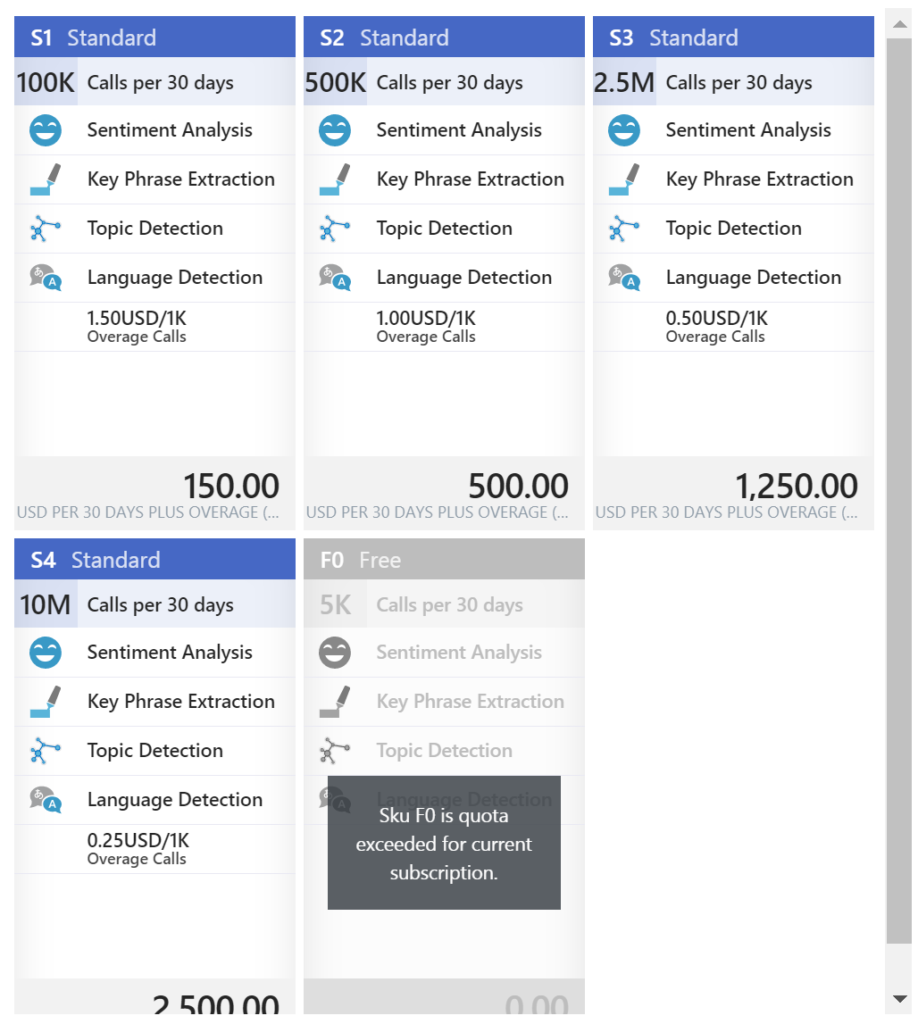
As you can see in the picture above the Cognitive Service provides four features:
• Sentiment Analysis
• Key Phrase Extraction
• Topic Detection
• Language Detection
Once you have chosen the required tier you can create this service.
Power BI
The next service is Power BI, which is a part of the Office365 offering and can be found here: https://powerbi.microsoft.com/. You can sign in and start building datasets, dashboards, and reports. For a solution to visualize sentiment you can create a streaming data set. Go to the powerbi.com and “Streaming datasets”, create a dataset of type API, click next and name the dataset and add fields to the streaming data set like shown below.
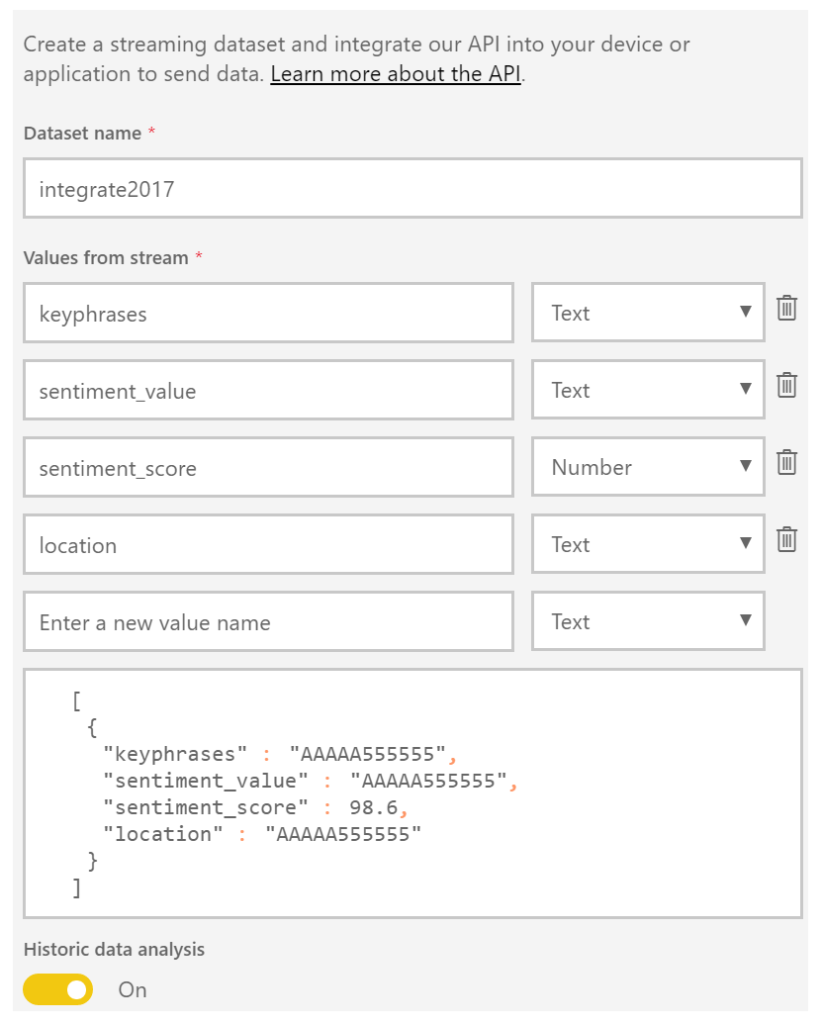
The Solution
In a solution, I build I created four text fields and one number field. The historic data analysis was enabled to build a collection of the data to be used for a report.
Now both Cognitive Service and Power BI have been setup and next step is to create a storage account in Azure. This account will archive tweets in a blob storage container tweets. Provisioning a storage account is easy and straightforward process. In the marketplace find storage account, select it, specify name, deployment model, purpose (choose blob storage), replication, access tier (cold), secure transfer, subscription, resource group, and location.
The final service required for the solution is a function. The Function in our solution will be provided with the input from the Cognitive Service API response (Score). Azure Functions provide a serverless coding capability using a Browser and the piece’s code you write can run in Azure i.e. within a Function App.
For our solution, we add a GenericWebHook-CSharp. We will rename the function to AnalyseSentimentScore. And in the Develop tab, we see some generic default code, which we will change to the code below.
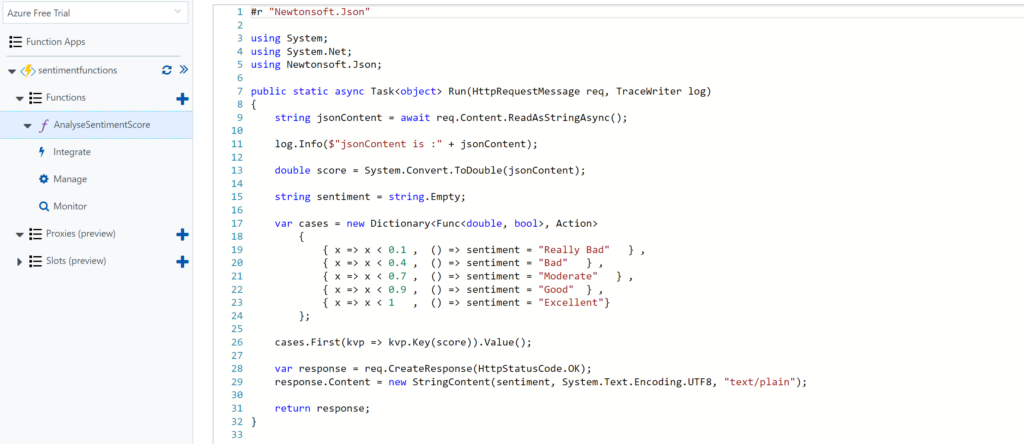
Architecture
The solution architecture I build looks like the diagram below and resembles a process manager pattern.
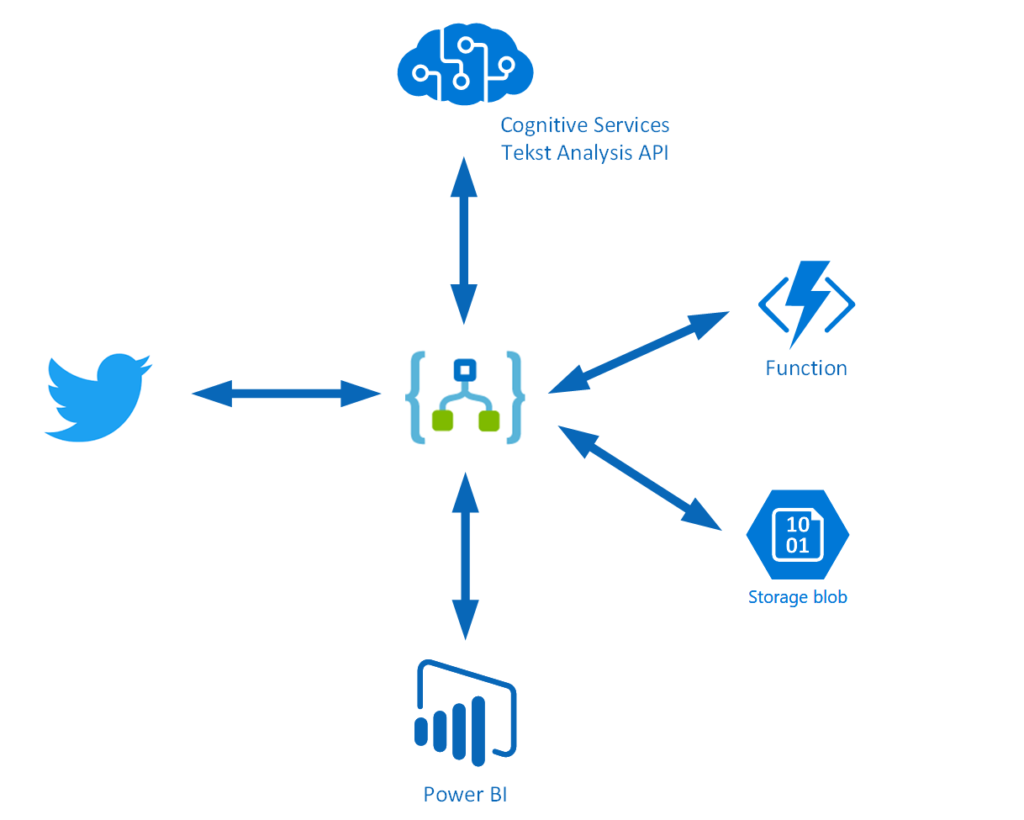
This pattern implies that a trigger message is sent to a process manager (Logic App). The process manager is a central processing unit and determines steps based on intermediate results. A tweet is the trigger message that starts a flow in a Logic App. The body is sent to Cognitive Service (Proc A) and the score is sent to a Function (Proc B), which will evaluate the score. The Tweet is stored in blob storage and a few fields are sent to Power BI to fill the dataset. A diagram of a process manager is depicted below.
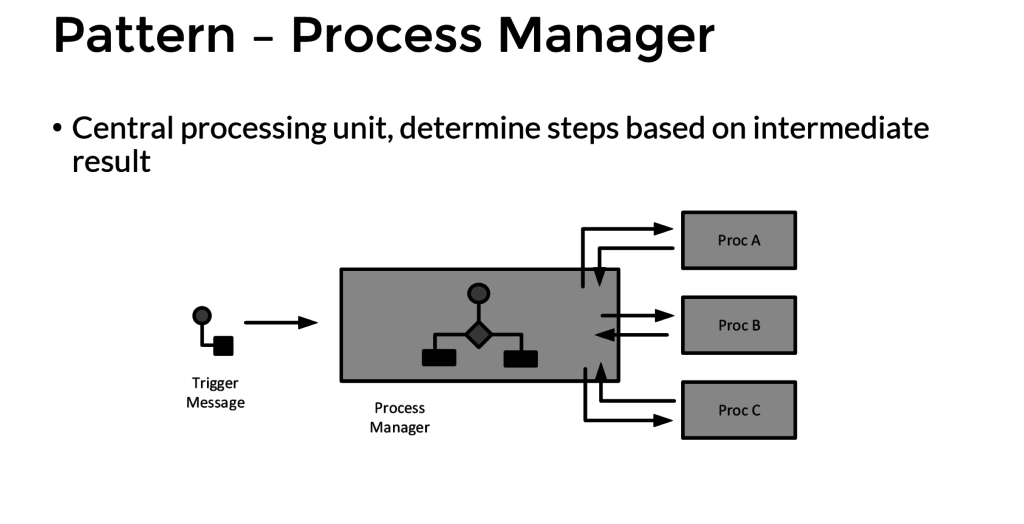
Implementation
The implementation of the solution is slightly different than from the pattern as after the second intermediate step the tweet data is sent to Azure Blob Storage and Power BI dataset.
The Logic App is implemented with a Twitter trigger, authorized to use my twitter account, with the search text #integrate2017 and interval (frequency) of 5 minutes i.e. every 5 minutes tweets with #integrate2017 will be picked up. Subsequently, this trigger is followed by several actions.

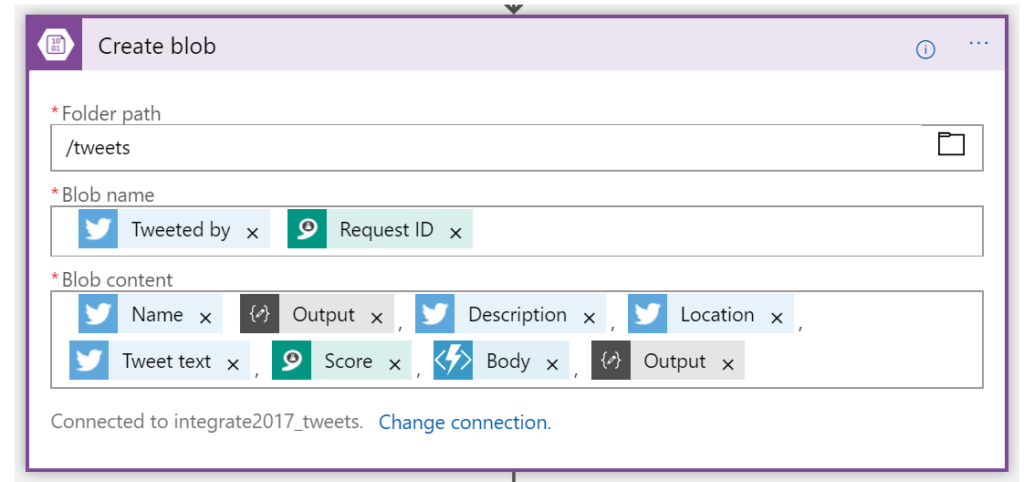
The picture above shows the flow of the Logic App. First, a Twitter triggers then a compose action to create an element part containing the username of the tweet. Subsequently the detect sentiment and the detect key phrases actions. Then the second composes to create a JSON array of the key phrases. And after the second compose the score of the detected sentiment is send to the function, which will return a string (text) of the evaluated score (see also the function). Several tokenized elements are sent to blob storage (see picture below).
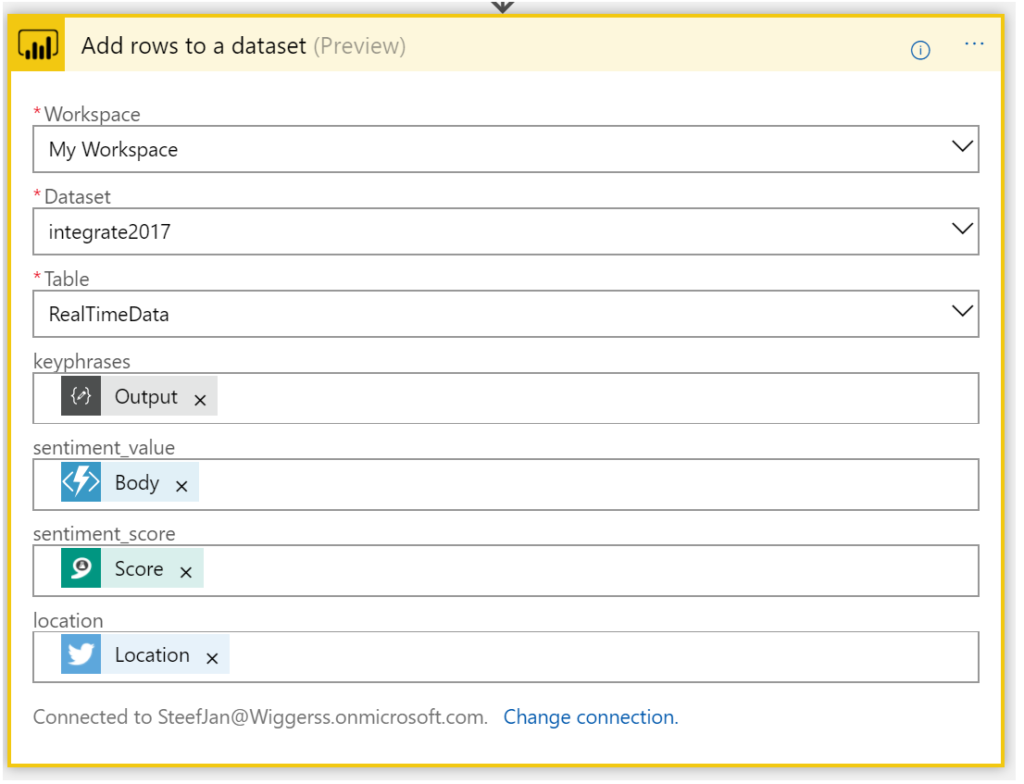
And the final step of this solution (Logic App definition) is sending some of the tokenized elements to a dataset row in Power BI dataset.
Now we have walked through the complete Logic App definition and the key actions of the solution.
Integrate 2017 Report
For integrate 2017 I ran the Logic App between 17th of June until the 1st of July. And the event took place between 26th and 28th of June in London. Every 5 minutes the Logic App collected tweets from Twitter with hashtag integrate2017. Over this period of 15 days, 3500 tweets have been aggregated around this event. It started slowly with around 50 tweets until the event started on the 24th with a burst of tweets. Below you can see a report created in Power BI with some visualization of sentiment measured in the tweets.
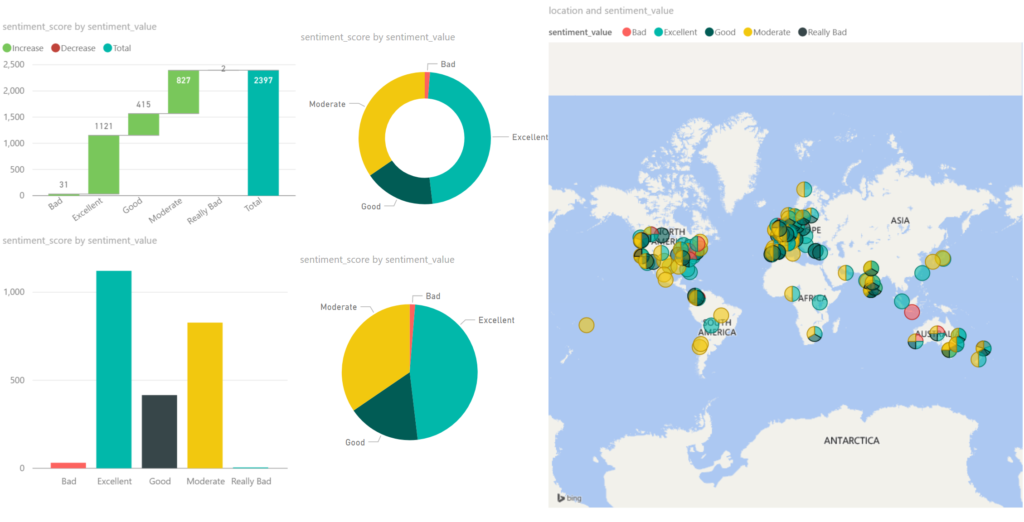
Around 2/3 of all the tweets, the sentiment was excellent/good, which can be viewed as positive. 1/3 of the tweets were evaluated as moderate. The Cognitive Service Text Analysis capability was unable to determine negative or positive. And finally, a very small percentage was negative (bad). Hence you can conclude that the event was a great event given the sentiment score.
The benefits of building a solution like described above are that with a relative simple Logic App sentiment can be analyzed leveraging several abilities provided by the Cognitive Service. Probably when a business likes to measure sentiment through Social Media channel it can use Logic Apps. Therefore, Logic Apps provide a quick solution in this manner to provide quick insights with low costs. There are no servers necessary and a pro-integration professional can build this type of solutions within a few hours depending on the complexity. Hence it provides quick time to market.
The costs
The interesting part of this solutions is cost. The breakdown of costs for this solution is:
– Logic App (Consumption)
– Function (Consumption)
– Cognitive Service (Tier)
– Storage Account (Volume)
– Power BI (Enterprise Plan)
The Logic App and Function are consumption based and measured on the execution of an action or function. And in general, it can sometimes be hard to predict the workload these services need to process. Hence you need to be aware of this. A good reference with regards to costs with Logic Apps is a post by Rene Brauwers, Tips & Tricks: Cost savings using Logic Apps.
For the Logic App in this solution, 3500 tweets were processed, and the Logic App consists of 8 actions (including the trigger). Hence 28K action calls costs based on the pricing (First 250K actions = €0.000675 / action) approximately 19 euro. And less than a euro for the executions of the Function.
Next, the costs for the Cognitive Service depends on the tier. The free tier could be an option, however, if the workload is too high then you run into rate limiting issues. The S1 Standard can be sufficient and costs 150 Euro a month. Yet you can turn it off after your campaign of measuring sentiment, which could be a few days. In this solution, the costs are 75 euro. Storage of less than 4 Mb of tweets is neglectable. This leaves the costs for Power BI. For the solution, I build I used the pro version, which is around 10 Euro per month. Thus, in total, a sentiment analysis solution costs around a 100 euro.
Conclusion
Depending what the requirements are and perceived value is, Logic Apps combined with other Azure Services and Office365 (Power BI) can be a good fit for purpose for low costs, agility and time to market. Logic Apps are becoming a leader in the iPaaS. On a short term, it will be able to cross the border from visionary to leaders in the Gartner Magic Quadrant. The Product Group is cranking out enhancements on the service and new connectors every two weeks. And they have kept this pace since the General Availability of the service a year ago. Nevertheless, the competition is strong however I am confident Logic Apps will be amongst the leaders.
Author: Steef-Jan Wiggers
Steef-Jan Wiggers has over 15 years’ experience as a technical lead developer, application architect and consultant, specializing in custom applications, enterprise application integration (BizTalk), Web services and Windows Azure. Steef-Jan is very active in the BizTalk community as a blogger, Wiki author/editor, forum moderator, writer and public speaker in the Netherlands and Europe. For these efforts, Microsoft has recognized him a Microsoft MVP for the past 5 years. View all posts by Steef-Jan Wiggers
by Gautam | Jul 6, 2017 | BizTalk Community Blogs via Syndication
For one of our customer, we have implemented an integration solution for their on-premise CRM and ERP application using BizTalk Server 2016. Now it’s ready to go LIVE and we are helping them to build PROD environment.
But in next 6 months or so they would move their current database server farm to a new one. So, we suggested them to create a SQL server alias as it will not require to re-configure BizTalk server once the database server is changed.
While configuring BizTalk server we started getting error – SSO service failed to start.
Failed to contact the SSO database: A network-related or instance-specific error occurred while establishing a connection to SQL Server. The server was not found or was not accessible. Verify that the instance name is correct and that SQL Server is configured to allow remote connections. (provider: Named Pipes Provider, error: 40 – Could not open a connection to SQL Server)
Data Source=SQLBIZPROD;Integrated Security=SSPI;Initial Catalog=SSODB
Error code: 0x800710D9, Unable to read from or write to the database.
Troubleshooting and fix
First we try to connect the database server from BizTalk server using SQL server Management studio for the SSO admin user and it connected successfully.
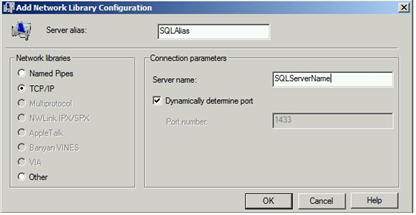
Next we started looking into the SQL server alias configurations. You can create aliases using SQL Server Client Network Utility. These aliases need to be implemented on each BizTalk Servers in the group.
There are two cliconfig.exe on the BizTalk server
- C:WindowsSystem32cliconfg.exe (64bit) and
- C:WindowsSysWOW64cliconfg.exe (32bit)
But the alias was only configured using the 64bit cliconfig.exe and not with 32bit.
Once we configured the alisa using 32bit cliconfig.exe, we got rid of the error and BizTalk configured successfully.
So basically the SQL server alias must be configured using both cliconfig.exe, 32bit and 64bit otherwise you might get the error – SSO service failed to start.
Related Links
https://blogs.msdn.microsoft.com/biztalknotes/2013/05/15/biztalk-and-sql-server-alias/
https://msdn.microsoft.com/en-us/library/aa577661.aspx
by Eldert Grootenboer | Jul 6, 2017 | BizTalk Community Blogs via Syndication
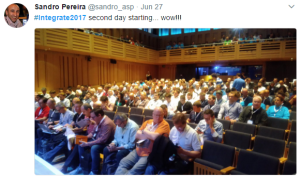
Last week, June 26th to 28th, Integrate 2017 was once again held in London. This is the largest integration centered event, and a great way to have fun with the community, see amazing sessions, and get to meet the product groups. I have been to these events since the beginning, and have seen it grow into one of the best events around.
Last year at Integrate, we got introduced to the vision of Hybrid Integration, a way of seamlessly integrating across the cloud and on-premises. This year, what we saw was a matured vision, with all the bits and pieces falling into place, and giving us the tools to build great solutions. I think Microsoft made a good bet on this, as we see more and more of these hybrid integrations being built at our customers, where some of the data or logic will remain on premises, but they do want to leverage the power and flexibility of Azure.
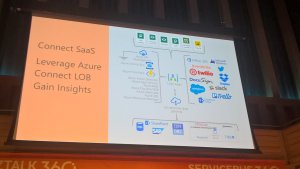
The Microsoft teams as well as the MVP’s had very engaging sessions, which truly inspired people to get their hands on all the parts of the hybrid platform.
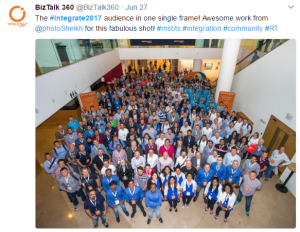
I always love seeing the sessions, getting the latest information, and being inspired, but the best part of these events to me is the interaction with the community. I think we have one of the best communities around, and so it’s great to catch up with old friends from around the globe, and of course making a lot of new friends as well. I recommend anyone to visit one of these events for themselves, and just say hi to people you do not know yet. People are always willing to have a chat, share their inspiration and experiences, and catch a beer afterwards.
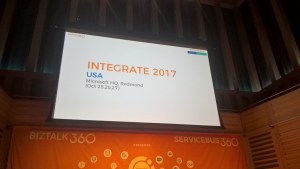
And for those who can’t wait another year for Integrate, there’s good news, as we will be having an Integrate in Redmond, on October 25th to 27th. If you could not come to London, or just can’t get enough of Integrate and our amazing community, be sure to come. I’m looking forward to seeing you there, so come and say hi.
As one of the global organizers of the Global Integration Bootcamp, I am proud to say we have also presented next year’s version of this global event. We will be holding GIB2018 on March 24th 2018, if you want to host your own location just drop us a line. The website will be updated soon, but you can already find our contact details there.
Of course, I am not the only one posting about this year’s amazing Integrate, there are already a couple of great recaps out there, here are some you cannot miss.
BizTalk360
Kent Weare
Steef-Jan
Daniel Toomey
Wagner Silveira
Codit