by Mekala Ramesh | Aug 29, 2018 | BizTalk Community Blogs via Syndication
Introducing new capability “Add/Remove” column headers
Here is another interesting capability, we are transporting in our upcoming version. Tired of filtering data using the static predefined columns? Hereafter, no worries. Grid columns in BizTalk360 are getting a fresh look. You can customize the column headers which are most important to your business scenario.
What is this new implementation?
Grid columns can be dynamically removed or added based on the user preference. As per the settings in the configuration section, columns will be aligned and displayed in the grid view. These customized column settings can be saved for future reference as well. We are sure, this capability will add more value when the administrator is looking for the instances/messages based on various conditions.
As an initial phase, this implementation has been done in the following areas in BizTalk360:
- Message Box Queries
- Graphical Flow (Tracking)
- Electronic Data Interchange
Why we implemented the Additional column filters in BizTalk360?
Let’s take an example. For a healthy working system, all the service instances must complete message processing successfully and clean up periodically. For this, the administrator keeps an eye on the message box queries interface for any instances hanging in error states like suspended (Resumable) and suspended (Non-Resumable). The administrator may look for errors based on specific parameters like Service Instance ID, Service Type ID, URI. In such cases, BizTalk360 has limited static columns (Service Name, Application, Service Class, Status, Creation Time and few more) to fetch and view the information in the Message Box database and for few other features.
We constantly listen to our customers’ feedback and ensure necessary improvements are made in the product regularly. These improvements will ease their day to day operations of their BizTalk Server environment. Therefore, this new capability called “Add/Remove grid columns” is implemented.
Hide or show a column
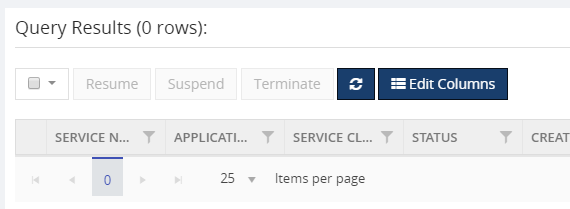
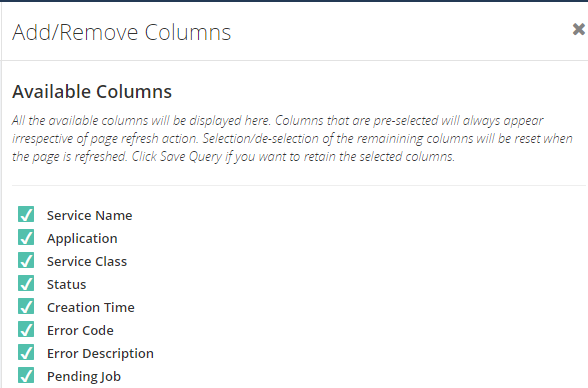
In the corresponding sections (Message Box Queries, Graphical Flow (Tracking), Electronic Data Interchange) there is a new option introduced “Edit Columns”. Through this, all the possible columns will be listed, which are essential to filter the data. Based on the (de)selection, columns are displayed or removed from the grid view. This functionality enables the user to choose the columns which are required to be shown in the grids.
Filtering context promoted properties made easy
As you all probably know, there are two types of properties in the context of the messages:
- MessageDataPropertyBased (Message Properties)
- MessageContextPropertyBased (Context Properties)
Basically, to process and track the messages, some properties will be promoted during the transaction. The promotion of the properties varies based on different business scenarios.
Let’s consider a scenario. Suppose a particular message got a huge number of properties promoted and the administrator wanted to narrow down the search in BizTalk360. Until our previous versions that would be a difficult task.
This search is simplified by now by making use of this new capability. You can select the important context promoted properties and save it. This customized setting will be there in the tool until the user prefers to delete the saved query. Following screenshots will provide an insight of how this new feature eases the operation of administrators.
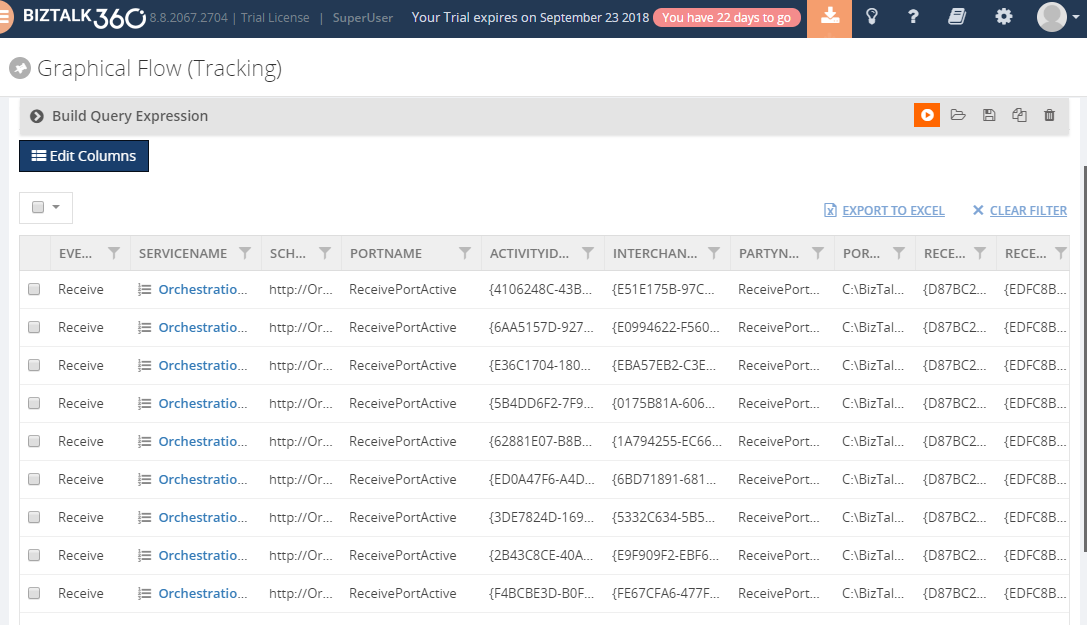
Below screenshot represents the column grid view when the message has quite a number of context promoted properties. Data is accessed and visible, only the column headers are resized.
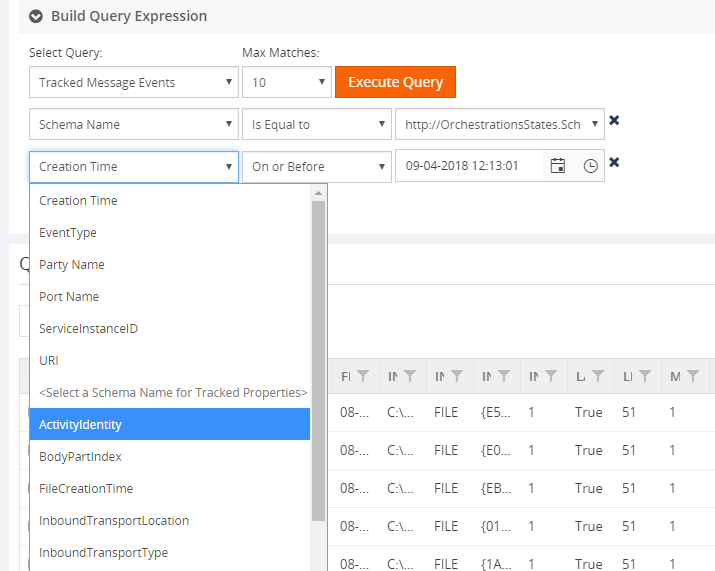
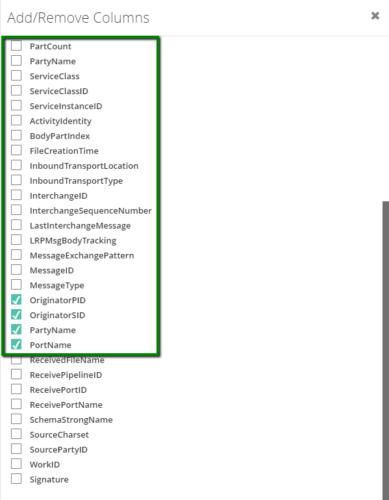
After executing the query, the result grid shows up, including the context properties. To make the screen more useful, you can select which fields you want to see in the grid and which ones don’t need to be shown.

Below, the configuration screen to select and deselect the columns.
Once the needed fields have been selected in the configuration screen, the grid immediately reflects that configuration.
How does BizTalk360 save the customized column settings?
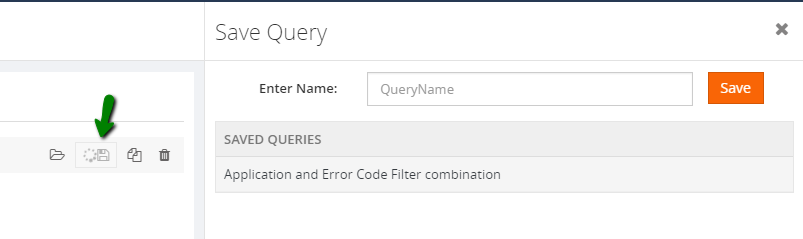
BizTalk360 allows saving as many patterns as the user wants. I mean, to search the messages based on different scenarios, admins prefer different filter conditions to validate. In those situations, BizTalk360 allows to save different query filters and keeps them for future use.
Let me give you a detailed example. If you want to search for service instances based only on the applications and Error code, you just select those columns in the configurations screen. This change makes the grid realign based on the selection with applications and error code columns. The second step would be to preserve the selected columns for future reference. To achieve that, you need to save the query. This way, you can retrieve the same query, including the same context properties, in the future.
Easy migration from one environment to another
This is another interesting existing capability, we are having in BizTalk360. As a best practice to protect the production environment, all the data settings and testing are carried out in non-production and UAT environments.
If all the configurations are done in those environments and BizTalk360 is ready to be deployed to the production environment, users don’t need to worry about the recreation of those configurations in the new environment as this is where our import and export capability plays a vital role. Just by the click of a button in the UI, you will be able to export and import all the data between source and destination environment.
Download the customized column data using the Export to Excel capability
This is not a new capability in BizTalk360. As we enhanced, to support the column customization, users can also download this data by using the Export to Excel capability.
Conclusion
We believe this new capability will provide extensive search ability and get the desired result in a blink of an eye. Happy migrating and try BizTalk360!!!
Get started with the free 30 days trial. For any queries/feedback please write to us [email protected].
Author: Mekala Ramesh
Test Lead at BizTalk360 – Software Testing Engineer having diverse exposure in various features and application testing with a comprehensive understanding of all aspects of SDLC. Strong knowledge to establish the testing process from the scratch. Love to test the software product to deliver it with good quality. Strongly believes on “Testing goes beyond just executing the test protocol”. View all posts by Mekala Ramesh
by Senthil Palanisamy | Aug 2, 2018 | BizTalk Community Blogs via Syndication
Introduction
Most of users prefer to install BizTalk360 in a standalone sever. Importantly, this approach does not overload the BizTalk environment or the BizTalk360 instance. Quite often, BizTalk360 database is configured in the same SQL Server instance as where BizTalk databases resides. In this case, configuring database in a separate SQL Server Instance for better performance and disk usage. Considering this fact, customers are acquiring a dedicated SQL Server for the BizTalk360 database. Meanwhile, few customers are using SQL Server Express edition, when they don’t prefer to buy a separate license for SQL Server. This article covers things that need to be considered when BizTalk360 with SQL Server Express Edition.
Customer Scenario
BizTalk360 is installed on a standalone server with all components, which are:
- The database
- The web portal
- The monitoring
- The analytics services
The customer has installed SQL Server 2017 Express edition
SQL Server Express Edition
Let us see features and limitations of SQL Server Express edition.
Features
- There is no requirement of license for using it, as it is free for distribution
- It is an easy to use version, designed for building simple data driven applications
- Applications develop faster through the deep integration with Visual Web Developer, Visual Studio, and so on
- Easy to create and share reports that answer complex questions through basic reporting services
- Provides backup and restore functionality and compatibility with all its versions
Limitations
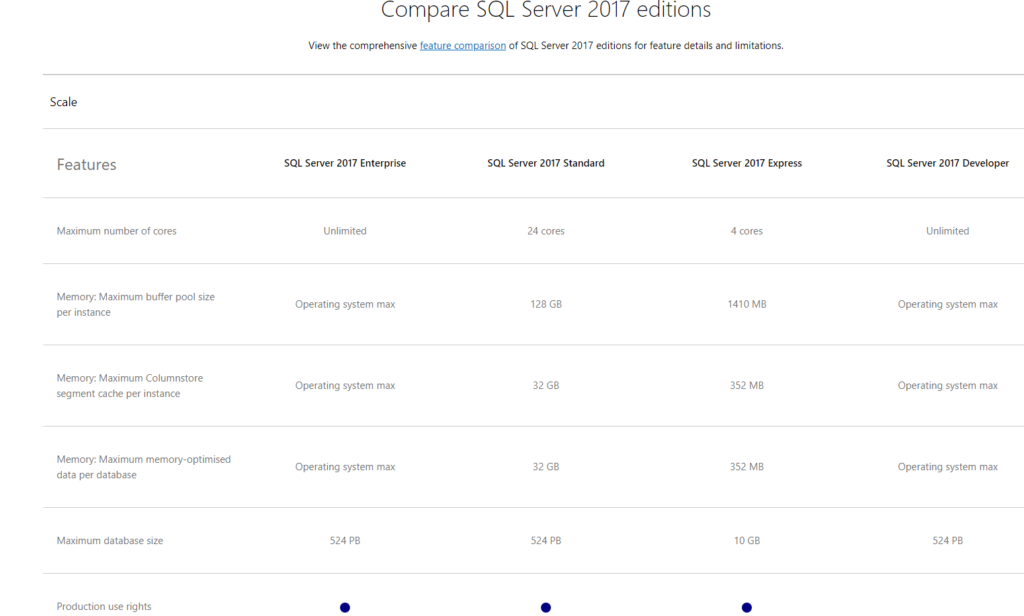
- SQL Server Express can be installed on a server with many CPUs. But, it can use only one CPU at a time and 4GB database size limit was there for SQL2005/2008 but after 2008R2 it has been increased to up to 10GB for each database. For this limit, only the size of the Data file is considered. The size of the Log file is not relevant
- Can use a maximum of 1GB memory for temporarily storing the data while it is being transferred from one place to the other
- The performance analysis tool, Profiles, is not included with the SQL Server Express edition
- The functionality to create and attach a schedule to a job (Job Scheduler) is not available with the express edition
- You cannot import or export the data with the SQL server express as this feature is also not available
BizTalk360 as Lightweight
Under this circumstance, user must take care few considerations in BizTalk360 to keep the size of database within the value supported by SQL Express Edition. For better performance of data processing, make sure you keep the database as light as possible.
The following configuration will help to maintain BizTalk360 database as lightweight:
- Event Log
- Analytics
- Data Purging
Event Log
In a BizTalk environment it’s important to monitor the Event Log to avoid any activities blocked at the back-end. A BizTalk Administrator’s main job is to keep BizTalk System Resources, Disk Usage and Database processes 100% healthy!
BizTalk360 collects Event Log data based on configured Event Logs and Event Log Sources. With this collected data, the BizTalk360 Monitoring service will send notifications based on configuration (Threshold and Data Monitoring). From the Operations section, Event Log data access functionality is also available with all kind of filtering capabilities. In BizTalk Reporting Analytics, the Event Log widget is populating the report with “Top 10” Event Log sources.
Event Log data collection will need more space based on the configured number of sources and the number of physical BizTalk Servers and SQL Servers in an environment. We can see the possibility to reduce the amount of event log data collection by:
- Configure just the important Event Log type and sources you want to monitor
- Enable Event Log data collection only at the physical server level (BizTalk/SQL) for which Event Log monitoring is important
Analytics
In a BizTalk production environment most of the users are using the BizTalk360 Analytics capabilities. The ‘Analytics’ section has the Performance Analyser functionality, the Messaging Patterns and the Throttling Analyser. The BizTalk360 services are also collecting data to generate the graphical widgets which are shown in multiple dashboards. Both Throttling and Performance data are collected every 15 secs. In a complex BizTalk environment data collection is at considerable size.
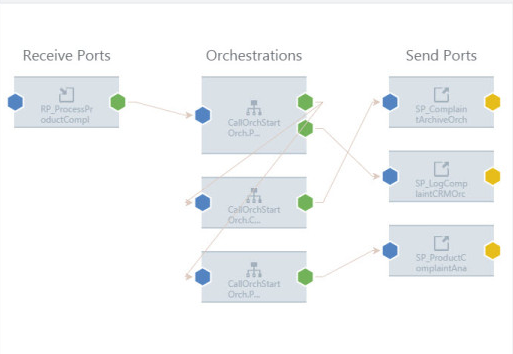
BizTalk Artifacts tracking is enabled at port level and at pipeline level. BizTalk360 uses its Analytics service to determine Message Patterns are by querying tracking data which is collected from the BizTalkDTADb. Similarly, tracking data is used to visualize messaging performance by port and by pipeline.
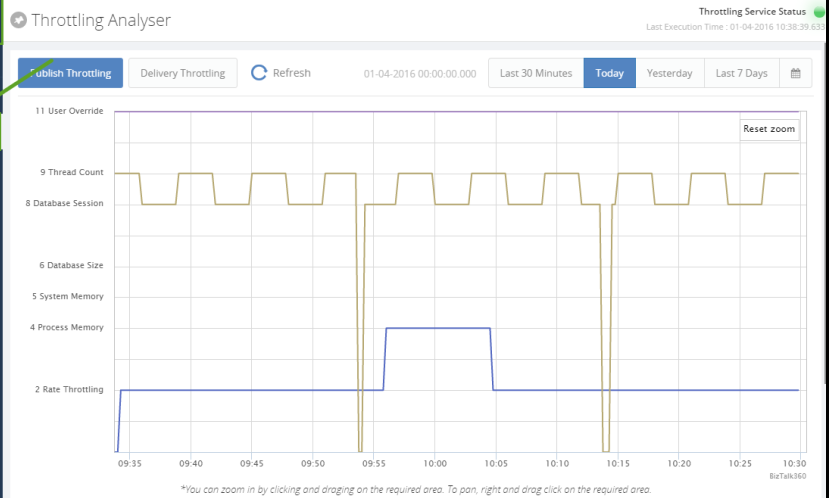
The Analytics service is responsible for collecting the Throttling Performance Counter data from all the BizTalk servers in the environment. The BizTalk360 Throttling Analyser helps to simplify the complexity in understanding BizTalk throttling mechanism and provide a simple dashboard view.
Users can observe the ways to optimize the data collection;
- Disable unnecessary tracking (Port and Pipeline). When possible, try to limit to Event tracking and prevent using Message body and context tracking, it will also boost performance of the BizTalk Tracking database
- Configure requirement performance counters in an environment to boost the data collection
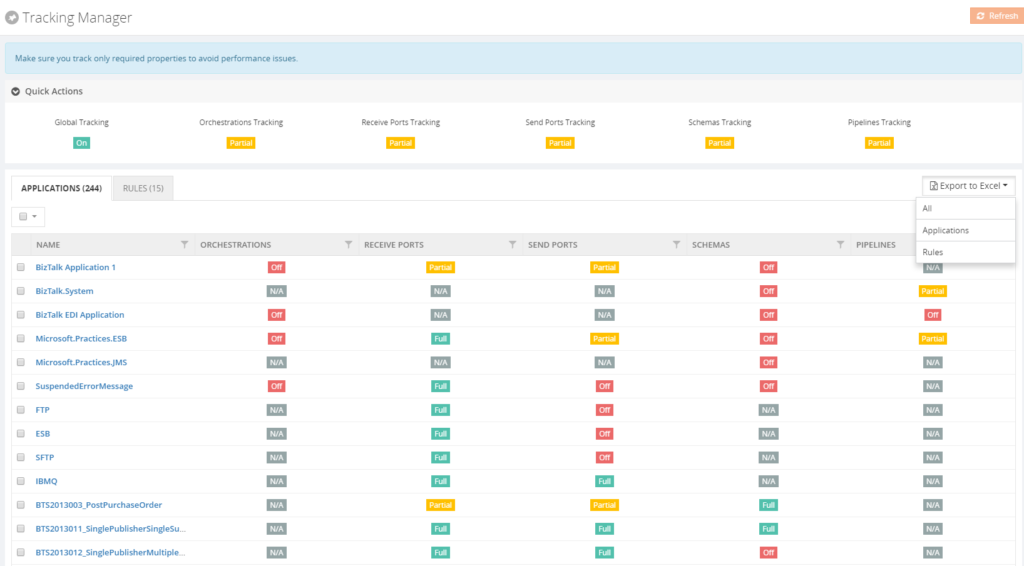
To be able to get a good overview of all the Tracking settings within your BizTalk environment and to configure these settings in one consolidated screen, you can use the Advanced Tracking Manager.
Data Purging
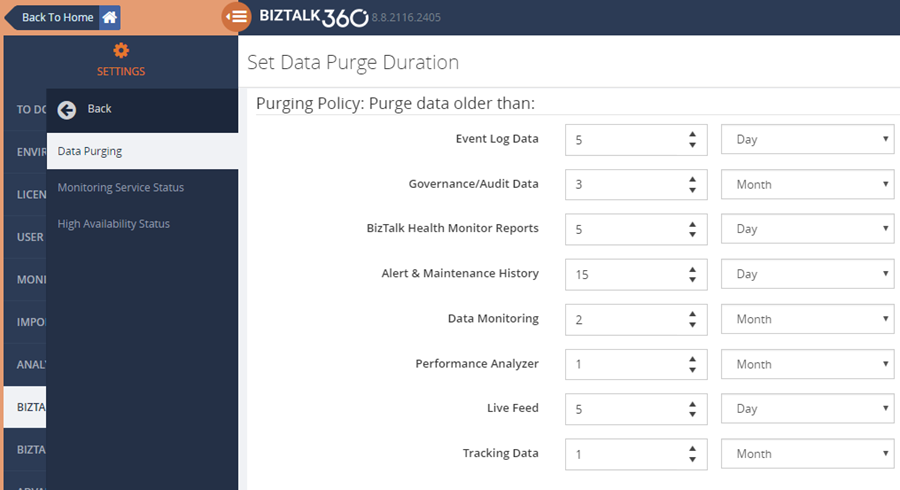
BizTalk360 comes out of the box with the ability to set purging duration. The background Monitoring service has the capability to purge older data automatically after a specified period. Data purging is configurable for different activities in which can be found under BizTalk360 Settings > Data Purging. Through this feature, you can control the size of data of the BizTalk360 database.
Compromising Performance and Storage?
We have seen about the performance and the size of data with several features in BizTalk360. Using SQL Express edition with 4 CPU Cores, 1410 MB of buffer pool size and storage of 10 GB in a BizTalk Production environment is critical. A BizTalk/Database administrator must monitor the size of the database by setting purging policies to a minimum period for data persistence.
Conclusion
Consider using SQL Express edition with BizTalk360 based on case by case as we discussed.
- Using SQL Express Edition in a critical production environment is not suggested as it compromises performance and data storage. For those BizTalk environments with more than one BizTalk servers, we advise to use a higher edition of SQL Server
- In Non-Production environments install different BizTalk360 instances by considering
- Enable important Event Log source to data collection.
- Another key point is configure single BizTalk environment in a BizTalk360 Instance.
- Periodically check the size of database and optimize the collected data.
Author: Senthil Palanisamy
Senthil Palanisamy is the Technical Lead at BizTalk360 having 12 years of experience in Microsoft Technologies. Worked various products across domains like Health Care, Energy and Retail. View all posts by Senthil Palanisamy
by Senthil Palanisamy | Jun 27, 2018 | BizTalk Community Blogs via Syndication
Introduction
Import/Export is an important capability to manage configurations in complex environments. It facilitates that configuration can be exported and imported across multiple environments like Production, Staging, QA. BizTalk360 helped its customers by providing alarm import/export confirmation for many releases now. This feature can also be used as a backup mechanism of BizTalk360 configurations, in case you want to setup a new instance of BizTalk360.
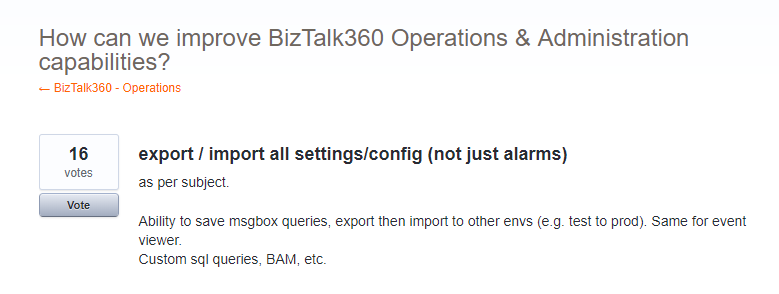
In feedback portal, many customers requested us to extend the existing functionality to other sections of the product, like User Access Policies, Secure SQL Queries, Saved queries configuration, Knowledge Base, Dashboards & Widgets and BizTalk Reporting configurations.
Real Time Scenarios
Let us see scenarios where import/export configurations can be used quite frequently.
Scenario 1
When your organization has deployed BizTalk360 on one of the Development/QA/UAT environment(s) and made lots of monitoring, user, SQL queries configurations, at some point in time, you would want to move all these configurations to the Production environment. The BizTalk360 administrator must do the usual practice to set up the configurations manually in production environment. If there are just a handful of alarm configurations/user configuration, this is a feasible option for the BizTalk360 administrator. However, if there are many configurations (100, 200, or even 500), it becomes a painstaking process for BizTalk360 administrator to manually create each alarm and its associated monitoring configurations in the production environment. Besides that, it’s just an awful amount of work, creating the configuration is also error prone.
Scenario 2
In downward scenario, when an issue happened in Production, for example in the Data Monitoring capability, when you try to action on Suspended Service Instances. By simply exporting the configuration(s) from Production and import the configuration into the Staging environment, you might just be able to replicate the issue.
New Capabilities
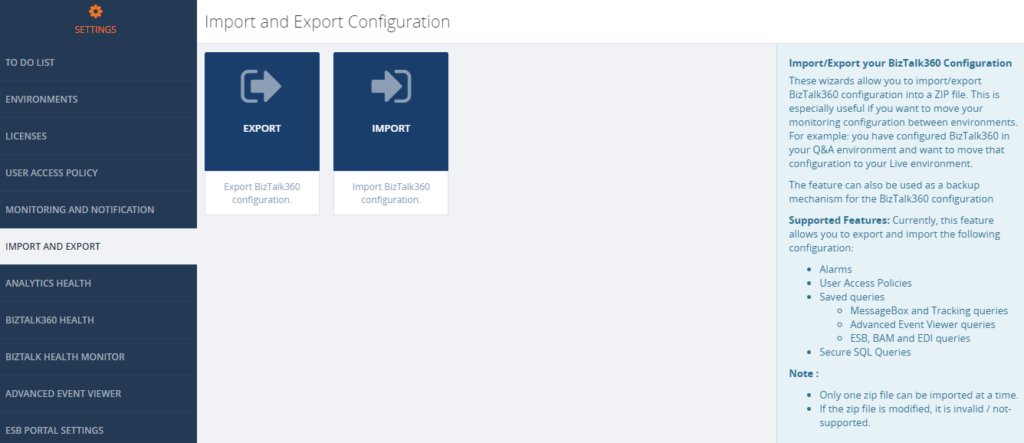
Prior to 8.8, the Import/Export feature is available for Alarm configuration. From version 8.8 onward it is extended to other sections in BizTalk360
- User Access Policies
- Saved Queries
- Message Box and Tracking queries
- BAM, ESB and EDI queries
- Advanced Event Viewer queries
- Secure SQL Queries
The Import/Export configuration feature is available under the Settings section of BizTalk360 web portal. Alarm configuration Export/Import is removed from the Manage Alarms screen in the Monitoring section, so all the full Export/Import configurations feature is incorporated in a single place in the Settings section (Settings -> Import and Export).
Export Configuration
From this version onward, user can pick the configuration they want to export from an environment. For instance, a user can choose desired Alarms and User Access Policy configurations for export. Exporting configurations is a straight forward process; selected configurations are exported in single ZIP File.
Alarm Configuration
Exporting alarm configuration has the same functionality as like previous versions, with additional improvement, to select the desired alarms. To know more detail about alarm configuration, check the Blog written by our founder Saravana Kumar.
User Access Policies
Both Super and Non-Super User Access Policies configuration are available to export . The user can select user access policy configurations they want to export to the other environment.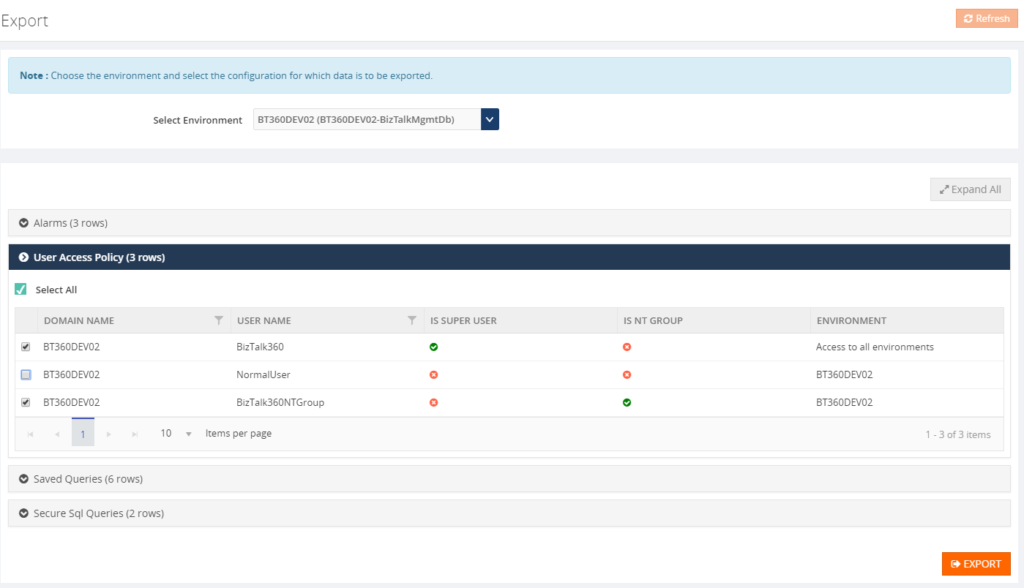
Saved Queries
The user can select the Saved queries configuration to export the data in following sections:
- Message Box Queries
- Advanced Event Viewer
- Graphical Flow (Tracking)
- ESB Exception Data
- Business Activity Monitoring
- Electronic Data Interchange
While selecting the export configuration, the user can choose saved queries sections will be exported. During export, all the queries under the that section will be available in JSON.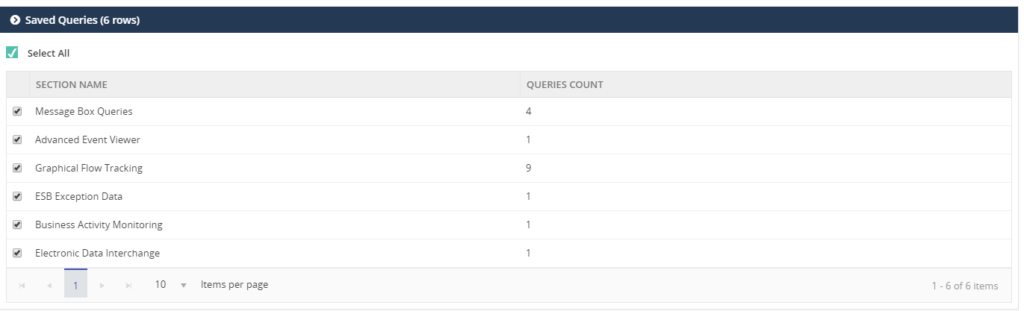
Secure SQL Queries
In Secure SQL query configuration, the user can select the queries they want to export.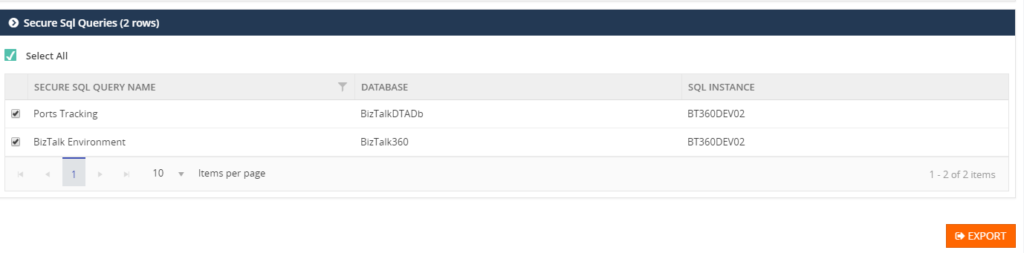
Import Configuration
A user can choose the environment in which they want to import the configurations. First step to import configurations, is to select the exported ZIP File. This will list the configurations which are exported, after which the user can select the configurations which need to be imported.
User Access Policies
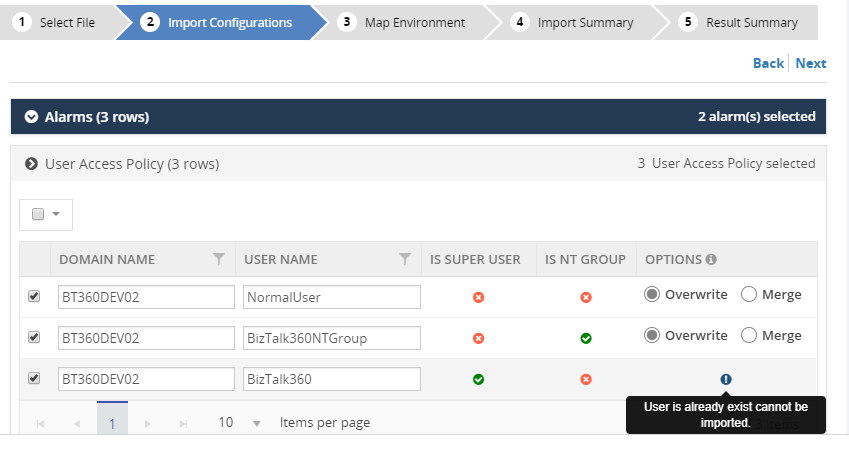
While importing the User Access Policy configuration, there will be three options available. For Super user’s configurations, only the Create option is available, since Super user access all the environments and features based on license policies.
All the three options are available for Non-Super users:
- Create – the create option will be available for both Super and Non-Super user policy configurations.
- Overwrite – this option will replace the existing User Access Policy configuration of the non-super user
- Merge – this option will merge already existing User Access Policies in the destination environment with the policies, which are exported. If, according to the Exported policies, a Non-Super user has permission to edit queries in the Secure SQL Query feature, that means that the same User Access Policy in the destination environment, will permit this feature.
Saved Queries
Similar to exporting configuration, a user selects the sections that need to be imported. This will import all the queries for the selected sections.
Secure SQL Queries
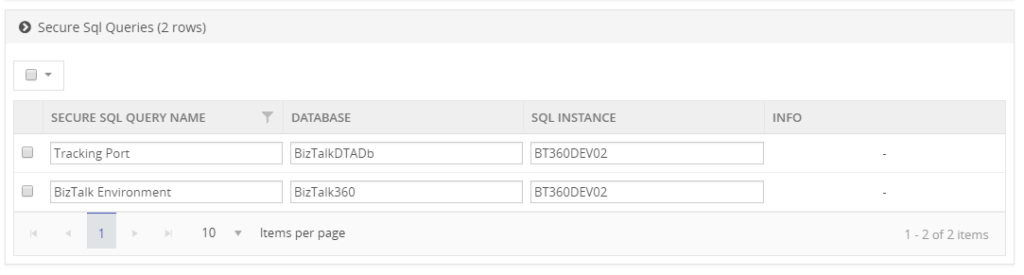
While importing Secure SQL Query configuration, the user can edit the query name, database and SQL Instance, according to the destination environment. If the Secure SQL Query configuration is already available, then the Override option is applied, otherwise it will create a new query.
Result Summary
The user confirms the import operation by clicking the Import button. Once the import process is completed it will produce the Imported Result Summary. This Summary might look like shown below.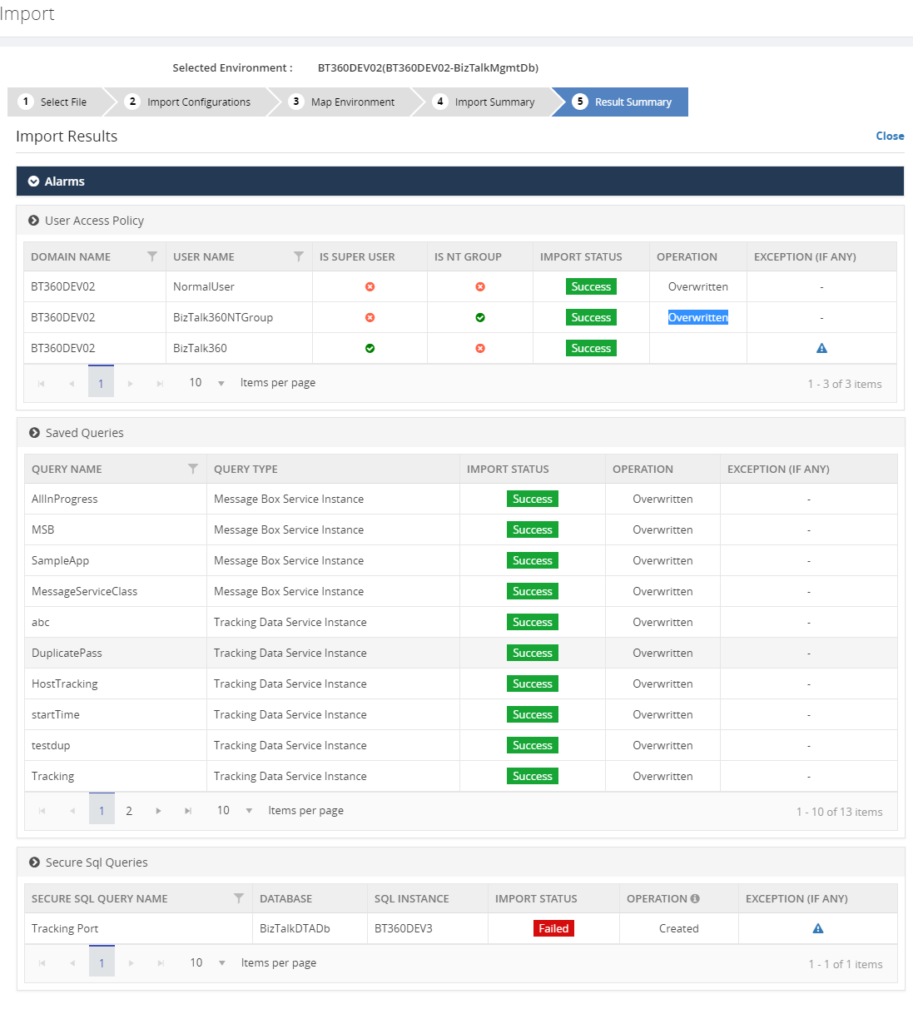
Next set of Configuration
For the upcoming release, version 8.9, the following Import/Export configurations sections are under development pipeline:
- Knowledge Base
- BizTalk Reporting
- Dashboard
- Custom Widgets
Conclusion
The Import/Export configuration feature is useful with respect to back-up of, amongst others, user and alarm configurations and increase productivity by sharing the configuration between multiple environments. In future releases of BizTalk360, we will bring more export/import features, to make the experience as rich as possible.
If you have any suggestions what kind of date you would like to transfer between BizTalk environments, feel free to let us know by entering a request on our Feedback portal.
Author: Senthil Palanisamy
Senthil Palanisamy is the Technical Lead at BizTalk360 having 12 years of experience in Microsoft Technologies. Worked various products across domains like Health Care, Energy and Retail. View all posts by Senthil Palanisamy
by Lex Hegt | Jun 13, 2018 | BizTalk Community Blogs via Syndication
Why do we need this feature?
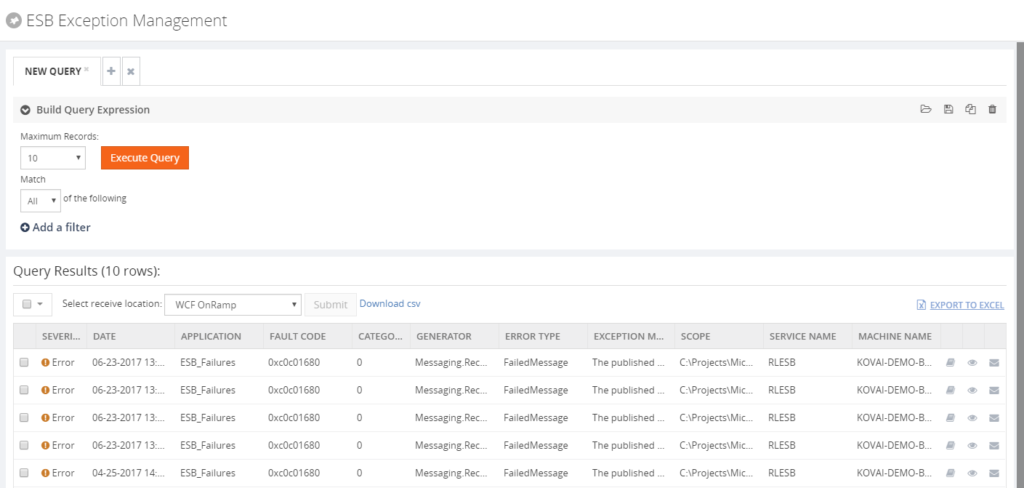
One of the tools which come with BizTalk Server is the Enterprise Service Bus (ESB) Toolkit. Although the ESB Toolkit is a collection of tools that extend the service-oriented capabilities of BizTalk, the Exception Management capability is one of the most widely used features of the ESB Toolkit. This feature allows you to perform Exception Management in a centralized manner, which can be a great benefit.
What are the current challenges?
See below for a list of challenges while using the out-of-the-box ESB Toolkit portal, which comes with BizTalk Server:
- Bad quality portal
- Lack of statistic information
- No security/auditing
- No monitoring
Bad quality portal
Even though the Exception Management framework is very robust and strong, the Exception Management Portal that comes out of BizTalk Server is not that easy to configure (takes about 1 or 2 days to configure the default portal successfully).
Besides the quality of the portal, the ESB portal is yet another portal, users need to be aware of in their day to day operations with BizTalk Server.
Lack of statistic information
Further, the ESB Toolkit gives no overview of for example the amount of ESB Exceptions that occurred, the number of itineraries processed or the number of resubmissions. This kind of information can be of vital value to know if the processes are all in a healthy state.
No security/auditing
Also, no security and auditing is in place for this portal. Anybody with access to the portal can view the exceptions, edit messages and resubmit them, which exposes its own risks.
No Monitoring
To be able to keep an eye on the ESB processes, it is handy to monitor these processes. Unfortunately, with the ESB Toolkit, no such capability exists.
How BizTalk360 solves this problem?
BizTalk360 addresses these challenges in a number of ways. Firstly, the portal from the ESB Toolkit is replaced with a portal within BizTalk360. As with all features within BizTalk360, this portal is protected with security and auditing. The following policies are available:
- Using the portal
- Being able to resubmit messages
To be able to repair ESB Faults, there is an Edit and Resubmit feature. To make repair even easier, you can write and associate Knowledge Base articles to the ESB Faults. So in case of recurring problems, you can simply document the solution in such a KB article and associate it with the ESB Fault, thereby making repairs in the future easier.
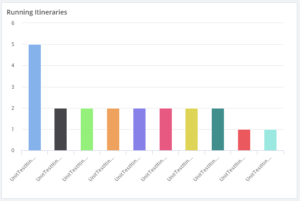
 For having a good overview of the ESB processes, BizTalk360 provides a customizable ESB Dashboard. You can create dashboards based on different categories of widgets, which are:
- ESB Fault count
- ESB Resubmission
- ESB Itineraries
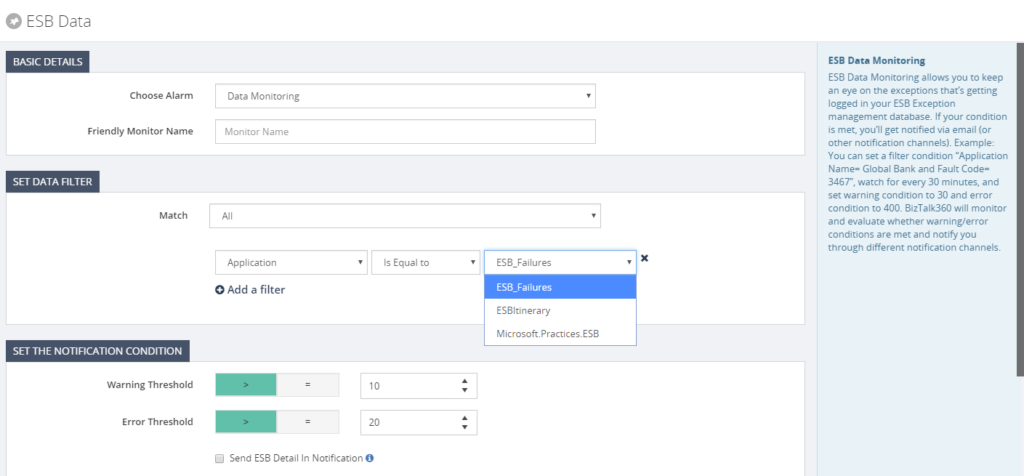
Besides the ESB Dashboard, there is also the Data Monitoring feature in BizTalk360. In case of ESB, this will help you in making sure all the ESB processes run like expected.
With the ESB Exception Portal and all the other ESB focussed features, we think that we have brought another good feature to the product, taking away the need to use the out-of-the box features, while empowering the users with relevant other features.
Author: Lex Hegt
Lex Hegt works in the IT sector for more than 25 years, mainly in roles as developer and administrator. He works with BizTalk since BizTalk Server 2004. Currently he is a Technical Lead at BizTalk360. View all posts by Lex Hegt
by Lex Hegt | Jun 6, 2018 | BizTalk Community Blogs via Syndication
Why do we need this feature?
Many customers use their BizTalk platform to exchange EDI (Electronic Data Interchange) messages with their partners. BizTalk Server contains a number of features for EDI like Interchange processing, Batch processing and Trading Partner Management.
From an operational viewpoint, all kind of features exist in BizTalk Server and many have found their way to BizTalk360 as well. However, besides querying for running processes, there is no feature which shows the EDI processes from a statistical viewpoint.
What are the current challenges?
Often, BizTalk Server is considered as a black box and organizations with little knowledge of the product, sometimes prefer not to touch it. This behaviour can be quite dangerous as the (EDI) processes in BizTalk Server might not run as expected. So, insight into these processes is required to be able to guarantee everything is okay.
Information like the number of AS2 messages or the transaction count by transaction type or by partner id over a certain period is very useful to determine the well-being of the processes, but cannot be revealed from BizTalk Server.
How BizTalk360 solves this problem?
BizTalk360 tries to breach this black box behaviour by bringing a platform which makes BizTalk Server environments easier to understand and safe to operate on.
Related to EDI, we bring a couple of features:
- EDI Dashboards
- EDI Status Reports
- Reporting Manager
- Parties and Agreements
EDI Dashboards
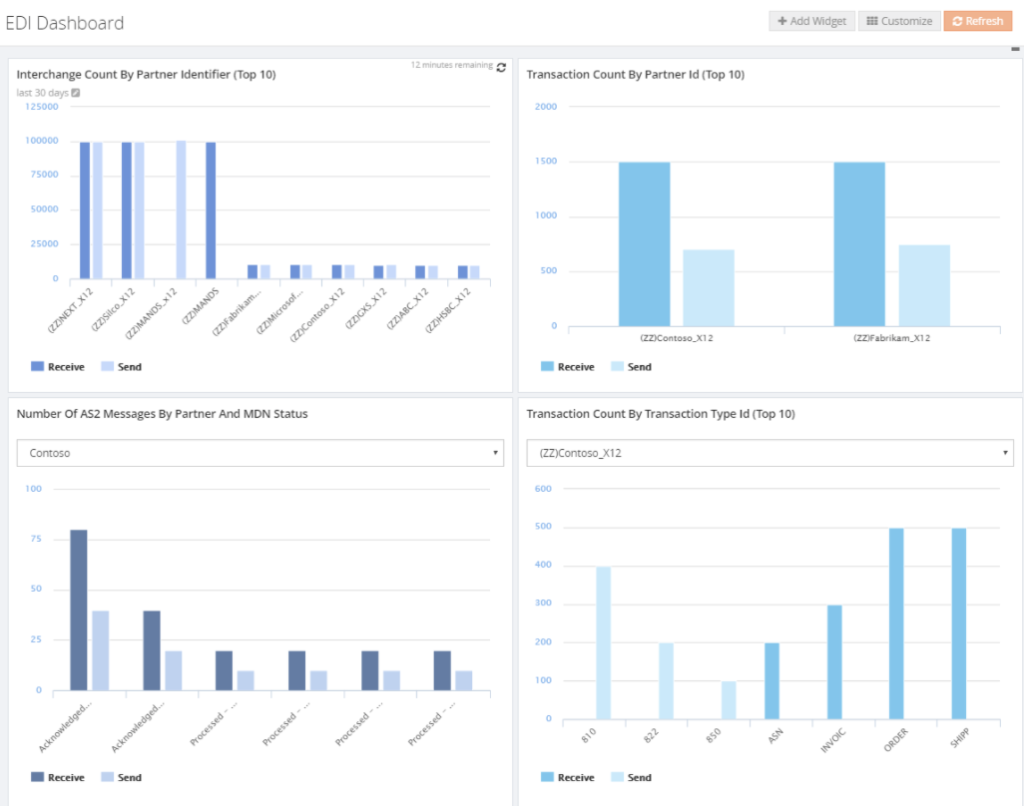
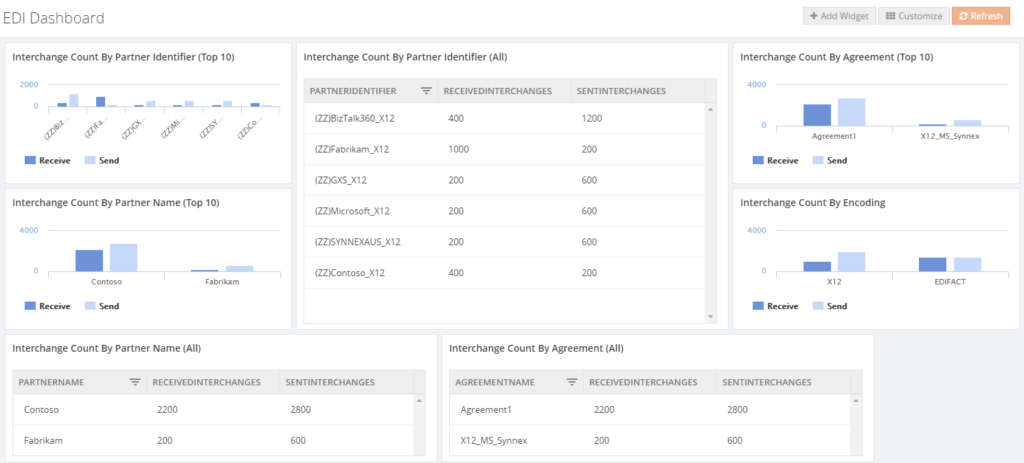
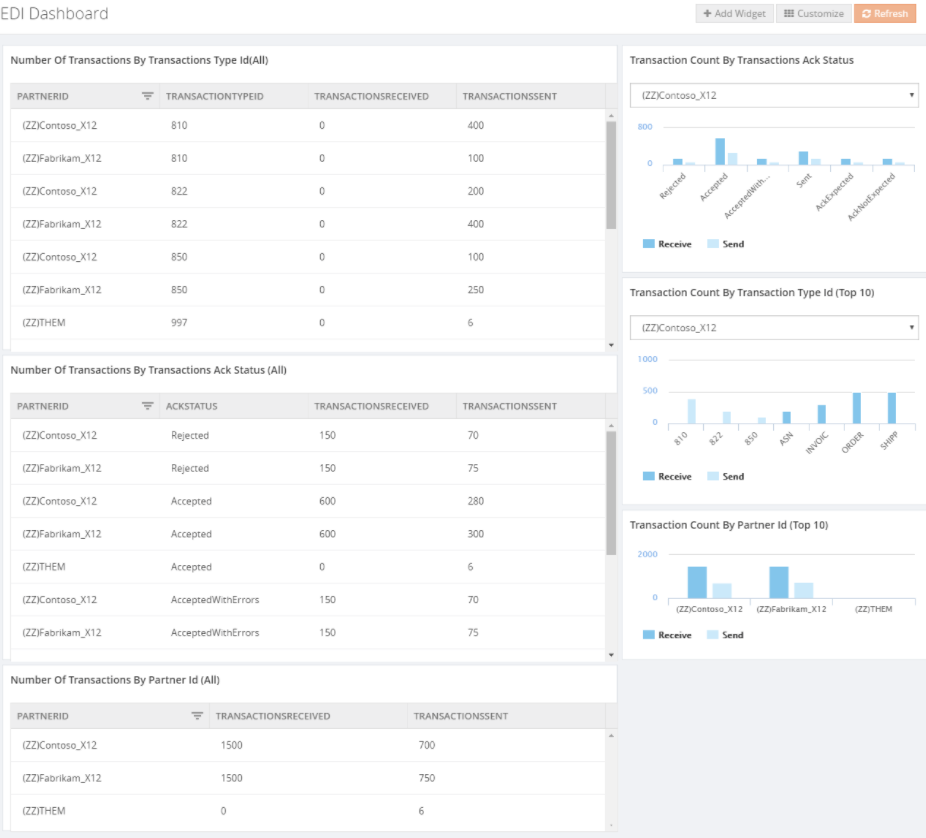
The EDI Dashboard is one of the features which enables the BizTalk user to get insight in what’s going in BizTalk. As the other dashboards in BizTalk360, also the EDI Dashboard is customizable and consists of widgets from different categories. In case of the EDI Dashboard, the following categories exist:
- EDI Interchanges – widgets exist for
- Interchange count by Partner Id/Name
- Agreement
- Encoding (X12/EDIFACT)
- EDI Transaction Sets – widgets exist for
- Transaction count by Partner Id/Name
- Transaction type (filtered by Partner Id)
- ACK Status (filtered by Partner Id)
- EDI AS – widgets exist for
- Number of messages by Partner Id
- Number of messages by Partner Id and MDN status
- Number of messages by MDN status
Below you can view some examples of EDI Dashboards you can create in BizTalk360.
EDI Reports
Comparable to the EDI query features in the BizTalk Administration Console, BizTalk360 brings a Reporting feature. On top of the set of queries you might know from the Admin console, BizTalk360 also provides a Functional ACK Status report.
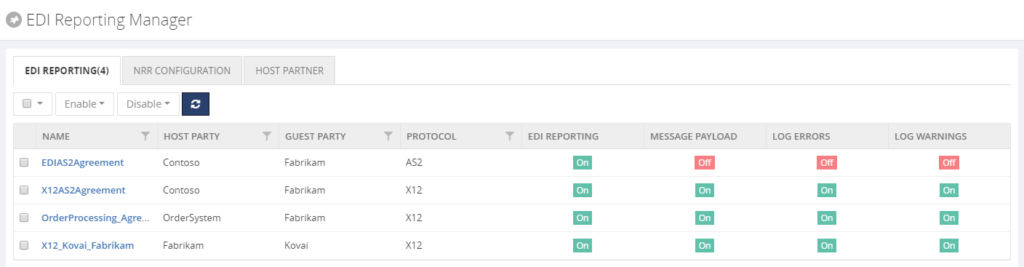
EDI Reporting Manager
For easy configuration of your EDI reports, BizTalk360 brings the EDI Reporting Manager. See below for a screen print of that feature.
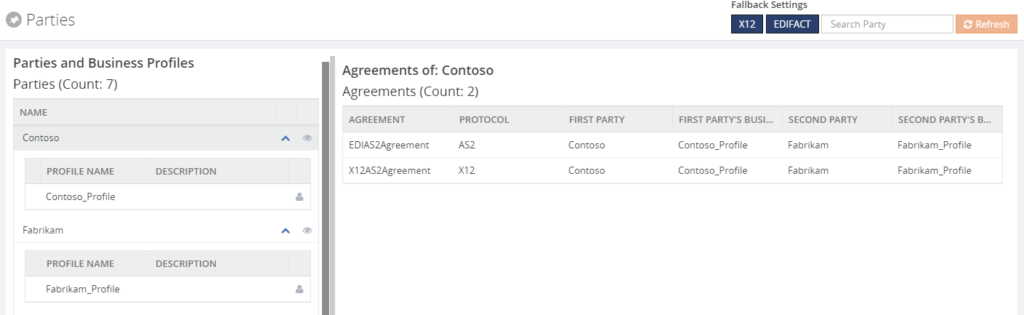
Parties and Agreements
Also the parties and agreements can be viewed in BizTalk360. See below for a screen print of that feature.
By bringing all these features, BizTalk360 gives good visibility of the EDI processes.
Author: Lex Hegt
Lex Hegt works in the IT sector for more than 25 years, mainly in roles as developer and administrator. He works with BizTalk since BizTalk Server 2004. Currently he is a Technical Lead at BizTalk360. View all posts by Lex Hegt
by Lex Hegt | Jun 6, 2018 | BizTalk Community Blogs via Syndication
Why do we need this feature?
Many customers use their BizTalk platform to exchange EDI (Electronic Data Interchange) messages with their partners. BizTalk Server contains a number of features for EDI like Interchange processing, Batch processing and Trading Partner Management.
From an operational viewpoint, all kind of features exist in BizTalk Server and many have found their way to BizTalk360 as well. However, besides querying for running processes, there is no feature which shows the EDI processes from a statistical viewpoint.
What are the current challenges?
Often, BizTalk Server is considered as a black box and organizations with little knowledge of the product, sometimes prefer not to touch it. This behaviour can be quite dangerous as the (EDI) processes in BizTalk Server might not run as expected. So, insight into these processes is required to be able to guarantee everything is okay.
Information like the number of AS2 messages or the transaction count by transaction type or by partner id over a certain period is very useful to determine the well-being of the processes, but cannot be revealed from BizTalk Server.
How BizTalk360 solves this problem?
BizTalk360 tries to breach this black box behaviour by bringing a platform which makes BizTalk Server environments easier to understand and safe to operate on.
Related to EDI, we bring a couple of features:
- EDI Dashboards
- EDI Status Reports
- Reporting Manager
- Parties and Agreements
EDI Dashboards
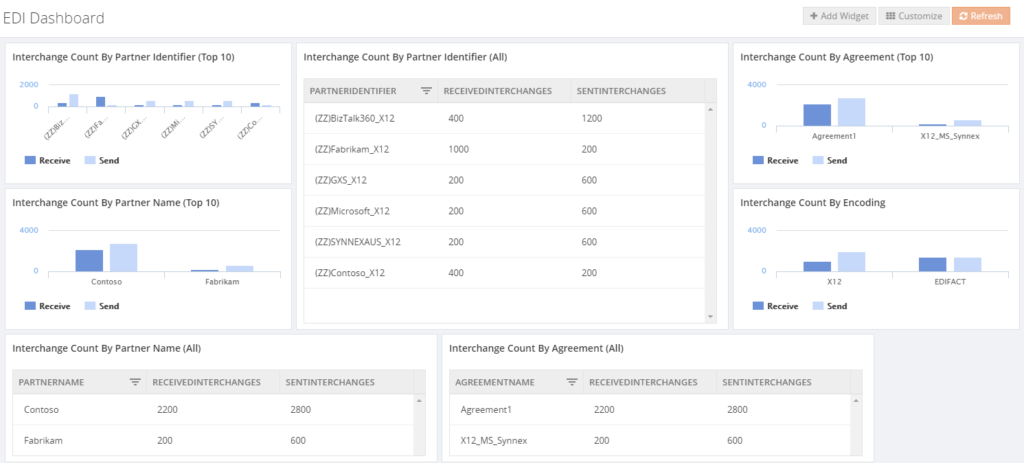
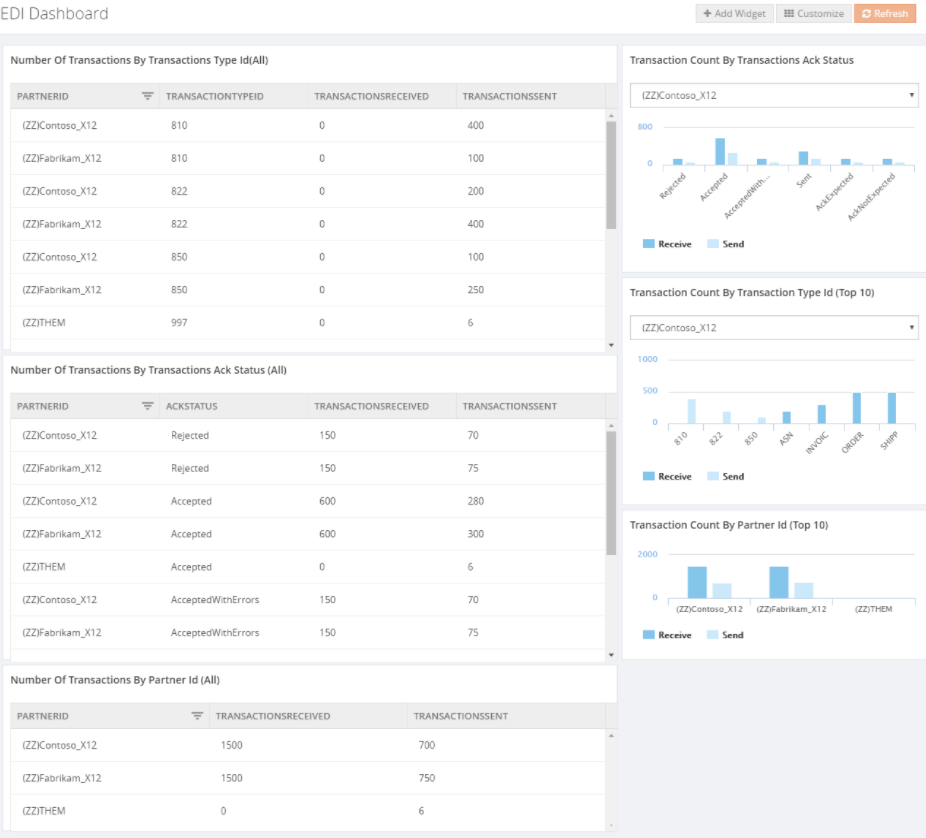
The EDI Dashboard is one of the features which enables the BizTalk user to get insight in what’s going in BizTalk. As the other dashboards in BizTalk360, also the EDI Dashboard is customizable and consists of widgets from different categories. In case of the EDI Dashboard, the following categories exist:
- EDI Interchanges – widgets exist for
- Interchange count by Partner Id/Name
- Agreement
- Encoding (X12/EDIFACT)
- EDI Transaction Sets – widgets exist for
- Transaction count by Partner Id/Name
- Transaction type (filtered by Partner Id)
- ACK Status (filtered by Partner Id)
- EDI AS – widgets exist for
- Number of messages by Partner Id
- Number of messages by Partner Id and MDN status
- Number of messages by MDN status
Below you can view some examples of EDI Dashboards you can create in BizTalk360.

EDI Reports
Comparable to the EDI query features in the BizTalk Administration Console, BizTalk360 brings a Reporting feature. On top of the set of queries you might know from the Admin console, BizTalk360 also provides a Functional ACK Status report.
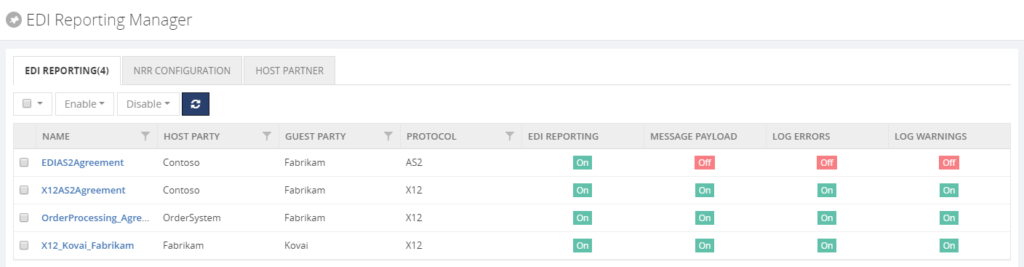
EDI Reporting Manager
For easy configuration of your EDI reports, BizTalk360 brings the EDI Reporting Manager. See below for a screen print of that feature.
Parties and Agreements
Also the parties and agreements can be viewed in BizTalk360. See below for a screen print of that feature.
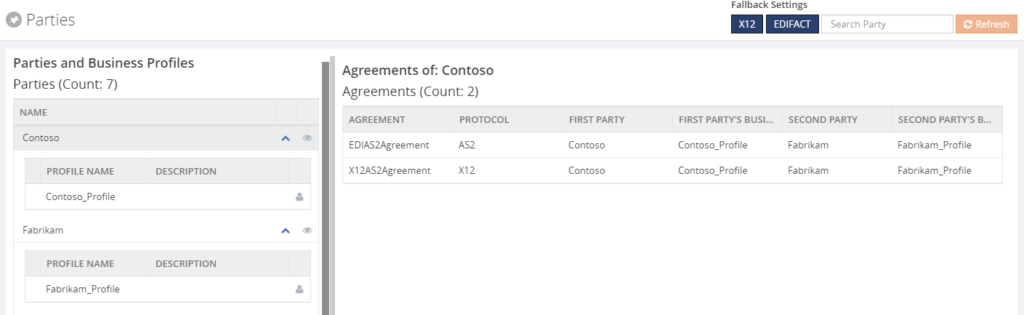
By bringing all these features, BizTalk360 gives good visibility of the EDI processes.
Author: Lex Hegt
Lex Hegt works in the IT sector for more than 25 years, mainly in roles as developer and administrator. He works with BizTalk since BizTalk Server 2004. Currently he is a Technical Lead at BizTalk360. View all posts by Lex Hegt

by Lex Hegt | May 23, 2018 | BizTalk Community Blogs via Syndication

This blog is a part of the series of blog articles we are publishing on the topic “Why we built XYZ feature in BizTalk360”. Read the main article here.
Why do we need this feature?
Although in our experience many BizTalk Server customers are using the BizTalk Rules Engine, many others are not using it. This is a pity because the BizTalk Rules Engine (BRE) can be very beneficial and can reduce the costs of BizTalk development.
The concept behind the BRE, is to empower business users to create and maintain business rules, which can be accessed by their BizTalk processes.
In case such business rules need to be changed, this can be done via the so-called Business Rules Composer, by the business user.
A simple example on how to use the power of the Business Rules Engine, is a business user who works in retail and would like to, temporarily, apply some discounts to certain product groups.
Without the BRE, the user would have to implement a change in his BizTalk solution, which can be time-consuming and rather costly. Especially, as the discounts will have to be reverted after some time.
With the BRE, the user can use the Business Rules Composer to make that change by himself.
The Business Rules Composer tool comes with BizTalk Server and as demonstrated, using this tool is far more cost efficient than having to line up a development team to make the needed change in the BizTalk process, while maybe having to revert the change after short period of time, like we have seen in case of temporarily discounts.
Besides being able to modify business rules with the Business Rules Composer, it is obvious that it is also possible to just view the business rules to gain insight how the business rules are set up.
What are the current challenges?
As mentioned, the BizTalk Server Business Rules Composer enables to view, modify and deploy business rules. There are however a few challenges with the Business Rules Composer:
- It is too technical
- It has no security and auditing
Business Rules Composer is too technical
In most cases the Business Rules Composer is just installed on the BizTalk server(s). Although, from a technical perspective, it is possible to install the Business Rules Composer on a normal desktop computer.
But, even when the business user does have access to the Business Rules Composer, we’ll explain that the Business Rules Composer is too technical in the hands of a business user.
Let’s briefly describe a bit about Business Rules. These rules consist of the following parts:
- Policies – a policy is a collection of one or more business rules. Policies can be created, edited, deleted, versioned, published and deployed. Once a policy is deployed, no more changes can be made to the policy. If changes are needed, a new version of the policy will have to be created.
- Business rules – a business rule can be constructed based on conditions, which will be evaluated by the Business Rules Engine. To construct these business rules, elements of the below mentioned vocabularies can be used.
- Vocabularies – vocabularies contain the components which can be used in the policies. These components can be elements/attributes in a XML schema, fields in a database table or elements in a .NET class. For ease of use, these components can be provided with a friendly (business) name. Just like policies, vocabularies can be versioned and published.
After vocabularies and policies have been created, they can be saved, published and deployed from the Business Rules Composer as well.
It must be quite clear now, that the Business Rules Composer is a powerful tool, but is quite complex at the same time. The tool is suited better for technical people who are well aware of the technical insides. As business users don’t have that knowledge, it will make it hard for business users to use the original Business Rules Composer.
Business Rules Composer has no security and auditing
In the Business Rules Composer which comes with BizTalk Server, there are no security and auditing features. So, once somebody has access to the tool, they have access to all the business rules of the BizTalk environment and can make any kind of changes, without leaving a trace. We think that this is an unacceptable situation.
How BizTalk360 solves this problem?
BizTalk360 offers a web-based counterpart of the Business Rules Composer. As BizTalk360 is web-based, the Business Rules Composer is easier to access than the software which comes with BizTalk Server, as it is quite often just installed on the BizTalk Server.
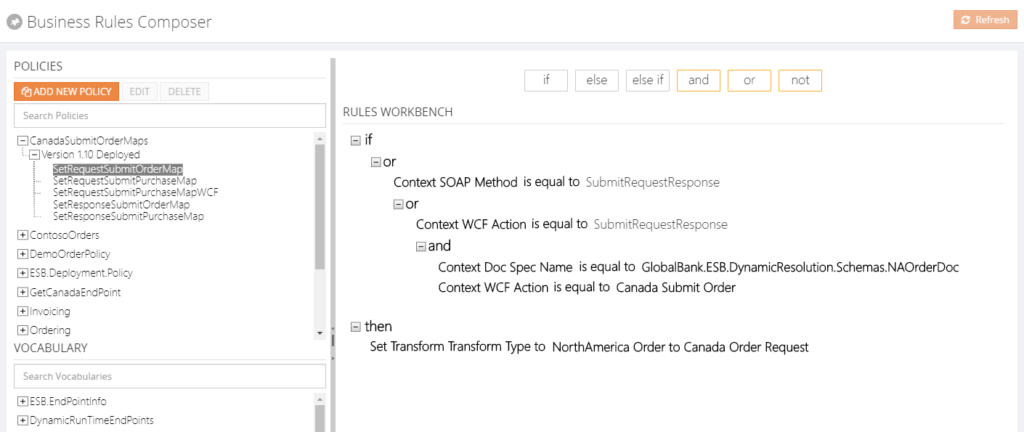 From the BizTalk360 Rules Composer, users can for example:
- Add, edit and remove policies
- Add, edit, test and delete rules
- Publish, deploy and undeploy policies
Security
Once a user has access to BizTalk360, the user can have different authorizations for the Rules Composer of BizTalk360. These authorizations are:
- View rules only
- Create/Save rules
- Deploy/Publish rules
Besides security settings, there is also auditing of activity around business rules in BizTalk360.
By hiding irrelevant technical stuff in the BizTalk360 Business Rules Composer, this tool is better suited for business users than the one from BizTalk Server. Therefore, we only show the Policies and Vocabularies.
Additional features
We also brought some features to the BizTalk360 Business Rules Composer which do not exist in the original tool. Think of for example:
- a Where function – this can be used to query database tables and retrieve the information
- If, Else, Else If – these statements can be applied to the Actions part of the business rule, to be able to create more complex rules
- Date Time Picker – to minimize errors while creating rules, we provide a date time picker for any function that involves picking a date/time
- Download Test Result – besides testing of policies, you can also download XML files, which are modified as result of testing these policies
Conclusion
All in all, the BizTalk360 counterpart of the Business Rules Composer provides similar features as the one from BizTalk Server, while providing easier access, usage and security. By bringing few additional features, we make the feature even more powerful.
Do you want to know more about the Business Rules Composer in BizTalk360? You can read more on our documentation portal:
https://docs.biztalk360.com/docs/web-based-bre-composer-in-biztalk360
Get started with a Free Trial today!
Download and try BizTalk360 on your own environments free for 30 days. Installation will not take more than 5-10 minutes.

Author: Lex Hegt
Lex Hegt works in the IT sector for more than 25 years, mainly in roles as developer and administrator. He works with BizTalk since BizTalk Server 2004. Currently he is a Technical Lead at BizTalk360. View all posts by Lex Hegt
by Lex Hegt | May 16, 2018 | BizTalk Community Blogs via Syndication
Why do we need this feature?
The BizTalk and SQL servers are the heart and the bones of a BizTalk environment. Where the SQL Servers take care of all the database handling for BizTalk, the BizTalk servers take care of the actual message processing.
When something is wrong with one of these servers, changes are that this will affect the overall health of your BizTalk environment. So, it’s obvious that the well-being of the servers has to be considered for the overall well-being of the BizTalk environment. For that reason, administrators need to login to the servers to check the health of the distinct servers and come into action when needed.
What are the current challenges?
To be able to login to all the servers, the administrator needs to set up Remote Desktop connections to all these servers. Logging in, checking all the needed consoles and actioning when needed, can be time-consuming. Besides that, in highly secured environments, the administrator might not have access to the servers, from remote locations.
How BizTalk360 solves this problem?
Given the One platform philosophy after BizTalk360, we made access to the BizTalk and SQL servers from a BizTalk environment easy and secure. As the product retrieves the BizTalk servers of BizTalk environments from their Management database, it can provide easy access to these servers via the UI of BizTalk360. Also the SQL servers can be accessed and actioned from BizTalk360.
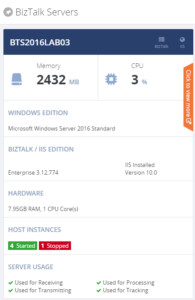
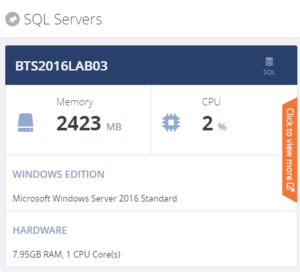
For each server, a number of the key components are shown, so you immediately have an idea on topics like CPU/Memory configuration and usage, installed server products and BizTalk Host configuration.
When you click on the orange strip, you get more detailed information of the server. In case of BizTalk servers you will have access to:
- CPU Usage
- Memory usage
- Server products
- Host Instances
- Event Viewer (Application Log)
- NT Services
You can Stop/Start and Enable/Disable Host Instances. NT Services can be stopped, started and restarted.
For the SQL servers you’ll have access to:
- CPU Usage
- Memory usage
- Server products
- NT Services
NT Services can be stopped, started and restarted.
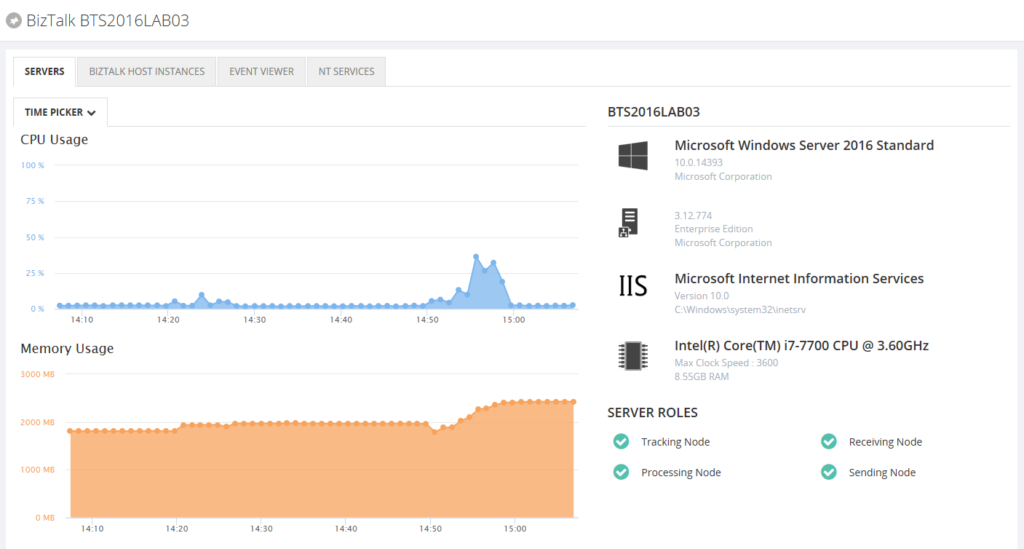
By providing dedicated dashboards for the BizTalk and SQL servers of your BizTalk environment, you have easy access to important server aspects, without the hassle of having to use Remote Desktop connections.
Author: Lex Hegt
Lex Hegt works in the IT sector for more than 25 years, mainly in roles as developer and administrator. He works with BizTalk since BizTalk Server 2004. Currently he is a Technical Lead at BizTalk360. View all posts by Lex Hegt
by Lex Hegt | May 9, 2018 | BizTalk Community Blogs via Syndication
Why do we need this feature?
The BizTalk Health Monitor (BHM) and its predecessor MessageBox Viewer (MBV) are important tools to learn about the overall health of BizTalk environments.
The tools are developed and maintained by Microsoft and firstly used by their Premier Field Engineers, to help them identify problems with BizTalk environments. Later, the tool became publicly available, enabling BizTalk administrators to run the tool themselves as well. Since that time, we have seen many updates of the tools, although MBV is deprecated for few years now.
The BizTalk Health Monitor can be downloaded here:
https://www.microsoft.com/en-us/download/details.aspx?id=43716
The best practice is to run BHM frequently, say once per day at a quiet time, to be aware of overall health and check for any critical issues.
MBV did not offer a built-in scheduler, so you had to schedule it yourself with Windows Scheduler. With the introduction of BHM, the tool came with a plugin, to use it from the BizTalk Server Administration console and it also came with scheduling features.
Once scheduled, you’ll receive the output in the configured mailbox. So you have the fully detailed report easily at hand.
What are the current challenges?
Although it’s good to have the output of MBV/BHM runs in your mailbox, we think that the overall experience still can be improved.
In your day to day activities as a BizTalk administrator, you might receive many notifications in your mailbox. If not setup properly, the amount of notifications might be overwhelming, which might result in starting to ignore the notifications, thereby risking to miss important notifications.
So, you will want to focus on just the notifications which indicate something needs to be taken care of. In case of the MBV/BHM output, you will only be interested in critical and non-critical errors on which some actions must be taken. In other words, if all is healthy, you might not be interested to receive that output at all.
With BHM you will always receive the output, regardless if all is healthy or some (non-)critical issues exist. No clear notification can be received, in case something serious is going on.
Besides that, MBV/BHM is another tool/console you need to be aware of to consider the overall health of a BizTalk environment. As we want to apply our One Platform philosophy as much as possible, we brought integration with MBV/BHM to BizTalk360.
In the next section of this article, we’ll show you how BizTalk360 helps you to improve the experience of BHM and how you can have monitoring on the output of MBV/BHM runs.
How BizTalk360 solves this problem?
BizTalk360 has integration with MBV/BHM for many years. This integration enables the BizTalk360 user to schedule MBV/BHM and view the output of the different runs of the tool directly from within BizTalk360.
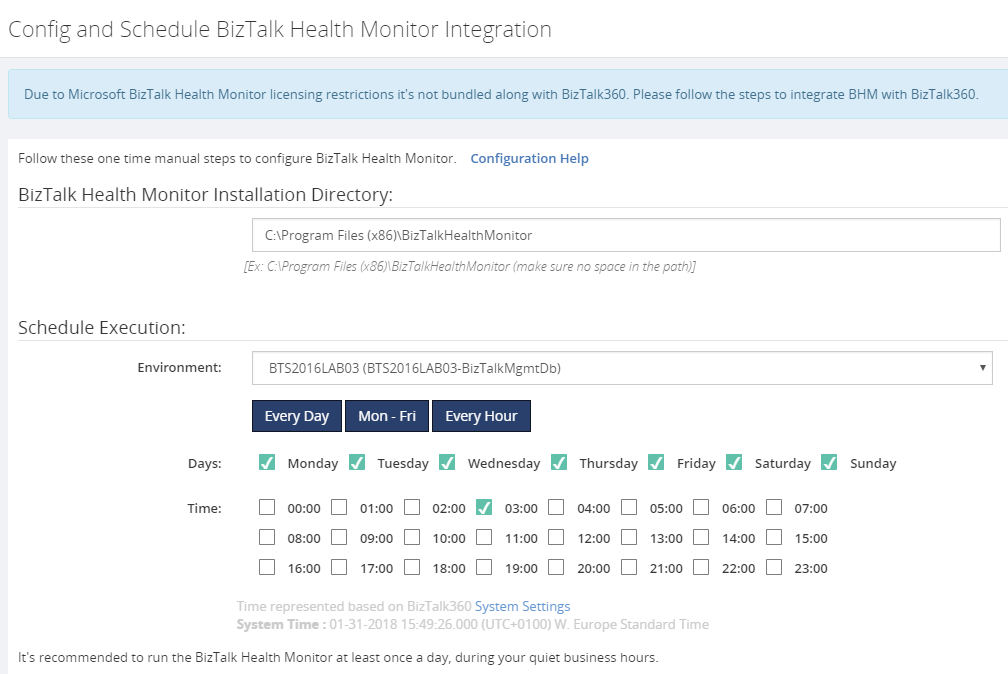
This makes it easy to run MBV/BHM and view its output in BizTalk360, instead of delivering the output of each run to the mailbox of the user.
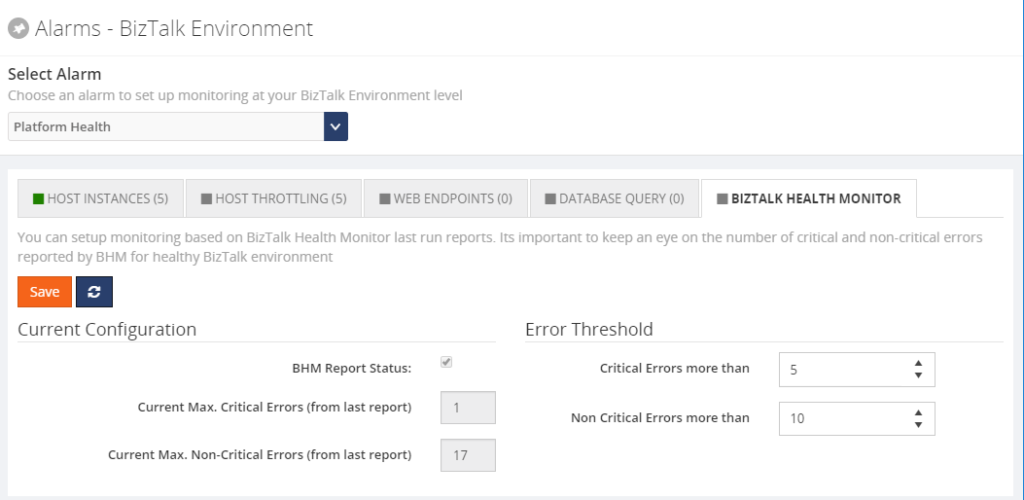
However, this does not yet solve the problem of just being notified in case of critical errors. To achieve that, you can simply add the BizTalk Health Monitor to a BizTalk360 alarm. In BizTalk360, you can do this by navigating to Monitoring => Manage mapping => BizTalk Environment => BizTalk Health Monitor. Here you can configure how many critical or non-critical may occur in the output of BHM, before a notification is being sent.
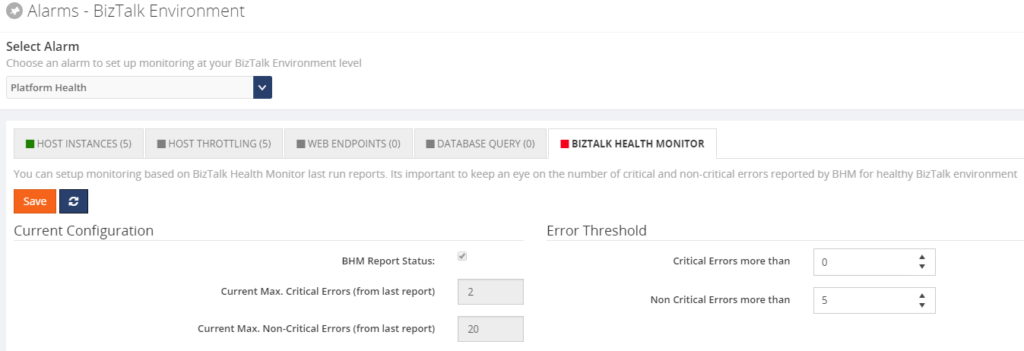
As you can see from above screenshot, under Error Threshold, you can configure how many critical/non-critical errors may exist, before a notification is being sent. From the Current Configuration of the screen, you can see that in the last report there were 2 critical and 20 non-critical errors. So, in above scenario, the error thresholds have been met and a notification will be send.
If you want more fine-grained monitoring of the BHM output, BHM offers you the option to store the output of the BHM runs in a database. Say, you want to monitor on specific categories like Tracking or the BizTalk jobs, you could achieve that with Database query monitoring.
When you would like to know more on how to set this up, feel free to contact us ([email protected]) and we are happy to work with you on the scenario at hand.
Conclusion
The integration of MBV/BHM with BizTalk360 adds to the One platform philosophy. By also bringing monitoring of the output of MBV/BHM, we remove some of the clutter which appears in the mailbox of the user, providing good focus on the topics which really matter. With some customization, you could have even more fine-grained monitoring on the output of BHM.
There are some more articles on MBV/BHM integration. Check them out here:
Get started with a Free Trial today!
If you would like to try BizTalk360, why not give it a try. It takes about 10 minutes to install on your BizTalk environments and you can witness and check the security and productivity on your own BizTalk Environments. Get started with the free 30 days trial.
Author: Lex Hegt
Lex Hegt works in the IT sector for more than 25 years, mainly in roles as developer and administrator. He works with BizTalk since BizTalk Server 2004. Currently he is a Technical Lead at BizTalk360. View all posts by Lex Hegt
by Lex Hegt | May 2, 2018 | BizTalk Community Blogs via Syndication
This blog is a part of the series of blog articles we are publishing on the topic “Why we built XYZ feature in BizTalk360”. Read the main article here.
Why do we need this feature?
The BizTalk Health monitor (BHM) is the successor of the Message Box Viewer (MBV). Both tools have been developed by Microsoft for health analysis of BizTalk environments. Despite its (former) name Message Box Viewer, the tool checks many more parts of BizTalk Server than just the Message Box database(s).
For example, the tool checks whether:
- the latest Cumulative Updates are installed
- relevant hotfixes are installed
- all kind of configuration (Windows, BizTalk, SQL) is conform best practices, think of
- Correct Host Configuration
- Auto-growth settings of your BizTalk databases
- Unnecessary Tracking switched on
- your BizTalk databases are in good health
- the well-being of your BizTalk related SQL jobs
- there are (relevant) Event Log errors
After Microsoft deprecated the Message Box Viewer software few years ago, they introduced the BizTalk Health Monitor (or BHM). BHM uses the same engine as the Message Box Viewer, but also comes with some improvements. These improvements are mainly related to:
- Visibility – the BHM software comes with a MMC snap-in, which allows you to have both the BizTalk Server Administration console and the BizTalk Health Monitor software in a single MMC snap-in
- Scheduling – you can now setup runs of BHM directly in the tool itself. In the background BHM still uses the command line version of the tool and the Windows scheduler to perform the runs. By creating multiple profiles, you can even perform runs for different BizTalk Server environments, from the same instance of BHM.
Just like with the Message Box Viewer, it is advised to run BizTalk Health Monitor on a regular basis. The tool comes with most recent versions of BizTalk Server and needs to be installed on the BizTalk Server. The tool can also be downloaded here:
https://www.microsoft.com/en-us/download/details.aspx?id=43716
Once you have installed BHM, you can setup scheduling so you will automatically retrieve health reports in your mailbox.
What are the current challenges?
Although BHM contains important information on the health of your BizTalk environment, it is yet another console you must be aware of. Especially organizations with less knowledge of all the consoles needed to support BizTalk Server, this one can easily be overseen or forgotten, with potentially, catastrophic results.
To be able to access BHM, be it for configuration of the runs of BHM or viewing (historic) reports, you need Remote Desktop access to the BizTalk server on which the BizTalk Health Monitor software is installed. Logging in to the BizTalk server repeatedly is time-consuming and can prevented by using the MBV/BHM integration which is discussed in the next paragraph.
How BizTalk360 solves this problem?
As you probably know, the vision behind BizTalk360 is to provide One platform for BizTalk Server. By providing One platform, aka one user interface, we bring all the different consoles, a BizTalk administrator might need to be able to do his job, under one hood.
For that reason, we already brought integration with Message Box Viewer years ago and updated the integration to support the BizTalk Health Monitor. This integration exists of the following features:
- Schedule runs of BHM
- Run BHM profiles
- Manually run BHM
- View reports of BHM
- Monitor the results of BHM runs
Schedule runs of BHM
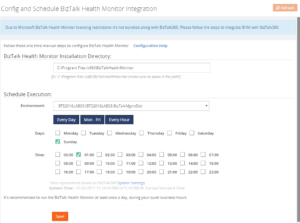
For many years, BizTalk360 already had integration with the predecessor of BizTalk Health Monitor, being Message Box Viewer. This integration included the scheduling capability, which was brought by BHM, when the tool became available, as well.
So, when we replaced MBV integration with BHM integration, of course we made sure that you would be able to setup BHM schedules from BizTalk360 as well.
Run BHM Monitoring profiles
BHM allows users to create specific so-called Monitoring profiles, which can be used to execute a subset of all the available queries and rules. This can be used, for example, to monitor just specific components or artifacts.
BizTalk360 allows you to run or monitor on such a profile, by creating such a profile in BHM and manually copying it to the BizTalk360 installation folder. If you want to read more about this capability, read below article:
Getting BizTalk360 to run a BHM Monitoring profile
Manually run BHM
Besides being able to run BHM based on a schedule, as shown in the previous paragraph, you can also run the tool immediately from BizTalk360. By clicking the ‘Run BHM Now’ button (see the picture below), BizTalk360 schedules a run immediately and the results can be checked after the run has been processed.
View reports of BHM
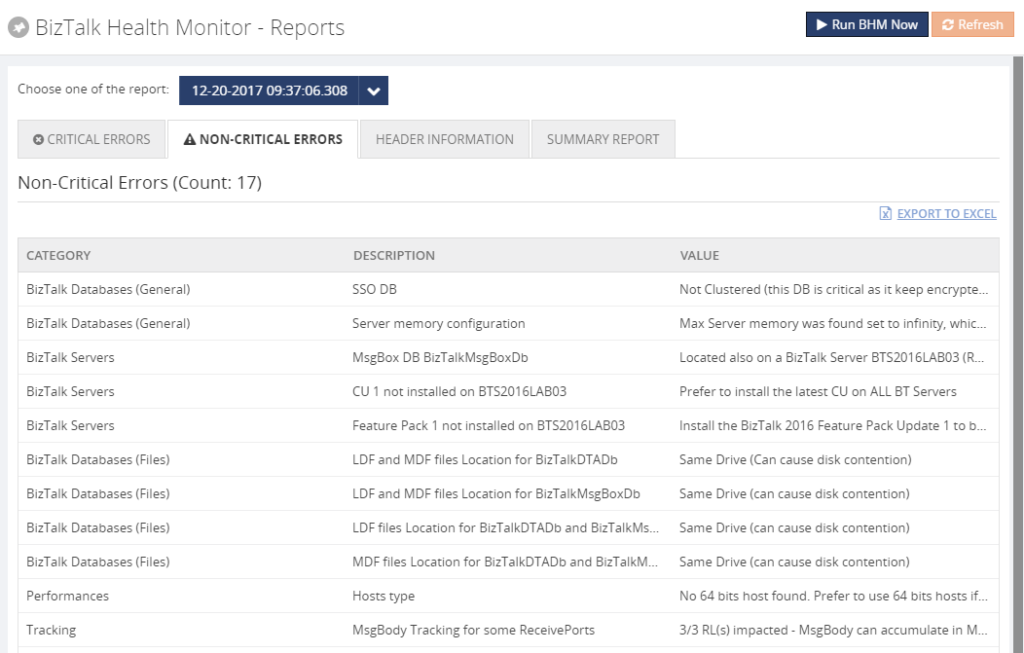
The reports of all the different runs of BHM can be viewed directly in BizTalk360. The screenshot below shows the dropdown from where you can select, which report you would like to see. The most recent report is shown on top.
Storing the output of BHM runs
The BHM reports are stored in the BizTalk360 database and can reside there for a configurable time frame. By default, this time frame is 5 days, but you can choose values between 1 day until any number of days/weeks/months you prefer. Of course, it is wise to not to keep the date for too much time, as this will affect the size of the BizTalk360 database.
After the time frame expired, BizTalk360 will automatically delete the expired reports.
Monitor the results of BHM runs
Besides running and viewing the output of BHM, you can also setup monitoring on the output. This way you can get notified easily of critical and non-critical errors which might be found by BHM.
In another article of the `Why we built XYZ feature in BizTalk360` series, we`ll explain monitoring of BHM output in more detail.
Conclusion
By executing BizTalk Health Monitor runs, the tool reports about important topics on all kind of health and best practice related stuff. Having MBV/BHM integration in BizTalk360, the product makes it easier to schedule runs of BHM and provides you with easy access to the output of the BHM.
Get started with a Free Trial today!
Do you prefer to setup your BHM schedules and view BHM output in BizTalk360, instead of setting up RDP connections to your BizTalk server? Why not give BizTalk360 a try! Installation takes about 10 minutes on your BizTalk environment. Get started with the free 30 days trial.
Author: Lex Hegt
Lex Hegt works in the IT sector for more than 25 years, mainly in roles as developer and administrator. He works with BizTalk since BizTalk Server 2004. Currently he is a Technical Lead at BizTalk360. View all posts by Lex Hegt