by community-syndication | Sep 3, 2009 | BizTalk Community Blogs via Syndication
A few years ago, I posted a small utility class I kept around to dump byte arrays in a nice format for reading. I still use that a bit, but got tired of having to fool with test projects to use it sometimes during my debugging sessions, so I finally broke down and just ported […]

by community-syndication | Sep 3, 2009 | BizTalk Community Blogs via Syndication
I continue my monthly chat with a different “connected technology” leader by sitting down with Jeff Sanders. Jeff works for my alma mater, Avanade, as a manager/architect. He’s the co-author of the recently released Pro BAM in BizTalk Server 2009 book and regularly works with a wide range of different technologies. He also has the […]
by community-syndication | Sep 3, 2009 | BizTalk Community Blogs via Syndication
This has happened now three times to me, and I just received an email from a friend about this.
When you install the HL7 accelerator on a 64bit machine, you need to create a 32bit host; as the HL7 DASM and ASM are 32bit only.
A hint as to what kind of host needs to be set up is found in the root drive:
To do this, you need to create a 32 bit host:
Create the Host Instance:
Create a new send and receive handler using the new 32 bit host that is just created:
Which ends up looking like this:
And now to change the actual receive or send port to use the 32 bit host instance
by community-syndication | Sep 3, 2009 | BizTalk Community Blogs via Syndication
Great to see some public information surfacing around SharePoint 2010 and development.
To get started (if you’re not already) here’s the SDK with a CHM file and PDF/XPS
on “how to customise the ribbon”.
http://www.microsoft.com/downloads/details.aspx?familyid=94AFE886-3B20-4BC9-9A0D-ACD8CD232C24&displaylang=en
Doing a little digging in the CHM file, you can see (below) all the different Content
categories with some special areas to note:
-
There appears to be a Visio Server – I guess like InfoPath + Excel Services as they
currently stand in 2007.
-
AJAX + JSON seem to make an appearance at the foundational core – yay! less page reloads.
-
WCF Services used (*.SVC) as expected and simplified. Also it appears that BDC systems
are accessible via a SharePoint custom WCF Binding, making it possible to work on
BDC based data from various applications within SharePoint. SharePoint might become
the hub ’repository’ for this sort of information.
Bear in mind *alot* of this information is ’subject’ to change.
Certainly going fwd it should be very exciting to see what actually ships and whether
some of the immediate constraints are dealt with.
Looks like we’re up for another Ribbon experience in this Version of SharePoint from
within the Browser.
by community-syndication | Sep 3, 2009 | BizTalk Community Blogs via Syndication
I’ll be going on vacation to Thailand with my girlfriend for three weeks. And directly after that I’ll be in the process of moving. So the blog will be, well, a bit dead until I get back…
Daniel Berg’s blog about ASP.NET, EPiServer, SharePoint, BizTalk
by community-syndication | Sep 2, 2009 | BizTalk Community Blogs via Syndication
To summarize what they are using to migrate gigabytes of data is:
- 5 hours before the actual move, they make a full backup of their data in the database (SQL Server 2000)
- They use RoboCopy in triplicate to move the more than 20gb of data from one server to another
- They restore the data
- They do a differential of the last few hours of data
The entire process takes about two hours to fully migrate. The reason why they have allocated an additional 3 hours is so that if there is any problems during the migration, they have enough time to analyze the data and run a complete migration again.
Some of the things that they are looking at and testing is Virtualization using Hyper-V or VMWare to break their dependence on hardware.

by community-syndication | Sep 2, 2009 | BizTalk Community Blogs via Syndication
This is the fifth in a series of blog posts I’m doing on the upcoming VS 2010 and .NET 4 release.
Today’s post covers a new “Web Development (Code Optimized)” profile option we are introducing with VS 2010 that allows you to optionally configure Visual Studio to run in an IDE layout mode that hides the WYSIWYG web designer and instead optimizes around a rich “source editing focused” tooling experience.
VS 2010 Web Profiles
When you first run VS 2010 it prompts you to select an IDE profile to use. The profile you select will configure how tool windows are displayed/docked in the IDE by default and set the default keyboard shortcuts. You can then customize any of these settings by using the Tools->Options menu within the IDE and then override/change them. You can also later reset your profile and pick a different one by choosing the Tools->Import and Export Settings menu command.
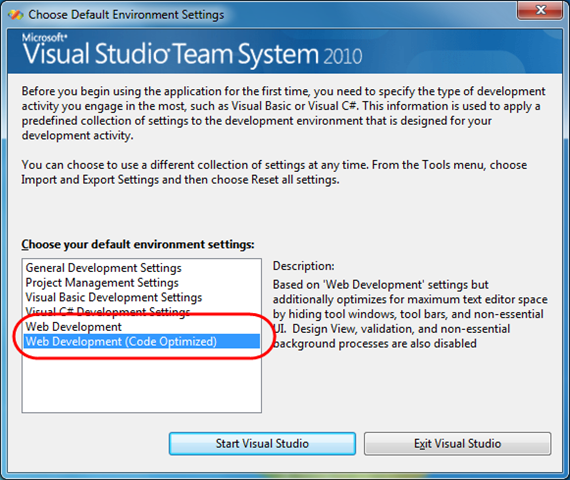
One of the things you’ll notice when you run VS 2010 Beta2 for the first time is the inclusion of two “Web Development” profiles in the list of options:
The first “Web Development” profile option is an evolution of the existing web development profile option from VS 2008 (with some nice improvements that help improve screen real estate usage with VS 2010). It also allows you to take advantage of all the great WYSIWYG HTML and ASP.NET Page designer improvements we’ve done with the VS 2010 release (I’ll cover these in more detail in later blog posts in this series).
The second “Web Development (Code Optimized)” profile option is a new profile we are introducing with VS 2010 that is optimized for web developers who do not want to use a WYSIWYG designer when doing their web development, and who prefer a “source only” editing experience when working on pages. This IDE profile option hides the WYWISYG page designer tabs, and configures a default IDE layout that maximizes the amount of code that is displayed on the screen (with a minimum of toolbars and tool windows). It still provides a full intellisense/debugging and source editor experience for pages.
Comparing the VS 2010 Web Development Profiles
You can get a sense of the difference between the two profiles by comparing screen-shots of the Visual Studio IDE layout immediately after the two different “Web Development” profiles are applied:
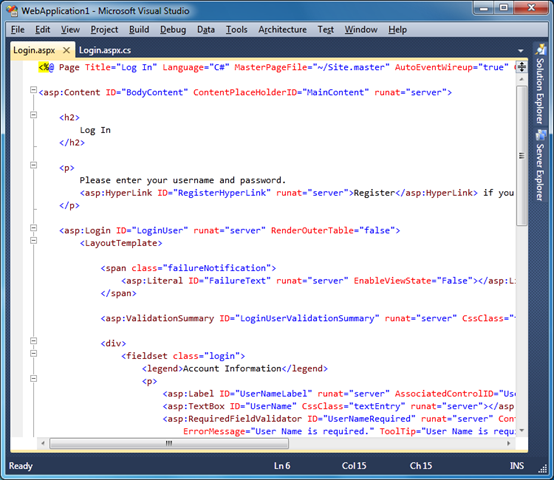
Screenshot of the “Web Development” Profile:
The layout below demonstrates the default IDE layout (at a 750×650 monitor resolution) when the standard “Web Development” profile is applied. This profile is an evolution of the existing “Web Development” profile in VS 2008 and exposes design/split/source tabs within the document window of any HTML or ASP.NET page:

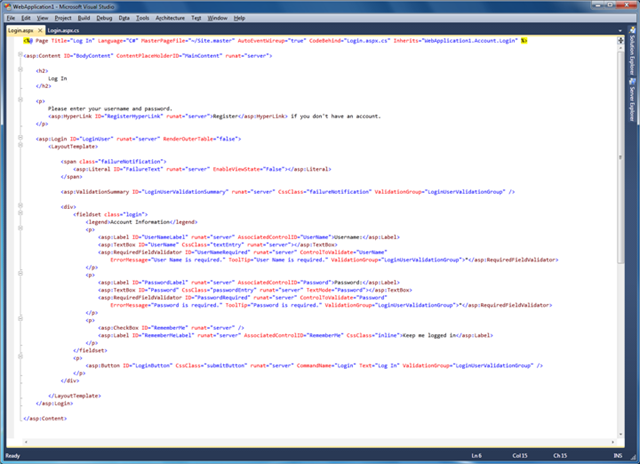
Screenshot of the “Web Development (Code Optimized)” Profile:
The screen-shot below demonstrates the default IDE layout (at a 750×650 monitor resolution) when the new “Web Development (Code Optimized)” profile is applied. As you can see, the profile optimizes the screen real estate around displaying and editing code on the screen, hides all toolbars by default, and disables and hides the designer tabs within the document windows of HTML and ASP.NET pages:

Below is a screen-shot of the “code optimized” profile at a larger monitor resolution:

Mixing and Matching Features
All of the different features used in both the standard “Web Development” profile and the “Web Development (code optimized)” profile are exposed via Visual Studio’s Tools->Options configuration dialog. This means that you can start with any of the VS profiles (including the General, VB and C# profiles) and turn on or off individual features to customize the IDE layout and editing experience however you want it to be.
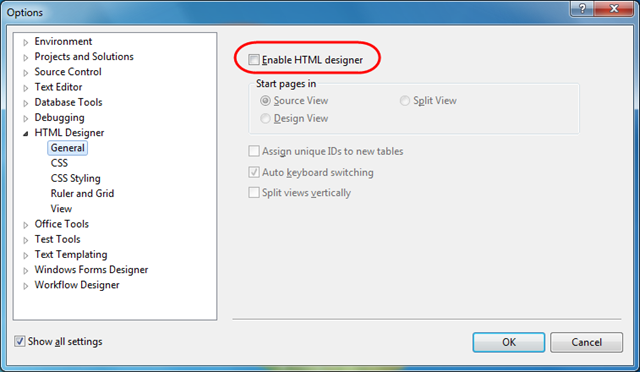
For example: below you can see the Tools->Options dialog checkbox to enable or disable the HTML designer (which will configure whether the Design/Split/Source tabs are shown at the bottom of each page):

This gives you the flexibility to customize your development experience however you want and create a personalized tooling experience optimized for you and your preferred way of doing development.
The two web development profiles that ship in the box provide two good preconfigured starting points that we think offer a nice set of defaults for a large set of the web developers out there. You can easily choose to start with whichever one feels best to you, and optionally configure them further however you want.
Summary
We are offering the new profile simply as an option for those who prefer a source-focused web development experience. The WYSIWYG HTML/ASP.NET designer continues to be enabled by default with all the other VS 2010 profiles (just like it does with VS 2008), and we have also made a lot of improvements to it with the VS 2010 release (I’ll blog more details about these in later posts). So don’t worry – the WYSIWYG designer definitely isn’t going away, and will continue to be enhanced and improved with each release.
We think the new “Web Development (Code Optimized)” profile, though, is a nice new option for developers who prefer a “source editing focused” web development experience, and who do not use the WYSIWYG designer. The profile option provides an easy way for them to hide the designer (along with its associated tool windows and toolbars) from the IDE layout and instead use a source-focused web development experience.
Hope this helps,
Scott
P.S. In addition to blogging, I have been using Twitter more recently to-do quick posts and share links. You can follow me on Twitter at: http://www.twitter.com/scottgu (@scottgu is my twitter name)
by community-syndication | Sep 1, 2009 | BizTalk Community Blogs via Syndication
Problem: Recently i came across this problem while switching to a new Windows 7 64 bit m/c. The web site at hand was working fine on my previous m/c Windows 7 64 bit RC1. The error and the event log were basically not very helpful either.
Resolution:
So here is what I did to fix the issue […]