by community-syndication | Sep 5, 2009 | BizTalk Community Blogs via Syndication
While promoting code from one 64 bit environment to another, I can across the following error while changing the configuration
Unable to get binding type for binding extension "sqlBinding".
Verify the binding extension is registered in machine.config."
Since I have come across this a couple of times, I might as well put a reminder out for myself:
The SQL adapter is a WCF custom binding, which is registered under System.ServiceModel in the machine.config file. A 64-bit platform has two machine.config files, one used by the 32-bit applications and the other used by the 64-bit applications. So, when you install the 64-bit version of the BizTalk Adapter Pack, the setup wizard registers the bindings in the 64-bit version of the machine.config file. However, BizTalk Server Administration console runs as a 32-bit process and hence when you configure a port for the adapter, it checks for the bindings in the 32-bit version of the machine.config file and fails giving an error.
Resolution
Install both the 32-bit and 64-bit versions of the BizTalk Adapter Pack on a 64-bit WCF LOB Adapter SDK installation.
by community-syndication | Sep 4, 2009 | BizTalk Community Blogs via Syndication
Support for BTARN often involves issues connecting with the partner. Unfortunately the web pages deployed for this purpose are not the best when it comes to troubleshooting. It can be problematic to tell a customer they need to deploy new pages with increased tracking capabilities into their production environment. This is especially true if it is 3 AM. This was generally the situation prior to BTARN 3.3.
With .Net 2.0 some cut and paste changes to the web.config file often provide the same information without the need to redeploy pages to the production environment. The configuration changes provided here should be pasted in after the closing </system.web> tag. Then make sure the logging location exists and is available for output.
<system.diagnostics>
<trace autoflush=”true” />
<sources>
<source name=”System.Net”>
<listeners>
<add name=”System.Net”/>
</listeners>
</source>
<source name=”System.Net.HttpListener”>
<listeners>
<add name=”System.Net”/>
</listeners>
</source>
<source name=”System.Net.Sockets”>
<listeners>
<add name=”System.Net”/>
</listeners>
</source>
<source name=”System.Net.Cache”>
<listeners>
<add name=”System.Net”/>
</listeners>
</source>
</sources>
<sharedListeners>
<add
name=”System.Net”
type=”System.Diagnostics.TextWriterTraceListener”
initializeData=”c:\\trace\\System.Net.trace.log”
/>
</sharedListeners>
<switches>
<add name=”System.Net” value=”Verbose” />
<add name=”System.Net.Sockets” value=”Verbose” />
<add name=”System.Net.Cache” value=”Verbose” />
<add name=”System.Net.HttpListener” value=”Verbose” />
</switches>
</system.diagnostics>
A log will be created with great deal of detail. This includes the messages being passed. The log eliminates the previous issues with same-box transfers, SSL encryption, and sometimes limited access to network resources. Armed with this information it should be straight forward to understand the problem. The same information from BTARN 3.0 would require many lines of code added to the web pages to get the same information and as mentioned before redeployment of the enhanced pages.
BTARN and Windows 08 x64
In my previous blog I published help when using x64 with BTARN. This is particularly bothersome for Windows 03 x64 because BTARN is only available as a 32 bit application. Another little discovery has been detected with Windows 08 x64.
It turns out Windows 08 uses TLS protocol 1.0 as the default when attempting connections for BTARN (any HTTP). This was not the case with Windows 03. In some cases this turns out to be a problem. Close examination of the conversation shows the “Client Hello” being responded to with an “Encryption Error” or some other server drop. When things work properly the first attempt to use the TLS protocol should be followed with a second attempt to revert back to SSL 3.0 if the server cannot use TLS 1.0. Some servers don’t allow the second attempt.
The fix for this situation is to change the code in the BTARN web pages. The following line of code should be added.
//this line for compatibility with Win08
ServicePointManager.SecurityProtocol = SecurityProtocolType.Ssl3;
//rest of the code
HttpWebRequest outerRequest = null;
ErrorLevel level = ErrorLevel.ProxyToOuterFailure;
This code sets a property. Location is not critical except I would keep it close to the HttpWebRequest object so it is easy to follow like listed above. This will prevent the use of the TLS protocol for this communication.

by community-syndication | Sep 4, 2009 | BizTalk Community Blogs via Syndication
This is the sixth in a series of blog posts I’m doing on the upcoming VS 2010 and .NET 4 release.
Today’s post covers another useful improvement in VS 2010 – HTML/ASP.NET/JavaScript snippet support. Snippets allow you to be more productive within source view by allowing you to create chunks of code and markup that you can quickly apply and use in your application with a minimum of character typing.
Visual Studio has supported the concept of “snippets” for VB and C# in previous releases – but not for HTML, ASP.NET markup and JavaScript. With VS 2010 we now support snippets for these content types as well.
Using ASP.NET Snippets
Let’s walkthrough how we can use snippets to quickly implement a common security scenario. Specifically, we’ll implement the functionality necessary to display either a “[ Login ]” link or a “[ Welcome UserName ]” message at the the top right of a site depending on whether or not the user is logged in:
The above functionality is automatically added for you when you create a project using the new ASP.NET Project Starter Template in VS 2010. For the purpose of this walkthrough, though, we’ll assume we are starting with a blank master page and will build it entirely from scratch.
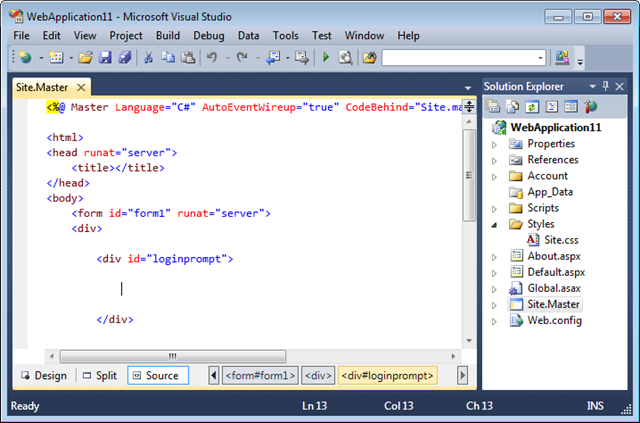
We’ll start by adding a standard <div> element to a master page, and then position our cursor within it:

We are going to use the built-in <asp:loginview> control to help implement our scenario. The <asp:loginview> control is a templated control (first introduced with ASP.NET 2.0) that allows us to easily switch between “Anonymous” and “LoggedIn” templates that automatically display depending on whether the user is authenticated. Rather than type the <asp:loginview> markup manually, we’ll instead use the new snippet support in VS 2010.
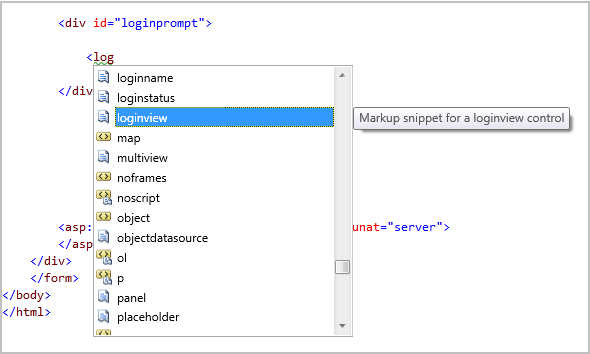
Typing in “<log” in the editor will bring up intellisense and display available elements, controls and code snippets that start with those characters.

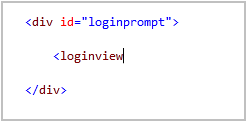
We’ll select the built-in “loginview” code snippet from the above list and hit the “tab” key to complete it:

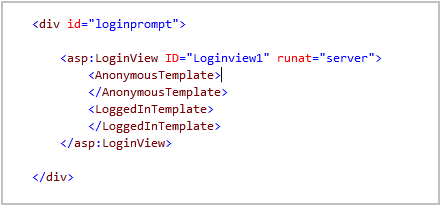
Now that we’ve selected the snippet we want to use, we can hit the “tab” key again to execute the snippet – which will cause it to immediately replace the snippet name with the markup below. Notice below the snippet added a new <asp:loginview> control for us and automatically defined the two most commonly used templates on it. We were able to implement that all with just 6 keystrokes (4 keystrokes to type “<log”, and then 2 tab keystrokes).

We’ll now implement the “AnonymousTemplate”.
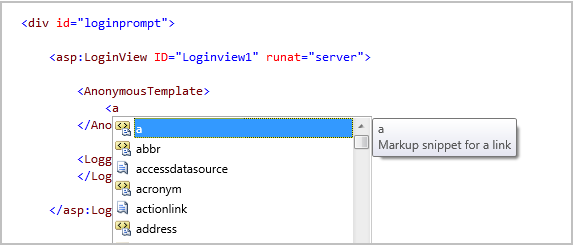
Typing in “<a” in the editor will being up intellisense and display available elements and code-snippets we can use:
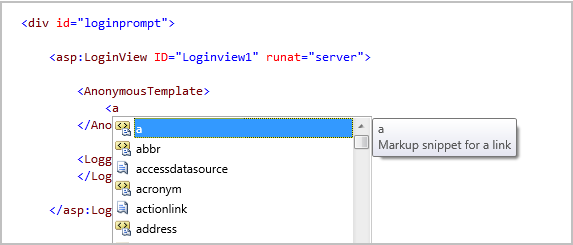
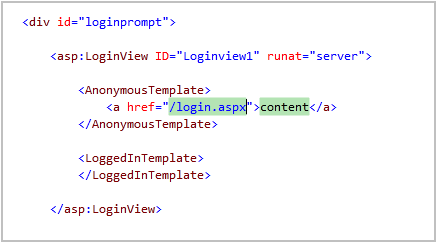
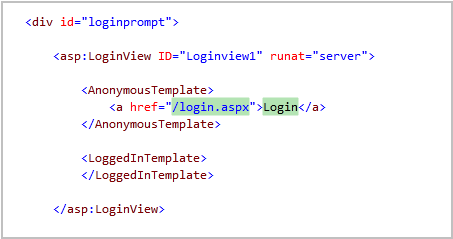
We’ll select the built-in “a” code snippet from the above list and hit the “tab” key to complete it. When we hit tab again it will execute the snippet – which will cause it to replace the snippet name with the markup below:

The “href” attribute attribute value and the inner content of the <a> element above are highlighted with a green background color. This indicates that these values are replaceable parameters and that we can automatically tab between them when filling them out – avoiding the need to use the cursor keys or touch the mouse (making things much faster).
Without having to move our cursor or mouse, we can begin typing the login page URL we want to send users to if they are not authenticated on the site:

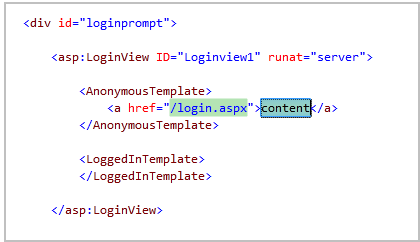
When done, we can hit the “tab” key and VS will automatically highlight the second content parameter in the editor for us (no manual cursor movement or mouse action required):

We can then type the text we want displayed (again without having to move the mouse or touch a cursor key):
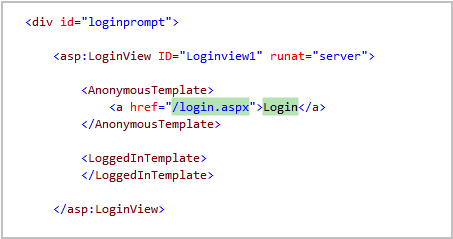
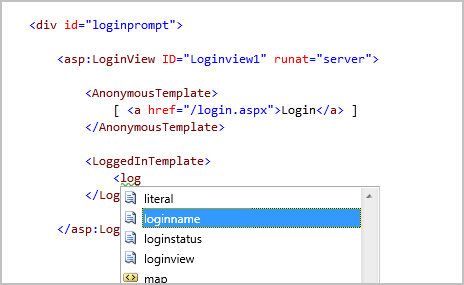
Once done with the “<AnonymousTemplate>” we can move onto the "<LoggedInTemplate>”. We’ll type “<log” in the editor to bring up intellisense – and select the built-in “loginname” snippet:
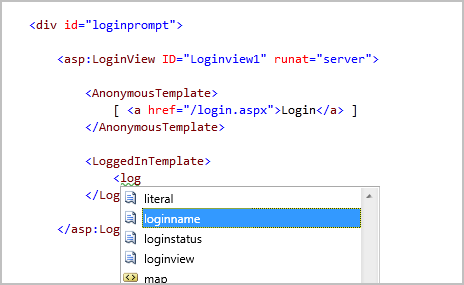
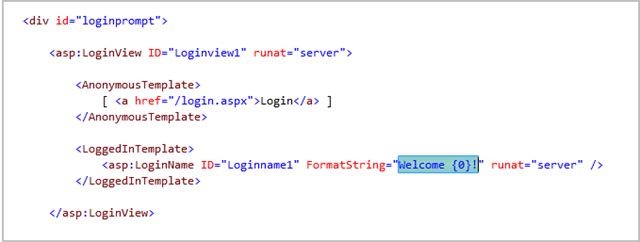
When we hit tab it will execute the snippet – which will cause it to replace the snippet with the markup below:

The “FormatString” property value above was automatically populated for us with a default welcome text message. The value is also automatically highlighted in case we want to change it (without having to move the mouse or cursor keys). For this sample we’ll just keep the default text.
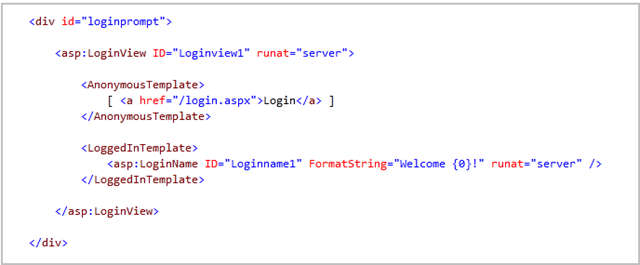
Our final markup then looks like below:

When we run our application the above markup will display a “[Login]” link when we aren’t authenticated:
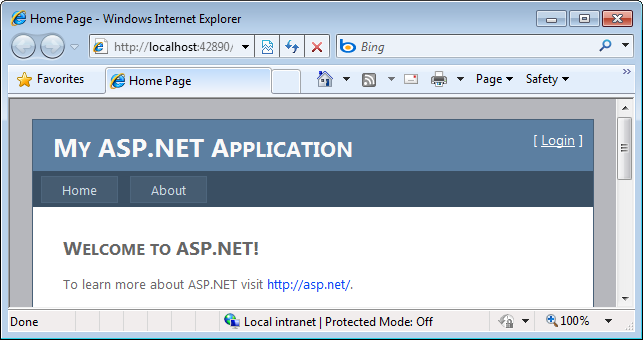
When we are logged in we’ll see a welcome string like below:
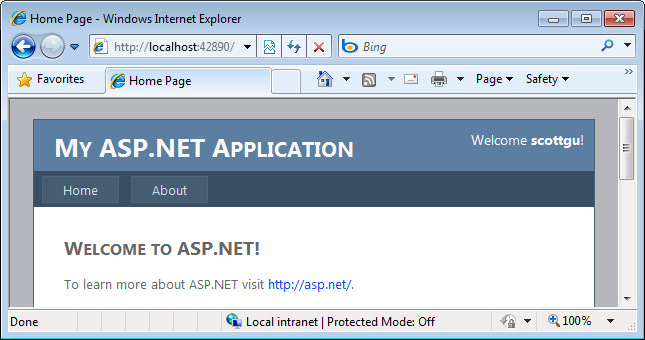
The total number of key strokes to implement this entire scenario is less than 15% of what we would previously have had to type. Typing fast, I found I could implement the entire scenario in less than 15 seconds 🙂
ASP.NET MVC Snippets
Built-in snippets are available for all ASP.NET controls and HTML markup elements.
Built-in snippets are also available for common ASP.NET MVC view scenarios, and for the built-in ASP.NET MVC HTML helpers.
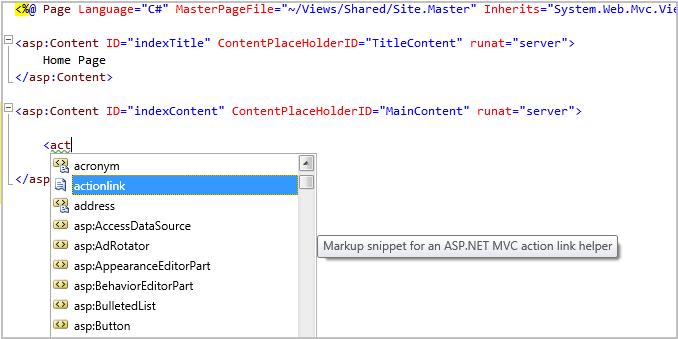
For example, we can type “<act” within a ASP.NET MVC view and select the “actionlink” snippet:
When we complete it and hit the “tab” key the snippet will execute – which will cause it to replace the snippet name with the markup below:
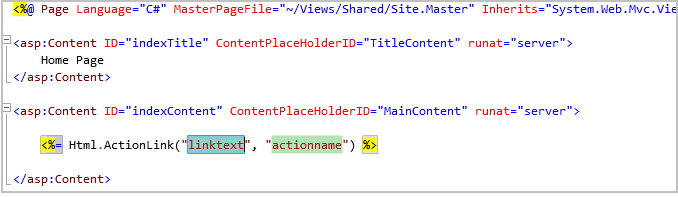
Notice that the “linktext” and “actionname” values are marked as snippet parameters – which means we can easily replace them without having to use the cursor keys or touch the mouse. The first linktext parameter value is selected by default – which means we can just type to immediately replace the value, then hit tab to immediately select and replace the second actionname parameter:

Custom Snippets
Visual Studio 2010 will include more than 200 built-in snippets that you can immediately use when you install the product.
What is really nice is that you are not limited to only using the built-in snippets. You can also easily create your own snippets (complete with replaceable parameters) and both import them into VS 2010, as well as easily share them with other developers. This makes it easy for you to quickly automate your own common tasks.
This article describes the snippet support that already exists in VS 2008, and provides a little more context on how to create and manage custom snippets.
Summary
Snippets are a useful feature that enable you to reduce keystrokes within the editor, and allow you to complete scenarios and tasks much faster. Having snippets now enabled in not just VB and C#, but also in HTML, ASP.NET and JavaScript files, makes this capability even more useful – and can make you even more productive.
Hope this helps,
Scott
P.S. In addition to blogging, I have been using Twitter more recently to-do quick posts and share links. You can follow me on Twitter at: http://www.twitter.com/scottgu (@scottgu is my twitter name)

by community-syndication | Sep 3, 2009 | BizTalk Community Blogs via Syndication
It’s been along time since I posted anything about BizTalk :) It really
wasn’t accidental, honestly it appeared for quite a while that the product known as
BizTalk was probably not going to survive at Microsoft. Turns out that
rumors of BizTalk’s demise where premature.
It appears that Microsoft is stewarding BizTalk quite nicely and I expect to see many
good things come down the pike.
One of my favorite (but not my most popular) tools for BizTalk was the Patter
Wizard (see my first post about it here).
I’ve just now updated it for BizTalk 2009 (which means Visual Studio 2008) – hopefully
people will continue to find it useful. If anyone has feedback on it I’d love
to hear it.
Download the new bits here:
http://patternwizard.codeplex.com/

Check out my new book on REST.