by community-syndication | Sep 1, 2009 | BizTalk Community Blogs via Syndication
We are pleased to announce the immediate availability of the Microsoft BizTalk Server Management Pack for System Center Operations Manager 2007 on the Microsoft Download Center.
This SCOM Management Pack includes the following:
- Platform updates to support BizTalk Server 2009
- Maintained support for BizTalk Server 2006 R2
- Support for upgrade scenarios
- Fixed a high CPU utilization bug.
The Management Pack has already been downloaded and tested by 11 customers through our Technology Adoption Program (TAP) .
With this Management Pack you can deploy mission critical integration solutions on BizTalk Server 2009 and provide high quality monitoring through System Center Operation Manager.
You can now move forward with migration plans or new deployments for BizTalk Server 2009.
Good luck,
Ofer.
Technorati Tags: BizTalk,BizTalk Server 2009,SCOM,Management Pack,Monitoring

by community-syndication | Sep 1, 2009 | BizTalk Community Blogs via Syndication
Beta-2 of WSCF.blue is now available.
The big feature of this new beta is the standalone Data Contract Generation and we have also put in some other fixes and addressed some outstanding issues (as well as rolling up fixes since the last beta).
The feature list is as follows. The “More Information” links point to posts on […]
by community-syndication | Sep 1, 2009 | BizTalk Community Blogs via Syndication
To all you folks who have been waiting for the new Management Pack for BizTalk 2009 to be released, it is finally here. You can download it at
http://www.microsoft.com/downloads/details.aspx?FamilyId=389FCB89-F4CF-46D7-BC6E-57830D234F91&displaylang=en&displaylang=en
Cheers and keep on BizTalking
Peter
by community-syndication | Sep 1, 2009 | BizTalk Community Blogs via Syndication
I’m currently writing an Outlook add-in and I’m looking into getting this compatible with both Office 2007 and Office 2010. One of the new features in Outlook 2010 is the main window Ribbon.
Using VSTO, you can create your own Ribbon, which can be automatically merged with default Ribbons by setting the correct OfficeId property for your Ribbon. Office 2007 has the list of available OfficeId values available here, but I has some trouble locating a list for the Office 2010 Technical Preview.
After some trial and error, I figures out there’s an easy way to find out what the different IDs for a specific Ribbon and it’s tabs is.
Office 2010 let’s users customize the Ribbon from within Office.
Clicking ’Customize the Ribbon’ brings up the customization dialog:
On the right-hand side of the dialog, right-click the ’RSS’ tab within the expanded ’Home’ tab and choose ’Rename’. Name it e.g. ’testRSS’. After customizing, press OK on the dialog and re-open the customization dialog once more (if you don’t close and re-open the dialog, the following steps will not lead to the desired result).
Now press the ’Import/Export’ button and select ’Export all Ribbon and Quick Access Toolbar customizations’. Save the file.
The exported Office UI file has a .exportedUI extension. Rename this to .xml and open up the file. You’ll see something like this:
<mso:cmd app="MSOutlook" dt="0" />
<mso:customUI xmlns:mso="http://schemas.microsoft.com/office/2007/10/customui">
<mso:ribbon>
<mso:qat/>
<mso:tabs>
<mso:tab idQ="mso:TabMail">
<mso:group idQ="mso:GroupRss" label="testRSS"/>
</mso:tab>
</mso:tabs>
</mso:ribbon>
</mso:customUI>
Note the ’TabMail’ ID. This is the current (it’s a technical preview, things will probably change in the future) identifier for the Ribbon Tab you’ve just modified.
OK, we’ve got the Tab OfficeID. However, for a Ribbon to show up, you also need to specify RibbonType property. Normally, using VSTO, you get a drop down with all possible values for this property within Visual Studio. However, the main window Ribbon in Outlook is new, so there’s no value for this Ribbon within the list. Luckily, you can also type in your own value. Now all that’s left is finding out the name of the main Ribbon and we’d be set.
I looked around, but the value for the main Ribbon was a mystery to me. Finally, I decided Outlook probably had the string in memory during runtime, so I could use Process Explorer to find the correct value. As you probably know, Process Explorer has a tab called ’strings’ on the properties dialog of a process. This tab enumerates all strings within the image of the process and lists them here.
I searched for ’Microsoft.Outlook.’ (all values in the regular drop down start with this) and found ’Microsoft.Outlook.Explorer’. Searching further, the other values we all know and love came up. However, ’Microsoft.Outlook.Explorer’ was the only truly new value.
I tried using this value for the RibbonType and low and behold, my add-in appeared on the ’RSS’ tab of the main Ribbon.
Key take-away: Using a RibbonType of ’Microsoft.Outlook.Explorer’ and ’TabMail’ as your ControlId, you can place your add-in on the main ribbon of the Outlook window.
Disclaimer: This has been tested on the Technical Preview of Office 2010. There are no guarantees whether these IDs will be stable as we move forward with the product.
by community-syndication | Sep 1, 2009 | BizTalk Community Blogs via Syndication
If you’re using System Center Operations Manager, then you’ll be happy to know that the new management pack for BizTalk Server 2009 was made available today.
You can get it right now at the download center.

by community-syndication | Sep 1, 2009 | BizTalk Community Blogs via Syndication
This is the fourth in a series of blog posts I’m doing on the upcoming VS 2010 and .NET 4 release.
Today’s post covers one of the general IDE improvements that I know a lot of people are already eagerly looking forward to with VS 2010 – multiple-monitor support.
Using Multiple Monitors
VS 2008 hosts all documents/files/designers within a single top-level window – which unfortunately means that you can’t partition the IDE across multiple monitors.
VS 2010 addresses this by now allowing editors, designers and tool-windows to be moved outside the top-level window and positioned anywhere you want, and on any monitor on your system. This allows you to significantly improve your use of screen real-estate, and optimize your overall development workflow.
Taking advantage of the multi-monitor feature is really easy to-do. Simply click on a document tab or tool-window and drag it to either a new location within the top-level IDE window – or outside of the IDE to any location on any monitor you want:
You can later drag the document/window back into the main window if you want to re-dock it (or right click and choose the re-dock option).
Visual Studio remembers the last screen position of documents when saved – which means that you can close projects and re-open them and have the layout automatically startup where you last saved it.
Some Multi-Monitor Scenarios
Below are some screen-shots of a few of the scenarios multi-monitor enables (obviously there are many more I’m not covering). Pretend each window in the screenshots below is on a different monitor to get the full idea
Code source file support:
Demonstrates how code files can be split up across multiple monitors. Below I’ve kept a .aspx file in the main IDE window and then moved a code-behind file and a separate class file to a separate screen:

Tool window support:
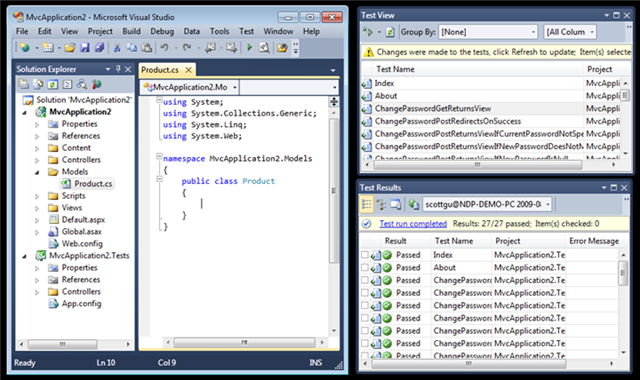
Demonstrates how any tool window/pane within VS10 can be split across multiple monitors. Below I’ve moved the test runner tool windows to a separate screen:

Designer support:
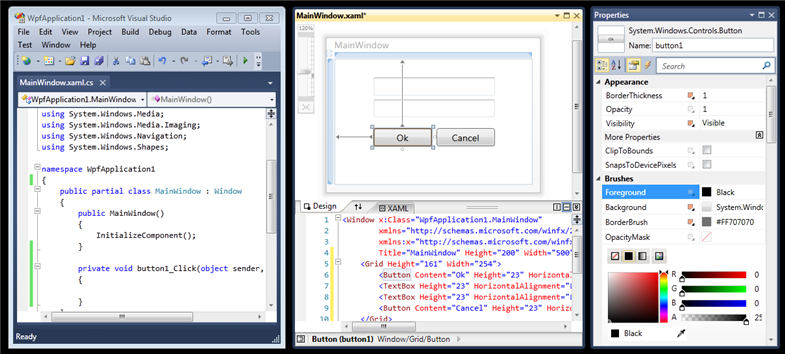
Demonstrates how a designer within VS can be split across multiple monitors. Below I’ve moved the WPF/Silverlight WYSWIYG designer and the property grid to a separate screen (the code behind file is still in the main window). Note how the VS10 property grid now supports inline color editors, databinding, styles, brushes, and a whole bunch more for WPF and Silverlight applications (I’ll cover this in later blog posts):
Summary
If you work on a system that has multiple monitors connected to it, I think you are going to find the new multi-monitor support within VS10 a big productivity boost.
If you don’t already have multiple monitors connected to your computer, this might be a good excuse to get some 🙂
Hope this helps,
Scott
P.S. In addition to blogging, I have been using Twitter more recently to-do quick posts and share links. You can follow me on Twitter at: http://www.twitter.com/scottgu (@scottgu is my twitter name)
by community-syndication | Aug 31, 2009 | BizTalk Community Blogs via Syndication
I’m presenting a webcast on BizTalk Performance this Tuesday September 01, 2009 1:00 PM Pacific Time along with Trace Young who wrote the majority of the BizTalk Documentation. We’ll be covering a summary of all the performance tests we’ve performed in the lab this year and answering any questions. Please tune in if you have any performance related questions or if you just want to see what we have been up to.
Registration link is here:
http://msevents.microsoft.com/CUI/WebCastEventDetails.aspx?EventID=1032416252&EventCategory=4&culture=en-US&CountryCode=US

by community-syndication | Aug 30, 2009 | BizTalk Community Blogs via Syndication
Just got a note from Ewan Fairweather from the BizTalk Customer Advisory Team. He is presenting a TechNet webcast on the BizTalk performance tests him and his team have performed this year and their results.
The webcast is happening in a couple of days (Tuesday, September 01, 2009 1:00 PM Pacific Time). For those in […]

by community-syndication | Aug 30, 2009 | BizTalk Community Blogs via Syndication
Code Camp Auckland is coming fast – 13 of September 2009, the Sunday before Tech Ed. With many international and local speakers, this is the biggest Code Camp ever.
If you want to catch some free sessions on the state-of-the-art in .NET development, SQL Server and developer security then sign up for Code Camp Auckland 2009 […]