Sometimes I like to use my friends to have a different point of view of things, which is one of these cases. I have been discussing during this week with Mike Stephenson and Nino Crudele how we can easily manage and monitor our current Azure Logic App Connectors present on our Azure integration solutions.
One of the reasons why this is so important is because some of the connectors like for example, Office 365 connectors: Team Connector, Office 365 Outlook, and so on, can stop working for the simple reason that the access token has expired due to inactivity and without notice, your processes stop working also and it was precisely what happened in one of my clients. We noticed that the API Connections were expired because we were troubleshooting another issue.
Recently Mike wrote about his great solution here: Monitoring the status of API Connections for Logic Apps. But you can archive that goal using different approaches. Of course, you will find advantages and disadvantages in all of them.
I decided to create this series of 3 blog posts to present 3 different approaches by starting with the simplest one:
Solution 1: Using a simple PowerShell Script
The first thing I did while thinking about the problem was, yep, let’s create a PowerShell script to see what is possible or not. And so, my first approach was creating a simple PowerShell script that goes to all resources I have on my subscription and doing a simple report of the current status of the existing API connections.
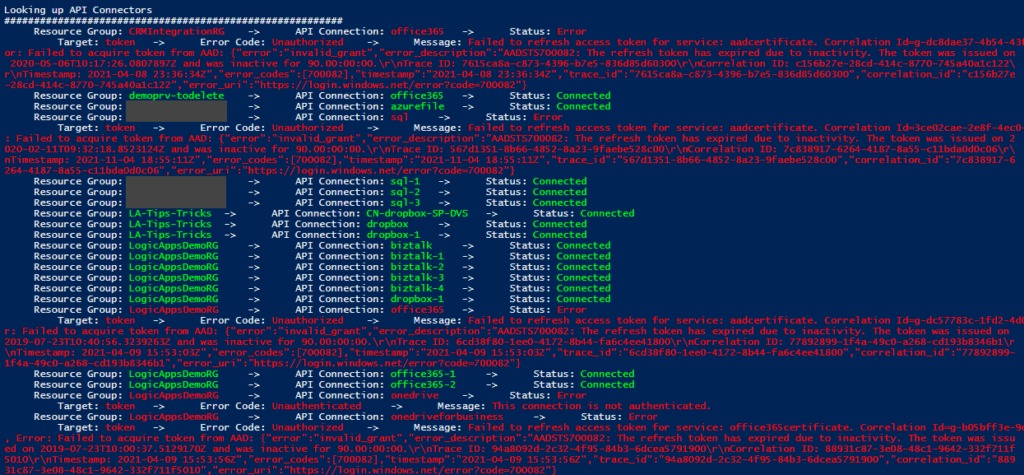
It is for sure not the most elegant and best PowerShell script, but for a proof of concept works well, and it will provide a simple and color report of how your existing API Connections are:
##############################################################
# Get list of API Connectors available on the Resource Group
##############################################################
Write-Host 'Looking up API Connectors'
Write-Host '#########################################################'
$resourceName = ''
$resources = Get-AzResource -ResourceType Microsoft.Web/connections
$resources | ForEach-Object {
$logicAppUrl = $_.ResourceId + '?api-version=2018-07-01-preview'
# Get Logic App Content
$resourceJsonResult = az rest --method get --uri $logicAppUrl
$resourceJson = $resourceJsonResult | ConvertFrom-Json
$resourceName = $_.Name
$resourceGroupName = $_.ResourceGroupName
# Check Logic App Connectors
$apiConnectionStatus = $resourceJson.properties.overallStatus
if($apiConnectionStatus -eq 'Error')
{
Write-Host "`t Resource Group: " -NoNewline; Write-Host $resourceGroupName -ForegroundColor Red -NoNewline; Write-Host "`t -> `t API Connection: " -NoNewline; Write-Host $resourceName -ForegroundColor Red -NoNewline; Write-Host "`t -> `t Status: " -NoNewline; Write-Host $apiConnectionStatus -ForegroundColor Red;
Write-Host "`t`t Target: " -NoNewline; Write-Host $resourceJson.properties.statuses.target -ForegroundColor Red -NoNewline;
Write-Host "`t -> `t Error Code: " -NoNewline; Write-Host $resourceJson.properties.statuses.error.code -ForegroundColor Red -NoNewline; Write-Host "`t -> `t Message: " -NoNewline; Write-Host $resourceJson.properties.statuses.error.message -ForegroundColor Red;
}
else
{
Write-Host "`t Resource Group: " -NoNewline; Write-Host $resourceGroupName -ForegroundColor Green -NoNewline; Write-Host "`t -> `t API Connection: " -NoNewline; Write-Host $resourceName -ForegroundColor Green -NoNewline; Write-Host "`t -> `t Status: " -NoNewline; Write-Host $apiConnectionStatus -ForegroundColor Green;
}
}
The result will be something like:
You will see on the picture above many samples that The refresh token has expired due to inactivity. Witch is normal because most processes I have under my subscription are samples or POC, and I only execute them from time to time, most of the time when I have speaking engagements or meetings with clients. However, there are real scenarios like my client case that we are using a Team Connector to notify us on the team channel when a significant issue appears. And this is something that should not happen often. Luckily it was our case, and due to inactivity, the API connection got broken. Still, unfortunately for us, we were not notified on the Teams channel when the issue appeared in production.
It was not a big issue because it was not a critical operation. The Logic App didn’t fail because it is configured not to fail on these notifications. Could we have a better logging system? Yes, we could, but we don’t have it at the moment. But with or without logging, you will only be aware of the issue when the error happens. And you don’t want to be in that position. So it is always better for you to be proactive and prevent these issues from occurring.
The main issue with this approach is that this script is good enough to run it from time to time manually on-demand, but this again is not the situation you want to be in. So, in the following parts, I will address 2 approaches where and how you can set up this to be a scheduled process using Azure features.
Download
THIS POWERSHELL SCRIPT IS PROVIDED “AS IS”, WITHOUT WARRANTY OF ANY KIND.
You can download API Connections Status Report from GitHub here:
In the previous posts of these series, we’ve talked about how to build and prepare your Logic App for CI/CD. In this last post, I’ll show you how to build your Azure Pipeline, making it prepared for any environment you need.
If you’ve missed the other posts, here are the links for them:
Assuming you already have your repo configured, building the pipeline is fairly simple and quick. I’m not a big fan of using YAML, I find it easier to use the classic editor, having the GUI seems more appealing to me.
Having your repo in place and all the code ready, you need create the Pipeline.
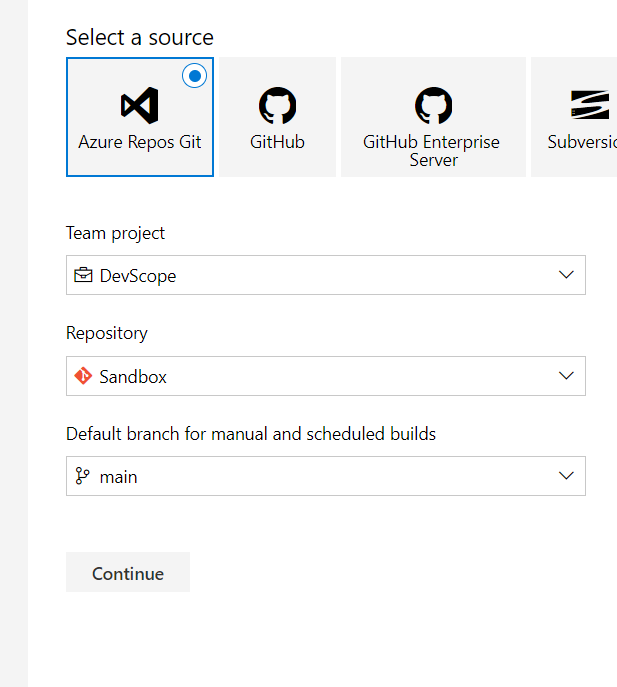
As such, you need to choose the classic editor (or venture yourself in YAML) and select your repo and branch.
The available templates are helpful but if you’re just trying to deploy logic apps, I’d suggest you start with an empty job, because you might have actions that are not necessary and you’ll have to delete them.
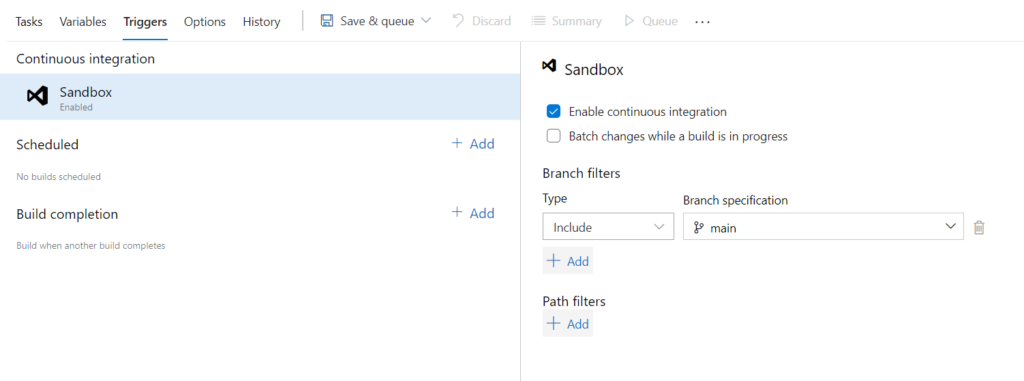
The first thing we’re going to do, is configure the pipeline for continuous integration. It doesn’t take much to achieve this, you just need to activate the needed triggers. By default, it will filter to your main branch, but you can change this and trigger for specific projects and branches. This comes in handy when you have multiple projects and you only want to include some in the build.
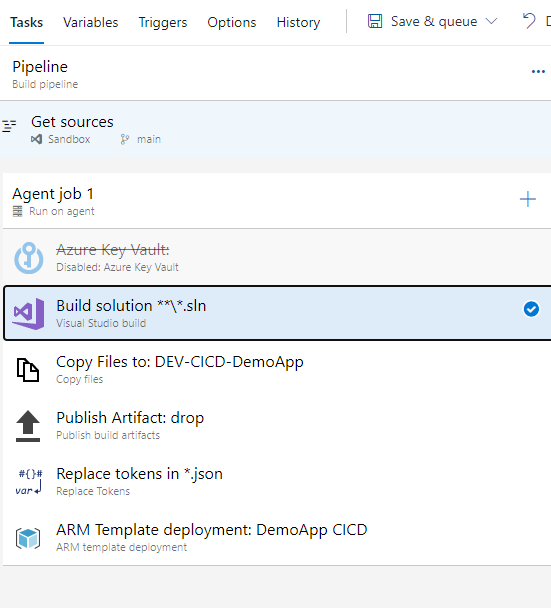
After enabling the triggers, you’ll need to add the required tasks to get your pipeline going. You might be getting a few secrets in Key vault, if that’s the case, do remember to add the Azure Key Vault task. This will pull either all the secrets or the filtered ones you’ve selected, keeping them in cache for the pipeline execution. This will be used in the Replace Tokens task, which I’ll discuss a bit down the road.
As you can see, it doesn’t take many tasks to have a functional pipeline, ready to deploy your Logic App to the CI environment.
The required tasks are:
Visual Studio build – to build your solution, obviously
Copy files – which will copy the desired files over to a folder in the Drop
Publish build artifacts – makes the drop available to use in the pipeline and the release
Replace Tokens – a very handy tool that allows you to replace your tokens with the variables or group variables values
ARM template deployment
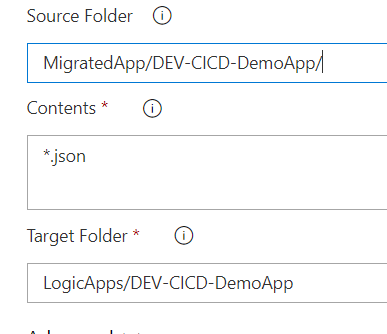
The Copy files task is very simple and easy to use. You take the input folder, copy the files you want/need to the target folder. Easy-peasy-lemon-squeezy.
I’d advise you to set the Target Folder as a named one, when you’re building the Release, it will be easier to find what you need if you divide your assets by name.
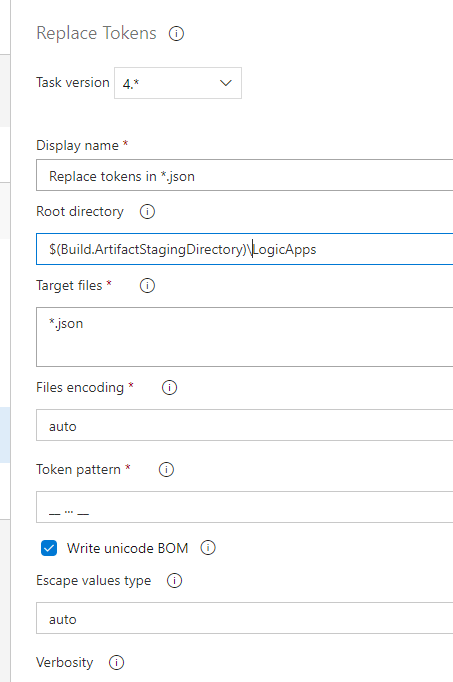
After copying the files, we will replace the tokens. How does this work?
Simply put, the task collects all the variables in memory and searches for the token pattern in all the target files. Given that we wrote our parameters with the __ … __ token, if we use other tokens in the files, it should not affect them. This is by far, in my opinion, the most helpful task in multi-environment deployment. It takes out the need to have multiple files by environment and having tons of variables.
Having the files copied, tokens replaced, our Logic App is ready for deployment in the CI environment. Now, this is not mandatory, you might not want to deploy your LA from the pipeline, you might want to use the Release instead. This is fine, you just need to move the ARM deployment tasks to the Release, it will not affect the outcome nor the pipeline.
As you can see, after selecting the Azure details (Subscription, RG, Location, etc) it becomes easy to select your LA to deploy. Since we used the LogicApps folder, we just need to reference the JSON files and the task will pick them up from the drop folder and deploy them.
Final notes
You’re now ready to go on your adventures and build your Logic Apps, get them ready for Continuous Integration and deploy them. I didn’t approached the Release Pipeline because it’s also very simple. You will only require to create your variables, replace your tokens and deploy the ARM templates.
You can fiddle around with gates, automated deployments, pre-deployment approvals and all, but that is a more advanced feature.
Having multiple releases that you want to joint deploy, you can even build Orchestrations (I can hear all the BizTalk bells ringing in our heads). This is not as simple as isolated deployments, because it does involve some orchestration of the parts (well, duhh).
I hope this small series of posts helped you to solve issues and to improve your deployments.
In the last post we talked about building a Logic App from scratch and gave a few hints on what we would change to prepare for CI/CD.
In this post, we will show you how to prepare your Logic App and template files, how to set and rename your parameters and will hint on how it will correlate with the Azure Pipeline.
So lets recap. We saw that the needed requirements are having VS installed, Azure SDK, Logic Apps for Visual Studio tools extension and an active Azure subscription. We built a new Azure Resource Group project with the Logic Apps template and added a few actions to our LA, nothing too fancy, just enough to show what’s needed.
Now, let’s look at how we will change the code to get it ready.
Changing the JSON code to prepare it for CI/CD is simple but requires attention, because if not done properly, you won’t be able to deploy your template and it might take you a while to find where the problem is. Even though VS gives you a few hints, because Intellisense helps, it might still not explain why it’s failing.
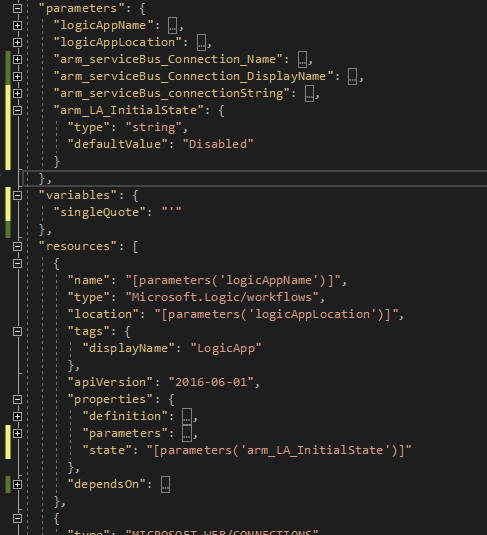
The first thing I like to do is to rename the connection parameters, having “servicebus_1_connectionString” is just horrible and does not help you understand what kind of connection you have. For this case, because we only have one connection, I’ll rename it to “arm_serviceBus_connectionString”, because we’re using an ARM (Azure Resource Manager) template and because this is the type of parameter. I will also add a template variable, named “SingleQuote”, which will be, as you’ve might have guessed, a single quote mark.
If you have other connectors, I suggest you continue changing names to match the same naming convention. It will help you and others to know what that is supposed to be.
After the Logic App file is taken care of, you will also need to apply these changes in the Parameters file.
By default, it will be almost empty, just having the logicAppName parameter with a Null value. This will make your deployment fail, because the template isn’t valid.
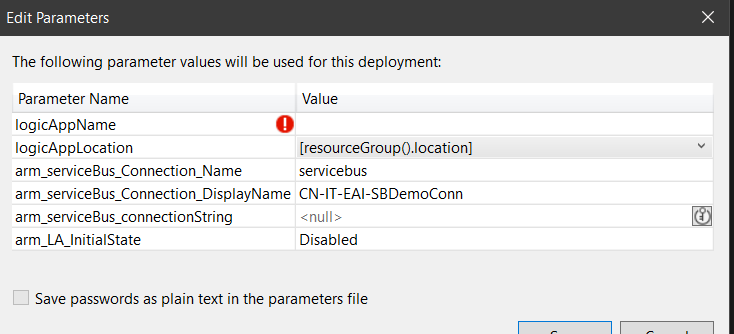
In fact, you won’t even be able to deploy it, because VS is smart enough to prompt you for the missing values, taking the default ones from the LogicApp.
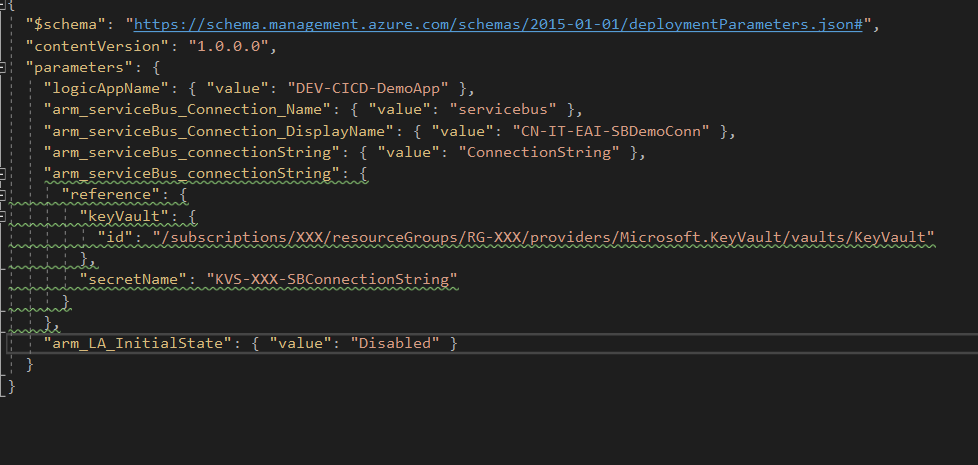
At this point, we’re no longer dealing with the definition, we’re dealing with the values we want the Logic App parameters to have. So, “type” and “defaultValue” no longer apply, you should use “value” directly or, if you’re dealing with KeyVault secrets, you can just reference KV and the secret name.
In this example, I’m setting the SB connection string both ways, to show how it can be done.
If you’ve done everything right, you’re Logic App should be deployed without any fuss.
Now comes the fun part, that is dealing with the Parameters Template file. It is incredibly difficult to do this and it’s going to take several hours. So grab that coffee and get confortable.
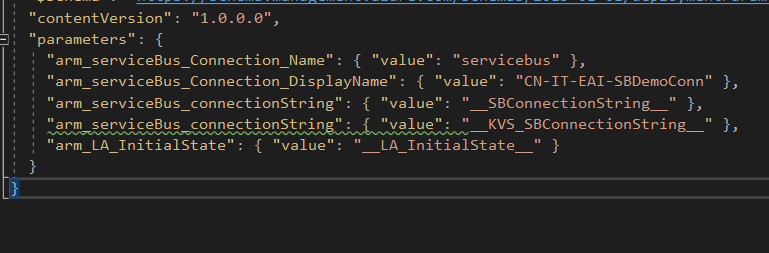
You will need to change your values to a token and an identifier, to later use in the Pipeline and releases.
Wow, that took us… 30 seconds, maybe. I’m exhausted and I need a break. You can even get that KV value with the token, you just need to change the identifier to the KV secret name.
We’re sweating over here with all this work.
In the next blog post, we will build the Pipeline and give the hints for the Release as well.
In the last blog post of this series I address a “strange” behavior – maybe strange is not the best work. They are not issues, but definitely, they could have a better user experience – about Sign-in to Azure doesn’t respond.
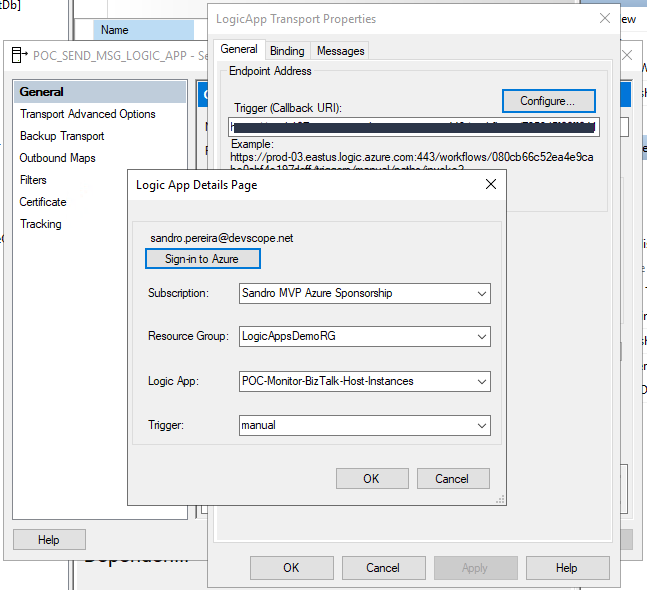
Today we are going to address a new one, make note that all of them will be related to the Logic App Adapter Azure Authentication (Sign-in to Azure) that you can find on the Endpoint Address Configuration Logic App Details Page.
Incorrect Sign-In account information
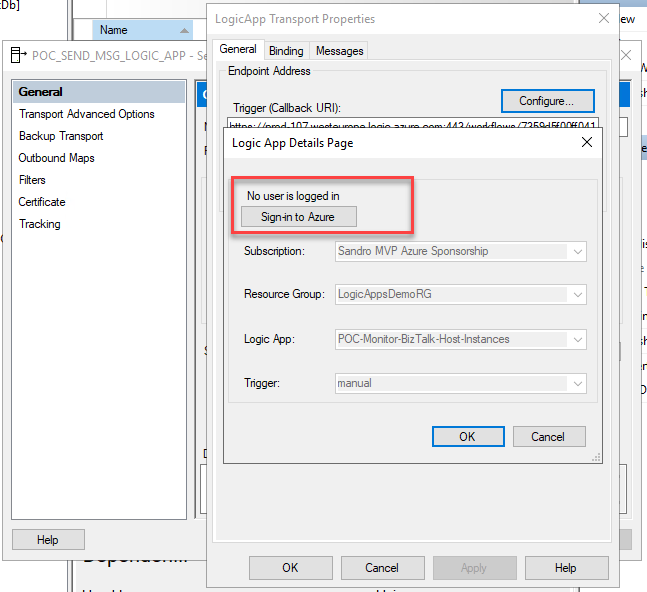
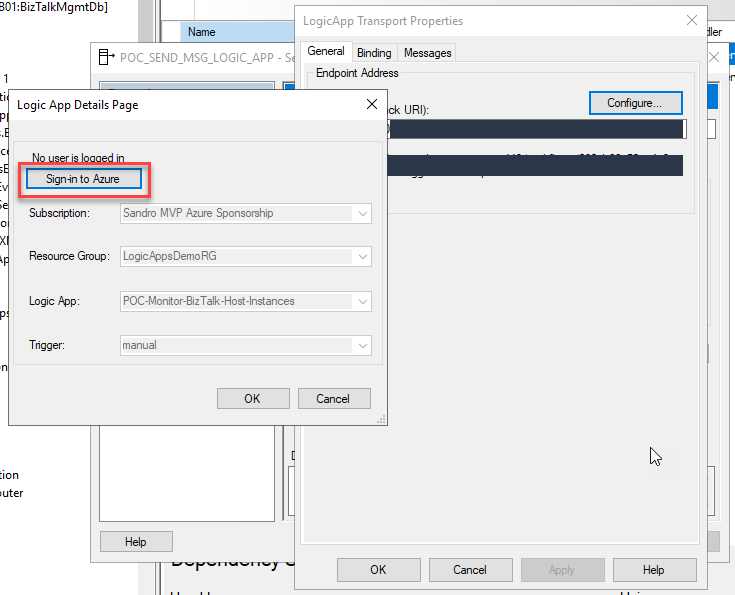
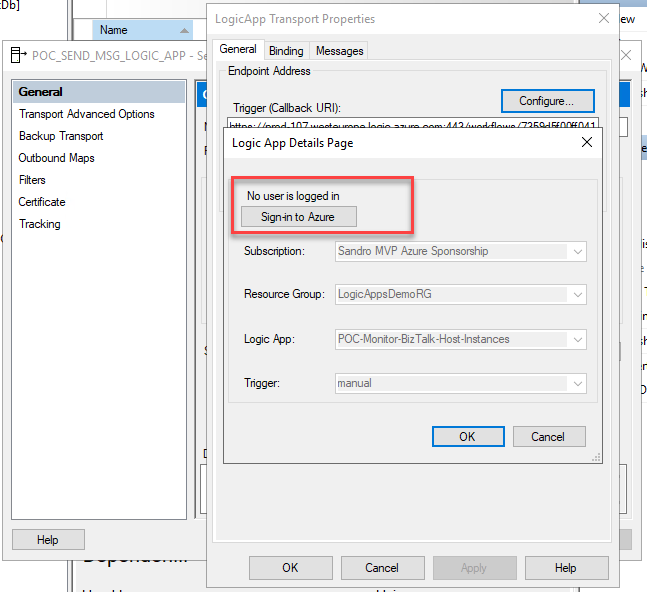
In the first blog post, we address the behavior of No user is logged in. Although the lack of this information is not critical to the send port’s correct functioning, I mention that it would be helpful for those who manage the platform to have this information available.
In this case, let’s assume that after a while (one week or one month later), we go to that send port, and what we see is No user is logged in…
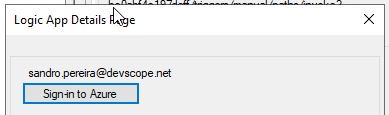
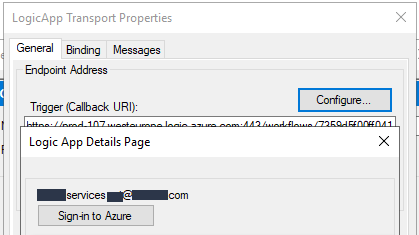
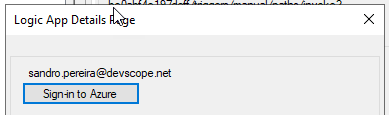
Or even we create the port, and there is an account defined there, let’s say my email account.
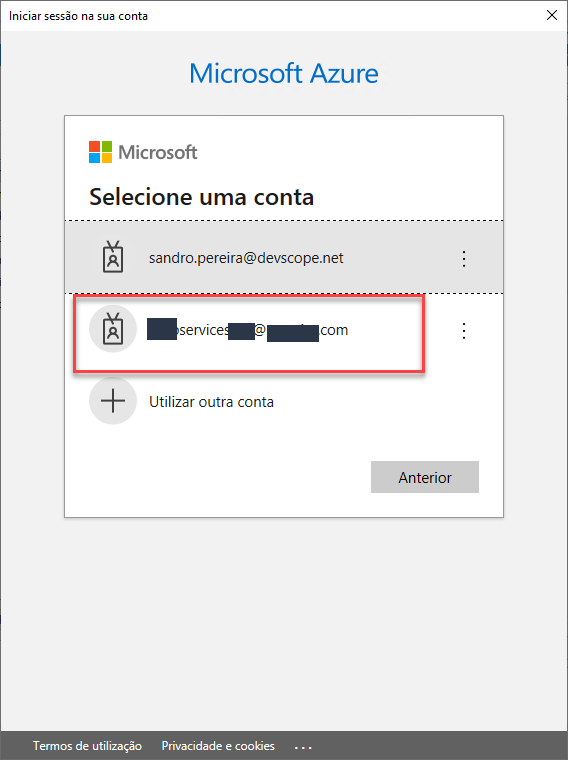
If we click on Sign-in to Azure once again, no matter if there is an account display there or not. This will pop up a Log in to your account window and let’s assume:
but now we are going to select a different account
Note: sorry for the picture to be in Portuguese
After we select the account the password will be asked. You type the password and click begin log in (begin session) and for some reason, a screen asking additional information will be showed to define phone number, email, and security questions.
If you don’t want to define this information, or you are not responsible to perform this configuration and decide to abort this process by click Cancel.
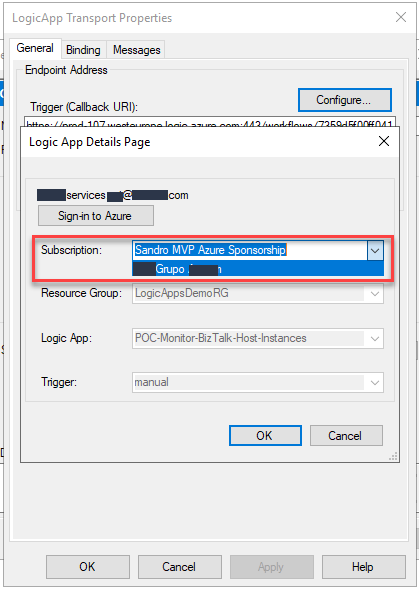
Once you get back to the Logic App Details Page on the BizTalk Server Administration Console the account you try to define to authenticate on Azure to define this port will sow the user you define on the process you just aborted. Despite being strange is not incorrect because in fact, you did authentic on Azure and you are able to see different subscription:
The Resource, Logic App and Trigger are gray because the user I used doesn’t have access to that subscription but instead to a different one
Now, if I say: upps!! I made a mistake. Let’s cancel this process and click three times on the cancel button to be sure I discard any change I did. Once we go again to the configuration of that port, what we will see is precisely the previous account being display there!
Again, this is not entirely wrong. What is displaying there is the last user you used to authenticate on Azure… but it is not correct in terms of user experience and it may induce BizTalk Server Administration in error. It was not that user that we used to define the configuration of that port, and neither this account has access to that subscription!
In my opinion, the last user account that successfully defined or made chances on the port should always be displayed.
And the only way to not see that information on that port is to close the Administration Console and open it again. After that at least you will see No user is logged in. This is also not an ideal situation, and it could mislead administrators once again.
On the first blog post of this series I address a “strange” behavior – maybe strange is not the best work. They are not issues, but definitely, they could have a better user experience – about No user is logged in.
Today we are going to address a new one, make note that all of them will be related to the Logic App Adapter Azure Authentication (Sign-in to Azure) that you can find on the Endpoint Address Configuration Logic App Details Page
Sign-in to Azure doesn’t respond
I work a lot with several clients in Portugal and outside Portugal. If it was already expected before this COVID-19 pandemic, it is now almost mandatory to work with several VPNs tools and configurations to access their environments.
Some of these VPN configurations allow me to continue to have internet access on my laptop. Others have this annoying behavior to cut access to the internet. In the current world situation with homework that we are, or need to be, online to speak with the team and clients, having no internet access because of a VPN is not a good situation. To avoid this situation or have a better experience, aka not stay offline, I usually install these VPN tools on my Virtual Machines. By doing this strategy, my laptop stays with internet access, but my VM doesn’t have. And it was in one of these situations I found this “strange” behavior.
When I access my Logic App Send Port configuration details on BizTalk Server Administration Console, I try to click several times on the Sign-in to Azure button:
But to my surprise, without any response or action to be presented. It seems that the button was not responding. Sometimes, after a few minutes, a blank pop-up window appears, but it disappears after a minute or so. And this without presenting any error or warning message!
I then realized that I was connected to a VPN, and my machine was without internet access:
Of course, when I turned off the VPN and my VM had access to the internet again, everything started to work as expected.
This is simply a bad user experience implementation. It should at least pop up a warning message that couldn’t connect with Azure or to the internet.
After working with BizTalk Server Logic App Adapter for a while, I saw some configurations “strange” behaviors – maybe strange is not the best work. They are not issues, but definitely, they could have a better user experience.
All of them are related to the Logic App Adapter Azure Authentication (Sign-in to Azure) that you can find on the Endpoint Address Configuration Logic App Details Page
No user is logged in
Once you configure the Logic App port, in this case, a send port, you need to sign in to Azure. This will pop up a window where you need to enter your account and password (Multi-factor Microsoft Authenticator). After that, you will see an identical configuration to what is shown in the picture below:
Account
Subscription
Resource Group
Logic App
and Trigger
If you then finish the configuration of the port, everything will be ok, and if you return later to the configurations onto that same send port, you will still be able to see that the account that I used to authenticate was my personal account:
However, if you close the BizTalk Server Administration Console, once you open again and access the configuration of that send port, you still be able to see the following information:
Subscription
Resource Group
Logic App
and Trigger
But you no longer be able to identify what account that was used to authenticate on Azure.
Although the lack of this information is not critical, I think it would be helpful for those who manage the platform to have this information available.
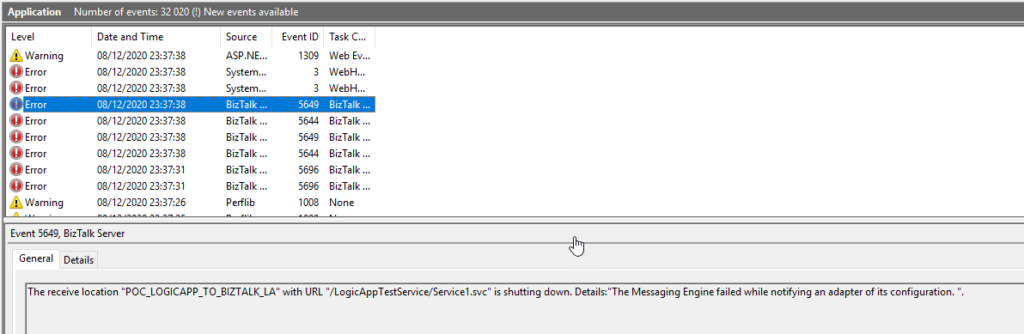
A few months ago, I was playing around with BizTalk Server hybrid Integration, in this case, trying to send messages from Logic App to BizTalk Server by using the Send message action of the Logic app BizTalk Server connector. While I conducted the first set of tests, I realized my Logic App was failing to send the message to BizTalk Server. On the BizTalk Server machine, I found that BizTalk Server was throwing the following error while receiving the message:
The Messaging Engine encountered an error when creating the receive adapter “LogicApp”. The Assembly is: “Microsoft.BizTalk.Adapter.LogicApp.Runtime.LogicAppReceiver, Microsoft.BizTalk.Adapter.LogicApp.Runtime”. The error occurred because the component does not implement the mandatory interface “IBTTransportControl”.
The Messaging Engine failed to add a receive location “POC_LOGICAPP_TO_BIZTALK_LA” with URL “/LogicAppTestService/Service1.svc” to the adapter “LogicApp”. Reason: “80070057”.
The receive location “POC_LOGICAPP_TO_BIZTALK_LA” with URL “/LogicAppTestService/Service1.svc” is shutting down. Details:”The Messaging Engine failed while notifying an adapter of its configuration. “.
The Messaging Engine failed to add a receive location “POC_LOGICAPP_TO_BIZTALK_LA” with URL “/LogicAppTestService/Service1.svc” to the adapter “LogicApp”. Reason: “80070057”.
The receive location “POC_LOGICAPP_TO_BIZTALK_LA” with URL “/LogicAppTestService/Service1.svc” is shutting down. Details:”The Messaging Engine failed while notifying an adapter of its configuration. “.
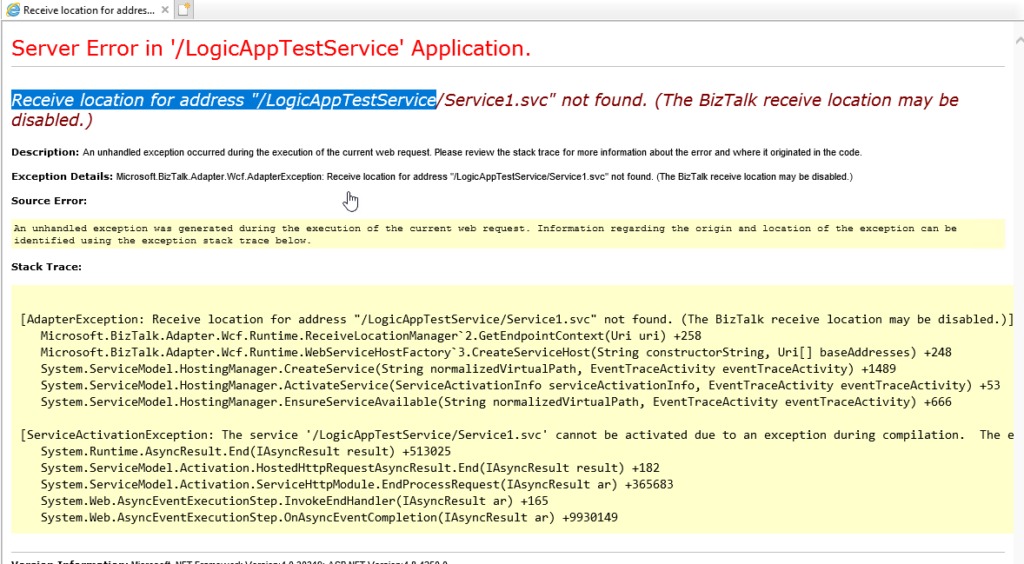
Exception: System.ServiceModel.ServiceActivationException: The service ‘/LogicAppTestService/Service1.svc’ cannot be activated due to an exception during compilation. The exception message is: Receive location for address “/LogicAppTestService/Service1.svc” not found. (The BizTalk receive location may be disabled.). —> Microsoft.BizTalk.Adapter.Wcf.AdapterException: Receive location for address “/LogicAppTestService/Service1.svc” not found. (The BizTalk receive location may be disabled.)
at Microsoft.BizTalk.Adapter.Wcf.Runtime.ReceiveLocationManager`2.GetEndpointContext(Uri uri)
at Microsoft.BizTalk.Adapter.Wcf.Runtime.WebServiceHostFactory`3.CreateServiceHost(String constructorString, Uri[] baseAddresses)
at System.ServiceModel.ServiceHostingEnvironment.HostingManager.CreateService(String normalizedVirtualPath, EventTraceActivity eventTraceActivity)
at System.ServiceModel.ServiceHostingEnvironment.HostingManager.ActivateService(ServiceActivationInfo serviceActivationInfo, EventTraceActivity eventTraceActivity)
at System.ServiceModel.ServiceHostingEnvironment.HostingManager.EnsureServiceAvailable(String normalizedVirtualPath, EventTraceActivity eventTraceActivity)
— End of inner exception stack trace —
at System.ServiceModel.ServiceHostingEnvironment.HostingManager.EnsureServiceAvailable(String normalizedVirtualPath, EventTraceActivity eventTraceActivity)
at System.ServiceModel.ServiceHostingEnvironment.EnsureServiceAvailableFast(String relativeVirtualPath, EventTraceActivity eventTraceActivity)
Process Name: w3wp
Process ID: 8068
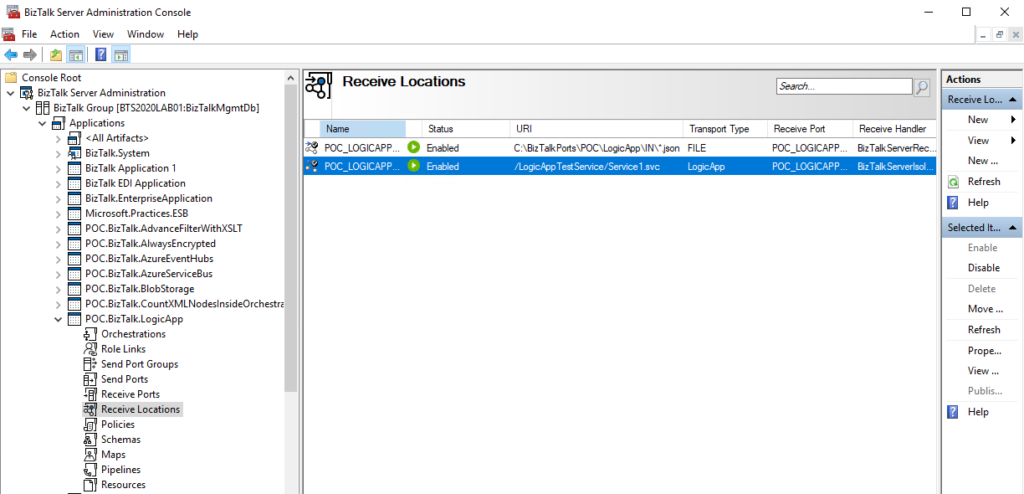
I faced similar issues in the past with other adapters (HTTP, WCF, SOAP, …). However, I knew that I had published the service on IIS with the correct App Pool, privileges and the BizTalk Server receive port associated with this server was running (Enabled).
Nevertheless, my first action was to validate the I could access that URL on the browser, and to my surprise, it was failing!
Luckily I found a very good post written by my friend Ahmed Taha explaining the reason why that was happening and the solution
Cause
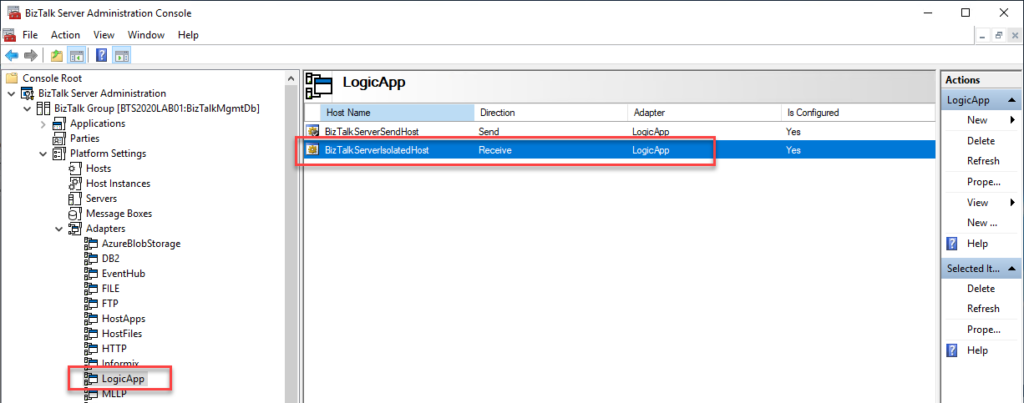
The reason for this issue is a bug on the default BizTalk Server 2020 configuration tool that assigns the Logic App Receive Adapter to an In-Process host. The correct setting is to be bound to the Isolated host.
Solution
The resolution is simple but a little annoying.
First, you need to remove the adapter from all assigned send ports and receive locations from all your BizTalk Server applications.
YYou can optimize this process using PowerShell, or if you were lucky like me that only have one receive port and one send port, you could easily do that manually..
The next step is to remove/un-register the Logic App adapter from BizTalk Server. You can do that by running the following VB script:
RemoveLogicAppAdapter.vbs: script to un-register the Logic App adapter from the BizTalk Server
These steps resolved the Logic App Adapter Handler Receive configuration issue in BizTalk Server 2020 and correctly bound it to the Isolated host. So if you try now to configure your receive port, it should work fine.
Final note: BizTalk Server Cumulative Update 2 already provide a hotfix to this issue:
After applying this fix, new receive handlers will be added as Isolated receive handler. However, any existing in-process LogicApp receive handlers need to be deleted manually. So basically, you need to reconfigure all your Receive Locations to use the Isolated host and then delete the receive handlers bounded to the In-Process host.
Recently I wrote my version of a script that Mike Stephenson initially created: Find Orphaned Azure API Connectors with PowerShell. This PowerShell script will look at all of the API Connections in a specific resource group and then inspect every Logic App in your resource group to check if the API Connections are being used or not. The goal of this script, of course, is to identify orphaned API Connections in a single Resource Group quickly and effectively.
I modify the original script to have a better output or at least a different output that works better for my needs. Automatically add a Deprecated tag on all the API Connectors with the value True or False. And add additional capabilities on the generation of the output report in a CSV format.
The only limitation of this script is that it only checks a specific Resource Group. So, if you have 3 or 4 Resources Groups, you need to configure this script and run it 3 or 4 times.
To streamline this process and not waste so much time, I decided to create a new version of this script. This new script will look at all the API Connections in all resource groups on a single Azure Subscription and then inspect every Logic App in that specific Resource Group (RG) to check if the API Connections of that RG are being used or not.
What’s new on this PowerShell script:
It will check in all Resources Groups available on a single Subscription if API Connections are being used or not.
Subscription Details output is improved and with coloring to better read
List of available API Connectors group by Resource Group output is improved and with coloring to better read
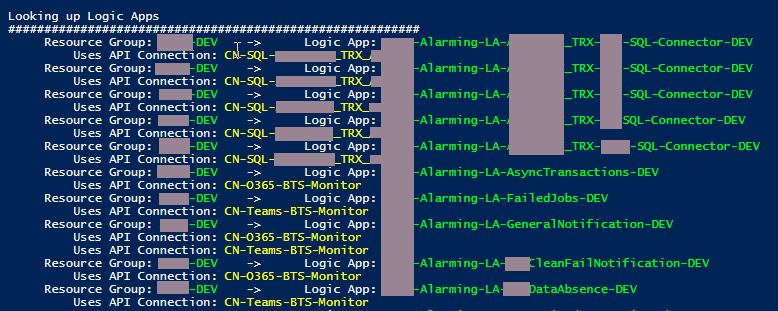
List of Logic Apps and API Connectors association group by Resource Group and Logic App output is improved and with coloring to better read
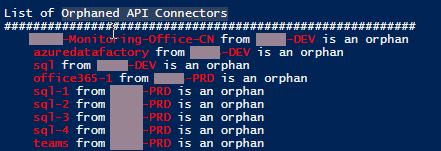
List of Orphaned API Connectors order by Resource Group output is improved and with coloring to better read
Download
THIS POWERSHELL SCRIPT IS PROVIDED “AS IS”, WITHOUT WARRANTY OF ANY KIND.
You can download Find Orphaned API Connectors in all Resource Groups from GitHub here:
Last week was Microsoft MVP renewal time – as you’ll probably have seen – and usually, I share this news firsthand, but this year my wife caught me off guard and in a week of hard work and was faster than me!
I’m delighted to share with you that on July 1st, I was renewed as a Microsoft Azure MVP (Microsoft Most Valuable Professional) for one more year. This is my 11th straight year on the MVP Program, a fantastic journey that started in 2011, back them as a BizTalk Server MVP. It looks like it was yesterday! And even though it’s already been 11 years, I still feel the same joy, excitement, and privilege of belonging to this group as on the first day!
It is an honor and privilege to be among great minds and community leaders! I want to send a big thanks to Cristina González Herrero, Irene Otero Perez for all the fantastic work managing the program in my region. And to all my fellow MVPs, my beautiful family, my coworkers, and to my team at DevScope, and in special all my blog readers, friends, members of Microsoft Enterprise Integration Community – THANKS! Thanks for your support during these years.
I’m not a Dynamics 265 expert, and Dynamics 365 is not my focus area. Nevertheless, I couldn’t ignore the flood of requests to add the new Dynamics 365 logos, especially the App icons. It took a while, but they are finally here.
What’s new in this version?
These are the list of changes and additions present in this major release:
New shapes: There are new shapes on the following Visio Stencils files (.vssx):
MIS Office, Office 365 and Dynamics 365: add the new Dynamic 265 logo, Dynamics 365 App Icons, and Dynamics 365 Mixed Reality Icons.
MIS Azure Stencils and MIS Azure Additional or Support Stencils: there were a few new icons add to the stencils, most of them related to new preview features and integration services like the new Logic App icon.
SVG files: new SVG files added.
Microsoft Integration, Azure, Power Platform, Office 365 and much more Stencils Pack
Microsoft Integration, Azure, Power Platform, Office 365 and much more Stencils Pack it’s a Visio package that contains fully resizable Visio shapes (symbols/icons) that will help you to visually represent On-premise, Cloud or Hybrid Integration and Enterprise architectures scenarios (BizTalk Server, API Management, Logic Apps, Service Bus, Event Hub…), solutions diagrams and features or systems that use Microsoft Azure and related cloud and on-premises technologies in Visio 2016/2013:
BizTalk Server
Microsoft Azure
Integration
Integration Service Environments (ISE)
Logic Apps and Azure App Service in general (API Apps, Web Apps, and Mobile Apps)
Azure API Management
Messaging: Event Hubs, Event Grid, Service Bus, …
Azure IoT and Docker
AI, Machine Learning, Stream Analytics, Data Factory, Data Pipelines
SQL Server, DocumentDB, CosmosDB, MySQL, …
and so on
Microsoft Power Platform
Microsoft Flow
PowerApps
Power BI
Office365, SharePoint,…
DevOps and PowerShell
Security and Governance
And much more…
… and now non-related Microsoft technologies like:
SAP Stencils
The Microsoft Integration Stencils Pack is composed of 27 files:
Microsoft Integration Stencils
MIS Additional or Support Stencils
MIS AI and Machine Learning Stencils
MIS Apps and Systems Logo Stencils
MIS Azure Additional or Support Stencils
MIS Azure Black and Gray
MIS Azure Old Versions
MIS Azure Stencils
MIS Black and Cyan
MIS Buildings Stencils
MIS Databases and Analytics Stencils
MIS Deprecated Stencils
MIS Developer Stencils
MIS Devices Stencils
MIS Files and Message Types Stencils
MIS Generic Stencils
MIS Infrastructure and Networking Stencils
MIS Integration Fun
MIS Integration Patterns Stencils
MIS IoT Stencils
MIS Office, Office 365 and Dynamics 365
MIS Power BI Stencils
MIS Power Platform Stencils
MIS SAP Stencils
MIS Security and Governance
MIS Servers (Hexagonal) Stencils
MIS Users and Roles Stencils
Organisational Stencils
That you can use and resize without losing quality, in particular, the new shapes.
Download
You can download Microsoft Integration, Azure, BAPI, Office 365 and much more Stencils Pack for Visio from GitHub Here: