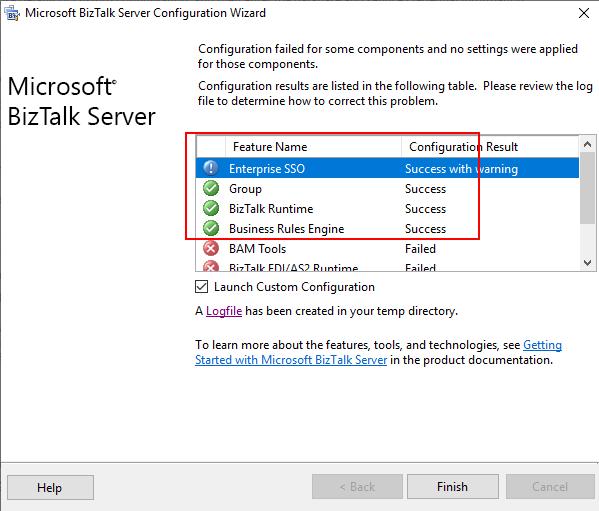
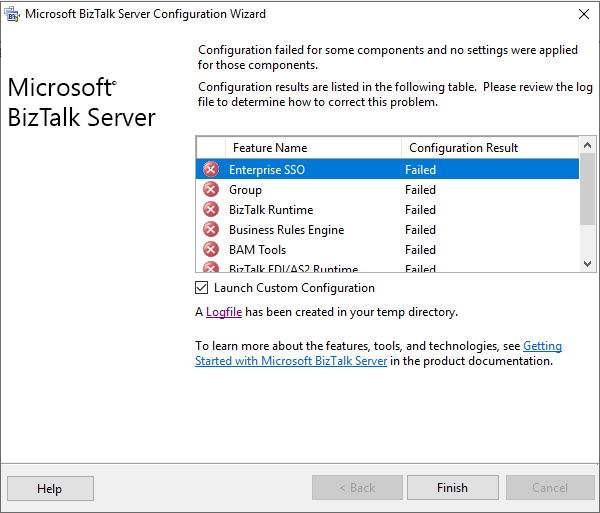
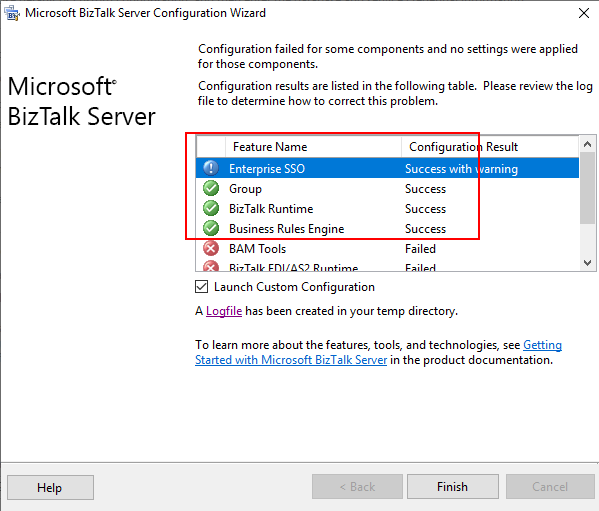
Following my last blog post and while I was trying to fix some issues regarding a BizTalk Server 2020 installation and configuration provided by my intern as is learning process. We end up solving some critical problems that allow us to install the platform’s most important components. Nevertheless, several components like BAM Tools, BAM Portal and BizTalk EDI/AS2 Runtime failed to configure:
Once, we inspect the logfile provide the the BizTalk Server Configurarion Wizard we found the following error message:
[2020-11-10 22:17:18:0674 Error Configuration Framework]Feature: [BAM Tools] Failed to configure with error message [Feature is skipped due to failed validation. Please go to Custom Configuration to fix the validation error.
Validation Error: <Exception Message=”Error validating the SSIS Catalog database. Please ensure SQL Server Integration Services is installed on the local machine and SSIS Catalog is created on target SQL Server.” Source=”BAMTools” HelpID=”idsErrorValidateSSISCatalogDatabase”><Exception Message=”SSIS Catalog (SSISDB) does not exist on server BTS2020LABAVMRG. Please create SSIS Catalog.” Source=”Microsoft.BizTalk.Bam.CfgExtHelper.ToolsHelper” HelpID=”error_SSISCatalogNotExists”/></Exception>]
[2020-11-10 22:17:18:0674 Error Configuration Framework]Feature: [BAM Portal] Failed to configure with error message [The Configuration of Feature ‘BAM Portal’ failed because the dependent Feature ‘BAM Tools’ was not configured. ]
[2020-11-10 22:17:18:0674 Error Configuration Framework]Feature: [BizTalk EDI/AS2 Runtime] Failed to configure with error message [Feature is skipped due to dependent feature (BAM Tools) failed to configure correctly.]
Three distinct errors but the last two are a sequence of the first one, all of them are related to the same cause.
Cause
SSISDB was automatically created during the BizTalk Server configuration process on previous versions if we enable BAM Portal. However, BAM Portal was deprecated in this new BizTalk Server version, and the configuration process no longer created the SSIS Catalog. Instead, we need to create the catalog manually.
If you don’t create the SSIS Catalog manually, you will not be able to configure BAM Portal. Nevertheless, you can always perform this operation whenever you think is required, and after that, configure BAM Portal.
Make sure you also configure SQL Server Database Mail feature if you wish to configure BAM Alerts on your BizTalk Server 2020 environment
Solution
The solution is very simple, we need to manually create the catalog by using the following instructions:
Open SQL Server Management Studio and connect to the SQL Server Database Engine.
In Object Explorer, expand the server node, right-click the Integration Services Catalogs node, and then click Create Catalog.
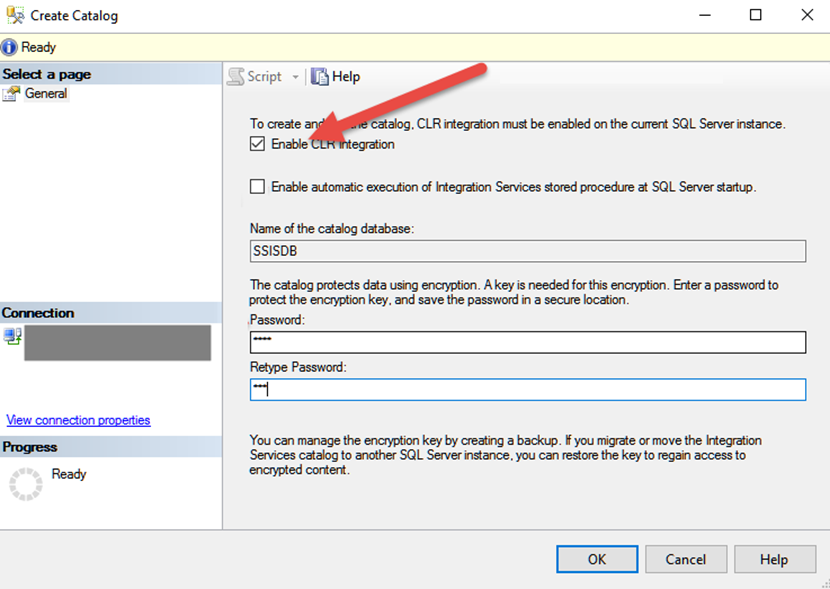
On the Create Catalog window, do the following configuration and click OK.
Select Enable CLR Integration option.
Enter a password to protect the encryption key.
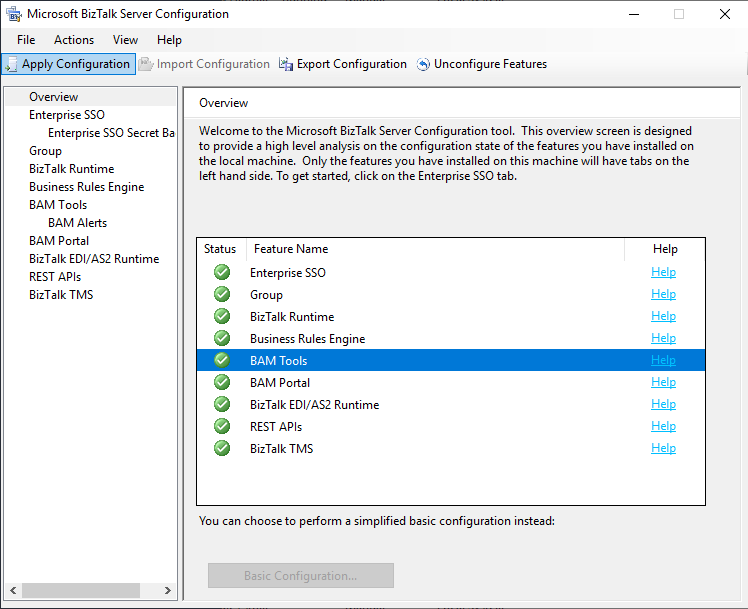
And run the BizTalk Server Configuration again. At the end you will be able to configure all BizTalk Server components.
As the learning process’s path, all my interns or new team members, regardless of what technologies they will be using more, one of the first things they will do is create a BizTalk Server development environment from scratch. Yes, all my team members will have skills in all Integration technologies, BizTalk Server, Logic Apps, Service Bus, APIM, and the list goes on and on.
I don´t mind or care if you get it right the first time or not. Sometimes it is with failures that we learn best and more. And I find it curious that with these exercises, they will find problems that I would never imagine happening, so sometimes it is a learning process and continuous improvement for both or the team.
This is one of these cases. My recent team member, while he was trying to configure BizTalk Server using the BizTalk Server Configuration wizard, was getting a failure in all the components immediately:
As he did not understand why this problem was happening, he asked me for help. Once we analyze the log file generated by the configuration wizard, we saw this error:
[2020-11-10 22:08:14:0631 Error Configuration Framework]Feature: [Enterprise SSO] Failed to configure with error message [<Exception Message=”Failed to create the SQL database ‘SSODB’ on SQL Server ‘BTS2020LABAVMRG’ (with SSO Administrator account ‘SSO Administrators’).” Source=”SSO” HelpID=””><Exception Message=”(0xC0002A21) An error occurred while attempting to access the SSO database.
” Source=”SSO” HelpID=””><Exception Message=”An error occurred while attempting to access the SSO database. See the event log (on computer ‘BTS2020LABAVMRG’) for more details.
” Source=”SSO” HelpID=””/></Exception></Exception>]
Basically, this error message does not show any clue or cause as to why this problem is happening. Nevertheless, it will point to you a source to see more details about this issue: the event viewer.
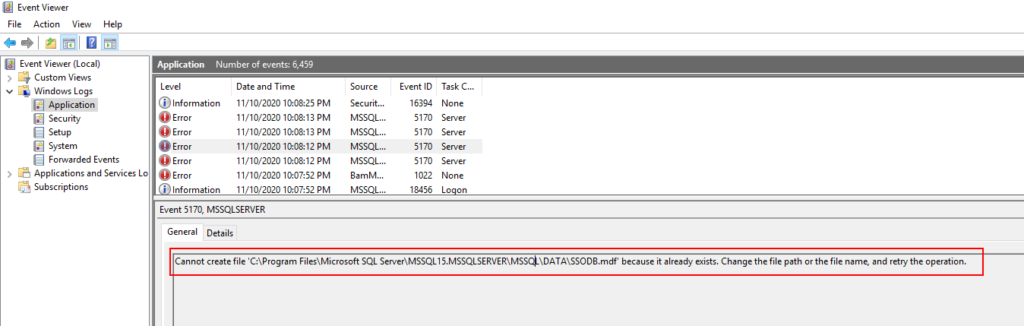
Once we chech the event viewer we got a very clear error message:
Cannot create file ‘C:Program FilesMicrosoft SQL ServerMSSQL15.MSSQLSERVERMSSQLDATASSODB.mdf’ because it already exists. Change the file path or the file name, and retry the operation.
Cause
The reason for this error to happen is clear. The BizTalk Server configuration wizard is trying to create the database files on the default SQL Server folders, but they already exist.
This error happened because my team member initially didn’t install all the required SQL Server components correctly. Once he was trying to add new features to an existing instance, he accidentally created another SQL Server instance.
After that, he uninstalled all the SQL Server instances and appropriately installed all the components, at least for now, let’s assume so. Nevertheless, while he was trying to do a Basic Configuration, he got that “strange” error.
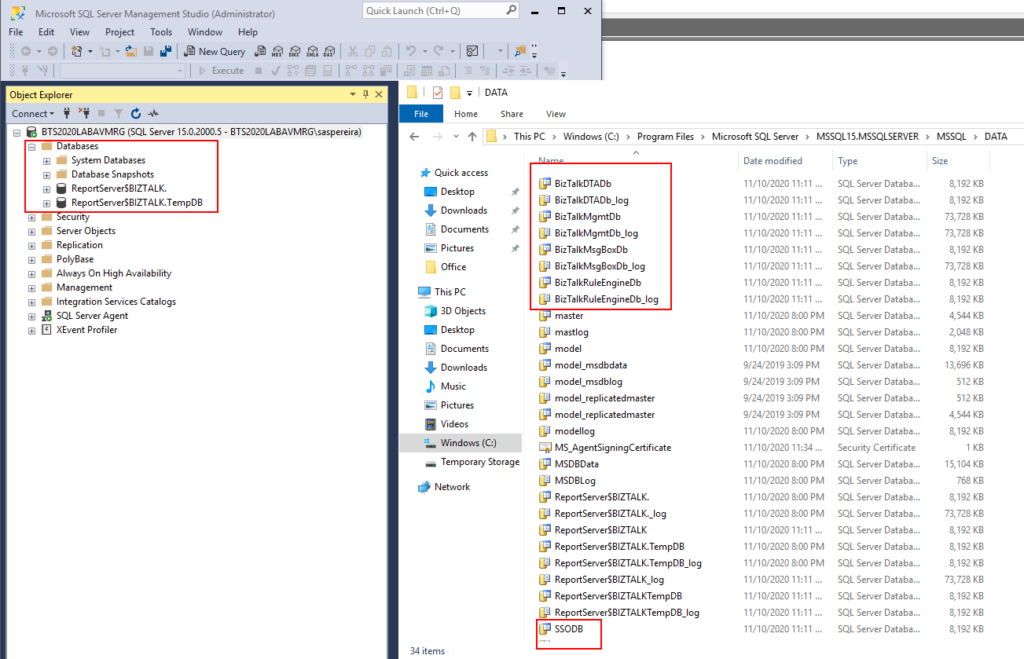
Thru the SQL Server Management Console, we couldn’t see these databases, not only SSO as the error description, but also with all other BizTalk Server databases. But once we saw that folder, we realize that the uninstalls did not delete BD files created before from the hard drive.
Solution
The solution is very simple, delete all the Unnecessary files from that folder, like:
SSO
SSO_log
BizTalkDTADb
BizTalkDTADb_log
BizTalkMgmtDb
BizTalkMgmtDb_log
BizTalkMsgBoxDb
BizTalkMsgBoxDb_log
BizTalkRuleEngineDb
BizTalkRuleEngineDb_log
And run the BizTalk Servr Configuration again. At the end you will be able to configure BizTalk Server.
Hey… but there still errors over there. Indeed, there are, but I will leave that to another post that will be published very soon. However, this blog post’s original error was solved, and we were able to configure the required and critical BizTalk Server components: SSO, Group, and BizTalk Runtime.
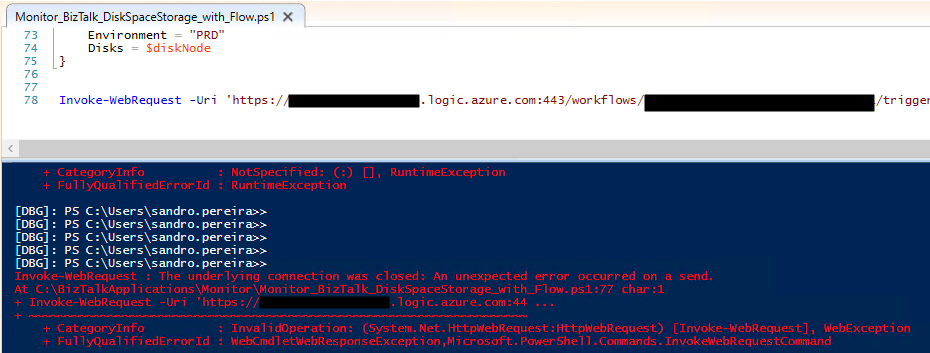
Invoke-WebRequest : The underlying connection was closed: An unexpected error occurred on a send. At C:BizTalkApplicationsMonitorMonitor_BizTalk_DiskSpaceStorage_with_Flow.ps1:77 char:1 + Invoke-WebRequest -Uri ‘https://{URI}.logic.azure.com:44 … + ~~~~~~~~~~~~~~~~~~~~~~~~~~~~~~~~~~~~~~~~~~~~~~~~~~~~~~~~~~~~~~ + CategoryInfo : InvalidOperation: (System.Net.HttpWebRequest:HttpWebRequest) [Invoke-WebRequest], WebException + FullyQualifiedErrorId : WebCmdletWebResponseException,Microsoft.PowerShell.Commands.InvokeWebRequestCommand
Cause
I had already experienced something similar when communicating with Logic Apps from the BizTalk Server Logic App adapter. However, I had already forgotten about it.
But in fact, the essence of this error and the one I got with the BizTalk adapter is the same.
The Logic App Request trigger supports only Transport Layer Security (TLS) 1.2 for incoming calls. Outgoing calls continue to support TLS 1.0, 1.1, and 1.2.
Solution
The solution was, and is, very simple, we just need to enforce PowerShell to use TLS 1.2. This can be done using this PowerShell one-liner:
Recently a friend of mine, Howard S. Edidin, a truly T-Rex, passed away. He was a former BizTalk Server MVP and he dedicated most of his professional life to BizTalk Server and HL7, work that you can find perpetuated in this book: HL7 for BizTalk. I personally couldn’t find a better way to honor him than this way: How to install BizTalk Accelerator for HL7 in a standalone machine.
Install BizTalk Accelerator for HL7
Starting with BizTalk Server 2013 R2 and newer versions, the BTAHL7 installation includes a 32-bit installation package (BizTalk AcceleratorsA4HL7 on the BizTalk Server ISO) and a 64-bit installation package (BizTalk AcceleratorsA4HL7(64) on the BizTalk Server ISO).
On a 32-bit computer, install only the 32-bit package. On a 64-bit computer, install the 32-bit or 64-bit package. The 64-bit package enables the adapter and pipelines to run in both 32-bit and 64-bit mode.
Note: The user installing and configuring BTAHL7 must be a member of the BizTalk Administrators group, and a member of the Administrators group on the SQL Server where the BTAHL7 data is stored.
Note: BizTalk Server should have the basic components installed and configured, including a 32-bit BizTalkServerApplication host with standard out of the box adapters, Enterprise Single Sign-on (SSO), the Group, and Runtime.
To install BizTalk Accelerator for HL7 we need to:
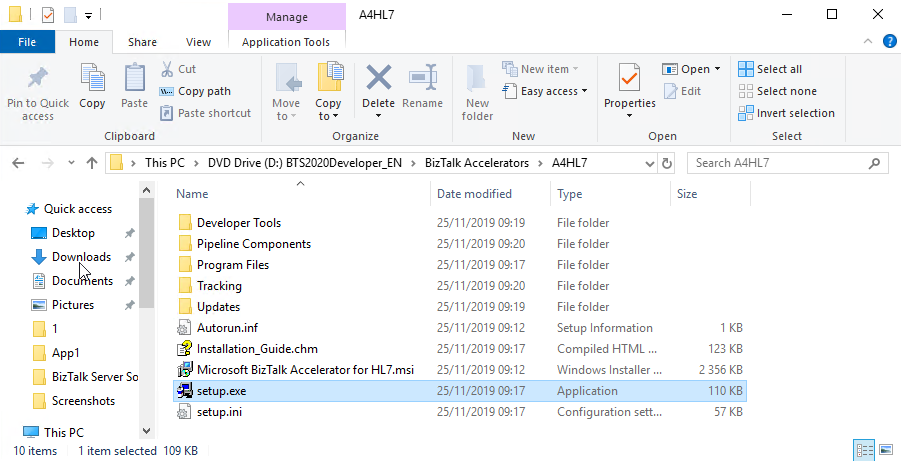
Run the BizTalk Accelerator for HL7 (A4HL7) setup.exe as Administrator.
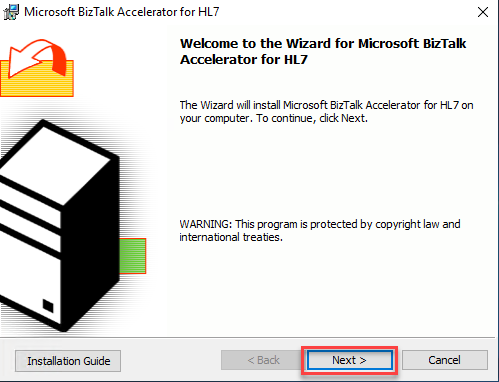
On the Welcome to the Wizard for Microsoft BizTalk Accelerator for HL7 page, select Next.
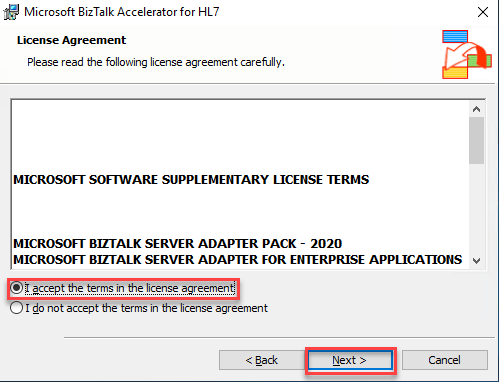
On the License Agreement page, accept the terms, and then select Next.
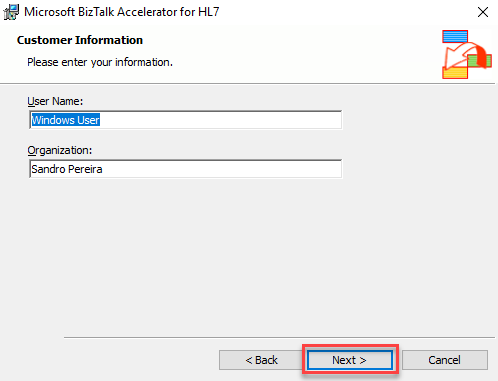
On the Customer Information page, enter your user name and organization, and then select Next.
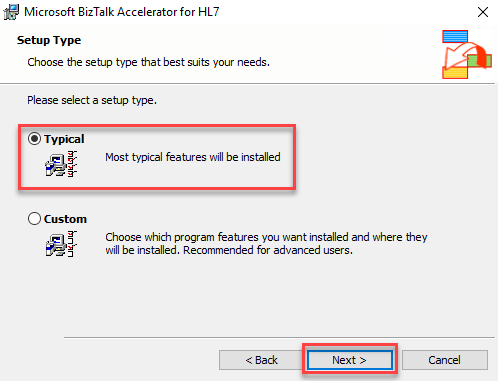
On the Setup Type page, select the Typical setup, and then select Next.
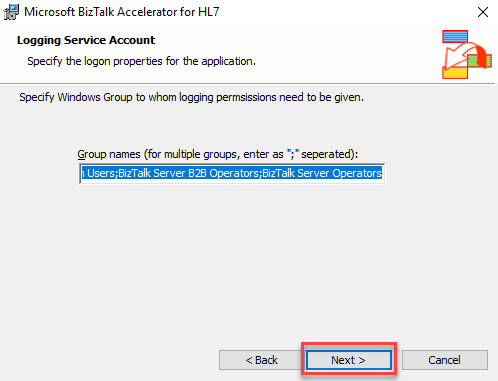
On the Logging Service Account page, leave the default group names and select Next.
The Logging Service Account page automatically gives the following groups the logging permissions:
BizTalk Server Administrators
BizTalk Application Users
BizTalk Server B2B Operators
BizTalk Server Operators
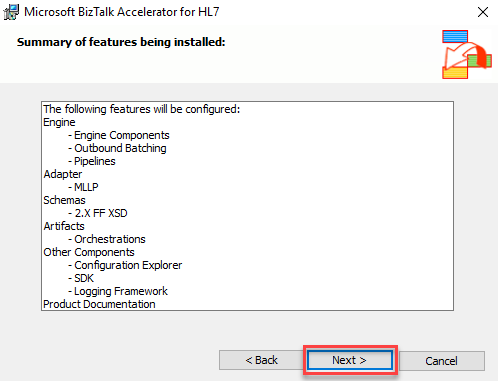
On the Summary of features being installed page, review the summary, and select Next.
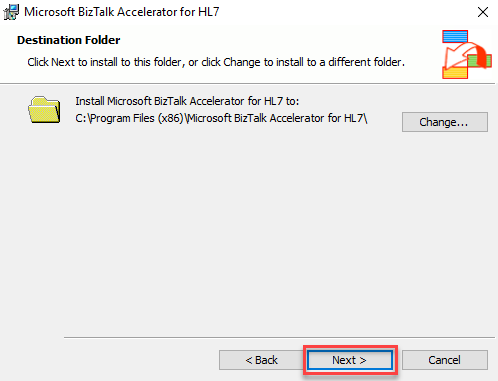
On the Destination Folder page, select Next to use the default folder. Or, select Change to choose a different installation folder.
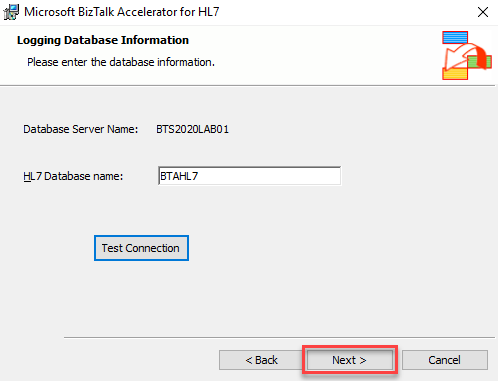
On the Logging Database Information page, leave the default configuration, and then select Next.
Database Server Name: The default value is the server name (name of the computer that the BizTalkMgmtDb database resides – you cannot change this value.).
HL7 Database name: Enter the name of the database that contains the data for your BTAHL7 solution, or accept the default setting, which is BTAHL7
You must use the ANSI-ASCII character set per database requirements; BTAHL7 does not support other character sets.
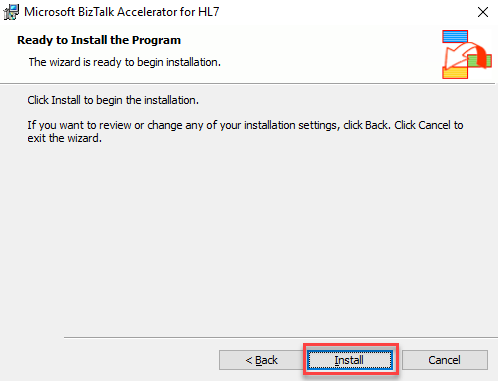
On the Ready to Install the Program page, select Install.
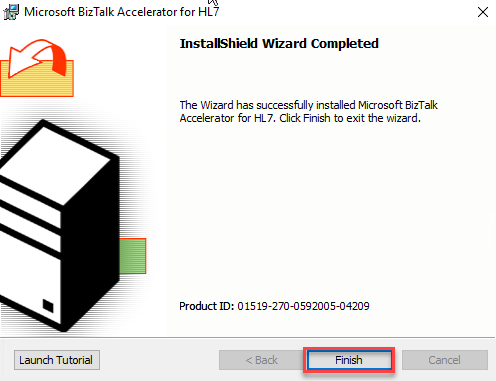
On the InstallShield Wizard Completed page, select Finish to complete.
In my infamous crusade to document any BizTalk Server error that I have already come across, here is another error, warnings, cause, and solutions blog post, this time joining another of my favorite topic: Maps.
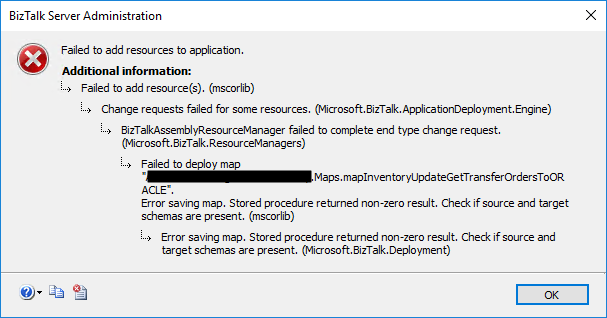
While trying to deploy a BizTalk Server solution – MSI – into production. While trying to import the BizTalk Application from the .msi file into the BizTalk group by using the BizTalk Server Administration Console by:
Opening the BizTalk Server Administration Console for the instance of BizTalk Server into which you want to import the application. Click Start, click All Programs, click Microsoft BizTalk Server 20xx, and then click BizTalk Server Administration.
In the console tree, expand BizTalk Server Administration, and then expand BizTalk Group.
Right-click Applications, point to Import and then click MSI file.
I came across this error during the progress phase:
Failed to add resource(s). (mscorlib) – Change requests failed for some resources. (Microsoft.BizTalk.ApplicationDeployment.Engine) – BizTalkAssemblyResourceManager failed to complete end type change request. (Microsoft.BizTalk.ResourceManagers) – Failed to deploy map “FULLY-QUALIFIED-MAP-NAME”. Error saving map. Stored procedure returned non-zero result. Check if source and target schemas are present. (mscorlib) – Error saving map. Stored procedure returned non-zero result. Check if source and target schemas are present. (Microsoft.BizTalk.Deployment)
Cause
In previous versions of BizTalk Server, mainly 2010 and 2009, a bug was reported related to this issue. That problem occurred because BizTalk was trying to deploy the mapper assembly before the schema assembly. The solution for that case was installing the cumulative update 4 (or above) for BizTalk Server 2010 or the cumulative update 7 for BizTalk Server 2010.
Nevertheless, I was using BizTalk Server 2016, so that wasn’t the case. Luckily for us, the error provides a piece of clear evidence where the error is happening: FULLY-QUALIFIED-MAP-NAME.
To understand this issue, I went to my dev environment and opened that solution to analyze that specific map, mainly to know which schemas were being used. I then realize that one of the schemas was from an external assembly, a common schema that could be used by several applications.
The cause of this error was precisely that. I used a reference schema (external DLL) inside my map outside the project I was trying to deploy. But that assembly – DLL containing the map’s schema – was not yet deployed in the environment.
Solution
Make sure to deploy all the reference assemblies, special the ones outside your visual studio solution, are deployed before you deploy your solution. And in this case, make sure that all schemas are deployed before installing the maps.
But once again, the critical point here is to make sure to deploy all schemas outside your solution that are being used. Because, even if we use specific projects for maps and schemas inside our solution, BizTalk Server is smart enough to see the dependencies and deploy it accordingly.
After installing the external assembly that contains the schema used by that map, I was able to deploy the BizTalk project into production successfully.
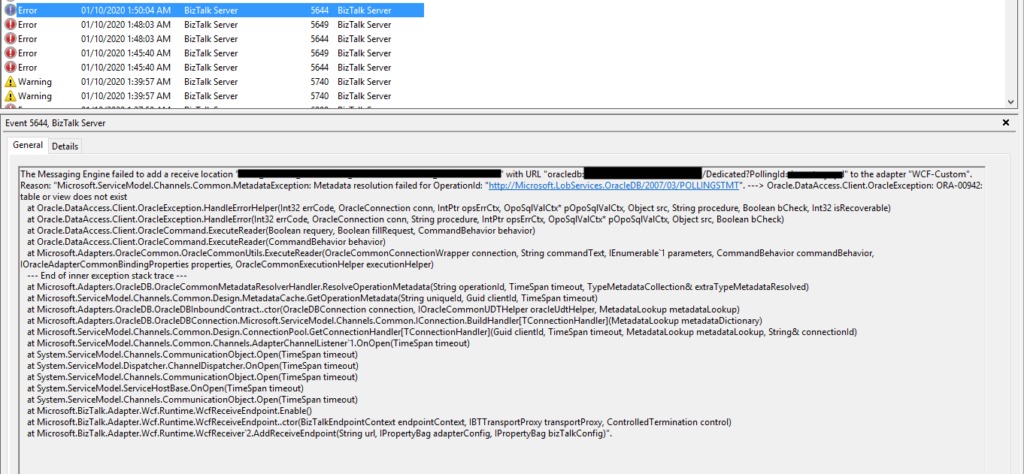
Following my previous blog post, Oracle.DataAccess.Client.OracleException: ORA-00942: table or view does not exist, and once I was able to solve that last issue, I was surprised by a brand new communication error between BizTalk Server and ORACLE, fortunately for me, this time with a more explicit error message: ORA-00942: table or view does not exist.
The Messaging Engine failed to add a receive location “ORACLE_RECEIVE_LOCATION_NAME” with URL “oracledb://SERVER_ADDRESS:PORT_NUMBER/SERVICE_NAME/Dedicated?PollingId=polling_id” to the adapter “WCF-Custom”. Reason: “Microsoft.ServiceModel.Channels.Common.MetadataException: Metadata resolution failed for OperationId: “http://Microsoft.LobServices.OracleDB/2007/03/POLLINGSTMT“. —> Oracle.DataAccess.Client.OracleException: ORA-00942: table or view does not exist at Oracle.DataAccess.Client.OracleException.HandleErrorHelper(Int32 errCode, OracleConnection conn, IntPtr opsErrCtx, OpoSqlValCtx* pOpoSqlValCtx, Object src, String procedure, Boolean bCheck, Int32 isRecoverable) at Oracle.DataAccess.Client.OracleException.HandleError(Int32 errCode, OracleConnection conn, String procedure, IntPtr opsErrCtx, OpoSqlValCtx* pOpoSqlValCtx, Object src, Boolean bCheck) at Oracle.DataAccess.Client.OracleCommand.ExecuteReader(Boolean requery, Boolean fillRequest, CommandBehavior behavior) at Oracle.DataAccess.Client.OracleCommand.ExecuteReader(CommandBehavior behavior) at Microsoft.Adapters.OracleCommon.OracleCommonUtils.ExecuteReader(OracleCommonConnectionWrapper connection, String commandText, IEnumerable`1 parameters, CommandBehavior commandBehavior, IOracleAdapterCommonBindingProperties properties, OracleCommonExecutionHelper executionHelper) — End of inner exception stack trace — at Microsoft.Adapters.OracleDB.OracleCommonMetadataResolverHandler.ResolveOperationMetadata(String operationId, TimeSpan timeout, TypeMetadataCollection& extraTypeMetadataResolved) at Microsoft.ServiceModel.Channels.Common.Design.MetadataCache.GetOperationMetadata(String uniqueId, Guid clientId, TimeSpan timeout) at Microsoft.Adapters.OracleDB.OracleDBInboundContract..ctor(OracleDBConnection connection, IOracleCommonUDTHelper oracleUdtHelper, MetadataLookup metadataLookup) at Microsoft.Adapters.OracleDB.OracleDBConnection.Microsoft.ServiceModel.Channels.Common.IConnection.BuildHandler[TConnectionHandler](MetadataLookup metadataDictionary) at Microsoft.ServiceModel.Channels.Common.Design.ConnectionPool.GetConnectionHandler[TConnectionHandler](Guid clientId, TimeSpan timeout, MetadataLookup metadataLookup, String& connectionId) at Microsoft.ServiceModel.Channels.Common.Channels.AdapterChannelListener`1.OnOpen(TimeSpan timeout) at System.ServiceModel.Channels.CommunicationObject.Open(TimeSpan timeout) at System.ServiceModel.Dispatcher.ChannelDispatcher.OnOpen(TimeSpan timeout) at System.ServiceModel.Channels.CommunicationObject.Open(TimeSpan timeout) at System.ServiceModel.ServiceHostBase.OnOpen(TimeSpan timeout) at System.ServiceModel.Channels.CommunicationObject.Open(TimeSpan timeout) at Microsoft.BizTalk.Adapter.Wcf.Runtime.WcfReceiveEndpoint.Enable() at Microsoft.BizTalk.Adapter.Wcf.Runtime.WcfReceiveEndpoint..ctor(BizTalkEndpointContext endpointContext, IBTTransportProxy transportProxy, ControlledTermination control) at Microsoft.BizTalk.Adapter.Wcf.Runtime.WcfReceiver`2.AddReceiveEndpoint(String url, IPropertyBag adapterConfig, IPropertyBag bizTalkConfig)”.
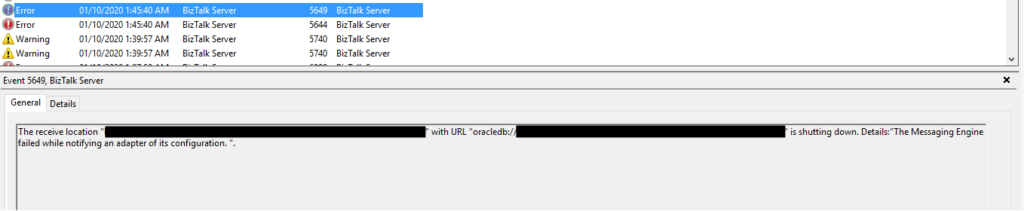
Once again, followed by the following error:
The receive location “ORACLE_RECEIVE_LOCATION_NAME” with URL “oracledb://SERVER_ADDRESS:PORT_NUMBER/SERVICE_NAME/Dedicated?PollingId=polling_id” is shutting down. Details:”The Messaging Engine failed while notifying an adapter of its configuration. “.
Of course, these two errors are related, but the first one is the one that has more precise information regarding what is happening.
Cause
As the error message describes, the table or the view you are trial to communicate doesn’t exist on the ORACLE database you are trying to communicate.
Solution
I wish all problems were that simple!
To solve this issue, you need to contact your ORACLE team and make sure that they properly deploy the missing databases, tables, or views.
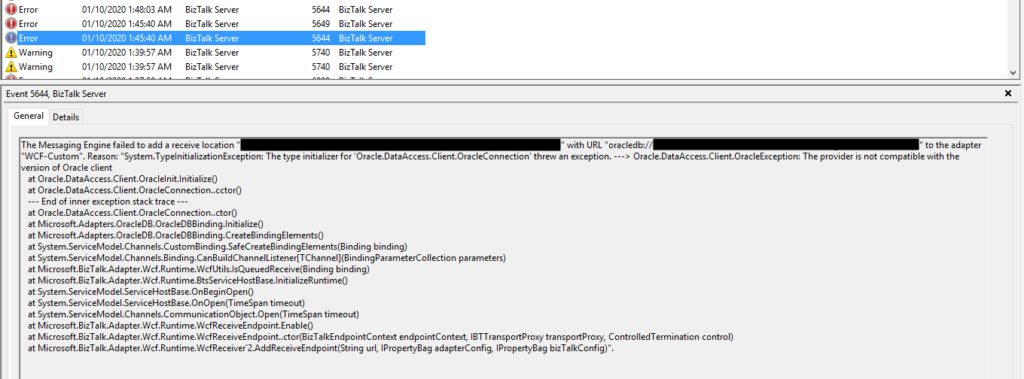
I’m back to one of my favorite topics, error, warnings, cause, and solutions blog post – still have plenty of them in my backlog to be published. I recently installed a new BizTalk Server solution in production in one of my clients that integrate with ORACLE. When I try to activate the Oracle Receive ports, I got the following error inside Event Viewer:
The Messaging Engine failed to add a receive location “ORACLE_RECEIVE_LOCATION_NAME” with URL “oracledb://SERVER_ADDRESS:PORT_NUMBER/SERVICE_NAME/Dedicated?PollingId=polling_id” to the adapter “WCF-Custom”. Reason: “System.TypeInitializationException: The type initializer for ‘Oracle.DataAccess.Client.OracleConnection’ threw an exception. —> Oracle.DataAccess.Client.OracleException: The provider is not compatible with the version of Oracle client at Oracle.DataAccess.Client.OracleInit.Initialize() at Oracle.DataAccess.Client.OracleConnection..cctor() — End of inner exception stack trace — at Oracle.DataAccess.Client.OracleConnection..ctor() at Microsoft.Adapters.OracleDB.OracleDBBinding.Initialize() at Microsoft.Adapters.OracleDB.OracleDBBinding.CreateBindingElements() at System.ServiceModel.Channels.CustomBinding.SafeCreateBindingElements(Binding binding) at System.ServiceModel.Channels.Binding.CanBuildChannelListener[TChannel](BindingParameterCollection parameters) at Microsoft.BizTalk.Adapter.Wcf.Runtime.WcfUtils.IsQueuedReceive(Binding binding) at Microsoft.BizTalk.Adapter.Wcf.Runtime.BtsServiceHostBase.InitializeRuntime() at System.ServiceModel.ServiceHostBase.OnBeginOpen() at System.ServiceModel.ServiceHostBase.OnOpen(TimeSpan timeout) at System.ServiceModel.Channels.CommunicationObject.Open(TimeSpan timeout) at Microsoft.BizTalk.Adapter.Wcf.Runtime.WcfReceiveEndpoint.Enable() at Microsoft.BizTalk.Adapter.Wcf.Runtime.WcfReceiveEndpoint..ctor(BizTalkEndpointContext endpointContext, IBTTransportProxy transportProxy, ControlledTermination control) at Microsoft.BizTalk.Adapter.Wcf.Runtime.WcfReceiver`2.AddReceiveEndpoint(String url, IPropertyBag adapterConfig, IPropertyBag bizTalkConfig)”.
Followed by the following error:
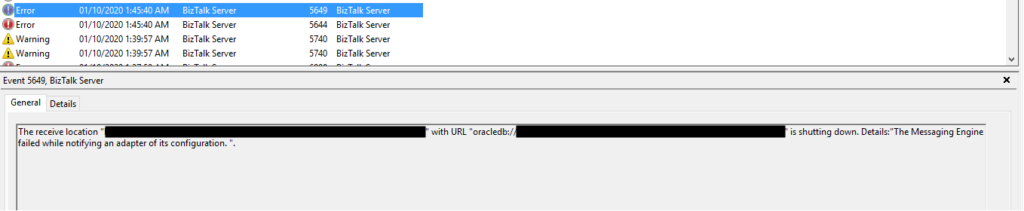
The receive location “ORACLE_RECEIVE_LOCATION_NAME” with URL “oracledb://SERVER_ADDRESS:PORT_NUMBER/SERVICE_NAME/Dedicated?PollingId=polling_id” is shutting down. Details:”The Messaging Engine failed while notifying an adapter of its configuration. “.
Of course, these two errors are related, but the first one is the one that has more precise information regarding what is happening.
Cause
Usually, these types of problems occur when you don’t have the correct versions of the Oracle Data Provider for .NET (ODP.NET) and the Oracle client, which are part of the Oracle Data Access Components (ODAC). Still, it may occur, or similar errors, for other several reasons like for example:
The Oracle Data Provider DLLs are not properly registered into GAC.
Mistmach installation versions between the components, for example between Oracle Client and ODP.NET.
Mistmach installation versions between 32bit or 64bit ODAC components.
Unfortunately, kind of, none of the above reasons were justifying my issues since I already had several ORACLE receive locations, running with success on the environment.
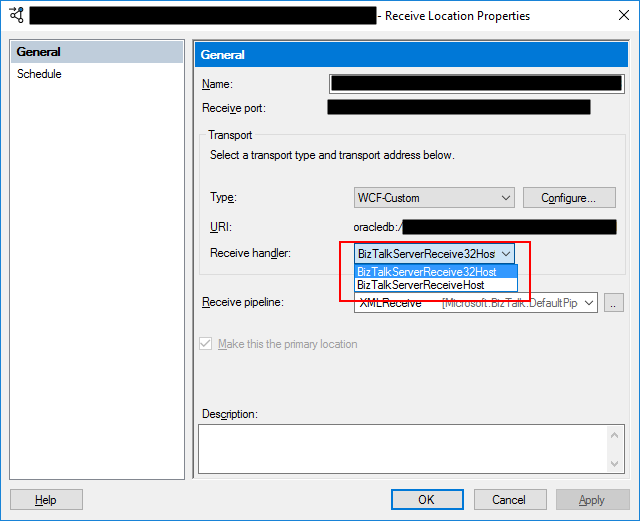
When I investigate the other running ports, I realized that all of them were running the 64-bit Host Instance. And this one that was getting problems was running in 32-bit Receive Host Instance. I then realize that ODAC 32-bit components were not properly installed in production.
Even if you don’t use it, it is essential to have always the 32, and 64-bit of each adapter installed correctly in your environment. If that’s not possible, make sure to associate the 32, and 64-bit Receive Handlers and Send Handlers for each adapter accordingly.
Solution
In my case, the solution was simple, since I had already several ORACLE receive location successfully running in the environment. I have to access the receive location and configure the Receive Handler to be the 64-bit Host Instance.
After this modification, the problem was gone, and I could pull data from the ORACLE database. Otherwise, make sure to install the necessary 32-bit or 64-bit ODAC components correctly.
When you deploy a new BizTalk Server solution to a different environment, and if for some reason, you don’t use or cannot use CI/CD (Continuous integration and continuous delivery):
Your environment is too small to justify using CI/CD;
The client doesn’t provide access to Visual Studio Team Services (VSTS);
Don’t like to use BTDF (Deployment Framework for BizTalk);
Not using custom tools like BizTalk Bindings Exporter tool;
Then one of the most common tasks you need to do is to change all the URI from all the ports, Receive Ports and Send Ports, from the binding files.
Of course, you can do it in many different ways, for example:
Before import to the new environment, open notepad or any other editor, and manually replace all the Inbound Transport URL and Outbound Transport URL;
Import AS IS and on the Administration Console, manually change these parameters;
Or script this process;
This is not always a quick and easy job. Luckily for us, these tasks can be automated, leading them to become simpler, faster, and avoid fewer errors.
This script that I will be showing you can be very useful, for example, in scenarios that during the lifecycle of existing applications, one system got updated or migrated to a different version or server (or both), and we need to update the URI or part of it on a range of the Receive Locations according to the new configuration/specification.
PowerShell script overview
With this PowerShell sample, we will be able to set or update the URI (address) or part of the URI on a list of BizTalk Server Receive Locations deployed in your BizTalk Server environment.
foreach($receivePort in $catalog.ReceivePorts)
{
# For each receive location in your environment
foreach($recLocation in $receivePort.ReceiveLocations)
{
# In this case ...
if($rcvLocations.Contains($recLocation.Name))
{
[string] $address = $recLocation.Address
$address = $address.Replace("DEV-SERVER-NAME","PRO_SERVER-NAME")
# Sample of additional custom changes
if($address.Contains("PREFIX"))
{
$address = $address.Replace("DATABASE","DATABASE-WITH-PREFIX-A")
}
else
{
$address = $address.Replace("DATABASE","DATABASE-WITH-PREFIX-B")
}
$recLocation.Address = $address
}
}
}
This script was tested in BizTalk Server 2016.
Download
THIS POWERSHELL SCRIPT IS PROVIDED “AS IS”, WITHOUT WARRANTY OF ANY KIND.
With security be every day more important, this also brings additional problems (good problems) to BizTalk Server Administrators during the deployment of new BizTalk Server Applications or even during the lifecycle of existing applications:
What a few years ago was anonymous, because they were internal services, they are now authenticated.
Nowadays, many organizations implement a combination of Minimum Password Age policy also enforcing a Password History policy that requires to reset the password, even for services accounts, from time to time and avoid reusing the same password.
These tasks lead to BizTalk Server Administrators to manually set the user credentials in a range of ports (send and receive). This is not always a quick and easy job.
Luckily for us, these tasks can be automated, leading them to become simpler, faster, and avoid fewer errors.
PowerShell script overview
With this PowerShell sample, we will be able to set or update the Authentication Credential on a list of BizTalk Server Receive Locations deployed in your BizTalk Server environment.
foreach($receivePort in $catalog.ReceivePorts)
{
# For each receive location in your environment
foreach($recLocation in $receivePort.ReceiveLocations)
{
# In this case ...
if($rcvLocations.Contains($recLocation.Name))
{
$bindingConfiguration = $recLocation.TransportTypeData
if($bindingConfiguration.CustomProps.Password.vt -eq "1")
{
$bindingConfiguration.CustomProps.Password.InnerText = "my_password"
$bindingConfiguration.CustomProps.Password.vt = "8"
}
else
{
$passwordElement = $bindingConfiguration.CreateElement("Password")
$passwordElement.SetAttribute("vt", "8")
$passwordElement.InnerText = "my_password"
$bindingConfiguration.CustomProps.InsertAfter($passwordElement, $bindingConfiguration.CustomProps.SuspendMessageOnFailure)
}
if($bindingConfiguration.CustomProps.UserName.vt -eq "8")
{
$bindingConfiguration.CustomProps.UserName.InnerText = "my_username"
}
$transportConfigData = $bindingConfiguration.InnerXml
$recLocation.TransportTypeData = $transportConfigData
}
}
}
This script was tested in BizTalk Server 2016.
Download
THIS POWERSHELL SCRIPT IS PROVIDED “AS IS”, WITHOUT WARRANTY OF ANY KIND.
It was only 3 days ago that I released a major version. Still, with all of this new stuff and announcements on Ignite 2020, I just decide to make a minor update to my stencil package, especially because all the logos of Power Platform components have changed.
What’s new in this version?
These are the list of changes and additions present in this major release:
New shapes: There are new shapes on the following Visio Stencils files (.vssx):
MIS Power Platform Stencils: the picture above is presenting the new logo icons of Power BI, Power Apps, Power Automate, and Power Virtual Agents.
MIS Azure Stencils and MIS Azure Additional or Support Stencils: there were a few new icons add to the stencils, most of them related to Azure Arc and Storage Account and some icon updates.
MIS Office, Office 365, and Dynamics 365: New shapes added to this stencil with more Office 365 products.
Automation: minor fixes on the automation scripts
SVG files: new SVG files added.
Microsoft Integration, Azure, Power Platform, Office 365 and much more Stencils Pack
Microsoft Integration, Azure, Power Platform, Office 365 and much more Stencils Pack it’s a Visio package that contains fully resizable Visio shapes (symbols/icons) that will help you to visually represent On-premise, Cloud or Hybrid Integration and Enterprise architectures scenarios (BizTalk Server, API Management, Logic Apps, Service Bus, Event Hub…), solutions diagrams and features or systems that use Microsoft Azure and related cloud and on-premises technologies in Visio 2016/2013:
BizTalk Server
Microsoft Azure
Integration
Integration Service Environments (ISE)
Logic Apps and Azure App Service in general (API Apps, Web Apps, and Mobile Apps)
Azure API Management
Messaging: Event Hubs, Event Grid, Service Bus, …
Azure IoT and Docker
AI, Machine Learning, Stream Analytics, Data Factory, Data Pipelines
SQL Server, DocumentDB, CosmosDB, MySQL, …
and so on
Microsoft Power Platform
Microsoft Flow
PowerApps
Power BI
Office365, SharePoint,…
DevOps and PowerShell
Security and Governance
And much more…
… and now non-related Microsoft technologies like:
SAP Stencils
The Microsoft Integration Stencils Pack is composed of 27 files:
Microsoft Integration Stencils
MIS Additional or Support Stencils
MIS AI and Machine Learning Stencils
MIS Apps and Systems Logo Stencils
MIS Azure Additional or Support Stencils
MIS Azure Black and Gray
MIS Azure Old Versions
MIS Azure Stencils
MIS Black and Cyan
MIS Buildings Stencils
MIS Databases and Analytics Stencils
MIS Deprecated Stencils
MIS Developer Stencils
MIS Devices Stencils
MIS Files and Message Types Stencils
MIS Generic Stencils
MIS Infrastructure and Networking Stencils
MIS Integration Fun
MIS Integration Patterns Stencils
MIS IoT Stencils
MIS Office, Office 365 and Dynamics 365
MIS Power BI Stencils
MIS Power Platform Stencils
MIS SAP Stencils
MIS Security and Governance
MIS Servers (Hexagonal) Stencils
MIS Users and Roles Stencils
Organisational Stencils
That you can use and resize without losing quality, in particular, the new shapes.