by Sandro Pereira | Aug 17, 2017 | BizTalk Community Blogs via Syndication
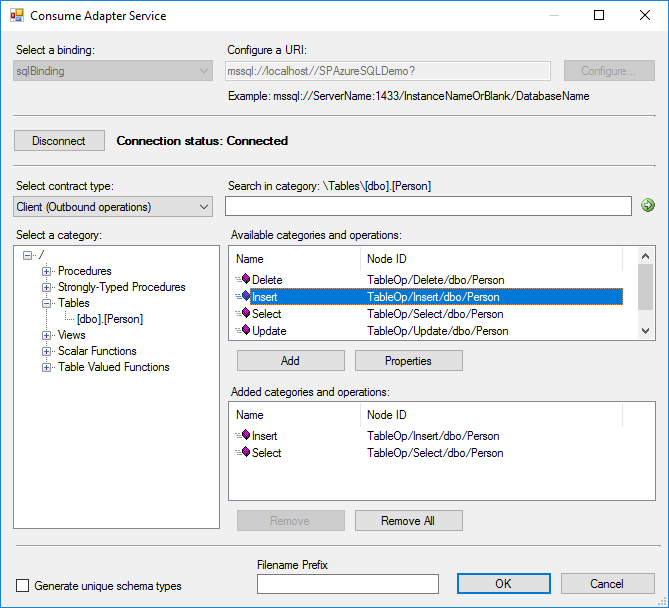
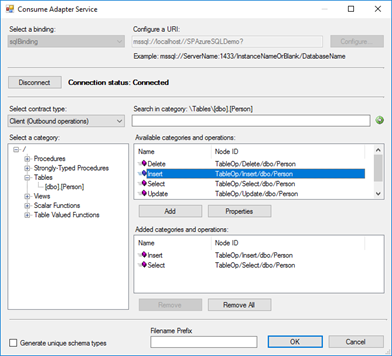
The Consume Adapter Service option from “Add Generated Items…” inside Visual Studio is metadata generation tool (or add-in), included in WCF LOB Adapter SDK, that can be used with BizTalk Projects to allow BizTalk developers to search or browse metadata from LOB adapters and then generate XML Schemas for selected operations inside Visual Studio.
This is a simple sample of the Consume Adapter Service tool to generate XML Schemas for SQL Server operations:
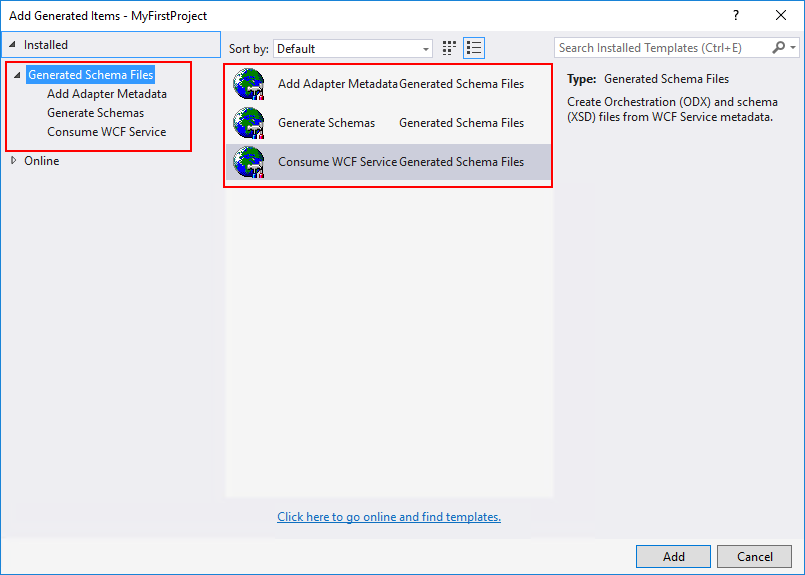
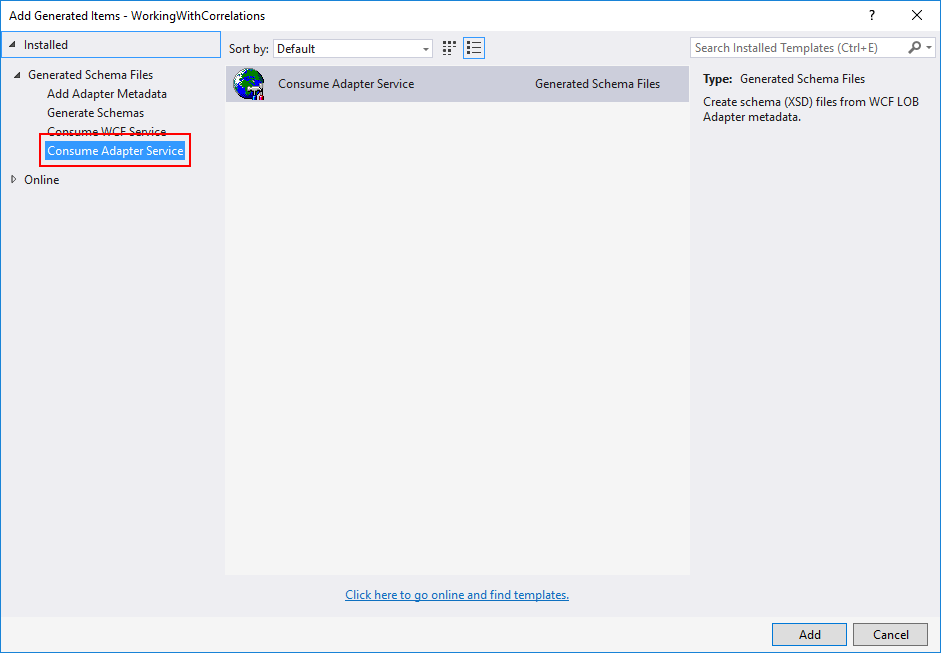
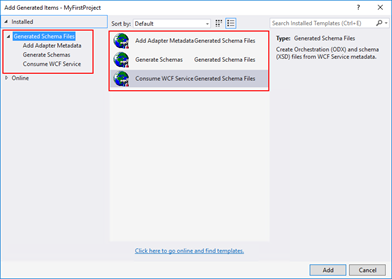
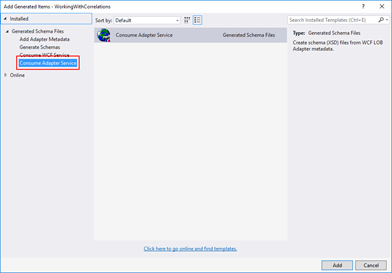
However, recently while I was working in a client development environment with the LOB adapters installed and configured in the environment I notice that the Consume Adapter Service option was missing from “Add Generated Items…” window in Visual Studio
Cause
In our case, indeed we had the LOB adapters installed and configured in the environment, however, we only had the runtime of the WCF LOB Adapter SDK installed, in other words, we didn’t have the WCF LOB Adapter SDK fully installed.
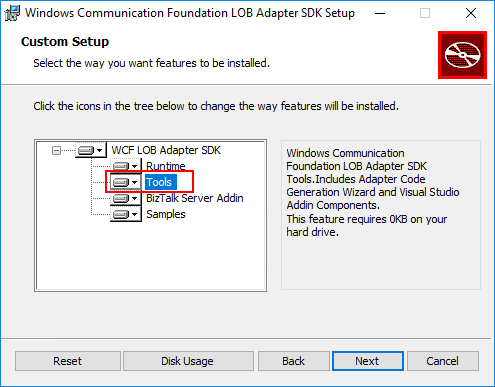
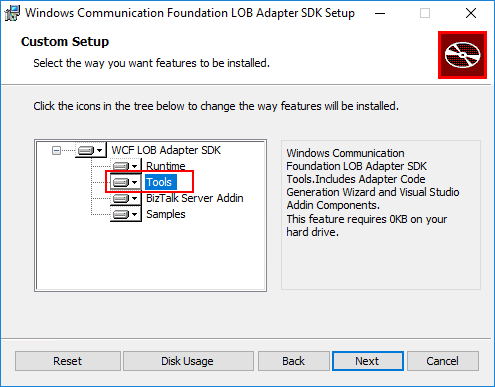
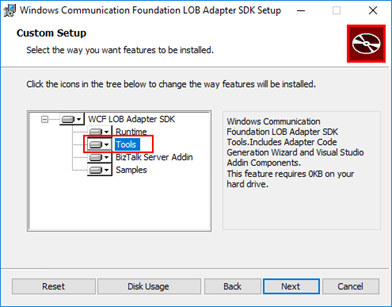
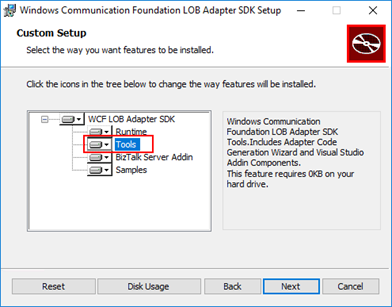
The Consume Adapter Service tool will only be available in your Visual Studio if you install the Tools options from the WCF LOB Adapter SDK. This option will include the Adapter Code Generation Wizard and Visual Studio Addin Components.
Note: Personally, I recommend that you perform a full installation (all components) of the WCF LOB Adapter SDK on BizTalk Server Development environments.
Solution
The solution it is easy for this particular case, you just need to install the WCF LOB Adapter SDK Tools.
To install the WCF LOB Adapter SDK Tools you need:
- Close any programs you have open. Run the BizTalk Server <version> installer as Administrator.
- On the Start page, click “Install Microsoft BizTalk Adapters”
- In the BizTalk Adapter Pack Start page, select the first step “Step 1. Install Microsoft WCF LOB Adapter SDK”. An installer of SDK is launched.
- On the “Welcome to the Windows Communication Foundation LOB adapter SDK Setup Wizard” page, click “Next”
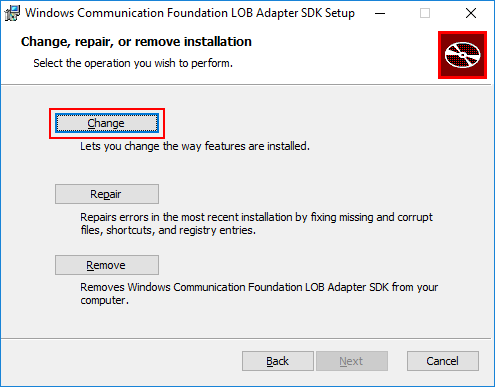
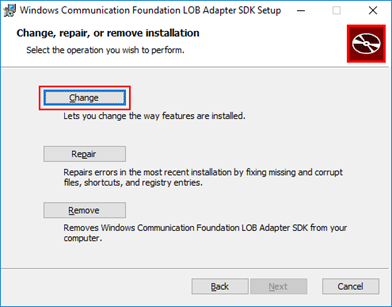
- On the “Change, repair, or remove installation” page, select the “Change” option
-
- On the “Custom Setup” page, make sure that you select the option “Tools” to be installed and click “Next”
Note: Again, I personally recommend that you perform a full installation (all components) of the WCF LOB Adapter SDK on BizTalk Server Development environments.
-
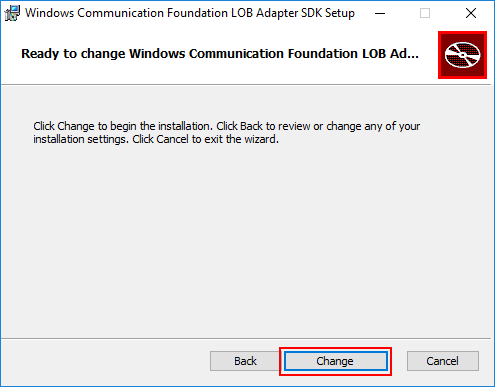
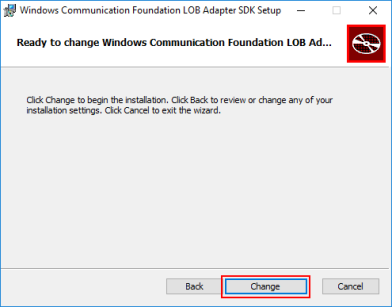
- On the “Ready to change Windows Communication Foundation LOB Adapter SDK Setup” page, click “Change” to begin the installation
After the installation is finished, if you open your BizTalk project solution once again in Visual Studio, you will see that the Consume Adapter Service option will now be available in the “Add Generate Items” window:
- In Visual Studio, in the Project pane, right-click your BizTalk Server project, and then choose Add | Add Generated Items… | Consume Adapter Service.
This problem can happen and the solution is the same for all BizTalk Versions (that contains LOB Adapters).
Author: Sandro Pereira
Sandro Pereira lives in Portugal and works as a consultant at DevScope. In the past years, he has been working on implementing Integration scenarios both on-premises and cloud for various clients, each with different scenarios from a technical point of view, size, and criticality, using Microsoft Azure, Microsoft BizTalk Server and different technologies like AS2, EDI, RosettaNet, SAP, TIBCO etc. He is a regular blogger, international speaker, and technical reviewer of several BizTalk books all focused on Integration. He is also the author of the book “BizTalk Mapping Patterns & Best Practices”. He has been awarded MVP since 2011 for his contributions to the integration community. View all posts by Sandro Pereira

by Gautam | Aug 6, 2017 | BizTalk Community Blogs via Syndication
Do you feel difficult to keep up to date on all the frequent updates and announcements in the Microsoft Integration platform?
Integration weekly update can be your solution. It’s a weekly update on the topics related to Integration – enterprise integration, robust & scalable messaging capabilities and Citizen Integration capabilities empowered by Microsoft platform to deliver value to the business.
If you want to receive these updates weekly, then don’t forget to Subscribe!
On-Premise Integration:
Cloud and Hybrid Integration:
Feedback
Hope this would be helpful. Please feel free to let me know your feedback on this Integration weekly series.

by Saravana Kumar | Jul 30, 2017 | BizTalk Community Blogs via Syndication
We often get this question asked what’s are the restrictions of BizTalk Server Standard edition. I thought of highlighting the key restrictions that are applicable to BizTalk Server Standard Edition here.

BizTalk Applications Limit:
You cannot deploy more than 5 BizTalk Applications in a single environment (this excludes the default BizTalk.System application). This is not a great restriction since BizTalk applications are just logical containers to group artifacts together (receive locations, send ports, schemas, orchestrations, policies etc). There is nothing stopping a customer from deploying all the artifacts inside one or two applications. In fact, this restriction results in some of the bad practices in BizTalk Application deployment. In our opinion, a better restriction will be restricting the number of artifacts like “x” number of orchestrations, send ports, receive locations.
BizTalk Servers Limits:
You cannot have more than one server in a BizTalk Environment. This is the one that forces most of the customers to move to BizTalk Server Enterprise edition. This restriction basically results in not having high availability for your BizTalk environment, if the server goes down, your environment is down.
Single Message Box:
You cannot have more than one MessageBox in your environment. Scaling MessageBox is required when you have a high throughput scenario. It’s not really big impact in BizTalk Standard Edition case since you are restricted to only one BizTalk server and hence you can only handle so much load anyway.
Number of CPU cores:
You cannot have more than 8 cores on the server. Again this restricts the scalability of your BizTalk Environment to limited processing power.
In a nutshell, the BizTalk Standard edition is designed for customers who want to take advantage of the integration platform but not concerned with scalability and high throughput.
Author: Saravana Kumar
Saravana Kumar is the Founder and CTO of BizTalk360, an enterprise software that acts as an all-in-one solution for better administration, operation, support and monitoring of Microsoft BizTalk Server environments. View all posts by Saravana Kumar

by Gautam | Jul 30, 2017 | BizTalk Community Blogs via Syndication
Do you feel difficult to keep up to date on all the frequent updates and announcements in the Microsoft Integration platform?
Integration weekly update can be your solution. It’s a weekly update on the topics related to Integration – enterprise integration, robust & scalable messaging capabilities and Citizen Integration capabilities empowered by Microsoft platform to deliver value to the business.
If you want to receive these updates weekly, then don’t forget to Subscribe!
On-Premise Integration:
Cloud and Hybrid Integration:
Feedback
Hope this would be helpful. Please feel free to let me know your feedback on this Integration weekly series.
by Sandro Pereira | Jul 28, 2017 | BizTalk Community Blogs via Syndication
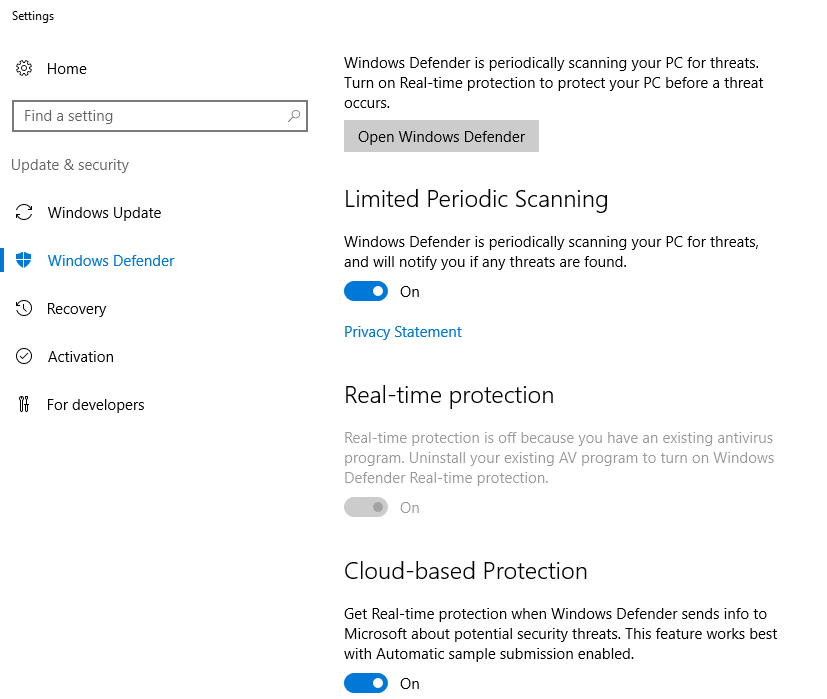
Why checking if Windows Defender is running on BizTalk Server, or another anti-virus, is important? I have been creating several BizTalk Server 2016 Developer environments on Azure using Azure Virtual Machines, normally I tend to be careful in choosing the VM Disk type – SSD can be expensive – and the size of the virtual machine – I would love to use a 4-core machine with 28GB but still using a HHD disk it will cost me near 430€ per month – so, because of the pricing I’m usually choose a modest machine from 1-core and 3.5 GB RAM or up to 4-core and 8GB RAM.
They tend to be a little slow, so tuning it well is important for archive a better performance and by default Windows Defender is configured on that machines. Not only as a negative impact in the general performance of the machine but also can have a huge impact on BizTalk Server performance.
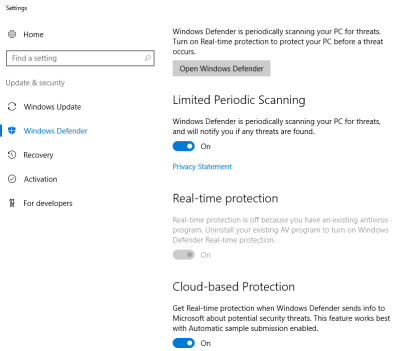
Indeed, anti-virus can have a huge impact on BizTalk Server performance and normally the best approach for BizTalk Server environment and anti-virus software is using a perimeter based approach, where you normally don’t run the anti-virus software on the machine itself but protect the boundaries.
I like to use this approach but if not possible, at least you should configure antivirus software to avoid real-time scanning of BizTalk Server executables and file drops. Antivirus software real-time scanning of BizTalk Server executable files and any folders or file shares monitored by BizTalk Server receive locations can negatively impact BizTalk Server performance. If antivirus software is installed on the BizTalk Server computer(s), disable real-time scanning of non-executable file types referenced by any BizTalk Server receive locations (usually .XML, but can also be .csv, .txt, etc.) and configure antivirus software to exclude scanning of BizTalk Server executable Files.
In this post, I will not address how you can disable Windows Defender, I will live it to another post and I will not address also all the possible existing Anti-virus in the market, instead, here I will focus only in Windows Defender for a simple reason: that this is the anti-virus installed by default in the BizTalk Server 2016 Developer Virtual Machines template on Azure. Neither to configure Anti-virus exclusions that you should do for BizTalk, for that a good blog post from MSFT: BizTalk Server Anti-Virus Exclusions
However, one of the first steps while doing one BizTalk environment performance, or even a basic, assessment is to find out if there is any Anti-virus running on your BizTalk Server.
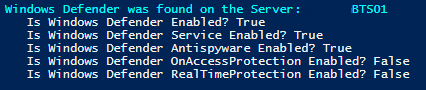
So, I create this simple PowerShell script to use in all my environments just to check is Windows Defender that is installed and enabled by default in Windows Server 2016 is running on the Server:
Try
{
    $defenderOptions = Get-MpComputerStatus

    if([string]::IsNullOrEmpty($defenderOptions))
    {
        Write-host "Windows Defender was not found running on the Server:" $env:computername -foregroundcolor "Green"
    }
    else
    {
        Write-host "Windows Defender was found on the Server:" $env:computername -foregroundcolor "Cyan"
        Write-host "   Is Windows Defender Enabled?" $defenderOptions.AntivirusEnabled
        Write-host "   Is Windows Defender Service Enabled?" $defenderOptions.AMServiceEnabled
        Write-host "   Is Windows Defender Antispyware Enabled?" $defenderOptions.AntispywareEnabled
        Write-host "   Is Windows Defender OnAccessProtection Enabled?"$defenderOptions.OnAccessProtectionEnabled
        Write-host "   Is Windows Defender RealTimeProtection Enabled?"$defenderOptions.RealTimeProtectionEnabled

        if($defenderOptions.RealTimeProtectionEnabled)
        {
            $windowsShell = new-object -comobject wscript.shell
            $questionResult = $windowsShell.popup("Do you want to disable Real Time Protection?", 0,"Not at this moment.",4)
            If ($questionResult -eq 6) {
                    Set-MpPreference -DisableRealtimeMonitoring $true
                Write-host "Windows Defender Real Time Protection was successfully disabled" -foregroundcolor "Green"
                Write-host "Nevertheless Windows Defender is still running"
            }
        }
    }
}
Catch
{
    Write-host "Windows Defender was not found running on the Server:" $env:computername -foregroundcolor "Green"
}
Output type:
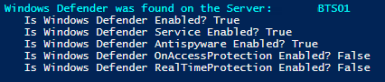

The script, not only allows you to check if Windows Defender is running on BizTalk Server but, if the Windows Defender is running and you have Real Time Protection enabled it will allow you to disable this feature if you want – nevertheless, by disabling it the Windows Defender will still be running, the only thing is not doing is a real-time protection to scan everything you download or run on Server.
THIS POWERSHELL IS PROVIDED “AS IS”, WITHOUT WARRANTY OF ANY KIND.
The script to check if Windows Defender is running on BizTalk Server can be found and download on Microsoft TechNet Gallery:
 PowerShell to Check if Windows Defender is running on the Server (2 KB)
Microsoft | TechNet Gallery
Author: Sandro Pereira
Sandro Pereira lives in Portugal and works as a consultant at DevScope. In the past years, he has been working on implementing Integration scenarios both on-premises and cloud for various clients, each with different scenarios from a technical point of view, size, and criticality, using Microsoft Azure, Microsoft BizTalk Server and different technologies like AS2, EDI, RosettaNet, SAP, TIBCO etc. He is a regular blogger, international speaker, and technical reviewer of several BizTalk books all focused on Integration. He is also the author of the book “BizTalk Mapping Patterns & Best Practices”. He has been awarded MVP since 2011 for his contributions to the integration community. View all posts by Sandro Pereira

by Sandro Pereira | Jul 27, 2017 | BizTalk Community Blogs via Syndication
In the past, I wrote a blog post about Configuring BizTalk Server Host and Host Instances according to some of the Best Practices and I already have available online two PowerShell scripts for you to download: PowerShell to Configure BizTalk Server Host and Host Instances and PowerShell to Configure BizTalk Server 2013/2013 R2 Host and Host Instances.
The problem of these two scripts is that they only do 90% of the work and they are intended to be used on “day zero” of your environment, i.e., after you finish installing your environment. Don’t get me wrong, you can still use it if you have your environment up and running for a long time but in this case, you will get several error messages while the script tries to delete the handlers associated with the adapters and the reason is that you probably have already several receive and send port that is configured to use the existing “default” handler: “BizTalkServerApplication“.
For this reason, I decided to update my previous script, of course, optimize it to BizTalk Server 2016 (but it can be executed in BizTalk Server previous versions), and add to it more functionalities:
- Configure the Default Send Handler as the Send Handler for each existing static and Dynamic Send Ports
- Configure Receive Handlers from all the existing Receive locations
With these missing functionalities added the script is now working 100% and you can use it on “day zero” of your environment or when in an existing environment with existing BizTalk Applications configured and running.
The only catch is, if you already have BizTalk Application running in your environment, in order for the script to do all the steps you may need to stop all your BizTalk Applications, special the ones that have orchestrations deployed. And one of the reasons why is that for example if you cannot change the Receive or Send handler of ports that are bind to an orchestration, if, the orchestration is running.
What is Host and a Host Instances?
The BizTalk Host is a logical process and security boundary within BizTalk Server that represents a logical set of zero or more run-time processes in which you can deploy BizTalk Server services and artifacts (such as adapter handlers, receive locations, and orchestrations). Each host has a security group assigned to it and may contain multiple host instances, each on an individual machine, that perform the work of the host.
In another hand, a host instance is the physical instance of a host on a computer running BizTalk Server. Each host instance belongs to exactly one host, and the service account of the host instance belongs to the security group of the host. The security group may be used to grant permissions to physical resources such as databases for use by any host instances in the host.
What is an Adapter Handler?
An adapter handler is an instance of a BizTalk host in which the adapter code runs. When you specify a send or receive handler for an adapter you are specifying which host instance the adapter code will run in the context of. An adapter handler is responsible for executing the adapter and contains properties for a specific instance of an adapter.
The default BizTalk Server configuration will only create one in-process host, “BizTalkServerApplication”, that will be associated as a receive and send adapter handler for all of the installed adapters, with the exception of HTTP, SOAP, WCF-BasicHttp, WCF-WSHttp and WCF-CustomIsolated adapter receive handlers that can only be running in an isolated host.
How can I automate this task?
Windows PowerShell is a Windows command-line shell designed especially for system administrators and can be used by BizTalk administrators to help them in automating tasks.
This is a simple script that will configure the following components in your environment:
- Create Host and Host Instance according to some of the best practices: two Receive host and host instances (one 32-bits and one 64-bits); two Send host and host instances (one 32-bits and one 64-bits); One Host and Host Instance to process Orchestrations and one Host and Host Instance for tracking;
- Create Receive and Send Handlers for each adapter;
- And finally, associate the correct Receive and Send Handlers to each existing receive and send ports present in your environment
THIS POWERSHELL IS PROVIDED “AS IS”, WITHOUT WARRANTY OF ANY KIND.
The script can be found and download on Microsoft TechNet Gallery:
PowerShell to Configure BizTalk Server 2016 Host, Host Instances and Handlers (30 KB)
Microsoft | TechNet Gallery
Author: Sandro Pereira
Sandro Pereira lives in Portugal and works as a consultant at DevScope. In the past years, he has been working on implementing Integration scenarios both on-premises and cloud for various clients, each with different scenarios from a technical point of view, size, and criticality, using Microsoft Azure, Microsoft BizTalk Server and different technologies like AS2, EDI, RosettaNet, SAP, TIBCO etc. He is a regular blogger, international speaker, and technical reviewer of several BizTalk books all focused on Integration. He is also the author of the book “BizTalk Mapping Patterns & Best Practices”. He has been awarded MVP since 2011 for his contributions to the integration community. View all posts by Sandro Pereira

by Sandro Pereira | Jul 25, 2017 | BizTalk Community Blogs via Syndication
Nice way to start the day: “SQL Server detected a logical consistency-based I/O error’s“… For some reason, maybe due to sudden computer shutdown/crash or a forced shutdown, one of my client BizTalk DEV virtual machines presented strange behaviors this morning. The Host Instances were always restarting for no apparent reason. When I started to diagnose the problem, and inspect the machine Event Viewer I found the following error:
SQL Server detected a logical consistency-based I/O error: incorrect pageid (expected 1:1848; actual 0:0). It occurred during a read of page (1:1848) in database ID 10 at offset 0x00000000e70000 in file ‘C:Program FilesMicrosoft SQL ServerMSSQL13.MSSQLSERVERMSSQLDATABizTalkMsgBoxDb.mdf’. Additional messages in the SQL Server error log or system event log may provide more detail. This is a severe error condition that threatens database integrity and must be corrected immediately. Complete a full database consistency check (DBCC CHECKDB). This error can be caused by many factors; for more information, see SQL Server Books Online.
These type of error is usually related to the IO/Hardware issues and as the error mention you should check and run the DBCC CHECKDB in SQL Server:
DBCC CHECKDB (BizTalkMsgBoxDb) WITH NO_INFOMSGS, ALL_ERRORMSGS
When I execute the above command, I got more detail of the problems that were happening:
Msg 8909, Level 16, State 1, Line 1
Table error: Object ID 0, index ID -1, partition ID 0, alloc unit ID 0 (type Unknown), page ID (1:1856) contains an incorrect page ID in its page header. The PageId in the page header = (0:0).
Msg 8909, Level 16, State 1, Line 1
Table error: Object ID 0, index ID -1, partition ID 0, alloc unit ID 0 (type Unknown), page ID (1:1848) contains an incorrect page ID in its page header. The PageId in the page header = (0:0).
CHECKDB found 0 allocation errors and 2 consistency errors not associated with any single object.
Msg 8928, Level 16, State 1, Line 1
Object ID 544720993, index ID 1, partition ID 72057594059227136, alloc unit ID 72057594069385216 (type In-row data): Page (1:1856) could not be processed. See other errors for details.
Msg 8980, Level 16, State 1, Line 1
Table error: Object ID 544720993, index ID 1, partition ID 72057594059227136, alloc unit ID 72057594069385216 (type In-row data). Index node page (0:0), slot 0 refers to child page (1:1856) and previous child (0:0), but they were not encountered.
CHECKDB found 0 allocation errors and 2 consistency errors in table ‘BizTalkServerSendHost_DequeueBatches’ (object ID 544720993).
Msg 8928, Level 16, State 1, Line 1
Object ID 1437248175, index ID 1, partition ID 72057594061717504, alloc unit ID 72057594072137728 (type In-row data): Page (1:1848) could not be processed. See other errors for details.
Msg 8980, Level 16, State 1, Line 1
Table error: Object ID 1437248175, index ID 1, partition ID 72057594061717504, alloc unit ID 72057594072137728 (type In-row data). Index node page (0:0), slot 0 refers to child page (1:1848) and previous child (0:0), but they were not encountered.
CHECKDB found 0 allocation errors and 2 consistency errors in table ‘BizTalkServerTrackingHost_DequeueBatches’ (object ID 1437248175).
CHECKDB found 0 allocation errors and 6 consistency errors in database ‘BizTalkMsgBoxDb’.
repair_allow_data_loss is the minimum repair level for the errors found by DBCC CHECKDB (BizTalkMsgBoxDb).
CAUSE
Again, these type of error is usually related to the IO/Hardware issues and it may occur due to sudden computer shutdown/crash or a forced shutdown of the machine that for some reason corrupted the files,
Solution
Because I already had almost all the settings/configurations/optimizations of my developer environment done and did not want to re-install them again, like SQL Server optimizations, Jobs, host and host instances and so on, to solve the SQL Server detected a logical consistency-based I/O error I had to:
- Set the ‘BizTalkMsgBoxDb’ database to be in single user mode.
ALTER DATABASE BizTalkMsgBoxDb

SET SINGLE_USER;

GO
- Try to repair the errors that were found in both tables: ‘BizTalkServerSendHost_DequeueBatches’ and ‘BizTalkServerTrackingHost_DequeueBatches’
USE BizTalkMsgBoxDb;

GO

DBCC CHECKTABLE('BizTalkServerSendHost_DequeueBatches', REPAIR_ALLOW_DATA_LOSS)

GO

DBCC CHECKTABLE('BizTalkServerTrackingHost_DequeueBatches', REPAIR_ALLOW_DATA_LOSS)

GO

ALTER DATABASE BizTalkMsgBoxDb

SET MULTI_USER;

GO
- Try to repair the errors that were found in both tables: ‘BizTalkServerSendHost_DequeueBatches’ and ‘BizTalkServerTrackingHost_DequeueBatches’
Because you change ‘BizTalkMsgBoxDb’ database to be in single user mode and then back to multi user if we don’t force a full backup the Backup job will start to fail with the message:
- [SQLSTATE 01000] (Message 4035) BACKUP LOG cannot be performed because there is no current database backup. [SQLSTATE 42000] (Error 4214)
So, to avoid this we need to force a BizTalk full backup by calling the “BizTalkMgmtDb.dbo.sp_ForceFullBackup” stored procedure
This way may not be the correct or perfect solution because If successful, the REPAIR_ALLOW_DATA_LOSS option may result in some data loss. In fact, it may result in more data lost than if a user were to restore the database from the last known good backup. The problem was that I didn’t have a last known good backup and in fact, this was a dev environment, so losing data was not really important.
The good news was that after I run all these steps, all the SQL Server detected a logical consistency-based I/O error’s stop appearing in Event Viewer the environment became stable and working properly again.
Author: Sandro Pereira
Sandro Pereira lives in Portugal and works as a consultant at DevScope. In the past years, he has been working on implementing Integration scenarios both on-premises and cloud for various clients, each with different scenarios from a technical point of view, size, and criticality, using Microsoft Azure, Microsoft BizTalk Server and different technologies like AS2, EDI, RosettaNet, SAP, TIBCO etc. He is a regular blogger, international speaker, and technical reviewer of several BizTalk books all focused on Integration. He is also the author of the book “BizTalk Mapping Patterns & Best Practices”. He has been awarded MVP since 2011 for his contributions to the integration community. View all posts by Sandro Pereira
by Vignesh Sukumar | Jul 25, 2017 | BizTalk Community Blogs via Syndication
BizTalk360, being a Middleware monitoring tool, it must deal with a lot of message transfer between different systems of BizTalk Server. In a typical enterprise level scenarios, the cluster of systems plays an important role in high availability. The Communication between different server systems happens from Server to a network and then to another system via ports/protocols.
In a typical StandAlone (or) High-Availability monitoring scenarios where BizTalk360 is installed on a server different from actual BizTalk server. This enables the BizTalk Server to be monitored on 24×7 without any downtime on monitoring. Even if the BizTalk physical server goes down, BizTalk360 can send the down alert. This blog summarizes the basic ports/protocols that need to be granted an access to receive or send a message across the interconnected systems.
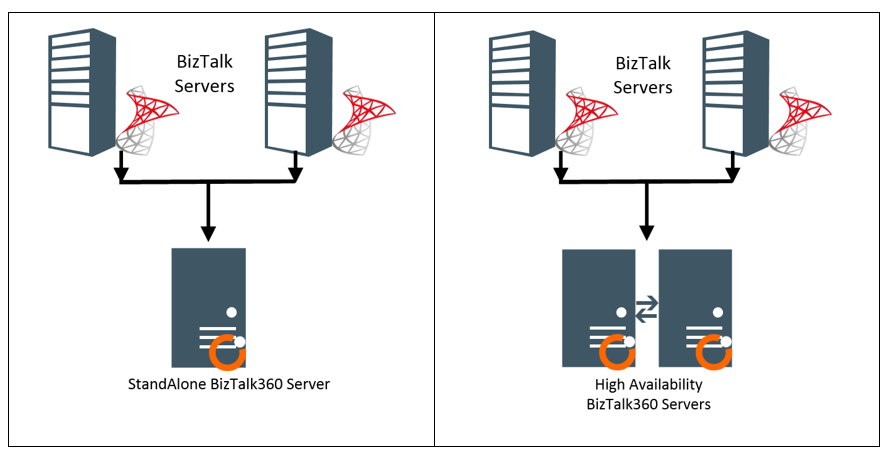
As this is the best practice to install the BizTalk360, we need to make sure the BizTalk360 running servers should be enabled with below protocols/port number in the Windows Firewall to communicate with the BizTalk Server/Azure/any external services at runtime. Below is the list of basic ports/protocols utilized for all the features/services.
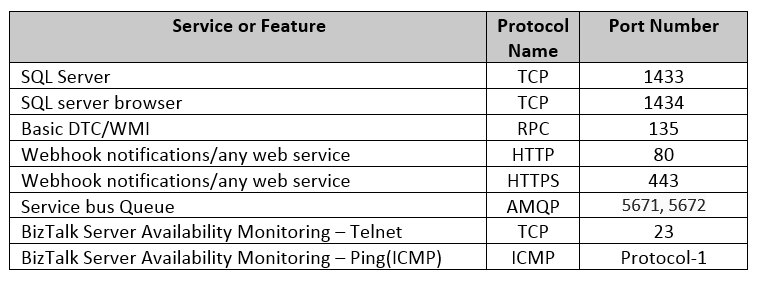
SQL Server:
As BizTalk Server Relies on the SQL server databases, connection to the SQL server is critical to fetch the Artifacts/any results via direct query or through BizTalk ExplorerOM. This SQL connectivity is responsible for a majority of the below functionalities.
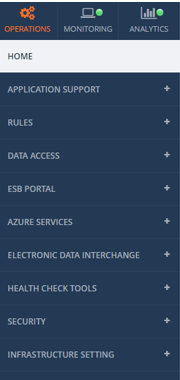
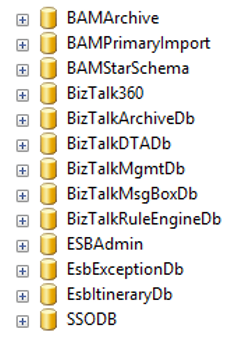
Database responsible for the above functionalities includes the below BizTalk databases and also BizTalk360 database.
DTC/WMI Port
BizTalk360 communicates with other windows services with the help of Windows Management Instrumentation. MSDTC- Microsoft Distribution Coordinator is responsible for moving the transaction from one system to another system. Make sure the Network DTC is also switched on to communicate with other remote servers and MSMQ. Also make sure MSDTC, WMI and RPC windows services are up and running.

Useful Microsoft Links
As the BizTalk360 server requires the same level of permissions like BizTalk server and the usage of the ports/protocols are pertinent to the Business architecture of every client, the below Microsoft links provides the port level segregation for different features that must be enabled on the Firewall to make BizTalk360 monitoring work seamlessly
Random/Custom Ports:
At run time, TCP ports are randomly picked up by the server, make sure the dynamically allocated ports are also being unblocked by the firewall. Also, make sure if custom ports are utilized for any service, unblock that as well from the firewall for the seamless working. Please refer Microsoft article for guidance. For firewall security recommendations please visit this msdn-link.
Summary
BizTalk360 provides continuous support and suggestions to make the monitoring at your ease. This blog was one such effort to make sure our BizTalk360 users seamlessly follow best practices to make BizTalk monitoring an easier one.
Author: Vignesh Sukumar
Vignesh, A Senior BizTalk Developer @BizTalk360 has crossed half a decade of BizTalk Experience. He is passionate about evolving Integration Technologies. Vignesh has worked for several BizTalk Projects on various Integration Patterns and has an expertise on BAM. His Hobbies includes Training, Mentoring and Travelling View all posts by Vignesh Sukumar

by Gautam | Jul 23, 2017 | BizTalk Community Blogs via Syndication
Do you feel difficult to keep up to date on all the frequent updates and announcements in the Microsoft Integration platform?
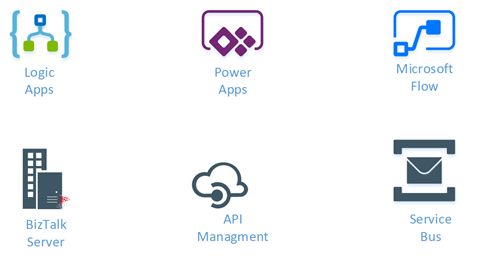
Integration weekly update can be your solution. It’s a weekly update on the topics related to Integration – enterprise integration, robust & scalable messaging capabilities and Citizen Integration capabilities empowered by Microsoft platform to deliver value to the business.
If you want to receive these updates weekly, then don’t forget to Subscribe!
On-Premise Integration:
Cloud and Hybrid Integration:
Feedback
Hope this would be helpful. Please feel free to let me know your feedback on the Integration weekly series.

by Sandro Pereira | Jul 22, 2017 | BizTalk Community Blogs via Syndication
Let me tell you the story behind BizMan, The BizTalk Server SuperHero Sticker. On 12th May, during my session in the Integrate 2016 event in London about “A new set of BizTalk Server Tips and Tricks”, I announce that I had two BizTalk Server 2016 stickers versions to offer – probably one of the firsts BizTalk stickers ever – with the mythic phrase “The T-Rex is loose“ to celebrate the release of BizTalk Server 2016 version and one of them, of course, with a badass T-Rex and the other with a “dear”/”sweet” T-Rex version.


You need to remember that to commemorate the first release ever: BizTalk Server 2000 (on 12/12/2000) the BizTalk Server marketing folks designed a “killer” mouse pad for the product team with the phrase “The T-Rex is loose”.
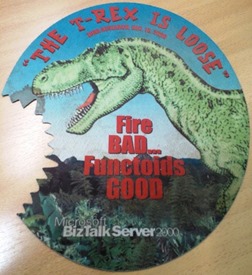
(Original photo from Gijs in ‘t Veld)
You can read more about it on Gijs in ‘t Veld blog: Happy 12th birthday BizTalk Server, The T-Rex!.
Of course, BizTalk people love them… Who doesn’t like T-Rex? Who doesn’t like BizTalk?
- Well to respond to the first question, I think all of us like T-Rex… because they don’t exist anymore, they appear in so many movies, they are so cool, they are so huge, Rex meaning “king” in Latin by the way… so the tyrant king it is badass!
- To respond the second question: Many people, for many reasons, they simply don’t understand the product (but wish to all of their features for free) or they simply do not realize what enterprise integration is. (but that is a different topic that I will not enter into detail here)
And some of the feedback, if we can call it that way, that I received from these group of people (the ones that don’t like BizTalk Server – probably the same that are always saying BizTalk is dead) was more or like this:
- “It is an old product, obsolete like the dinosaur”
BizTalk has never been so alive that is today, we are actually seeing the PRO INTEGRATION team at Microsoft investing heavily in the product, not only supporting new platform updates but actually bringing new capabilities at a faster pace to the product. So, my response to these group of people and to this type of comment is in the creation of a new sticker: The BizTalk Server SuperHero: THE BIZMAN!
If you want to add this sticker to your laptop or another area, you just need to download the zip file below and send it to a graphic shop. It as in the perfect size/resolution for printing.

I decide to call it BizMan but there were plenty of other amazing suggestions:






Hope you enjoy!
Special thanks to my two coworkers at DevScope: Frederico Junqueira, the artist and creator of the BizMan, The BizTalk Server SuperHero design and António Lopes for giving the final touches and help with everything related with the graphic.
You can download BizMan, The BizTalk Server SuperHero sticker from:
BizTalk Server SuperHero Sticker: BizMan (10,1 MB)
Microsoft | TechNet Gallery
Author: Sandro Pereira
Sandro Pereira lives in Portugal and works as a consultant at DevScope. In the past years, he has been working on implementing Integration scenarios both on-premises and cloud for various clients, each with different scenarios from a technical point of view, size, and criticality, using Microsoft Azure, Microsoft BizTalk Server and different technologies like AS2, EDI, RosettaNet, SAP, TIBCO etc. He is a regular blogger, international speaker, and technical reviewer of several BizTalk books all focused on Integration. He is also the author of the book “BizTalk Mapping Patterns & Best Practices”. He has been awarded MVP since 2011 for his contributions to the integration community. View all posts by Sandro Pereira