by Gautam | Jan 21, 2018 | BizTalk Community Blogs via Syndication
Do you feel difficult to keep up to date on all the frequent updates and announcements in the Microsoft Integration platform?
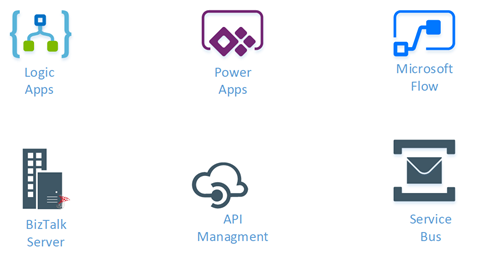
Integration weekly update can be your solution. It’s a weekly update on the topics related to Integration – enterprise integration, robust & scalable messaging capabilities and Citizen Integration capabilities empowered by Microsoft platform to deliver value to the business.
If you want to receive these updates weekly, then don’t forget to Subscribe!
Feedback
Hope this would be helpful. Please feel free to provide any feedback on the Integration weekly series.

by Sandro Pereira | Jan 19, 2018 | BizTalk Community Blogs via Syndication
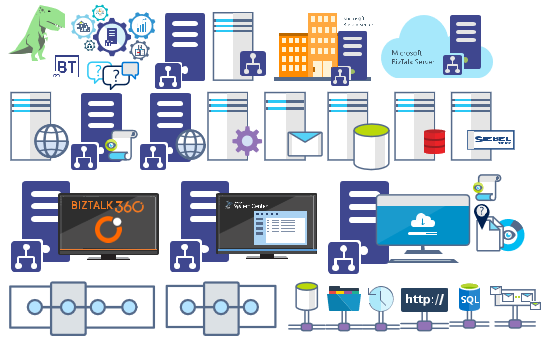
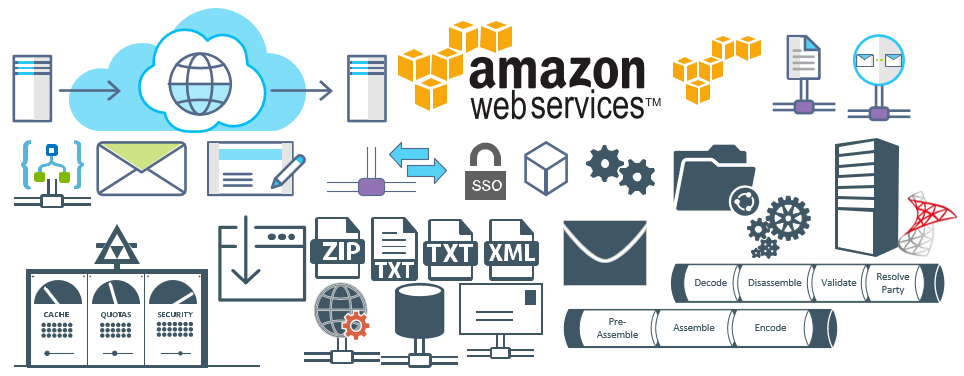
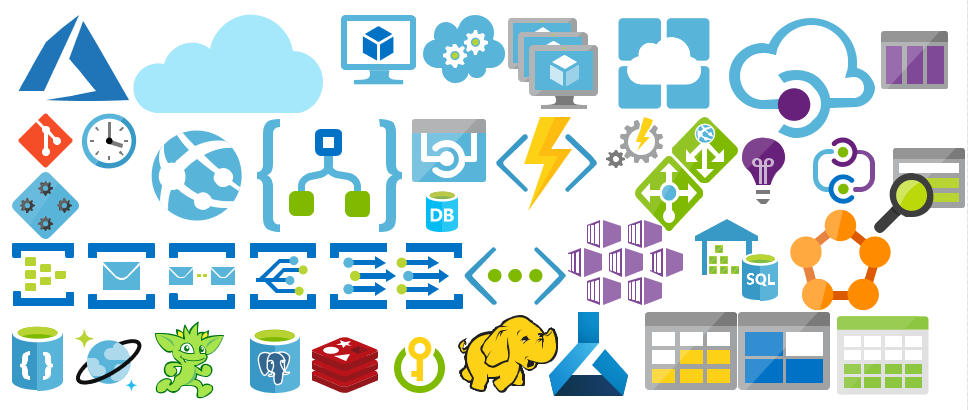
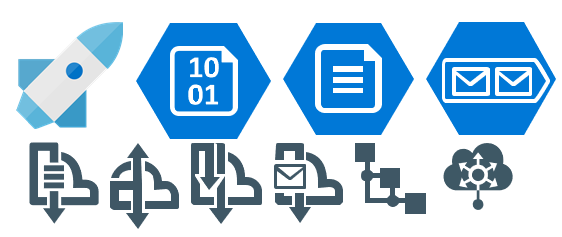
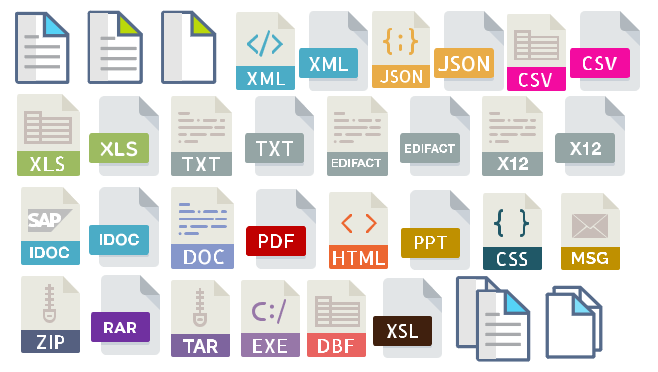
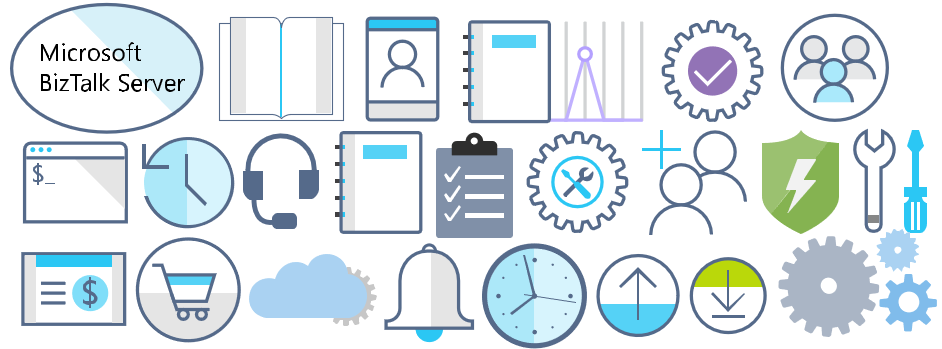
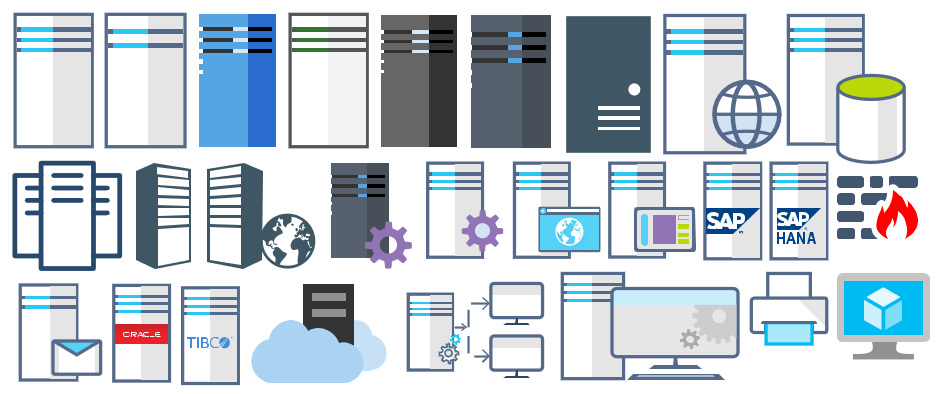
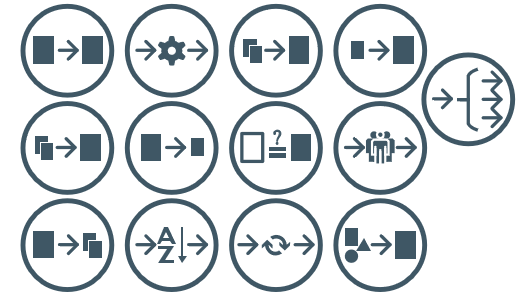
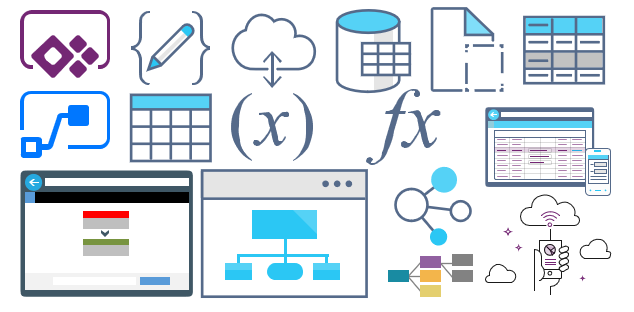
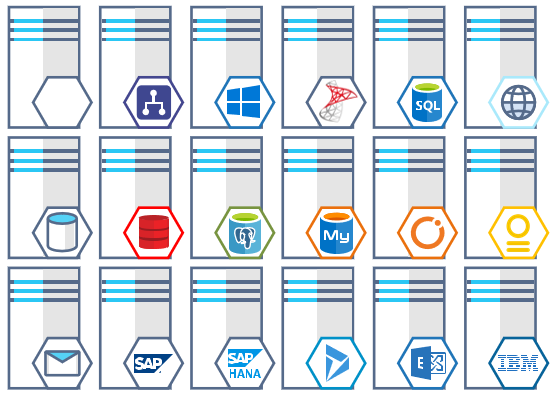
Microsoft Integration (Azure and much more) Stencils Pack it’s a Visio package that contains fully resizable Visio shapes (symbols/icons) that will help you to visually represent On-premise, Cloud or Hybrid Integration and Enterprise architectures scenarios (BizTalk Server, API Management, Logic Apps, Service Bus, Event Hub…), solutions diagrams and features or systems that use Microsoft Azure and related cloud and on-premises technologies in Visio 2016/2013:
- BizTalk Server
- Microsoft Azure
- BizTalk Services
- Azure App Service (API Apps, Web Apps, Mobile Apps and Logic Apps)
- Event Hubs
- Service Bus
- API Management, IoT, and Docker
- Machine Learning, Stream Analytics, Data Factory, Data Pipelines
- and so on
- Microsoft Flow
- PowerApps
- Power BI
- PowerShell
- Infrastructure, IaaS
- And many more…

I start this project because at the time I didn’t find nice shapes – graphically beautiful and resizable shapes – to produce BizTalk Server topologies diagrams and high-level overview of integrating processes. The project grew as community member asked for new shapes and during the last few years I have been updating and publishing new shapes, particularly associated with Azure services, which has a very low release cadence.
This time I cannot say it was an update because was actually a complete makeover and the reasons behind this decision are mainly these 2:
- The Project Become Huge: more than 1000 shapes, and due to the project structure that I decide to implement at the time, it became a little difficult to maintain since even I had difficulty finding and organizing all the shapes and there were several duplicate shapes (some were purposely duplicated and still are).
- A Fresh New Look: at the time, almost all the shapes were blue – not a beautiful blue but an obsolete annoying blue – so I decide to use, in almost the cases, a monochrome approach opting for a darker color – but after all these years it was already a little worn and needing for a new modern look and this time I decided to follow the look that Microsoft is implementing in Microsoft Docs – in fact, several stencils were collect from there – a more light and multicolored approach.
- You liked the old aspect? Do not worry, I still kept the old (monochrome) shapes but moved to support files.
What’s new in this version?
Is this version all about a fresh and modern new look? No, it is not. That was indeed one of the main tasks, but in addition:
- New shapes: 571 new forms have been added – many of them are in fact a redesign of the existing features to have a modern look – but it is still an impressive number. Making a total of 1883 shapes available in this package.
- The package structure changed: It is more organized – went from 13 files to 20 – which means that more categories were created and for that reason, I think it will be easier to find the shapes you are looking for. The Microsoft Integration (Azure and much more) Stencils Pack v3.0.0 is now composed of 20 files:
-
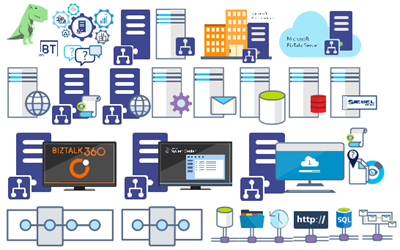
- Microsoft Integration Stencils v3.0.0
-
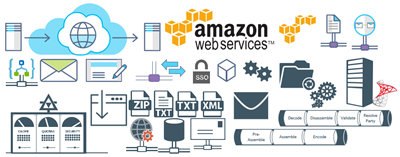
- MIS Additional or Support Stencils v3.0.0
-
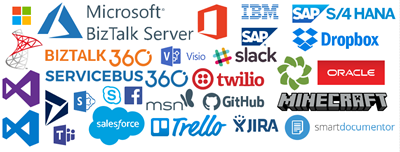
- MIS Apps and Systems Logo Stencils v3.0.0
-
- MIS Azure Additional or Support Stencils v3.0.0

-
- MIS Azure Others Stencils v3.0.0

-
- MIS Azure Stencils v3.0.0

-
- MIS Buildings Stencils v3.0.0

-
- MIS Databases Stencils v3.0.0

-
- MIS Deprecated Stencils v3.0.0

-
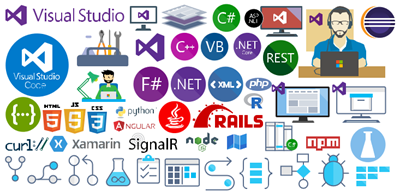
- MIS Developer Stencils v3.0.0
-
- MIS Devices Stencils v3.0.0

-
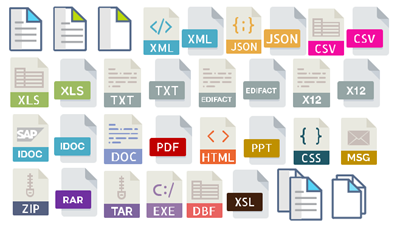
- MIS Files Stencils v3.0.0
-
- MIS Generic Stencils v3.0.0

-
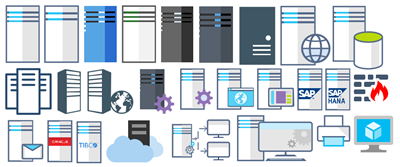
- MIS Infrastructure Stencils v3.0.0
-
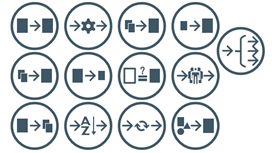
- MIS Integration Patterns Stencils v3.0.0
-
- MIS IoT Devices Stencils v3.0.0

-
- MIS Power BI Stencils v3.0.0

-
- MIS PowerApps and Flows Stencils v3.0.0

-
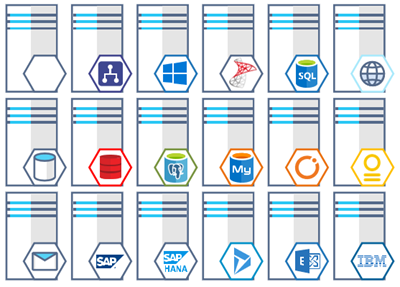
- MIS Servers (HEX) Stencils v3.0.0
-
- MIS Users and Roles Stencils v3.0.0

You can download Microsoft Integration (Azure and much more) Stencils Pack from:
 Microsoft Integration Stencils Pack for Visio 2016/2013 v3.0.0 (16,6 MB)
Microsoft | TechNet Gallery
Author: Sandro Pereira
Sandro Pereira lives in Portugal and works as a consultant at DevScope. In the past years, he has been working on implementing Integration scenarios both on-premises and cloud for various clients, each with different scenarios from a technical point of view, size, and criticality, using Microsoft Azure, Microsoft BizTalk Server and different technologies like AS2, EDI, RosettaNet, SAP, TIBCO etc. He is a regular blogger, international speaker, and technical reviewer of several BizTalk books all focused on Integration. He is also the author of the book “BizTalk Mapping Patterns & Best Practices”. He has been awarded MVP since 2011 for his contributions to the integration community. View all posts by Sandro Pereira
by Saravana Kumar | Jan 10, 2018 | BizTalk Community Blogs via Syndication
Artificial Intelligence (AI), Machine Learning (ML), Big Data, and BlockChain are some of the buzz words we hear more and more in recent times.
As a technology enthusiast, I’m personally fascinated by some of the technology advances that are happening in these areas and it’s mind-blowing to see the pace at which they are advancing. At the same time, it becomes almost a commodity these days and is available for everyone to take advantage of it with a fraction of the cost — thanks to all the public cloud providers like Microsoft, Amazon, Google, and IBM.
Can AI & ML be used for BizTalk Server Monitoring?
These days customers expect every software product to have some level of AI & ML. In this article, let’s take a closer look at whether AI & ML can be used for BizTalk Server Monitoring and what are the practical challenges.
About a year ago, we looked into what AI & ML can do for BizTalk Server Monitoring in BizTalk360. I was not completely convinced that we can magically solve the BizTalk Server Monitoring problems using machine learning alone at that stage. Here are some of the scenarios that strike me and the answer to these challenges are not straightforward.
I don’t want to sound too negative about using AI and ML for the monitoring solution. There are certain use cases where AI and ML based solution will be far superior to manual solutions (check out the last section of this article). However, I just wanted to highlight some real-world challenges from my 15+ years of experience working with BizTalk Server.
What is Machine Learning?
Let’s first understand the basics. Machine learning is a class of algorithms that can learn from and make predictions on data. Generally speaking, the more data you have, the better the outcome for machine learning techniques. Machine learning doesn’t require users to set explicit rules like “if this, then that.” It will make that determination on its own, based on the data and algorithms. There are three things here, the data, compute power and types of algorithms (models) which helps you to predict the outcome.
Data is the King
The quality of data you have determines the quality of judgment in machine learning. So typically, you’ll start collecting all the available data metrics over a period of time to plot a predictive graph. You will start having a baseline (higher and lower bound for a period) as acceptable values for each measurable metric.
If there is any drastic change in the underlying conditions, then the whole algorithm needs to relearn.
Is time factor vs. message volume a business reality?
Let’s start with an example. In BizTalk (or Middleware world), the volume of messages passing through the system is crucial and one of the important things to monitor. We encounter the following scenario quite often. If you are using an AI based system, the period marked in red (in the below image) will be triggered as a violation and you’ll get alerted since it’s deviating from the baseline significantly.
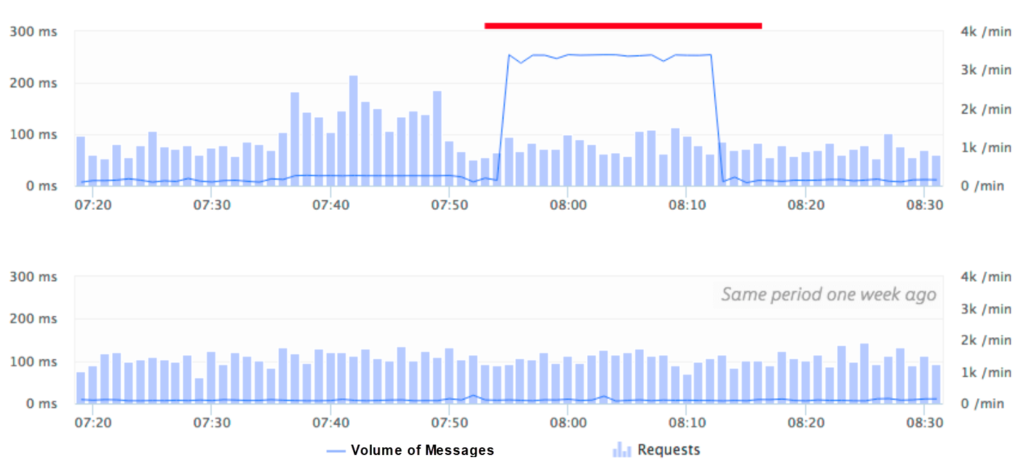
The system basically works on the intelligence of the data it collected over the past weeks/months and blindly assumes that the volume of messages is getting deviated from the baseline volume.
In theory, this looks fantastic. However, in reality, this could be a big problem in a middleware solution. Situations like this where the volume of messages are either higher than normal or lower than normal are common on a middleware platform and we call this a “floodgate or drain scenario“.
We can probably keep training the system saying this is a known volume, but how often can you do it. So, you’ll get the false alert first, the admin person needs to teach the system that it is the expected volume, the system understands it next time. However, what happens if the floodgate happens in another time instance, again the system admin needs to correct it.
In case your business has unpredictable burst scenarios frequently, the AI system will struggle to cope. It’s one of those things, like a demo scenario where everything runs smoothly, the system performs fantastic, but the real world is far from the demo scenario.
How about changes in hardware configuration?
I mentioned in the beginning “data is the king” in an AI based system. It’s like teaching a child — the child keeps learning every day based on what they see, what they hear, what they experience and so on. In a similar way, the AI system (if implemented well) will keep learning all the new patterns that emerge in the system, keep learning and tune itself. But, there is a challenge when the underlying platform changes dramatically then all the old learning might be completely invalid.
Let’s take an example! The production BizTalk Environment was set up and tuned for six months or so, there were a lot of manual override corrections for AI learning and everything is working fine. Suddenly, there is a business requirement saying they are expecting a huge increase in the volume of transactions and they wanted to increase the hardware capacity. This could simply be adding more servers to the BizTalk group (BizTalk or SQL Servers), increasing the processor capacity like higher performing CPU’s, more memory on BizTalk or SQL servers, changing the SAN disks and so on.
Now all the learning and tuning you have done for the last 6 months is completely wasted and the system has to be re-trained for a period of another 6 months to get to the same level with all human intensive manual tuning.
No one can simply judge what level of performance the new system configuration is going to provide; it can only be learned gradually.
How about BizTalk Server upgrade scenarios?
Another common and unavoidable scenario is the BizTalk Server upgrade. Example: Moving from BizTalk Server 2013 or 2013 R2 to BizTalk Server 2016. In fact, this is something that will be forced on you, since the mainstream support for every version will elapse after 5 years (10 years extended support).
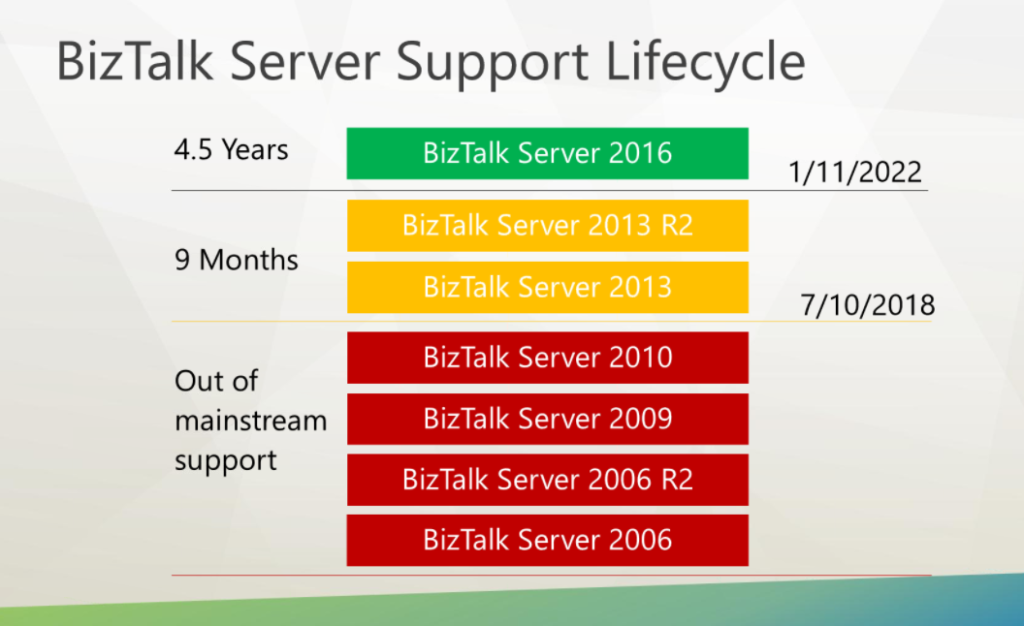
Let’s say you are using BizTalk Server 2013 and depending on an AI powered monitoring solution. You are using the platform for 4 years and then decided to migrate to BizTalk Server 2016. In most of the cases, you will not just migrate your BizTalk Server; you’ll also migrate the OS and database from Windows Server from 2012 to 2016, SQL Server from 2012 to 2016.
This will change the complete underlying platform and make all of your AI learning so far for 4+ years completely invalid and you need to start from scratch. Can you afford it? By the time the team who had put together and tuned the solution in the first place might have left the company.
How about Christmas and Black Friday?
Pretty much every business has a special seasonal period in a year where things go upside down. In retail industries, it’s Black Friday and Christmas period and in Financial services industries, it’s typically month-end or year-end closing dates. Typically, most of these high-end businesses will have a system frozen/lock-down period where no changes are allowed.
When I used to work for a financial services client, the whole of March is locked down for 5th April, the year-end deadline in the UK. Almost 50-60% of the personal investments will be made during this period since everyone wants to take advantage of their personal tax allowances and customers typically leave it until the last minute.
How will an AI based monitoring system work under these circumstances? I can see there are only 2 choices — one, you educate the system saying it’s a special period, for this, it must have seen the scenarios earlier i.e at least one or two years period. In the first year it would have raised a false alarm all over the place, someone might have tuned it saying this is the expected behavior and in the second year, it will validate the condition and finally you might have a system that understands this unusual period and load provided nothing changed (like our hardware change) during this period.
The second option is simple — you simply turn off the monitoring for this period to avoid getting flooded with alarms.
How about manual intervention and performance tuning?
A platform like BizTalk Environment is never a “set once and run it forever” platform. It will require regular manual interventions either for performance tuning or for operational reasons. Example: for performance reasons, you may be re-configuring the SQL Server database Auto-growth parameter, SAN configuration, purging and archiving settings for tracking and BAM databases and so on.
In a similar way, for operations reasons you may be periodically turning on and off certain things like BizTalk Send Ports, Receive Locations, Orchestrations, BizTalk Host instances etc for various reasons. A more concrete example, let’s say one of your external partners’ FTP server is down for maintenance. You will turn off the FTP/SFTP Send Port or Receive Location to that partner for time until the problem gets resolved.
In situations like these, what will happen to the AI based monitoring system? As I mentioned before “data is the king”, any changes to the system will have an impact on the AI interpretation of past data and it will start sensing wrong thresholds. The AI system needs to forget the past learning and relearn the new configuration (for few weeks/months), or someone needs to manually overwrite.
How about fine control on monitoring metrics?
In a platform like BizTalk Server, monitoring just the high-level metrics like CPU%, Memory, Message Volume, Event Log error counts etc may not be sufficient. Let’s take an example scenario. You are integrating a bunch of external REST/HTTP or SOAP based web services with your BizTalk Orchestration. It’s important for you to keep an eye on the health of those external web endpoints like return status codes, response times, looking for specific value in the response JSON/XML content, you might need to verify multiple conditions in the response, you may need to wait for x-seconds/minutes before marking the system as down and so on.
Let’s take one more example. You may want to watch the growth of certain tables in SQL Server. Example: “select count(*) from spool” in the BizTalk MessageBox database. This is very specific and only a human BizTalk admin will know the importance of such custom metric.
This level of fine control on certain systems/metric will be challenging to achieve using an AI based monitoring system, since AI systems work on the volume of data and predictability. It might predict that the external system is down and responding slower, but it cannot have the granularity of control required as explained here.
Where is your data?
Now comes the million-dollar question — where is my data going to reside? As I mentioned repeatedly, “data is the king” in any AI based system to deliver the promises. It needs to understand various patterns that emerge out of historical data to apply its intelligent algorithms. So where is the BizTalk Server metrics data going to reside, is it on-premise or in the cloud?
Even though it’s technically possible to collect and keep the data on-premise and use the AI system on-premise, most of the AI based systems are well suited for the cloud. Mainly because of the three important factors, requires huge data store, requires scalable compute power and finally, the algorithms will require constant tweaking and tuning.
If the data is hosted on-premise, then maintaining such a system with constantly updating algorithms become even challenging.
If the data is hosted in the cloud, it introduces regulatory challenges in industries like Healthcare, Financial Services etc. even though the AI based providers can claim only metadata information gets transmitted, how confident the customers will be.
Why Microsoft does not have an AI powered Monitoring offering?
It is surprising to see a company like Microsoft who are market leaders in machine learning and artificial intelligence not having any AI powered monitoring solutions. None of their monitoring products like Azure OMS (Operations Management Suite), Azure Log Analytics, Azure Application Insight, SCOM (System Center Operations Manager) etc., claim they can automatically detect and fix the problem using AI.
I highlighted Microsoft here, however, it’s true for other big players like Google, Amazon, and IBM (Watson) as well. They have an AI platform, but none of them focus on AI powered monitoring solution.
I’m sure it’s just a matter of time before these platforms get matured and we will see AI powered offering (there are already few bits and pieces), but it’s not going to be 100% fully automated replacement anytime soon. Still, you need that product and business knowledge to have a solid monitoring solution.
Is it all negative with AI and BizTalk Server Monitoring?
No, not at all. It’s important to embrace new technologies and move things forward. However, it’s also important to understand the limitations of such systems from a practical business point of view. There are some scenarios well suited for AI based predictive analysis and notification like identifying security vulnerabilities, unusual threat analysis like DOS attack, face & voice recognition, some element of monitoring which are static like general message volume, response times and so on.
Another area where I can see a real use case of an AI based solution is when it’s working on top of your business data. Example: volume of purchase orders you receive from various vendors over various periods. The AI system can learn about the volume and are not impacted by underlying platform changes (and keep re-learning).
In case of BizTalk Server Monitoring, I don’t see a clear answer to the challenges I highlighted above. If your platform is stable, nothing changes (like no hardware changes, no tuning, no new deployments, no burst scenarios), then AI will have a good chance of base lining your platform and detect and notify variations from baseline. But again, this is not practical for a live BizTalk Server Environment.
How does BizTalk360 solve these problems?
Being a market leader for the past 7 years in BizTalk Server Monitoring space, we consistently improve the product and add value to our customers. We invested heavily in a lot of areas which are practical and usable for enterprise BizTalk customers TODAY. We focused primarily on customer feedback (check out our BizTalk360 feedback portal) and most of our feature offering were customer driven.
I’ve written an article explaining how BizTalk360 addresses the challenges highlighted in this article to provide a robust monitoring solution for your BizTalk Server environments. You can download it here.

Author: Saravana Kumar
Saravana Kumar is the Founder and CTO of BizTalk360, an enterprise software that acts as an all-in-one solution for better administration, operation, support and monitoring of Microsoft BizTalk Server environments.
View all posts by Saravana Kumar

by Sandro Pereira | Jan 8, 2018 | BizTalk Community Blogs via Syndication
We cannot rely on documentation if they exist, to be accurate, especially regarding the status of the machines present in the environment that tell us what is installed on the machine or not. This script follows the sequence of scripts that I release in the past to check what Cumulative Updates where installed in the machines.
However, Microsoft introduces a new concept within BizTalk Server 2016, it calls Feature Packs.
BizTalk Server 2016 will use Feature Pack (FP) approach to providing new functionalities to the product at a faster pace. Now new features (or at least non-breaking features) will be delivered when they’re ready we no longer need to wait 2 years for the next major release of the product to have new features!
BizTalk Server uses the feature pack to provide improvements, features, and closer integration with Azure. Feature Pack 1 extends functionality in key areas, such as deployment, analytics, and runtime. – https://msdn.microsoft.com/en-us/library/mt800834.aspx
Feature Pack’s will be available for Software Assurance customers running BizTalk Server 2016 Developer and Enterprise editions or customers running BizTalk Server 2016 in Azure under an Enterprise Agreement
With this, people in charge of monitoring and maintaining BizTalk Server environments will have to not only check if all the Cumulative Updates (nevertheless, this is the most critical operation) but if their organization decide to install FP, they also need to check if and what feature packs are installed in which machine.
Although it seems simple, this operation is just or more painful to perform as the cumulative updates.
Of course, there are some ways to check that, for example:
- you can do it manually by checking “Control PanelProgramsPrograms and Features” and then view the “View Installed Updates”, however, this can be a very annoying task and sometimes time-consuming.
- you can use Windows Registry but still if you only want to check what FPs that are installed this will be an annoying and time-consuming task.
Probably there are other ways, nevertheless, I just want a quick and very easy way, because this is a basic and very simple task, to know what are the BizTalk Server 2016 Feature Packs installed like:
Microsoft BizTalk Server 2016 Feature Pack 1 is installed
Microsoft BizTalk Server 2016 Feature Pack 2 is installed
How to check what BizTalk Server 2016 Feature Packs
So how can we easily automate tasks? and reuse them whenever necessary and at the same time saving significant time for other tasks?
Using PowerShell is a good option. Windows PowerShell is a Windows command-line shell designed especially for system administrators and can be used by BizTalk administrators to help them in automating repetitive tasks or tasks that are time-consuming to perform manually.
This is a simple script that allows you to configure the template name of the feature packs, that will may change from version to version (FP1, FP2, …), and will give you the list of all Feature Packs installed in your machine:
$keys = Get-ChildItem -Path Registry::'HKEY_LOCAL_MACHINESOFTWAREWOW6432NodeMicrosoftE-Business Servers Updates'

#...

foreach ($key in $keys)
{
    if($findF1 -eq $true)
    {
        break
    }

    foreach ($Property in $key.Property)
    {
        if ($Property -like '*Microsoft BizTalk Server 2016 Feature Pack 1*')
        {
            $findF1 = 1
            Write-Host 'Microsoft BizTalk Server 2016 Feature Pack 1 is installed'
            break
        }
    }
}

#...

     foreach ($Property in $key.Property)
    {
        if ($Property -like '*Microsoft BizTalk Server 2016 Feature Update 2*')
        {
            $findF2 = 1
            Write-Host 'Microsoft BizTalk Server 2016 Feature Pack 2 is installed'
            break
        }
    }

#...

if(($findF1 -eq $false) -And ($findF2 -eq $false))
{
    Write-Host 'Microsoft BizTalk Server 2016 Feature Pack is not installed'
}

THIS SQL SCRIPT IS PROVIDED “AS IS”, WITHOUT WARRANTY OF ANY KIND.
Author: Sandro Pereira
Sandro Pereira lives in Portugal and works as a consultant at DevScope. In the past years, he has been working on implementing Integration scenarios both on-premises and cloud for various clients, each with different scenarios from a technical point of view, size, and criticality, using Microsoft Azure, Microsoft BizTalk Server and different technologies like AS2, EDI, RosettaNet, SAP, TIBCO etc.
He is a regular blogger, international speaker, and technical reviewer of several BizTalk books all focused on Integration. He is also the author of the book “BizTalk Mapping Patterns & Best Practices”. He has been awarded MVP since 2011 for his contributions to the integration community.
View all posts by Sandro Pereira
by Gautam | Jan 8, 2018 | BizTalk Community Blogs via Syndication
Do you feel difficult to keep up to date on all the frequent updates and announcements in the Microsoft Integration platform?
Integration weekly update can be your solution. It’s a weekly update on the topics related to Integration – enterprise integration, robust & scalable messaging capabilities and Citizen Integration capabilities empowered by Microsoft platform to deliver value to the business.
If you want to receive these updates weekly, then don’t forget to Subscribe!
Feedback
Hope this would be helpful. Please feel free to let me know your feedback on the Integration weekly series.
by Lex Hegt | Jan 7, 2018 | BizTalk Community Blogs via Syndication
A new year has just began and at BizTalk360 we are excited to find out what 2018 will bring us as a company. We are delighted that we will release more versions of our flagship product BizTalk360, further evolve ServiceBus360 and bring new products like Atomic Scope and Document360.
Year in review
In this article however, we want to look back at what 2017 brought from a Microsoft Integration space perspective. Although we did not see a new version of BizTalk Server, we did see new features arrive for BizTalk Server 2016, by means of the two feature packs which have been released. Of course, we have also seen new CU’s appear for the currently supported BizTalk Server versions, which are 2013, 2013R2 and 2016.
Note however, that in case you are on BizTalk Server 2013 or 2013 R2, mainstream support will end July 10th, this year! So you should consider upgrading to BizTalk Server 2016. As migrating to another BizTalk platform is not something to take lightly, Microsoft offers the BizTalk Migration tool. Read more about this tool later in this article.
An important move Microsoft made last year, was embracing the Open Source community. Of course, also in the Logic Apps and related technologies a lot has happened. Keep on reading, when you want to read about most important developments in Microsoft Integration space.
BizTalk Server 2016 Feature Packs
The concept of Feature Packs is new to BizTalk Server. The idea of bringing Feature Packs is to bring new features once they are ready, instead of having to wait until the next major release.
For BizTalk Server, these packs can be installed on top of (only) BizTalk Server 2016 and bring new functionality, without breaking existing functionality. As far as we know, there are no plans to bring Feature Packs for other BizTalk version than 2016.
Last year Microsoft brought 2 Feature Packs for BizTalk Server 2016. Let’s have a look at both.
Feature Pack 1
This first Feature pack was released on April 26th. It could only be installed on top of the base version of BizTalk Server 2016 (3.12.774.0), so you could not install it after you have applied any CU’s for BizTalk Server 2016. This issue his been fixed on September 21st, when Microsoft released a version of FP1 which was compatible with Cumulative Update 3 (KB4039664), the most recent CU at that time.
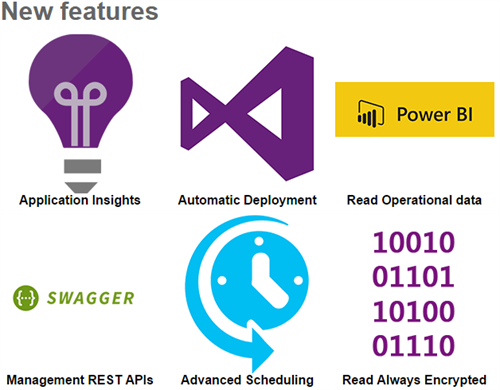
Feature Pack 1 added the following features to BizTalk Server 2016:
Deployment
- Deploy with VSTS – Enable Continuous Integration to automatically deploy and update applications using Visual Studio Team Services (VSTS)
- New management APIs – Manage your environment remotely using the new REST APIs with full Swagger support
Analytics
- Application Insights – Tap into the power of Azure for tracking valuable application performance and to better understand your workflow
- Leverage operational data – View operational data from anywhere and with any device using Power BI
Runtime
- Support for Always Encrypted – Use the WCF-SQL adapter to connect to SQL Server secure Always Encrypted columns
- Advanced Scheduling – Set up advanced schedules for Receive Locations using the new capabilities with Feature Pack 1
More information on Feature Pack 1 can be found here: https://blogs.biztalk360.com/microsoft-biztalk-server-2016-feature-pack-1/
Download Feature Pack 1 here: https://www.microsoft.com/en-us/download/details.aspx?id=55100
Feature Pack 2
This pack was released on November 21st and can be installed immediately on top of the BizTalk Server 2016 Cumulative Updates 1, 2 and 3 and Feature Pack 1.
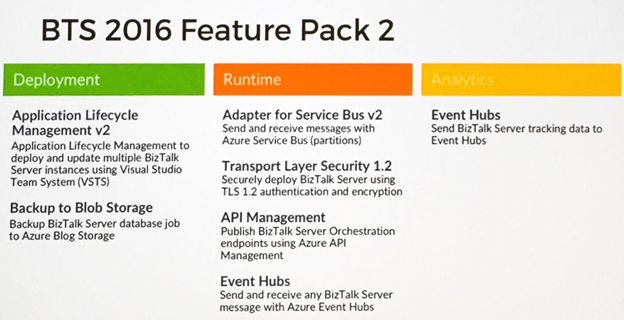
In this Feature Pack, the following features were brought:
Deployment and Administration
- Application Lifecycle Management with VSTS – Using Visual Studio Team Services, you can define multi-server deployments of BizTalk Server 2016, and then maintain those systems throughout the application lifecycle.
- Backup to Azure Blob Storage – When deploying BizTalk Server to Azure VMs, you can backup BizTalk Server databases to Azure blob storage.
Server Runtime
- Adapter for Service Bus v2 – When using the Service Bus Adapter, you can utilize Azure Service Bus Premium for enterprise-scale workloads.
- Transport Layer Security 1.2 – Securely deploy BizTalk Server using industry-standard TLS 1.2 authentication and encryption.
- API Management – Publish Orchestration endpoints using Azure API Management, enabling organizations to publish APIs to external, partner and internal developers to unlock the potential of their data and services.
- Event Hubs – Using the new Event Hub Adapter, BizTalk Server can send and receive messages with Azure Event Hubs, where BizTalk Server can function as both an event publisher and subscriber, as part of a new Azure cloud-based event-driven application.
Analytics and Reporting
- Event Hubs – Send BizTalk Server tracking data to Azure Event Hubs, a hyper-scale telemetry ingestion service that collects, transforms, and stores millions of events.
- Application Insights – When preparing BizTalk Server to send tracking data to Application Insights, released in FP1, you can use the new Azure sign-in dialog to simplify configuration and named instances of SQL Server.
More information on Feature Pack 2 can be found here: https://blogs.biztalk360.com/microsoft-biztalk-server-2016-feature-pack-2-released/
Download Feature Pack 2 here: https://www.microsoft.com/en-us/download/details.aspx?id=56262
Cumulative updates
In 2017, Microsoft also brought a number of Cumulative Updates for the different versions of BizTalk Server. See below for an overview which contains links to the download pages:
BizTalk Server 2013
NOTE: this version is going out of mainstream support July 10th, 2018
July 28th, 2017 – Cumulative Update package 6 (build 3.10.359.2) – KB4032678
BizTalk Server 2013 R2
NOTE: this version is going out of mainstream support July 10th, 2018
May 8th, 2017 – Cumulative Update package 6 (build 3.11.280.2) – KB4020020
October 12, 2017 – Cumulative Update package 7 (build 3.11.285.2) – KB4038891
BizTalk Server 2016
January 26, 2017 – Cumulative Update package 1 (build 3.12.796.2) – KB3208238
May 26, 2017 – Cumulative Update package 2 (build 3.12.807.2) – KB4021095
September 1, 2017 – Cumulative Update package 3 (build 3.12.815.2) – KB4039664
Embracing Open Source
In September Microsoft announced that BizTalk Server has joined the Open Source community. This is motivated by the increased commitment that Microsoft wants to provide a better product to their customers.
So far, Microsoft has open sourced the following:
- all schemas which are shipped with the product. These are over 3500 files, which are divided over the following standards:
- EANCOM
- EDIFACT
- HIPAA
- HIX
- X12
- the BizTalk Migration tool. This tool is developed to simplify the following migrations:
- BizTalk Server 2010 to BizTalk 2013R2
- BizTalk Server 2013R2 to BizTalk 2016For Host Integration Server
For Host Integration Server (HIS), Microsoft has provided a PowerShell script that helps creating .hidx files, which are used by the HIS runtime to communicate with the backend systems.
The repository which contains above mentioned stuff, can be found at GitHub:
https://github.com/Microsoft/Integration/
Microsoft’s intention is to continue their open source commitment. Community contributions are more than welcome and can contain artifacts like Schemas, Samples, Adapters, pipeline components or anything else you feel the community can take advantage of.
Azure Integration updates
It is amazing to see what’s all happening on Azure Integration! The Logic Apps team regularly post their updates on YouTube. At our blog, we publish recaps of these updates. Below is a picture of the entire Microsoft Pro Integration team on a bright, sunny Friday morning at Gold Coast, Australia, during #MSAUIgnite.

See below, just a couple of all the developments which have taken place:
Logic App-adapter – this adapter enables you to receive or send messages from BizTalk Server 2016 to your Logic Apps, via the On-Premise Data Gateway
Numerous improvements to the Logic Apps Designer – just a few which are worth to mention: editing Azure Functions directly from Logic Apps, generating JSON schema from sample payload, Parallel creation in the designer, use of Webhooks in Foreach loops, use of variables, batch processing, advanced scheduling of Logic App execution
Cognitive Vision APIs – to be able to use the OCR capability to understand the characters and text within an image
Azure Event Grid – The newest and hottest kid in town; technical preview version was released by Microsoft on August 16th
Azure Event Grid Connectors for Logic Apps – Of course the Event Grid offering is accompanied with a connector
More than 80 new SaaS adapters – few of the added connectors are: Azure Table Storage, Cognitive Services, Outlook – webhook trigger, SQL – dynamic schema for stored procedures, Azure Container Instances , Pitney Bowes Data Validation, Log Analytics Data Collector, ServiceNow, Skype for Business, LinkedIn, Azure Security Center Trigger, MySQL (R/W)
You can follow the Logic Apps team yourself, via their YouTube channel: http://aka.ms/logicappslive
The most recent recap of the Logic Apps update can be found here:
https://blogs.biztalk360.com/azure-logic-apps-monthly-update-november-2017/
What can we expect in 2018?
Of course Microsoft will keep on bringing new and exciting features and improvements. What we currently know is that we can expect a new feature pack for BizTalk Server 2016, being Feature Pack 3. But also on the Azure side we can expect new stuff and enhancements of existing features.
BizTalk Server 2016 Feature Pack 3
During the first half year, we can expect the release of BizTalk Server 2016 Feature Pack 3. What we currently know, is that we can expect multiple Office 365 adapters, with the following capabilities:
- Send and receive messages using Office 365 e-mail
- Set and update appointments using Office 365 schedules
- Define people and groups using Office 365 contacts
Further, we can expect:
- Web authentication – authenticate with Azure Active Directory and OAuth using Microsoft Enterprise Single Sign-On
- Advanced Scheduling – Set up recurrence on BizTalk Server receive locations with greater precision using hours, minutes, second
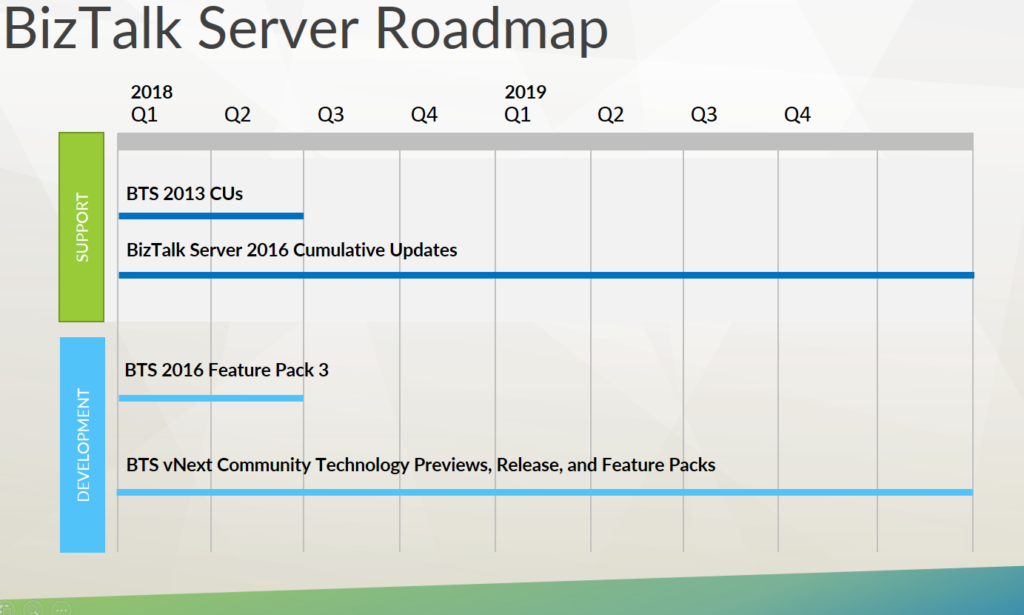
Besides that, Microsoft will keep on bringing CU’s for the supported BizTalk Server versions, including the final CU’s for BizTalk 2013 and 2013R2.
Further, Microsoft is also working on BizTalk Server vNext, so we can also expect CTP’s (Community Technology Previews), which will lead to a new release of BizTalk Server and more Feature Packs. However, a timeline towards a new release of BizTalk Server is not yet made public.
Azure Integration
In Azure, we can expect of course more adapters. The Logic Apps team has already mentioned amongst others: SOAP Passthrough, Office365 Excel, K2, Kronos, Citrix ShareFile and PostgreSQL.
We’ll also see more improvements in the designer. Features like Complex Conditions within the designer, Configurable lifetime and Degrees of parallelism for split-on and request triggers have already been mentioned by the team.
All in all, we can conclude that 2017 has been an awesome year for Microsoft Integration and we can expect that 2018 will be a fantastic year as well!
INTEGRATE 2018
You can get to know more about these updates directly from the Microsoft Product Group at INTEGRATE 2018. The dates and the venue for the event has been finalized. The website will be going live by this week. Stay tuned!
Author: Lex Hegt
Lex Hegt works in the IT sector for more than 25 years, mainly in roles as developer and administrator. He works with BizTalk since BizTalk Server 2004. Currently he is a Technical Lead at BizTalk360.
View all posts by Lex Hegt
by Sandro Pereira | Dec 18, 2017 | BizTalk Community Blogs via Syndication
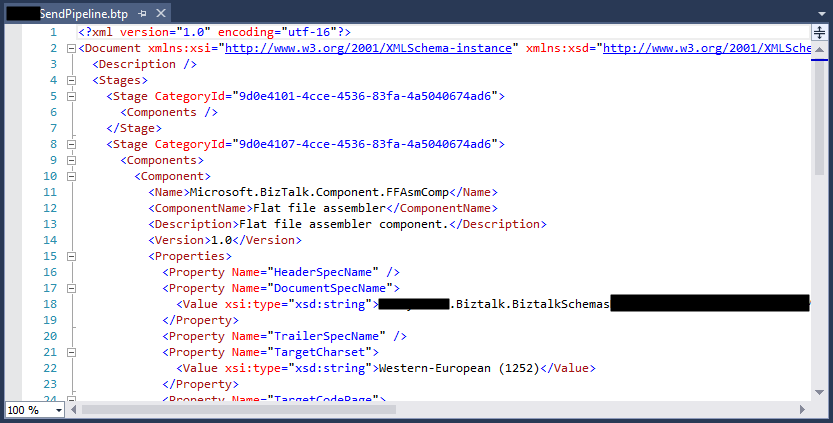
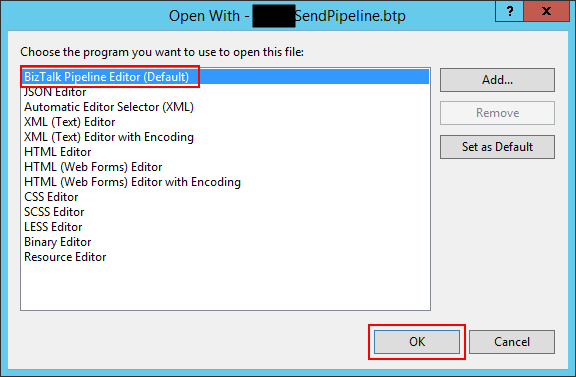
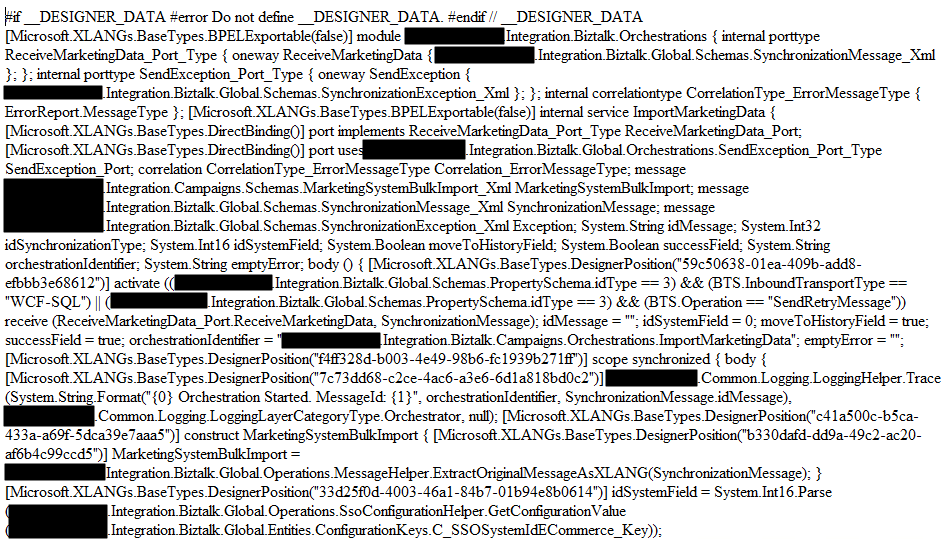
In the sequence of one of my last blog posts, I notice that in the same project also while trying to open a BizTalk pipeline inside Visual Studio, again, normally a simple and easy double-click operation to open this time the BizTalk Pipeline Editor, the resource didn’t open with the correct editor: BizTalk Pipeline Editor, instead, it opened with the XML (Text) Editor
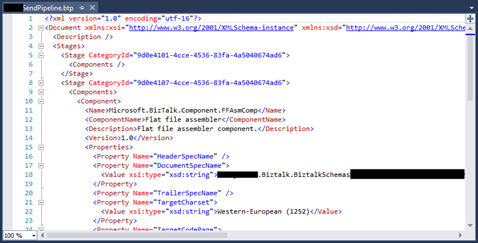
I’m used to seeing this behavior ins orchestration but it is the first time, that I can remember, to see the same happening with pipelines. Again, this has a quick workaround but it becomes annoying after a few times.
Cause
Well, again and similar to the orchestrations, I don’t know exactly what can cause this problem but I suspect that this behavior happens more often when we migrate projects, or when we try to open previous BizTalk Server versions projects in recent versions of Visual Studio, special if we skip one or more versions, for example: from BizTalk Server 2010 to 2013 R2.
And may happen because of different configurations inside the structure of the “<BizTalk>.btproj” file.
The cause of this strange behavior is without a doubt related to a mismatched setting inside the structure of the “<BizTalk>.btproj” file in the Pipeline nodes (each pipeline inside your project will reflect one Pipeline node specifying the name of the file, type name, and namespace. Normally it has this aspect in recent versions of BizTalk Server:
<ItemGroup>
   <Pipeline Include="SendOrReceivePipelineName.btp">
      <Namespace>MyProjectName.Pipelines</Namespace>
      <TypeName>SendOrReceivePipelineName</TypeName>
   </Pipeline>
</ItemGroup>
But sometimes we will find an additional element:
<ItemGroup>
   <Pipeline Include="SendOrReceivePipelineName.btp">
      <Namespace>MyProjectName.Pipelines</Namespace>
      <TypeName>SendOrReceivePipelineName</TypeName>
      <SubType>Designer</SubType>
   </Pipeline>
</ItemGroup>
When the SubType element is present, this strange behavior of automatically open the pipeline with the XML (Text) Editor.
Solution
First, once again let’s describe the easy workaround for this annoying problem/behavior:
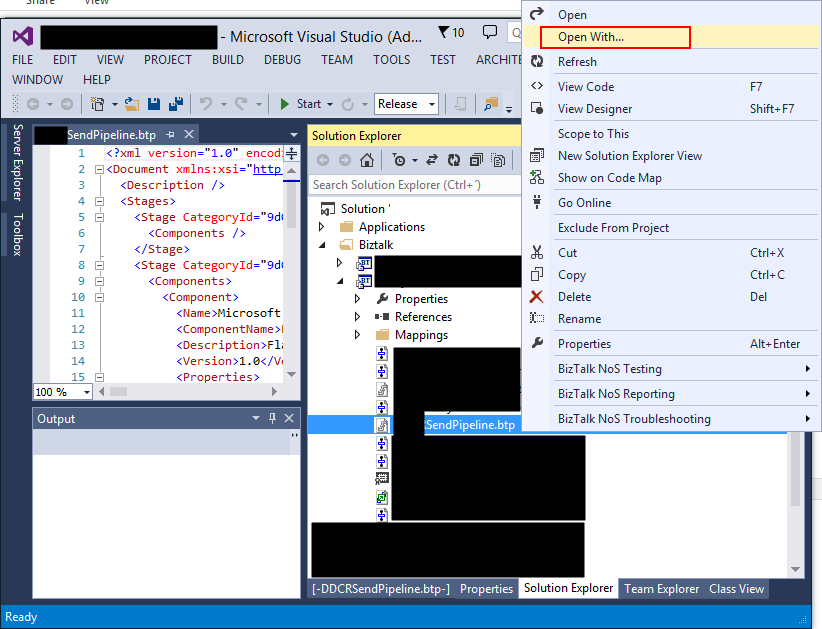
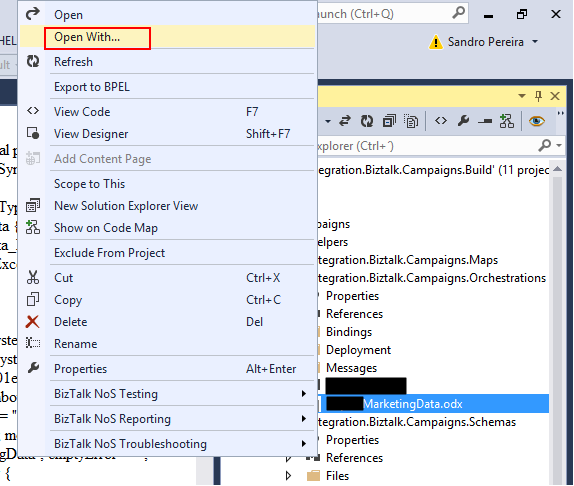
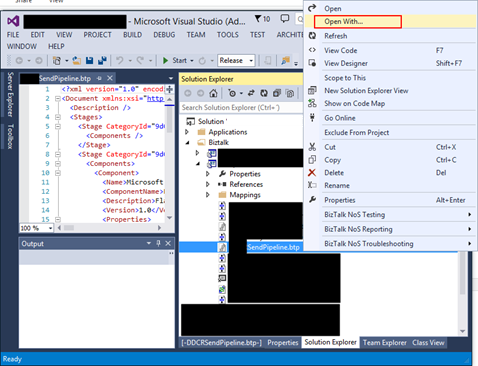
- On the solution explorer, right-click on the pipeline name and then select “Open With…” option
- On the “Open with …” window, select “BizTalk Pipeline Editor” option and click “OK”.
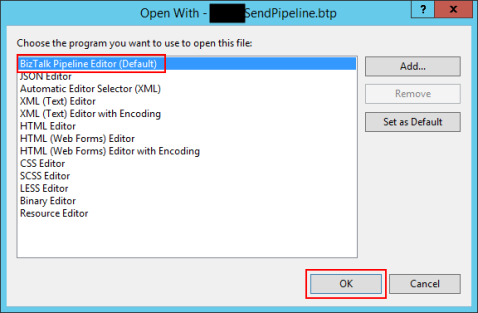
Once again, this will force Visual Studio to actually open the pipeline with the Pipeline Editor. But again, this will be a simple workaround because next time you try to open the pipeline inside Visual Studio it will open again with the XML (Text) Editor.
Similar to the orchestration behavior, force to “Set as Default” inside the “Open with …” window:
- Select “BizTalk Pipeline Editor” option, click “Set as Default”
- And then click “OK”.
It will not solve the problem, once again, if you notice in the picture above it is actually already configured as the default viewer.
So, to actually solve once and for all this annoying behavior, once again you need to adjust the configurations inside the btproj file, by:
- Open the “<BizTalk>.btproj” (or project) file(s) that contain the pipeline(s) with this behavior with Notepad, Notepad++ or other text editors of your preference.
- Remove the <SubType>Designer</SubType> line
- Save the file and reload the project inside Visual Studio
If you then try to open the pipeline it will now open with the BizTalk Pipeline Editor.
Author: Sandro Pereira
Sandro Pereira lives in Portugal and works as a consultant at DevScope. In the past years, he has been working on implementing Integration scenarios both on-premises and cloud for various clients, each with different scenarios from a technical point of view, size, and criticality, using Microsoft Azure, Microsoft BizTalk Server and different technologies like AS2, EDI, RosettaNet, SAP, TIBCO etc.
He is a regular blogger, international speaker, and technical reviewer of several BizTalk books all focused on Integration. He is also the author of the book “BizTalk Mapping Patterns & Best Practices”. He has been awarded MVP since 2011 for his contributions to the integration community.
View all posts by Sandro Pereira

by Sandro Pereira | Dec 4, 2017 | BizTalk Community Blogs via Syndication
Since the first time we organize the event in London (back in 2013), each year I have had the pleasure of participating in the biggest Microsoft Integration event as a speaker but this year I was able to be present in the two biggest events: London and in Redmond (Microsoft Campus)
This year my session was about: BizTalk Server Fast & Loud

In this session, I talked about a hardcore BizTalk topic that addressed the following question: How can you optimize/tuning your BizTalk environment for performance?
Optimizing your BizTalk Server installation is not an easy thing to do because it affects several layers and skills. This topic is very well documented by the product group but the problem is that it is very extensive and complex. This presentation will aim to guide you through the most important steps, operations or task you need to do or be aware in order to boost the performance of your BizTalk Server environment and that you can adjust or follow according to your needs because, depending on your infrastructure, this can be a straightforward operation or a very extensive and hard operation. But I will try to keep it as simple as possible so everyone can understand and follow.
In the links below you can find the resources that I used in both sessions:
BizTalk Server Fast & Loud Slides
Slides used in INTEGRATE 2017 LONDON:
Slides used in INTEGRATE 2017 USA:
BizTalk Server Fast & Loud Video
Like previous years, the event in London is recorded, so if for any reason you could not be present at these events, or if you want to review it again, you can now do it here:

Day 3 Session 5 – Sandro Pereira — BizTalk Server Fast & Loud
I hope you enjoy it and see you next year!
Author: Sandro Pereira
Sandro Pereira lives in Portugal and works as a consultant at DevScope. In the past years, he has been working on implementing Integration scenarios both on-premises and cloud for various clients, each with different scenarios from a technical point of view, size, and criticality, using Microsoft Azure, Microsoft BizTalk Server and different technologies like AS2, EDI, RosettaNet, SAP, TIBCO etc. He is a regular blogger, international speaker, and technical reviewer of several BizTalk books all focused on Integration. He is also the author of the book “BizTalk Mapping Patterns & Best Practices”. He has been awarded MVP since 2011 for his contributions to the integration community. View all posts by Sandro Pereira

by Lex Hegt | Nov 30, 2017 | BizTalk Community Blogs via Syndication
| Application Health |
| Application Health |
 |
 |
|
All products deal with core Application Health scenarios very well. Nagios loses points for less visibility when determining the health of an application. |
| Platform Health |
| Host Instance Availability |
|
|
|
All products deal with Host Instance health scenarios. Good visibility exists when determining the health of a Host instance. The higher rank goes to BizTalk360, because of the Auto-correct feature, for which customization is needed with Nagios and SCOM. |
| Host Throttling |
|
|
|
All products provide capabilities when it comes to determining Host Throttling, although in case of Nagios, it will be monitoring of PerfMon counters. BizTalk360 however, provides a more comprehensive experience and allows you, besides Host Throttling monitoring, to historically go back to determine exactly when and why BizTalk was throttling. |
| Single Sign On Service availability |
|
|
|
All products provide suitable functionality in this area. BizTalk360 gets the higher mark as it also has an Auto correct feature, which tries to bring the SSO service in the expected state, after a failure |
| Monitoring SQL Agent Jobs |
|
|
|
All applications do provide this support. BizTalk360 provides a very friendly user experience, whereas SCOM provide deeper functionality that is found in the SQL Server Management Pack.
Nagios takes the lower ranking as complex customization is needed. |
| Core Infrastructure Monitoring |
|
|
|
Nagios and SCOM provide more Core Infrastructure Monitoring, but since we are keeping this relevant to BizTalk, BizTalk360 provides enough visibility to support a BizTalk environment and earns a top score as well. |
| BizTalk Health Monitor Integration |
 |
|
|
BizTalk Health Monitor (BHM) integration is part of BizTalk360’s core offering and is very easy to setup. No integration exists between BizTalk Health Monitor and Nagios and SCOM. Custom development is required in order to provide this functionality. |
| Log/Database Query Monitoring |
|
|
|
All products receive partial scores for these features. Currently BizTalk360 provides no capability around parsing log files. It does provide support for SQL Server databases, but not others. Nagios and SCOM both provide support for both Log and Database Monitoring. The downside is that these features often require custom scripts to be written in order to support the requirement. SCOM loses marks on the usability aspects of implementing these functions, while Nagios loses marks as a separate product will be needed for Log monitoring. |
| Analytics |
|
|
|
Nagios has no BizTalk oriented analytics.
SCOM uses a data warehouse for reporting and long-term data storage. Because of the extended reporting capabilities, though not easy to use, SCOM gets the higher grade.
BizTalk360 provides a customizable Analytics Dashboard and many widgets give insight in the performance and processing of messages through BizTalk. |
| Operating Environment |
| Process Monitoring |
|
|
|
This is a core feature in BizTalk360 that detects when something is supposed to happen but does not. An example is not receiving a file from a trading partner when you expect to. Your environment can be completely healthy, but if the trading partner does not provide the file, traditional Monitoring techniques used by SCOM will not detect this. BizTalk360 will detect this scenario and send the appropriate notifications. |
| Maintenance Mode/Negative Monitoring |
|
|
|
Nagios supports Scheduling down time, but has no Negative monitoring for BizTalk Server resources.
Both SCOM and BizTalk360 provide functionality in these areas. BizTalk360 provides complete coverage whereas SCOM is only providing partial coverage.
SCOM is able to handle the Maintenance Mode requirements, but not the complete Negative Monitoring requirements. While a SCOM administrator can provide an override when it comes to a Host Instance or Receive Location, if someone starts or enables that BizTalk Service no notifications are generated. |
| Synthetic Transactions |
|
|
|
Nagios has support for Synthetic Transactions and other types of web site monitoring.
SCOM does provide additional features like running Synthetic Transactions from different servers within the environment. SCOM also provides deeper interrogation of these downstream applications by using .Net Application Performance Monitoring.
BizTalk360 provides good capabilities that will satisfy most requirements. Besides checking for expected HTTP return codes, it is also possible to fire custom requests and check for certain responses/response times. |
| Miscellaneous |
| Integration with other popular Monitoring Platforms |
|
|
|
SCOM provides broad integration with many other Monitoring Platforms and Service Desk applications.
BizTalk360 integrates with HP Operations Manager, Slack, ServiceNow, Microsoft Teams and provides a simple and elegant way of doing so. One could also develop custom Notification Channels to integrate with other Service Desk applications.
Nagios has slightly less features in this area and therefore gets the lower score |
| Composite Dashboards |
|
|
|
All products provide this capability. BizTalk360 gets a higher grade for the simplicity of the tool.
In order to build these types of Dashboards within SCOM, you need to be an advanced user of the system. Nagios Dashboards are not BizTalk oriented |
| Web based User Interfaces |
|
|
|
All products provide Web based interfaces. BizTalk360 gets the top grade because administrators can perform most of their BizTalk related activities with just BizTalk360, while with Nagios/SCOM they also need access to tools like BizTalk Admin Console, SQL Server, Event Viewer, Performance Monitor, portals, etc. |
| Summary Reports |
|
|
|
Nagios has all kind of reports, but these are not BizTalk oriented
SCOM does not provide a holistic report out of the box. In order to get this type of reports out of SCOM, you need to custom build a report.
BizTalk360 provides a scheduled Summary Report that will give subscribers an indicator that their environment is Healthy. This gives users a confirmation that everything is operating as expected within the environment. |
| Governance |
|
|
|
Nagios and SCOM provide both user management, but the no BizTalk operations can be done from these users.
BizTalk360 provides a much finer grained approach to Governance and Auditing. |
| Knowledgebase |
|
|
|
Nagios doesn’t have a Knowledge Base, but both SCOM and BizTalk360 include the ability to build up a Company Knowledge base.
SCOM also includes a Product Knowledge base provided by the BizTalk Product Group so it gets the higher score in this area.
BizTalk360 provides the capability to associate KB articles to certain events, like error codes of suspended instances etc. and therefore also deserves the highest rank. |
by Sandro Pereira | Nov 27, 2017 | BizTalk Community Blogs via Syndication
While trying to open a BizTalk Orchestration inside Visual Studio, normally a simple and easy double-click operation to open the BizTalk Orchestration Designer, I got a very famous behavior: BizTalk Orchestration didn’t open with the BizTalk Orchestration Designer, instead, it opened with the XML (Text) Editor
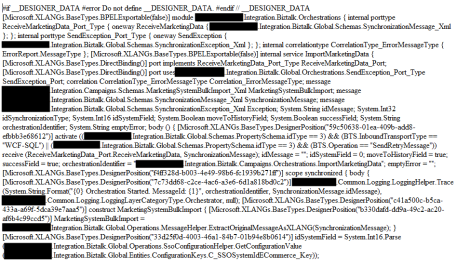
This behavior is happening to me a lot these last days. At first, I simply didn’t care because I know how to quickly workaround it, after a few times it just becomes annoying, after a few days and several orchestrations and different projects I got intrigued an entered in “Sherlock Holmes” mode.
Cause
Well, I don’t know exactly what can cause this problem but I suspect that this behavior happens more often when we migrate projects, or when we try to open previous BizTalk Server versions projects in recent versions of Visual Studio, special if we skip one or more versions, for example: from BizTalk Server 2010 to 2013 R2.
And may happen because of different configurations inside the structure of the “<BizTalk>.btproj” file.
The cause of this strange behavior, is without a doubt related with a mismatch setting inside the structure of the “<BizTalk>.btproj” file in the XLang nodes (each orchestration inside your project will reflect to one XLang node specifying the name of the file, type name and namespace. Normally it has this aspect in recent versions of BizTalk Server:
<ItemGroup>
   <XLang Include="MyOrchestrationName.odx">
      <TypeName> MyOrchestrationName </TypeName>
      <Namespace>MyProjectName.Orchestrations</Namespace>
   </XLang>
</ItemGroup>
But sometimes we will find an additional element:
<ItemGroup>
   <XLang Include="MyOrchestrationName.odx">
      <TypeName> MyOrchestrationName </TypeName>
      <Namespace>MyProjectName.Orchestrations</Namespace>
      <SubType>Designer</SubType>
   </XLang>
</ItemGroup>
When the SubType element is present, this strange behavior of automatically open the orchestration with the XML (Text) Editor.
Solution
First, let’s describe the easy workaround to this annoying problem:
- On the solution explorer, right-click on the orchestration name and then select “Open With…” option
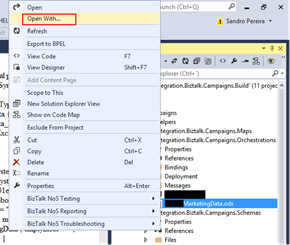
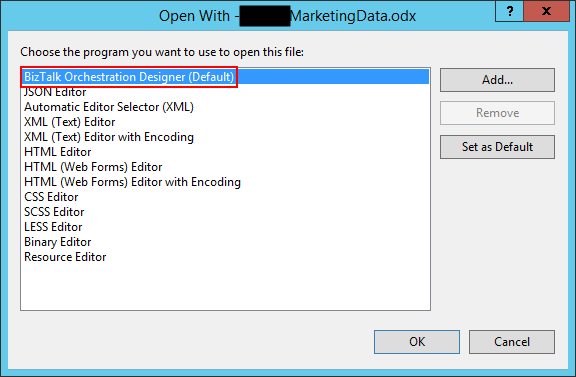
- On the “Open with …” window, select “BizTalk Orchestration Designer” option and click “OK”.
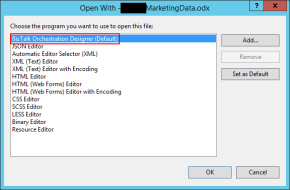
This will force Visual Studio to actually open the orchestration with the Orchestration Design. But again, this will be a simple work around because next time you try to open the orchestration inside Visual Studio it will open again with the XML (Text) Editor.
You may think that inside the “Open with …” window if we:
- Select “BizTalk Orchestration Designer” option, click “Set as Default”
- And then click “OK”.
It will solve the problem, but you are wrong, actually, if you notice in the picture above it is already configured as the default viewer.
So, to actually solve once and for all this annoying behavior you need to:
- Open the “<BizTalk>.btproj” (or project) file(s) that contain the orchestration(s) with this behavior with Notepad, Notepad++ or another text editor of your preference.
- Remove the <SubType>Designer</SubType> line
- Save the file and reload the project inside Visual Studio
If you then try to open the orchestration it will open with the BizTalk Orchestration Designer.
Author: Sandro Pereira
Sandro Pereira lives in Portugal and works as a consultant at DevScope. In the past years, he has been working on implementing Integration scenarios both on-premises and cloud for various clients, each with different scenarios from a technical point of view, size, and criticality, using Microsoft Azure, Microsoft BizTalk Server and different technologies like AS2, EDI, RosettaNet, SAP, TIBCO etc. He is a regular blogger, international speaker, and technical reviewer of several BizTalk books all focused on Integration. He is also the author of the book “BizTalk Mapping Patterns & Best Practices”. He has been awarded MVP since 2011 for his contributions to the integration community. View all posts by Sandro Pereira