by Sivaramakrishnan Arumugam | Nov 1, 2018 | BizTalk Community Blogs via Syndication
One of the core features of BizTalk360 is it’s monitoring and notification capability. BizTalk Server is used in mission-critical environments to integrate different applications within the enterprise. While BizTalk Server can integrate with multiple applications and provide a one-stop solution for enterprises, it lacks the ability to allow the administrators to monitor, amongst others, the health of connected applications.
BizTalk360 understands the problems faced by enterprises and offers an out-of-the-box monitoring solution that assists administrators to monitor the BizTalk environments. BizTalk360 solves the purpose of being able to monitor BizTalk Server solutions in a simple and easy manner.
So, What Can BizTalk360 Monitor?
BizTalk360 allows administrators to set up alerts on specific components of BizTalk Server, such as:
- BizTalk Applications and their Send Ports, Receive Locations, Orchestrations, Service Instances
- Disks
- Event Logs
- NT Services
- System Resources (CPU, Memory)
- SQL Jobs
- Web Endpoints
- BizTalk Health Monitor, Errors and Warnings
- Host instances (normal, clustered)
- Azure services
- Queues – MSMQ, Azure Service Bus, IBM MQ
- File Location – File, FTP and SFTP
- Database queries
I would like to explain the feature of File Location monitoring usage and the challenges we faced.
File Location Monitoring
File Locations Monitoring is one of the core monitoring capabilities which we had introduced in BizTalk360 v8.4. From our customers, we received many requests to introduce the ability to monitor Folder Level into BizTalk360.
How File Location monitoring works?
BizTalk360 has the capability of fetching the file locations which are configured in the BizTalk Admin console.
File Location Monitoring lists all the locations configured in the BizTalk Artifacts (Send Ports and Receive Locations) for the Transport Types (File, FTP, SFTP) respectively and shows them in the UI. Users can map only the file location of BizTalk Artifacts; file locations which are not mapped with the artifacts will not be monitored from BizTalk360.
Cross-domain
Just to give an overview of a domain
A domain is a group of computers and devices on a network that is administered as a unit with common rules and procedures. Within the Internet, domains are defined by the IP address. All devices sharing a common part of the IP address are said to be in the same domain.
Overview of Cross-domain
By cross-domain, we refer to the communication between different domains by creating trusts.
A trust is a relationship established between two different domains that enable users in one domain to be authenticated by a domain controller in the other domain. There are different types of trusts in the Microsoft Active Directory domain such as External, Realm, Forest and shortcut. An external trust is necessary when users of two different domains of two different business units want to utilize resources such as printers and file servers of trusted domains.
Cross-domain in BizTalk
In BizTalk, the receive locations or the send ports can be configured with the file locations present in the server. These locations may be in the same server or in a different server in the different domain. With the trust created between the domains, the file transfer would happen, and the message gets transferred.
File Location monitoring in BizTalk360
As said earlier, in BizTalk360 we have the capability to monitor file locations and trigger alerts based on the file count and directory size configuration.
The BizTalk360 monitoring service will check for the file count and directory size and trigger alert emails. So, as per the environment configuration, the service account running the monitoring service will need access permissions to the BizTalk environment to fetch the data of the BizTalk artifacts.
Often the support tickets raised by customers provide different learning experiences to the support team. One such ticket was an issue with the file monitoring.
Configure File Location monitoring
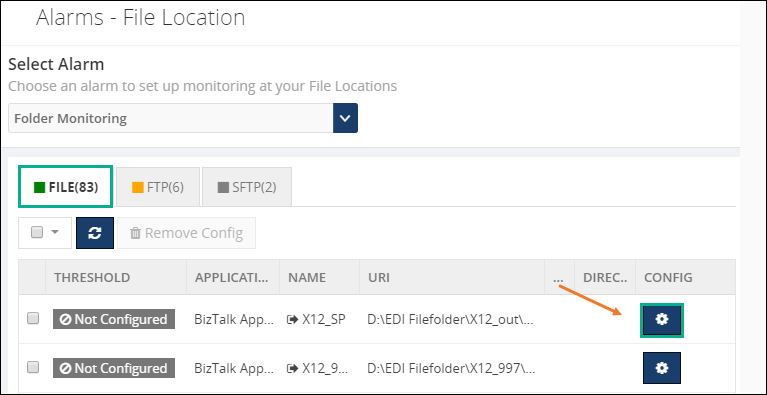
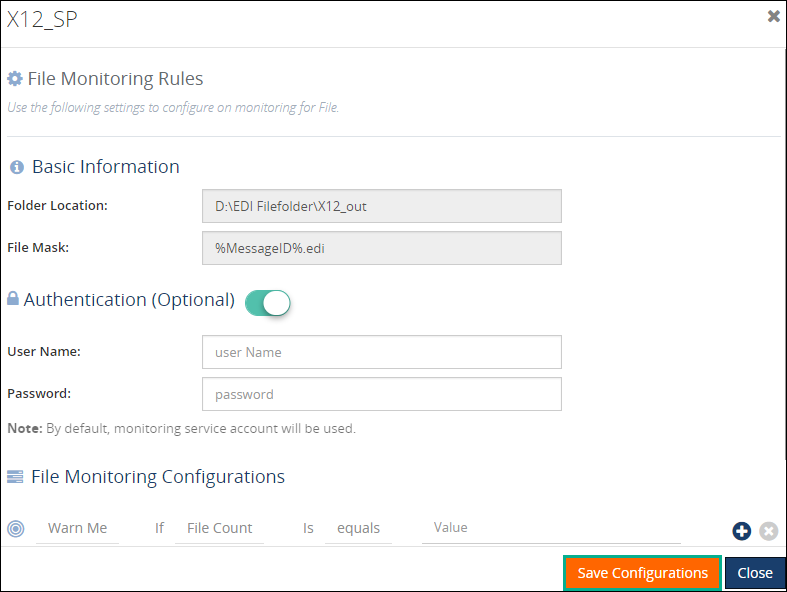
Configuring File Location monitoring is a very straightforward activity in BizTalk360. You have the option to configure with authentication mode as well as anonymous mode. BizTalk360 will automatically list down all the available file locations on the server.
Click the Gear icon to open the File Details blade and toggle on the Authentication button to enter the username and password. If the username and password columns are blank, it will be considered as anonymous authentication. Configure the warning and error rules for monitoring under the File Monitoring Configurations settings. Click Save Configurations to complete the process.
Scenario 1: Cross-domain file share
One of our customers raised an issue that a file share is getting Orphaned once after configuring with the alarm. We started with the basic troubleshooting steps.
We understood that customer configured a File path in BizTalk server which is a cross domain. In detail for the specific send port, they used a file adapter and while they provide a path they have provided a path where the folder is available in a different domain.
Troubleshooting the problem
We asked the customer to share if any exception appeared and we received that “the username and password are incorrect”.

Technically, BizTalk360 should monitor the specific file without any issues. This is the reason why we are using BizTalk360’s monitoring service account to fetch the details. If BizTalk360 monitoring service needs access across the domain, it should monitor without any problem.
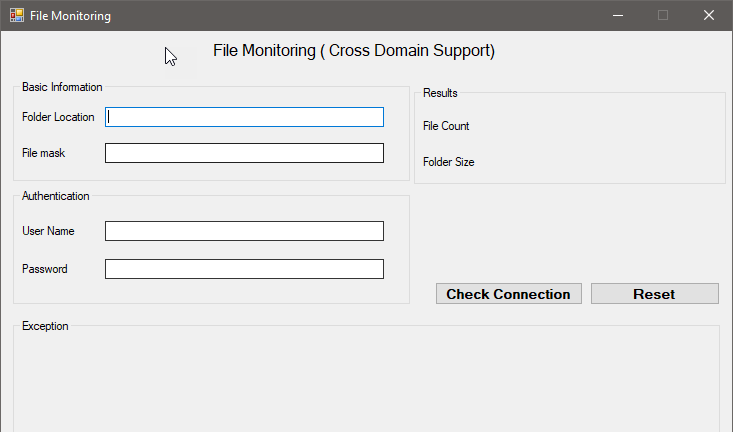
To find the exact root cause of the issue we have developed a console application(with logs enabled) and provided it to the customer. Developing back and forth, we found that it’s an authentication issue and solved it in version 8.9 of the product.
Scenario 2 – Monitoring a cross-domain Linux server
It’s again an interesting case once after the release of version 8.9 (fix for cross domain file monitoring). One of our customers came with a feedback that he is facing a problem with file monitoring.
Once we engaged a call with our customer, we found that they are using a Linux machine for a folder path in the BizTalk server, which is a cross domain. In detail, for the specific send port, they used a File adapter and while they provided the path, they have provided a folder which is available in a different domain in a Linux machine.
Troubleshooting the problem
We asked the customer to share if any exception appeared and we received the same error that “username and password is incorrect”.
To connect the Linux folder location from the Windows machine, the customer used a tool called Samba share. We have enhanced our code to authenticate and connect the Linux machines with encrypt and decrypt, along with NT service mechanism.
Later, we have provided a console application to our customer which solved the problem. We have planned to include the fix in our upcoming version.
What about FTP and SFTP?
By default, FTP and SFTP are hosted in a web(domain)and we support cross-domain in FTP and SFTP file monitoring.
Conclusion
This was another support case which was interesting for me as it helped me to understand the code from a Developer perspective. I have explored a different kind of cross-domains from the Tester perspective. Working along with the customer gave satisfaction as a Support engineer. Hope I will receive “an Awesome” review from the customer side 😊
Author: Sivaramakrishnan Arumugam
Sivaramakrishnan is our Support Engineer with quite a few certifications under his belt. He has been instrumental in handling the customer support area. He believes Travelling makes happy of anyone. View all posts by Sivaramakrishnan Arumugam

by Sandro Pereira | Oct 30, 2018 | BizTalk Community Blogs via Syndication
And another whitepaper was published, this time an update to one of my classics: “Installing BizTalk Server 2016 in a Basic Multi-Computer Environment”!
There are many things to consider when planning this type of installation; often the network infrastructure already exists, and BizTalk Server must coexist with other network applications. This guide describes some of the considerations that apply to the various parts of a BizTalk Server installation in a basic multi-computer environment. This information will help you plan the installation and configuration of BizTalk Server 2016, applications and components on which it depends.

But this step-by-step guide is not only about installing BizTalk Server 2016, but it will also help you configure and optimize your environment.
What to expect about Installing BizTalk Server 2016 in a Basic Multi-Computer Environment whitepaper
This whitepaper will give you a detailed understanding of the following:
- BizTalk Server Installation scenario
- The need for a Domain Controller
- Preparing Computers for Installation
- Preparing and Install SQL Server 2016 machine
- Prepare and install prerequisites on BizTalk Server 2016 machine
- Testing environment connectivity
- Install and configure BizTalk Server 2016 machine
- Optimize the BizTalk Server 2016 environment.
Where I can download it
You can download the whitepaper here:
Once again, I would like to take this opportunity also to say thanks to Lex Hegt for helping me reviewing this whitepaper especially for the incredible work of him correcting my horrible English and in this way make the document and my thoughts being readable.
I hope you enjoy reading this paper and any comments or suggestions are welcome.
You can also find, download and enjoy several other free whitepapers of my own here:
You can download the Installing BizTalk Server 2016 in a Basic Multi-Computer Environment whitepaper here:
 Installing BizTalk Server 2016 in a Basic Multi-Computer Environment
Author: Sandro Pereira
Sandro Pereira lives in Portugal and works as a consultant at DevScope. In the past years, he has been working on implementing Integration scenarios both on-premises and cloud for various clients, each with different scenarios from a technical point of view, size, and criticality, using Microsoft Azure, Microsoft BizTalk Server and different technologies like AS2, EDI, RosettaNet, SAP, TIBCO etc. He is a regular blogger, international speaker, and technical reviewer of several BizTalk books all focused on Integration. He is also the author of the book “BizTalk Mapping Patterns & Best Practices”. He has been awarded MVP since 2011 for his contributions to the integration community. View all posts by Sandro Pereira
by Sandro Pereira | Oct 30, 2018 | BizTalk Community Blogs via Syndication
I recently published a new BizTalk Server Tips and Tricks article: “Automatically Generate Schemas from a Well-Formed XML instance” on my blog post series about “BizTalk Server Tips and Tricks” for developers, administrators or business users and I couldn’t resist on asking what about DTD?
Definition of DTD schemas
For who doesn’t know what DTD is, a DTD is a Document Type Definition that defines the structure and the legal elements and attributes of an XML document… So basically, it is the equivalent of what BizTalk Server uses to define how an XML document can be structured: XSD Schema. Nevertheless, there are many differences between DTD (Document Type Definition) and XSD (XML Schema Definition). In short, DTD provides less control on XML structure whereas XSD (XML schema) provides more control.
Some of you may wonder, who cares? No one uses DTD anymore, so why bother?
Yes, indeed DTD is not used very regularly nowadays, and it is very probable that you will never use it… unless… for example, you are working with RosettaNet or in the future, you will have the need to work with RosettaNet. Why? Because most of the RosettaNet Standards – PIP messages – are defined in the format of DTD format!
As I mentioned in my previous blog, there are several ways we can create an XML Schemas in BizTalk Server:
- Manually from the scratch
- From XDR Schema instance
- From a DTD instance
- From a well-formed XML instance
- Import them from a WCF Service or Web Service
- Or automatically generated them from LOB systems (from the adapters)
Generating schemas based on a DTD instance
Today we will be talking about automatically generating XML Schemas from a DTD instance.
To accomplish this we need to:
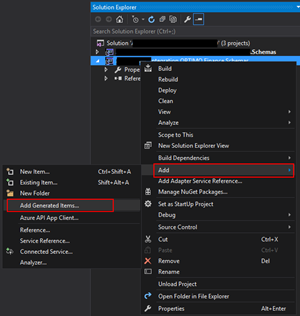
- In Solution Explorer, right-click a BizTalk project, point to Add, and then click Add Generated Items…
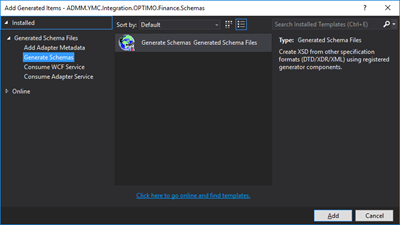
- In the Add Generated Items – <BizTalk ProjectName> dialog box, in the Templates section, click Generate Schemas, and then click Add
- In the Generate Schemas dialog box, in the Document type drop-down list, select DTD
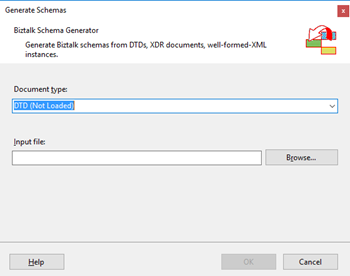
- One of the problems, especially in brand new installations, is that sometimes this feature was not installed, and you will see DTD (Not Loaded) in the drop-down list. To install and use this feature you need to:
- Navigate to the “SDKUtilitiesSchema Generator” folder present in the BizTalk Server installation folder. Normally this will be “C:Program Files (x86)Microsoft BizTalk Server <version>SDKUtilitiesSchema Generator”
- And execute the InstallDTD.vbs script by double-clicking. This will install the “Microsoft.BizTalk.DTDToXSDGenerator.dll” DLL on the correct place. This basically means that it will copy this DLL to the “Developer ToolsSchema Editor Extensions” folder present in the BizTalk Server installation folder
- Or manually “Microsoft.BizTalk.DTDToXSDGenerator.dll” DLL to the “Developer ToolsSchema Editor Extensions” folder present in the BizTalk Server installation folder. Normally this will be “C:Program Files (x86)Microsoft BizTalk Server <version>Developer ToolsSchema Editor Extensions
- Close the Generate Schemas dialog box and do the previous steps again. Now you will be able to see that you can use the option DTD in the drop-down list
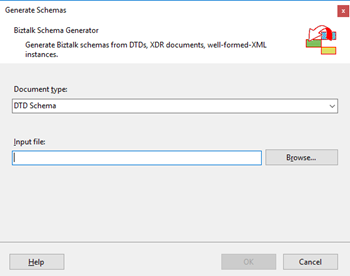
- In the Generate Schemas dialog box, click Browse, locate the file you want to import, click Open and then click OK
- A new schema, or sometimes at least two schemas are generated from the specified file, using the same name as that file with the .xsd extension, and opened in BizTalk Editor
Quick, simple and practical.
Stay tuned for new Tips and Tricks!
Author: Sandro Pereira
Sandro Pereira is an Azure MVP and works as an Integration consultant at DevScope. In the past years, he has been working on implementing Integration scenarios both on-premises and cloud for various clients, each with different scenarios from a technical point of view, size, and criticality, using Microsoft Azure, Microsoft BizTalk Server and different technologies like AS2, EDI, RosettaNet, SAP, TIBCO etc. View all posts by Sandro Pereira
by Gautam | Oct 28, 2018 | BizTalk Community Blogs via Syndication
Do you feel difficult to keep up to date on all the frequent updates and announcements in the Microsoft Integration platform?
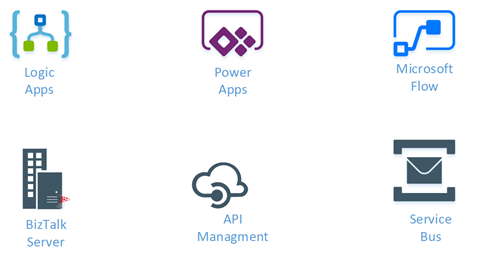
Integration weekly update can be your solution. It’s a weekly update on the topics related to Integration – enterprise integration, robust & scalable messaging capabilities and Citizen Integration capabilities empowered by Microsoft platform to deliver value to the business.
If you want to receive these updates weekly, then don’t forget to Subscribe!
Feedback
Hope this would be helpful. Please feel free to reach out to me with your feedback and questions.

by Sandro Pereira | Oct 25, 2018 | BizTalk Community Blogs via Syndication
BizTalk Pipeline Components Extensions Utility Pack community project for BizTalk Server 2016, once again, got a new update and it now has a new component that you can use in your custom BizTalk Server pipelines: Unzip File Pipeline Component.
Unzip File Pipeline Component
The Unzip File Pipeline Component for BizTalk Server can be used in a Received pipeline (Disassemble stage), and it allows you to receive a compress (zip/gzip) file and extract its contents into different XML messages.
- The capabilities are like those available in any compression software such as WinZip or 7-zip:
- This component doesn’t require any configurations.
This was an old component that I had that I now updated and improved to BizTalk Server 2016 with the help with my internal team at DevScope, in particular, Pedro Almeida.
You do not need to add a custom pipeline component to be used by the BizTalk Runtime to the Global Assembly Cache (GAC).
What is BizTalk Pipeline Components Extensions Utility Pack?
BizTalk Pipeline Components Extensions Utility Pack is a set of custom pipeline components (libraries) with several custom pipeline components that can be used in received and sent pipelines, which will provide an extension of BizTalk out-of-the-box pipeline capabilities.
The project is available on BizTalk Server Open Source Community repository on GitHub (https://github.com/BizTalkCommunity), and everyone can contribute with new pipeline components that can be extended or improve the existing BizTalk Server capabilities.

At the moment it is only available for BizTalk Server 2016, but it will soon be compiled and available for previous versions of the product.
Where to download it?
You can download BizTalk Pipeline Components Extensions Utility Pack from GitHub here:
BizTalk Pipeline Components Extensions Utility Pack
GitHub
Author: Sandro Pereira
Sandro Pereira lives in Portugal and works as a consultant at DevScope. In the past years, he has been working on implementing Integration scenarios both on-premises and cloud for various clients, each with different scenarios from a technical point of view, size, and criticality, using Microsoft Azure, Microsoft BizTalk Server and different technologies like AS2, EDI, RosettaNet, SAP, TIBCO etc. He is a regular blogger, international speaker, and technical reviewer of several BizTalk books all focused on Integration. He is also the author of the book “BizTalk Mapping Patterns & Best Practices”. He has been awarded MVP since 2011 for his contributions to the integration community. View all posts by Sandro Pereira
by Sandro Pereira | Oct 23, 2018 | BizTalk Community Blogs via Syndication
Welcome back to my blog post series “BizTalk Server Tips and Tricks” for developers, administrators or business users.
There are several ways we can create an XML Schema in BizTalk Server:
- Manually from scratch
- From XDR Schema instance
- From a DTD instance
- From a well-formed XML instance
- Import them from a WCF Service or Web Service
- Automatically generated them from LOB systems (from the adapters)
Today, we will be talking about automatically generating XML Schemas from a well-formed XML instance. To accomplish this we need to perform the following steps:
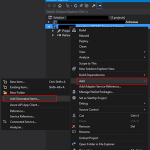
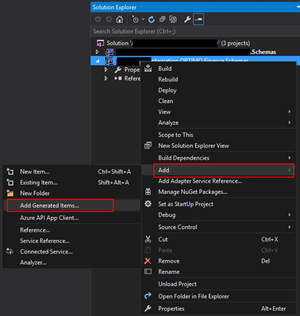
- In Solution Explorer, right-click a BizTalk project, point to Add, and then click Add Generated Items…
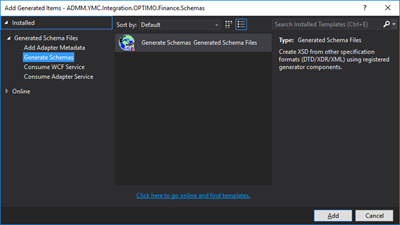
- In the Add Generated Items – <BizTalk ProjectName> dialog box, in the Templates section, click Generate Schemas, and then click Add
- In the Generate Schemas dialog box, in the Document type drop-down list, select Well-Formed XML
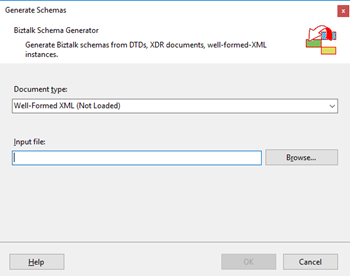
- One of the problems, especially in brand new installations, is that sometimes this feature was not installed, and you will see Well-Formed XML (Not Loaded) in the drop-down list. To install and use this feature you need to:
- Start a Windows Explorer and navigate to the “SDKUtilitiesSchema Generator” folder present in the BizTalk Server installation folder;
- Normally it will be “C:Program Files (x86)Microsoft BizTalk Server <version>SDKUtilitiesSchema Generator”
- Execute the InstallWFX.vbs script by double-clicking. This will install the “Microsoft.BizTalk.WFXToXSDGenerator.dll” DLL on the correct place
- That basically means, it will copy this DLL to the “Developer ToolsSchema Editor Extensions” folder present in the BizTalk Server installation folder
- Or manually copy “Microsoft.BizTalk.WFXToXSDGenerator.dll” DLL to the “Developer ToolsSchema Editor Extensions” folder, present in the BizTalk Server installation folder
- Normally, it will be “C:Program Files (x86)Microsoft BizTalk Server <version>Developer ToolsSchema Editor Extensions
- Close the Generate Schemas dialog box and do the previous steps again, and now you will be able to see that you already can use the option Well-Formed XML in the drop-down list.
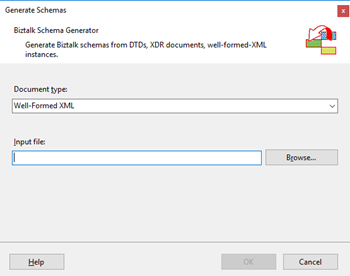
- In the Generate Schemas dialog box, click Browse, locate the file you want to import, click Open and then click OK
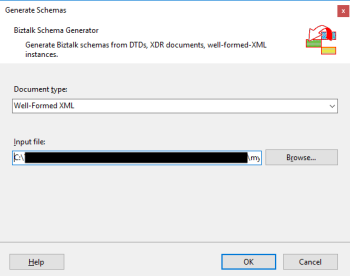
- A new schema, or sometimes at least two schemas are generated from the specified file, using the same name as that file with the .xsd extension, and opened in BizTalk Editor
TIP: Before you generate the schemas, rename the XML instance file that you will be using to the proper name you want to give to the Schemas, this will save you time because the Generator Wizard will:
- Give the same name of the specified file with the .xsd extension
- Or will add a sequence to the same name of the specified file with the .xsd extension
In the end, as a best practice, you should rectify or rename the schemas generated to something with context and that will be easy to identify:
If you want it to be perfect, then for each schema, you should change not only the name of the file, but also the Type Name property of each schema.
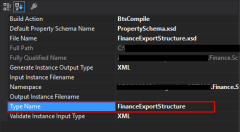
Initially, this value was set as “myfilename_0”.
The problem of renaming the filename and/or the Type Name property is that once you try to compile it will give you errors because some schemas will be referring files that no longer exist (were renamed):
To solve this, we need to:
- Open the Schema and select the Schema node at the top of the schema tree view
- In the Properties window, in the Advanced category, in the value portion of the Imports property, click the ellipsis (…) button
- In the Imports dialog box, in the Import Schema list, delete the XSD Import line, import the correct one and then click OK
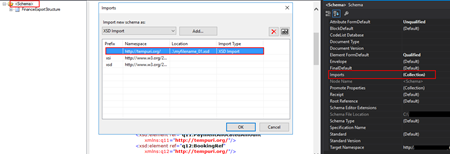
- Alternatively, open the schema file in Notepad (Notepad ++ or other text editors) and rectify the path and filename
Quick, simple and practical!
Stay tuned for new tips and tricks!
Author: Sandro Pereira
Sandro Pereira is an Azure MVP and works as an Integration consultant at DevScope. In the past years, he has been working on implementing Integration scenarios both on-premises and cloud for various clients, each with different scenarios from a technical point of view, size, and criticality, using Microsoft Azure, Microsoft BizTalk Server and different technologies like AS2, EDI, RosettaNet, SAP, TIBCO etc. View all posts by Sandro Pereira
by Ahmed Taha | Oct 18, 2018 | BizTalk Community Blogs via Syndication
In our series of Guest Bloggers, we are pleased to announce Ahmed Taha, from LinkDev, Egypt! Ahmed is not new to the community as he has already hosted some Integration Monday sessions and loves to visit real-world events as well. We thought that his last Integration Monday session would make a good read, so he converted that session to this blog post. You can view this Integration Monday session from the Integration user Group web site. A warm welcome to Ahmed!
Introduction
A few years ago, I had an extremely challenging requirement in a BizTalk project that was integrating the customer’s system with several web services from disparate external backend systems. These systems had different communication protocols, message formats, and throughput limits.
The latter requirement was extremely challenging to implement, and it is actually not a very common one. However, it is worth noting that lately, I have been seeing this requirement, stated more often in new customers’ request for proposal (RFP) documents.
Landscape
First, let me paint a complete picture for you, with the overall landscape.
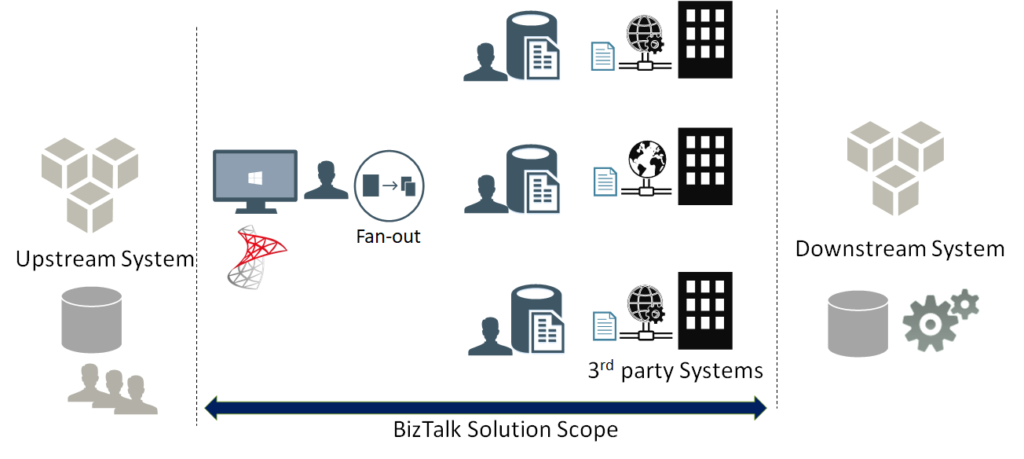
As a first stage, the flow starts with an upstream system that has multiple input channels for entering and storing user entities into a staging data store.
In the second stage, the integration scope starts by polling user entity batches from the staging data store. Next, a fan-out approach is conducted, to scatter each single user entity into multiple requests, one for each web service, from a wide range of external web services.
Afterwards, the response data from each web service is stored separately in a dedicated table entity inside the same database, in a fragmented manner.
At the third and final stage, a mission-critical downstream system is continuously analysing these fragmented data for all the users, to perform critical data processing needed for decision making, as well as provide near real-time reporting from the aggregation of the response data.
Customer Requirements
The following are some of the key generic requirements:
- The entire process will be performed continuously, governed by a set of pre-defined business rules that determines if already fetched data fragment is stale, and needs to be refreshed
- The upstream staging data store will usually contain a large volume of user entities, and the upstream system input is expected to be of high throughput
- There are also some business rules that govern the routing logic, to decide which external systems need to be invoked, based on selected user criteria
So far, these above-mentioned requirements could easily be implemented as a BizTalk messaging solution, along with Business Rules Engine (BRE) policies to apply the governing business rules. For a robust messaging solution, I would highly recommend that you leverage the powerful BRE pipeline framework. Check my article on BRE pipeline framework.
Now, here comes the more challenging set of requirements, and if you are like me, you would be excited for having a good challenge, every now and then:
- Each of these back-end web services allowed for a maximum throughput (i.e. transactions per minute) which must not be exceeded, subsequent requests beyond that limit will fail
- At the same time, the integration solution must not invoke the services at rates that are way below the defined throughput limit, to maintain the overall efficiency of the solution
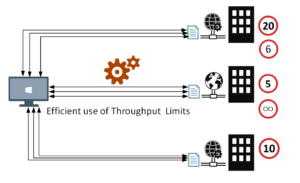
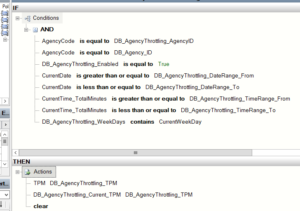
- These throughput limits should be configurable and could be variable based on specified time ranges, days of the week, date ranges, or a combination from all these options. BRE DB-facts were used for this requirement, coupled with a web-based control panel for the configurable DB values. The DB prefixes shown below denotes the BRE DB-facts.
 To come up with the right solution, some research was necessary. During that research, few different approaches were tried:
- Throttling Aggregator Orchestration
- Throttling Pipeline Component
Both approaches are described below.
First Approach – Throttling Aggregator Orchestration
Using an orchestration might be the first thing to come to your mind, in order to control and throttle the incoming messages in a stateful manner using the orchestration canvas.
This is a straight-forward implementation of an aggregator orchestration, which will run as a singleton orchestration instance for each defined back-end system.
To implement the actual throttling effect, the orchestration will simply include a delay shape that introduces the required latency in-between the incoming requests, in order to achieve the required throughput for a given back-end system.
For instance, a back-end system with a throughput limit of (6) requests per minute, will require the delay shape to induce a (10) second delay before every request in its corresponding orchestration instance.
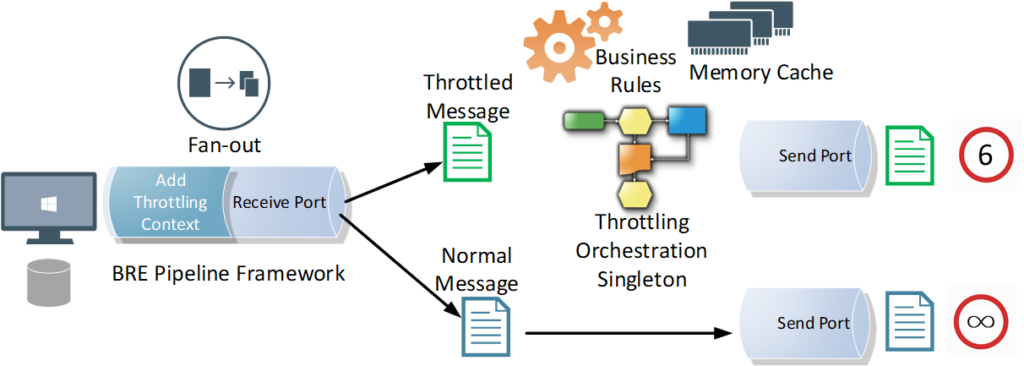
Let’s have a look at the overall message flow. It starts with a polling receive location, where a pipeline component applies the required business rules and enriches the message context with throttling-related & routing-related information, before scattering the polled request into multiple requests, one for each designated back-end service.
A singleton orchestration for each system will apply the required throttling. You will notice that the orchestration is leveraging BRE & DB-facts to get the DB configured throttling information for the given back-end system. Memory cache is used to enhance the performance by minimizing the overhead impact of the BRE DB-facts during the BRE policy call.
While the orchestration approach works well, there are some caveats you should be aware of:
- Orchestration Delay shape is not very accurate when it comes to high precision, small delay values
- Orchestration persistence points will add extra latency which, in turn, lower the overall throughput outcome even further than intended
- Zombie messages are an inevitable byproduct of aggregator orchestrations, this will happen if the orchestration is designed to terminate after an idle time, or gracefully terminates after encountering errors
- Generally, production-grade orchestrations tend to be very complex and large in size, which will consequently affect its readability and maintainability
Second Approach – Throttling Pipeline Component
In order to avoid the above-mentioned caveats of using an aggregator orchestration, instead, you can leverage a pipeline component at the back-end system’s send port that will introduce the necessary latency, right before sending away the message to the designated service. This way you can achieve the required throughput outcome for a given back-end system.
The induced latency could be implemented using the Thread.Sleep() method, or as an infinite While loop that breaks after the required delay period has elapsed. I tried them both, with similar results, although I would personally be very much hesitant to use a while(true) loop in production.
The pipeline component approach is what I actually used for my final solution, as it has the flexibility and control I needed, without any additional latency, affecting the throughput outcome, coming from platform overheads that is beyond my control. After all, it’s my code and it can be optimized as much as possible.
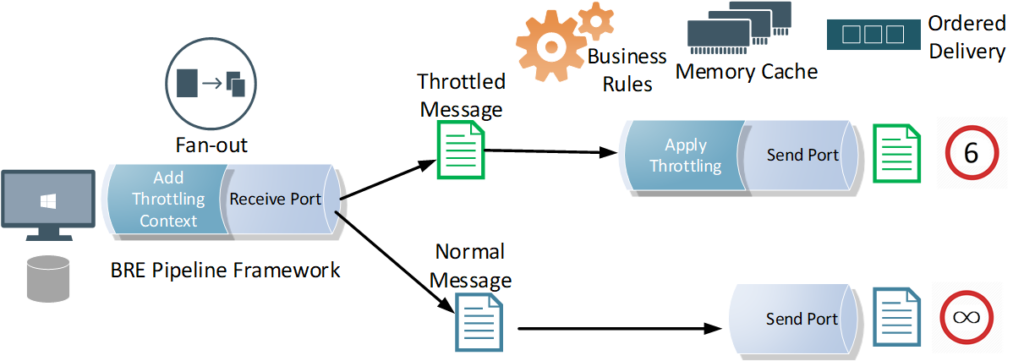
Throttling Pipeline Component Send Port Settings
Another important part of this approach is to apply the following configurations that will disable concurrent processing of messages for the throttled send ports. This way, messages are processed sequentially, one message at a time, under the full control of your throttling pipeline component. This requirement could be achieved by configuring the throttled send ports.
- Retry must be disabled on the throttled send ports
- Ordered Delivery must be enabled on the throttled send ports
- Cluster Hosts for the throttled send ports in a highly available BizTalk solution
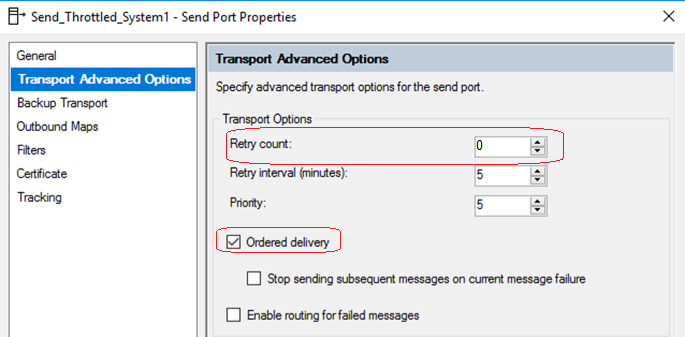
BizTalk Throttling General Tips
1. Efficient Throttling solutions should minimize or completely avoid message box hops. It should be applied at the edges of the solution. This is because message box hops itself will cause additional latency, which will impact the reached throughput outcome. In fact, the optimum position for the throttling component is at send port edge, right before sending the message to the back-end system. It could also be applied in receive end, but again, you will be at the mercy of the message box hops latency and performance.
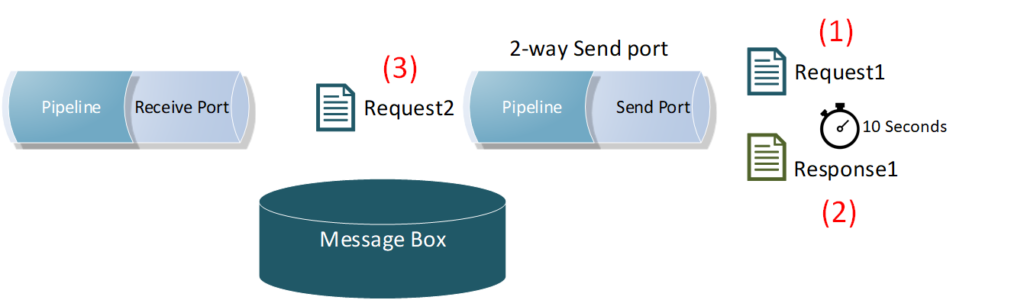
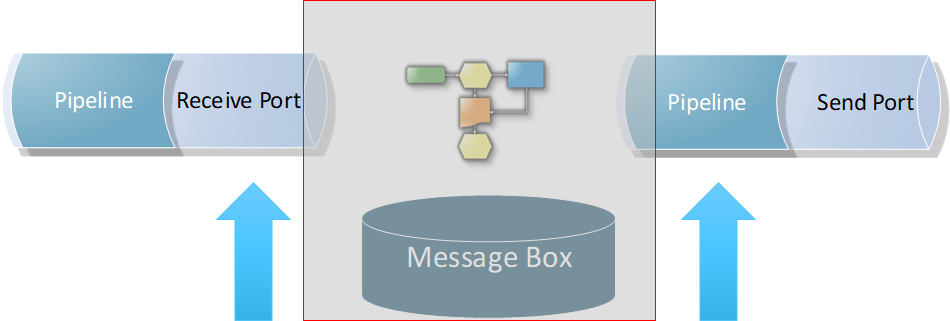 2. Applying the throttling component directly on a back-end system (2-way) send port will include the service response time as an additional overhead in-between the throttled requests. This will slow down the message frequency and impact the reached throughput outcome. Check the below diagram, where a back-end system takes (10) seconds to process a single request, because of the enforced ordered delivery of messages. Message (2) request will not be processed by the send port until Message (1) response is returned back by the system.
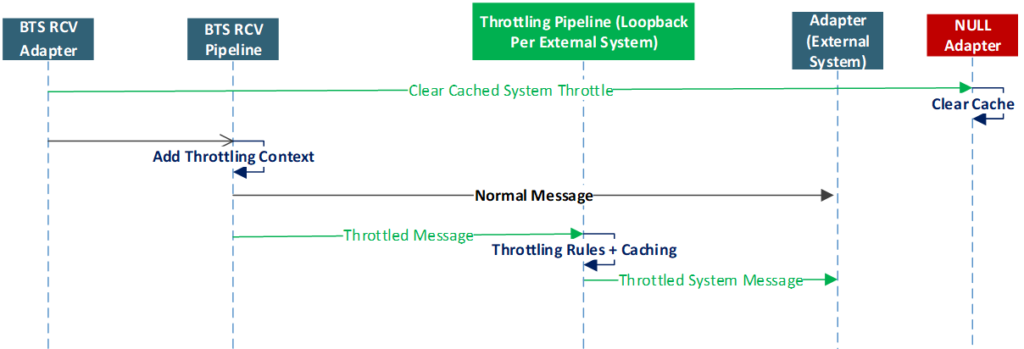
 3. As mentioned earlier in the requirements section, the solution had to be efficient, that is, it needed to leverage the maximum allowed throughput limits by the back-end systems, without any additional latency. Therefore, I had to go against my first tip for avoiding message box hops, as I had to apply the throttling component and port settings on another send port with a loop-back adapter, right before eventually routing the message to the actual back-end service send port.
4. It is very important that you make sure that the BizTalk built-in throttling does not kick-in and impact the overall solution throughout. Interestingly, this will initially slow down your system, and after the root cause has been alleviated and the built-in throttling subsides, some of the remaining messages could bombard the back-end systems at higher rates. The root cause for BizTalk throttling will be different for each solution, so you will need to conduct a comprehensive end-to-end load testing under realistic loads to identify and fine-tune BizTalk throttling thresholds in the BizTalk Host settings.
5. Following the previous tip, load testing will also allow you to find & fix the weak points in your BizTalk artifacts, for instance, it could be an unoptimized code snippet in a pipeline component, or in a map. In my case it was the performance of the loop back adapter I used, which I had to replace.
6. HTTP performance optimization in BizTalk Host configuration settings (BTSNTSvc.exe.config), will only control the maximum concurrent connections for HTTP-based adapters. However, it will not work for achieving specific throughput. That is, the number of requests allowed per time unit. Don’t forget the “per time unit” part. In other words, (5) requests per (1) minute, is not the same as, (5) requests per (1) second, is not the same as, (5) concurrent requests, within any given time window.
Lessons Learned
- BizTalk built-in throttling is a cleverly designed feature that is used to protect the platform from being overwhelmed under large loads. However, it is not designed to achieve exact throughput values
- Achieving controlled, accurate throttling is extremely challenging, especially when the latency is required to be at a minimum, it will also require intensive testing and fine tuning that might vary for each solution
- The throttling solution will introduce an inevitable latency to the solution, which could be minimized to negligible values. If you leverage the pipeline component approach with an optimized code, and conducted the necessary fine-tuning for BizTalk Server, the overhead for each request can be as low as 5 -10 milliseconds
- For guaranteed upper limit throughput only, you could apply the throttling component directly on the back-end system’s send port. This will completely avoid the extra message box hop, and you will not need the loop-back send port to apply the throttling, like I did.
Final Thoughts
The proliferation of API management
Nowadays, there is an awareness of API management tools. More and more organizations are leveraging API management to shield their back-end systems from huge loads, to apply the organization’s internal policies or to gain financial value from their data assets – API economy.
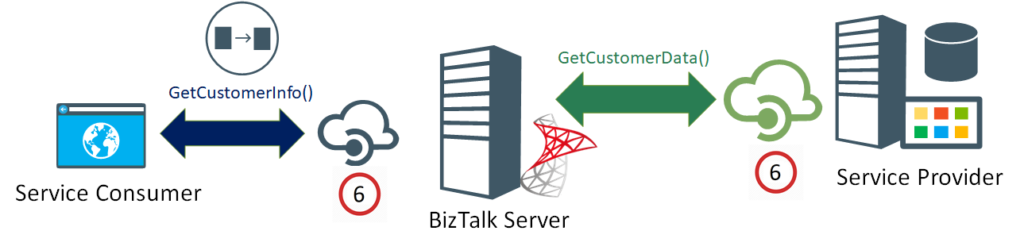
If the BizTalk published services and its underlying operations are as granular as the back-end ones, you could alternatively use an API management platform, in front of BizTalk, to apply the required throttling.
Are we bending the platform?
Is this controlled throttling implementation bending the platform into doing something that it is not supposed to be doing? – To answer this question, we need to have a closer look into the BizTalk platform design.
On the one hand, precise throttling is simply not baked into the platform, this is what most BizTalk experts and the Microsoft Product Group will acknowledge, which is true!
On the other hand, it is important not to forget that the BizTalk message box is an implementation of a Message Queue, supporting the store and forward messaging pattern.
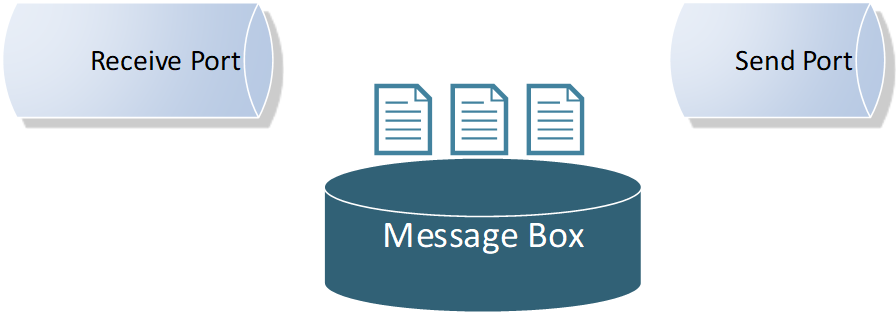
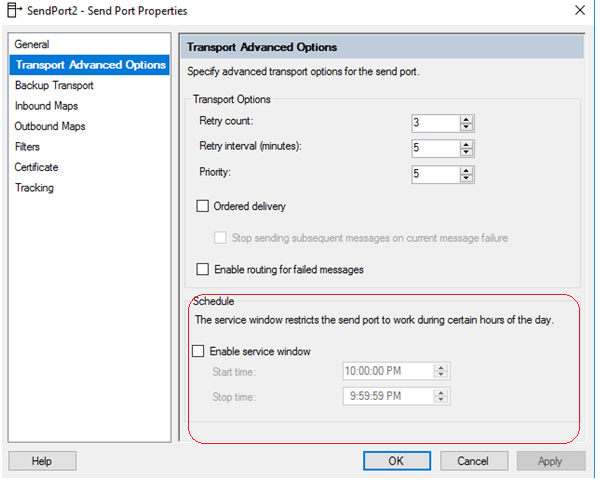
Moreover, the send port service window feature incarnates message delayed delivery capability, by keeping the messages queued in the message box until the predefined time window is reached, before delivering the message.
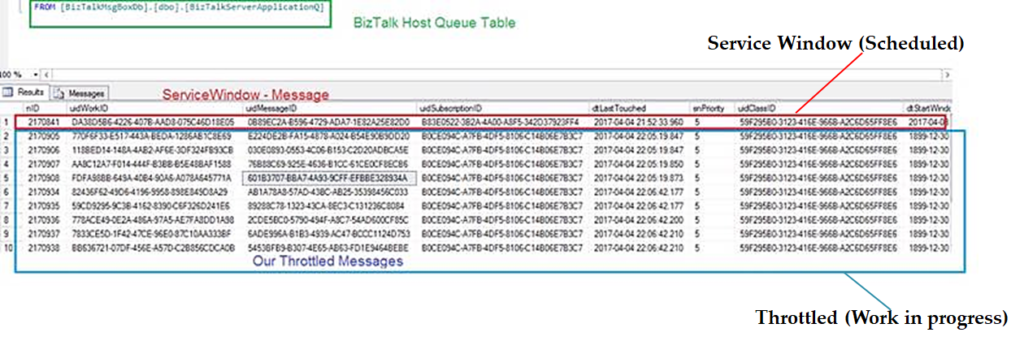
 If you have an even closer look into the message box database, specifically into the BizTalk host queue table, you will see that our Throttled Send Ports are simply work-in-progress messages and they are treated the same way as the scheduled messages using the built-in service window feature, albeit the start Window time is set the past; so far so good!
 Moreover, the difference between the service window scheduling in the receive location and the send port shows another important hint. As seen below, unlike the receive location with its advanced scheduling options, the scheduling option for the send port only supports a time window range within a single day.
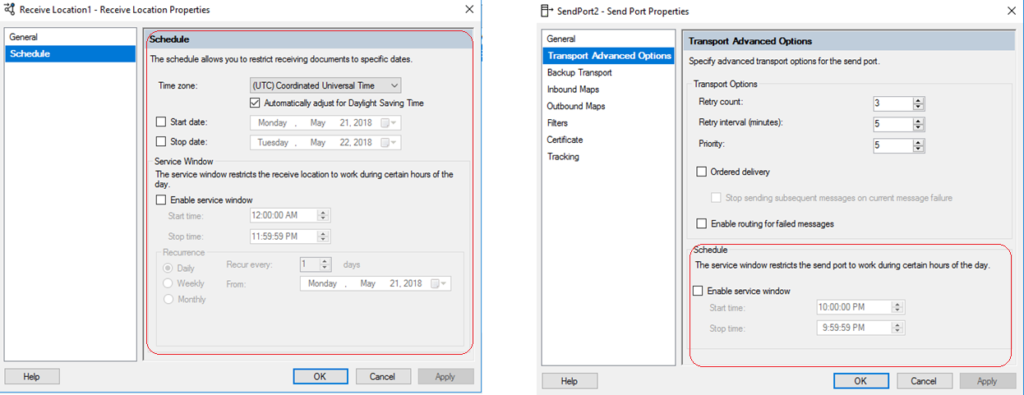 This intended limitation in the user interface hints that scheduled messages are not designed to stay in BizTalk message box for longer periods of time, in order not to overwhelm the message box.
This perfectly resonates with how Dan Rosanova eloquently described Message box work-in-progress items: “This aspect of BizTalk is critical, as it is not designed to hold too much information for too long, but to pass the information on and move it out of the message box.” – Dan Rosanova – Microsoft BizTalk Server 2010 Patterns, Packt Publishing (October 28, 2011).
Consequently, if the back-end systems throughput limits will be high enough, to the point where it won’t let work-in-progress messages stay put in the message box for longer periods of time, then you will be achieving controlled throttling within the platform design boundaries.
Finally, controlled throttling in BizTalk Server should not be taken lightly., If you take into consideration all the previous guidelines, caveats, and conduct proper testing, you can achieve controlled throttling in BizTalk Server with confidence, and most importantly, without bending the platform.
Author: Ahmed Taha
Technical Architect with 10 years of hands-on experience in Microsoft Stack; .Net windows applications, web applications, BizTalk Server, SharePoint, SQL Server, SSIS, SSRS, and Integration with Azure Service Bus, and Logic Apps. BizTalk Server SME, conducting Integration POCs and demos for customers, provide consultancy and support for existing Integration projects in the Gulf, and Africa regions. View all posts by Ahmed Taha
by Sandro Pereira | Oct 17, 2018 | BizTalk Community Blogs via Syndication
Happy to announce that today I decided to publish another release on my Mapper Extensions UtilityPack project. This time I decided to release 2 new BizTalk Database Functoids:
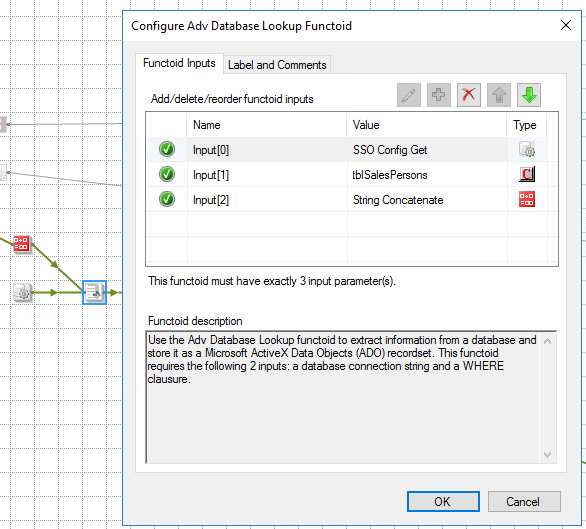
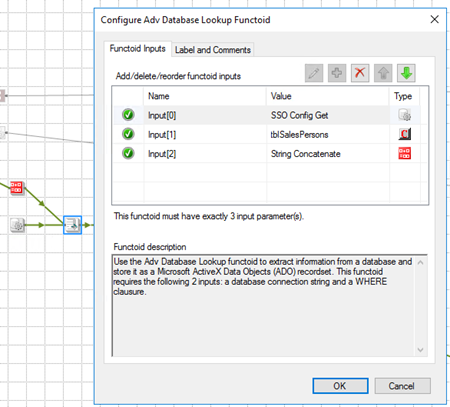
- Adv Database Lookup Functoid: Use the Adv Database Lookup functoid to extract information from a database and store it as a Microsoft ActiveX Data Objects (ADO) recordset. This functoid requires the following 3 inputs: a database connection string, table name and a WHERE clause.
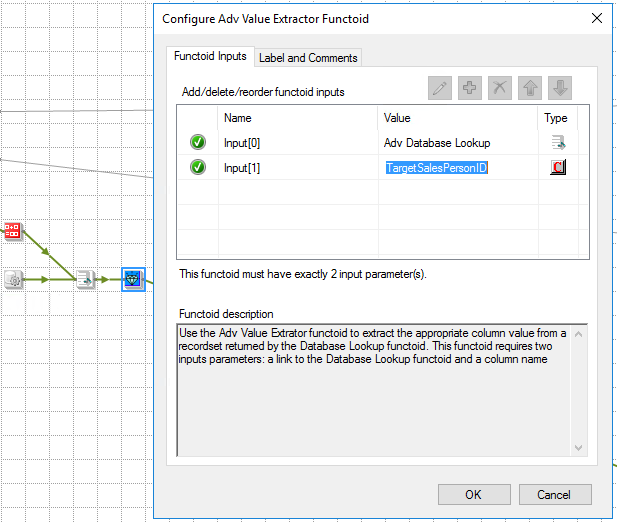
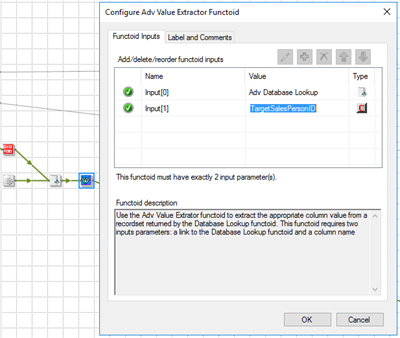
- Adv Value Extractor: Use the Adv Value Extrator functoid to extract the appropriate column value from a recordset returned by the Adv Database Lookup functoid. This functoid requires two inputs parameters: a link to the Database Lookup functoid and a column name.
Basically, they have the same functionality as the default Database Lookup Functoid and Value Extractor Functoid but they have a slightly different implementation.
Unlike the default Database Lookup Functoid that have 4 input parameters
- A lookup value
- A database connection string
- A table name
- A column name for the lookup value.
The limitation of this Functoid is that you cannot have multiple conditions, like WHERE SalesPersonID = “A” and System = “B” because of the nature of how this functoid was created
The Adv Database Lookup Functoid have the goal to suppress this limitation, it will allow 3 inputs:
- A database connection string
- A table name
- A WHERE clause.
In the where condition you will be able to set all the conditions you want, including a combination of AND’s and OR’s.
The Adv Value Extractor Functoid has the exact same functionality that the default Value Extractor Functoid but prepared and optimized to work with the Adv Database Lookup Functoid.
Adv Database Lookup Functoid
Use the Adv Database Lookup functoid to extract information from a database and store it as a Microsoft ActiveX Data Objects (ADO) recordset.
Parameters
The functoid takes three mandatory input parameters:
- Parameter 1: An ActiveX Data Objects .NET (ADO.NET) connection string for a compliant data source in which to search. ODBC data sources (including DSN sources) are not supported.
- Provider=SQLOLEDB.1;Integrated Security=SSPI;Persist Security Info=False;Initial Catalog=DatabaseName;Data Source=SQLServerName
- Parameter 2: The name of the table in the database in which to search;
- Parameter 3: WHERE clause (without the WHERE)
- SourceSystemID like ‘A’ AND SSSalesPersonID = 1
The output of the functoid will be an ADO recordset.
Adv Value Extractor Functoid
Use the Adv Value Extrator functoid to extract the appropriate column value from a recordset returned by the Adv Database Lookup functoid. This functoid requires two inputs parameters: a link to the Database Lookup functoid and a column name.
Parameters
The functoid takes two mandatory input parameters:
- Parameter 1: An ADO recordset, which is the output of the Database Lookup functoid. This recordset never contains more than one database row.
- Parameter 2: The name of a column from which to extract a value for output.
The output of the functoid will be the value of that column on the database table.
BizTalk Mapper Extensions UtilityPack: Project Description
BizTalk Mapper Extensions UtilityPack is a set of libraries with several useful functoids to include and use it in a map, which will provide an extension of BizTalk Mapper capabilities.
Where to download?
You can download this functoid along with all the existing one on the BizTalk Mapper Extensions UtilityPack here:
BizTalk Mapper Extensions UtilityPack
GitHub
Author: Sandro Pereira
Sandro Pereira lives in Portugal and works as a consultant at DevScope. In the past years, he has been working on implementing Integration scenarios both on-premises and cloud for various clients, each with different scenarios from a technical point of view, size, and criticality, using Microsoft Azure, Microsoft BizTalk Server and different technologies like AS2, EDI, RosettaNet, SAP, TIBCO etc. He is a regular blogger, international speaker, and technical reviewer of several BizTalk books all focused on Integration. He is also the author of the book “BizTalk Mapping Patterns & Best Practices”. He has been awarded MVP since 2011 for his contributions to the integration community. View all posts by Sandro Pereira
by Raja Sreenivasan | Oct 11, 2018 | BizTalk Community Blogs via Syndication
Introduction
SFTP (SSH File Transfer Protocol also known as Secure File Transfer Protocol) is a secure file transferring protocol between two remote systems, which runs over Secure Shell protocol (SSH). It provides strong authentication and secure encrypted data communication between two computers, which are connecting over an insecure network. It was designed by the Internet Engineering Task Force (IETF) as a secure extension. SSH provides the secure file transfer capabilities.
In this article, we will explain how to configure SFTP, how to use it with BizTalk Server and how you can set up monitoring SFTP using BizTalk360.
Contents
- How to Configure SFTP
- Types of authentication available in SFTP
- Using SFTP in BizTalk Server
- Monitoring SFTP using BizTalk360 Application
How to Configure SFTP
SFTP has replaced legacy FTP (File Transfer Protocol) and FTP/S and it provides all the functionality offered by these protocols, but the protocol is more secure and reliable. Also, configuration is easier.
Following are the steps to configure SFTP:
- Download the OpenSSH for server using OpenSSH for Windows binaries (Packages OpenSSH-Win64.zip or OpenSSH-Win32.zip)
Link: https://github.com/PowerShell/Win32-OpenSSH/releases
- Extract the package in folder location ‘C:Program Files’ as an administrator and install the SSH and SSHD services using the following command:
exe -Execution Policy Bypass -File install-sshd.psl
- Once you have run the above command, the SSH server and server agent will install the system and start the service in the services.msc
The SFTP port number for the SSH port is 22, basically just an SSH Server. Once the user has logged in to the server using SSH, the SFTP protocol can be initiated. There is no separate SFTP port exposed on the servers. There is also no need to configure another rule into the firewalls.
Once the command is executed in PowerShell, the rule is created in the firewall section.
Using Public Keys for SSH Authentication
One effective way of securing SSH access to the server, is to use a Public/Private Key pair. This means that the generated key pair, consists of a public key (allowed to know) and a private key (keep secret and don’t give to anybody). The private key can generate a Signature and cannot be forged for anybody who doesn’t have that key. But using the public key, anybody can verify that a signature is genuine. The public key is placed on the server and a private key is placed on local workstation. Using a key pair, it becomes impossible for someone to log in by using just a password, in case you have set up SSH to deny password-based authentication.
Create the .ssh directory in a local folder and create a file named as “authorized_keys”, where we store the public key for authentication.
Generating Keys
PuTTYgen is a key generator. It generates pairs of public and private keys. When you run the PuTTYgen, you will see a window where you have two choices:
- Generate – to generate a new Public/Private key pair
- Load – to load an existing private key
Before generating a key pair, using PuTTYgen, you need to select which type of key you need.
PuTTYgen currently supports the following type of keys:
- An RSA key for use with the SSH-1 protocol
- An RSA key for use with the SSH-2 protocol
- A DSA key for use with the SSH-2 protocol
- An ECDSA (Elliptic Curve DSA) key for use with the SSH-2 protocol
- An Ed25519 key (another elliptic curve algorithm) for use with the SSH-2 protocol
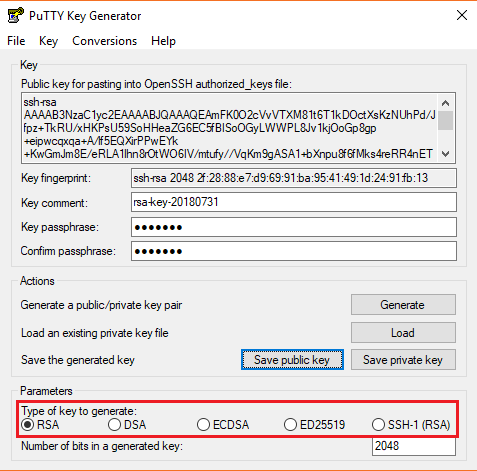
Here, we will generate a RSA key, for use with the SSH-1 Protocol.
- Download the PuTTYgen from the web site
- Launch the program and click “Generate” button. The program generates the keys for you
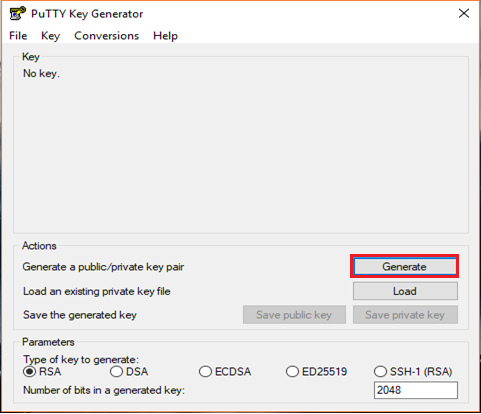
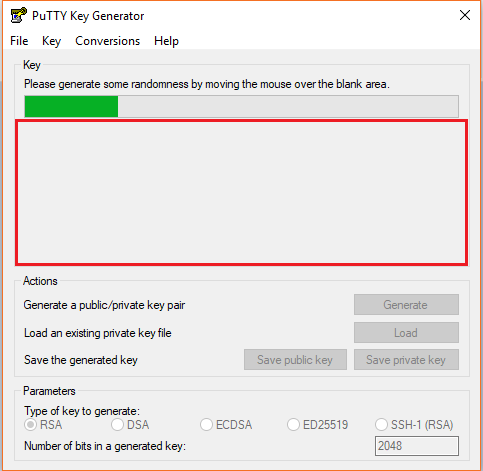
- Once you click the Generate button, you must generate some randomness, by moving the mouse over the blank area
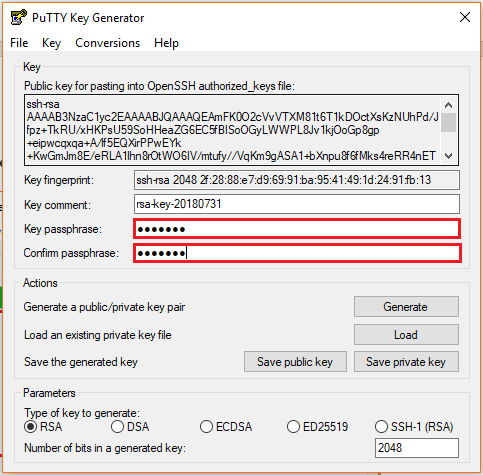
- Enter the unique Key passphrase and Confirm passphrase fields
- Save the public and private keys, by clicking Save Public Key and Save Private Key buttons
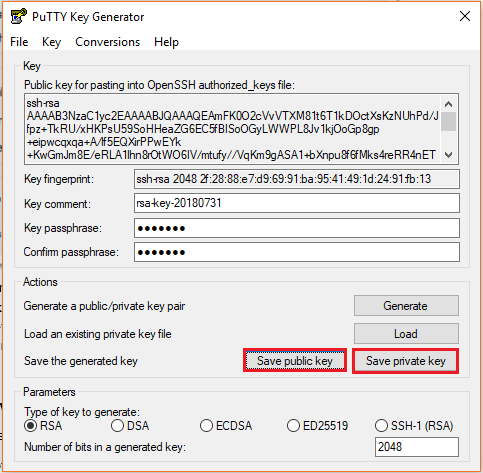
- From the Public Key, for pasting it into the OpenSSH authorized_keys file field at the top of the window, copy all the text (starting with ssh-rsa). The copied key must be pasted either into the public key tool, in the Control Panel, or directly into the authorized keys file on your server.
Using SFTP Adapter in BizTalk Server
BizTalk Server provides the SFTP adapter to send and receive a file from a secure FTP server using the SSH file transfer protocol. Let’s see how can configure the SFTP adapter for receiving and sending a file from the secure server.
- In the BizTalk Admin Console, create a SFTP Receive Port in the BizTalk application where you want to have it
- Create a Receive Location within that Receive Port
- Select the Transport Type as SFTP from the drop-down list
In the Properties section, configure the following steps:
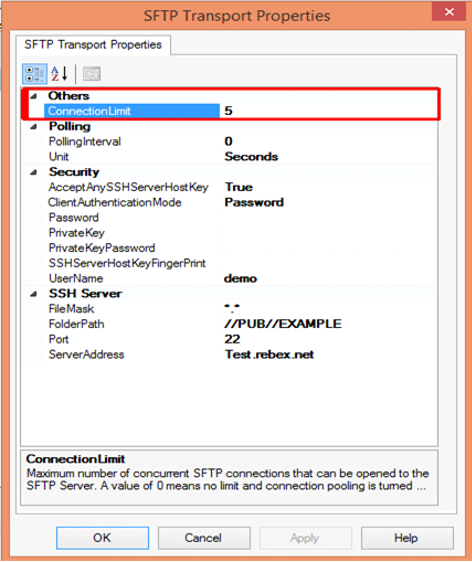
Others
- Connection Limit – Specify the maximum number of concurrent connections that can be opened to the server
Polling
- Polling Interval – Specify the interval at which the adapter polls the server. To poll continuously, set this value to zero
Default Value: 5
- Unit – Specifies the unit in which the polling interval is specified. For example: Seconds, Minutes, Hours or Days
Security
- Accept Any SSH Server Host key – When the option is set as True, SSH will accept the connection from the host server; when it is set as False, the Receive Location uses the fingerprint of the server for authentication. For the authentication, you need to provide the finger print in the SSHServerHostKeyFingerPrint field.
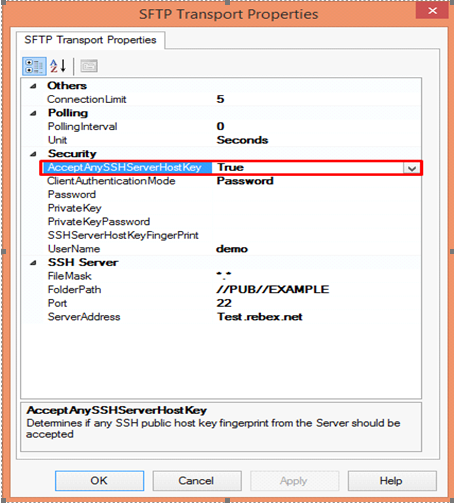
There are three client authentication methods:
- Password
- PublicKeyAuthentication
- MultiFactorAuthentication
Password authentication mode is simply providing the password in the console for authenticating the client. For the PublicKeyAuthentication, you must provide the private key file in the PrivateKey field and provide the passphrase in the PrivateKeyPassword for authenticating.
For MultiFactorAuthentication, the user must provide the user name, password and Privatekey. If the private key is protected by a passphrase, you also need to provide that in the privatekeyPassword field.
- Password – Specify the password, if you have set the ClientAuthentication mode to password
- Private Key – Specify the private key for the SFTP user, if you have set the ClientAuthenticationMode to Publickeyauthentication
- Private Key Password – Specify the passphrase key to validate the private key
- SSH Server Host Key Fingerprint – It specifies the fingerprint of the public host key for the SSH server
- Username – Specifies a username to log on to the SFTP server
SSH Server
- File Mask – Specifies the file mask to use when retrieving files from a secure SFTP server
- Folder path – Specifies the folder path on the secure SFTP server from where the Receive Location can retrieve files
- Port – Specifies the port address for the secure SFTP server on which the file transfer takes place
- Server Address – Specifies the server name or IP address of the secure SFTP server
Configuring the Send Port
For Configuring the Send Port, create a Send Port or double click an existing send port to modify it in an application in the BizTalk Administration Console.
- On the General Tab, Choose the type of SFTP artifact in the transport section and click the configuration button.
- In the SFTP Transport Properties window configure the following options based on requirement
Others
- Connection Limit – Maximum number of concurrent connections that can be opened to the server
- Log – Creating client-side log file to trouble shoot any errors. Enter the full path for creating the log file and its available from BizTalk Server 2016
- Temporary Folder – A temporary folder on the SFTP server to upload large files before automatically moved to the required location on the same server and its available from BizTalk server 2013 R2
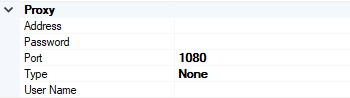
Proxy
- Address –Specifies either DNS or IP Address of the Proxy server
- Password –Specifies the Password of the proxy server
- Port – Specifies the port of the Proxy Server
- Type – Specifies the protocol used by the proxy server
- User Name – Specifies the User Name of the Proxy server
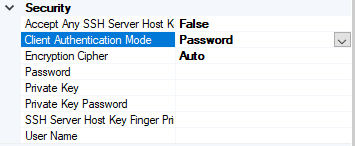
Security
- Access Any SSH Server Host Key – When True, the send port accept any SSH Public host key from the server and if set as false, the port matches the host key with the key specified in the SSHServerHostKey
- Client Authentication Mode – Specifies the authentication method that the send port uses for authenticating the client to the SSH Server.
Three modes of authentication
- Password – If set as Password , you must provide the password in the Password Property
- PublicKeyAuthentication – if set as PublicKeyAuthentication, you must provide the private key of the user in the PrivateKey
- MultiFactorAuthentication – if set as MultiFactorAuthentication, you must provide UserName with its Password. If the private key is protected by a password, provide the password in the PrivateKeyPassword as well
- EncryptionCipher – Provide the kind of encryption cipher and available from BizTalk Server 2013 R2. Options are Auto, AES and TripleDES in the BizTalk Server 2013 R2 and for the BizTalk Server 2016 Auto, AES, Arcfour, Blowfish, TripleDES, and
- Password – Specify the SFTP user password if you set the ClientAuthenticationMode to Password
- Private Key – Specify the private key for the SFTP user if you set the ClientAuthenticationMode to PublicKeyAuthentication
- Private Key Password – Specify a private key password, if required for the key specified in the PrivateKey
- SSH Server Host Key Finger Print – Specifies the fingerprint of the server used by the adapter to authenticate the server if the AccessAnySSHServerHostKey property is set to False. If the fingerprints do not match, the connection fails.
- User Name – Specifies the username for the secure FTP Server
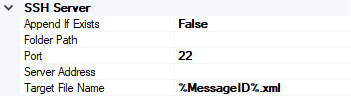
SSH Server
- Append If Exist – if the file being transferred to the secure FTP server already exists at the destination, this property specifies whether the data from the file being transferred should be appended to the existing file. If set to True, the data is appended. If set to False, the file at the destination server is overwritten
- Folder Path – Specifies the folder path on the secure FTP server where the file is copied
- Port – Specifies the port address for the secure FTP server on which the file transfer takes place
- Server Address – Specifies the server name or IP address of the secure FTP server
- Target File Name – Specifies the name with which the file is transferred to the secure FTP server. You can also use macros for the target file name
- Click Apply and OK again to save settings
Monitor the SFTP Location using BizTalk360
From the v8.4, under File Location in the Monitoring section, BizTalk360 has the capability to monitor SFTP servers. File Location Monitoring will list all the locations configured in the BizTalk artifacts (Send Ports and Receive Locations) for the SFTP Transport type. This helps users to easily monitor all the SFTP locations mapped within the Receive Locations/Send Ports.
It contains four sections:
- SSH Server Section has the details about the SFTP Location
- The Proxy Details Section is optional to connect to a SFTP Server behind a firewall
Note: In BizTalk, Proxy details are available from BizTalk 2013 R2
- Security Details Section has the authentication details
- In the SFTP Monitoring Config Section, you can configure the monitor with threshold conditions for the metric File Count
Based on the need, you can monitor the location with threshold conditions. If the specific condition is met, the user gets notified through an email, a SMS or another communication channel.
For monitoring the SFTP server, BizTalk360 uses the third-party tool nSoftware. Using the nSoftware IPWorks SSH product, BizTalk360 connects to the secure server with Private Keys and password for monitoring the location.
For monitoring the SFTP in BizTalk360 you can refer the knowledge base in this link.
See below, some code snippets for connecting to the secure server using nSoftware.
Password Authentication
sftp.SSHUser = “test”;
sftp.SSHPassword = “password”;
sftp.SSHPort = 22;
sftp.SSHHost = “SSHHost”;
sftp.Config(“SSHAcceptServerHostKeyFingerPrint=6a:d3:65:96:d1:9f:9d:f9:57:4e:6b:3b:11:57:5a:15”);
sftp.SSHLogon(sftp.SSHHost, sftp.SSHPort);
Console.WriteLine(“Authenticated”);
sftp.SSHLogoff();
Public key Authentication
sftp.SSHUser = "test";
sftp.SSHCert = new Certificate(CertStoreTypes.cstPPKKeyFile, "....filesserver_cert.pem", "test", "*");
sftp.SSHAuthMode = SftpSSHAuthModes.amPublicKey;
sftp.SSHPort = 22;
sftp.SSHHost = "SSHHost";
sftp.Config("SSHAcceptServerHostKeyFingerPrint=6a:d3:65:96:d1:9f:9d:f9:57:4e:6b:3b:11:57:5a:15");
sftp.SSHLogon(sftp.SSHHost, sftp.SSHPort);
Console.WriteLine("Authenticated");
sftp.SSHLogoff()
Conclusion
This article demonstrates the creation of a SFTP Server. Using the SFTP server in BizTalk Receive Locations and Send Ports, you can send files securely  and monitor the SFTP server using BizTalk360.

If you have any feedback or suggestions, please write to us at [email protected].
by Sandro Pereira | Oct 9, 2018 | BizTalk Community Blogs via Syndication
And yes, this is just another “Login failed for user” SQL Server WCF-Adapter related error. In the past I wrote about a similar topic BizTalk WCF-SQL Error:
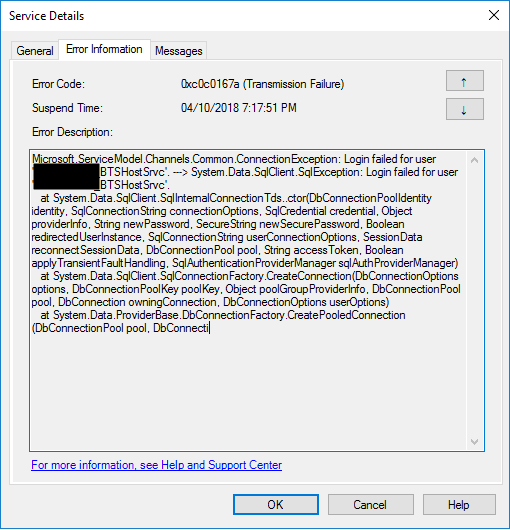
This time the error message, the cause, and the solution are slightly different. This time while trying to communicate to a brand-new SQL Server server/database to insert date on a table thru BizTalk WCF-SQL adapter I got the following error:
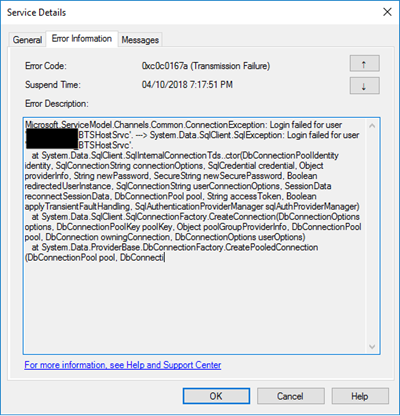
Microsoft.ServiceModel.Channels.Common.ConnectionException: Login failed for user ‘BTSHostSrvc’. —> System.Data.SqlClient.SqlException: Login failed for user ‘BTSHostSrvc’.
at System.Data.SqlClient.SqlInternalConnectionTds..ctor(DbConnectionPoolIdentity identity, SqlConnectionString connectionOptions, SqlCredential credential, Object providerInfo, String newPassword, SecureString newSecurePassword, Boolean redirectedUserInstance, SqlConnectionString userConnectionOptions, SessionData reconnectSessionData, DbConnectionPool pool, String accessToken, Boolean applyTransientFaultHandling, SqlAuthenticationProviderManager sqlAuthProviderManager)
at System.Data.SqlClient.SqlConnectionFactory.CreateConnection(DbConnectionOptions options, DbConnectionPoolKey poolKey, Object poolGroupProviderInfo, DbConnectionPool pool, DbConnection owningConnection, DbConnectionOptions userOptions)
at System.Data.ProviderBase.DbConnectionFactory.CreatePooledConnection(DbConnectionPool pool, DbConnection.
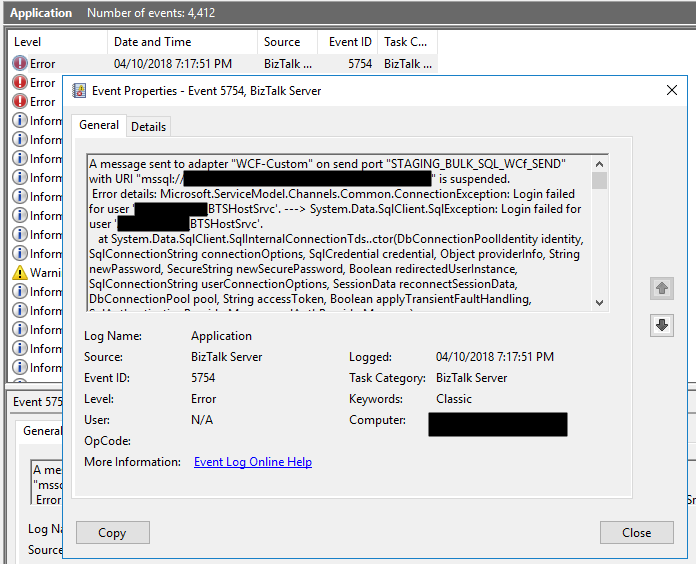
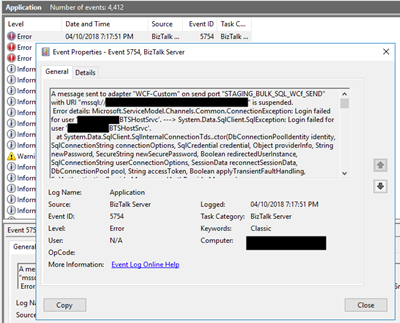
In the event viewer the message is pretty much the same:
A message sent to adapter “WCF-Custom” on send port “STAGING_BULK_SQL_WCf_SEND” with URI “mssql://SQLSRV/ /ESBAsync” is suspended.
Error details: Microsoft.ServiceModel.Channels.Common.ConnectionException: Login failed for user ‘DOMAIN BTSHostSrvc’. —> System.Data.SqlClient.SqlException: Login failed for user DOMAIN BTSHostSrvc’.
at System.Data.SqlClient.SqlInternalConnectionTds..ctor(DbConnectionPoolIdentity identity, SqlConnectionString connectionOptions, SqlCredential credential, Object providerInfo, String newPassword, SecureString newSecurePassword, Boolean redirectedUserInstance, SqlConnectionString userConnectionOptions, SessionData reconnectSessionData, DbConnectionPool pool, String accessToken, Boolean applyTransientFaultHandling, SqlAuthenticationProviderManager sqlAuthProviderManager)
at System.Data.SqlClient.SqlConnectionFactory.CreateConnection(DbConnectionOptions options, DbConnectionPoolKey poolKey, Object poolGroupProviderInfo, DbConnectionPool pool, DbConnection owningConnection, DbConnectionOptions userOptions)
at System.Data.ProviderBase.DbConnectionFactory.CreatePooledConnection(DbConnectionPool pool, DbConnection owningObject, DbConnectionOptions options, DbConnectionPoolKey poolKey, DbConnectionOptions userOptions)
at System.Data.ProviderBase.DbConnectionPool.CreateObject(DbConnection owningObject, DbConnectionOptions userOptions, DbConnectionInternal oldConnection)
at System.Data.ProviderBase.DbConnectionPool.UserCreateRequest(DbConnection owningObject, DbConnectionOptions userOptions, DbConnectionInternal oldConnection)
at System.Data.ProviderBase.DbConnectionPool.TryGetConnection(DbConnection owningObject, UInt32 waitForMultipleObjectsTimeout, Boolean allowCreate, Boolean onlyOneCheckConnection, DbConnectionOptions userOptions, DbConnectionInternal& connection)
at System.Data.ProviderBase.DbConnectionPool.TryGetConnection(DbConnection owningObject, TaskCompletionSource`1 retry, DbConnectionOptions userOptions, DbConnectionInternal& connection)
at System.Data.ProviderBase.DbConnectionFactory.TryGetConnection(DbConnection owningConnection, TaskCompletionSource`1 retry, DbConnectionOptions userOptions, DbConnectionInternal oldConnection, DbConnectionInternal& connection)
at System.Data.ProviderBase.DbConnectionInternal.TryOpenConnectionInternal(DbConnection outerConnection, DbConnectionFactory connectionFactory, TaskCompletionSource`1 retry, DbConnectionOptions userOptions)
at System.Data.ProviderBase.DbConnectionClosed.TryOpenConnection(DbConnection outerConnection, DbConnectionFactory connectionFactory, TaskCompletionSource`1 retry, DbConnectionOptions userOptions)
at System.Data.SqlClient.SqlConnection.TryOpenInner(TaskCompletionSource`1 retry)
at System.Data.SqlClient.SqlConnection.TryOpen(TaskCompletionSource`1 retry)
at System.Data.SqlClient.SqlConnection.Open()
at Microsoft.Adapters.Sql.SqlAdapterConnection.OpenConnection()
— End of inner exception stack trace —
Server stack trace:
at Microsoft.Adapters.Sql.SqlAdapterConnection.OpenConnection()
at Microsoft.Adapters.Sql.ASDKConnection.Open(TimeSpan timeout)
at Microsoft.ServiceModel.Channels.Common.Design.ConnectionPool.GetConnection(Guid clientId, TimeSpan timeout)
at Microsoft.ServiceModel.Channels.Common.Design.ConnectionPool.GetConnectionHandler[TConnectionHandler](Guid clientId, TimeSpan timeout, MetadataLookup metadataLookup, String& connectionId)
at Microsoft.ServiceModel.Channels.Common.Channels.AdapterRequestChannel.OnOpen(TimeSpan timeout)
at System.ServiceModel.Channels.CommunicationObject.Open(TimeSpan timeout)
at Microsoft.BizTalk.Adapter.Wcf.Runtime.OneWayOperationSendPortRequestChannel`1.OnOpen(TimeSpan timeout)
at System.ServiceModel.Channels.CommunicationObject.Open(TimeSpan timeout)
at System.ServiceModel.Channels.ServiceChannel.OnOpen(TimeSpan timeout)
at System.ServiceModel.Channels.CommunicationObject.Open(TimeSpan timeout)
at System.ServiceModel.Channels.CommunicationObject.Open()
Exception rethrown at [0]:
at System.Runtime.Remoting.Proxies.RealProxy.HandleReturnMessage(IMessage reqMsg, IMessage retMsg)
at System.Runtime.Remoting.Proxies.RealProxy.PrivateInvoke(MessageData& msgData, Int32 type)
at System.ServiceModel.ICommunicationObject.Open()
at Microsoft.BizTalk.Adapter.Wcf.Runtime.WcfClient`2.GetChannel[TChannel](IBaseMessage bizTalkMessage, ChannelFactory`1& cachedFactory)
at Microsoft.BizTalk.Adapter.Wcf.Runtime.WcfClient`2.SendMessage(IBaseMessage bizTalkMessage)
MessageId: {84B22A22-13F7-47C7-91B5-A863E64E268E}
Cause
Once again, sometimes is not quite true, the cause of the problem is simple to diagnose, and the error message gives a very good intel in the cause of the problem.
This problem occurs because the user account that you used to access the database, in my case the BizTalk Host Instance Account, don’t have permissions to connect… the SQL Server or SQL Server instance.
Just to be clear, this is not having permission to insert, read or event full permission to do operation on a specific database, that is completely different – I check all of that and the user have the correct access/permission. What I forget was to give access to connect to the SQL Server/SQL Server Instance.
Solution
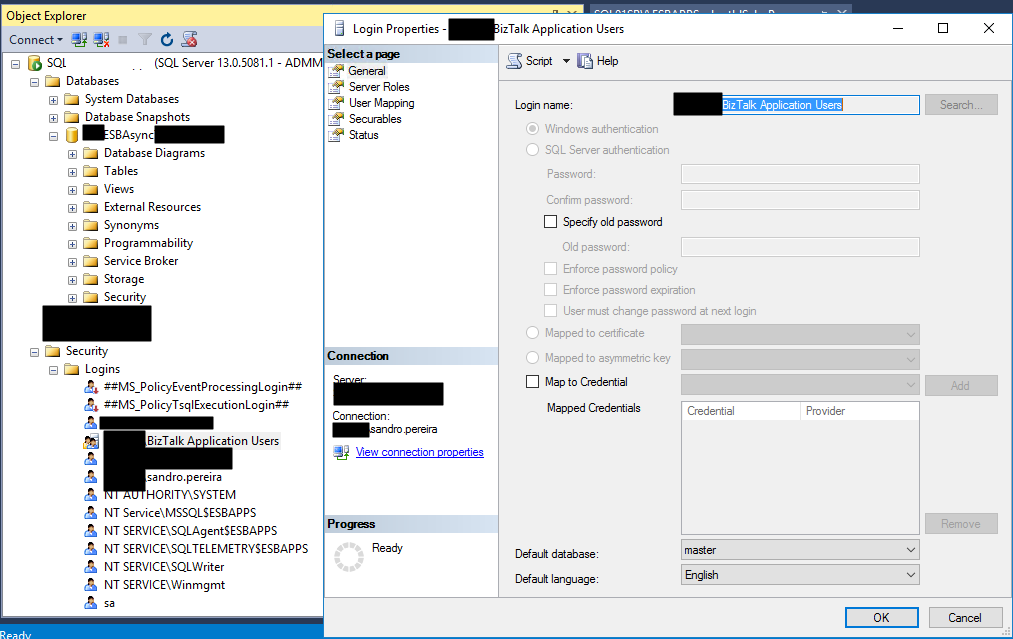
To solve this issue, you must give access to the user, in my case BizTalk Host Instance Account to connect to the SQL Server and for that, you must:
- Open SQL Server Management Studio and connect to your server.
- In the Object Explorer, expand the “Security” folder under the server.
- Right click on the “Logins” folder and choose “New Login…”
- Add the username or group in the format “DomainUserNameOrGroup”
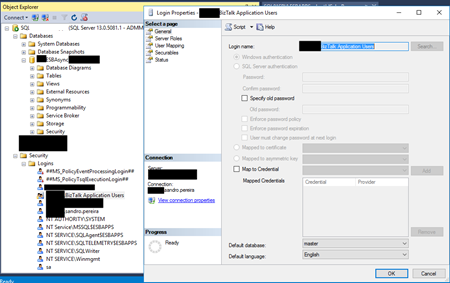
- Choose the “Securables” tab and make sure that you grant “Connect SQL” permission to the SQL Server/SQL Server instance
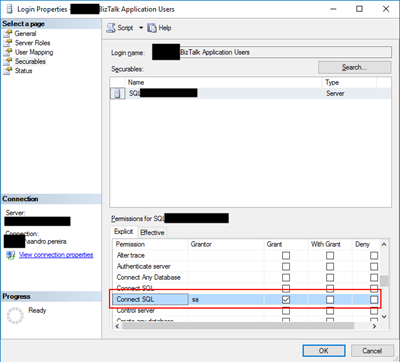
- Click “OK” and your user will be created and have access to connect to your SQL Server.
Author: Sandro Pereira
Sandro Pereira lives in Portugal and works as a consultant at DevScope. In the past years, he has been working on implementing Integration scenarios both on-premises and cloud for various clients, each with different scenarios from a technical point of view, size, and criticality, using Microsoft Azure, Microsoft BizTalk Server and different technologies like AS2, EDI, RosettaNet, SAP, TIBCO etc. He is a regular blogger, international speaker, and technical reviewer of several BizTalk books all focused on Integration. He is also the author of the book “BizTalk Mapping Patterns & Best Practices”. He has been awarded MVP since 2011 for his contributions to the integration community. View all posts by Sandro Pereira