Recently my team and I developed and released several tools that extend the out-of-box capabilities of BizTalk Server 2016 for developer and administration teams to be more productive, saving times in some simple but time-consuming tasks that should d supposed to be. One of these tools was BizTalk Port Multiplier Tool.
Because many clients still are using BizTalk Server 2013 R2, and because I had received some requests from the community, I will be releasing these tools for BizTalk Server 2013 R2 also. And today, we will stat with the BizTalk Port Multiplier Tool.
BizTalk Port Multiplier Tool
BizTalk Port Multiplier Tool is a simple tool that aims to simplify the port “cloning” process by allowing you to quickly “clone or duplicate” any existing port: Receive Port or Send Port.
Send Ports are quite easy to archive, you only need to give a different name to the port, and you can clone it;
Receive Ports are tricky because they may contain several Receive Locations and each URI needs to be unique;
This tool will extend default BizTalk Server capabilities transforming the tedious and sometimes complicate port creation based on an existing one a little simple and easy allowing you to:
Create a new Receive Port based on an existing one;
It will also export the binding file from that new Receive Port;
Create a new Send Port based on an existing one;
It will also export the binding file from that new Send Port;
Generate different binding files for each environment
Why do I need to “clone” a Receive Port?
Sometimes you also need to create a receive port with similar configurations of an existing one, also changing only a few settings or simple the URI, and instead of manually recreating, you can have 90% of the process done automatically.
Sometimes it is practical, occasionally, or in some scenarios, it may not work, but in most cases, it will. So it is a best-effort operation and not an exact clone because they may have several Receive Locations, and each Address/URI needs to be unique. So, you then need to go to each receive location and reconfigure them.
Credits
Credits also to my team member at DevScope, Pedro Almeida that collaborated in the development of this tool.
Recently my team and I developed and released several tools that extend the out-of-box capabilities of BizTalk Server 2016 for developer and administration teams to be more productive, saving times in some simple but time-consuming tasks that should d supposed to be. One of these tools was BizTalk Bindings Exporter Tool.
Because many clients still are using BizTalk Server 2013 R2, and because I had received some requests from the community, I will be releasing these tools for BizTalk Server 2013 R2 also. And today, we will stat with the BizTalk Bindings Exporter Tool
BizTalk Bindings Exporter Tool
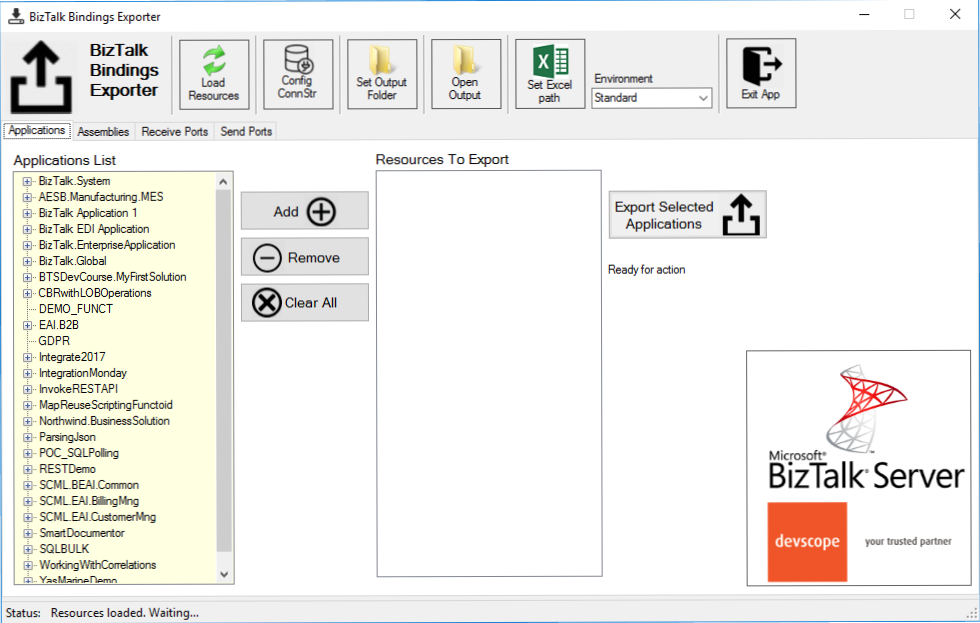
BizTalk Binding Exporter Tool is a simple tool that will suppress the absence of advanced binding file generation capabilities in the BizTalk Server Administration Console, allowing you to generate and export a binding file from BizTalk Applications in an intuitive and easy way.
Exporting a BizTalk Server Application binding is, at first sight, a quick and straightforward task that can be done using the BizTalk Server Administration Console:
Click Start, click All Programs, click Microsoft BizTalk Server 20xx, and then click BizTalk Server Administration
In the console tree, expand BizTalk Server Administration, expand the BizTalk Group, and then expand Applications
Right-click the application whose bindings you want to export, point to Export, and then click Bindings…
On the Export Bindings page, in Export to file, type the absolute path of the .xml file to which to export the bindings
Ensure that Export all bindings from the current application option is selected, and then click OK
But even in simple tasks, we may encounter challenges that require us to perform some monotonous and boring manual operations that consume some of our precious time and are always subject to failures. Because out-of-the-box BizTalk Administration Console doesn’t allow you to:
Export a Binding file of a specif Receive Port or list of Receive Ports;
Export a Binding file of a specif Send Port or list of Send Ports;
Export a Binding file of a specif Assembly or list of Assemblies;
And these are just a few scenarios. You can only fully Export the binding files of an entire application, which will lead you to sometimes extensive and fallible manual work to clean the binding files.
Usually, the binding exportation starts in development. Still, we also need to generate the same bindings for other environments like production, and for that, we usually need to open the binding file and replace/fix the differences for each different environment… which usually is a tedious operation. What we need to replace is mainly:
the URI’s: it should be fixed, but it is not mandatory. If you know what you are doing, you can fix them directly on the environment after you import the Binding.
the host instances: not mandatory, if you have the same host and host instances names across all your different environments (as best practices will tell you to do).
the NT Group Name associated in the Services (Orchestrations): according to securities best practices you shouldn’t use the same BizTalk Groups in different environments, so in this case, if you follow these best practices, you need to change these parameters in your binding file.
Normally, everyone changes the URI’s but neglecting the other parameters may be causing problems during the Binding import.
Once again, this tool will extend default BizTalk Server capabilities transforming the tedious and sometimes complicate binding generation a little simple and easy.
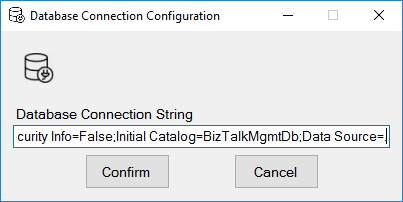
You just need to specify the connection string to the BizTalk Management database (BizTalkMgmtDb)
And this tool allows you to generate and export binding files with the following capabilities:
Export binding(s) file(s) for an entire Application or a list of Applications;
Export binding(s) file(s) from a specify Assembly or list of Assemblies;
Export binding(s) file(s) from a Receive Port or list of Receive Ports;
Export binding(s) file(s) from a Send Port or list of Send Ports;
Or Generate different binding files for each environment if you create an Excel File with the mapping for each environment ;
Credits also to my team member at DevScope, Pedro Almeida that collaborated in the development of this tool.
The BizTalk Pipeline Components Extensions Utility Pack community project for BizTalk Server 2016, once again, got a new update! It now has a new component that you can use in your custom BizTalk Server pipelines: SQL Server Polling Debatch Message By Grouping Filter Pipeline Component.
Debatching messages, which are received from WCF-SQL Adapter, is quite a simple task to do. You need to:
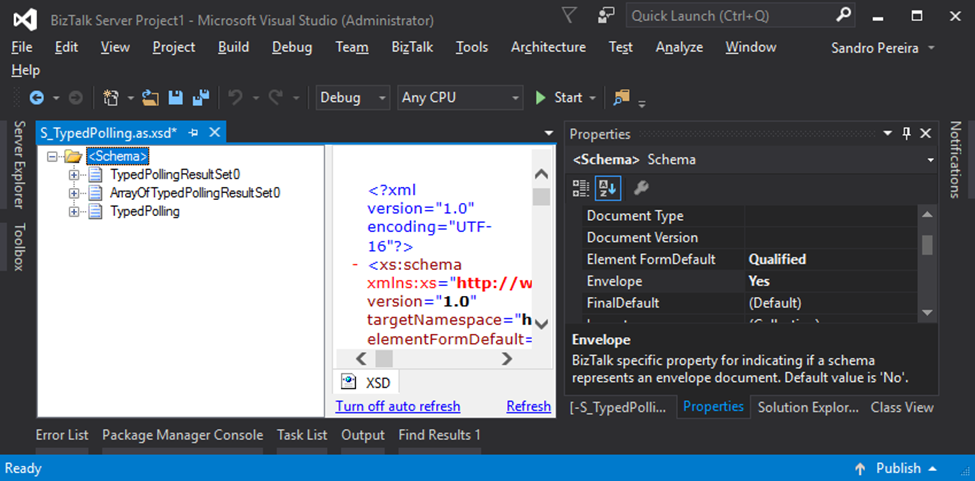
Specify that the message has an envelope by setting the Envelope property to Yes
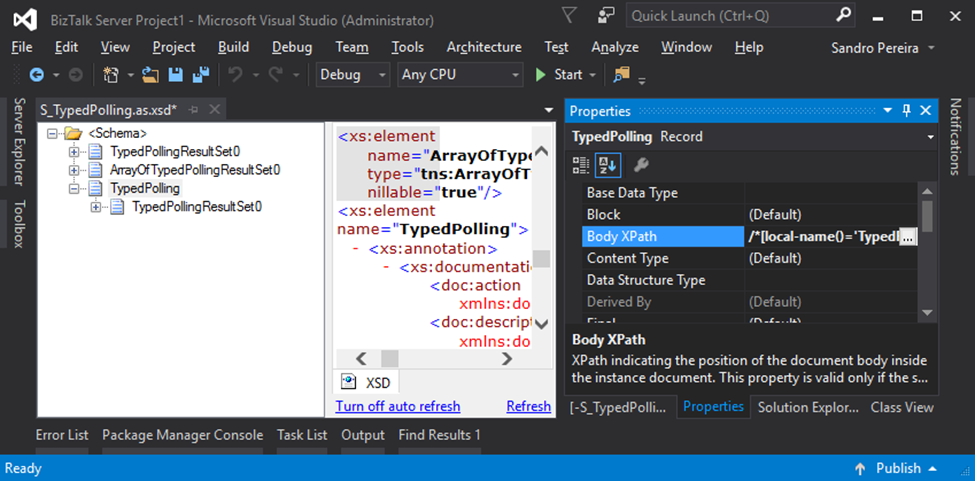
Specify the Body XPath property
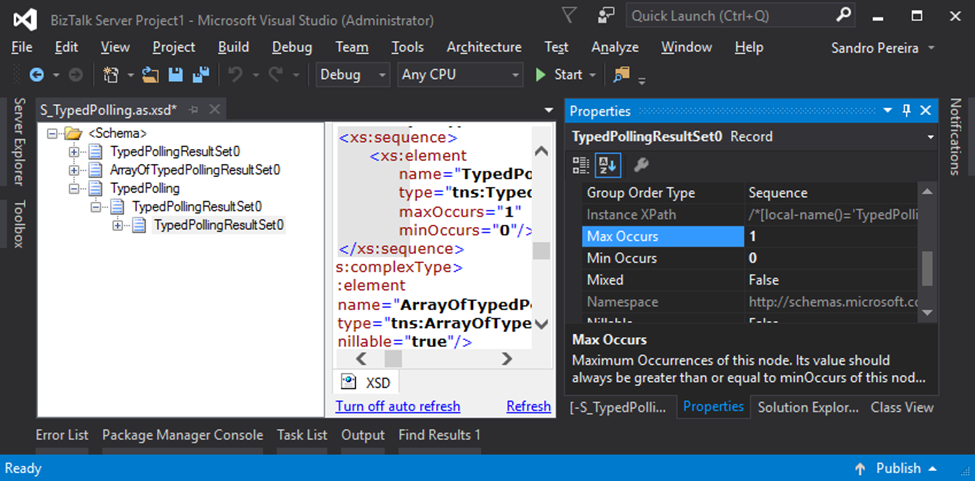
And finally, set the Max Occurs property to 1
Next, the default XMLReceive pipeline will do the rest. However, what happens if you want to extend and customize this behavior? In my case, let’s imagine I have the following row samples:
SeqId
Name
MsgIdentifier
Role
Company
1
Sandro Pereira
0000001
Team Lead
DevScope
2
Pedro Almeida
0000001
Senior Developer
DevScope
3
Rui Romano
0000002
Team Lead
DevScope
4
João Sousa
0000003
Team Lead
DevScope
5
Joana Barbosa
0000002
BI Architect
DevScope
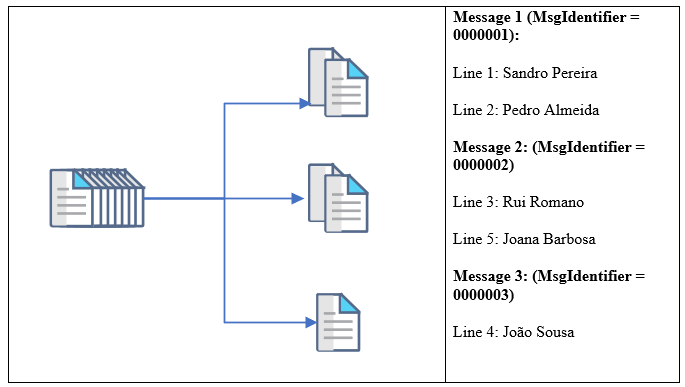
We will poll all the data from the SQL Database (not all, but let’s say the first 20 lines), and we want to split or debatch the incoming message based on the value of the MsgIdentifier property. So, after passing the receive pipeline, we will get, based on the previous example, 3 different messages:
The main question is: How do we handle scenarios where debatching is done based on business logic?
The answer is that we don’t have anything out-of-the-box that allows us to do these kinds of tasks. Most of you will think about debatching these kinds of messages inside an orchestration.
However, the best way for us to achieve this goal is to develop a custom Disassemble pipeline component.
SQL Server Polling Debatch Message By Grouping Filter Pipeline Component
The reason for choosing the Disassemble stage is simple; it is here that normally the process of breaking up a large interchange message into smaller messages happens, by removing the Envelopes, which is often called “debatching”. So, this should indeed be the place for us to create our custom Disassemble pipeline component.
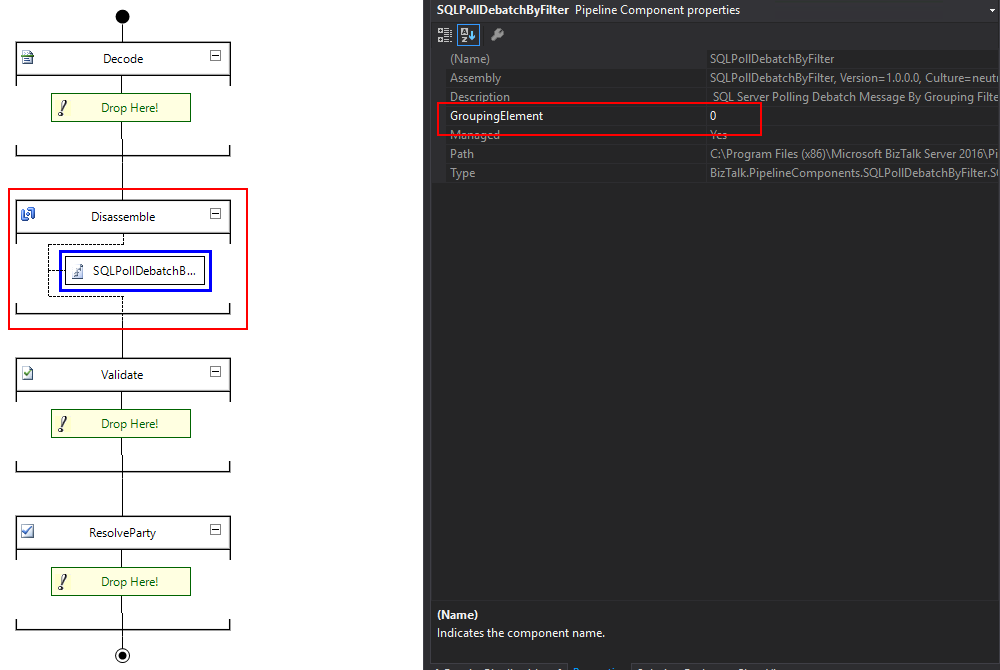
The SQL Server Polling Debatch Message By Grouping Filter pipeline component is a custom disassemble pipeline component that can be used to debatch incoming messages from the WCF-SQL adapter, by filtering from a specific element of the message. It will provide the following capabilities:
It allows you to define the grouping element
This will be an integer that will define the position of the element inside the message after the source code
Note: This custom pipeline component can be used with other LOB adapters but it was never tested before.
The source code shown here is just a snippet. To be able to use this, you can download the latest version from the BizTalk Pipeline Components Extensions Utility Pack.
What is BizTalk Pipeline Components Extensions Utility Pack?
The BizTalk Pipeline Components Extensions Utility Pack is a set of custom pipeline components (libraries) with several custom pipeline components that can be used in receive and send pipelines, which will provide an extension of BizTalk out-of-the-box pipeline capabilities.
BizTalk Pipeline Components Extensions Utility Pack community project for BizTalk Server 2016, once again, got a new update and it now has a new component that you can use in your custom BizTalk Server pipelines: Local Archive Pipeline Component.
Local Archive Pipeline
Component
BizTalk Server Local Archive pipeline component it’s a
pipeline component that can be used for archiving incoming/outgoing message
from any adapters. It will provide the following capabilities:
It can be used in any stage of a receive pipeline or send pipeline;
It can be used in multiple stages of a receive pipeline or send pipeline;
It provides an option for you to specify the location path for where you want to save the message: local folder, shared folder, network folder.
It can be used from any adapter:
If the adapter provides the ReceivedFileName property promoted like the File adapter or FTP adapter the component will take this value in consideration and save the message with the same name;
Otherwise, it will use the MessageID, saving the file with the MessageID has its name without extension.
public Microsoft.BizTalk.Message.Interop.IBaseMessage Execute(Microsoft.BizTalk.Component.Interop.IPipelineContext pc, Microsoft.BizTalk.Message.Interop.IBaseMessage inmsg)
{
//
// TODO: implement component logic
//
// this way, it's a passthrough pipeline component
if (this.PerformBackup)
{
try
{
//Get Message Id
Guid msgId = inmsg.MessageID;
//Get Filename by FileAdapter NS
string fileName = inmsg.Context.Read("ReceivedFileName", "http://schemas.microsoft.com/BizTalk/2003/file-properties").ToString();
if (string.IsNullOrEmpty(fileName))
{
fileName = inmsg.Context.Read("ReceivedFileName", "http://schemas.microsoft.com/BizTalk/2003/ftp-properties").ToString();
if (string.IsNullOrEmpty(fileName))
{
fileName = msgId.ToString();
}
}
if (!new DirectoryInfo(this.Folder).Exists)
{
try
{
Directory.CreateDirectory(this.Folder);
}
catch
{
throw;
}
}
SaveStreamToFile(inmsg.BodyPart.Data, fileName, true);
inmsg.BodyPart.Data.Position = 0;
}
catch
{
throw;
}
}
return inmsg;
}
What is BizTalk Pipeline Components Extensions Utility
Pack?
BizTalk Pipeline Components Extensions Utility Pack is
a set of custom pipeline components (libraries) with several custom pipeline
components that can be used in received and sent pipelines, which will provide
an extension of BizTalk out-of-the-box pipeline capabilities.
At the beginning of this week I ask on twitter what should be the topic of my next blog posts: BizTalk Server and JSON support or Azure Logic Apps. And the majority of the replies was: BizTalk Server and better JSON support.
For that reason, I will respect my reader’s decision and I will be releasing today a new addition to my BizTalk Pipeline Components Extensions Utility Pack community project for BizTalk Server 2016: Custom JSON Encoder Pipeline Component.
You may be asking yourself: this component already exists by default in BizTalk Server 2016, so why we need another?
Yes, Microsoft provides out-of-the-box a JSON Encoder to transform the XML messages into a JSON message and sends it out. But, unfortunately, in some cases, it doesn’t work as you should expect to work and it will fail, in my case with this error:
Reason: Value cannot be null. Parameter name: key
And in reality what I just want is a simple way, that, I hope, it would work for all scenarios (aka XML messages) in a simple and effective way.
JSON Encoder Pipeline Component
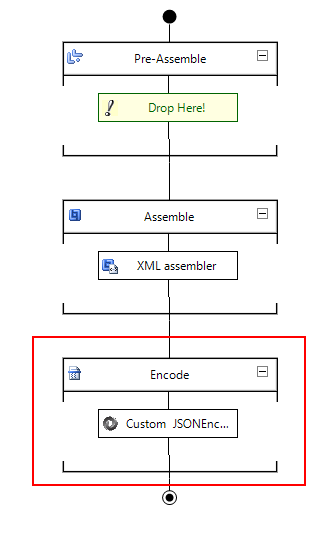
The Custom JSON Encoder is a pipeline component for BizTalk Server which can be used in a Send Pipeline (Encode stage) to encode any XML message into a JSON equivalent in a simple and effective way.
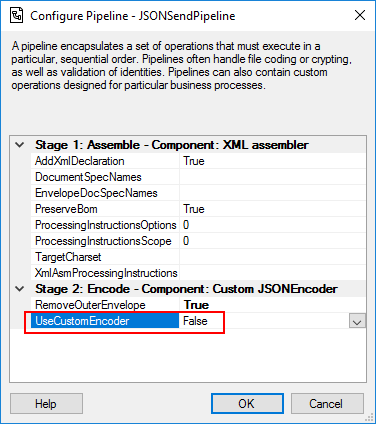
Because I would like to have a choice between using the default pipeline component provide by Microsoft, at least the internal behavior, this pipeline component is an extension of the default JSON Encoder pipeline component and fully compatible with it and you will be able from the BizTalk Administration console you will be able to decide if:
You want to use
the behavior of the default JSON Encoder pipeline component provide by
Microsoft by setting the UseCustomEncoder property to False;
or use the custom
behavior to generate the JSON message by setting the UseCustomEncoder property
to True;
What is BizTalk Pipeline Components
Extensions Utility Pack?
BizTalk Pipeline Components Extensions Utility Pack is a set of custom pipeline
components (libraries) with several custom pipeline components that can be used
in received and sent pipelines, which will provide an extension of BizTalk
out-of-the-box pipeline capabilities.
Have you ever found yourself in a position where you
needed to understand how a particular BizTalk solution works? And to make
matters worse, the majority of the solution is implemented based on content-based
routing?
Routing Messages in BizTalk
Server
So first, what is this: Content-Based routing?
Don’t get me wrong the definition that I will provide because there are several Message Routing Patterns that you can implement in BizTalk Server. For example, you can implement in BizTalk Server a:
So in his essence, the subscriber will subscribe to
the messages based on Content-Based Routing.
And you may say: yes, but I can route a message without examining is content.
And you are right. The problem is the default
definition of this pattern:
As the names
describe, Content-Based Router examines the message content and routes the
message onto a different channel based on data contained in the message. For
example, routing a message based on specif values of specif fields, or based on
some criteria like existing fields.
However, as I told you before, a message in BizTalk
Server is always composed by the message itself and the metadata
associated with it. And for that reason, you may found other variations or
other names like:
Context-Based
Routing: Context-Based Routing is similar to the previous
one, but instead of analyzing the content of the message, it will analyze the
metadata of the message. This information, in BizTalk Server, is normally
created on the receive port by the adapter and pipelines.
Remember that I
can promote messages to the context of the message and route them;
Message-Based
Routing: that is normally defined when:
a message is
routed by BizTalk only based on the message type;
But this is
metadata associated in the message, and you need to inspect the message to get
is type;
or in pass-thru
scenarios when you are just redirecting the message to other systems, i.e.,
BizTalk is a broker and don’t “touch” or modify the message;
But these
filters are also associated with metadata of the message;
The problem of managing these
solutions
If you have found yourself managing solutions, that
majority is implemented with content-based routing, which is usually associated
with not using orchestrations. You know that is not easy to understand the solution:
What ports are subscribing
to the messages?
In which
conditions?
In which application?
But that’s not all. Even worse if you have
orchestrations using filters based on the content/context of the message in the
activation.
This kind of analyze is hard because BizTalk Server
Administration Console doesn’t provide an easy way out-of-the-box for you to
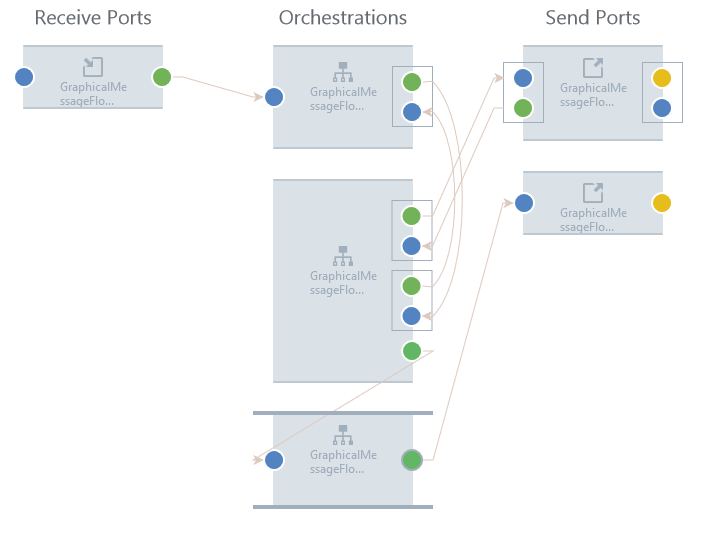
see these subscriptions for example in a central place or in a visual diagram
like:
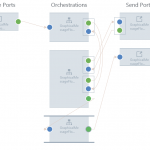
This picture is actually from BizTalk360 Graphical Message Flow, but it serves well here as prof-of-concept.
The default solution
So the default solution that you have out-of-the-box
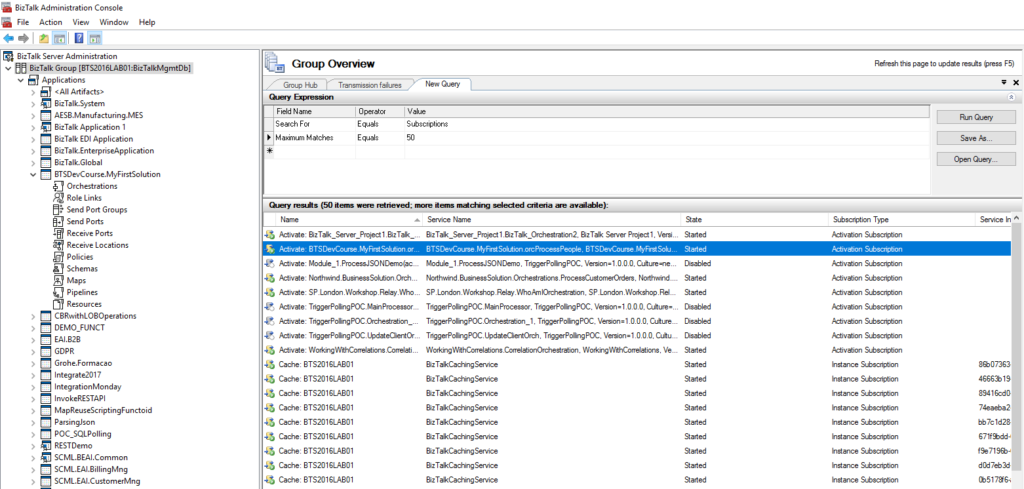
with the product is to query the subscription from the BizTalk Server
Administration Console by:
In the console
tree, expand BizTalk Server Administration, and then click the BizTalk group.
In the details
pane, click the New Query tab.
In the Query
Expression group, in the Value column, select Subscriptions from the drop-down
list box.
But then you need to go one by one and see what the
filters are.
You can minimize this by filtering more the query
using the following filters:
Maximum Matches:
The number of matches to display.
Service Instance
ID: You can filter subscriptions by service instance ID.
Service Name: You
can filter subscriptions by service name.
Subscription
Type: You can filter subscriptions by Activation Subscription or Instance
Subscription.
But that will not solve all your problems also. In conclusion, this is a hard and time-consuming task.
And sometimes what I need is just to have a quick
overview of all these filters.
BizTalk Filter Finder Tool
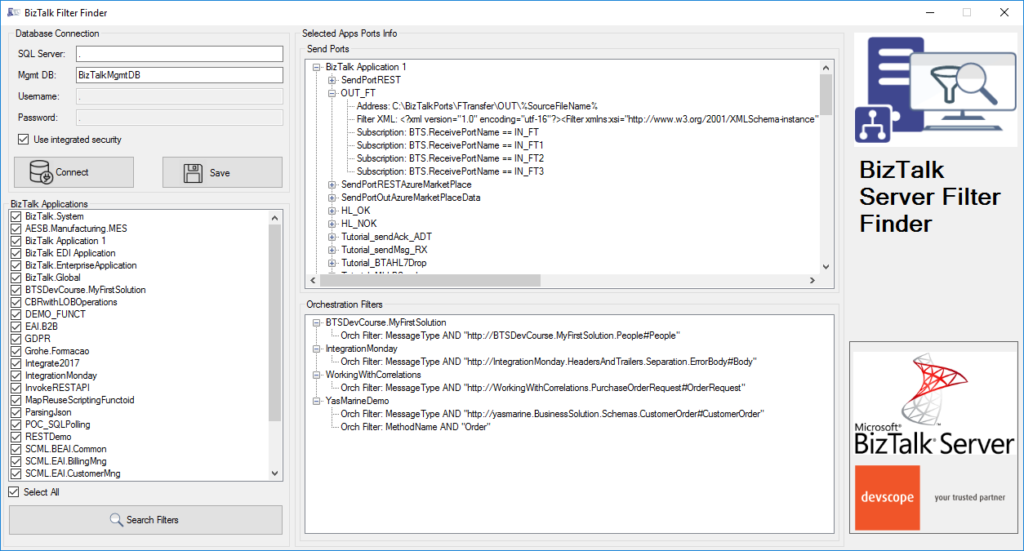
“BizTalk Filter Finder Tool” is a simple tool that
aims to simplify the process for better understand and maintain solutions based
on content-based routing. By allowing you to have a quick overview of all the
artifacts, send ports or orchestrations that have filters associated.
This tool will extend default BizTalk Server
capabilities transforming this tedious and sometimes complicate analyze a
little simple, easy and fast.
It way not be an amazing tool; it may not be beautiful
but for me is a timesaver tool.
Credits also to my team member at DevScope, Pedro Almeida that collaborated with me in the development of this tool.
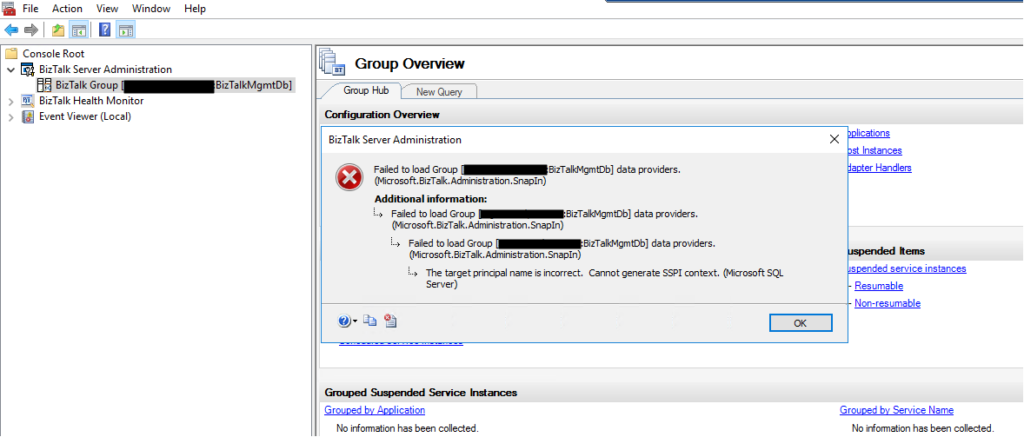
Without a doubt, today I encountered one of the most bizarre situations in the BizTalk Server Administration Console: The target principal name is incorrect. Cannot generate SSPI context. (Microsoft SQL Server, Error: 0). And believe me, I been here along time.
Everything
was working fine, and I was normally working on the environment until I try to
refresh the BizTalk Server Administration Console and I got the following
error:
TITLE: BizTalk Server Administration
——————————
Failed to load Group [SQLSERVERNAMEINSTANCE:BizTalkMgmtDb] data providers. (Microsoft.BizTalk.Administration.SnapIn)
For help, click: http://go.microsoft.com/fwlink/?LinkId=47400&ProdName=Microsoft+BizTalk+Server+2016&ProdVer=3.12.774.0&EvtSrc=Microsoft.BizTalk.Administration.SnapIn.Properties.Errors&EvtID=FailedLoadingGroupProviders&EvtChain=Microsoft.BizTalk.Administration.SnapIn.Properties.Errors+%2cFailedLoadingGroupProviders%3bMicrosoft.BizTalk.Administration.SnapIn.Properties.Errors+%2cFailedLoadingGroupProviders%3bMSSQLServer+%2c0
——————————
ADDITIONAL INFORMATION:
Failed to load Group [SQLSERVERNAMEINSTANCE:BizTalkMgmtDb] data providers. (Microsoft.BizTalk.Administration.SnapIn)
For help, click: http://go.microsoft.com/fwlink/?LinkId=47400&ProdName=Microsoft+BizTalk+Server+2016&ProdVer=3.12.774.0&EvtSrc=Microsoft.BizTalk.Administration.SnapIn.Properties.Errors&EvtID=FailedLoadingGroupProviders&EvtChain=Microsoft.BizTalk.Administration.SnapIn.Properties.Errors+%2cFailedLoadingGroupProviders%3bMSSQLServer+%2c0
——————————
Failed to load Group [SQLSERVERNAMEINSTANCE:BizTalkMgmtDb] data providers. (Microsoft.BizTalk.Administration.SnapIn)
For help, click: http://go.microsoft.com/fwlink/?LinkId=47400&ProdName=Microsoft+BizTalk+Server+2016&ProdVer=3.12.774.0&EvtSrc=Microsoft.BizTalk.Administration.SnapIn.Properties.Errors&EvtID=FailedLoadingGroupProviders&EvtChain=MSSQLServer+%2c0
——————————
The target principal name is incorrect. Cannot generate SSPI context. (Microsoft SQL Server, Error: 0)
For help, click: http://go.microsoft.com/fwlink?ProdName=Microsoft+SQL+Server&EvtSrc=MSSQLServer&EvtID=0&LinkId=20476
——————————
BUTTONS:
OK
——————————
But let me give some context because problems
will not happen without any reason. I was normally working with the BizTalk
Server Administration Console until I got a notification that my password would
expire in 5 days and at the same time suggesting for me to change right away
and… I did that for once in my life, I follow the recommendation and do not
wait any longer to change the password.
Once I successfully update my password and remote
access once again to my environment I started getting this issue in the admin
console.
Cause
In a way, unfortunately, after I successfully update my password and remote access once again to my environment, I didn’t go directly to the BizTalk Server administration console. I was doing some configuration in IIS regarding SSL and only after a few minutes I went to the admin console and got this bizarre issue.
I did the basic tasks you normally do in these
situations, nothing related to this particular error but in general:
Restart
the host instances and Enterprise Single sign-on;
Check
if the WMI service is running or Restart WMI service;
Close
the BizTalk Administration Console and open again;
Open
the SQL Server Management Studio and try to connect to the BizTalk SQL Instance
The curious is that all host instances and ESSO
service was working fine, and they were able to restart successfully, and I was
able to connect to the BizTalk SQL Server Instance from the BizTalk Server
machine using SSMS, but none of them resolved the issue with the BizTalk admin
console.
And this error may happen for other different
reasons, but you have to understand my scenario:
in one minute, everything was working fine, and now it was failing.
And the only difference was I had to change my password.
I do not know to explain better the cause of
the issue in my case, but, in simple words, it was related to some bizarre system
credential cache.
Solution
I was able to fix this issue by simply:
logging
out of the BizTalk Server machine where I was executing the BizTalk Server
Administration Console
and
logging back in again.
Once I log in back in the BizTalk Server
machine I was able to work normally with the BizTalk Administration Console once
again.
The BizTalk Documenter has been available for many years and different
BizTalk versions, starting with 2004 to the latest one: BizTalk Server 2016. And once again, without a doubt
for me, BizTalk Documenter is my favorite documentation tool, and I do think that if each
product had a tool like for the generation of technical documentation, it would
be simpler to do, as the existing documentation significantly improved.
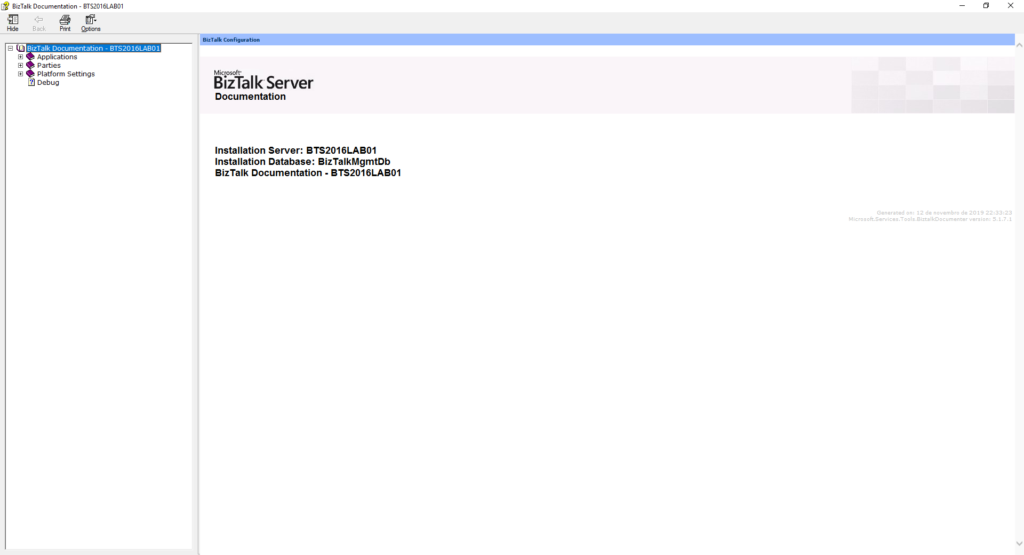
However, the default cover page is quite simple
and looks old fashion:
CHM files are the HTML Help 1.0 specification witch
is quite pretty old. Basically, It is a complete HTML based Help system that
uses a Help Viewer that internally uses Internet Explorer to render the HTML
Help content that was introduced somewhere in 1997 when Internet Explorer 4 was
also introduced.
Nevertheless, CHM continues to be a popular
help format because it is very easy to produce content for it, using plain HTML,
which is quite interactive and because it works with many Windows application
platforms out of the box.
And I normally like to personalize my documentation
according to the client like:
Using
the Logotype and there name on the cover;
Using
their color pattern;
Sometimes
using some cover picture;
So, the question here is: Can we customize
the cover page produce by BizTalk Documenter?
And the answer is obviously: yes, of course,
you can.
And I been doing that in my client for a long
time, however, and this also serves me as a personal reminder, because each time
I’m going to a new client I’m always:
Forgetting how to do it;
What king of resources do I need to have? And what are there names? if they are mandatory;
Taking a long time to format the HTML according to my requirements;
And don’t get me wrong there are several blog
posts guiding you on how to do it. But most of them do not provide you the
resources for you to download and:
use
it as a template;
Where
you can easily modify the pictures, colors and so on;
Or
use it as an inspiration, tutorial or sample to your custom cover;
How to customize the BizTalk
Documenter cover page
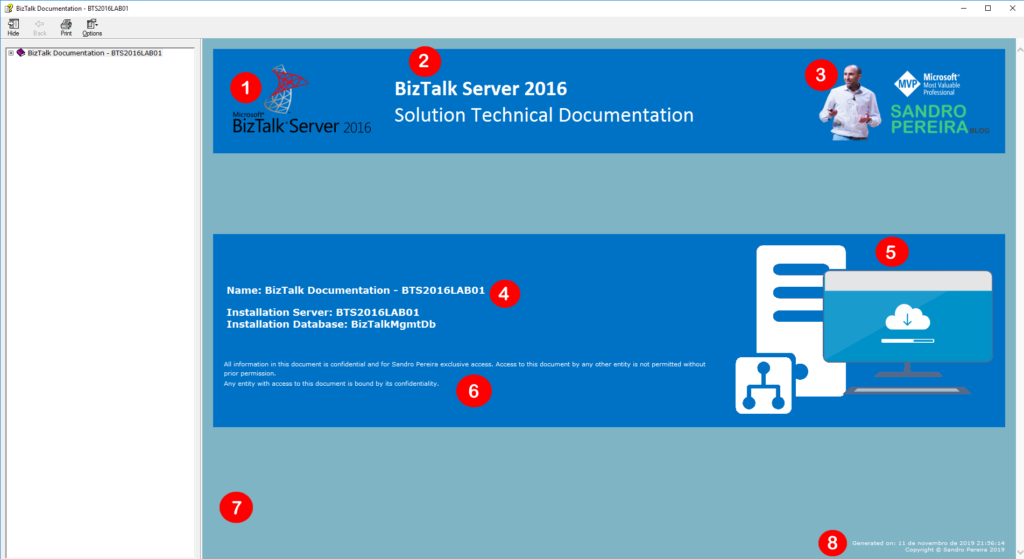
What is really necessary to transform
your cover page from the default one presented in the picture above to something
like this:
That contains:
1-
Logotype of BizTalk Server version;
2-
Header title and subtitle;
That
can be your platform code name like “<client name> ESB”;
3-
Logotype of the client organization;
4-
Name of the documentation;
5-
Other pictures like for example project logotype;
6-
Disclaimer;
7-
background color;
8-
Copyright;
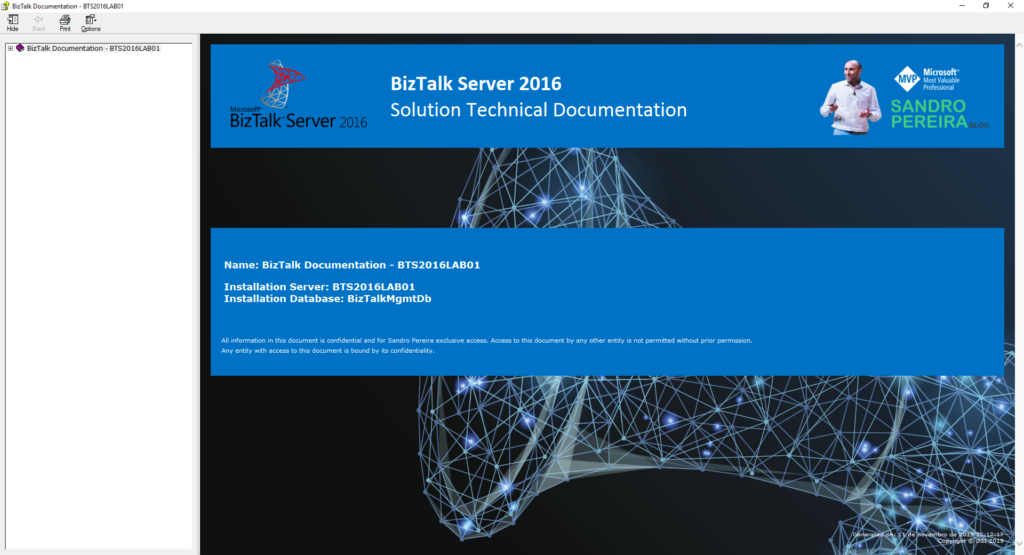
Or something like this with a background
picture:
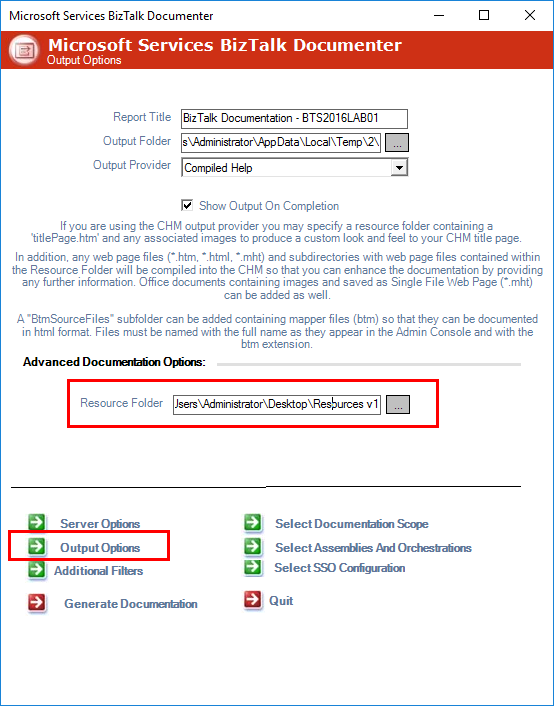
And in fact, this is a quite simple task. Fortunately for us, BizTalk Documenter allows us to specify a Resource Folder on the Output Options screen:
For the sake
of simplicity, let’s call it Resources (but it can be other as you see
in the picture Resource V1). In the root of this folder, you should:
Add
a custom HTM page that you mandatory need to called it: titlePage.htm
If
you give it another name it will not work. The file will be ignored and the
default cover will be generated;
And
you should, once again for the sake of simplicity, add all the necessary
picture files on the folder or sub-folder;
This is the content/aspect of my titlePage.htm file for the first sample provide it here:
In this blog, we are going to look at the BizTalk360 functionality, how it went one step further and helped to automate the process to handle service instances. Before that, we will have a look at the service instances and their importance.
In BizTalk Server there are two main types of processing components:
Orchestration Service Instances: If you are developing an orchestration and deploying it in your environment. At run-time, for every activation message you receive for that orchestration, a new instance of that orchestration will get created.
Messaging Service Instances: The service instances that have been created by your receive and send ports at run time. A receive port/send port is a combination of various things like an adapter, receive/send pipeline and maps.
Instance states and stages
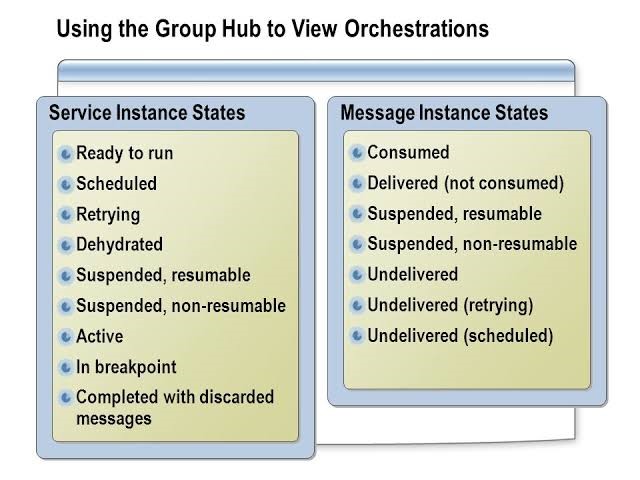
Service instance states and message instance states are displayed on the Group Hub page. They convey information about successfully processed messages and instances, failures, and suspensions during a specified time interval. The service instances get instantiated, like your objects for classes, and during the lifetime, they go through various states. Some of the common states include:
Ready to Run
Scheduled
Dehydrated
Suspended, Resumable
Suspended, Non-resumable
Active
When messages flow into the BizTalk server, the messages get persisted in BizTalk Server’s MessageBox database.
Each of the service instance state signifies certain value. Some of them are system-specific states (ex: Active, Dehydrated, Ready to Run, etc), which will change automatically as the message gets processed.
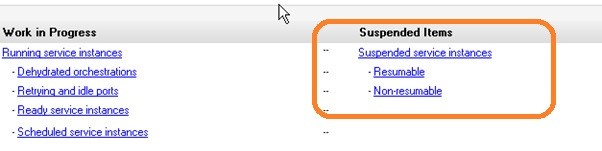
When any message is suspended in processing, then it is logged into the suspended instance. In BizTalk, when a message is suspended, then it falls into one of these two categories.
Resumable: if the external resource (example web service, folder location in case of file adapter) is not available then the message will go for suspend resumable mode. Resumable means the service can be recovered.
Non-Resumable: Typically hold metadata and cannot be resumed. They will either disappear when the corresponding resumable instance is resumed or in other cases, they might need manual termination. You can save the Messages referenced by the instance, and then you can terminate the instance.
Sometimes we can directly resume messages from the admin console, after which they are processed successfully and sometimes they are not processed successfully. Once the service instance moves into a state that demands user intervention, the BizTalk server administrator needs to manually log in to the BizTalk Server Administration Console and fix the problem with respect to the service instance.
Why should you monitor service instances
For a healthy BizTalk environment, it’s always important to keep an eye on the number of service instances in the environment. Having many suspended service instances will occupy most of your message box database and it will affect the overall performance of your BizTalk environment.
In BizTalk360 we are offering two ways to act against the instances.
Action against suspended instances manually
Action against suspended instances automatically
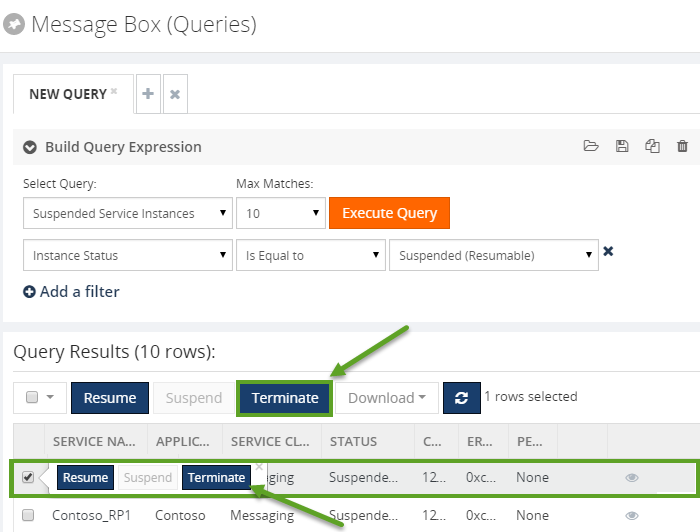
You can act against suspended instances manually through the MessageBox (Queries), offering administrators the ability to query the MessageBbox database for such messages and take action.
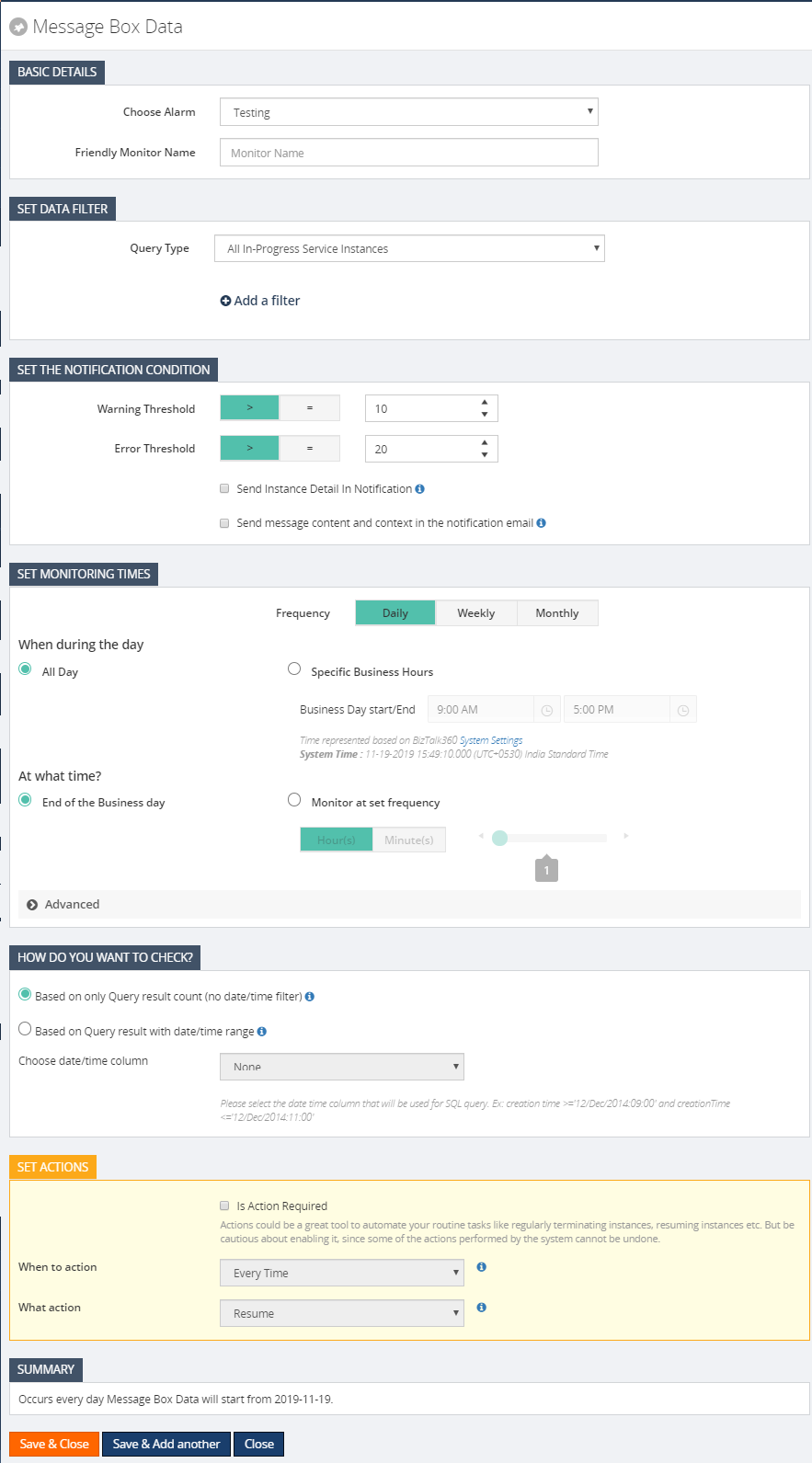
MessageBox Data Monitoring
In MessageBox Data Monitoring, the user can configure the queries to monitor service instances and messages. The monitoring service will send the notification to the users whenever the service instances/Message count violates the configured threshold condition.
MessageBox Data Schedule can be configured in BizTalk360 -> Monitoring -> Data Monitoring -> MessageBox Data.
It can be scheduled at the different frequencies (Daily, Weekly, and Monthly) based on the volume and priority to take the action on service instances/messages.
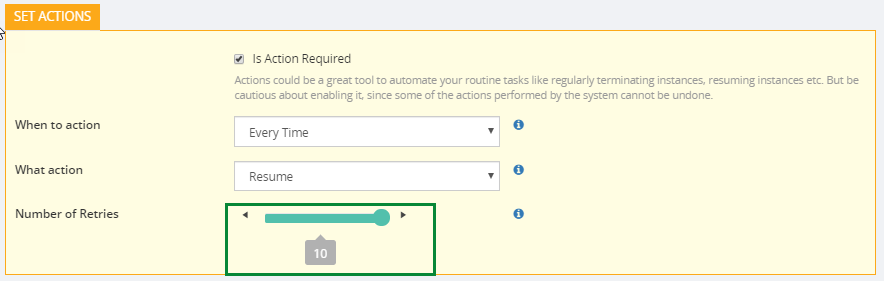
The operational user (either it will be a super user or a custom user has the permission to take action within BizTalk360) must closely watch the suspended service instances to act on. It is a tedious process to look after all the time. The MessageBox data monitoring feature can take automatic action on service instances when the set actions are configured in our schedule.
The monitoring service will Resume, Suspend or Terminate the service instances based on either error or warning condition without any manual intervention.
Service Instances Action Based on Retry Count
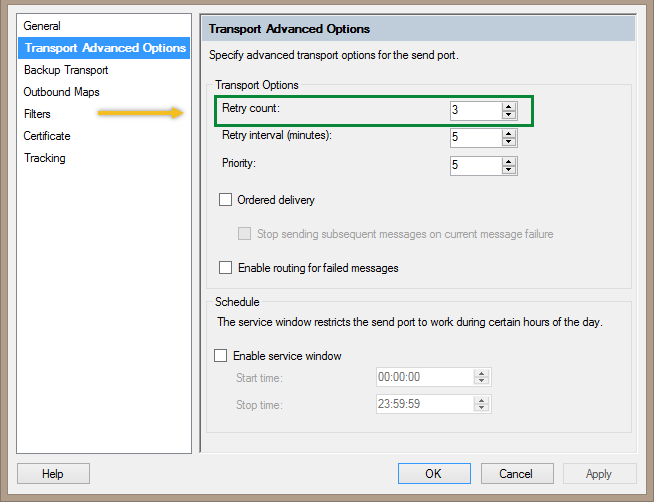
Most important to be noticed is that BizTalk360 will resume the suspended instance irrespective of the “Number of Retries” count set in the port. Retry count is nothing but the number of times for the send port to resend/resume a message on message failure.
If the Instance is suspended in a port, then BizTalk360 will check how many times the instance is retried by BizTalk Server. If the number of retries done by BizTalk is less than or equal to the count set in BizTalk360, then it will resume the instance until it exceeds the count set.
If the number of retries done by BizTalk is greater than to the count set in BizTalk360 then it will stop resuming the instance on further monitoring schedule.
Check the retry count between the BizTalk artifact and in the BizTalk360 count in the UI
If the BizTalk360 configured value is 3 and the BizTalk server’s current Retry Count is 4, in that case, the BizTalk retry count is greater than BizTalk360, so it will not take any action against the instances. So, compare the instance count and set the retry count value high in BizTalk360.
Action on Long running service instance which is older than X days
You can also achieve the same scenario (task action like MessageBox Data monitoring) with the help of a prebuild custom notification channel: PowerShell. Let’s take a customer scenario here for how they utilized the PowerShell notification channel.
In the MessageBox data monitoring, you can act against the service instances based on,
Only Query result count (no date/time filter)
Query result with date/time range
Only Query result count (no date/time filter)
Selecting this option will execute the query without applying any date time filter. i.e. all the data will be considered for SQL query execution.
Based on Query result with date/time range
Selecting this option will apply the Creation Time filter for SQL query execution. (The values configured for setting trigger time, Set Monitoring Times ->At What Time, will be used for Creation Time filter).
For example: When Monitoring set frequency is set for 1 hour, then for every SQL query execution the query will consider only 1-hour of data.
In the customer scenario, they wanted to terminate the dehydrated and active service instances which are older than 15 days from the creation of the message. In data monitoring, this option is not available. To solve that, the customer terminated the dehydrated and active service with a PowerShell notification channel (custom script); the steps are below.
Create a PowerShell script to call the BizTalk360 APIs to check for the dehydrated service instance and terminate them
Attach this PowerShell script to a notification channel in BizTalk360
Map this channel to an alarm so that the PowerShell script will get executed to take action when the alarm is triggered.
Here is the PowerShell script to terminate the dehydrated and active service instances which are older than 15days in GitHub.
Note: The environment id details can be obtained from b360_admin_BizTalkEnvironment table in the BizTalk360 database. Modify the details according to your environment configuration.
Conclusion
An automatic action feature of BizTalk360 can take corrective actions in the event of any threshold violations. With just a one-time setting we have our BizTalk360 to make sure all your routine tasks are addressed without manual intervention.
Without a doubt, BizTalk Documenter is my favorite documentation tool, and I do think that if each product had a tool like for the generation of technical documentation, it would be simpler to do, as the existing documentation significantly improved. I do miss this kind of tool for Azure Integration projects.
However,
each time I install this tool I always got the exact same problem:
Unable to locate the help compiler executable
which I know well, and I know why since it was very well explained by Mitch Vanhelden in this blog post.
So, why this blog post?
Well, for two main reasons:
I’m
always searching to find the link to the component I need to install;
Basically,
this is just an easy personal reminder;
And
second and most important, the link to the resource that Mitch point is
obsolete and not working anymore;
Cause
Has Mitch explained in his blog post, the
reason for this is quite clear, the application can’t locate the help compiler
executable, either because:
it
isn’t installed à most common situation
or
it is also possible if you’re working on a 64-bit machine.
Solution
Make sure you have installed the HTML Help
Workshop compiler because this is the most common cause for this issue and if
not:
First, download and install this compiler that can be found here: HTML Help Workshop and Documentation;
And then install it, by executing the htmlhelp.exe file
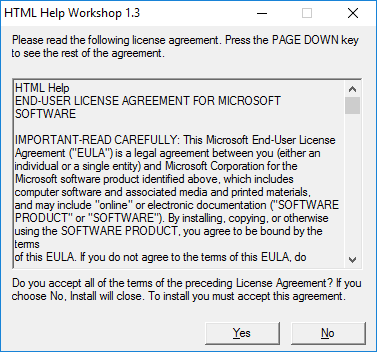
On the HTML Help Workshop 1.3 screen, click Yes
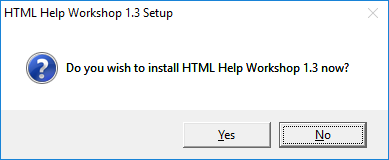
On
the HTML Help Workshop 1.3 Setup screen, click Yes
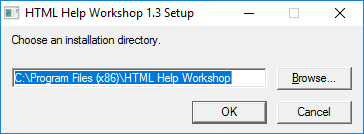
Specify
the installation directory and then click OK
And
finally, when the installation finish, click OK
After these steps, you should be able to
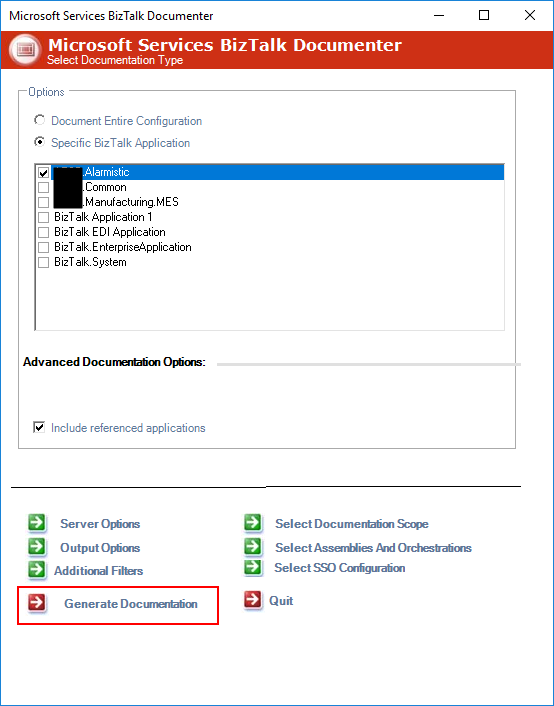
generate the BizTalk Server documentation form the tool. Otherwise, make sure
that the path to this help compiler is configured correctly in BizTalk
Documenter by:
Access
to the installation path of BizTalk Documenter
By
default: C:Program Files (x86)Microsoft ServicesBizTalk Documenter
Open Microsoft.Services.Tools.BiztalkDocumenter.exe.config file and validate
and, if necessary, change the path for the HelpCompilerLocation key
that needs to contain the correct path to the HTML Help Workshop compiler
component.



 BizTalk Port Multiplier Tool