by Sandro Pereira | Jun 30, 2020 | BizTalk Community Blogs via Syndication
In the past, I wrote several blog post about Configuring BizTalk Server Host and Host Instances according to some of the Best Practices:
The reason I end up creating a new version for BizTalk Server 2016 was that previous scripts only did 90% of the work, and they were intended to be used on “day zero” of your environment, i.e., after you finish installing your environment.
So, I update my previous script to add more functionalities, mainly:
- Configure the Default Send Handler as the Send Handler for each existing static and Dynamic Send Ports
- Configure Receive Handlers from all the existing Receive locations
With these missing functionalities added to the script, it will configure or reconfigure 100% of your environment. You can use it on “day zero” or in an already up and running environment. Of course, this was optimized to BizTalk Server 2016 (but it can be executed in all precious BizTalk Server previous versions).
Why a new version dedicated to BizTalk Server 2020?
There are two reasons why I decide to create this new script, specific only to BizTalk Server 2020:
- The previous scripts don’t run properly in BizTalk Server 2020;
- And BizTalk Server 2020 now has support to Group Managed Service Accounts;
The first reason is very simple. The previous scripts will not work giving you an invalid credential error even though you are putting the correct credentials has Gaurav Sood kindly reported to me.
The reason why this error is happening was because one undocumented change that product group made on the MSBTS_HostInstance WMI Class and now the method Install has a new mandatory parameter:
- IsGmsaAccount: a boolean that will define whether or not we will use Group Managed Service Accounts
Now the method parameters will be:
- System.Management.ManagementBaseObject Install(System.String Logon, System.String Password, System.Boolean GrantLogOnAsService, System.Boolean IsGmsaAccount)
- Logon: String containing the logon information used by the host instance;
- Password: String containing the password for the host.
- GrantLogOnAsService: Boolean determining whether the ‘Log On As Service’ privilege should be automatically granted to the specified logon user or not. This flag only has effect when the HostType property is set to In-process.
- IsGmsaAccount: a boolean that will define whether or not we will use Group Managed Service Accounts
- If true, the password can be empty;
The second reason is related to the first one. Now BizTalk Server 2020 has support Group Managed Service Accounts (gMSA) and since I’m changing this script I also want to add support to this feature.
What is Host and a Host Instances?
The BizTalk Host is a logical process and security boundary within BizTalk Server that represents a logical set of zero or more run-time processes in which you can deploy BizTalk Server services and artifacts (such as adapter handlers, receive locations, and orchestrations). Each host has a security group assigned to it and may contain multiple host instances, each on an individual machine, that perform the work of the host.
In another hand, a host instance is the physical instance of a host on a computer running BizTalk Server. Each host instance belongs to exactly one host, and the service account of the host instance belongs to the security group of the host. The security group may be used to grant permissions to physical resources such as databases for use by any host instances in the host.
What is an Adapter Handler?
An adapter handler is an instance of a BizTalk host in which the adapter code runs. When you specify a send or receive handler for an adapter you are specifying which host instance the adapter code will run in the context of. An adapter handler is responsible for executing the adapter and contains properties for a specific instance of an adapter.
The default BizTalk Server configuration will only create one in-process host, “BizTalkServerApplication”, that will be associated as a receive and send adapter handler for all of the installed adapters, with the exception of HTTP, SOAP, WCF-BasicHttp, WCF-WSHttp, and WCF-CustomIsolated adapter receive handlers that can only be running in an isolated host.
How can I automate this task?
Windows PowerShell is a Windows command-line shell designed especially for system administrators and can be used by BizTalk administrators to help them in automating tasks.
This is a simple script that will configure the following components in your environment:
- Create Host and Host Instance according to some of the best practices: two Receive host and host instances (one 32-bits and one 64-bits); two Send host and host instances (one 32-bits and one 64-bits); One Host and Host Instance to process Orchestrations and one Host and Host Instance for tracking;
- Create Receive and Send Handlers for each adapter;
- And finally, associate the correct Receive and Send Handlers to each existing receive and send ports present in your environment
Download
THIS POWERSHELL IS PROVIDED “AS IS”, WITHOUT WARRANTY OF ANY KIND.
The script can be found and download on GitHub:
 PowerShell to Configure BizTalk Server 2020 Host, Host Instances and Handlers
GitHub
The post BizTalk Server 2020: PowerShell to Configure Host, Host Instances and Adapter handlers according to some of the Best Practices appeared first on SANDRO PEREIRA BIZTALK BLOG.
by Saranya Ramakrishnan | Jun 23, 2020 | BizTalk Community Blogs via Syndication
Microsoft has released BizTalk Server 2020 with a bunch of exciting new features.
To know more about the stirring features, look at our series of blogs
In this blog article, I will be covering an exciting new feature on how to send the BizTalk tracking data to Azure Event Hub and Application Insight.
You have configured various tracking options for orchestrations, send ports, receive ports, and pipelines using the BizTalk Server Administration console.
Follow the below Steps to Send the Tracking Data to Azure
As we know, if we enabled the tracking on the artifacts carefully, it gives us very helpful information to diagnose the issues without affecting performance. The same applies to enable analytics. It is very important that you plan as per your information needs but also for your performance needs.
Enable Analytics at the Environment Level
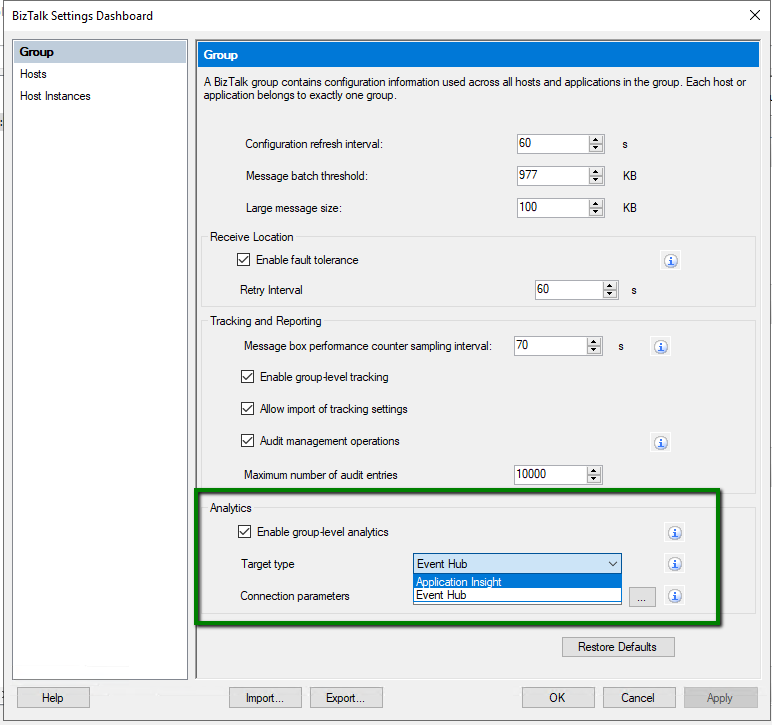
Enable group-level analytics by selecting BizTalk group settings. Select “Enable group-level analytics” and choose the target where you wish to push the data, either Application Insights or Event Hub, as you can see below.
Enable Analytics at Artifact Level
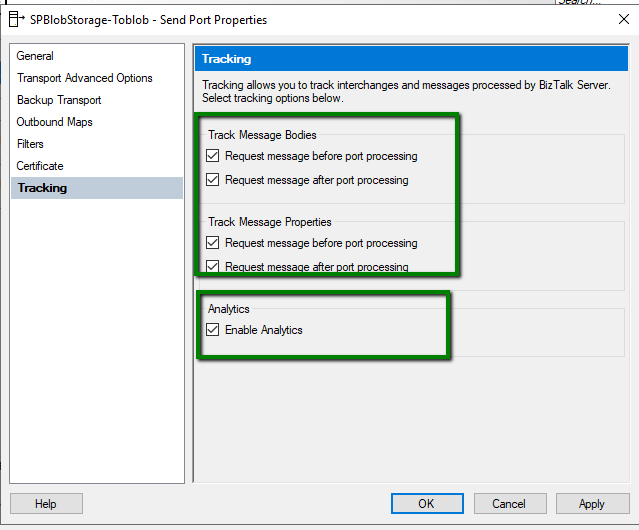
- Right-click on the artifacts (Sendport, Receive Location, Orchestrations) and enable tracking
- To start transmitting the tracking data to Azure, enable Analytics as below
Sending Your Tracking Data to Application Insights
Azure Applications Insights is a very popular Application Performance Management service, especially for web developers. It helps the developers to find performance issues with their applications and diagnose them.
- Sign in to the Azure portal, and create an Application Insights resource
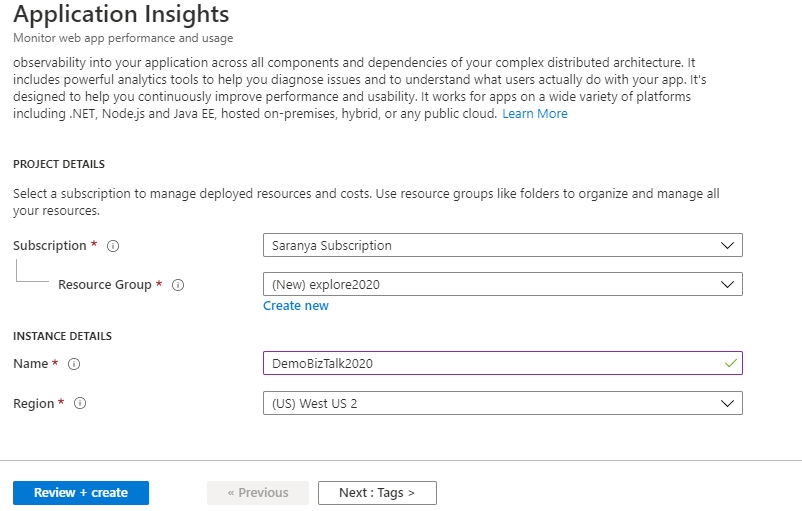
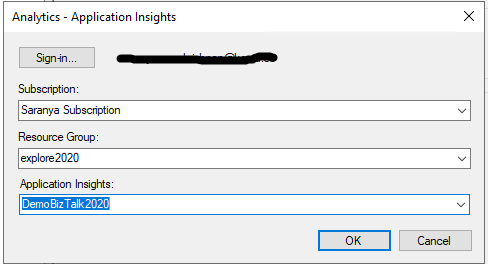
- In the BizTalk group settings, select the target type as “Application Insights”
- Sign in to Azure portal and select the subscription to update Analytics -Application Insights details as shown below
Sending your tracking data to Event Hubs
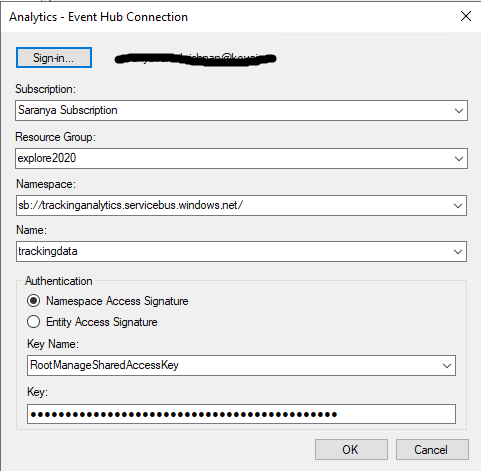
- Sign in to the Azure portal, and create an event hub namespace
- In BizTalk group settings, select the target type as “Event Hub ”
- Sign in to Azure portal and select the subscription to update Analytics -Event Hub connection details as below
Once it’s done, you can view the data in the event log capture or you can configure the receive location with the Event Hub adapter and route it to the desired location. Since Event Hub capture is the easiest way to load/process streaming data into Azure, you can send/receive large volumes of messages between BizTalk Server and Azure Event Hubs using the Event Hub Adapter.
For instance, you can save and process all your tracking data in an Event Hub using the EventHub Adapter.
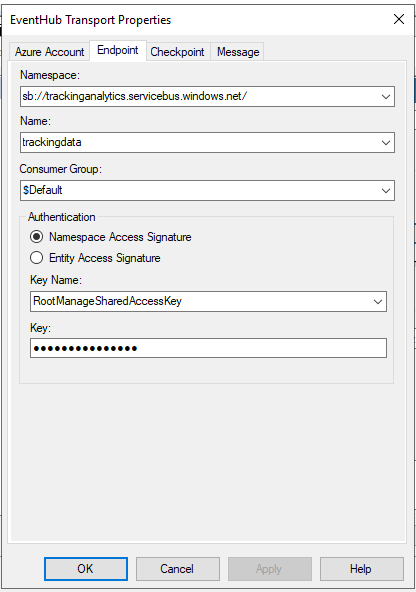
- You can configure the EventHub Adapter in a Receive Location to receive a message from Event Hubs. Configure the namespace and EventHub details as shown below. The publisher/subscriber can connect to the Event Hub by using a shared access signature token.
- Create a Send Port which listens to this Receive Location. The tracking data received from Eventhub will be similar to what is shown below.
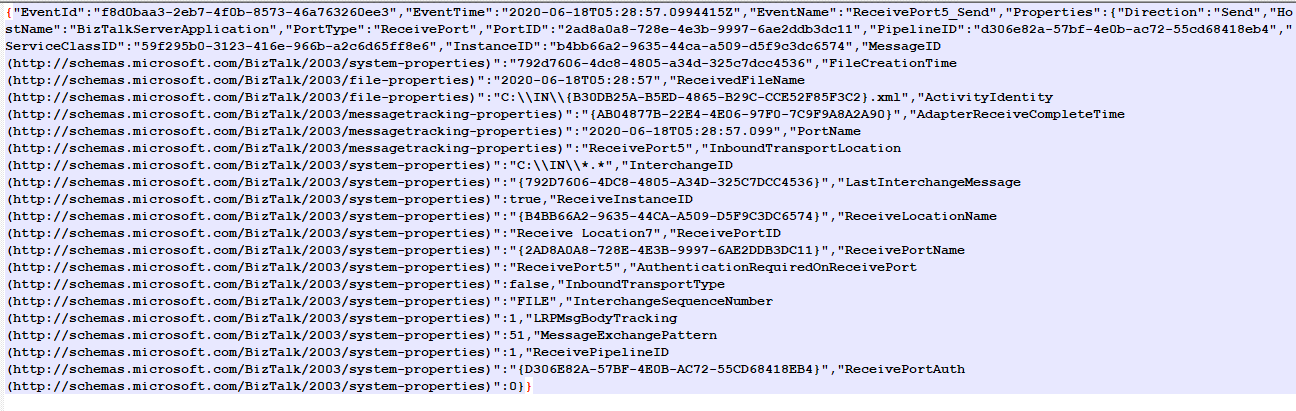
Azure has solid data visualization offerings such as Power BI and the OMS portal. You can publish tracking data to Power BI and start visualizing data https://docs.microsoft.com/en-us/biztalk/core/configure-the-operational-data-feed-for-power-bi-with-biztalk-server.
Conclusion
BizTalk360 is now compatible with BizTalk Server 2020. Why not give BizTalk360 a try! It takes about 10 minutes to install on your BizTalk environments and you can witness and check the security and productivity of your own BizTalk Environments.
The post BizTalk Server 2020 – Send Tracking Data to Azure appeared first on BizTalk360.
by Sandro Pereira | Jun 15, 2020 | BizTalk Community Blogs via Syndication
In the last blog post, we analyzed the daily BizTalk Developer’s improved tasks which are provided by BizTalk NoS Ultimate; Build Project, Deploy assembly, and Fast register/unregister in GAC. Today, we will continue to analyze the list of available features present in this Visual Studio extension, focusing on the developing features that will improve your productivity significantly.
Locate It
How many times do you open your old or new project and several files are opened in the Visual Studio MDI window, and you want a simple way to locate a file in your project’s structure? For example:
- You are working in a transformation and you need to:
- locate the map file to specify a TestMap Input Instance
- locate a specific schema in the Solution Explorer in order to change the structure of the Schema
- You have used another BizTalk NoS Ultimate features to open the map, pipeline, or schema and now you need to find it on the solution explorer
If you don’t know exactly where it is, you need to check the full path of the map or the schema and then manually navigate in the solution explorer to the file that you want.
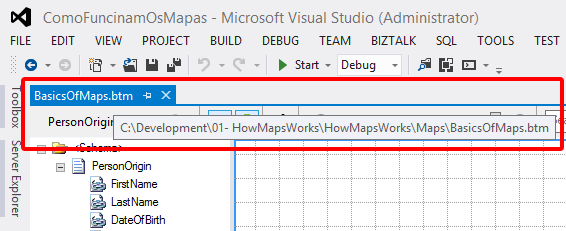
Finally, you will have an easy way to accomplish this! This will save us much time in the developing process, for me this is basic stuff and this is a timesaver feature!
Note: Even if you don’t have the Solution Explorer Window opened, this feature will find the file that you are looking for and will automatically open (or give the proper focus to) the Solution Explorer window.
You can access these features by:
- On the Visual Studio MDI window, right-click in tab with the name of the file and select Locate it! option

As you can see in the picture below, the result is that the project will be expanded and the desired file will be selected:
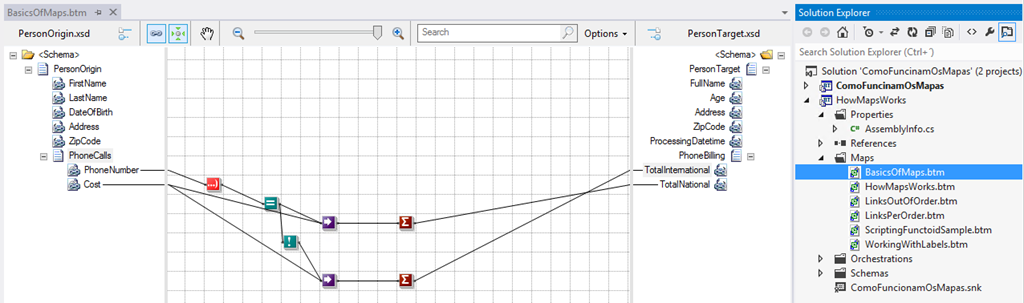
Again, this is very useful for a BizTalk Developer because he needs to locate the file to test or generate schema instances or test, validate or debug maps or other artifacts.
Test Pipeline
There are many ways to test BizTalk pipelines, for example:
- Using the Biztalk Pipeline Framework to create unit testing
- Using the Pipeline.exe tool
- By deploying them and testing in execution time (BizTalk Administration Console) with real messages
But to be honest, there isn’t a proper build-in support feature in Visual Studio to test our custom pipelines.
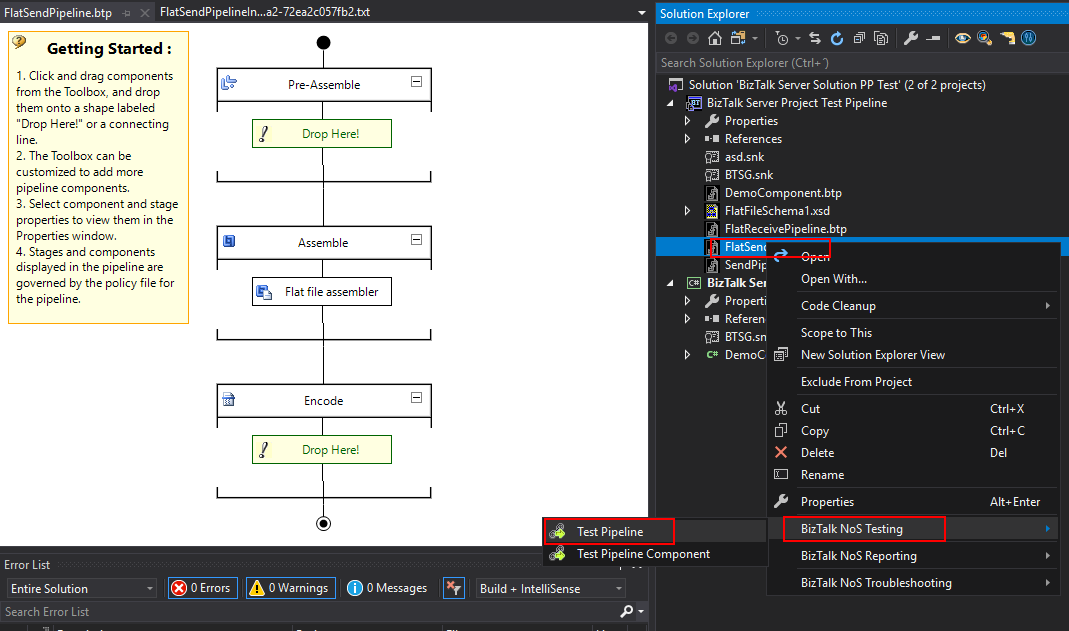
Once again, BizTalk NoS Ultimate will provide that for you. This feature will allow us to easily test our custom pipelines, directly from Visual Studio, by simply right clicking on the pipeline, expand BizTalk NoS Testing, and select the Test Pipeline option:
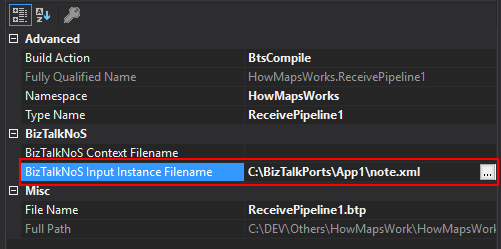
- First, you need to go to the Properties window of the pipeline and set the BizTalk NoS Input Instance Filename property, with an instance of the message that you want to try against the pipeline
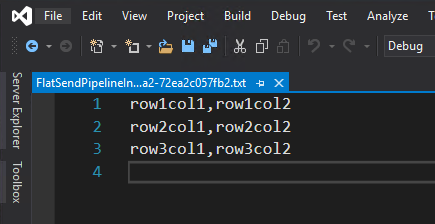
- It will show you the result of the pipeline test directly in VS IE
Test Pipeline Component
As the previous, one testing or debugging a custom pipeline component can be a challenge and most of the time you will need to test them in runtime. If you want to debug them then you will need to attach the pipeline component code to the BizTalk process in Visual Studio.
Once again, there isn’t a proper build-in feature in Visual Studio to test and debug our custom pipeline components. Now with NoS, you will be able to debug your pipeline component without having to deploy and run them in runtime. Now, from Visual Studio, you will be able to attach this test execution to an external process without caring about BizTalk environment by:
- Right-click on the pipeline that contains the custom pipeline component that you want to try, expand BizTalk NoS Testing, and select the Test Pipeline Component option:
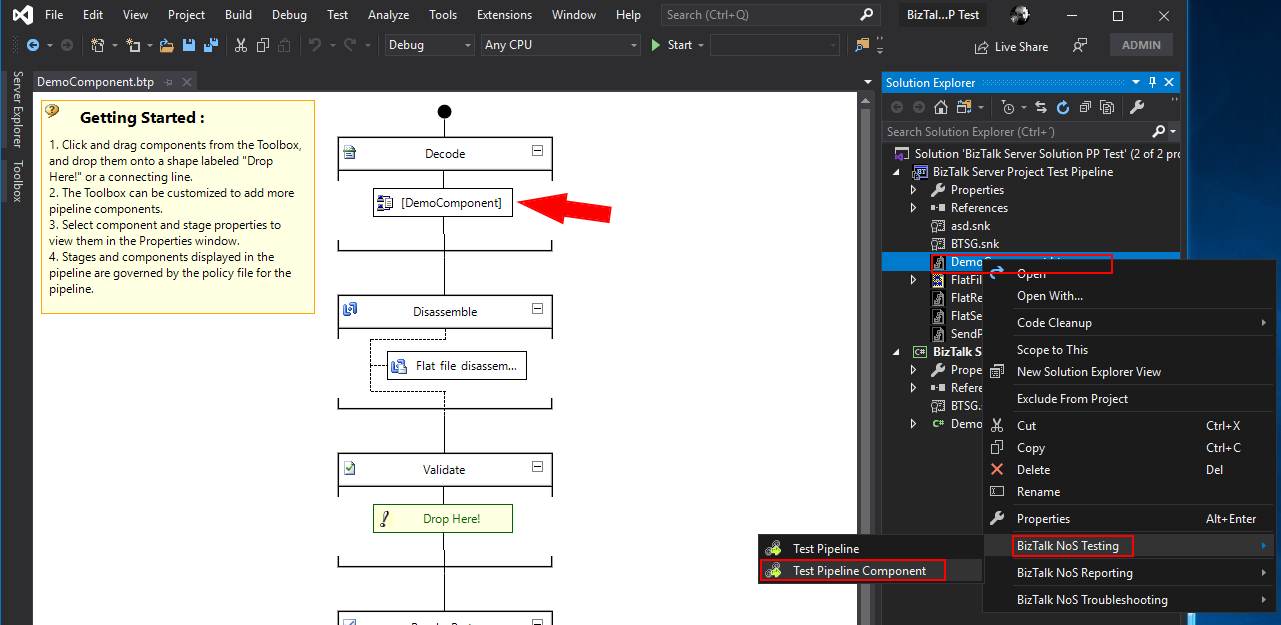
-
- This will automatically attach Visual Studio to a process called BTSG.TestPipeline.exe process (the title will also contain the name of our pipeline)
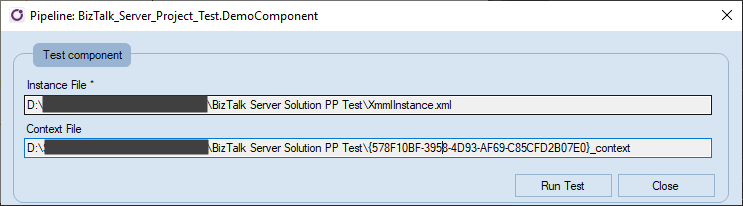
- Make sure that the instance of a message is correct and make sure that you have set breakpoints in your custom pipeline component, and then click Run Test
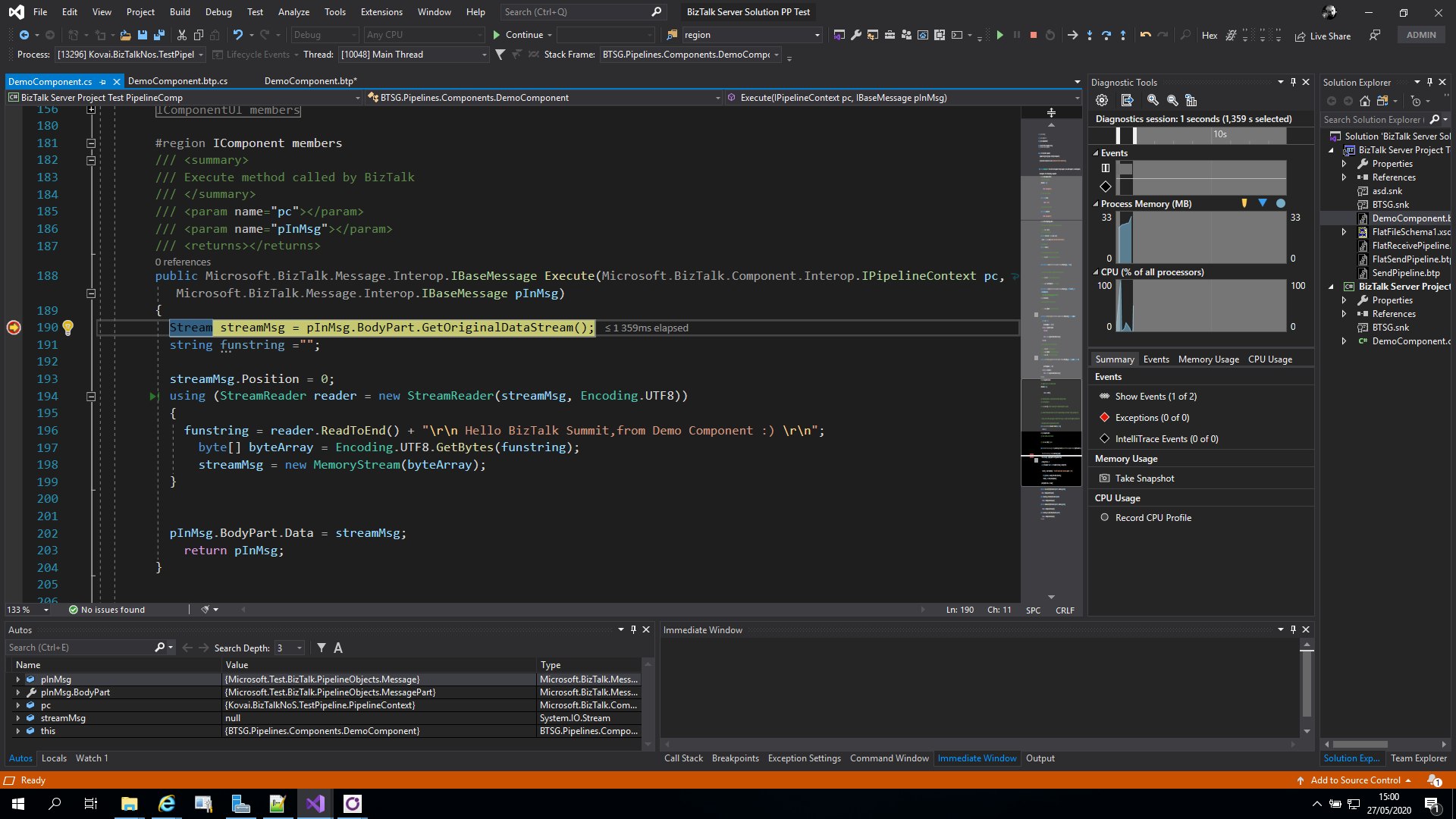
- You should be able to start debugging your custom pipeline component code.
I hope you are enjoying these features and stay tuned because this extension has more! Feel free to try this amazing extension for BizTalk Server here: Download BizTalk NoS Ultimate for BizTalk Server 2020.
The post BizTalk NoS Ultimate: Features Overview (Part IV) appeared first on BizTalk360.
by Sandro Pereira | Jun 10, 2020 | BizTalk Community Blogs via Syndication
In the last blog post, we analyzed the report capabilities of BizTalk NoS Ultimate – Reflector and Refactor. Today, we will continue to analyze the list of available features present in this Visual Studio extension, focusing on the daily BizTalk Developer’s improved tasks.
These are, what I call, simple tasks that will improve the BizTalk developer experience which will reduce the development and deployment time in new or existent BizTalk projects.
Build Project
You are probably thinking, why do I need another Build option? The reason is simple: sometimes we have a huge solution with several projects inside, and in these situations trying to build one simple project with the out-of-the-box Visual Studio option can be a challenge. It will take a huge amount of time trying to build the project because of all of the dependencies.
The option in NoS will build the desired project without any interaction with the Visual Studio design environment, making this operation faster than the native build operation in Visual Studio.
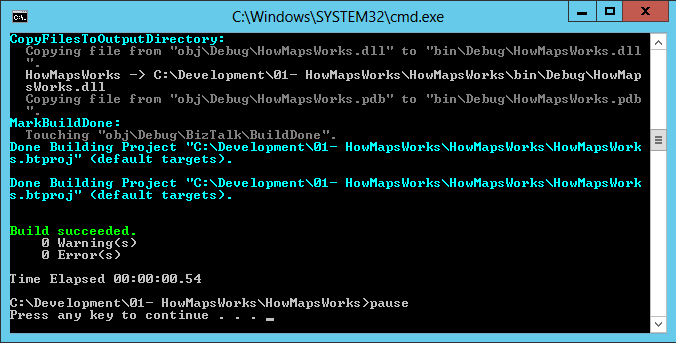
You can access these features by:
- Right-click on your project name, expand BizTalk NoS and select the Build project option
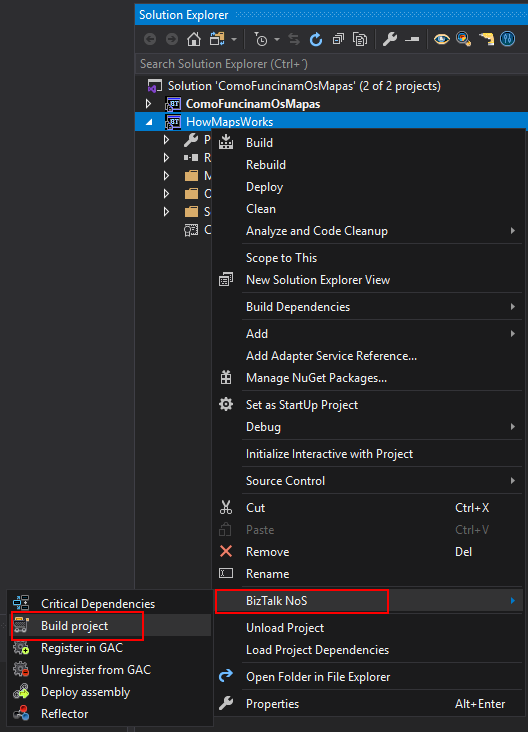
Fast Register/Unregister in GAC
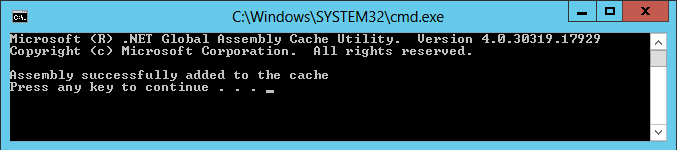
How many times have you desired to have a simple easy and quick way to install a DLL, and (why not) also uninstall, in the Global Assembly Cache (GAC), and why not directly from your favourite developer tool: Visual Studio? Instead, we need to install DLL’s using the Gacutil.exe tool, and don’t get me wrong, it is an excellent tool, but it is not practical in the day-by-day work!
Finally, now you have this option!
You can access these features by:
- Select your project name, expand BizTalk NoS and select the Register in GAC or Unregister from GAC option
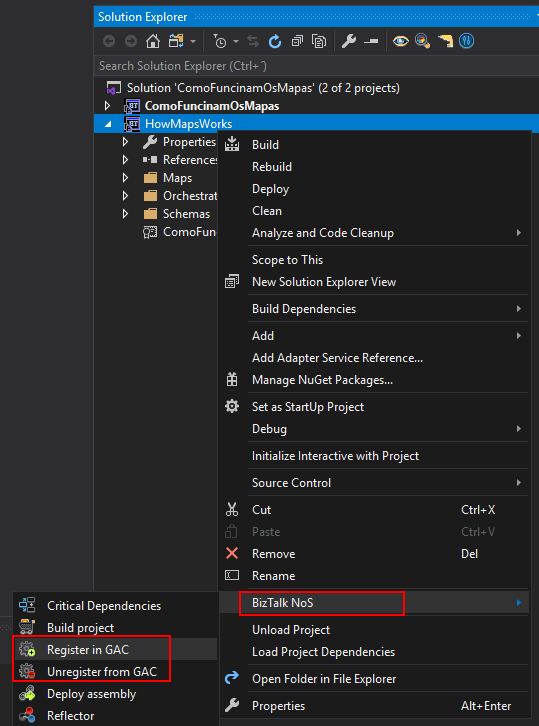
Note: This works with all DLL’s, it doesn’t have to be a BizTalk DLL, you can easily register a C# Helper Class used by BizTalk Projects into the GAC with this functionality.
Deploy Assembly
Again you are probably thinking, why do I need another Deploy option? And the reasons are exactly the same as the Build project option which we described earlier.
This operation will deploy a single BizTalk assembly directly from the Visual Studio without trying to deploy also all of its BizTalk Server project dependencies.
You can access these features by:
- Select your project name, expand BizTalk NoS and select the Deploy assembly option
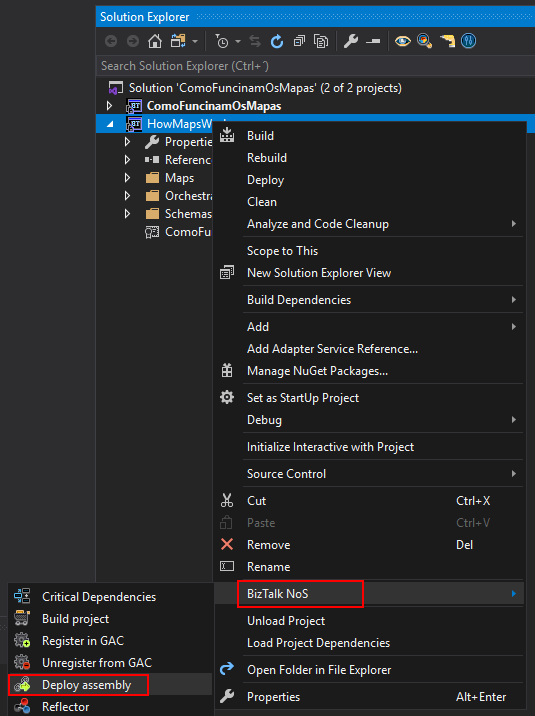
The equivalent we have to this feature is the add/update resources from the BizTalk Server administration console.
What’s the purpose of this feature? In some situations, you just simply don’t want to use the Visual Studio out-of-the-box functionality, as it will deploy all the dependencies and other stuff which will take a huge amount of time. What we want sometimes is only to deploy one specific assembly easily and fast.
This option will allow you to make this directly from Visual Studio, making this operation faster than the native deploy operation on Visual Studio.
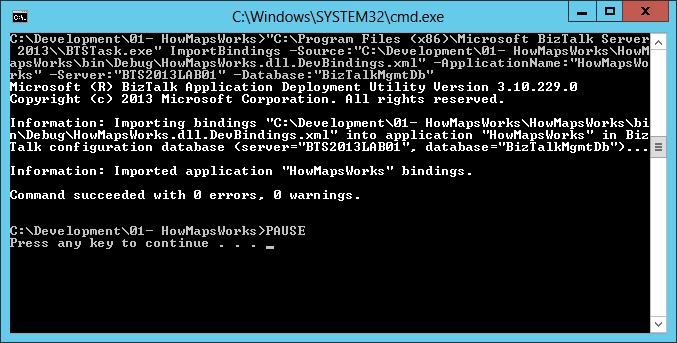
I hope you are enjoying these features and stay tuned because this extension has more! Feel free to try this amazing extension for BizTalk Server here: Download BizTalk NoS Ultimate for BizTalk Server 2020.
The post BizTalk NoS Ultimate: Features Overview (Part III) appeared first on BizTalk360.

by Priyadharshini | Jun 1, 2020 | BizTalk Community Blogs via Syndication
This blog is an extraction of the session “BizTalk 2020 and Beyond” in Integrate 2020 Remote event presented by Valerie Robb, Senior Program Manager at Microsoft.
It gives a detailed overview of BizTalk Server 2020 and future of BizTalk On Premise solutions. This session has also update on BizTalk Migration Tool. BizTalk Solutions
BizTalk Server 2020
Valerie started the session with Microsoft has announced the release of BizTalk Server 2020 early this year 15th January. Explained what’s new features How the features of BizTalk Server 2020 have been developed year on year (2017, 2018 & 2019) after BizTalk Server 2016.
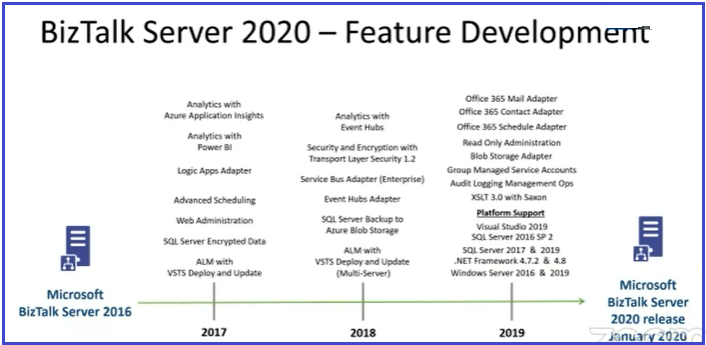
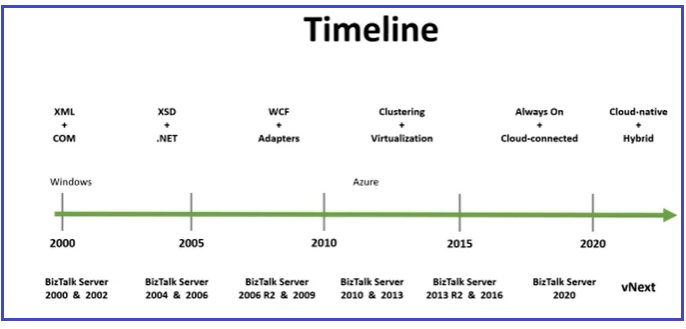
BizTalk Beyond 2020 Version
It’s most anticipated announcement from Microsoft Product Team about the future of BizTalk Server. BizTalk Product Team have the plan about the vNext version with Cloud Native and Hybrid Solutions. However, timeline to release of next version is not determined, but It could be as like of BizTalk Server 2016 incremental updates (Service Pack). It’s too early to predict the next version of BizTalk Server, it’s purely based on platforms which runs on and update which version of Visual Studio/ SQL Server supports.
BizTalk Migration Tool
Announcement of BizTalk to Azure Integration Tool is the next major update in the session. The following are the highlights of BizTalk Migration Tools;
- Command Line Tool to assist with Migrating
- Runs against BizTalk MSI files to gather information about the BizTalk solution
- Currently in development – Fall availability planned
- Will be Open Source as designed to be extensible and written in C#
- Migration Tool has divided into six stages, each with their own interfaces;
- Discover
- Parse
- Analyze
- Report
- Convert
- Verify
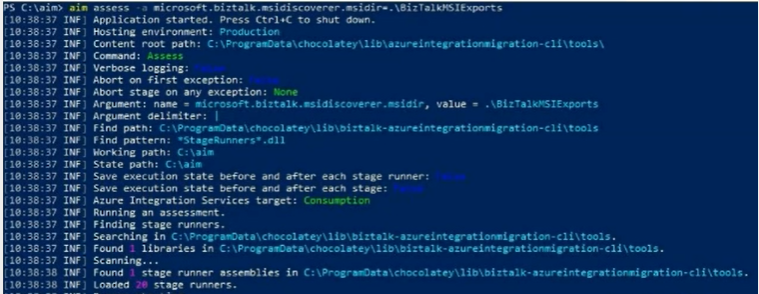
AIM
Azure Integration Migration is the abbreviation for the tool command line. It starts the migration with assess command with source path to BizTalk MSI Directory. It will assess the BizTalk MSI and point the hosting environment with Azure CLI Tools.
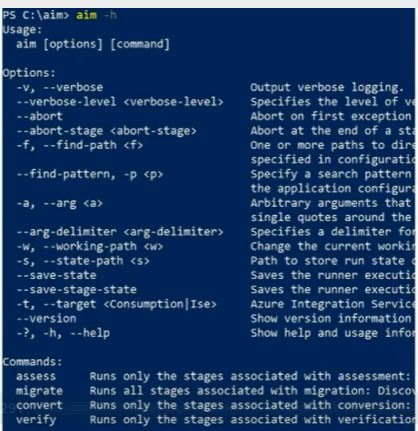
Migration Tool has other command line options
- Migrate: This command will execute the following stages in migration process
- Discover
- Parse
- Analyze
- Report
Convert: Runs only the stages associated with conversion stage
Verify: Runs only the stages associated with verification stage
Migration Report
Azure Integration Migration Tool will generate report with detailed information about
- Discovered Resources
- Each Application Artifacts migration – for example FTP Adapter is migrating to FTP Connector in Azure, some manual intervention is needed to authenticate the FTP Server
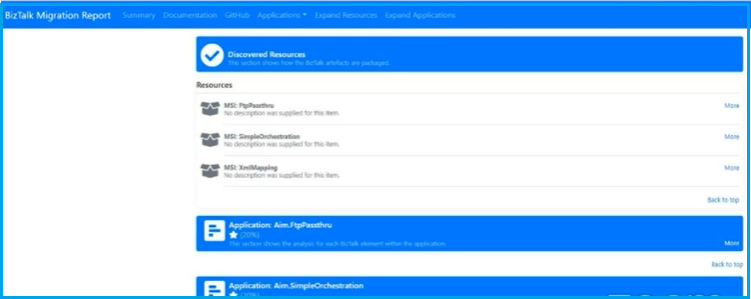
Migration Path
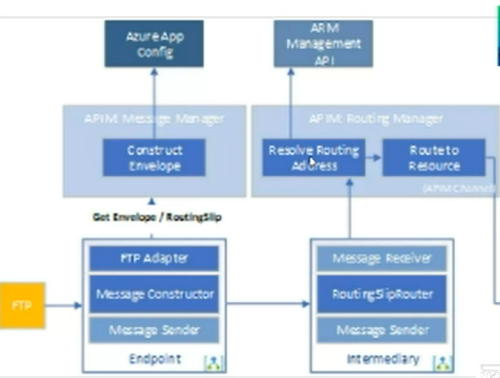
Next, speaker explains how the resources are associated in Azure. Explained how Logic Apps able to send message using FTP and other connectors, how will use Routing to upload to the subscriber(s). For Example, Logic Apps use the Integration Account to converted Flat File schema into XML Schema.
Service Bus Topics
Demonstrated content-based routing and abilities to use context properties with the Service Bus Topics and APIM Routing Manager.
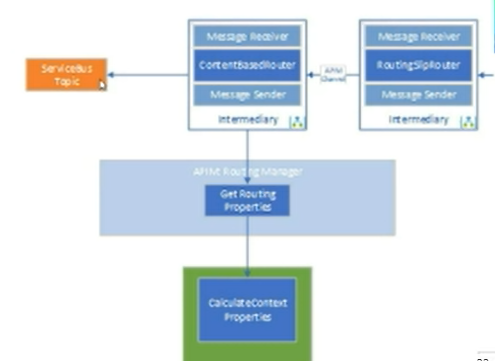
It is initial migration tool with basic information being migrated to Azure. There are gaps needs to be filled based on the customer feedback. BizTalk to Azure Integration Migration Tool is opened source and user can extensible the tool to migrate the BizTalk Applications to Azure.
- BRE is not part of migration tool
- EDI(X12), EDIFACT is not possible now
Conclusion
Microsoft has encouraged the customers of BizTalk On-premise to use the latest Azure Technologies. AIM is in initial phase to migrate the BizTalk Solutions from on-prem to Cloud. Future will be focused on Cloud Native + Hybrid integration.
The post BizTalk 2020 and Beyond appeared first on BizTalk360.
by Priyadharshini | Jun 1, 2020 | BizTalk Community Blogs via Syndication
Introduction
This blog is an extraction of the session “BizTalk Server 2020 – Migration Path” presented by Sandro Pereira at Integrate 2020.
Back in January 2020, Microsoft announced the availability of BizTalk Server 2020 for public release with lots of exciting features and enhancements. It’s the time to migrate to the new version to enjoy the features. Sandro, Microsoft Azure MVP talks about the upgrade process, key information, and step-by-step instructions for upgrading from any of the previous BizTalk Server version. It also covers the reasons to upgrade to BizTalk Server 2020.
Why should you upgrade your BizTalk Platform?
People in the Integration space would always remember the BizTalk stickers that they receive from Sandro and here it is for BizTalk 2020.
Here are a few reasons:
- Lots of support
- If you are in an older version of BizTalk, then it’s time for you to migrate for continuous support especially the Enterprise clients.
- Environmental constraints
- BizTalk Server heavily depends on performance of the Windows server and SQL server. It’s time to upgrade for better performance
- New features
- Every release of BizTalk comes with a bunch of exciting features for Hybrid Integration
- Support for TLS 1.2
- Support for XSLT 3.0 which is a feature asked for many years
- More privacy and security for GDPR
- Feature packs
- New features can be added through the feature packs, so you need not wait for 3 to 4 years for the new features
- Move to cloud
- Ability to run on Azure VM as IaaS
- Administrator and Developer productivity enhancements
- New Visual Studio console features
What are the migration options?
- Migrate to Azure
- Migrate to BizTalk Server 2020
Migrate to Azure
- Hosted Azure Servers
- This is the easy option as most of them run BizTalk on the Azure VMs. There are options of high availability and, they can be hosted in various regions.
- Migrating to Azure Services
This is completely moving out of BizTalk. All the BizTalk related artefacts will be migrated to the Azure services. It is a complete redesign of the Integration solution. For example, there will be no MessageBox and Service Bus needs to be used to persist the messages. It is a difficult option even with the new BizTalk Migration Tool.
BizTalk Server has a rapid release cadence of major version every 2/3 years with radical changes. Azure is completely different. BizTalk server with the long release history is very stable. On the other hand, there is release for Azure every week and the features get deprecated. There is no one to one mapping in Azure. The process on arrival needs to be improved in Azure. There are some interesting options still missing in Azure like Business Rules.
BizTalk 2020 Migration

In- Place Upgrade
Here is the list of the supported and unsupported migration options:
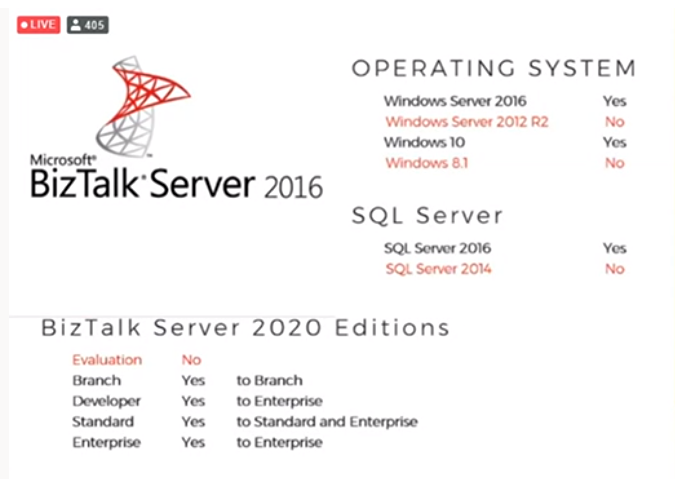
There are few constraints like the SQL Adapter that has been deprecated, TIBCO Enterprise Message Adapter has been removed and the RosettaNet has issues in BizTalk 202 for which the hotfix needs to be installed for smooth functioning.
Migrate to the brand-new environment
The AS-IS migration
This is without any non-mandatory changes. The .Net framework needs to be changed, the deployment properties need to fix and the solution to be rebuilt.
Migrate and Improve
This needs to be done on the analysis of the business requirements and what needs to be improved on the solution side. This requires more prolonged version of testing as lot of improvements would be added and for the integration between different teams.
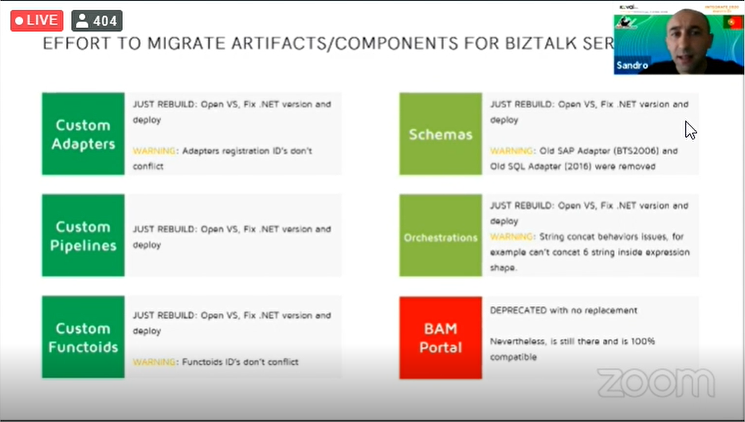
With his experience of more than 16 years working in BizTalk, Sandro shares the statistics on the effort of different migration options.
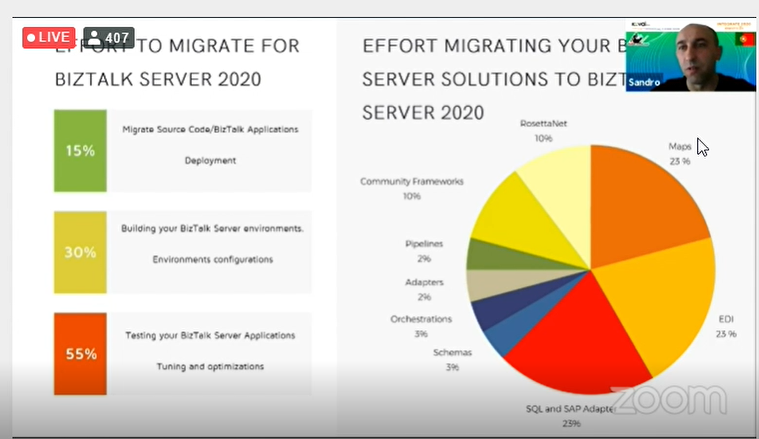
There are some pain points while migrating the BizTalk Server artifacts/components.
- Mappings will be critical
- Older versions are difficult to migrate
- SAP adapter is removed. So, all generated schemas need to be recreated
- EDI might have problems. Because of TPM, parties cannot be directly migrated. You will need to use the BizTalk Server Party Migration Tool
- BTDF is not available
- RFID and Human workflows are removed
- BRE is a simple export/import
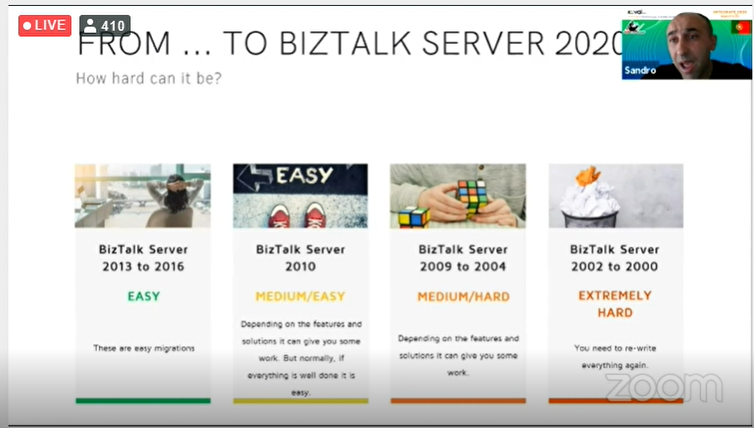
How easy is the migration from the older versions
Wrap Up
Hope the insights on the BizTalk Server 2020 gives a clear picture on the migration path. Sandro and Tom Canter are working on the book on the BizTalk2020 Migration which would be available soon.
Happy migrating!
The post BizTalk Server – 2020 Migration Path appeared first on BizTalk360.

by Sandro Pereira | Jun 1, 2020 | BizTalk Community Blogs via Syndication
INTEGRATE (formerly known as BizTalk Summit) is the primary conference for professionals working in the Microsoft Integration space and once again is back this time REMOTE due to the COVID-19 issue around the word. It will be the first-ever INTEGRATE REMOTE conference that will happen from June 1 to 3, 28 speakers – 12 MVPs, 15 Microsoft PM and 1 former MVP – will address the entire Microsoft Integration Platform landscape on topics like BizTalk Server, Logic Apps, Service Bus, Event Grid, Event Hubs, Power Automate, API Management, Azure Functions and many more.
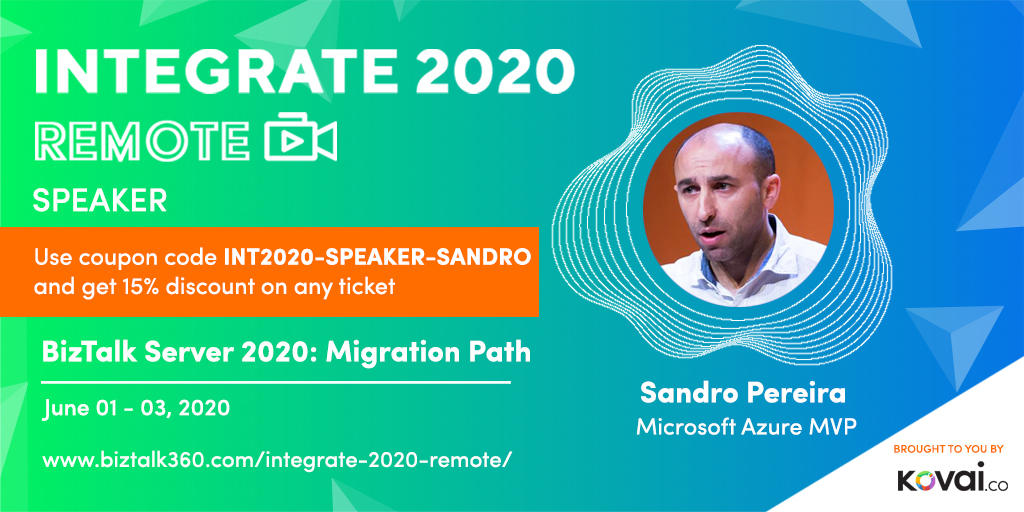
And once again I will be there delivering a session – since the first BizTalk Summit event, I’m a constant presence as a speaker at these events – about BizTalk Server! This time on a session about: Migration Path to BizTalk Server 2020.
About my session
Session Name: BizTalk Server 2020: Migration Path
The goal of this session to demystify and clarify the BizTalk Server migration process and help both implementation teams as decision-makers to be aware of all the considerations that need to be taken into account when planning your migration to BizTalk Server 2020 and hopefully helping you carry out these tasks.
INTEGRATE 2020 Remote Registration
You are still on time to register for the conference here. Use my coupon discount INT2020-SPEAKER-SANDRO to get 15% discount!
The post Join me at INTEGRATE 2020 Remote | JUNE 1-3, 2020 | BizTalk Server 2020: Migration Path appeared first on SANDRO PEREIRA BIZTALK BLOG.
by Sandro Pereira | May 14, 2020 | BizTalk Community Blogs via Syndication
Today we will address the last suite of functoids that are part of the BizTalk Mapper Extensions UtilityPack project available for BizTalk Server 2020: Math Functoids. And with this blog post, we finally arrive to the end of this project migration.
Math Functoids
This library includes a suite of functoids to perform a variety of basic mathematical operations that you can use this inside BizTalk mapper.
This project includes the following Custom Functoids:
- Negate Number Functoid: Use Negate Functoif to return the input double as its negated form.
- This functoid requires one input parameter:
- A number (double or int) to be negated;
- The output result will be the input value in his negative form. If it’s positive, it will return as negative and vice-versa.
- Examples:
- Input 1 >>> Output = -1
- Input -23,09 >>> Output = 23,09
- Input 0 >>> Output = 0
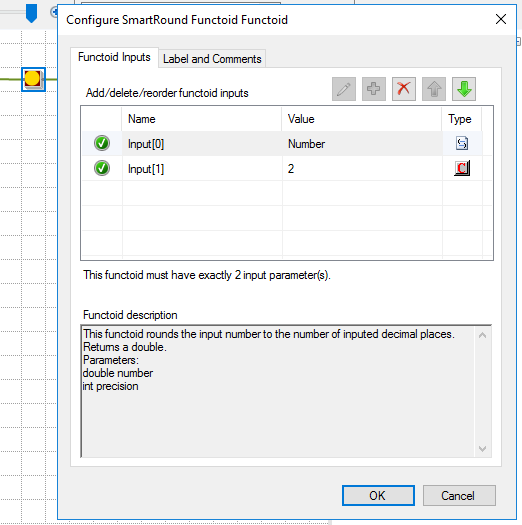
- SmartRound Functoid: Use SmartRound to return the rounded double, by the second parameter input.
- The functoid takes two mandatory input parameters:
- Parameter 1: Number to be rounded (double or int)
- Parameter 2: Number to decimals places
- The output of the functoid will be the input number rounded up or down to the specified decimal places.
- Examples:
- Input 23 rounded to 2 >>> Output = 23,00
- Input 24,005900 rounded to 3 >>> Output = 24,006
BizTalk Mapper Extensions UtilityPack
BizTalk Mapper Extensions UtilityPack is a set of libraries with several useful functoids to include and use it in a map, which will provide an extension of BizTalk Mapper capabilities.
Where to download?
You can download this functoid along with all the existing one on the BizTalk Mapper Extensions UtilityPack here:
BizTalk Mapper Extensions UtilityPack
GitHub
The post BizTalk Mapper Extensions UtilityPack: Math Functoids for BizTalk Server 2020 appeared first on SANDRO PEREIRA BIZTALK BLOG.

by Sandro Pereira | May 13, 2020 | BizTalk Community Blogs via Syndication
Today we will focus on another set of libraries available for BizTalk Server 2020: Database Functoids. This is part of the BizTalk Mapper Extensions UtilityPack project migration task I been doing in the last few days.
Database Functoids
This library includes a suite of functoids to perform a variety of database operations, mainly to extract data from a database for use in an output instance message.
This project includes the following Custom Functoids:
- Adv Database Lookup Functoid: Use the Adv Database Lookup functoid to extract information from a database and store it as a Microsoft ActiveX Data Objects (ADO) recordset.
- This functoid requires the following 3 inputs:
- a database connection string;
- A table name;
- and a WHERE clause.
- Returns a recordset containing the result records.
- Adv Value Extractor: Use the Adv Value Extractor functoid to extract the appropriate column value from a recordset returned by the Adv Database Lookup function.
- This functoid requires two inputs parameters:
- a link to the Adv Database Lookup functoid;
- and a column name.
- Returns a string with the value of the specified column;
BizTalk Mapper Extensions UtilityPack
BizTalk Mapper Extensions UtilityPack is a set of libraries with several useful functoids to include and use it in a map, which will provide an extension of BizTalk Mapper capabilities.
Where to download?
You can download this functoid along with all the existing one on the BizTalk Mapper Extensions UtilityPack here:
BizTalk Mapper Extensions UtilityPack
GitHub
The post BizTalk Mapper Extensions UtilityPack: Database Functoids for BizTalk Server 2020 appeared first on SANDRO PEREIRA BIZTALK BLOG.
by Sandro Pereira | May 12, 2020 | BizTalk Community Blogs via Syndication
In the last blog post, we analysed two of the basic features of BizTalk NoS Ultimate – Expand solution and Wild Card Search. Today, we will continue to analyze the list of available features present in this Visual Studio extension, focusing on the report capabilities of BizTalk NoS Ultimate.
Reflector
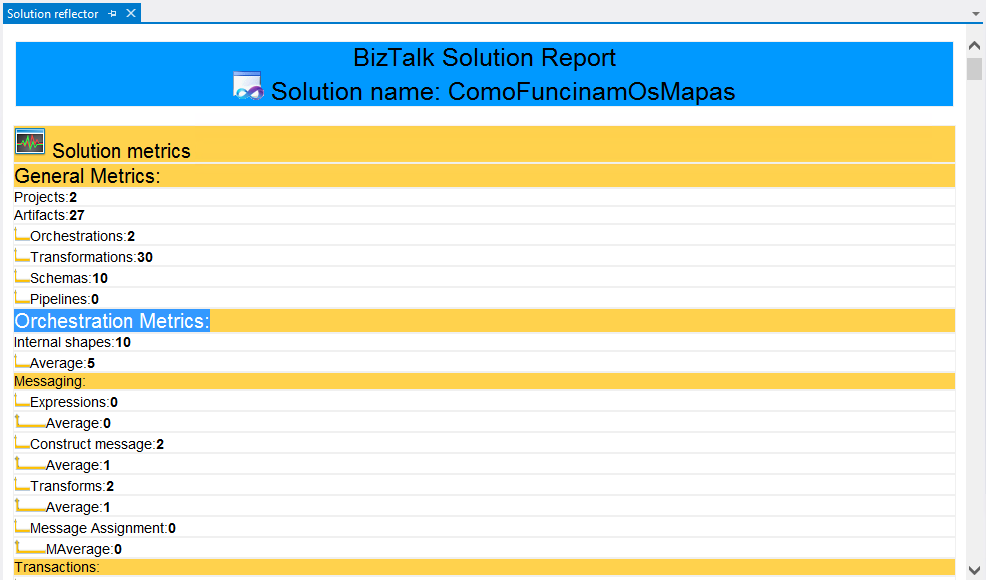
This feature will create a report with a lot of useful information about your entire solution or for a particular project for analysis. It will provide some statistics and metrics, for example:
-
- Solution metrics – number of projects, artifacts, orchestrations, transformation, schemas, and pipelines
- Artifact metrics – Information about the average Kilo bytes used by the artifact in memory or some metrics to understand the complexity of the artifact (orchestration, map and so on)
But, also information about:
-
-
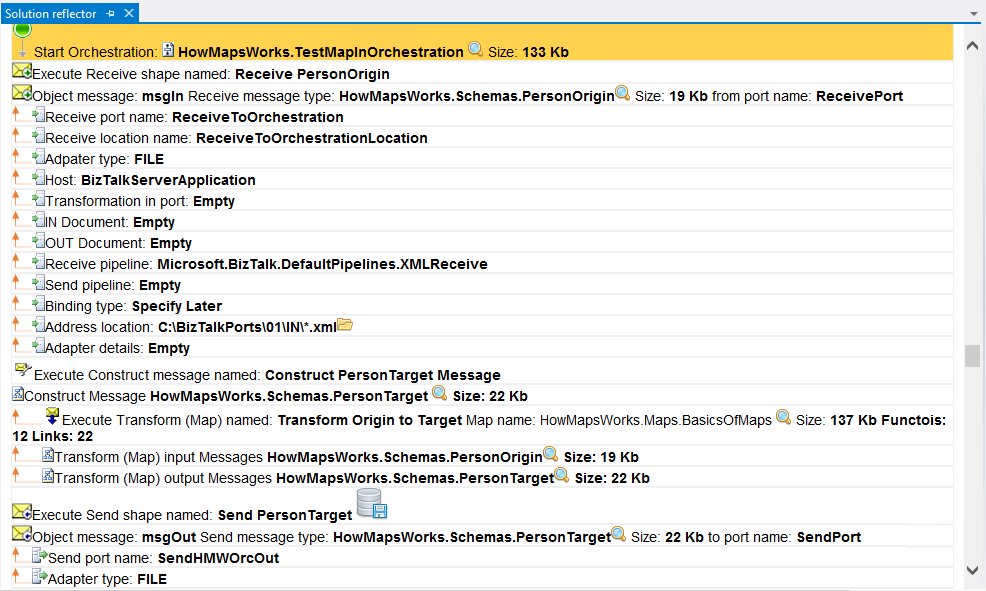
- Which artifact is using this artifact or what is this artifact doing (very useful with orchestrations)
- Show all the information like:
- Artifact dependencies
- Which port(s) is/are using this orchestration or schema or map?
- How many shapes exist in the orchestration or how many Transactions (Atomic, Long-Running) exist, Compensation, or Error handling?
- How many Construct messages or even how many transformations?
- How many Functoids or links exist inside a transformation?
- And so on
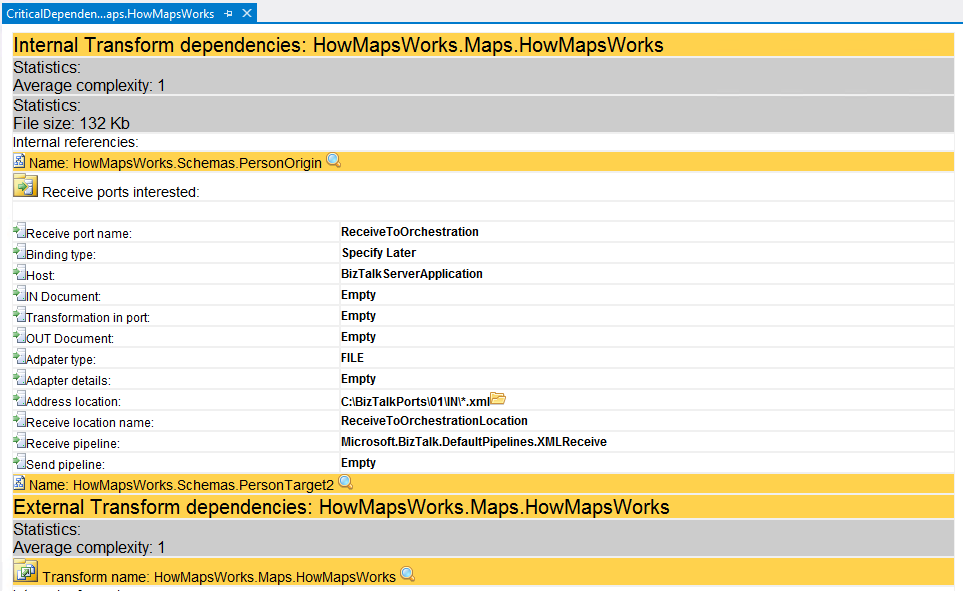
This is basically an interactive report or documentation of your solution. Interactive, because you can interact with the report and it will automatically open the artifact while you are reading it. You can open the directory, maps, orchestrations, schemas, and so on directly from the report.
The reflector can be used at all levels of your solution, from a simple artifact, a single project or just to produce a full report of your entire solution. The last means that you will have a report of all of the artifacts in the solution).
This also can be used to produce good documentation of your BizTalk Projects.
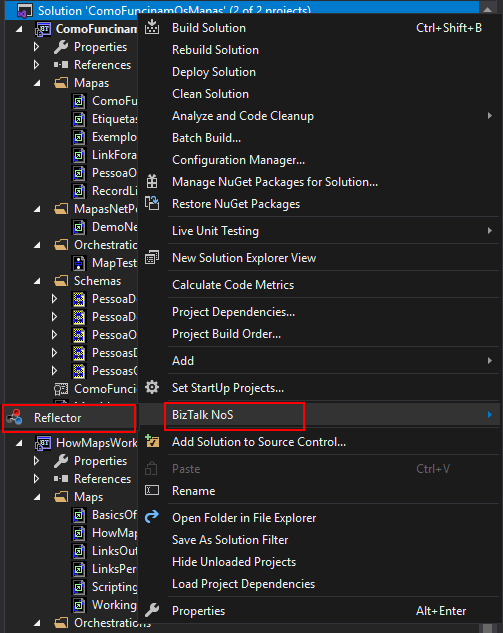
You can access this feature by:
- Right-click on your solution/project or artifact name, expand BizTalk NoS and select the Reflector option
Refactor
Similar to the Reflector feature, however, the Refactory will create a more simple report with a circular reference (internal and external) with other artifacts that can be very useful to understand the refactory strategy to use.
Another difference is that this report can only be made at the artifact level (orchestrations, pipelines, maps, and schemas). It isn’t available at the solution or project level.
You can accomplish this by access this feature by:
- Right-click on your artifact (Orchestration, map, schema…), expand the BizTalk NoS Reporting and select the Refactor option
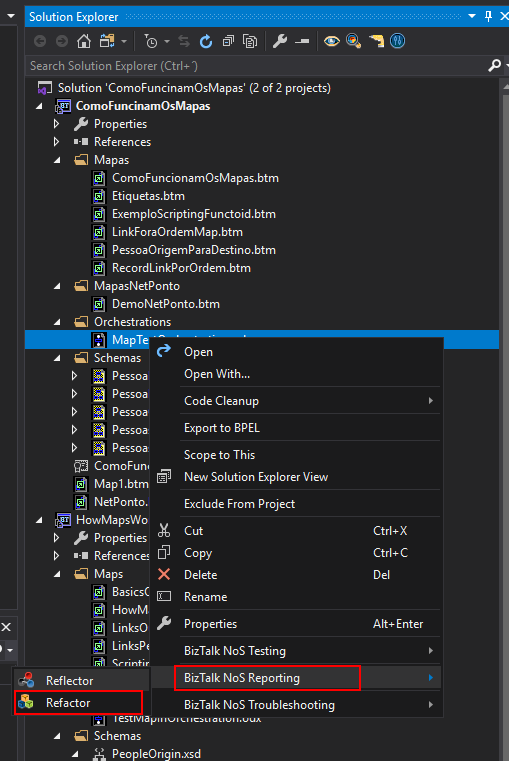
This feature will provide some statistics and information about:
- Which artifact(s) is/are using this artifact
- Which artifact(s) is/are consumed by this resource
- Some general information like complexity, persistence points and error handling (in orchestrations), and so on.
I hope you are enjoying these features and stay tuned because this extension has more! Feel free to try this amazing extension for BizTalk Server here: Download BizTalk NoS Ultimate for BizTalk Server 2020.
The post BizTalk NoS Ultimate: Features Overview (Part II) appeared first on BizTalk360.