Configuring polling interval is the most requested feature from our customers, therefore we have introduced the same in our latest version. This feature will ease the monitoring capability of web endpoints, Azure services from BizTalk360. Consider, there is a situation where your application in BizTalk Server relays on external endpoints and it is crucial to make sure the status of the web endpoints all the time. With the monitoring capability in BizTalk360, you can monitor HTTP, SOAP, REST-based web services easily and get to know when your endpoint URL is not active. Likely, we can think of many scenarios where there are monitoring requirements for your BizTalk server.
Existing System
BizTalk360 Monitoring service is the main component where it looks through your BizTalk environment to ensure a safe day to day business transactions. The frequency of the monitoring service poll is controlled by setting the polling interval. Until the previous version, the polling interval value is not changeable by the users since it is defined in the internal code level. By default, the frequency is 60 secs.
Some customers don’t want monitoring service poll every minute for a few components during monitoring. For Example, consider external web endpoint is enabled for monitoring, therefore monitoring service will hit the external web services/server every minute to check the status. This frequent hit may slow down the performance in the servers where the endpoints are hosted.
To avoid the frequent hit on the server, new functionality has been implemented in BizTalk360 as “Manage Polling Interval”.
What is the New Change?
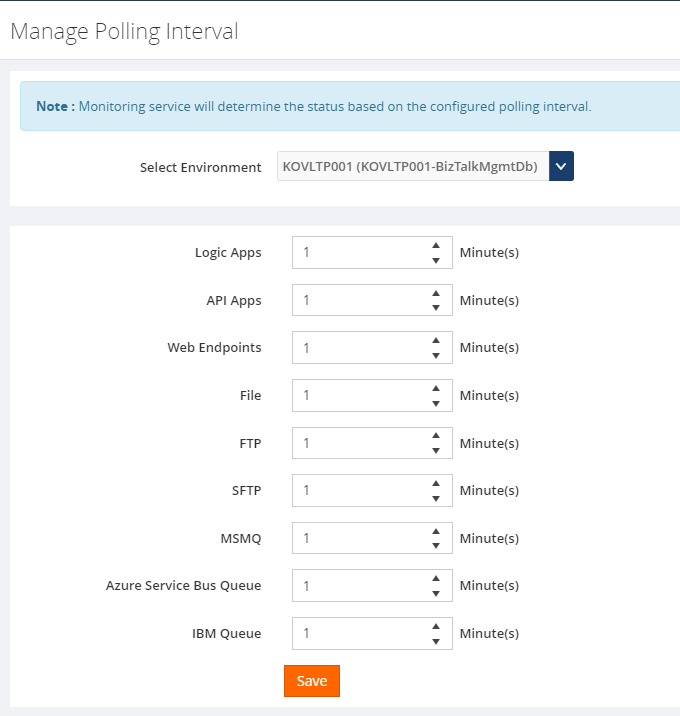
We have introduced a new section “Manage Polling interval” (Settings -> Monitoring Notification -> Manage Polling interval) where it holds default polling interval (60 secs) for the components, Logic Apps, API Apps, Web Endpoints, File, FTP, SFTP, MSMQ, Azure Service Bus Queue, IBM Queue. Users are privileged to configure the polling intervals based on their business needs as per the below screenshot.
Let us consider an example scenario where as a user, you want to monitor the web endpoint which your BizTalk applications consume from the external web services and you want the endpoint to be always up and running without any downtime.
This business need will be easily achievable through BizTalk360 just by creating and mapping the endpoints to the alarm.
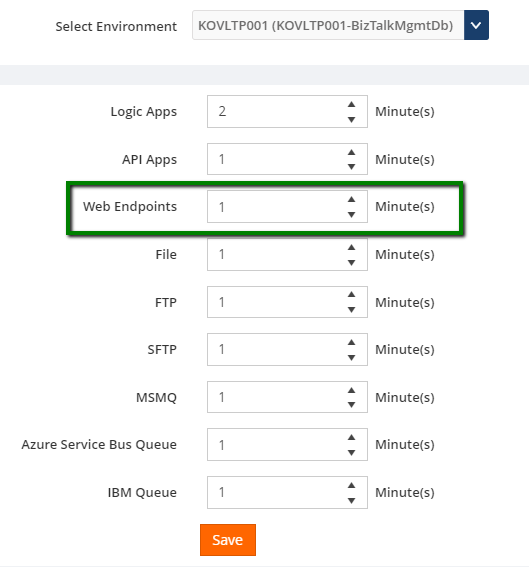
From this very moment, the BizTalk360 monitoring service will take care of the monitoring every minute. At any point in time, if you don’t want the monitoring for every minute, you can change the polling interval for the web endpoint. If the setting is changed to 5 minutes, then the monitoring service will look at the endpoint status every 5 minutes and trigger the email alerts.
Endpoint Level Polling Interval Configuration
This is another interesting capability BizTalk360 provides, where users can set the polling interval per web endpoint level by overriding the global configuration. This feature will facilitate the customer to configure different polling intervals for different endpoints configured for their BizTalk Applications.
As an example, consider there are two endpoints configured for Monitoring in BizTalk360 and you want to check the status of both the endpoints in different polling intervals. Say 1 in every 15 mins, other in every 30 mins.
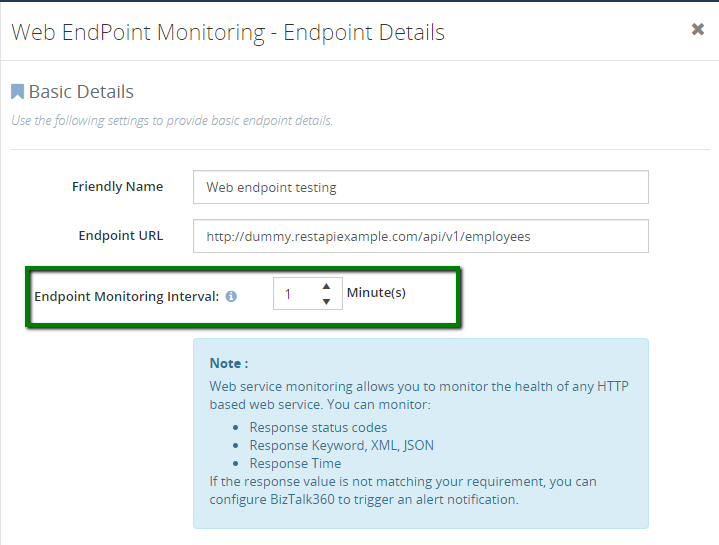
As mentioned in the previous section, polling interval can be configured in the settings level but to achieve this scenario there is a specific option “Endpoint Monitoring interval” provided in the web point configuration screen for every endpoint as mentioned in the below screenshot. Monitoring service will give priority to this value for web endpoints rather than the global configuration settings.
Conclusion
With this new capability, users can configure their own polling interval for the components which will ease the monitoring capability of their BizTalk Environment. Why not give BizTalk360 a try! It takes about 10 minutes to install on your BizTalk environments and you can witness and check the security and productivity of your BizTalk environments.
Do you feel difficult to keep up to date on all the frequent updates and announcements in the Microsoft Integration platform and Azure iPaaS?
Integration weekly update can be your solution. It’s a weekly update on the topics related to Integration – enterprise integration, robust & scalable messaging capabilities and Citizen Integration capabilities empowered by Microsoft platform to deliver value to the business.
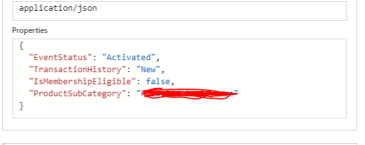
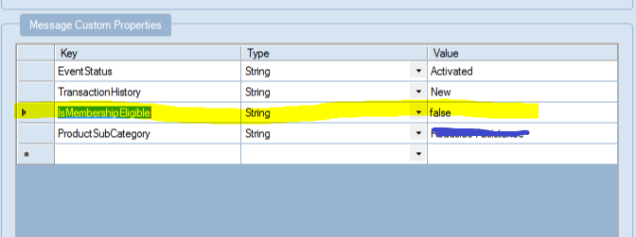
Recently I found that there is an issue with the Service Bus connector sending custom message header to the topics/subscription. The issue is the connector treat the text as string in spite of providing numeric or boolean values.
According to the below link
If the content is true or false (case-sensitive!), then the broker treats it as a System.Boolean with the corresponding value.
If the content can be parsed as an integer, then the broker treats it as a System.Int64.
I have got an update from the Microsoft Logic App product group acknowledging it as a bug fix of Service Bus connector treating all properties key value pairs as strings and they are actively working on it. The fix might be available in next year Jan.
BizTalk Pipeline Components Extensions Utility Pack community project for BizTalk Server 2016, once again, got a new update and it now has a new component that you can use in your custom BizTalk Server pipelines: Local Archive Pipeline Component.
Local Archive Pipeline
Component
BizTalk Server Local Archive pipeline component it’s a
pipeline component that can be used for archiving incoming/outgoing message
from any adapters. It will provide the following capabilities:
It can be used in any stage of a receive pipeline or send pipeline;
It can be used in multiple stages of a receive pipeline or send pipeline;
It provides an option for you to specify the location path for where you want to save the message: local folder, shared folder, network folder.
It can be used from any adapter:
If the adapter provides the ReceivedFileName property promoted like the File adapter or FTP adapter the component will take this value in consideration and save the message with the same name;
Otherwise, it will use the MessageID, saving the file with the MessageID has its name without extension.
public Microsoft.BizTalk.Message.Interop.IBaseMessage Execute(Microsoft.BizTalk.Component.Interop.IPipelineContext pc, Microsoft.BizTalk.Message.Interop.IBaseMessage inmsg)
{
//
// TODO: implement component logic
//
// this way, it's a passthrough pipeline component
if (this.PerformBackup)
{
try
{
//Get Message Id
Guid msgId = inmsg.MessageID;
//Get Filename by FileAdapter NS
string fileName = inmsg.Context.Read("ReceivedFileName", "http://schemas.microsoft.com/BizTalk/2003/file-properties").ToString();
if (string.IsNullOrEmpty(fileName))
{
fileName = inmsg.Context.Read("ReceivedFileName", "http://schemas.microsoft.com/BizTalk/2003/ftp-properties").ToString();
if (string.IsNullOrEmpty(fileName))
{
fileName = msgId.ToString();
}
}
if (!new DirectoryInfo(this.Folder).Exists)
{
try
{
Directory.CreateDirectory(this.Folder);
}
catch
{
throw;
}
}
SaveStreamToFile(inmsg.BodyPart.Data, fileName, true);
inmsg.BodyPart.Data.Position = 0;
}
catch
{
throw;
}
}
return inmsg;
}
What is BizTalk Pipeline Components Extensions Utility
Pack?
BizTalk Pipeline Components Extensions Utility Pack is
a set of custom pipeline components (libraries) with several custom pipeline
components that can be used in received and sent pipelines, which will provide
an extension of BizTalk out-of-the-box pipeline capabilities.
Do you feel difficult to keep up to date on all the frequent updates and announcements in the Microsoft Integration platform and Azure iPaaS?
Integration weekly update can be your solution. It’s a weekly update on the topics related to Integration – enterprise integration, robust & scalable messaging capabilities and Citizen Integration capabilities empowered by Microsoft platform to deliver value to the business.
If you want to receive these updates weekly, then don’t forget to Subscribe!
At the beginning of this week I ask on twitter what should be the topic of my next blog posts: BizTalk Server and JSON support or Azure Logic Apps. And the majority of the replies was: BizTalk Server and better JSON support.
For that reason, I will respect my reader’s decision and I will be releasing today a new addition to my BizTalk Pipeline Components Extensions Utility Pack community project for BizTalk Server 2016: Custom JSON Encoder Pipeline Component.
You may be asking yourself: this component already exists by default in BizTalk Server 2016, so why we need another?
Yes, Microsoft provides out-of-the-box a JSON Encoder to transform the XML messages into a JSON message and sends it out. But, unfortunately, in some cases, it doesn’t work as you should expect to work and it will fail, in my case with this error:
Reason: Value cannot be null. Parameter name: key
And in reality what I just want is a simple way, that, I hope, it would work for all scenarios (aka XML messages) in a simple and effective way.
JSON Encoder Pipeline Component
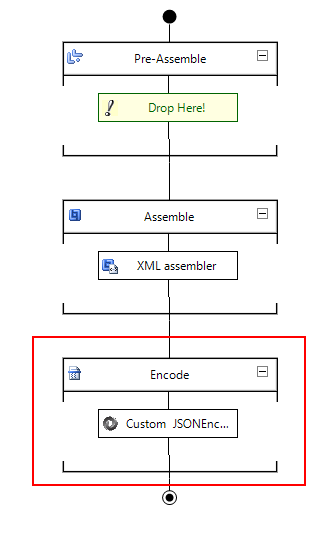
The Custom JSON Encoder is a pipeline component for BizTalk Server which can be used in a Send Pipeline (Encode stage) to encode any XML message into a JSON equivalent in a simple and effective way.
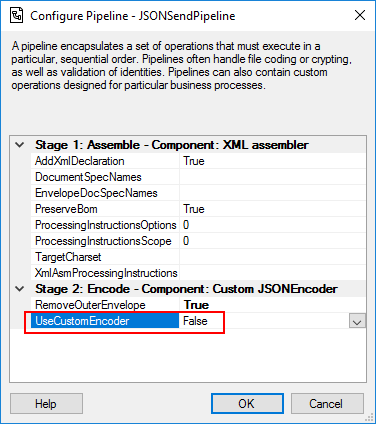
Because I would like to have a choice between using the default pipeline component provide by Microsoft, at least the internal behavior, this pipeline component is an extension of the default JSON Encoder pipeline component and fully compatible with it and you will be able from the BizTalk Administration console you will be able to decide if:
You want to use
the behavior of the default JSON Encoder pipeline component provide by
Microsoft by setting the UseCustomEncoder property to False;
or use the custom
behavior to generate the JSON message by setting the UseCustomEncoder property
to True;
What is BizTalk Pipeline Components
Extensions Utility Pack?
BizTalk Pipeline Components Extensions Utility Pack is a set of custom pipeline
components (libraries) with several custom pipeline components that can be used
in received and sent pipelines, which will provide an extension of BizTalk
out-of-the-box pipeline capabilities.
Do you feel difficult to keep up to date on all the frequent updates and announcements in the Microsoft Integration platform and Azure iPaaS?
Integration weekly update can be your solution. It’s a weekly update on the topics related to Integration – enterprise integration, robust & scalable messaging capabilities and Citizen Integration capabilities empowered by Microsoft platform to deliver value to the business.
If you want to receive these updates weekly, then don’t forget to Subscribe!
Have you ever found yourself in a position where you
needed to understand how a particular BizTalk solution works? And to make
matters worse, the majority of the solution is implemented based on content-based
routing?
Routing Messages in BizTalk
Server
So first, what is this: Content-Based routing?
Don’t get me wrong the definition that I will provide because there are several Message Routing Patterns that you can implement in BizTalk Server. For example, you can implement in BizTalk Server a:
So in his essence, the subscriber will subscribe to
the messages based on Content-Based Routing.
And you may say: yes, but I can route a message without examining is content.
And you are right. The problem is the default
definition of this pattern:
As the names
describe, Content-Based Router examines the message content and routes the
message onto a different channel based on data contained in the message. For
example, routing a message based on specif values of specif fields, or based on
some criteria like existing fields.
However, as I told you before, a message in BizTalk
Server is always composed by the message itself and the metadata
associated with it. And for that reason, you may found other variations or
other names like:
Context-Based
Routing: Context-Based Routing is similar to the previous
one, but instead of analyzing the content of the message, it will analyze the
metadata of the message. This information, in BizTalk Server, is normally
created on the receive port by the adapter and pipelines.
Remember that I
can promote messages to the context of the message and route them;
Message-Based
Routing: that is normally defined when:
a message is
routed by BizTalk only based on the message type;
But this is
metadata associated in the message, and you need to inspect the message to get
is type;
or in pass-thru
scenarios when you are just redirecting the message to other systems, i.e.,
BizTalk is a broker and don’t “touch” or modify the message;
But these
filters are also associated with metadata of the message;
The problem of managing these
solutions
If you have found yourself managing solutions, that
majority is implemented with content-based routing, which is usually associated
with not using orchestrations. You know that is not easy to understand the solution:
What ports are subscribing
to the messages?
In which
conditions?
In which application?
But that’s not all. Even worse if you have
orchestrations using filters based on the content/context of the message in the
activation.
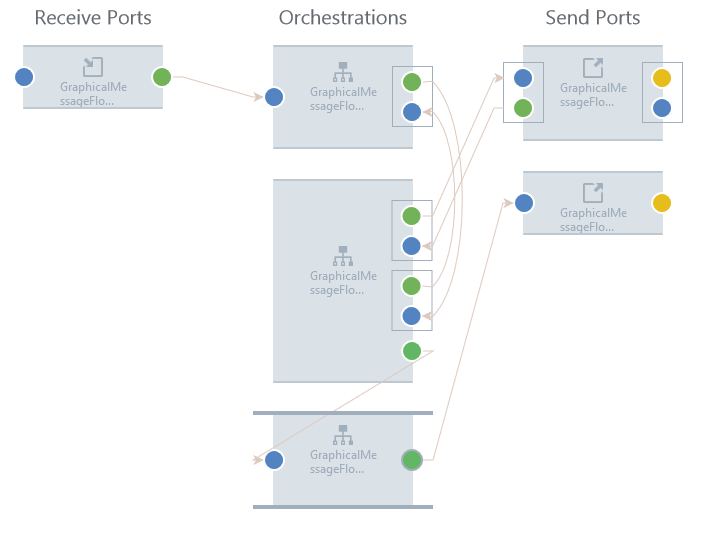
This kind of analyze is hard because BizTalk Server
Administration Console doesn’t provide an easy way out-of-the-box for you to
see these subscriptions for example in a central place or in a visual diagram
like:
This picture is actually from BizTalk360 Graphical Message Flow, but it serves well here as prof-of-concept.
The default solution
So the default solution that you have out-of-the-box
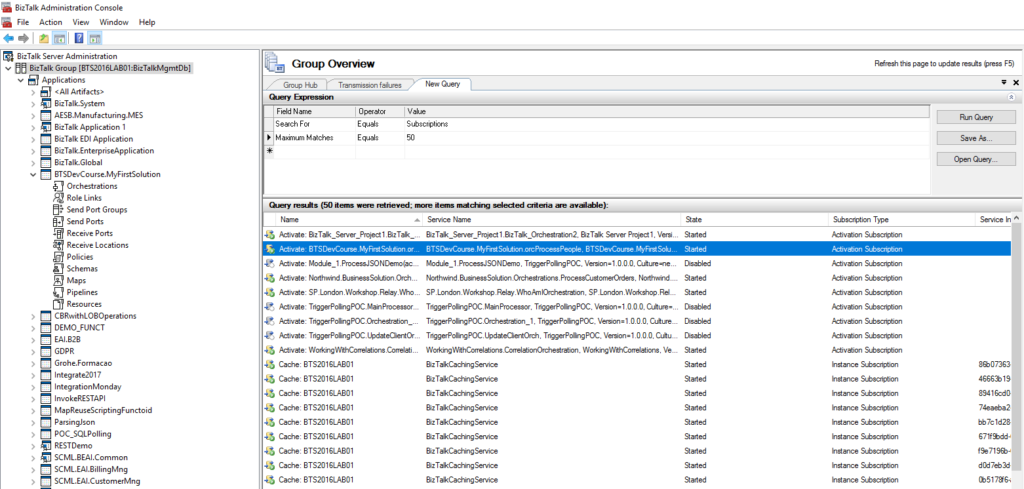
with the product is to query the subscription from the BizTalk Server
Administration Console by:
In the console
tree, expand BizTalk Server Administration, and then click the BizTalk group.
In the details
pane, click the New Query tab.
In the Query
Expression group, in the Value column, select Subscriptions from the drop-down
list box.
But then you need to go one by one and see what the
filters are.
You can minimize this by filtering more the query
using the following filters:
Maximum Matches:
The number of matches to display.
Service Instance
ID: You can filter subscriptions by service instance ID.
Service Name: You
can filter subscriptions by service name.
Subscription
Type: You can filter subscriptions by Activation Subscription or Instance
Subscription.
But that will not solve all your problems also. In conclusion, this is a hard and time-consuming task.
And sometimes what I need is just to have a quick
overview of all these filters.
BizTalk Filter Finder Tool
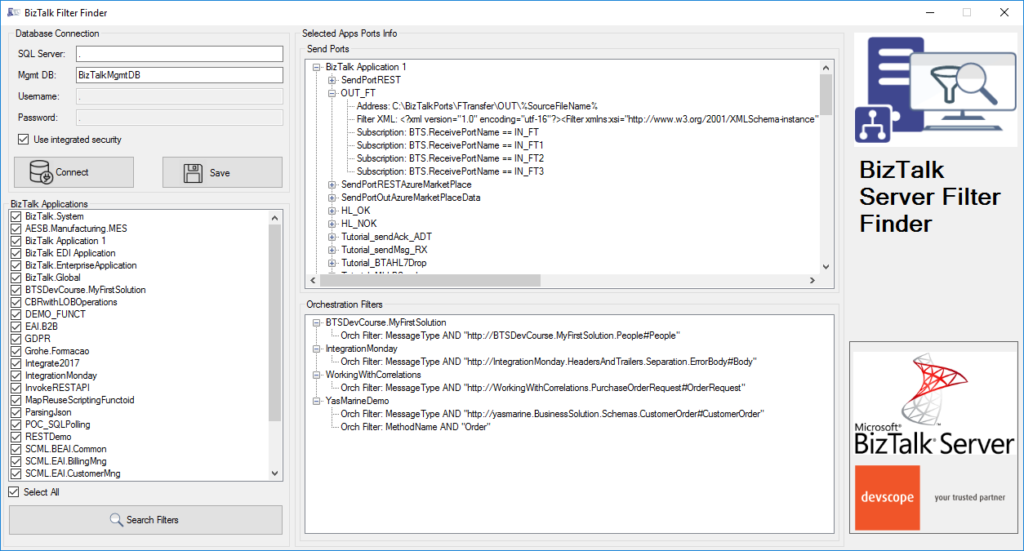
“BizTalk Filter Finder Tool” is a simple tool that
aims to simplify the process for better understand and maintain solutions based
on content-based routing. By allowing you to have a quick overview of all the
artifacts, send ports or orchestrations that have filters associated.
This tool will extend default BizTalk Server
capabilities transforming this tedious and sometimes complicate analyze a
little simple, easy and fast.
It way not be an amazing tool; it may not be beautiful
but for me is a timesaver tool.
Credits also to my team member at DevScope, Pedro Almeida that collaborated with me in the development of this tool.
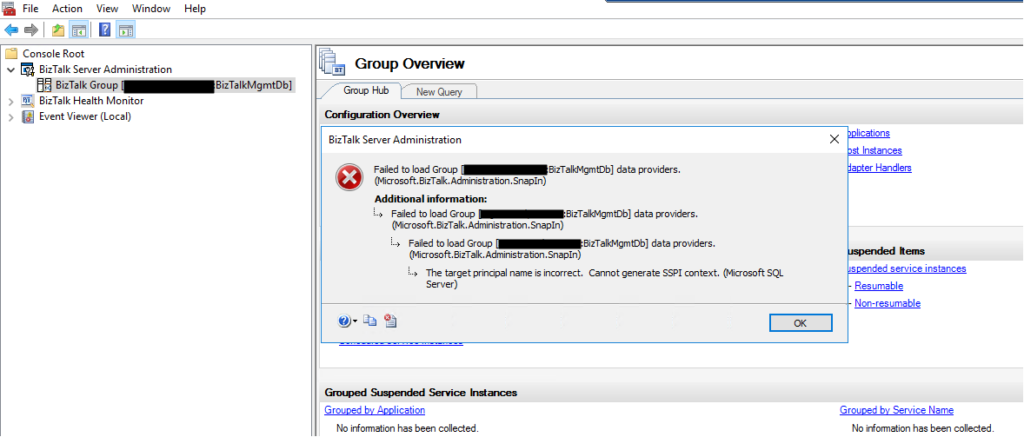
Without a doubt, today I encountered one of the most bizarre situations in the BizTalk Server Administration Console: The target principal name is incorrect. Cannot generate SSPI context. (Microsoft SQL Server, Error: 0). And believe me, I been here along time.
Everything
was working fine, and I was normally working on the environment until I try to
refresh the BizTalk Server Administration Console and I got the following
error:
TITLE: BizTalk Server Administration
——————————
Failed to load Group [SQLSERVERNAMEINSTANCE:BizTalkMgmtDb] data providers. (Microsoft.BizTalk.Administration.SnapIn)
For help, click: http://go.microsoft.com/fwlink/?LinkId=47400&ProdName=Microsoft+BizTalk+Server+2016&ProdVer=3.12.774.0&EvtSrc=Microsoft.BizTalk.Administration.SnapIn.Properties.Errors&EvtID=FailedLoadingGroupProviders&EvtChain=Microsoft.BizTalk.Administration.SnapIn.Properties.Errors+%2cFailedLoadingGroupProviders%3bMicrosoft.BizTalk.Administration.SnapIn.Properties.Errors+%2cFailedLoadingGroupProviders%3bMSSQLServer+%2c0
——————————
ADDITIONAL INFORMATION:
Failed to load Group [SQLSERVERNAMEINSTANCE:BizTalkMgmtDb] data providers. (Microsoft.BizTalk.Administration.SnapIn)
For help, click: http://go.microsoft.com/fwlink/?LinkId=47400&ProdName=Microsoft+BizTalk+Server+2016&ProdVer=3.12.774.0&EvtSrc=Microsoft.BizTalk.Administration.SnapIn.Properties.Errors&EvtID=FailedLoadingGroupProviders&EvtChain=Microsoft.BizTalk.Administration.SnapIn.Properties.Errors+%2cFailedLoadingGroupProviders%3bMSSQLServer+%2c0
——————————
Failed to load Group [SQLSERVERNAMEINSTANCE:BizTalkMgmtDb] data providers. (Microsoft.BizTalk.Administration.SnapIn)
For help, click: http://go.microsoft.com/fwlink/?LinkId=47400&ProdName=Microsoft+BizTalk+Server+2016&ProdVer=3.12.774.0&EvtSrc=Microsoft.BizTalk.Administration.SnapIn.Properties.Errors&EvtID=FailedLoadingGroupProviders&EvtChain=MSSQLServer+%2c0
——————————
The target principal name is incorrect. Cannot generate SSPI context. (Microsoft SQL Server, Error: 0)
For help, click: http://go.microsoft.com/fwlink?ProdName=Microsoft+SQL+Server&EvtSrc=MSSQLServer&EvtID=0&LinkId=20476
——————————
BUTTONS:
OK
——————————
But let me give some context because problems
will not happen without any reason. I was normally working with the BizTalk
Server Administration Console until I got a notification that my password would
expire in 5 days and at the same time suggesting for me to change right away
and… I did that for once in my life, I follow the recommendation and do not
wait any longer to change the password.
Once I successfully update my password and remote
access once again to my environment I started getting this issue in the admin
console.
Cause
In a way, unfortunately, after I successfully update my password and remote access once again to my environment, I didn’t go directly to the BizTalk Server administration console. I was doing some configuration in IIS regarding SSL and only after a few minutes I went to the admin console and got this bizarre issue.
I did the basic tasks you normally do in these
situations, nothing related to this particular error but in general:
Restart
the host instances and Enterprise Single sign-on;
Check
if the WMI service is running or Restart WMI service;
Close
the BizTalk Administration Console and open again;
Open
the SQL Server Management Studio and try to connect to the BizTalk SQL Instance
The curious is that all host instances and ESSO
service was working fine, and they were able to restart successfully, and I was
able to connect to the BizTalk SQL Server Instance from the BizTalk Server
machine using SSMS, but none of them resolved the issue with the BizTalk admin
console.
And this error may happen for other different
reasons, but you have to understand my scenario:
in one minute, everything was working fine, and now it was failing.
And the only difference was I had to change my password.
I do not know to explain better the cause of
the issue in my case, but, in simple words, it was related to some bizarre system
credential cache.
Solution
I was able to fix this issue by simply:
logging
out of the BizTalk Server machine where I was executing the BizTalk Server
Administration Console
and
logging back in again.
Once I log in back in the BizTalk Server
machine I was able to work normally with the BizTalk Administration Console once
again.
Do you feel difficult to keep up to date on all the frequent updates and announcements in the Microsoft Integration platform and Azure iPaaS?
Integration weekly update can be your solution. It’s a weekly update on the topics related to Integration – enterprise integration, robust & scalable messaging capabilities and Citizen Integration capabilities empowered by Microsoft platform to deliver value to the business.
If you want to receive these updates weekly, then don’t forget to Subscribe!