by community-syndication | Sep 8, 2015 | BizTalk Community Blogs via Syndication
This post is designed to serve as a companion to my AzureCon 2015 talk titled Processing NFC Tag Reads in a Logic App. As a result, I will be recapping the talk, and digging a little bit deeper into the … Continue reading →
The post Creating a Push Trigger API App to Process NFC Tag Reads appeared first on QuickLearn Blog.
Blog Post by: Nick Hauenstein
by community-syndication | Sep 7, 2015 | BizTalk Community Blogs via Syndication
Published By: Bill Chesnut
When I was doing some recent work with Azure Services Bus and the preview API App / Logic App, I ran into an issue with serialization of message content with the standard brokered message.
When you send a message will the brokered message client like below you end up with a serialized message in the service bus, when you try to read this message with the API app Azure Service Bus Connector, you must de-serialize the string before you can use it.
        private void SendMessageToTopic(string inMessage)
        {
            string connectionString = CloudConfigurationManager.GetSetting("Microsoft.ServiceBus.ConnectionString");

            MessagingFactory factory = MessagingFactory.CreateFromConnectionString(connectionString);
            MessageSender testQueue = factory.CreateMessageSender("statement-processfile");

            BrokeredMessage message = new BrokeredMessage(inMessage);

            testQueue.Send(message);
        }
So if you want to just send a plain un-serialized string to the service bus you need to use the following code, this way processing the string in the API app Azure Service Bus Connector and your logic app is much easier.
        private void SendMessageToTopic(string inMessage)
        {
            string connectionString = CloudConfigurationManager.GetSetting("Microsoft.ServiceBus.ConnectionString");

            MessagingFactory factory = MessagingFactory.CreateFromConnectionString(connectionString);
            MessageSender testQueue = factory.CreateMessageSender("statement-processfile");

            Stream streamMessage = new MemoryStream(Encoding.UTF8.GetBytes(inMessage));
            BrokeredMessage message = new BrokeredMessage(streamMessage);

            testQueue.Send(message);
        }
.csharpcode, .csharpcode pre
{
font-size: small;
color: black;
font-family: consolas, “Courier New”, courier, monospace;
background-color: #ffffff;
/*white-space: pre;*/
}
.csharpcode pre { margin: 0em; }
.csharpcode .rem { color: #008000; }
.csharpcode .kwrd { color: #0000ff; }
.csharpcode .str { color: #006080; }
.csharpcode .op { color: #0000c0; }
.csharpcode .preproc { color: #cc6633; }
.csharpcode .asp { background-color: #ffff00; }
.csharpcode .html { color: #800000; }
.csharpcode .attr { color: #ff0000; }
.csharpcode .alt
{
background-color: #f4f4f4;
width: 100%;
margin: 0em;
}
.csharpcode .lnum { color: #606060; }
Hope this help you send messages to the Azure Service Bus Queue and Topics so that you can use them in the Azure API App / Logic Apps
.csharpcode, .csharpcode pre
{
font-size: small;
color: black;
font-family: consolas, “Courier New”, courier, monospace;
background-color: #ffffff;
/*white-space: pre;*/
}
.csharpcode pre { margin: 0em; }
.csharpcode .rem { color: #008000; }
.csharpcode .kwrd { color: #0000ff; }
.csharpcode .str { color: #006080; }
.csharpcode .op { color: #0000c0; }
.csharpcode .preproc { color: #cc6633; }
.csharpcode .asp { background-color: #ffff00; }
.csharpcode .html { color: #800000; }
.csharpcode .attr { color: #ff0000; }
.csharpcode .alt
{
background-color: #f4f4f4;
width: 100%;
margin: 0em;
}
.csharpcode .lnum { color: #606060; }
More …
by Tomasso Groenendijk | Sep 6, 2015 | BizTalk Community Blogs via Syndication
When you create a Web API you can use it for your own applications but maybe you also want to expose it to the outside world. In that case you probably want to change the behavior of the Web API. For example add security or hide properties. You can use BizTalk to create a virtual service in front of your Web API to modify the behavior but is that the smartest choice? Because BizTalk writes every message that it receives a couple of times to the MessageBox database. This increases heavily the execution time and especially with Web APIs it’s important to have a really low execution time!
Another option is to use Sentinet from Nevatech to create a virtual service in front of your Web API.
The virtual service runtime in Sentinet can also be extended with custom messages processing. Sentinet provides a number of build-in message processing components but it is also possible to create custom message processing components.
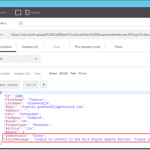
Let’s have a look at the following example where an Order Web API is used inside an organization to process orders. This Web API must also be exposed to external customers to show the status of an order but if an error occurs in the Web API or in a background process, the OrderStatus property must be modified that the order is still in progress and the ErrorMessage property with the error must not be shown to the customers. Furthermore the output of the Web API must be in XML instead of JSON.
The following steps in Sentinet are necessary to make it work:
- Add the REST service (or API) to the the Sentinet Repository
- Create a Virtual Service
- Add custom Pipeline Processing
- Test the Virtual REST Service
Sentinet makes it really easy to modify the response of a Web API. You only have to create a Virtual Service in front of it and add custom Pipeline Processing! Especially if you are already familiar with XPATH and XSLT, the example above doesn’t take long to implement.
Download:
Sentinet version 4.5

by community-syndication | Sep 3, 2015 | BizTalk Community Blogs via Syndication
Last Monday I presented my second session in the Integration Monday series (see my last post) and, as usually, I normally publish a post on my blog before the event – a way to help the organizers to advertise the event – or sometimes after the event sharing the resources but I just now realized […]
Blog Post by: Sandro Pereira

by stephen-w-thomas | Sep 3, 2015 | Stephen's BizTalk and Integration Blog
I have been using VMware off and on for years mostly to maintain environments for older version of BizTalk like BizTalk 2009 and BizTalk 2010. That said, I have been stuck using VMware version 9 because I did not want to keep paying the upgrade fees each year to get the latest version. With my recent upgrade to Windows 10, my VMware 9 installation ran into some issues. I was no longer able to connect to an internet connection inside the VM. I decided the time was right to migrate to Hyper-V on Windows 10.
I found a lot of articles about converting vmkd files to a vhdx but they seemed to state you needed to use Microsoft Virtual Machine Converter witch in the GUI and in the online documentation talked about only supporting VMware Server products.
The reality is Microsoft Virtual Machine Converter works for direct conversion of a single vmkd file into a vhdx. The catch is you need to use the PowerShell command and not the GUI.
If you want to convert a single VMKD file into a VHDX file do the following:
- For each Virtual Machine you want to convert, first remove the VM Tool and do a full shutdown
- Remove VMware from your computer (if you install Hyper-V first you will run into un-installation issues with VMware. You’ll have to edit the undeploy script to remove it)
- Enable Hyper-V Windows 10
- Download and install Microsoft Virtual Machine Converter 3.0 (Link)
- Open PowerShell or PowerShell ISE as an Administrator
- Enter the following (update the paths and file names as needed):
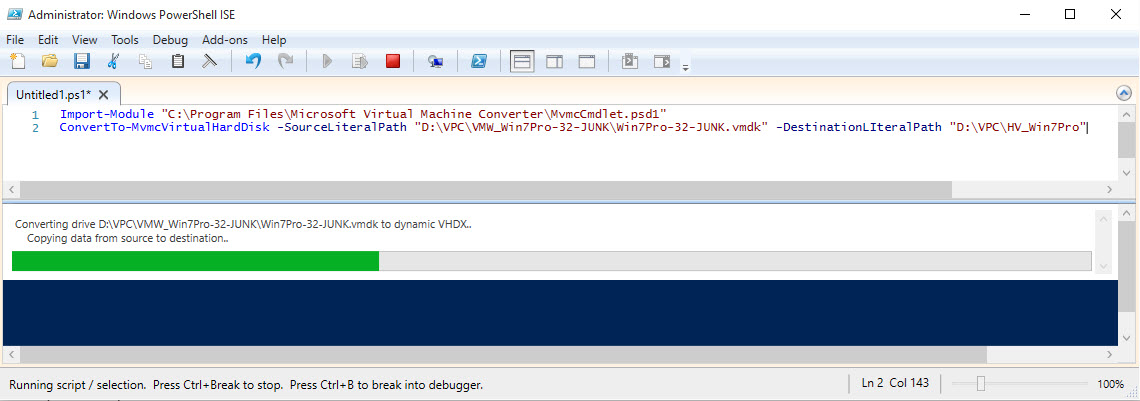
Import-Module "C:\Program Files\Microsoft Virtual Machine Converter\MvmcCmdlet.psd1"
ConvertTo-MvmcVirtualHardDisk -SourceLiteralPath "D:\YourPathToVMKD\ZZZZ.vmdk" -DestinationLIteralPath "C:\PathToVHDX"
- This process will take about an hour for a 50 GB disk. See the image below.
- Once complete, create a new Generation1 Hyper-V virtual machine using the newly created vhdx image
PS: While this post is targeted toward virtual machines running locally, at this point 90% of my virtual machines are hosted in Azure using BizTalk 2013 / BizTalk 2013 R2. I only use virtual machines for maintaining legacy environments.
Hope this helps someone out!

by community-syndication | Sep 2, 2015 | BizTalk Community Blogs via Syndication
It was with great pleasure that I presented, last Monday – August 31, 2015 – my second presentation in the Integration Monday series. This time I was invited to talk about my personal experience about BizTalk NoS Ultimate and how this tool can improve our efficiency, productivity and experience while developing BizTalk projects. And for […]
Blog Post by: Sandro Pereira

by stephen-w-thomas | Sep 1, 2015 | Stephen's BizTalk and Integration Blog
I have revamped and updated my site: http://www.whats-new-in-biztalk-2013.com/ This site is dedicated to my course at Pluralsight with the same name. While this course was geared to BizTalk 2013, a lot of the content is still relevant for BizTalk 2013 R2.
This course has 6 modules:
BizTalk Server 2013 Overview
Using Windows Azure Service Bus with BizTalk 2013
REST Adapter Deep Dive
SharePoint Adapter Enhancements
Using BizTalk 360 with BizTalk 2013
Setting up BizTalk 2013 in Windows Azure IaaS
Of these, the module on the BizTalk REST Adapter is one of the best in the course! It is a great resources for anyone working with the REST Adapter in any version of BizTalk.
In the SharePoint chapter, I walk through integration with SharePoint Online in Office 365.
Check out the http://www.whats-new-in-biztalk-2013.com/ to see a 7-minute sample video.
As always, anyone can get a free 7 day, 200 minute trial of Pluralsight.

by community-syndication | Aug 30, 2015 | BizTalk Community Blogs via Syndication
With Integration Monday reaching a wider audience, we thought it would make sense to write blog posts on the events. We will keep the post very simple with brief snippets from the session and provide links to code samples/demos (if available from the presenter) which will be really helpful for our blog lovers and the […]
The post Integration Monday – BizTalk ALM appeared first on BizTalk360 Blog.
Blog Post by: Sriram Hariharan
by community-syndication | Aug 30, 2015 | BizTalk Community Blogs via Syndication
Long running transactions are a common scenario in BizTalk integration. They are quite often designed for purpose. Let us take an example of a payment processing portal. The portal may raise a purchase order based on payment initiated by the user, but the order can be processed only after the system receiving a payment confirmation. […]
The post Monitoring BizTalk Dehydrated Orchestrations Using BizTalk360 appeared first on BizTalk360 Blog.
Blog Post by: Arunkumar Kumaresan

by community-syndication | Aug 27, 2015 | BizTalk Community Blogs via Syndication
I’m glad to be back, once again, to Integration Monday Events! The first time I presented a session about “BizTalk Server Tips & Tricks for Developers and Admins (Deep Dive)” (June 22, 2015), a similar session that I also presented in BizTalk Summit 215 London, that you can found and watch online here. This time […]
Blog Post by: Sandro Pereira
