by Saravana Kumar | Aug 3, 2017 | BizTalk Community Blogs via Syndication
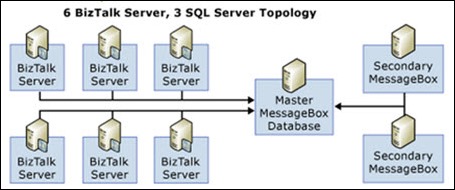
A typical highly available BizTalk Server group contains one or more BizTalk Servers. We have witnessed some of the complex BizTalk Server environment handling high volume traffic having an infrastructure similar to the one shown below with 6 BizTalk Server and 3-4 SQL Servers.
There are 2 main reason for having multiple BizTalk Server is the group
- Scalability
- Resilience/High Availability
Scalability: The more servers you have in the group means more processing power. You can create multiple BizTalk Server Host and Host Instances in each one of the available servers and increase the volume of messages you can process.
Resilience/High Availability: If you wanted to make sure the environment is highly available, you need to have at least 2 BizTalk Servers in the group and also need to carefully plan how the host/host instances are configured to make sure if one server goes down it doesn’t bring the whole environment down.
Why do you need this?
As a BizTalk Administrator, you need to make sure all of your BizTalk Servers are up and running and processing messages at the expected level. In the above 6 server configuration, there is a possibility one of the BizTalk Servers go down and no one really notices it for a long period, until the environment itself becomes a bottle neck. In smaller environments (ex: 2 BizTalk Servers), it becomes super important to make sure your BizTalk Servers are up and running all the time to avoid down time or react to down time quickly.
To address these challenges we are introducing BizTalk Server Availability monitoring in BizTalk360 version 8.5.
As always, one of the core strength of BizTalk360 for monitoring BizTalk Server environments is we wanted to make it super simple and great user experience to configure things. It will literally take less than 2 minutes to setup BizTalk Server Availability Monitoring in-spite of the complexity of your environment.
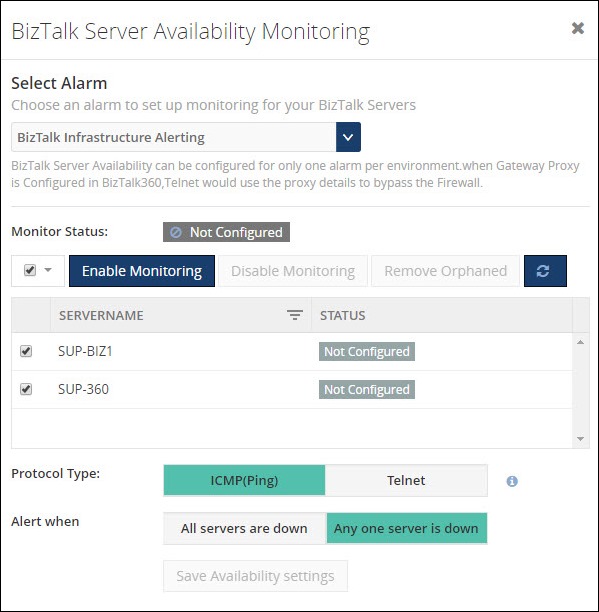
The above screen shows how you can configure the availability monitoring for a 2 BizTalk Servers group. The servers are already listed, you simply need to select them and click the “Enable Monitoring” button. (PS: You need to understand the concept of Alarms in BizTalk360)
Protocol Type: In order for us to check the availability we need to reach the servers, we support “Ping” and “Telnet” to achieve this, one of these protocols need to be enabled.
Monitor Availability (either all or one of them)
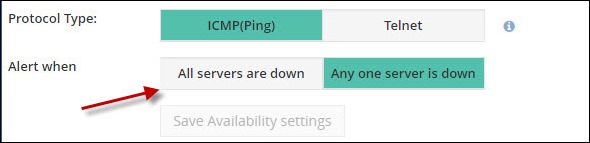
This is very important and very specific to BizTalk Server availability monitoring. You can choose the option to alert either if one of the BizTalk Server is the group has gone down or alert only when all of the servers in the group has gone down. The first one is useful if you know there are intermittent issues and the server will come back online after some time and there is no need to alert the teams unnecessarily.
Give it a try on your own environment by downloading a 14-day free trial of BizTalk360. You can write to us at [email protected].
Author: Saravana Kumar
Saravana Kumar is the Founder and CTO of BizTalk360, an enterprise software that acts as an all-in-one solution for better administration, operation, support and monitoring of Microsoft BizTalk Server environments. View all posts by Saravana Kumar
by Saravana Kumar | Aug 2, 2017 | BizTalk Community Blogs via Syndication
What is BizTalk Host Throttling?
BizTalk Server being a Middleware product connected to various legacy backend systems it needs to make sure the entire ecosystem can work in an optimal way. If one of the legacy system connected to BizTalk is slow for any reason, then BizTalk Server need to act sensibly not to overload that system with messages more than what it can handle. In such scenarios, BizTalk Server will throttle itself (slow down itself) and make sure the messages are delivered to the backend in an optimal rate.
BizTalk Server achieves this capability by continuously monitoring various performance counters (memory footprint, thread count, message publishing rates, database size etc.) and self tuning itself. There are over 50 performance counters related to throttling in BizTalk Server which monitors both inbound and outbound traffic.
BizTalk360 Throttling Analyser
One of the challenges for BizTalk Server Administrators when it comes to BizTalk Throttling is, there is no out of the box tooling from Microsoft to understand whether your BizTalk Environment is working efficiently or under throttling condition. You only have raw performance counters to measure throttling. Typically the BizTalk Administrators open up Windows Perfmon tool and add all the performance counters related to Throttling record and analyse throttling conditions. This requires extensive knowledge about how BizTalk Server works, various throttling counters & conditions, whether it’s running on optimum level etc.
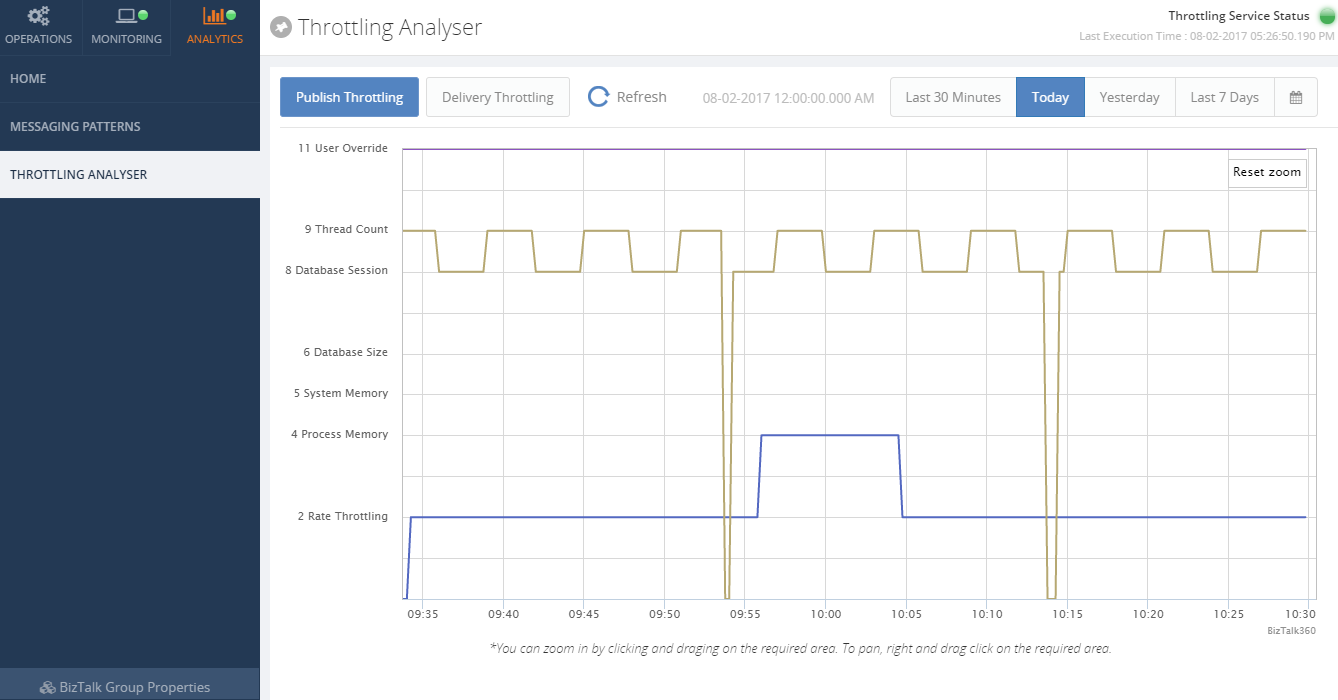
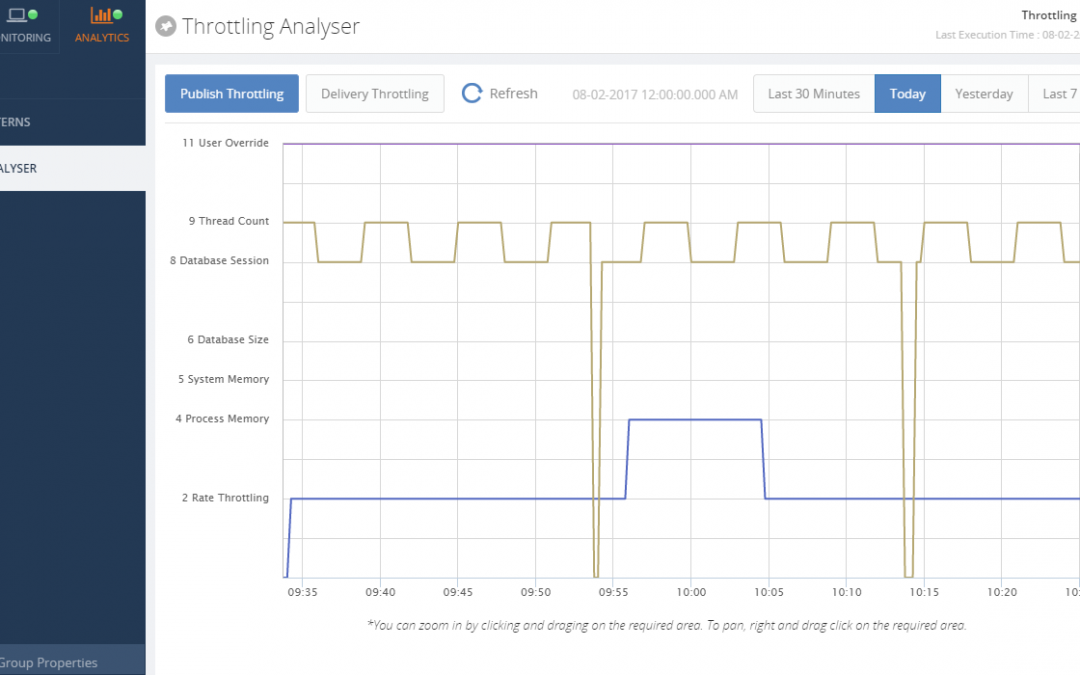
To address this issue, about 2 years ago we introduced “Throttling Analyser” in BizTalk360. Once enabled, BizTalk360 continuously collect all the throttling related performance counter data in our database and provide an intuitive user interface with highly interactive graphs to showcase whether the BizTalk Environment is working efficiently or under throttling condition. This saves a lot of time for BizTalk Administrators to understand environment throttling condition and the biggest advantage is you do not need to have in-depth knowledge about BizTalk Server internal architecture and throttling mechanism.
BizTalk360 Throttling Monitoring
The Throttling Analyser explained in the previous section only gives you the visual representation of the BizTalk Environment throttling condition. The BizTalk Administrator need to periodically log in to the system to see if the environment is healthy. However, we can clearly see a value in alerting the BizTalk Administrators if the environment is suffering from any critical throttling conditions for a perceived time.
That’s exactly what we have done with “Throttling Monitoring” in version 8.5 of BizTalk360. We wanted to make the experience super simple and intuitive.
How does it work?
Let’s take a close look at how this functionality is designed and how it works.
Under BizTalk Environment monitoring section we introduced a new category called “Host Throttling”, which by default will list out all the BizTalk Hosts that’s currently configured in the environment as shown in the below picture.
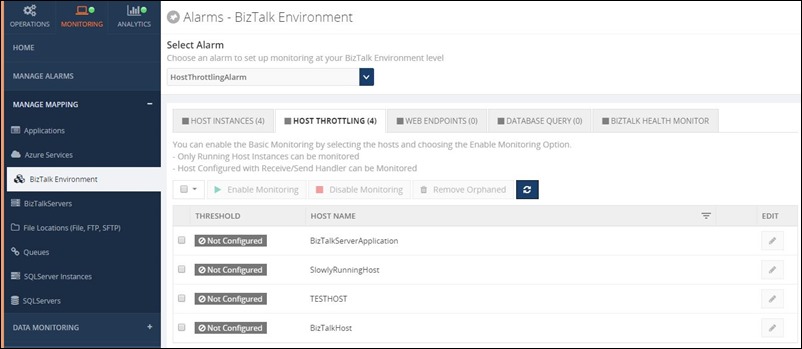
Enabling BizTalk Host Throttling monitoring in single click
You can enable default throttling for all the BizTalk Hosts in a single click, you simply select the hosts you wanted to monitor and click the button “Enable Throttling”, this will start monitoring the BizTalk Environment for any throttling violation that persist for 60 seconds.
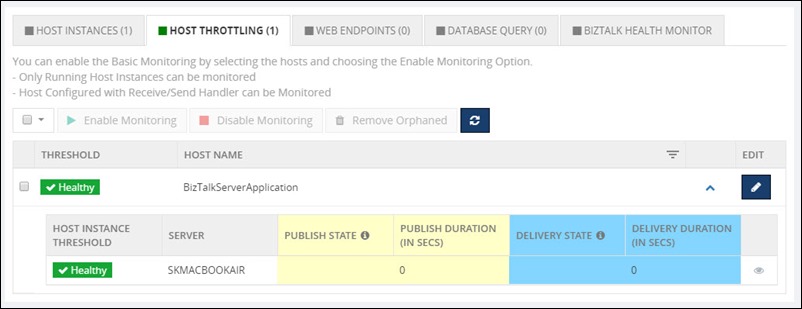
The whole idea for us is to make it as simple as possible to monitoring BizTalk Throttling condition, hence we provide the option to just enable the default monitoring with 60 seconds persistence in a single click.
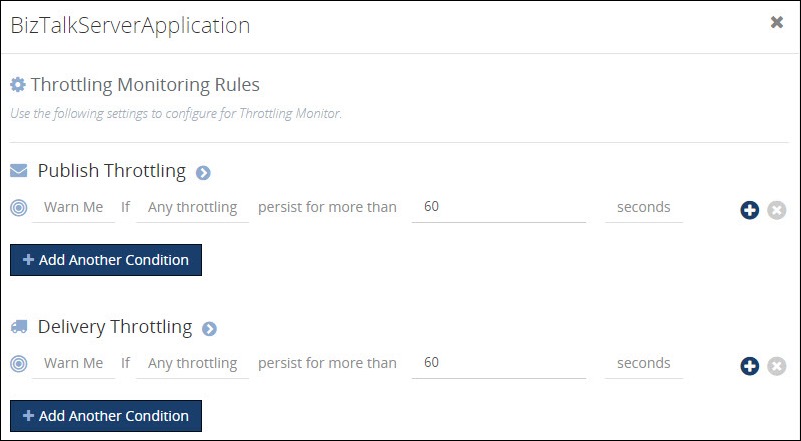
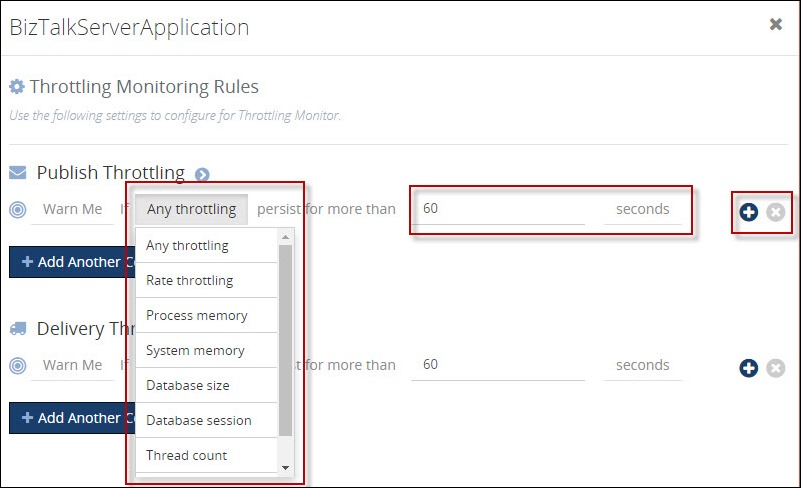
The BizTalk Administrator can easily tweak the default configuration by clicking on the “Edit” button and changing the parameters. As you can see from the below picture, you can choose to monitor specific throttling condition or you can have multiple conditions with different persist duration etc, you can also have different monitoring options for publish side and delivery side.
For Publish Throttling, the user can able to monitor the following metrics:
- Any throttling
- 2 – Rate Throttling
- 4 – Process memory
- 5 – System memory
- 6 – Database size
- 8 – Database session
- 9 – Thread count
- 11 – User override
For Delivery Throttling, the user can able to monitor the following metrics:
- Any throttling
- 1 – Rate Throttling
- 4 – Process memory
- 5 – System memory
- 9 – Thread count
- 10 – User override
Notification of Throttling violation
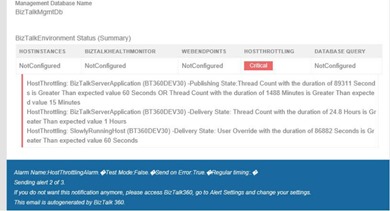
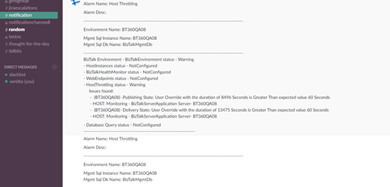
Once the settings are configured to look out for throttling conditions, BizTalk360 will keep monitoring the environment. If BizTalk360 detects any threshold conditions violation, it will notify the users via configured notification channels. In BizTalk360, there are various notification channels like Email, Slack, ServiceNow, SMS, Event Viewer, Web Hook etc
| Email Notification |
Slack Notification |
 |
 |
Summary
Threshold monitoring is one of the key features we have introduced and it address one of the important areas of BizTalk Server Operations and Monitoring. This will help customers to keep an eye on the capacity of their BizTalk Environments in near real time and take appropriate actions.
You can write to us at [email protected]. Have a try at our latest version by downloading a 14-day free trial of BizTalk360.
Author: Saravana Kumar
Saravana Kumar is the Founder and CTO of BizTalk360, an enterprise software that acts as an all-in-one solution for better administration, operation, support and monitoring of Microsoft BizTalk Server environments. View all posts by Saravana Kumar

by Rochelle Saldanha | Aug 1, 2017 | BizTalk Community Blogs via Syndication
Imagine having just purchased BizTalk Server, and you need to get it up and running with all the monitoring setup for the various artifacts, etc. You are just finding your legs and can find it difficult to understand all the various aspects of the product.
When our new customers on board with us they often want to get started with the product immediately and see it in action. They want the alarms setup and see how the monitoring features works.
Being a part of the Support & Client Relationship team, often when introducing new customers to our product BizTalk360 we have encountered this question –
Do you have a quick Alarm setup that will setup some alarms for us, for each of the applications?
So, it has been in our pipeline for some time now to bring something useful in Alarm creation to help our customers.
One of our technical Leads – Lex Hegt had already written an article sometime back to achieve the same. I thought a fresh blog on it might help those who have not come across it.
Kovai.BizTalk360.CreateAlarms.exe is a windows application which uses some Nuget-packages.
All you need to have to run this application is
- URL of BizTalk360
- A BizTalk360 authorized Windows Account
Typically, in your BizTalk environment, you will manually create your BizTalk360 Alerts after the BizTalk application has been deployed. Most of our customers use BizTalk360 Alerts to monitor the state of the different artifacts.
To minimize the amount of effort required, or if you are new to the product … there is a way to automate the alarm creation which will save some of your productive time.
This application has been specifically designed with that goal in mind. It will go through your applications and create Alarms with all the Send Ports, Receive Locations & Orchestrations mapped for monitoring.
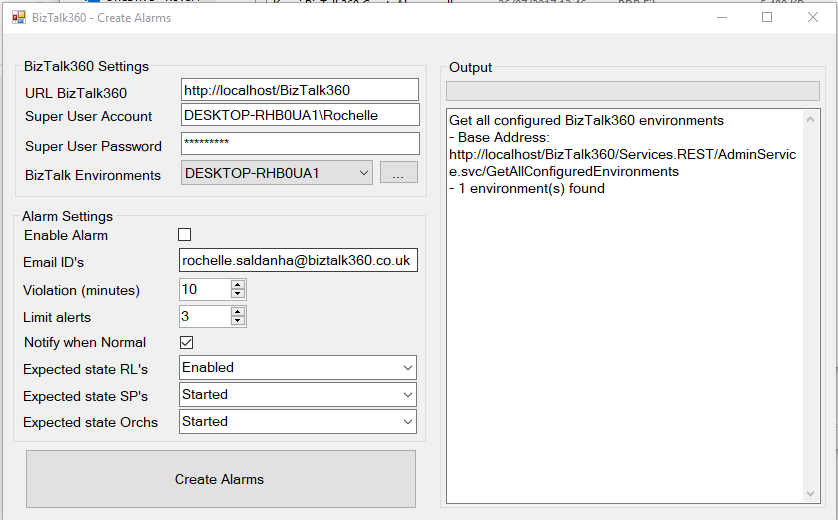
Setup Steps
- You can specify the state you are interested in monitoring in the ‘Create Alarm’ setup page when you start the Application.
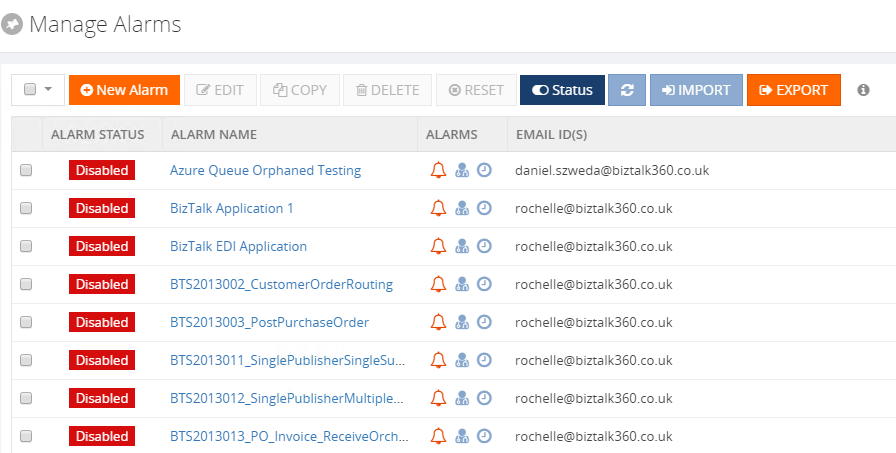
- You can also ensure that the alarms are Disabled so you can go through them to check if they are as per your expectations before you enable them for use.
NOTE
Any existing alarms created with the Application Name only will be deleted, as this is the alarm that the application generates (It creates Alarms based on the Application name).
- You can also setup certain parameters that you generally setup in the Alarm creation page – E.g. Violation persists (minutes) & ‘limit the no of Alerts’ & ‘Notify on success’.
The alarms created will be Threshold Monitoring Alarms.
With this kind of monitoring, you get notified in case a threshold occurs. For example, that can be a Receive Location which was Disabled, while it should be Enabled or any other artefact which is mapped in the alarm and is in an unexpected state.
While the original application along with its code is still available, we have provided this downloadable exe with a few changes, as the API’s for BizTalk360 have changed since then.
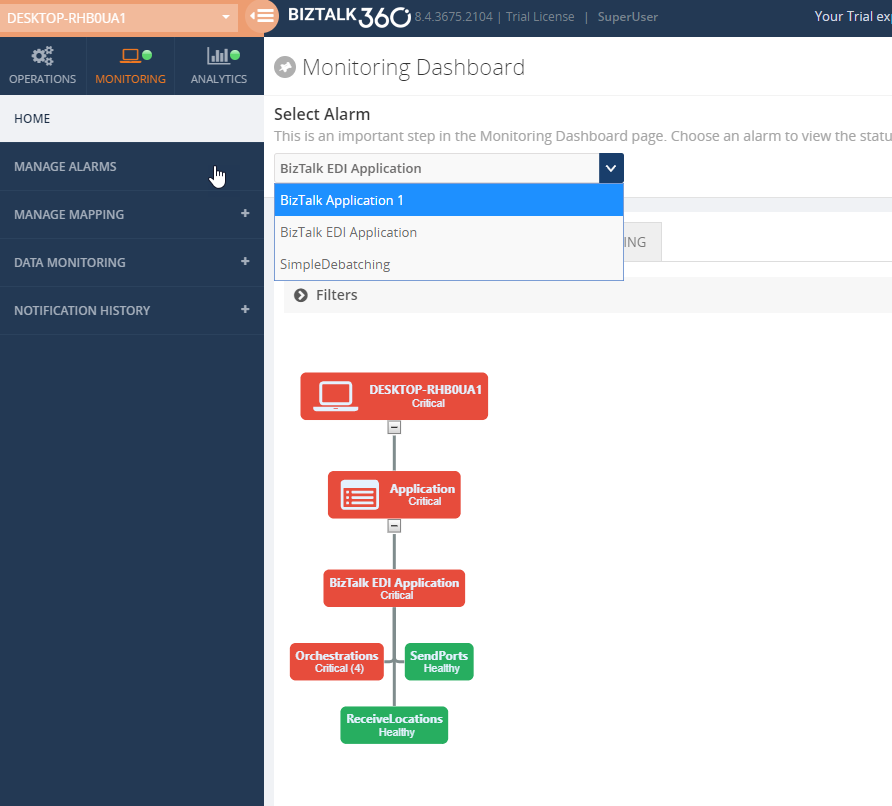
So, I hope this executable helps those who are looking for a quick Alarm setup for all the basic artifact monitoring. Of course, once these alarms are created per application, you can edit them and then add more artifacts as required so you have a fully monitored BizTalk server environment.
You can write to us at [email protected]. Have a try at our latest version by downloading a 14-day free trial of BizTalk360.
by michaelstephensonuk | Jul 31, 2017 | BizTalk Community Blogs via Syndication
One of the biggest challenges in integration projects over the years is how to manage the relationship between the implementation of your solution and the documentation describing the intention of the solution and how it works and how to look after it.
We have been through paradigm shifts where projects were writing extensive documentation before a single line of code was written through to the more agile approaches with leaner documentation done in a just in time fashion. Regardless of these approaches the couple of common themes that still exist is:
- How do we relate the documentation to the implementation?
- How do we keep the documentation up to date?
- How do we make it transparent and accessible?
Ever since the guys at Mexia in Brisbane introduced me to Confluence, I have been a huge supporter of using this for integration. I have found the shift from people working over email and in word documents to truly collaborating in real time in Confluence to be one of the biggest factors for success in projects I have worked on. The challenge still remained how to create the relationship between the documentation and the implementation.
Fortunately with Azure we have the ability to put custom tags on most resources. This gives us a very easy way to start adding links to documentation to resources in Azure.
In the below article Ill show how we use this with a Logic Apps solution.
The Resource Group + Solution Level Documentation
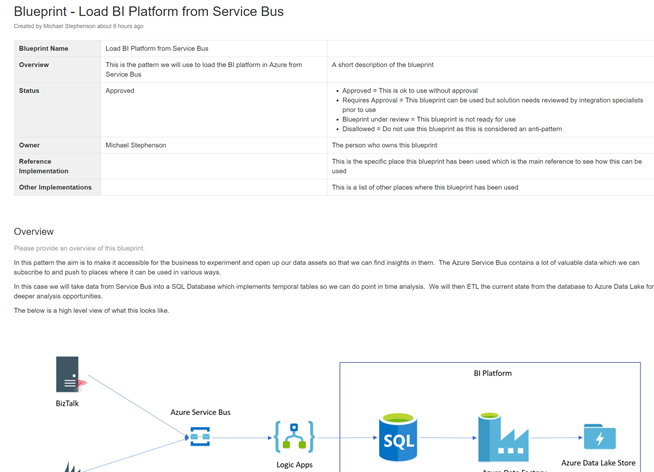
In this particular case most of our solution is encapsulated within the resource group. This works great as we can have a document describing the solution. Below shows the confluence page we have outlining the solution blueprint and how it works.
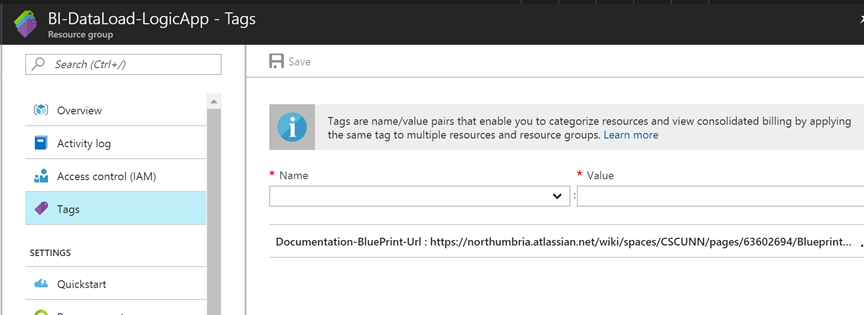
This solution documentation can then be added to the tags of the resource group as shown in the picture below.
The Logic App + Interface Specific Documentation
Next up we have the interface specification from our interface catalogue. Below is an example page from confluence to show a small sample of what one of these pages may look like. The specification will typically include things like analysis, mappings and data formats, component diagrams, process diagrams, etc.
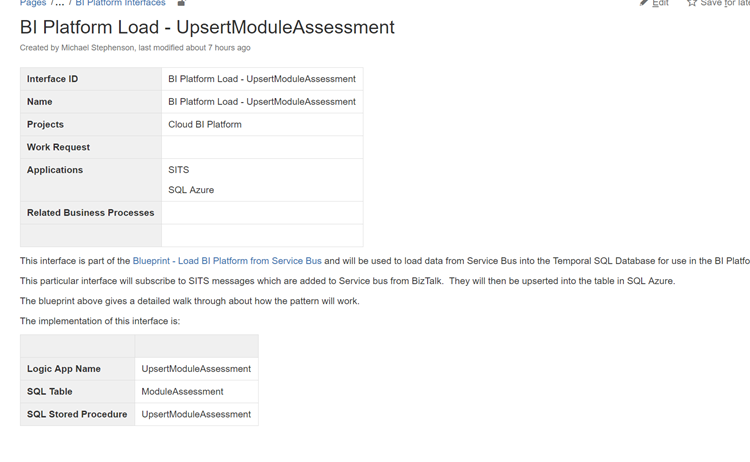
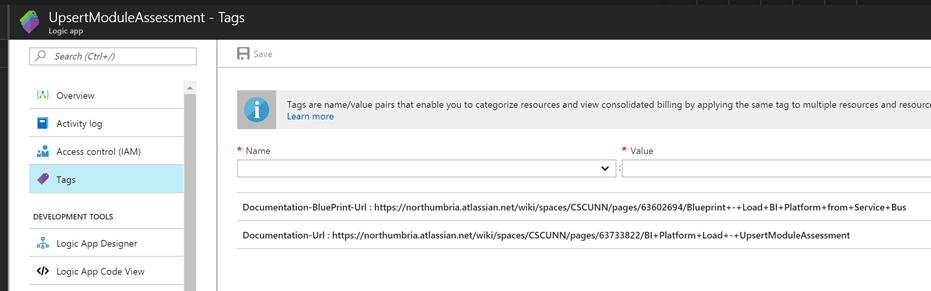
In the logic app we are able to use the tags against the logic app to create a relationship between our documentation and the implementation. In the below example I have added a link to the solution blueprint the locig app implements and also some specific documentation for that interface.
API Connector and Application specific connection documentation
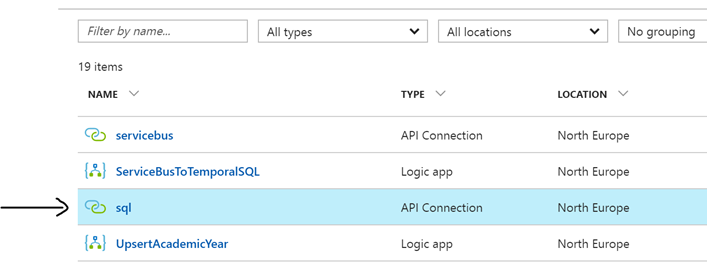
Next up we have application connector and API documentation. In the resource group we have a set of API connectors we have created. In this case we have the SQL one for connecting to our SQL Azure database as shown below.
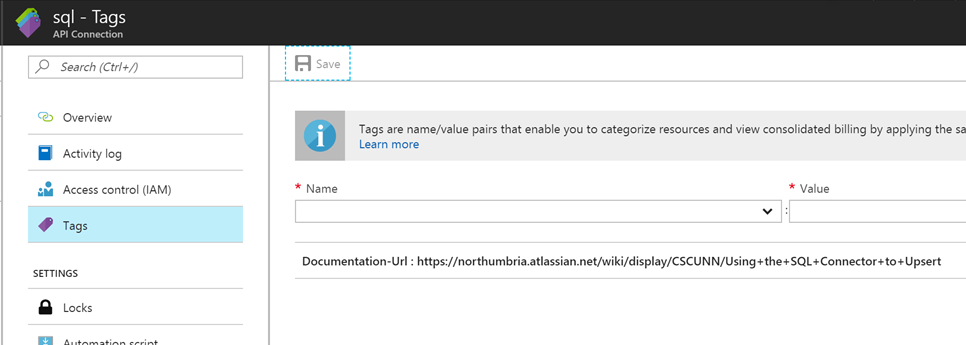
In its tags we can now add a link to a page in confluence where we will document specifics related to this connection.
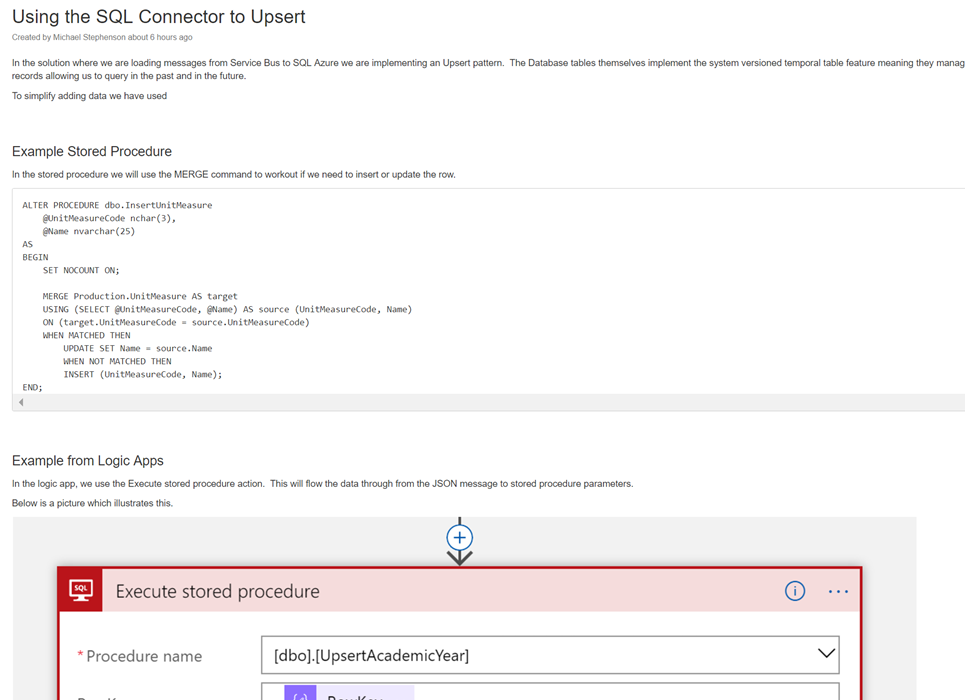
In this particular case one of the interesting things is how we will be using the MERGE command in SQL to upsert a record to the database, we have documented how this works in Confluence and we can easily link to it from the SQL connector. Below is an example of this documentation.
Summary
In summary you can see that tags enables us to close the gap between implementation and documentation/guidance. This is a feature we should be able to use a lot!
by BizTalk Team | Jul 31, 2017 | BizTalk Community Blogs via Syndication
We are happy to announce the 6th Cumulative updates BizTalk Server 2013.
This cumulative update package for Microsoft BizTalk Server 2013 contains hotfixes for the BizTalk Server 2013 issues that were resolved after the release of BizTalk Server 2013.
We recommend that you test hotfixes before you deploy them in a production environment. Because the builds are cumulative, each new update release contains all the hotfixes and all the security updates that were included in the previous BizTalk Server 2013 update release.
We recommend that you consider applying the most recent BizTalk Server 2013 update release.
Cumulative update package 6 for Microsoft BizTalk Server 2013:
- BizTalk Server Adapter
- 4011935: FIX: MQSeries receive location fails to recover after MQ server restarts
- 3121493: FIX: WCF-HTTP send doesn’t retry or suspend when it receives an error 500 in BizTalk Server
- BizTalk Server EDIAS2
- 3202751: FIX: “Unable to create the entry in the AS2 EDIINT MIC table” error when message tracking is enabled in BizTalk Server
- BizTalk Server Message Runtime, Pipelines, and Tracking
- 4014078: FIX: ‘XmlDasmException’ error occurs when PromoteDocSpecName is set to False in BizTalk Server
Download CU 6 for BizTalk Server 2013 here
by Nick Hauenstein | Jul 31, 2017 | BizTalk Community Blogs via Syndication
We’re living in exciting times, where releases of new functionality of all of our favorite software (e.g., Logic Apps, Visual Studio Team Services, and BizTalk Server) isn’t happening every 2 years, it’s happening every 2 weeks. With all of the benefits that such a release cadence brings, it also introduces the dilemma of how to both be productive with the technology, and keep up to date with all of the new features.
For example, while I was at the Integrate conference this year in London, many asked how it’s possible to keep our live 5-day Logic Apps class up-to-date. “Certainly it must be out-of-date if it’s not small recorded videos, right?” Actually, we update the class before each run to incorporate the latest product updates.
In this post, I want to share a strategy that we at QuickLearn have found works to stay on top of the latest technology changes, and give you the tools to implement it yourself.
Enabling Continuous Education
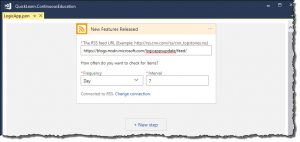
The first step in working towards staying up-to-date with the latest and greatest a technology offers will be locating the ever-evolving list of what’s new. Microsoft maintains a feed of new features for Logic Apps, and even a feed of new features for Visual Studio Team Services (another technology that we teach here). The feed for Logic Apps will be updated less frequently than the listing of features in the Azure Portal, however.
Let’s use one of those feeds, and build a Logic App that notifies us when there is a change by using the RSS trigger to queue up an instance of that Logic App whenever a new item is published to the RSS feed.
Creating a Learning Backlog
At QuickLearn, we add research items for continuous education as Product Backlog Items in VSTS. They sit alongside the core work of building products (in our case, courseware), but serve to carve out some capacity to build up the team itself. Each item carries with it the responsibility to quickly research and/or build a proof of concept using the new feature, or features, whilst also taking extensive notes to share with the team. I made all of my notes public for the release of BizTalk Server 2013 and BizTalk Server 2013 R2, and I wrote them directly in Live Writer to facilitate this. These days, I use OneNote for the same purpose.
Your organization might not want to allocate company time for such efforts. If so, you can always setup a personal VSTS account and do such research and experimentation on your own time.
Thankfully, Logic Apps has a connector for VSTS, which makes the task of building up a learning backlog an easy task to accomplish. The work items themselves will serve as our notifications of new product features:
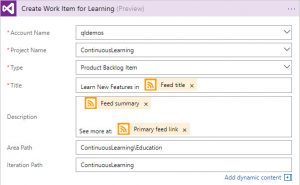
Working from the Continuous Learning Backlog
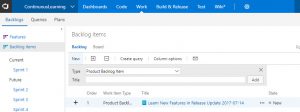
Once the Logic App runs (just the single trigger and single action), it produces backlog items to learn about new features in Logic Apps. In the way that I’ve configured it, it runs every 7 days and will automatically populate your backlog with any new features it finds. Your team can decide to investigate and/or not investigate these features further depending on what they are, and/or if they will help in future efforts on your projects.
If any features in the release sound helpful and warrant further investigation, you can break out as many tasks as are required to investigate applicable features to see what value you can derive from them. I like taking the approach of building a 30-60 minute proof of concept for each feature, rather than just reading about it. Each team member can take a relevant feature for a test drive, and present it during sprint review.
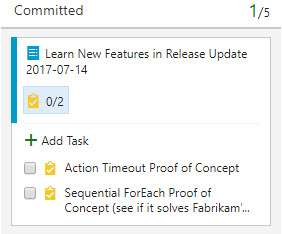
For QuickLearn, backlog items like this are a common occurrence. We update our Logic Apps class before each delivery to incorporate all of the latest and greatest features that we can fit. I always love the week of class, being able to share all of the fun and fresh goodies that the product team has cooked up.
I Need to Get Up to Speed Now
If you want a leg up, and a way to get up-to-speed quickly, there are some good opportunities coming up to do just that:
I’ll be speaking at each of those, and hope to see you there! Good luck on your continuously expanding cloud integration journey!

by Saravana Kumar | Jul 30, 2017 | BizTalk Community Blogs via Syndication
We often get this question asked what’s are the restrictions of BizTalk Server Standard edition. I thought of highlighting the key restrictions that are applicable to BizTalk Server Standard Edition here.
BizTalk Applications Limit:
You cannot deploy more than 5 BizTalk Applications in a single environment (this excludes the default BizTalk.System application). This is not a great restriction since BizTalk applications are just logical containers to group artifacts together (receive locations, send ports, schemas, orchestrations, policies etc). There is nothing stopping a customer from deploying all the artifacts inside one or two applications. In fact, this restriction results in some of the bad practices in BizTalk Application deployment. In our opinion, a better restriction will be restricting the number of artifacts like “x” number of orchestrations, send ports, receive locations.
BizTalk Servers Limits:
You cannot have more than one server in a BizTalk Environment. This is the one that forces most of the customers to move to BizTalk Server Enterprise edition. This restriction basically results in not having high availability for your BizTalk environment, if the server goes down, your environment is down.
Single Message Box:
You cannot have more than one MessageBox in your environment. Scaling MessageBox is required when you have a high throughput scenario. It’s not really big impact in BizTalk Standard Edition case since you are restricted to only one BizTalk server and hence you can only handle so much load anyway.
Number of CPU cores:
You cannot have more than 8 cores on the server. Again this restricts the scalability of your BizTalk Environment to limited processing power.
In a nutshell, the BizTalk Standard edition is designed for customers who want to take advantage of the integration platform but not concerned with scalability and high throughput.
Author: Saravana Kumar
Saravana Kumar is the Founder and CTO of BizTalk360, an enterprise software that acts as an all-in-one solution for better administration, operation, support and monitoring of Microsoft BizTalk Server environments. View all posts by Saravana Kumar
by Gautam | Jul 30, 2017 | BizTalk Community Blogs via Syndication
Do you feel difficult to keep up to date on all the frequent updates and announcements in the Microsoft Integration platform?
Integration weekly update can be your solution. It’s a weekly update on the topics related to Integration – enterprise integration, robust & scalable messaging capabilities and Citizen Integration capabilities empowered by Microsoft platform to deliver value to the business.
If you want to receive these updates weekly, then don’t forget to Subscribe!
On-Premise Integration:
Cloud and Hybrid Integration:
Feedback
Hope this would be helpful. Please feel free to let me know your feedback on this Integration weekly series.

by Steef-Jan Wiggers | Jul 29, 2017 | BizTalk Community Blogs via Syndication
July the holiday month, or at least that’s when the summer holiday season starts in the Netherlands. And this year I went for a holiday with the family to Portugal (Porto) and France (Montréal, Midi-Pyrénées).
Month July
For me this is a special month as the MVP renew cycle starts, which is now yearly. And I have always have been a July MVP, hence nothing really changed for me. Anyways, I got renewed, a great start of the month!

I shared the picture above on LinkedIn with the text: “Awarded for the eight time! Thanks Microsoft. Coolest Technology!!!”. And this posted got to my surprise more than 8000 views in a week. Awesome!
In the beginning of July I consolidated my talk at Integate2017 London into a blog post: Building sentiment analysis solution with Logic Apps. This years integrate was a success as many of you might have read in various blog post that recap the event. And there will be an US Integrate later this year in October, where I will be one of speakers too.
What else did I do this month. Well I worked together with Kent for one of his Middleware Friday shows: INTEGRATE 2017 Highlight Show. We recorded our interview session in Dublin. And I wrote a blog post about Azure Functions, go serverless!
Another thing I like to mention is that for a customer I worked hard with a team on a POC with CosmosDB, Graph model and Azure Search. And we have achieved some important milestones. Some of the learning I will share in upcoming months.
Holiday
As mentioned already it’s summer holiday season in the Netherlands and I went with my family to Porto in Portugal to visit Sandro and his family.


No suprises here, we went to have lunch, visit Porto and have an ice cream of course (Santini).
Books
Since I was on holiday I was able to read a few books. With a long road trip to Porto I saw a few movies related to AI, digitalization and IOT:
And what I found interesting about seeing this movies is how they relate to these books I read:

The world is changing around us with sensors, devices and huge amounts of data. Moreover, this makes us more aware of everything around is and smart, at least we get more insights.
Blockchain
During Integrate 2017, my buddy Kent talked a lot about Blockchain and Cryptocurrencies. And I got intrigued, yet I did not fully understand both. Therefore, I bought and read these two books to get a better understanding:
Both are recently pusblished books, relevant and up to date.
Relaxing books
Besides some technical books I read two thrillers to relax and chill:
The first is defenitely an amazing well written thriller and if you like the movies Se7en than this is for you!
Music
My favorite albums that were released in July were:
- Decapitated – Anticult
- Prong – Zero Days
- Wintersun – The Forest Seasons

Hence, another month gone by. Next month I will continue to work on the POC and prepare for sessions in September and October.
Cheers,
Steef-Jan
Author: Steef-Jan Wiggers
Steef-Jan Wiggers is all in on Microsoft Azure, Integration, and Data Science. He has over 15 years’ experience in a wide variety of scenarios such as custom .NET solution development, overseeing large enterprise integrations, building web services, managing projects, designing web services, experimenting with data, SQL Server database administration, and consulting. Steef-Jan loves challenges in the Microsoft playing field combining it with his domain knowledge in energy, utility, banking, insurance, health care, agriculture, (local) government, bio-sciences, retail, travel and logistics. He is very active in the community as a blogger, TechNet Wiki author, book author, and global public speaker. For these efforts, Microsoft has recognized him a Microsoft MVP for the past 7 years. View all posts by Steef-Jan Wiggers
by Sandro Pereira | Jul 28, 2017 | BizTalk Community Blogs via Syndication
Why checking if Windows Defender is running on BizTalk Server, or another anti-virus, is important? I have been creating several BizTalk Server 2016 Developer environments on Azure using Azure Virtual Machines, normally I tend to be careful in choosing the VM Disk type – SSD can be expensive – and the size of the virtual machine – I would love to use a 4-core machine with 28GB but still using a HHD disk it will cost me near 430€ per month – so, because of the pricing I’m usually choose a modest machine from 1-core and 3.5 GB RAM or up to 4-core and 8GB RAM.
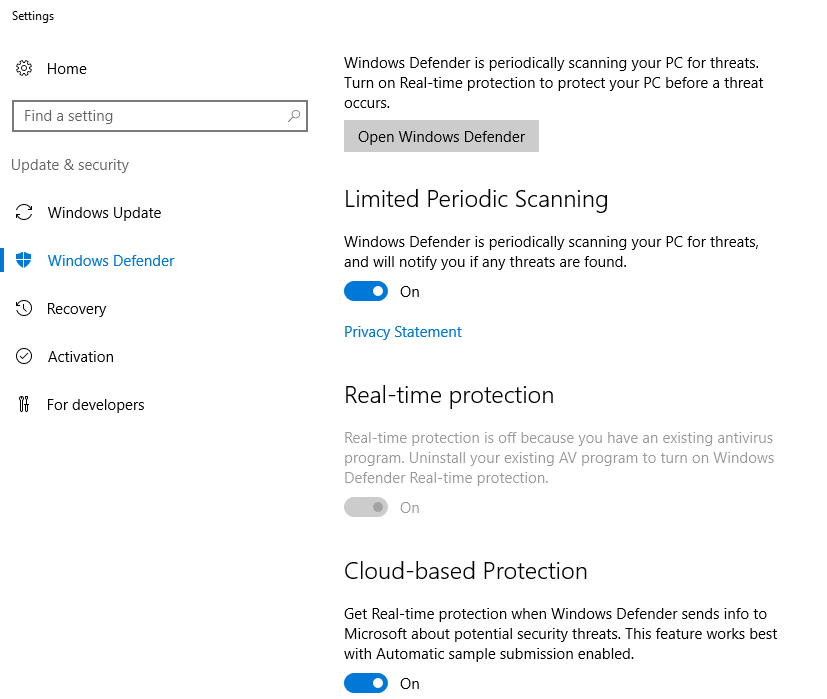
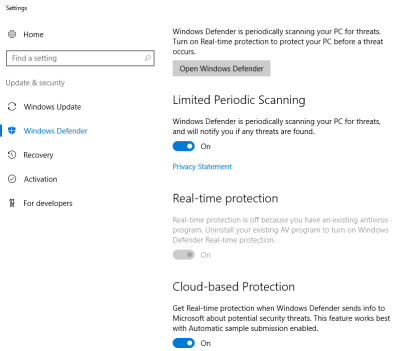
They tend to be a little slow, so tuning it well is important for archive a better performance and by default Windows Defender is configured on that machines. Not only as a negative impact in the general performance of the machine but also can have a huge impact on BizTalk Server performance.
Indeed, anti-virus can have a huge impact on BizTalk Server performance and normally the best approach for BizTalk Server environment and anti-virus software is using a perimeter based approach, where you normally don’t run the anti-virus software on the machine itself but protect the boundaries.
I like to use this approach but if not possible, at least you should configure antivirus software to avoid real-time scanning of BizTalk Server executables and file drops. Antivirus software real-time scanning of BizTalk Server executable files and any folders or file shares monitored by BizTalk Server receive locations can negatively impact BizTalk Server performance. If antivirus software is installed on the BizTalk Server computer(s), disable real-time scanning of non-executable file types referenced by any BizTalk Server receive locations (usually .XML, but can also be .csv, .txt, etc.) and configure antivirus software to exclude scanning of BizTalk Server executable Files.
In this post, I will not address how you can disable Windows Defender, I will live it to another post and I will not address also all the possible existing Anti-virus in the market, instead, here I will focus only in Windows Defender for a simple reason: that this is the anti-virus installed by default in the BizTalk Server 2016 Developer Virtual Machines template on Azure. Neither to configure Anti-virus exclusions that you should do for BizTalk, for that a good blog post from MSFT: BizTalk Server Anti-Virus Exclusions
However, one of the first steps while doing one BizTalk environment performance, or even a basic, assessment is to find out if there is any Anti-virus running on your BizTalk Server.
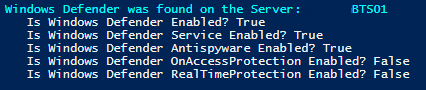
So, I create this simple PowerShell script to use in all my environments just to check is Windows Defender that is installed and enabled by default in Windows Server 2016 is running on the Server:
Try
{
    $defenderOptions = Get-MpComputerStatus

    if([string]::IsNullOrEmpty($defenderOptions))
    {
        Write-host "Windows Defender was not found running on the Server:" $env:computername -foregroundcolor "Green"
    }
    else
    {
        Write-host "Windows Defender was found on the Server:" $env:computername -foregroundcolor "Cyan"
        Write-host "   Is Windows Defender Enabled?" $defenderOptions.AntivirusEnabled
        Write-host "   Is Windows Defender Service Enabled?" $defenderOptions.AMServiceEnabled
        Write-host "   Is Windows Defender Antispyware Enabled?" $defenderOptions.AntispywareEnabled
        Write-host "   Is Windows Defender OnAccessProtection Enabled?"$defenderOptions.OnAccessProtectionEnabled
        Write-host "   Is Windows Defender RealTimeProtection Enabled?"$defenderOptions.RealTimeProtectionEnabled

        if($defenderOptions.RealTimeProtectionEnabled)
        {
            $windowsShell = new-object -comobject wscript.shell
            $questionResult = $windowsShell.popup("Do you want to disable Real Time Protection?", 0,"Not at this moment.",4)
            If ($questionResult -eq 6) {
                    Set-MpPreference -DisableRealtimeMonitoring $true
                Write-host "Windows Defender Real Time Protection was successfully disabled" -foregroundcolor "Green"
                Write-host "Nevertheless Windows Defender is still running"
            }
        }
    }
}
Catch
{
    Write-host "Windows Defender was not found running on the Server:" $env:computername -foregroundcolor "Green"
}
Output type:
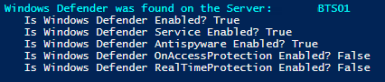

The script, not only allows you to check if Windows Defender is running on BizTalk Server but, if the Windows Defender is running and you have Real Time Protection enabled it will allow you to disable this feature if you want – nevertheless, by disabling it the Windows Defender will still be running, the only thing is not doing is a real-time protection to scan everything you download or run on Server.
THIS POWERSHELL IS PROVIDED “AS IS”, WITHOUT WARRANTY OF ANY KIND.
The script to check if Windows Defender is running on BizTalk Server can be found and download on Microsoft TechNet Gallery:
 PowerShell to Check if Windows Defender is running on the Server (2 KB)
Microsoft | TechNet Gallery
Author: Sandro Pereira
Sandro Pereira lives in Portugal and works as a consultant at DevScope. In the past years, he has been working on implementing Integration scenarios both on-premises and cloud for various clients, each with different scenarios from a technical point of view, size, and criticality, using Microsoft Azure, Microsoft BizTalk Server and different technologies like AS2, EDI, RosettaNet, SAP, TIBCO etc. He is a regular blogger, international speaker, and technical reviewer of several BizTalk books all focused on Integration. He is also the author of the book “BizTalk Mapping Patterns & Best Practices”. He has been awarded MVP since 2011 for his contributions to the integration community. View all posts by Sandro Pereira