Do you feel difficult to keep up to date on all the frequent updates and announcements in the Microsoft Integration platform and Azure iPaaS?
Integration weekly updates can be your solution. It’s a weekly update on the topics related to Integration – enterprise integration, robust & scalable messaging capabilities and Citizen Integration capabilities empowered by Microsoft platform to deliver value to the business.
Do you feel difficult to keep up to date on all the frequent updates and announcements in the Microsoft Integration platform and Azure iPaaS?
Integration weekly updates can be your solution. It’s a weekly update on the topics related to Integration – enterprise integration, robust & scalable messaging capabilities and Citizen Integration capabilities empowered by Microsoft platform to deliver value to the business.
Historically, deploying BizTalk Server solutions across environments is or can be a complicated process depending on how complex is your solution. There are many ways to deploy BizTalk artifacts for example:
Importing them as part of an application by using the Deployment Wizard (from a .msi file), importing them using BTSTask.exe – this is the default way to deploy across environments.
You can replace and use allow BTSTask, and PowerShell scripts.
Or deploy them from Visual Studio – this is the default way to deploy to your development environment.
Throughout the years, the BizTalk Server Community created an open-source deployment framework called Deployment Framework for BizTalk (BTDF) – https://github.com/BTDF/DeploymentFramework. The Deployment Framework for BizTalk is an easy-to-use toolkit for deploying and configuring your BizTalk solutions. In reality, BTDF is an MSBuild project with custom MSBuild tasks and it can be customizable according to customer BizTalk project needs, it is also extensible. This framework brings new capabilities and advantages to deploying BizTalk Server solutions, but it also has limitations or disadvantages.
Microsoft has introduced automated deployment of BizTalk Applications in BizTalk Server 2016 Feature Packs using Azure DevOps (previously called Visual Studio Team Services – VSTS). In BizTalk Server 2016 Feature Pack 1, automatic deployment and application lifecycle management (ALM) experience was introduced. The automatic deployment process has been improved with the release of BizTalk Server 2016 Feature Pack 2. These features were only available on the Enterprise edition of BizTalk Server 2016.
BizTalk Server 2020 brings all these functionalities out-of-the-box across all editions: Enterprise, Standard, Development, or Branch.
To accomplish this, we need basically 3 main steps:
BizTalk Server: Add a BizTalk Server Application project to your Visual Studio solution.
DevOps: Create a build agent.
DevOps: Create a Build and release Azure Pipeline.
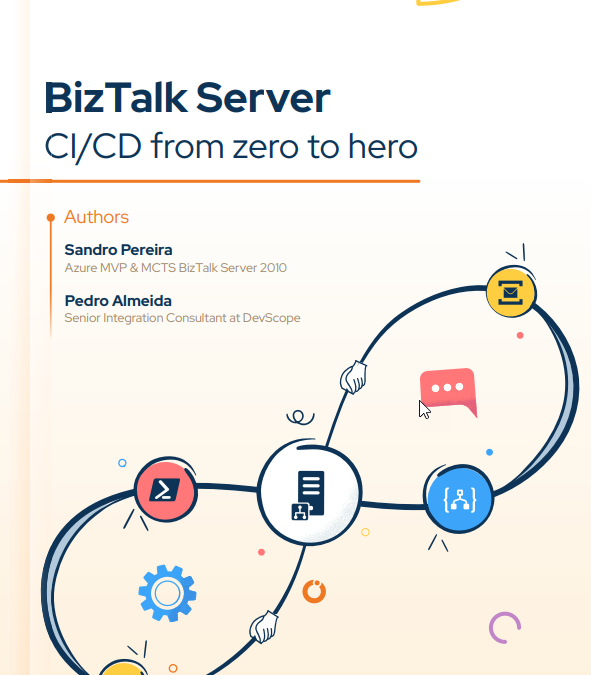
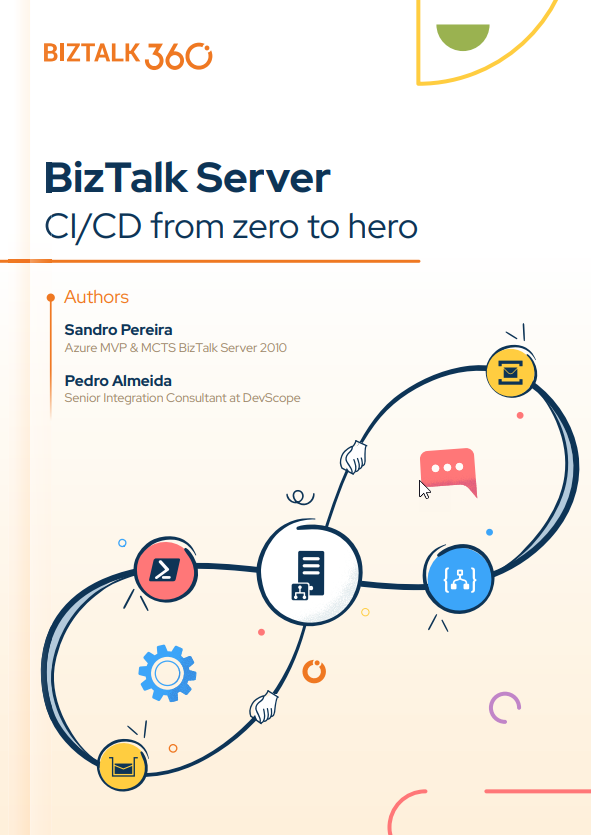
This whitepaper will address and explain how you can implement CI/CD oriented to BizTalk Server using Azure DevOps Pipelines.
In this whitepaper, Pedro Almeida and I will provide a detailed introduction to CI/CD. It teaches how to Create a project collection. Learn how to prepare the visual studio for projects end to end. A well-defined pipeline. Helps you understand how to save development time by thinking long-term since it is a low-cost, high-return scenario.
What’s in store for you?
This whitepaper will give you a detailed understanding of the following:
An introduction to:
What is a CI/CD Pipeline?
What are CI/CD Pipelines?
What is Azure DevOps?
Create an organization or project collection in Azure DevOps
Create a project in Azure DevOps
Preparing your Visual Studio BizTalk Server project for CI/CD
Creating a BizTalk Server Deployment Project
Add the application project
Making your Bindings dynamic for deployment
Configure the BizTalkServerInventory JSON template
Continuous Integration and Continuous Deployment (CI/CD) is a practice that has become an essential aspect of Azure development. Although it is possible to execute each of the CI/CD pipeline steps manually, the actual value can be achieved only through automation.
And to improve software delivery using CI/CD pipelines, either a DevOps or a Site Reliability Engineering (SRE) approach is highly recommended.
In this whitepaper, Pedro Almeida and I will demonstrate how you can use Azure DevOps Pipelines to implement CI/CD based on Logic Apps (consumption).
We will explain it all in detail, from creating a project in Azure DevOps, and provisioning a Logic App Consumption to configuring the built Logic App for CI/CD.
What’s in store for you?
This whitepaper will give you a detailed understanding of the following:
An introduction to:
What is a CI/CD Pipeline?
What are CI/CD Pipelines?
What is Azure DevOps?
Create an organization or project collection in Azure DevOps
Create a project in Azure DevOps
Building a Logic App (Consumption) from scratch
Setting up the Visual Studio Logic App (Consumption) project for CI/CD
A step-by-step approach to building Azure Pipelines
We are thrilled to be back doing a presential event on our Azure User Group Portugal! It has been so long! And even happier to be in Porto City.
Azure User Group Portugal is a user group for anyone interested in Cloud Computing with a great focus on Microsoft Azure. If you work with or have an interest in the Microsoft Cloud this is the user group to attend and follow our events. Join our group to keep posted about all the new meetings. Looking forward to having you as a member.
In this April 2022 edition, we will be having two distinguished speakers: Laurent Bugnion (Principal Cloud Developer Advocate at Microsoft) and Henk Boelman (Cloud Advocate at Microsoft) in two sessions about:
Event-driven apps in Azure Using Azure, it is easier than ever to build event-driven web applications, for example using Azure Functions and the Azure SignalR service. Laurent Bugnion, a Cloud Advocate for Microsoft, will show you how he implemented such a solution to solve a real-world problem. This presentation will dive into a production application called Timekeeper, that Microsoft uses to run some of its live TV shows such as the Hello World daily show. More information about Timekeeper is at http://timekeeper.cloud
Making sense of unstructured data with AI Do you have a lot of data in unreadable formats such as PDFs, images, and audio files and want the ability to extract this rich information, analyze it, and act on it? In this session, you’ll learn how to combine a set of Cognitive Services like Azure Cognitive Search to make sense of this data in a short amount of time. We’ll discuss AI concepts, like the ingest-enrich-explore pattern, skillsets, leveraging cognitive services, knowledge bases, and connecting all these elements together to build an intelligent search experience into an application.
Event Details and Agenda
The event will start at 6:30 PM (GMT) at the headquarters of DevScope at Rua de Passos Manuel, 223 – 4º Floor – 4000-385 Porto, Portugal.
Agenda:
Session 1: Event-driven apps in Azure
Session 2: Making sense of unstructured data with AI
Speakers: Laurent Bugnion and Henk Boelman Event Language: English
Do you feel difficult to keep up to date on all the frequent updates and announcements in the Microsoft Integration platform and Azure iPaaS?
Integration weekly updates can be your solution. It’s a weekly update on the topics related to Integration – enterprise integration, robust & scalable messaging capabilities and Citizen Integration capabilities empowered by Microsoft platform to deliver value to the business.
Do you feel difficult to keep up to date on all the frequent updates and announcements in the Microsoft Integration platform and Azure iPaaS?
Integration weekly updates can be your solution. It’s a weekly update on the topics related to Integration – enterprise integration, robust & scalable messaging capabilities and Citizen Integration capabilities empowered by Microsoft platform to deliver value to the business.
Do you feel difficult to keep up to date on all the frequent updates and announcements in the Microsoft Integration platform and Azure iPaaS?
Integration weekly updates can be your solution. It’s a weekly update on the topics related to Integration – enterprise integration, robust & scalable messaging capabilities and Citizen Integration capabilities empowered by Microsoft platform to deliver value to the business.
This time I decided to create a brand new component called the Message Archive Pipeline Component.
For those who aren’t familiar with it, the BizTalk Pipeline Components Extensions Utility Pack project is a set of custom pipeline components (libraries) with several custom pipeline components that can be used in receive and sent pipelines. Those pipeline components provide extensions of BizTalk’s out-of-the-box pipeline capabilities.
Message Archive Pipeline Component
The Message Archive Pipeline Component is a pipeline component that can be used to arch incoming/outgoing messages from any adapters into a local or shared folder. It is very identical and provides the same capabilities as the already existing BizTalk Server Local Archive pipeline component:
It can be used in any stage of a receive pipeline or send pipeline;
It can be used in multiple stages of a receive pipeline or send pipeline;
It provides an option for you to specify the location path for where you want to save the message: local folder, shared folder, network folder.
It can be used from any adapter:
If the adapter provides the ReceivedFileName property promoted like the File adapter or FTP adapter the component will take this value into consideration and save the message with the same name;
Otherwise, it will use the MessageID, saving the file with the MessageID has its name without extension.
So what are the differences between them?
The significant differences between these two components are that the Message Archive Pipeline Component allows you to:
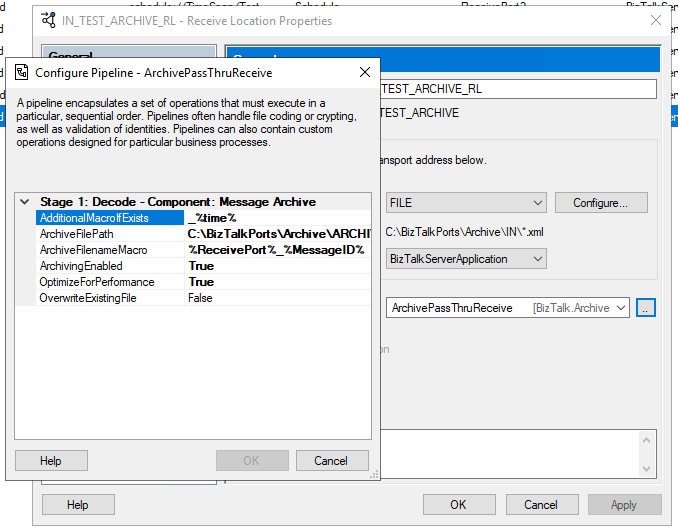
Set the filename using macros like %datetime%, %ReceivePort%, %Day%, etc.
For example, %ReceivePort%_%MessageID%.xml
Set the archive file path once again using macros:
for example C:BizTalkPortsArchiveARCHIVE%Year%%Month%%Day%
If you don’t want to overwrite existing files, you can specify an additional Macro to distinguish them.
For example _%time%
You can set up this component for high performance using forward-only streaming best practices.
In short, this means developing your pipeline components so that they do their logic either as a custom stream implementation or by reacting to the events available to you through the Microsoft.BizTalk.Streaming.dll stream classes. Without ever keeping anything except the small stream buffer in Memory and without ever seeking the original stream. This is best practice from the perspective of resource utilization, both memory and processor cycles.
This is the list of properties that you can set up on the archive pipeline component:
Property Name
Description
Sample Values
OverwriteExistingFile
Define if the archive file is to be overwritten if already exists
true/false
ArchivingEnabled
Define if the archive capabilities are enabled or disabled
true/false
ArchiveFilePath
Archive folder path. You can use macros to dynamically define the path.
C:Archive%Year%%Month%%Day%
ArchiveFilenameMacro
File name template. If empty the source file name or MessageId will be used. You can use macros to dynamically define the filename.
%ReceivePort%_%MessageID%.xml
AdditionalMacroIfExists
If a file already exists and OverwriteExistingFile is set to false, a suffix can be added. If empty the MessageId will be used. You can use macros to dynamically define this suffix.
_%time%
OptimizeForPerformance
Setting to apply high performance on the archive
true/false
Available macros
This is the list of macros that you use on the archive pipeline component:
Property Name
Description
%datetime%
Coordinated Universal Time (UTC) date time in the format YYYY-MM-DDThhmmss (for example, 1997-07-12T103508).
%MessageID%
Globally unique identifier (GUID) of the message in BizTalk Server. The value comes directly from the message context property BTS.MessageID.
%FileName%
Name of the file from which the File adapter read the message. The file name includes the extension and excludes the file path, for example, Sample.xml. When substituting this property, the File adapter extracts the file name from the absolute file path stored in the FILE.ReceivedFileName context property. If the context property does not have a value the MessageId will be used.
%FileNameWithoutExtension%
Same of the %FileName% but without extension.
%FileNameExtension%
Same of the %FileName% but in this case only the extension with a dot: .xml
%Day%
UTC Current day.
%Month%
UTC Current month.
%Year%
UTC Current year.
%time%
UTC time in the format hhmmss.
%ReceivePort%
Receive port name.
%ReceiveLocation%
Receive location name.
%SendPort%
Send port name.
%InboundTransportType%
Inbound Transport Type.
%InterchangeID%
InterchangeID.
How to install it
As always, you just need to add these DLLs on the Pipeline Components folder that in BizTalk Server 2020 is by default:
In this particular component, we need to have this DLL:
BizTalk.PipelineComponents.MessageArchive.dll
How to use it
Like all previous, to use the pipeline component, I recommend you to create a generic or several generic pipelines that can be reused by all your applications and add the Message Archive Pipeline Component in the stage you desire. The component can be used in a stage of the receive and send pipelines.
Download
THIS COMPONENT IS PROVIDED “AS IS”, WITHOUT WARRANTY OF ANY KIND.
You can download Message Archive Pipeline Component from GitHub here:
Do you feel difficult to keep up to date on all the frequent updates and announcements in the Microsoft Integration platform and Azure iPaaS?
Integration weekly updates can be your solution. It’s a weekly update on the topics related to Integration – enterprise integration, robust & scalable messaging capabilities and Citizen Integration capabilities empowered by Microsoft platform to deliver value to the business.