For those who are not familiar, this project is a set of custom pipeline components (libraries) with several custom pipeline components that can be used in received and sent pipelines, which will extend BizTalk’s out-of-the-box pipeline capabilities.
Receive Location Name Property Promotion Pipeline Component
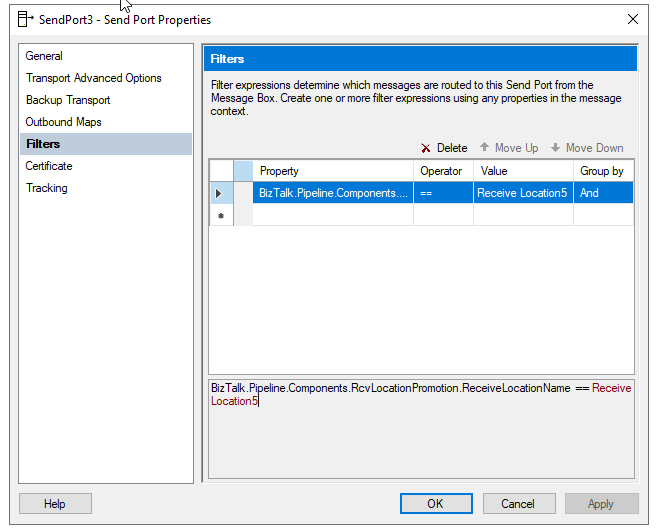
Receive Location Name Property Promotion Pipeline Component is a simple pipeline component to promote the Receive Location Name (ReceiveLocationName) property to the context of the message. Several BizTalk Server context properties are not promoted by default with BizTalk Server, which means that they are not available for routing.
One such property is the ReceiveLocationName property. While the ReceivePortName property is available in the BTS namespace, the ReceiveLocationName property is not promoted. It cannot be used for routing nor access it from inside an orchestration.
My team and I kept that behavior creates this project as a proof-of-concept to explain how you can promote properties to the context of the message.
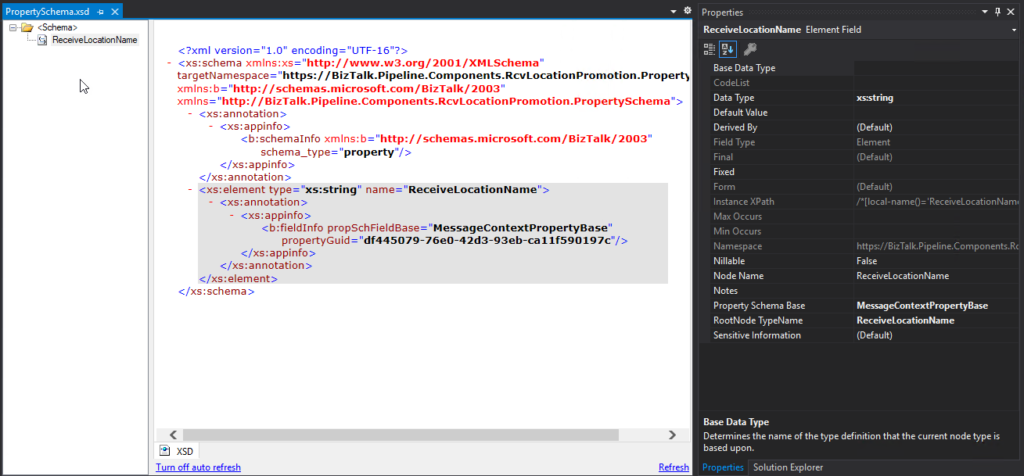
Create a Property schema
To promote properties to the context of the message, we will need a Property Schema with these properties. In our case, we will add only one property called: ReceiveLocationName.
Property Name
Date Type
Property Schema Base
ReceiveLocationName
xs:string
MessageContextPropertyBase
Note: A MessageContextPropertyBase property means that the XPath may or may not exist.
Create a Pipeline Component
To actually promote the properties to the context of the message, we need to create a pipeline component to do the trick.
Once you deploy the property schema and a receive pipeline component containing the Receive Location Name Property Promotion Pipeline Component, you can start to apply Content-based routing using the Receive Location Name.
Download
THIS COMPONENT IS PROVIDED “AS IS”, WITHOUT WARRANTY OF ANY KIND.
You can download Receive Location Name Property Promotion Pipeline Component from GitHub here:
For those who are pt familiar, this project is a set of custom pipeline components (libraries) with several custom pipeline components that can be used in received and sent pipelines, which will extend BizTalk’s out-of-the-box pipeline capabilities.
BizTalk PDF2Xml Pipeline Component
BizTalk PDF2Xml Pipeline Component is, as the name mentioned, a decode component that transforms the content of a PDF document to an XML message that BizTalk can understand and process. The component uses the itextsharp library to extract the PDF content. The original source code was available on the CodePlex (pdf2xmlbiztalk.codeplex.com). Still, I couldn’t validate who was the original creator. So, the component first transforms the PDF content to HTML, and then using an external XSLT, will apply a transformation to convert the HTML into a know XML document that BizTalk Server can process.
My team and I kept that behavior, but we extended this component and added the capability also to, by default, convert it to a well know XML without the need for you to use an XSTL transformation directly on the pipeline.
How does this component work?
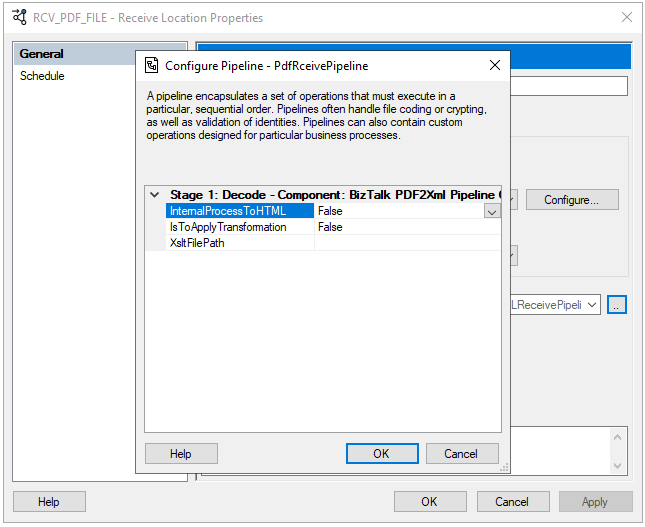
This is the list of properties that you can set up on the PDF2XML pipeline component:
Property Name
Description
Sample Values
InternalProcessToHTML
Value to decide if you want the component to transform the PDF content to HTML or XML
True/False
IsToApplyTrasnformation
Value to decide if you want to apply a transformation on the pipeline component or not
True/False
XsltFilePath
Path to an XSLT transformation file
C:transfmymap.xslt
Once you pass the PDF by this component and depending on how you configure it, the outcome can be:
All PDF content in an HTML format;
All PDF content in an XML format;
Part of the PDF content on an XML format (if you apply a transformation)
Unfortunately, on my initial tests, this component works well with some PDF files, but others simply ignore its content. Nevertheless, I make it available as a prof-of-concept.
Download
THIS COMPONENT IS PROVIDED “AS IS”, WITHOUT WARRANTY OF ANY KIND.
You can download BizTalk PDF2Xml Pipeline Component from GitHub here:
Do you feel difficult to keep up to date on all the frequent updates and announcements in the Microsoft Integration platform and Azure iPaaS?
Integration weekly updates can be your solution. It’s a weekly update on the topics related to Integration – enterprise integration, robust & scalable messaging capabilities and Citizen Integration capabilities empowered by Microsoft platform to deliver value to the business.
Do you feel difficult to keep up to date on all the frequent updates and announcements in the Microsoft Integration platform and Azure iPaaS?
Integration weekly updates can be your solution. It’s a weekly update on the topics related to Integration – enterprise integration, robust & scalable messaging capabilities and Citizen Integration capabilities empowered by Microsoft platform to deliver value to the business.
Do you feel difficult to keep up to date on all the frequent updates and announcements in the Microsoft Integration platform and Azure iPaaS?
Integration weekly updates can be your solution. It’s a weekly update on the topics related to Integration – enterprise integration, robust & scalable messaging capabilities and Citizen Integration capabilities empowered by Microsoft platform to deliver value to the business.
Do you feel difficult to keep up to date on all the frequent updates and announcements in the Microsoft Integration platform and Azure iPaaS?
Integration weekly updates can be your solution. It’s a weekly update on the topics related to Integration – enterprise integration, robust & scalable messaging capabilities and Citizen Integration capabilities empowered by Microsoft platform to deliver value to the business.
Do you feel difficult to keep up to date on all the frequent updates and announcements in the Microsoft Integration platform and Azure iPaaS?
Integration weekly updates can be your solution. It’s a weekly update on the topics related to Integration – enterprise integration, robust & scalable messaging capabilities and Citizen Integration capabilities empowered by Microsoft platform to deliver value to the business.
Yesterday I spoke about how you can apply custom pattern restrictions to properly validate DateTime, Date, and Time formats inside elements or attributes. You can see more about it here:
And I mention that these Regular Expressions can be simple and relatively easier to read if you have some basic knowledge like this one below:
d{4}d{2}d{2} – that is a simple format that expects 4 digits followed by 2 additional digits and another 2 digits that is the date in the YYYYMMDD format without validating the accuracy of months or days and where:
YYYY is the for digits year, like 2022.
MM is the 2 digits month, like 01.
DD is the 2 digits day, like 21.
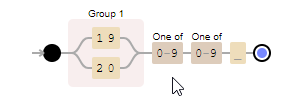
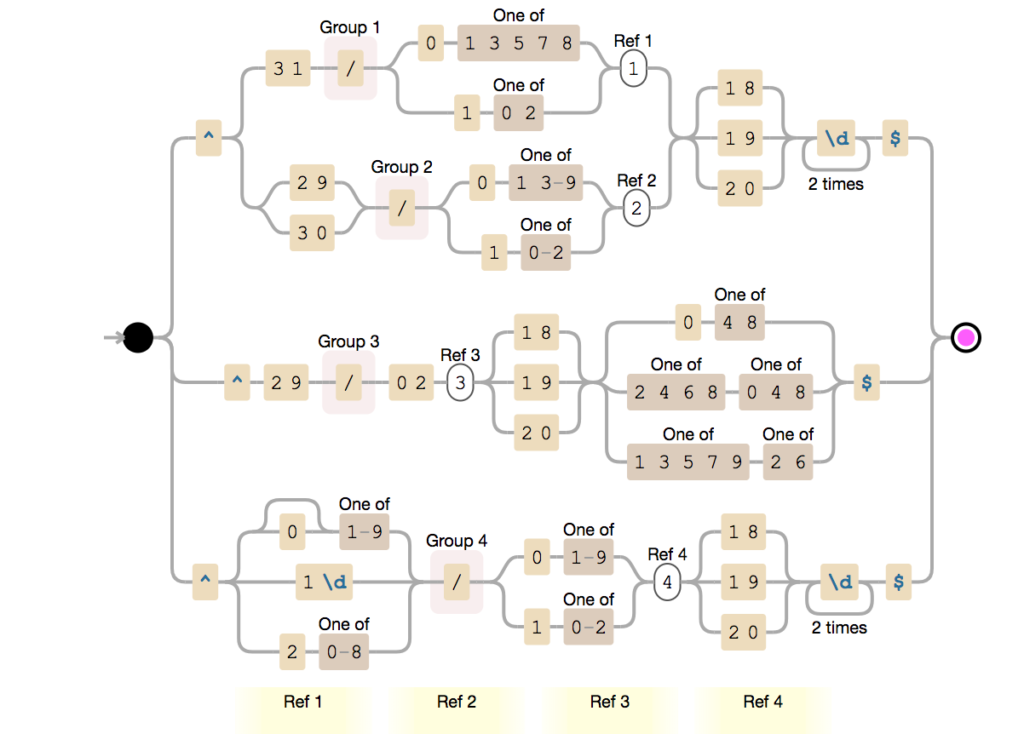
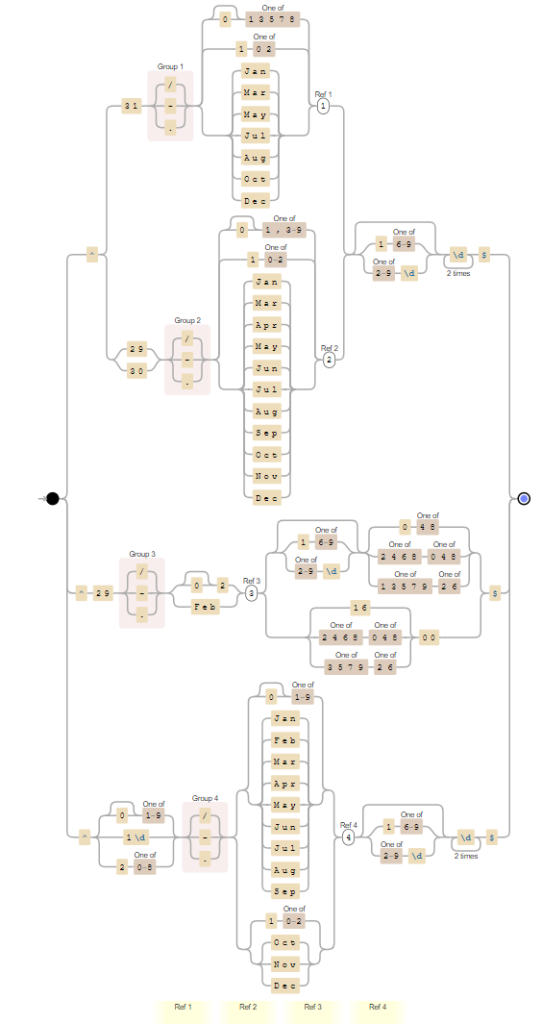
But it can get highly complex that even people with good knowledge have difficulty translating the expression to the expected pattern, like the one below:
It is not simple to look to this RegEx and say: “yep, we are expecting this Date format: MM/DD/YYYY like 12/11/1999, and by the way, it validates the Leap Year!”
Imagine users that don’t have strong know-how about RegEx!
So, what can we do to improve this experience? What are the best practices in these cases?
Best practices
A good best practice to improve readability while documenting your schemas is to add notes to these elements or attributes.
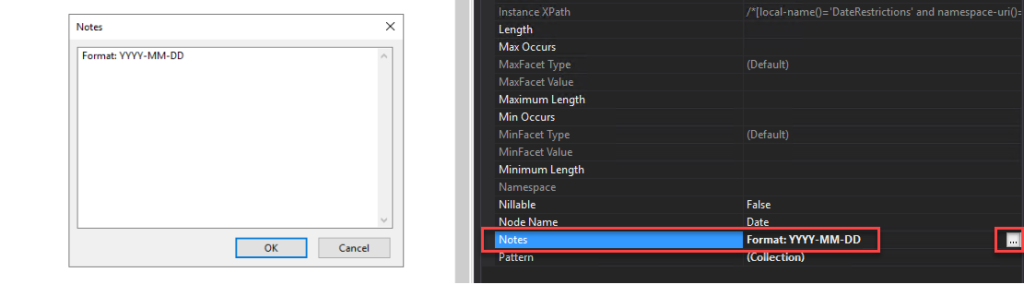
We can and should use the Notes property to enter notes, such as comments related to the business process, that you would like to make about the selected Record, Field Element, or Field Attribute node. In these DateTime, Date, and Time cases, we can simply add the expected format in the Notes property, like:
Format: YYYY-MM-DD
Format: HH:mm:ss
Format: YYYYMMDD
Format: HHmm
Format: YYYY-MM-DD – It validates Leap Year
To accomplish this, we need to
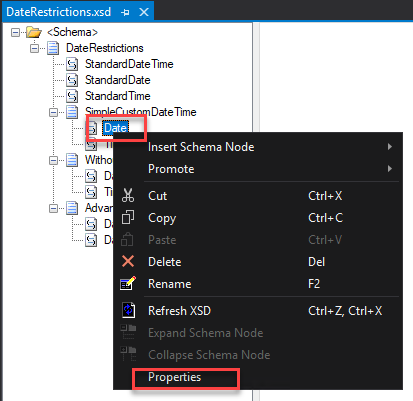
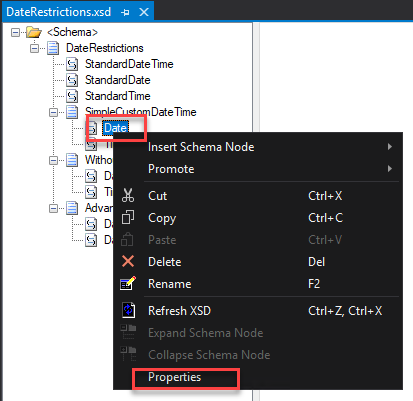
Right-click on the Element or Attribute fields in the schema tree view and select the Properties option.
On the Properties window, click on the … (three dots) on the Notes property. This action will open a Notes window where you can add all your relevant notes.
Do that to all your elements and fields that are using pattern restrictions.
Even non-technical guys can understand the Schema specification you provide or are consuming. This best practice implementation will also help you improve productivity since you will not spend too much time decompiling Regular Expressions.
Download
THIS SAMPLE CODE IS PROVIDED “AS IS”, WITHOUT WARRANTY OF ANY KIND.
You can download the POC: BizTalk Schemas Handle Restrictions on Date from GitHub here:
Today I was involved in a BizTalk Schema importation that includes not-so-used restrictions on Date and Time elements formats. And that gave me the idea and inspiration to create this blog post.
When we work with DateTime on Schemas by default we can choose from the following data types:
xs:dateTime: The dateTime data type is used to specify a date and a time in the following form “YYYY-MM-DDThh:mm:ss.fffK” where:
YYYY indicates the year
MM indicates the month
DD indicates the day
T indicates the start of the required time section
hh indicates the hour
mm indicates the minute
ss indicates the second
fff indicates the milliseconds
K represents the time zone information of a date and time value (e.g. +05:00)
xs:date: The date data type is used to specify a date in the following form “YYYY-MM-DD” where:
YYYY indicates the year
MM indicates the month
DD indicates the day
xs:time: The time data type is used to specify a time in the following form “hh:mm:ss.fffK” where:
hh indicates the hour
mm indicates the minute
ss indicates the second
fff indicates the milliseconds
K represents the time zone information of a date and time value (e.g. +05:00)
or you could use an xs:string that b.asically accepts everything. The only problem here is that by default we can’t do a schema validation to see if it is a valid DateTime format.
But not all systems respect de DateTime formats expected by the XSD default values. So, what are my options if a system expects other types of DateTime, Date, or Time formats? Like:
MM/DD/YYYY
YYYY-DD-MM
YYYY-MM-DD HH:mm:ss
YYYYMMDD
HHmmss
HH:mm:ss
and so on.
Simple Type Derivation Using the Restriction Mechanism
Luckily for us BizTalk Schema Editor and schemas, in general, allow us to derive a simple type, for example, xs:string, by using the restriction mechanism, i.e., we are typically restricting the values allowed in a message for that attribute or element value to a subset of those values allowed by the base simple type. A good and common sample of these types of restrictions is to restrict a string type to be one of several enumerated strings.
Luckily for us, again, we can also apply a pattern (that uses Regex expression) to validate the element or attribute value.
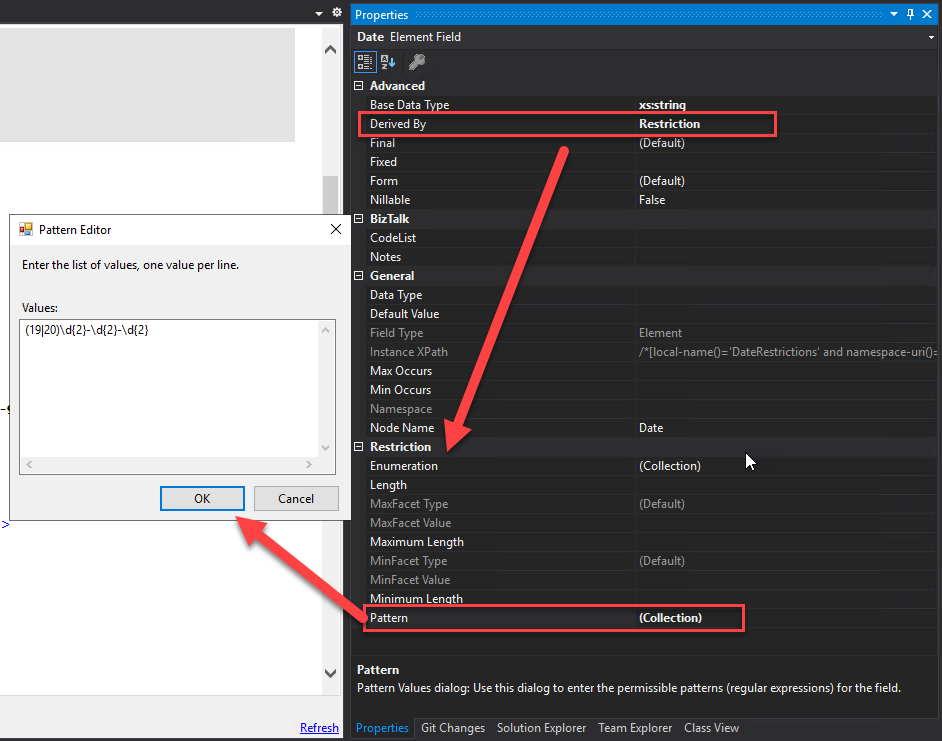
To derive a simple type by using restriction:
Select the relevant Field Element node or Field Attribute node in the schema tree
And then, in the Properties window, on the Derived By property set as Restriction.
This will add/present the Restriction properties on the Properties window.
On the Restriction properties, click on the … (3 dots) on the Pattern property to define the RegEx.
Regular expression samples to validate date formats
Here is where the fun starts. There are many ways to archive this goal:
One’s more simple but probably not that efficient since they may not validate all cases (Leap year, and so on)
Others more complex that requires more knowladge but more accurated.
In a general overview, the use of regex to validate the date format supports a variety of situations and possibilities like:
Rule to validate the year:
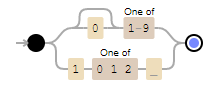
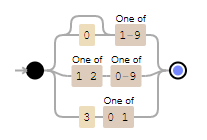
d{4} – it says that accepts 4 digits like: 2022
(19|20)[0-9][0-9] -accepts years starting with 19 or 20, i.e., from 1900 to 2099
Rule to validate the month:
d{2} – it says that accepts 2 digits like: 12, but the problem here is that also accepts invalid months like 24 or 99.
d{2} – it says that accepts 2 digits like: 12, but the problem here is that also accepts invalid days like 32 or 99. It also don’t validate what is the month we define to validate if accepts 28, 29, 30 or 31
0?[1-9]|[12][0-9]|3[01] – accepts 01-09 (leading zero), 1-9 (single digit), 10-19, 20-29 and 30-31. It doesn.t check if it is a Leap year or not.
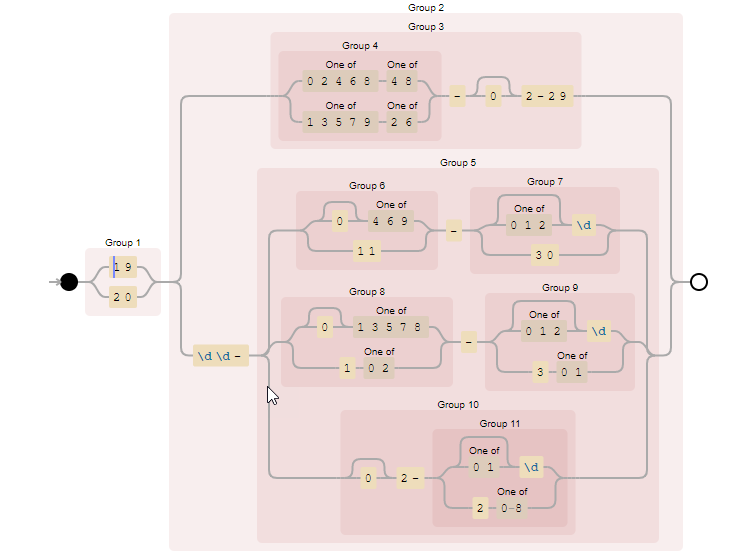
To implement the lead year that needs to be with a concatenation of several rules like this sample:
As you saw above, things can go out of control and become quite complex. Fortunately, the BizTalk Schema Editor and the schemas, in general, allow us to apply multiple patterns to simplify the overall expression.
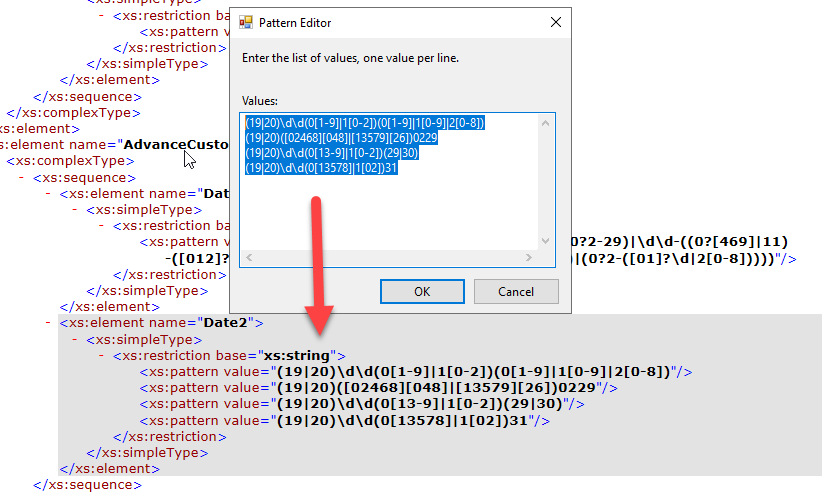
So, for example, if I want to have the following Date format: YYYYMMDD with Leap year validated I can use the combination of these 4 expressions:
(19|20)dd(0[1-9]|1[0-2])(0[1-9]|1[0-9]|2[0-8])
(19|20)([02468][048]|[13579][26])0229
(19|20)dd(0[13-9]|1[0-2])(29|30)
(19|20)dd(0[13578]|1[02])31
Some samples
Date in the following format: YYYY-MM-DD like 2022-12-11
Simple formats
d{4}-d{2}-d{2} – simple format without validating month or day
Do you feel difficult to keep up to date on all the frequent updates and announcements in the Microsoft Integration platform and Azure iPaaS?
Integration weekly updates can be your solution. It’s a weekly update on the topics related to Integration – enterprise integration, robust & scalable messaging capabilities and Citizen Integration capabilities empowered by Microsoft platform to deliver value to the business.







 by Xinli Shang, Mohammad Islam, Pavi Subenderan, and Jianchun Xu