by Sandro Pereira | Aug 29, 2018 | BizTalk Community Blogs via Syndication
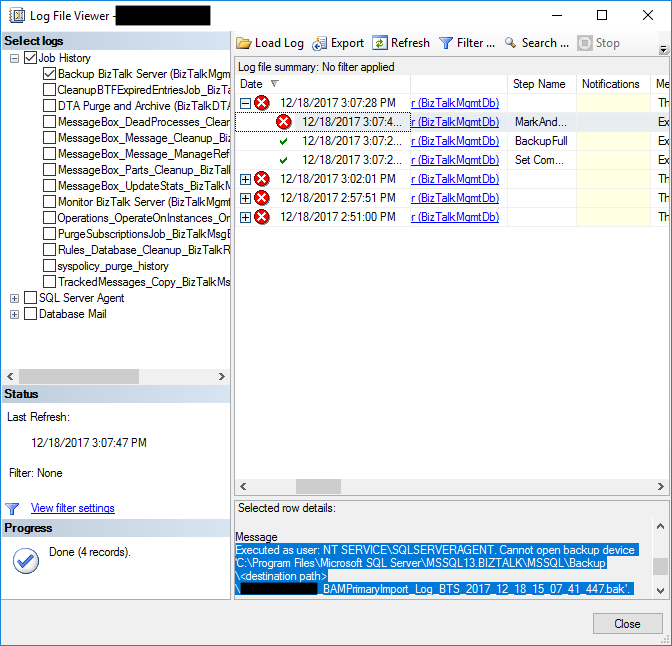
Another day, another error to report directly retrieved from my backlog to be published. Today is about another error that can happen on the Backup BizTalk Server job: “Executed as user NT SERVICESQLSERVERAGENT. Cannot open backup device destination pathdatabase name“. I got this error a few months ago in a client while doing an installation assessment:
Executed as user: NT SERVICESQLSERVERAGENT. Cannot open backup device ‘C:Program FilesMicrosoft SQL ServerMSSQL13.BIZTALKMSSQLBackup<destination path>NAME_BAMPrimaryImport_Log_BTS_2017_12_18_15_07_41_447.bak’. Operating system error 123(The filename, directory name, or volume label syntax is incorrect.). [SQLSTATE 42000] (Error 3201) BACKUP LOG is terminating abnormally. [SQLSTATE 42000] (Error 3013). The step failed.
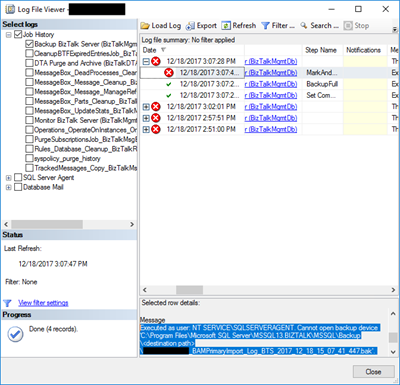
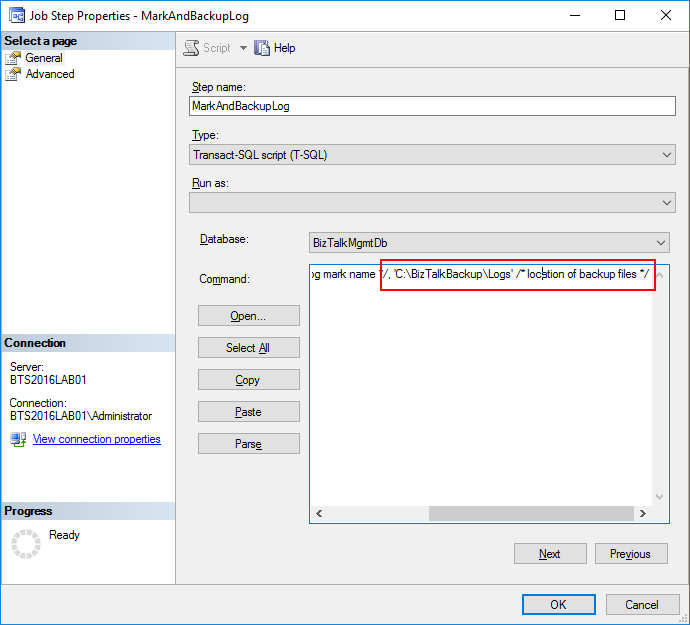
This error was occurring on the third step of the Backup BizTalk Server job: MarkAndBackupLog.
Cause
On the third step, MarkAndBackupLog, of the Backup BizTalk Server job, if you check in input parameters of the stored procedure that is invoked there: the “sp_MarkAll” stored procedure. You will find out that the second parameter is the location of backup files and this location must exist in the file system.
The reason for this error to occur may be related for one of these reasons:
- This step is not properly configured, and you still have “<destination path>” set as the value for the location of backup files – second parameter;
- Or the folder/path that you define as the location of backup doesn’t exist;
Solution
You must remember that you need to ensure that all the paths specified in the BizTalk jobs must exist in the file system.
But in this case and as you will see in the error description, the backup job was not properly configured and still have “<destination path>” set as the value for the location of backup files.
To solve this problem, you need to:
- Press the “Windows key” type “SQL Management” or “SQL” and click in “SQL Server Management Studio”.
- In Object Explorer panel, connect to the SQL Server instance and expand the server tree.
- Expand the “SQL Server Agent” node
- Expand the “Jobs” node
- Double click “Backup BizTalk Server (BizTalkMgmtDb)” to open the job properties window.
- In the Job Properties – Backup BizTalk Server (BizTalkMgmtDb) dialog box, under “Select a page”, click “Steps”.
- In the “Job step list”, click on the job you want to edit, in this case, “MarkAndBackupLog”, and then click “Edit”
- On the “Command” property correctly specify a path for the backup files
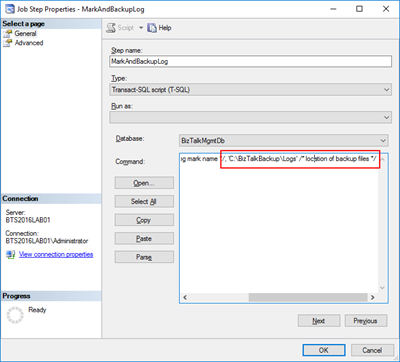
After I properly configure the job this error was solved and I was successfully able to run the Backup BizTalk Server job.
Author: Sandro Pereira
Sandro Pereira lives in Portugal and works as a consultant at DevScope. In the past years, he has been working on implementing Integration scenarios both on-premises and cloud for various clients, each with different scenarios from a technical point of view, size, and criticality, using Microsoft Azure, Microsoft BizTalk Server and different technologies like AS2, EDI, RosettaNet, SAP, TIBCO etc. He is a regular blogger, international speaker, and technical reviewer of several BizTalk books all focused on Integration. He is also the author of the book “BizTalk Mapping Patterns & Best Practices”. He has been awarded MVP since 2011 for his contributions to the integration community. View all posts by Sandro Pereira

by Sivaramakrishnan Arumugam | Aug 28, 2018 | BizTalk Community Blogs via Syndication
Support deliberation is a process of discussing the challenges we faced in support handling. It is an initiative which our CEO suggested, and we are following this to transfer the knowledge to the team. With the different levels of support, it is important to share the knowledge between the team members, so that it would help them to resolve customer issues efficiently, when they come across similar kind of issues. It’s not only for the support team, the entire product team, including the developers, QA and the documentation teams take part in this deliberation.
I would like to narrate this blog as a Q&A session, so that I can explain in detail.
What is deliberation?
As deliberation defines, it’s a place where we discuss in detail about the support process and the challenges we faced in resolving the issues related to the product. Every participant will share their view and add points to the discussion.
Who are all the stakeholders?
Everyone who is inside/part of the product will take part. People from Development, QA, Document and Support. The thumb rule is no one should skip the meeting. It is important for every team member to attend this meeting, because it would be helpful for everyone to gather more information about the product, as well as the customer’s expectations and queries.

Yes…!! We are the stakeholders of BizTalk360
What do we discuss?
At first, we used to conduct this meeting twice in a month for 30 minutes. We thought that we were delaying the process and for providing immediate attention to the support tickets, we cut down the days and currently we are conducting every week, Tuesday from 03:00 to 03:30 PM IST, sometimes it may extend a bit longer.
Each support person would come up with a list of interesting and challenging support tickets they had resolved the past week. The challenges include the support tickets, support articles, blogs, new feature requests and enhancements which were raised by customers.
What is the process?
The process is simple and clear, we will follow the below Agenda:
- Discussing past one week important/challenging support cases
- Discussing the solution provided
- Gather inputs from the team members
- What needs to be improved
- Key Takeaways
Simple isn’t it?
What’s the flow?
We start with the updates and actions taken on what we discussed for the previous week, based on the key takeaways from the meeting. Then we will discuss the current week challenges.
What did we discuss in the present week?
Well, let’s dive deep into this. We will take past 7 days tickets for the discussion.
Interesting/challenging support tickets
We started the meeting with the interesting/challenging support tickets which we handled that week. Let’s take a support case.
When a customer tried to install BizTalk360 on a stand-alone machine, they faced below exception during BizTalk360 database creation.

At an initial stage, we thought it might be a permission issue. Later, after a lot of effort we found it’s due to the TLS versions enabled in that machine.
Key Takeaway
The development team would only have more knowledge about the product functionality, but they would be unaware of the security configuration at the customer end. This discussion will give them a better insight into the customer scenarios. As a takeaway, we have conveyed this to the developer team and testing team. So, that they will know the dependency of the installer and work/test accordingly.
Bugs
There is no perfect product and there is always more scope for the development of the product in the form of either bugs or enhancements. As BizTalk server is an ocean, we are trying to cover most of the functionality. Very recently we faced an issue with the customer side on Business Activity Monitoring (BAM). When they added a column, they received an error.
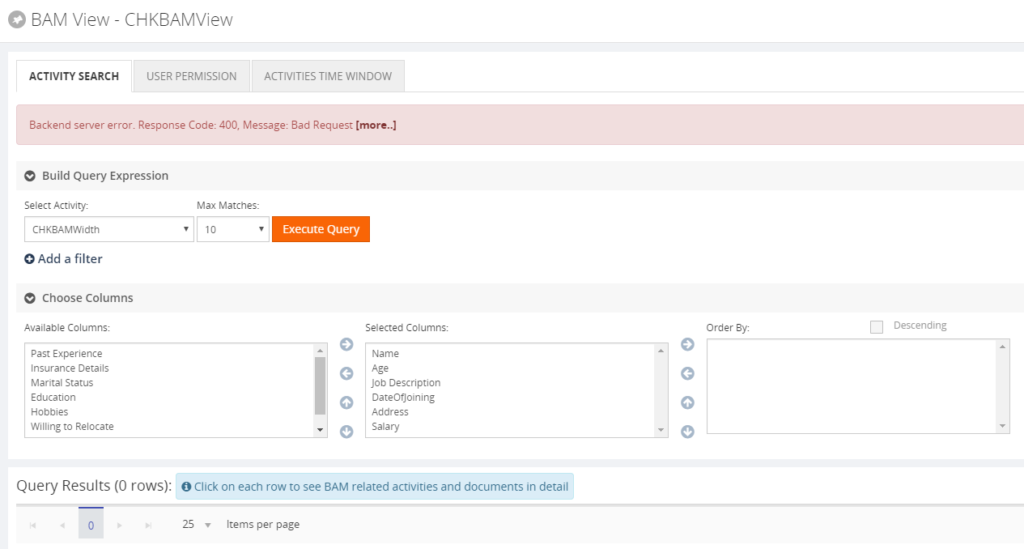
This issue happens when the end date column has NULL values and it was selected in the BAM query in BizTalk360.
Key Takeaway
We have passed this scenario to our team so that both developers and test engineers will be aware of it and they will include these scenarios in their test case checklist.
Creating team awareness
This topic is something interesting; even though it will be out of BizTalk360, it is still relevant.
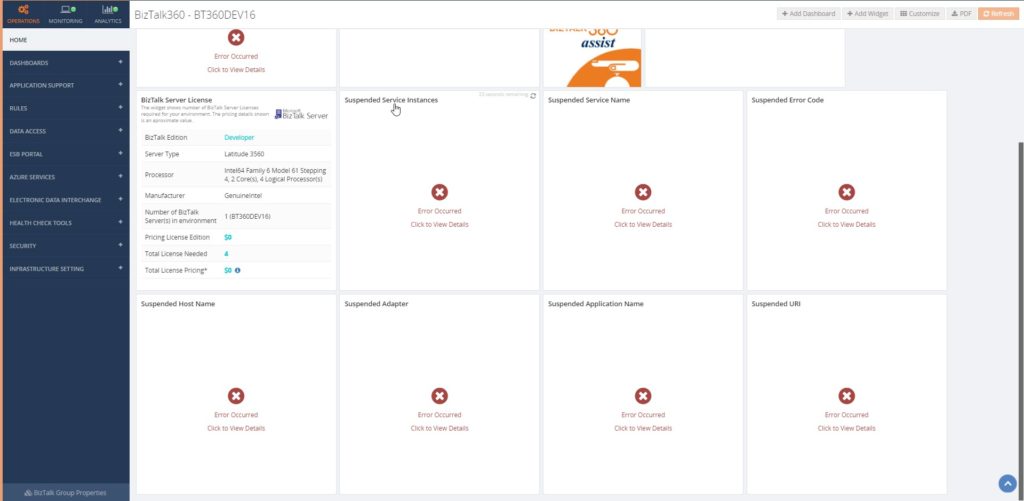
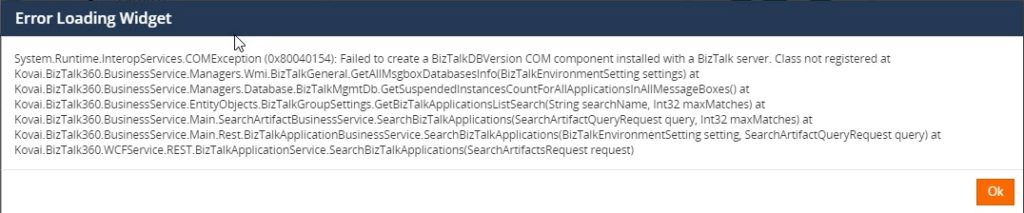
Most of our customers started to face an exception in BizTalk360, once after installing a Windows Security patch update. We found the root cause, that not only BizTalk360 shows the exception, it is because BizTalk Server facing an exception, which is reflected in BizTalk360. We recommended removing the patch update and that solved their problem. Luckily Microsoft has re-issued the updated patch for the same on July 30, 2018.
Key Takeaway
Interesting isn’t it? We have conveyed to the team, so that they will be aware of the issue. If they face the same problem with BizTalk server, they will not wait for our system engineer to repair, but they will try to fix the issue in BizTalk Server. After that, the problem will most likely be fixed in BizTalk360 as well.
Improvement tickets
At BizTalk360, we evolve the product based on feedback we get from different forums like:
- Support tickets
- Customer relationship calls
- Feedback portal
- Direct feedback
Based on the customer’s feedback, the tickets will be discussed. The feedback may concern an existing feature enhancement, a new feature or a feature document.
Key Takeaway
Based on the discussion the action will be performed. Say for example, if the feedback comes to a documentation enhancement, one of us (as we are DevOps) will be assigned to complete the necessary changes.
For an existing feature enhancement or a new feature, we will discuss with the team. Based on the team members feedback, we will add the feature in the Feedback portal and make other customers vote for it. Based on the number of votes, we will include in the product or if it is already available in the portal, we will wait for the interest of other customers. If the team agrees to accept the feature for development, one of the persons will be assigned to develop or to improve the feature.
The Brainstorming session
This is an interesting part for me. We don’t want to run the session like a normal Knowledge Transfer session with the team and we always prefer an interactive session. So once after explaining the problem faced by the customer, we will ask the team what the best solution would be and what the necessary steps are to solve the problem.
Key Takeaway
The first point is to make the team understand the problem and get their opinion. It will help us to get the solution and their point of view and may provide a better dimension of that case. We have received a better suggestion from the team, every time.
Hidden fact, it helps themselves, while developing, testing or documenting a feature. They will always be aware of how the customer is using a feature and act accordingly.
Minutes of Meeting (MOM)
Each meeting ends up with the key takeaways and MOM. This will help us to follow up and take necessary actions. During the next deliberation meeting, we start up with the past week’s MOM or with the tickets what we have discussed.
Why we started this process?
We wanted to break the dependency of individuals like Module owners and get more knowledge from our higher levels. As DevOps, we should be ready to accept any challenge while working in different roles . It’s also important to understand and be aware of the customer environment and business requirements.
I want to take this opportunity once again to thank everyone in and out of BizTalk360 for this wonderful opportunity and believing in us. We are looking forward, for much more opportunities.
Author: Sivaramakrishnan Arumugam
Sivaramakrishnan is our Support Engineer with quite a few certifications under his belt. He has been instrumental in handling the customer support area. He believes Travelling makes happy of anyone. View all posts by Sivaramakrishnan Arumugam
by Sandro Pereira | Aug 27, 2018 | BizTalk Community Blogs via Syndication
It’s been a while since I don’t make any changes to one of my favorite pet projects: BizTalk Mapper Extensions UtilityPack! Today I’m happy to announce the release of a new BizTalk Functoid: Convert to a Number Functoid.
Note: And it will not be the only one, soon I will release two new Functoids that I’m working on.
Today I was working on a map that I had the need to transform several numbers delivers in a string with a decimal format:
to an Oracle NUMBER(x) – without decimals.
Initial, I thought in create a Scripting Functoid and reuse it inside the map for each element. However, I realize that I will have to use the same transformation in different maps… so I end up creating this simple Functoid.
Convert to a Number Functoid
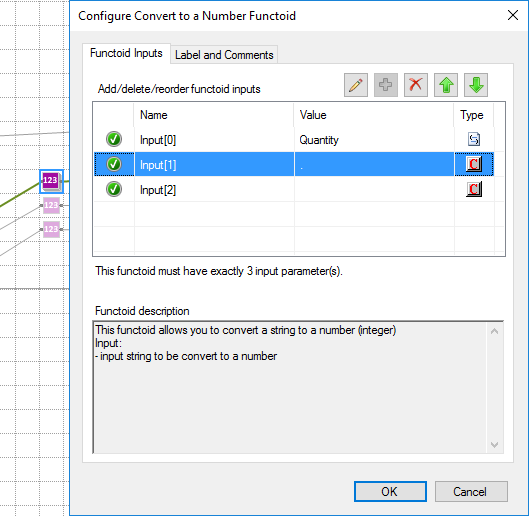
This functoid allows you to convert a string to a number (integer)
Parameters
The functoid takes three mandatory input parameters:
- The input value to be converted to a number;
- A character that describes what is the decimal separator (can be empty);
- A character that describes what is the group separator (can be empty);
The output of the functoid will be a Number (integer), example: 1234
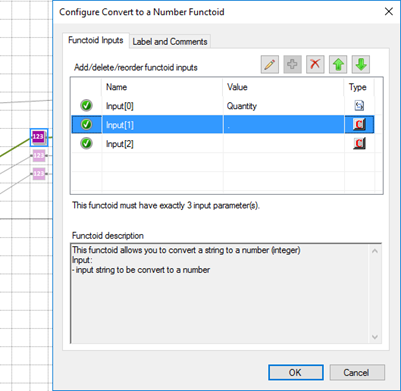
In this sample described in the picture above we are receiving a string with a decimal: “1.000” and we want to transform into “1”. So, in this case, the functoid configuration will be:
- the first input will be our value;
- the second input will be “.” (dot) that describe the decimal separator;
- and the third input will be “” (empty) because there isn’t any group separator (delimitator);
BizTalk Mapper Extensions UtilityPack: Project Description
BizTalk Mapper Extensions UtilityPack is a set of libraries with several useful functoids to include and use it in a map, which will provide an extension of BizTalk Mapper capabilities.
Where to download?
You can download this functoid along with all the existing one on the BizTalk Mapper Extensions UtilityPack here:
 BizTalk Server Community Extensions Utility Packs GitHub Repository
GitHub
Author: Sandro Pereira
Sandro Pereira lives in Portugal and works as a consultant at DevScope. In the past years, he has been working on implementing Integration scenarios both on-premises and cloud for various clients, each with different scenarios from a technical point of view, size, and criticality, using Microsoft Azure, Microsoft BizTalk Server and different technologies like AS2, EDI, RosettaNet, SAP, TIBCO etc. He is a regular blogger, international speaker, and technical reviewer of several BizTalk books all focused on Integration. He is also the author of the book “BizTalk Mapping Patterns & Best Practices”. He has been awarded MVP since 2011 for his contributions to the integration community. View all posts by Sandro Pereira
by Gautam | Aug 26, 2018 | BizTalk Community Blogs via Syndication
Do you feel difficult to keep up to date on all the frequent updates and announcements in the Microsoft Integration platform?
Integration weekly update can be your solution. It’s a weekly update on the topics related to Integration – enterprise integration, robust & scalable messaging capabilities and Citizen Integration capabilities empowered by Microsoft platform to deliver value to the business.
If you want to receive these updates weekly, then don’t forget to Subscribe!
Feedback
Hope this would be helpful. Please feel free to reach out to me with your feedback and questions.
by Sandro Pereira | Aug 24, 2018 | BizTalk Community Blogs via Syndication
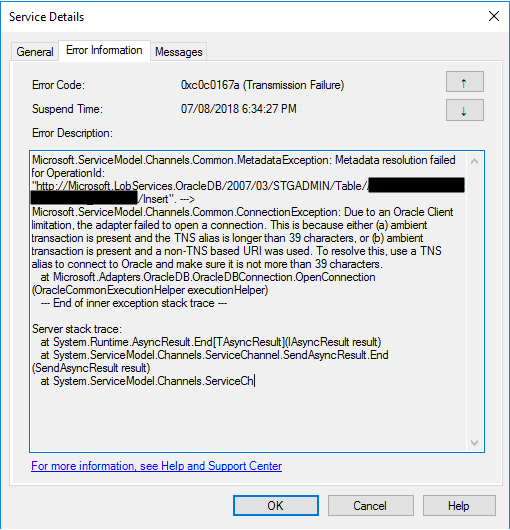
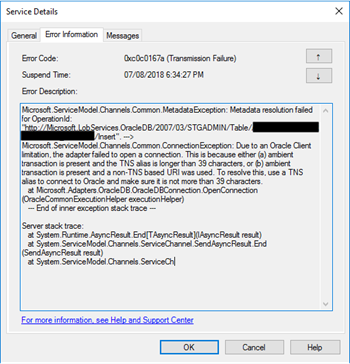
Another day, another error to report – still have plenty of them in my backlog to be published, they are an “easy and quick way” to publish something in my blog when I really don’t have much free time to write something different. Today is about “This is because either (a) ambient transaction is present and the TNS alias is longer than 39 characters” error message that I got when I was initially trying to connect for the first time to ORACLE database to insert some data:
Microsoft.ServiceModel.Channels.Common.MetadataException: Metadata resolution failed for OperationId: “http://Microsoft.LobServices.OracleDB/2007/03/STGADMIN/Table/TRANSACTIONS/Insert”. —> Microsoft.ServiceModel.Channels.Common.ConnectionException: Due to an Oracle Client limitation, the adapter failed to open a connection. This is because either (a) ambient transaction is present and the TNS alias is longer than 39 characters, or (b) ambient transaction is present and a non-TNS based URI was used. To resolve this, use a TNS alias to connect to Oracle and make sure it is not more than 39 characters.
at Microsoft.Adapters.OracleDB.OracleDBConnection.OpenConnection(OracleCommonExecutionHelper executionHelper)
— End of inner exception stack trace —
Server stack trace:
at System.Runtime.AsyncResult.End[TAsyncResult](IAsyncResult result)
at System.ServiceModel.Channels.ServiceChannel.SendAsyncResult.End(SendAsyncResult result)
at System.ServiceModel.Channels.ServiceCh.
Followed by other similar warning messages:
A message sent to adapter “WCF-Custom” on send port “INSERT_PAYMENTS_WCFORACLE” with URI “oracledb://IP-ADDRESS:PORT-NUMBER/PATH” is suspended.
Error details: Microsoft.ServiceModel.Channels.Common.MetadataException: Metadata resolution failed for OperationId: “http://Microsoft.LobServices.OracleDB/2007/03/STGADMIN/Table/PAYMENTS/Insert”. —> Microsoft.ServiceModel.Channels.Common.ConnectionException: Due to an Oracle Client limitation, the adapter failed to open a connection. This is because either (a) ambient transaction is present and the TNS alias is longer than 39 characters, or (b) ambient transaction is present and a non-TNS based URI was used. To resolve this, use a TNS alias to connect to Oracle and make sure it is not more than 39 characters.
at Microsoft.Adapters.OracleDB.OracleDBConnection.OpenConnection(OracleCommonExecutionHelper executionHelper)
— End of inner exception stack trace —
Server stack trace:
at System.Runtime.AsyncResult.End[TAsyncResult](IAsyncResult result)
at System.ServiceModel.Channels.ServiceChannel.SendAsyncResult.End(SendAsyncResult result)
at System.ServiceModel.Channels.ServiceChannel.EndCall(String action, Object[] outs, IAsyncResult result)
at System.ServiceModel.Channels.ServiceChannel.EndRequest(IAsyncResult result)
Exception rethrown at [0]:
at System.Runtime.Remoting.Proxies.RealProxy.HandleReturnMessage(IMessage reqMsg, IMessage retMsg)
at System.Runtime.Remoting.Proxies.RealProxy.PrivateInvoke(MessageData& msgData, Int32 type)
at System.ServiceModel.Channels.IRequestChannel.EndRequest(IAsyncResult result)
at Microsoft.BizTalk.Adapter.Wcf.Runtime.WcfClient`2.RequestCallback(IAsyncResult result)
MessageId: {DE7ABF70-D6B7-4FC8-A570-5AAE4FFACBB9}
InstanceID: {5842C3C7-6746-4A56-8707-FF53123A4101}
Cause
Non-TNS based URI is not supported under an ambient transaction. If you have to use transactions, you should use the TNS alias.
Note: TNS Alias needs to be less than 39 characters.
Solution
To solve this problem, you need to:
- Open the send port properties, by double-clicking on the port;
- Click on “Configure…” button under Transport
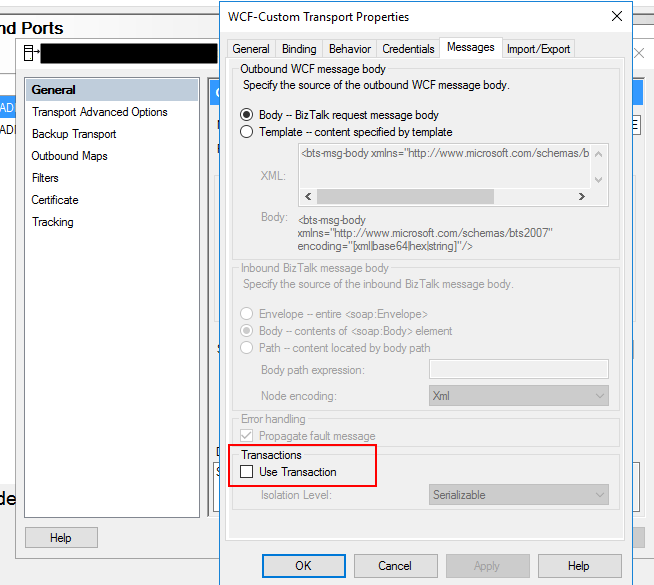
- On the Transport Properties window, select the “Message” tab and then uncheck the “Use Transaction” box under Transactions
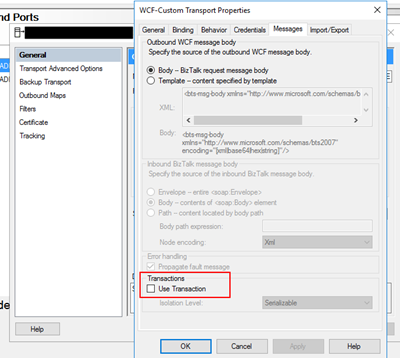
If you try to resend the message this problem should be solved. Additionally, if this error still persists, you should change the following properties in the oracleDBbinding:
- “enableBizTalkCompatibilityMode” = True (this is set to false per default)
- And/or “useAmbientTransaction” = False
Author: Sandro Pereira
Sandro Pereira lives in Portugal and works as a consultant at DevScope. In the past years, he has been working on implementing Integration scenarios both on-premises and cloud for various clients, each with different scenarios from a technical point of view, size, and criticality, using Microsoft Azure, Microsoft BizTalk Server and different technologies like AS2, EDI, RosettaNet, SAP, TIBCO etc. He is a regular blogger, international speaker, and technical reviewer of several BizTalk books all focused on Integration. He is also the author of the book “BizTalk Mapping Patterns & Best Practices”. He has been awarded MVP since 2011 for his contributions to the integration community. View all posts by Sandro Pereira
by Sivaramakrishnan Arumugam | Aug 23, 2018 | BizTalk Community Blogs via Syndication
I can say last month was one another interesting month for me as a Support and Test engineer, as we have received quite a few interesting tickets.
Every support ticket gives us a different experience in its own way. But, some of the support tickets seem interesting, because it helps us to explore and learn new things. One of such tickets was related to the Slack Notification Channel.
Short intro about Notification Channels
BizTalk360 is embedded with a feature called Notification Channel. Not only does BizTalk360 support internal notification like emails and SMS, along with it, we support external notifications so that customers can write their own code to send alerts to the Notification Channel they use as per their organization policy.
External Notification Channel is another customer’s feature request, which we have developed and included in our product. As it can be very helpful to Support teams, we decided to create some inbuilt Notification Channels. Further, customers can create their own Notification Channel using their own code. Kindly find the blog for Custom Notification channel.
Feedback from the customer about custom Notification Channel
We have got very positive feedback from our customers about external Notification Channels and received quite a few requests to include some of the Notification Channels as an inbuilt feature. And we did so.
Also, we haven’t kept support aside; whenever customers face challenges with Notification Channels, we helped them to solve the issue at hand to our best. One such classic case is ‘Using BizTalk360’s Notification Channel to perform some action via a PowerShell script’.
Default Notification Channels
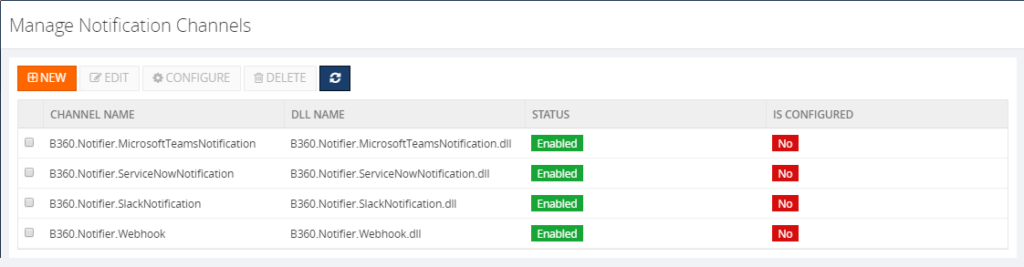
During the initial point of time, along with the version 8.0, we have provided BizTalk360 with some inbuilt Notification Channel such as:
1. Slack and
2. Webhook Notification Channel
Later as per the customer’s request, we have included two more Notification Channels and we have 4 now.
3. ServiceNow
4. Teams
Notification channel configuration in our latest version 8.8 looks like below.
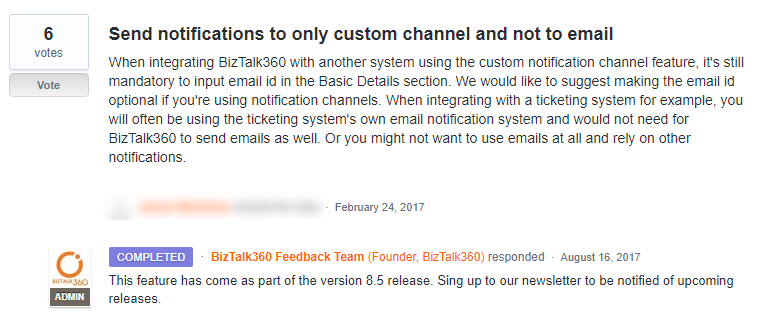
Also, we have enhanced the Notification Channel feature as per the customer’s request. Such as,

Challenge in External notification #Slack
Last month, we received a support case regarding the Slack Notification Channel, that it’s not receiving any notifications from BizTalk360 and they faced the below exception in the log file:
2018-06-08 12:01:40 ERROR – Unable to connect to the remote server
We started to approach the case with the basic troubleshooting steps such as:
• Does the user have proper credentials?
• Any ports are blocked?
• Any security tools are blocking the connection?
• The URL what they used to connect slack?
•Does the proxy is blocking the internet connectivity?
The basic troubleshooting did not help us to solve the problem. So, we went into the screen-sharing session to investigate furthermore. At that point of time, we found that admin scope is missing for the application.
To give more insight about Slack:
In Slack,
• Groups are considered as #Channels
• Applications are predefined functionality, that is considered as #Apps
• Permissions are called as #Scopes
The flow is like:
1. You must create a Channel inside Slack
2. App creation will be followed by channel
3. Add necessary permissions/scopes to the created app
4. Generate Access Key/Token for the app
5. Add app inside the channel
6. Add the Access token for the app inside BizTalk360
We asked the customer to provide the admin scope and left the call. After few days customer came back with the same problem even though they have provided admin scope.
Creation of test environment
For Testing purposes, I have created a new Slack account and Channel, tested from the scratch and we have provided the same permission as the customer had.We got the same issue as the customer encountered, though the application has the scope admin.
What our code does?
We have analyzed with the source code level to find if anything is missing at our side. But found, the code is written in a generic way to push the plaintext message to any Notification Channel. So that, it could be sent to any platform. we have found that it is not a problem with sending a notification from BizTalk360, but it could be a permission issue.
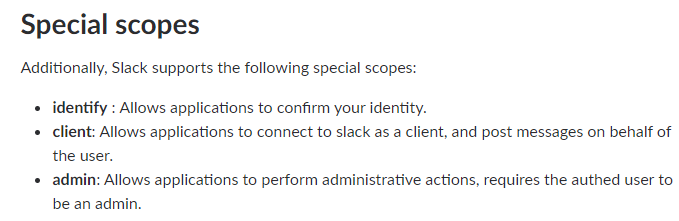
After some testing and researching, we were not able to find the minimum permission what needs to be provided for the application in order to solve the customer issue. Later, we have decided to seek help from the Slack support team for further investigation.
Working with Slack Support
Daniel from the slack support team who worked with me throughout the way. I have created the support ticket along with the sample test application which had been created for testing. The conversation started with the basic questionaries and made sure the basic configuration is configured as per the actual expectation. However, everything is correct, still, we couldn’t make the app work. The direction of an investigation gone little deep and we will look it in the coming section in detail.
Troubleshooting with the permissions
Daniel conveyed, installed app in the test workspace has a valid token. But, looking through the logs, the application has enough permission (both admin & User identity) to receive the messages. Permissions are as below,
- https://api.slack.com/scopes/admin – Got Admin scope
- https://api.slack.com/scopes/identify – And got Identify Scope
Additionally, he suggested providing
- Conversiontions:write &
- Converstions:read scopes
After following the suggestion, the app was not working. But the next suggestion made a trick.
What is the trick?!!
Later, we got a reply from Daniel “I took a closer look at your app, and it appears you haven’t added the chat: write scope. You’ll need this to make any chat:postMessage (https://api.slack.com/methods/chat.postMessage) calls with your app.”
Providing the chat: write permission to the application indeed did the trick! The application writes a message in the Slack from BizTalk360. I have updated the same to the customer and that helped them to resolve their issue.
Satisfaction does it!
This was another support case which was interesting for me as it helped me to understand the code of Notification Channel from a Developer perspective. I have explored Slack along with BizTalk360 which provided more insight from the Tester perspective. Working along with the customer and Slack Support team gave satisfaction as a Support engineer. I have received “an Awesome” review from the customer side 😊
Author: Sivaramakrishnan Arumugam
Sivaramakrishnan is our Support Engineer with quite a few certifications under his belt. He has been instrumental in handling the customer support area. He believes Travelling makes happy of anyone. View all posts by Sivaramakrishnan Arumugam
by Bill Chesnut | Aug 22, 2018 | BizTalk Community Blogs via Syndication
By Bill Chesnut
This is the third post in a multi part series on the features of Azure API Management.
As with the previous posts where I demonstrated publishing a SOAP Services with pass-through and SOAP to REST, this time I am going to demonstrate how you can connect Azure API Management to Azure Application Insights, to monitor the call to APIM and the dependent APIs. This post will not go into how or why to use Azure Application Insights, just how to configure APIM to use it.
By connecting APIM to Application Insights, information from APIM sent to Application Insights will include the request and response from APIM, the backend request and response and any Exception information. This will give end-to-end monitoring capabilities to the APIs that are being exposed in APIM if those APIs are also using Application Insights for monitoring.
As with any telemetry gathering system, there are some performance implications, APIM has recently added the ability to control this with a much finer grain as we will see later in the configuration screens.
To get started with Application Insights for APIM, you will need an Application Insights instance, I am not going to cover how to create that in this blog post, but you can find the instructions here: https://docs.microsoft.com/en-us/azure/api-management/api-management-howto-app-insights
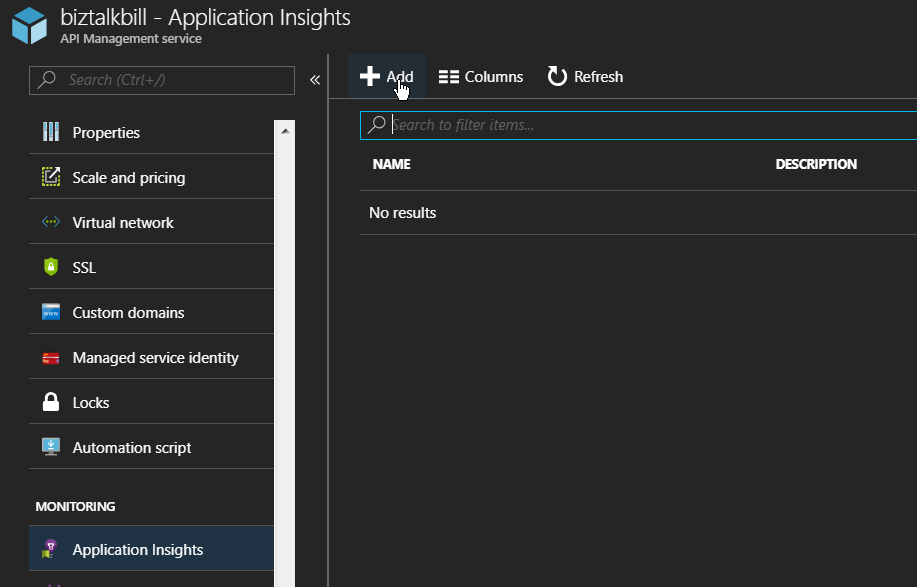
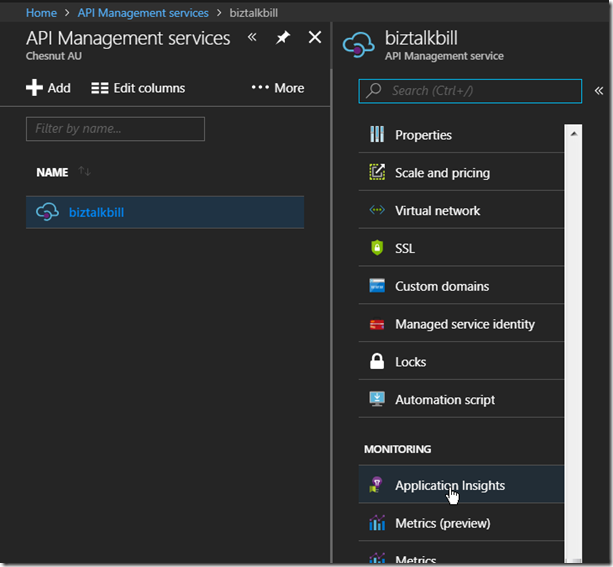
Once the Application Insights instance has been created (you can also use an existing instance if you want), lets connect Application Insights to APIM, go to the ‘Application Insights’ tab in the Azure Portal for APIM.
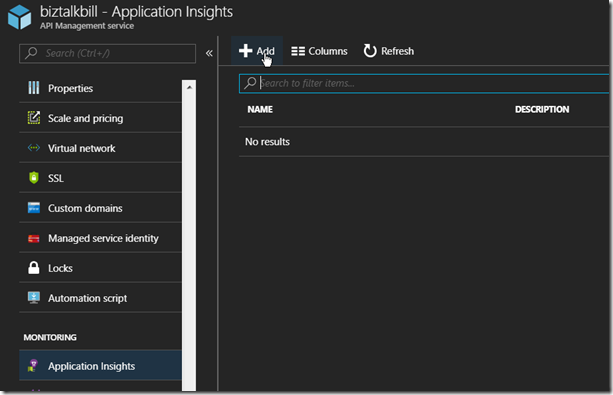
Then Click ‘+ Add’
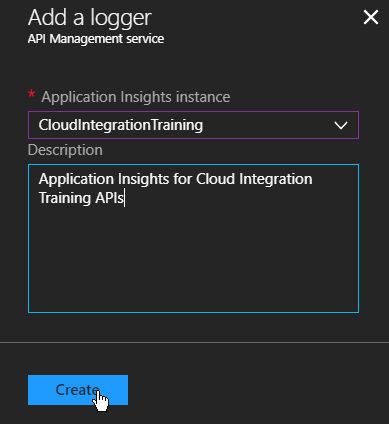
Select the instance of Application Insight that you want to configure, optionally add a description and Click ‘Create’
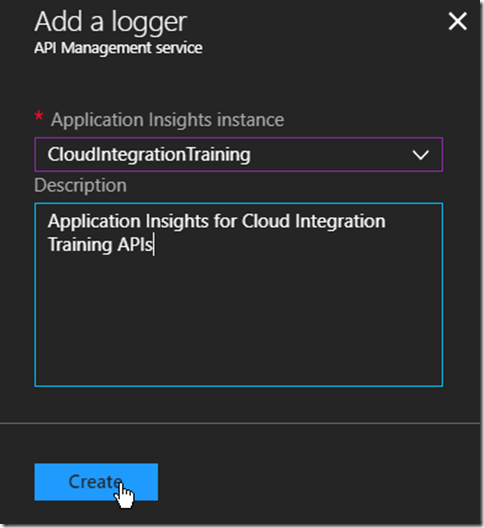
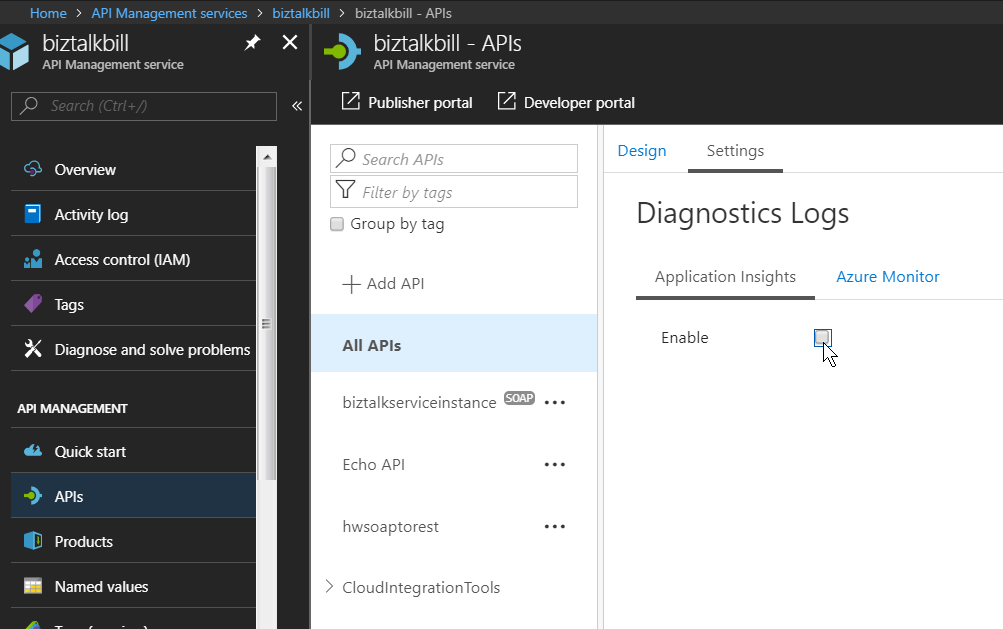
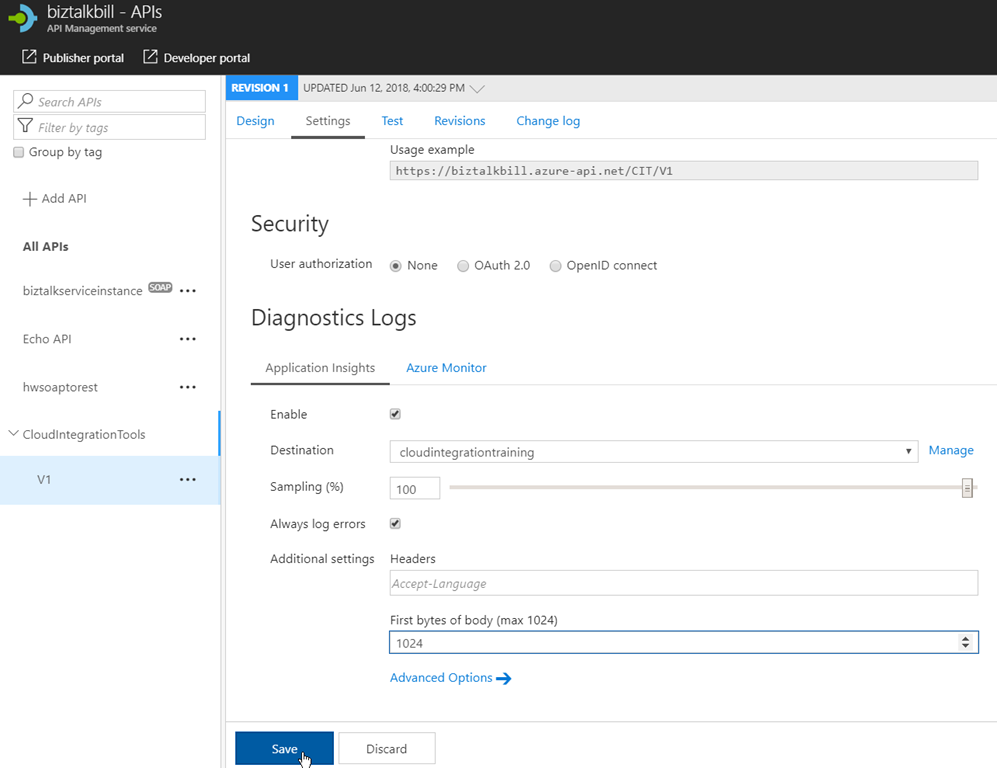
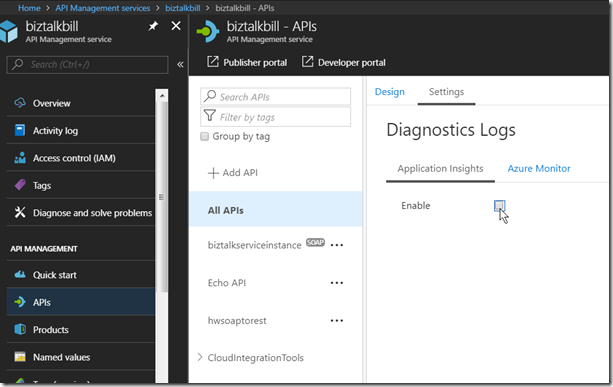
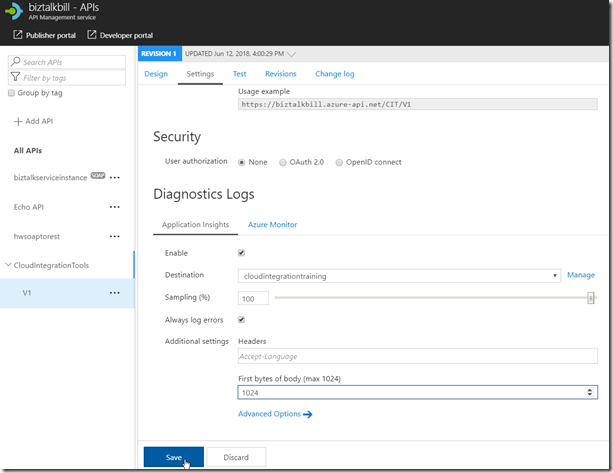
You can have multiple instances of Application Insights connected to APIM, now we need to configure how this instance of Application Insights is used, it can be the default for all APIs in APIM or just used for specific APIs, to use it as the default instance, Click ‘APIs’, Click ‘All APIs’, Click Settings and to enable Click the ‘Enable’ check box
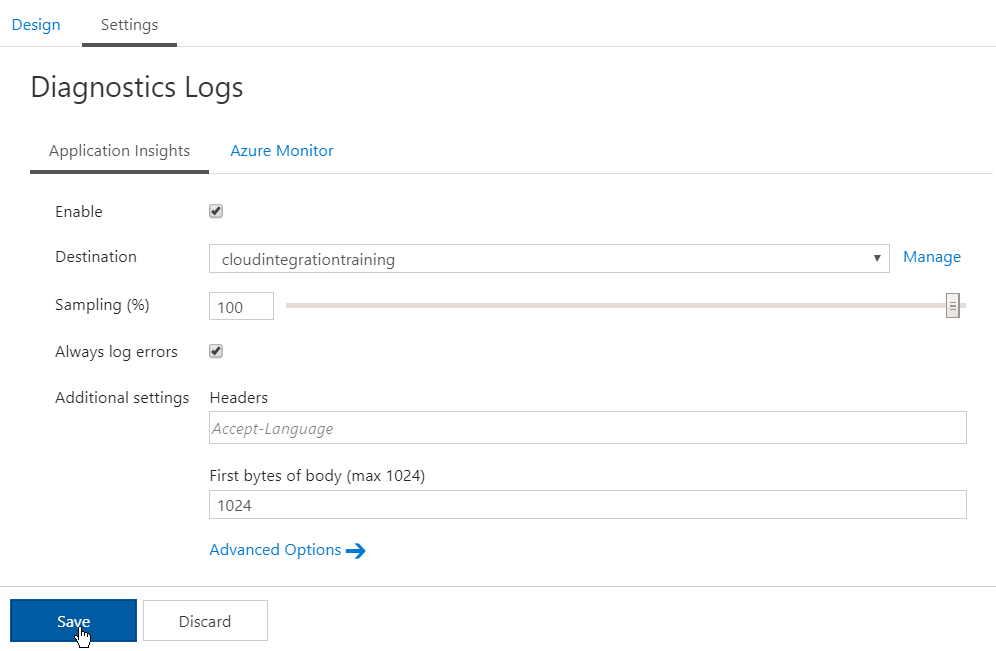
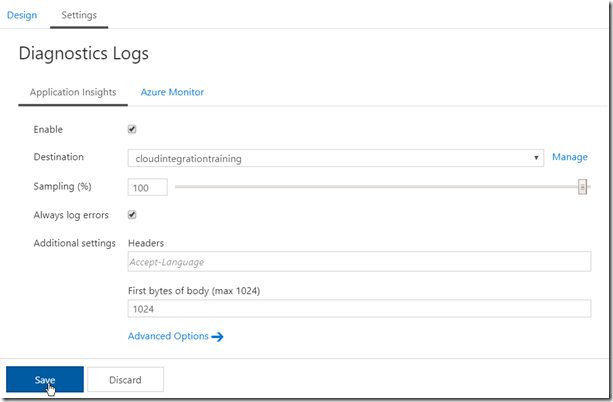
Configure the destination (instance of Application Insights), Sampling (there are some performance implication with the sampling %, see the this link – https://docs.microsoft.com/en-us/azure/api-management/api-management-howto-app-insights#performance-implications-and-log-sampling ), Always log errors (recommended) and First bytes of body (if necessary). Click ‘Save’
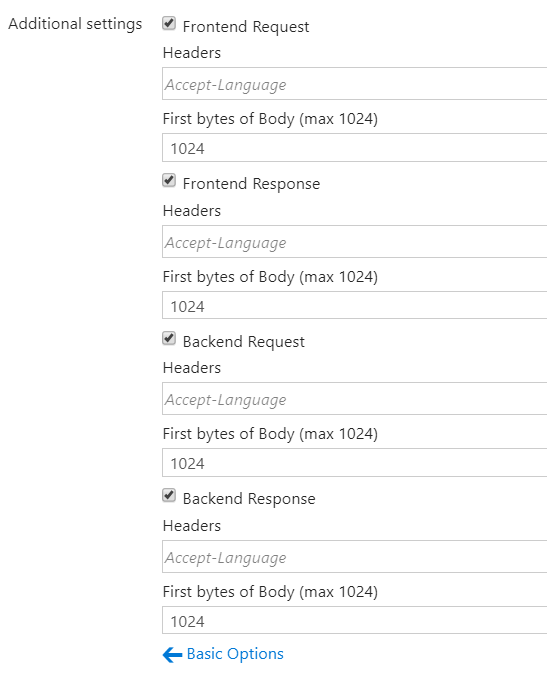
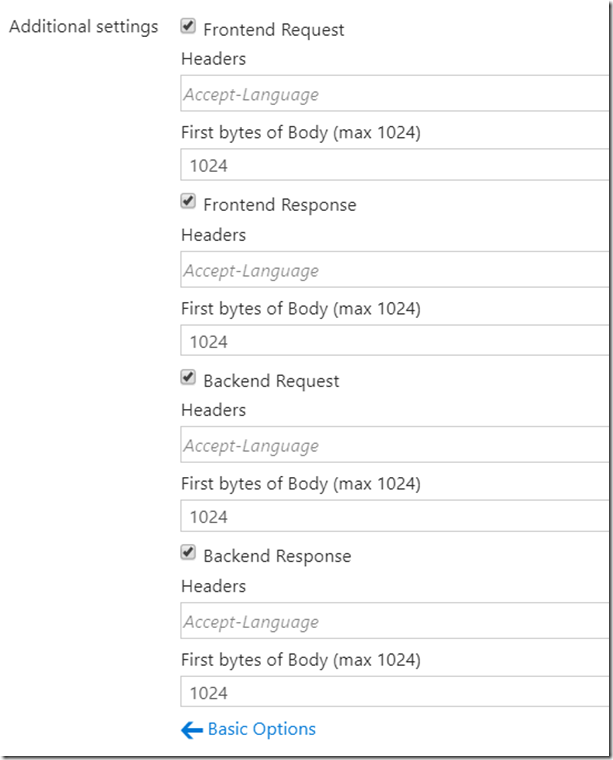
The Advanced Options allow you to control which Request are logged and headers and body logging
If you do not want to use the same instance of Application Insights for all APIs, you can select the API and configure Application Insights just like above for the particular APIs
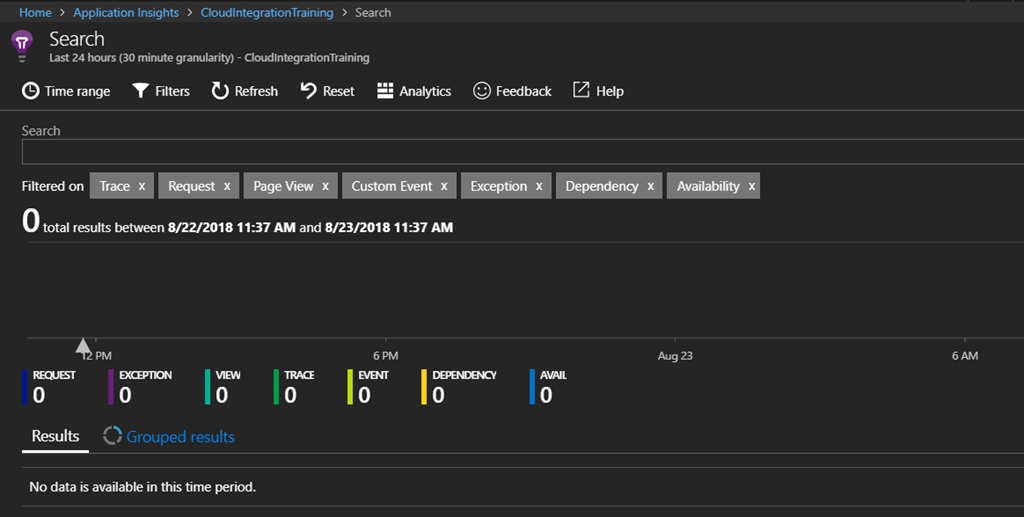
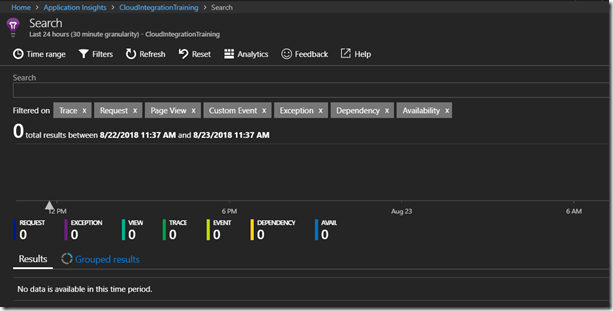
Now lets open Application Insights, Click ‘Search’, then in the Search, Click ‘Refresh’, the results are empty since we have not made any calls to the API yet. If this was an existing instance of Application Insight, there may already be some telemetry from the other services
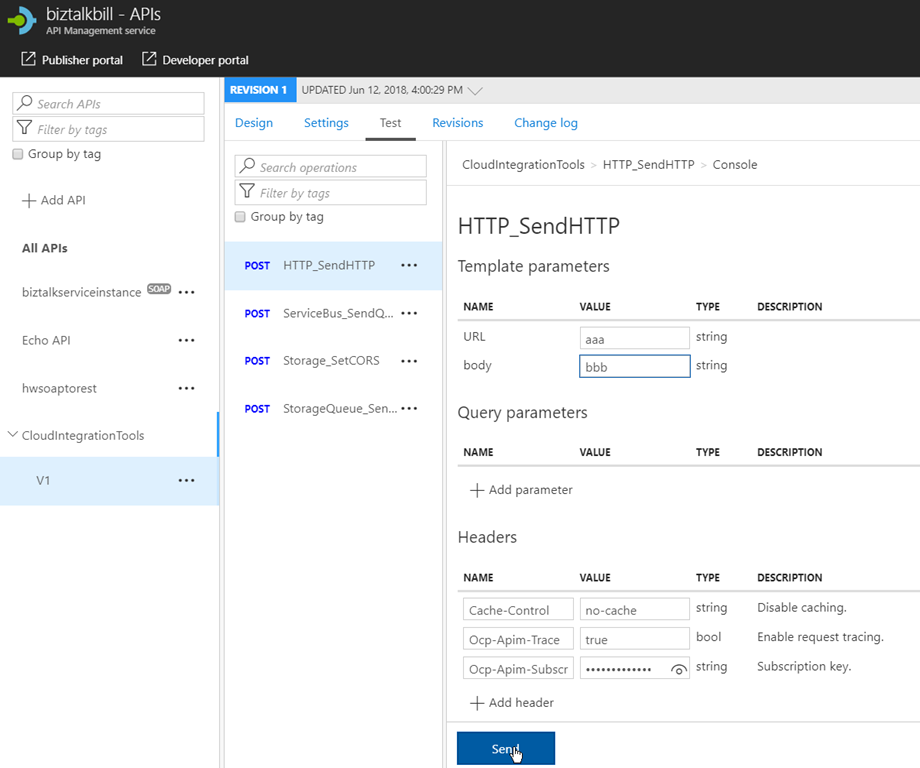
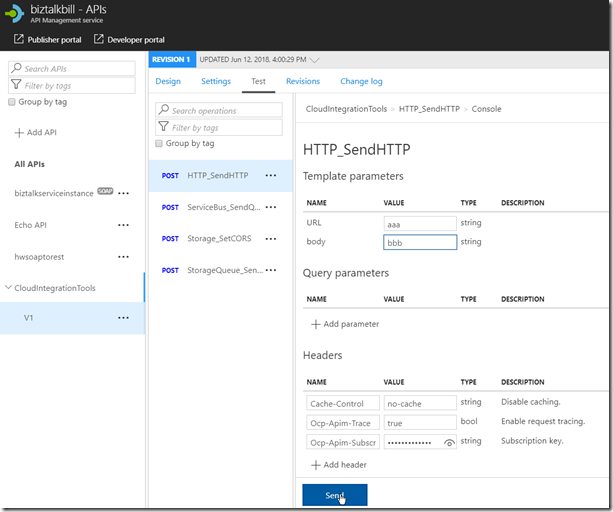
Now lets go back to APIM and run some tests, Select and Operation, enter the required data (in this case, an invalid URL to see the exception processing) and Click ‘Send’
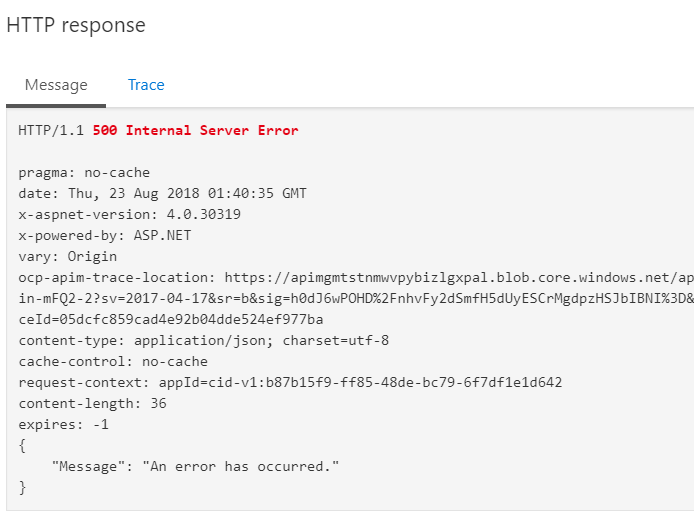
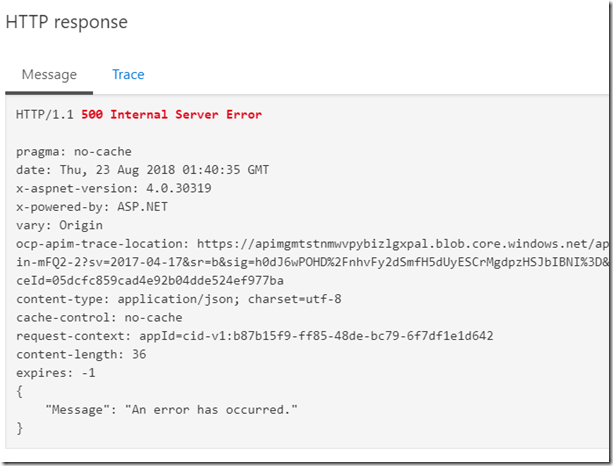
The result is a 500 Internal Server Error
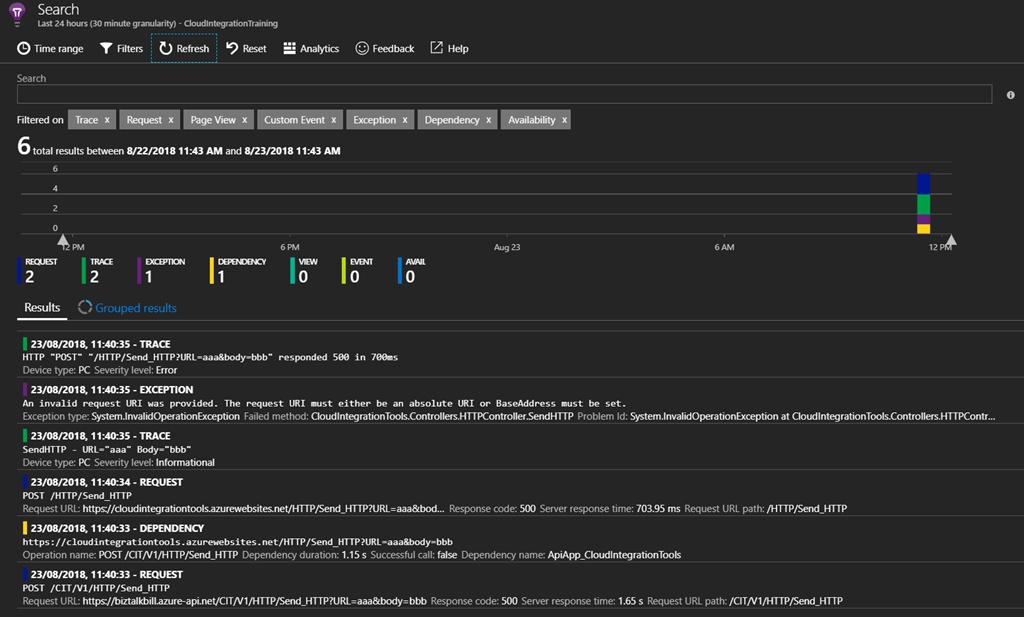
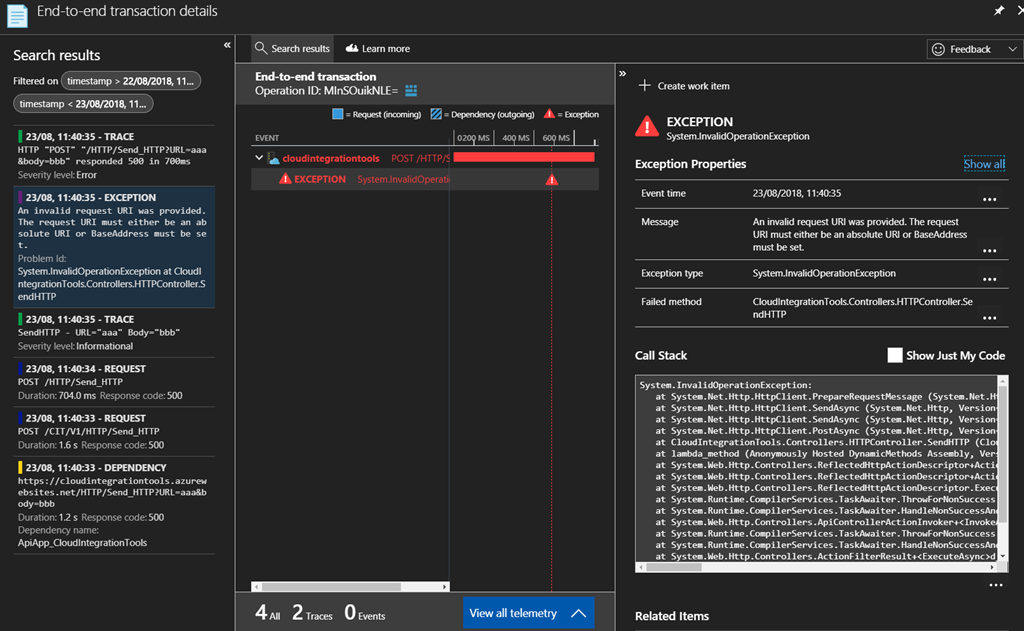
Switch to Application Insights and Click ‘Refresh’, There is now data in Application Insights, 2 Request, 2 Trace, 1 Exception and 1 Dependency.
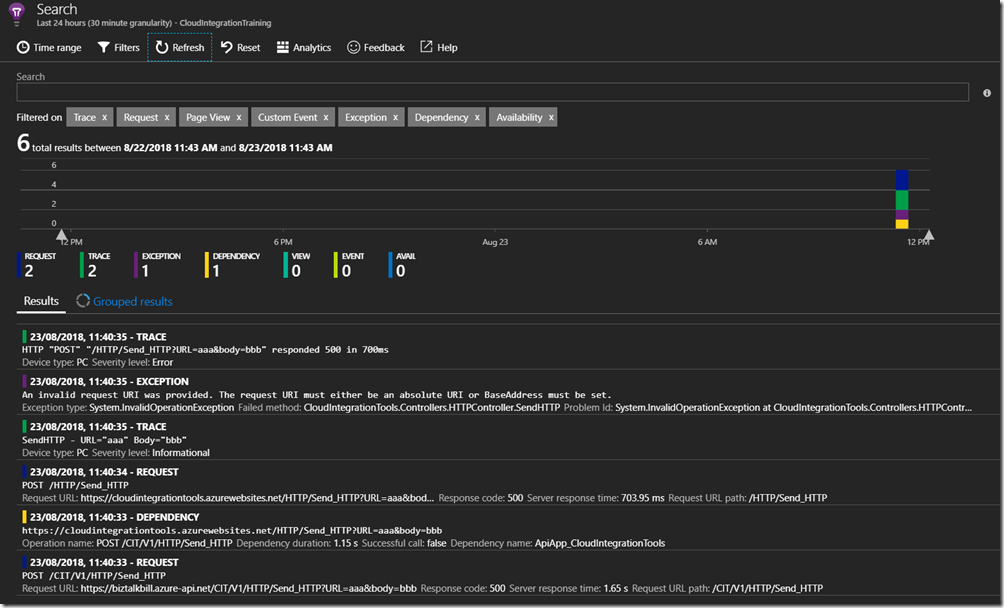
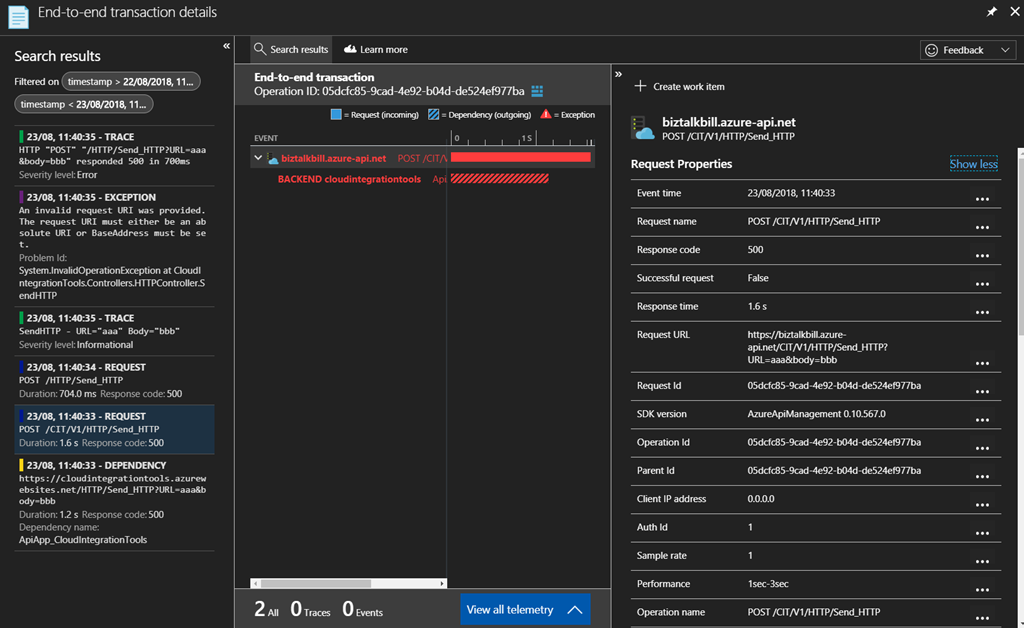
For this particular API, Application Insights is also setup on the API, so we can have end-to-end Application Insights information. Click on one of the entries to get the details
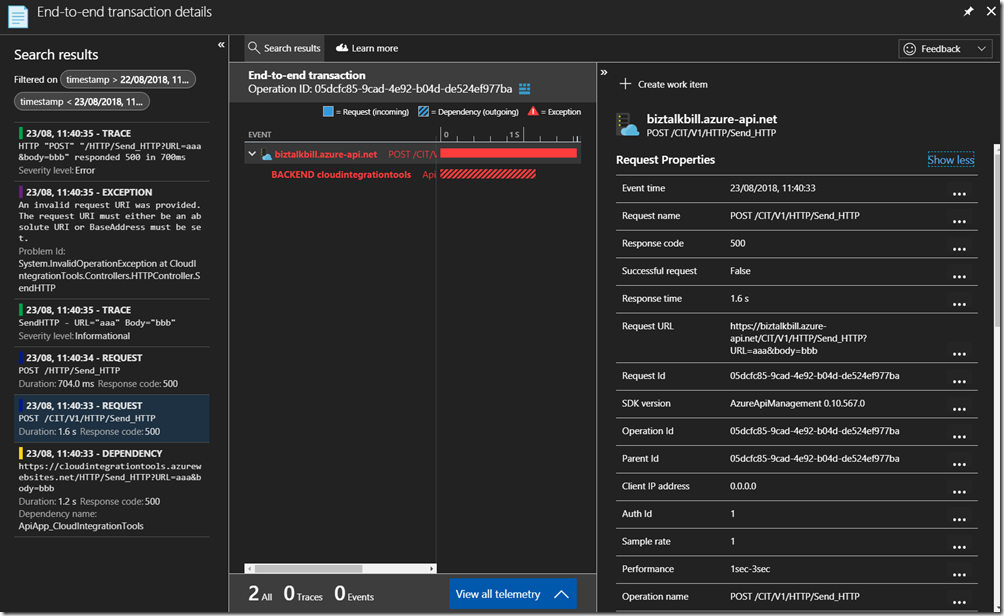
The details for the Request are contained in the view above and you can see the related Application Insights entries on the left and the particular details for the request on the right. If we want to get more details on the Exception, other than the 500 Response code we see in this entry, click on the Exception entry on the left
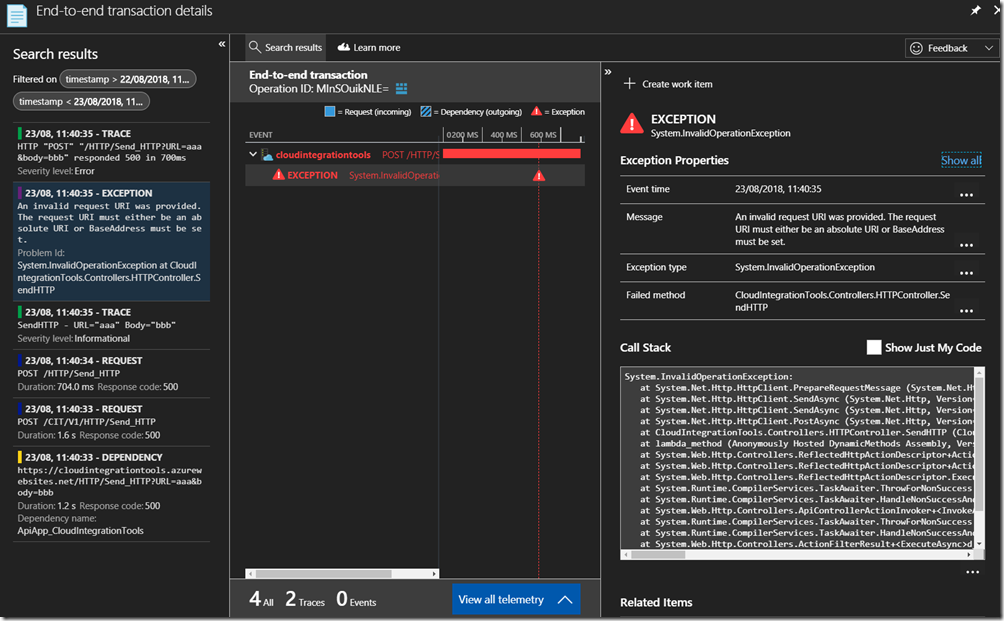
By configuring Application Insights for APIM, the full end-to-end flow of requests can be seen, the percentage of requests that are captured in Application Insights depends on your sampling, in a Development or Testing environment you can set this to 100% but in Production environments if the APIs are very active this may introduce too much overhead and require a lower sampling rate to prevent performance degradation.
Hopefully this has given you a quick demonstration on how to connect Application Insight to APIM.
Cross Posted on http://www.sixpivot.com.au
by Sandro Pereira | Aug 21, 2018 | BizTalk Community Blogs via Syndication
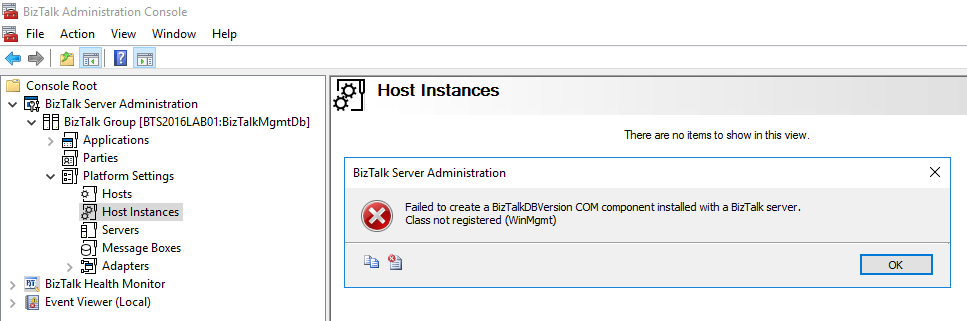
Last month I wrote a blog post regarding the “An internal failure occurred for unknown reasons (WinMgmt)” error in the BizTalk Server Administration Console caused by the July 10, 2018 Microsoft Security Updates, you can see the entire blog post here: July 10, 2018 Microsoft Security Updates cause errors on the BizTalk Administration Console: An internal failure occurred for unknown reasons (WinMgmt). In which I document a workaround to solve the following problem:
TITLE: BizTalk Server Administration
——————————
Failed to create a BizTalkDBVersion COM component installed with a BizTalk server.
Class not registered (WinMgmt)
——————————
BUTTONS:
OK
——————————
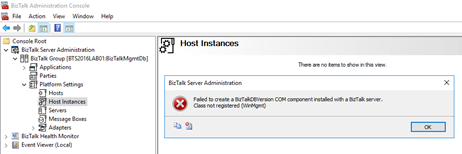
And based on that you wouldn’t be able for example to: restart the host instances from the BizTalk Server Administration console.
Happy to inform you that Microsoft already released a new security update that will fix this problem.
Cause
As official documentation (https://support.microsoft.com/en-gb/help/4345913/access-denied-errors-after-installing-july-2018-security-rollup-update) state: Applications that rely on .NET Framework to initialize a COM component and that run with restricted permissions may fail to start or run correctly after you install the July 2018 Security and Quality Rollup updates for .NET Framework.
Microsoft .NET Framework runtime uses the process token to determine whether the process is running within an elevated context. These system calls can fail if the required process inspection permissions are not present. This causes an “access denied” error.
After you install any of the July 2018 .NET Framework Security Updates, a COM component fails to load because of “access denied,” “class not registered,” or “internal failure occurred for unknown reasons” errors.
So, the cause of these problems was security updates that were released by Microsoft on July 10, 2018.
Solution
On July 30, 2018 Microsoft released new Security Updates https://www.catalog.update.microsoft.com/Search.aspx?q=4346877 that will fix these issues.

To solve my problem, I:
- Applied/installed all the possible available updates on my BizTalk Server machine;
- I manually download and installed the Security Update marked in the picture above;
After I restarted my BizTalk Server machine, this problem was fixed.
Author: Sandro Pereira
Sandro Pereira lives in Portugal and works as a consultant at DevScope. In the past years, he has been working on implementing Integration scenarios both on-premises and cloud for various clients, each with different scenarios from a technical point of view, size, and criticality, using Microsoft Azure, Microsoft BizTalk Server and different technologies like AS2, EDI, RosettaNet, SAP, TIBCO etc. He is a regular blogger, international speaker, and technical reviewer of several BizTalk books all focused on Integration. He is also the author of the book “BizTalk Mapping Patterns & Best Practices”. He has been awarded MVP since 2011 for his contributions to the integration community. View all posts by Sandro Pereira
by Sowmiya Subramanian | Aug 21, 2018 | BizTalk Community Blogs via Syndication
Are you using the Event Log for diagnosing problems and challenges faced while performing the operation in BizTalk server administration console? Then you might face the difficulty, on having multiple BizTalk / SQL Server users who need to look Event Logs on each server when there is a problem. To access the Event Log, every user should have administration permission to access the physical server, which is not the ideal solution for the business needs.
What is the purpose of the Event Log on a BizTalk Server?
The Event Log holds information related to different aspects of, amongst others, BizTalk Server. The Windows Event Logs are used by the BizTalk admins, mostly for diagnosing problems. When they face any issue, the first step they try to diagnose the problem or faults in the BizTalk Admin console itself. If they could not achieve a solution, then they will view the Event Viewer for detailed information on such cases like errors, messed up environments and failure of message processing.
Filter for log noise reduction during Event Log collection
The BizTalk360 Advanced Event Viewer which collects the events that are related to BizTalk and SQL sources. These sources can be configured in Settings–>Advanced Event Viewer, as shown below.
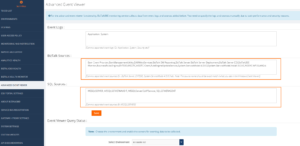
The Event Logs are collected based on the Event Log Categories and the administrators can also add categories as per their need. The data collection can be performed based on the environment selection as below.
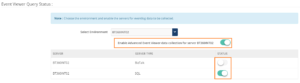
Once, after enabling the “Enable Advanced Event Viewer data collection”, that will display all the available BizTalk and SQL server of the specific environment. The BizTalk admins or the people using BizTalk server can select the servers based on their needs. Based on the configurations, the subservice “Eventlog Collection” of the BizTalk360 Monitoring NT service will start to collect Event Log data and store the information in the BizTalk360 database.
This approach will seamlessly solve the problems as we highlighted in this article. The BizTalk administrators no more need physical access to each BizTalk or SQL server to diagnose the issue. This approach will avoid data collision, improves the performance and makes the user interface clear.
Let’s have a look at few scenarios where using the Advanced Event Viewer is beneficial over the Windows Event Viewer.
Scenario 1: If there is any failure of file transaction at an application level, the user can view the relevant event log information in the single user interface. This will avoid context switching and reduces the time to diagnose the issue.
Diagnosing issue made easier than Windows Event Viewer
In real time business transactions using BizTalk can cause any kind of failure.
Scenario 2: When you try to run a BizTalk application after deploying an orchestration with custom components. In case, the BizTalk orchestration engine cannot locate the custom component, that means you will get below error.
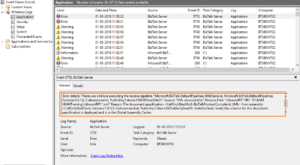
It is easy to query the Event Log details if BizTalk server is installed in a standalone environment. However, in case of multiple BizTalk servers, the user needs to login to each server to find the Event Log information and it is a tedious process to search the exact issue on ‘n’ number of results. So, it will eat up lots of time on finding the exact result.
In the BizTalk360 Advanced Event Viewer, diagnosing the problem or issue, in a single user interface related to the event “application” of BizTalk and SQL search, is made much easier than with the Windows Event Viewer.
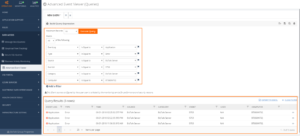
With the Advanced Event Viewer, the BizTalk admins (and other people) can search the results using rich query builder tools, based on the different parameters such as the Event Log, Type, Source, Event, Category, User, Computer, Timestamp, and Message. One or more filters can be added, which will be useful to get an exact result and the user can view the related information the same as in the Event Viewer.
This approach will fasten the search of the Event Log information from the different servers within a stipulated time which obviously saves time.
Archiving distributed events on Centralized Location
BizTalk360 help to get the needed Event Log data from the Event Logs on different servers and shows the information in a simple, intuitive user interface. However, it is practically impossible to manually keep an eye on the Event Log data throughout the day, as they are constantly updated with the latest log data.
In BizTalk360, we solve this problem by downloading the data into Excel Format. The BizTalk admins can download the file by using the Export to Excel feature, that will download the grid data in Excel format and they can store the Event Log Data for further investigation, as shown below.
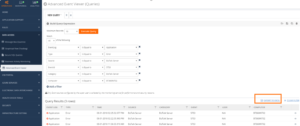
It is possible to monitor Event Log Data!
The Windows Event Logs hold all the important log information from sources like SQL Server, IIS, BizTalk infrastructure and run time problems. As the Windows Event Log contains that much data, it is nearly impossible to monitor the Event Log manually. Luckily, through BizTalk360, the BizTalk admins can easily monitor the BizTalk and SQL server logs by configuring the Event Log monitoring.
Scenario 3: The BizTalk admins can customize the alert in such a way that they must be notified when there has been a sequence of start/stops of the host instances in the past 30 minutes. Without being alerted, you may not know the frequent start/stops of the host instances and this could impact the performance of the environment.
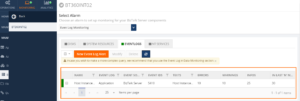
By mapping the Event Log to the Alarm, the administrator will get notified when the Event meets the condition. The alert can be notified through the required sources like Email and notification Channels.
The administrators can also log this Event Log alert in the Event Viewer itself, this is possible by enabling the Event Log option in alarm creation as below
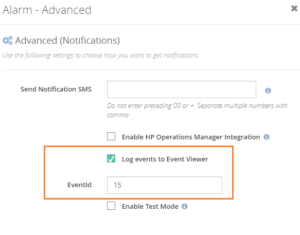
This will log the Event log alert in the Event Viewer when the alert exceeds the Host Start/Stop error/warning condition as below
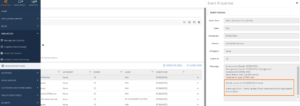
Create Log rules with an intuitive interface using the Event Log Data Monitoring capability
The primary purpose of auditing Event Log for BizTalk administrator is to discover the events of interest, whether they provide general information or call for further investigation. BizTalk360 will help to get the needed log data from multiple servers and shows the information in a simple, intuitive user interface. However, it is practically impossible to manually keep up the data throughout the day, as they are constantly updated with the latest log data. BizTalk360 also solved this by giving the real-time alert features on Event Log Data Monitoring.
Scenario 4: BizTalk Administrator wants to monitor different Events from multiple servers. For example, they might want to monitor the ESB from BizTalk Server at the same time they want to ensure the performance of the SQL Server & ENTSSO events from a separate SSO server and they also need to monitor the IIS from multiple BizTalk servers. In real-time, there is no option to monitor it with a single tool. It is hard to predict any issues and it is time-consuming for BizTalk admins to constantly monitor the Windows Event Log manually.
BizTalk solves this problem by bringing the heterogeneous data in the single intuitive user interface. On the top of that, it provides a powerful capability of getting real-time notifications through email or SMS when an event occurs on the specific frequency by setting additional threshold conditions. The admins can correlate two or more event calls for the further investigation by setting the conditions as shown below.
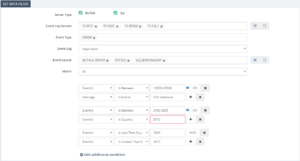
It will be useful to query against different Event Sources of multiple servers of a single BizTalk Environment. The admins can include or exclude the events that pertain to your environment. Also, the admins can get the detailed notification on Event Logs by selecting the ‘Send Event Log in notification’.
This will send the detailed information on every event source in Email which will look like below.
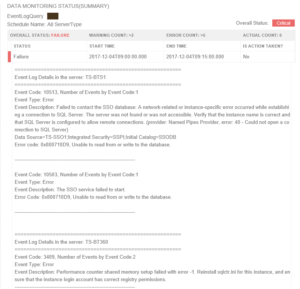
BizTalk Admins can choose the Notification Channel on the alarm creation and they can configure the Event Log as previously mentioned to get notified when any violation happened on a specific frequency. On the Data Monitoring Dashboard, the admins can visualize the triggered alert results based on the day view as shown below.
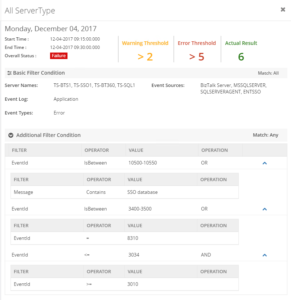
It also easy to maintain, once after scheduling Event Log Data Monitoring; when you disable AEV for the environment, it will stop collecting Event Log data. So, the admins can enable collecting whenever they need it.
Is there any option to manage the Event Log data?
Managing the Windows Event Log is not simple. Administrators can manage or clean up the data through PowerShell script or by creating a custom log to log application errors. The BizTalk360 Monitoring Service collects the data based on the Event Log and Source configuration and stores in a separate database table in the BizTalk360 database.
In real-time business, BizTalk server will collect the log data for each event which happens during BizTalk operation. This can hugely increase the size of the database. Luckily, the administrator can set the purging for Event Log data in the BizTalk360 database as shown below.
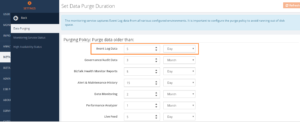
Once after configuring the Purge Policy for Event Log data, it will clean up the data for every specific days/month/hour.
This approach will save the time and clean the old data easily, which will improve the overall performance of the BizTalk360 database. This also solves the problem of searching the current data with messed up old data.
Can we visualize the performance of Event Log?
In BizTalk360 the BizTalk Administrators can indeed visualize the performance of Event Log data at a specific time.
Scenario 5: In any business environment, the performance metrics at a specific time will be critically important to take business decisions. To visualize the Event Log data the administrators can add the Event Log Data Count widget in the Reporting Dashboard on BizTalk Analytics.
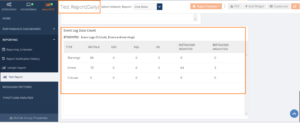
The Event Log reporting widget will show the exact count of Event Log data based on error, warning and critical errors for the available sources. The Event Log data widget will collect the data based on the scheduled time.
Leveraging the API Documentation Capability for Event Log
In BizTalk360, Event Log data in the API Documentation provides you with a very powerful way to integrate data and actions into your own tools or programs. Many of the BizTalk Administrators do not come from a development background and perceive an API as something for the exclusive use of BizTalk admins. This is not the case, and a mature and well-designed security product API can be of great value to other people, regardless of their development background.
Within BizTalk360, you can use the Event Log API Documentation to demonstrate broad functionality, primarily in the areas of:
- user and organization account management
- sample management
- sample analysis data collection
- threat intelligence harvesting
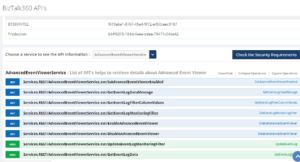
Of course, an easy way to use an API is to use a product that leverages that API. Any RESTful API can be operated by anyone who can construct a web URI. the Event Log API documentation is also useful to create a custom widget using the JSON Response as shown below.
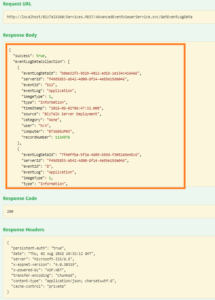
In an organization, you could easily tailor that to a list of IPs (or domains, or URLs, file hashes, etc) that had been seen in the analysis of only your own organization’s submitted samples with the help of this API’s.
Conclusion
To collect and process log data in real time, regardless of the volume of log data and the number of devices in the network, organizations need a robust log collection mechanism. BizTalk360 solves this problem by providing the Advanced Event Viewer functionality, which enables BizTalk Administrator to decipher and analyse any log data regard of its source configured. The collected log data is centrally aggregated and presented in a single console for log sources across locations. To summarise here are the Key features of BizTalk360 Event Log
Event Log Maintenance: Maintenance is also very simple when you disable AEV for the environment, it will stop collecting Event Log data. Manages data growth by Providing BizTalk360 purge policy.
Privileged Multiple Server Monitoring: The BizTalk Admins can monitor multiple BizTalk and SQL servers on a single user interface.
Server event trend analysis: It also protects security threats by collecting, analysing, reviewing and archiving event log. Through this, the BizTalk admins can get a comprehensive view of all the actions that is happening in the BizTalk server, SQL server, ENTSSO server etc..,
Real-time alerts: Receive instant alerts on unauthorized access to confidential data or even to the database server itself.
Intuitive dashboard: Drill down to the raw log level and view collected log content to facilitate simplified root cause analysis.
Out-of-the-box reports: Perform audits with pre-packaged reports that provide detailed information on Event Log Data through Event Log Count widgets.
by Sandro Pereira | Aug 20, 2018 | BizTalk Community Blogs via Syndication
In the last months I have been working with ORACLE adapter, mainly doing direct insert operations on ORACLE tables and as you might imagine, I found some errors that I find interesting to document. One of these errors was PL/SQL: ORA-00917: missing comma.
The first time I try to directly insert data inside a table – without using any stored procedure, that I normally use in SQL Server or other implementations that I worked with ORACLE – I got the following error:
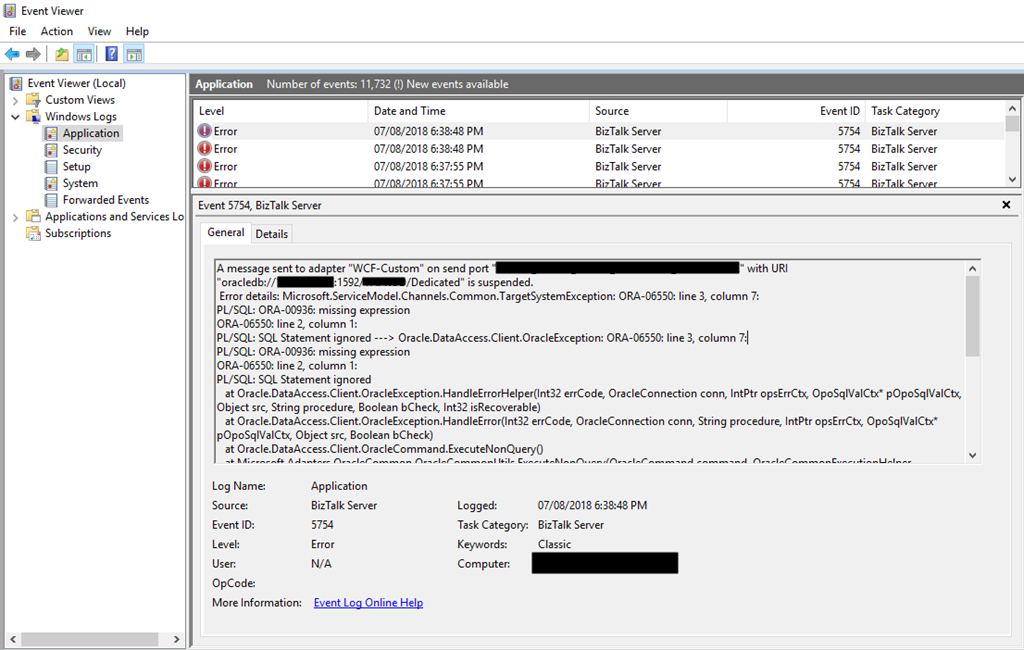
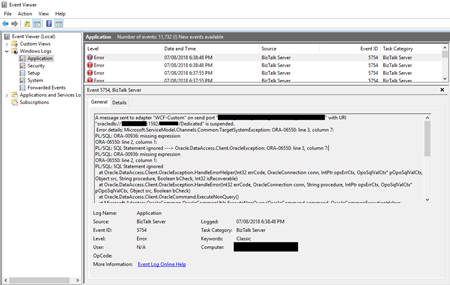
A message sent to adapter “WCF-Custom” on send port “SEND-PORT-NAME” with URI “oracledb://IP-ADDRESS:PORT-NUMBER/PATH” is suspended.
Error details: Microsoft.ServiceModel.Channels.Common.TargetSystemException: ORA-06550: line 2, column 677:
PL/SQL: ORA-00917: missing comma
ORA-06550: line 2, column 1:
PL/SQL: SQL Statement ignored —> Oracle.DataAccess.Client.OracleException: ORA-06550: line 2, column 677:
PL/SQL: ORA-00917: missing comma
ORA-06550: line 2, column 1:
PL/SQL: SQL Statement ignored
at Oracle.DataAccess.Client.OracleException.HandleErrorHelper(Int32 errCode, OracleConnection conn, IntPtr opsErrCtx, OpoSqlValCtx* pOpoSqlValCtx, Object src, String procedure, Boolean bCheck, Int32 isRecoverable)
at Oracle.DataAccess.Client.OracleException.HandleError(Int32 errCode, OracleConnection conn, String procedure, IntPtr opsErrCtx, OpoSqlValCtx* pOpoSqlValCtx, Object src, Boolean bCheck)
at Oracle.DataAccess.Client.OracleCommand.ExecuteNonQuery()
at Microsoft.Adapters.OracleCommon.OracleCommonUtils.ExecuteNonQuery(OracleCommand command, OracleCommonExecutionHelper executionHelper)
— End of inner exception stack trace —
Server stack trace:
at System.Runtime.AsyncResult.End[TAsyncResult](IAsyncResult result)
at System.ServiceModel.Channels.ServiceChannel.SendAsyncResult.End(SendAsyncResult result)
at System.ServiceModel.Channels.ServiceChannel.EndCall(String action, Object[] outs, IAsyncResult result)
at System.ServiceModel.Channels.ServiceChannel.EndRequest(IAsyncResult result)
Exception rethrown at [0]:
at System.Runtime.Remoting.Proxies.RealProxy.HandleReturnMessage(IMessage reqMsg, IMessage retMsg)
at System.Runtime.Remoting.Proxies.RealProxy.PrivateInvoke(MessageData& msgData, Int32 type)
at System.ServiceModel.Channels.IRequestChannel.EndRequest(IAsyncResult result)
at Microsoft.BizTalk.Adapter.Wcf.Runtime.WcfClient`2.RequestCallback(IAsyncResult result)
MessageId: {29C0CAD2-1D48-4318-8C86-E4A4E38FBD1C}
InstanceID: {F64C65F2-99F2-410E-A92E-418D146C16C9}
Cause
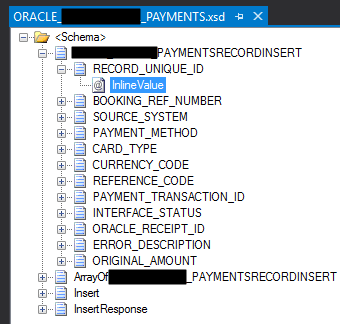
When you import the Insert (or other operation) schema from a specific table, unlike SQL, that only brings fields for you to fill, ORACLE schema will have:
- Elements (fields) – that are the columns present in that specific table
- and each Element will have an optional “InlineValue” attribute.
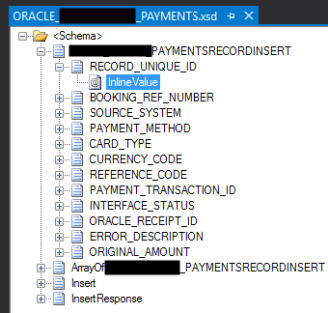
The element, as you can imagine is to send the value data that you want to insert in that specify column of the database but what is the InlineValue attribute? And what is this for?
InlineValue
For all simple data records in a multiple record Insert operation, you can choose to override the value of a record by specifying a value for an optional attribute called “InlineValue“. The InlineValue attribute can be used to insert computed values into tables or views such as populating the primary key column using a sequence or inserting system date (using SYSDATE) into a date column. Again, this is an optional attribute and is available for all simple data records in a multiple record Insert operation.
Basically, in other words, it allows you to call ORACLE PL/SQL functions like SYSDATE, TO_DATE or others for that specific column. And you don’t need to insert any data on the element, again, by specifying the InlineValue attribute this will override the value that you insert on that element.
Why you are getting the PL/SQL: ORA-00917: missing comma error?
This error typically occurs when you are mistakenly putting the data to be inserted in the “InlineValue” attribute and not in the elements:
<ns0:PAYMENTSRECORDINSERT xmlns:ns0="http://Microsoft.LobServices.OracleDB/2007/03/STGADMIN/Table/RETAIL_PAYMENTS">
  <ns0:RECORD_UNIQUE_ID InlineValue="12345" />
  <ns0:BOOKING_REF_NUMBER InlineValue="12345" />
  <ns0:SOURCE_SYSTEM InlineValue="TEST" />
  <ns0:PAYMENT_METHOD InlineValue="MONEY" />
  <ns0:CURRENCY_CODE InlineValue="EUR" />
  <ns0:REFERENCE_CODE InlineValue="1234" />
  <ns0:PAYMENT_TRANSACTION_ID InlineValue="1234" />
  <ns0:INTERFACE_STATUS InlineValue="N" />
</ns0:ADMM_RETAIL_PAYMENTSRECORDINSERT>
Solution
The solution, in this case, is very simple: you need to place the data on the existing elements of the schema instead of using the InlineValue attribute of the element:
<ns0:PAYMENTSRECORDINSERT xmlns:ns0="http://Microsoft.LobServices.OracleDB/2007/03/STGADMIN/Table/RETAIL_PAYMENTS">
  <ns0:RECORD_UNIQUE_ID>1234</ns0:RECORD_UNIQUE_ID>
  <ns0:BOOKING_REF_NUMBER>1234</ns0:BOOKING_REF_NUMBER>
  <ns0:SOURCE_SYSTEM>TEST</ns0:SOURCE_SYSTEM>
  <ns0:PAYMENT_METHOD>MONEY</ns0:PAYMENT_METHOD>
  <ns0:CURRENCY_CODE>EUR</ns0:CURRENCY_CODE>
  <ns0:REFERENCE_CODE>1234</ns0:REFERENCE_CODE>
  <ns0:PAYMENT_TRANSACTION_ID>1234</ns0:PAYMENT_TRANSACTION_ID>
  <ns0:INTERFACE_STATUS>N</ns0:INTERFACE_STATUS>
</ns0:ADMM_RETAIL_PAYMENTSRECORDINSERT>
Author: Sandro Pereira
Sandro Pereira lives in Portugal and works as a consultant at DevScope. In the past years, he has been working on implementing Integration scenarios both on-premises and cloud for various clients, each with different scenarios from a technical point of view, size, and criticality, using Microsoft Azure, Microsoft BizTalk Server and different technologies like AS2, EDI, RosettaNet, SAP, TIBCO etc. He is a regular blogger, international speaker, and technical reviewer of several BizTalk books all focused on Integration. He is also the author of the book “BizTalk Mapping Patterns & Best Practices”. He has been awarded MVP since 2011 for his contributions to the integration community. View all posts by Sandro Pereira