by stephen-w-thomas | Oct 5, 2015 | Stephen's BizTalk and Integration Blog
A little over 2 years ago I released a set of PowerShell scripts for auto creating a full Multi-Server BizTalk 2013 Domain inside Azure IaaS. I spent 100’s of hours on these scripts to get them working correctly. You can view my session at TechEd 2013 US online for more details.
I have made updates to these scripts and updated them to support BizTalk 2013 R2 and SQL 2014. These scripts will automatically created a clean isolated 2 BizTalk Server 2013 R2 Domain using SQL 2014. All domain user accounts are auto created. BizTalk group and host settings are created. The only manual intervention that is needed is to log into each server and run a PowerShell script. In less than an hour you can have a fully configured BizTalk 2013 R2 Domain! And since it is scripted, you can create a clean environment from scratch anytime you need one.
Note: Running these scripts will created Virtual Machines inside Windows Azure. You will be charged for the Virtual Machines. Make sure you understand the costs before running these scripts.
Why not use an Azure Resource Manger Template for this? Great question! I tried. I spent about 40 hours trying to port these scripts into an Azure Resource Manger Template with no success. I was unable to get the BizTalk and SQL Servers to join the domain. Azure Resource Manger PowerShell has a new set of commands that I could of used, but they are in the process of changing – so for now keeping the scripts as-is seemed the best course of action.
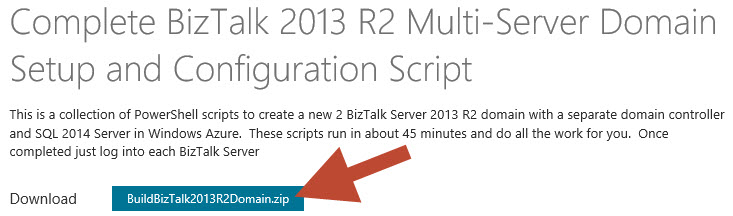
You can review and download the updated scripts on MSDN – Automatic Multi-Server BizTalk 2013 R2 Domain Creation PowerShell Scripts for Azure IaaS. If you like the scripts please rate them with a 5-star.
To run the scripts inside Visual Studio 2013 / 2015 do the following:
- Download them from MSDN – they are inside a Visual Studio 2013 Solution
- Open Visual Studio as an Administrator and open the Solution
- Update 3 values inside variables.ps1 It is the top 3 variables in the file.
- Update the top variable inside MAIN_MASTER.ps1 It is the first variable in the script.
- Right-click on MAIN_MASTER.ps1 and select "Execute As Script". Wait about 45 minutes.
- Log into BizTalk 02, open C:\BizTalk_Provisioning\ReadMe.docx. Follow the instructions. Do not close the Remote Desktop session. The PowerShell window will open and close right away. See details below.
- Log into BizTalk 01, open C:\BizTalk_Provisioning\ReadMe.docx. Follow the instructions. Wait about 10 minutes. Note that you have to run the last command twice. See details below.
To run the scripts through PowerShell IDE dot he following:
- Download them from MSDN – they are inside a Visual Studio 2013 Solution
- Open Main_Master.ps1 and variables.ps1 inside PowerShell IDE, make sure to open PowerShell IDE as an Administrator
- Update 3 values inside variables.ps1
- Update the top variable inside MAIN_MASTER.ps1
- Run MAIN_Master.ps1 as an Administrator
- Once complete, Log into BizTalk 02, open C:\BizTalk_Provisioning\ReadMe.docx. Follow the instructions. Do not close the Remote Desktop session. The PowerShell window will open and close right away. See details below.
- Log into BizTalk 01, open C:\BizTalk_Provisioning\ReadMe.docx. Follow the instructions. Wait about 10 minutes. Note that you have to run the last command twice. See details below.
This download contains the following scripts:
- MAIN_Master.ps1 – This is the main scripts that calls all the other scripts that do all the work.
- MAIN_RemoveVM.ps1 – This script will remove and delete everything created inside the domain.
- MAIN_SaveMoney_StopAll.ps1 – This script to turn off all the VM’s in the domain. You need to update 1 value in this file to run it.
- MAIN_SpendMoney_StartAll.ps1 – This script to turn on all the VM’s in the domain. You need to update 1 value in this file to run it.
- variables.ps1 – Core variable file, you need to update 3 values in here.
- Various other helper scripts and files
Detailed Post Script Configuration Steps (this is outlined in the ReadMe.docx downloaded to each server)
On BizTalk 02:
- Once the PowerShell scripts are complete log into the BizTalk 02 server with the domain admin account.
- Open a PowerShell windows as Administrator.
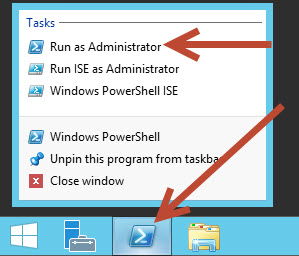
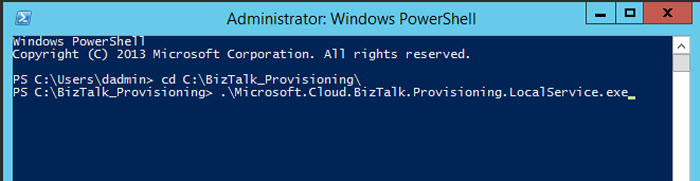
- Change directories as follows “cd c:\BizTalk_Provisioning”
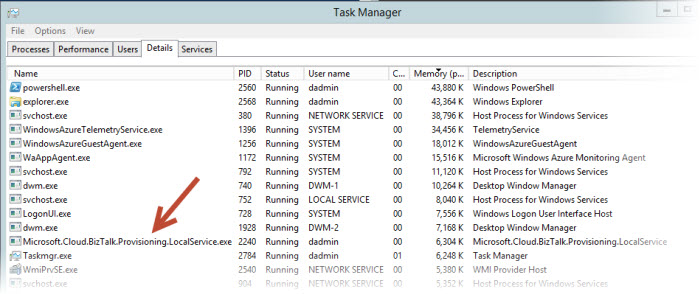
- Run the following command “MicrosoftCloudProvisioningLocalService.exe” – you should see this running as a service.
- Leave the Remote Desktop Session open and go to the BizTalk 01 Server.
On BizTalk 01:
- Once the PowerShell scripts are complete and the service is started on BizTalk 02, log into the BizTalk 01 server with the domain admin account.
- Open two PowerShell windows as Administrator.
- In the first window, change directories as follows “cd c:\BizTalk_Provisioning”
- Run the following command “MicrosoftCloudProvisioningLocalService.exe” – you should see this running as a service.
- In the second window, change directories as follows “cd c:\BizTalk_Provisioning”
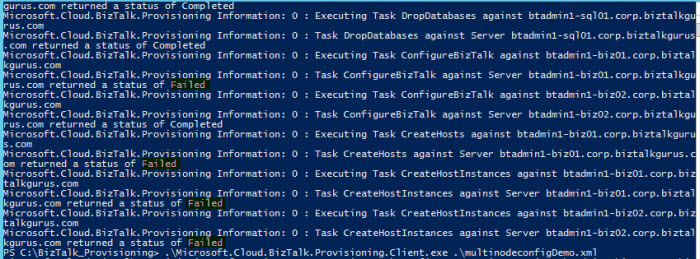
- Run the following command “.\Microsoft.Cloud.Provisioning.Client.exe .\multinodeconfigDemo.xml” – you should see several pop-up windows. This should fail.

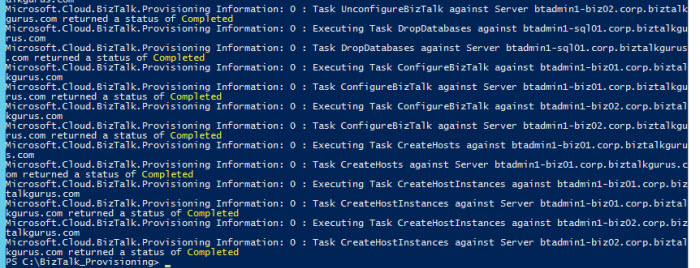
- Run the following command again “.\Microsoft.Cloud.Provisioning.Client.exe .\multinodeconfigDemo.xml” – you should see several pop-up windows again but this time it should Complete.
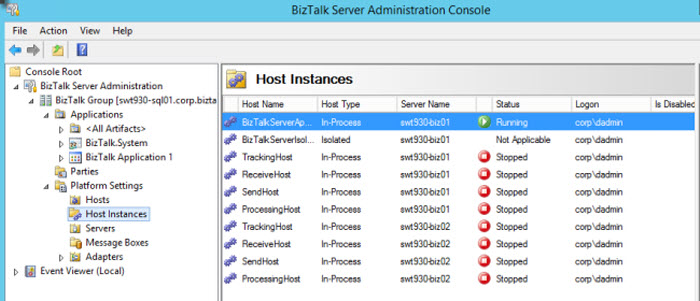
- The end result is a fully configured, multi-server BizTalk Domain inside Windows Azure!
Make sure you use the provided scripts to start, stop, and remove the artifacts created. I look forward to your feedback!
by community-syndication | Oct 5, 2015 | BizTalk Community Blogs via Syndication
Axon Olympus is zeer succesvol met haar KaaS-sessies (waarbij KaaS staat voor Knowledge as a Service). De zesde KaaS-sessie werd gehouden op donderdag 1 oktober 2015 van 13:00 tot 18:00 uur op de bijzondere locatie De Fabrique, Westkanaaldijk 7 te Utrecht. Naast onze eigen mensen waren er sprekers van Microsoft en DELA.
Blog Post by: AxonOlympus
by community-syndication | Oct 4, 2015 | BizTalk Community Blogs via Syndication
Once in a while we receive questions from a prospective company something on the lines of – “We are already using SolarWinds (or one of those enterprise monitoring solutions) for monitoring various things in our organisation. They say they have coverage for BizTalk. What’s the difference between BizTalk360 vs XXX Monitoring product in monitoring BizTalk […]
The post Monitoring BizTalk Server – Should I use BizTalk360 or SCOM, SolarWinds, HP Operations Manager, IBM Tivoli, …? appeared first on BizTalk360 Blog.
Blog Post by: Saravana Kumar

by community-syndication | Oct 1, 2015 | BizTalk Community Blogs via Syndication
Last year I presented for the first time in a SQLSaturday (SQLSaturday #341 Porto – Porto-Wine edition) at the time the attendees chose a session about BizTalk Services – “Introduction to Microsoft Azure BizTalk Services”. I’m proud to announce that, for the second consecutive year, I will present a session at SQLSaturday Porto – I’m […]
Blog Post by: Sandro Pereira
by community-syndication | Oct 1, 2015 | BizTalk Community Blogs via Syndication
The number 360 may be somewhat a normal number for the majority of the people, but for us it’s a magic number. A lot of times people just refer us as “360” rather than “BizTalk360”, ex: “have you tried that data monitoring feature in 360..”. So, when we signed the contract of our 360th customer […]
The post A Golden Milestone, BizTalk360 gets its 360th Customer appeared first on BizTalk360 Blog.
Blog Post by: Saravana Kumar
by community-syndication | Sep 29, 2015 | BizTalk Community Blogs via Syndication
Every year some of the brightest minds in Microsoft Integration descend upon Redmond, Washington for the Microsoft MVP Summit. This year 3 MVPs (Saravana Kumar, Steef-Jan Wiggers and Michael Stephenson) from Europe will be stopping by Calgary on their way to the Summit and will be giving some presentations. Myself and a local Microsoft employee, Darren King, will also be presenting.
I have shared the stage with these MVPs before and can vouch that attendees are in for a unique experience as they discuss their experiences with Microsoft Azure and BizTalk Server.
During this full day of sessions you will learn about how BizTalk and Microsoft Azure can address integration challenges. Session topics include SaaS connectivity, IoT, Hybrid SQL Server, BizTalk administration & operations and Two Speed IT using Microsoft Azure. Also bring your burning questions for our interactive Ask the Experts Q & A.
The free event takes place on October 30th, 2015 at the Calgary Microsoft office. You can find more details here.

by community-syndication | Sep 28, 2015 | BizTalk Community Blogs via Syndication
This post is for the BizTalk Server and other Portuguese Community, will be held on September 30, 2015 between 18:45 – 21:30 the XI Porto.Data Community meeting at the Science and Technology Park of University of Porto (UPTEC) in Oporto. For me it is a pleasure to return, for the second time this year, to […]
Blog Post by: Sandro Pereira
by community-syndication | Sep 28, 2015 | BizTalk Community Blogs via Syndication
In a community driven approach from Microsoft, the Logic Apps team have been conducting a “Google Hangout session” every month to let the community stay up-to-date on their technology developments. This is a nice way for them to reach out and engage withthe community to gain feedback of thefeatures. We thought it would be good […]
The post Azure Logic Apps Monthly Update – September 2015 appeared first on BizTalk360 Blog.
Blog Post by: Sriram Hariharan

by shadabanwer | Sep 26, 2015 | BizTalk Community Blogs via Syndication
 Connected Pawns
I wanted to know whether the out of the box JSON encoder pipeline component creates an JSON array if there is only one repeating XML fragment. One of my colleagues found with BizTalk 2013 he had to add an array attribute to the XML to force the creation of a JSON array (https://connectedcircuits.wordpress.com/2014/03/27/sending-json-messages-from-a-biztalk2013-adaptor/).
I created a test schema shown below and deployed it to my run time.
I created this message and consumed it with a receive location that was configured with passthrureceive location.
<ns0:Repeater xmlns:ns0=”http://JSONTest.Repeater”>
<Repeat>Repeat_0</Repeat>
</ns0:Repeater>
The XML message was then processed on a send port with a pipeline that only contained the JSON encoder pipeline component. Voila! I got the correct output shown below;
{
“Repeater”: {
“Repeat”: [
“Repeat_0”
]
}
}
Thanks Microsoft this has saved me a lot of extra work that i had to do in BizTalk 2013.
View original post

by shadabanwer | Sep 26, 2015 | BizTalk Community Blogs via Syndication
 connectedcircuits
I had a requirement where I needed to send a message to a web API that only accepted messages as JSON.
BizTalk2013 provides a WCF-WebHttp adaptor for sending sending XML messages to a REST endpoint but not in JSON format. There are rumours this will be remedied in BizTalk2013R2, unfortunately I required a solution now.
So in the meantime I will use the the Json.NET component to convert the XML message to JSON. I also found this blog from http://blog.quicklearn.com/2013/09/06/biztalk-server-2013-support-for-restful-services-part-45/ to convert XML messages to JSON using the Json.net in a custom pipeline component which I ended up using with some mods.
When using this pipeline remember to set the Outbound HTTP Headers as shown below:
This all worked a treat until during the unit testing phase I created a sample XML document with only one repeating element.This caused the following error from the Web API.
Can not deserialize instance…
View original post 614 more words
