
by community-syndication | Sep 3, 2015 | BizTalk Community Blogs via Syndication
Last Monday I presented my second session in the Integration Monday series (see my last post) and, as usually, I normally publish a post on my blog before the event – a way to help the organizers to advertise the event – or sometimes after the event sharing the resources but I just now realized […]
Blog Post by: Sandro Pereira

by stephen-w-thomas | Sep 3, 2015 | Stephen's BizTalk and Integration Blog
I have been using VMware off and on for years mostly to maintain environments for older version of BizTalk like BizTalk 2009 and BizTalk 2010. That said, I have been stuck using VMware version 9 because I did not want to keep paying the upgrade fees each year to get the latest version. With my recent upgrade to Windows 10, my VMware 9 installation ran into some issues. I was no longer able to connect to an internet connection inside the VM. I decided the time was right to migrate to Hyper-V on Windows 10.
I found a lot of articles about converting vmkd files to a vhdx but they seemed to state you needed to use Microsoft Virtual Machine Converter witch in the GUI and in the online documentation talked about only supporting VMware Server products.
The reality is Microsoft Virtual Machine Converter works for direct conversion of a single vmkd file into a vhdx. The catch is you need to use the PowerShell command and not the GUI.
If you want to convert a single VMKD file into a VHDX file do the following:
- For each Virtual Machine you want to convert, first remove the VM Tool and do a full shutdown
- Remove VMware from your computer (if you install Hyper-V first you will run into un-installation issues with VMware. You’ll have to edit the undeploy script to remove it)
- Enable Hyper-V Windows 10
- Download and install Microsoft Virtual Machine Converter 3.0 (Link)
- Open PowerShell or PowerShell ISE as an Administrator
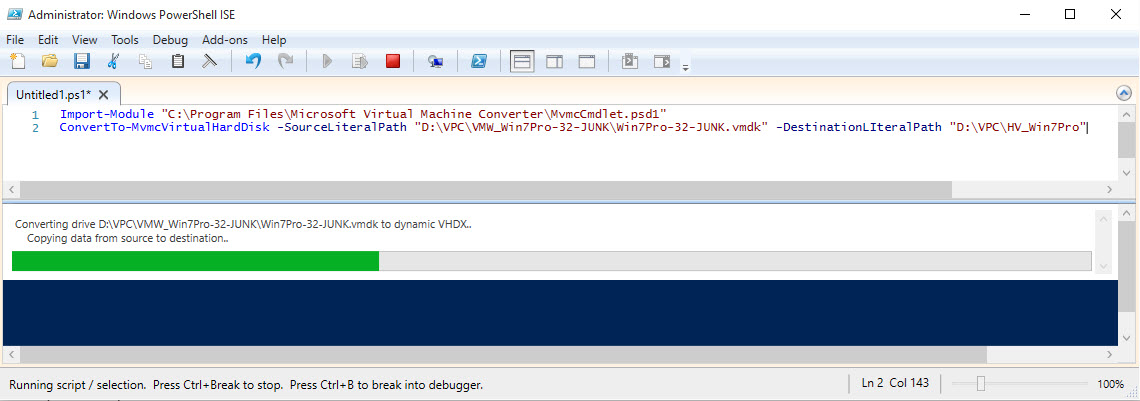
- Enter the following (update the paths and file names as needed):
Import-Module "C:\Program Files\Microsoft Virtual Machine Converter\MvmcCmdlet.psd1"
ConvertTo-MvmcVirtualHardDisk -SourceLiteralPath "D:\YourPathToVMKD\ZZZZ.vmdk" -DestinationLIteralPath "C:\PathToVHDX"
- This process will take about an hour for a 50 GB disk. See the image below.
- Once complete, create a new Generation1 Hyper-V virtual machine using the newly created vhdx image
PS: While this post is targeted toward virtual machines running locally, at this point 90% of my virtual machines are hosted in Azure using BizTalk 2013 / BizTalk 2013 R2. I only use virtual machines for maintaining legacy environments.
Hope this helps someone out!

by community-syndication | Sep 2, 2015 | BizTalk Community Blogs via Syndication
It was with great pleasure that I presented, last Monday – August 31, 2015 – my second presentation in the Integration Monday series. This time I was invited to talk about my personal experience about BizTalk NoS Ultimate and how this tool can improve our efficiency, productivity and experience while developing BizTalk projects. And for […]
Blog Post by: Sandro Pereira

by stephen-w-thomas | Sep 1, 2015 | Stephen's BizTalk and Integration Blog
I have revamped and updated my site: http://www.whats-new-in-biztalk-2013.com/ This site is dedicated to my course at Pluralsight with the same name. While this course was geared to BizTalk 2013, a lot of the content is still relevant for BizTalk 2013 R2.
This course has 6 modules:
BizTalk Server 2013 Overview
Using Windows Azure Service Bus with BizTalk 2013
REST Adapter Deep Dive
SharePoint Adapter Enhancements
Using BizTalk 360 with BizTalk 2013
Setting up BizTalk 2013 in Windows Azure IaaS
Of these, the module on the BizTalk REST Adapter is one of the best in the course! It is a great resources for anyone working with the REST Adapter in any version of BizTalk.
In the SharePoint chapter, I walk through integration with SharePoint Online in Office 365.
Check out the http://www.whats-new-in-biztalk-2013.com/ to see a 7-minute sample video.
As always, anyone can get a free 7 day, 200 minute trial of Pluralsight.

