by community-syndication | Jan 4, 2011 | BizTalk Community Blogs via Syndication
Crunchy numbers In 2010, there were 64 new posts, growing the total archive of this blog to 108 posts. There were 244 pictures uploaded, taking up a total of 19mb. That’s about 5 pictures per week. The busiest day of the year was December 22nd with 340 views. The most popular post that day was […]
by community-syndication | Jan 4, 2011 | BizTalk Community Blogs via Syndication
Microsoft has released official hotfix related to the problem I described earlier (see: http://geekswithblogs.net/paulp/archive/2010/05/17/139876.aspx)
The knowledge base article and link to hotfix download are located at http://support.microsoft.com/kb/2300507/en-us

by community-syndication | Jan 4, 2011 | BizTalk Community Blogs via Syndication
Last month we released the VS 2010 Service Pack 1 (SP1) Beta. You can learn more about the VS 2010 SP1 Beta from Jason Zander’s two blog posts about it, and from Scott Hanselman’s blog post that covers some of the new capabilities enabled with it.
You can download and install the VS 2010 SP1 Beta here.
IIS Developer Express
Earlier this summer I blogged about IIS Developer Express. IIS Developer Express is a free version of IIS 7.5 that is optimized for developer scenarios. We think it combines the ease of use of the ASP.NET Web Server (aka Cassini) currently built-into VS today with the full power of IIS. Specifically:
- It’s lightweight and easy to install (less than 5Mb download and a quick install)
- It does not require an administrator account to run/debug applications from Visual Studio
- It enables a full web-server feature set – including SSL, URL Rewrite, and other IIS 7.x modules
- It supports and enables the same extensibility model and web.config file settings that IIS 7.x support
- It can be installed side-by-side with the full IIS web server as well as the ASP.NET Development Server (they do not conflict at all)
- It works on Windows XP and higher operating systems – giving you a full IIS 7.x developer feature-set on all Windows OS platforms
IIS Express (like the ASP.NET Development Server) can be quickly launched to run a site from a directory on disk. It does not require any registration/configuration steps. This makes it really easy to launch and run for development scenarios.
Visual Studio 2010 SP1 adds support for IIS Developer Express – and you can start to take advantage of this starting with last month’s VS 2010 SP1 Beta release.
Downloading and Installing IIS Developer Express
IIS Developer Express isn’t included as part of the VS 2010 SP1 Beta. Instead it is a separate ~4MB download which you can download and install using this link (it uses WebPI to install it).
Once IIS Express is installed, VS 2010 SP1 will enable some additional IIS Developer Express commands and dialog options that allow you to easily use it.
Enabling IIS Developer Express for Existing Projects
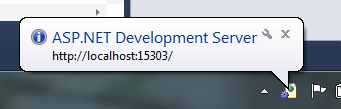
Visual Studio today defaults to using the built-in ASP.NET Development Server (aka Cassini) when running ASP.NET Projects:
Converting your existing projects to use IIS Developer Express is really easy. You can do this by opening up the project properties dialog of an existing project, and then by clicking the “web” tab within it and selecting the “Use IIS Express” checkbox.
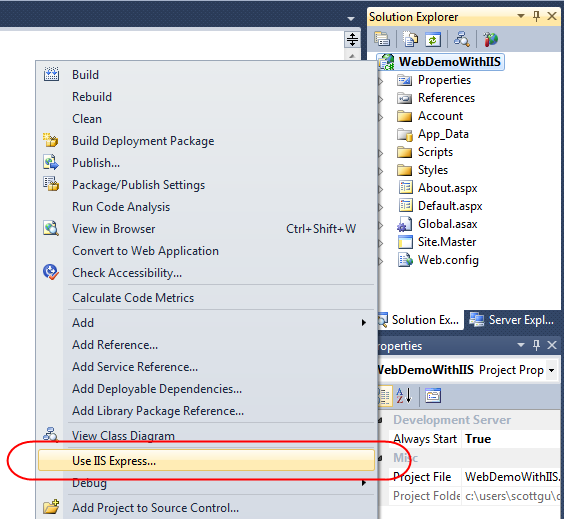
Or even simpler, just right-click on your existing project, and select the “Use IIS Express” menu command:
And now when you run or debug your project you’ll see that IIS Express now starts up and runs automatically as your web-server:

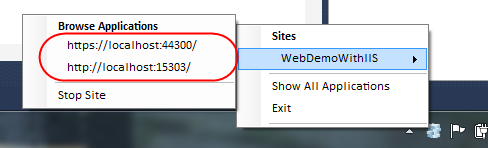
You can optionally right-click on the IIS Express icon within your system tray to see/browse all of sites and applications running on it:
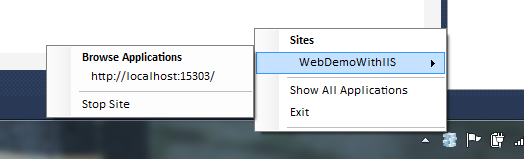
Note that if you ever want to revert back to using the ASP.NET Development Server you can do this by right-clicking the project again and then select the “Use Visual Studio Development Server” option (or go into the project properties, click the web tab, and uncheck IIS Express). This will revert back to the ASP.NET Development Server the next time you run the project.
IIS Developer Express Properties
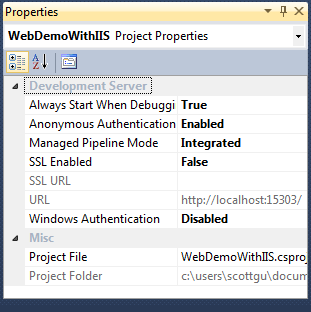
Visual Studio 2010 SP1 exposes several new IIS Express configuration options that you couldn’t previously set with the ASP.NET Development Server. Some of these are exposed via the property grid of your project (select the project node in the solution explorer and then change them via the property window):
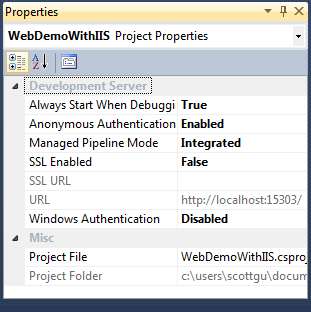
For example, enabling something like SSL support (which is not possible with the ASP.NET Development Server) can now be done simply by changing the “SSL Enabled” property to “True”:
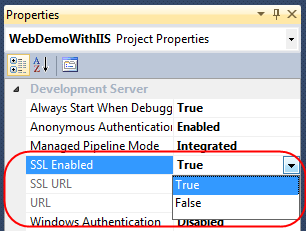
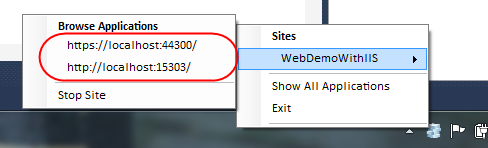
Once this is done IIS Express will expose both an HTTP and HTTPS endpoint for the project that we can use:
SSL Self Signed Certs
IIS Developer Express ships with a self-signed SSL cert that it installs as part of setup – which removes the need for you to install your own certificate to use SSL during development. Once you change the above drop-down to enable SSL, you’ll be able to browse to your site with the appropriate https:// URL prefix and it will connect via SSL.
One caveat with self-signed certificates, though, is that browsers (like IE) will go out of their way to warn you that they aren’t to be trusted:
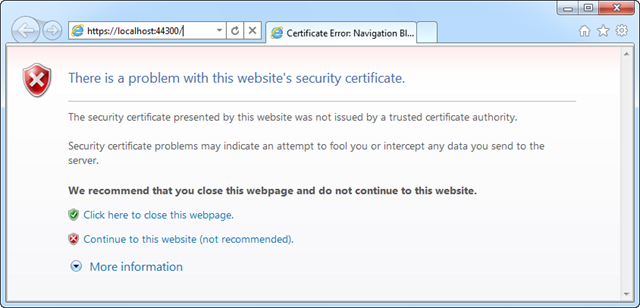
You can mark the certificate as trusted to avoid seeing dialogs like this – or just keep the certificate un-trusted and press the “continue” button when the browser warns you not to trust your local web server.
Additional IIS Settings
IIS Developer Express uses its own per-user ApplicationHost.config file to configure default server behavior. Because it is per-user, it can be configured by developers who do not have admin credentials – unlike the full IIS. You can customize all IIS features and settings via it if you want ultimate server customization (for example: to use your own certificates for SSL instead of self-signed ones).
We recommend storing all app specific settings for IIS and ASP.NET within the web.config file which is part of your project – since that makes deploying apps easier (since the settings can be copied with the application content). IIS (since IIS 7) no longer uses the metabase, and instead uses the same web.config configuration files that ASP.NET has always supported – which makes xcopy/ftp based deployment much easier.
Making IIS Developer Express your Default Web Server
Above we looked at how we can convert existing sites that use the ASP.NET Developer Web Server to instead use IIS Developer Express.
You can configure Visual Studio to use IIS Developer Express as the default web server for all new projects by clicking the Tools->Options menu command and opening up the Projects and Solutions->Web Projects node with the Options dialog:
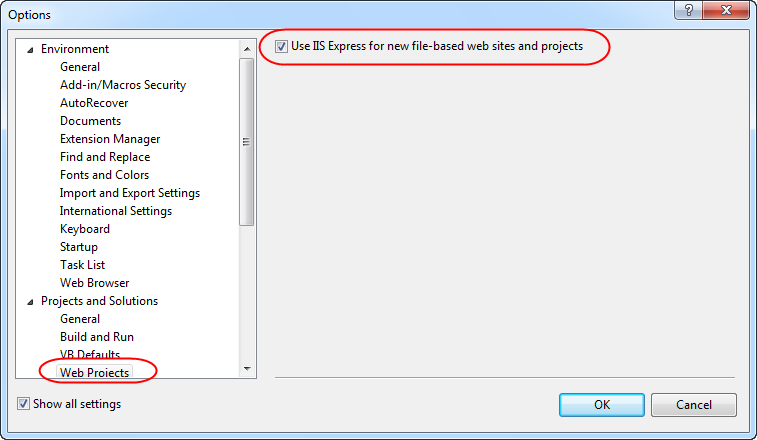
Clicking the “Use IIS Express for new file-based web site and projects” checkbox will cause Visual Studio to use it for all new web site and projects.
Summary
We think IIS Express makes it even easier to build, run and test web applications. It works with all versions of ASP.NET and supports all ASP.NET application types (including obviously both ASP.NET Web Forms and ASP.NET MVC applications). Because IIS Express is based on the IIS 7.5 codebase, you have a full web-server feature-set that you can use. This means you can build and run your applications just like they’ll work on a real production web-server. In addition to supporting ASP.NET, IIS Express also supports Classic ASP and other file-types and extensions supported by IIS – which also makes it ideal for sites that combine a variety of different technologies.
Best of all – you do not need to change any code to take advantage of it. As you can see above, updating existing Visual Studio web projects to use it is trivial. You can begin to take advantage of IIS Developer Express today using the VS 2010 SP1 Beta.
Hope this helps,
Scott

by community-syndication | Jan 4, 2011 | BizTalk Community Blogs via Syndication
In 2008 I was paid to write a series of articles about how BizTalk Server and WCF integrated. As a result of that nine-part series, I was pinged about writing my first book, which turned into my second book, and so on. So, I hold a fondness for that series of articles. That said, I’ve […]
by community-syndication | Jan 3, 2011 | BizTalk Community Blogs via Syndication
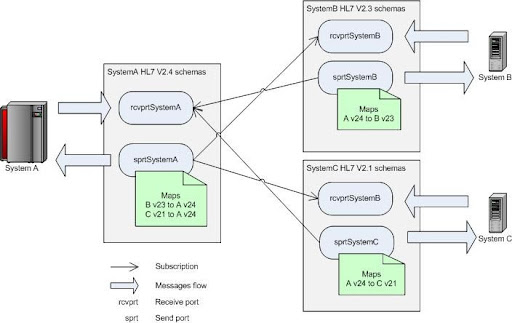
Microsoft BizTalk Accelerator for HL7 comes with multiple versions of the HL7 implementation. One of the typical integration tasks is to receive one format and transmit another. For example, system A works HL7 v2.4 messages, system B with v2.3, and system C with v2.2. The system A is exchanging messages with B and C. The logical solution is to create schemas in separate namespaces for each system and assign maps on send ports. Schematic diagram of the messaging solution is shown below:
Nothing is complex about that conceptually. On the implementation level things can get nasty though because of the elaborate nature of HL7 schemas and sheer amount of message types involved. If trying to implement maps directly in BizTalk Map Editor one would quickly get buried by thousands of links between subfields of HL7 segments. Since task is repetitive because HL7 segments are reused between message types it’s natural to take advantage of such modular structure and reduce amount of work through reuse. Here’s where it makes sense to switch from visual map editor to old plain XSLT. The implementation is done in three steps.
First, create XSL templates to map from segments of one version to another. This can be done using BizTalk Map Editor subsequently copying and modifying generated XSL code to create one xsl:template per segment. Group all segments for format mapping in one XSL file (we call it SegmentTemplates.xsl). Here’s how template for the PID segment (Patient Identification) would look like this:
<xsl:template name="PID">
    <PID_PatientIdentification>
      <xsl:if test="PID_PatientIdentification/PID_1_SetIdPatientId">
        <PID_1_SetIdPid>
          <xsl:value-of select="PID_PatientIdentification/PID_1_SetIdPatientId/text()" />
        </PID_1_SetIdPid>
      </xsl:if>
      <xsl:for-each select="PID_PatientIdentification/PID_2_PatientIdExternalId">
        <PID_2_PatientId>
          <xsl:if test="CX_0_Id">
            <CX_0_Id>
              <xsl:value-of select="CX_0_Id/text()" />
            </CX_0_Id>
          </xsl:if>
          <xsl:if test="CX_1_CheckDigit">
            <CX_1_CheckDigitSt>
              <xsl:value-of select="CX_1_CheckDigit/text()" />
            </CX_1_CheckDigitSt>
          </xsl:if>
          <xsl:if test="CX_2_CodeIdentifyingTheCheckDigitSchemeEmployed">
            <CX_2_CodeIdentifyingTheCheckDigitSchemeEmployed>
              <xsl:value-of select="CX_2_CodeIdentifyingTheCheckDigitSchemeEmployed/text()" />
            </CX_2_CodeIdentifyingTheCheckDigitSchemeEmployed>

. . . // skipped for brevity
This is the most tedious and time consuming part. Templates can be created for only those segments that are used in message interchange. Once this is done the rest goes much easier.
The next step is to create message type specific XSL that references (imports) segment templates XSL file. Inside this file simple call segment templates in appropriate places. For example, beginning of the mapping XSL for ADT_A01 message would look like this:
<xsl:importhref="SegmentTemplates_23_to_24.xslt"/>
<xsl:outputomit-xml-declaration="yes"method="xml"version="1.0"/>

<xsl:templatematch="/">
<xsl:apply-templatesselect="s0:ADT_A01_23_GLO_DEF"/>
</xsl:template>

<xsl:templatematch="s0:ADT_A01_23_GLO_DEF">
<ns0:ADT_A01_24_GLO_DEF>
<xsl:call-templatename="EVN"/>
<xsl:call-templatename="PID"/>
<xsl:for-eachselect="PD1_PatientDemographic">
<xsl:call-templatename="PD1"/>
</xsl:for-each>
<xsl:call-templatename="PV1"/>
<xsl:for-eachselect="PV2_PatientVisitAdditionalInformation">
<xsl:call-templatename="PV2"/>
</xsl:for-each>
This code simply calls segment template directly for required singular elements and in for-each loop for optional/repeating elements.
And lastly, create BizTalk map (btm) that references message type specific XSL. It is essentially empty map with Custom XSL Path set to appropriate XSL:
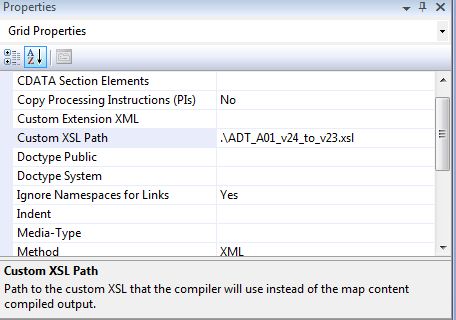
In the end, you will end up with one segment templates file that is referenced by many message type specific XSL files which in turn used by BizTalk maps. Once all segment maps are created they are widely reusable and all the rest work is very simple and clean.
by community-syndication | Jan 3, 2011 | BizTalk Community Blogs via Syndication
I couldn’t leave this one alone. While I was making the last episode I said that there was possibly another strategy for detecting states and transitions and that was to use Tracking data. In this episode I’ll show you a better way to implement our WPF UI using the Model View View-Model (MVVM) pattern that does not require the state machine to have actvitivities to notify the model of state changes. The source including some really cool unit tests that make use of Microsoft.Activities.UnitTesting is available here.
Ron Jacobs
http://blogs.msdn.com/rjacobs
@ronljacobs
by community-syndication | Jan 2, 2011 | BizTalk Community Blogs via Syndication
Repeating sequence groups can often be seen in real life XML documents. It happens when certain sequence of elements repeats in the instance document. Here’s fairly abstract example of schema definition that contains sequence group:
<xs:schemaxmlns:b=“http://schemas.microsoft.com/BizTalk/2003“
xmlns:xs=“http://www.w3.org/2001/XMLSchema“
xmlns=“NS-Schema1“
targetNamespace=“NS-Schema1“ >
<xs:elementname=“RepeatingSequenceGroups“>
<xs:complexType>
<xs:sequencemaxOccurs=“1“minOccurs=“0”>
<xs:sequencemaxOccurs=“unbounded“>
<xs:elementname=“A“type=“xs:string“ />
<xs:elementname=“B“type=“xs:string“ />
<xs:elementname=“C“type=“xs:string“minOccurs=“0“ />
</xs:sequence>
</xs:sequence>
</xs:complexType>
</xs:element>
</xs:schema>
And here’s corresponding XML instance document:
<ns0:RepeatingSequenceGroupsxmlns:ns0=“NS-Schema1“>
<A>A1</A>
<B>B1</B>
<C>C1</C>
<A>A2</A>
<B>B2</B>
<A>A3</A>
<B>B3</B>
<C>C3</C>
</ns0:RepeatingSequenceGroups>
As you can see elements A, B, and C are children of anonymous xs:sequence element which in turn can be repeated N times. Let’s say we need do simple mapping to the schema with similar structure but with different element names:
<ns0:Destinationxmlns:ns0=“NS-Schema2“>
<Alpha>A1</Alpha>
<Beta>B1</Beta>
<Gamma>C1</Gamma>
<Alpha>A2</Alpha>
<Beta>B2</Beta>
<Gamma>C2</Gamma>
</ns0:Destination>
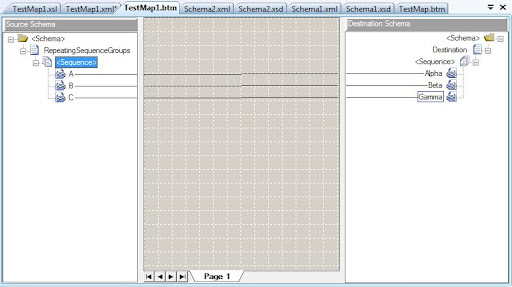
The basic map for such typical task would look pretty straightforward:
If we test this map without any modification it will produce following result:
<ns0:Destinationxmlns:ns0=“NS-Schema2“>
<Alpha>A1</Alpha>
<Alpha>A2</Alpha>
<Alpha>A3</Alpha>
<Beta>B1</Beta>
<Beta>B2</Beta>
<Beta>B3</Beta>
<Gamma>C1</Gamma>
<Gamma>C3</Gamma>
</ns0:Destination>
The original order of the elements inside sequence is lost and that’s not what we want. Default behavior of the BizTalk 2009 and 2010 Map Editor is to generate compatible map with older versions that did not have ability to preserve sequence order. To enable this feature simply open map file (*.btm) in text/xml editor and find attribute PreserveSequenceOrder of the root <mapsource> element. Set its value to Yes and re-test the map:
<ns0:Destinationxmlns:ns0=“NS-Schema2“>
<Alpha>A1</Alpha>
<Beta>B1</Beta>
<Gamma>C1</Gamma>
<Alpha>A2</Alpha>
<Beta>B2</Beta>
<Alpha>A3</Alpha>
<Beta>B3</Beta>
<Gamma>C3</Gamma>
</ns0:Destination>
The result is as expected – all corresponding elements are in the same order as in the source document. Under the hood it is achieved by using one common xsl:for-each statement that pulls all elements in original order (rather than using individual for-each statement per element name in default mode) and xsl:if statements to test current element in the loop:
<xsl:templatematch=“/s0:RepeatingSequenceGroups“>
<ns0:Destination>
<xsl:for-eachselect=“A|B|C“>
<xsl:iftest=“local-name()=’A’“>
<Alpha>
<xsl:value-ofselect=“./text()“ />
</Alpha>
</xsl:if>
<xsl:iftest=“local-name()=’B’“>
<Beta>
<xsl:value-ofselect=“./text()“ />
</Beta>
</xsl:if>
<xsl:iftest=“local-name()=’C’“>
<Gamma>
<xsl:value-ofselect=“./text()“ />
</Gamma>
</xsl:if>
</xsl:for-each>
</ns0:Destination>
</xsl:template>
BizTalk Map editor became smarter so learn and use this lesser known feature of XSLT 2.0 in your maps and XSL stylesheets.
by community-syndication | Jan 2, 2011 | BizTalk Community Blogs via Syndication
In my project I needed to separate template generated entities, context in separate projects from the EDMX file. I’ve stumbled across this problem how to make template generator to find edmx file without hardcoding absolute path into the template. Using relative path directly (inputFile=@”..\ProjectFolder\DataModel.edmx”) generated error:
Error 2 Running transformation: System.IO.DirectoryNotFoundException: Could not find a part of the path ‘C:\Program Files (x86)\Microsoft Visual Studio 10.0\Common7\ProjectFolder\DataModel.edmx’
The code that worked well for me when placed in the beginning of the .tt file:
string rootPath = Host.ResolvePath(String.Empty);
string relativePath = @”..\\ProjectDir\\DataModel.edmx”;
string inputFile = Path.Combine(rootPath, relativePath);
EdmItemCollection ItemCollection = loader.CreateEdmItemCollection(inputFile);
by community-syndication | Jan 2, 2011 | BizTalk Community Blogs via Syndication
If you experience sequence of errors below with BizTalk HL7 MLLP receive ports you may need to request a hotfix from Microsoft. Knowledge base article number is 2454887 but it’s still not available on the KB site. The hotfix is recently released and you may need to open support ticket to get to it. It requires three other hotfixes installed:
%u00b7 970492 (DASM 3.7.502.2)
%u00b7 973909 (additional ACK codes)
%u00b7 981442 (Microsoft.solutions.btahl7.mllp.dll3.7.509.2)
If the exceptions below repeatedly appear in the event log you most likely would be helped by the hotfix:
Fatal error encountered in 2XDasm. Exception information is Cannot access a disposed object. Object name: ‘CEventingReadStream’.
There was a failure executing the receive pipeline: “BTAHL72XPipelines.BTAHL72XReceivePipeline, BTAHL72XPipelines, Version=1.3.0.0, Culture=neutral, PublicKeyToken=31bf3856ad364e35” Source: “BTAHL7 2.X Disassembler” Receive Port: “ReceivePortName” URI: “IPAddress:portNumber” Reason: Cannot access a disposed object. Object name: ‘CEventingReadStream’.
The Messaging Engine received an error from transport adapter “MLLP” when notifying the adapter with the BatchComplete event. Reason “Object reference not set to an instance of an object.”
We’ve been through a lot of troubleshooting with Microsoft Product Support and they did a great job finding an issue and releasing a fix.

by community-syndication | Jan 2, 2011 | BizTalk Community Blogs via Syndication
So you may recall a bet that took place around the 2010 Olympic timeframe which had me, and Team Canada, matched up against fellow BizTalk MVP Mikael H%u00e5kansson and Team Sweden. As we all know, Canada won the Olympic Gold Medal and I won the bet.
The Christmas break is well anticipated holiday for many obvious reasons in Canada. While most people in Canada are stuck indoors for the coldest part of the year, many are glued to their television sets watching the World Junior Hockey tournament. This tournament represents the best under 20 year old Hockey players on the the planet. Most of these players will end up playing professional Hockey somewhere and many will make the NHL.
On December 31st, 2010, Canada squared off against Team Sweden in a round robin game. Once again Mikael taunted me with a blog post so I couldn’t resist opening up that wound of his from earlier in the year.
This time around it is my time to eat crow. Sweden beat Canada 6-5 in a shoot-out and in return here is my tribute to Team Sweden and Mikael.
There are still some games left and I am confident that Team Canada can pull it off. There is a good chance that Canada could play Sweden so perhaps there will be a rematch bet?