Recently on Integration Monday, I presented a chat bot which can be used to administer BizTalk, hosted on premises, using a chat bot, Logic Apps and the On Premises Data Gateway. The session can be found at Administering BizTalk Server with a Chatbot. This blog post is aimed at discussing the session.
Context
For a product company serving its customer, there are few areas where the company executives need to work with their customers. These activities can be broadly classified into two categories:
Customer Service
Brand Loyalty and Awareness
Let us take a brief look at each of these categories.
Customer Service: Executives of the company might need to converse with customers to:
Account management: Help customer manage their services, subscriptions, payments etc.
FAQ: Answer the common questions about the product
Issue Resolution: Solve the issues customers face with the product
Brand Awareness and Loyalty: Executives of the company can converse with customers to:
Seek Feedback: Understand how customers like the product. What the general sentiment for the product is?
New Features/Products: Inform customers about the new features or the products that the company is launching
For the conversation in the customer service category, the general mode of conversation is use of emails, phone calls or support websites. While in the Brand Awareness category it is generally emails and calls.
Now consider what if the conversations are delivered to the customers at their fingertips? This is possible by creating virtual assistants tailored for the functions specific to the product. These virtual assistants, when imbibed with the power of Natural Language Processing and Cognitive services, help customers converse with the company and get their intended work done.
This not only makes conversation available to customers at their fingertips, but also saves a lot of money for the company by automating most of the before mentioned tasks.
This concept of providing “Conversation” as a service to the customers through virtual assistants is generally termed as “Conversation as a Service”.
Chat bots are the starting point of Conversation as a Service as they pave a way to build full-fledged virtual assistants.
What Are Chat Bots?
Now that we have seen what Conversation as a Service is and how bots fit into this, let us analyse how the chat bots are different from a regular web application. Consider a scenario where you want to buy a laptop. In such scenario in normal web application, you would generally follow below steps:
Navigate to the Home page of the website
Enter the search details for the laptop. This search then leads to a new web page which displays the result
After selecting a particular laptop, to place the order the website redirects to a new page where details like name, address and payment details are collected and the order is finally placed
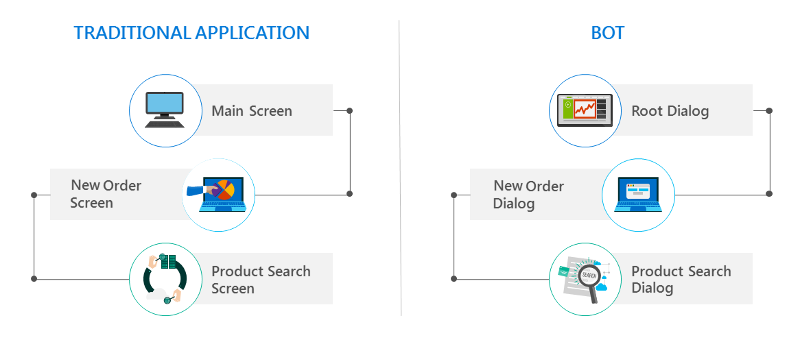
Now let us try to convert these steps to how a chat bot would process the laptop request. Following image shows the comparison between the web application and the chat bot.
A chat bot does not have a traditional UI where the user navigates from one page to another, bots have dialogs that correspond to a particular web page in a web application. So, to order a laptop the chat bot would use following dialogs:
A root dialog which greets the user and asks them what they want to do
Once the user confirms they want to buy a laptop, the bot initiates the Product Search Dialog and collects the search parameters from the user. Once that is done, the bot returns the result to the user in the form of carousel cards
Once the user confirms the laptop, the bot initiates an Order dialog which would then collect name, address and payment details and then place an order for the laptop
In a nutshell, chat bots are just like normal web applications but instead of having a breadcrumb-based web page approach, bots use dialogs to collect and display information. Each dialog only supports a single responsibility akin to the single responsibility principle of software design.
Tools and Frameworks Used
Now that we know what Conversation as Service is and how and what chat bots are, let us take a look at the tools and frameworks we use to build the chat bot.
Visual Studio 2017/ Visual Studio Code – Any one of these IDE’s can be used to build the bot code. I prefer to use Visual Studio 2017 as it provides a bot skeleton project which takes care of basic plumbing of the bot code, we just need to add our logic in it. Visual Studio Code does not provide that flexibility, we have to create an empty web app and add the code ourselves.
MS Bot Framework SDK 4.x – This is the official Microsoft released SDK to develop bots. This SDK works with ASP.NET Core 2.x and makes the framework a cross platform development framework. We can develop the code on Windows, Linux or Mac
Asp.Net Core 2.x – The cross platform open source .Net framework by Microsoft
Adaptive Cards – This framework is used to author and render the cards using a standard Json format. Brings uniformity in the way information is exchanged between the channel and the bot
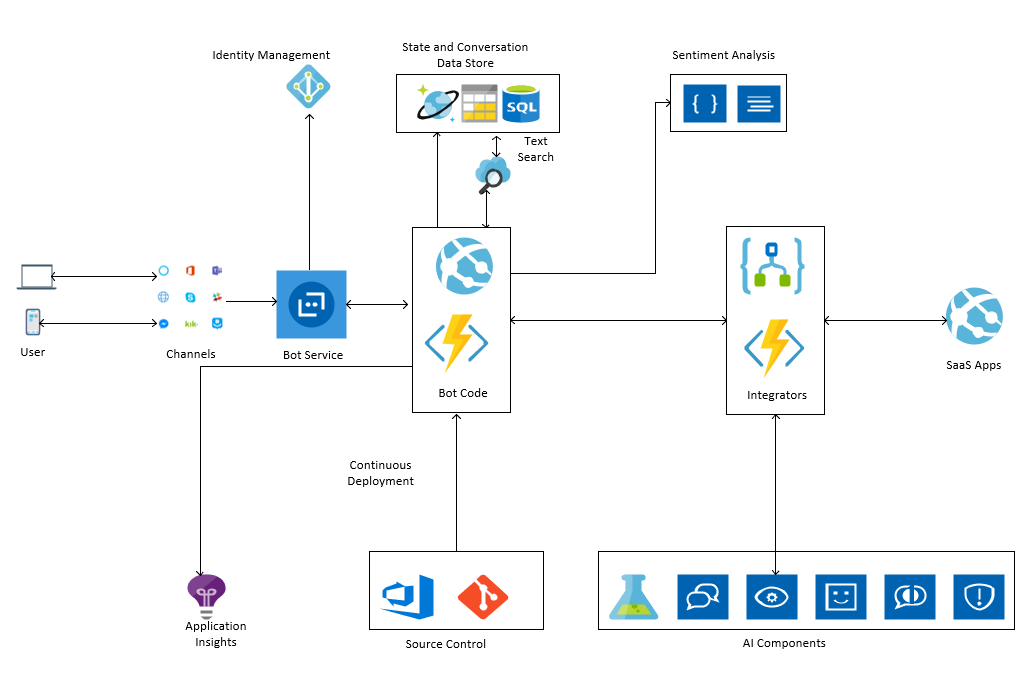
Bot Framework Emulator – Used to emulate the actual conversation between the user and the bot. Helps to debug the bots hosted locally and also on Azure The following image shows the basic building blocks in a typical bot. All of these blocks are from Microsoft Azure perspective.
Typical Bot Architecture
Let us take a look at each of the blocks in brief.
Bot Service – This a central piece which connects the different communication channels to the actual bot code. It allows us to manage the connection to the communication channels. It allows to implement authentication to the back-end services used by the bot code. E.g. If we want the user to be authenticated to use the MS Graph API, we add the OAuth connection to the Graph API in the bot service.
Identity Management – The Bot Framework provides out of the box connection to various OAuth providers like Uber, Gmail, LinkedIn, Fitbit, MS Graph API etc. It also allows to map our custom OAuth system to the bot code.
Channels – Various channels are available for us to integrate the bot with, they are FaceBook, Email, Slack, Kik, Skype, Skype For Business etc. Each registration of the channels needs to be done with the Bot Service.
Bot Code – The bot code can be hosted as a Web App or a function App when we use the SDK V3 and as Web App for now for SDK V4.
State and Conversation Management – The bot framework allows us to manage the state and the conversation history using several out of the box options. We can use CosmosDb, Blob Storage or Azure SQL Database. The Azure Search Service can be used with the conversation History store to fetch history from the store.
NLP and Sentiment Analysis – These features are used to Introduce more complex and rich features into bot which enables it to converse with the user in a more natural form and detect the sentiment of the user as the conversation continues on. This provides a lot of information to companies to understand how their chat bot is faring with the task of solving problems of their customers.
Integrators – The bot can communicate with the other SaaS products and Machine Learning Models, QnA maker services and Cognitive Services using Integration offerings like Logic Apps and Azure Functions.
Repositories – The Web/ Function App in which the bot code is deployed can be hooked to different repositories and configured to use Continuous Deployment.
The BizMan
Now that we have seen what a typical bot looks like, let us move on to the BizTalk Admin Bot. I have named this Bot “The BizMan” as it administers the BizTalk server. The name and the superhero persona were conceived by Sandro Pereira . The post is available on his blog at BizMan, The BizTalk Server SuperHero Sticker
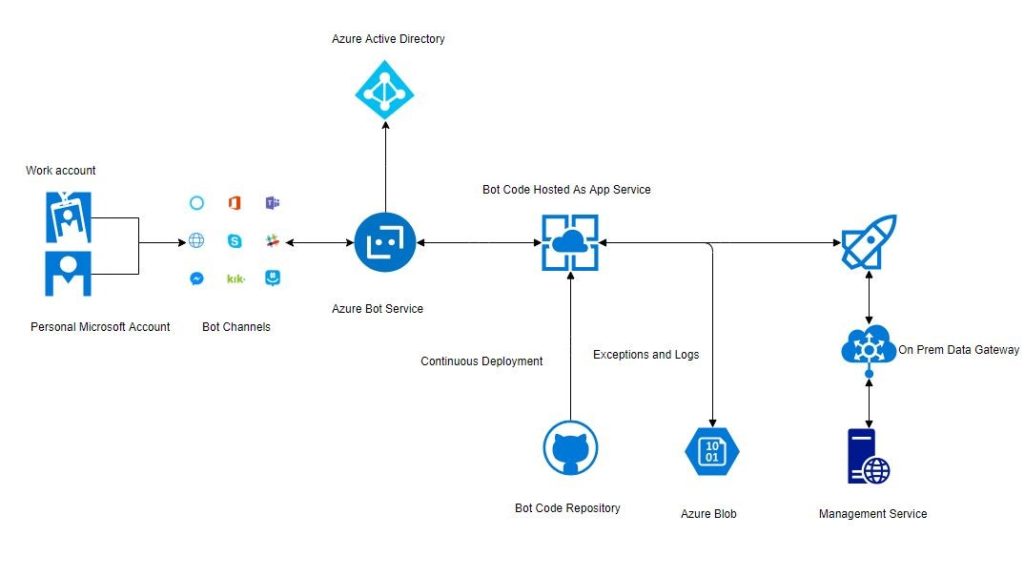
The architecture for BizMan is almost similar to the bot architecture discussed above. The following image shows the architecture for BizMan.
BizMan Requires that the user is a valid user in the Azure Active Directory and can be authenticated successfully. BizMan uses Blob Storage to store the logs and suspended instances reports. It uses Logic Apps to communicate with the BizTalk Management service (which comes with the BizTalk 2016 Feature Packs). This communication takes place using the On Premises Data Gateway.
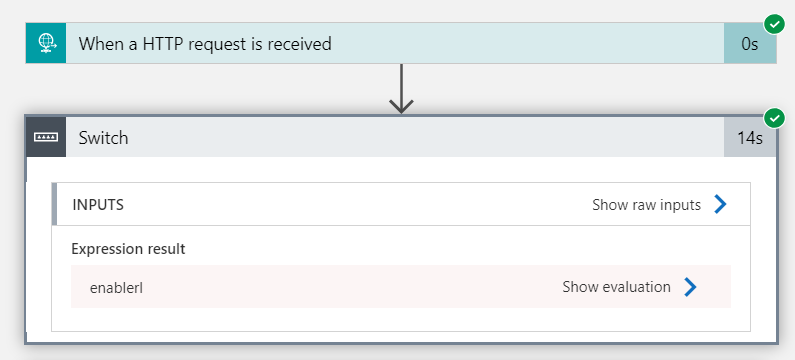
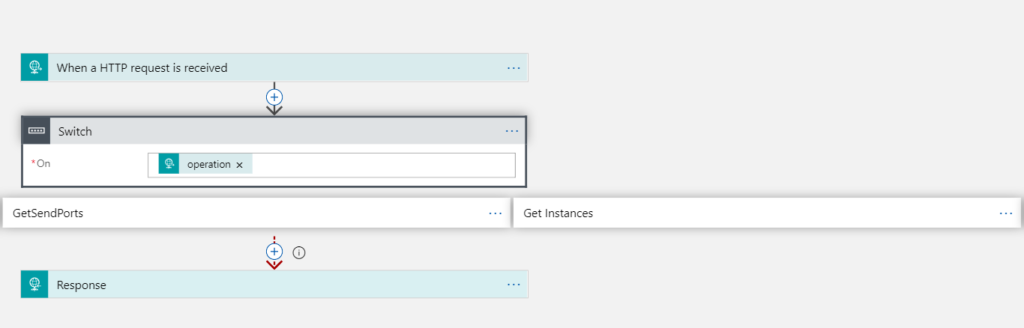
The Management service that comes with Feature Pack 1 for BizTalk 2016, allows us to administer BizTalk Server using the Web API. This service also comes with a pre-authored Swagger definition which gives us the details about the various operations available in the service. This enables us to create a custom Logic Apps connector to communicate with this Web API. So, we just upload the Json file containing the Swagger information of the API and set up Windows authentication using an account which is part of “BizTalk Administrators Group”. This allows us to easily consume various operations in the Web API in a Logic App. A sample snapshot of the Logic App is shown below.
As will be clear, it is very easy to create the Logic App and add new operations, if we use a Custom Logic Apps connector.
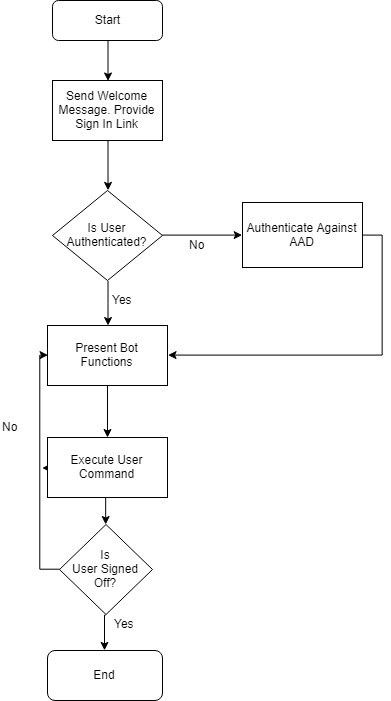
The typical flow for the bot is shown below.
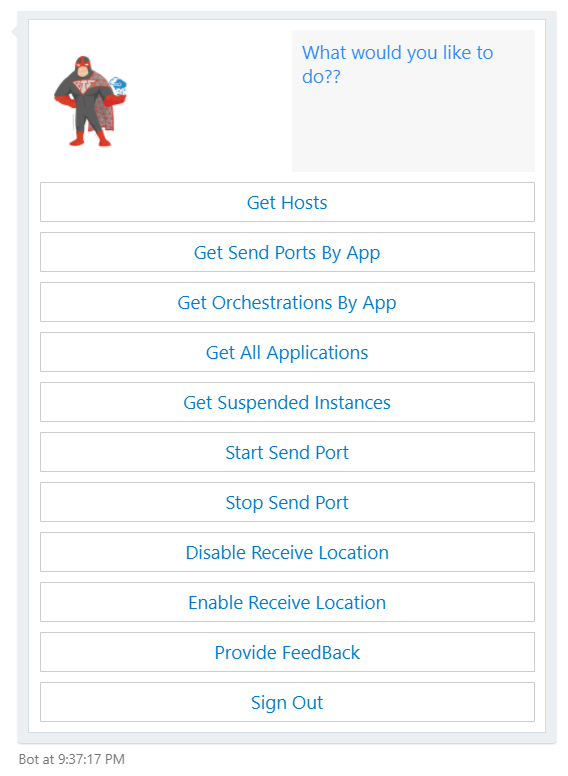
The BizMan is able to perform following tasks:
Greet the User
Authenticate the user against the AAD
Get Hosts
Get the Applications deployed in the BizTalk environment
Get the List of Orchestrations, Send Ports by application
Stop/ Start Send ports
Enable / Disable Receive Location
Get Suspended Instances
Get Feed Back from the user
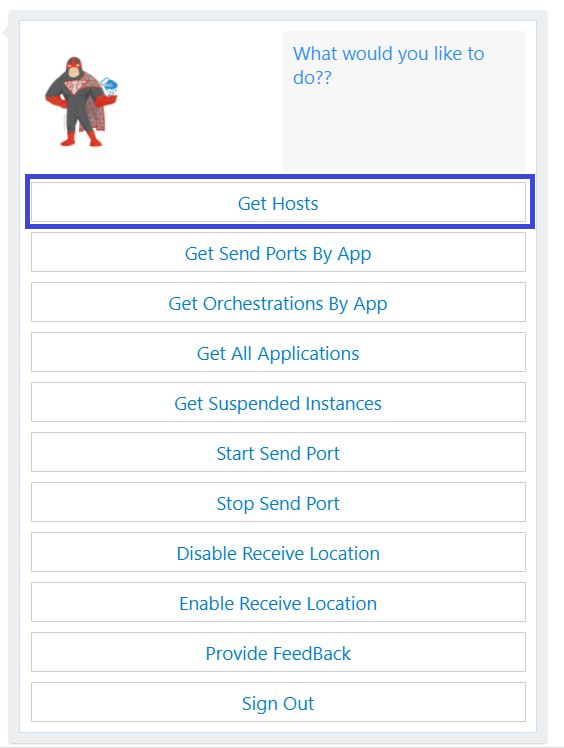
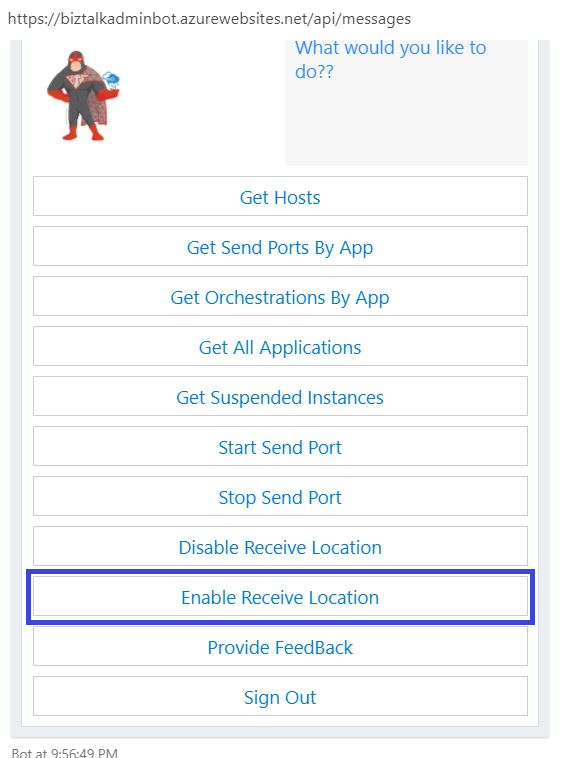
The options are presented to user as a big adaptive card as shown below.
Let us take a look at some of the operations available in the bot.
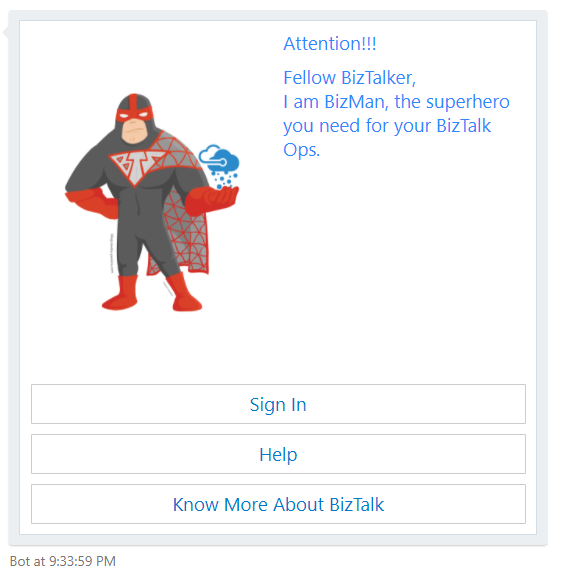
Greet the User:
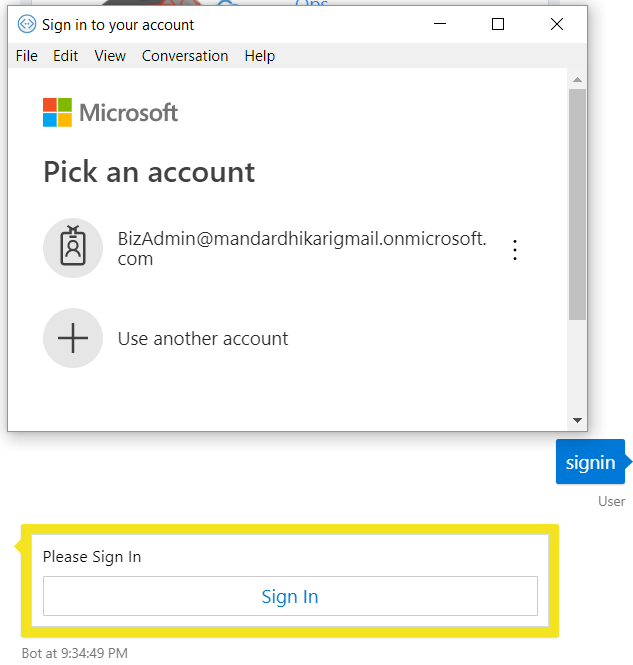
Authenticate the User:
Enable Receive Location:
Let us explore this operation in detail. In this operation, the User initiates the command by clicking on the Enable Receive Location option available from the operation card as shown below.
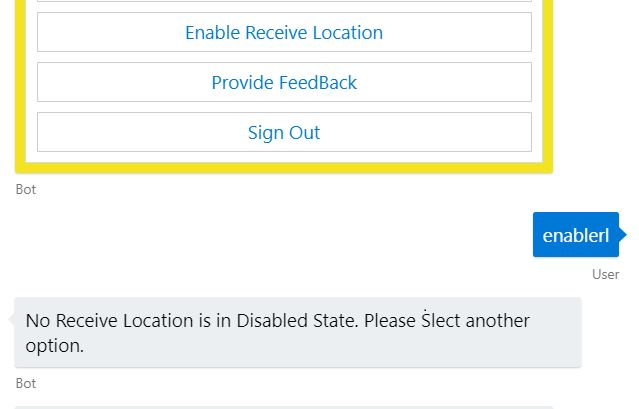
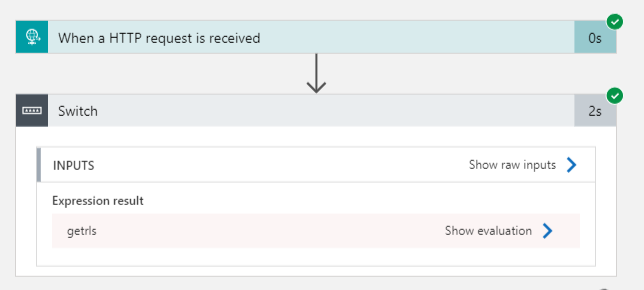
This initiates a call with the command “enablerl” to the bot web app. The first step in enabling any receive location is to get the list of all the receive locations that are disabled on the environment. The bot code first checks if there is a list of receive locations in the cache (gets refreshed every 1 min).
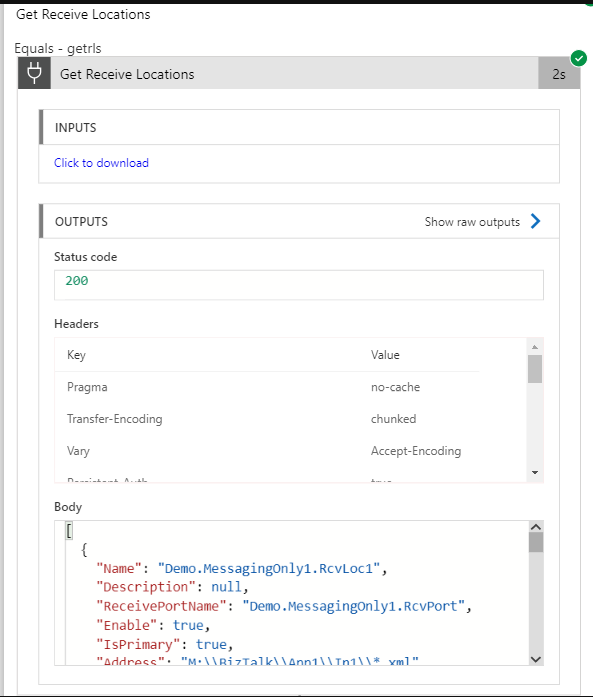
If the cache does not have the list, the bot code in turn initiates a call to the Logic App which fetches the list of the receive locations from the on premises BizTalk environment using the BizTalk management service. Following is a request response sample that Logic App receives and returns to the bot respectively.
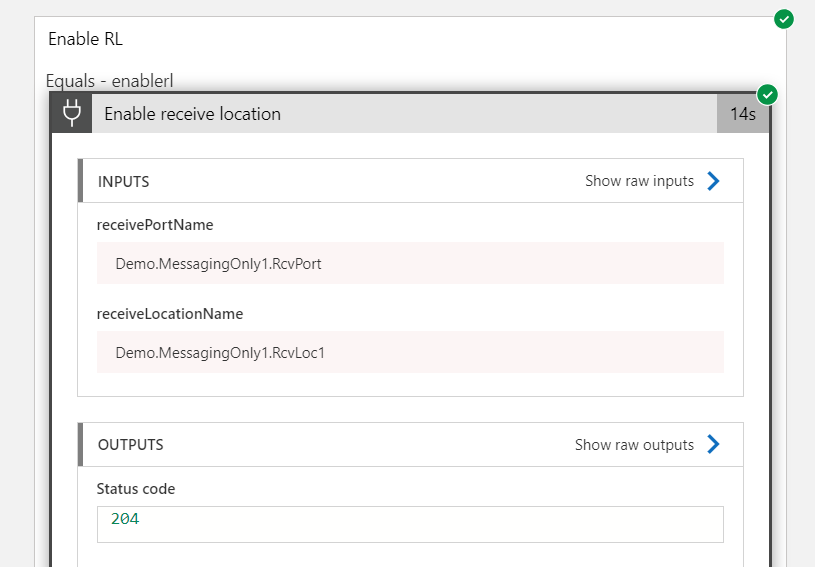
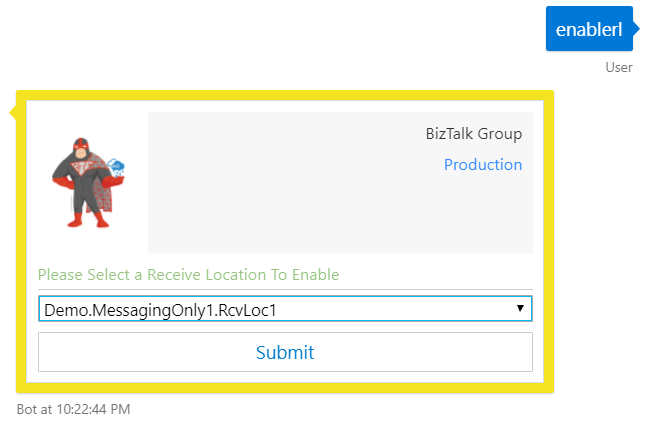
Once the list of the receive locations is available, the bot filters the list based upon the “Enable” flag received in response. So, for the “Enable Receive Location” operation, only the disabled receive locations are populated and the user is presented with a drop-down list to select a location from. A sample is shown below.Once the user clicks on the Submit button, the bot code initiates another call to the Logic App which in turn calls the On Premises BizTalk management service and enables the receive location. The Logic App Request response is shown below.
Once the receive location is enabled, the user gets a response that the “Operation Completed Successfully.”
In case there are no disabled receive locations in the BizTalk environment, then the bot code will notify the user that there are no disabled receive locations in the BizTalk environment.
Note: Similar logic is applied in following operations available in the bot:
Disable Receive Location
Start Send Port
Stop End Port
4. Get Hosts:
The operation is initiated when the user selects the Get Hosts operation from the list of available operation.
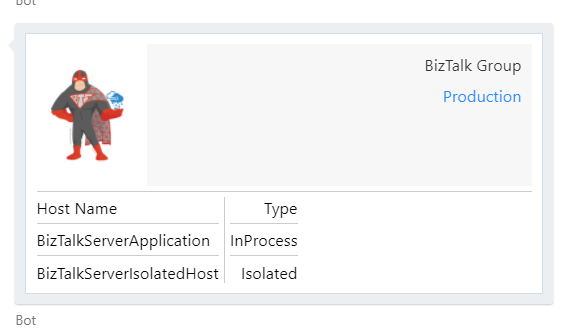
This initiates a command “gethosts” to the bot code. The code checks its cache to check if there is a list of hosts available with it. If it finds the list, the hosts are displayed to the user. In case the list is not available, the bot will initiate a call to the Logic App which calls the On Premises BizTalk management service and gets the list of the hosts. The response displayed to the user as an adaptive card shown below.
Note: Similar approach is taken while implementing following operations:
Get Send Ports by App
Get Orchestrations by App
Get All Applications
5. Get Suspended Instances Report
This operation, as the name suggest, brings the list of the Suspended Instances from the On Premises BizTalk environment. In this case, no caching is implanted as the number of suspended instances can change on a per second basis in a high load environment. In this operation, a small report is displayed to the user which contains the suspended instances grouped together as shown below.
This card gives the user an option to view a detailed report and provides a button to open the report. Once the user clicks on the button, it directs the user to a HTML web page which contains details about the suspended instances. In this case, the detailed report is stored as block blob in the azure storage account. This blob is available only until the point the user is actually logged in the session in the bot. The blob is deleted upon the end of the session.
In similar fashion, additional features can be added to the bot by adding new switch cases to the logic app and accounting for them in the bot code.
Further Scope
The BizMan can be made more functional by expanding on the Logic App and the bot code to assimilate more functions.
Natural Language Processing and Sentiment Analysis can be implemented in the bot to enable it to communicate more freely with the users.
Functions to control and monitor the Logic Apps can also be implemented in the same chat bot.
Reading Sources
In order to get started with building chat bots, the following MSDN documentation are the go-to links.
I may be writing less on my blog as I frequently do, this will change soon, but this year of this is being very productive in terms of lectures. 4 in 4 months and more to come:
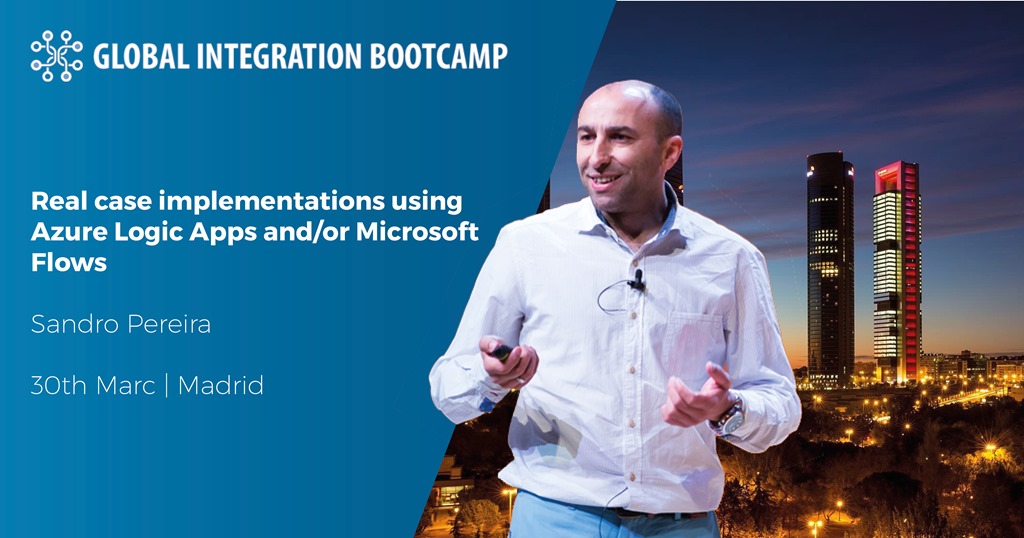
3/30/2019 – Real case implementations using Azure Logic Apps and/or Microsoft Flows at Global Integration Bootcamp Madrid
2/14/2019 – Integration Down Under | February 14, 2019 | How we are using Microsoft Integration features and related Azure technologies to improve our processes
2/4/2019 – The NOS-addin – your (free) BizTalk Dev buddy! at Integration Monday
1/30/2019 – XLVIII Porto.Data Community Meeting | How we use Microsoft Flow and PowerApps: Real cases scenarios
Now is time to share some resources before I start writing about other things and completely forget about this.
About my session
Session Name: How we are using Microsoft Integration features and related Azure technologies to improve our processes
Microsoft Integration features Session
Session Overview: In this session, I will show you real live scenarios on how we at DevScope are using Microsoft Integration features (Logic Apps, API Management, API’s) and related Azure technologies like PowerApps, Flows and Power BI to:
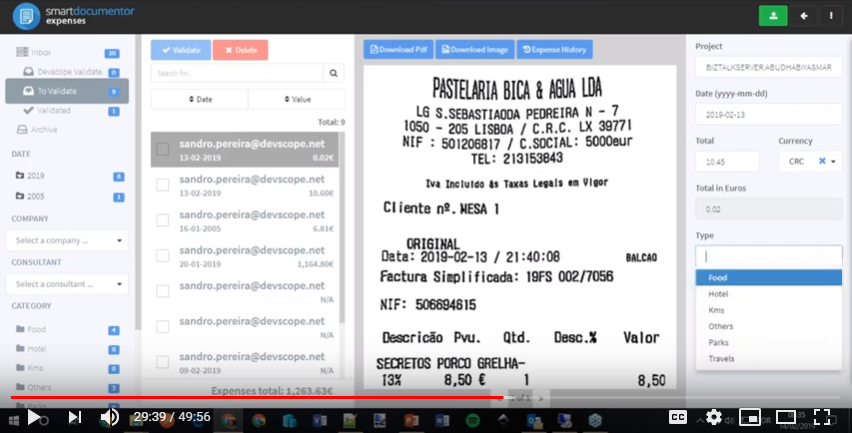
First, improve our internal processes like expenses reports, time reports and so on;
And, secondly, how the first step helps us out to extend our product and our business by exporting these same approaches and concepts to our clients
This will be a lightweight talk addressing some real scenarios and show them in action.
Integration Down Under – How we are using Microsoft Integration features and related Azure technologies to improve our processes
About Integration Down Under
Integration Down Under serves the Australian / New Zealand community interested in all things Microsoft integration. Endeavoring to have regular webinar presentations, usually on the 2nd Thursday of each month. Organized by a panel of five Australian and New Zealand integration experts, our guest speakers feature various Azure MVPs, members of the Microsoft product teams, and other prominent members of the Microsoft integration community.
I’m super excited for presenting from the first time in Spain, I been presented in several places all over Europe and North America, but I never had a chance to go to my neighbor country to present a session. I think two years ago I promise to the organizers of this event that I would join them if they want, last year was impossible for me because my son was born more or less in the same period, but this year I’ll fulfill the promise I made and I will be there showing real case scenarios about Logic Apps and Microsoft Flow on a talk with the following title: “Real case implementations using Azure Logic Apps and/or Microsoft Flows”
Abstract
We know that all business problem can be solved with a variety of technologies and different solutions. However, sometimes developing that type of solutions has traditionally been too costly and time-consuming for many of the need’s teams and departments face, especially those projects that are internally for organizations to use or for a short time period. As a result, many of these projects or solutions will be on the shelf or in the imaginary of the collaborators.
In this session, I will show you real live scenarios on how we at DevScope are using Microsoft Integration features like Logic Apps, API Management, API’s and Microsoft Flows. Using also a variety of related Azure technologies like PowerApps and Power BI to:
First, improve our internal processes like expenses reports, time reports and so on;
And, secondly, how the first step helps us out to extend our product and our business by exporting these same approaches and concepts to our clients
This will be a lightweight talk addressing some real scenarios and show these in action
Global Integration Bootcamp 2019 Madrid Agenda
8:45 – 09:00 – Welcome reception
09:00 – 09:30 – “Industry 4.0: Remote and Predictive Maintenance with IoT” by Félix Mondelo and Osman Hawari
09:30 – 10:15 – “Azure API Management y su aplicación práctica” by Luis Ruiz Pavón
10:15 – 11:00 – “Event Grid, Colega, ¿Qué pasa en mi nube?” by Nacho Fanjul
11:00 – 11:45 – Coffee Break
11:45 – 12:00 – “Geoposicionando tus datos con Azure Maps y Cognitive service” by Sergio Hernández y Alberto Díaz
12:00 – 12:45 – “Real case implementations using Azure Logic Apps and/or Microsoft Flows” by Sandro Pereira
12:45 – 13:30 – “TU y Cognitive Services” by Javier Menéndez Pallo
13:30 – 14:15 – “Intercambiando Mensajes con NServiceBus” by José Luque Ballesteros
14:15 – 15:00 – “Arquitecturas basadas en Microservicios” by Francisco Nieto
This is a free event with very limited seats that you will not want to miss, register now!
In my previous blog post, I have highlighted 5 interesting cases we received and solved in the past year. In this blog, I would like to add 5 more interesting support cases.
Let’s get into the cases.
Case 6: Data Monitor Dashboard slow to respond
In the year 2017, we have started a new initiative called ‘Customer Relationship Team. This team will get in touch with our customers regularly in the frequency of 3-4 months. The team will make sure about how the customers are using the BizTalk360 product, whether they are facing any problems, and if they have any queries.
If so, we will clarify the customer queries during the call. If can’t clarify the problem within the short time of the call, then we will create a support case for their queries and make sure we will solve the case.
In one such a call, a customer raised a concern about the Data monitoring dashboard being slow to respond and it takes more and more time.
Troubleshooting
During the investigation of the slowness, we came to know that the customer had configured 147 data monitoring alarms. Out of those, 110 data monitoring alarms were scheduled for every 15 minutes cycle, which will produce a huge result.
In more detail:
110 data monitoring results for every 15 minutes cycle.
110*4*8(business hours) = 3520 results.
110*4*24(whole day) = 10,560 results.
Loading 10k results in a single load, for sure it will take time to load all the results.
Solution
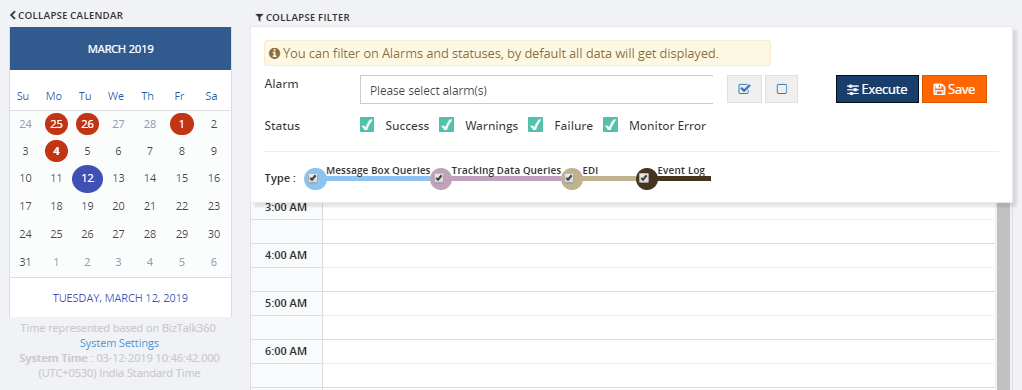
Most of the customers won’t use many schedules for data monitoring alarms. To handle such a huge load, we have improved the performance of the data monitoring dashboard, by having a filter option to select the specific alarms and corresponding status. The improved data monitoring dashboard is available from version 8.7 on.
Case 7: System resources configuration
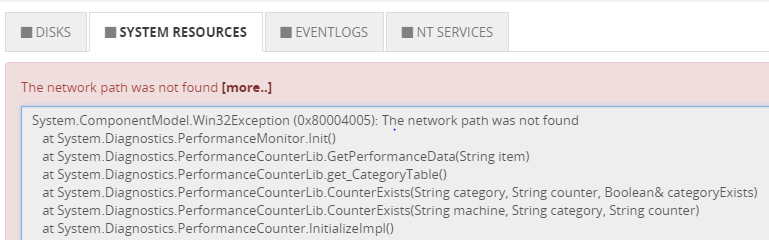
A customer faced an exception ‘the network path was not found’ while trying to enable SQL Server System resources monitoring.
Troubleshooting
We have requested the customer to check the below things:
The BizTalk360 service account is a local admin on the machine where SQL server is hosted
The Remote Registry service is started or not
Firewall ports are opened for SQL server
From BizTalk360 server, can you connect to that SQL server through SQL Management Studio
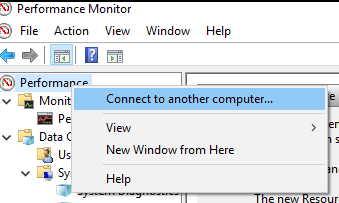
Connect to the remote computer (SQL Server configured for monitoring) from the BizTalk360 machine where the monitoring service is running
All other steps were passed, but in the Perfmon, while connecting the SQL Server on the BizTalk360 installed machine, they have faced the same exception.
Solution
To open the SQL server on another machine, port 1433 needs to be enabled. To monitor System resources of SQL machine, an additional port needs to be enabled ‘135’, which is for RPC and WMI. We have mentioned the depended ports what needs to be enabled in our existing blog.
Even after adding the port, still the problem persisted. At last, we found that the firewall rules were not activated/enabled, once after activating the rules we were able to solve the case. This is one such case in which we all missed to check the basic step that a rule should be activated because no one had access to view the rules other than the customer’s admin.
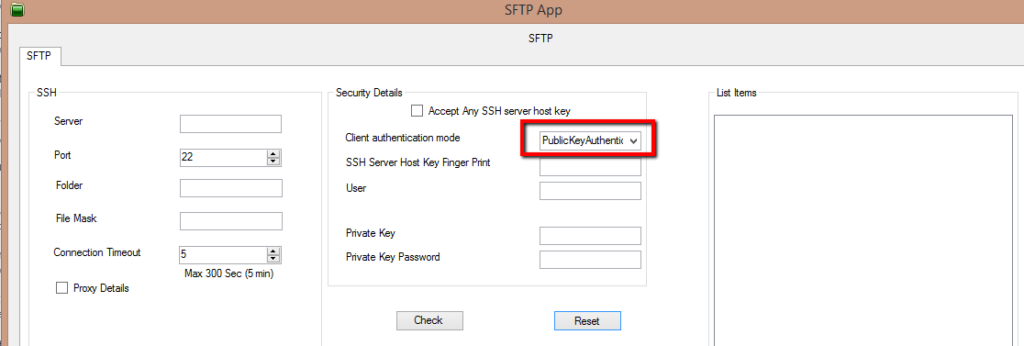
Case 8: SFTP Monitoring – PublicKeyAuthendication
A customer was trying to configure monitoring for an SFTP location and they were facing issues. It was working fine for the customer when the authentication was used with a simple username and password. However, once they configured for PublicKeyAuthendication, they faced issues during the configuration.
Troubleshooting
We started with the basic troubleshooting steps like authentication, access permissions and we understood that it has all rights to access the FTP site. During the investigation, we found that in a folder BizTalk was picking up the inner folders as well, instead of picking the files alone.
Solution
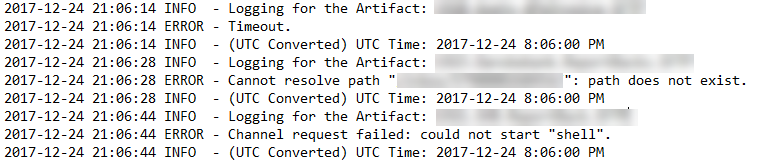
To find the exact root cause of the issue, we have developed a console application (with logs enabled) and provided it to the customer. It provided a clear picture of the problem, as mentioned earlier it has calculated the folder for PublicKeyAuthentication. Now, this has been fixed.
Case 9: Message Count mismatches
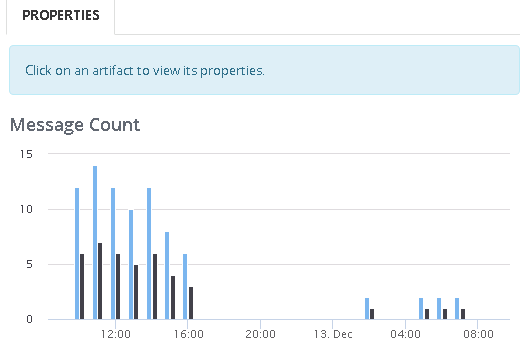
A customer faced a problem between the Receive and Send ports for the message count at Analytics Messaging Patterns.
Troubleshooting
The customer had a very simple scenario (see below) where a file is picked up and placed in a different location, but the Send Port count shows the Receive Port count twice. He gets similar doubling up on Receive and Send ports for other message flows as well.
Example:
Send Port – 12 messages
Receive Port – 6 messages
During the investigation, we have found that whenever BizTalk retries to submit the suspended messages the counts get double.
Solution
As of now, we are showing the message transfer count rather than the message count. We are doing this because this will help us to determine the message performance of BizTalk Artifacts in an environment. We are going to take this as a feature enhancement in the future.
Case 10: Not possible to expand columns in query outcome
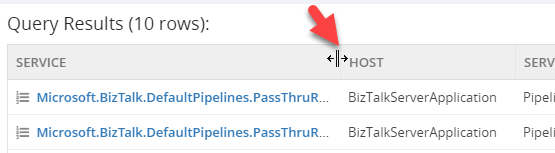
Normally you can expand the column size of the query outcome in a grid. But customers were facing a problem that they were unable to expand the columns in the MessageBox Queries grid.
Troubleshooting
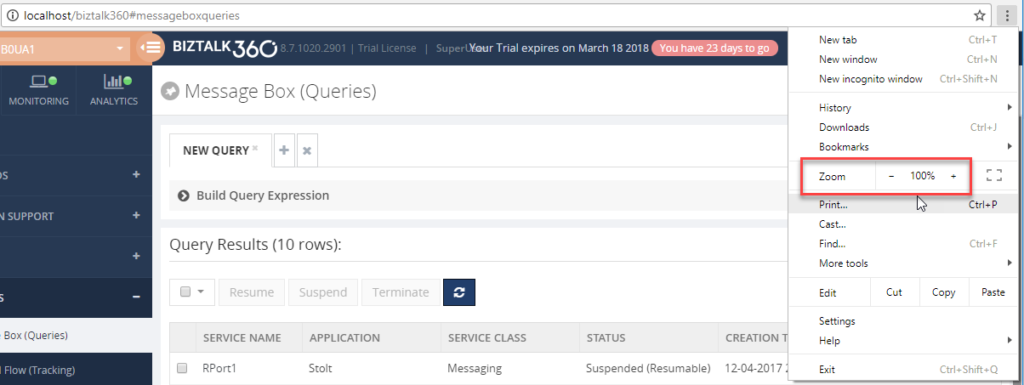
During the investigation the customers were facing this problem in Chrome, but not in Internet Explorer and Firefox. They faced the same issue while opening the browser in an incognito window as well. This is really something very strange for us, because while using the same version we were not able to reproduce the same problem.
We have investigated at the code level and everything seems fine at our end. So, we have decided to go for a meeting. During the meeting, we were able to see the problem at the customer end and we had no clue at that time, requested a few days time and closed the meeting.
We analyzed the case and it was hard to reproduce the case at our end. It is working for most of our team members and only a few are facing this issue. The team member who faced the issue and the one who’s working fine worked together, they compared each component from scratch to find what’s the difference and we found the cause.
Solution
If the Chrome page is zoomed out or zoomed in, then the column resize wasn’t working for us and this happened at the customer as well.
It seemed that this was a problem with the Kendo Grid control in the latest version this issue was introduced by Kendo. We worked along with Kendo and solved the case.
Satisfaction does it!
As a support engineer, we receive different cases on a daily basis. Every support case is unique because the problem will be faced by different customers in different environment architecture. But some of the support cases are interesting by the root cause of the problem and the way of troubleshooting the case. I’m happy that I have worked on such challenging and interesting cases.
Microsoft Integration, Azure, BAPI, Office 365 and much more Stencils Pack it’s a Visio package that contains fully resizable Visio shapes (symbols/icons) that will help you to visually represent On-premise, Cloud or Hybrid Integration and Enterprise architectures scenarios (BizTalk Server, API Management, Logic Apps, Service Bus, Event Hub…), solutions diagrams and features or systems that use Microsoft Azure and related cloud and on-premises technologies in Visio 2016/2013:
BizTalk Server
Microsoft Azure
Azure App Service (API Apps, Web Apps, Mobile Apps, and Logic Apps)
Event Hubs, Event Grid, Service Bus, …
API Management, IoT, and Docker
Machine Learning, Stream Analytics, Data Factory, Data Pipelines
and so on
Microsoft Flow
PowerApps
Power BI
PowerShell
Infrastructure, IaaS
Office 365
And many more…
… and now non-related Microsoft technologies like:
SAP Stencils
What’s new in this version?
New shapes: new shapes were added to existing modules like Generic, Azure, AI, Developer, Files or Users. But in particular a new module was born:
MIS SAP Stencils contains stencils that will represent some SAP services
Or from: Microsoft Integration and Azure Stencils Pack for Visio 2016/2013 v3.1.0 (18,6 MB) Microsoft | TechNet Gallery
Author: Sandro Pereira
Sandro Pereira lives in Portugal and works as a consultant at DevScope. In the past years, he has been working on implementing Integration scenarios both on-premises and cloud for various clients, each with different scenarios from a technical point of view, size, and criticality, using Microsoft Azure, Microsoft BizTalk Server and different technologies like AS2, EDI, RosettaNet, SAP, TIBCO etc. He is a regular blogger, international speaker, and technical reviewer of several BizTalk books all focused on Integration. He is also the author of the book “BizTalk Mapping Patterns & Best Practices”. He has been awarded MVP since 2011 for his contributions to the integration community. View all posts by Sandro Pereira
Finally, I will be in Australia and New Zealand but unfortunately not in person, maybe next time, but instead remotely. Nevertheless, it will be a pleasure to present in this amazing community for the first time and it’s tomorrow already on a session about How we at DevScope are using Microsoft Integration features and related Azure technologies to improve our processes and by doing so engaging customers to also adopt some of these Microsoft Integration features.
Session Overview: In this session, I will show you real live scenarios on how we at DevScope are using Microsoft Integration features (Logic Apps, API Management, API’s) and related Azure technologies like PowerApps, Flows and Power BI to:
First, improve our internal processes like expenses reports, time reports and so on;
And, secondly, how the first step helps us out to extend our product and our business by exporting these same approaches and concepts to our clients
This will be a lightweight talk addressing some real scenarios and show them in action.
I invite you all to join us tomorrow morning or in the afternoon depending on where you are from. Grab your “seat” by registering in this session here.
Author: Sandro Pereira
Sandro Pereira lives in Portugal and works as a consultant at DevScope. In the past years, he has been working on implementing Integration scenarios both on-premises and cloud for various clients, each with different scenarios from a technical point of view, size, and criticality, using Microsoft Azure, Microsoft BizTalk Server and different technologies like AS2, EDI, RosettaNet, SAP, TIBCO etc. He is a regular blogger, international speaker, and technical reviewer of several BizTalk books all focused on Integration. He is also the author of the book “BizTalk Mapping Patterns & Best Practices”. He has been awarded MVP since 2011 for his contributions to the integration community. View all posts by Sandro Pereira
What started to be a Microsoft Integration Stencil Packs is now almost a full Microsoft stack stencil package that includes Microsoft Integration, Azure, BAPI, Office365, devices, products, competing technologies or partners and much more Stencils Pack it’s a Visio package.
This package contains fully resizable Visio shapes (symbols/icons) that will help you to visually represent On-premise, Cloud or Hybrid Integration and Enterprise architectures scenarios (BizTalk Server, API Management, Logic Apps, Service Bus, Event Hub…), solutions diagrams and features or systems that use Microsoft Azure and related cloud and on-premises technologies in Visio 2016/2013:
BizTalk Server
Microsoft Azure
Azure App Service (API Apps, Web Apps, Mobile Apps, and Logic Apps)
Event Hubs, Event Grid, Service Bus, …
API Management, IoT, and Docker
Machine Learning, Stream Analytics, Data Factory, Data Pipelines
and so on
Microsoft Flow
PowerApps
Power BI
PowerShell
Infrastructure, IaaS
Office 365
And many more
This new small update includes the new Office365 icons that were recently announced by Microsoft. It includes an additional of 19 new shapes and some reorganization.
The Microsoft Integration Stencils Pack v3.1.1 is composed of 22 files:
Or from: Microsoft Integration and Azure Stencils Pack for Visio 2016/2013 v3.1.1 (18,6 MB) Microsoft | TechNet Gallery
Author: Sandro Pereira
Sandro Pereira lives in Portugal and works as a consultant at DevScope. In the past years, he has been working on implementing Integration scenarios both on-premises and cloud for various clients, each with different scenarios from a technical point of view, size, and criticality, using Microsoft Azure, Microsoft BizTalk Server and different technologies like AS2, EDI, RosettaNet, SAP, TIBCO etc. He is a regular blogger, international speaker, and technical reviewer of several BizTalk books all focused on Integration. He is also the author of the book “BizTalk Mapping Patterns & Best Practices”. He has been awarded MVP since 2011 for his contributions to the integration community. View all posts by Sandro Pereira
Do you feel difficult to keep up to date on all the frequent updates and announcements in the Microsoft Integration platform?
Integration weekly update can be your solution. It’s a weekly update on the topics related to Integration – enterprise integration, robust & scalable messaging capabilities and Citizen Integration capabilities empowered by Microsoft platform to deliver value to the business.
If you want to receive these updates weekly, then don’t forget to Subscribe!
Feedback
Hope this would be helpful. Please feel free to reach out to me with your feedback and questions.
It seems like yesterday that I announce my first award, back them as a BizTalk Server MVP, but it’s been 8 years and a half on this amazing program. On 1st January 2011 I joined this amazing group of technicians and since then I was re-award in:
2012, again as BizTalk Server MVP,
From 2013 to 2015, I was rebranded as Microsoft Integration MVP
In 2017, Integration become part of Azure category, so I was award as Azure MVP
And in middle of 2017, I was Award in two categories, Azure and Visio MVP
And today, with all the same pride, honor and enthusiasm than the first time, I’m delighted to share that the most expected email arrived once again and that I was renewed as a Microsoft Azure MVP (Microsoft Most Valuable Professional). This is my 8th straight year on the MVP Program, an amazing journey, and experience that, again, started in 2011, and that gave me the opportunity, and still does, to travel the world for speaking engagement, share the knowledge, and to meet the most amazing and skilled people in our industry.
As usual, I would like to thank:
First to my wife Fernanda, and my kids Leonor, Laura and now my new baby José (for all the “confusion and madness” they bring into my life), and to all members of my beautiful family… THANKS for all the support during these last years! You guys are my inspiration!
To my MVP Lead Cristina Herrero
The Microsoft Integration Team and Azure Teams like Paul Larson, Mandi Ohlinger, Dan Rosanova, Jon Fancey, Kevin-Lam and Kent Weare; Microsoft Portugal: Paulo Mena, Luís Calado, Ivo Ramos, Ricardo Jesus, Pedro Santos and all other Microsoft employees involved;
To DevScope (my company) and all my coworkers: no names here because all of them are amazing professionals – what an amazing team they are – we have 4 amazing MVP at DevScope, one Microsoft Regional Director, and one former MVP, WOW!! So, thanks for all the support given.
To all my fellow Microsoft Azure (Integration) MVP’s: Nino Crudele, Steef-Jan Wiggers, Saravana Kumar, Mikael Håkansson, Johan Hedberg, Tomasso Groenendijk, Salvatore Pellitteri, Richard Seroter, Stephen W. Thomas, Mick Badran, Michael Stephenson, Bill Chesnut, Thomas Canter, Mattias Lögdberg, Sam Vanhoutte, Glenn Colpaert, Howard S. Edidin, Martin Abbott, Leonid Ganeline, Dan Toomey, Wagner Silveira and Eldert Grootenboer for the support in this program.
Special thanks to all my blog readers, friends and of course to BizTalk and Azure/Integration Community – there are so many that I don’t want to mention names, so I don’t take the risk to forget someone.
And finally, to my Blog sponsor BizTalk360 and all their team for the amazing support and partnership.
It’s a big honor to be in the program and I’m looking forward to another great year!
Author: Sandro Pereira
Sandro Pereira lives in Portugal and works as a consultant at DevScope. In the past years, he has been working on implementing Integration scenarios both on-premises and cloud for various clients, each with different scenarios from a technical point of view, size, and criticality, using Microsoft Azure, Microsoft BizTalk Server and different technologies like AS2, EDI, RosettaNet, SAP, TIBCO etc. He is a regular blogger, international speaker, and technical reviewer of several BizTalk books all focused on Integration. He is also the author of the book “BizTalk Mapping Patterns & Best Practices”. He has been awarded MVP since 2011 for his contributions to the integration community. View all posts by Sandro Pereira
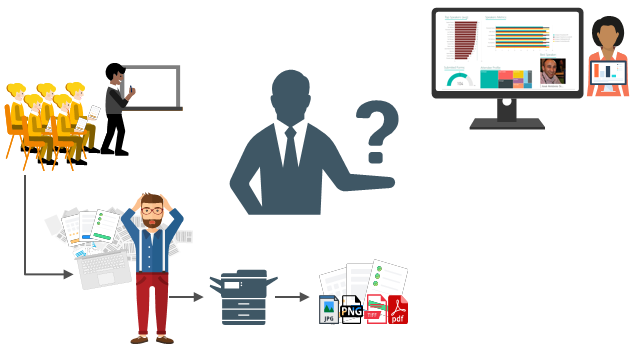
For years, paper forms have been the preferred way for people, enterprises and/or event organizers to collect data in their offices (coffee breaks or launch), in the field (inventory, equipment inspections,…) or in events. Although we are entering a Paperless era, in which the use of paper is progressively being eliminated, there are several situations in which the use of paper is still the best or a good option. Either because it is still a requirement or obligation (by legal documents) or just cheaper and more practical.
One of these scenarios can be found at Events Feedback Evaluations forms and, although it is quite simple and quick to create this kind of forms using, for example, Microsoft Forms or alternatively services like SurveyMonkey, let us be honest and analyze the facts:
Internet access at events is usually very poor or limited and despite almost all our mobile devices have data access, if we are outside our country, in my case outside Europe, data roaming it is still quite expensive;
Alternatively, we can send/receive an email later to evaluate the event but more likely most of the attendees will ignore it and we will end up receiving little or no feedback at all.
So, at least in my opinion, paper is still one of the best options to perform Evaluations forms and I already used this strategy in some of my last events that I organized: Oporto Global Integration Bootcamp inserted into the Global Integration Bootcamp initiative created by the Microsoft Community and supported by Microsoft, TUGA IT 2017, … and and if they are a little tired or sleepy – let be honest, it happens in all events – you can always distract a little and wake up again by filling the form
The main problem in having Evaluations forms in a physical paper is: How can we easily convert paper in data to generate additional value?How can we perform operations on it and easily gain insights?
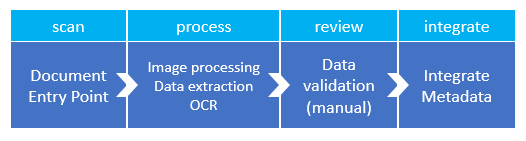
There are plenty of OCR solutions/software’s in the market – most of them are still very expensive – that can easily scan the documents from different devices and process them using algorithms to analyze and extract the data with high confidence. Some even allow the users to manually review the extracted data from the documents before they are integrated into different information systems that normally tend to be the file system or databases.
However, neither of them is prepared to connect and integrate with all of the new technologies/SaaS products/data analysis platforms that appear at today’s frantic pace, like Power BI. If you are lucky, some of these products may also allow you to “easily” extend the product to connect to another system through their custom extensibility model systems but that normally means costs and time to develop some additional connector.
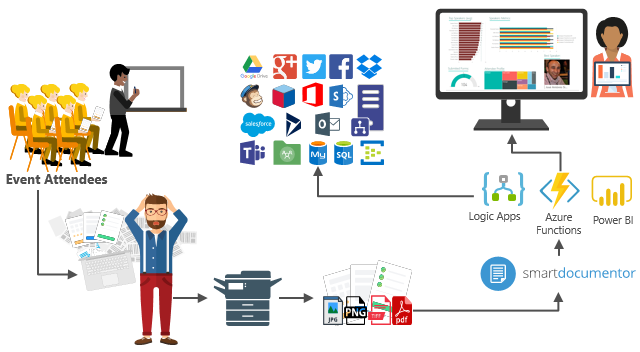
In order to solve these problems for my previous events, in which I wanted to have the evaluations forms to be processed in real-time, i.e., as the attendees handed in the forms, the results were presented in a public Power BI dashboard in a matter of seconds. I end up creating a solution composed of several products and technologies (choosing what I think to be the best tool for a particular problem) composed by:
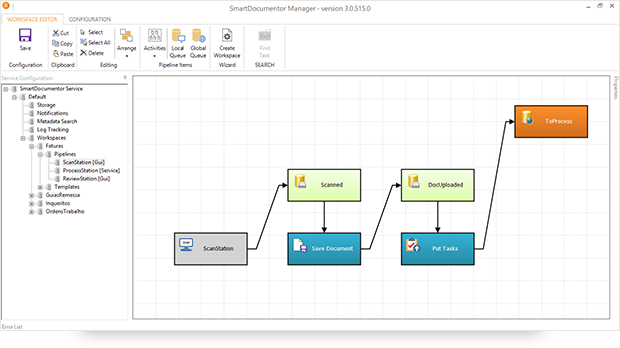
DevScope SmartDocumentor OCR that, not also allowed me to extract the data from my Survey documents (actually it can process any king do documents like Invoices or Expenses) and easily integrate with other systems, but also to intelligently set my OCR streams (flows), defining:
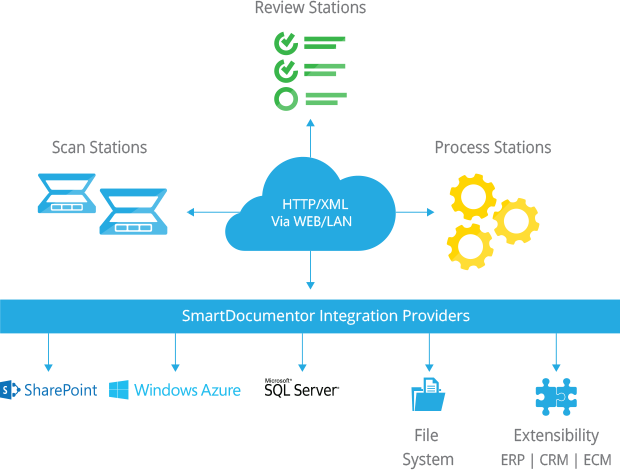
Different receive processing points (or locations), like Email, FTP, File Share or directly from scanner devices;
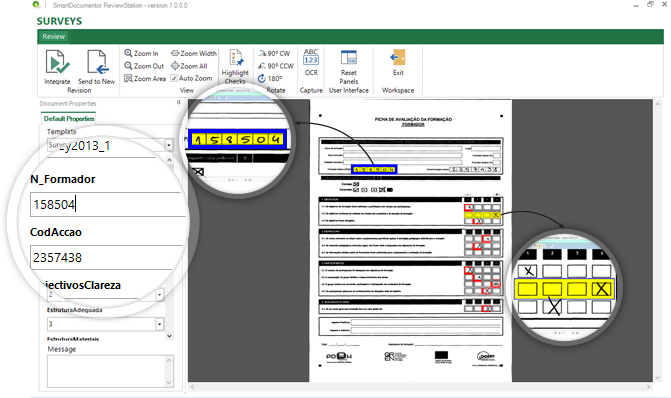
Create/test my recognition templates and review/ validate the data which is gathered;
By default, SmartDocumentor exports data and documents to multiple Enterprise Resource Planning (ERP), Customer Management (CRM) or Document Management (ECM) like Windows system files, SharePoint, Office 365, Azure and/or SQL Server. But also, enabled me to connect and send the metadata, XML or JSON, through any kind of HTTP service, and we can delegate this process/tasks to other more smart, powerful and easy to change services like Logic Apps. Of course we can connect to any other system through its extensibility model systems, for example, I could even extend SmartDocumentor by using a PowerShell provider that would enable me to execute PowerShell scripts.
Azure Logic Apps that provided a very simple, fast and powerful way to implement scalable integrations workflows in the cloud with an uncounted number of connectors across the cloud and on-premises, the list is growing day by day. This will allow us to quickly integrate across different services and protocols but also modify and change quickly the integration flows without requiring to modify and deploy traditional custom code – which normally require having technical human resources (like C# developer) and probably additional costs involved – not anymore with Logic Apps – changes can be performed in a matter of seconds without worrying about if your custom extension broke some product compatibility or affecting other existing OCR processes;
Azure Functions to run custom snippets of C# to support Logic Apps flow and perform advanced JSON to JSON transformations;
And finally, Power BI to create interactive data visualization (dashboards and reports)
The solution
SmartDocumentor: to process and extract metadata from paper
Well, I am not going to explain in details how the solution is implemented inside DevScope’s SmartDocumentor for it is not the point of this article, and if you want to know more about it, you can always contact me. However, let me contextualize you in other for you to have the full picture of the problem and the solution:
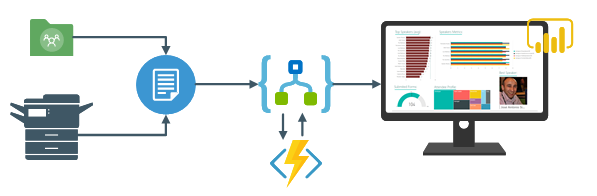
SmartDocumentor OCR flow will be listening in two receive processing points (or locations):
Share Folder – for testing purposes without having the need to have a scanner device;
and directly from the scanner device – real case scenario.
We can then specify if:
We want to review any documents that are being processed to see if the data recognition is performed according to what we intended;
Or we can create rules based on SmartDocumentor confidence recognition rate, for example:
If there is a >=90% confidence that the data from the Survey where correctly recognize, skip the review process and integrate directly the document;
Otherwise, if recognition confidence rate is <90% deliver the document to the review station for a person to validate and them Integrate the document;
Or, in my case, because I already have confidence in the process, and is quite tested, we can configure the process to skip the review station step and directly integrate the document. This will also allow you… yes you, the reader, to test this implementation as you will see at the end of this article.
After receiving and extract the data from the documents (paper), SmartDocumentor will send the metadata to a Logic App HTTP endpoint.
Power BI to deliver interactive data visualization (dashboards and reports)
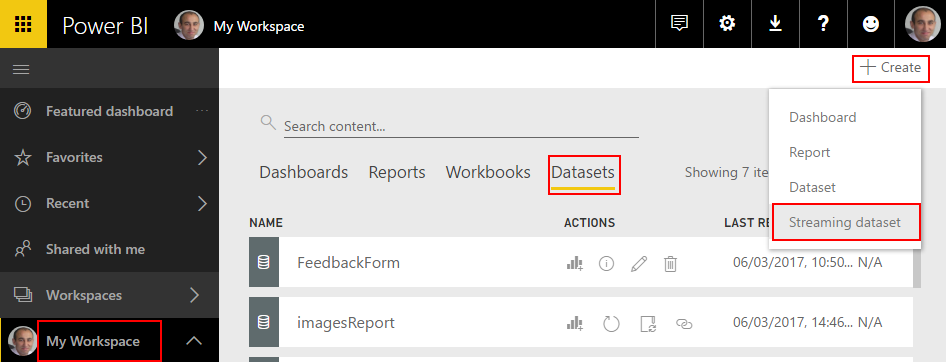
Regarding Power BI, Logic Apps Power BI connector only accepts you to use streaming datasets (this has advantages and some disadvantages that we will see further on), that allows you to easily build real-time dashboards by pushing data into the REST API endpoint. To create your streaming datasets, you should access to Power BI with your account:
Select your ‘Workspace à Datasets’, and then on the top right corner click ‘+ Create’ and then ‘Streaming dataset’
In the ‘New streaming dataset’, select ‘API’ and then click ‘Next’
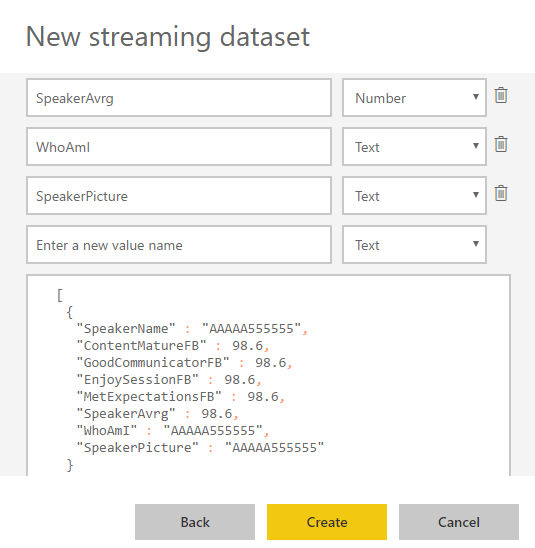
In the second ‘New streaming dataset’, give a name to your dataset: “FeedbackForm” and then add the following elements:
SpeakerName (Text) – represents the name of the speaker that is obtained in the evaluation form according to the session.
ContentMatureFB (Number) – a value between 1 and 9 that is obtained in the evaluation form
GoodCommunicatorFB (Number) – a value between 1 and 9 that is obtained in the evaluation form
EnjoySessionFB (Number) – a value between 1 and 9 that is obtained in the evaluation form
MetExpectationsFB (Number) – a value between 1 and 9 that is obtained in the evaluation form
SpeakerAvrg (Number) – A simple average calculation (sum all the above metrics divide by 4)
WhoAmI (Text) – represents the type of attendee you are (developer, architect, …) that is obtained in the evaluation form
SpeakerPicture (Text) – picture of the speaker according to the session that is that is obtained in the evaluation form.
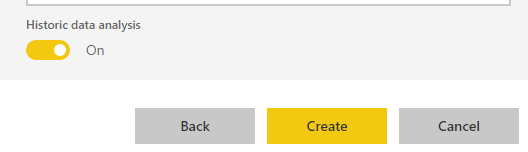
And because we want to create interactive reports in order to have more insights from the event. We need to enable ‘Historic data analysis’ and then click ‘Create’
Limitations: Unfortunately, streaming dataset is meant to be used for real-time streaming and is a little limited in terms of want we can do with it. For example, it doesn’t allow you to combine different sources, like a “table” that can correlate speaker to get their pictures, or to make aggregations of metrics like “Speaker average”. Which means that we need to send all of this information from Logic Apps.
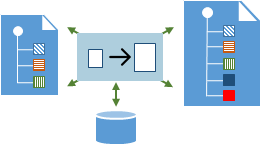
Azure Function to apply JSON transformations (Content Enricher, Content Filter & Name-Value Transformation Patterns)
To solve and bypass these streaming dataset limitations we use an Azure Function inside Logic App that not only transforms the JSON message received from SmartDocumentor with the Evaluation metadata but also add missing information – Content Enricher Pattern. It is very common when we want to exchange messages between different systems or applications, that the target system requires more information than the source system can provide. In this case, the source system (paper) will not send the Name of the speaker, the speaker average metric and the picture of the speaker, but our target system (Power BI) expects that information.
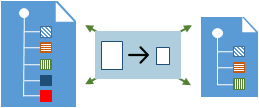
But also, to apply a transformation pattern – Content Filter – that not only removes unnecessarily data elements but it is also used to simplify the structure of the message, i.e., ‘flattens’ the hierarchy into a simple list of elements that can be more easily understood and processed by other systems.
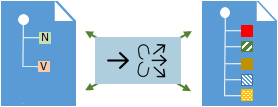
And finally transform a name-value pair(NVP),key-value pair(KVP),field–value pair, attribute–value pair or even Entity-Attribute-Value model (EAV) data representation that is widely used into a to more Hierarchical Schema.
To do that we create a “GenericWebHook-CSharp” function that accepts the name-value pair JSON message, which was originally sent by SmartDocumentor OCR, and generate a friendlier message.
#r "Newtonsoft.Json"
using System;
using System.Net;
using Newtonsoft.Json;
using Newtonsoft.Json.Linq;
public static async Task&lt;object&gt; Run(HttpRequestMessage req, TraceWriter log)
{
log.Info($"Webhook was triggered!");
string jsonContent = await req.Content.ReadAsStringAsync();
dynamic data = JsonConvert.DeserializeObject(jsonContent);
string speakerName = string.Empty;
string speakerPicture = string.Empty;
int pos = 0;
for (int i = 5; i &lt;= 8; i++)
{
if (!String.IsNullOrEmpty(data[i]["Value"].Value))
{
pos = i;
break;
}
}
switch (pos)
{
case 5:
speakerName = "Ricardo Torre";
speakerPicture = "http://blog.sandro-pereira.com/wp-content/uploads/2017/03/RicardoTorre.png";
break;
case 6:
speakerName = "José António Silva e Pedro Sousa";
speakerPicture = "http://blog.sandro-pereira.com/wp-content/uploads/2017/03/JosePedro.png";
break;
case 7:
speakerName = "João Ferreira";
speakerPicture = "http://blog.sandro-pereira.com/wp-content/uploads/2017/03/JoaoFerreira.png";
break;
case 8:
speakerName = "Sandro Pereira";
speakerPicture = "http://blog.sandro-pereira.com/wp-content/uploads/2017/03/Sandro-Pereira.png";
break;
default:
speakerName = "Unknown";
speakerPicture = "http://blog.sandro-pereira.com/wp-content/uploads/2017/03/devscope.png";
break;
}
int result = 0;
decimal avrg = (decimal)((int.TryParse(data[9]["Value"].Value, out result) ? result : 0) + (int.TryParse(data[10]["Value"].Value, out result) ? result : 0) + (int.TryParse(data[11]["Value"].Value, out result) ? result : 0) + (int.TryParse(data[12]["Value"].Value, out result) ? result : 0)) / 4;
JObject eval =
new JObject(
new JProperty("SpeakerName", speakerName),
new JProperty("SpeakerPicture", speakerPicture),
new JProperty("ContentMatureFB", data[9]["Value"].Value),
new JProperty("GoodCommunicatorFB", data[10]["Value"].Value),
new JProperty("EnjoySessionFB", data[11]["Value"].Value),
new JProperty("MetExpectationsFB", data[12]["Value"].Value),
new JProperty("SpeakerAvrg", avrg),
new JProperty("WhoAmI", data[30]["Value"].Value));
log.Info($"Webhook was Complete!");
return req.CreateResponse(HttpStatusCode.OK, new
{
MsgEval = eval
});
}
Notice that for example in the following transformation rule:
We are transforming the selected session in the Evaluation form to the name of the speaker and his picture. Why the picture URL? Well, as mentioned before, Power BI streaming dataset has some limitation in what we can do by default. So, in order for us to be able to present the speaker picture in the Power BI report and/or dashboard, we are forced to send a public picture URL (in this case it is stored in my blog) as an input of our dataset.
For the same reason, because we cannot make a new measure derived from the others when using streaming dataset, instead we need to send it as an input of our dataset and in order for us to calculate the average performance of a speaker, we will be using this basic formula:
...
decimal avrg = (decimal)((int.TryParse(data[9]["Value"].Value, out result) ? result : 0) + (int.TryParse(data[10]["Value"].Value, out result) ? result : 0) + (int.TryParse(data[11]["Value"].Value, out result) ? result : 0) + (int.TryParse(data[12]["Value"].Value, out result) ? result : 0)) / 4;
...
The output of the function will be again another JSON message this time something like this:
The missing piece: Logic App! The tool that allows us to transform a product – in this case, SmartDocumentor OCR software – that in principle like all product seemed closed and limited in terms of features into a product without frontiers/fences. Again, we all know that normally these type of products (OCR) have extensibility model systems that allow you to extend the product with your personal requirements – like SmartDocumentor also does – but this normally means you need to have developer skills that probably will cost you time and money, or additional cost to customize the product according to your needs, something we want to avoid and we will be able to archive using Logic Apps or similar tools/products.
The beauty of using Logic App is that provides us a very simplified, robust, scalable, not expensive and fast way to extend the capabilities of my SmartDocumentor OCR software and integrate with an uncounted number of Cloud and on-premises applications or/and systems.
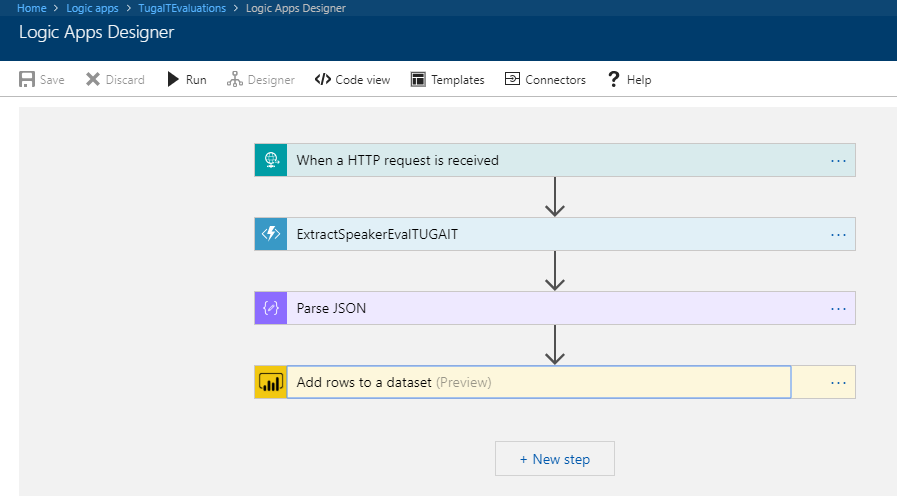
In order to integrate SmartDocumentor OCR with Power BI, we need to create a Logic App that:
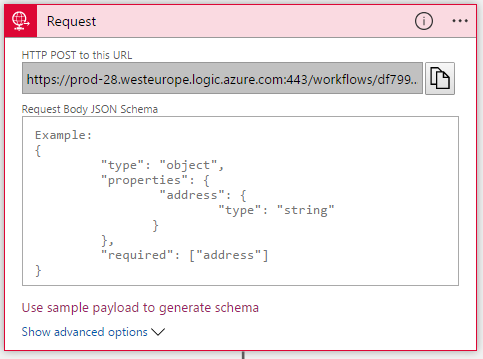
Accept a JSON through an HTTP Post. For that, we use a ‘Request / Response – Manual’ trigger. And in this case, because we don’t need to have friendly tokens to access the elements of the message, we don’t specify a JSON Schema.
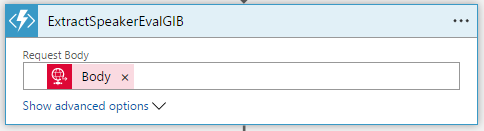
Call an Azure Function to transform the original SmartDocumetor OCR JSON message to the expected JSON message to send to Power BI. For that, we use an ‘Azure Functions’ action, specifying the function that we created previously.
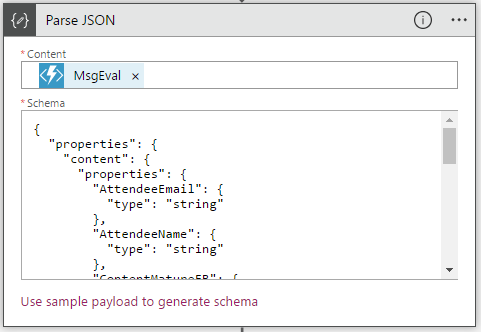
After that, we use a ‘Parse JSON’ action, only to allow us to parse JSON content into friendly tokens (something like a quick alias to the fields) for being easily consumed in other actions of the process.
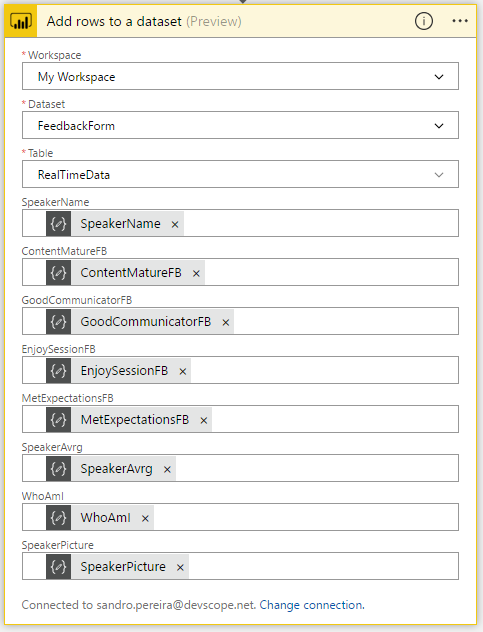
In the last step of the Logic App: we push the data into the Power BI streaming dataset created earlier by using the new ‘Power BI’ Connector. To do this we need to:
Add a ‘+New step’, ‘Add an action’, and then enter ‘Power BI’ into the search box. Select “Add row to streaming dataset” from the actions list.
Select the name of the workspace and then the name of the streaming dataset
The next step is to select the Table titled “RealTimeData”
And finally, map the input data fields with the friendly tokens generated in the ‘Parse JSON’ action
Of course, we could have more logic inside, for example, validate if you attendees, or you guys while testing, are filling all the required element and based on that rules perform some actions, but my intention, in this case, was to make and keep the process as simple as possible, normally as we explain earlier we could perform validation on the SmartDocumentor review station but again we can easily add additional validation in the Logic App without any problem.
The final result
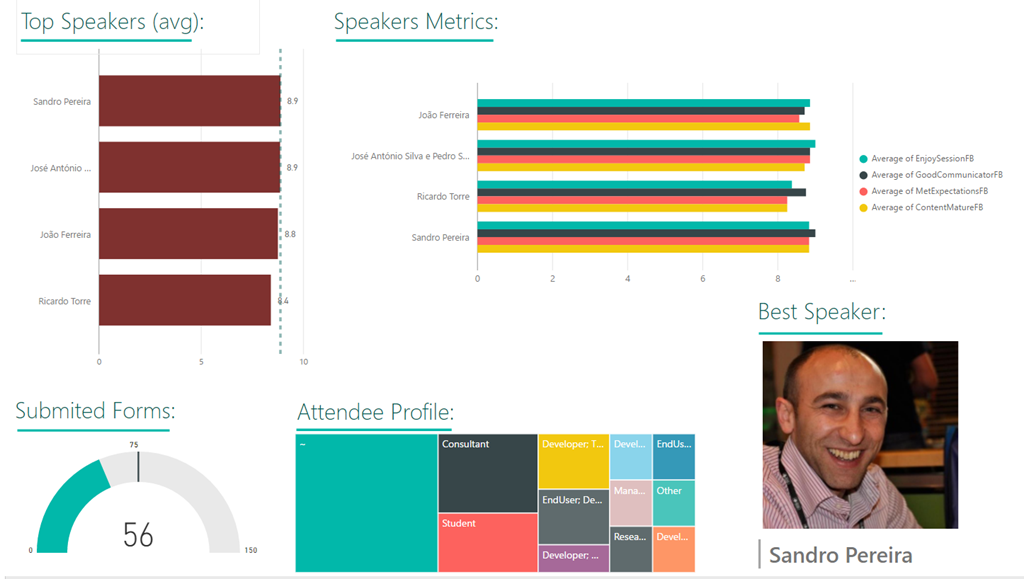
After saving the Logic App and process the Evaluation forms with SmartDocumentor OCR directly from the scanner or thru the file system, the result is this beautiful and interactive report that we can present in a monitor during the breaks of our events:
You may now under, “What do we need to do to extend the process for archiving the messages?”
That is extremely simple, just edit and change the Logic App by adding, for example, a Dropbox, OneDrive or File Connector into your process, configure it and save it! It is that easy!
How can you test the solution?
Of course, it is impossible for you to test the entire process, unfortunately, we cannot submit the paper via web… at least yet. But you can try part of this solution because by assuming that we already have the paper digitalized/scanned and we only want to try the SmartDocumentor OCR and the integration process.
Open the form picture in your favorite image editor (Paint or Paint.NET) and just paint your choices, something like this.
Again, be sure you fill all the necessary fields: session, each rate (only on time) and about you because I didn’t add any type of validation and I’m skyping the Review Sation step
You don’t need to fill your name, email, company or phone
You can send multiple form pictures in attach but don’t send any other type of pictures in attach. Again, I can easily create some flow rules to validate but I didn’t implement nothing like that.
Avoid sending email signature with pictures, the process will work but it end up having some Logic Apps runs with failure (didn’t implement these type of validations but it is possible)
Email your form attached to [email protected] with the following subject “SmartDocumentorSurvey“
Wait a few minutes, because I have a very simple Microsoft Flow (we will address this process later on in another blog post) listening to this mailbox that:
Unfortunately, due cache policies, updates to reports or visuals to which a Publish to web link points can take approximately half an hour to be visible to users – this is a Power BI limitation/cache policy – because the link is for a public Power BI report you may only see the results reflected, in the worst scenario, after more or less half an hour.
Author: Sandro Pereira
Sandro Pereira lives in Portugal and works as a consultant at DevScope. In the past years, he has been working on implementing Integration scenarios both on-premises and cloud for various clients, each with different scenarios from a technical point of view, size, and criticality, using Microsoft Azure, Microsoft BizTalk Server and different technologies like AS2, EDI, RosettaNet, SAP, TIBCO etc. He is a regular blogger, international speaker, and technical reviewer of several BizTalk books all focused on Integration. He is also the author of the book “BizTalk Mapping Patterns & Best Practices”. He has been awarded MVP since 2011 for his contributions to the integration community. View all posts by Sandro Pereira


 Once the user clicks on the Submit button, the bot code initiates another call to the Logic App which in turn calls the On Premises BizTalk management service and enables the receive location. The Logic App Request response is shown below.