by Dan Toomey | Mar 30, 2018 | BizTalk Community Blogs via Syndication
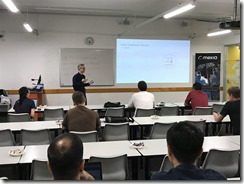 Last Saturday I had the great privilege of organising and hosting the 2nd annual Global Integration Bootcamp in Brisbane. This was a free event hosted by 15 communities around the globe, including four in Australia and one in New Zealand!
It’s a lot of work to put on these events, but it’s worth it when you see a whole bunch of dedicated professionals give up part of their weekend because they are enthusiastic to learn about Microsoft’s awesome integration capabilities.
The day’s agenda concentrated on Integration Platform as a Service (iPaaS) offerings in Microsoft Azure. It was a packed schedule with both presentations and hands-on labs:
It wasn’t all work… we had some delicious morning tea, lunch and afternoon tea catered by Artisan’s Café & Catering, and there was a bit of swag to give away as well thanks to Microsoft and also Mexia (who generously sponsored the event).
 Overall, feedback was good and most attendees were appreciative of what they learned. The slide decks for most of the presentations are available online and linked above, and the labs are available here if you would like to have a go.
I’d like to thank my colleagues Susie, Lee and Adam for stepping up into the speaker slots and giving me a couple of much needed breaks! I’d also like to thank Joern Staby for helping out with the lab proctoring and also writing an excellent post-event article.
Finally, I be remiss in not mentioning the global sponsors who were responsible for getting this world-wide event off of the ground and providing the lab materials:
- Martin Abbott
- Glenn Colpaert
- Steef-Jan Wiggers
- Tomasso Groenendijk
- Eldert Grootenboer
- Sven Van den brande
- Gijs in ‘t Veld
- Rob Fox
Really looking forward to next year’s event!

by Dan Toomey | Jan 29, 2018 | BizTalk Community Blogs via Syndication
For years now Integration Monday has been faithfully giving us webinars almost every week. There have been some outstanding sessions from international leaders in the integration space including MVPs, members of the Microsoft product team, and other community members. For the Asia Pacific community, however, it has always been a challenge to participate in the live sessions due to the unfriendly time zone. (I certainly know what a struggle it was to present my own session last October at 4:30am!) Even from the listener’s perspective, it is usually nicer to be able to join a live webinar and ask questions rather than to consume the recordings afterwards.
 Thanks to the initiative of veteran MVP Bill Chesnut (aka “BizTalk Bill”) and the sponsorship of his employer SixPivot, we now have a brand new webinar series starting up in a friendlier time slot for our APAC community! Integration Down Under is launching its inaugural webinar session on Thursday, 8th February at 7:00pm AEST. You can register for this free event here.
This initial session will introduce the leaders and allow each of us to present as very short talk on a chosen topic:
There are already more than twenty registrations even though the link has been live for only a few days. I hope that this is a good sign of the interest within the community!
Feeling really fortunate to be part of this initiative, and looking forward to delivering my intro to Event Grid talk! It will be a slightly scaled down version of what I presented at the Sydney Tech Summit back in November. Hope to see you there!

by Sandro Pereira | Jan 19, 2018 | BizTalk Community Blogs via Syndication
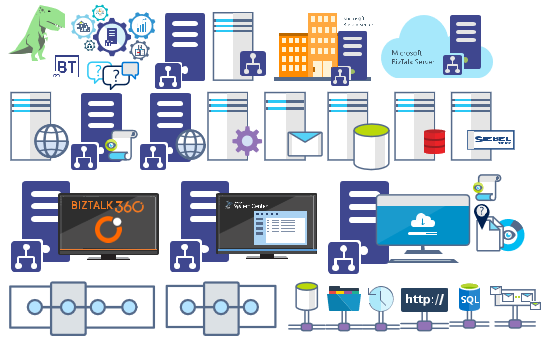
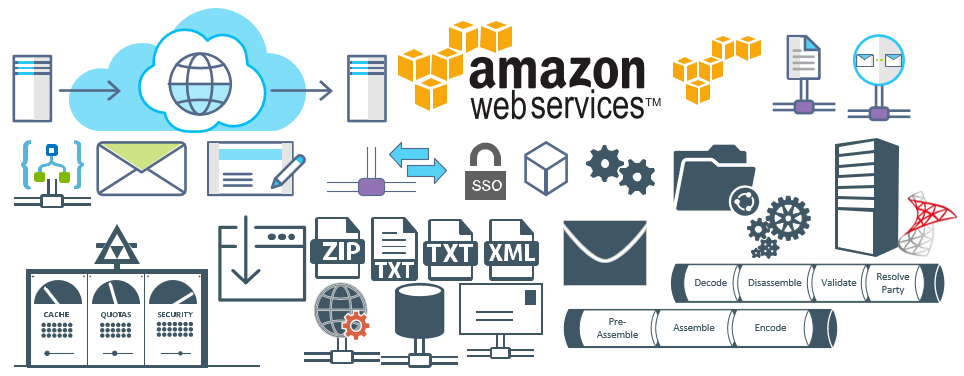
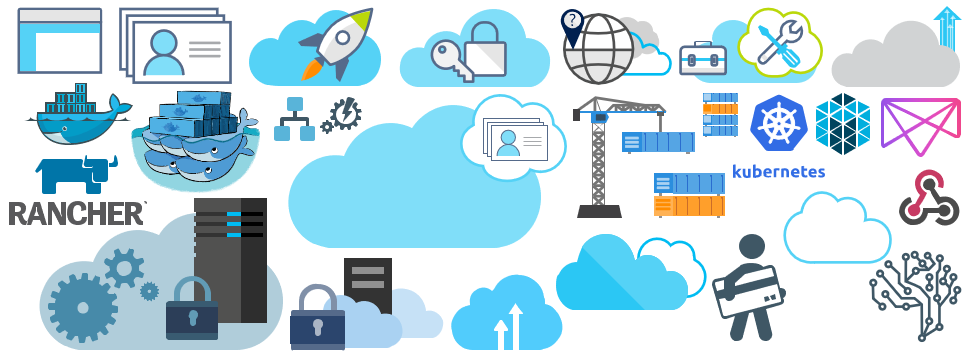
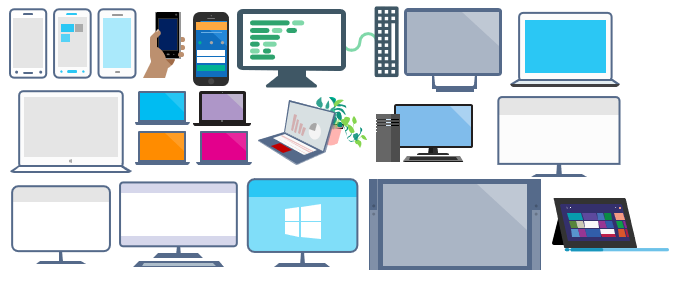
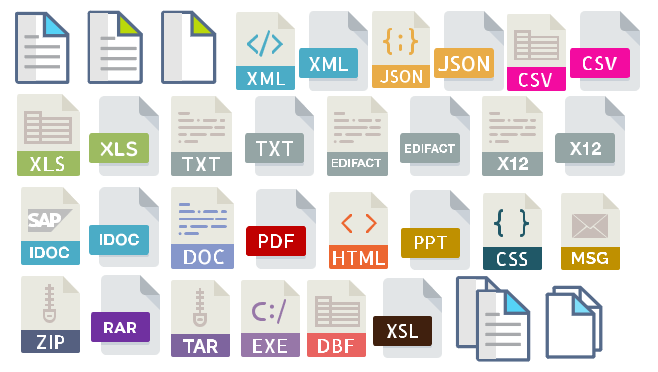
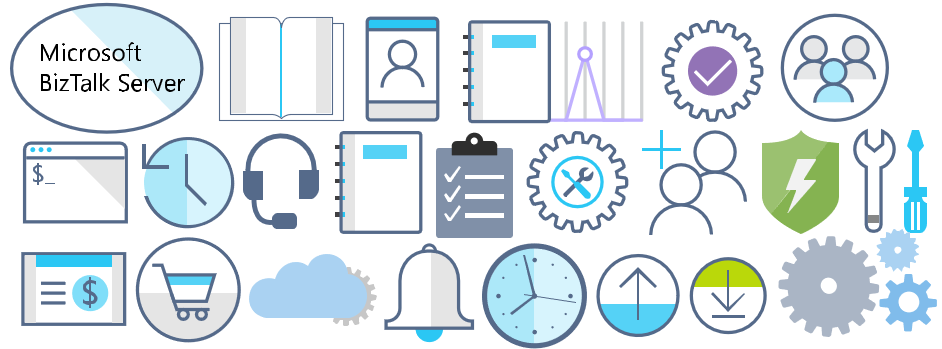
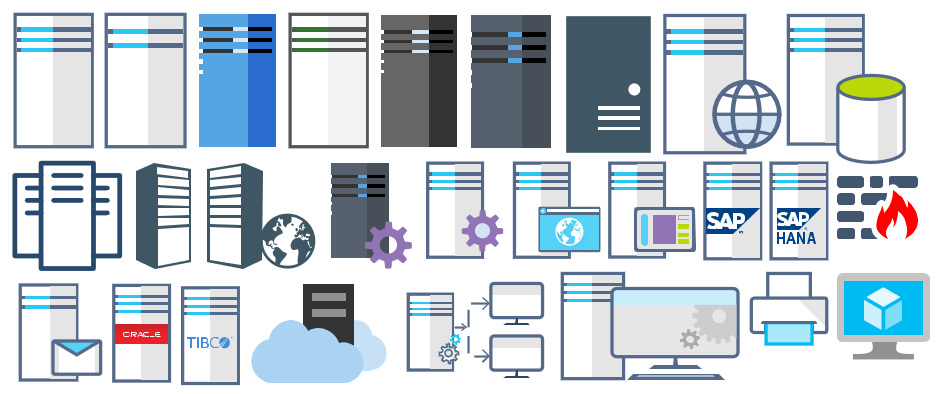
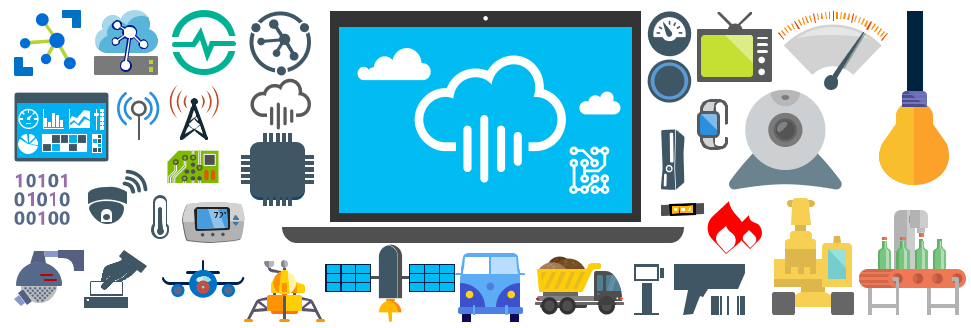
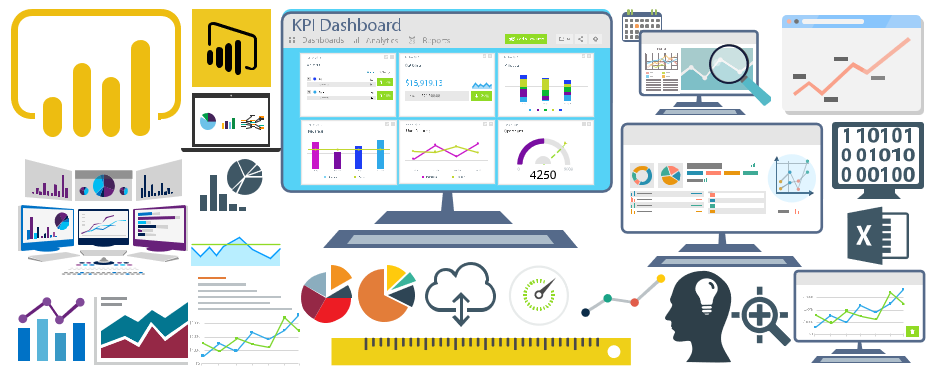
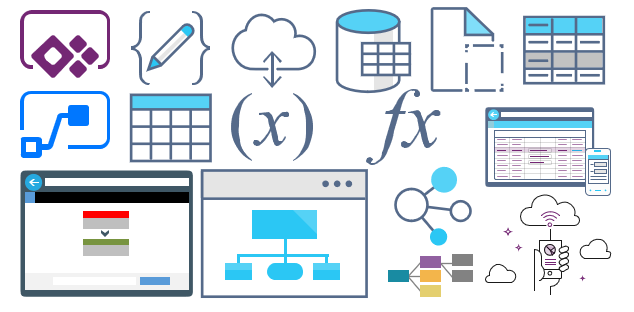
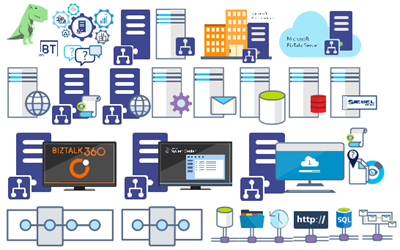
Microsoft Integration (Azure and much more) Stencils Pack it’s a Visio package that contains fully resizable Visio shapes (symbols/icons) that will help you to visually represent On-premise, Cloud or Hybrid Integration and Enterprise architectures scenarios (BizTalk Server, API Management, Logic Apps, Service Bus, Event Hub…), solutions diagrams and features or systems that use Microsoft Azure and related cloud and on-premises technologies in Visio 2016/2013:
- BizTalk Server
- Microsoft Azure
- BizTalk Services
- Azure App Service (API Apps, Web Apps, Mobile Apps and Logic Apps)
- Event Hubs
- Service Bus
- API Management, IoT, and Docker
- Machine Learning, Stream Analytics, Data Factory, Data Pipelines
- and so on
- Microsoft Flow
- PowerApps
- Power BI
- PowerShell
- Infrastructure, IaaS
- And many more…
I start this project because at the time I didn’t find nice shapes – graphically beautiful and resizable shapes – to produce BizTalk Server topologies diagrams and high-level overview of integrating processes. The project grew as community member asked for new shapes and during the last few years I have been updating and publishing new shapes, particularly associated with Azure services, which has a very low release cadence.
This time I cannot say it was an update because was actually a complete makeover and the reasons behind this decision are mainly these 2:
- The Project Become Huge: more than 1000 shapes, and due to the project structure that I decide to implement at the time, it became a little difficult to maintain since even I had difficulty finding and organizing all the shapes and there were several duplicate shapes (some were purposely duplicated and still are).
- A Fresh New Look: at the time, almost all the shapes were blue – not a beautiful blue but an obsolete annoying blue – so I decide to use, in almost the cases, a monochrome approach opting for a darker color – but after all these years it was already a little worn and needing for a new modern look and this time I decided to follow the look that Microsoft is implementing in Microsoft Docs – in fact, several stencils were collect from there – a more light and multicolored approach.
- You liked the old aspect? Do not worry, I still kept the old (monochrome) shapes but moved to support files.
What’s new in this version?
Is this version all about a fresh and modern new look? No, it is not. That was indeed one of the main tasks, but in addition:
- New shapes: 571 new forms have been added – many of them are in fact a redesign of the existing features to have a modern look – but it is still an impressive number. Making a total of 1883 shapes available in this package.
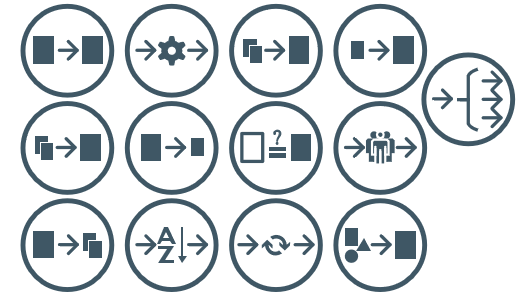
- The package structure changed: It is more organized – went from 13 files to 20 – which means that more categories were created and for that reason, I think it will be easier to find the shapes you are looking for. The Microsoft Integration (Azure and much more) Stencils Pack v3.0.0 is now composed of 20 files:
-
- Microsoft Integration Stencils v3.0.0
-
- MIS Additional or Support Stencils v3.0.0
-
- MIS Apps and Systems Logo Stencils v3.0.0
-
- MIS Azure Additional or Support Stencils v3.0.0

-
- MIS Azure Others Stencils v3.0.0
-
- MIS Azure Stencils v3.0.0
-
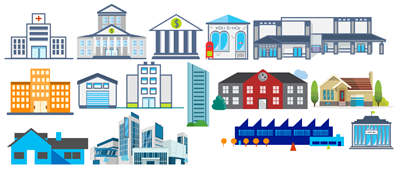
- MIS Buildings Stencils v3.0.0
-
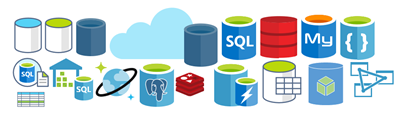
- MIS Databases Stencils v3.0.0
-
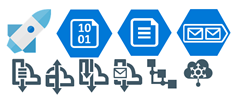
- MIS Deprecated Stencils v3.0.0
-
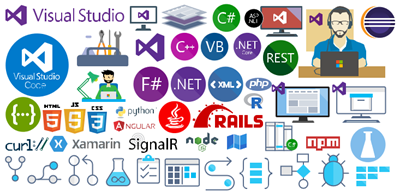
- MIS Developer Stencils v3.0.0
-
- MIS Devices Stencils v3.0.0
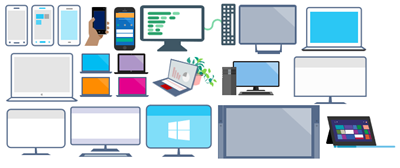
-
- MIS Files Stencils v3.0.0
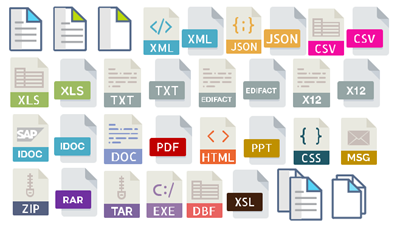
-
- MIS Generic Stencils v3.0.0
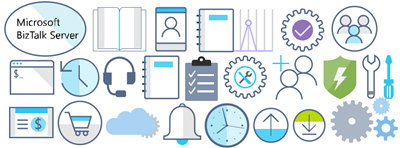
-
- MIS Infrastructure Stencils v3.0.0
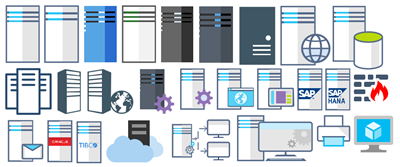
-
- MIS Integration Patterns Stencils v3.0.0
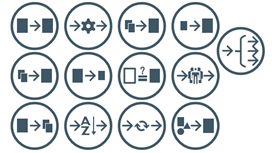
-
- MIS IoT Devices Stencils v3.0.0
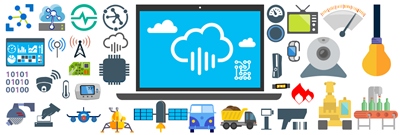
-
- MIS Power BI Stencils v3.0.0
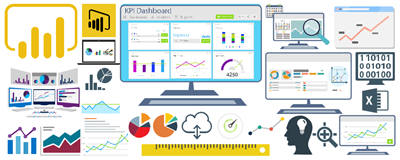
-
- MIS PowerApps and Flows Stencils v3.0.0
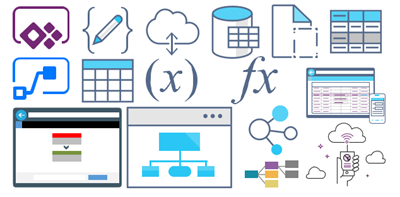
-
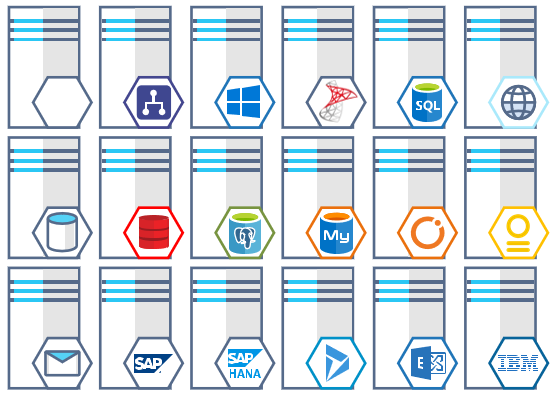
- MIS Servers (HEX) Stencils v3.0.0
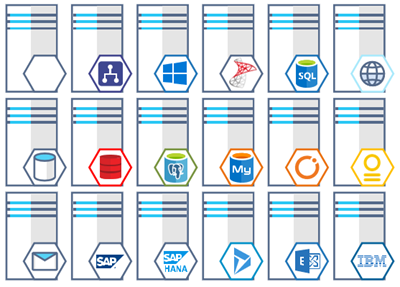
-
- MIS Users and Roles Stencils v3.0.0
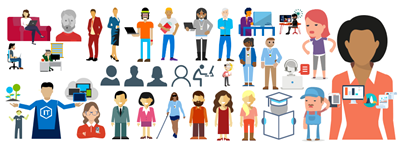
You can download Microsoft Integration (Azure and much more) Stencils Pack from:
 Microsoft Integration Stencils Pack for Visio 2016/2013 v3.0.0 (16,6 MB)
Microsoft | TechNet Gallery
Author: Sandro Pereira
Sandro Pereira lives in Portugal and works as a consultant at DevScope. In the past years, he has been working on implementing Integration scenarios both on-premises and cloud for various clients, each with different scenarios from a technical point of view, size, and criticality, using Microsoft Azure, Microsoft BizTalk Server and different technologies like AS2, EDI, RosettaNet, SAP, TIBCO etc. He is a regular blogger, international speaker, and technical reviewer of several BizTalk books all focused on Integration. He is also the author of the book “BizTalk Mapping Patterns & Best Practices”. He has been awarded MVP since 2011 for his contributions to the integration community. View all posts by Sandro Pereira

by Sandro Pereira | Sep 29, 2017 | BizTalk Community Blogs via Syndication
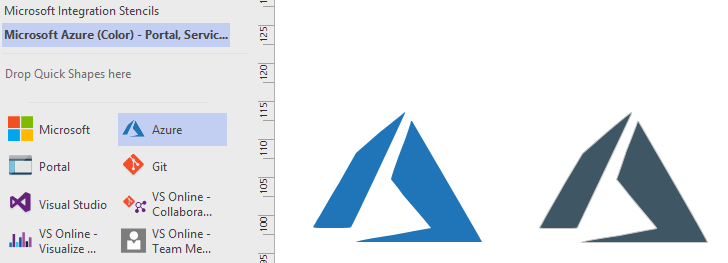
This is probably the quickest and smallest update that I made in my Microsoft Integration (Azure and much more) Stencils Pack: only 1 new stencil and I only do it for its importance, since it is definitely one of Microsoft’s fastest growing business these days, and the Ignite context: the new Azure logo.
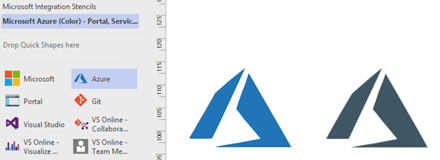
This will be probably the first Visio pack containing this shape.
The Microsoft Integration (Azure and much more) Stencils Pack v2.6.1 is composed by 13 files:
- Microsoft Integration Stencils v2.6.1
- MIS Apps and Systems Logo Stencils v2.6.1
- MIS Azure Portal, Services and VSTS Stencils v2.6.1
- MIS Azure SDK and Tools Stencils v2.6.1
- MIS Azure Services Stencils v2.6.1
- MIS Deprecated Stencils v2.6.1
- MIS Developer v2.6.1
- MIS Devices Stencils v2.6.1
- MIS IoT Devices Stencils v2.6.1
- MIS Power BI v2.6.1
- MIS Servers and Hardware Stencils v2.6.1
- MIS Support Stencils v2.6.1
- MIS Users and Roles Stencils v2.6.1
That will help you visually represent Integration architectures (On-premise, Cloud or Hybrid scenarios) and Cloud solutions diagrams in Visio 2016/2013. It will provide symbols/icons to visually represent features, systems, processes and architectures that use BizTalk Server, API Management, Logic Apps, Microsoft Azure and related technologies.
- BizTalk Server
- Microsoft Azure
- · Azure App Service (API Apps, Web Apps, Mobile Apps and Logic Apps)
- API Management
- Event Hubs
- Service Bus
- Azure IoT and Docker
- SQL Server, DocumentDB, CosmosDB, MySQL, …
- Machine Learning, Stream Analytics, Data Factory, Data Pipelines
- and so on
- Microsoft Flow
- PowerApps
- Power BI
- Office365, SharePoint
- DevOpps: PowerShell, Containers
- And many more…
You can download Microsoft Integration (Azure and much more) Stencils Pack from:
Microsoft Integration Stencils Pack for Visio 2016/2013 (11,4 MB)
Microsoft | TechNet Galler
Author: Sandro Pereira
Sandro Pereira lives in Portugal and works as a consultant at DevScope. In the past years, he has been working on implementing Integration scenarios both on-premises and cloud for various clients, each with different scenarios from a technical point of view, size, and criticality, using Microsoft Azure, Microsoft BizTalk Server and different technologies like AS2, EDI, RosettaNet, SAP, TIBCO etc. He is a regular blogger, international speaker, and technical reviewer of several BizTalk books all focused on Integration. He is also the author of the book “BizTalk Mapping Patterns & Best Practices”. He has been awarded MVP since 2011 for his contributions to the integration community. View all posts by Sandro Pereira
by Sandro Pereira | Sep 19, 2017 | BizTalk Community Blogs via Syndication
I decided to update my Microsoft Integration (Azure and much more) Stencils Pack with a set of 24 new shapes (maybe the smallest update I ever did to this package) mainly to add the Azure Event Grid shapes.
One of the main reasons for me to initially create the package was to have a nice set of Integration (Messaging) shapes that I could use in my diagrams, and during the time it scaled to a lot of other things.
With these new additions, this package now contains an astounding total of ~1311 shapes (symbols/icons) that will help you visually represent Integration architectures (On-premise, Cloud or Hybrid scenarios) and Cloud solutions diagrams in Visio 2016/2013. It will provide symbols/icons to visually represent features, systems, processes, and architectures that use BizTalk Server, API Management, Logic Apps, Microsoft Azure and related technologies.
- BizTalk Server
- Microsoft Azure
- Azure App Service (API Apps, Web Apps, Mobile Apps and Logic Apps)
- API Management
- Event Hubs & Event Grid
- Service Bus
- Azure IoT and Docker
- SQL Server, DocumentDB, CosmosDB, MySQL, …
- Machine Learning, Stream Analytics, Data Factory, Data Pipelines
- and so on
- Microsoft Flow
- PowerApps
- Power BI
- Office365, SharePoint
- DevOpps: PowerShell, Containers
- And much more…
The Microsoft Integration (Azure and much more) Stencils Pack v2.6 is composed by 13 files:
- Microsoft Integration Stencils v2.6
- MIS Apps and Systems Logo Stencils v2.6
- MIS Azure Portal, Services and VSTS Stencils v2.6
- MIS Azure SDK and Tools Stencils v2.6
- MIS Azure Services Stencils v2.6
- MIS Deprecated Stencils v2.6
- MIS Developer v2.6
- MIS Devices Stencils v2.6
- MIS IoT Devices Stencils v2.6
- MIS Power BI v2.6
- MIS Servers and Hardware Stencils v2.6
- MIS Support Stencils v2.6
- MIS Users and Roles Stencils v2.6
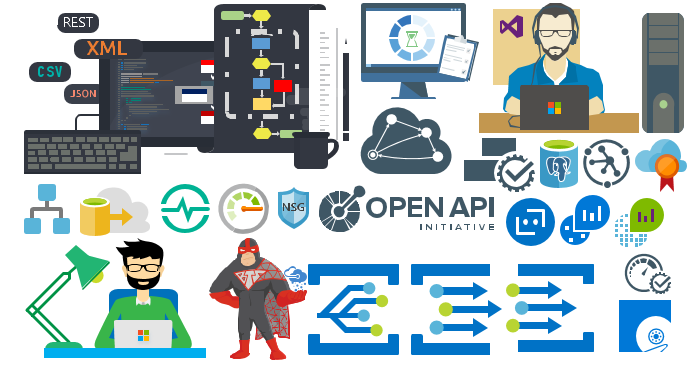
These are some of the new shapes you can find in this new version:
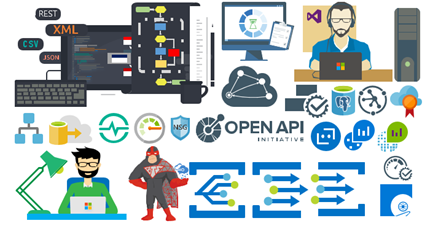
- Azure Event Grid
- Azure Event Subscriptions
- Azure Event Topics
- BizMan
- Integration Developer
- OpenAPI
- APIMATIC
- Load Testing
- API Testing
- Performance Testing
- Bot Services
- Azure Advisor
- Azure Monitoring
- Azure IoT Hub Device Provisioning Service
- Azure Time Series Insights
- And much more
You can download Microsoft Integration (Azure and much more) Stencils Pack from:
Microsoft Integration Stencils Pack for Visio 2016/2013 (11,4 MB)
Microsoft | TechNet Gallery
Author: Sandro Pereira
Sandro Pereira lives in Portugal and works as a consultant at DevScope. In the past years, he has been working on implementing Integration scenarios both on-premises and cloud for various clients, each with different scenarios from a technical point of view, size, and criticality, using Microsoft Azure, Microsoft BizTalk Server and different technologies like AS2, EDI, RosettaNet, SAP, TIBCO etc. He is a regular blogger, international speaker, and technical reviewer of several BizTalk books all focused on Integration. He is also the author of the book “BizTalk Mapping Patterns & Best Practices”. He has been awarded MVP since 2011 for his contributions to the integration community. View all posts by Sandro Pereira
by Dan Toomey | Sep 3, 2017 | BizTalk Community Blogs via Syndication
(This post was originally published on Mexia’s blog on 1st September 2017)
Microsoft recently released the public preview of Azure Event Grid – a hyper-scalable serverless platform for routing events with intelligent filtering. No more polling for events – Event Grid is a reactive programming platform for pushing events out to interested subscribers. This is an extremely significant innovation, for as veteran MVP Steef-Jan Wiggers points out in his blog post, it completes the existing serverless messaging capability in Azure:
- Azure Functions – Serverless compute
- Logic Apps – Serverless connectivity and workflows
- Service Bus – Serverless messaging
- Event Grid – Serverless Events
And as Tord Glad Nordahl says in his post From chaos to control in Azure, “With dynamic scale and consistent performance Azure Event grid lets you focus on your app logic rather than the infrastructure around it.”
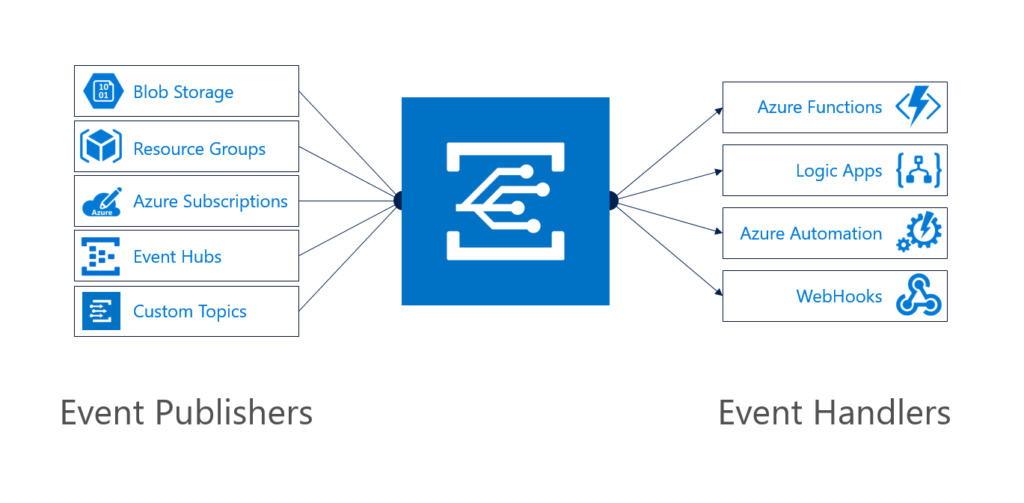
The preview version not only comes with several supported publishers and subscribers out of the box, but also supports customer publishers and (via WebHooks) custom subscribers:
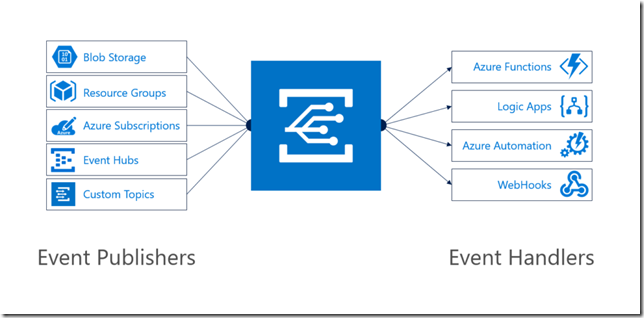
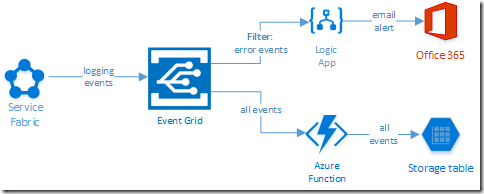
In this blog post, I’ll describe the experience in building a sample logging mechanism for a service hosted in Azure Service Fabric. The solution not only logs all events to table storage, but also sends alert emails for any error events:
Creating the Event Grid Topic
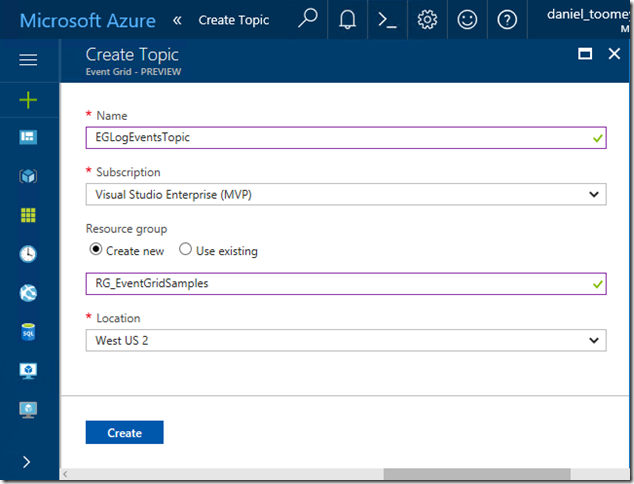
This was an extremely simple process executed in the Azure Portal. Create a new item by searching for “Event Grid Topic”, and then supply the requested basic information:
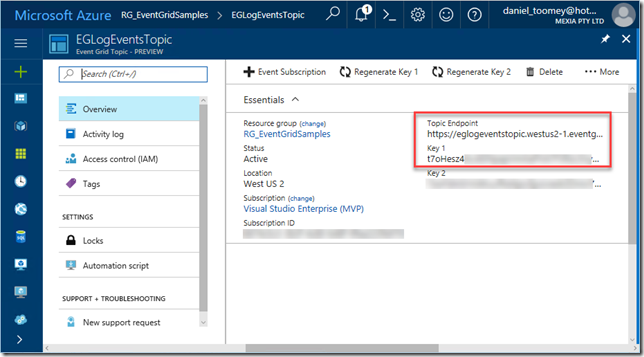
Once created, the key items you will need once the topic is created is the Topic Endpoint and the associated key:
Creating the Event Publisher
As mentioned previously, there are a number of existing Azure services that can publish events to Event Grid including Event Hubs, resource groups, subscriptions, etc. – and there will be more coming as the service moves toward general availability. However, in this case we create a custom publisher which is a service hosted in Azure Service Fabric. For this sample, I used an existing Voting App demo which I’ve written about in a previous blog post, modifying it slightly by adding code to publish logging events to Event Grid.
The first requirement was storing the topic endpoint and key in the parameter files, and of course creating the associated configuration items in the ServiceManifest.xml and ApplicationManifest.xml files (this article provides information about application configuration in Service Fabric):
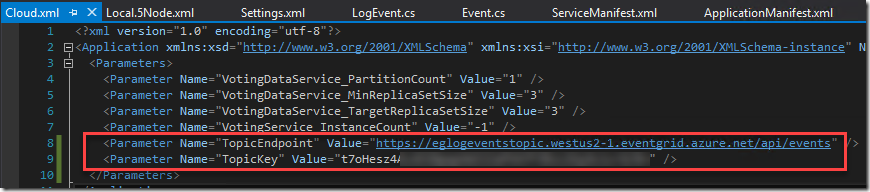
Note that in a production situation the TopicKey should be encrypted within this file – but for the purposes of this example we will keep it simple.
Next step was creating a small class library in the solution to house the following items:
- The Event class which represents the Event Grid events schema
- A LogEvent class which represents the “Data” element in the Event schema
- A utility class which includes the static SendLogEvent method
- A LogEventType enum to define logging severity levels (ERROR|WARNING|INFO|VERBOSE)
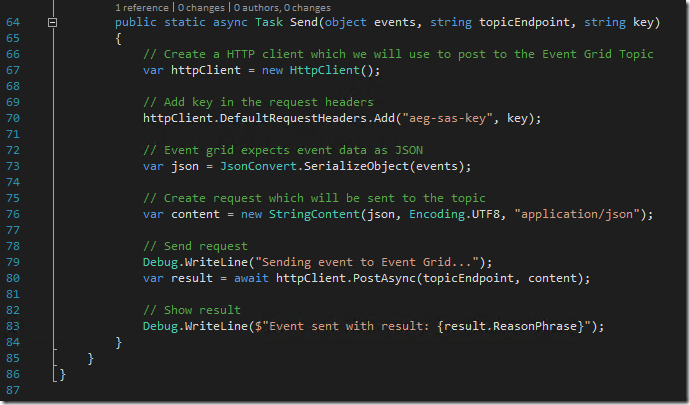
To see an example of how to create the Event class, refer to fellow Azure MVP Eldert Grootenboer’s excellent post. The only changes I made were to assign the properties for my custom LogEvent, and to add a static method for sending a collection of Event objects to Event Grid (notice how the Event.Subject field is a concatenation of the Application Name and the LogEventType – this will be important later on):
The utility method that creates the collection and invokes this static method is pretty straight forward:
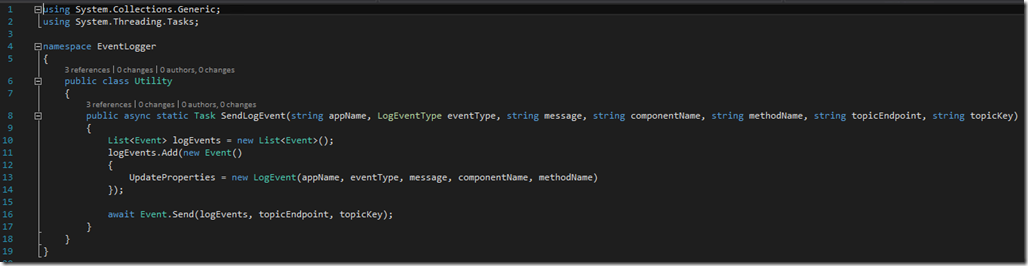
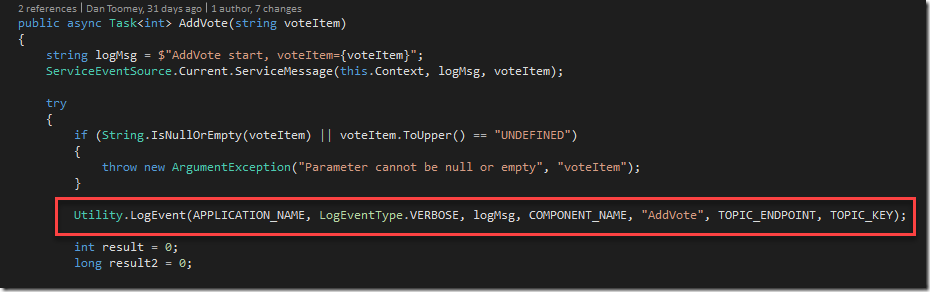
This all makes it simple to embed logging calls into the application code:
Creating the Event Subscribers
Capturing All Events
The first topic subscription will be an Azure Function that will write all events to Azure table storage. Provided you’ve created your Function App in a region that supports the Event Grid preview (I’ve just created everything aside from the Service Fabric solution within the same resource group and location), you will see that there is already an Event Grid Trigger available to choose. Here is my configured trigger:
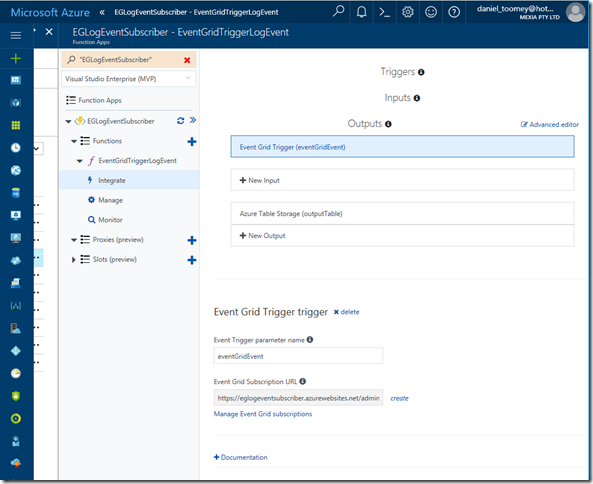
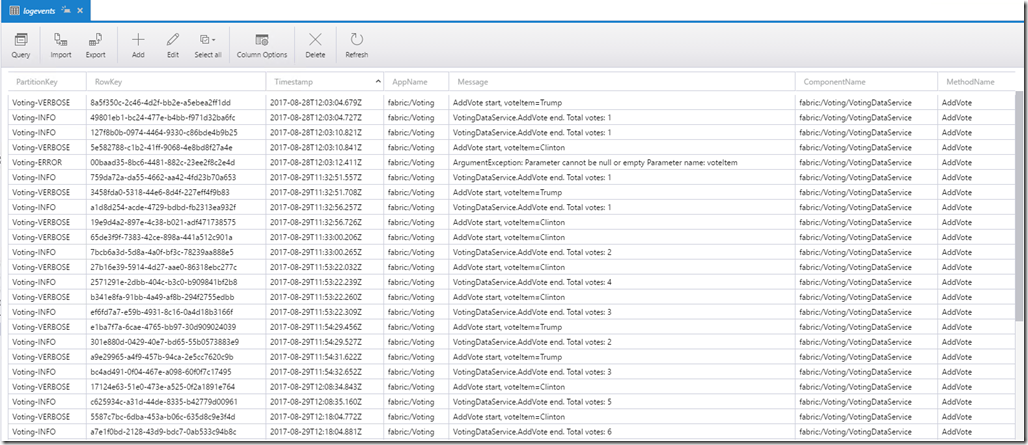
As you can see, I’ve also configured a Table Storage output. The code within this function creates a record in the table using the Event.Subject as a partition and the Event.Id as the row key:
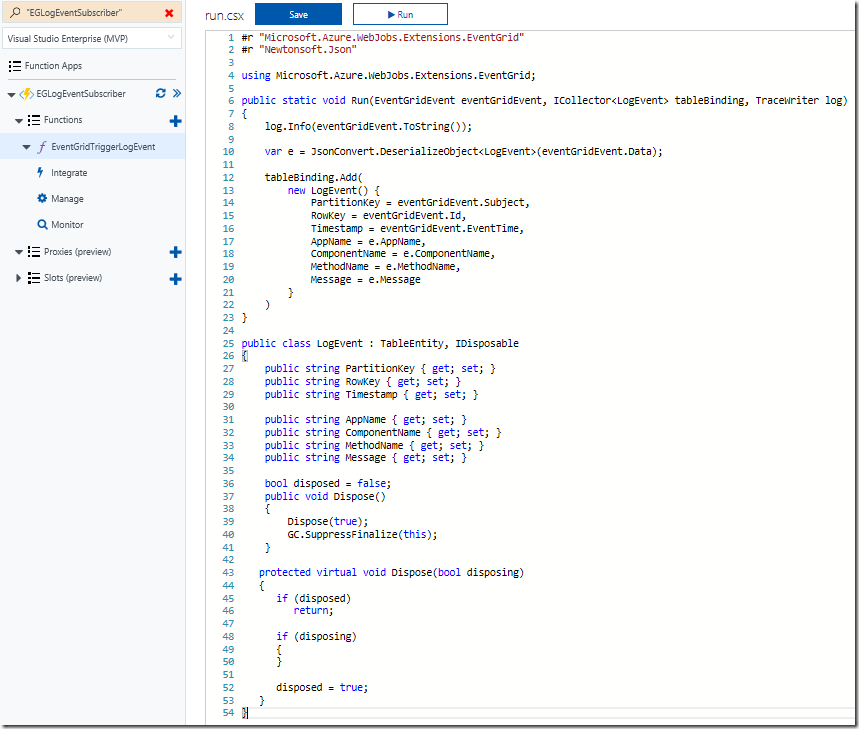
Using the free Azure Storage Explorer tool, we can see the output of our testing:
Alerting on ERROR Events
Now that we’ve completed one of the two subscriptions for our solution, we can create the other subscription which will use a filter on ERROR events and raise an alert via sending an email notification.
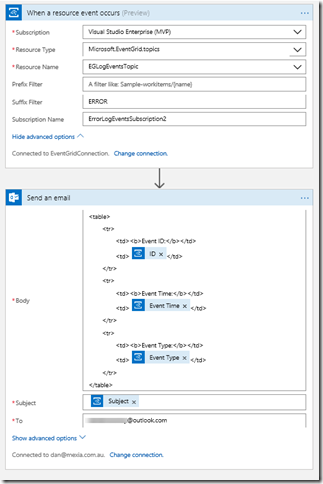
The first step is to create the Logic App (in the same region as the Event Grid) and add the Event Grid Trigger. There are a few things to watch out for here:
- When you are prompted to sign in, the account that your subscription belongs to may or may not work. If it doesn’t, try creating a Service Principal with contributor rights for the Event Grid topic (here is an excellent article on how to create a service principal)
- The Resource Type should be Microsoft.EventGrid.topics
- The Suffix field contains “ERROR” which will serve as the filter for our events
- If the Resource Name drop-down list does not display your Event Grid topic at first, type something in, save it and then click the “x”; the list should hopefully appear. It is important to select from the list as just typing the display name will not create the necessary resource ID in the topic field and the subscription will not be created.
You can then follow this with an Office365 Email action (or any other type of notification action you prefer). There are four dynamic properties that are available from the Event Grid Trigger action (Subject, ID, Event Type and Event Time):
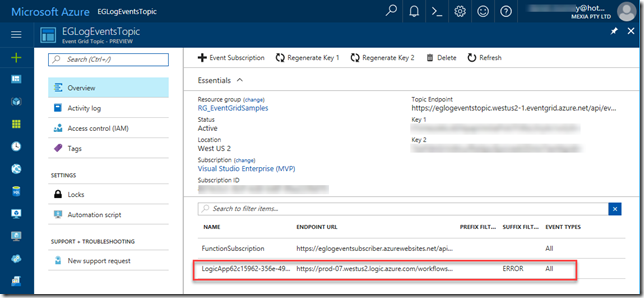
After saving the Logic App, check for any errors in the Overview blade, and then check the Overview blade for the Event Grid Topic – you should see the new subscription created there:
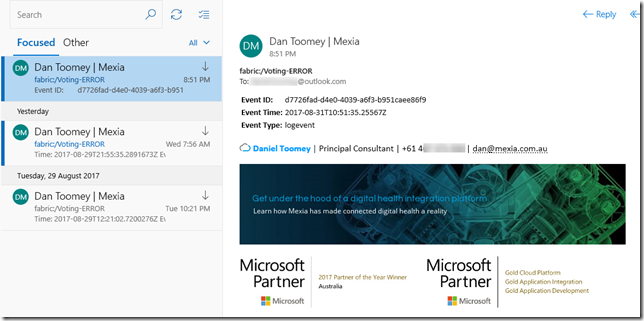
Finally, we can test the application. My Voting demo service generates an exception (and a ERROR logging event) when a vote is cast for a null/empty candidate (see the ERROR entry in the table screenshot above). This event now triggers an email notification:
Summary
So this example may not be the niftiest logging application on the market (especially considering all of the excellent logging tools that are available today), but it does demonstrate how easy it is to get up and running with Event Grid. You’ve seen an example of using a custom publisher and two built-in subscribers, including one with intelligent filtering. To see how to write a custom subscriber, have a look at Eldert’s post “Custom Subscribers in Event Grid” where he uses an API App subscriber to write shipping orders to table storage.
Event Grid is enormously scalable and its consumption pricing model is extremely competitive. I doubt there is anything else quite like this on offer today. Moreover, there will be additional connectors coming in the near future, including Azure AD, Service Bus, Azure Data Factory, API Management, Cosmos DB, and more.
For a broader overview of Event Grid’s features and the capabilities it brings to Azure, have a read of Tom Kerkhove’s post “Exploring Event Grid”. And to understand the differences between Event Hub, Service Bus and Event Grid, Saravana Kumar’s recent post sums it up quite nicely. Finally, if you want to get your hands dirty and have a play, Microsoft has provided a quickstart page to get you up and running.
Happy Eventing!
by Steef-Jan Wiggers | Aug 27, 2017 | BizTalk Community Blogs via Syndication
Summer holidays are over, it is back to work and a few weeks later back into the trenches I learned a lot more about Azure Cosmos DB, Azure Search and the latest addition to the Platform Event Grid.
Month August
Microsoft launched a new service, Event Grid to support serverless events with intelligent routing and providing an uniform event consumption using a pub-sub model (similar to pub-sub we know from BizTalk Server). Like some integration minded folks I written three blogs about the service on my own blog:
Besides EventGrid, the Microsoft Pro Integration PG announced a Logic Apps Management (Preview) solution in OMS. And I have tried out this service too a wrote a blog about it:
Based on the release of the OMS solution for Logic App, I delved into monitoring and operations a bit. And saw many monitoring solutions when it comes to a serverless integration solution in Azure. You can read about this topic on the BizTalk360 blog:
The last blog post was inspired by Saravana’s article on LinkedIn: Challenges Managing Distributed Cloud Applications
To conclude managing a distributed cloud native solution with several Azure services is a challenge!
Codit
On the 1st of October I will join Codit. Why you might ask? The year contract at Macaw ends at the 30th of September and I realized that my skills, speaking engagements, passion and focus lies more with Azure, Integration, IoT. And this fits with the Codit corporate strategy, plus I have more than 100 integration focussed sparring partners.
Books
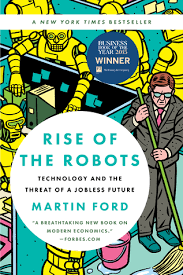
This month I haven’t read that much other than a book about rise of robots. The message in this book was rather grim and I felt that almost no one will have a job in 10 years or so. A scary, fascinating read.
Music
My favorite albums in August were:
- Sons Of Crom – The Black Tower
- Thy Art Is Murder – Dear Desolation
- Steven Wilson – To The Bone
- Akercocke – Renaissance In Extremis
- Leprous – Malina
Running
I deciced I wanted to run another marathon and enrolled into the Tokyo Marathon at the end of February 2018. Therefore, I started running 4 to 5 times a week this month and I am making good progress

Next month will be my last with my current employer Macaw, before I start at Codit. Moreover, I will be speaking at the end of the month in Oslo for the Norwegian BizTalk User Group together with Eldert and Tomasso.
Cheers,
Steef-Jan
Author: Steef-Jan Wiggers
Steef-Jan Wiggers is all in on Microsoft Azure, Integration, and Data Science. He has over 15 years’ experience in a wide variety of scenarios such as custom .NET solution development, overseeing large enterprise integrations, building web services, managing projects, designing web services, experimenting with data, SQL Server database administration, and consulting. Steef-Jan loves challenges in the Microsoft playing field combining it with his domain knowledge in energy, utility, banking, insurance, health care, agriculture, (local) government, bio-sciences, retail, travel and logistics. He is very active in the community as a blogger, TechNet Wiki author, book author, and global public speaker. For these efforts, Microsoft has recognized him a Microsoft MVP for the past 7 years. View all posts by Steef-Jan Wiggers
by Steef-Jan Wiggers | Aug 24, 2017 | BizTalk Community Blogs via Syndication
Event Grid Topic is a part of Event Grid, a new Platform Service, which provides intelligent event routing through filters and event types. Moreover, it offers a uniform publish-subscribe model similar to the model of the BizTalk runtime. However, we are talking events here and not messaging. Event Grid is a managed service in Azure with service fabric underneath. Some of the characteristics of Event Grid are discussed in one of Tom Kerhove’s latest’s posts : Exploring Azure Event Grid.
Event Grid offers custom event routing capabilities with an Event Grid Topic. Consequently, a Topic can be provisioned through the Azure Portal. And once the Topic becomes available you can hook it up with one of more subscribers.
Routing with Event Grid Topic
Custom events can be pushed to an Event Grid Topic, which can have multiple subscribers. Subsequently, the subscription is set on either Event Type and/or filters (Prefix, Suffix). Hence, a broadcast of a single event to multiple handlers can be accomplished. Therefore, each handler can operate on the event.
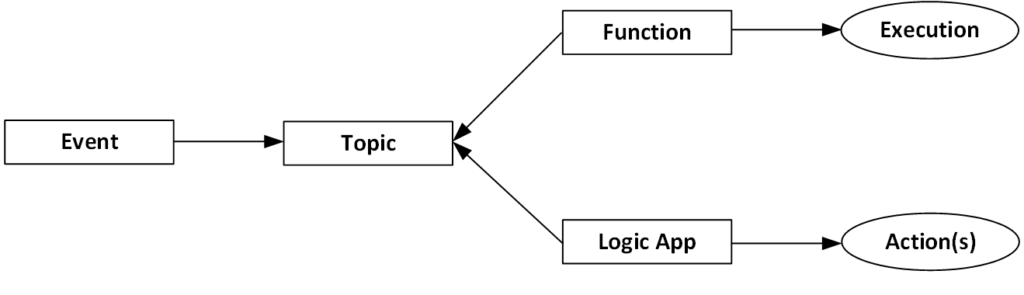
The consumption of the events will be through the custom Event Grid Topic as shown above. Futhermore, consumers can be a Function, Logic App, WebHook or Azure Automation currently. And the mechanism of subscriptions in Logic App and Functions is through WebHooks, which I will eloborate more about in event subscribers.
Custom Events to Event Grid Topic
Custom events need to adhere to a schema, which includes five mandatory string properties and a required data object. Subsequently, a custom event needs these properties. Therefore, a .NET client for instance can leverage the System.Net.Http namespace using a HttpClient. Hence to be able to sent a custom event with a .NET client to the Event Grid Topic, you’ll need to know the endpoint (URL) and SAS-Key.
Let me explain here. First of all, a Event Grid Topic requires either a SAS-key or key authentication, however the last one is easier to implement in a .NET client. Hence, you add a default request header with the key “aeg-sas-key” with the value in key1 found in the Azure Event Grid Topic Overview.
To actually sent the event, you can use the PostAsync method. This method of the HttpClient requires the content (event data) and Endpoint URL, which also can be found in the Azure Event Grid Topic Overview.
Event content
The content has to event schema. Therefore, the payload could look like:
[
{“Data”:
{“WindSpeed”:6.2,
“Beaufort”:0,
“Type”:”WindDetails”,
“Location”:”Amsterdam”,
“Lat”:52.373888888888892,
“Lng”:4.889444444444444
},
“Id”:”a72f1473-d763-43c0-ad49-13dacf9158d3″,
“Subject”:”WindDetails”,
“EventType”:”WindSpeedEvent”,
“EventTime”:”2017-08-24T14:32:15.5814874Z”
}
] |
In bold you can see the event details (data) and Id, Subject, EventType and EventTime, which are the mandatory string properties. You might ask yourself now, there are only four string properties and one data, where’s the topic property? Probably once the event above is published to the Event Grid Topic, the topic property is added to the event.
[{
{“WindSpeed”:6.2,
“Beaufort”:0,
“Type”:”WindDetails”,
“Location”:”Amsterdam”,
“Lat”:52.373888888888892,
“Lng”:4.889444444444444
},
“Id”: ” a72f1473-d763-43c0-ad49-13dacf9158d3″,
“Subject”: “WindDetails”,
“EventType”: “WindSpeedEvent”,
“EventTime”: “2017-08-24T14:01:57.4354747Z”,
“topic”: “/subscriptions/0bf166ac-9aa8-4597-bb2a-a845afe01415/resourceGroups/RG_EventGridSample/providers/Microsoft.EventGrid/topics/SampleTopic”
}] |
The Event Grid uses HTTP response codes to acknowledge receipt of events. Hence the event above sent to a custom event topic will provide the following response :
{StatusCode: 200, ReasonPhrase: ‘OK’, Version: 1.1, Content: System.Net.Http.StreamContent, Headers:
{
x-ms-request-id: e6c1fbf3-f295-49b3-ad13-b26c22b60313
Date: Thu, 24 Aug 2017 14:41:19 GMT
Server: Microsoft-HTTPAPI/2.0
Content-Length: 0
}} |
The Http Status code is 200, which is OK (event delivered). In addition I suggest you read Event Grid message delivery and retry.
Event Subscribers
A custom Event Grid Topic can have one of more subscriptions (event handlers). A subscription is an instruction for the Topic to tell it “I want this event”. In addition, the instruction can contain filters (pre- post) and/or an EventType. The Event Grid itself supports multiple subscriber types like WebHooks. And depending on subscriber type, the Event Grid has a mechanism to guarantee delivering the event to the subscriber. Do for WebHooks it’s a 200-OK, similar to when a .NET client is delivering an event to the Event Grid Topic.
Azure Function or Logic App can use the WebHook mechanism to subscribe to events on a custom Event Grid Topic. As a result, the subscription is created in the Azure Event Grid Topic containing an URL for which the Event Grid Topic can deliver the events to (POST). In addition, the Event Type can be specified, i.e. by default this is all. And finally filters can be applied, which are optional. To conclude a custom event with a certain type can be published to an Event Grid Topic, which has one of more subscribers interested in the events of a certain type.
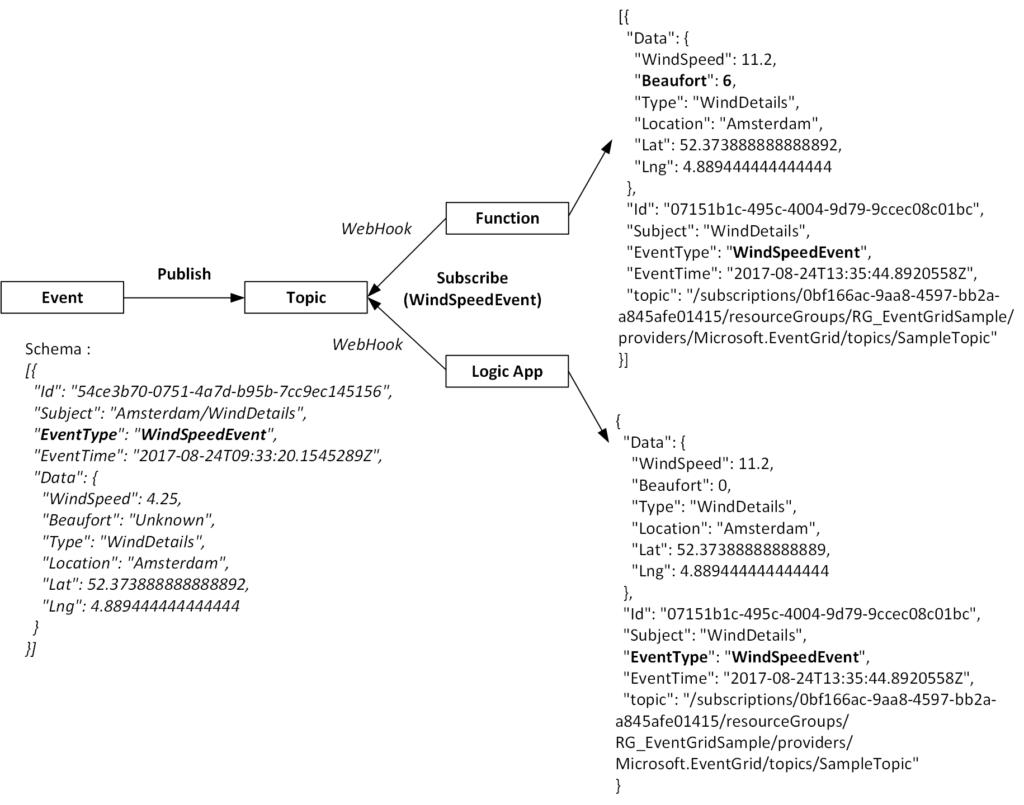
Note the subscription of a Logic to events in the Event Grid Topic is done through a Logic App Trigger. However, to subscriber to a specific Event Type you will need to edit the subscription in the Event Grid Topic to set it from all to the required one.
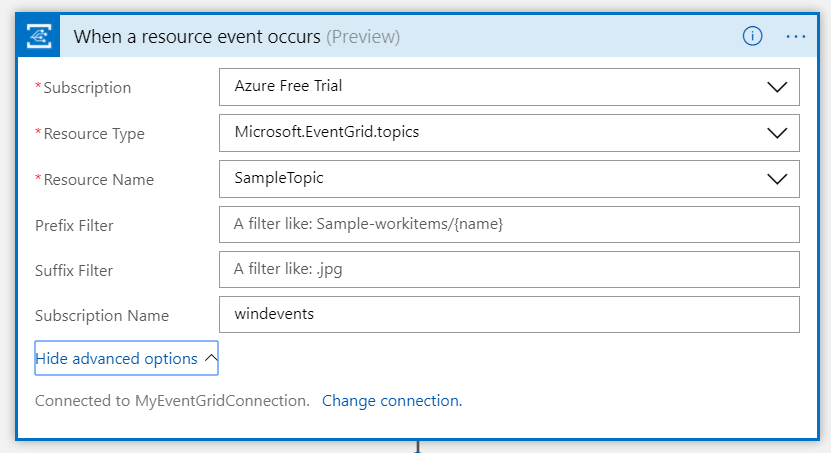
A function can subscribe to events using a WebHook trigger. You create a subscription in the Event Grid Topic by providing the URL of the WebHook trigger function and Event Type (and optional filters if necessary).
Sample Scenario
To have a better understanding of routing custom events with a Event Grid topic let us look how custom events are sent and how they are consumed by multiple subscribers. Therfore, I will discuss the following scenario with you using serveral Azure services like :
- An Event Grid Topic
- An Azure Functions
- A Logic Apps
- A .NET Client
- A WebHook (RequestBin)
- An Azure Service Bus Queue
The .Net client sends a custom event to a custom Event Grid Topic provisioned in Azure. Subsequently, a Azure Function, Logic App and WebHook (RequestBin) will subscribe to an event of the Type WindSpeedEvent. First of all the Function will process the event by enriching it with a calculated value of Beaufort, and sent the enriched event to a Service Bus queue. Furthermore, the Logic App will evaluate the windspeed and send an email if windspeed is higher than a specified value. And finally RequestBin will just consume the event.
The following diagram shows the event flow of the scenario.
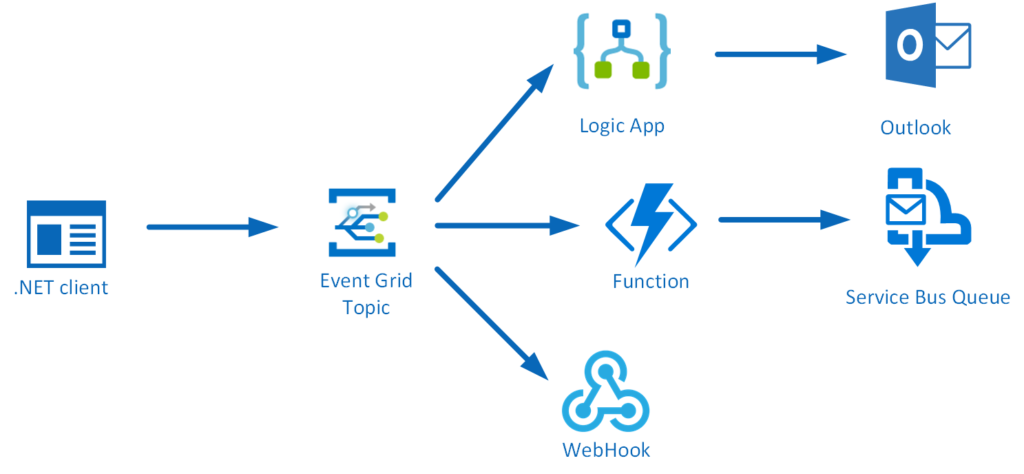
Sent a custom event
A custom event can be sent to a Event Grid Topic using a .NET client. In our scenario the custom event is of the type WindSpeedEvent, containing a few fields, including WindSpeed in meters per second and no known Beaufort (0) yet.
The Event Topic has three subscribers:
- Logic App
- Function
- WebHook (Request Bin)
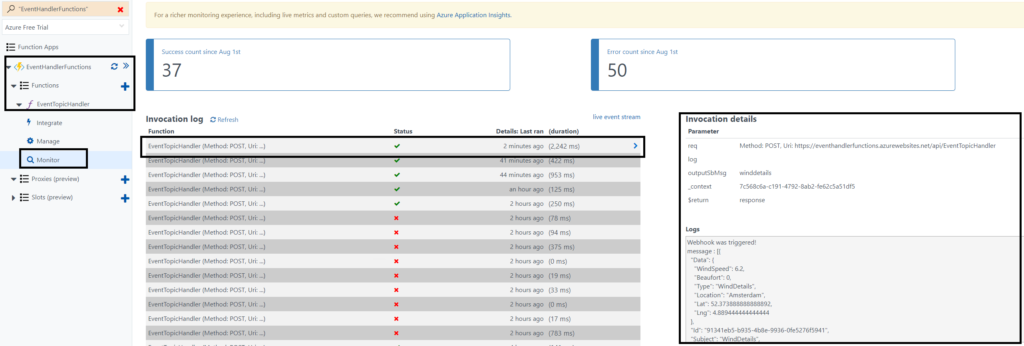
Each will receive the event, as each has subscribed to the Topic with events of Type WindSpeedEvent. Hence, in the Azure Function Monitor Pane I observed the consumption of the event.
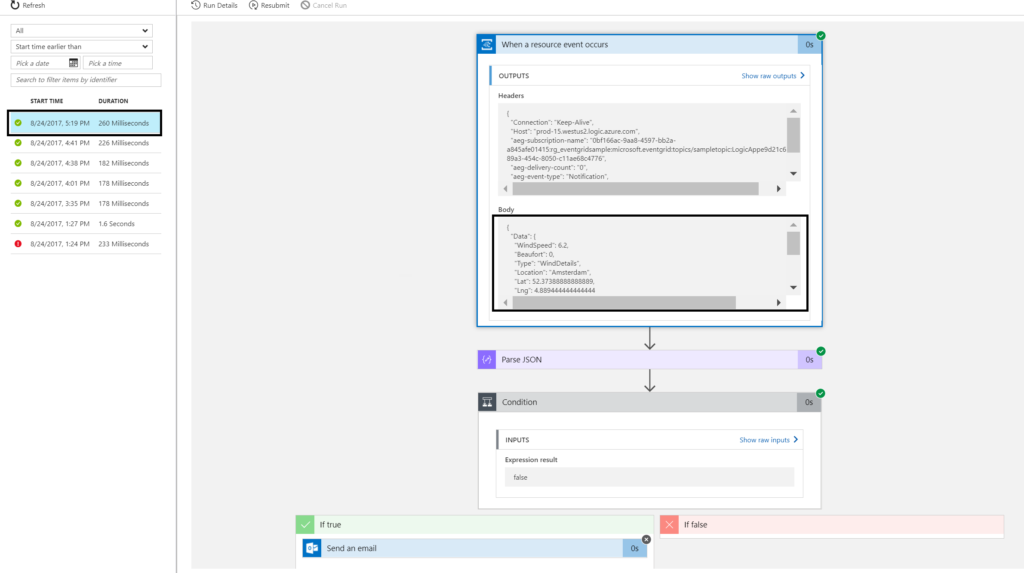
Subsequently, in the Logic Run History I observed the consumption of the event.
Finally, when refreshing the RequestBin page I see the event in its raw format. And this is smilar to the Event Grid Quickstart Create and route custom events with Azure Event Grid.
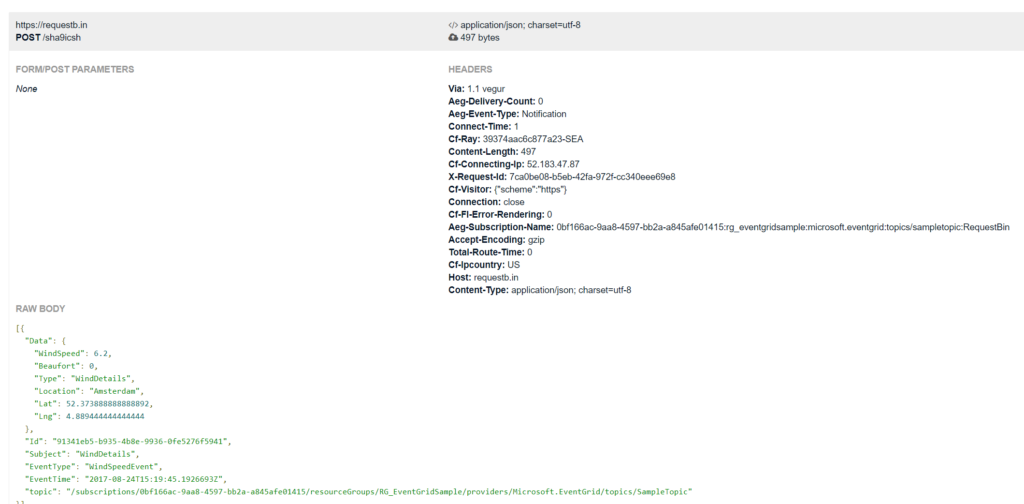
To conclude, each subscriber recieves the event of the Type WindSpeedEvent.
The Event Grid Topic in our scenario has three subscribers, see the screenshot of the Event Grid Topic Overview below.
Summary
Custom Event handling with an Event Grid Topic is easy to comprehend. Also it opens doors to many scenario’s ranging from IOT to Website Traffic monitoring. In this post I focused only on a custom event handled by several subscribers. However, Event Grid has more to offer in handling events from other sources like Azure Subscriptions, resource groups, and other. Finally, more publishers and handlers will be available in the future. To conclude Event Grid in my opinion is a great addition to other serverless capabilities in Azure. However I like to emphasise it is event capability in Azure compatible with other serverless components like Logic Apps and Functions.
Author: Steef-Jan Wiggers
Steef-Jan Wiggers is all in on Microsoft Azure, Integration, and Data Science. He has over 15 years’ experience in a wide variety of scenarios such as custom .NET solution development, overseeing large enterprise integrations, building web services, managing projects, designing web services, experimenting with data, SQL Server database administration, and consulting. Steef-Jan loves challenges in the Microsoft playing field combining it with his domain knowledge in energy, utility, banking, insurance, health care, agriculture, (local) government, bio-sciences, retail, travel and logistics. He is very active in the community as a blogger, TechNet Wiki author, book author, and global public speaker. For these efforts, Microsoft has recognized him a Microsoft MVP for the past 7 years. View all posts by Steef-Jan Wiggers

by Eldert Grootenboer | Aug 23, 2017 | BizTalk Community Blogs via Syndication
After having shown how to send our custom events to Event Grid in my previous blog post, we will now see how we can create custom subscribers. Event Grid will be integrated with all Azure services, but by allowing us to create our own custom subscribers as well, we can truly route events to any service or application. And what’s more, we will also see how we can use the API to create a subscription from our subscriber, allowing us to quickly onboard new services, which can then start listening to the events which are of interest to them. In this sample, we will create an Azure API App, which will receive the events from our previous blog post, and store them in Azure Table Storage. On starting, the API App will check if the subscriptions it uses are created, and if not, it will create them and point them to the various endpoints the API App exposes.
Azure Event Grid
As we will be using Table Storage to store the data from the events, we will start by creating this in a storage account. I am using the storage account I created in this post, but of course you can also set up a new account for this.
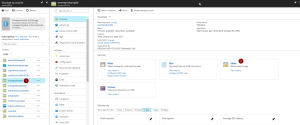
Create Table Storage
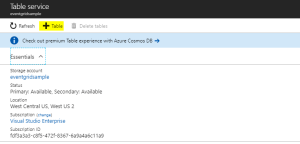
Add Table Storage
Now we will create the API App which will subscribe to our events. Start by creating a new ASP.NET Web Application project.
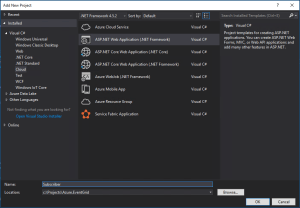
Create ASP.NET Web Application project
Now choose the Azure API App template.
Connect Storage Account
As we will be connecting to Table Storage, we will add Azure Storage as a connected service on the overview pane.
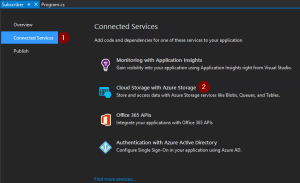
Add Azure Storage
Choose the storage account in which we created the Table Storage. Optionally you can also create a new Storage Account from here.
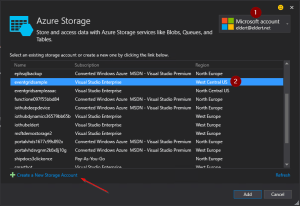
Choose Storage Account
Application Settings
We can now start implementing our API App. Let’s start by adding some application settings in the web.config file. These will be needed later on in our application. Once the API App has been deployed we will recreate these settings on the API App’s application settings as well. These are the settings which need to be created.
- AzureStorageConnectionString
- This is the connection string for the Storage Account, which can be retrieved in the Azure Portal.
- SubscriptionID
- GUID with your subscription ID, can also be retrieved from the Azure portal.
- AuthorizationToken
- In this sample I will be using a bearer token to connect to the Azure management API. Instructions on how to get this token can be found in this blogpost by Toon, follow the instructions under Authenticate With Service Principal.
In a production environment you would implement this using the Azure AD SDK, as the bearer token will expire after a few hours.
- ResourceGroup
- The name of the resource group in which the Event Grid Topic has been created.
- EventGridTopic
- The name of the Event Grid Topic to which we want to subscribe.
- ApiAppUrl
- URL on which the API App can be reached, which will be used in the subscription endpoints. We will know this once the API App has been deployed, at which time we can update this in the API App’s application settings. Keep in mind that we need an https endpoint for our Event Grid subscriptions, as http will throw an error when creating the subsciption. Luckily API Apps come with a https endpoint out of the box.
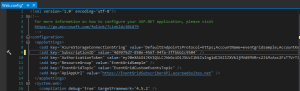
Add application settings
Data Classes
We now will create two new classes, which will be be used to receive the repair and order events we sent in in the previous blog post. The first class is the data we sent in our Data node in our custom event.
/// <summary>
/// Data which can be sent with various ship events.
/// </summary>
public class ShipEventData
{
        /// <summary>
        /// Name of the ship.
        /// </summary>
        public string Ship { get; set; }

        /// <summary>
        /// Type of event.
        /// </summary>
        public string Type { get; set; }

        /// <summary>
        /// Device received in the event.
        /// </summary>
        public string Device { get; set; }

        /// <summary>
        /// Description received in the event.
        /// </summary>
        public string Description { get; set; }

        /// <summary>
        /// Product received in the event.
        /// </summary>
        public string Product { get; set; }

        /// <summary>
        /// Amount received in the event.
        /// </summary>
        public int? Amount { get; set; }
}
|
And the second class is the event we will receive this from Event Grid.
/// <summary>
/// Class used to receive ship event values.
/// </summary>
public class ShipEventValue
{
        /// <summary>
        /// Time when event was created.
        /// </summary>
        public string EventTime;

        /// <summary>
        /// Data of the event.
        /// </summary>
        public ShipEventData Data;
}
|
Now let’s implement the Subscription class, which will be used to create the subscriptions we need for our sample when the API App starts.
/// <summary>
/// Defines a subscription with its filters.
/// </summary>
public class Subscription
{
        /// <summary>
        /// Name of the subscription.
        /// </summary>
        public string Name;

        /// <summary>
        /// Filter which will look at the start of the subscription's subject.
        /// </summary>
        public string PrefixFilter;

        /// <summary>
        /// Filter which will look at the end of the subscription's subject.
        /// </summary>
        public string SuffixFilter;
}
|
We will also need a class which will be used to insert our data into the Table Storage.
/// <summary>
/// Used to insert ship events to Table Storage.
/// </summary>
public class ShipEventEntity : TableEntity
{
        /// <summary>
        /// Constructor.
        /// </summary>
        public ShipEventEntity(string ship, string dateTime)
        {
                PartitionKey = ship;
                RowKey = dateTime;
        }

        /// <summary>
        /// Type of event.
        /// </summary>
        public string Type { get; set; }

        /// <summary>
        /// Device received in the event.
        /// </summary>
        public string Device { get; set; }

        /// <summary>
        /// Description received in the event.
        /// </summary>
        public string Description { get; set; }

        /// <summary>
        /// Product received in the event.
        /// </summary>
        public string Product { get; set; }

        /// <summary>
        /// Amount received in the event.
        /// </summary>
        public int? Amount { get; set; }
}
|
Controller
The controller is used to expose our methods to the outside world. In this case, we will provide four endpoints for different types of subscriptions. Each method will be called by the subscribtion on different events, and write the data it received to it’s own table in Table Storage. In a production implementation, this would probably be four different services, and for different parties who are interested in the events (for example, a specific ship might have to get it’s orders from supplier, while another ship gets it’s orders from supplier B).
We will change the name of the default ValuesController class to SubscriberController to better represent our scenario, and instantiate a CloudStorageAccount used to communicate with our Table Storage.
public class SubscribersController : ApiController
    {
        /// <summary>
        /// Storage account used to store to Table Storage.
        /// </summary>
        private readonly CloudStorageAccount _storageAccount = CloudStorageAccount.Parse(CloudConfigurationManager.GetSetting("AzureStorageConnectionString"));
}
|
Add the following method to the class, which will take the data we receive on our endpoints, and store it into Table Storage.
/// <summary>
/// Insert Ship Event into table storage.
/// </summary>
private async Task InsertToTable(IReadOnlyList<ShipEventValue> value, string tableName)
{
        // Check if any events were received
        if (value == null || value.Count == 0)
        {
                return;
        }

        // Create the table client
        var tableClient = _storageAccount.CreateCloudTableClient();

        // Retrieve a reference to the table
        var table = tableClient.GetTableReference(tableName);

        // Create the table if it doesn't exist
        table.CreateIfNotExists();

        // Create a new ship event entity
        var shipEventEntity = new ShipEventEntity(value[0].Data.Ship, value[0].EventTime)
        {
                Type = value[0].Data.Type,
                Product = value[0].Data.Product,
                Amount = value[0].Data.Amount,
                Device = value[0].Data.Device,
                Description = value[0].Data.Description
        };

        // Create the TableOperation object that inserts the customer entity
        var insertOperation = TableOperation.Insert(shipEventEntity);

        // Execute the insert operation
        await table.ExecuteAsync(insertOperation);
}
|
And the final piece in this class are the methods for the endpoints. Notice the ActionName attributes, which we will use to have various endpoints in our API.
/// <summary>
/// Receives all events.
/// </summary>
[ActionName("All")]
public async Task<StatusCodeResult> PostAll([FromBody] List<ShipEventValue> value)
{
        await InsertToTable(value, "All");
        return new StatusCodeResult(HttpStatusCode.Created, this);
}

/// <summary>
/// Receives all types of events for the ship Hydra.
/// </summary>
[ActionName("Hydra")]
public async Task<StatusCodeResult> PostHydra([FromBody] List<ShipEventValue> value)
{
        await InsertToTable(value, "Hydra");
        return new StatusCodeResult(HttpStatusCode.Created, this);
}

/// <summary>
/// Receives repairs for all ships.
/// </summary>
[ActionName("Repairs")]
public async Task<StatusCodeResult> PostRepairs([FromBody] List<ShipEventValue> value)
{
        await InsertToTable(value, "Repairs");
        return new StatusCodeResult(HttpStatusCode.Created, this);
}

/// <summary>
/// Receives orders for the ship Aeris.
/// </summary>
[ActionName("AerisOrders")]
public async Task<StatusCodeResult> PostAerisOrders([FromBody] List<ShipEventValue> value)
{
        await InsertToTable(value, "AerisOrders");
        return new StatusCodeResult(HttpStatusCode.Created, this);
}
|
Configure Routes
Now hop on over to the WebApiConfig class, and implement the following code. This will generate the different endpoints for our Controller actions.
public static class WebApiConfig
{
        public static void Register(HttpConfiguration config)
        {
                // Web API routes
                config.MapHttpAttributeRoutes();
                config.Routes.MapHttpRoute(name: "routes", routeTemplate: "api/{controller}/{action}");
        }
}
|
Subscriptions Creation
Finally we need to implement the Global.asax class, in which we will create our Event Grid Subscriptions on start up of the API App. This is where we define the subscriptions to be created, including their filters. Event Grid allows us to filter on the subject’s prefix and suffix, as well as the event type.
public class WebApiApplication : HttpApplication
{
        /// <summary>
        /// Subscriptions to be created.
        /// </summary>
        private readonly List<Subscription> _subscriptions = new List<Subscription>
        {
                new Subscription { Name = "All" },
                new Subscription { Name = "Hydra", PrefixFilter = "Hydra" },
                new Subscription { Name = "Repairs", SuffixFilter = "Repair" },
                new Subscription { Name = "AerisOrders", PrefixFilter = "Aeris", SuffixFilter = "Order" }
        };
}
|
Currently we don’t have a SDK available to work with Event Grid, so we will be using a HttpClient to work directly against its API.
/// <summary>
/// Create HTTP client used to communicate with Azure.
/// </summary>
/// <returns></returns>
private static HttpClient CreateHttpClient()
{
        // Create a HTTP client
        var httpClient = new HttpClient();

        // Add key in the request headers
        httpClient.DefaultRequestHeaders.Add("Authorization", $"Bearer {CloudConfigurationManager.GetSetting("AuthorizationToken")}");

        // Return the HTTP client
        return httpClient;
}
|
For each subsription, we will need to check if it does not already exist. This allows us to add new subscriptions whenever we want.
/// <summary>
/// Check if subscription exists.
/// </summary>
private static async Task<bool> SubscriptionExists(string subscription)
{
        // Check if subscription exists
        var result = await CreateHttpClient()
                .GetAsync(
                        $"https://management.azure.com/subscriptions/{CloudConfigurationManager.GetSetting("SubscriptionID")}/resourceGroups/{CloudConfigurationManager.GetSetting("ResourceGroup")}/providers/Microsoft.EventGrid/topics/{CloudConfigurationManager.GetSetting("EventGridTopic")}/providers/Microsoft.EventGrid/eventSubscriptions/{subscription}?api-version=2017-06-15-preview");
        return result.IsSuccessStatusCode;
}
|
If the specific subscription does not yet exist, we will create it using the following code.
/// <summary>
/// Create subscription with filters.
/// </summary>
private static async Task CreateSubscription(string subscription, string prefixFilter, string suffixFilter)
{
        // Set up create subscription message
        var createSubscription = new
        {
                properties = new
                {
                        destination = new { endpointType = "webhook", properties = new { endpointUrl = $"{CloudConfigurationManager.GetSetting("ApiAppUrl")}/api/Subscribers/{subscription}" } },
                        filter = new { includedEventTypes = new[] { "shipevent" }, subjectBeginsWith = prefixFilter, subjectEndsWith = suffixFilter, subjectIsCaseSensitive = "false" }
                }
        };

        // Create content to be sent
        var json = JsonConvert.SerializeObject(createSubscription);
        var content = new StringContent(json, Encoding.UTF8, "application/json");

        // Create subscription
        await CreateHttpClient()
                .PutAsync(
                        $"https://management.azure.com/subscriptions/{CloudConfigurationManager.GetSetting("SubscriptionID")}/resourceGroups/{CloudConfigurationManager.GetSetting("ResourceGroup")}/providers/Microsoft.EventGrid/topics/{CloudConfigurationManager.GetSetting("EventGridTopic")}/providers/Microsoft.EventGrid/eventSubscriptions/{subscription}?api-version=2017-06-15-preview",
                        content);
}
|
And finally implement the method which will loop over our subscriptions, creating the ones we need. Call this method whenever the application is started.
/// <summary>
/// Entry point of application.
/// </summary>
protected async void Application_Start()
{
        GlobalConfiguration.Configure(WebApiConfig.Register);
        await CreateSubscriptions();
}

/// <summary>
/// Create subscriptions that don't exist.
/// </summary>
private async Task CreateSubscriptions()
{
        // Check if subscriptions can be created, this will only be done if the endpoint of this API App has been updated in the settings
        if (CloudConfigurationManager.GetSetting("ApiAppUrl").ToLowerInvariant().Contains("tobereplaced"))
        {
                return;
        }

        // Loop through subsriptions
        foreach (var subscription in _subscriptions)
        {
                // Check if subscription already exists
                if (await SubscriptionExists(subscription.Name))
                {
                        continue;
                }

                // Create subscription
                await CreateSubscription(subscription.Name, subscription.PrefixFilter, subscription.SuffixFilter);

                // Wait for a while, to prevent throttling
                Thread.Sleep(5000);
        }
}
|
Deployment
Now that our API App has been completed, we can deploy it to Azure. Rightclick on the project, and select Publish. This will create the publishing wizard. Create a new API App, and set the properties where you want it to be deployed.
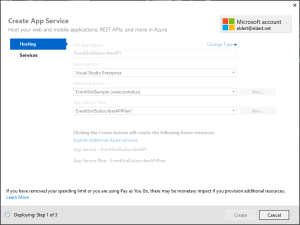
Publish API App
Once it has been deployed, we need to add the application settings for the API App in the portal.
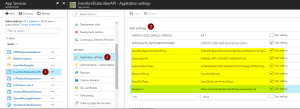
Add application settings
After the settings have been added, restart the API App. This will now start the creation of the subscriptions, which you should be able to see in the Event Grid blade after a minute or so.
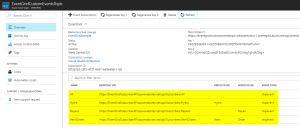
Event Grid Subscriptons have been created by the API App
Testing
Now that we have our events set up end to end, we can use the application from this blog post to start generating events. These will then be routed by Event Grid to the endpoints of our subscriptions, which trigger the API App’s different methods. And finally, they will be stored into the various tables in our table storage. The complete code with this blog post can be found here.
Events stored in Table Storage

by Eldert Grootenboer | Aug 23, 2017 | BizTalk Community Blogs via Syndication
In my previous post I showed how we can use the recently announced Event Grid service to integrate Azure services with each other. In this post, I will show how we can send custom events from any application or service into Event Grid, allowing us to integrate any service. My next post will show you in detail how we can subscribe to these custom events.
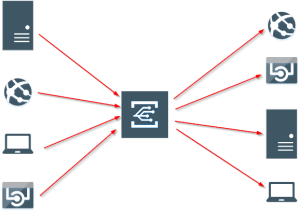
Integrate any service or application
We will start by creating a new Event Grid Topic in the portal. Go to the Event Grid Topics blade, add a new Topic, and provide the details.
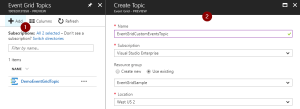
Create Event Grid Topic
We will now create an application, which will send custom events into our topic. By setting the subject and event type, we can later on subscribe to specific events. I used an application I have built for a shipping company as inspiration, which they use for their day to day work. In this sample, we build a console app, which will generate events when an order has been placed, as well as when a repair has been requested.
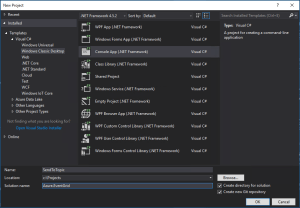
Create Console App
Data Classes
Once created, we will first add the classes which will represent the data of the orders and repairs. Both of these inherit from the ShipEvent class, which holds the common data.
/// <summary>
/// Event sent for a specific ship.
/// </summary>
public class ShipEvent
{
        /// <summary>
        /// Name of the ship.
        /// </summary>
        public string Ship { get; set; }

        /// <summary>
        /// Type of event.
        /// </summary>
        public string Type { get; set; }
}
|
/// <summary>
/// Used to place an order.
/// </summary>
public class Order : ShipEvent
{
        /// <summary>
        /// Name of the product.
        /// </summary>
        public string Product { get; set; }

        /// <summary>
        /// Number of items to be ordered.
        /// </summary>
        public int Amount { get; set; }

        /// <summary>
        /// Constructor.
        /// </summary>
        public Order()
        {
                Type = "Order";
        }
}
|
/// <summary>
/// Used to request a repair.
/// </summary>
public class Repair : ShipEvent
{
        /// <summary>
        /// Device which needs to be repaired.
        /// </summary>
        public string Device { get; set; }

        /// <summary>
        /// Description of the defect.
        /// </summary>
        public string Description { get; set; }

        /// <summary>
        /// Constructor.
        /// </summary>
        public Repair()
        {
                Type = "Repair";
        }
}
|
Custom Event Class
Now we will create our custom Event class, which follows the structure of the Event Grid events schema. In this sample, we will only send out shipevent types of events, but you could easily expand this with other event types as well. We use the UpdateProperties property to update the Subject, which will later on be used to filter our messages in our subscriptions. Here we also include our Data, which is our payload of the Order or Repair we are sending.
/// <summary>
/// Event to be sent to Event Grid Topic.
/// </summary>
public class Event
{
        /// <summary>
        /// This will be used to update the Subject and Data properties.
        /// </summary>
        public ShipEvent UpdateProperties
        {
                set
                {
                        Subject = $"{value.Ship}/{value.Type}";
                        Data = value;
                }
        }

        /// <summary>
        /// Gets the unique identifier for the event.
        /// </summary>
        public string Id { get; }

        /// <summary>
        /// Gets the publisher defined path to the event subject.
        /// </summary>
        public string Subject { get; set; }

        /// <summary>
        /// Gets the registered event type for this event source.
        /// </summary>
        public string EventType { get; }

        /// <summary>
        /// Gets the time the event is generated based on the provider's UTC time.
        /// </summary>
        public string EventTime { get; }

        /// <summary>
        /// Gets or sets the event data specific to the resource provider.
        /// </summary>
        public ShipEvent Data { get; set; }

        /// <summary>
        /// Constructor.
        /// </summary>
        public Event()
        {
                Id = Guid.NewGuid().ToString();
                EventType = "shipevent";
                EventTime = DateTime.UtcNow.ToString("o");
        }
}
|
Settings
In the Program class, add two properties. The first will hold the endpoint of the Event Grid Topic we just created, while the second will hold the key used to connect to the topic.
Grab the Topic endpoint and key
/// <summary>
/// Send events to an Event Grid Topic.
/// </summary>
public class Program
{
        /// <summary>
        /// Endpoint of the Event Grid Topic.
        /// Update this with your own endpoint from the Azure Portal.
        /// </summary>
        private const string TOPIC_ENDPOINT = "https://eventgridcustomeventstopic.westcentralus-1.eventgrid.azure.net/api/events";

        /// <summary>
        /// Key of the Event Grid Topic.
        /// Update this with your own key from the Azure Portal.
        /// </summary>
        private const string KEY = "1yroJHgswWDsc3ekc94UoO/nCdClNOwEuqV/HuzaaDM=";
}
|
Send To Event Grid
Next we will add the method to this class, which will be used to send our custom events to the Topic. At this moment, we don’t have a SDK available yet, but luckily Event Grid does expose a powerful API which we can leverage using a HttpClient. When using this API, we will need to send in a aeg-sas-key with the key we retrieved from the portal.
/// <summary>
/// Send events to Event Grid Topic.
/// </summary>
private static async Task SendEventsToTopic(object events)
{
        // Create a HTTP client which we will use to post to the Event Grid Topic
        var httpClient = new HttpClient();

        // Add key in the request headers
        httpClient.DefaultRequestHeaders.Add("aeg-sas-key", KEY);

        // Event grid expects event data as JSON
        var json = JsonConvert.SerializeObject(events);

        // Create request which will be sent to the topic
        var content = new StringContent(json, Encoding.UTF8, "application/json");

        // Send request
        Console.WriteLine("Sending event to Event Grid...");
        var result = await httpClient.PostAsync(TOPIC_ENDPOINT, content);

        // Show result
        Console.WriteLine($"Event sent with result: {result.ReasonPhrase}");
        Console.WriteLine();
}
|
Main Method
And finally we will implement the main method. In this method, the user specifies what they want to do, and provides the data for that action. We will then send this data to our Topic.
/// <summary>
/// Main method.
/// </summary>
public static void Main(string[] args)
{
        // Set default values
        var entry = string.Empty;

        // Loop until user exits
        while (entry != "e" && entry != "exit")
        {
                // Get entry from user
                Console.WriteLine("Do you want to send an (o)rder, request a (r)epair or (e)xit the application?");
                entry = Console.ReadLine()?.ToLowerInvariant();

                // Get name of the ship
                Console.WriteLine("What is the name of the ship?");
                var shipName = Console.ReadLine();

                // Order
                var events = new List<Event>();
                switch (entry)
                {
                        case "e":
                        case "exit":
                                continue;
                        case "o":
                        case "order":
                                // Get user input
                                Console.WriteLine("What would you like to order?");
                                var product = Console.ReadLine();
                                Console.WriteLine("How many would you like to order?");
                                var amount = Convert.ToInt32(Console.ReadLine());

                                // Create order event
                                // Event Grid expects a list of events, even when only one event is sent
                                events.Add(new Event { UpdateProperties = new Order { Ship = shipName, Product = product, Amount = amount } });
                                break;
                        case "r":
                        case "repair":
                                // Get user input
                                Console.WriteLine("Which device would you like to get repaired?");
                                var device = Console.ReadLine();
                                Console.WriteLine("Please provide a description of the issue.");
                                var description = Console.ReadLine();

                                // Create repair event
                                // Event Grid expects a list of events, even when only one event is sent
                                events.Add(new Event { UpdateProperties = new Repair { Ship = shipName, Device = device, Description = description } });
                                break;
                        default:
                                Console.Error.WriteLine("Invalid entry received.");
                                continue;
                }

                // Send to Event Grid Topic
                SendEventsToTopic(events).Wait();
        }
}
|
Testing
Now when we run our application, we can start sending in events to Event Grid, after which we can use subscriptions to pick them up. More on these subscriptions can be found in my previous post and next post. The complete code with this blog post can be found here.
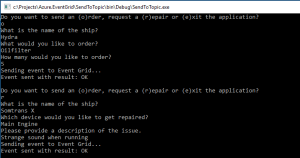
Send events from the application

 Last Saturday I had the great privilege of organising and hosting the 2nd annual Global Integration Bootcamp in Brisbane. This was a free event hosted by 15 communities around the globe, including four in Australia and one in New Zealand!
 Overall, feedback was good and most attendees were appreciative of what they learned. The slide decks for most of the presentations are available online and linked above, and the labs are available here if you would like to have a go.