by Sandro Pereira | Sep 15, 2017 | BizTalk Community Blogs via Syndication
The funniest part of having an intern working and learning from you, especially for a person like me that really love to write about “Errors and Warnings, Causes and Solutions”, is that they are able to make the funniest and unexpected questions, they will find things that because we are so accustomed to doing the job and to avoiding them, that we do not even realize anymore that they exist and they are there.
So yesterday, after a solution deployment, my intern was complaining that he was always receiving the following error while creating a receive port:
TITLE: BizTalk Server Administration
——————————
Concurrency Violation encountered while Updating the ReceivePort ‘rprtReceive’. The local, cached version of the BizTalk Server group configuration is out of date. You must refresh the BizTalk Server group configuration before making further changes. (Microsoft.BizTalk.ExplorerOM)
For help, click: http://go.microsoft.com/fwlink/?LinkId=47400&ProdName=Microsoft+BizTalk+Server+2016&ProdVer=3.12.774.0&EvtSrc=Microsoft.BizTalk.ExplorerOM.Resources&EvtID=IDS_ERR_OBJECT_CONCURRENCY
——————————
BUTTONS:
OK
—————————–
Cause
While open and navigating in the BizTalk Administration Console you will notice that the first request on expanding the navigation tree or open a BizTalk Server Application or Host Instance will take longer time that further interactions, this because in the first request the Administration Console will query your BizTalk databases for information and after that in cache the result.
So, unless you force a refresh it will use that cache information, nevertheless it will have some kind of mechanism (like a hash) to verify if the cache is updated will the current BizTalk Server Configuration on the database when you try to perform an operation like create or change a Receive Location.
Assuming that you deploy a new version or new artifact to a BizTalk Application, you need to refresh that Application before you perform any kind of operations, otherwise, you will receive this or similar errors.
The reason for this error to happen was that my intern already had the BizTalk Administration Console running and he was already focused (selected) the Application in concern before he went and deploy a new version of the solution from Visual Studio. After he deploy
SOLUTION
This is, in fact, a simple problem to solve:
- Concurrency Violation encountered while Updating the ReceivePort – Option 1:
- Close the BizTalk Administration Console and open again (stupid and simple)
- Concurrency Violation encountered while Updating the ReceivePort – Option 2:
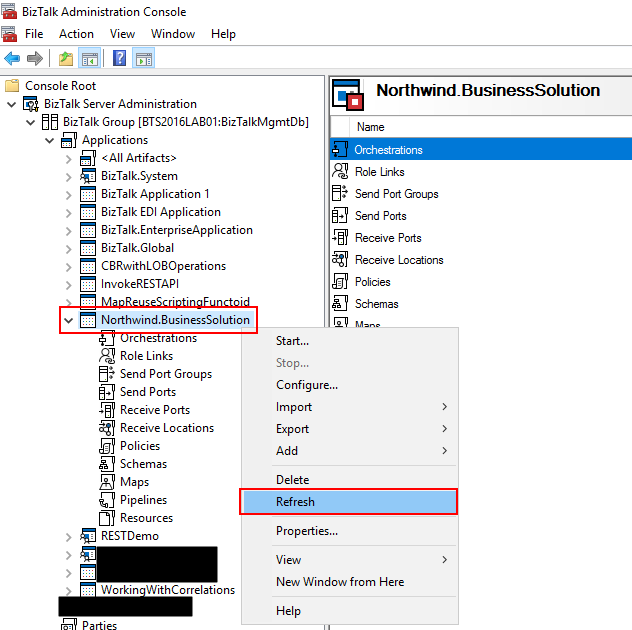
- Right-click on the BizTalk Application you want to refresh, and then select the “Refresh” option
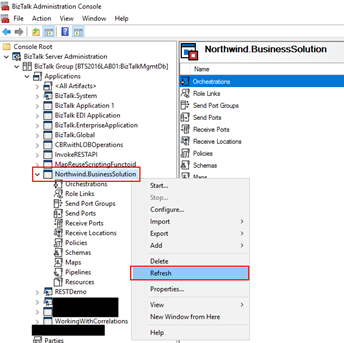
- Concurrency Violation encountered while Updating the ReceivePort – Option 3:
- Select the resource inside your BizTalk Application you want to refresh, for example, “Receive Locations” and press F5
There are several alternatives. The important is to refresh the BizTalk Administration Console if something had changed in your BizTalk Server environment.
Author: Sandro Pereira
Sandro Pereira lives in Portugal and works as a consultant at DevScope. In the past years, he has been working on implementing Integration scenarios both on-premises and cloud for various clients, each with different scenarios from a technical point of view, size, and criticality, using Microsoft Azure, Microsoft BizTalk Server and different technologies like AS2, EDI, RosettaNet, SAP, TIBCO etc. He is a regular blogger, international speaker, and technical reviewer of several BizTalk books all focused on Integration. He is also the author of the book “BizTalk Mapping Patterns & Best Practices”. He has been awarded MVP since 2011 for his contributions to the integration community. View all posts by Sandro Pereira
by Sandro Pereira | Sep 14, 2017 | BizTalk Community Blogs via Syndication
BizTalk Server Administration Console cannot connect to WMI provider? The things I found from playing around with all kind of different environments from different clients and my personal ones (Hehe)… and I thought that I had already found all type of real or imaginary BizTalk errors, but once again I BizTalk Server prove me that I was wrong, this issue was new for me – who says that my BizTalk Consultant life is boring? (hehe).
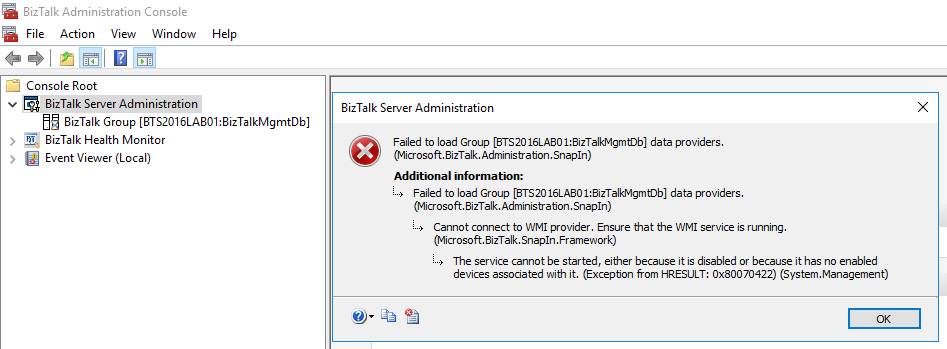
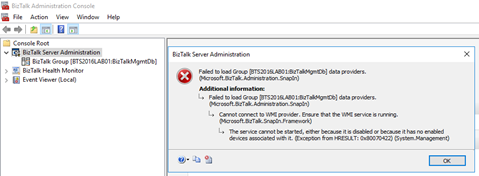
Joking apart, I got the following error while trying to navigate in the BizTalk Server Administration Console in one of my personal environments:
TITLE: BizTalk Server Administration
——————————
Failed to load Group [BTS2016LAB01:BizTalkMgmtDb] data providers. (Microsoft.BizTalk.Administration.SnapIn)
For help, click: http://go.microsoft.com/fwlink/?LinkId=47400&ProdName=Microsoft+BizTalk+Server+2016&ProdVer=3.12.774.0&EvtSrc=Microsoft.BizTalk.Administration.SnapIn.Properties.Errors&EvtID=FailedLoadingGroupProviders&EvtChain=Microsoft.BizTalk.Administration.SnapIn.Properties.Errors+%2cFailedLoadingGroupProviders%3bMicrosoft.BizTalk.SnapIn.Framework.Properties.ErrorMessages+%2cConnectToWMIProviderFailed
——————————
ADDITIONAL INFORMATION:
Failed to load Group [BTS2016LAB01:BizTalkMgmtDb] data providers. (Microsoft.BizTalk.Administration.SnapIn)
For help, click: http://go.microsoft.com/fwlink/?LinkId=47400&ProdName=Microsoft+BizTalk+Server+2016&ProdVer=3.12.774.0&EvtSrc=Microsoft.BizTalk.Administration.SnapIn.Properties.Errors&EvtID=FailedLoadingGroupProviders&EvtChain=Microsoft.BizTalk.SnapIn.Framework.Properties.ErrorMessages+%2cConnectToWMIProviderFailed
——————————
Cannot connect to WMI provider. Ensure that the WMI service is running. (Microsoft.BizTalk.SnapIn.Framework)
For help, click: http://go.microsoft.com/fwlink/?LinkId=47400&ProdName=Microsoft+BizTalk+Server+2016&ProdVer=3.12.774.0&EvtSrc=Microsoft.BizTalk.SnapIn.Framework.Properties.ErrorMessages&EvtID=ConnectToWMIProviderFailed
——————————
The service cannot be started, either because it is disabled or because it has no enabled devices associated with it. (Exception from HRESULT: 0x80070422) (System.Management)
——————————
BUTTONS:
OK
—————————–
Cause
The reason for the BizTalk Server Administration Console cannot connect to WMI provider is because the BTS Administration Console relies on Windows Management Instrumentation (WMI) service, more specifically, the BizTalk WMI Provider (BTSWMIProvider.dll) to perform all type of different queries into BizTalk Environment (or BizTalk databases)
And for that reason, Windows Management Instrumentation (Winmgmt) service need to be enabled and running on the server in which you are running the BizTalk Server Administration Console.
In my case, the problem was that while I was investigating the unnecessary services that I could disable to optimize BizTalk Server performance, I disable this important service.
Solution
As I mentioned above, the solution to this problem is to Enable and Start the Winmgmt service, you can accomplish that by:
- If the service is Disabled:
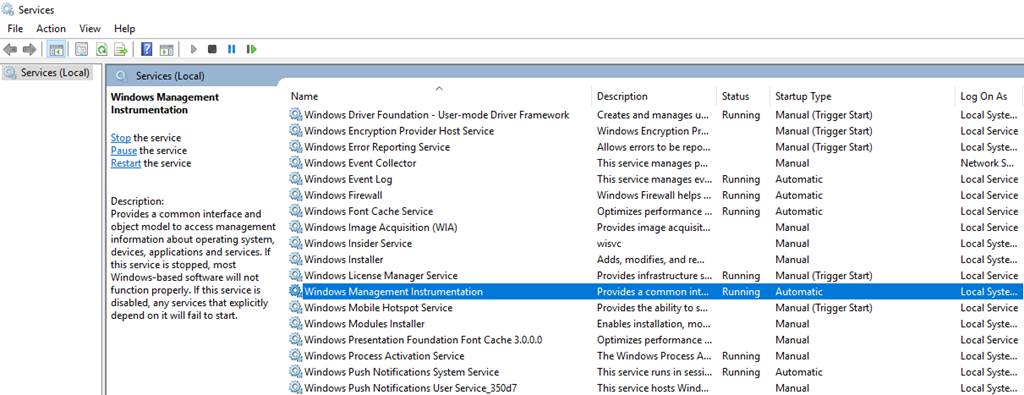
- Press the “Windows key” to open the Start menu, type “Services” and click on “View local services” option from the Search window.
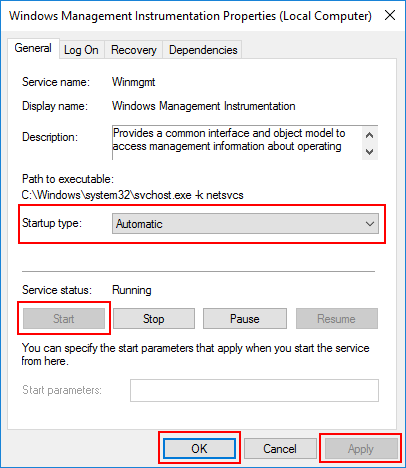
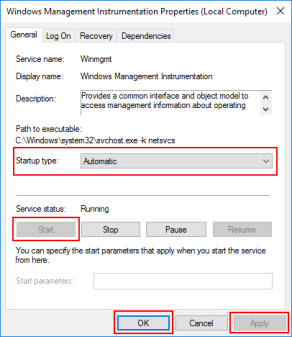
- In the Services window, on the Services (Local) panel select the Windows Management Instrumentation service, right click and select “Properties” option.
- On the Windows Management Instrumentation Properties (Local Computer) window:
- On the General tab apply the following configuration.
- Startup type: “Automatic”
- And then click “Start” and “Apply”.
- If the service is Enable, you can simply:
- Open a command prompt as administrator by pressing the “Windows key” to open the Start menu and type “cmd” in the Start Search box, right-click in “Command Prompt” and select from the context menu the “Run as administrator” option
- And type the following command: net stat winmgmt
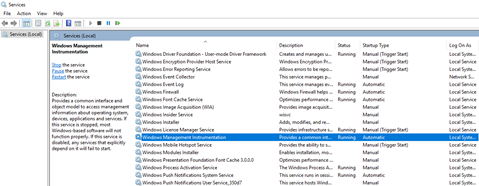
Once the Winmgmt service is running you will be able to use the BizTalk Server Administration Console without this error/problem happening.
Author: Sandro Pereira
Sandro Pereira lives in Portugal and works as a consultant at DevScope. In the past years, he has been working on implementing Integration scenarios both on-premises and cloud for various clients, each with different scenarios from a technical point of view, size, and criticality, using Microsoft Azure, Microsoft BizTalk Server and different technologies like AS2, EDI, RosettaNet, SAP, TIBCO etc. He is a regular blogger, international speaker, and technical reviewer of several BizTalk books all focused on Integration. He is also the author of the book “BizTalk Mapping Patterns & Best Practices”. He has been awarded MVP since 2011 for his contributions to the integration community. View all posts by Sandro Pereira
by Sandro Pereira | Sep 13, 2017 | BizTalk Community Blogs via Syndication
This strange error does not occur often, perhaps from time to time, or in different environments, but in reality, I already had the “privilege” of encountering it more than once while I was trying to open the SQL Server Management Studio (SSMS):
The Visual Studio component cache is out of date. Please restart Visual Studio.
Not really a BizTalk Server problem but you now that behind the curtains, BizTalk Server relies on SQL Server 
Cause
The cause of this problem is unclear, and I wish I could have a better explanation to provide and in fact, there is an issue active opened in MSFT about this (see here).
I just assume that something may have happened, maybe an update or something similar, that left something in a corrupt or incorrect state… but despite that, the resolution to this problem is quite simple.
Solution
As I said above, the resolution to this problem is quite simple and you may have several approaches to accomplish that. One of them is to manually remove all the temporary files from the Windows operating system by:
- Exit all programs and then hold down the WINDOWS key and then type R to open the “Run” windows.
- In the “Run” window, type “%TMP%” and then click “OK”
- This will open the TEMP directory that normally is: C:Users<your_user_name>AppDataLocalTemp
- Select and delete all the content of the TEMP folder
This approach always solved my problem.
But you can also try a different approach to do the same operations like:
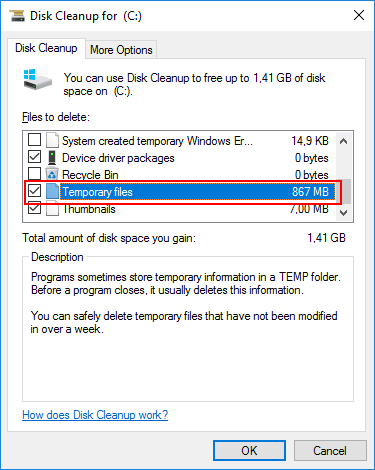
- Open the Disk Cleanup utility.
- Make sure that you select the “Temporary files” option and then click on “OK”.
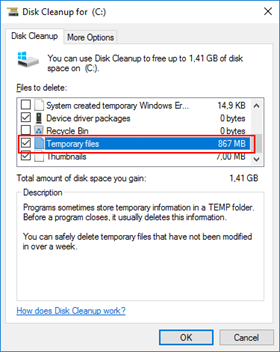
- When prompted up, select “Delete Files”
Again, if you now try to open Microsoft SQL Server Management Studio this The Visual Studio component cache is out of date. Please restart Visual Studio solution error message will have disappeared.
Author: Sandro Pereira
Sandro Pereira lives in Portugal and works as a consultant at DevScope. In the past years, he has been working on implementing Integration scenarios both on-premises and cloud for various clients, each with different scenarios from a technical point of view, size, and criticality, using Microsoft Azure, Microsoft BizTalk Server and different technologies like AS2, EDI, RosettaNet, SAP, TIBCO etc. He is a regular blogger, international speaker, and technical reviewer of several BizTalk books all focused on Integration. He is also the author of the book “BizTalk Mapping Patterns & Best Practices”. He has been awarded MVP since 2011 for his contributions to the integration community. View all posts by Sandro Pereira
by Sandro Pereira | Sep 8, 2017 | BizTalk Community Blogs via Syndication
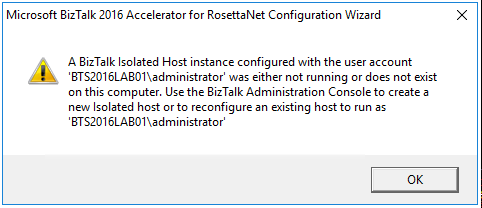
While trying to document, or better update my RosettaNet installation and configuration guide, I got a very strange (but by now I should know that nothing is strange with BizTalk and RosettaNet) while executing Microsoft BizTalk 2016 Accelerator for RosettaNet Configuration Wizard:
A BizTalk Isolated Host instance configured with the user account ‘DOMAINadministrator’ was either not running or does not exist on this computer. Use the BizTalk Administration Console to create a new Isolated host or to reconfigure an existing host to run as ‘DOMAINadministrator.
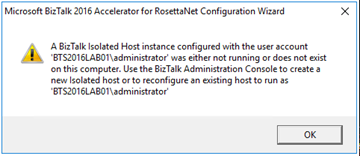
This error occurred just after I try to open the BTARN configuration wizard! (first thing that appears)
I well aware that when you are planning to install and configure Microsoft BizTalk 2016 Accelerator for RosettaNet (BTARN), you need to be very careful with a certain configuration like this one:
- The BizTalk Host Instance Account and the BizTalk Isolated Host Instance Account should be the same account. Otherwise, BTARN does not function correctly.
Or that:
- BTARN requires the IIS_WPG group (group provided by IIS 6.0 that provides the minimum set of user rights and permissions required to run an application).
- BTARN requires both in-process and isolated host to be marked as “Authentication Trusted” (this setting is off by default when you create a new host)
Notice that this last one is just for everything to work well but it doesn’t impact the configuration itself.
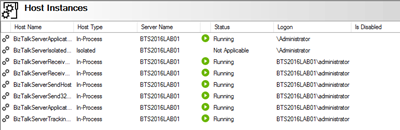
And in fact, all my host instances have the same account and all of them was running.
Cause
BTARN installation process it’s quite old fashioned and weird is some points, the true it that Microsoft just invest a little to modernize it, and change some behaviors and requirements which are no longer justified, a good example is the IIS_WPG group requirement, this group doesn’t exist anymore, so you need to create it manually. Otherwise, BTARN installation fails.
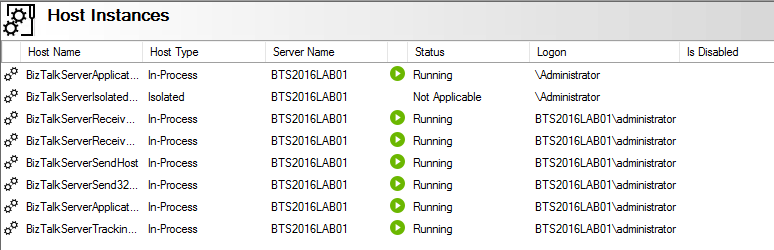
In this case, the problem, as you can see in the figure above, is that I have two types of logon formats:
- The 2 default host instances, created by the BizTalk installation wizard, are defined as “username” – without the domain or in this case the machine name (this is a standalone environment)
- And others are set up in the format “DOMAINUsername”.
Well, regarding BTARN, if you want to avoid problems during the installation/configuration process or future problems in the runtime you should:
- Never use Full Qualify domain name in the Logon credentials. Otherwise, BTARN does not work correctly.
- To avoid BTARN problems use the down-level logon name format (DOMAINUsername).
Solution
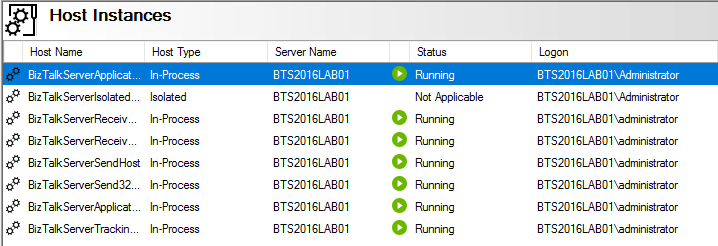
To solve this issue the solution was quite simples, I just need to configure the logon to all my host instance in the down-level logon name format (DOMAINUsername).
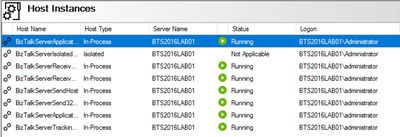
After that, I was able to execute the BTARN configuration wizard without any further issues and especially no more user account was either not running or does not exist on this computer.
Author: Sandro Pereira
Sandro Pereira lives in Portugal and works as a consultant at DevScope. In the past years, he has been working on implementing Integration scenarios both on-premises and cloud for various clients, each with different scenarios from a technical point of view, size, and criticality, using Microsoft Azure, Microsoft BizTalk Server and different technologies like AS2, EDI, RosettaNet, SAP, TIBCO etc. He is a regular blogger, international speaker, and technical reviewer of several BizTalk books all focused on Integration. He is also the author of the book “BizTalk Mapping Patterns & Best Practices”. He has been awarded MVP since 2011 for his contributions to the integration community. View all posts by Sandro Pereira
by Sandro Pereira | Sep 7, 2017 | BizTalk Community Blogs via Syndication
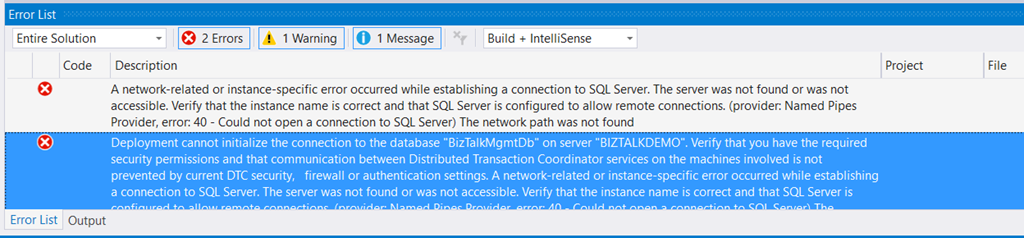
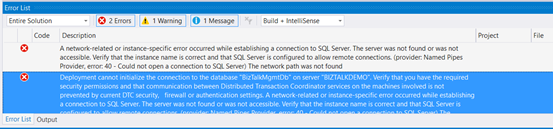
Typical basic error for beginners that also occur sometimes even with experienced BizTalk developers… While trying to deploy a BizTalk Server solution directly from Visual Studio 2017 I got the following errors messages:
| Severity |
Code |
Description |
Project |
File |
Line |
Suppression State |
| Error |
|
A network-related or instance-specific error occurred while establishing a connection to SQL Server. The server was not found or was not accessible. Verify that the instance name is correct and that SQL Server is configured to allow remote connections. (provider: Named Pipes Provider, error: 40 – Could not open a connection to SQL Server) The network path was not found |
|
|
0 |
|
| Severity |
Code |
Description |
Project |
File |
Line |
Suppression State |
| Error |
|
Deployment cannot initialize the connection to the database “BizTalkMgmtDb” on server “BIZTALKDEMO”. Verify that you have the required security permissions and that communication between Distributed Transaction Coordinator services on the machines involved is not prevented by current DTC security, firewall or authentication settings. A network-related or instance-specific error occurred while establishing a connection to SQL Server. The server was not found or was not accessible. Verify that the instance name is correct and that SQL Server is configured to allow remote connections. (provider: Named Pipes Provider, error: 40 – Could not open a connection to SQL Server) The network path was not found |
|
|
0 |
|
Cause
This error may occur for several reasons, like BizTalk Server cannot communicate with SQL Server machine because some firewall restrictions or SQL Server does not accept Remote Connections or that SQL Server Network Protocols are not properly configured – I wrote a few days ago a blog post about that: WCF-SQL Adapter: Connecting to the LOB system has failed. A network-related or instance-specific error occurred while establishing a connection to SQL Server– and so on.
However, in the cause of this problem is quite different, the first error doesn’t tell us to much about the main cause of the problem but the second one:
Deployment cannot initialize the connection to the database “BizTalkMgmtDb” on server “BIZTALKDEMO”…
Gives you a good clue about the problem.
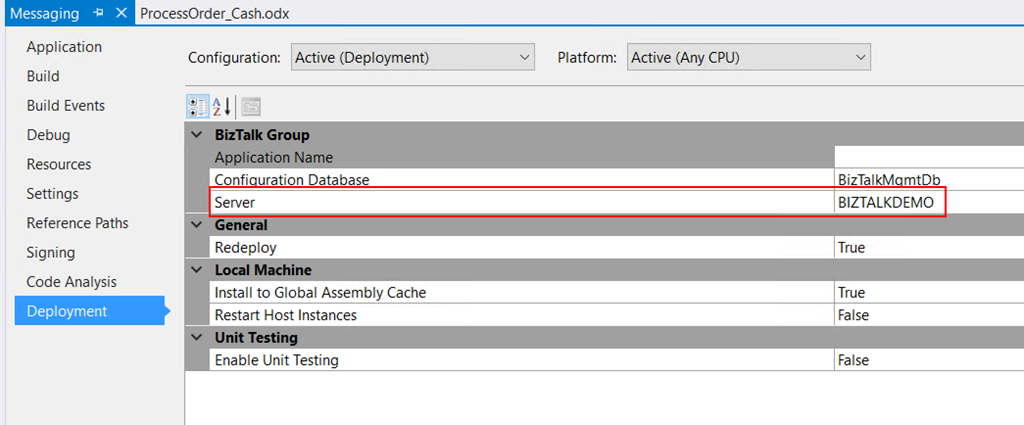
In fact, I was migrating an existing BizTalk Server solution to a new server and I forgot to update the Visual Studio deployment properties and the Server was pointing an incorrect to an incorrect an inaccessible SQL Server.
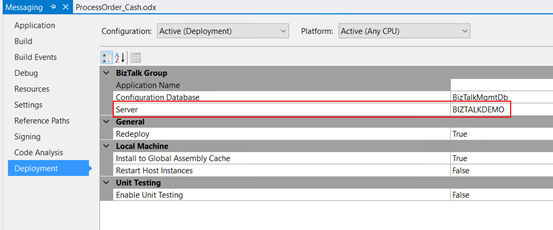
Solution
Again, this is a typical a beginner error and quite easy to fix, so to solve the problem you just need to properly configure the BizTalk Server deployment properties in all your Visual Studio projects inside your solution by:
- In Visual Studio Solution Explorer, right-click a project for which you want to configure properties, and then click “Properties”.
- Click the “Deployment” tab in Project Properties Designer.
- And make sure you properly configure the following properties:
- Application Name: Name of the BizTalk application to which to deploy the assemblies in this project. If the application already exists, the assemblies will be added to it when you deploy the project. If the application does not exist, the application will be created. If this field is blank, the assemblies will be deployed to the default BizTalk application in the current group. Names that include spaces must be enclosed by double quotation marks (“).
- Configuration Database: Name of the BizTalk Management database for the group, “BizTalkMgmtDb” by default.
- Server: Name of the SQL Server instance that hosts the BizTalk Management database on the local computer. In a single-computer installation, this is usually the name of the local computer. Note: If you move this BizTalk project to a different computer, you probably will need to modify the Server property to reflect the new computer name before you will be able to deploy the assembly.
Note: there are other properties but these three (3) are the most important ones (see the full list of properties here: How to Set Deployment Properties in Visual Studio)
- Save the file and then redeploy the BizTalk Server solution (or project).
Author: Sandro Pereira
Sandro Pereira lives in Portugal and works as a consultant at DevScope. In the past years, he has been working on implementing Integration scenarios both on-premises and cloud for various clients, each with different scenarios from a technical point of view, size, and criticality, using Microsoft Azure, Microsoft BizTalk Server and different technologies like AS2, EDI, RosettaNet, SAP, TIBCO etc. He is a regular blogger, international speaker, and technical reviewer of several BizTalk books all focused on Integration. He is also the author of the book “BizTalk Mapping Patterns & Best Practices”. He has been awarded MVP since 2011 for his contributions to the integration community. View all posts by Sandro Pereira
by Sandro Pereira | Aug 27, 2017 | BizTalk Community Blogs via Syndication
I been delivering a lot of BizTalk Server Training Courses for Developers and for Administrator in the past years that I normally like to call them “Developing BizTalk Server version Course” or “BizTalk Server Operations, Administration, and Maintenance (OAM) course” – yes I know, I am very creative in terms of names – and one of the good things about using Azure Virtual Machines for that is that we can easily create several developer machines in a short period of time and manage them for not consuming resources. And normally on of the task that is present in both courses is to configure BizTalk Server environment, because I believe that all BizTalk Developers should know the basics of BizTalk Server in terms of installation, configuration and optimizations – tasks that are normally done by BizTalk Administrations – I can go further and say that, in my personal opinion, if you don’t know these basic concepts you are not truly a BizTalk Developer because many things can be done by configurations and not code.
One of these tasks is to install and configure BizTalk Server LOB adapters, in especially SQL Server adapter, since in a Developer standalone machine we will need to have SQL Server, so it is easy to test this LOB Adapter. However, if we create the Azure BizTalk Server 2016 Developer machine, configure BizTalk Server and then install and configure LOB adapters without doing anything more and you try to create a BizTalk Server solution using Visual Studio and generate SQL Server schemas:
- In the Solution Explorer, right-click your project, click “Add”, and then click “Add Generated Items…”
- In the “Add Generated Items – <Project Name>” dialog box, select “Consume Add Service”, and then click “Add”.
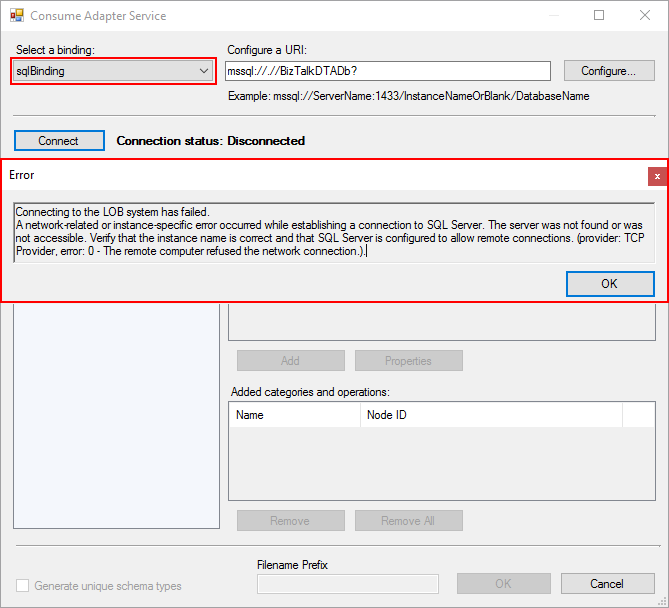
- Select the sqlBinding and properly configuring the URI
We will get the following error message:
Connecting to the LOB system has failed.
A network-related or instance-specific error occurred while establishing a connection to SQL Server. The server was not found or was not accessible. Verify that the instance name is correct and that SQL Server is configured to allow remote connections. (provider: TCP Provider, error: 0 – The remote computer refused the network connection.).
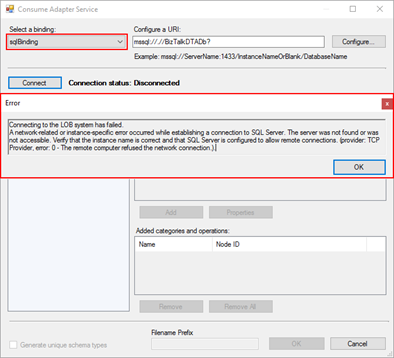
when we try to connect to the SQL Server configured.
Cause
This error may occur for several reasons like BizTalk Server cannot communicate with SQL Server machine because some firewall restrictions or SQL Server does not accept Remote Connections and so on.
However, in our case, we are talking about a standalone BizTalk machine that is trying to access a database in the local SQL Server.
Our problem was that by default what Microsoft could possibly configure wrong in terms of SQL Server protocols on the BizTalk Server developer image on Azure… is actually set up wrongly!
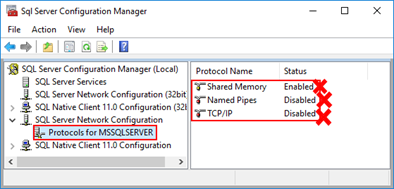
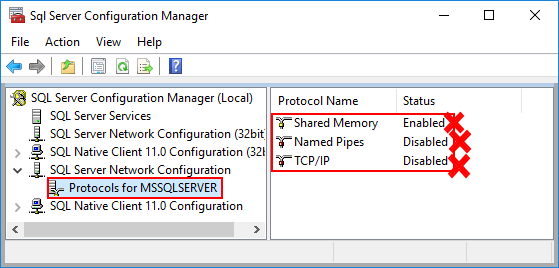
And as I described in my BizTalk Server Installation and configuration tutorial (see here), one of the important steps is to configure SQL Server Network Protocols, in special ensuring that TCP/IP is enabled and Shared Memory is disabled. You can see how to accomplish this using SQL Server Configuration Manager tool here.
The actual problem that was causing the connecting to fail while trying to connect to the LOB system, in this particular case the SQL Server is because the TCP/IP protocol is disabled.
Solution
To properly configure the protocols for SQL Server, especially the TCP/IP protocol, you should:
- Press the “Windows key” to switch to Metro UI and type “SQL Server 20016 Configuration Manager” and click on “SQL Server 2016 Configuration Manager” option on Apps menu.
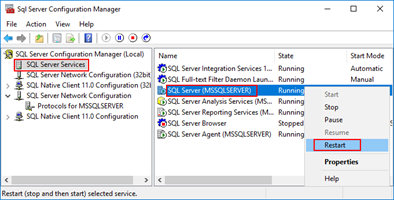
- In SQL Server Configuration Manager windows, from the left-hand pane expand “SQL Server Network Configuration” option and then click “Protocols for MSSQLSERVER”
- Verify that both “TCP/IP” and “Named Pipes” are enabled;
- If not, right-click in the protocol, and then click “Enable”
- Repeat to enable the other protocol if necessary.
- Verify that “Shared Memory” is Disable.
- If not, right-click Shared Memory, and then click “Disable”
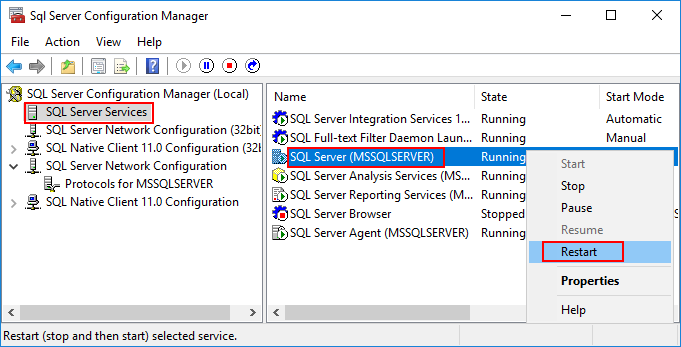
- In the left-hand pane, click “SQL Server Services”, right-click “SQL Server (MSSQLSERVER)”, and then click “Restart”.
- Close SQL Server Configuration Manager.
- Click “OK” and then “Apply”
After correctly configure the SQL Server protocols, again, especially the TCP/IP, you will be able to successfully connect and generate the SQL Server Schemas that you need for your BizTalk Server Solution.
Author: Sandro Pereira
Sandro Pereira lives in Portugal and works as a consultant at DevScope. In the past years, he has been working on implementing Integration scenarios both on-premises and cloud for various clients, each with different scenarios from a technical point of view, size, and criticality, using Microsoft Azure, Microsoft BizTalk Server and different technologies like AS2, EDI, RosettaNet, SAP, TIBCO etc. He is a regular blogger, international speaker, and technical reviewer of several BizTalk books all focused on Integration. He is also the author of the book “BizTalk Mapping Patterns & Best Practices”. He has been awarded MVP since 2011 for his contributions to the integration community. View all posts by Sandro Pereira
by Sandro Pereira | Aug 25, 2017 | BizTalk Community Blogs via Syndication
This week I received a call of one of my customers reporting me a strange issue. Strange because everything was running fine and suddenly, for no apparent reason, each time someone tried to invoke or browse WCF Services exposed by BizTalk Server the IIS Application pool configured for that services automatically stopped.
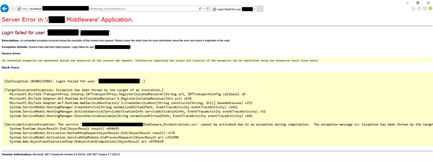
If we tried to browse the services we got the following error message:
Login failed for user ‘Domain/user’
Exception Details: System.SqlClient.SqlException: Login failed for user ‘domain/user’
Of course, with that type of error description, the first step we did was to reenter the credentials for that user in the application pool but… the same problem persisted.
When we investigated the event viewer for additional error details we found in the Security log the following message:
Log Name: Security
Source: Microsoft-Windows-Security-Auditing
Date: {date}
Event ID: 4625
Task Category: Logon
Level: Information
Keywords: Audit Failure
User: N/A
Computer: {machine name}
Description:
An account failed to log on.
Subject:
Security ID: SYSTEM
Account Name: {account name}
Account Domain: {domain name}
Logon ID: 0x3E7
Logon Type: 4
Account For Which Logon Failed:
Security ID: NULL SID
Account Name: {account name}
Account Domain: {domain name}
Failure Information:
Failure Reason: The user has not been granted the requested logon type at this machine.
Status: 0xC000015B
Sub Status: 0x0
Cause
So, at this point, we knew that this was a security policies problem and we suspect that some automatic process created by sysadmins where changings something in the Local Security Settings on the BizTalk Server machine.
After some research, we found out that the user account that is running the Application Pool – in which the BizTalk WCF Services are exposed – requires having “Log on as batch job” rights
Note: By definition, this security setting (Log on as a batch job), allows a user to be logged on by means of a batch-queue facility and is provided only for compatibility with older versions of Windows. For example, when a user submits a job by means of the task scheduler, the task scheduler logs that user on as a batch user rather than as an interactive user.
Solution
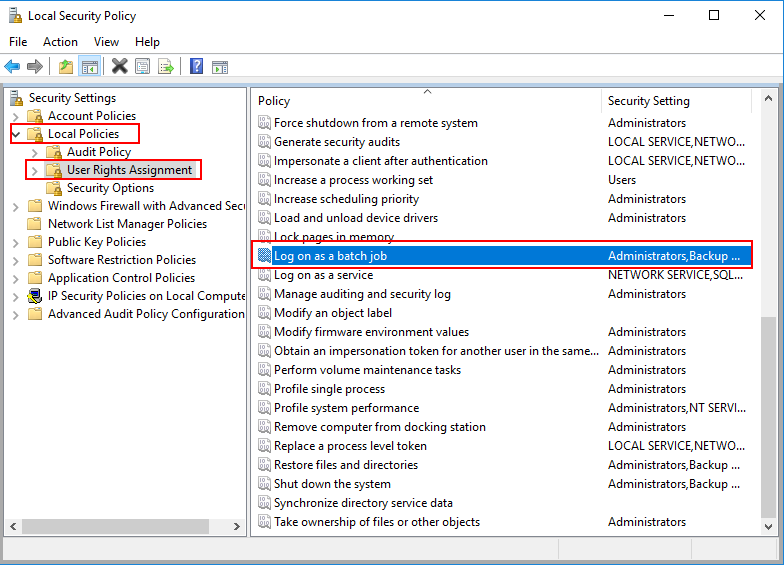
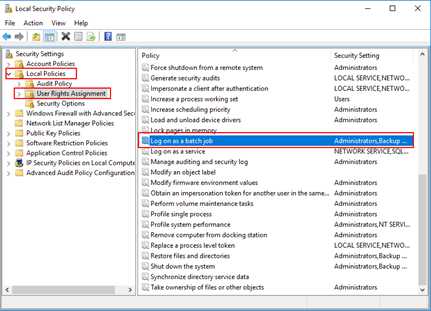
To add user rights in the “Log on as batch job” policy, you need to:
- Press the “Windows key” to open the Start menu.
- Type “secpol.msc” and click on “Local Security Policy” option from the Search window.
- On the left pane, select “Local Policies” and the “User Rights Assignment”
- Right click on “Log on as batch job” and click Properties
- Click “Add User or Group…” and add the desired user
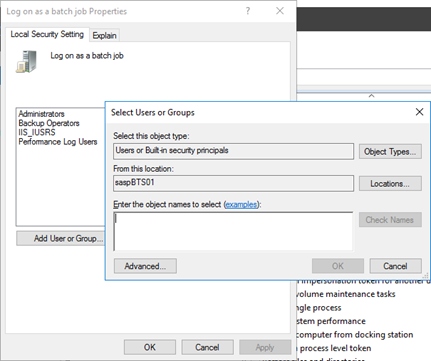
- Click “OK” and then “Apply”
Note: Of course, for you to do the above steps, you need to have administrator rights on the computer or be part of specific domain groups in case of Security Settings policies are governed by some AD domain groups.
Note: this problem can also occur and the same solution can be applied to SharePoint.
Author: Sandro Pereira
Sandro Pereira lives in Portugal and works as a consultant at DevScope. In the past years, he has been working on implementing Integration scenarios both on-premises and cloud for various clients, each with different scenarios from a technical point of view, size, and criticality, using Microsoft Azure, Microsoft BizTalk Server and different technologies like AS2, EDI, RosettaNet, SAP, TIBCO etc. He is a regular blogger, international speaker, and technical reviewer of several BizTalk books all focused on Integration. He is also the author of the book “BizTalk Mapping Patterns & Best Practices”. He has been awarded MVP since 2011 for his contributions to the integration community. View all posts by Sandro Pereira
by Sandro Pereira | Aug 17, 2017 | BizTalk Community Blogs via Syndication
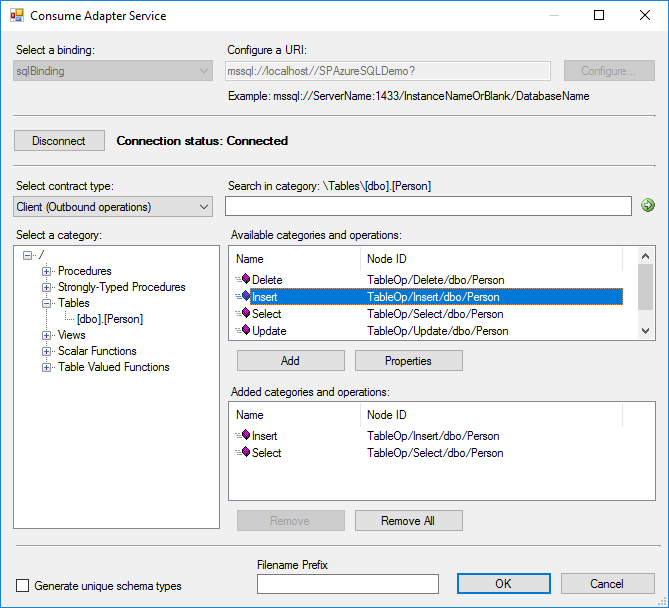
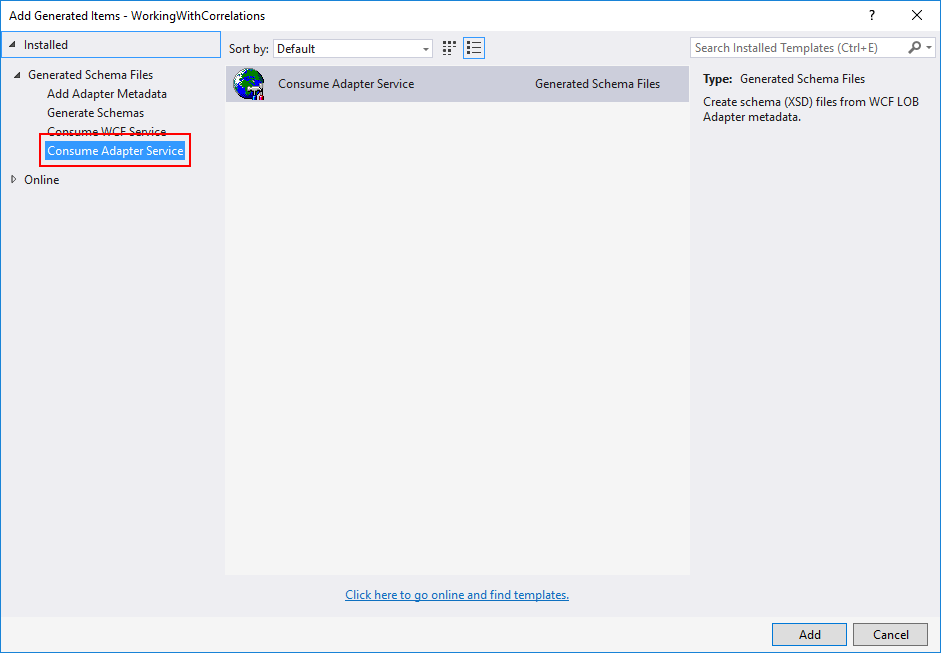
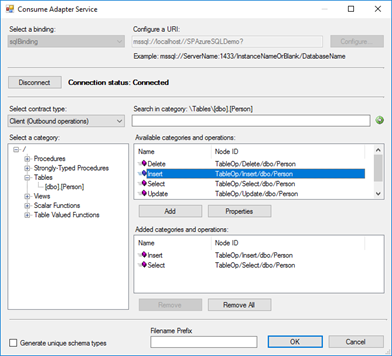
The Consume Adapter Service option from “Add Generated Items…” inside Visual Studio is metadata generation tool (or add-in), included in WCF LOB Adapter SDK, that can be used with BizTalk Projects to allow BizTalk developers to search or browse metadata from LOB adapters and then generate XML Schemas for selected operations inside Visual Studio.
This is a simple sample of the Consume Adapter Service tool to generate XML Schemas for SQL Server operations:
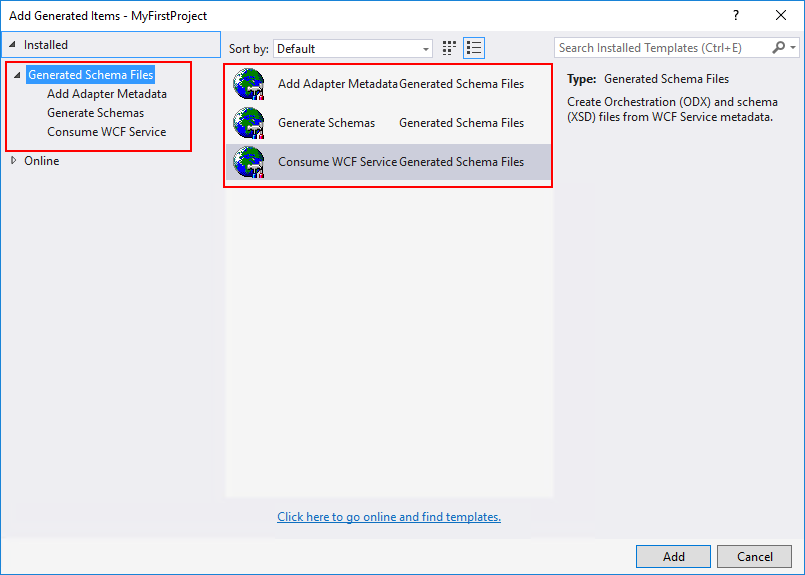
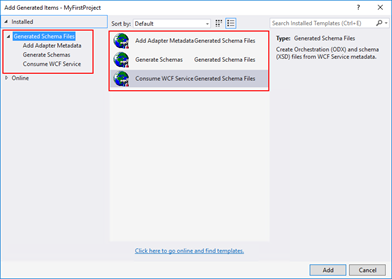
However, recently while I was working in a client development environment with the LOB adapters installed and configured in the environment I notice that the Consume Adapter Service option was missing from “Add Generated Items…” window in Visual Studio
Cause
In our case, indeed we had the LOB adapters installed and configured in the environment, however, we only had the runtime of the WCF LOB Adapter SDK installed, in other words, we didn’t have the WCF LOB Adapter SDK fully installed.
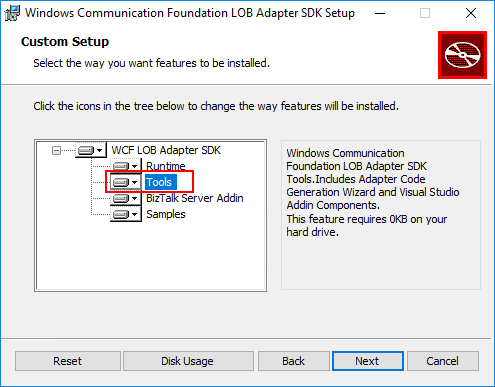
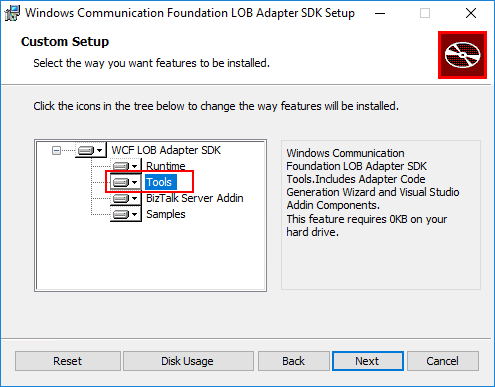
The Consume Adapter Service tool will only be available in your Visual Studio if you install the Tools options from the WCF LOB Adapter SDK. This option will include the Adapter Code Generation Wizard and Visual Studio Addin Components.
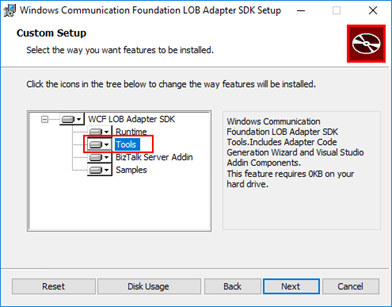
Note: Personally, I recommend that you perform a full installation (all components) of the WCF LOB Adapter SDK on BizTalk Server Development environments.
Solution
The solution it is easy for this particular case, you just need to install the WCF LOB Adapter SDK Tools.
To install the WCF LOB Adapter SDK Tools you need:
- Close any programs you have open. Run the BizTalk Server <version> installer as Administrator.
- On the Start page, click “Install Microsoft BizTalk Adapters”
- In the BizTalk Adapter Pack Start page, select the first step “Step 1. Install Microsoft WCF LOB Adapter SDK”. An installer of SDK is launched.
- On the “Welcome to the Windows Communication Foundation LOB adapter SDK Setup Wizard” page, click “Next”
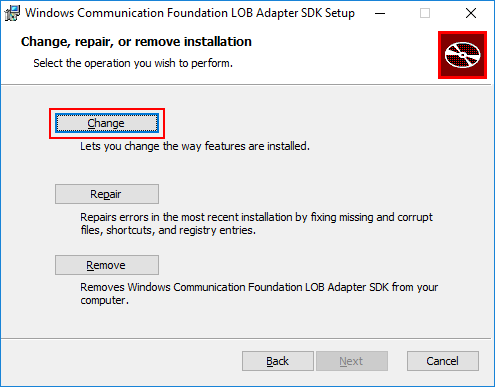
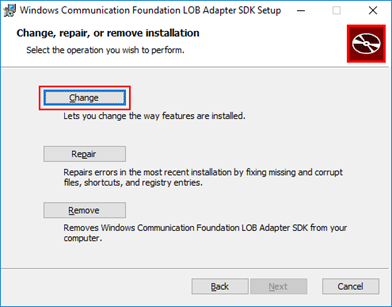
- On the “Change, repair, or remove installation” page, select the “Change” option
-
- On the “Custom Setup” page, make sure that you select the option “Tools” to be installed and click “Next”
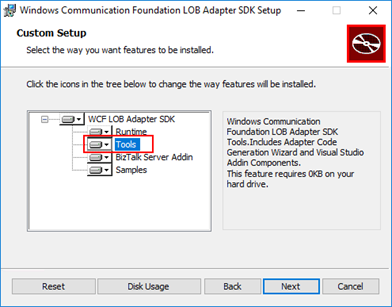
Note: Again, I personally recommend that you perform a full installation (all components) of the WCF LOB Adapter SDK on BizTalk Server Development environments.
-
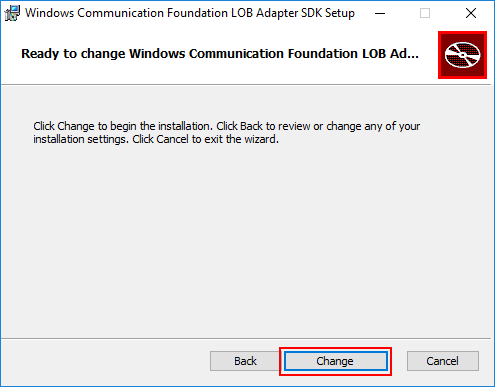
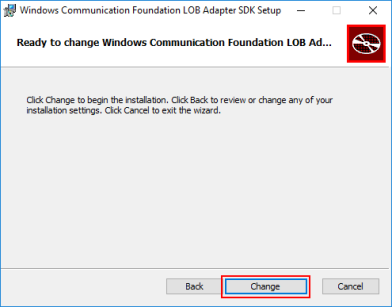
- On the “Ready to change Windows Communication Foundation LOB Adapter SDK Setup” page, click “Change” to begin the installation
After the installation is finished, if you open your BizTalk project solution once again in Visual Studio, you will see that the Consume Adapter Service option will now be available in the “Add Generate Items” window:
- In Visual Studio, in the Project pane, right-click your BizTalk Server project, and then choose Add | Add Generated Items… | Consume Adapter Service.
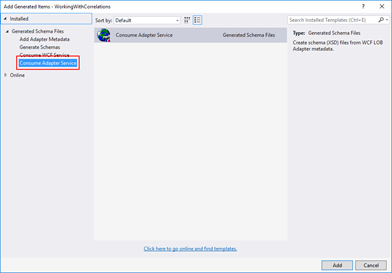
This problem can happen and the solution is the same for all BizTalk Versions (that contains LOB Adapters).
Author: Sandro Pereira
Sandro Pereira lives in Portugal and works as a consultant at DevScope. In the past years, he has been working on implementing Integration scenarios both on-premises and cloud for various clients, each with different scenarios from a technical point of view, size, and criticality, using Microsoft Azure, Microsoft BizTalk Server and different technologies like AS2, EDI, RosettaNet, SAP, TIBCO etc. He is a regular blogger, international speaker, and technical reviewer of several BizTalk books all focused on Integration. He is also the author of the book “BizTalk Mapping Patterns & Best Practices”. He has been awarded MVP since 2011 for his contributions to the integration community. View all posts by Sandro Pereira

by Sandro Pereira | Jul 25, 2017 | BizTalk Community Blogs via Syndication
Nice way to start the day: “SQL Server detected a logical consistency-based I/O error’s“… For some reason, maybe due to sudden computer shutdown/crash or a forced shutdown, one of my client BizTalk DEV virtual machines presented strange behaviors this morning. The Host Instances were always restarting for no apparent reason. When I started to diagnose the problem, and inspect the machine Event Viewer I found the following error:
SQL Server detected a logical consistency-based I/O error: incorrect pageid (expected 1:1848; actual 0:0). It occurred during a read of page (1:1848) in database ID 10 at offset 0x00000000e70000 in file ‘C:Program FilesMicrosoft SQL ServerMSSQL13.MSSQLSERVERMSSQLDATABizTalkMsgBoxDb.mdf’. Additional messages in the SQL Server error log or system event log may provide more detail. This is a severe error condition that threatens database integrity and must be corrected immediately. Complete a full database consistency check (DBCC CHECKDB). This error can be caused by many factors; for more information, see SQL Server Books Online.
These type of error is usually related to the IO/Hardware issues and as the error mention you should check and run the DBCC CHECKDB in SQL Server:
DBCC CHECKDB (BizTalkMsgBoxDb) WITH NO_INFOMSGS, ALL_ERRORMSGS
When I execute the above command, I got more detail of the problems that were happening:
Msg 8909, Level 16, State 1, Line 1
Table error: Object ID 0, index ID -1, partition ID 0, alloc unit ID 0 (type Unknown), page ID (1:1856) contains an incorrect page ID in its page header. The PageId in the page header = (0:0).
Msg 8909, Level 16, State 1, Line 1
Table error: Object ID 0, index ID -1, partition ID 0, alloc unit ID 0 (type Unknown), page ID (1:1848) contains an incorrect page ID in its page header. The PageId in the page header = (0:0).
CHECKDB found 0 allocation errors and 2 consistency errors not associated with any single object.
Msg 8928, Level 16, State 1, Line 1
Object ID 544720993, index ID 1, partition ID 72057594059227136, alloc unit ID 72057594069385216 (type In-row data): Page (1:1856) could not be processed. See other errors for details.
Msg 8980, Level 16, State 1, Line 1
Table error: Object ID 544720993, index ID 1, partition ID 72057594059227136, alloc unit ID 72057594069385216 (type In-row data). Index node page (0:0), slot 0 refers to child page (1:1856) and previous child (0:0), but they were not encountered.
CHECKDB found 0 allocation errors and 2 consistency errors in table ‘BizTalkServerSendHost_DequeueBatches’ (object ID 544720993).
Msg 8928, Level 16, State 1, Line 1
Object ID 1437248175, index ID 1, partition ID 72057594061717504, alloc unit ID 72057594072137728 (type In-row data): Page (1:1848) could not be processed. See other errors for details.
Msg 8980, Level 16, State 1, Line 1
Table error: Object ID 1437248175, index ID 1, partition ID 72057594061717504, alloc unit ID 72057594072137728 (type In-row data). Index node page (0:0), slot 0 refers to child page (1:1848) and previous child (0:0), but they were not encountered.
CHECKDB found 0 allocation errors and 2 consistency errors in table ‘BizTalkServerTrackingHost_DequeueBatches’ (object ID 1437248175).
CHECKDB found 0 allocation errors and 6 consistency errors in database ‘BizTalkMsgBoxDb’.
repair_allow_data_loss is the minimum repair level for the errors found by DBCC CHECKDB (BizTalkMsgBoxDb).
CAUSE
Again, these type of error is usually related to the IO/Hardware issues and it may occur due to sudden computer shutdown/crash or a forced shutdown of the machine that for some reason corrupted the files,
Solution
Because I already had almost all the settings/configurations/optimizations of my developer environment done and did not want to re-install them again, like SQL Server optimizations, Jobs, host and host instances and so on, to solve the SQL Server detected a logical consistency-based I/O error I had to:
- Set the ‘BizTalkMsgBoxDb’ database to be in single user mode.
ALTER DATABASE BizTalkMsgBoxDb

SET SINGLE_USER;

GO
- Try to repair the errors that were found in both tables: ‘BizTalkServerSendHost_DequeueBatches’ and ‘BizTalkServerTrackingHost_DequeueBatches’
USE BizTalkMsgBoxDb;

GO

DBCC CHECKTABLE('BizTalkServerSendHost_DequeueBatches', REPAIR_ALLOW_DATA_LOSS)

GO

DBCC CHECKTABLE('BizTalkServerTrackingHost_DequeueBatches', REPAIR_ALLOW_DATA_LOSS)

GO

ALTER DATABASE BizTalkMsgBoxDb

SET MULTI_USER;

GO
- Try to repair the errors that were found in both tables: ‘BizTalkServerSendHost_DequeueBatches’ and ‘BizTalkServerTrackingHost_DequeueBatches’
Because you change ‘BizTalkMsgBoxDb’ database to be in single user mode and then back to multi user if we don’t force a full backup the Backup job will start to fail with the message:
- [SQLSTATE 01000] (Message 4035) BACKUP LOG cannot be performed because there is no current database backup. [SQLSTATE 42000] (Error 4214)
So, to avoid this we need to force a BizTalk full backup by calling the “BizTalkMgmtDb.dbo.sp_ForceFullBackup” stored procedure
This way may not be the correct or perfect solution because If successful, the REPAIR_ALLOW_DATA_LOSS option may result in some data loss. In fact, it may result in more data lost than if a user were to restore the database from the last known good backup. The problem was that I didn’t have a last known good backup and in fact, this was a dev environment, so losing data was not really important.
The good news was that after I run all these steps, all the SQL Server detected a logical consistency-based I/O error’s stop appearing in Event Viewer the environment became stable and working properly again.
Author: Sandro Pereira
Sandro Pereira lives in Portugal and works as a consultant at DevScope. In the past years, he has been working on implementing Integration scenarios both on-premises and cloud for various clients, each with different scenarios from a technical point of view, size, and criticality, using Microsoft Azure, Microsoft BizTalk Server and different technologies like AS2, EDI, RosettaNet, SAP, TIBCO etc. He is a regular blogger, international speaker, and technical reviewer of several BizTalk books all focused on Integration. He is also the author of the book “BizTalk Mapping Patterns & Best Practices”. He has been awarded MVP since 2011 for his contributions to the integration community. View all posts by Sandro Pereira
by Sandro Pereira | Jun 5, 2017 | BizTalk Community Blogs via Syndication
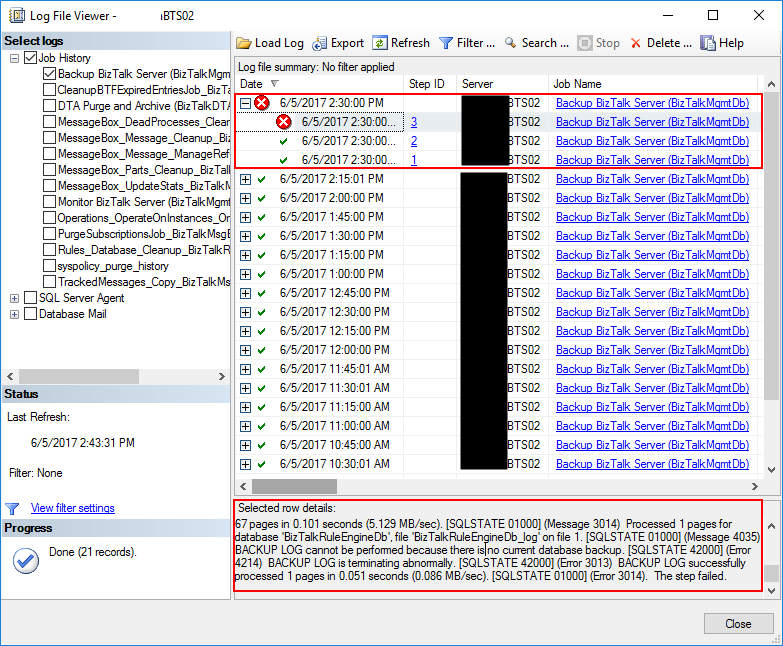
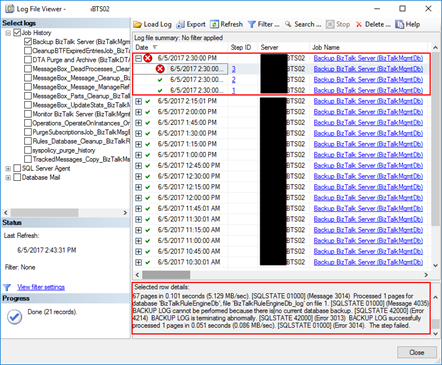
Recently, I was writing a new article “BizTalk Server Tips and Tricks: How to Backup (other) BizTalk Custom Databases” (that will be release soon as a guest post in BizTalk360 Blog) that explain you how you can configure the Backup BizTalk Server (BizTalkMgmtDb) job to back up additional BizTalk custom databases (RosettaNet, ESB Toolkit, …), when I got an error message on the job saying: BACKUP LOG cannot be performed because there is no current database backup. [SQLSTATE 42000] (Error 4214). The full error was this:
Date 6/5/2017 2:30:00 PM
Log Job History (Backup BizTalk Server (BizTalkMgmtDb))
Step ID 3
Server BTS02
Job Name Backup BizTalk Server (BizTalkMgmtDb)
Step Name MarkAndBackupLog
Duration 00:00:01
Sql Severity 16
Sql Message ID 3014
Operator Emailed
Operator Net sent
Operator Paged
Retries Attempted 0
Message
Executed as user: domain/username. Processed 1 pages for database ‘BAMPrimaryImport’, file ‘BAMPrimaryImport_log’ on file 1. [SQLSTATE 01000] (Message 4035) BACKUP LOG successfully processed 1 pages in 0.037 seconds (0.118 MB/sec). [SQLSTATE 01000] (Message 3014) Processed 12 pages for database ‘BizTalkDTADb’, file ‘BizTalkDTADb_log’ on file 1. [SQLSTATE 01000] (Message 4035) BACKUP LOG successfully processed 12 pages in 0.051 seconds (1.790 MB/sec). [SQLSTATE 01000] (Message 3014) Processed 9 pages for database ‘BizTalkMgmtDb’, file ‘BizTalkMgmtDb_log’ on file 1. [SQLSTATE 01000] (Message 4035) BACKUP LOG successfully processed 9 pages in 0.054 seconds (1.283 MB/sec). [SQLSTATE 01000] (Message 3014) Processed 67 pages for database ‘BizTalkMsgBoxDb’, file ‘BizTalkMsgBoxDb_log’ on file 1. [SQLSTATE 01000] (Message 4035) BACKUP LOG successfully processed 67 pages in 0.101 seconds (5.129 MB/sec). [SQLSTATE 01000] (Message 3014) Processed 1 pages for database ‘BizTalkRuleEngineDb’, file ‘BizTalkRuleEngineDb_log’ on file 1. [SQLSTATE 01000] (Message 4035) BACKUP LOG cannot be performed because there is no current database backup. [SQLSTATE 42000] (Error 4214) BACKUP LOG is terminating abnormally. [SQLSTATE 42000] (Error 3013) BACKUP LOG successfully processed 1 pages in 0.051 seconds (0.086 MB/sec). [SQLSTATE 01000] (Error 3014). The step failed.
Cause
If you take attention to the error message, you will notice that the job failed in the third task: MarkAndBackupLog, that is responsible for performing the backup’s the BizTalk Server databases logs.
You need to remember that by default Backup BizTalk Server (BizTalkMgmtDb) job only makes a full backup of the databases once a day and each 15 minutes a backup of the databases logs. However, to be able to perform a back up of the log from a particular database, it needs that a previous full backup has been performed and register in the “adm_BackupHistory” table in the BizTalkMgmtDb database. You can validate by executing the following script:
USE [BizTalkMgmtDb]

SELECT DISTINCT [DatabaseName]
FROM [BizTalkMgmtDb].[dbo].[adm_BackupHistory]
In my case, I was configuring an additional database to be backed up via the Backup BizTalk Server (BizTalkMgmtDb) job, and at that time, the full backup of the BizTalk Databases had already occurred.
Solution
To fix the problem of BACKUP LOG cannot be performed by the Backup BizTalk Server job, you need to:
- Execute the “sp_ForceFullBackup” stored procedure present in the BizTalkMgmtDb database.
USE [BizTalkMgmtDb]

EXEC sp_ForceFullBackup
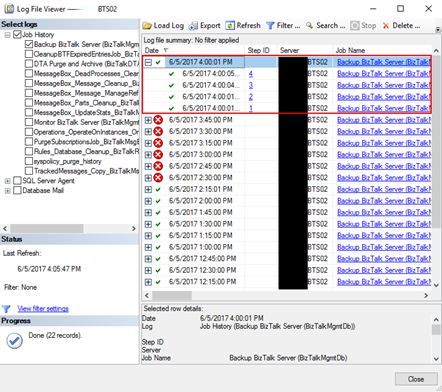
The next time you run the Backup BizTalk Server job, it will back up all BizTalk databases including all your BizTalk custom databases and it will be able them to execute the third task: MarkAndBackupLog, and therefore execute successfully the job once again.
Author: Sandro Pereira
Sandro Pereira lives in Portugal and works as a consultant at DevScope. In the past years, he has been working on implementing Integration scenarios both on-premises and cloud for various clients, each with different scenarios from a technical point of view, size, and criticality, using Microsoft Azure, Microsoft BizTalk Server and different technologies like AS2, EDI, RosettaNet, SAP, TIBCO etc. He is a regular blogger, international speaker, and technical reviewer of several BizTalk books all focused on Integration. He is also the author of the book “BizTalk Mapping Patterns & Best Practices”. He has been awarded MVP since 2011 for his contributions to the integration community. View all posts by Sandro Pereira