by Sandro Pereira | Jul 2, 2018 | BizTalk Community Blogs via Syndication
I’m back with “Errors and Warnings, Causes and Solutions” and this time targeting developers – BizTalk Deploy operation failed – that work until late and they are a bit tired… believe me, It’s never a good recipe!
Today will I was deploying a BizTalk Server Solution from Visual Studio I had a rookie problem that, because I was tired, I took 20 minutes to find out the problem:
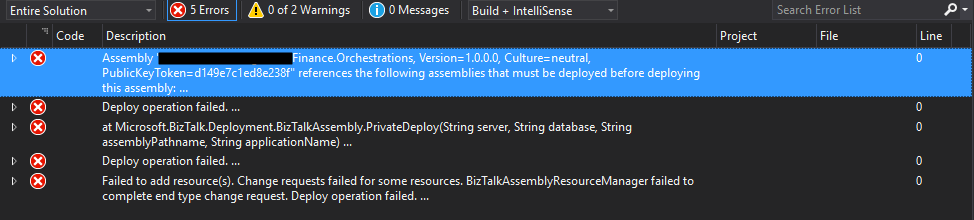
Severity Code Description Project File Line
Error Assembly “Finance.Orchestrations, Version=1.0.0.0, Culture=neutral, PublicKeyToken=d149e7c1ed8e238f” references the following assemblies that must be deployed before deploying this assembly:
Assembly “Staging.Orchestrations, Version=1.0.0.0, Culture=neutral, PublicKeyToken=d149e7c1ed8e238f”.
Deploy operation failed…
At Microsoft.BizTalk.Deployment.BizTalkAssembly.PrivateDeploy(String server, String database, String assemblyPathname, String applicationName)…
…
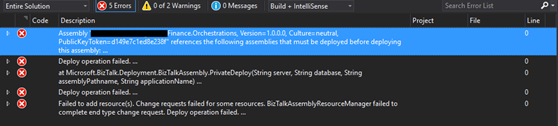
… a rookie problem that if you read carefully the error message you will know the problem.
Cause
Basically, this is a dependency problem… “Finance.Orchestrations” assembly references certain “Staging.Orchestrations” artifacts, and for this reason, this last assembly (Staging.Orchestrations) must be deployed before deploying the assembly that references these artifacts (Finance.Orchestrations).
When you deploy BizTalk assembly you must ensure that any referenced assembly is deployed first. BizTalk actually, helps you out, by enforcing that “deployment rule” by not letting you applying adding resource action without deploying all its references and that is the reason why this error is happens
Although I’m almost sure that I had deployed all the resources – common schemas, maps, and orchestrations – that was being consumed in this BizTalk Solution. When I decide to check if they were actually deployed in the environment, I found out that they weren’t… again a rookie mistake.
Solution
The solution to this problem is easy, make sure that all the dependencies are deployed before you deploy your solution.
In my case, I deployed the “Staging.Orchestrations” assembly and then I was able to indeed deploy the “Finance.Orchestrations”.
Author: Sandro Pereira
Sandro Pereira lives in Portugal and works as a consultant at DevScope. In the past years, he has been working on implementing Integration scenarios both on-premises and cloud for various clients, each with different scenarios from a technical point of view, size, and criticality, using Microsoft Azure, Microsoft BizTalk Server and different technologies like AS2, EDI, RosettaNet, SAP, TIBCO etc. He is a regular blogger, international speaker, and technical reviewer of several BizTalk books all focused on Integration. He is also the author of the book “BizTalk Mapping Patterns & Best Practices”. He has been awarded MVP since 2011 for his contributions to the integration community. View all posts by Sandro Pereira
by Sandro Pereira | May 9, 2018 | BizTalk Community Blogs via Syndication
In my last post, I described how can you fix the issue regarding:
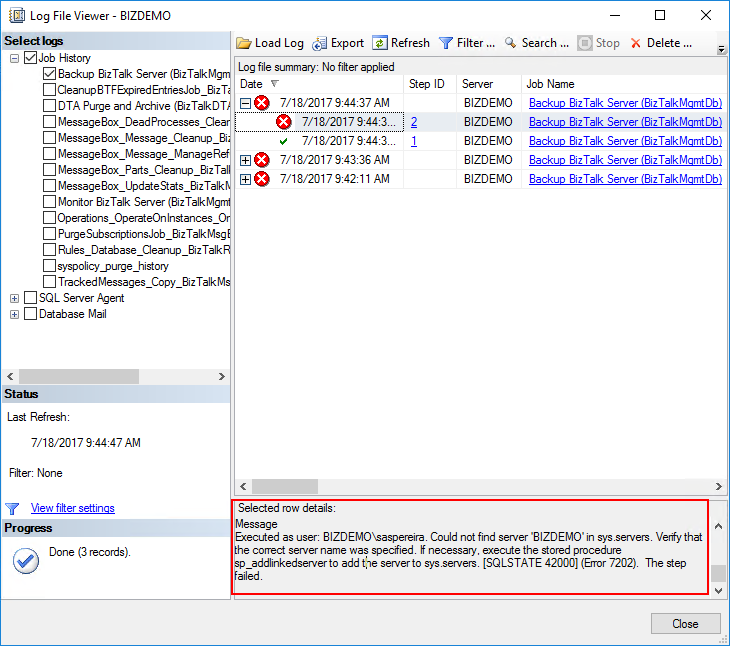
Executed as user: BIZDEMOsaspereira. Could not find server ‘BIZDEMO’ in sys.servers. Verify that the correct server name was specified. If necessary, execute the stored procedure sp_addlinkedserver to add the server to sys.servers. [SQLSTATE 42000] (Error 7202). The step failed.).
See more about this error here: https://blog.sandro-pereira.com/2018/05/08/backup-biztalk-server-job-failed-could-not-find-server-in-sys-servers/
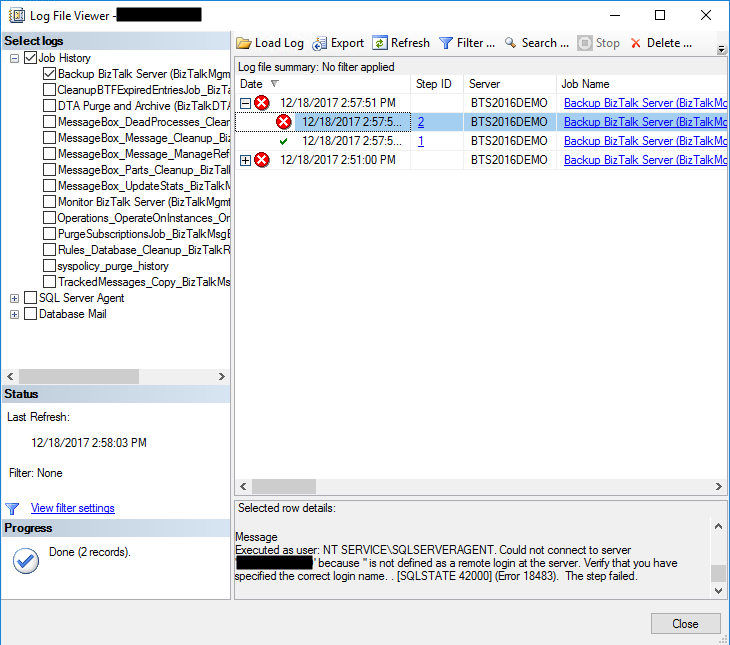
And I told that this was not the only issue that you will find. The truth is that if you try to execute the Backup BizTalk Server job after you fix this last problem, the job will fail again this time with the following error:
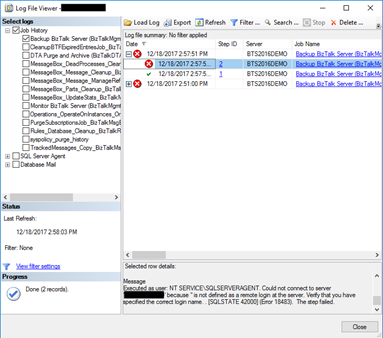
Executed as user: NT SERVICESQLSERVERAGENT. Could not connect to server ‘BIZDEMO’ because ” is not defined as a remote login at the server. Verify that you have specified the correct login name. . [SQLSTATE 42000] (Error 18483). The step failed.
Cause
This error can be related to several possible problems and a common solution you will find in SQL Server forums and post is that you should Drop and re-create the linked server will resolved this problem.
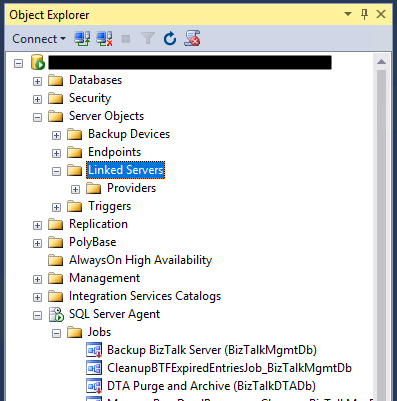
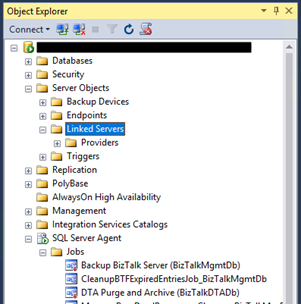
However, and forgive me in advance for my SQL ignorance, I don’t have any linked Server configured, my BizTalk Server Virtual Machine is a simple standalone machine with BizTalk and SQL installed… so, it couldn’t be that problem!
So, after several tests, I started to think as a truly genuine old-school technical guy:
- It doesn’t work? did you try to restart it?
Or as a true BizTalk developer guy:
- Did you restart the host after your solution deployment?
And I thought that it might be necessary to restart the SQL services so that all the settings of the previous command execution have the correct effect – execution of the commands: sp_dropserver and sp_addserver necessary to fix the issue reported in the previous post.
And it was!
Solution
To fix this issue, we need to restart the SQL services
After you restart the SQL Server Services you will be able to run the Backup BizTalk Server job successfully.
Author: Sandro Pereira
Sandro Pereira lives in Portugal and works as a consultant at DevScope. In the past years, he has been working on implementing Integration scenarios both on-premises and cloud for various clients, each with different scenarios from a technical point of view, size, and criticality, using Microsoft Azure, Microsoft BizTalk Server and different technologies like AS2, EDI, RosettaNet, SAP, TIBCO etc. He is a regular blogger, international speaker, and technical reviewer of several BizTalk books all focused on Integration. He is also the author of the book “BizTalk Mapping Patterns & Best Practices”. He has been awarded MVP since 2011 for his contributions to the integration community. View all posts by Sandro Pereira
by Sandro Pereira | May 8, 2018 | BizTalk Community Blogs via Syndication
After you install and configure a BizTalk Server Azure Virtual Machine, the first time you try to run the main BizTalk Server job: Backup BizTalk Server (BizTalkMgmtDb) – of course after you properly configure it – it will fail every time with the following error:
Executed as user: BIZDEMOsaspereira. Could not find server ‘BIZDEMO’ in sys.servers. Verify that the correct server name was specified. If necessary, execute the stored procedure sp_addlinkedserver to add the server to sys.servers. [SQLSTATE 42000] (Error 7202). The step failed.).
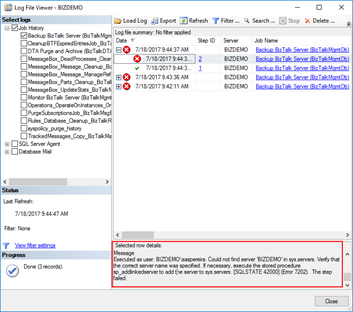
Note: will not be the only one that you will find but let’s will go step by step and we will address other errors in different blog posts
Cause
Well, I guess (I’m sure) that this error happens because we are using a default Microsoft BizTalk Server image with all the components already installed: Visual Studio, BizTalk Server and especially SQL Server.
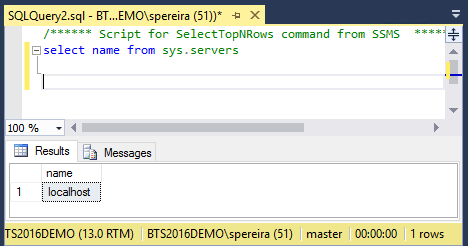
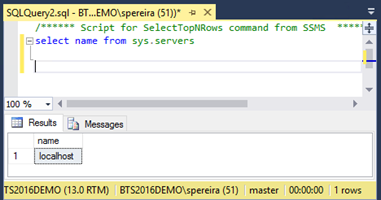
This problem happens because of the SQL Server name present in sys.servers table – maybe that was specified during setup of this image – is defined as “localhost” and not the actual VM name that you created on the Azure Portal and for the job work properly:
- The SQL server name specified during setup of the Azure Virtual Machine must match the Name in sys.servers of the SQL server
To check the Name present in sys.servers table please run the following SQL Script:
SELECT name FROM sys.servers
GO
Solution
To fix this issue, we need to remove the old server name and add the new server name in SQL. You can do that by:
- Login on to SQL Server and open SSMS.
- Connect to the instance and run below query, which will remove the old server name.
sp_dropserver 'localhost'
GO
- And then run below query to add the new server name, that in my case was “BIZDEMO”:
sp_addserver 'BIZDEMO', local
GO
After you execute these scripts this particular problem will be solved.
Author: Sandro Pereira
Sandro Pereira lives in Portugal and works as a consultant at DevScope. In the past years, he has been working on implementing Integration scenarios both on-premises and cloud for various clients, each with different scenarios from a technical point of view, size, and criticality, using Microsoft Azure, Microsoft BizTalk Server and different technologies like AS2, EDI, RosettaNet, SAP, TIBCO etc. He is a regular blogger, international speaker, and technical reviewer of several BizTalk books all focused on Integration. He is also the author of the book “BizTalk Mapping Patterns & Best Practices”. He has been awarded MVP since 2011 for his contributions to the integration community. View all posts by Sandro Pereira
by Sandro Pereira | Dec 18, 2017 | BizTalk Community Blogs via Syndication
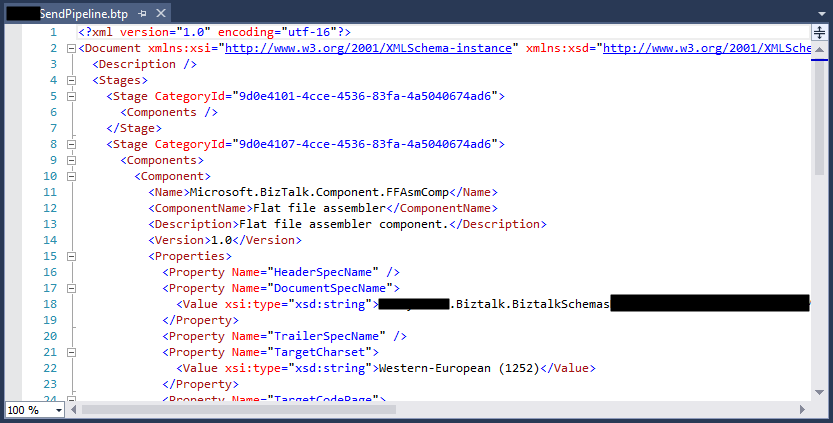
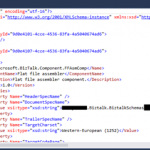
In the sequence of one of my last blog posts, I notice that in the same project also while trying to open a BizTalk pipeline inside Visual Studio, again, normally a simple and easy double-click operation to open this time the BizTalk Pipeline Editor, the resource didn’t open with the correct editor: BizTalk Pipeline Editor, instead, it opened with the XML (Text) Editor
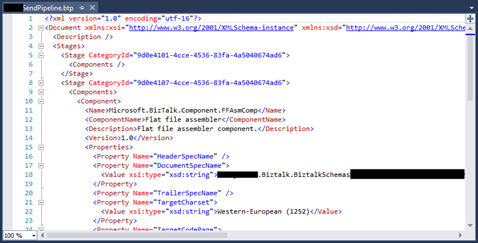
I’m used to seeing this behavior ins orchestration but it is the first time, that I can remember, to see the same happening with pipelines. Again, this has a quick workaround but it becomes annoying after a few times.
Cause
Well, again and similar to the orchestrations, I don’t know exactly what can cause this problem but I suspect that this behavior happens more often when we migrate projects, or when we try to open previous BizTalk Server versions projects in recent versions of Visual Studio, special if we skip one or more versions, for example: from BizTalk Server 2010 to 2013 R2.
And may happen because of different configurations inside the structure of the “<BizTalk>.btproj” file.
The cause of this strange behavior is without a doubt related to a mismatched setting inside the structure of the “<BizTalk>.btproj” file in the Pipeline nodes (each pipeline inside your project will reflect one Pipeline node specifying the name of the file, type name, and namespace. Normally it has this aspect in recent versions of BizTalk Server:
<ItemGroup>
   <Pipeline Include="SendOrReceivePipelineName.btp">
      <Namespace>MyProjectName.Pipelines</Namespace>
      <TypeName>SendOrReceivePipelineName</TypeName>
   </Pipeline>
</ItemGroup>
But sometimes we will find an additional element:
<ItemGroup>
   <Pipeline Include="SendOrReceivePipelineName.btp">
      <Namespace>MyProjectName.Pipelines</Namespace>
      <TypeName>SendOrReceivePipelineName</TypeName>
      <SubType>Designer</SubType>
   </Pipeline>
</ItemGroup>
When the SubType element is present, this strange behavior of automatically open the pipeline with the XML (Text) Editor.
Solution
First, once again let’s describe the easy workaround for this annoying problem/behavior:
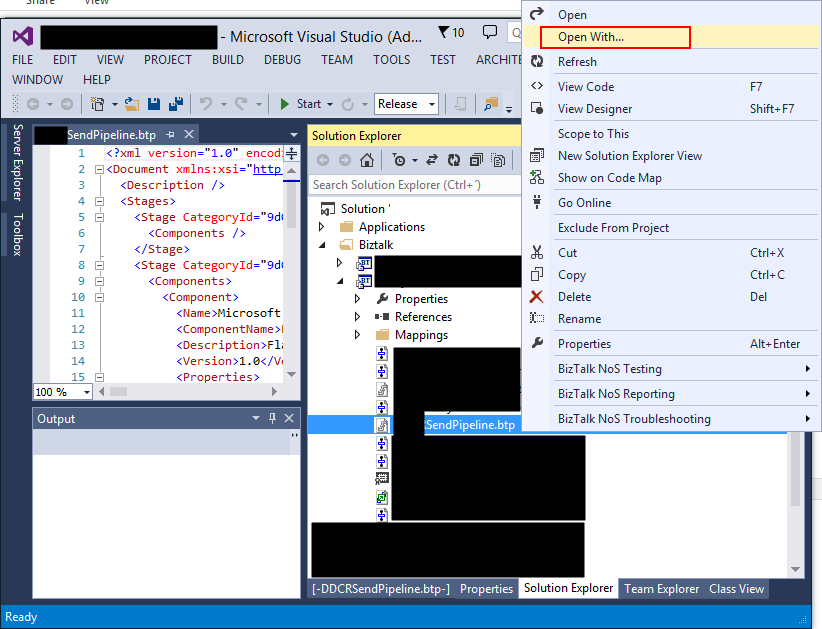
- On the solution explorer, right-click on the pipeline name and then select “Open With…” option
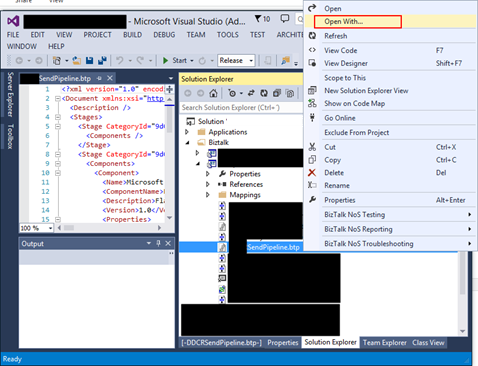
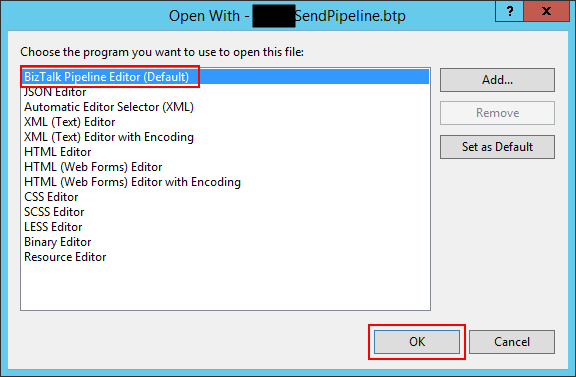
- On the “Open with …” window, select “BizTalk Pipeline Editor” option and click “OK”.
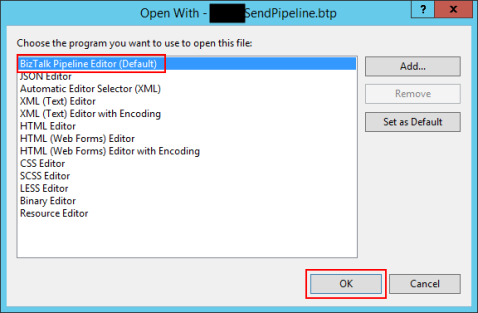
Once again, this will force Visual Studio to actually open the pipeline with the Pipeline Editor. But again, this will be a simple workaround because next time you try to open the pipeline inside Visual Studio it will open again with the XML (Text) Editor.
Similar to the orchestration behavior, force to “Set as Default” inside the “Open with …” window:
- Select “BizTalk Pipeline Editor” option, click “Set as Default”
- And then click “OK”.
It will not solve the problem, once again, if you notice in the picture above it is actually already configured as the default viewer.
So, to actually solve once and for all this annoying behavior, once again you need to adjust the configurations inside the btproj file, by:
- Open the “<BizTalk>.btproj” (or project) file(s) that contain the pipeline(s) with this behavior with Notepad, Notepad++ or other text editors of your preference.
- Remove the <SubType>Designer</SubType> line
- Save the file and reload the project inside Visual Studio
If you then try to open the pipeline it will now open with the BizTalk Pipeline Editor.
Author: Sandro Pereira
Sandro Pereira lives in Portugal and works as a consultant at DevScope. In the past years, he has been working on implementing Integration scenarios both on-premises and cloud for various clients, each with different scenarios from a technical point of view, size, and criticality, using Microsoft Azure, Microsoft BizTalk Server and different technologies like AS2, EDI, RosettaNet, SAP, TIBCO etc.
He is a regular blogger, international speaker, and technical reviewer of several BizTalk books all focused on Integration. He is also the author of the book “BizTalk Mapping Patterns & Best Practices”. He has been awarded MVP since 2011 for his contributions to the integration community.
View all posts by Sandro Pereira
by Sandro Pereira | Nov 27, 2017 | BizTalk Community Blogs via Syndication
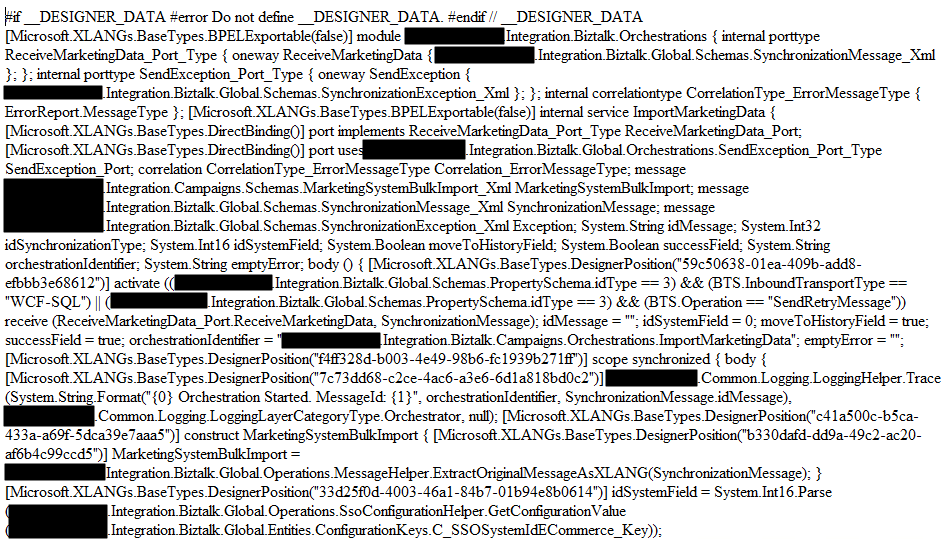
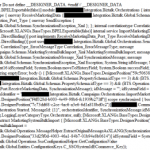
While trying to open a BizTalk Orchestration inside Visual Studio, normally a simple and easy double-click operation to open the BizTalk Orchestration Designer, I got a very famous behavior: BizTalk Orchestration didn’t open with the BizTalk Orchestration Designer, instead, it opened with the XML (Text) Editor
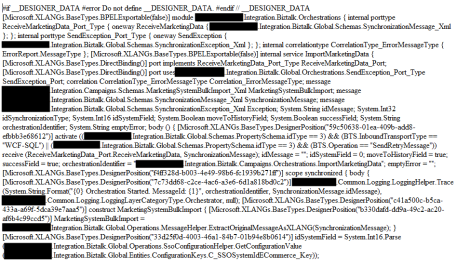
This behavior is happening to me a lot these last days. At first, I simply didn’t care because I know how to quickly workaround it, after a few times it just becomes annoying, after a few days and several orchestrations and different projects I got intrigued an entered in “Sherlock Holmes” mode.
Cause
Well, I don’t know exactly what can cause this problem but I suspect that this behavior happens more often when we migrate projects, or when we try to open previous BizTalk Server versions projects in recent versions of Visual Studio, special if we skip one or more versions, for example: from BizTalk Server 2010 to 2013 R2.
And may happen because of different configurations inside the structure of the “<BizTalk>.btproj” file.
The cause of this strange behavior, is without a doubt related with a mismatch setting inside the structure of the “<BizTalk>.btproj” file in the XLang nodes (each orchestration inside your project will reflect to one XLang node specifying the name of the file, type name and namespace. Normally it has this aspect in recent versions of BizTalk Server:
<ItemGroup>
   <XLang Include="MyOrchestrationName.odx">
      <TypeName> MyOrchestrationName </TypeName>
      <Namespace>MyProjectName.Orchestrations</Namespace>
   </XLang>
</ItemGroup>
But sometimes we will find an additional element:
<ItemGroup>
   <XLang Include="MyOrchestrationName.odx">
      <TypeName> MyOrchestrationName </TypeName>
      <Namespace>MyProjectName.Orchestrations</Namespace>
      <SubType>Designer</SubType>
   </XLang>
</ItemGroup>
When the SubType element is present, this strange behavior of automatically open the orchestration with the XML (Text) Editor.
Solution
First, let’s describe the easy workaround to this annoying problem:
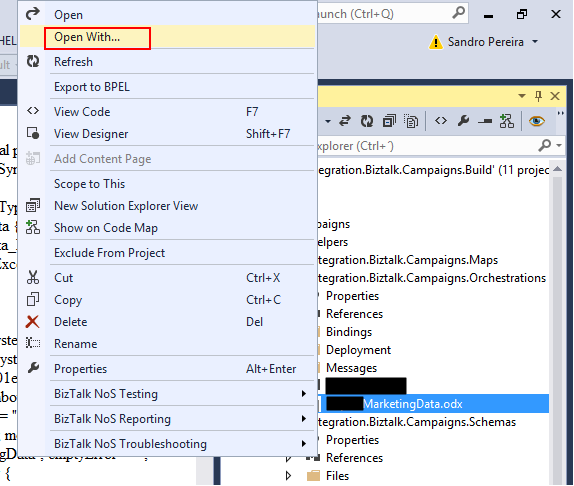
- On the solution explorer, right-click on the orchestration name and then select “Open With…” option
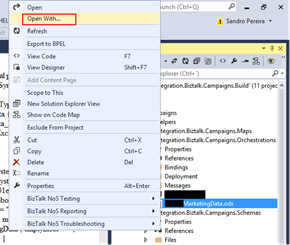
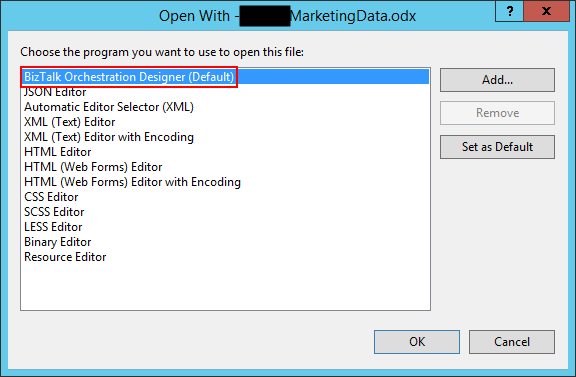
- On the “Open with …” window, select “BizTalk Orchestration Designer” option and click “OK”.
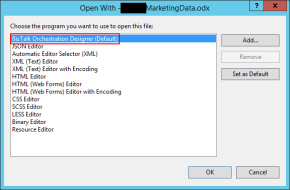
This will force Visual Studio to actually open the orchestration with the Orchestration Design. But again, this will be a simple work around because next time you try to open the orchestration inside Visual Studio it will open again with the XML (Text) Editor.
You may think that inside the “Open with …” window if we:
- Select “BizTalk Orchestration Designer” option, click “Set as Default”
- And then click “OK”.
It will solve the problem, but you are wrong, actually, if you notice in the picture above it is already configured as the default viewer.
So, to actually solve once and for all this annoying behavior you need to:
- Open the “<BizTalk>.btproj” (or project) file(s) that contain the orchestration(s) with this behavior with Notepad, Notepad++ or another text editor of your preference.
- Remove the <SubType>Designer</SubType> line
- Save the file and reload the project inside Visual Studio
If you then try to open the orchestration it will open with the BizTalk Orchestration Designer.
Author: Sandro Pereira
Sandro Pereira lives in Portugal and works as a consultant at DevScope. In the past years, he has been working on implementing Integration scenarios both on-premises and cloud for various clients, each with different scenarios from a technical point of view, size, and criticality, using Microsoft Azure, Microsoft BizTalk Server and different technologies like AS2, EDI, RosettaNet, SAP, TIBCO etc. He is a regular blogger, international speaker, and technical reviewer of several BizTalk books all focused on Integration. He is also the author of the book “BizTalk Mapping Patterns & Best Practices”. He has been awarded MVP since 2011 for his contributions to the integration community. View all posts by Sandro Pereira
by Sandro Pereira | Nov 10, 2017 | BizTalk Community Blogs via Syndication
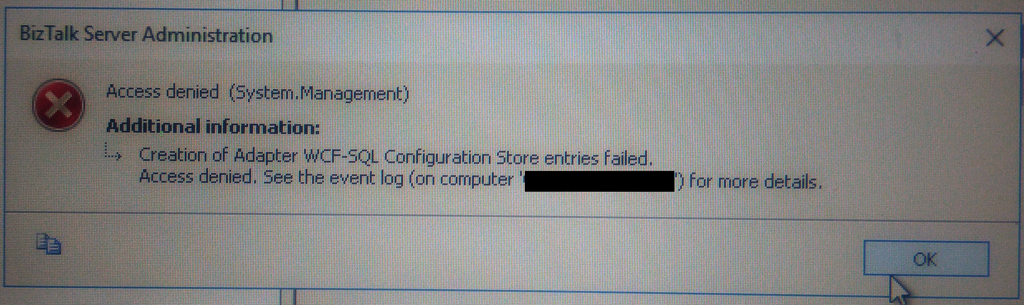
This week while configuring and optimizing a brand-new BizTalk Server 2016 environment we got the following error message while trying to configure register the WCF-SQL Adapter in the BizTalk Server Administration console:
Creation of Adapter WCF-SQL Configuration Store entries failed. Access denied. See the event log (on computer ‘SQL-SERVER’) for more details.
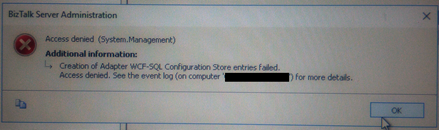
(sorry the picture quality, it was taken with my cell phone)
Despite I was a member of BizTalk Administration group, I didn’t have remote access to the SQL Server machine that was managed by another team so I couldn’t go there to check it out. Nevertheless, I reach that team (SQL and sysadmins) already with a possible solution that it turned out to be correct.
Cause
Many of the times these types of issues indicate or lead us to believe that there are problems associated with MSDTC. Or is not properly configured, Windows Firewall may be blocking DTC communications or in HA environment’s SSO is not clustered and may be offline.
All these possibilities should be investigated. However, if any of the points mentioned above were, for this particular case, a probable cause for this problem, it should have already manifested itself when the team pre-installed the environment and they did install the environment without encountering any problems.
The only difference between the installation and now my configuration was that these tasks were made by different users!
It is important to mention that, the user that is trying to registering an Adapter using the BizTalk Server Administration Console, need to have permissions to the SSO Database in order to register its properties so that he can store and retrieve the properties at design time and runtime.
And that is one of the reasons for why the “BizTalk Server Administrators” group should be a member of the “SSO Administrators” group.
BizTalk administrations are responsible for configuring all the components of BizTalk and many of them need to interact with SSO Database.
The people/team that was responsible to install BizTalk Server, they were members of BizTalk Server Administration, SSO Administration and some of them System Administrations and that was the reason why they didn’t get this problem or similar problems. The reason for the problem I faced was because:
- My user was a member of BizTalk Server Administrators and local admin only. But the BizTalk Server Administrators wasn’t member of SSO Administration group.
Solution
To solve this problem, you may have two options:
- Add my user to the SSO Administrators group.
- Not recommended because in my opinion is more difficult to manage user access rights if you add them to each individual group.
- Or add the “BizTalk Server Administrators” as a member of the “SSO Administrators” group.
After my user or the “BizTalk Server Administrators” group was added as a member of the “SSO Administrators” group, I was able to register the adapter.
Note: this problem can happen with any adapter you are trying to register.
Author: Sandro Pereira
Sandro Pereira lives in Portugal and works as a consultant at DevScope. In the past years, he has been working on implementing Integration scenarios both on-premises and cloud for various clients, each with different scenarios from a technical point of view, size, and criticality, using Microsoft Azure, Microsoft BizTalk Server and different technologies like AS2, EDI, RosettaNet, SAP, TIBCO etc. He is a regular blogger, international speaker, and technical reviewer of several BizTalk books all focused on Integration. He is also the author of the book “BizTalk Mapping Patterns & Best Practices”. He has been awarded MVP since 2011 for his contributions to the integration community. View all posts by Sandro Pereira
by Sandro Pereira | Oct 11, 2017 | BizTalk Community Blogs via Syndication
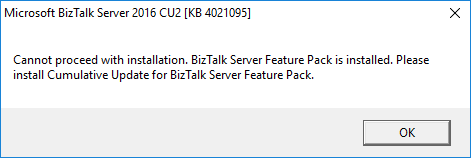
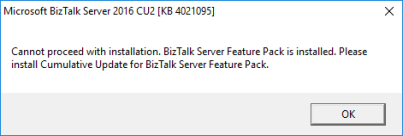
“Cannot proceed with installation. Biztalk server pack is installed.”, it is not the first time that I encounter this problem, the first time was while I was trying to install Cumulative Update 2 for BizTalk Server 2016 ( the error that you can see in the picture below) and more recently while I was trying to install Cumulative Update 3:
Microsoft BizTalk Server 2016 CU2 [KB 4021095]
Cannot proceed with installation. Biztalk server pack is installed. Please install Cumulative Update for BizTalk Server Feature Pack.
Cause
There is this new “kid on the block” that was introduced by the BizTalk Server Product group in BizTalk Server 2016 that is call “BizTalk Server 2016 Feature Pack”.
Microsoft will use feature pack approach as a way to provide new and non-breaking functionalities to the product at a faster pace without the need for you to wait 2 years for the next major release of the product to have new features.
However, until know – Cumulative Update 3 for BizTalk Server 2016 – the Cumulative Updates are not aligned with the feature pack. And when I say: “Cumulative Updates are not aligned with the feature pack” I mean that when Microsoft releases a new BizTalk Server Cumulative Update:
- it will not be compatible with Feature Pack 1
- you can only install it on environments without BizTalk Server Feature Pack 1 installed, otherwise you will receive the error described above.
- you need to wait a few more days/weeks for Microsoft release a new update of BizTalk Server Feature Pack 1 with the Cumulative Update included
At least based on the history until now:
I do not know if this behavior will change in future versions of Cumulative Updates, I hope it does and all the new CU’s will be compatible with FP1.
Important Note: as an additional note, currently if you want to install FP1 you will be forced to install Cumulative Update 3 for BizTalk Server 2016 because it is now part of the Feature Pack… so you cannot install FP1 without it.
Solution
Of course, currently, this is a false issue because Microsoft already released an updated version of Feature Pack 1 with the latest CU. But if this behavior continues to occur in future CU’s versions, you have two options:
- Abdicate the Feature Pack by uninstalling it. And then you will be able to update your BizTalk Server environment with the latest fixes.
- Be patient, and wait a few days/weeks until Microsoft release an updated version of the Feature Pack compatible with the latest CU.
Author: Sandro Pereira
Sandro Pereira lives in Portugal and works as a consultant at DevScope. In the past years, he has been working on implementing Integration scenarios both on-premises and cloud for various clients, each with different scenarios from a technical point of view, size, and criticality, using Microsoft Azure, Microsoft BizTalk Server and different technologies like AS2, EDI, RosettaNet, SAP, TIBCO etc. He is a regular blogger, international speaker, and technical reviewer of several BizTalk books all focused on Integration. He is also the author of the book “BizTalk Mapping Patterns & Best Practices”. He has been awarded MVP since 2011 for his contributions to the integration community. View all posts by Sandro Pereira
by Sandro Pereira | Oct 10, 2017 | BizTalk Community Blogs via Syndication
Some clients have restricted rules regarding what to install content in the C (the default) hard drive. For some of them, C drive is just for the operating system and other component related to the operating system. All the rest should be installed or kept in different hard drives.
The goal of this post is not to say if that is the proper and best approach or not is just to document this error and know the reason and what to do. Personally, I usually install BizTalk Server in C (the default) hard drive, that is why I never encounter this error/warning before.
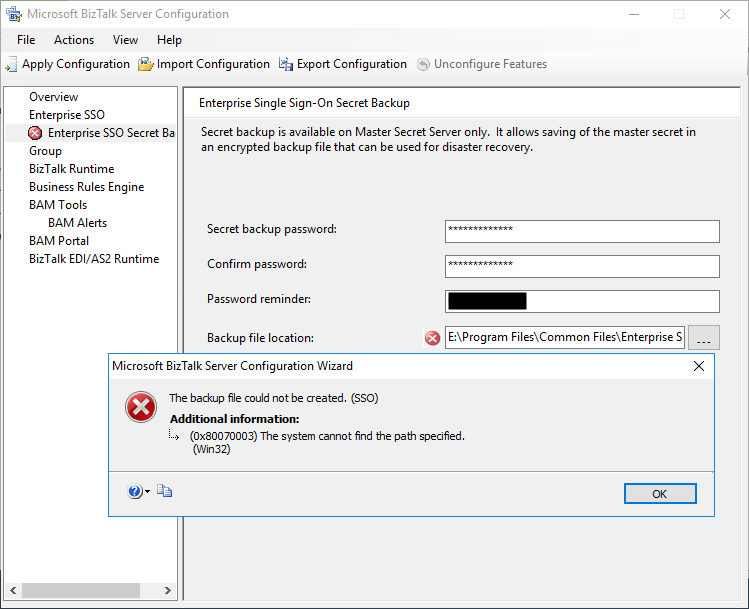
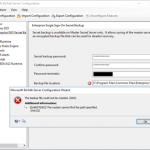
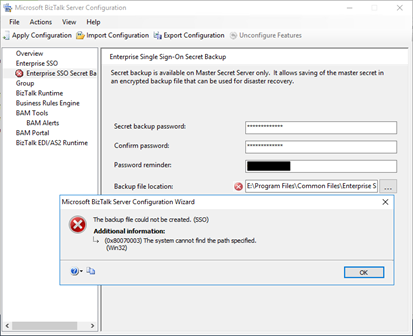
So, during one of my recent installations, where I have the need to install and kept all BizTalk Server installation and configuration components on a non-default (C:), I encounter the following error message while trying to configure the local of the Backup file location of the SSO Master Secret Key:
TITLE: Microsoft BizTalk Server Configuration Wizard
——————————
The backup file could not be created. (SSO)
For help, click: http://go.microsoft.com/fwlink/events.asp?ProdName=Microsoft+BizTalk+Server+2016&ProdVer=3.12.774.0&EvtSrc=SSO&EvtID
——————————
ADDITIONAL INFORMATION:
(0x80070003) The system cannot find the path specified.
(Win32)
For help, click: http://go.microsoft.com/fwlink/events.asp?ProdName=Microsoft+BizTalk+Server+2016&ProdVer=3.12.774.0&EvtSrc=Win32&EvtID
——————————
BUTTONS:
OK
——————————
Cause
I don’t know if this can be considered an error or actually a bug in the BizTalk Server Configuration Wizard because, for me, the wizard should be responsible for creating the specified path.
By default, the SSO Master Secret Key Backup file location is set as C:Program FilesCommon FilesEnterprise Single Sign-On with the following name structure “SSO****.bak”:
- where **** is a randomly generated name by the BizTalk Server Configuration Wizard.
The BizTalk Server Configuration Wizard has an option for you to open an annoying Folder Browser Dialog windows that force you to iterate through a Directory Tree (you cannot manually set the path) instead of using a more fancy, elegant and practical dialog box or way to archive the same result, like, suing SaveFileDialog component instead
So, if you try to manually set the path according to your requirement, for me it was just changing the hard drive letter from C: to E: you need to be sure to first manually create the full folder path on the desired destination hard drive, otherwise, you will get this problem.
Solution
Make sure the folder path is created on the desired hard drive, if not create it before you specify the path in the BizTalk Server Configuration Wizard tool.
If you already specify the path in BizTalk Server Configuration Wizard, that is, before you have created the folder:
- Create folder path on the desired hard drive
- And refresh the Enterprise SSO Secret backup page
and the backup file could not be created. (SSO) error message will be gone.
Author: Sandro Pereira
Sandro Pereira lives in Portugal and works as a consultant at DevScope. In the past years, he has been working on implementing Integration scenarios both on-premises and cloud for various clients, each with different scenarios from a technical point of view, size, and criticality, using Microsoft Azure, Microsoft BizTalk Server and different technologies like AS2, EDI, RosettaNet, SAP, TIBCO etc. He is a regular blogger, international speaker, and technical reviewer of several BizTalk books all focused on Integration. He is also the author of the book “BizTalk Mapping Patterns & Best Practices”. He has been awarded MVP since 2011 for his contributions to the integration community. View all posts by Sandro Pereira
![DTA Purge and Archive (BizTalkDTADb) job: Procedure or function dtasp_PurgeTrackingDatabase has too many arguments specified. [SQLSTATE 42000] (Error 8144). The step failed.](https://www.biztalkgurus.com/wp-content/uploads/2017/10/blog.sandro-pereira.comDTA-Purge-and-Archive-Biz-5e481a11102d9f940f945f5f353b07a862a208f3-150x150.png)
by Sandro Pereira | Oct 9, 2017 | BizTalk Community Blogs via Syndication
I normally advise my clients or partners to “religious” follow the order and steps of my BizTalk Server Installation and Configuration guide, an advice that I also take into consideration for myself, not because following the exact order of the steps are mandatory, some of them are but other don’t, but because if you follow that “recipe” you will end up with a successfully BizTalk Server installation better optimized than the default and normal installations without encountering errors.
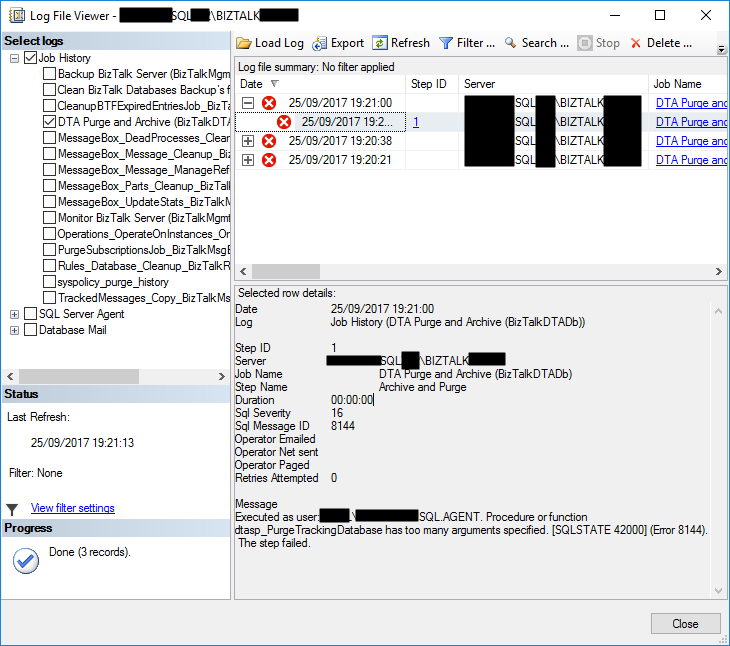
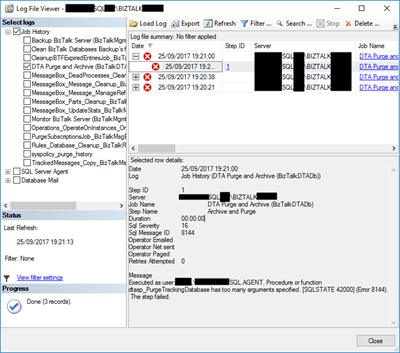
Despite all of my warning I am also human and make “mistakes” of not following the order of some steps to try to agile the BizTalk Server configuration/optimization process and a few weeks ago, while installing multiple machines in several environments at the same time we encountered a “new” problem after we configured the DTA Purge and Archive (BizTalkDTADb) job. When we try to execute the DTA Purge and Archive (BizTalkDTADb) job it failed with the following error message:
Executed as user: <servicename>. Procedure or function dtasp_PurgeTrackingDatabase has too many arguments specified. [SQLSTATE 42000] (Error 8144). The step failed.
Cause
The error message is very clear “… dtasp_PurgeTrackingDatabase has too many arguments specified…” but my first instinct was to say “Impossible!”. I been using the same job configuration from last 10 years in all my environments successfully so why this is failing?
Then I realize that I recently updated my guide to improving the DTA Purge and Archive (BizTalkDTADb) job to be able to automatically delete orphaned BizTalk DTA service instances.
This is a new extra feature that the BizTalk Product group release with:
The “traditional” contract of the stored procedure is to have six parameters that you must configure:
- @nHours tinyint: Any completed instance older than (live hours) + (live days) will be deleted along with all associated data.
- @nDays tinyint: Any completed instance older than (live hours) + (live days) will be deleted along with all associated data. The default interval is 1 day.
- @nHardDays tinyint: All data older than this day will be deleted, even if the data is incomplete. The time interval specified for HardDeleteDays should be greater than the live window of data. The live window of data is the interval of time for which you want to maintain tracking data in the BizTalk Tracking (BizTalkDTADb) database. Anything older than this interval is eligible to be archived at the next archive and then purged.
- @dtLastBackup: Set this to GetUTCDate() to purge data from the BizTalk Tracking (BizTalkDTADb) database. When set to NULL, data is not purged from the database.
Normally the step will be configured like this:
declare @dtLastBackup datetime set @dtLastBackup = GetUTCDate() exec dtasp_PurgeTrackingDatabase 1, 0, 1, @dtLastBackup
But with the CU’s described above there is an additional parameter that you can use:
- @fHardDeleteRunningInstances int = 0: if this flag is set to 1 we will delete all the running service instances older than hard delete days. By default, this new parameter is set to 0
So now the configuration that I normally use is like this:
declare @dtLastBackup datetime set @dtLastBackup = GetUTCDate() exec dtasp_PurgeTrackingDatabase 1, 0, 1, @dtLastBackup, 1
Note: After you install this update, you must manually update the DTA Purge and Archive job definition to pass the additional parameter @fHardDeleteRunningInstances if you want to clean up running service instances that are older than @nHardDeleteDays. By default, this new parameter is set to 0. This continues the current behavior. If you require the new behavior, set this parameter to 1.
My problem was that I was already using this new configuration without installing any CU in our brand-new BizTalk Server 2016 installation
Solution
Of course, you should review the job configuration to see if you properly set all the stored procedure parameters if the script.
But in our case, Installing the most recent cumulative update solved the issue.
Author: Sandro Pereira
Sandro Pereira lives in Portugal and works as a consultant at DevScope. In the past years, he has been working on implementing Integration scenarios both on-premises and cloud for various clients, each with different scenarios from a technical point of view, size, and criticality, using Microsoft Azure, Microsoft BizTalk Server and different technologies like AS2, EDI, RosettaNet, SAP, TIBCO etc. He is a regular blogger, international speaker, and technical reviewer of several BizTalk books all focused on Integration. He is also the author of the book “BizTalk Mapping Patterns & Best Practices”. He has been awarded MVP since 2011 for his contributions to the integration community. View all posts by Sandro Pereira
by Sandro Pereira | Oct 5, 2017 | BizTalk Community Blogs via Syndication
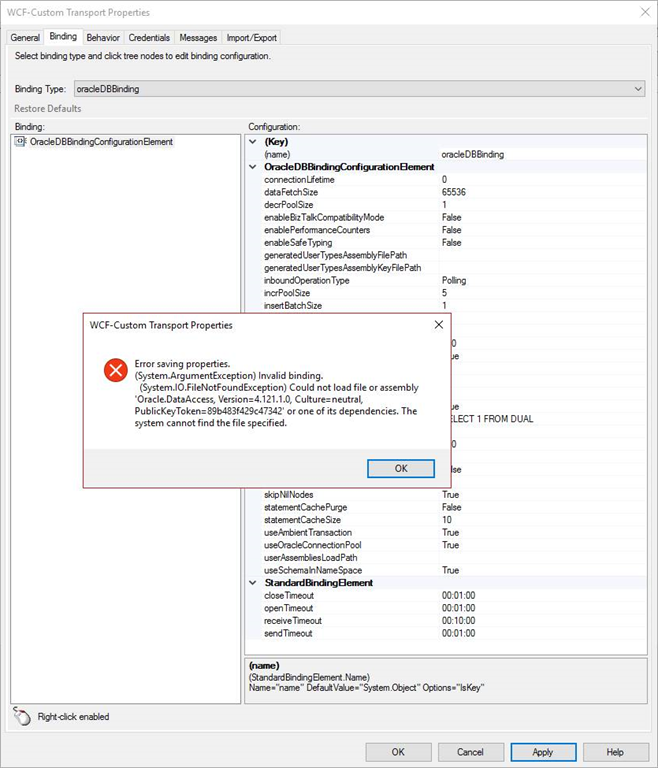
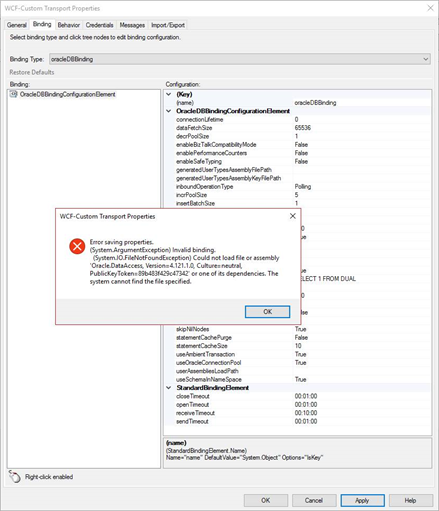
It is not the first time, neither will be the last that I encountered similar problems like this one or the same problem with earlier versions, we call it DLL hell (or nightmare) but I think that all BizTalk Administrator are familiar with it and vaccinated for the problem. Some months ago, while trying to communicate with an Oracle database within Visual Studio in a brand-new BizTalk Server 2016 Developer environment to generate the proper Schemas, we faced with the following Oracle.DataAccess problem:
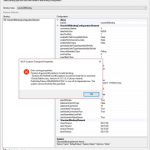
Error saving properties.
(System.ArgumentException) Invalid binding.
(System.IO.FileNotFoundException) Could not load file or assembly ‘Oracle.DataAccess, Version=4.121.1.0, Culture=neutral, PublicKeyToken=89b483f429c47342’ or one of its dependencies. The system cannot find the file specified.
Cause
When installing the Oracle WCF Adapter for BizTalk Server 2016 there is a design-time requirement to use Oracle.DataAccess Version 4.121.1.0.
BizTalk Server 2016 requires that specific Oracle.DataAccess version, however, us we were able to very on the GAC, the DLL that existed in our environment had a different version.
Trying to find the correct ODP.NET 11.2.0.1.2 version under Oracle website can be a challenge
Note: depending on the BizTalk Server version that you are using, this the required Oracle.DataAccess version may change.
Solution
Trying to find the correct ODP.NET 11.2.0.1.2 version under Oracle website can be a challenge, so one of the easier and fast ways to solve this problem is using Assembly Binding Redirection in the machine configuration file (Machine.config):
- 32-bit: c:WindowsMicrosoft.NETFramework[version]configmachine.config
- 64-bit: c:WindowsMicrosoft.NETFramework64[version]configmachine.config
Note: You should apply this in both 32 and 64-bit machine configuration files.
By using the <assemblyBinding> Element for <runtime> that will contain all the information about assembly version redirection and the locations of assemblies.
In this case, you should apply the following configurations:
<runtime>
  <assemblyBinding xmlns="urn:schemas-microsoft-com:asm.v1">
    <dependentAssembly>
      <assemblyIdentity name="Oracle.DataAccess"
         publicKeyToken="89b483f429c47342" />
      <bindingRedirect oldVersion="4.121.1.0" newVersion="x.xxx.x.x" />
    </dependentAssembly>
  </assemblyBinding>
</runtime>
By doing this when BizTalk Server will look to the Oracle.DataAccess version which not exists in your environment, it will be redirected to the existing DLL version.
For example, in our case we used:
<!--<runtime />-->
  <runtime>
    <assemblyBinding xmlns="urn:schemas-microsoft-com:asm.v1">
      <dependentAssembly>
        <assemblyIdentity name="Oracle.DataAccess" publicKeyToken="89b483f429c47342" />
        <bindingRedirect oldVersion="4.121.1.0" newVersion="4.121.2.0" />
      </dependentAssembly>
   </assemblyBinding>
</runtime>
Just to be on the safe side, you should add this configuration in both 32 and 64-bit in .NET Framework 2.0 and 4.0 machine configuration files.
Author: Sandro Pereira
Sandro Pereira lives in Portugal and works as a consultant at DevScope. In the past years, he has been working on implementing Integration scenarios both on-premises and cloud for various clients, each with different scenarios from a technical point of view, size, and criticality, using Microsoft Azure, Microsoft BizTalk Server and different technologies like AS2, EDI, RosettaNet, SAP, TIBCO etc. He is a regular blogger, international speaker, and technical reviewer of several BizTalk books all focused on Integration. He is also the author of the book “BizTalk Mapping Patterns & Best Practices”. He has been awarded MVP since 2011 for his contributions to the integration community. View all posts by Sandro Pereira