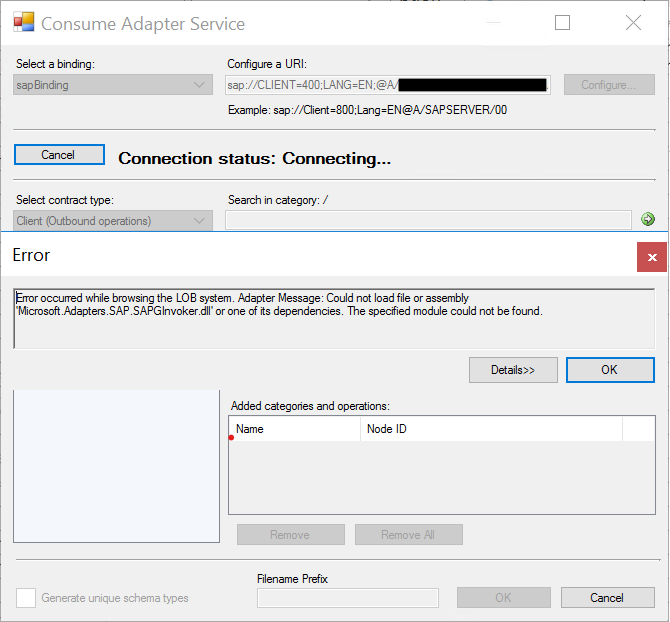
Last week I was adding new processes to an existing and old project for a client, a project that I started a few years ago, and I was caught by surprise with the following error while trying to generate a new SAP schema from Visual Studio:
Error occurred while browsing the LOB system. Adapter Message: Could not load file or assembly ‘Microsoft.Adapters.SAP.SAPGInvoker.dll’ or one of its dependencies. The specified module could not be found.
At first sight, the cause for the error is simple, and I will explain above the main causes, but in my case, the problem was that I had all the pre-requirements for the WCF-SAP adapter to work, and again that was an existing project where I had already generated several SAP Schemas.
Cause
Normally the main reason for this error is that the pre-requirements to run the WCF-SAP adapter are not installed in the environment. Even if you see the WCF-SAP adapter present and configured in the BizTalk Server Administration console, it doesn’t mean that it is ready to work. This adapter requires you to install the following SAP resources to run the adapter in the BizTalk Server box:
NCo3018_Net40_x64.msi
NCo3018_Net40_x86.msi
You can download these resources from the SAP Service Marketplace.
It is required (mandatory) to install the x86 version of the SAP Connector for Microsoft .NET. However, if you want to run the adapter under a 64-bit Host Instance, you need to install both the x86 and x64 versions of the SAP Connector for Microsoft .NET (recommended).
But once again, I knew that I had all these resources installed, and I doubled check that they were installed.
In my case, for some unknown reason, some of these DLLs got corrupted, and for that reason, I was getting this error.
Solution
To fix this issue, the solution is quite simple:
Reinstall the x86 and x64 versions of the SAP Connector for Microsoft .NET.
NCo3018_Net40_x64.msi
NCo3018_Net40_x86.msi
When asked, repair the installation of the components.
After that, I was once again able to generate SAP Schemas from my BizTalk Server Visual Studio project.
As service instances (receive ports, orchestrations, send ports) process messages moving through BizTalk Server, these service instances can be in one of several states.
In Breakpoint: An active orchestration hits a breakpoint, typically one set by a BizTalk Server solutions developer. This state is valid only for orchestrations.
Ready to run: A service instance that has been activated but has not yet started running, typically due to temporary unavailability of resources, such as a heavy processing load on the server. Active Running service instance.
Dehydrated: The instance state persists in the MessageBox database, and no Windows service is running that instance.
Completed with discarded messages: The service instance was completed, but some messages were not consumed by the instance.
Suspended (resumable): Instance is suspended, you can resume it.
Important: Resuming a messaging instance will do the following:
Resume the messaging instance.
Send the message to the send port. The send port delivers the message to the destination, even if the send port is not in a Started state.
Note that when you suspend a scheduled instance and then resume it, the instance goes into a dehydrated state.
Suspended (not-resumable): The instance is suspended, but you cannot resume it. You can save the Messages referenced by the instance, and then you can terminate the instance.
Note that when you suspend a scheduled instance and then resume it, the instance goes into a dehydrated state.
Pending suspend/Pending terminate: A status, not an independent state. You can combine it with other states.
A control message to suspend or terminate was sent to a service instance but has not yet been picked up by the instance. Only one pending operation is allowed at a time. When an instance with a pending operation becomes dehydrated, you can terminate the instance.
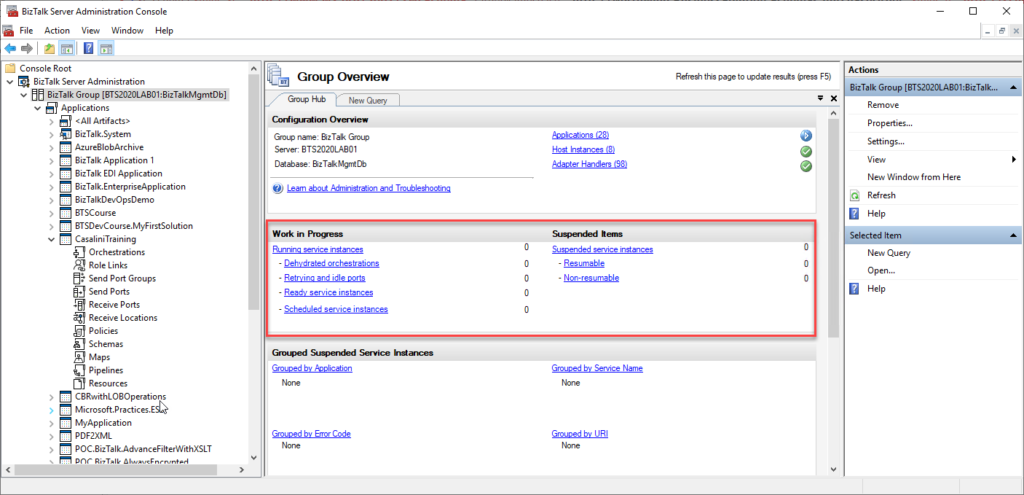
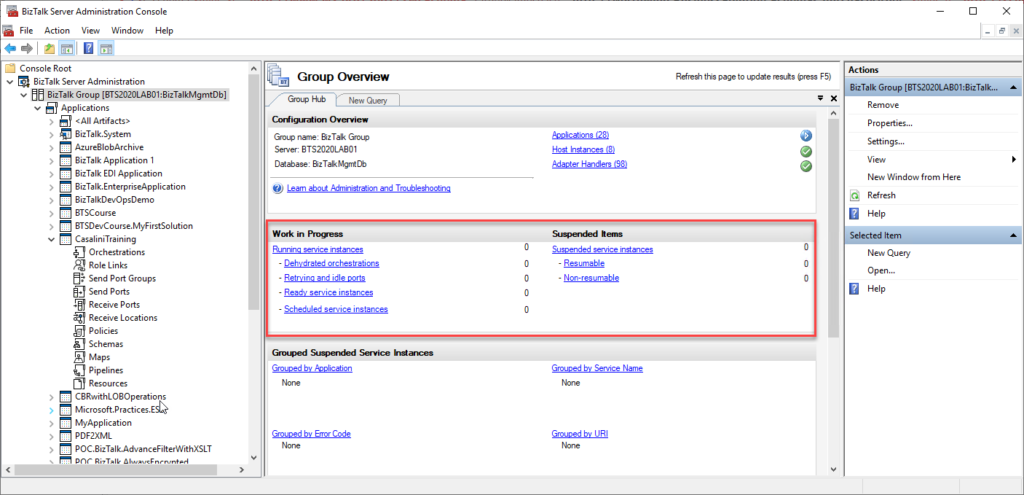
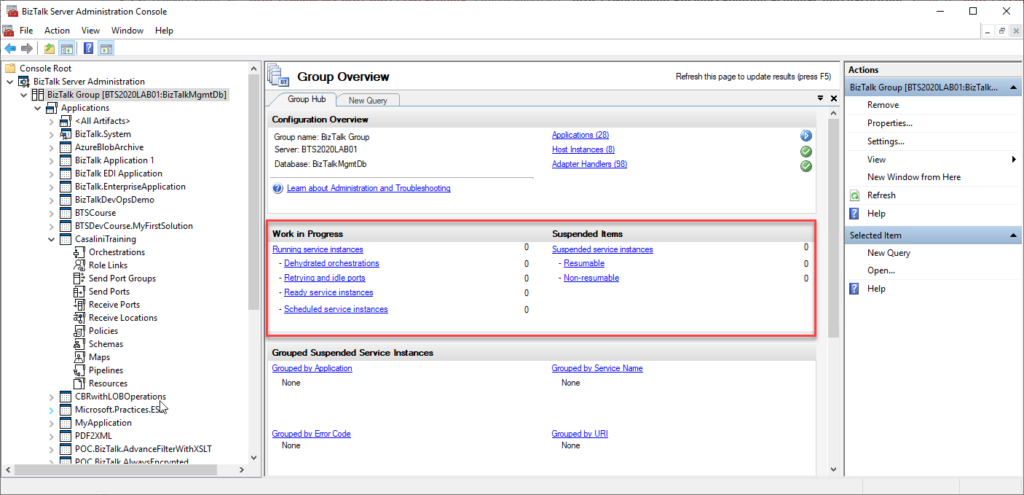
We can see all of these service instances in all different stages inside the BizTalk Server Administration Console:
The problem with the admin console is that it needs manual intervention to check all of this information, so we need to keep clicking F5 each time we want to check them. That is not an effective monitoring operation and quite a waste of human resource time. Of course, there are several other ways to archive this goal:
You can use third-party monitoring tools;
You can use PowerShell to extract this information;
or you can use a simple SQL query.
Well, here is how you do a simple SQL query to count the number of Non-Resumable suspended service instances:
USE BizTalkMsgBoxDb;
SELECT COUNT(nstate) SuspendedNonResumable
FROM Instances WITH (NOLOCK)
WHERE nstate = 3
You need to run this script against BizTalkMsgBoxDB, and it will return the count of instances Suspended that cannot be resumable. Equal to what you see in the BizTalk Server Administration Console.
As service instances (receive ports, orchestrations, send ports) process messages moving through BizTalk Server, these service instances can be in one of several states.
In Breakpoint: An active orchestration hits a breakpoint, typically one set by a BizTalk Server solutions developer. This state is valid only for orchestrations.
Ready to run: A service instance that has been activated but has not yet started running, typically due to temporary unavailability of resources, such as a heavy processing load on the server. Active Running service instance.
Dehydrated: The instance state persists in the MessageBox database, and no Windows service is running that instance.
Completed with discarded messages: The service instance was completed, but some messages were not consumed by the instance.
Suspended (resumable): Instance is suspended, you can resume it.
Important: Resuming a messaging instance will do the following:
Resume the messaging instance.
Send the message to the send port. The send port delivers the message to the destination, even if the send port is not in a Started state.
Note that when you suspend a scheduled instance and then resume it, the instance goes into a dehydrated state.
Suspended (not-resumable): The instance is suspended, but you cannot resume it. You can save the Messages referenced by the instance, and then you can terminate the instance.
Note that when you suspend a scheduled instance and then resume it, the instance goes into a dehydrated state.
Pending suspend/Pending terminate: A status, not an independent state. You can combine it with other states.
A control message to suspend or terminate was sent to a service instance but has not yet been picked up by the instance. Only one pending operation is allowed at a time. When an instance with a pending operation becomes dehydrated, you can terminate the instance.
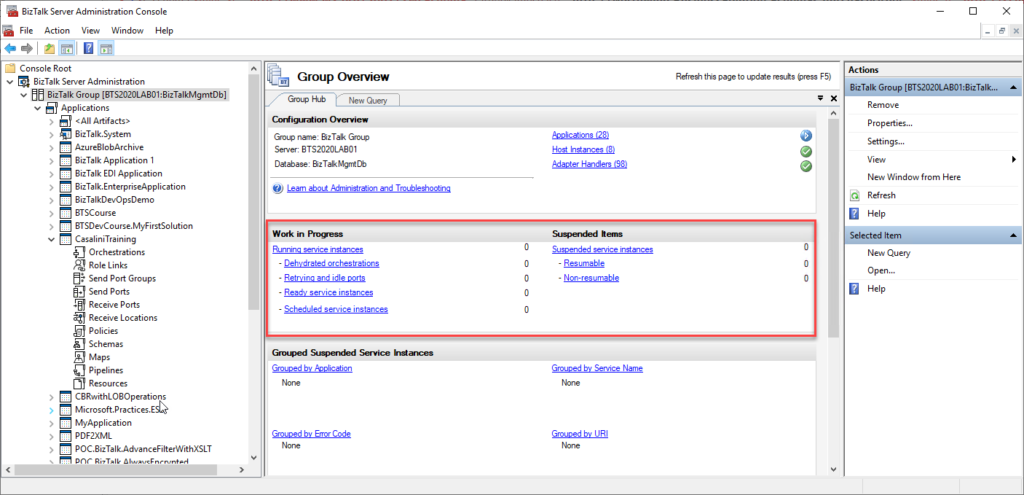
We can see all of these service instances in all different stages inside the BizTalk Server Administration Console:
The problem with the admin console is that it needs manual intervention to check all of this information, so we need to keep clicking F5 each time we want to check them. That is not an effective monitoring operation and quite a waste of human resource time. Of course, there are several other ways to archive this goal:
You can use third-party monitoring tools;
You can use PowerShell to extract this information;
or you can use a simple SQL query.
Well, here is how you do a simple SQL query to count the number of Resumable suspended service instances:
USE BizTalkMsgBoxDb;
SELECT COUNT(nstate) SuspendedResumable
FROM Instances WITH (NOLOCK)
WHERE nstate = 4
You need to run this script against BizTalkMsgBoxDB, and it will return the count of instances Suspended that can be resumable. Equal to what you see in the BizTalk Server Administration Console.
As service instances (receive ports, orchestrations, send ports) process messages moving through BizTalk Server, these service instances can be in one of several states.
In Breakpoint: An active orchestration hits a breakpoint, typically one set by a BizTalk Server solutions developer. This state is valid only for orchestrations.
Ready to run: A service instance that has been activated but has not yet started running, typically due to temporary unavailability of resources, such as a heavy processing load on the server. Active Running service instance.
Dehydrated: The instance state persists in the MessageBox database, and no Windows service is running that instance.
Completed with discarded messages: The service instance was completed, but some messages were not consumed by the instance.
Suspended (resumable): Instance is suspended, you can resume it.
Important: Resuming a messaging instance will do the following:
Resume the messaging instance.
Send the message to the send port. The send port delivers the message to the destination, even if the send port is not in a Started state.
Note that when you suspend a scheduled instance and then resume it, the instance goes into a dehydrated state.
Suspended (not-resumable): The instance is suspended, but you cannot resume it. You can save the Messages referenced by the instance, and then you can terminate the instance.
Note that when you suspend a scheduled instance and then resume it, the instance goes into a dehydrated state.
Pending suspend/Pending terminate: A status, not an independent state. You can combine it with other states.
A control message to suspend or terminate was sent to a service instance but has not yet been picked up by the instance. Only one pending operation is allowed at a time. When an instance with a pending operation becomes dehydrated, you can terminate the instance.
We can see all of these service instances in all different stages inside the BizTalk Server Administration Console:
The problem with the admin console is that it needs manual intervention to check all of this information, so we need to keep clicking F5 each time we want to check them. That is not an effective monitoring operation and quite a waste of human resource time. Of course, there are several other ways to archive this goal:
You can use third-party monitoring tools;
You can use PowerShell to extract this information;
or you can use a simple SQL query.
Well, here is how you do a simple SQL query to extract Dehydrated service instances:
USE BizTalkMsgBoxDb;
SELECT COUNT(nstate) Dehydrated
FROM Instances WITH (NOLOCK)
WHERE nstate = 8
You need to run this script against BizTalkMsgBoxDB, and it will return the count of instances Dehydrated. Equal to what you see in the BizTalk Server Administration Console.
As service instances (receive ports, orchestrations, send ports) process messages moving through BizTalk Server, these service instances can be in one of several states.
In Breakpoint: An active orchestration hits a breakpoint, typically one set by a BizTalk Server solutions developer. This state is valid only for orchestrations.
Ready to run: A service instance that has been activated but has not yet started running, typically due to temporary unavailability of resources, such as a heavy processing load on the server. Active Running service instance.
Dehydrated: The instance state persists in the MessageBox database, and no Windows service is running that instance.
Completed with discarded messages: The service instance was completed, but some messages were not consumed by the instance.
Suspended (resumable): Instance is suspended, you can resume it.
Important: Resuming a messaging instance will do the following:
Resume the messaging instance.
Send the message to the send port. The send port delivers the message to the destination, even if the send port is not in a Started state.
Note that when you suspend a scheduled instance and then resume it, the instance goes into a dehydrated state.
Suspended (not-resumable): The instance is suspended, but you cannot resume it. You can save the Messages referenced by the instance, and then you can terminate the instance.
Note that when you suspend a scheduled instance and then resume it, the instance goes into a dehydrated state.
Pending suspend/Pending terminate: A status, not an independent state. You can combine it with other states.
A control message to suspend or terminate was sent to a service instance but has not yet been picked up by the instance. Only one pending operation is allowed at a time. When an instance with a pending operation becomes dehydrated, you can terminate the instance.
We can see all of these service instances in all different stages inside the BizTalk Server Administration Console:
The problem with the admin console is that it needs manual intervention to check all of this information, so we need to keep clicking F5 each time we want to check them. That is not an effective monitoring operation and quite a waste of human resource time. Of course, there are several other ways to archive this goal:
You can use third-party monitoring tools;
You can use PowerShell to extract this information;
or you can use a simple SQL query.
Well, here is how you do a simple SQL query to extract active (running) service instances:
USE BizTalkMsgBoxDb;
SELECT COUNT(nstate) Active
FROM Instances WITH (NOLOCK)
WHERE nstate = 2
You need to run this script against BizTalkMsgBoxDB, and it will return the count of active (running) service instances. Equal to what you see in the BizTalk Server Administration Console.
All of these tasks, including the repair task that I’m addressing here, are available and can be, and should be, executed from the BizTalk Health Monitor tool. For those who are not aware of BHM, BHM is an MMC snap-in that allows the user to monitor the health of BizTalk Server environments and execute maintenance tasks. It is, in a simple way, an aggregator of two familiar tools for BizTalk Server: the old MsgBox Viewer and the old BizTalk Terminator.
However, once again, have you ever been curious to know how you can repair these types of messages? Or did you already face the issue that you cannot open the BizTalk Health monitor because it is failing or you don’t have an Internet connection to update them to the last version? Or maybe you are using an environment older than BizTalk Server 2013?
Well, now you have it here:
TRUNCATE TABLE MessageRefCountLog1
TRUNCATE TABLE MessageRefCountLog2
TRUNCATE TABLE MessageRefCountLogTotals
TRUNCATE TABLE MessageZeroSum

UPDATE ActiveRefCountLog SET tnActiveTable = 1 WHERE fType = 1

OPEN curse
FETCH NEXT FROM curse INTO @nvcAppName
WHILE (@@FETCH_STATUS = 0)
BEGIN
	-- Truncate local application refcount log if it exists
	EXEC('if exists (select * from dbo.sysobjects where id = object_id(N''[dbo].[' + @nvcAppName + '_MessageRefCountLog]'') and OBJECTPROPERTY(id, N''IsUserTable'') = 1) TRUNCATE TABLE [' + @nvcAppName + '_MessageRefCountLog]')

	-- Find all the message refs which have no associated row in the spool
	EXEC ('INSERT INTO MessageRefCountLog1 (uidMessageID, snRefCount) SELECT uidMessageID, COUNT(*) FROM [' + @nvcAppName + 'Q] GROUP BY uidMessageID')
	EXEC ('INSERT INTO MessageRefCountLog1 (uidMessageID, snRefCount) SELECT uidMessageID, COUNT(*) FROM [' + @nvcAppName + 'Q_Suspended] GROUP BY uidMessageID')
	EXEC ('INSERT INTO MessageRefCountLog1 (uidMessageID, snRefCount) SELECT uidMessageID, COUNT(*) FROM [InstanceStateMessageReferences_' + @nvcAppName + '] GROUP BY uidMessageID')


	FETCH NEXT FROM curse INTO @nvcAppName
END
CLOSE curse
DEALLOCATE curse

INSERT INTO MessageRefCountLog1 (uidMessageID, snRefCount)
SELECT uidMessageID, COUNT(*)
FROM [TrackingMessageReferences] GROUP BY uidMessageID

-- Inserting restart message details, for service recovery
IF NOT EXISTS (SELECT TOP 1 uidMessageID FROM Spool WHERE uidMessageID = N'61EAA7FC-AC85-42d9-BF3E-1BED258B82BE')
BEGIN
	INSERT INTO Spool (uidMessageID, nNumParts, nCounter, imgContext) VALUES (N'61EAA7FC-AC85-42d9-BF3E-1BED258B82BE', 0, 0, 0xD4E0906C1849D311A24200C04F60A53302000000090000009800000050006100720074004E0061006D00650073005E0068007400740070003A002F002F0073006300680065006D00610073002E006D006900630072006F0073006F00660074002E0063006F006D002F00420069007A00540061006C006B002F0032003000300033002F006D006500730073006100670065006100670065006E0074002D00700072006F007000650072007400690065007300000001000000010820010000000000000000000700000098000000540069006D0065007200490044005E0068007400740070003A002F002F0073006300680065006D00610073002E006D006900630072006F0073006F00660074002E0063006F006D002F00420069007A00540061006C006B002F0032003000300033002F0078006C0061006E00670073002D00720075006E00740069006D0065002D00700072006F0070006500720074006900650073000000010000000008004A000000300030003000300030003000300030002D0030003000300030002D0030003000300030002D0030003000300030002D003000300030003000300030003000300030003000300030000000)
END

-- Inserting Suspend Control message
IF NOT EXISTS (SELECT TOP 1 uidMessageID FROM Spool WHERE uidMessageID = N'2BE3D5B8-5685-40F2-BD97-51ADA3D02347')
BEGIN
	INSERT INTO Spool (uidMessageID, nNumParts, nCounter, imgContext) VALUES (N'2BE3D5B8-5685-40F2-BD97-51ADA3D02347', 0, 0, 0xD4E0906C1849D311A24200C04F60A53303000000000000001E000000420069007A00540061006C006B0043006F006E00740072006F006C000000020000000008002A000000410064006D0069006E00530075007300700065006E00640049006E007300740061006E00630065000000000000000C0000004A006F006200490044000000020000000008004E0000007B00340037004100450033003300380034002D0031003000410041002D0034003400430033002D0038003200350036002D003200350033003400380045004200390032004200320031007D000000090000009800000050006100720074004E0061006D00650073005E0068007400740070003A002F002F0073006300680065006D00610073002E006D006900630072006F0073006F00660074002E0063006F006D002F00420069007A00540061006C006B002F0032003000300033002F006D006500730073006100670065006100670065006E0074002D00700072006F00700065007200740069006500730000000100000001082001000000000000000000)
END

-- Inserting  Terminate Control message
IF NOT EXISTS (SELECT TOP 1 uidMessageID FROM Spool WHERE uidMessageID = N'57E5E753-0207-435D-8BE7-2B9F3C6556F9')
BEGIN
	INSERT INTO Spool (uidMessageID, nNumParts, nCounter, imgContext) VALUES (N'57E5E753-0207-435D-8BE7-2B9F3C6556F9', 0, 0, 0xD4E0906C1849D311A24200C04F60A53303000000000000001E000000420069007A00540061006C006B0043006F006E00740072006F006C000000020000000008002E000000410064006D0069006E005400650072006D0069006E0061007400650049006E007300740061006E00630065000000000000000C0000004A006F006200490044000000020000000008004E0000007B00350032003500390031004600310031002D0046003700370034002D0034003600330038002D0042004300390041002D003200380034003800380034003600300034003500450032007D000000090000009800000050006100720074004E0061006D00650073005E0068007400740070003A002F002F0073006300680065006D00610073002E006D006900630072006F0073006F00660074002E0063006F006D002F00420069007A00540061006C006B002F0032003000300033002F006D006500730073006100670065006100670065006E0074002D00700072006F00700065007200740069006500730000000100000001082001000000000000000000)
END

-- Inserting Resume in Debug Mode message
IF NOT EXISTS (SELECT TOP 1 uidMessageID FROM Spool WHERE uidMessageID = N'50D173AF-5D6F-4D5F-AE23-1A7178CEBDC3')
BEGIN
	INSERT INTO Spool (uidMessageID, nNumParts, nCounter, imgContext) VALUES (N'50D173AF-5D6F-4D5F-AE23-1A7178CEBDC3', 0, 0, 0xD4E0906C1849D311A24200C04F60A53303000000000000001E000000420069007A00540061006C006B0043006F006E00740072006F006C0000000200000000080026000000410064006D0069006E004400650062007500670049006E007300740061006E00630065000000000000000C0000004A006F006200490044000000020000000008004E0000007B00330032003800330030004500450045002D0035004400330041002D0034003700370037002D0041003200440035002D003100320033004100450035004600340044004500420039007D000000090000009800000050006100720074004E0061006D00650073005E0068007400740070003A002F002F0073006300680065006D00610073002E006D006900630072006F0073006F00660074002E0063006F006D002F00420069007A00540061006C006B002F0032003000300033002F006D006500730073006100670065006100670065006E0074002D00700072006F00700065007200740069006500730000000100000001082001000000000000000000)
END
--we need to add refcounts for the control messages in our system.

INSERT INTO MessageRefCountLogTotals (uidMessageID, snRefCount) VALUES (N'61EAA7FC-AC85-42d9-BF3E-1BED258B82BE', 1)
INSERT INTO MessageRefCountLogTotals (uidMessageID, snRefCount) VALUES (N'2BE3D5B8-5685-40F2-BD97-51ADA3D02347', 1)
INSERT INTO MessageRefCountLogTotals (uidMessageID, snRefCount) VALUES (N'57E5E753-0207-435D-8BE7-2B9F3C6556F9', 1)
INSERT INTO MessageRefCountLogTotals (uidMessageID, snRefCount) VALUES (N'50D173AF-5D6F-4D5F-AE23-1A7178CEBDC3', 1)

--lets run the stored procedure to process all of this and add up the values to put them in the totals table
EXEC int_PurgeMessageRefCountLog 1, @ret OUTPUT


--Now we have everything in the totals table (nothing is in the zero sum table since we only added references to messages
--currently in the messagebox. There were no releases (ie negative numbers)
--Lets populate the zerosum table with any messages in the spool which are not in the totals table
INSERT INTO MessageZeroSum (uidMessageID)
SELECT uidMessageID FROM Spool s WHERE s.uidMessageID NOT IN (SELECT uidMessageID FROM MessageRefCountLogTotals)
Note: This is part of the script. If you want the full script download it from the link available at the end of the post.
This script rebuilds all the MessageRefCountLog tables and the MessageZeroSum table to resolve the ‘Messages w/out RefCounts’ issue that MessageBoxViewer identifies. While doing this, control messages are rebuilt if needed.
WARNINGS:
THIS OPERATION WILL PERMANENTLY REMOVE OR ALTER DATA IN YOUR DATABASE.
Before running this script, make sure that:
All BizTalk databases should be backed up
All host instances should be stopped
All BizTalk SQL Agent jobs should be stopped.
THIS SQL SCRIPT IS PROVIDED “AS IS” WITHOUT WARRANTY OF ANY KIND.
Once again, if possible, run these scripts and execute these tasks inside the BizTalk Health Monitor tool.
In the previous post, we analyze how you can monitor messages without reference counts (RefCounts), today it will be a similar topic, but this time we will be addressing messages with negative reference counts.
and the same question applies here:
Have you ever seen your Monitor BizTalk Server (BizTalkMgmtDb) job failing and complaining about the existence of messages with negative reference counts
Or do you ever want to know more about messages with negative RefCounts?
What are messages with negative RefCounts?
Do they show in the BizTalk Server Administration console? Are they impacting BizTalk Server performance?
Indeed messages with negative reference counts can appear from time to time in our environment, which you should definitely need to monitor. And to response to all previous questions:
What are messages with negative RefCounts?
Messages with negative RefCounts are messages in the MessageRefCountLogTotals with snRefCount less than zero. Once a refcount goes negative, the MessageBox cleanup jobs will not be able to clean up the corresponding messages.
Do they show in the BizTalk Server Administration console?
No, they don’t. The only way for you to know that exists messages with negative reference count is by:
Running the Monitor BizTalk Server (BizTalkMgmtDb) job
Executing the View Count of Messages With Negative RefCounts available on the BizTalk Health Monitor (maintenance)
Or executing a custom query against BizTalk Server databases.
Are they impacting BizTalk Server performance?
Yes, if they are too many.
As I mentioned before, the Monitor BizTalk Server SQL Agent job can detect these kinds of messages. In fact, it is able to identify any known issues in Management, MessageBox, or DTA databases. The job scans for the following issues:
Messages without any references
Messages without reference counts
Messages with negative reference counts
Messages with reference count less than 0
Message references without spool rows
Message references without instances
Instance state without instances
Instance subscriptions without corresponding instances
Orphaned DTA service instances
Orphaned DTA service instance exceptions
TDDS is not running on any host instance with the global tracking option enabled.
By default, the Monitor BizTalk Server job is configured and automated to run once in a week. Since the job is computationally intensive, it is recommended to schedule it during downtime/low traffic. The job fails if it encounters any issues; error string contains the number of issues found. Otherwise, it runs successfully.
Note: The Monitor BizTalk Server job only scans for issues. It does not fix the issues found.
However, are you ever curious to know how you can find these types of messages? Or did you already face the issue that you cannot open the BizTalk Health monitor because it is failing or you don’t have Internet connection to update them to the last version?
Well, now you have it here:
DECLARE @count bigint
SET @count = 0

SELECT @count = COUNT(*) FROM [dbo].[MessageRefCountLogTotals] WHERE [snRefCount] < 0

IF @count = 0
BEGIN
    SELECT 'There are no negative RefCounts'
END
ELSE
BEGIN
    SELECT COUNT(*) Count, [snRefCount] as 'RefCount Value'
	FROM [dbo].[MessageRefCountLogTotals]
	WHERE [snRefCount] < 0
    GROUP BY [snRefCount]
    ORDER BY [snRefCount]
END
Of course, needless to say, use it with care and thoughtfulness! It is preferred to call this query inside the BizTalk Health Monitor, and ideally, it is recommended to execute it during downtime/low traffic.
You need to run this script against BizTalkMsgBoxDB, and it will return the count of negative refcounts in the MessageRefCountLogTotals table. Equal to the script on the BizTalk Health Monitor.
Have you ever seen your Monitor BizTalk Server (BizTalkMgmtDb) job failing complaining about the existence of messages without reference counts or more know as messages without RefCounts? What are messages without RefCounts? Do they show in the BizTalk Server Administration console? Are they impacting BizTalk Server performance?
Indeed messages without reference counts can appear from time to time in our environment, which you should definitely need to monitor. And to response to all previous questions:
What are messages without RefCounts?
Messages without reference counts (RefCounts) are messages that don’t have correlating rows in the MessageRefCountLog tables and the MessageZeroSum table. Once they are in this state, the MessageBox cleanup job will not be able to clean up the corresponding messages.
Do they show in the BizTalk Server Administration console?
No, they don’t. The only way for you to know that exists messages without reference counts is by:
Running the Monitor BizTalk Server (BizTalkMgmtDb) job
Executing the View COunt of Messages Without RefCounts available on the BizTalk Health Monitor (maintenance)
Or executing a custom query against BizTalk Server databases.
Are they impacting BizTalk Server performance?
Yes, if they are too many.
As I mentioned before, the Monitor BizTalk Server SQL Agent job can detect these kinds of messages, in fact, it is able to identify any known issues in Management, MessageBox, or DTA databases. The job scans for the following issues:
Messages without any references
Messages without reference counts
Messages with reference count less than 0
Message references without spool rows
Message references without instances
Instance state without instances
Instance subscriptions without corresponding instances
Orphaned DTA service instances
Orphaned DTA service instance exceptions
TDDS is not running on any host instance with the global tracking option enabled.
By default, the Monitor BizTalk Server job is configured and automated to run once in a week. Since the job is computationally intensive, it is recommended to schedule it during downtime/low traffic. The job fails if it encounters any issues; error string contains the number of issues found. Otherwise, it runs successfully.
Note: The Monitor BizTalk Server job only scans for issues. It does not fix the issues found.
However, are you ever curious to know how you can find these types of messages? Or did you already face the issue that you cannot open the BizTalk Health monitor because it is failing or you don’t have Internet connection to update them to the last version?
Well, now you have it here:
DECLARE @nvcAppName nvarchar(256)

CREATE TABLE ##msgs_wout_refs (uidMessageID uniqueidentifier NOT NULL)
CREATE UNIQUE CLUSTERED INDEX [CIX_msg_wout_refs] ON [##msgs_wout_refs](uidMessageID)

INSERT INTO ##msgs_wout_refs (uidMessageID)
SELECT uidMessageID FROM Spool WHERE uidMessageID NOT IN(SELECT uidMessageID FROM MessageRefCountLogTotals UNION
															SELECT uidMessageID FROM MessageRefCountLog1 UNION
															SELECT uidMessageID FROM MessageRefCountLog2 UNION
															SELECT uidMessageID FROM MessageZeroSum
														 )

DECLARE hostcursor CURSOR FOR
SELECT nvcApplicationName FROM Applications WITH (NOLOCK)
OPEN hostcursor
	FETCH NEXT FROM hostcursor INTO @nvcAppName
	WHILE (@@FETCH_STATUS = 0)
	BEGIN
		EXEC ('DELETE FROM ##msgs_wout_refs FROM ##msgs_wout_refs m, [dbo].[' + @nvcAppName + '_MessageRefCountLog] r WHERE m.uidMessageID = r.uidMessageID')
	FETCH NEXT FROM hostcursor INTO @nvcAppName
	END
CLOSE hostcursor
DEALLOCATE hostcursor

DECLARE @count bigint
SET @count=0
SELECT @count = count(*) from ##msgs_wout_refs

SELECT 'Messages w/o Refcounts:  ' + cast (@count as nvarchar(10))

DROP TABLE ##msgs_wout_refs
Of course, needless to say, use it with care and thoughtfulness! It is preferred to call this query inside the BizTalk Health Monitor, and ideally, it is recommended to execute it during downtime/low traffic.
You need to run this script against BizTalkMsgBoxDB, and it will return the count of messages that don’t have correlating rows in the MessageRefCountLog tables and the MessageZeroSum table and should align with the ‘Messages w/out RefCounts’ issue that MessageBoxViewer identifies. Equal to the script on the BizTalk Health Monitor.
Oracle Database (commonly referred to as Oracle DBMS or simply as Oracle) is a multi-model database management system produced and marketed by Oracle Corporation. It is a database commonly used for running online transaction processing (OLTP), data warehousing (DW), and mixed (OLTP & DW) database workloads.
One of the most common scenarios we face in several organizations is to be able to integrate other systems and applications with Oracle, and for that, BizTalk Server uses the Microsoft BizTalk Adapter for Oracle Database or simply the WCF-ORACLE adapter.
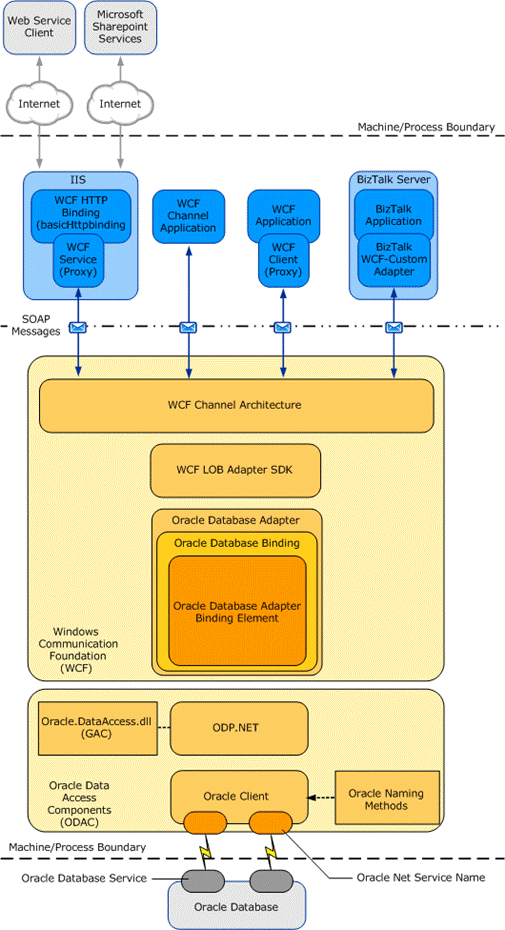
The Microsoft BizTalk Adapter for Oracle Database exposes the Oracle database as a WCF service. Adapter clients can perform operations on the Oracle database by exchanging SOAP messages with the adapter. The adapter consumes the WCF message and makes appropriate ODP.NET calls to perform the requested operation. The adapter returns the response from the Oracle database back to the client in the form of SOAP messages.
The Oracle Database adapter surfaces metadata of Oracle database artifacts (tables, functions, procedures, etc.) that describes the structure of a SOAP message in the form of Web Service Description Language (WSDL).
It uses the Add Adapter Service Reference Visual Studio Plug-in, the Consume Adapter Service BizTalk Project Add-in, and the Add Adapter Metadata Wizard to enable adapter clients to retrieve metadata for operations and generate programming artifacts that can be used in your programming solution.
And it communicates with the Oracle database through the Oracle Data Provider for .NET (ODP.NET) and the Oracle client, which are part of the Oracle Data Access Components (ODAC) for Windows.
The following figure shows the end-to-end architecture for solutions that are developed by using the Oracle Database adapter:
This paper explains in detail – a step-by-step guideline – how to install and configure the WCF-OracleDB Adapter on a BizTalk Server 2020 standalone environment running Windows Server 2019.
What’s in the Whitepaper for you?
This whitepaper will give you a detailed understanding of the following:
The role of an adapter is to enable communications between BizTalk Server and external systems and trading partners. Users configure adapters by creating send ports and receive locations that define the properties for given instances of the adapter. Most adapters support both send and receive operations, whereas other adapters support communication in only one direction.
The HTTP Adapter is one of the adapters that support two-way communications, but unlike other adapters, this adapter has two characteristics that define it:
The HTTP “Receive” Adapter that is responsible for delivering messages to BizTalk is, in fact, a DLL that runs inside Internet Information Services (IIS)
And for that reason, it must be configured in IIS – it is not there out-of-the-box.
In this whitepaper, we will describe the step-by-step process of installing and configuring the HTTP Adapter in order to receive messages.
Some of you may think that the HTTP adapter is deprecated, but that is not true. The only adapters that were deprecated were the old SAP adapter (removed) and the SOAP and SQL adapter (that still are present in the Administration Console). The HTTP adapter is a classic but is not deprecated and is still very used today.
The idea for this whitepaper was partly out of a real need and at a customer’s request. Because it is a strange adapter with a peculiar configuration unlike any other adapter in BizTalk Server, when I was giving a training course, the attendees struggled to understand and put it working correctly. By coincidence, a week later, I needed to put this adapter working at another client. As a result of that request and that client’s need, I end up creating this step-by-step guide on how to install and configure the HTTP adapter to receive messages through HTTP requests. I think this is a good whitepaper about a classic adapter in BizTalk Server.
There is a similar whitepaper that I wrote in the past: BizTalk Server 2016: Receiving messages through the HTTP Adapter installation whitepaper focus on BizTalk Server 2016 as the name describes. This new one is just a small update on the BizTalk Server versioning and is to be updated with the latest version of the BizTalk Server.
What’s in the Whitepaper for you?
This whitepaper will give you a detailed understanding of the following:
Prerequisites
Configure the HTTP Receive Adapter in IIS
Configure the HTTP Adapter Receive and Send Handlers