by Raja Sreenivasan | Apr 2, 2019 | BizTalk Community Blogs via Syndication
Introduction
BizTalk360 already has the capability to integrate with New Relic, in which user can get insights on real-time performance data .
Application Performance Management or Application Performance Monitoring (APM) is an essential tool to help managing and monitoring the performance of an application.In today’s market a wide range of tools is available to optimize and monitor the performance of an application. AppDynamics is a well-known top application performance monitoring tool when it comes to APM. Knowing the importance of Application Performance Monitoring, BizTalk360 provides integration with AppDynamics from the v8.9.6.
Why do we integrate AppDynamics in BizTalk360?
For large organizations spend quite good investment when comes for complex network for optimization and monitor the performance of apps and related issues.AppDynamics is widely used by companies as an enterprise-wide monitoring solution and it has the capability to provide deep performance analytics of your configured environment .Considering the importance of monitoring the performance of BizTalk Server environment in a single place, few of our customer requested us to integrate AppDynamics in BizTalk360.
If you are already using AppDynamics, you can view the performance metrics of the BizTalk server environment across multiple widgets in AppDynamics dashboard from the BizTalk360 v8.9.6.
BizTalk360 Analytical Data in AppDynamics
Initially, BizTalk360 will provide capabilities to push BizTalk Server Analytics information to the AppDynamics. Some of the important BizTalk environment performance metrics categories are
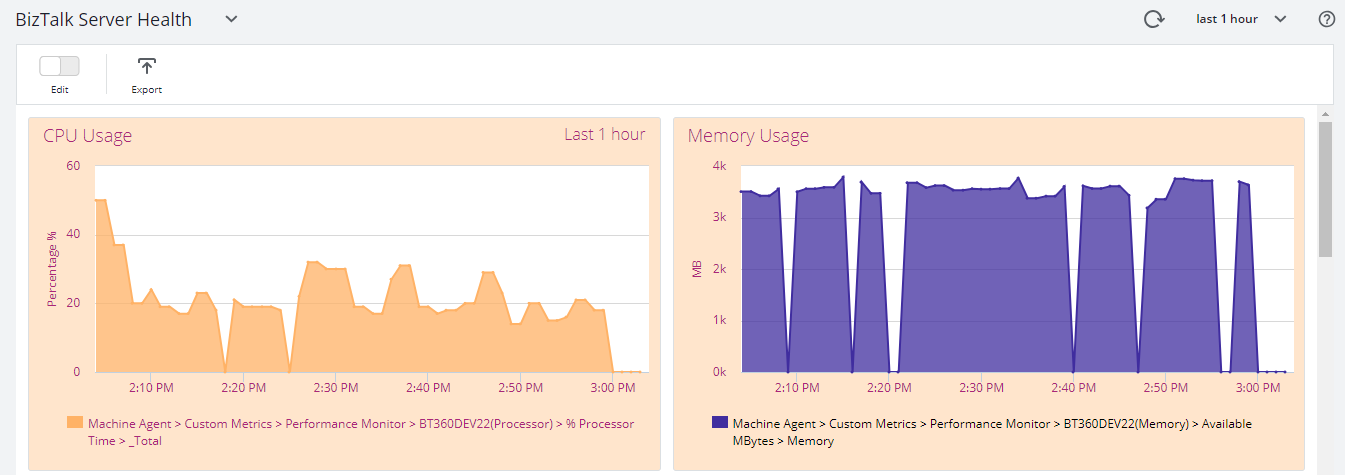
- BizTalk Server Health
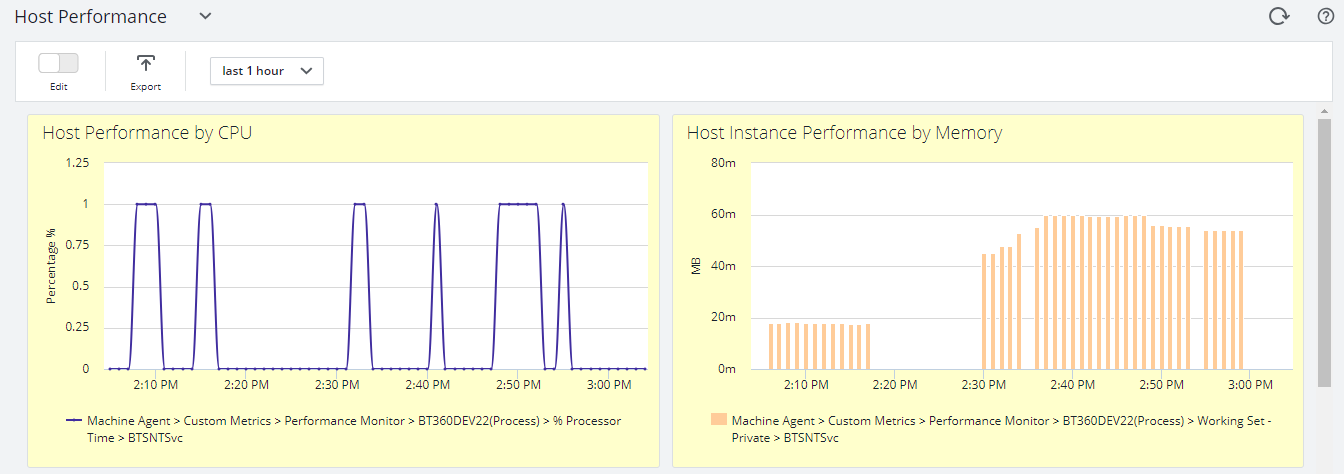
- Host Performance
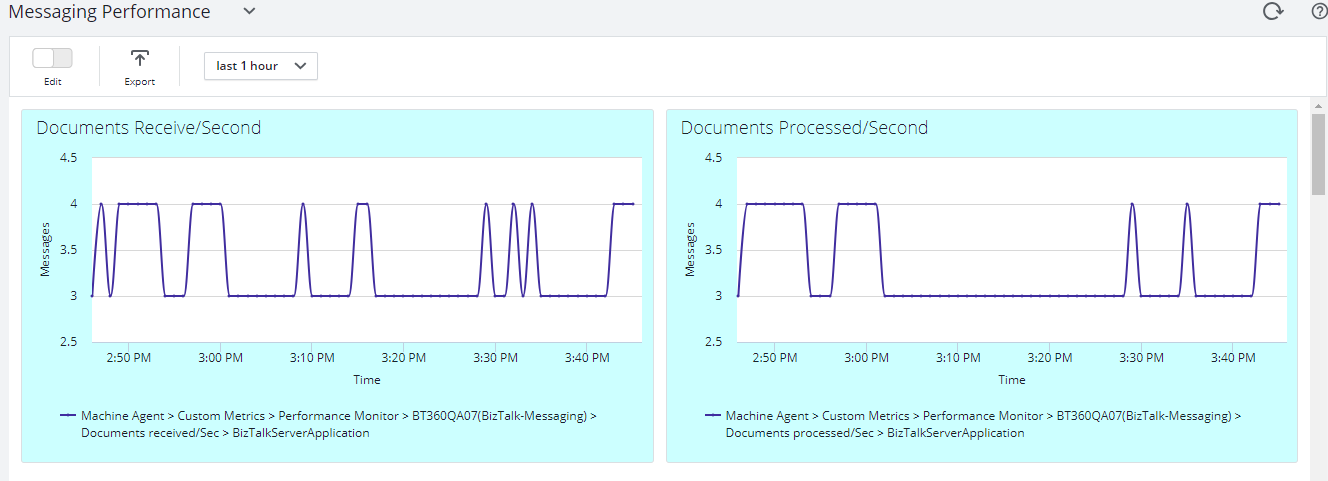
- Messaging
- SQL Server
- Throttling
All metrics have different counters, which are constantly being collected and pushed over to the AppDynamics Controller.
BizTalk Server Health Metrics has
- CPU Usage
- Memory Usage
- Disk Free Space
- Average Disk Queue Length
Message Performance
- Documents Receive/Second
- Documents Processed/Second
- Inbound Latency (Sec)
- Outbound Latency (Sec)
- Outbound Adapter Latency (Sec)
Host Performance
- Host Instance performance by CPU and Memory
Throttling Performance
- Message delivery Throttling State
- Message Publishing Throttling State
- Message Delivery Outgoing Rate
- Message Delivery Incoming Rate
- Active Instance Count
How does BizTalk360 connect with AppDynamics
Every monitoring tool has a different core architecture. When looking on the surface, they might look similar, but when we look in detail of it, it becomes clear how different all the monitoring tools works.
AppDynamics supports different development languages, while we are using .NET because BizTalk360 is build on top of .NET framework.
AppDynamics provides a piece of software called Agent which is installed on the server to which application needs to be monitored. The Agent collects metrics and sends them to a server called the Controller. The controller processes the metrics and presents them via Web Browser.
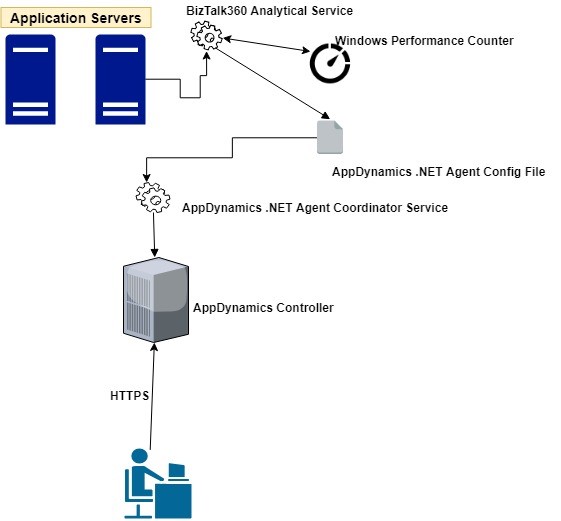
The BizTalk360 Analytics service includes a sub-service called “AppDynamics” which is responsible to constantly push BizTalk Server performance data to Agent. The AppDynamics sub service executes every 70 seconds and checks for the data in the performance data service(another BizTalk360 Analytical sub service). The Controller, which processes the data, makes the data available through a web browser to the user.
BizTalk360 collects the BizTalk Server Analytical data and the AppDynamics agent constantly picks up these data with the help of Windows performance counter data and sends it over to the controller. In AppDynamics, this data is available under the custom metric in the Metrics browser of each application.
Configuration of the AppDynamics Agent
For configuring the AppDynamics agent, you need to download and install the .NET Agent (32/64 bit) in the Application server (where the BizTalk360 Analytics Service is running) . Once the installation is successful, the .NET agent creates the coordinator service and configuration file which consists of the controller and application details.
The default location of the machine agent configuration file is located at:
For Windows Server 2008 or later: %ProgramData%AppDynamicsDotNetAgent
BizTalk360 collects all the BizTalk Server analytical data assigns it to Windows performance counters, and updates the performance counters in the AppDynamics config file as below .

The data will be collected by the .NET Agent coordinator service and passes it to the respective controller as custom metric mentioned in the agent configuration file.
To get the latest performance metrics/counters user need to restart BizTalk360 Analytics service, by doing this the new counters will be updated in AppDynamic config file. Agent then collects the newly introduced performance counter values and start updating in the respective application metric browser configured in AppDynamics.
Series of steps to be covered after configuring AppDynamics .NET Agent
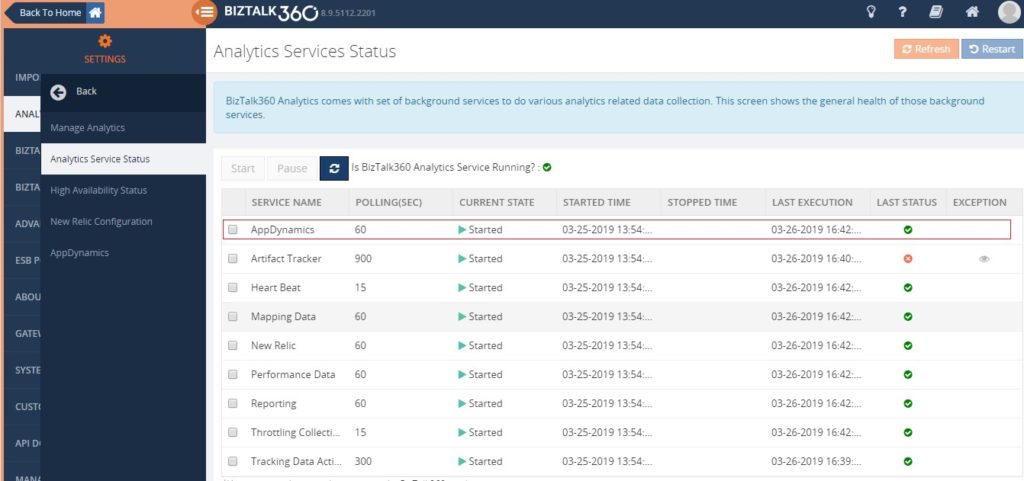
- By default when you install/upgrade BizTalk360 AppDynamics sub service will be in the paused state. You need to manually start the service by navigating to BizTalk360 Settings->Analytics health ->Analytics Service Status->AppDynamics .
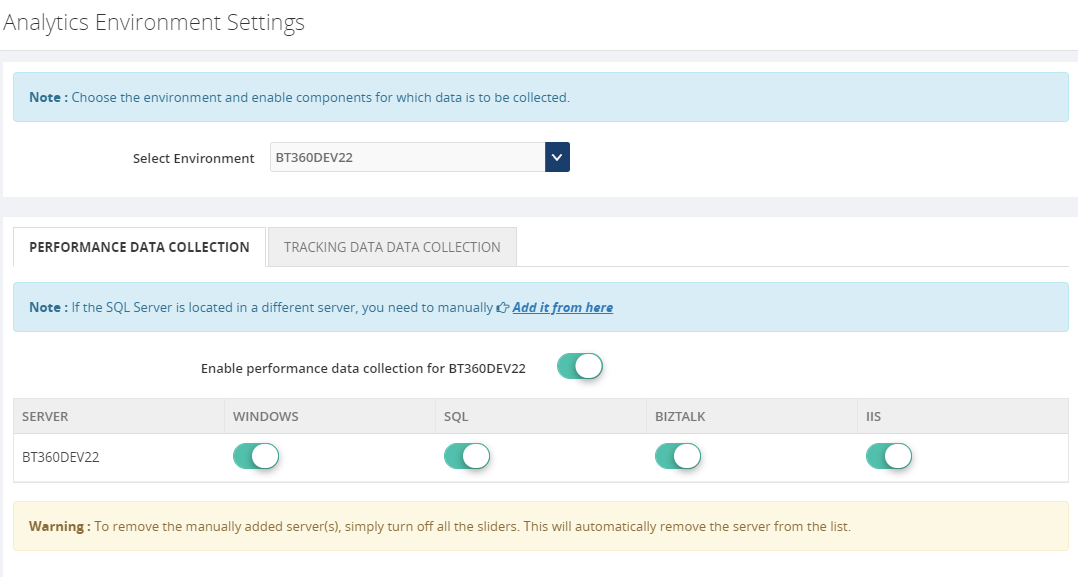
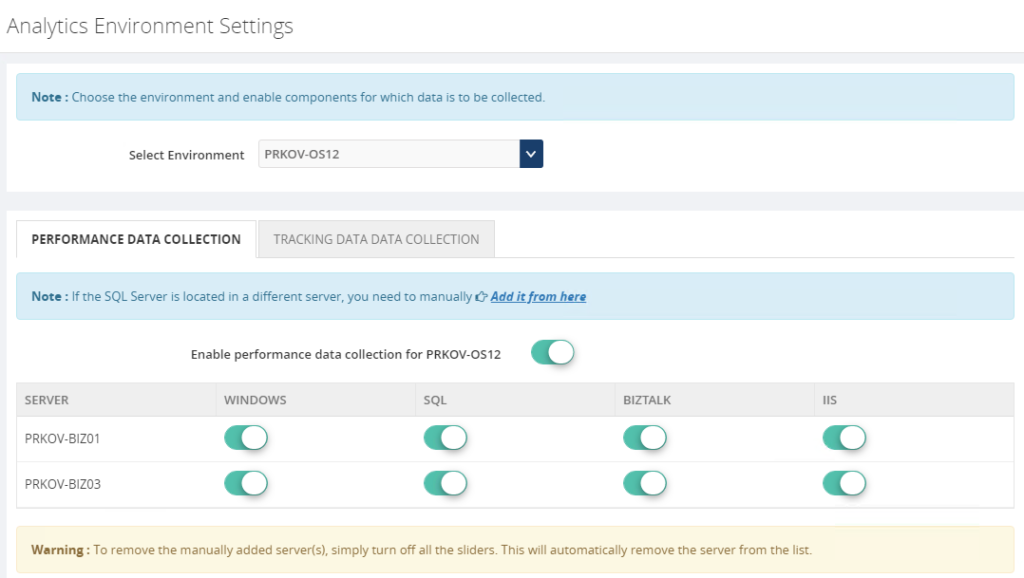
- Ensure performance data collection is enabled in Manage Analytics of BizTalk360 setting side for collecting the analytics data.
Custom Metrics in AppDynamics
Once the AppDynamics agent coordinator service starts pushing data, all the metrics will be available under the metric browser of the respective application in AppDynamics.
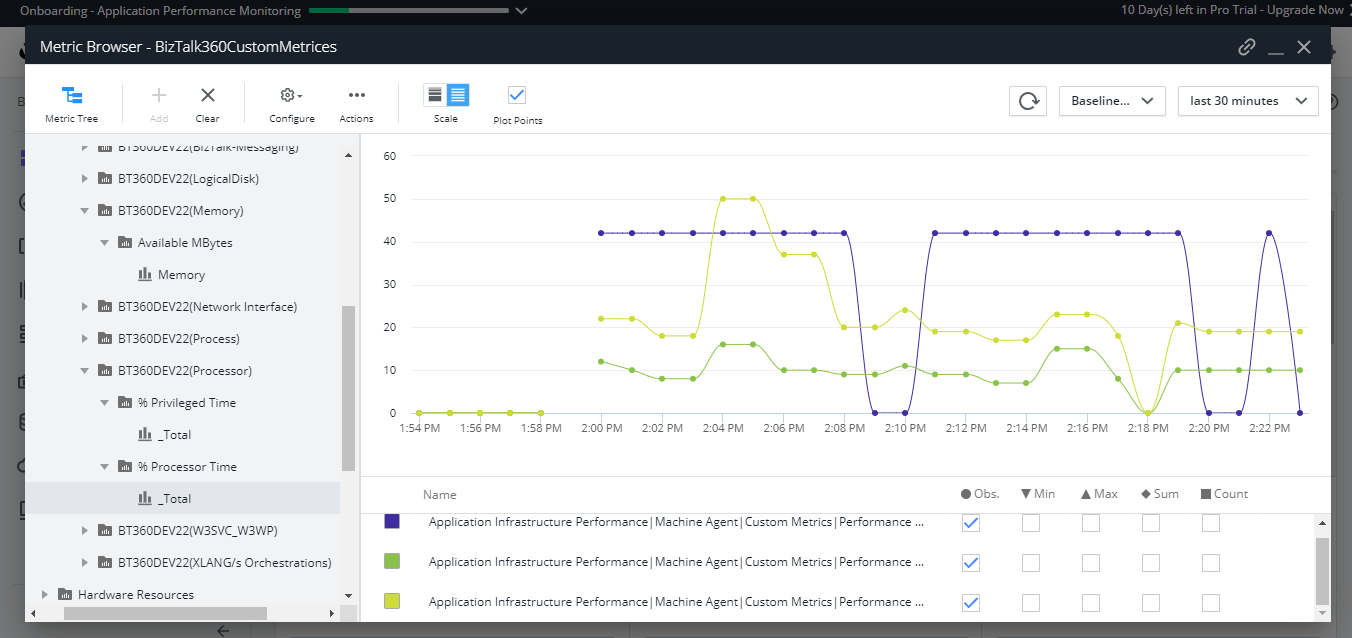
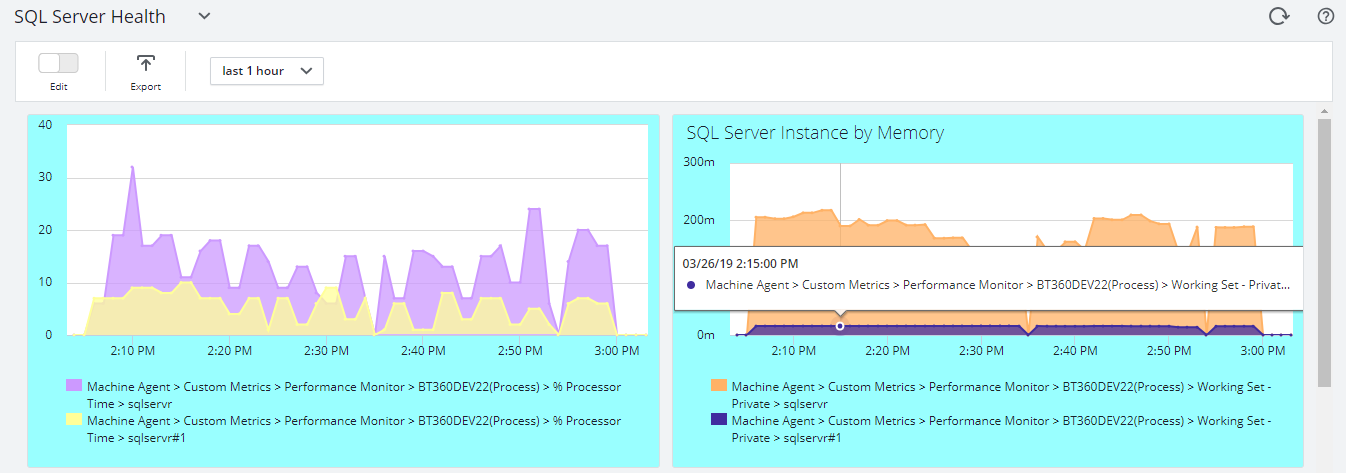
- Once the data is populated, you can create dashboards which consist of different metrics data as shown below.
BizTalk Server High Availability
To maximize the uptime of the BizTalk Server solution it is important to monitor the availability of BizTalk Server environment. By enabling the performance counter in Analytics section, the BizTalk360 Analytics service will start to push data to AppDynamics with the help of the Agent coordinator. All the data are segregated based on server name and their corresponding metrics and counters.
Multiple Environments
You can configure and manage multiple BizTalk environments in BizTalk360. For adding multiple BizTalk Environments please refer this link.
For collecting the performance value of configured environments just enable performance data collection for each server by selecting the respective server name from the dropdown as below .
Environment1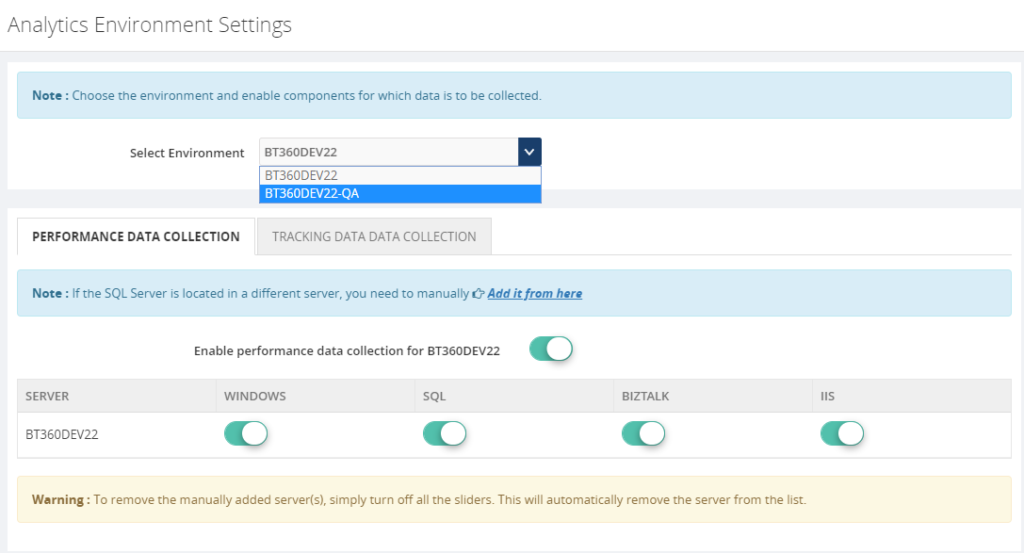
Environment2
Once the Analytical service starts collecting the performance data and pushing it to Agent coordinator , the same you can monitor in AppDynamics dashboard for both the environments.
BizTalk360 High Availability
BizTalk360’s monitoring services and user interface can be installed in more than one places which makes the BizTalk360 as Highly available. It’s predominant to monitor the BizTalk Server and maximize the up-time of BizTalk360. By default, the BizTalk360 high availability services will be available as active and passive on the installed servers and make sure the BizTalk360 is healthy(always up).
To make AppDynamics data collection as highly available you have to install the AppDynamics .NET Agent on the machines where BizTalk360 Analytics services are installed. So when ever the analytics service changes its availability (active/passive) it will collect the data and push to AppDynamics.
Conclusion
With its latest release v8.9.6, we will be bringing the capability to push the BizTalk Server analytical performance data to AppDynamics for optimizing and monitoring BizTalk Server. If you have any feedback or suggestion, please write to us at [email protected]. You can get started to use AppDynamics integration by downloading the 30-day free trial of BizTalk360.
The post APM (Application Performance Monitoring/Management) Integration in BizTalk360 appeared first on BizTalk360.
by Sandro Pereira | Mar 14, 2019 | BizTalk Community Blogs via Syndication
I think in the past I told that do not try to configure anything in BizTalk Server if you are tired. My advice, go to sleep for one hour and come back… unless the client is eager and demands or request things to be done… then the error happens. This was one of these errors in which I usually say that the problem was between the chair and the keyboard. This week I returned to work, after my little honeymoon leave, that I spent part of it working and another part of it with my little kid a little sick (I need to compensate my wife with a proper vacation for being so understanding). So, as you can imagine I return a little tired and the first day was one of those days that I had several clients requiring my presence for several small things at the same time.
One of them was configuring correctly, according to best practices and security the IIS application pools that were being used to run Web Sites with some orchestrations exposed as Web Services that initial was running with BizTalk Server Administration account.
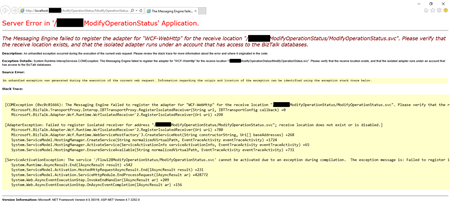
Once I finished configuring the applications pools, I started receiving the following error:
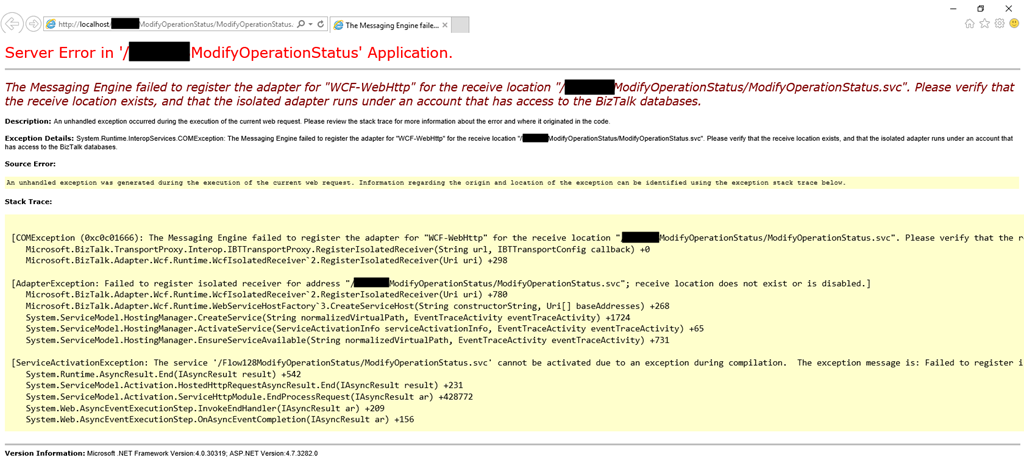
The Messaging Engine failed to register the adapter for “WCF-WebHttp” for the receive location “/ModifyOperationStatus/ModifyOperationStatus.svc”. Please verify that the receive location exists, and that the isolated adapter runs under an account that has access to the BizTalk databases~
Cause
Usually, this can happen for two reasons:
- There isn’t a receive location created and enabled listening to this web service;
- Or this is a permission issue! And is typically related by the fact that the account or service account specified on the application pool that the web service is running is not… a member of the BizTalk Isolated Host Users group.
In my case, and because the names of the service accounts were very identical, I improperly configured the application pool to run with the service account that was a member of the BizTalk Host Users group (btsapphostsrv) instead of the service account member of the BizTalk Isolated Host Users group (btsiapphostsrv).
Solution
To solve this issue, you first should check and double-check if the IIS Application Pool Identities are correctly configured.
If yes, guarantee that the user or service account is part of the BizTalk Isolated Host Users group. If not:
- Make sure you add that user or service account into the BizTalk Isolated Host Users group.
- Or change the IIS Application Pool Identity for an account that is already a member of the BizTalk Isolated Host Users Group.
And then make sure that there is a receive location configured and to listen to this web service and if it is enabled.
In my case, changing to the BizTalk Isolated Host Instance Account that is, of course, a member of BizTalk Isolated Host Users group solved my issue.
The post BizTalk Server WCF-* Adapter: Please verify that the receive location exists, and that the isolated adapter runs under an account that has access to the BizTalk databases. appeared first on SANDRO PEREIRA BIZTALK BLOG.

by Sivaramakrishnan Arumugam | Mar 12, 2019 | BizTalk Community Blogs via Syndication
In my previous blog post, I have highlighted 5 interesting cases we received and solved in the past year. In this blog, I would like to add 5 more interesting support cases.
Let’s get into the cases.
Case 6: Data Monitor Dashboard slow to respond
In the year 2017, we have started a new initiative called ‘Customer Relationship Team. This team will get in touch with our customers regularly in the frequency of 3-4 months. The team will make sure about how the customers are using the BizTalk360 product, whether they are facing any problems, and if they have any queries.
If so, we will clarify the customer queries during the call. If can’t clarify the problem within the short time of the call, then we will create a support case for their queries and make sure we will solve the case.
In one such a call, a customer raised a concern about the Data monitoring dashboard being slow to respond and it takes more and more time.
Troubleshooting
During the investigation of the slowness, we came to know that the customer had configured 147 data monitoring alarms. Out of those, 110 data monitoring alarms were scheduled for every 15 minutes cycle, which will produce a huge result.
In more detail:
110 data monitoring results for every 15 minutes cycle.
110*4*8(business hours) = 3520 results.
110*4*24(whole day) = 10,560 results.
Loading 10k results in a single load, for sure it will take time to load all the results.
Solution
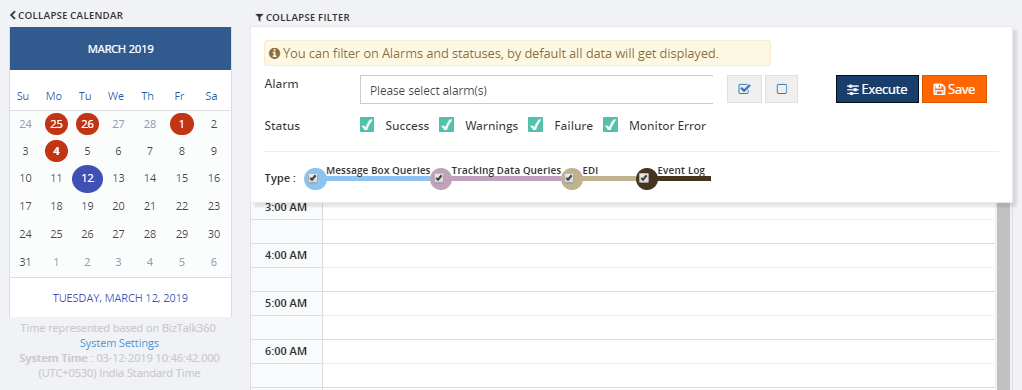
Most of the customers won’t use many schedules for data monitoring alarms. To handle such a huge load, we have improved the performance of the data monitoring dashboard, by having a filter option to select the specific alarms and corresponding status. The improved data monitoring dashboard is available from version 8.7 on.
Case 7: System resources configuration
A customer faced an exception ‘the network path was not found’ while trying to enable SQL Server System resources monitoring.
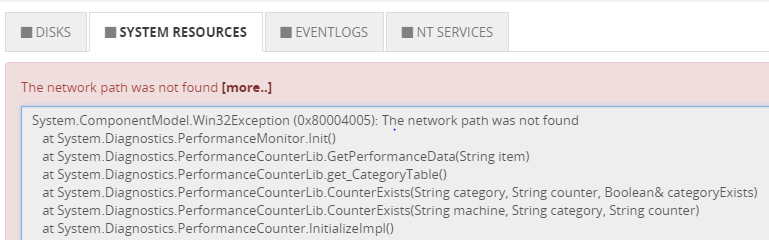
Troubleshooting
We have requested the customer to check the below things:
- The BizTalk360 service account is a local admin on the machine where SQL server is hosted
- The Remote Registry service is started or not
- Firewall ports are opened for SQL server
- From BizTalk360 server, can you connect to that SQL server through SQL Management Studio
- Connect to the remote computer (SQL Server configured for monitoring) from the BizTalk360 machine where the monitoring service is running
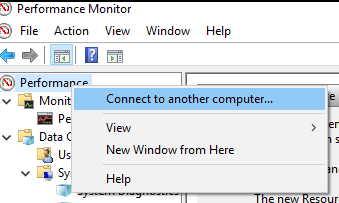
All other steps were passed, but in the Perfmon, while connecting the SQL Server on the BizTalk360 installed machine, they have faced the same exception.
Solution
To open the SQL server on another machine, port 1433 needs to be enabled. To monitor System resources of SQL machine, an additional port needs to be enabled ‘135’, which is for RPC and WMI. We have mentioned the depended ports what needs to be enabled in our existing blog.

Even after adding the port, still the problem persisted. At last, we found that the firewall rules were not activated/enabled, once after activating the rules we were able to solve the case. This is one such case in which we all missed to check the basic step that a rule should be activated because no one had access to view the rules other than the customer’s admin.
Case 8: SFTP Monitoring – PublicKeyAuthendication
A customer was trying to configure monitoring for an SFTP location and they were facing issues. It was working fine for the customer when the authentication was used with a simple username and password. However, once they configured for PublicKeyAuthendication, they faced issues during the configuration.
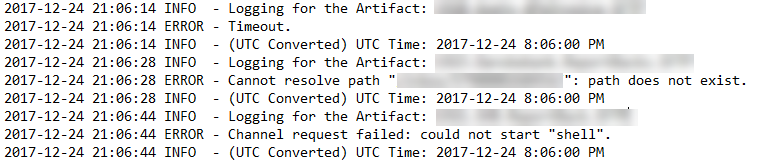
Troubleshooting
We started with the basic troubleshooting steps like authentication, access permissions and we understood that it has all rights to access the FTP site. During the investigation, we found that in a folder BizTalk was picking up the inner folders as well, instead of picking the files alone.
Solution
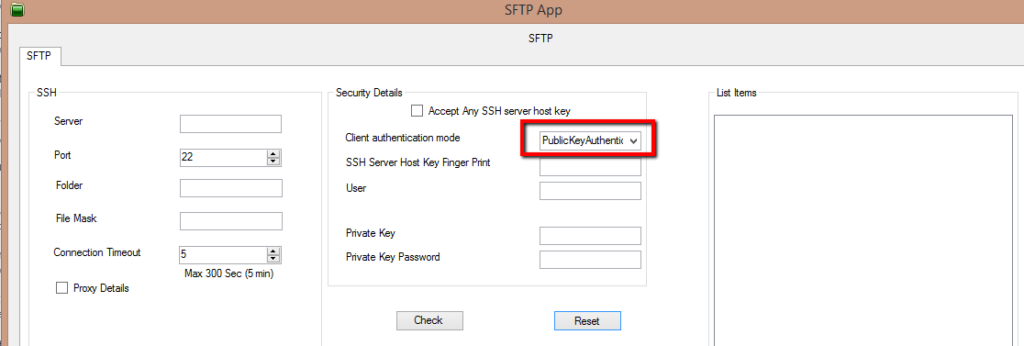
To find the exact root cause of the issue, we have developed a console application (with logs enabled) and provided it to the customer. It provided a clear picture of the problem, as mentioned earlier it has calculated the folder for PublicKeyAuthentication. Now, this has been fixed.
Case 9: Message Count mismatches
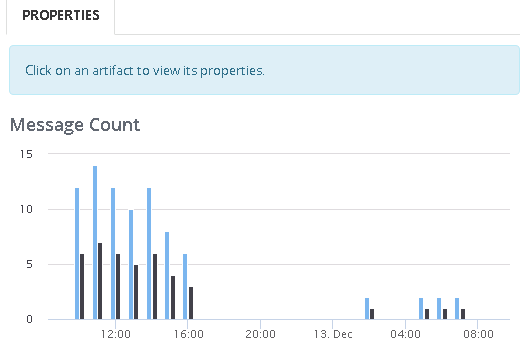
A customer faced a problem between the Receive and Send ports for the message count at Analytics Messaging Patterns.
Troubleshooting
The customer had a very simple scenario (see below) where a file is picked up and placed in a different location, but the Send Port count shows the Receive Port count twice. He gets similar doubling up on Receive and Send ports for other message flows as well.
Example:
Send Port – 12 messages
Receive Port – 6 messages
During the investigation, we have found that whenever BizTalk retries to submit the suspended messages the counts get double.
Solution
As of now, we are showing the message transfer count rather than the message count. We are doing this because this will help us to determine the message performance of BizTalk Artifacts in an environment. We are going to take this as a feature enhancement in the future.
Case 10: Not possible to expand columns in query outcome
Normally you can expand the column size of the query outcome in a grid. But customers were facing a problem that they were unable to expand the columns in the MessageBox Queries grid.
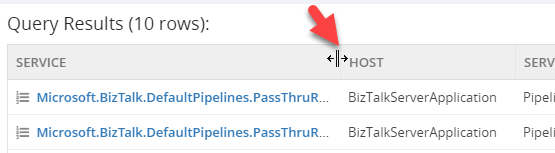
Troubleshooting
During the investigation the customers were facing this problem in Chrome, but not in Internet Explorer and Firefox. They faced the same issue while opening the browser in an incognito window as well. This is really something very strange for us, because while using the same version we were not able to reproduce the same problem.
We have investigated at the code level and everything seems fine at our end. So, we have decided to go for a meeting. During the meeting, we were able to see the problem at the customer end and we had no clue at that time, requested a few days time and closed the meeting.
We analyzed the case and it was hard to reproduce the case at our end. It is working for most of our team members and only a few are facing this issue. The team member who faced the issue and the one who’s working fine worked together, they compared each component from scratch to find what’s the difference and we found the cause.
Solution
If the Chrome page is zoomed out or zoomed in, then the column resize wasn’t working for us and this happened at the customer as well.
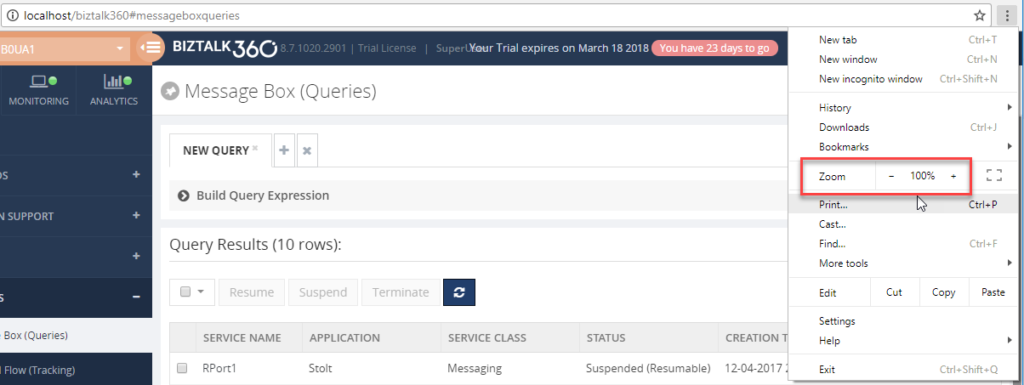
It seemed that this was a problem with the Kendo Grid control in the latest version this issue was introduced by Kendo. We worked along with Kendo and solved the case.
Satisfaction does it!
As a support engineer, we receive different cases on a daily basis. Every support case is unique because the problem will be faced by different customers in different environment architecture. But some of the support cases are interesting by the root cause of the problem and the way of troubleshooting the case. I’m happy that I have worked on such challenging and interesting cases.
The post Interesting support cases 2018 – Part 2 appeared first on BizTalk360.

by Sandro Pereira | Feb 15, 2019 | BizTalk Community Blogs via Syndication
Microsoft Integration, Azure, BAPI, Office 365 and much more Stencils Pack it’s a Visio package that contains fully resizable Visio shapes (symbols/icons) that will help you to visually represent On-premise, Cloud or Hybrid Integration and Enterprise architectures scenarios (BizTalk Server, API Management, Logic Apps, Service Bus, Event Hub…), solutions diagrams and features or systems that use Microsoft Azure and related cloud and on-premises technologies in Visio 2016/2013:
- BizTalk Server
- Microsoft Azure
- Azure App Service (API Apps, Web Apps, Mobile Apps, and Logic Apps)
- Event Hubs, Event Grid, Service Bus, …
- API Management, IoT, and Docker
- Machine Learning, Stream Analytics, Data Factory, Data Pipelines
- and so on
- Microsoft Flow
- PowerApps
- Power BI
- PowerShell
- Infrastructure, IaaS
- Office 365
- And many more…
- … and now non-related Microsoft technologies like:

What’s new in this version?
- New shapes: new shapes were added to existing modules like Generic, Azure, AI, Developer, Files or Users. But in particular a new module was born:
- MIS SAP Stencils contains stencils that will represent some SAP services

You can download Microsoft Integration, Azure, BAPI, Office 365 and much more Stencils Pack for Visio from:
 Microsoft Integration, Azure, BAPI, Office 365 and much more Stencils Pack for Visio (18,6 MB)
GitHub
Or from:
Microsoft Integration and Azure Stencils Pack for Visio 2016/2013 v3.1.0 (18,6 MB)
Microsoft | TechNet Gallery
Author: Sandro Pereira
Sandro Pereira lives in Portugal and works as a consultant at DevScope. In the past years, he has been working on implementing Integration scenarios both on-premises and cloud for various clients, each with different scenarios from a technical point of view, size, and criticality, using Microsoft Azure, Microsoft BizTalk Server and different technologies like AS2, EDI, RosettaNet, SAP, TIBCO etc. He is a regular blogger, international speaker, and technical reviewer of several BizTalk books all focused on Integration. He is also the author of the book “BizTalk Mapping Patterns & Best Practices”. He has been awarded MVP since 2011 for his contributions to the integration community. View all posts by Sandro Pereira
by Lex Hegt | Feb 14, 2019 | BizTalk Community Blogs via Syndication
Introduction
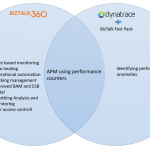
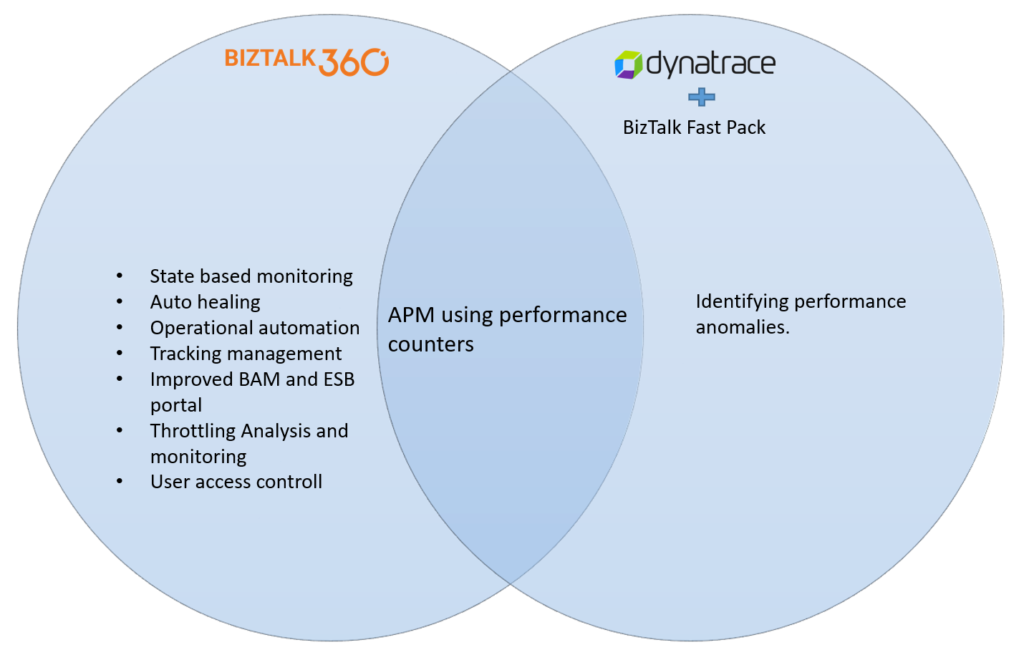
From time to time we hear that organisations are using DynaTrace for operating and monitoring their BizTalk environments. When we talk to such organisations, they ask us about the benefit of using BizTalk360 over Dynatrace for administering their BizTalk environments. In this blog post we try to give a fair comparison between both products.
BizTalk360 and Dynatrace in short
BizTalk360 is a comprehensive product for operations, monitoring and application performance management (APM) of BizTalk Server environments. Unlike other APM products, BizTalk360 is an agent less, non-intrusive software which requires zero configuration on BizTalk servers. This makes it an easy to use and operations-friendly tool. Customers have a lot of influence in the roadmap and the vendor is very receptive to feedback via http://feedback.biztalk360.com. Furthermore, Support is very responsive. This means the product is always up to date to support the latest releases of BizTalk Server.
BizTalk360 is a market leader in BizTalk Server space, has a large customer base and healthy partner ecosystem. The company understands that supporting BizTalk Server applications for business continuity and efficient operations requires a tool which can go beyond being a traditional application performance management tool. Therefore, the product provides BizTalk specific capabilities such as managing BizTalk Applications, proactive monitoring of throttling conditions, role-based user access policies, audit logs, data monitoring etc. In some instances, BizTalk360 has helped customers to meet SOX compliance.
DynaTrace, on the other hand, is a typical Application Performance Management tool with generic capabilities to monitor operating systems, services, network protocols, system metrics, network infrastructure, services, applications etc. There is no out of the box DynaTrace plugin or agent for BizTalk Server. Either the customer needs to create one of their own or use an open source plugin Fastpack. This plugin must be installed on all the BizTalk Servers and some configuration changes must be made to the BizTalk host instance’s configuration file (btsntsvc.exe.config). With an agent it brings the ability to analyse and monitor the performance counters for BizTalk host instances, databases, orchestrations, pipelines etc. The Fastpack plugin seems to have been updated a couple of years back and might not be up to date with the latest BizTalk releases; this is a typical challenge with using open source plugins from individual contributors.
Typical requirements
In this section we will compare the 2 products, BizTalk360 and DynaTrace, for capabilities in achieving BizTalk Server monitoring requirements.
Getting a proactive alarm to warn before a problem occurs
In the BizTalk environment problems can occur in the following situations:
- Important artefacts such as receive locations, send ports, orchestrations, host instances etc get disabled or stopped, either due to errors or due to unintentionally performed tasks. This leads to outages and stops the flow of mission critical messages.
- If the SQL Server jobs are stopped, the size of databases increases over time and impacts the messaging performance.
- Due to several reasons BizTalk can start throttling messages leading to an impact on performance.
- If suspended messages are not cleaned up, the size of the message box increases resulting in performance issues.
BizTalk360 has features to monitor state-based artefacts, which ensures that all BizTalk application artefacts such as receive locations and orchestrations are up and running and generate notifications in case of aberrations. State based monitoring also ensures that essential SQL jobs and Windows services are running as expected. Features like suspended queue monitoring and throttling monitoring ensure that the BizTalk Server is running in a healthy state.
DynaTrace has no out-of-the box support for BizTalk Server. The Open Source plug-in does not have features such as state-based monitoring, throttling monitoring and suspended queue monitoring. However, it does have monitoring capabilities based on some BizTalk and SQL performance counters. In conclusion, it lags behind BizTalk360 in proactively warning of potential issues.
Problem-solving actions
In some situations, issues do occur and the operations team needs easy to use tooling to correct the faults. For example, if receive locations get disabled, they will have to be re-enabled. If messages get suspended, they will have to be terminated or resumed. If we have a software which auto-corrects these faults and automates the operational tasks then it is a big bonus as it brings the down time to its minimum levels and ensures operational efficiency.
BizTalk360 has a powerful feature called Auto Healing, which allows the users to define the expected state of an artefact and in case there is an aberration, arestores the expected state without any human intervention. With another feature Operational Automation, the day to day monotonous tasks such as resuming/terminating suspended messages can be automated.
DynaTrace on the other hand has no operational capabilities. Auto-healing and Operational Automation are not features you can expect from a typical Application Performance Management system. Hence, DynaTrace will not be the right tool to be used for BizTalk related problem solving actions.
Access to the BizTalk servers
BizTalk Server has a very limited number of user groups. The BizTalk Administrators group has the highest level of privileges and the BizTalk Application Operators group has highly restricted access. There are no access levels to give intermediate level access to BizTalk applications and artefacts. Many customers have ended up providing their users with the unrestricted access to production boxes. It is typical of organisations to provide all the users the access to production servers for business continuity.
One of the widely used features of BizTalk360 is Granular User Access Control. With this feature, user access can be controlled at a very granular level. Users do not need to RDP to production boxes to support BizTalk applications. BizTalk360’s web portal allows them access to all the features without the need for them to log on to production boxes unless they are doing deployments.
Again, access control is the feature which can be expected from an Application Performance Management tool. Hence, DynaTrace clearly has no capabilities which to help to restrict access to BizTalk Servers.
One tool for operations, monitoring and analytics
If a support professional needs to use multiple tools daily, operational efficiency takes a big hit due to all the context switching he must do between the tools. This is one of the main challenges in supporting BizTalk Server applications. Every operations team needs a single tool to perform operations, monitoring and analytics.
BizTalk360 brings all the capabilities of operations, monitoring and analytics into a single web portal. Apart from this, it allows the users to access BAM data, ESB data, EDI reports from the same web portal. This means users do not have to switch to different tools.
DynaTrace being an Application Performance tool, does have the ability to monitor performance counters and detect some anomalies. However, the user will be required to switch to different tools such as admin console, event log, ESB portal, BAM portal etc. to perform various other tasks. In a true sense, it adds another tool to the list.
Tracking
Depending on the performance needs, organisations enable or disable BizTalk tracking. Some organisations enable only event tracking and disable message body and property tracking. Hence each organisation has different tracking needs. Regardless, it is important to have good control to manage the tracking options at various artefacts.
BizTalk360 has a feature called Tracking Manager, which brings great control to manage tracking options at various artefacts. This helps customers to ensure they are following the tracking standards set at the organisation. BizTalk360 also has a feature called Graphical Flow, which is an analytics feature providing a visualisation of message flow across various artefacts such as receive ports, orchestrations and send ports. Enabling pipeline tracking is a minimum requirement for the feature. Not many of our customers use it due to performance requirements. This is the only feature which is dependent on tracking. Most of the earlier discussed features of BizTalk360 are not dependent on the tracking.
DynaTrace, like BizTalk360, will not be able to provide analytics related to ports and orchestrations if the tracking is not enabled. It surely is not a tracking management tool either.
Summary
Comparing the capabilities of BizTalk360 and Dynatrace against the day-to-day requirements necessary to work with BizTalk Server, BizTalk360 comes out as a clear winner. Dynatrace is a generic APM tool and will not match most of the capabilities of BizTalk360. The features such as State-Based Monitoring, Auto Healing, Operational Automation, Throttling Monitoring etc. are essential to bring the operational efficiency and ensure the health of BizTalk environments and applications.
 Why not give BizTalk360 a try! A trial version of BizTalk360 can be requested here.
Author: Lex Hegt
Lex Hegt works in the IT sector for more than 25 years, mainly in roles as developer and administrator. He works with BizTalk since BizTalk Server 2004. Currently he is a Technical Lead at BizTalk360. View all posts by Lex Hegt
by Gautam | Feb 10, 2019 | BizTalk Community Blogs via Syndication
Do you feel difficult to keep up to date on all the frequent updates and announcements in the Microsoft Integration platform?
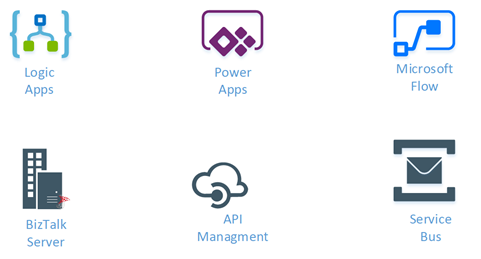
Integration weekly update can be your solution. It’s a weekly update on the topics related to Integration – enterprise integration, robust & scalable messaging capabilities and Citizen Integration capabilities empowered by Microsoft platform to deliver value to the business.
If you want to receive these updates weekly, then don’t forget to Subscribe!
Feedback
Hope this would be helpful. Please feel free to reach out to me with your feedback and questions.
by Sowmiya Subramanian | Feb 6, 2019 | BizTalk Community Blogs via Syndication
BizTalk360 v8.9.5 has been released for the public with lots of exciting new features. Many of our customers have already ugraded to the latest version and started experiencing the new features. As you know, BizTalk360 will always listen to customer ideas and implement them for the product development as like
“Software quality begins with the quality of the requirements.”
We gather those requirements through the BizTalk360 feedback portal and make sure to address customers ideas and suggestions. Based on the number of votes. we came up with new features and enhancements, with intuitive design, in our latest version, as follows:
- Action on Send Port Groups
- Alarm Reset Capability
- Autocorrect Reset Capability
Above three features are the most awaited features by the customers. This will increase usability and will ease the process to maintain and monitor the BizTalk artifacts. Here we go!
Action on Send Port Groups
One of the major functionalities we are bringing is the ability to action on Send Port Groups. After getting several customer feedbacks, we are bringing this new feature in our latest release, which will ease the operation and monitoring capabilities.
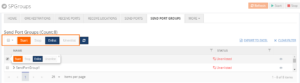
A Send Port Group is a collection of Send Ports that BizTalk Server can use to send the same message to multiple destinations in one configuration. In earlier versions, user can search and view the Send Port Groups, however there was a gap in performing actions in BizTalk360. In this new version, we have added operational capabilities such as Start, Stop, Enlist and Unenlist for Send Port Groups as in line with BizTalk server.
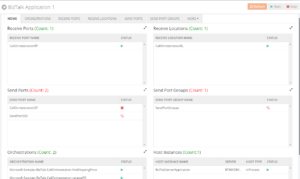
As there is a famous saying “Intuitive design is how we give the user new superpowers”, we have improved the Application Home Page UI. From now on, you can view all the available Send Ports, Receive Ports, Receive Locations, Orchestrations, Send Port Group and the associated Host Instances in the home tab for easy access.
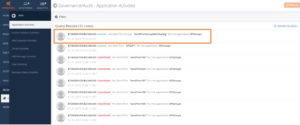
The BizTalk user can also audit the Send Port Groups activities in the Governance and Auditing sections. Once the user performs an action on Send Port Groups, it gets tracked on Application activities and User Activities with details as below.
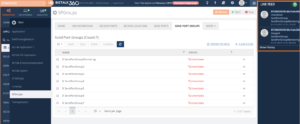
The actions you perform on Send Port Groups are getting tracked and you can audit that on live through “Live Feed” as shown below.
As you already know, Monitoring is one of the core functionalities of BizTalk360. With this functionality, you can monitor all the BizTalk artifacts and when the artifacts go down, you can perform actions through the auto-healing functionality, except, until earlier versions of BizTalk360, for the Send Port Groups. Now, the Monitoring capability has also been provided for the Send Port Groups.
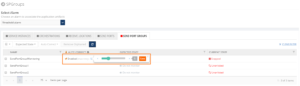
Note: To know the detailed information of Send Port Groups monitoring click here.
Alarm Reset Capability
Prior to v8.9.5, the alarm will get reset in two scenarios as follows.
- Manually select the respective alarm and Reset the Notification Counter
- Notification Counter will be reset once all the mapped artifact status are in the healthy state
As per the feedback from several customers (as below), we have included Auto Reset ability in our latest release.
Alert Reset limit can be set in Alarm configuration section as shown in the below screenshot.
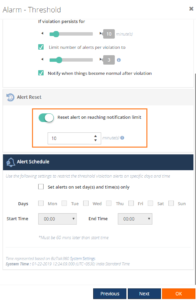
Once the notification limit has been reached, the alarm will auto reset the counter after the configured X minutes.
Autocorrect Reset Capability
Prior to v8.9.5, as same as with an alarm, the Auto Correct configuration will get reset in two scenarios. The Auto Correct will get reset, once after the auto healing is successful:
- Auto Correct ‘Max Retry’ counter will be reset after the successful auto healing of the mapped artifacts
- Associated Auto Correct mappings will be reset after the alarm reset
But we don’t have the capability, to reset the Auto Correct automatically. As per the feedback from several customers, we have implemented Auto Correct Reset functionality in the latest version.
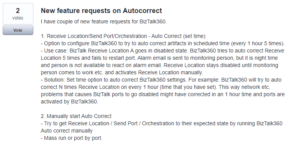
Now, With Auto Correct parameters “Max Retry” and “attempt”, an additional parameter has been added, which is “Reset Interval”. The user can configure the time interval to do automatic Auto Reset. This configuration will reduce the manual intervention every time when the ‘Max Retry’ counter reaches it limit.
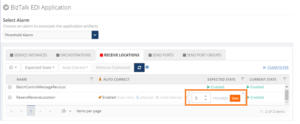
Conclusion
We hope that the above features will increase the usability and reduce the manual work to reset. Are you tired of constantly having to monitor your BizTalk environment in a manual fashion? Give BizTalk360 a try and take benefits of newly added features. A trial version of BizTalk360 can be requested here.
by Senthil Kumar Palanisamy | Feb 5, 2019 | BizTalk Community Blogs via Syndication
Introduction
BizTalk360 has many features that BizTalk Operators and BizTalk Administrators can take advantage to manage their BizTalk Environments. BizTalk360 is constantly improving the existing features based on the customer’s feedback in every release of the product. Similarly, in version 8.9.5 the existing features are improved based on the customer votes for the feature request. In this article, we can see the three different feature improvements like Filter Improvements, ESB Fault Delete Operation, Notification channel reconfiguration that has been implemented.
“The first step in exceeding your customer’s expectations is to know those expectations.” ~ Roy H. Williams, Author & founder of the Wizard Academy Institute. 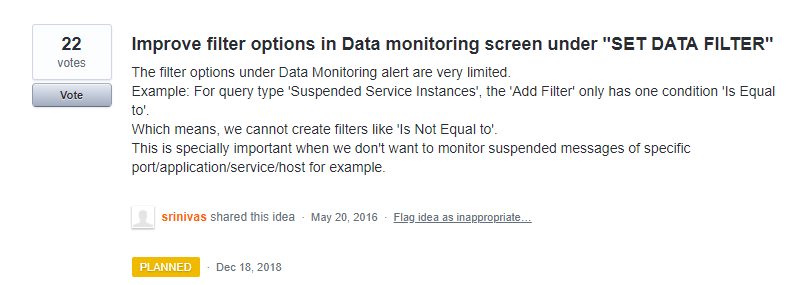
Filter Improvements
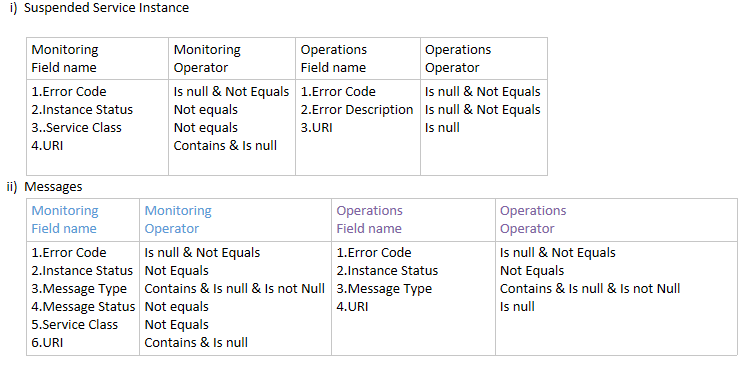
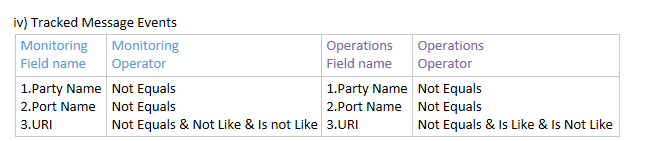
The Filter Component is an important tool to get query results from BizTalk databases like BizTalkMsgBox, BizTalkDTADb and BAMPrimaryImport. In Message Box Queries and Tracking Queries (Graphical Message Flow), there were few filter operators missed in the previous version of BizTalk360. Due this missing filter operators’ customers faced challenges to filter data they expected get results out of it. To overcome this situation, BizTalk360 planned to implement the filter operators to match with BizTalk Admin Console. Please find the consolidated list of filter operators that are implemented in the latest version of BizTalk360.
Message Box Queries:
In Message Box Queries, to the filters Instance Status and Service Class “Not Equals” Operator are implemented in Operation and Data Monitoring Section
- All In-Progress Service Instances
- Running Service Instances
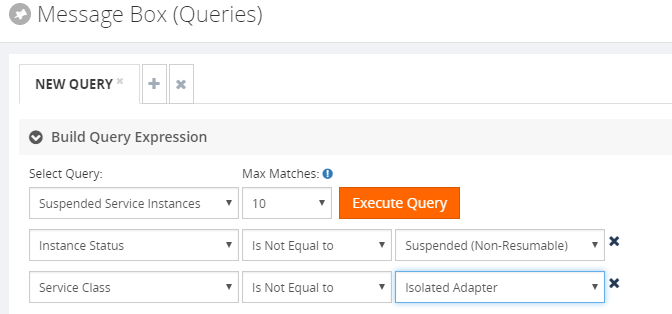
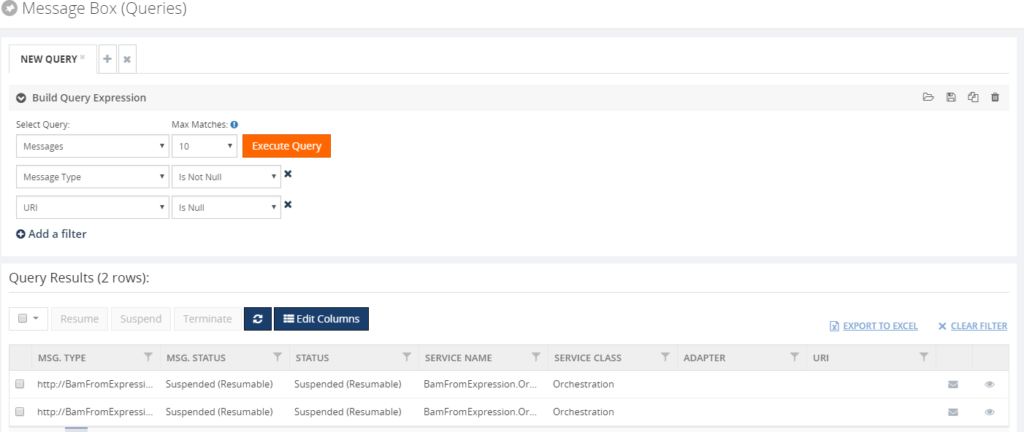
Similarly, other operators like IS Null, IS NOT NULL and Does Not Contains are implemented. While choosing the filter operators “IS NULL and Is NOT NULL“ there is no need of filter inputs.
Graphical Message Flow:

ESB Filters:
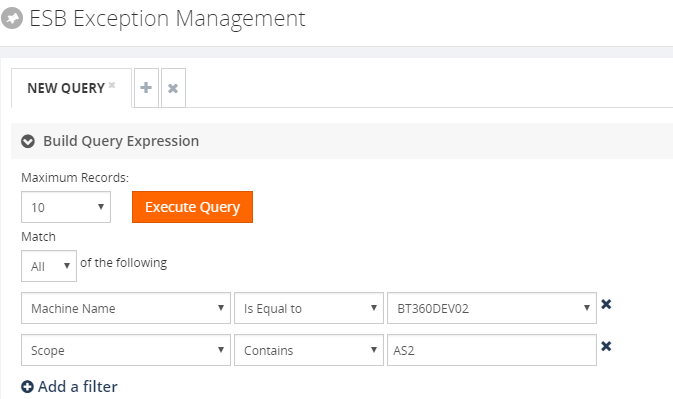
In the ESB Module, “Machine Name and Scope” are implemented in Operation (ESB Exception Data) and Data Monitoring Section (ESB Data) Machine Name filter has operators:
- Equals
- Not Equals
Scope filter has operators:
- Equals
- Not Equals
- Contains
- Does Not Contains
Custom Notification Channel Reconfiguration
Custom Notification channel is a powerful mechanism to notify BizTalk360 monitoring alerts to various channels like Slack, Service Now, Microsoft Teams etc. There is even a possibility that a customer can write their own custom notification channel.
Scenario:
A customer has written their own custom notification channel like PowerShell notification to execute the PowerShell scripts to restart the Windows service when an Error or a Warning occurred. Based on the business case, they want to enhance the custom notification channel implementation.
In this situation, the customer must remove the configured notification channel from the alarms to which it is associated. Then reconfigure custom notification channel to the alarms. If the number of alarms is large, then it is tedious process to remove and reconfigure the notification channel from all the alarms. To Overcome this challenge, in this version 8.9.5 Custom Notification Channel Reconfigure capability has been introduced. By this feature, users don’t need to remove the configured channels from the alarms. Instead the user can click on Reconfigure button and choose the latest DLL to update the existing channel object stream in the database.
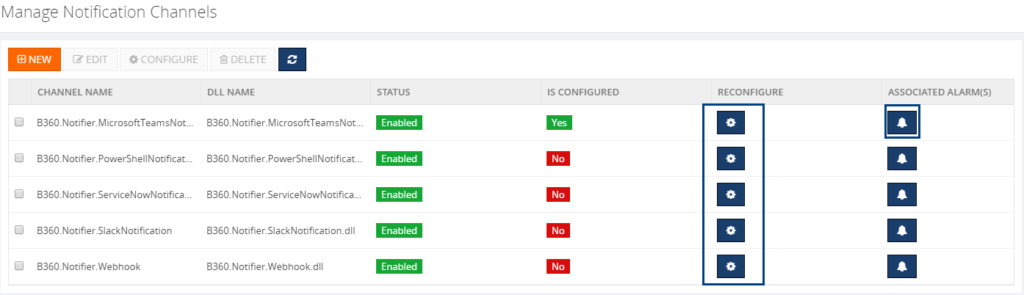
The automatically reconfigured notification channel will affect from the next monitoring cycle. The users must reconfigure the notification channel properties value, if they introduce a new alarm or global properties in the updated notification channel. The user can view the list of alarms to which a custom notification channel is associated. This will give insight in the number of alarms the notification channel is associated with.
ESB Fault Delete Operation
From the Feedback portal we understood that customers are interested to have Delete Operation on ESB Fault Exceptions.
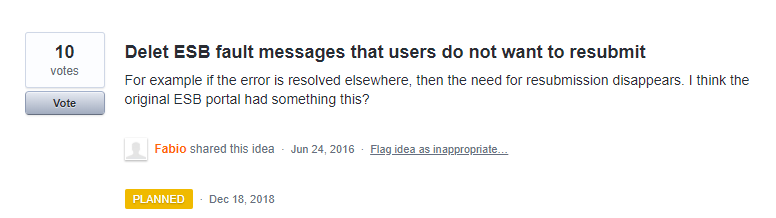
Scenario:
A Send Port that you are using in an application fails unexpectedly, therefore both the service instance and the message become suspended and the fault information is written into the ESB exception database. Once the exception is corrected and resubmitted for further go, there may be two scenarios which will come into picture:
- Messages which are submitted successfully are residing in the ESB Exception database but are of no further use
- Messages are rerouted to the ESB Exception database due to recurrent failure. In this specific case, the original message is also available in the ESB portal
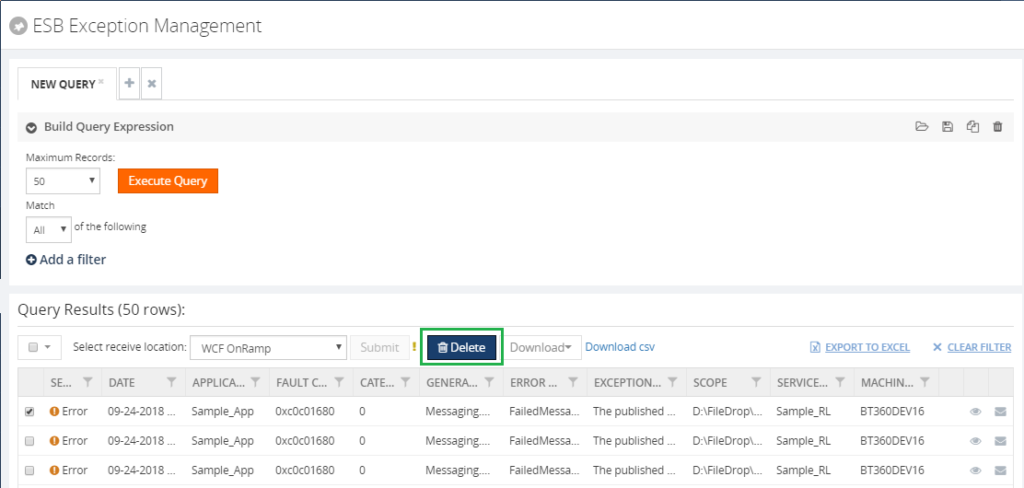
ESB Fault Deletion is introduced in the ESB Exception Management section. The user has the option to select multiple faults, which can be deleted in the one go. The delete operation will remove the data from the following tables in the ESB Exception database.
- [MessageData]
- [ContextProperty]
- [Message]
- [Fault]
The Delete operation will delete Multi-Part message or multiple messages and context properties related to the faults from the corresponding tables.
Governance Audit:
BizTalk360 will capture the governance audit about the message delete operation. It will audit the user who performs the delete operation and message Id’s are displayed in governance audit section. Similarly, these operations are notified in Live Feed section.
Summary
We hope that the enhanced features will give you more control over the filters, Custom notification channels and ESB Faults. We always keep track of our Feedback Portal and take up the valid suggestions and feedback. If you would like to know more about how BizTalk360 can help your organization to manage your BizTalk Server middle ware platform, feel free to contact us.
Author: Senthil Kumar Palanisamy
Senthil Kumar Palanisamy is the Technical Lead at BizTalk360 having 14 years of experience in Microsoft Technologies. Worked various products across domains like Health Care, Energy and Retail. View all posts by Senthil Kumar Palanisamy

by Sandro Pereira | Feb 3, 2019 | BizTalk Community Blogs via Syndication
I’m glad to be back, once again, to Integration Monday Events! The first time I presented a session on this user group was almost 3 years ago on April 25, 2016, and I’m always happy to come back.
Also, I’m glad to be invited by the product owner to speak about BizTalk NoS Ultimate add-in because I feel like a godfather of this tool, some many nights I spend with Nino Crudele providing feedback and demanding new features and capabilities – from that day Nino thinks twice before I asked me for feedback or opinions about anything is developing hehe.
This will be the second time I speak about this tool on this user group. The first time it was on August 2015 in a session about “Real Case Scenarios Where BizTalk NoS Ultimate Can Improve Our Efficiency“. This time will be a different session with, in my personal opinion, full of great and good news!
Session Name: “The NOS-addin – your (free) BizTalk Dev buddy!”

Session Overview: The NOS-add-in is a tool specifically developed for BizTalk developers. It contains all kind of features to make the life of a BizTalk developer easier and thereby less time-consuming.
In this session, Sandro shows the different capabilities of the tool.
I invite you all to join us next Monday. Grab your “seat” by registering in this session here.
Author: Sandro Pereira
Sandro Pereira lives in Portugal and works as a consultant at DevScope. In the past years, he has been working on implementing Integration scenarios both on-premises and cloud for various clients, each with different scenarios from a technical point of view, size, and criticality, using Microsoft Azure, Microsoft BizTalk Server and different technologies like AS2, EDI, RosettaNet, SAP, TIBCO etc. He is a regular blogger, international speaker, and technical reviewer of several BizTalk books all focused on Integration. He is also the author of the book “BizTalk Mapping Patterns & Best Practices”. He has been awarded MVP since 2011 for his contributions to the integration community. View all posts by Sandro Pereira
by Sandro Pereira | Jan 28, 2019 | BizTalk Community Blogs via Syndication
What started to be a Microsoft Integration Stencil Packs is now almost a full Microsoft stack stencil package that includes Microsoft Integration, Azure, BAPI, Office365, devices, products, competing technologies or partners and much more Stencils Pack it’s a Visio package.
This package contains fully resizable Visio shapes (symbols/icons) that will help you to visually represent On-premise, Cloud or Hybrid Integration and Enterprise architectures scenarios (BizTalk Server, API Management, Logic Apps, Service Bus, Event Hub…), solutions diagrams and features or systems that use Microsoft Azure and related cloud and on-premises technologies in Visio 2016/2013:
- BizTalk Server
- Microsoft Azure
- Azure App Service (API Apps, Web Apps, Mobile Apps, and Logic Apps)
- Event Hubs, Event Grid, Service Bus, …
- API Management, IoT, and Docker
- Machine Learning, Stream Analytics, Data Factory, Data Pipelines
- and so on
- Microsoft Flow
- PowerApps
- Power BI
- PowerShell
- Infrastructure, IaaS
- Office 365
- And many more
This new small update includes the new Office365 icons that were recently announced by Microsoft. It includes an additional of 19 new shapes and some reorganization.
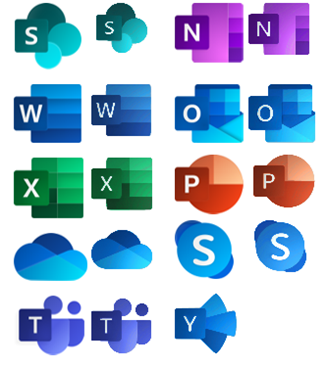
The Microsoft Integration Stencils Pack v3.1.1 is composed of 22 files:
- Microsoft Integration Stencils v3.1.0
- MIS Additional or Support Stencils v3.1.0
- MIS Apps and Systems Logo Stencils v3.1.0
- MIS AI Stencils v3.1.0
- MIS Azure Additional or Support Stencils v3.1.0
- MIS Azure Others Stencils v3.1.0
- MIS Azure Stencils v3.1.0
- MIS Buildings Stencils v3.1.0
- MIS Databases Stencils v3.1.0
- MIS Deprecated Stencils v3.1.0
- MIS Developer Stencils v3.1.0
- MIS Devices Stencils v3.1.0
- MIS Files Stencils v3.1.0
- MIS Generic Stencils v3.1.0
- MIS Infrastructure Stencils v3.1.0
- MIS Integration Patterns Stencils v3.1.0
- MIS IoT Devices Stencils v3.1.0
- MIS Office365 v3.1.1
- MIS Power BI Stencils v3.1.0
- MIS PowerApps and Flows Stencils v3.1.1
- MIS Servers (HEX) Stencils v3.1.0
- MIS Users and Roles Stencils v3.1.0
You can download Microsoft Integration, Azure, BAPI, Office 365 and much more Stencils Pack for Visio from:
Microsoft Integration, Azure, BAPI, Office 365 and much more Stencils Pack for Visio (18,6 MB)
GitHub
Or from:
Microsoft Integration and Azure Stencils Pack for Visio 2016/2013 v3.1.1 (18,6 MB)
Microsoft | TechNet Gallery
Author: Sandro Pereira
Sandro Pereira lives in Portugal and works as a consultant at DevScope. In the past years, he has been working on implementing Integration scenarios both on-premises and cloud for various clients, each with different scenarios from a technical point of view, size, and criticality, using Microsoft Azure, Microsoft BizTalk Server and different technologies like AS2, EDI, RosettaNet, SAP, TIBCO etc. He is a regular blogger, international speaker, and technical reviewer of several BizTalk books all focused on Integration. He is also the author of the book “BizTalk Mapping Patterns & Best Practices”. He has been awarded MVP since 2011 for his contributions to the integration community. View all posts by Sandro Pereira