Today, we are going over another real scenario, this time from one of our PowerBI Robots clients. For those unfamiliar with it, PowerBI Robots is part of DevScope’s suite of products for Microsoft Power BI. It automatically takes high-resolution screenshots of your reports and dashboards and sends them anywhere to an unlimited number of recipients (any users and any devices), regardless of being in your organization or even having a Power BI account.
Challenge
The COVID-19 pandemic massified remote work, and one of our PowerBI Robots clients asked us for a way to start receiving high-resolution screenshots of their reports and dashboards. On top of the devices at the client’s facilities (mainly TVs), these screenshots should also be available on a Microsoft Teams Channel where they could be seen by all users with access to it. PowerBI Robots allows users to “share” high-resolution screenshots of Power BI reports and dashboards in many ways, but it didn’t have this capability out-of-the-box, so we proactively introduced it using Azure Integration Services
This proof-of-concept will explain how you can extend the product’s features by making use of PowerBI Robots’ out-of-the-box ability to send a JSON message to an HTTP endpoint and then using Azure Integration Services such as Azure Blog Storage, Azure File Storage, Logic Apps, or even Power Platform features like Power Automate to share these report or dashboard images on platforms like Teams, SharePoint or virtually everywhere.
Create Blob Storage
In theory, we could send an image in base64 directly to Teams, but the problem is that messages on Teams have a size limit of approximately 28KB. This encompasses all HTML elements such as text, images, links, tables, mentions, and so on. If the message exceeds 28KB, the action will fail with an error stating: “Request Entity too large“.
To avoid and bypass this limitation, we have to use an additional Azure component to store the Power BI report images provided by PowerBI Robots. And to do that, we can choose from among resources such as:
Azure Blob Storage: Azure Blob storage is a feature of Microsoft Azure. It allows users to store large amounts of unstructured data on Microsoft’s data storage platform. In this case, Blob stands for Binary Large Object, which includes objects such as images and multimedia files.
Azure File Storage: Azure Files is an Azure File Storage service you can use to create file-sharing in the cloud. It is based on the Server Message Block (SMB) protocol and enables you to access files remotely or on-premises via API through encrypted communications.
Or even a SharePoint library, where you can store images and many other types of files.
We chose to use blob storage for its simplicity and low cost for this POC.
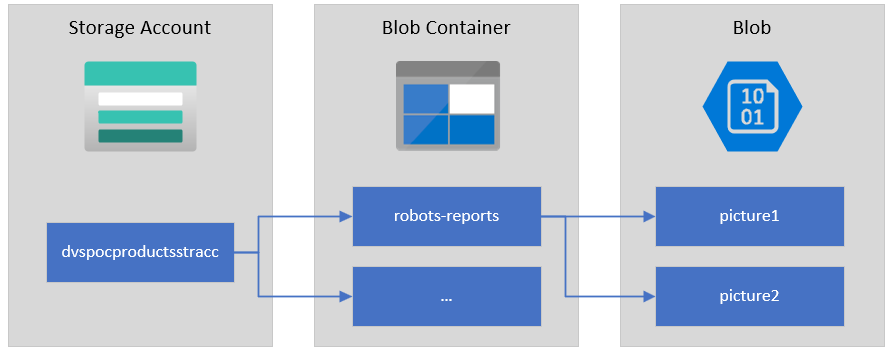
To start, let’s explain the structure of Azure Blob storage. It has three types of resources:
The storage Account
A container in the storage account
A blob
If you don’t have a Storage Account yet, the first step is to create one, and for that, you need to:
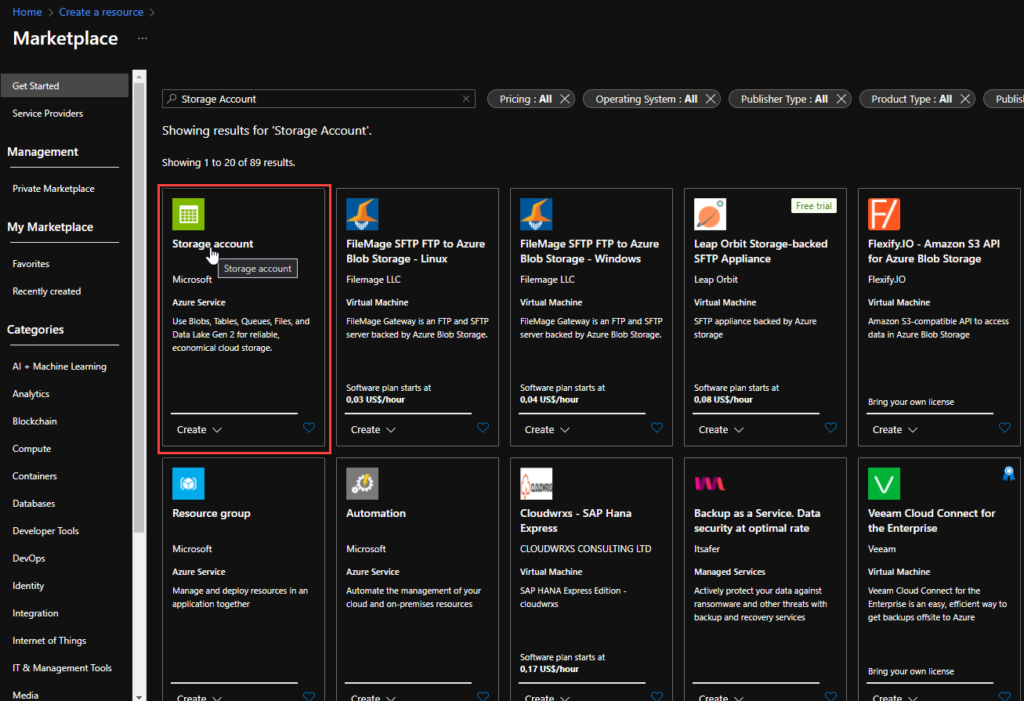
From the Azure portal menu or the Home page, select Create a resource.
On the Create a resource page, on the search type Storage account and from the list, select Storage account and click Create.
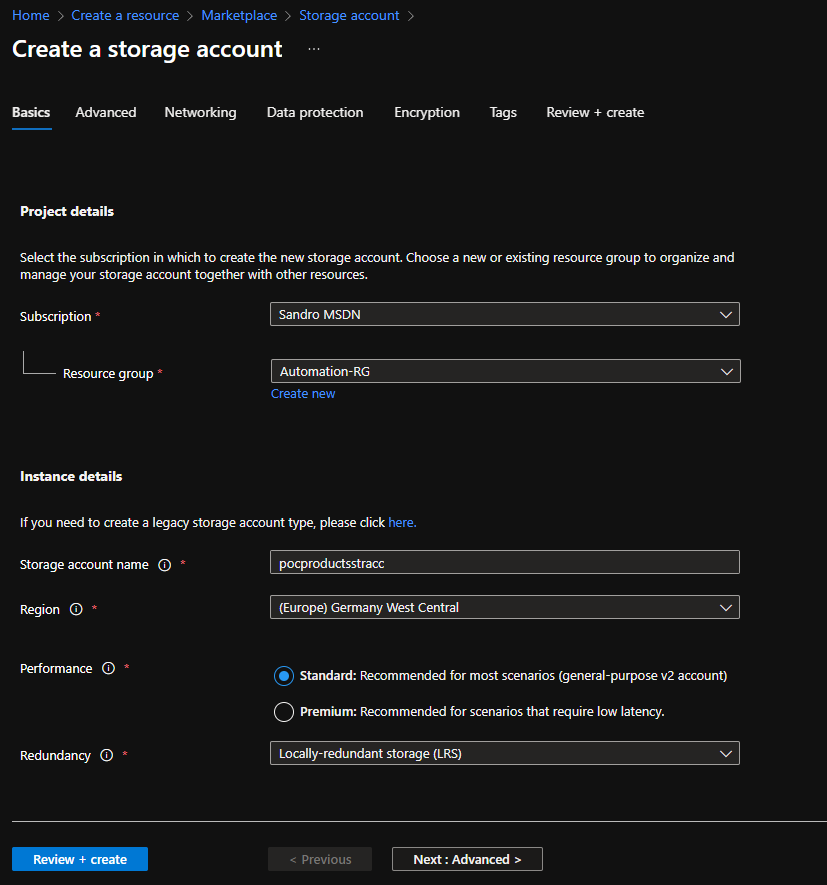
On the Create a storage account Basics page, you should provide the essential information for your storage account. After you complete the Basics tab, you can choose to further customize your new storage account by setting options on the other tabs, or you can select Review + create to accept the default options and proceed to validate and create the account:
Project details
Subscription: Select the subscription under which this new function app is created.
Resource Group: Select an existing Resource Group or create a new one in which your function app will be created.
Instance details
Storage account name: Choose a unique name for your storage account.
Storage account names must be between 3 and 24 characters in length and may contain numbers and lowercase letters only.
Region: Choose a region near you or near other services your functions access.
Note: Not all regions are supported for all types of storage accounts or redundancy configurations
Performance: Standard or Premium Select
Standard performance for general-purpose v2 storage accounts (default). This type of account is recommended by Microsoft for most scenarios.
Select Premium for scenarios requiring low latency.
Redundancy: Select your desired redundancy configuration.
Now that we have the storage account created, we need to create our Blob Container. And for that we need:
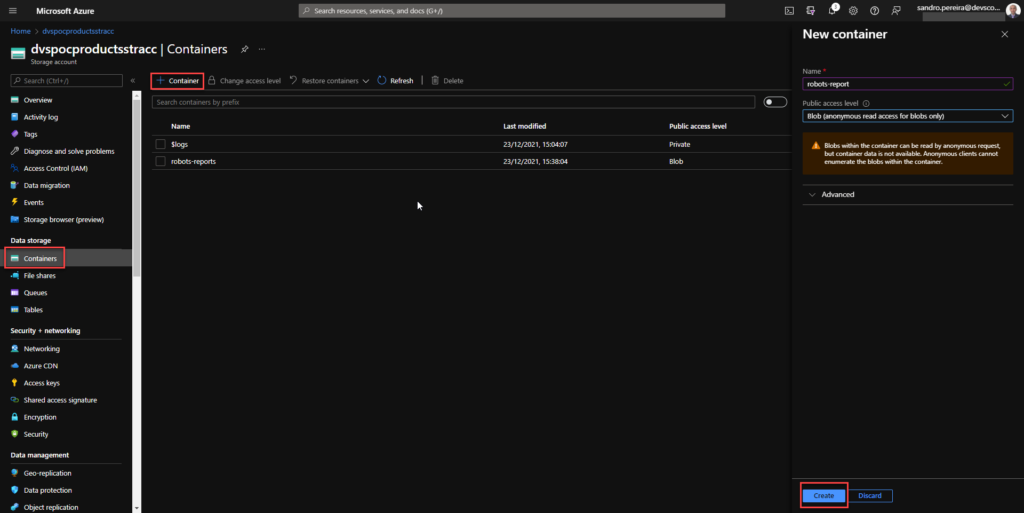
In the left menu for the storage account, scroll to the Data storage section, then select Containers.
On the Containers page, click on + Container button.
From the New Container window:
Enter a name for your new container. You can use numbers, lowercase letters, and dash (-) characters.
Select the public access level to Blob (anonymous read access for blobs only).
Blobs within the container can be read by anonymous request, but container data is not available. Anonymous clients cannot enumerate the blobs within the container.
Click Create to create the container.
Create a Logic App
PowerBI Robots is capable of sending a JSON request with all the information regarding a configured playlist:
To receive and process requests from PowerBI Robots, we decided to use and create a Logic App, which is a cloud-based platform for creating and running automated workflows that integrate your apps, data, services, and systems. To simplify the solution, we will also use the Azure Portal to create the Logic App.
From the Azure portal menu or the Home page, select Create a resource.
In the Create a resource page, select Integration > Logic App.
On the Create Logic App Basics page, use the following Logic App settings:
Subscription: Select the subscription under which this new Logic App is created.
Resource Group: Select an existing Resource Group or create a new one in which your Logic app will be created.
Type: The logic app resource type and billing model for your resource. In this case, we will be using Consumption.
Consumption: This logic app resource type runs in global, multi-tenant Azure Logic Apps and uses the Consumption billing model.
Standard: This logic app resource type runs in single-tenant Azure Logic Apps and uses the Standard billing model.
Logic App name: Your Logic App resource name. The name must be unique across regions.
Region: The Azure datacenter region where to store your app’s information. Choose a region near you or near other services your Logic app access.
Enable log analytics: Change this option only when you want to enable diagnostic logging. The default value in No.
When you’re ready, select Review + Create. Then, on the validation page, confirm the details you provided, and select Create.
After Azure successfully deploys your app, select Go to resource. Or, find and choose your Logic App resource by typing the name in the Azure search box.
Under Templates, select Blank Logic App. After selecting the template, the designer now shows an empty workflow surface.
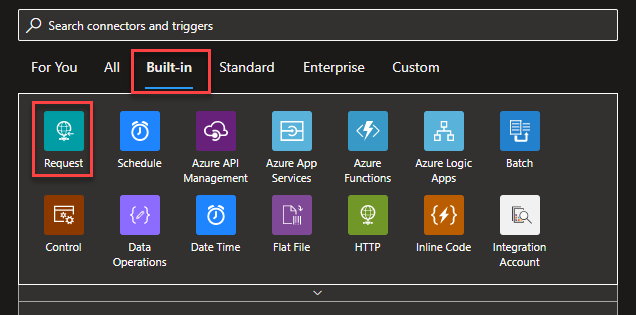
In the workflow designer, under the search box, select Built-In. Then, from the Triggers list, select the Request trigger, When a HTTP request is received.
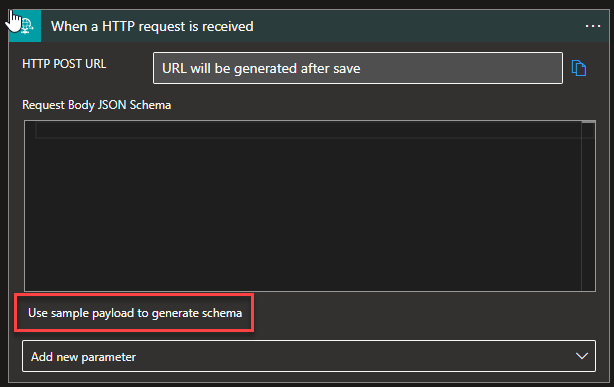
For us to tokenize the values of the message we are receiving from the PowerBI Robots, we can, on the Request trigger, click on Use sample payload to generate schema
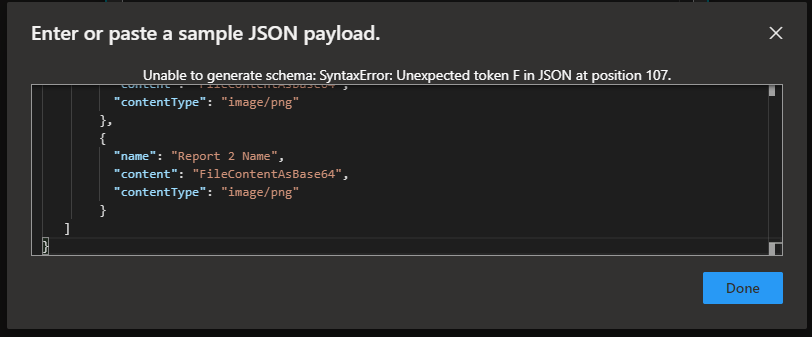
And copy the JSON message provided earlier to the Enter or paste a sample JSON payload window and then click Done.
Under the Request trigger, select New step.
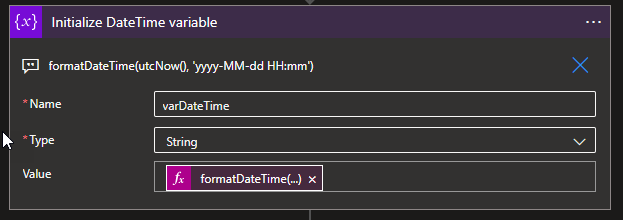
Select New step. In the search box, enter Variables, and from the result panel select the Variables, and choose the Initialize variable action and provide the following information:
Name: varDateTime
Type: String
Value: Select Expression and add the following expression formatDateTime(utcNow(), ‘yyyy-MM-dd HH:mm’)
Note: this variable will be used later in the business process to provide the data in a clear format on the message to be sent to the Teams channel.
Under the Request trigger, select New step.
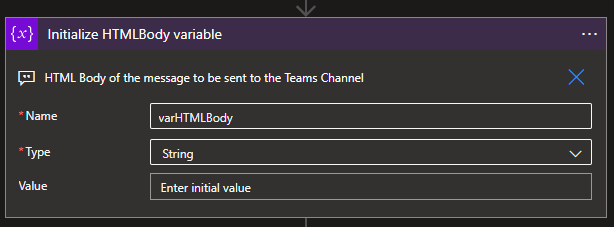
Select New step. In the search box, enter Variables, and from the result panel select the Variables, and choose the Initialize variable action and provide the following information:
Name: varHTMLBody
Type: String
Value: (Empty)
Note: this variable will be used later in the business process to dynamically generate the message to be sent to the Teams channel in an HTML format.
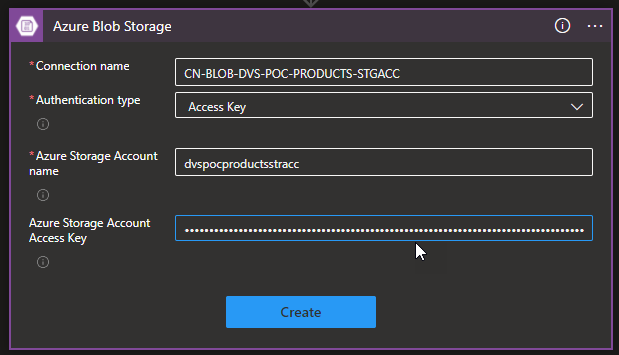
Select New step. In the search box, enter Blob, and from the result panel select the Azure Blob Storage and choose the Create blob (v2)action.
If you don’t have yet a connection create you first need to create the connection by setting the following configurations and then click Create:
Connection name: Display connection name
Authentication type: the connector supports a variety of authentication types. In this POC, we will be using Access Key.
Azure Storage Account name: Name of the storage account the connector we create above. We will be using dvspocproductsstracc.
Azure Storage Account Access Key: Specify a valid primary/secondary storage account access key. You can get these values on the Access keys option under the Security + networking section on your storage account.
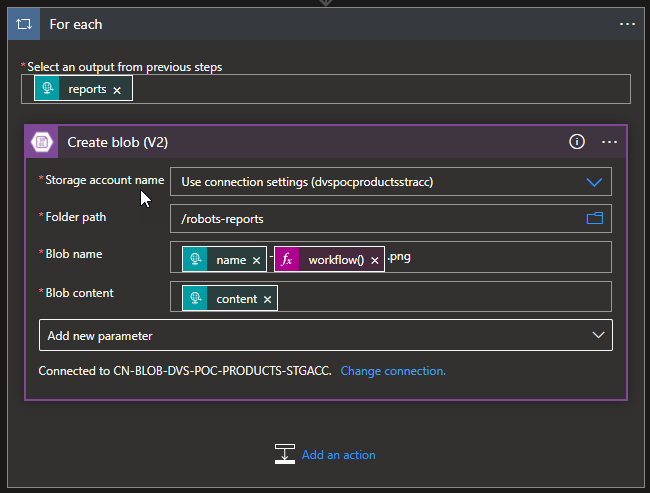
Then provide the following information:
Storage account name: Select from the dropdown list the storage account. The default should be Use connection settings (dvspocproductsrracc)
Folder path: navigate to the folder /robots-reports
Blob name: Dynamic set the name of the file to be created. To avoid overlap we decide to use the unique workflow id of the message as part of the name of the report we receive on the source message:
Blob content: the Base64 content we receive on the source message.
Note: by setting the name or the content on the Create blob action, this will automatically add a For Each loop statement on our business flow since these fields can occur multiple times inside the source message. And this is correct and what we want.
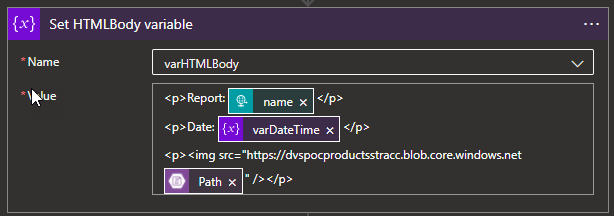
Select New step. In the search box, enter Variables, and from the result panel select the Variables, and choose the Set variable action and provide the following information:
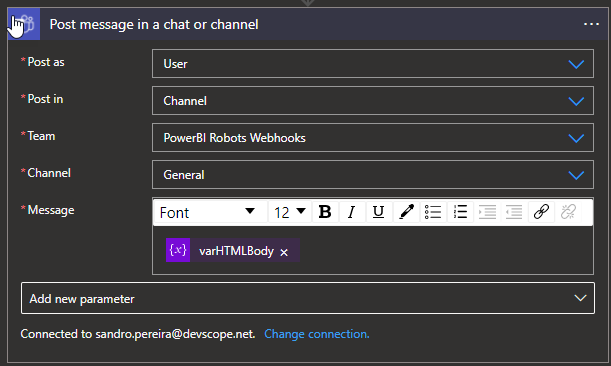
And finally, select New step. In the search box, enter Teams, and choose from the result panel the Microsoft Teams, choose the Post message in a chat or channel action and provide the following information:
Post as: Select User
Post in: Select Channel
Team: Select the Team, in our case PowerBI Robots Webhooks
Channel: Select the Team channel, in our case General
Message: place the message we create above by using the varHTMLBody
Note: if you don’t have yet created a Teams Connector, you need to Sign in using the account that will be making these notifications.
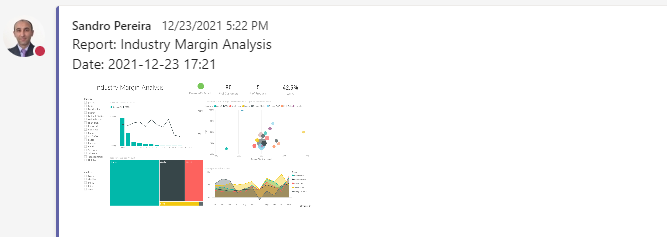
As a result, once we receive a new request from the PowerBI Robots, will be a fancy message on teams with a thumbnail of the report:
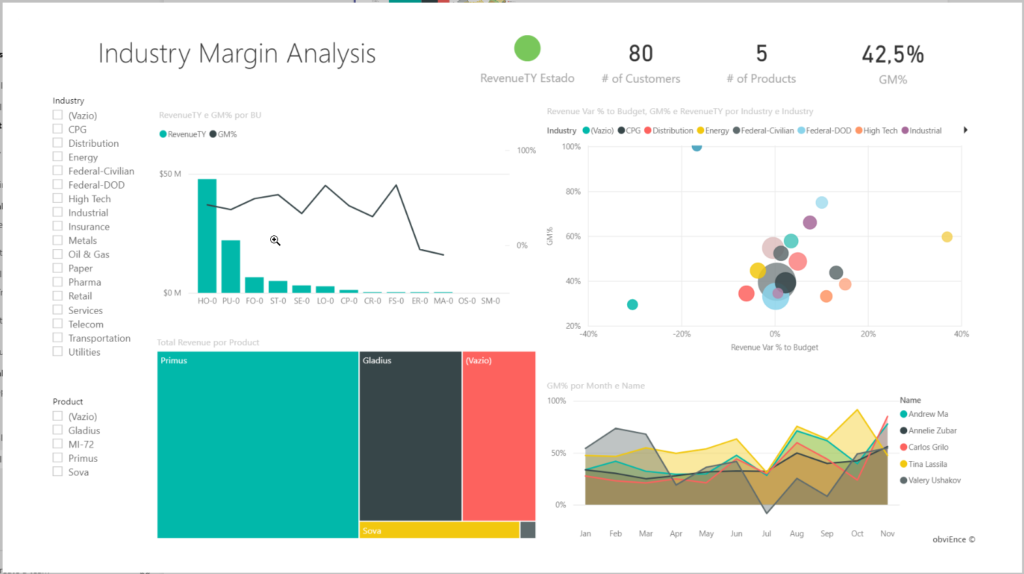
You can click on it and see it in full size:
More About PowerBI Robots?
PowerBI Robots automatically takes screenshots of your Microsoft Power BI dashboards and reports and sends them anywhere, to an unlimited number of recipients. Simply tell PowerBI when and where you want your BI data, and it will take care of delivering it on time.
Today I’m going to go over how we solved a real scenario from one of our PowerBI Portal clients. For those who aren’t familiar with it, PowerBI Portal is a web tool that allows organizations to host an unlimited number of Power BI reports and dashboards on an online portal, and give access to it to any number of users, regardless of being in their organization or even having a Power BI account. PowerBI Portal is mainly used by organizations looking to share data with their clients, partners and suppliers, but there have been numerous entrepreneurial cases of people using it as a platform, selling their clients access to the portal or charging for the time they spent on PowerBI Portal.
Other interesting points about PowerBI Portal are the tool’s double layer of row-level security (user and role), which allows data managers to specify who has access to what, and the ability to only consume Power BI Embedded capacity when there’s activity on the platform, which can severely reduce an organization’s consumption bill.
Finally, it’s worth mentioning how flexible the PowerBI Portal API is, allowing for custom solutions such as the one we’ll cover in this blog post.
Challenge
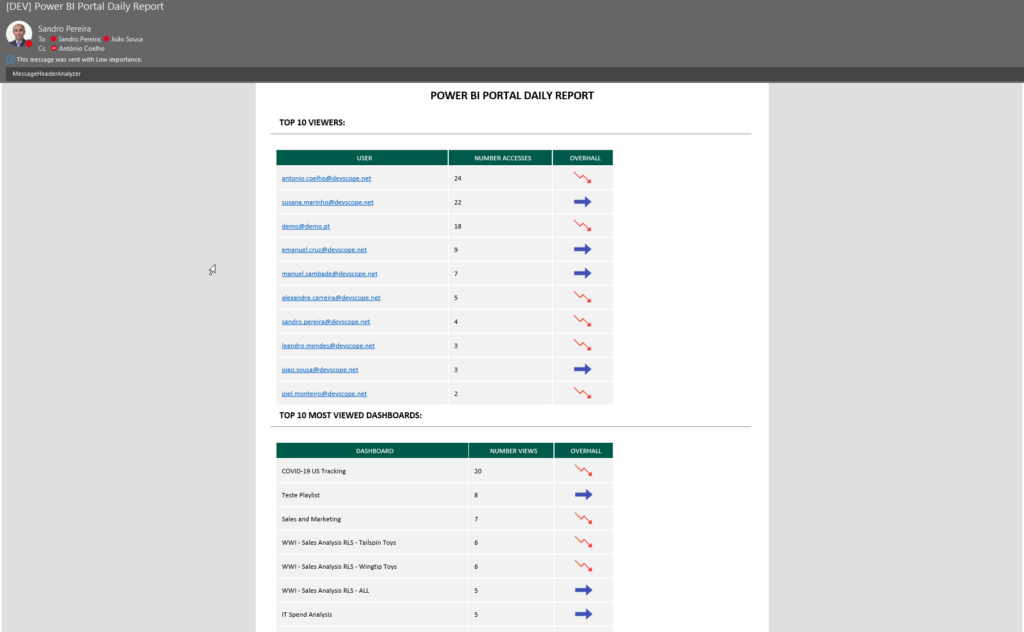
Our PowerBI Portal client wanted a daily report of the top 10 vendors that accessed their organization’s portal along with the most viewed dashboards/reports to better understand how the tool was being used and by whom. The PowerBI Portal API is actually very powerful and straightforward to use, but it didn’t have this capability out-of-the-box so we proactively extend the product’s capabilities by using Azure Integration Services.
This proof-of-concept will explain how you can extend the product by using the existing APIs and creating a fancy Power BI access on the PowerBI Portal audit report.
Create Function App
If you don’t have yet a Function App with the .NET runtime stack created, the first step is to create one, and for that, you need to:
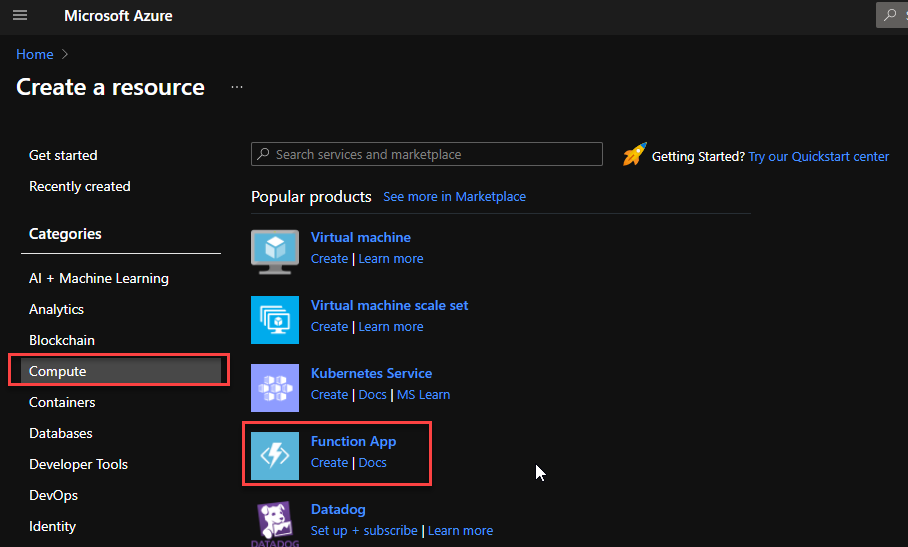
From the Azure portal menu or the Home page, select Create a resource.
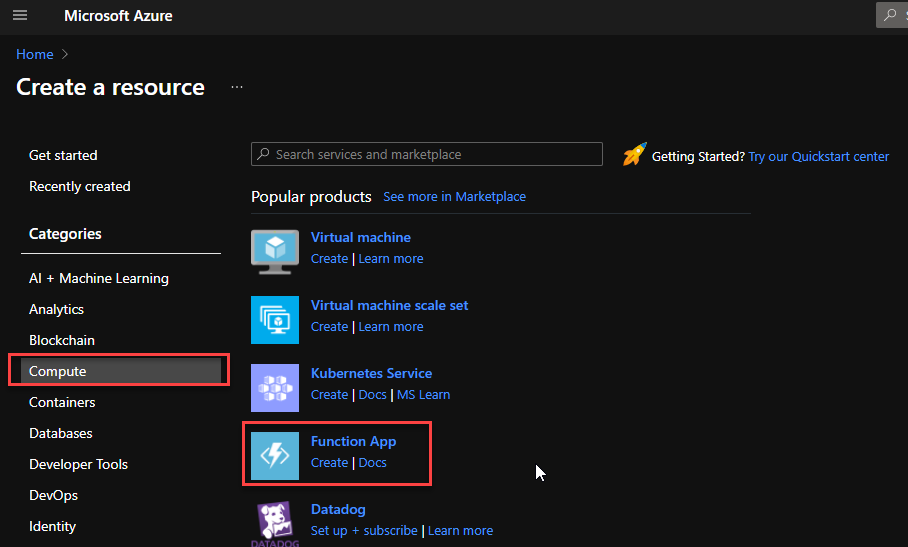
In the Create a resource page, select Compute > Function App.
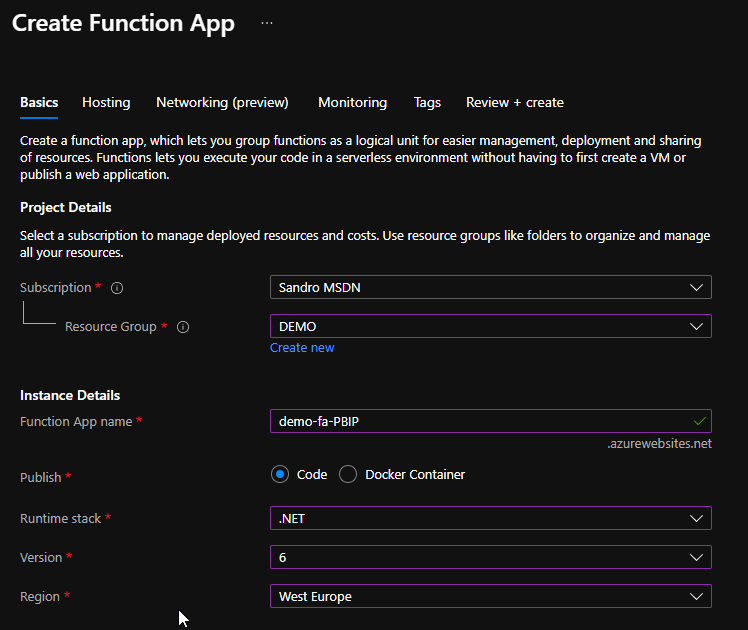
On the Create Function App Basics page, use the following function app settings:
Subscription: Select the subscription under which this new function app is created.
Resource Group: Select an existing Resource Group or create a new one in which your function app will be created.
Function App name: Name that identifies your new function app.
Publish: Select Code.
Runtime stack: Select the option .NET
Version: Choose the version of your installed runtime, in this case, 6
Region: Choose a region near you or near other services your functions access.
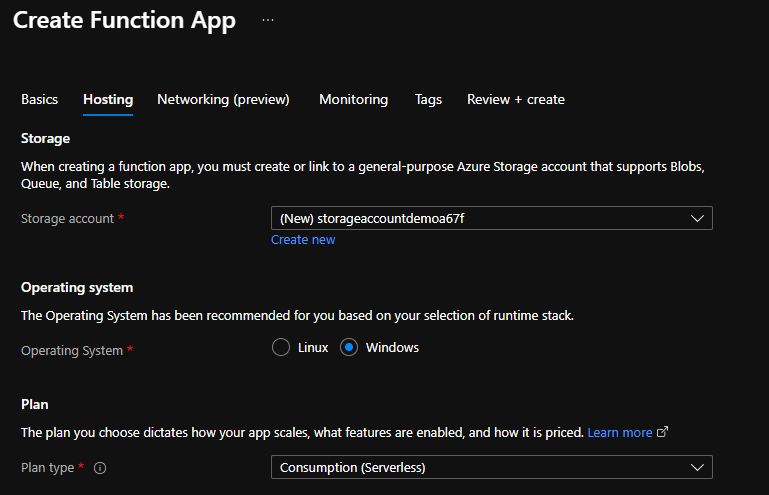
Select Next : Hosting. On the Hosting page, enter the following settings:
Storage Account: Create a storage account used by your function app or select an existing one
Operating system: I choose to use Windows since I’m feeling more comfortable with it.
Plan: Hosting plan that defines how resources are allocated to your function app. In this case, you need to select the Consumption plan.
You can customize the other option according to your intentions or leave the default values. For this demo, we will now select Review + create to review the app configuration selections.
On the Review + create page, review your settings, and then select Create to provision and deploy the function app.
Create HTTP trigger function
The next step is to create two HTTP trigger Function:
FA_Audit_Top10Reports
FA_Audit_Top10USers
For that we need to:
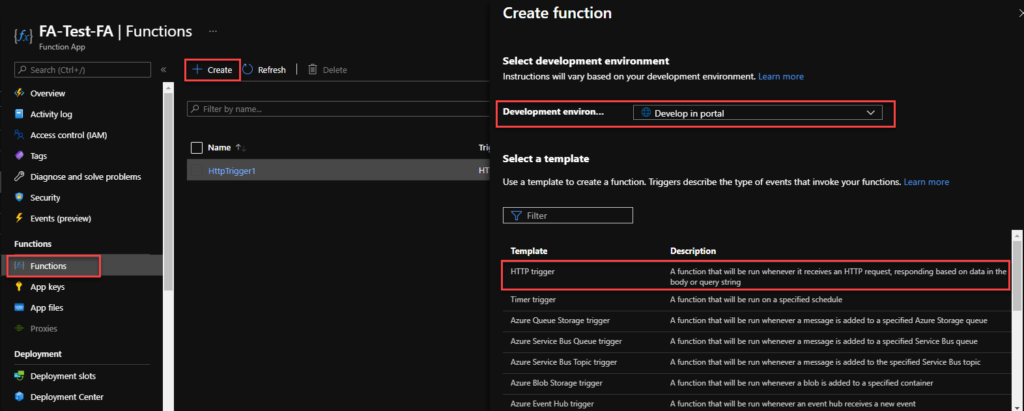
From the left menu of the Function App window, select Functions, then select Create from the top menu.
From the Create Function window, leave the Development environment property as Develop in portal and select the HTTP trigger template.
Under Template details give a proper name for New Function, and choose Function from the Authorization level drop-down list, and then select Create.
On the FA_Audit_Top10Reports window, select Code + Test, then on the run.ps1 file add the following code:
This function will return a list of top 10 reports in a HTML table format
...
string requestBody = new StreamReader(req.Body).ReadToEnd();
JArray data = (JArray)JsonConvert.DeserializeObject(requestBody);
var apiReport = new JArray();
var groups = data
.GroupBy(s => s["name"])
.Select(s => new
{
Dashboard = s.Key,
Count = s.Count()
})
.OrderByDescending(s=> s.Count).Take(10);
...
Note: this is a small part of the code. Click on the button below to download a simplified version of the source code from the overall solution.
On the FA_Audit_Top10USers window, select Code + Test, then on the run.ps1 file add the following code:
This function will return a list of top 10 users in a HTML table format
...
string requestBody = new StreamReader(req.Body).ReadToEnd();
JArray data = (JArray)JsonConvert.DeserializeObject(requestBody);
var apiReport = new JArray();
var groups = data
.GroupBy(s => s["userEmail"])
.Select(s => new
{
User = s.Key,
Count = s.Count()
})
.OrderByDescending(s=> s.Count).Take(10);
...
Note: this is a small part of the code. Click on the button below to download a simplified version of the source code from the overall solution.
Finally, we need to create a scheduling Logic App to trigger the monitoring Function and notify if any API Connection is broken. To simplify the solution, we will be using the Azure Portal to create also the Logic App.
From the Azure portal menu or the Home page, select Create a resource.
In the Create a resource page, select Integration > Logic App.
On the Create Logic App Basics page, use the following Logic app settings:
Subscription: Select the subscription under which this new Logic app is created.
Resource Group: Select an existing Resource Group or create a new one in which your Logic app will be created.
Type: The logic app resource type and billing model to use for your resource, in this case we will be using Consumption
Consumption: This logic app resource type runs in global, multi-tenant Azure Logic Apps and uses the Consumption billing model.
Standard: This logic app resource type runs in single-tenant Azure Logic Apps and uses the Standard billing model.
Logic App name: Your logic app resource name, which must be unique across regions.
Region: The Azure datacenter region where to store your app’s information. Choose a region near you or near other services your Logic app access.
Enable log analytics: Change this option only when you want to enable diagnostic logging. The default value in No.
When you’re ready, select Review + Create. On the validation page, confirm the details that you provided, and select Create.
After Azure successfully deploys your app, select Go to resource. Or, find and select your logic app resource by typing the name in the Azure search box.
Under Templates, select Blank Logic App. After you select the template, the designer now shows an empty workflow surface.
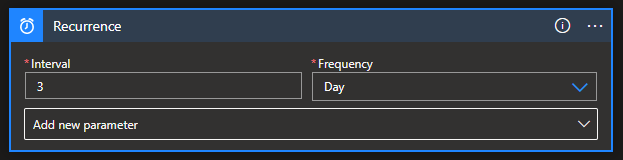
In the workflow designer, under the search box, select Built-In. From the Triggers list, select the Schedule trigger, Recurrence.
In the trigger details, provide the following information:
Interval: 1
Frequency: Day
Under the Recurrence trigger, select New step.
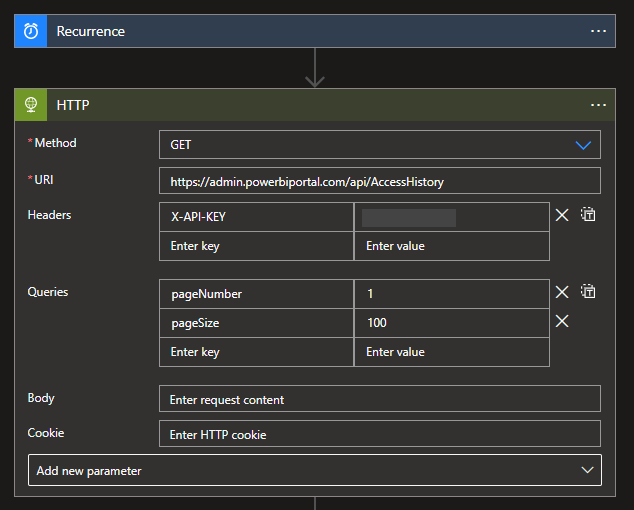
Select New step. In the search box, enter HTTP, and from the result panel select the HTTP, HTTP action and provide the following information:
Headers: you need to create the X-API-KEY with your access token
Queries: you need to specify two query parameters:
pageNumber: 1
pageSize: 100
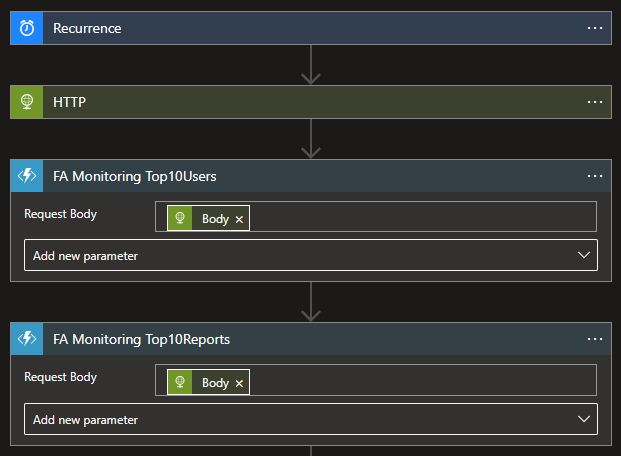
Select New step. In the search box, enter Azure Functions, and from the result panel select the Azure Functions, select the Function App that contains the Functions we create above and then select the FA_Audit_Top10Users function and provide the following information
Request Body: Result body of the HTTP action – @{body(‘HTTP’)}
Do the same steps, this time for the FA_Audit_Top10Reports function
Select New step. In the search box, enter Variables, and from the result panel select the Variables, Initialize variable action and provide the following information:
Name: varEmailBody
Type: String
Value: provide the HTML email body template and add the result of the functions to that template
Note: this is a small part of the HTML body template code. You should customize it according to your needs.
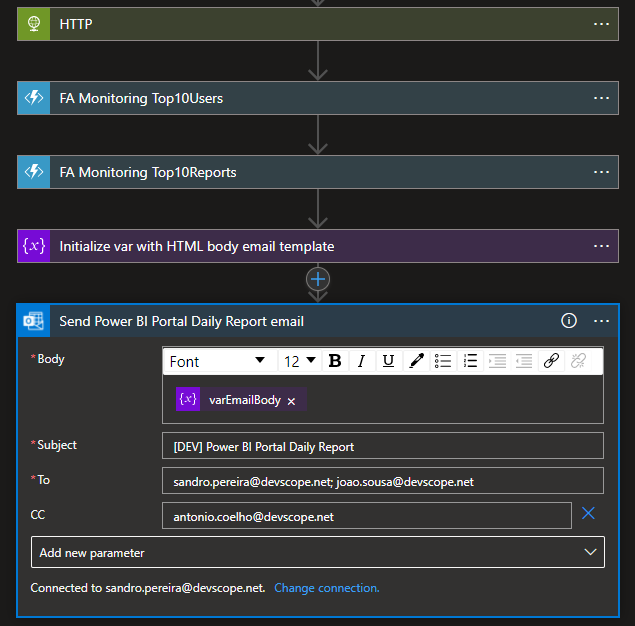
And finally, select New step. In the search box, enter Office 365 Outlook, and from the result panel select the Office 365 Outlook, Send an email (v2)action and provide the following information:
Body: varEmailBody – @{variables(‘varEmailBody’)}
Subject: [DEV] Power BI Portal Daily Report
To: list of your email addresses.
The result, once you try to execute the Logic App, will be a fancy HTML email:
More about Power BI Portal
PowerBI Portal is a web tool that allows users to embed any number of Power BI reports and dashboards on a portal with their organization’s layout, that can be shared with whoever they want, regardless of being in their organization or even having a Power BI account. Know more about it here.
We finally reach the last part of this small blog season on monitoring the status of your Azure API Connections. We start by using a simple PowerShell script locally on our machine to progress to an automated way using Azure Function Apps and Logic Apps. I mentioned in my last post that this previous option had a considerable handicap associated with costs since we couldn’t use the Consumption plan, and instead, we had to use an App Service plan.
Today we will go to address the best solution in my personal opinion:
Using a Schedule PowerShell Runbook on an Automation Account to check the Azure API Connection status
And once again, using a Logic App, this time with an HTTP- When a HTTP request is received trigger, to notify the internal support team if any findings (broken API Connections) were detected.
Note: the Logic App will only be triggered if the Runbook detects/find any non-coherent situations.
Solution 3: Using Automation Account and Logic App
Create Automation Account
The first step, if you don’t have an Automation account yet, is to create one, and for that, you need:
From the Azure portal menu or the Home page, select Create a resource.
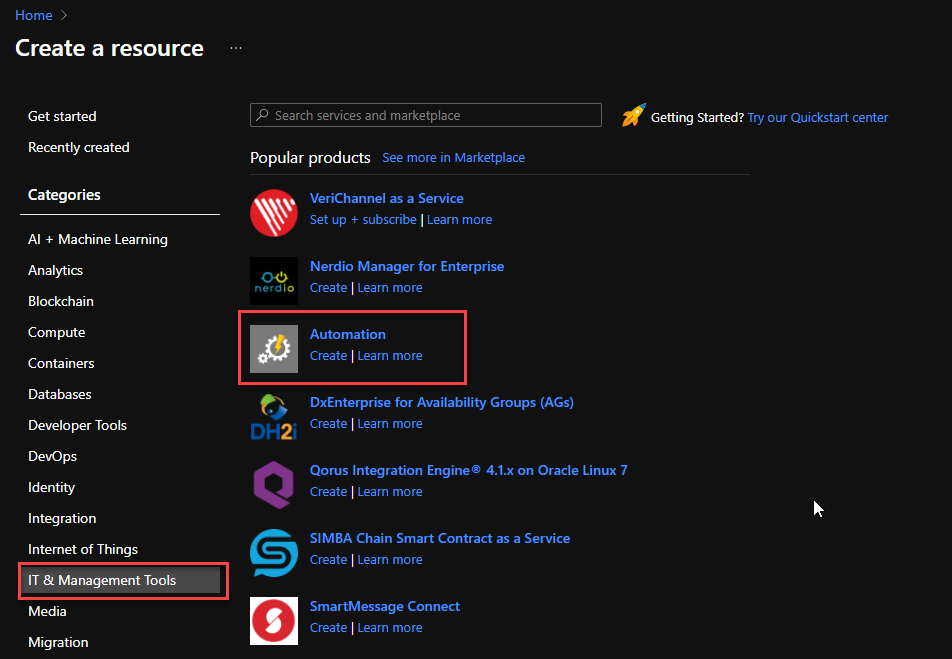
In the Create a resource page, select IT & Management Tools > Automation.
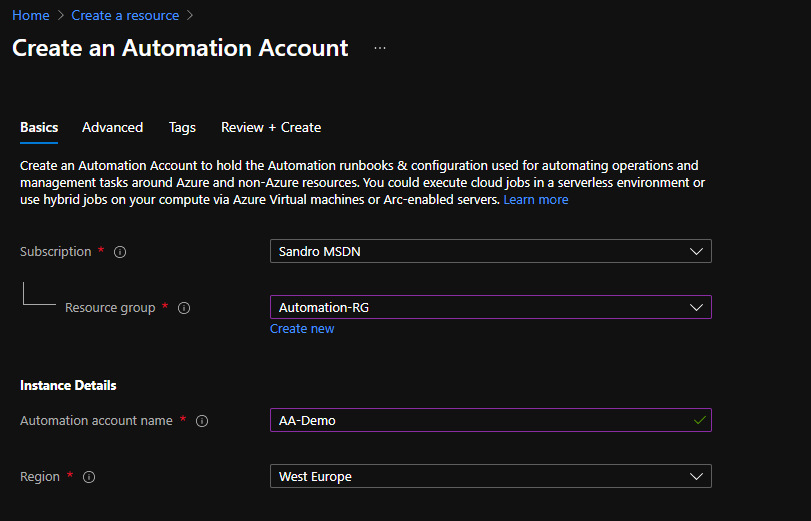
On the Create an Automation Account Basics page, use the following settings:
Subscription: Select the subscription under which this new Automation Account will be created.
Resource Group: Select an existing Resource Group or create a new one in which your Automation Account will be created.
Automation account name: Name that identifies your new Automation Account.
Region: Choose a region near you or near other services your Automation Account access.
You can customize the other option according to your intentions or leave the default values. For this demo, we will now select Review + create to review the app configuration selections.
On the Review + create page, review your settings, and then select Create to provision and deploy the Automation Account.
Create Automation PowerShell runbook
The next step is to create a PowerShell runbook. For that, you need to:
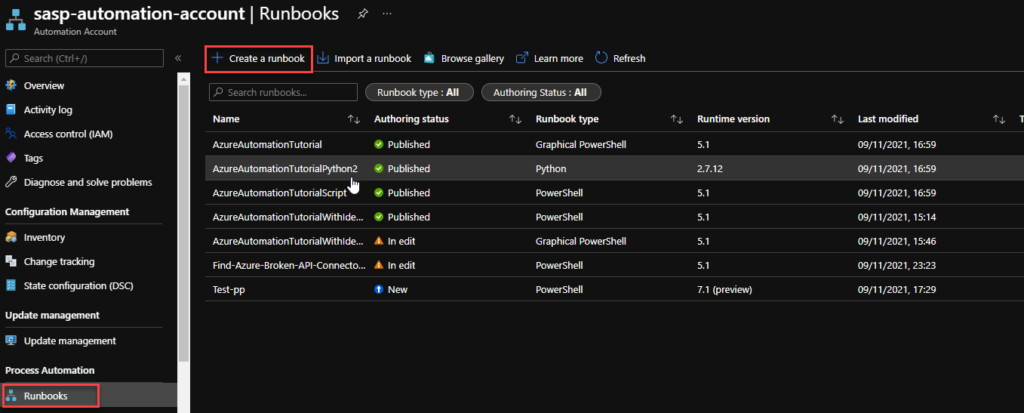
From the left menu of the Automation Account window, select Runbooks, then select Create a runbook from the top menu.
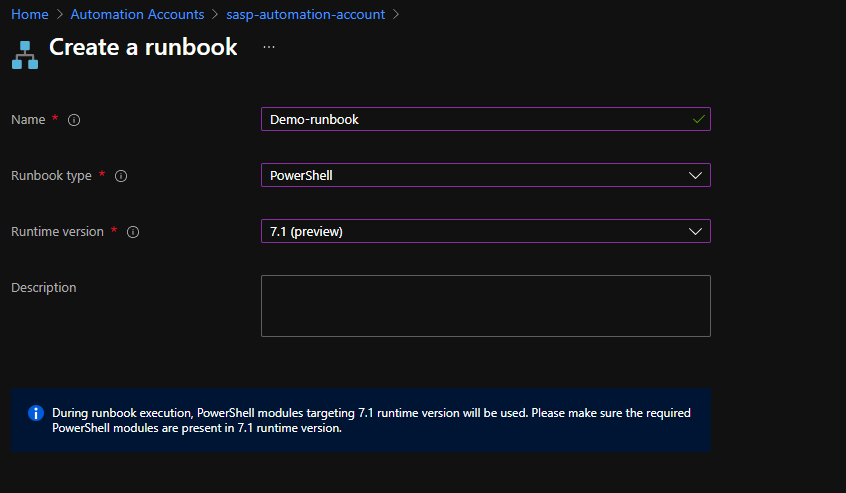
From the Create a runbook window, use the following settings:
Name: Name the runbook
Runbook type: From the Runbook type drop-down menu, select PowerShell.
Runtime version: From the Runtime time drop-down menu, select 7.1 (preview).
Description: Provide a description for this runbook (not mandatory filed)
Finally if everything works properly you can publish the runbook.
Now we need to schedule the runbook. For that, we need:
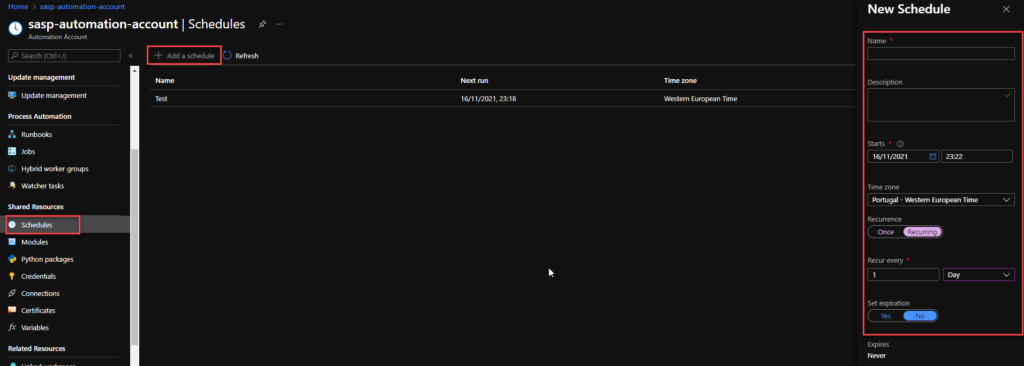
From the left menu of the Automation Account window, select Schedules, then select Add a schedule from the top menu.
From the New Schedule window, use the following settings:
Name: Name of the Schedule
Description: Provide a description for this schedule (not mandatory filed)
Starts: Datetime to start the schedule
Time zone: Time zone configured for this schedule, in my case Portugal – Western European Time
Recurrence: Select whether the schedule runs once or on a reoccurring schedule by selecting Once or Recurring. We are going to use Recurring
If you select Once, specify a start time and then select Create.
If you select Recurring, specify a start time.
Recur every: select how often you want the runbook to repeat. Select by hour, day, week, or month. In hour case, 1 per day
Set expiration: Leave the default property, No.
When you’re finished, select Create.
Now that we have our runbook and our schedule created, we need to bind these two, and for that, we need to:
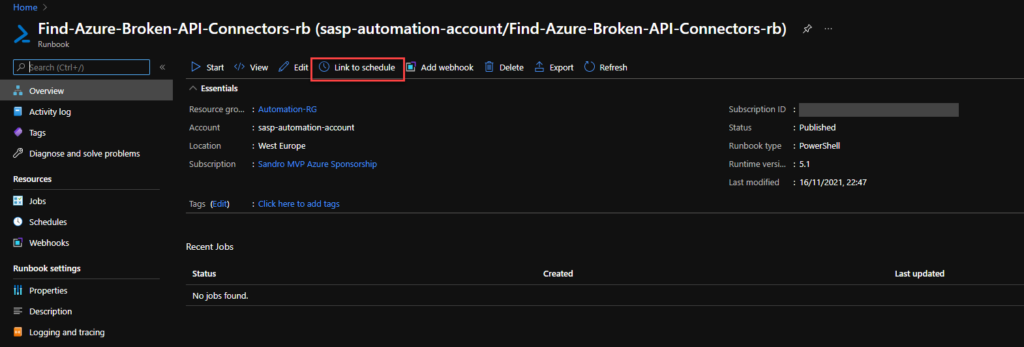
Access to the previous runbook the we create above, and on the runbook page select Link to schedule
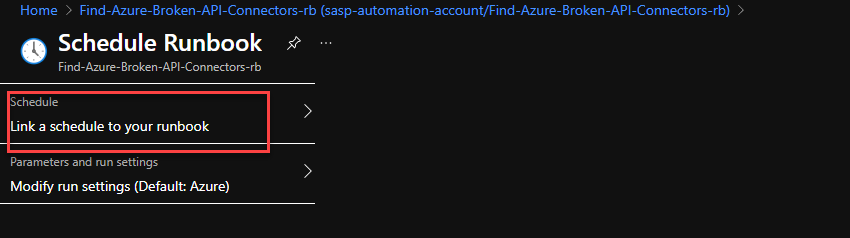
On the Schedule Runbook page, select Link a schedule to your runbook.
On the Schedule page, select the schedule we create above from the schedule list
And then select OK.
Create a Logic App
Finally, we need to create a Logic App with an HTTP- When a HTTP request is received trigger to notify if any API Connection is broken. To simplify the solution, we will be using the Azure Portal to create also the Logic App.
Note: once again, the Logic App will only be triggered if the Runbook detects/finds any non-coherent situations..
To accomplish that, we need to:
From the Azure portal menu or the Home page, select Create a resource.
In the Create a resource page, select Integration > Logic App.
On the Create Logic App Basics page, use the following Logic app settings:
Subscription: Select the subscription under which this new Logic app is created.
Resource Group: Select an existing Resource Group or create a new one in which your Logic app will be created.
Type: The logic app resource type and billing model to use for your resource, in this case we will be using Consumption
Consumption: This logic app resource type runs in global, multi-tenant Azure Logic Apps and uses the Consumption billing model.
Standard: This logic app resource type runs in single-tenant Azure Logic Apps and uses the Standard billing model.
Logic App name: Your logic app resource name, which must be unique across regions.
Region: The Azure datacenter region where to store your app’s information. Choose a region near you or near other services your Logic app access.
Enable log analytics: Change this option only when you want to enable diagnostic logging. The default value in No.
When you’re ready, select Review + Create. On the validation page, confirm the details that you provided, and select Create.
After Azure successfully deploys your app, select Go to resource. Or, find and select your logic app resource by typing the name in the Azure search box.
Under Templates, select Blank Logic App. After you select the template, the designer now shows an empty workflow surface.
In the workflow designer, under the search box, select Built-In. From the Triggers list, select the Request connector, and the When a HTTP request is received trigger.
Use the following sample payload to generate the schema
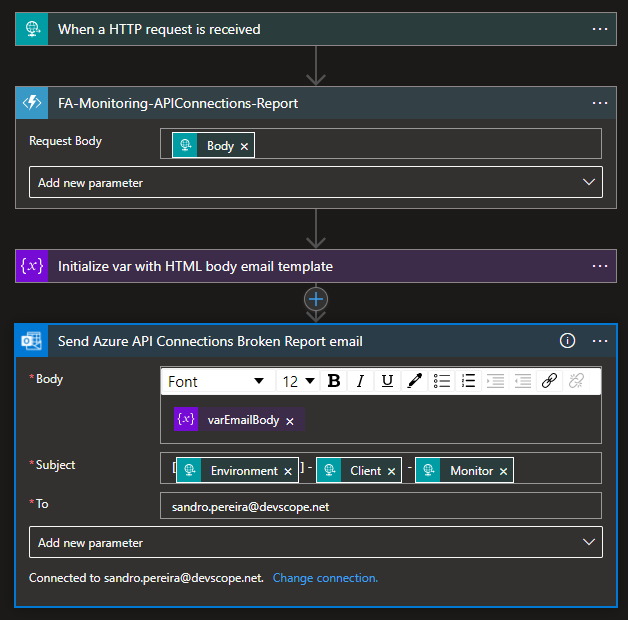
Then we be using the following actions to notify the support team:
Choose an Azure function: I’m calling and Azure Function to transform the list of broken API’s in a HTML table.
Set variable: I’m setting the varEmailBody with my default HTML email body Template and add the HTML table that the Azure Function returned
Send an email (v2) – Office 365 Outlook: To send the email to the support team
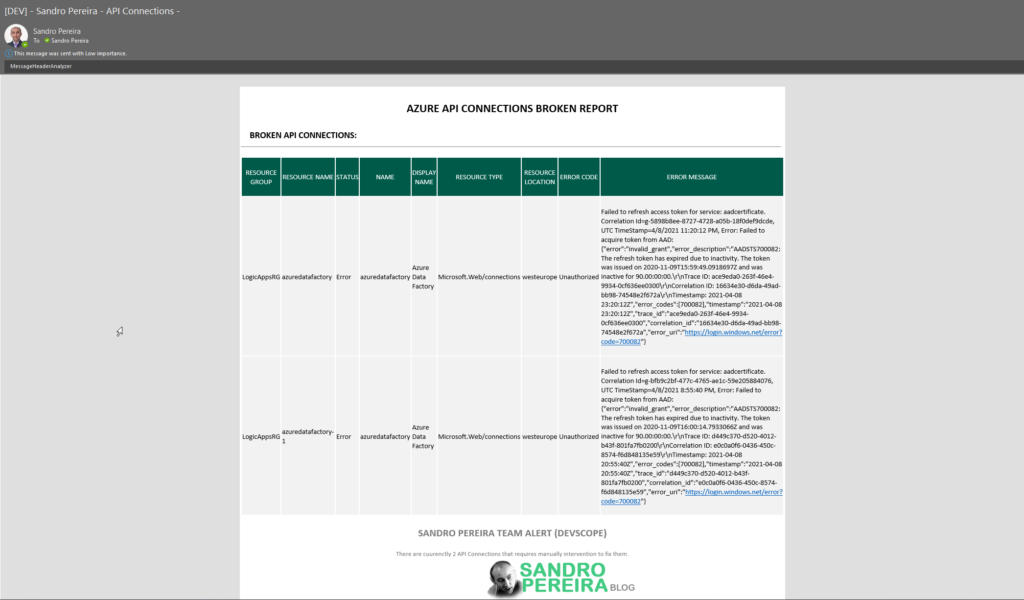
The result, once you try to execute the Logic App, will be a fancy HTML email:
Although this approach required quick learning about Azure Automation, that was quite simple, and for me, this is the best approach in terms of cost and architecture design.
Last week I wrote the first part of this small blog season on monitoring the status of your Azure API Connections. In the first part, I described how you could easily create a simple PowerShell script to have a simple report of the status of all your existing Azure API Connections. I knew since the beginning that that solution wasn’t the ideal one, it was good enough to run it from time to time manually on-demand, but that is not the situation you want to be in. So, today we will go to address the first solution that came into my mind and, in fact, was also suggested both by Mike and Nino:
Using an Azure Function App to check the Azure API Connections status
I endup also added a schedule Logic App to trigger that Function App because I want to notify the internal support team if any findings (broken API Connections) were detected.
Solution 2: Using Function App and Logic App
The first question that appeared in this solution was: what kind of runtime stack to use on your Function App: .NET or PowerShell Core?
I decided to use PowerShell Core because I already have all the PowerShell working from the previous solution, so for me made all sense to use this instead of having to recreate all this logic with .NET.
Create Function App
If you don’t have yet a Function App with the PowerShell Core runtime stack created, the first step is to create one, and for that, you need to:
From the Azure portal menu or the Home page, select Create a resource.
In the Create a resource page, select Compute > Function App.
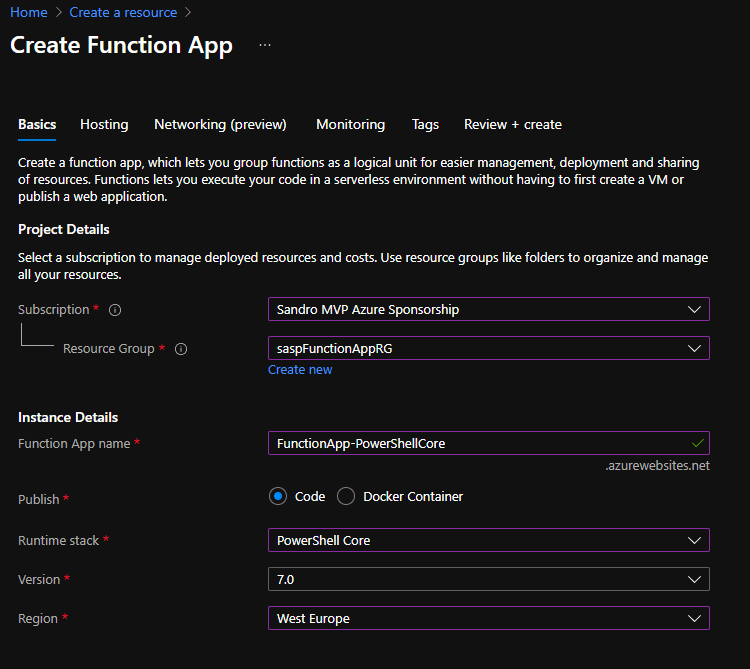
On the Create Function App Basics page, use the following function app settings:
Subscription: Select the subscription under which this new function app is created.
Resource Group: Select an existing Resource Group or create a new one in which your function app will be created.
Function App name: Name that identifies your new function app.
Publish: Select Code.
Runtime stack: Select the option PowerShell Core
Version: Choose the version of your installed runtime, in this case, 7.0
Region: Choose a region near you or near other services your functions access.
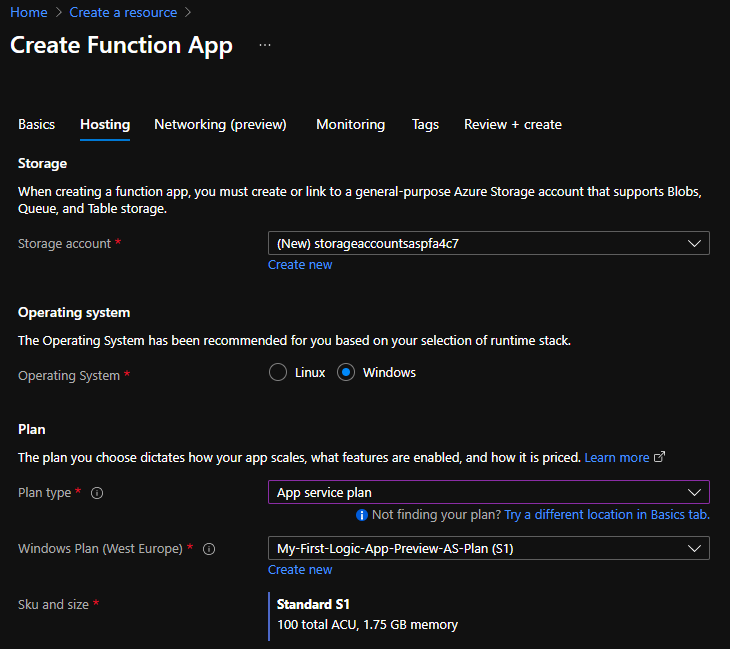
Select Next : Hosting. On the Hosting page, enter the following settings:
Storage Account: Create a storage account used by your function app or select an existing one
Operating system: I choose to use Windows since I’m feeling more comfortable with it.
Plan: Hosting plan that defines how resources are allocated to your function app. In this case, you need to select the App Service plan.
Note: I initially tried to use the Consumption plan, but I couldn’t import and use the Azure modules with the consumption plan. I think they are not supported in that type of plan.
Windows Plan: Select an existing plan or create a new one.
Sku and size: I use the Standard S1
YYou can customize the other option according to your intentions or leave the default values. For this demo, we will now select Review + create to review the app configuration selections.
On the Review + create page, review your settings, and then select Create to provision and deploy the function app.
Create HTTP trigger function
The next step is to create an HTTP trigger Function:
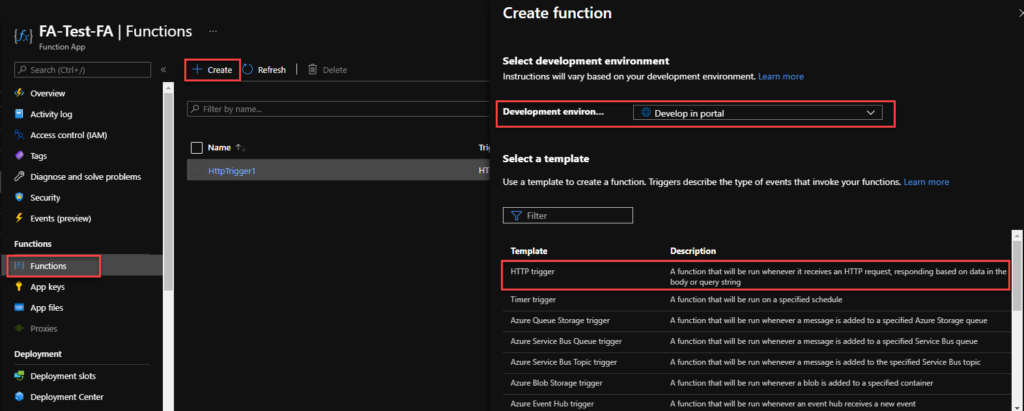
From the left menu of the Function App window, select Functions, then select Create from the top menu.
From the Create Function window, leave the Development environment property as Develop in portal and select the HTTP trigger template.
Under Template details use HttpTrigger1 (or provide a better name) for New Function, and choose Function from the Authorization level drop-down list, and then select Create.
On the HttpTrigger1 window, select Code + Test, then on the run.ps1 file add the following code:
Now that we have created our function, we need to provide permission for this function to access and read from your subscription or different resource groups. I choose to provide permissions at the resource level. And for that, you need to:
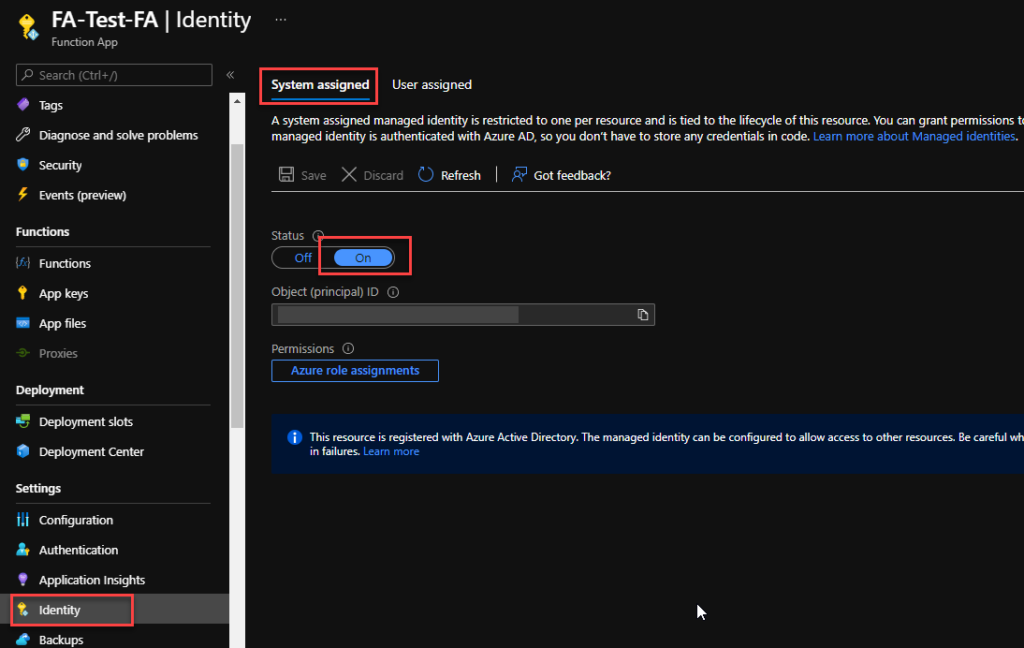
From the left menu of the Function App window, select the Identity option, then select the System assigned tab from the top menu.
On the Status, select On and click Save. This will create an Object (principal) ID.
Click on the Azure role assignments button, and on the Azure role assignments window, click Add role assignment (Preview).
On the Add role assignment (Preview) page, set the following settings:
Scope: Select Resource Group from the combo box list.
Subscription: Select the subscription under the resource group you want to monitor is.
Resource group: Select the resource group you want to monitor.
Role: Select the Reader role.
Click Save.
Repeat the same steps for all the resource groups you want to monitor.
Create a Logic App
Finally, we need to create a scheduling Logic App to trigger the monitoring Function and notify if any API Connection is broken. To simplify the solution, we will be using the Azure Portal to create also the Logic App.
From the Azure portal menu or the Home page, select Create a resource.
In the Create a resource page, select Integration > Logic App.
On the Create Logic App Basics page, use the following Logic app settings:
Subscription: Select the subscription under which this new Logic app is created.
Resource Group: Select an existing Resource Group or create a new one in which your Logic app will be created.
Type: The logic app resource type and billing model to use for your resource, in this case we will be using Consumption
Consumption: This logic app resource type runs in global, multi-tenant Azure Logic Apps and uses the Consumption billing model.
Standard: This logic app resource type runs in single-tenant Azure Logic Apps and uses the Standard billing model.
Logic App name: Your logic app resource name, which must be unique across regions.
Region: The Azure datacenter region where to store your app’s information. Choose a region near you or near other services your Logic app access.
Enable log analytics: Change this option only when you want to enable diagnostic logging. The default value in No.
When you’re ready, select Review + Create. On the validation page, confirm the details that you provided, and select Create.
After Azure successfully deploys your app, select Go to resource. Or, find and select your logic app resource by typing the name in the Azure search box.
Under Templates, select Blank Logic App. After you select the template, the designer now shows an empty workflow surface.
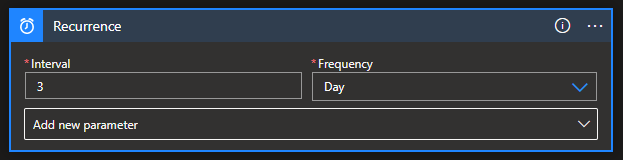
In the workflow designer, under the search box, select Built-In. From the Triggers list, select the Schedule trigger, Recurrence.
In the trigger details, provide the following information:
Interval: 1
Frequency: Day
Under the Recurrence trigger, select New step.
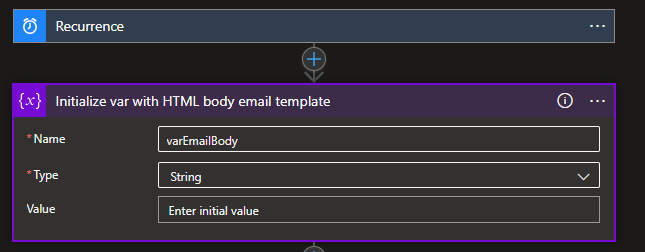
In the search box, enter Variables, and from the result panel select the Variables, Initialize variable action and provide the following information:
Name: varEmailBody
Type: String
Value: leave it empty
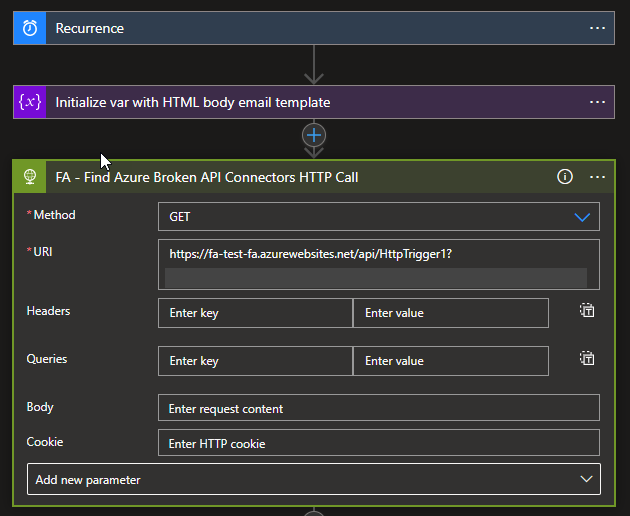
Select New step. In the search box, enter HTTP, and from the result panel select the HTTP, HTTP action and provide the following information:
Method: GET
URI: specify the endpoint of your Function that we created earlier on this blog post.
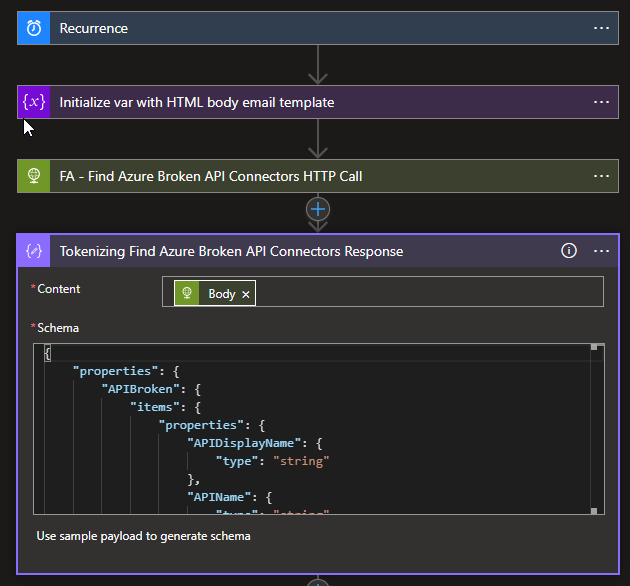
Select New step. In the search box, enter Data Operations, and from the result panel select the Data Operations, Parse Json action and provide the following information:
Method: body of the HTTP action
Use the following sample payload to generate the schema
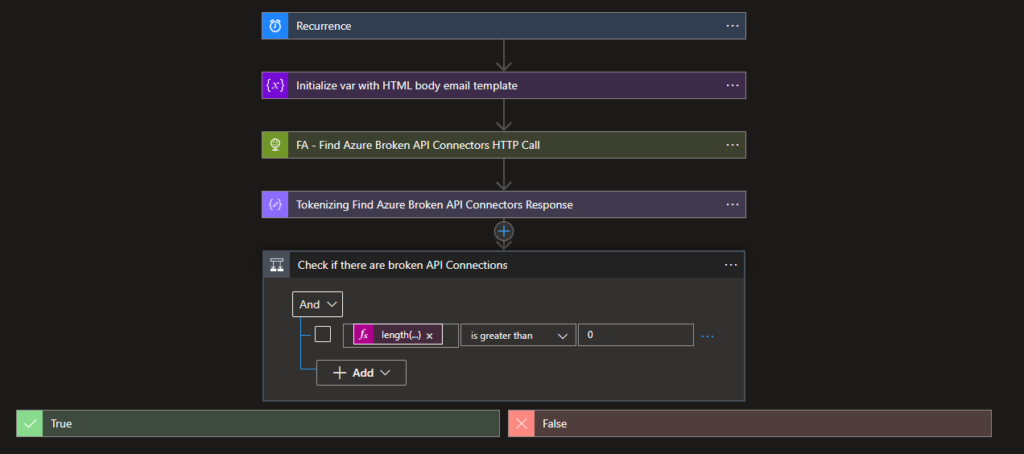
Select New step. under the search box, select Built-In. From the Triggers list, select the Control, Condition action and provide the following condition:
length(body(‘Tokenizing_Find_Azure_Broken_API_Connectors_Response’)?[‘APIBroken’]) is greater than 0
Leave the False branch empty
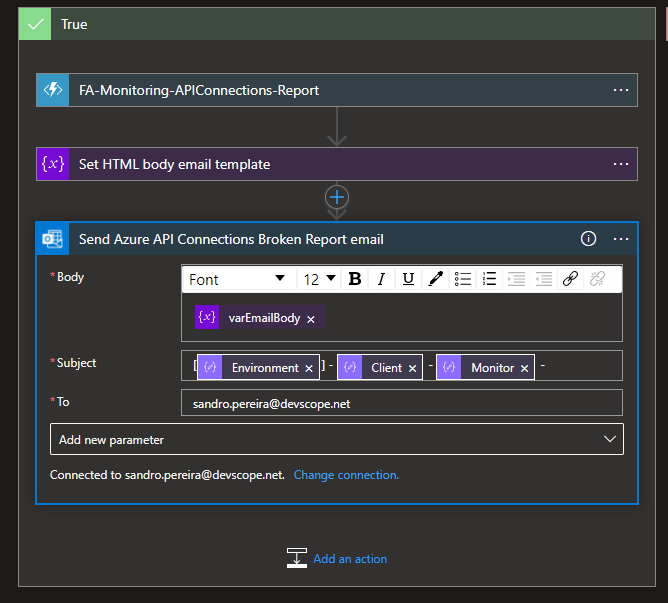
On the True branch I end up adding the following action to notify the support team:
Choose an Azure function: I’m calling and Azure Function to transform the list of broken API’s in a HTML table.
Set variable: I’m setting the varEmailBody with my default HTML email body Template and add the HTML table that the Azure Function returned
Send an email (v2) – Office 365 Outlook: To send the email to the support team
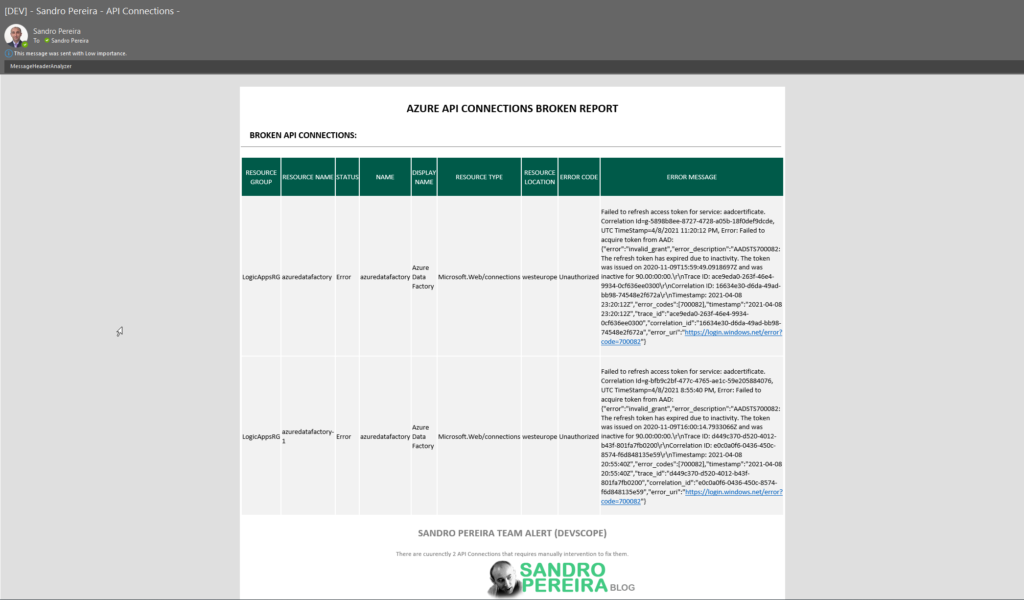
The result, once you try to execute the Logic App, will be a fancy HTML email:
This approach is an elegant solution and relatively easier to build, nevertheless it has a significant disadvantage:
Az modules are not supported on a Consumption plan. At least I couldn’t make it work. So that means I need to use an App Service plan, which means I will have an additional cost or more costs associated with this solution, more or less 36.94€/month.
This could be almost if not free if we use a Consumption plan.
Sometimes I like to use my friends to have a different point of view of things, which is one of these cases. I have been discussing during this week with Mike Stephenson and Nino Crudele how we can easily manage and monitor our current Azure Logic App Connectors present on our Azure integration solutions.
One of the reasons why this is so important is because some of the connectors like for example, Office 365 connectors: Team Connector, Office 365 Outlook, and so on, can stop working for the simple reason that the access token has expired due to inactivity and without notice, your processes stop working also and it was precisely what happened in one of my clients. We noticed that the API Connections were expired because we were troubleshooting another issue.
Recently Mike wrote about his great solution here: Monitoring the status of API Connections for Logic Apps. But you can archive that goal using different approaches. Of course, you will find advantages and disadvantages in all of them.
I decided to create this series of 3 blog posts to present 3 different approaches by starting with the simplest one:
Solution 1: Using a simple PowerShell Script
The first thing I did while thinking about the problem was, yep, let’s create a PowerShell script to see what is possible or not. And so, my first approach was creating a simple PowerShell script that goes to all resources I have on my subscription and doing a simple report of the current status of the existing API connections.
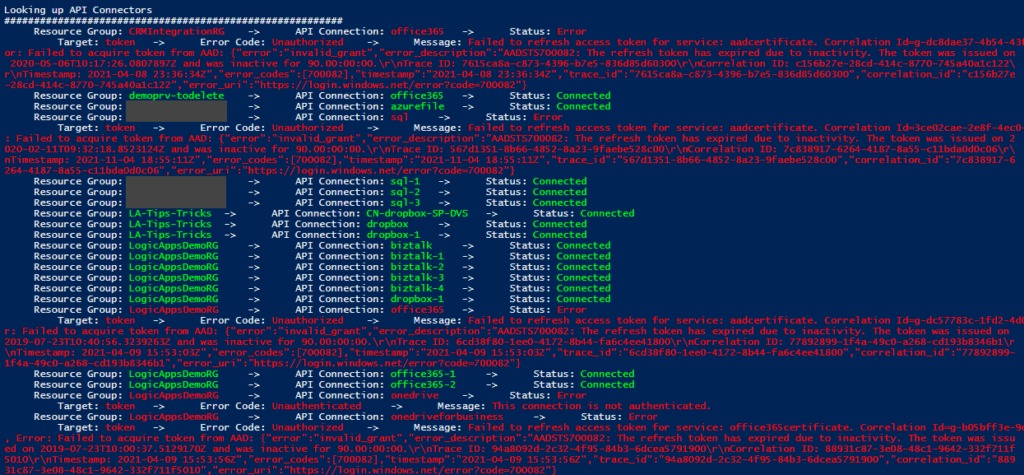
It is for sure not the most elegant and best PowerShell script, but for a proof of concept works well, and it will provide a simple and color report of how your existing API Connections are:
##############################################################
# Get list of API Connectors available on the Resource Group
##############################################################
Write-Host 'Looking up API Connectors'
Write-Host '#########################################################'
$resourceName = ''
$resources = Get-AzResource -ResourceType Microsoft.Web/connections
$resources | ForEach-Object {
$logicAppUrl = $_.ResourceId + '?api-version=2018-07-01-preview'
# Get Logic App Content
$resourceJsonResult = az rest --method get --uri $logicAppUrl
$resourceJson = $resourceJsonResult | ConvertFrom-Json
$resourceName = $_.Name
$resourceGroupName = $_.ResourceGroupName
# Check Logic App Connectors
$apiConnectionStatus = $resourceJson.properties.overallStatus
if($apiConnectionStatus -eq 'Error')
{
Write-Host "`t Resource Group: " -NoNewline; Write-Host $resourceGroupName -ForegroundColor Red -NoNewline; Write-Host "`t -> `t API Connection: " -NoNewline; Write-Host $resourceName -ForegroundColor Red -NoNewline; Write-Host "`t -> `t Status: " -NoNewline; Write-Host $apiConnectionStatus -ForegroundColor Red;
Write-Host "`t`t Target: " -NoNewline; Write-Host $resourceJson.properties.statuses.target -ForegroundColor Red -NoNewline;
Write-Host "`t -> `t Error Code: " -NoNewline; Write-Host $resourceJson.properties.statuses.error.code -ForegroundColor Red -NoNewline; Write-Host "`t -> `t Message: " -NoNewline; Write-Host $resourceJson.properties.statuses.error.message -ForegroundColor Red;
}
else
{
Write-Host "`t Resource Group: " -NoNewline; Write-Host $resourceGroupName -ForegroundColor Green -NoNewline; Write-Host "`t -> `t API Connection: " -NoNewline; Write-Host $resourceName -ForegroundColor Green -NoNewline; Write-Host "`t -> `t Status: " -NoNewline; Write-Host $apiConnectionStatus -ForegroundColor Green;
}
}
The result will be something like:
You will see on the picture above many samples that The refresh token has expired due to inactivity. Witch is normal because most processes I have under my subscription are samples or POC, and I only execute them from time to time, most of the time when I have speaking engagements or meetings with clients. However, there are real scenarios like my client case that we are using a Team Connector to notify us on the team channel when a significant issue appears. And this is something that should not happen often. Luckily it was our case, and due to inactivity, the API connection got broken. Still, unfortunately for us, we were not notified on the Teams channel when the issue appeared in production.
It was not a big issue because it was not a critical operation. The Logic App didn’t fail because it is configured not to fail on these notifications. Could we have a better logging system? Yes, we could, but we don’t have it at the moment. But with or without logging, you will only be aware of the issue when the error happens. And you don’t want to be in that position. So it is always better for you to be proactive and prevent these issues from occurring.
The main issue with this approach is that this script is good enough to run it from time to time manually on-demand, but this again is not the situation you want to be in. So, in the following parts, I will address 2 approaches where and how you can set up this to be a scheduled process using Azure features.
Download
THIS POWERSHELL SCRIPT IS PROVIDED “AS IS”, WITHOUT WARRANTY OF ANY KIND.
You can download API Connections Status Report from GitHub here:
A few months ago, my dear friend Wagner Silveira asked me if I was interested in giving a talk at the Auckland Connected Systems User Group since they were planning to start doing online events in the user group because of COVID-19 and they were planning to invited speakers from overseas, since now this was an online event, and that one of the first names that were dropped was mine.
I usually never say no to these invites, I love doing talks about topics I care and love, especially doing it locally in person, but in this case, and the way the invite was made, I couldn’t refuse… but be aware I still plan to visit New Zealand in the future!
Nevertheless, it will be a challenge. I need to be awake at 6 AM to deliver this session! I can’t say that this will be the first time I will deliver a session with a coffee cup in the hand because I still remember the first time I went to Norway, in the old days of the BizTalk Crew, and because of a problem in Oslo airport, my flight was forced to land in Sweden. So, I had to travel all night without sleeping to be in Stavanger at 9 AM to know that the schedule was changed, and I was delivering the first session! Since that day, I question myself if Tord Nordahl is my friend.
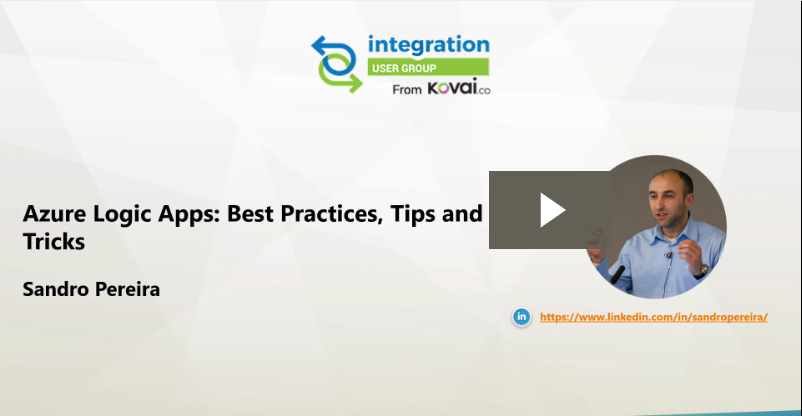
Logic Apps: Best practices, tips and tricks
I would like you to invite you to join us at the Auckland Connected Systems User Group meeting that will happen on June 30, 2020. This will be the first time I will be delivering a session in the user group but I hope it will be the first of many.
Abstract: Logic Apps: Best practices, tips and tricks
Azure Logic Apps helps you build powerful integration solutions by automating your workflows without writing a single line of code. In this session, I will be highlighting 10 tips you should know for being more productive and building more reliable, effective Logic Apps. We will also do a reflection to your existing Logic Apps processes and will go through a list of must-have best practices, tips, and tricks that will allow you to build more reliable and effective workflows. At the same time, these will allow you to be more productive and document your workflows from the beginning
It was with great pleasure that I presented, last May, 25 another session in the Integration Monday series this time about Logic Apps: Best practices, Tips, and Tricks, this was my eleventh talk in this community in 4 years of existence. I can say that I am one of the most regular speakers at the Integration User Group only behind Michael Stephenson that has 13 talks.
Logic Apps: Best practices, tips, and tricks
Azure Logic Apps helps you build powerful integration solutions by automating your workflows without writing a single line of code. In this session, I will be highlighting 10 tips you should know for being more productive and building more reliable, effective Logic Apps. We will also do a reflection to your existing Logic Apps processes and will go through a list of must-have best practices, tips, and tricks that will allow you to build more reliable and effective workflows. At the same time, these will allow you to be more productive and document your workflows from the beginning.
I hope you enjoy and find it an interesting session. Also, I advise you to visit and view the history of sessions that have taken place every Monday in the Integration User Group – Integration Monday series.
My other talks at Integration Monday – Integration User Group
Due to the world COVID-19 pandemic, last Saturday, April 25, was held the first Virtual Global Azure Bootcamp, an event that normally happens in several cities across the world in simultaneous. The restrictions we are facing dictated that this year the format would have to be different. If, on one hand, the social aspect of the event was missing, on the other hand, it opened the door to a wider universe of people to be able to attend. Nevertheless, for me, this event was an amazing success and it was a great pleasure to be once again presenting on this event that I have a special affection for.
I think I’ve been present since the first edition of this event.
Today I’m happy to share with you the slides and the video of the session.
Logic Apps: Best practices, tips, and tricks
10 tips you should know for being more productive and building more reliable, effective Logic Apps. In this session, we will do a reflection to your existing Logic Apps processes and when thru a list of must-have best practices, tips, and tricks that will allow you to build more reliable and effective workflows. At the same time, these will allow you to be more productive and document your workflows from the beginning.
Due to the world pandemic that we are facing this year, the Global Azure Bootcamp which is usually done in several cities at the same time will be for the first time an online event. And I would like you to invite to join us on the Virtual Global Azure Lisbon that will happen next Saturday – 25th April.
Logic Apps: Best practices, tips, and tricks
I’m thrilled to present once again on this fantastic event! In 2015 I spoke for the first time about Logic Apps, this year I return to the same topic in a session about Logic Apps: Best practices, tips, and tricks!
Abstract: Logic Apps: Best practices, tips, and tricks
10 tips you should know for being more productive and building more reliable, effective Logic Apps. In this session, we will do a reflection to your existing Logic Apps processes and when thru a list of must-have best practices, tips, and tricks that will allow you to build more reliable and effective workflows. At the same time, these will allow you to be more productive and document your workflows from the beginning.
Virtual Global Azure 2020 – Lisbon
This year we will have 7 top Microsoft Azure speakers Livestreamed for free. What are you waiting for? Get your free seat NOW here.
The agenda will be:
9:30 – 10:00 – Welcome
10:00 – 11:00 – Azure Monitor by Pedro Sousa
11:00 – 12:00 – Exciting features of the relational engine of Azure Synapse Analytics (Azure SQL DW) by Niko Neugebauer
12:00 – 13:00 – AKS and Apps by Virgilio Esteves
13:00 – 14:00 – Lunch Break
14:00 – 15:00 – Supercharge your App Service to Global scale by Tiago Costa
15:00 – 16:00 – Extend your Identity to the Cloud by Nuno Árias Silva
16:00 – 17:00 – Logic Apps: Best practices, tips, and tricks by Sandro Pereira
17:00 – 18:00 – Best Practices for Architecture and Real-time Data by Viviane Ribeiro
18:00 – Closing
Again, due to COVID-19, our event has been moved to virtual. We will share a link to Microsoft Teams with all the registered attendees. Join us, and reserve your presence here.
Do you feel difficult to keep up to date on all the frequent updates and announcements in the Microsoft Integration platform and Azure iPaaS?
Integration weekly update can be your solution. It’s a weekly update on the topics related to Integration – enterprise integration, robust & scalable messaging capabilities and Citizen Integration capabilities empowered by Microsoft platform to deliver value to the business.
If you want to receive these updates weekly, then don’t forget to Subscribe!