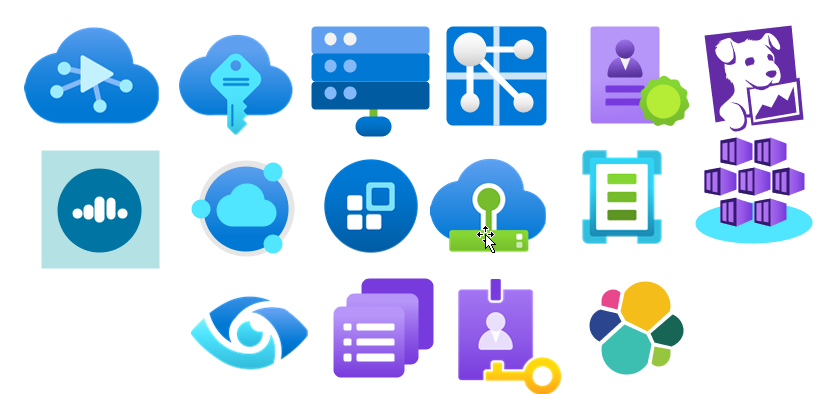
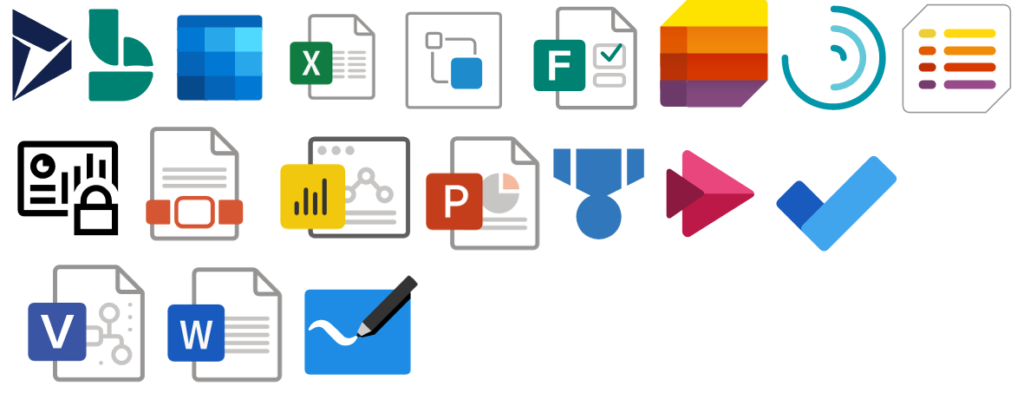
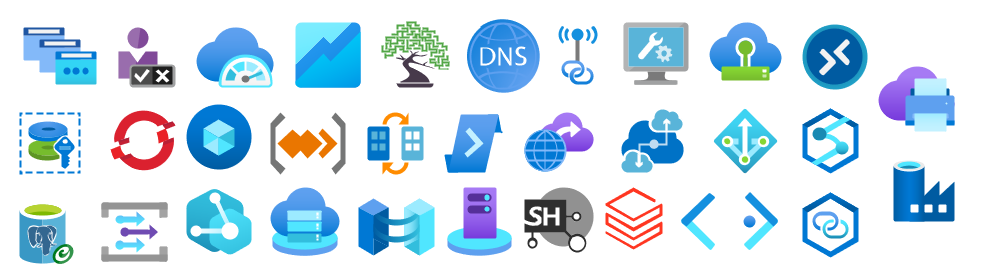
I’m not a Dynamics 265 expert, and Dynamics 365 is not my focus area. Nevertheless, I couldn’t ignore the flood of requests to add the new Dynamics 365 logos, especially the App icons. It took a while, but they are finally here.
What’s new in this version?
These are the list of changes and additions present in this major release:
New shapes: There are new shapes on the following Visio Stencils files (.vssx):
MIS Office, Office 365 and Dynamics 365: add the new Dynamic 265 logo, Dynamics 365 App Icons, and Dynamics 365 Mixed Reality Icons.
MIS Azure Stencils and MIS Azure Additional or Support Stencils: there were a few new icons add to the stencils, most of them related to new preview features and integration services like the new Logic App icon.
SVG files: new SVG files added.
Microsoft Integration, Azure, Power Platform, Office 365 and much more Stencils Pack
Microsoft Integration, Azure, Power Platform, Office 365 and much more Stencils Pack it’s a Visio package that contains fully resizable Visio shapes (symbols/icons) that will help you to visually represent On-premise, Cloud or Hybrid Integration and Enterprise architectures scenarios (BizTalk Server, API Management, Logic Apps, Service Bus, Event Hub…), solutions diagrams and features or systems that use Microsoft Azure and related cloud and on-premises technologies in Visio 2016/2013:
BizTalk Server
Microsoft Azure
Integration
Integration Service Environments (ISE)
Logic Apps and Azure App Service in general (API Apps, Web Apps, and Mobile Apps)
Azure API Management
Messaging: Event Hubs, Event Grid, Service Bus, …
Azure IoT and Docker
AI, Machine Learning, Stream Analytics, Data Factory, Data Pipelines
SQL Server, DocumentDB, CosmosDB, MySQL, …
and so on
Microsoft Power Platform
Microsoft Flow
PowerApps
Power BI
Office365, SharePoint,…
DevOps and PowerShell
Security and Governance
And much more…
… and now non-related Microsoft technologies like:
SAP Stencils
The Microsoft Integration Stencils Pack is composed of 27 files:
Microsoft Integration Stencils
MIS Additional or Support Stencils
MIS AI and Machine Learning Stencils
MIS Apps and Systems Logo Stencils
MIS Azure Additional or Support Stencils
MIS Azure Black and Gray
MIS Azure Old Versions
MIS Azure Stencils
MIS Black and Cyan
MIS Buildings Stencils
MIS Databases and Analytics Stencils
MIS Deprecated Stencils
MIS Developer Stencils
MIS Devices Stencils
MIS Files and Message Types Stencils
MIS Generic Stencils
MIS Infrastructure and Networking Stencils
MIS Integration Fun
MIS Integration Patterns Stencils
MIS IoT Stencils
MIS Office, Office 365 and Dynamics 365
MIS Power BI Stencils
MIS Power Platform Stencils
MIS SAP Stencils
MIS Security and Governance
MIS Servers (Hexagonal) Stencils
MIS Users and Roles Stencils
Organisational Stencils
That you can use and resize without losing quality, in particular, the new shapes.
Download
You can download Microsoft Integration, Azure, BAPI, Office 365 and much more Stencils Pack for Visio from GitHub Here:
There was a big buzz this weekend regarding the release of a new Azure Logo by Microsoft. The new Azure icon represents the unity of Azure within the larger Microsoft family of product icons. It’s part of Microsoft’s Fluent Design System, carefully crafted to produce icons that look familiar to what customers know and love, while representing the agile future of our business.
I usually don’t update my stencils only because of a new icon. Still, this time I made an exception, and I updated my package with this new Azure icon (thanks, Tiago Costa, for providing me the resource). I also toked this opportunity to add also a previous request: the new Dataverse icon.
What’s new in this version?
These are the list of changes and additions present in this major release:
New shapes: There are new shapes on the following Visio Stencils files (.vssx):
MIS Power Platform Stencils: the new logo of Dataverse was added.
MIS Azure Stencils: the new logo of Azure was added.
SVG files: new SVG files added.
Microsoft Integration, Azure, Power Platform, Office 365 and much more Stencils Pack
Microsoft Integration, Azure, Power Platform, Office 365 and much more Stencils Pack it’s a Visio package that contains fully resizable Visio shapes (symbols/icons) that will help you to visually represent On-premise, Cloud or Hybrid Integration and Enterprise architectures scenarios (BizTalk Server, API Management, Logic Apps, Service Bus, Event Hub…), solutions diagrams and features or systems that use Microsoft Azure and related cloud and on-premises technologies in Visio 2016/2013:
BizTalk Server
Microsoft Azure
Integration
Integration Service Environments (ISE)
Logic Apps and Azure App Service in general (API Apps, Web Apps, and Mobile Apps)
Azure API Management
Messaging: Event Hubs, Event Grid, Service Bus, …
Azure IoT and Docker
AI, Machine Learning, Stream Analytics, Data Factory, Data Pipelines
SQL Server, DocumentDB, CosmosDB, MySQL, …
and so on
Microsoft Power Platform
Microsoft Flow
PowerApps
Power BI
Office365, SharePoint,…
DevOps and PowerShell
Security and Governance
And much more…
… and now non-related Microsoft technologies like:
SAP Stencils
The Microsoft Integration Stencils Pack is composed of 27 files:
Microsoft Integration Stencils
MIS Additional or Support Stencils
MIS AI and Machine Learning Stencils
MIS Apps and Systems Logo Stencils
MIS Azure Additional or Support Stencils
MIS Azure Black and Gray
MIS Azure Old Versions
MIS Azure Stencils
MIS Black and Cyan
MIS Buildings Stencils
MIS Databases and Analytics Stencils
MIS Deprecated Stencils
MIS Developer Stencils
MIS Devices Stencils
MIS Files and Message Types Stencils
MIS Generic Stencils
MIS Infrastructure and Networking Stencils
MIS Integration Fun
MIS Integration Patterns Stencils
MIS IoT Stencils
MIS Office, Office 365 and Dynamics 365
MIS Power BI Stencils
MIS Power Platform Stencils
MIS SAP Stencils
MIS Security and Governance
MIS Servers (Hexagonal) Stencils
MIS Users and Roles Stencils
Organisational Stencils
That you can use and resize without losing quality, in particular, the new shapes.
I usually use the series A fish out of water when I want to write something that goes a little bit off-topic on my main blog topic: Enterprise Integration. But this time is different. This was kind of the first thing I thought when I saw this error happen since that didn’t make sense at all.
To contextualize better this reason and blog post, I have been testing the new Logic Apps (Preview) for a while, and if you already try it before, you will know that this new type of Logic Apps runs on top of Azure Function Runtime. This means that now you can run Logic Apps anywhere: in the cloud, on-premises, locally on your laptop, or wherever you need to.
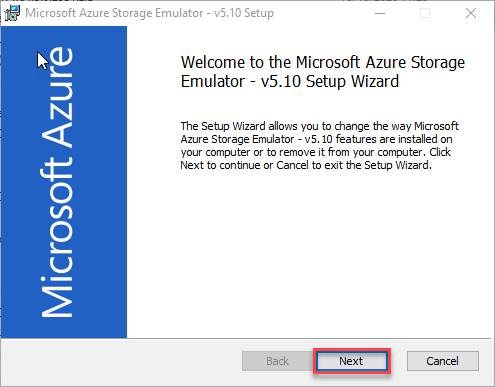
One of the requirements necessary to have the full Logic Apps designer support in VS Code is the Microsoft Azure Storage Emulator 5.10 tool
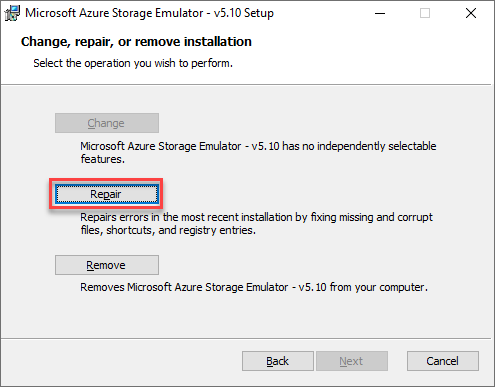
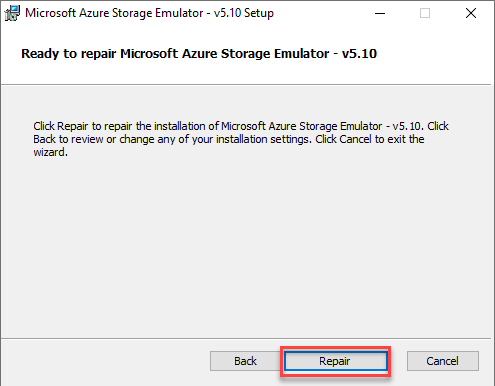
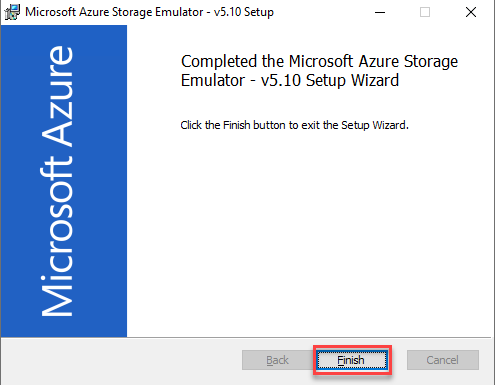
Microsoft Azure Storage Emulator 5.10 tool – This tool is necessary to have the full Logic Apps designer support in VS Code. This tool will use a local Microsoft SQL Server Express LocalDB instance (you can also use a SQL Server instead) to emulate Azure storage services.
Everything was working properly for the last four months or more, however for no plausible reason today while I was trying to start the Microsoft Azure Storage Emulator I got this error:
Probing SQL Instance: ‘(localdb)MSSQLLocalDB’. Caught exception while probing for SQL endpoint. A network-related or instance-specific error occurred while discovering a connection to SQL Server. The server was not found or was not accessible. Verify that the instance name is correct and that SQL Server is configured to allow remote connections. (provider: SQL Network Interfaces, error: 50 – Local Database Runtime error occurred. Error occurred during LocalDB instance startup: SQL Server process failed to start. ) Number of SqlErrors Reported: 1 SqlError: System.Data.SqlClient.SqlError: A network-related or instance-specific error occurred while establishing a connection to SQL Server. The server was not found or was not accessible. Verify that the instance name is correct and that SQL Server is configured to allow remote connections. (provider: SQL Network Interfaces, error: 50 – Local Database Runtime error occurred. Error occurred during LocalDB instance startup: SQL Server process failed to start. ) Could not find a LocalDB Installation. Probing SQL Instance: ‘localhostSQLExpress’. Caught exception while probing for SQL endpoint. A network-related or instance-specific error occurred while establishing a connection to SQL Server. The server was not found or was not accessible. Verify that the instance name is correct and that SQL Server is configured to allow remote connections. (provider: SQL Network Interfaces, error: 26 – Error Locating Server/Instance Specified) Number of SqlErrors Reported: 1 SqlError: System.Data.SqlClient.SqlError: A network-related or instance-specific error occurred while establishing a connection to SQL Server. The server was not found or was not accessible. Verify that the instance name is correct and that SQL Server is configured to allow remote connections. (provider: SQL Network Interfaces, error: 26 – Error Locating Server/Instance Specified) No available SQL Instance was found. One or more initialization actions have failed. Resolve these errors before attempting to run the storage emulator again.
Cause
Again, I can’t find any plausible reason for this to start happend, except the fact that my machine installed some system updates.
Solution
I don’t know if all these steps are necessary or not, I was just simple frustrated about this situation because I need to present this topic in my upcoming sessions this week, so I didn’t test all the hypotheses available properly. Nevertheless, I managed to solve this issue by simply recreating my LocalDb instances and allowing the emulator to recreate his db files.
Here is the steps necessary to perform these tasks:
Get your current LocalDB instance name
<pre class="wp-block-preformatted">
sqllocaldb i

</pre>
Delete the existing LocalDB instance
If you feel more comfortable you can choose to stop the LocalDB instance before you delete
<pre class="wp-block-preformatted">
sqllocaldb d &lt;LocalDB instance>
</pre>
Create your new LocalDB instance with the same name or a different one.
<pre class="wp-block-preformatted">
sqllocaldb c &lt;LocalDB instance>
</pre>
and finally, you need to delete the following Azure Storage Emulator database files to allow the emulator to recreate db files on the first start.
Before we start with the actual post, I’d like to introduce a new brand we will be developing. This is the first official post with the “It’s not Rocket Science!” brand.
With this concept, we intend to explain how some procedures are not as complicated as you may think and that they’re not Rocket science. I’m open to suggestions on posts to demystify Azure Logic Apps and other Azure services.
So, welcome to a new concept and I hope you find it useful.
Azure Functions: Moving from Azure Portal to VS
Creating Functions in Portal presents some challenges, like lack of Intellisense, which, as we know, helps a lot. Not having CI/CD is also a concern and of the worse case scenarios:
Someone deleting you function by mistake!
Panic!, all hell broke loose. I tried to apply the same method as I did with the Logic Apps accidental delete recovery, but the “Change history” tab isn’t available for Functions. You end up losing your code, your executions and maybe some sleep over this.
The obvious next step is to get your backup from your repository and re-create the function. IF you have it in a repo.
We can’t prevent someone deleting our resources, everyone makes mistakes. But you can prevent letting your code sit in Azure Portal without version control, CI/CD and repository control.
So, the best way to do this is to migrate it to a VS solution. In this post, I will use VS2019, but VSCode is also available as others IDEs. You can do this right from the start by choosing another development environment besides the Portal.
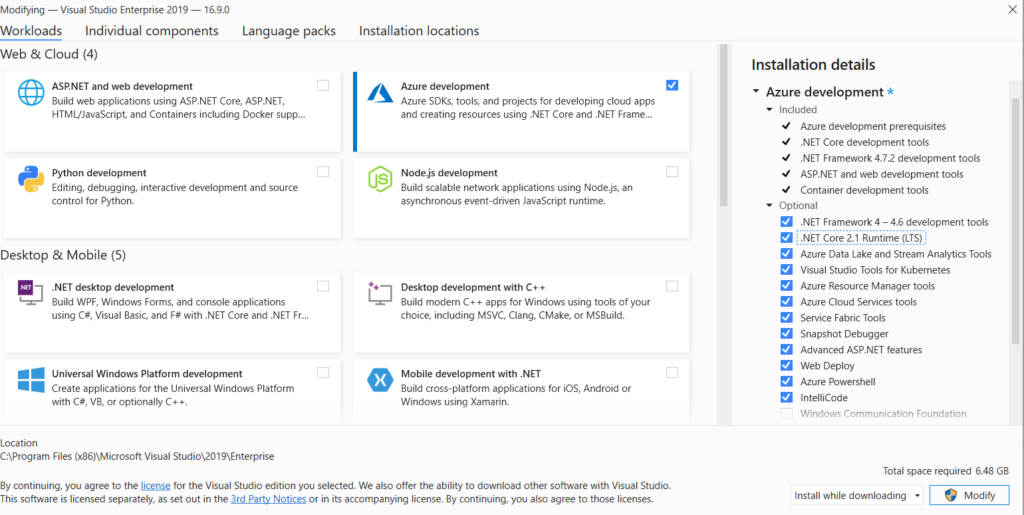
With an existing Function, you’ll need a few things before you can migrate it. Besides your VS with an active subscription, you will also need the Azure SDK feature. This can be installed using the Installer you’ve downloaded from MS or in VS itself, in the “Tools”-> “Get Tools and Features” menu.
After a fresh install of Windows, I didn’t installed the Azure SDK, so I had to download it and install. According to the setup, it should take about 6,5GB.
If you had to install the SDK, Updates are also important, keep that in mind.
Lets return to the code.
The good thing about VS is that you don’t need to reference the required DLLs, they will probably already be there.
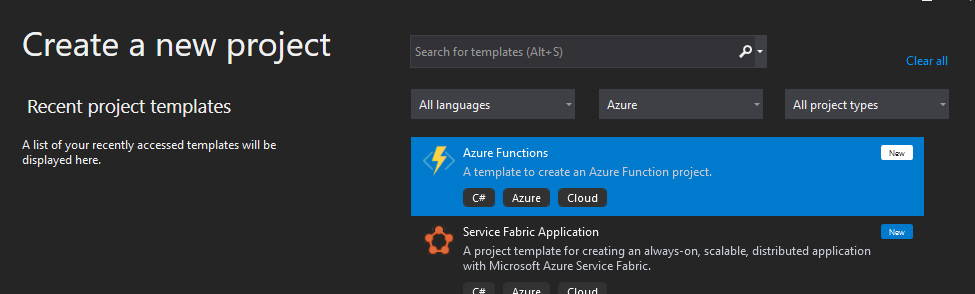
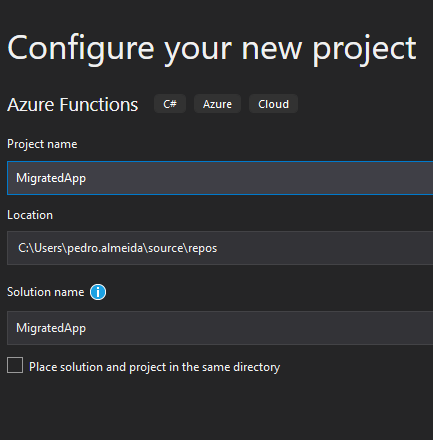
So you need to create a new Solution, with an Azure Function project.
Small note: you can also create a project using VB instead of C#, but… VB…
You can either choose a template with a trigger already created or you can choose an empty project, but when you try to Add a function, it will ask you again what template you want to use.
You can also add an empty class, but you will be missing some references.
As you can see, there are quite a few differences between the Class and the Function template.
I recommend you use the same template as the one you used to build your function, you will get more references that will be necessary for your code to work.
And now comes the easiest part. You can just copy-paste your code into VS, but leave the usings out. Most likely, if you haven’t used anything outstanding, they will already be there.
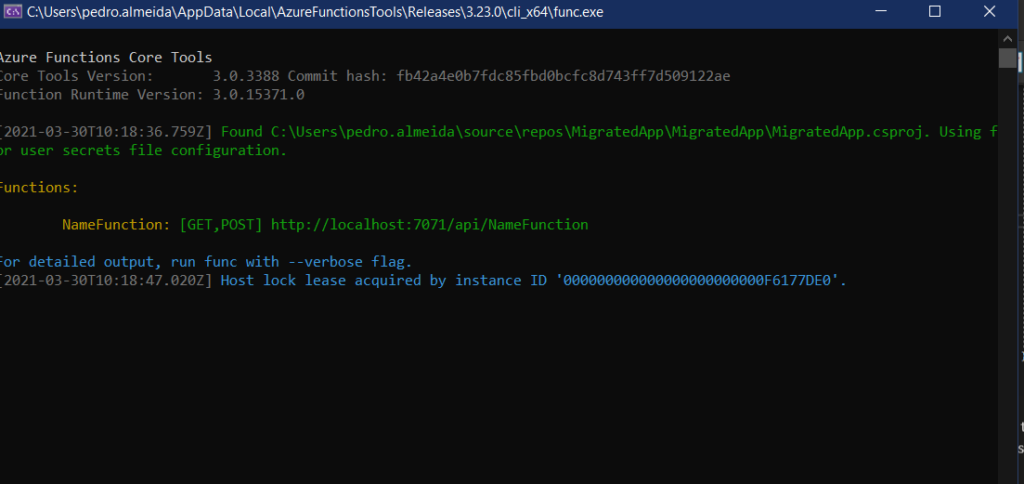
Now you have you code in VS, ready to run. Is it working properly? Well, you can just debug it locally, when pressing F5, the Azure emulator will start and you will be able to test your function like it was on the cloud.
You can just use your Postman or another web request tool to test your project.
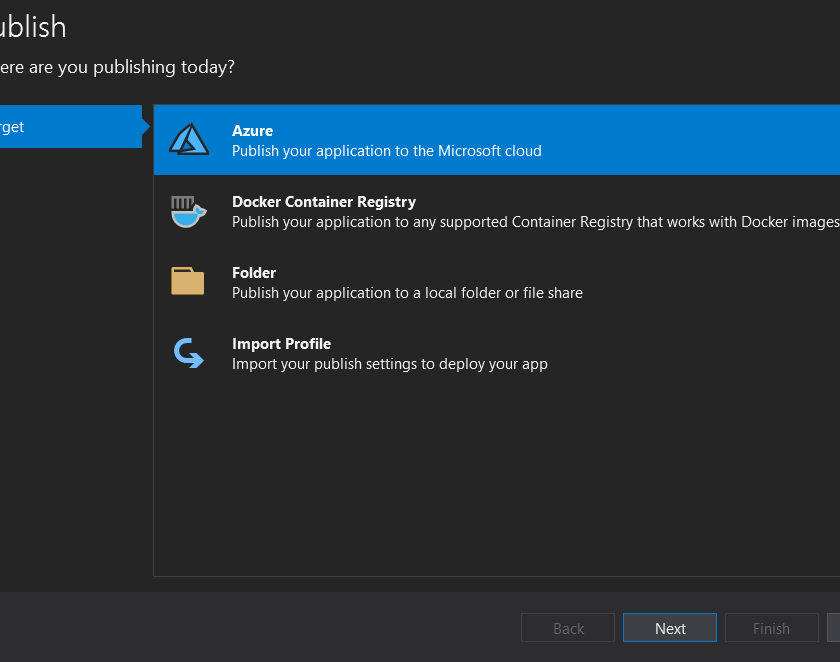
Once you’ve tested everything and are ready to deploy to your subscription, you’ll need configure the publishing profile.
You have two major ways of doing this. You can choose the blue pill and configure your connection by hand or you take the red pill and download the profile from the existing FA.
My advice, get the publish profile. Saves you time and it’s Plug’n’Play.
And that’s it. Your newly migrated function is now ready for your CI/CD and you can manage and version it with VS and DevOps.
Now, this does have a catch, or not depending on how you look at it. Because we deploy using a Zip file, the code is no longer available in the Portal, you must now always use VS to view it.
I like this, because it means that from a Security perspective, noone will be accessing the source code through the Portal and it forces new Devs, and old ones too, to join the best practices policy and have everything in a proper Repo and version controlled.
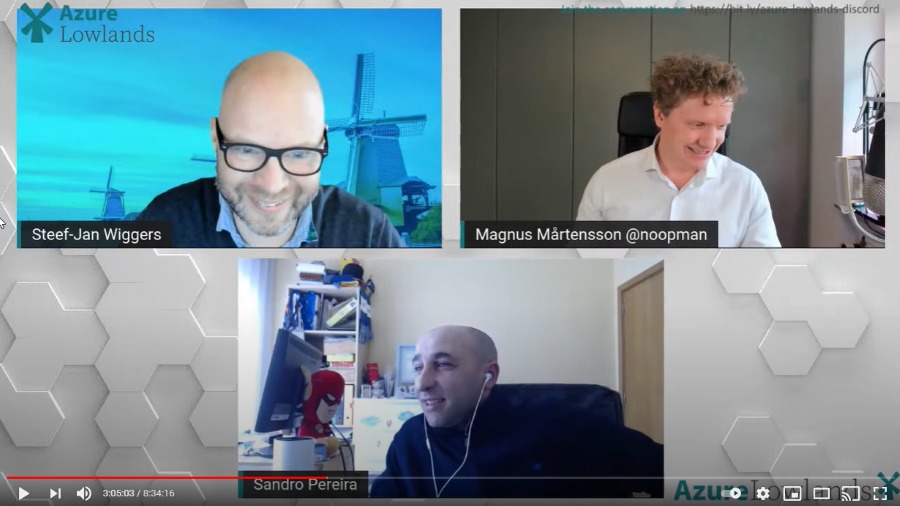
It was with great pleasure that I presented for the first time on January 29, 2020, a session at the Azure Lowlands event, this time about How to create robust monitor solutions with PowerShell, Azure Functions, and Logic Apps.
First of all, I want to congratulate the organizers on a very well organized event!
About the session
Session name: How to create robust monitor solutions with PowerShell, Azure Functions and Logic Apps
Abstract: Monitoring your systems or platforms is a crucial aspect of any organization. Based on my experience, all your clients will tell you that all the platforms or applications are being monitoring by external partners or internally. Nevertheless, when disasters occur or are in the process of happening, guess what? Your team will be the last to know. This session will address and present how you can easily and quickly create a robust monitoring solution on your platforms using PowerShell, Functions app, and Logic Apps or Power Automate Flows.
How to create robust monitor solutions with PowerShell, Azure Functions and Logic App Slides
How to create robust monitor solutions with PowerShell, Azure Functions and Logic App Video
For any reason, you could not be present at this online event, or if you want to review it again, you can now do it here: https://youtu.be/vf9cmfEb3Z8?t=10886
Azure Lowlands is a single-day event with three tracks around Microsoft Azure Platform as a Service (PaaS) offerings, ranging from containers, data, integration all the way to DevOps, IoT, and AI.
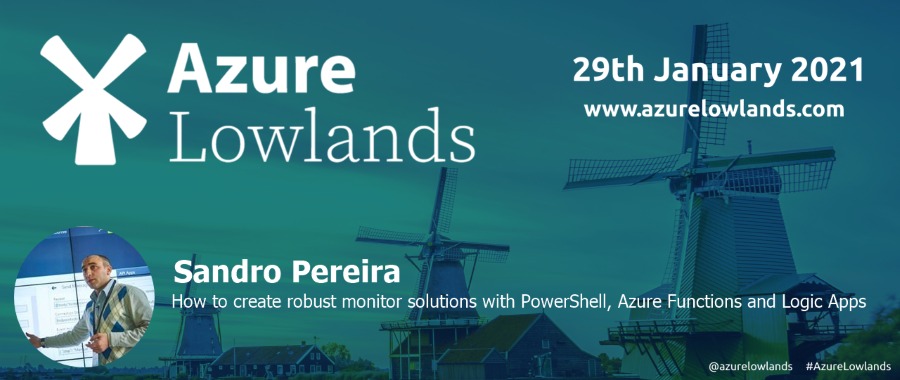
It was the first time I submit a session to this event, and I’m honored to be accepted and allowed to speak at this event on a session about: How to create robust monitor solutions with PowerShell, Azure Functions and Logic Apps. Azure Lowlands will take place on January 29th, 2021, and once again due to the current pandemic situation, the event will be completely virtual and free! So make sure to tune in and join us for a day full of exciting sessions.
How to create robust monitor solutions with PowerShell, Azure Functions and Logic Apps
Monitoring your systems or platforms is a crucial aspect of any organization and my session will be all about this! How you can create a robust monitor solution using tools and technologies like PowerShell, Azure Functions, and Logic Apps.
Session name: How to create robust monitor solutions with PowerShell, Azure Functions and Logic Apps
Abstract: Monitoring your systems or platforms is a crucial aspect of any organization. Based on my experience, all your clients will tell you that all the platforms or applications are being monitoring by external partners or internally. Nevertheless, when disasters occur or are in the process of happening, guess what? Your team will be the last to know. This session will address and present how you can easily and quickly create a robust monitoring solution on your platforms using PowerShell, Functions app, and Logic Apps or Power Automate Flows.
Join us and reserve your presence at the Azure Lowlands virtual event, it is free!
Microsoft Logic Apps Team recently announced a public preview of the new Logic Apps runtime. This new release adds several new features to Azure Logic Apps, including:
Development improvements
Full Logic Apps designer support in VS Code;
Local project support;
New Logic Apps Designer;
Hosting Flexibility – ability to run Logic apps workflows where you need to, including on-premises and edge environments
Run local (i.e. on my dev box);
Deploy to Azure or run containerized in Docker or Kubernetes environments;
Performance improvements
Stateless mode for low latency – better performance for request/response scenarios;
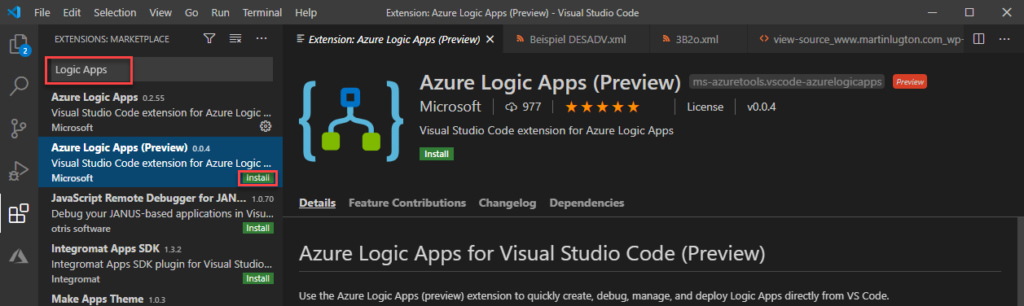
To create Logic Apps stateful or stateless workflows, you need to use Visual Studio Code and the Azure Logic Apps (Preview) extension – at the moment, there is no other way.
Prerequisites
To be able to use all capabilities of the Azure Logic Apps (Preview) extension for Visual Studio Code, you need:
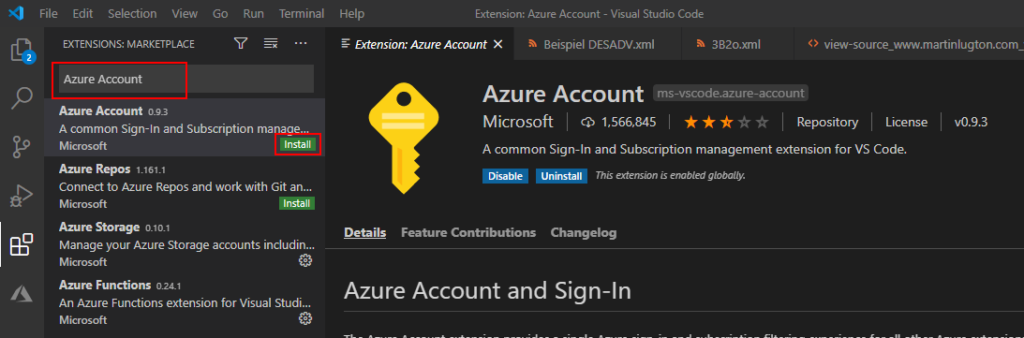
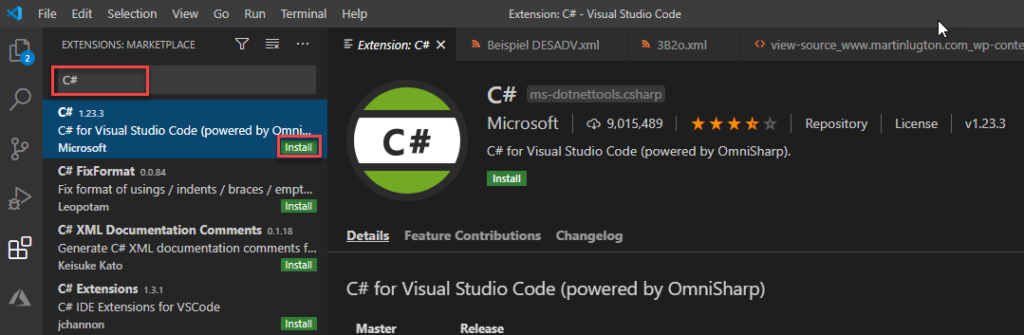
To have Visual Studio Code 1.31.0 (January 2019) or later and you need the following VS Code extensions:
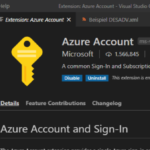
Azure Account extension provides a single common Azure sign-in and subscription filtering experience for all other Azure extensions in the Visual Studio Code.
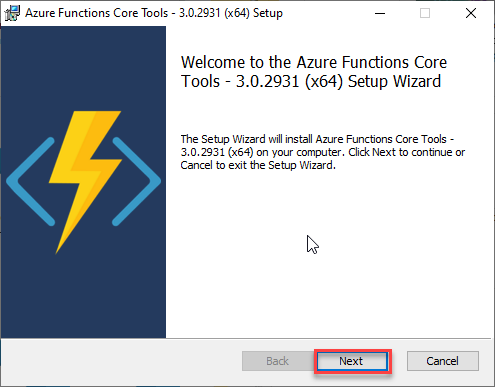
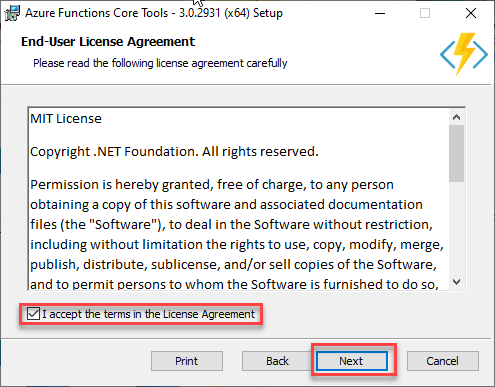
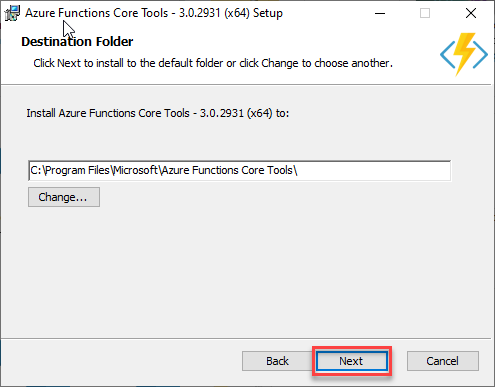
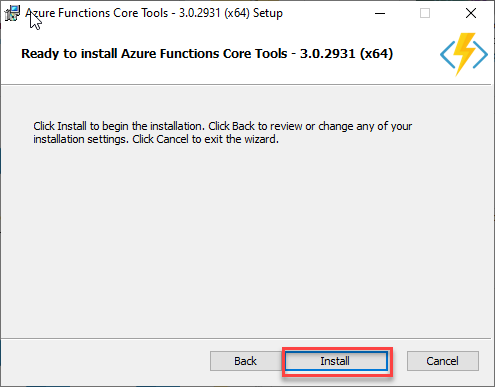
And finally, you need to install through the Microsoft Installer (MSI) the Azure Functions Core Tools, either version 3.0.2931 or 2.7.2936. These tools include a version of the same runtime that powers the Azure Functions runtime that runs in Visual Studio Code.
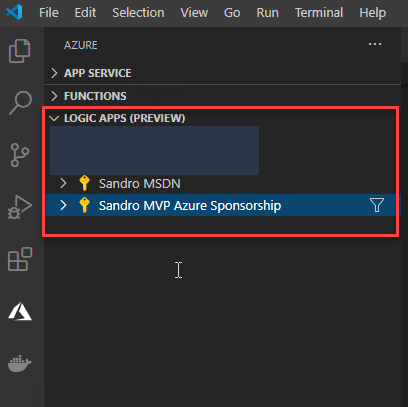
After installing this extension, you will find the two Azure Logic Apps (Preview) section of the Explore section of the VS Code, but the first thing you need to do is to Sign in to Azure…
Once again, to make sure that this extension is correctly installed, reload or restart the VS Code.
Set up VS Code Azure Logic Apps (preview) extension
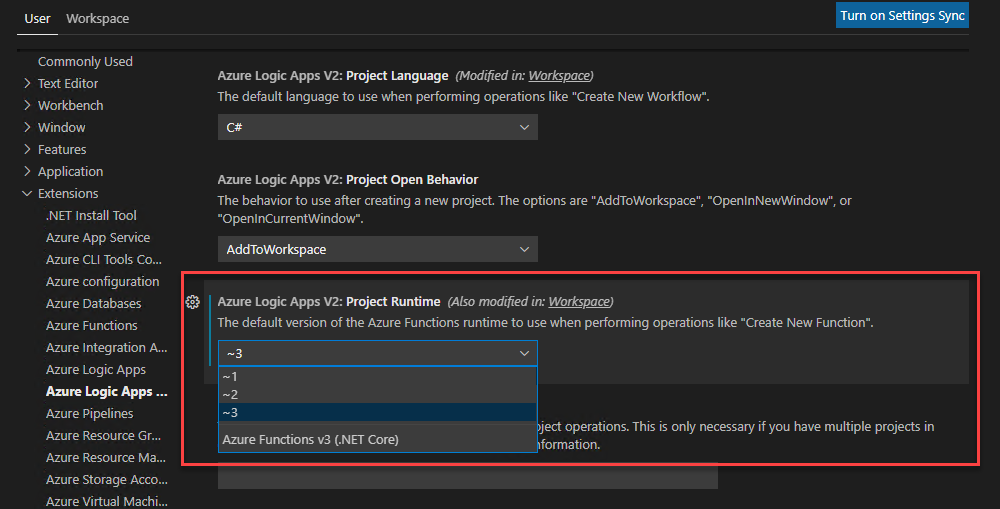
For everything to work correctly, you need to make sure that the following two properties are correctly configured:
Azure Logic Apps V2: Panel Mode
Azure Logic Apps V2: Project Runtime
To do that, you need:
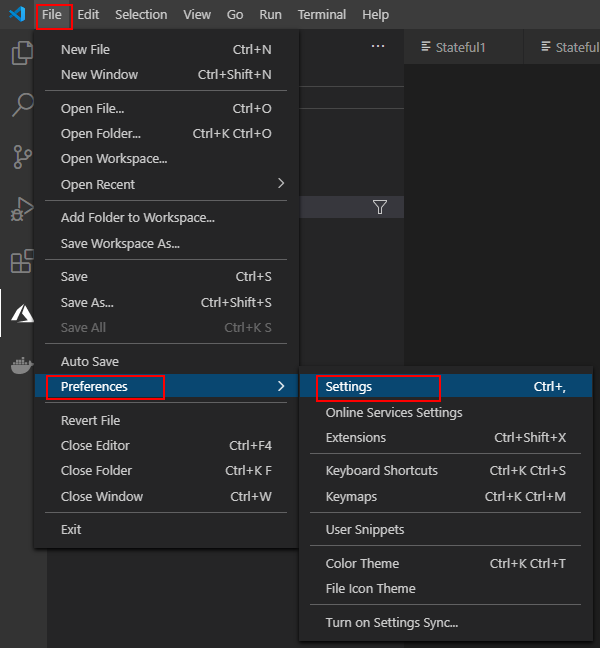
Open your VS Code, and on the File menu, go to Preferences, and then Settings.
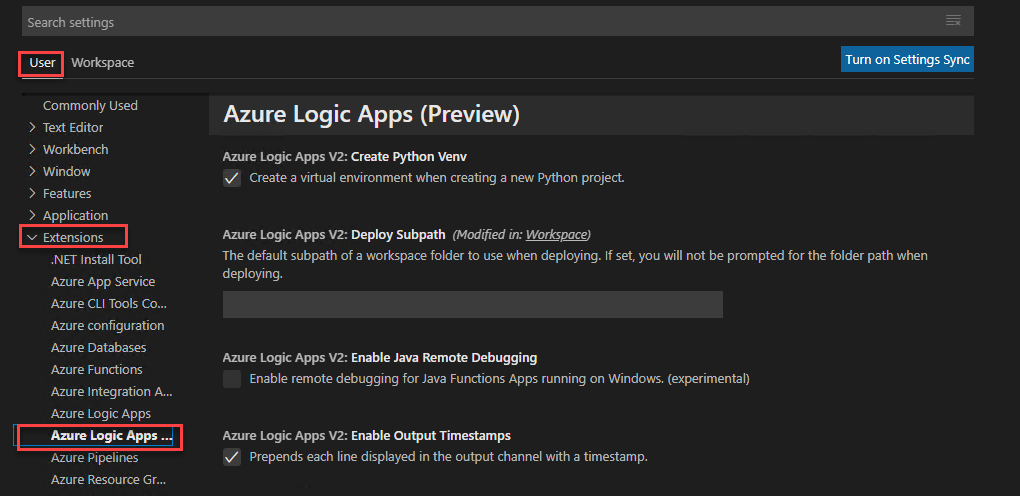
On the User tab, go to >Extensions>Azure Logic Apps (Preview).
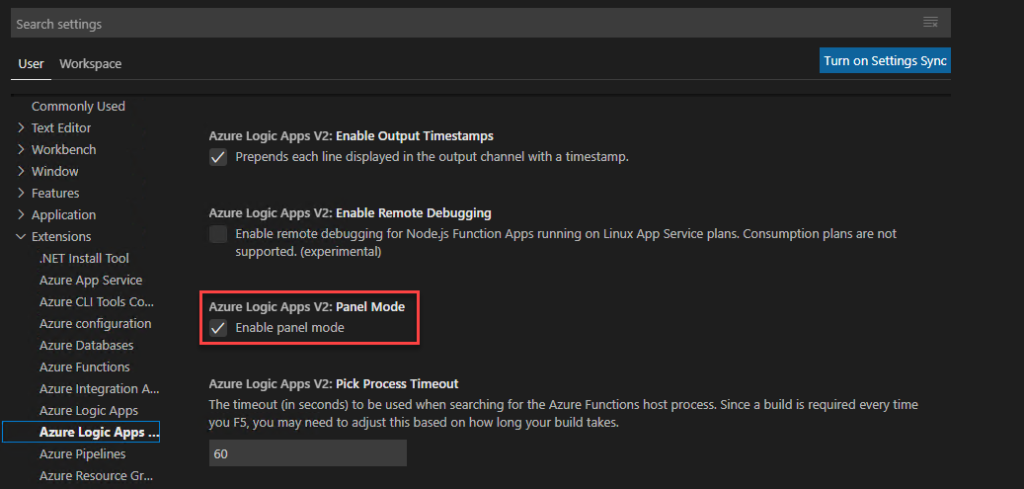
Check if the Enable panel mode option is selected on Azure Logic Apps V2: Panel Mode property. Otherwise, please enable it.
Under Azure Logic Apps V2: Project Runtime, set the version to ~3 or ~2, based on the Azure Functions Core Tools version that you installed earlier.
In our case: 3
If you want to use the Inline Code action for running JavaScript code, make sure that you use Project Runtime version 3 because the action doesn’t support version 2. Also, this action currently isn’t supported on Linux operating systems.
In the next blog post, we will explain how you can create your first Logic Apps (Preview) project. Stay tuned!
It was only 3 days ago that I released a major version. Still, with all of this new stuff and announcements on Ignite 2020, I just decide to make a minor update to my stencil package, especially because all the logos of Power Platform components have changed.
What’s new in this version?
These are the list of changes and additions present in this major release:
New shapes: There are new shapes on the following Visio Stencils files (.vssx):
MIS Power Platform Stencils: the picture above is presenting the new logo icons of Power BI, Power Apps, Power Automate, and Power Virtual Agents.
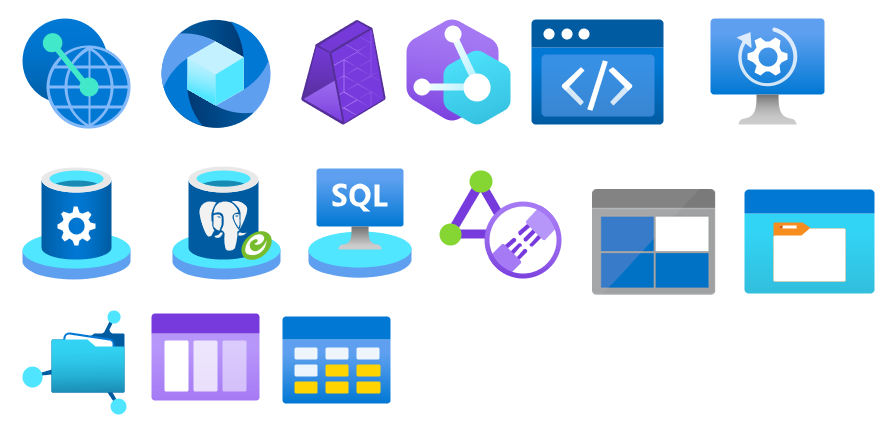
MIS Azure Stencils and MIS Azure Additional or Support Stencils: there were a few new icons add to the stencils, most of them related to Azure Arc and Storage Account and some icon updates.
MIS Office, Office 365, and Dynamics 365: New shapes added to this stencil with more Office 365 products.
Automation: minor fixes on the automation scripts
SVG files: new SVG files added.
Microsoft Integration, Azure, Power Platform, Office 365 and much more Stencils Pack
Microsoft Integration, Azure, Power Platform, Office 365 and much more Stencils Pack it’s a Visio package that contains fully resizable Visio shapes (symbols/icons) that will help you to visually represent On-premise, Cloud or Hybrid Integration and Enterprise architectures scenarios (BizTalk Server, API Management, Logic Apps, Service Bus, Event Hub…), solutions diagrams and features or systems that use Microsoft Azure and related cloud and on-premises technologies in Visio 2016/2013:
BizTalk Server
Microsoft Azure
Integration
Integration Service Environments (ISE)
Logic Apps and Azure App Service in general (API Apps, Web Apps, and Mobile Apps)
Azure API Management
Messaging: Event Hubs, Event Grid, Service Bus, …
Azure IoT and Docker
AI, Machine Learning, Stream Analytics, Data Factory, Data Pipelines
SQL Server, DocumentDB, CosmosDB, MySQL, …
and so on
Microsoft Power Platform
Microsoft Flow
PowerApps
Power BI
Office365, SharePoint,…
DevOps and PowerShell
Security and Governance
And much more…
… and now non-related Microsoft technologies like:
SAP Stencils
The Microsoft Integration Stencils Pack is composed of 27 files:
Microsoft Integration Stencils
MIS Additional or Support Stencils
MIS AI and Machine Learning Stencils
MIS Apps and Systems Logo Stencils
MIS Azure Additional or Support Stencils
MIS Azure Black and Gray
MIS Azure Old Versions
MIS Azure Stencils
MIS Black and Cyan
MIS Buildings Stencils
MIS Databases and Analytics Stencils
MIS Deprecated Stencils
MIS Developer Stencils
MIS Devices Stencils
MIS Files and Message Types Stencils
MIS Generic Stencils
MIS Infrastructure and Networking Stencils
MIS Integration Fun
MIS Integration Patterns Stencils
MIS IoT Stencils
MIS Office, Office 365 and Dynamics 365
MIS Power BI Stencils
MIS Power Platform Stencils
MIS SAP Stencils
MIS Security and Governance
MIS Servers (Hexagonal) Stencils
MIS Users and Roles Stencils
Organisational Stencils
That you can use and resize without losing quality, in particular, the new shapes.
Well, the thing is, you cannot say to me, “…these stencils look fantastic, but are currently unusable or worthless because…” my brain enters in a crazy mode, and I can only free myself when all the work is finished successfully and that these resources are handy :).
Jokes apart, I use these resources for a long time, I create these for myself, but I knew that they were not perfects. The major problem was that fixing that amount of icons was a time-consuming task. However, with the number of people using these stencils increasing and reporting those problems, I decided to resolve them once and for all.
Today I can announce that I close all the open issues reported on the git repository of this package.
What’s new in this version?
These are the list of changes and additions present in this major release:
Restructure of Visio Stencils files (.vssx) names: the package is now composed of 26 Visio Stencils files.
Some of them were renamed: PowerApps and Flow is now Power Platform; Files is now Files and Message Types Stencils, …
Some were merged: Power BI was merged in the new Power Platform Visio Stencil file; Azure Others was merged in the Azure Additional or Support Stencils, Office365 is now Office, Office 365 and Dynamics 365…
New Visio Stencils files: MIS Black and Cyan and MIS Azure Black and Gray;
New Organisational Stencils file add by Jacob Mansfield;
New shapes: New shapes were added on the majority of the Visio Stencils files (.vssx). Probably the one that was most affected was Azure Stencils and Office, Office 365 and Dynamics 365;
Text annotationsand connector points: The issues regarding text annotations (legend appear in the center of the icon instead of bellow) and connector points (lack of proper connect points) are now solved in all the Visio Stencils files (.vssx). This was a massive work!
Order of the icons: all the icons appear in alphabetic order inside the Visio Stencil file, with the exception in some cases of the first ones that in some case contains the main shape of the context, like in Microsoft Integration Stencils, the first icon is BizTalk Server Logo.
Automation: add 3 PowerShell script to this package for you to:
Standardize all SVG filenames available in all subfolders by:
Not using spaces. Some software will not recognize file names with spaces, and file names with spaces must be enclosed in quotes when using the command line. Having spaces in URL’s are also not a good experience and should be avoided. For all these reasons I decided to remove all spaces and replace it will ‘-‘ (dash);
Names are in Camel case, where the first letter of each section of text is capitalized (of course respecting the line above), e.g., File-Name.svg
Having extension in lowercase, e.g., *.svg
List all the detected duplicate files.
Automatically install (configure) all the Visio files (*.vssx), so that next time you open Visio, they will be there available;
And also the possibility to download the most recent version from GitHub and install it locally;
Standardize shape sizes: standardize the shapes sizes in all to be more or less all of the same sizes Visio Stencils files.
Fixed some minor stencils layouts;
SVG files: new SVG files added.
These changes were a massive job that stole all my free time apart from my work and family time, from the past three weeks! So I hope you appreciate it!
Microsoft Integration, Azure, Power Platform, Office 365 and much more Stencils Pack
Microsoft Integration, Azure, Power Platform, Office 365 and much more Stencils Pack it’s a Visio package that contains fully resizable Visio shapes (symbols/icons) that will help you to visually represent On-premise, Cloud or Hybrid Integration and Enterprise architectures scenarios (BizTalk Server, API Management, Logic Apps, Service Bus, Event Hub…), solutions diagrams and features or systems that use Microsoft Azure and related cloud and on-premises technologies in Visio 2016/2013:
BizTalk Server
Microsoft Azure
Integration
Integration Service Environments (ISE)
Logic Apps and Azure App Service in general (API Apps, Web Apps, and Mobile Apps)
Azure API Management
Messaging: Event Hubs, Event Grid, Service Bus, …
Azure IoT and Docker
AI, Machine Learning, Stream Analytics, Data Factory, Data Pipelines
SQL Server, DocumentDB, CosmosDB, MySQL, …
and so on
Microsoft Power Platform
Microsoft Flow
PowerApps
Power BI
Office365, SharePoint,…
DevOps and PowerShell
Security and Governance
And much more…
… and now non-related Microsoft technologies like:
SAP Stencils
The Microsoft Integration Stencils Pack is composed of 27 files:
Microsoft Integration Stencils
MIS Additional or Support Stencils
MIS AI and Machine Learning Stencils
MIS Apps and Systems Logo Stencils
MIS Azure Additional or Support Stencils
MIS Azure Black and Gray
MIS Azure Old Versions
MIS Azure Stencils
MIS Black and Cyan
MIS Buildings Stencils
MIS Databases and Analytics Stencils
MIS Deprecated Stencils
MIS Developer Stencils
MIS Devices Stencils
MIS Files and Message Types Stencils
MIS Generic Stencils
MIS Infrastructure and Networking Stencils
MIS Integration Fun
MIS Integration Patterns Stencils
MIS IoT Stencils
MIS Office, Office 365 and Dynamics 365
MIS Power BI Stencils
MIS Power Platform Stencils
MIS SAP Stencils
MIS Security and Governance
MIS Servers (Hexagonal) Stencils
MIS Users and Roles Stencils
Organisational Stencils
That you can use and resize without losing quality, in particular, the new shapes.
It came to my attention that there were some Azure icons missing on this package like Azure Synapse Analytics, so I decide to make a refresh on this package and add some missing and new icons available on the Azure Portal.
What’s new in this version?
32 new icons added on the following files:
Microsoft Azure (MIS Azure Stencils.vssx): This package contains stencils of Azure Services (original icons) that are available thru the Azure Portal.
Microsoft Azure: Others (MIS Azure Others Stencils.vssx): This package contains other less important (or secondary features) and related stencils.
MIS: Security and Governance (MIS Security and Governance.vssx): This package contains stencils that will represent Security and Governance.
Continuing the process of improving the user experience regarding text annotations and connector points.
Microsoft Integration, Azure, Power Platform, Office 365 and much more Stencils Pack
Microsoft Integration, Azure, Power Platform, Office 365 and much more Stencils Pack it’s a Visio package that contains fully resizable Visio shapes (symbols/icons) that will help you to visually represent On-premise, Cloud or Hybrid Integration and Enterprise architectures scenarios (BizTalk Server, API Management, Logic Apps, Service Bus, Event Hub…), solutions diagrams and features or systems that use Microsoft Azure and related cloud and on-premises technologies in Visio 2016/2013:
BizTalk Server
Microsoft Azure
Integration
Integration Service Environments (ISE)
Logic Apps and Azure App Service in general (API Apps, Web Apps, and Mobile Apps)
Azure API Management
Messaging: Event Hubs, Event Grid, Service Bus, …
Azure IoT and Docker
AI, Machine Learning, Stream Analytics, Data Factory, Data Pipelines
SQL Server, DocumentDB, CosmosDB, MySQL, …
and so on
Microsoft Power Platform
Microsoft Flow
PowerApps
Power BI
Office365, SharePoint,…
DevOps and PowerShell
Security and Governance
And much more…
… and now non-related Microsoft technologies like:
SAP Stencils
The Microsoft Integration Stencils Pack is composed of 27 files:
Microsoft Integration Stencils
MIS Additional or Support Stencils
MIS AI and Machine Learning Stencils
MIS Apps and Systems Logo Stencils
MIS Azure Additional or Support Stencils
MIS Azure Mono Color
MIS Azure Old Versions
MIS Azure Others Stencils
MIS Azure Stencils
MIS Buildings Stencils
MIS Databases and Analytics Stencils
MIS Deprecated Stencils
MIS Developer Stencils
MIS Devices Stencils
MIS Files Stencils
MIS Generic Stencils
MIS Infrastructure Stencils
MIS Integration Fun
MIS Integration Patterns Stencils
MIS IoT Devices Stencils
MIS Office365
MIS Power BI Stencils
MIS PowerApps and Flows Stencils
MIS SAP Stencils
MIS Security and Governance
MIS Servers (HEX) Stencils
MIS Users and Roles Stencils
That you can use and resize without losing quality, in particular, the new shapes.