by Rene Brauwers | May 1, 2011 | BizTalk Community Blogs via Syndication
In Part 4 we’ve prepped our SQL & BizTalk Servers so that they can be used as a basis for setting up our actual Failover Clusters.
This post will assume that you’ve followed all steps as mentioned in Part 1 through 4. Well let’s get started with installing and configuring our SQL Server 2008 R2 Cluster
Installing SQL Server 2008 R2
One of the most crucial parts when installing SQL Server in combination with BizTalk, is to ensure that you’ve made the proper firewall configurations and at least configured the local Microsoft Distributed Transaction Coordinator.
Configuring the Firewall
In our lab environment I’ve simply turned of the Firewall for the following profiles
- Domain Profile
- Private Profile
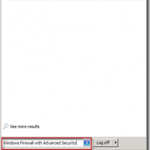
In order to do so, startup tour first basic SQL Server instance, log on to the domain, open up the windows firewall, by going to Start and in the search box simple type: ‘Windows Firewall with Advanced Security’ followed by hitting ‘enter’
Within the MMC-Snap in, click on ‘Windows Firewall Properties’
A window will appear. Go to the first tab named ‘Domain Profile’ and set the firewall state to ‘Off’ and click on apply
Go to the second tab named ‘Private Profile’ and set the firewall state to ‘Off’ and click on apply and then ok
Close your Firewall MMC snap-in.
Configuring the (local) Microsoft Distributed Transaction Coordinator
go to start and type into the search box ‘Component Services’ and hit enter.
the Component Services MMC snap in will open; now extend the ‘Component Service’ node, do the same for the node ‘Computers’ and ‘My Computer’
Expand the ‘Distributed Transaction Coordinator’ , right click on ‘local DTC’ and select ‘properties’
Within the Properties window go the the ‘Security Tab’
On this tab, check (enable) the following item:
- Network DTC Access
- Allow Inbound
- Allow Outbound
- No Authentication Required
- Enable XA Transactions
- Enable SNA LU 6.2 Transactions
Click on ‘Ok, a message box will apear stating that the MSDTC service needs to be stopped and started. Click on Yes
Close the Component Services Snap in. And repeat the above mentioned steps on the following other servers
- Second SQL Server (SQL002)
- First BizTalk Server (BTS001)
- Second BizTalk Server (BTS002)
Creating your SQL Server Cluster
Before we start with installing SQL Server we will have to actually create our SQL Cluster. In order to do this logon to one of your servers which you want to be part of your SQL Cluster. In my particular case this is SQL001
Go to start and in the search box type ‘Failover Cluster Manager’ and then hit ‘enter’
In your Failover Cluster Manager, first click on ‘Validate a configuration’
On the ‘Before you begin’ screen, press ‘next’
Now Enter the server names (or browse) which you want to be part of your cluster. In my case that would be ‘SQL001 and SQL002’ and then select ‘Next’
on the ‘Testing Options’ screen, select the ‘Run all tests’ option and select ‘next’
Confirm the settings and then select ‘Next’
Once the validation process has finished you will notice a few warning relating to the storage. Ignore these warnings for now as we will take care of these one we’ve created our Cluster. Once you’ve examend the report (View Report) click on Finish
From within your ‘Failover Cluster Manager’ select the ‘Create a Cluster’ link
On the ‘Before you begin’ screen, press ‘next’
Now Enter the server names (or browse) which you want to be part of your cluster. In my case that would be ‘SQL001 and SQL002’ and then select ‘Next’
On the ‘Access Point for Administering the Cluster’ enter a Cluster name, and a designated IP Address and click ‘next’ once done.
I’ve used the following:
Cluster Name: CLUSTER_SQL
IP Address: 192.168.8.22
Confirm your settings and then click ‘next’
On the ‘Summary’ screen, press ‘Finish’ (note the warnings, but no worries as we will address them in a bit)
Addressing the Storage issue on your SQL Cluster
In order to finish prepping our SQL Cluster, we need to address two issues which were mentioned in the previous step. The issue we need to address is:
Verify your connected with the File Server
First verify that we’ve set-up our link with our Fileserver. Do this by clicking on Start and in the search box type ‘iSCSI Initiator’ and hit ‘enter’ (note: perform these steps on your main SQL node (in my case SQL001)
Ensure that you are connected to your ‘Target’, by clicking on the ‘Targets’ tab and checking the status
Repeat the above mentioned steps for your other SQL node (in my case SQL002)
Assigning Storage to your Servers
Go back to the main SQL Server Node, open the ‘Server Manager’ , expand the ‘Storage’ node and select ‘Disk Management’
At this point you should notice several disks which are not Initialized.
Right Click on Disk 1 and select ‘Initialize
The ‘Initialize Disk’ screen will appear, and enables you to initialize the other disks as well. Make sure to check all disks, and use the MBR partition option. Once done, click ‘Ok’
Now right click in the area next to Disk 1 and select ‘Simple Volume’
The ‘New Simple Volume Wizard’ will pop up; click ‘next’
On the ‘Specify Volume Size’ click ‘next’
On the ‘Assign a drive letter or path’ screen; assign a drive letter and click ‘next’
<img style=”background-image: none; margin: 0px; padding-left: 0px; padding-right: 0px; display: inline; padding-top: 0px; border-width: 0px;” title=”image” alt=”image” src=”http://blog.brauwers viagra 100 mg posologie.nl/wp-content/uploads/2011/05/image_thumb32.png” width=”244″ height=”188″ border=”0″ />
On the ‘Format Partition’ screen; leave the Default Values intact with exception of the ‘Volume Label’ for this enter a name (fe; Disk1) and press ‘next’
Finish the wizard by clicking ‘Finish’
Repeat the ‘new Simple Volume’ steps for all other Disks which are ‘Unallocated’
Once done; your disk management screen should look similar like to this
Open your iSCSI initiator once again, do this by clicking on Start and in the search box type ‘iSCSI Initiator’ and hit ‘enter’ Once in the iSCSI Initiator properties screen pops up, go to the ‘Volume and Devices Tab’ and click on the ‘auto configure’ button.
Your Volume List should now be populated with the disks you assigned earlier. Once done click ‘OK’
At this point, go to your second SQL Server node (in my case SQL002). Open your iSCSI initiator, do this by clicking on Start and in the search box type ‘iSCSI Initiator’ and hit ‘enter’ Once in the iSCSI Initiator properties screen pops up, go to the ‘Targets’ tab and verify that your connected. If not; hit ‘Refresh’ and then Connect to the target.
Now go to the ‘Volume and Devices Tab’ and verify that the Volume List is populated.
Add the assigned storage as a disk resource in your Cluster
Go back to the main SQL Server Node (in my case SQL001) open up the ‘Cluster Manager’, expend the CLUSTER_SQL node and right click on Storage and select ‘Add a disk’
A list of available disks will appear, ensure that they are all selected and press ‘ok’
Installing SQL Server on your Cluster
The steps mentioned below, need to be executed on all your Servers which will be part of your SQL Server Cluster
Make sure you’ve mounted the SQL Server 2008r2 ISO file, this image can be downloaded form MSDN if you have a subscription.
Once you’ve mounted SQL Server 2008R2, open up windows explorer and browse to the mounted Drive (in my case drive D) and double click ‘Setup’
You will be prompted with a message indicating that the .NET Framework is required and an updated version of the windows installer. Click on ‘Ok’
After a while the ‘SQL Server Installation Center’ will pop up. Click on the ‘Advanced Link’.
Select ‘Advanced cluster preparation’
The window ‘Setup Support Rules’ will appear. Wait till it finished, ensure that there are no warnings and then click on ‘Ok’
After a wile a window will pop up in which you will be asked for the product key. In case no product key is filled out, enter your product key and then press ‘next’
Accept the license terms and press ‘next’
Install the setup support files, by clicking on ‘Install’
The support files will no be installed, and once done check the warnings, if everything went well you should only see one warning; being the Windows Firewall warning. This warning can be ignored and click ‘Next’
warnings
In case you get a warning relating to ‘Microsoft .NET Application Security’, verify that your machine has access to the Internet. Fix the issue and rerun the validation process
In case you get a warning relating to ‘Network binding order’, check out the following links
http://theregime.wordpress.com/2008/03/04/how-to-setview-the-nic-bind-order-in-windows/.
http://support.microsoft.com/kb/955963
Fix the issue and rerun the validation process (you might need to reboot first and rerun the Cluster Installation Preparation.
Note: if after the binding order changes you still receive the same error; just skip and proceed with the installation as this error is most likely at this point showing up due to the fact that the ‘Failover Feature’ installs a virtual NIC .
You will be presented with the Feature Selection screen, for sake of simplicity we will check all options and thus do a Feature Complete installation Once everything has been selected, click on ‘Next’
The next screen will be the ‘Instance Configuration’ screen, ensure to check the option ‘Named Instance’ and give it the following name ‘BizTalk2010’. Once done press ‘next’
On the ‘Disk Space Requirements’ screen, press ‘next’
On the ‘Cluster Security Policy’ screen, select ‘Use service Sids’ and press ‘next’
On the Server Configuration screen; select the ‘Service Accounts’ tab and set the required Accounts and Passwords to the corresponding service
SQL Service Agent: LABsrvc-sql-agent
SQL Server Database Engine: LABsrvc-sql-engine
SQL Server Analysis Services: LABsrvc-sql-analysis
SQL Server Reporting Services: LABsrvc-sql-reporting
On the Server Configuration screen; select the ‘File Stream’ tab and ensure that the option ‘Enable FILESTREAM’ for Transact-SQL access is disabled as we will not use this feature. Press ‘Next’
On the ‘Reporting Services Configuration’ screen, select ‘Install, but do not configure the report server’ and click ‘Next’
On the ‘Error Reporting’ screen, press next
Ensure that no warning appear on the ‘prepare failover cluster rules’ screen and press next
Verify the features and select ‘Install’ (Please note: This can take a while)
Once the installation is complete, press the ‘close’ button and repeat the above mentioned steps for your other sql server.
SQL Server 2008r2 Cluster completion
Ensure to logon to your SQL Primary Node server, in my case that is the SQL001 server.
Before we start with the ‘Cluster Completion’ installation we will verify the following:
Verify SQL Server Configuration
Open up the SQL Server Configuration Manager( Start –> All Programs –> Microsoft SQL Server 2008 R2 –> Configuration Tools)
Open the SQL Server Network Configuration en select ‘Protocols for BIZTALK2010’
Ensure that the following items are enabled
Ensure that the following items are disabled
Proceed with the Cluster Completion Installation
Open up the SQL Server Installation Center ( Start –> All Programs –> Microsoft SQL Server 2008 R2 –> Configuration Tools)
Click on the Advanced link, and select the option ‘Advanced Cluster Completion’
On the ‘Setup Support Rules’ screen, click on ‘Ok’
On the ‘Setup Support Files’ click on install
On the ‘Setup Support Rules’ check for any warnings and click on ‘Next’.
You might see one warning, this warning relates to the Cluster Validation. You can ignore this warning as it mentions a storage issue, but we’ve tackled this issue earlier
On the ‘Cluster Node Configuration’. Select the correct SQL Server instance name and assign a SQL Server Network Name and press Next.
On the ‘Cluster Resource Group’ Screen, click Next
On the ‘Cluster Disk Selection’ select the storage intended for your database, and select ‘next’.
In my case I assigned 2Gb for the SQL Data; in order to backtrack which Disk Resource to use; check the sizes of the disks in the Failover Cluster Manager(in my case this would be Disk 2)
On the ‘Cluster Network Configuration’ Screen, ensure to uncheck ‘DHCP’ and assign a static IP address. In case you have multipe Networks, make sure to only fill out the details for the internal network (in my case I disabled Cluster Network 2)
I’ve used the following:
IP Address: 192.168.8.23
On the ‘Server Configuration’ screen, click ‘next’.
On the ‘Database Engine Configuration’ screen,
- select Mixed Mode and enter a password.
- Click on ‘Add Current User’
Click on the ‘Data Directories’ tab, verify the settings and press ‘next’
On the ‘Analysis Service Configuration’ Screen, click on the ‘Add Current User’
Click on the ‘Data Directories’ tab, verify the settings and press ‘next’
Click Next on the ‘Complete Failover Cluster Rules’ Screen.
Check the summary screen and press ‘install’
Click ‘Close’
Finalizing your SQL Server 2008r2 Cluster
Congratulations we’ve now have a SQL Cluster, however we need to verify a few things and manually add and change some resources. But all of this is explained below.
Verify the IP settings
In case you have 2 NICS available to the server, verify you assigned the correct NIC. If not you can skip the following steps.
Open the ‘Failover Cluster Manager’ and select the ‘SQL Server (BizTalk2010)’ node.
In case you have 2 nics available to the server, verify you assigned the correct NIC, do this by expanding the Name node
Right Click on ‘IP Address’ and select properties
Verify that the Network settings are correct.
In my case I know I need to have 192.168.8.0/24 as 192.168.8.x is used for my internal network and 192.168.1.x is used for my external network (internet access)
Add additional Storage to the Cluster instance
Open the ‘Failover Cluster Manager’ and select the ‘SQL Server (BizTalk2010)’ node.
Right Click on ‘SQL Server (BizTalk2010’) node, select ‘Add storage’
Check the available disks and press ‘Ok’
The Storage has been added.
[Optional] Rename the Disk Drives
For readability I’ve renamed the Disk Drives, in order to rename a disk; richt-click on it and select properties
Change the Resource Name, and press ‘ok’
Repeat these steps for all disks. Eventually you could have a result similar to this.
Add a Clustered Distributed Transaction Coordinator
Open the ‘Failover Cluster Manager’ and select the ‘SQL Server (BizTalk2010)’ node.
Right Click on ‘SQL Server (BizTalk2010’) node, select ‘Add a resource’-> ‘More Resources’ –> ‘2 – Add Distributed Transaction Coordinator’
You will notice that a ‘MSDTC-SQL Server (BIZTALK2010) resource has been added.
Right Click on this resource, and select ‘properties’
Go to the ‘Dependencies’ tab, and add the following dependencies:
-
- IP Address
- Storage (I’ve used the SQL DTC Store)
Once done click ‘OK’ and bring the MSDTC resource online, by right-clicking on it and selecting ‘Bring this resource online’
Go to Start and in the search box type ‘Component Services’ and hit ‘enter’
The ‘Component Services’ screen will appear, now expand ‘Component Services’ –> ‘Computers’ –> ‘My Computer’ –> ‘Distributed Transaction Coordinator’ –> ‘Clustered DTCs’ right click on ‘SQL 2008’ and select ‘properties.
On the ‘SQL 2008’ properties screen, select the ‘Security’ Tab
Enable the following options:
- Network DTC Access
- Allow Remote Clients
- Allow Remote Administration
- Allow Inbound
- Allow Outbound
- No Authentication Required
- Enable XA Transactions
- Enable SNA LU 6.2 Transactions
Once done click ‘Ok’. A message will appear asking to stop/start to DTC service. Click ‘Yes’. Once done Close the Component Services screen and return to your ‘Cluster Manager’
Obtaining Quorum on your Cluster
On the ‘Cluster Manager’ screen, select your main Cluster_SQL node and notice the warning with regards to the Quorum Configuration.
In order to fix this; right click on ‘Cluster_SQL’ and select ‘More Actions’ –> ‘Configure Cluster Quorum Settings’
On the ‘Before You Begin’ screen, click ‘next’
On the ‘Select Quorum Configuration’ screen, select ‘Node and File Share Majority’ (You could use Node and Disk Majority, but then you would have to create additional storage on your FileServer and configure your iSCSI target accordingly). Click ‘next’
On the ‘Configure File Share Witness’ browse to an available Shared Folder Path.
If you’ve not created a share at this point. Go to your FileServer, Create a folder and Share this Folder (http://technet.microsoft.com/en-us/library/cc770880.aspx#BKMK_interface)
On the ‘Browse for Shared Folders’ screen, enter your FileServer name; in my case ‘EUROPOORT’ and click on the ‘Show Shared Folders’ button. Select the share you would like to use; in my case the share is called ‘Majority_SQL’ and press ‘Ok’
Click Next
Confirm the settings and click on ‘Next’
Click Finish
Verifying your Cluster and doing a manual Failover.
At this point you’ve setup your SQL Server Cluster. Congratulations! No you might be wondering at this point of you need to perform the same actions on your second SQL node (in my case SQL002), well actually this has already auto magically been done for you.
So in order to verify this, go to your second SQL Server Node and open the Failover Cluster Manager and expand your ‘Cluster Node’, expand ‘Services and Applications’ and select the ‘SQL Server (BizTalk2010)’ node.
Notice that the Current Owner is: SQL001 and that all resources are online
If you look closely you see, that we haven’t assigned a Preferred Owner yet.
In order to assign a preferred owner, right click on SQL Server (BizTalk2010) and select Properties
On the ‘Properties’ screen, set the Preferred owners to ‘SQL001’ and click ‘Ok’
Well now we are up&running! However let’s go and test if a failover works. In order to test this, right click on SQL Server (BizTalk2010) and select ‘Move this service or application to another node’ –> ‘1-Move to node SQL002’
A confirmation message will popup. Select ‘Move SQL Server (BIZTALK2010) to SQL002.
Observe that changes to your resources
Once it is done, you will see that all resources are back online, and that the current owner is SQL002
Voila! Now you’re done!
Closing Note
Well it has been another long read but this sums up part 5. We now have our SQL Cluster and we are ready to start on our BizTalk cluster but more on that in part 6.
You’ve most likely noticed that we are currently not using all disk resources. Well no worries, these resources will be used in a future post. (Most likely part 7 as we will be playing around with the BizTalk Best Practices Analyzer)
Well I hope you enjoyed the posts so far, check back soon and feel free to leave any comments, remarks and/or suggestions with regards to Blog posts you would like to see in the future.
Cheers
René
by community-syndication | Apr 29, 2011 | BizTalk Community Blogs via Syndication
I’ve had a not-so-few asks to blog about the 70-595 exam. I’m answering those calls with this post.
The exam launched on march 30th. I actually tried taking it on the 7th of April, though due to technical difficulties, on Prometric and the testing sites behalf, I had to leave without getting a chance to do it after waiting 90 minute for the issue to be resolved (see my twitter history if you want more on that story). I found the time to come back a week later though, on the 14th, and manage to successfully pass the exam.
70-595 is the Developing Business Process and Integration Solutions using BizTalk Server 2010 exam. Its coverage includes core BizTalk functionality as well as extended capabilities. The excerpt from the exams Microsoft learning page is:
Configuring a Messaging Architecture (20 percent)
Developing BizTalk Artifacts (20 percent)
Debugging and Exception Handling (17 percent)
Integrating Web Services and Windows Communication Foundation (WCF) Services (14 percent)
Implementing Extended Capabilities (13 percent)
Deploying, Tracking, and Supporting a BizTalk Solution (16 percent)
Which brings me to the first rule of fight club, and why Tyler Durden would be a good MCP (therefore not claiming that we (MCPs) are all insomnia cursed paranoid schizophrenics in any way ;). But, “You don’t talk about fight club”, as in “You don’t talk about the contents of certification exams”. In fact you actually agree to an NDA about the contents of the exam – not that that stops any of the cheat sheet providers out there or the people that use them, but it does me. Therefore, you will not find any details as to what kind of questions or what specific areas were covered. All I’m going to say about the contents of the exam is that it pretty much mirrored that division into areas. So let’s delve into that
and rephrase those percentages in another way:
Core functionality (like messaging, development, debugging, deploying, tracking and troubleshooting) make up roughly 90%, and BAM, BRE, RFID and EDI make up the other 10 percent.
Since the test is 50 questions, that would mean that on an average 45 question would be on the core functionality and 5 questions on the rest.
Following on with the math lesson that means that you are very likely to make the passing score of 700 (out of 1000), without any deeper knowledge on the “extended capabilities”. Which I know will be a soothing thought for a lot of people. No guarantees though, because it’s not always a 1 question = 1000/50 points kind of thing.
If you want to truly ace the test, you’ll really need to know all of your BizTalk, including reading into things like RFID. I did not ace the test (as in a perfect 1000), though I did reasonably well; close enough for me to be pleased and well within the margin.
How did I prepare is a question that often follow along with the ask to write a post on the subject. Others might compose a prep guide. I won’t. Not in this post anyway. I do have a simple answer with two sides to it for you though. One the one side – I didn’t. On the other – I prepared working in real BizTalk projects over the course of 6 years, 5 version of the product and took the two exams that came before this one. What I am saying is – if that sounds anything like you you are likely to just as I did just go take the test, and you’ll likely be fine. If it doesn’t – well, you know yourself best – perhaps you need to study?
On the note of previous tests, I found this to be about the same level of difficulty as the 2006 exam, though easier then the 2006 R2 exam. I don’t know about the 2004 exam – I never did that – you’ll have to ask someone like Jan or Thiago about that comparison.
Anyway, I encourage you to go take the exam, and if you do – best of luck to you!
Blog Post by: Johan Hedberg
by community-syndication | Apr 26, 2011 | BizTalk Community Blogs via Syndication
This is a Part4 of the Questions for interview articles.
Part 1: BizTalk: Questions for interview without answers
Part 2: BizTalk: Interview questions and principles
Part 3: WCF: Questions for studying and interview
Part 4: WCF: Questions for studying and interview: Discovery
Q&A: WCF, Discovery
%u00b7 When the WS-Discovery standard gets approval first time?
%u00b7 Is the WS-Discovery using the XML format for messages?
%u00b7 Is the WS-Discovery using the SOAP format for messages?
%u00b7 What are the versions of the WS_Discovery protocol?
%u00b7 What version is the default version?
%u00b7 What is a difference between the Add-hoc and Managed modes? What are the Pro and Cons?
%u00b7 Describe the message exchange sequences of the Discovery protocol.
%u00b7 What are the message exchange sequences in the Add-hoc and Managed modes?
%u00b7 Can the Add-hoc and Managed modes be switched dynamically?
%u00b7 What messages are multicast and what are unicast?
%u00b7 What is the Discovery Proxy service?
%u00b7 It there a default Discovery Proxy service?
%u00b7 What is the difference between the Probe and Resolve requests?
%u00b7 What are the response messages for the Probe and Resolve requests?
%u00b7 What are the response messages for the Probe and Resolve requests if there is no match?
%u00b7 Who sends the announcement message, service or client?
%u00b7 What announcement messages are used?
%u00b7 Is announcement using a Special endpoint?
%u00b7 Is announcement optional or mandatory?
%u00b7 How to make a Web-hosted service discoverable? What two options do we have? How AppFabric or Discovery Proxy service is used to help with it?
%u00b7 What is a FindCriteria class? What are the Search criteria?
%u00b7 How long a client is waiting the results from the discovery request?
%u00b7 What happens if a discovery request didn’t get you any service endpoint?
%u00b7 Can we use different versions together on a single service host?
%u00b7 What endpoints are used for the Discovery?
%u00b7 What is a difference between the DiscoveryEndpoint and the DynamicEndpoint? Do we have to use a DynamicEndpoint with a DiscoveryClient?
%u00b7 What Discovery endpoints are the system endpoints?
%u00b7 How to make a custom endpoint discoverable?
%u00b7 Why the UPD protocol is used for discovery? What pros and cons?
%u00b7 How to use the Discovery Client Channel? What are alternatives?
%u00b7 What are the pros and cons using the Discovery Client Channel?
%u00b7 How to create a DiscoveryEndpoint on demand?
%u00b7 Can you compare the WS-Discovery and the UDDI?
by community-syndication | Apr 26, 2011 | BizTalk Community Blogs via Syndication
Hi folks, I thought I’d share something that captivated me on this rainy Easter day
and that was
Visual Studio Asynchronous Programming – http://msdn.microsoft.com/en-au/vstudio/async
(you’ll need VS2010 + SP1 before you grab the CTP)
There’s a new improved compiler + an extended library for us.
Hands up who’s done async programming in either VB.NET or C#??? It’s a pain! Thread
management, Main UI threads can only update certain objects, passing values between
main + background threads, determining whether a thread has completed its tasks and
so on
Basically all these ’issues’ keep us from delving further into the world of asynchronous
programming cause it very rapidly becomes complex just managing the two worlds – sync
+ async.
Today I was pleasantly surprised!!!
About a year ago I saw a great presentation on F# and I was amazed at how if they
wanted to run a bit of code async it was simple an extra character as in:
set results = .. <-sync
set results! = . <- run this async
(don’t quote me on the above, but it’s something like that – let’s call it pseudo
code)
Why are we interested in this? – that’s always the first question
to ask when investigating. Too many times we here ’this is really cool’ and ’check
this cool software out’ etc but the real reason of WHY do we want to go down this
road is never answered.
On a ’developers machine’ looking at 5 items, running a single test client – you’d
have to say “works on my machine” and you’d have no need to async
anything. True. Let’s move beyond our beloved developer box and think about UAT/PROD
environments and what your code is doing.
What happens if 4 concurrent requests come along – how is your code going to perform?
(As developers we’d be thinking ’it’s in the hands of IIS, not my issue’ 🙂 )
(I recently was presented with a solution that ran across 20 odd servers, the answer
to everything was get more hardware to make the app more performant, scalable etc
– couldnt be the code.)
So as the requests start to build (don’t know an exact number but let’s say 100/sec),
what is happening to your code? how often do we sit down with profiling tools on our
code in this space? must be the disks..slowand as always we have definitive proof works
on my machine says the developer!
It’s not until we see our code running under load that we get an appreciation for
where things could be improved and are causing grief for not only IIS but other systems
as well.
Scalability, performance and scalability – single threaded app/service
vs multi-threaded. Multi-threaded tend to win all the time.
Let me give you a couple of suggestions where this stuff is great:
-
As part of a WF/WCF/Class where you want to ’push’ some processing into the background
– critical things can be done upfront, and you can push some of the ’other stuff’
into the background.
-
Take advantage of some of the great multi-core/multi-cpu Servers out there – single
threaded tend to run on the same core on the same CPU (known as thread affinity)
Anyway enough jabbering from me and let’s see some of the hidden gems
Async Programming Framework
Let me show you a couple of examples (from my set):
1. Fetching a webpage
Here I go off to twitter and search for all the BizTalk items.
Couple of things to notice
– Async is added to the end of routines for convention, indicating
that these are Async callable routines.
– not a single IAsyncResult to be seen, no StateObject and
no Callback routines!
– line 104 the async keyword indicating that this routine itself
can be called async if desired (more for the compiler)
– line 108 the await keyword is used in the Async framework to ’wait
for the async task to complete’ then move onto the next line.
– line 108 WebRequest.Create().GetResponseAsync – it’s the GetResponseAsync that
is the async method, no Begin or ..OnEnd calls! Just write it as you read it.
– line 109 We get a reference to the response stream (I should check for the existence
of data etc – demo code, demo code :))
– line 112 await stm.ReadAsync() – reads the response stream into
a buffer on a background thread and we wait there until this completes (await keyword).
By all means there’s many other ways to program this, as in we don’t need to wait,
we could run this guy in the background quite happy and then check on him periodically.
That’s it! Not too tough at all, multi-threaded goodness right there. You can have
blocking and non-blocking calls etc.
2. What about a Chunk of CPU based code
NO Async Example – as per normal, doing some cpu things.
Written in Async.
Points to notice:
– line 63 async Task<int[]> to the Async framework the async
methods are wrapped within a Task class. We must ’wrap’ anything
we return from our routines within a Task<..> – here I’m returning
an int[]
-line 66 = TaskEx.Run(something to run in a background thread). As
we’re dealing with a block of code, there’s a Task Extension class
that allows us to run that bit of code Async.
-line 79 await matrix – this line ensures that our async routine
has indeed completed (or errored) before we move onto the next line.
Too easy if you’ve lived in the other world.
As always remember this is CTP so I wouldn’t go rolling out into Prod just yet. The
perf numbers I get are pretty much identical to rolling all of this by hand with ThreadPool.QueueWorkItem()
and IAsyncResult etc.
Well done MS!
Enjoy and here’s my VS.NET Sample Solutions – I had great fun! Oh – this is also applicable
to Silverlight + WP7 apps 🙂
Blog Post by: Mick Badran



