BizTalk Enterprise Service Bus (ESB) Toolkit Book Give Away

PACKT Publishing is at it again with another great addition for your BizTalk library.  This time, it comes to us in part from Howard Edidin who also helped write the free e-book on BizTalk 2010 Administration.

The new addition is called Microsoft BizTalk ESB Toolkit 2.1.  It is available for around $25 paperback and $12 e-book from PACKT.  The Kindle edition from Amazon is a true barging currently less than $10. 

This book gives a great walk-through of the ESB and how to use it.  What is the ESB for BizTalk you might ask?  The book gives this comparison: The ESB Toolkit is to BizTalk like Enterprise Library is to .NET development.  

To help celebrate the launch of this new book I have three paperback copies to give away!  To enter, just send an email to [email protected] before end of day Friday October 18th 2013.  I’ll pick three people at random and send them a copy of the book.  As always, I’ll cover all shipping charges.  Winners will be notified on Sunday October 20th. 

Good luck!


Training on What’s New in BizTalk 2013 from Pluralsight

I am excited to add a new addition to my resume – that of the title of Pluralsight Author!

My course on “What is New in BizTalk 2013” is now live and ready to view on Pluralsight’s website.

View the training course on What’s New in BizTalk 2013

If you already have a Pluralsight subscription you can view the course right away.  If you do not, they offer a 10-day free trial.  The trial is limited to 200 minutes but that would be enough time to watch the full course. 

That is right – you can watch my full training course on What’s New in BizTalk 2013 for free with the free 10-day trial!!!  

In this BizTalk training course I cover the following topics:

  • BizTalk Server 2013 Overview
  • Using Windows Azure Service Bus with BizTalk 2013
  • REST Adapter Deep Dive
  • SharePoint Adapter Enhancements
  • Using BizTalk 360 with BizTalk 2013
  • Setting up BizTalk 2013 in Windows Azure IaaS

The whole course is just over three hours.  If you are short on time, I think the module on Windows Azure Service Bus and REST Adapter are the two must watch modules.

Watch for more to come from me at Pluralsight in the near future.  Enjoy!

Windows Azure Virtual Machines – Stopped doesn’t equal Stopped Deallocated

Windows Azure Virtual Machines – Stopped doesn’t equal Stopped Deallocated

When driving down the street I think we all know what to do when we see a Stop Sign – we know we need to stop the car. 

What happens when you see Stopped as a status for a Windows Azure Virtual Machines?

A little over a month ago Microsoft announced they would no longer charge for a Stopped Virtual Machine.  This came as welcome news as I am sure many of you are like me – have left something on for a few days and received a bill for it. 

What Microsoft introduced was really a new definition of Stopped to go along with the existing process they had in place.

We now have the following two definitions:

  • Stopped
  • Stopped – Deallocated

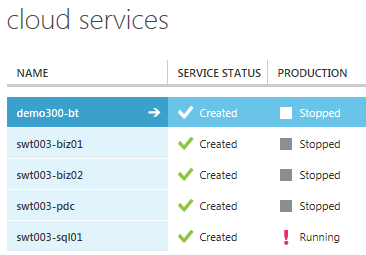
When you create a Virtual Machine inside Windows Azure you get a Cloud Service to basically host that virtual machine role.  You can add more than one Virtual Machine to that Cloud Service and would do so to achieve high availability. 

Up until a few days ago, that Cloud Service was always hidden from the Windows Azure Management Portal.  You could see it when you deleted the last virtual machine in the service or using PowerShell.  Now, you can see the services inside the UI – so that should help with the confusion.  The Cloud Service, along with other things, is what gives your Virtual Machine a Virtual IP address (VIP). 

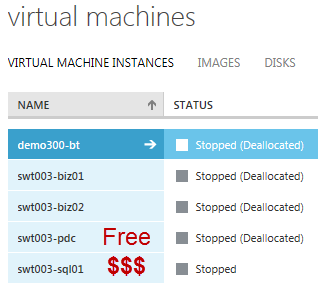
In the pictures below you can see a few of my Virtual Machines and Cloud Services in the Stopped and Stopped Deallocated state. 

What’s the difference between Stopped and Stopped– Deallocated? 

Stopped $$$ – When a virtual machine is stopped you are still being charged for the virtual machine.  You also have the Virtual IP (VIP) address reserved and when you start the machine back up again you will get the same VIP.  This is useful when you must have the same VIP. 

Stopped Deallocated – When a virtual machine is stopped deallocated you are no longer charged for the virtual machine.  The catch is, when you start it back up you might not get the same VIP back again.  You get a message about this when you stop the Virtual Machine.

For all the work I am doing right now, the Stopped Deallocated state works just fine for me. 

See below on how to get your Virtual Machine into a Stopped or Stopped Deallocated state.

How to Stop a Virtual Machine ($$$)

  • PowerShell
    • Stop-AzureVM -Name $VirtualMachineName -ServiceName $ServiceName –StayProvisioned (StayProvisioned  is new in PowerShell as of 06/13)
  • Selecting Shut Down while logged into the Virtual Machine
  • REST API
    • Example: https://management.core.windows.net/<subscription-id>/services/hostedservices/swt003-sql01/deployments/swt003-sql01/roleInstances/swt003-sql01/Operations

How to Stop – Deallocate a Virtual Machine (Money Saver!!!!)

  • PowerShell
    • Stop-AzureVM -Name $VirtualMachineName -ServiceName $ServiceName –Force (Note if you don’t use –Force you get an annoying confirmation popup)
  • Using the Windows Azure Management Portal
    • You will get a confirmation informing you the Virtual IP will be released

Please post if I have missed any other ways to stop a Virtual Machine.

How are you using Windows Azure Virtual Machines?  Does the Stopped Deallocated state work for you?


Need a single server BizTalk Environment on Azure IaaS? Just give this a click!

This script comes after days and days of trial and error.  During the course of building this script I learned a lot about PowerShell Remoting, PowerShell Scheduled Tasks (which run in some other process by the way), PowerShell Background Tasks, Scheduled Tasks and Remote Desktop.

I am pleased to announce a new, true one click end-to-end Single BizTalk Server deployment script. 

Download the Create and Remove Single BizTalk Server PowerShell script. (Right click, Save as)

Why all is issues?  Well, Jeremie wrote it up well and developed his own one-click process.  He went about it a much better way I would say but I needed something that worked with the BizTalk Provisioning Tool in order to get it into a multi-server build out (coming soon).  The core issue is with Configure.exe that shows a message box, thus needs a user to be logged in.  I tried many different ways to spoof a user being logged in without any luck.

First off, I should say I was VERY creative when creating this script.  I am not saying this is the best way to solve the problem nor is it pretty in any way.  It is “hacky” but it gets the job done in about 22 minutes.  I just used the script today to spin up 2 BizTalk groups for a Service Bus Demo so I find it helpful.    I used a few other blog posts and tools in the process.  I tried to reference them in the scripts. 

Here is what the script does:

  1. Create VM and open the HTTP port (easy part)
    1. Creates an Affinity Group
    2. Creates a Storage Account
    3. Creates a Service
    4. Creates a VM
  2. Via Remote PowerShell
    1. Download a bunch of helper files to the VM (you can see them in the script)
    2. Update values in the helper configuration files
    3. Create a Scheduled Task to run when the user logs in
  3. Call remote desktop on the local computer to log in (be careful not to close the window by accident – it logs off when done)
  4. Scheduled task will configure BizTalk using the BizTalk Provisioning Tool
  5. Via Remote PowerShell
    1. Poll for the configuration to be complete
    2. Once done, install BizTalk360 (Bonus!!!  And it’s available on the open HTTP port)
    3. Remove scheduled task
  6. Local clean up on client machine

The script will tell you the time it ran and the URL to access BizTalk 360 after installation.  BizTalk 360 is a great addition to BizTalk running in Windows Azure IaaS because it allows for remote, web based administration.  You do need to get a free 14-day trial key. 

The default user name is demouser and password is “Biztalk01”.  You can use that to access the Virtual Machine using remote desktop or BizTalk 360.

Love to hear any feedback, hopefully a few success stories, and how anyone else has overcome the issues with Configure.exe.

Watch for the multi-server configuration script, giving a full end to end BizTalk domain, in a week or so.


Create Single BizTalk Server Raw PowerShell Script

# True One-click end-to-end BizTalk360 setup
# Script by Stephen W. Thomas - BizTalkGuru.com
# Get the latest scripts at www.BizTalkGurus.com
# Version 1.0.0  July 15th, 2013
 
$baseVMName = 'SWT1234'                              # UPDATE - this needs to be globally unique, like initials and 4 random numbers
$subscriptionName = 'ANAME'                          # UPDATE - this is your subscription name 
$dataCenter = 'West US'                              # UPDATE - datecenter to use from Get-AzureLocation
 
$adminUserName = 'demouser'     #Admin user name
$password = 'Biztalk01'     # Admin password
$size = 'Large'     # The size of the VM to create
$imageBTSEval = '2cdc6229df6344129ee553dd3499f0d3__BizTalk-Server-2013-Evaluation'     # BizTalk 2013 Evaluation disk 
 
$setupDir = "C:\BizTalkGurus"     # Local File path
$vmnameBT360 = "$baseVMName-bt"     # This will be the Service and VM name
$affinityGroup = "$baseVMName-ag"     # This is the Affinity Group name
$storageAccount = $baseVMName + "store"     # This is the storage account name
 
#
# --- No changes are needed below this line ---
#
 
# From http://michaelwasham.com/2013/04/16/windows-azure-powershell-updates-for-iaas-ga/
# To Automate Remote Powershell
function InstallWinRMCert($serviceName, $vmname)
{
    $winRMCert = (Get-AzureVM -ServiceName $serviceName -Name $vmname | select -ExpandProperty vm).DefaultWinRMCertificateThumbprint
 
    $AzureX509cert = Get-AzureCertificate -ServiceName $serviceName -Thumbprint $winRMCert -ThumbprintAlgorithm sha1
 
    $certTempFile = [IO.Path]::GetTempFileName()
    Write-Host $certTempFile
    $AzureX509cert.Data | Out-File $certTempFile
 
    # Target The Cert That Needs To Be Imported
    $CertToImport = New-Object System.Security.Cryptography.X509Certificates.X509Certificate2 $certTempFile
 
    $store = New-Object System.Security.Cryptography.X509Certificates.X509Store "Root", "LocalMachine"
    $store.Certificates.Count
    $store.Open([System.Security.Cryptography.X509Certificates.OpenFlags]::ReadWrite)
    $store.Add($CertToImport)
    $store.Close()
 
    Remove-Item $certTempFile
}
 
cls
$startTime = get-date
"Starting at $startTime"
 
Set-AzureSubscription -SubscriptionName $subscriptionName -CurrentStorageAccount $storageAccount
Select-AzureSubscription -SubscriptionName $subscriptionName
 
New-AzureAffinityGroup -Name $affinityGroup -Location $dataCenter -ErrorAction Stop
"Affinity Group Created"
 
New-AzureStorageAccount -StorageAccountName $storageAccount -Label "BizTalk Eval Storage" -AffinityGroup $affinityGroup -ErrorAction Stop
"Storage Account Created"
 
# Make sure all the Services are running
Start-Sleep -s 20
 
# BizTalk Evaluation Configuration
$MyVM1 = New-AzureVMConfig -name $vmnameBT360 -InstanceSize $size -ImageName $imageBTSEval `
    | Add-AzureProvisioningConfig -Windows -AdminUsername $adminUserName -Password $password `
    | Add-AzureEndpoint -Name 'HTTP' -LocalPort 80 -PublicPort 80 -Protocol tcp
 
New-AzureVM -ServiceName $vmnameBT360 -AffinityGroup $affinityGroup -VMs $MyVM1 -WaitForBoot
"Virtual Machine Created"
 
# Give all the servies time to start
Start-Sleep -s 20
 
# Remote PowerShell Details
# Create the Credentials for Remote PowerShell
$strPassword = ConvertTo-SecureString $password -AsPlainText -Force
$credential = New-Object System.Management.Automation.PSCredential ($adminUserName, $strPassword)
 
$uriBT360 = Get-AzureWinRMUri -ServiceName $vmnameBT360 -Name $vmnameBT360 
 
InstallWinRMCert $vmnameBT360 $vmnameBT360
"Installed Certificate"
 
Invoke-Command -ConnectionUri $uriBT360.ToString() -Credential $credential -ScriptBlock {
    param($vmnameBT360, $adminUserName, $password)
    
    Set-ExecutionPolicy Unrestricted
 
    $setupDir = "C:\BizTalkGurus"
    
    if ([System.IO.Directory]::Exists($setupDir)) { Remove-Item $setupDir -Force -Recurse }
        mkdir $setupDir;
    
    # Download Needed Files for BizTalk Multi-Server Configuration
    $remoteUriConfig = "https://biztalkgurus.blob.core.windows.net/tools/multinodeconfigDemo.xml"
    $fileNameConfig = "$setupDir\multinodeconfigDemo_o.xml"
    $webClientConfig = new-object System.Net.WebClient
    $webClientConfig.DownloadFile($remoteUriConfig, $fileNameConfig)   
 
    # Download Needed Files for Running PowerShell
    $remoteUriHelper = "https://biztalkgurus.blob.core.windows.net/tools/StartPowershell.exe"
    $fileNameHelper = "$setupDir\StartPowershell.exe"
    $webClientHelper = new-object System.Net.WebClient
    $webClientHelper.DownloadFile($remoteUriHelper, $fileNameHelper)   
 
    # Download Needed Files for PowerShell
    $remoteUriPowerShell = "https://biztalkgurus.blob.core.windows.net/tools/RunLocalClient.ps1"
    $fileNamePowerShell = "$setupDir\RunLocalClient.ps1"
    $webClientPowerShell = new-object System.Net.WebClient
    $webClientPowerShell.DownloadFile($remoteUriPowerShell, $fileNamePowerShell)
 
    # Download Needed Files for RDHelper
    $remoteUriRDHelper = "https://biztalkgurus.blob.core.windows.net/tools/RunBizTalkTask.xml"
    $fileNameRDHelper = "$setupDir\RunBizTalkTask_o.xml"
    $webClientRDHelper = new-object System.Net.WebClient
    $webClientRDHelper.DownloadFile($remoteUriRDHelper, $fileNameRDHelper) 
 
    # Update wtih computer and user information
    $configFileTask = Get-Content("$setupDir\RunBizTalkTask_o.xml")
    $configFileTask = $configFileTask.Replace("COMPUTERNAME", $vmnameBT360);
    $configFileTask = $configFileTask.Replace("USERACCOUNT", $adminUserName);
    $configFileTask | out-File "$setupDir\RunBizTalkTask.xml" -Encoding ascii
    
    # Update wtih computer and user information
    $configFile = Get-Content("$setupDir\multinodeconfigDemo_o.xml")
    $configFile = $configFile.Replace("COMPUTERNAME", $vmnameBT360);
    $configFile = $configFile.Replace("USERACCOUNT", $adminUserName);
    $configFile = $configFile.Replace("USERPASSWORD", $password);
    $configFile | out-file "C:\BizTalk_Provisioning\multinodeconfigDemo.xml" -Encoding utf8
    
    iex "C:\Windows\System32\schtasks.exe /Create /XML:$setupDir\RunBizTalkTask.xml /TN:ConfigBizTalk"
} -ArgumentList $vmnameBT360, $adminUserName, $password
"Remote PowerShell on Client is complete"
 
# Give the services time to start
Start-Sleep -s 20
 
# End here to just create the BizTalk VM.  Configuration will happen once you log in.  
# Ensure to remove the Scheduled Task once configuration completes.  It takes about 10 minutes.
 
# Get Remote Desktop helper locally
if ([System.IO.Directory]::Exists($setupDir)) { Remove-Item $setupDir -Force -Recurse }
    mkdir $setupDir;
    
# Download Needed Files for Remote Desktop automation
$remoteUriRDP = "https://biztalkgurus.blob.core.windows.net/tools/rdp.exe"
$fileNameRDP = "$setupDir\rdp.exe"
$webClientRDP = new-object System.Net.WebClient
$webClientRDP.DownloadFile($remoteUriRDP, $fileNameRDP)   
 
# Get the port for the RDP End Point
$drpPort = (Get-AzureVM –ServiceName $vmnameBT360 –Name $vmnameBT360 | Get-AzureEndpoint | Where-Object {$_.Name.contains('RDP')}).Port
 
# From http://www.donkz.nl/
iex "$fileNameRDP /v:$vmnameBT360.cloudapp.net:$drpPort /u:$adminUserName /p:$password /h:1 /w:1"
"Local Remote Desktop complete"
 
# Cleanup
Invoke-Command -ConnectionUri $uriBT360.ToString() -Credential $credential -ScriptBlock {
    $setupDir = "C:\BizTalkGurus"
    $doneFile = "$setupDir\done.txt"
    
    while (!(Test-Path -Path $doneFile)) {
        "Waiting for process to complete ..."
        Start-Sleep -s 30
    }
 
    iex "C:\Windows\System32\schtasks.exe /Delete /TN:ConfigBizTalk /F"
 
    # Install BizTalk 360 after Configuration
    $remoteUri = "https://biztalk360.blob.core.windows.net/tools/Kovai.BizTalk360.EasyInstaller.exe"
    $setupDir = "C:\BizTalk360\";C:\BizTalk360\Kovai.BizTalk360.EasyInstaller.exe"/silent true"/hide true"Script run time " + ($endTime - $startTime)You can access BizTalk360 at http://$vmnameBT360.cloudapp.net/BizTalk360/"User name is $adminUserName and the password is $password"
    
    if ([System.IO.Directory]::Exists($setupDir)) { Remove-Item $setupDir -Force -Recurse }
        mkdir $setupDir;
    
    $fileName = "
    $webClient = new-object System.Net.WebClient
    $webClient.DownloadFile($remoteUri, $fileName) 
    
    $Arguments = @()
    $Arguments += "
    $Arguments += "
    start-process C:\BizTalk360\Kovai.BizTalk360.EasyInstaller.exe -wait -windowstyle Hidden -ArgumentList $Arguments
}
 
# Cleanup local
Remove-Item $setupDir -Force -Recurse 
 
$endTime = get-date
"
"
"

Remove Single BizTalk Server PowerShell Script

# True One-click end-to-end BizTalk360 setup
# Full cleanup script - requires PowerShell release 06.03 (from June 3rd, 2013) or better.
# Script by Stephen W. Thomas - BizTalkGuru.com
# Get the latest scripts at www.BizTalkGurus.com
# Version 1.0.0  July 15th, 2013

$baseVMName = 'SWT1234'                 # UPDATE - this needs to be globally unique, like initials and 4 random numbers
$subscriptionName = 'ANAME'             # UPDATE - this is your subscription name 

Set-AzureSubscription -SubscriptionName $subscriptionName
Select-AzureSubscription -SubscriptionName $subscriptionName

$vmnameBT360 = "$baseVMName-bt"
$affinityGroup = "$baseVMName-ag"
$storageAccount = $baseVMName + "store"

Stop-AzureVM -Name $vmnameBT360 -ServiceName $vmnameBT360 -StayProvisioned $false -ErrorAction SilentlyContinue
Remove-AzureVM -Name $vmnameBT360 -ServiceName $vmnameBT360 -ErrorAction SilentlyContinue
Remove-AzureService -ServiceName $vmnameBT360 -Force -ErrorAction SilentlyContinue

$hasDisk = Get-AzureDisk | Where-Object {$_.DiskName.contains("$vmnameBT360")}

# Delete the disks
do {
    "Waiting to try to remove the disk"
    Start-Sleep -s 30
    Get-AzureDisk | Where-Object {$_.DiskName.contains("$vmnameBT360")} | Remove-AzureDisk -DeleteVHD -ErrorAction SilentlyContinue
    $hasDisk = Get-AzureDisk | Where-Object {$_.DiskName.contains("$vmnameBT360")}
} while($hasDisk)

# Give is a few seconds
Start-Sleep -s 15

# Remove the storage account
Remove-AzureStorageAccount -StorageAccountName $storageAccount

# Give is a few seconds
Start-Sleep -s 15

# Remove the Affinity Group
Remove-AzureAffinityGroup -Name $affinityGroup

Using SendGrid with BizTalk360 for Easy Emails on IaaS

Using SendGrid with BizTalk360 for Easy Emails on IaaS

Last week BizTalk360 announced a new one-click installation process that works great for BizTalk running in Windows Azure Infrastructure as a Service (IaaS). 

This can be used to set up a stand-alone single server BizTalk environment in a short amount of time.  One of the key features of BizTalk360 is the ability to send alert emails based on criteria you specify.  Sending emails on a isolated environment in Azure may be a challenge due to no SMTP Server. 

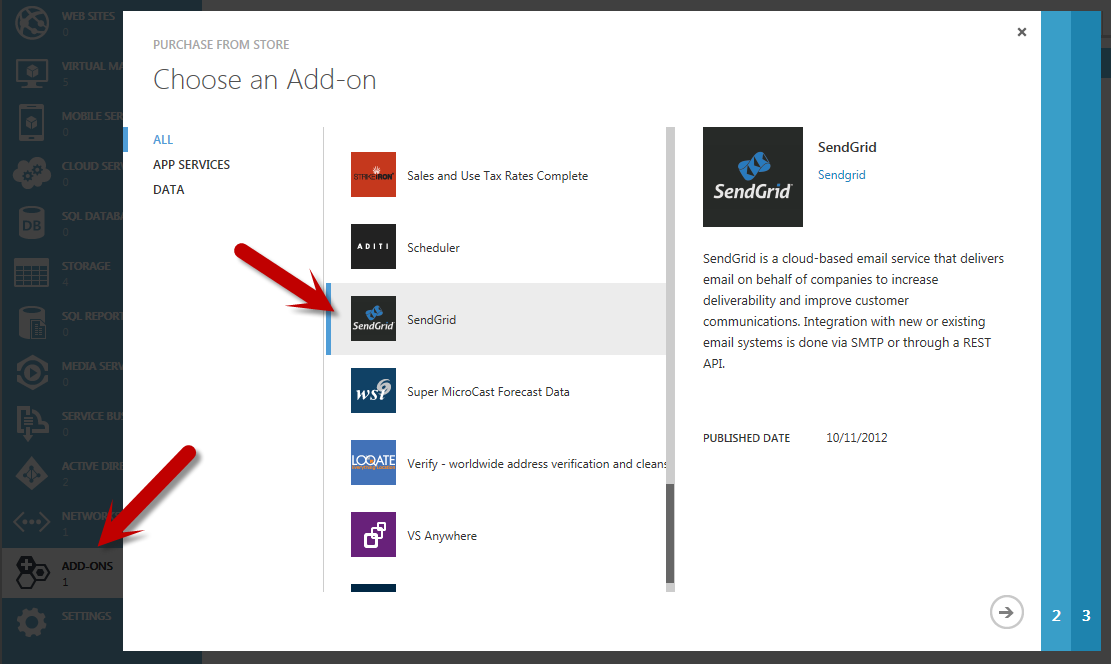
Never fail!  SendGrid has a super easy and free solution to this problem.  Just sign up for the free account as an Add-On inside the Windows Azure Management Portal.

SendGrid’s current offer is for 25,000 free email per month!  This should last you a while.  SendGrid offer the ability to easily send email via SMTP, .Net, or even a REST API – all using their SMTP server. 

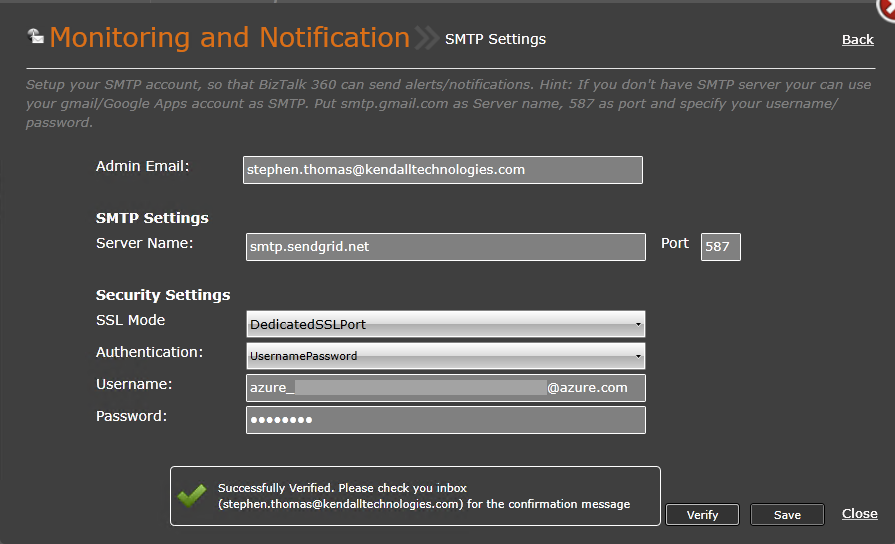
Once you have your account details and have installed BizTalk360, simply go to Settings.  Under Monitoring and Notification – SMTP Settings simply enter your SendGrid account details. 

Click the Verify button to have a test email sent to your account.  It is that easy.

Using SendGrid with any Windows Azure application looks to be a great solution for sending email.  

Microsoft BizTalk Server 2013 in Windows Azure IaaS TechEd Session Online

The session I presented at TechEd 2013 North American on Windows Azure IaaS and BizTalk Server 2013 is now online!

I cover the new MSDN Benefits, using BizTalk with IaaS, creating a new Azure Virtual Machine Multi-Server Domain, and review some sample scenarios that are now possible with the pay-per-hour model.

I am still working on some better PowerShell scripts to automate the domain creation.  I am about 90% of the way along.  I will post them shortly when they are better optimized.  If you want my draft scripts just drop me an email.

If you missed me at TechEd US, I’ll be giving the same session at TechEd Europe in Madrid!  Hope to see you there.

Windows Azure Virtual Machine Announcements from TechEd US

Today in the key note at TechEd US Scott Guthrie made some exciting announcements related to Windows Azure Virtual Machines.

Here are the highlights:

  • Stopped Virtual Machines will no longer be charged
  • Billing will now be pay per minute rather than by the hour
  • MSDN Software for BizTalk, Visual Studios, SQL, SharePoint, etc. can now be ran on the Windows Azure Virtual Machines for Dev. / Test scenarios.  This means you can create your own custom corporate images if you do not want to use the pre-built ones.
  • MSDN users now get discounted Virtual Machine and other service rates across the board
    • 33% off basic Windows 2012 VM
    • 90% off SQL and BizTalk Standard Edition now $0.06 per hour
    • 97% off SQL and BizTalk Enterprise now only $0.06 per hour
  • Free trial accounts now get a $200 service credit per month (but do not get discounted service prices as best I can tell)

Note that in order to get the new pricing credit and discounted VM pricing you need to sing up for a new MSDN Azure Account or migrate your existing subscriptionJust log into your account and go to Subscriptions to migrate. 

While this might be a little confusing at first, this is a huge upgrade to an already great service offering.

I would love to hear your opinion on these changes.

First Look at a Windows Azure Bill for BizTalk Server 2013

With the release of BizTalk Server 2013 on Windows Azure Infrastructure as a Service (IaaS) we have a new way to license BizTalk Server.  We can now license BizTalk Standard and Enterprise on a pay per hour basis.  This opens up a wide range of opportunities for dealing with short lived and bursting scenarios.

What does I bill using these pay per hour features look like?  See below. 

I used 3 hours of both a Standard and Enterprise edition of BizTalk Server. 

Using the pay per hour model is currently only supported using the pre-built images.  So if you wanted to have pay per hour Virtual Machines already connected to a BizTalk Group, you could create a new Virtual Machine using the pay-per-hour image and then join it to your group.  Once joined, Delete the Virtual Machine.  If you need that Virtual Machine back again, just create the Virtual Machine using that Disk.  This way you are up and running in about 3 minutes and only changed for the storage space until you need the extra processing ability.

Is anyone using BizTalk in IaaS now in a pay-per-hour basis?

BizTalk 2013 Installation Error on Windows Server 2012 64-bit

I was doing some BizTalk installations this weekend with BizTalk Server 2013 on Windows Server 2012 VM’s.

I have done this before without any issues but in each case I already had Visual Studios 2012 installed on the server.

This time I was doing a Runtime Only installation.  I received an error when trying to install the Enterprise Single Sign-on component.

The error I received was: The program can’t start because MSVCP100.dll is missing from your computer.  Try reinstalling the program to fix the problem.

Followed by: The following platform components failed to install and will need to be manually installed before setup can proceed: Enterprise Single Sign-On Server.  Unspecified error. 

The error is saying it is missing the C++ Runtime components (probably why I did not see this error when I already had Visual Studios installed).  After trial and error, it seems that it is only missing the 32-bit C++ Runtime.  It seems that this does not get installed with the BizTalk CAB file.

The fix is simple, just download the 32-bit C++ Runtime and re-run the installation of BizTalk.  You can find them here.  If you still have issues, ensure you have the 64-bit version installed as well.  That can be found here.

The BizTalk 2013 Hardware and Software Requirements states that this is a requirement to install BizTalk Server 2013.  I did not even think to look at the Software List until I ran into issues with some else.  The documentation says:

Microsoft Visual C++ 2010 Redistributable Package: On an x86 computer, install only the x86 version of the package. On an x64 computer, install both x86 and x64 versions of the package. The installer is available as part of the BizTalk Server installation media under \Platform\SSO\Platform.”

Hope this helps.

Help! I Cannot Attach My Azure Data Disk to my Windows Azure Virtual Machine

Windows Azure Virtual Machines are the new IaaS offering from Windows Azure that allows for Virtual Machines in the Cloud.  Using Windows Azure Virtual Machines you have the ability to add additional Data Disks in addition to your core Operating System Disk to your Virtual Machines.  The number of disks you can add depends on the size of your Virtual Machine and range from 1 for an Extra Small VM to 16 for an Extra Large VM. 

Data disks should be used for installing all your program files used on the Virtual Machines.  In general, the Cache level should be set to Read Only to ensure optimal disk performance.  Each data disk can get up to 500 IOPS (Input / Output Operations per Second).  So as you can see spreading things out over more Data Disks should be able to boost IO throughput.

This brings me to the main point of this post – how to add a Data Disk to a Virtual Machine.  To do so, select the Virtual Machine inside the Management Portal and hover over the Attach link on the bottom.  If you have a Disk available to be attached, you will see an option to Attach A Disk or Attach Empty Disk.  Use the Attach Empty Dish to create a new Data Disk.  If you already have an uploaded VHD and want to attach it as a Data Disk, you must first go to the DISKS tab and create a Disk for the VHD.

What can get confusing is WHY any existing disk might not be able to be added to a Virtual Machine.

I have found four reasons why an existing Disk cannot be added to a Virtual Machine and two of them are not very obvious using the Portal.

The reasons you cannot add an existing Disk include:

  • It is being used by another Virtual Machine
  • You have reached the limit of adding Disks to your Virtual Machine
  • The Disk is created in a different data center / location than your Virtual Machine (view this on the DISK tab)
  • The Disk is created using a different subscription than the Virtual Machine (view this on the DISK tab)

Have you found any other reasons you cannot attach an existing Disk?

Hope this helps someone stuck trying to add a Data Disk to a Windows Azure Virtual Machine.