It is a strange year, and for the first time since 2013, we didn’t have face to face INTEGRATE event. Instead, due to the COVID-19 pandemic, this year we had to go with an online event. Despite all of that, it was a great event. Nevertheless, I miss that social interaction we use to have and see friends that I usually only see once a year in this event.
The good part for me in being an online event was that I was able to attend (or view) the sessions at my on rhythmic. Having three small kids at home can be a challenge, and it was a little difficult to attend in real-time to all the sessions, so once they went to bed, I could see the sessions that I miss out during the day without having to wait two months for them to be available online.
About my session
Session Name: BizTalk Server 2020: Migration Path
Session Overview: The goal of this session to demystify and clarify the BizTalk Server migration process and help both implementation teams as decision-makers to be aware of all the considerations that need to be taken into account when planning your migration to BizTalk Server 2020 and hopefully helping you carry out these tasks.
Like previous years, the event was recorded, so if for any reason you could not be present at these events, or if you want to review it again, you can now do it here:
It was with great pleasure to speak for the first time Auckland Connected Systems User Group (New Zealand), unfortunately, do this COVID-19 pandemic, this was an online event, nevertheless, it was a great experience and something to repeat if they desire. I still plan to visit New Zealand in the future, and maybe it will be a face-to-face event.
From my part I have to say thanks, Will, Alessandro, Wagner, Mark, Mike, Coen, and Craig for inviting me, it was indeed a pleasure!
Today I’m happy to share with you the slides and the video of the session.
Logic Apps: Best practices, tips, and tricks
10 tips you should know for being more productive and building more reliable, effective Logic Apps. In this session, we will do a reflection to your existing Logic Apps processes and when thru a list of must-have best practices, tips, and tricks that will allow you to build more reliable and effective workflows. At the same time, these will allow you to be more productive and document your workflows from the beginning.
Video recording
ACSUG June 2020 – Azure Logic Apps: Best practices, tips and tricks
I am always paying attention to requests from members of the community, and whenever I can, I update this stencil pack with requested shapes or functionalities. And this is one of these cases. One of the most common complaints about this stencil pack was/is text annotations. When you try to add a legend on the stencil, the text is in the middle of the icon, instead of underneath. And sometimes the text is white, which doesn’t help also.
Another recent aspect that came to my attention was the fact that was missing proper connector points, which make it hard to properly connect shapes in a diagram.
Of course, all of these you can manually fix by move the text to the bottom of each shape, change the color of the text and add connector points. But some of these tasks required a more deep knowledge of working with Visio and they are time-consuming. Luckily this work is being made, it may take a while since this package has more than 2000 shapes!
What’s new in this version?
Today I can announce that the first phase is done and the first file, and probably the most important, of this package is fixed:
Microsoft Azure (MIS Azure Stencils.vssx): This package contains stencils of Azure Services (original icons) that are available thru the Azure Portal.
The main goal of this release was to solve or improve the user experience regarding text annotations and connector points. In this version, the changes and additions are:
Text annotationsissue solved: This issue was solved on the stencils present on the Microsoft Azure (MIS Azure Stencils.vssx) file;
Proper connector points added: This improved feature was added on stencils present on the Microsoft Azure (MIS Azure Stencils.vssx) file;
Fixed some minor stencils layouts;
New shapes: New shapes added on Microsoft Azure (MIS Azure Stencils.vssx) and Microsoft Azure: Others (MIS Azure Others Stencils.vssx);
Microsoft Integration, Azure, Power Platform, Office 365 and much more Stencils Pack
Microsoft Integration, Azure, Power Platform, Office 365 and much more Stencils Pack it’s a Visio package that contains fully resizable Visio shapes (symbols/icons) that will help you to visually represent On-premise, Cloud or Hybrid Integration and Enterprise architectures scenarios (BizTalk Server, API Management, Logic Apps, Service Bus, Event Hub…), solutions diagrams and features or systems that use Microsoft Azure and related cloud and on-premises technologies in Visio 2016/2013:
BizTalk Server
Microsoft Azure
Integration
Integration Service Environments (ISE)
Logic Apps and Azure App Service in general (API Apps, Web Apps, and Mobile Apps)
Azure API Management
Messaging: Event Hubs, Event Grid, Service Bus, …
Azure IoT and Docker
AI, Machine Learning, Stream Analytics, Data Factory, Data Pipelines
SQL Server, DocumentDB, CosmosDB, MySQL, …
and so on
Microsoft Power Platform
Microsoft Flow
PowerApps
Power BI
Office365, SharePoint,…
DevOps and PowerShell
Security and Governance
And much more…
… and now non-related Microsoft technologies like:
SAP Stencils
The Microsoft Integration Stencils Pack is composed of 27 files:
Microsoft Integration Stencils
MIS Additional or Support Stencils
MIS AI and Machine Learning Stencils
MIS Apps and Systems Logo Stencils
MIS Azure Additional or Support Stencils
MIS Azure Mono Color
MIS Azure Old Versions
MIS Azure Others Stencils
MIS Azure Stencils
MIS Buildings Stencils
MIS Databases and Analytics Stencils
MIS Deprecated Stencils
MIS Developer Stencils
MIS Devices Stencils
MIS Files Stencils
MIS Generic Stencils
MIS Infrastructure Stencils
MIS Integration Fun
MIS Integration Patterns Stencils
MIS IoT Devices Stencils
MIS Office365
MIS Power BI Stencils
MIS PowerApps and Flows Stencils
MIS SAP Stencils
MIS Security and Governance
MIS Servers (HEX) Stencils
MIS Users and Roles Stencils
That you can use and resize without losing quality, in particular, the new shapes.
And the most expected email arrived once again on 1st July, thank you Microsoft for this amazing award. Once again, I’m delighted to share that I was renewed as a Microsoft Azure MVP (Microsoft Most Valuable Professional). This is my 10th straight year on the MVP Program, an amazing journey, and experience that started in 2011 as BizTalk MVP, which gave me the opportunity, and still does, to travel the world for speaking engagement, share the knowledge, and to meet the most amazing and skilled people in our industry.
I would like to thank the MVP Team, my MVP Lead Cristina Herrero, all my fellow MVPs, my beautiful family, my coworkers at DevScope, and in special all my blog readers, friends, members of Microsoft Enterprise Integration Community for their support during these years.
It’s a big honor to be in the program and be one of this amazing worldwide group of technicians and community leaders who actively share their high quality and real-world expertise with other users and Microsoft. I’m looking forward to another great year!
The reason I end up creating a new version for BizTalk Server 2016 was that previous scripts only did 90% of the work, and they were intended to be used on “day zero” of your environment, i.e., after you finish installing your environment.
So, I update my previous script to add more functionalities, mainly:
Configure the Default Send Handler as the Send Handler for each existing static and Dynamic Send Ports
Configure Receive Handlers from all the existing Receive locations
With these missing functionalities added to the script, it will configure or reconfigure 100% of your environment. You can use it on “day zero” or in an already up and running environment. Of course, this was optimized to BizTalk Server 2016 (but it can be executed in all precious BizTalk Server previous versions).
Why a new version dedicated to BizTalk Server 2020?
There are two reasons why I decide to create this new script, specific only to BizTalk Server 2020:
The previous scripts don’t run properly in BizTalk Server 2020;
And BizTalk Server 2020 now has support to Group Managed Service Accounts;
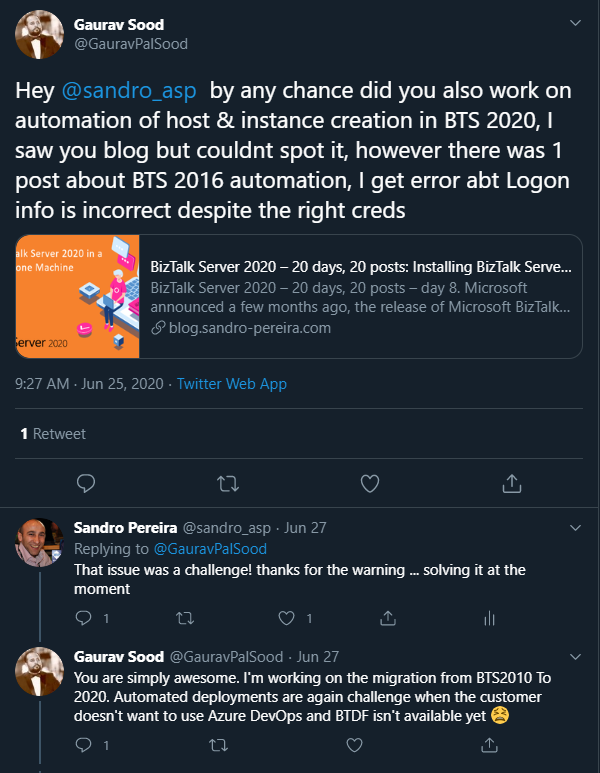
The first reason is very simple. The previous scripts will not work giving you an invalid credential error even though you are putting the correct credentials has Gaurav Sood kindly reported to me.
The reason why this error is happening was because one undocumented change that product group made on the MSBTS_HostInstance WMI Class and now the method Install has a new mandatory parameter:
IsGmsaAccount: a boolean that will define whether or not we will use Group Managed Service Accounts
Logon: String containing the logon information used by the host instance;
Password: String containing the password for the host.
GrantLogOnAsService: Boolean determining whether the ‘Log On As Service’ privilege should be automatically granted to the specified logon user or not. This flag only has effect when the HostType property is set to In-process.
IsGmsaAccount: a boolean that will define whether or not we will use Group Managed Service Accounts
If true, the password can be empty;
The second reason is related to the first one. Now BizTalk Server 2020 has support Group Managed Service Accounts (gMSA) and since I’m changing this script I also want to add support to this feature.
What is Host and a Host Instances?
The BizTalk Host is a logical process and security boundary within BizTalk Server that represents a logical set of zero or more run-time processes in which you can deploy BizTalk Server services and artifacts (such as adapter handlers, receive locations, and orchestrations). Each host has a security group assigned to it and may contain multiple host instances, each on an individual machine, that perform the work of the host.
In another hand, a host instance is the physical instance of a host on a computer running BizTalk Server. Each host instance belongs to exactly one host, and the service account of the host instance belongs to the security group of the host. The security group may be used to grant permissions to physical resources such as databases for use by any host instances in the host.
What is an Adapter Handler?
An adapter handler is an instance of a BizTalk host in which the adapter code runs. When you specify a send or receive handler for an adapter you are specifying which host instance the adapter code will run in the context of. An adapter handler is responsible for executing the adapter and contains properties for a specific instance of an adapter.
The default BizTalk Server configuration will only create one in-process host, “BizTalkServerApplication”, that will be associated as a receive and send adapter handler for all of the installed adapters, with the exception of HTTP, SOAP, WCF-BasicHttp, WCF-WSHttp, and WCF-CustomIsolated adapter receive handlers that can only be running in an isolated host.
How can I automate this task?
Windows PowerShell is a Windows command-line shell designed especially for system administrators and can be used by BizTalk administrators to help them in automating tasks.
This is a simple script that will configure the following components in your environment:
Create Host and Host Instance according to some of the best practices: two Receive host and host instances (one 32-bits and one 64-bits); two Send host and host instances (one 32-bits and one 64-bits); One Host and Host Instance to process Orchestrations and one Host and Host Instance for tracking;
Create Receive and Send Handlers for each adapter;
And finally, associate the correct Receive and Send Handlers to each existing receive and send ports present in your environment
Download
THIS POWERSHELL IS PROVIDED “AS IS”, WITHOUT WARRANTY OF ANY KIND.
A few months ago, my dear friend Wagner Silveira asked me if I was interested in giving a talk at the Auckland Connected Systems User Group since they were planning to start doing online events in the user group because of COVID-19 and they were planning to invited speakers from overseas, since now this was an online event, and that one of the first names that were dropped was mine.
I usually never say no to these invites, I love doing talks about topics I care and love, especially doing it locally in person, but in this case, and the way the invite was made, I couldn’t refuse… but be aware I still plan to visit New Zealand in the future!
Nevertheless, it will be a challenge. I need to be awake at 6 AM to deliver this session! I can’t say that this will be the first time I will deliver a session with a coffee cup in the hand because I still remember the first time I went to Norway, in the old days of the BizTalk Crew, and because of a problem in Oslo airport, my flight was forced to land in Sweden. So, I had to travel all night without sleeping to be in Stavanger at 9 AM to know that the schedule was changed, and I was delivering the first session! Since that day, I question myself if Tord Nordahl is my friend.
Logic Apps: Best practices, tips and tricks
I would like you to invite you to join us at the Auckland Connected Systems User Group meeting that will happen on June 30, 2020. This will be the first time I will be delivering a session in the user group but I hope it will be the first of many.
Abstract: Logic Apps: Best practices, tips and tricks
Azure Logic Apps helps you build powerful integration solutions by automating your workflows without writing a single line of code. In this session, I will be highlighting 10 tips you should know for being more productive and building more reliable, effective Logic Apps. We will also do a reflection to your existing Logic Apps processes and will go through a list of must-have best practices, tips, and tricks that will allow you to build more reliable and effective workflows. At the same time, these will allow you to be more productive and document your workflows from the beginning
In the last blog post, we analyzed the daily BizTalk Developer’s improved tasks which are provided by BizTalk NoS Ultimate; Build Project, Deploy assembly, and Fast register/unregister in GAC. Today, we will continue to analyze the list of available features present in this Visual Studio extension, focusing on the developing features that will improve your productivity significantly.
Locate It
How many times do you open your old or new project and several files are opened in the Visual Studio MDI window, and you want a simple way to locate a file in your project’s structure? For example:
You are working in a transformation and you need to:
locate the map file to specify a TestMap Input Instance
locate a specific schema in the Solution Explorer in order to change the structure of the Schema
You have used another BizTalk NoS Ultimate features to open the map, pipeline, or schema and now you need to find it on the solution explorer
If you don’t know exactly where it is, you need to check the full path of the map or the schema and then manually navigate in the solution explorer to the file that you want.
Finally, you will have an easy way to accomplish this! This will save us much time in the developing process, for me this is basic stuff and this is a timesaver feature!
Note: Even if you don’t have the Solution Explorer Window opened, this feature will find the file that you are looking for and will automatically open (or give the proper focus to) the Solution Explorer window.
You can access these features by:
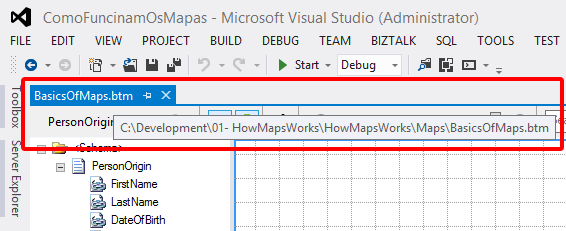
On the Visual Studio MDI window, right-click in tab with the name of the file and select Locate it! option
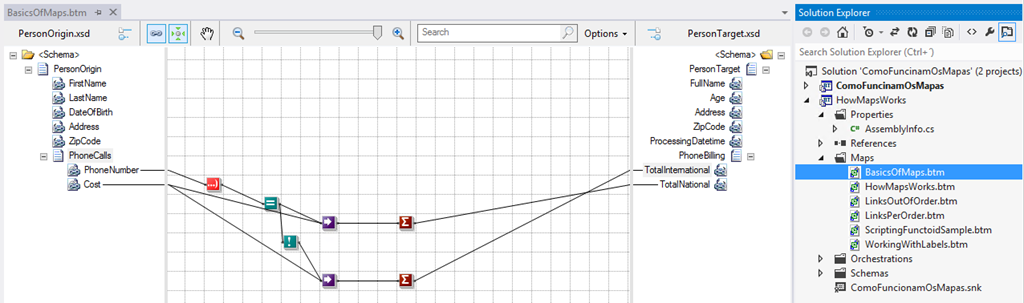
As you can see in the picture below, the result is that the project will be expanded and the desired file will be selected:
Again, this is very useful for a BizTalk Developer because he needs to locate the file to test or generate schema instances or test, validate or debug maps or other artifacts.
Test Pipeline
There are many ways to test BizTalk pipelines, for example:
Using the Biztalk Pipeline Framework to create unit testing
Using the Pipeline.exe tool
By deploying them and testing in execution time (BizTalk Administration Console) with real messages
But to be honest, there isn’t a proper build-in support feature in Visual Studio to test our custom pipelines.
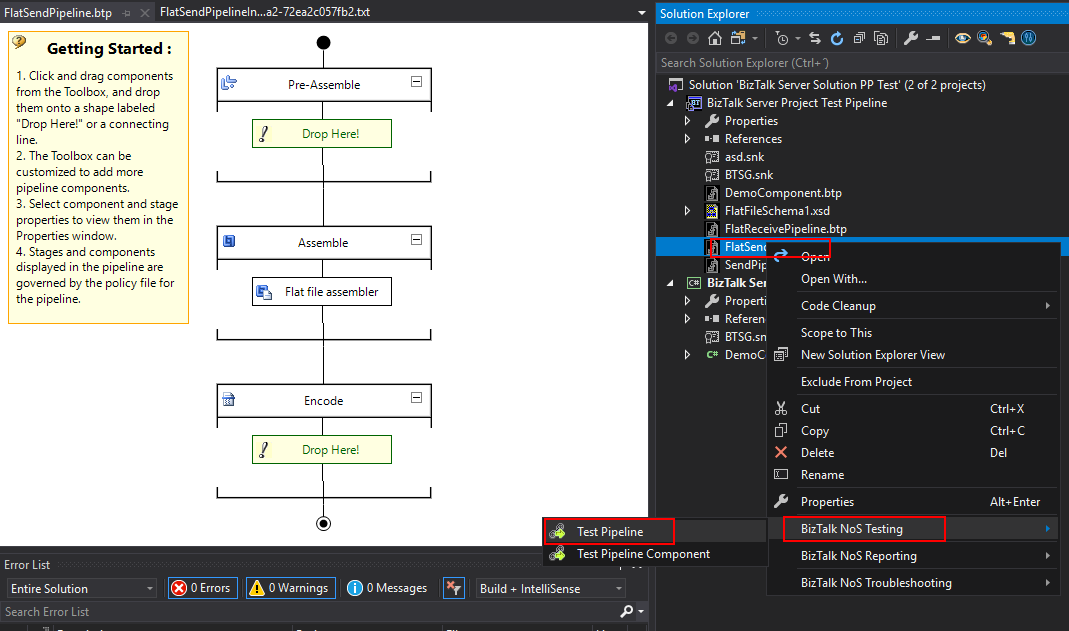
Once again, BizTalk NoS Ultimate will provide that for you. This feature will allow us to easily test our custom pipelines, directly from Visual Studio, by simply right clicking on the pipeline, expand BizTalk NoS Testing, and select the Test Pipelineoption:
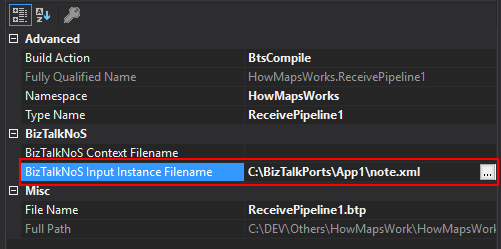
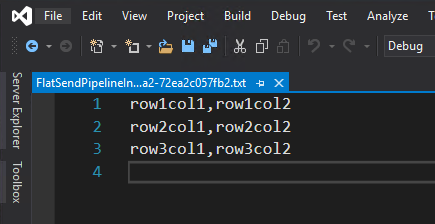
First, you need to go to the Properties window of the pipeline and set the BizTalk NoS Input Instance Filename property, with an instance of the message that you want to try against the pipeline
It will show you the result of the pipeline test directly in VS IE
Test Pipeline Component
As the previous, one testing or debugging a custom pipeline component can be a challenge and most of the time you will need to test them in runtime. If you want to debug them then you will need to attach the pipeline component code to the BizTalk process in Visual Studio.
Once again, there isn’t a proper build-in feature in Visual Studio to test and debug our custom pipeline components. Now with NoS, you will be able to debug your pipeline component without having to deploy and run them in runtime. Now, from Visual Studio, you will be able to attach this test execution to an external process without caring about BizTalk environment by:
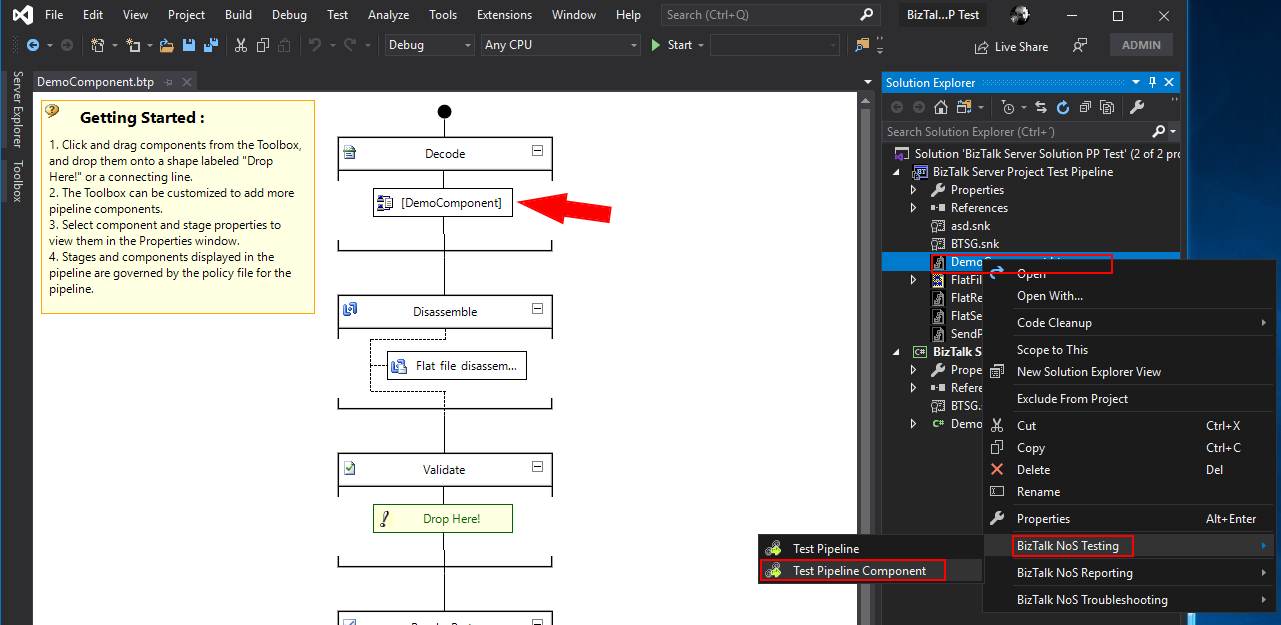
Right-click on the pipeline that contains the custom pipeline component that you want to try, expand BizTalk NoS Testing, and select the Test Pipeline Componentoption:
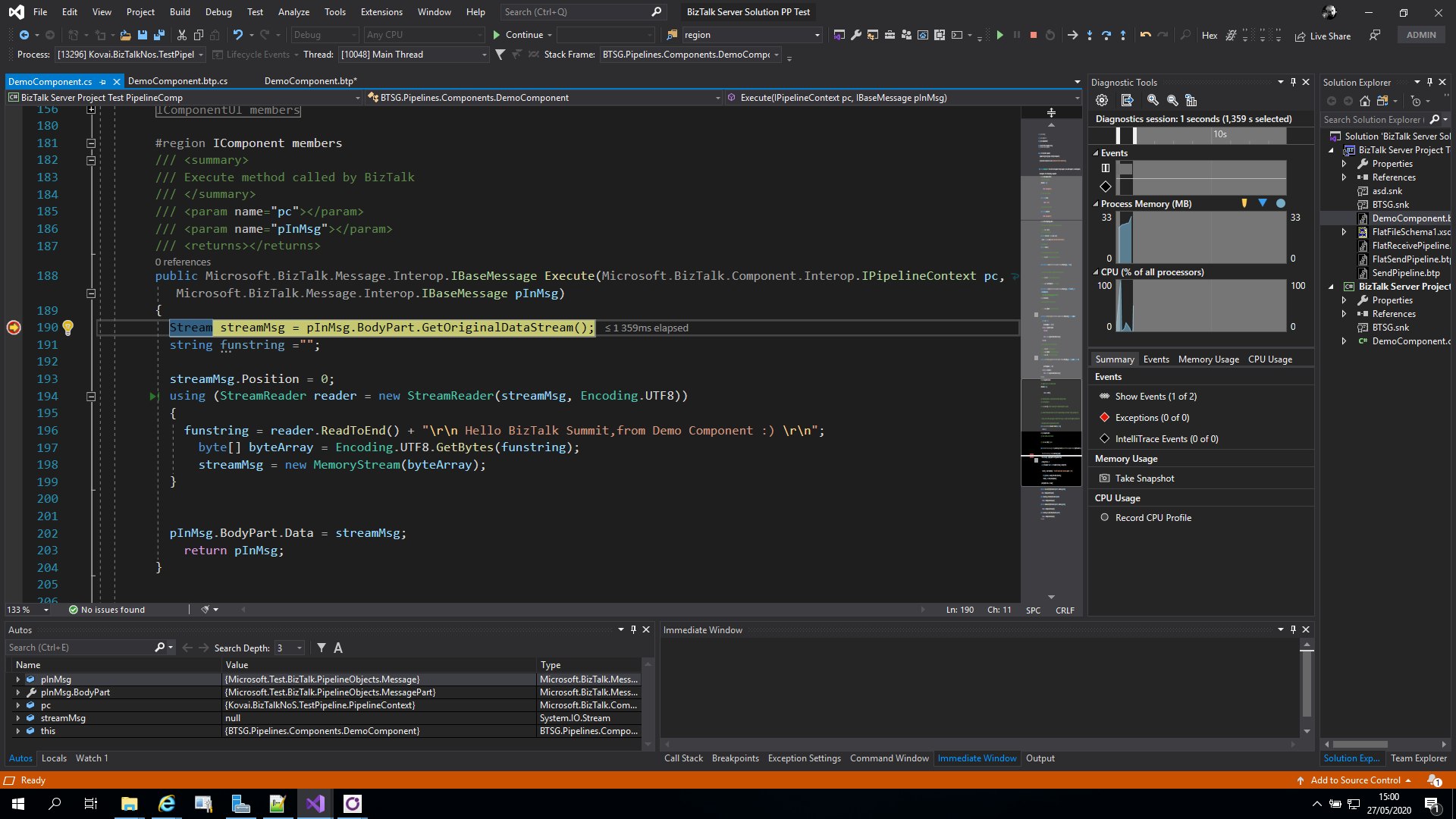
This will automatically attach Visual Studio to a process called BTSG.TestPipeline.exe process (the title will also contain the name of our pipeline)
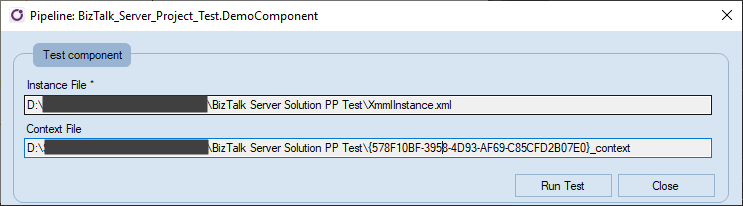
Make sure that the instance of a message is correct and make sure that you have set breakpoints in your custom pipeline component, and then click Run Test
You should be able to start debugging your custom pipeline component code.
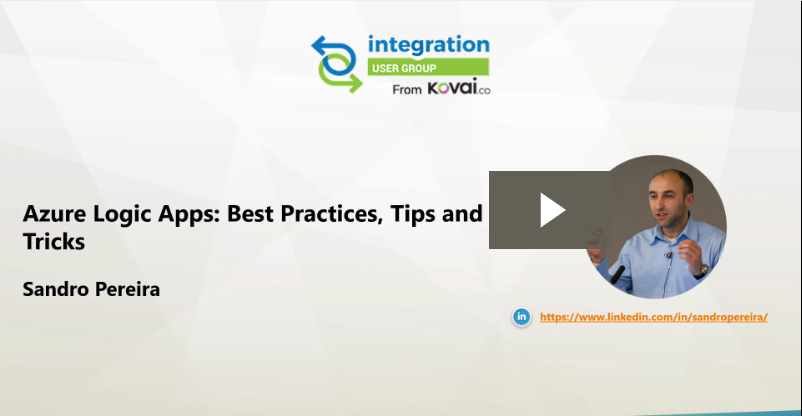
It was with great pleasure that I presented, last May, 25 another session in the Integration Monday series this time about Logic Apps: Best practices, Tips, and Tricks, this was my eleventh talk in this community in 4 years of existence. I can say that I am one of the most regular speakers at the Integration User Group only behind Michael Stephenson that has 13 talks.
Logic Apps: Best practices, tips, and tricks
Azure Logic Apps helps you build powerful integration solutions by automating your workflows without writing a single line of code. In this session, I will be highlighting 10 tips you should know for being more productive and building more reliable, effective Logic Apps. We will also do a reflection to your existing Logic Apps processes and will go through a list of must-have best practices, tips, and tricks that will allow you to build more reliable and effective workflows. At the same time, these will allow you to be more productive and document your workflows from the beginning.
I hope you enjoy and find it an interesting session. Also, I advise you to visit and view the history of sessions that have taken place every Monday in the Integration User Group – Integration Monday series.
My other talks at Integration Monday – Integration User Group
In the last blog post, we analyzed the report capabilities of BizTalk NoS Ultimate – Reflector and Refactor. Today, we will continue to analyze the list of available features present in this Visual Studio extension, focusing on the daily BizTalk Developer’s improved tasks.
These are, what I call, simple tasks that will improve the BizTalk developer experience which will reduce the development and deployment time in new or existent BizTalk projects.
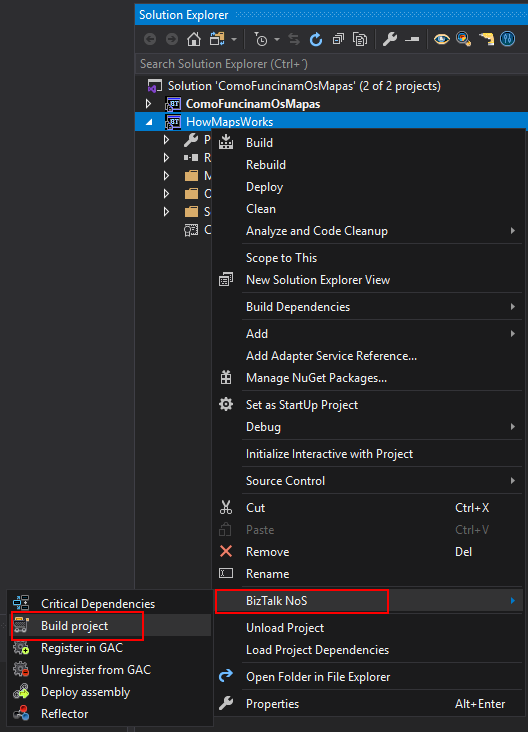
Build Project
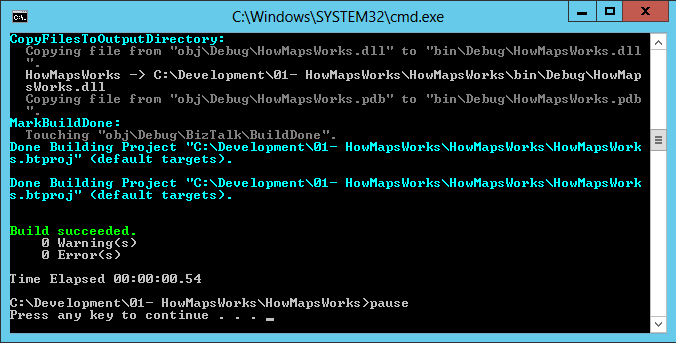
You are probably thinking, why do I need another Build option? The reason is simple: sometimes we have a huge solution with several projects inside, and in these situations trying to build one simple project with the out-of-the-box Visual Studio option can be a challenge. It will take a huge amount of time trying to build the project because of all of the dependencies.
The option in NoS will build the desired project without any interaction with the Visual Studio design environment, making this operation faster than the native build operation in Visual Studio.
You can access these features by:
Right-click on your project name, expand BizTalk NoS and select the Build project option
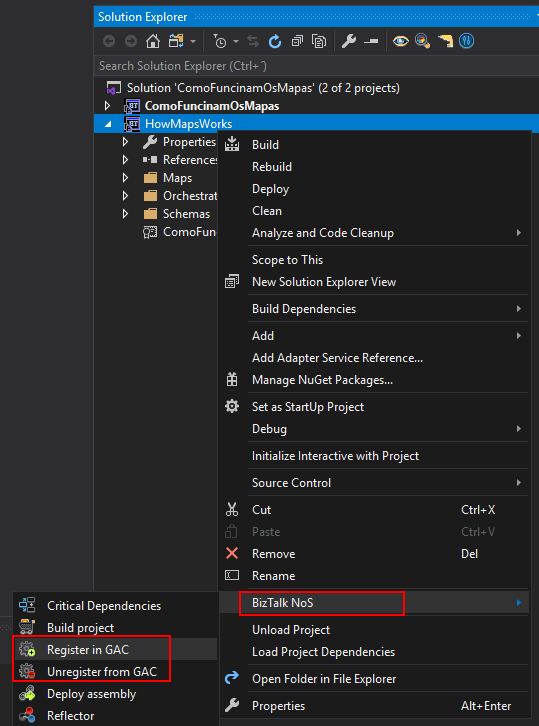
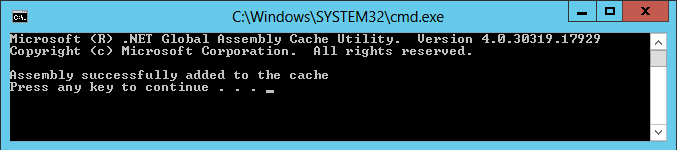
Fast Register/Unregister in GAC
How many times have you desired to have a simple easy and quick way to install a DLL, and (why not) also uninstall, in the Global Assembly Cache (GAC), and why not directly from your favourite developer tool: Visual Studio? Instead, we need to install DLL’s using the Gacutil.exe tool, and don’t get me wrong, it is an excellent tool, but it is not practical in the day-by-day work!
Finally, now you have this option!
You can access these features by:
Select your project name, expand BizTalk NoS and select the Register in GAC or Unregister from GAC option
Note: This works with all DLL’s, it doesn’t have to be a BizTalk DLL, you can easily register a C# Helper Class used by BizTalk Projects into the GAC with this functionality.
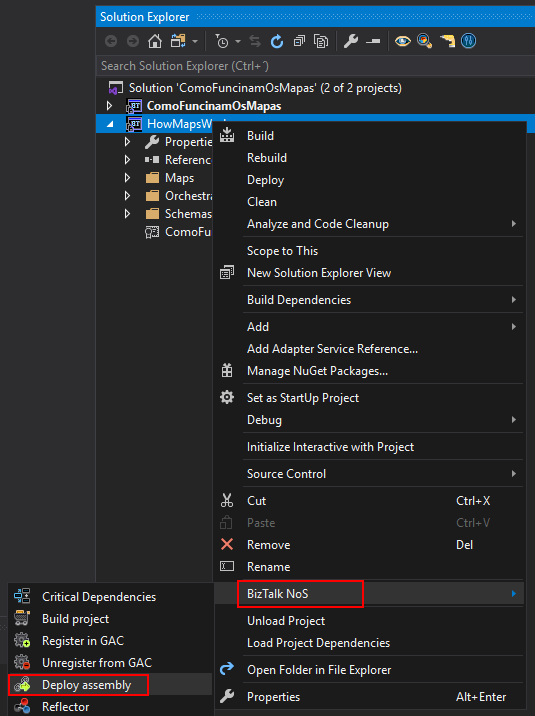
Deploy Assembly
Again you are probably thinking, why do I need another Deploy option? And the reasons are exactly the same as the Build project option which we described earlier.
This operation will deploy a single BizTalk assembly directly from the Visual Studio without trying to deploy also all of its BizTalk Server project dependencies.
You can access these features by:
Select your project name, expand BizTalk NoS and select the Deploy assemblyoption
The equivalent we have to this feature is the add/update resources from the BizTalk Server administration console.
What’s the purpose of this feature? In some situations, you just simply don’t want to use the Visual Studio out-of-the-box functionality, as it will deploy all the dependencies and other stuff which will take a huge amount of time. What we want sometimes is only to deploy one specific assembly easily and fast.
This option will allow you to make this directly from Visual Studio, making this operation faster than the native deploy operation on Visual Studio.
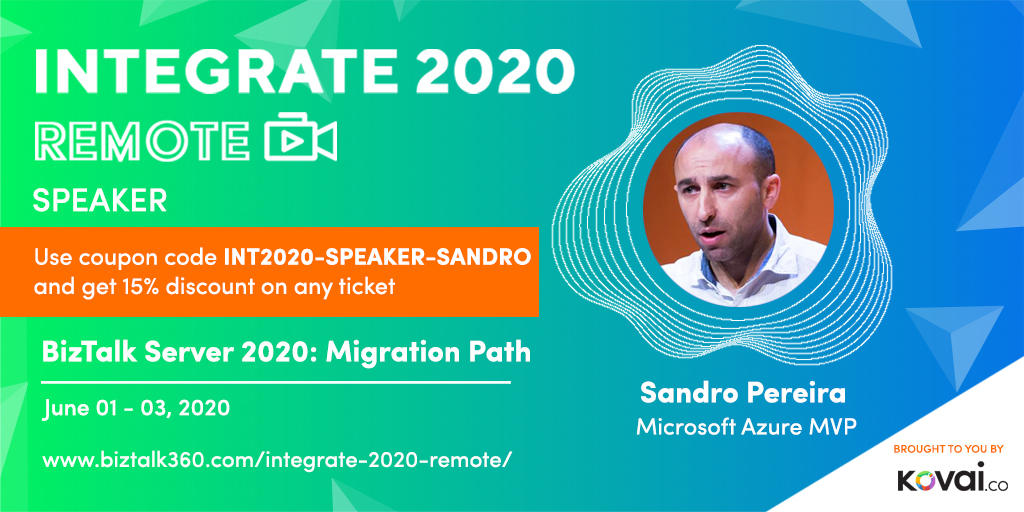
INTEGRATE (formerly known as BizTalk Summit) is the primary conference for professionals working in the Microsoft Integration space and once again is back this time REMOTE due to the COVID-19 issue around the word. It will be the first-ever INTEGRATE REMOTE conference that will happen from June 1 to 3, 28 speakers – 12 MVPs, 15 Microsoft PM and 1 former MVP – will address the entire Microsoft Integration Platform landscape on topics like BizTalk Server, Logic Apps, Service Bus, Event Grid, Event Hubs, Power Automate, API Management, Azure Functions and many more.
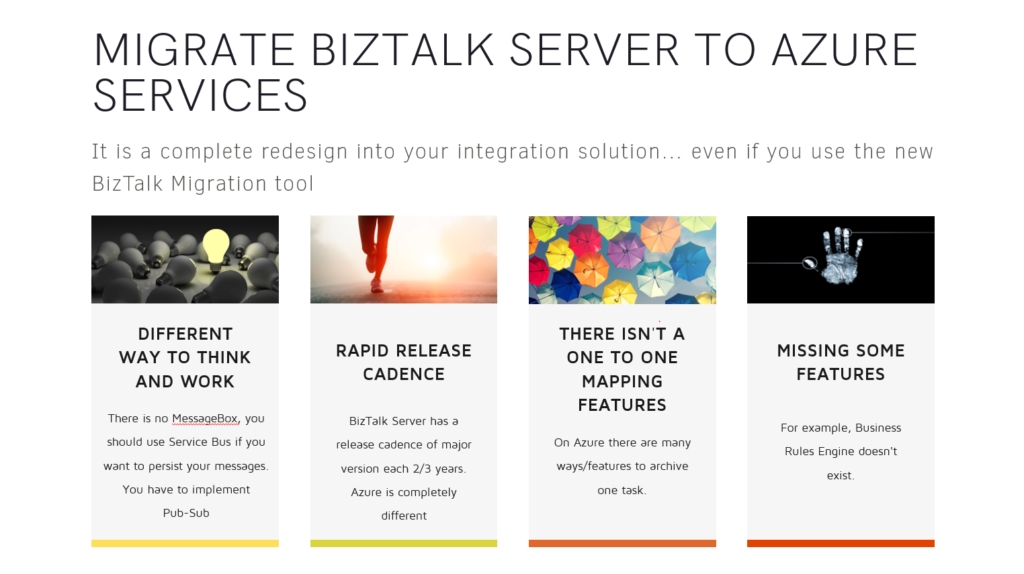
And once again I will be there delivering a session – since the first BizTalk Summit event, I’m a constant presence as a speaker at these events – about BizTalk Server! This time on a session about: Migration Path to BizTalk Server 2020.
About my session
Session Name: BizTalk Server 2020: Migration Path
The goal of this session to demystify and clarify the BizTalk Server migration process and help both implementation teams as decision-makers to be aware of all the considerations that need to be taken into account when planning your migration to BizTalk Server 2020 and hopefully helping you carry out these tasks.
INTEGRATE 2020 Remote Registration
You are still on time to register for the conference here. Use my coupon discount INT2020-SPEAKER-SANDRO to get 15% discount!