BizTalk Server 2020 – 20 days, 20 posts – day 7. And for this post, I choose a crucial piece for BizTalk developers: How to install BizTalk Server Visual Studio Project Template.
On previous versions of BizTalk Server and Visual Studio, when we were installing BizTalk Server, it would detect that we had Visual Studio present and the BizTalk Server installation process will also install on our machines all the Visual Studio Templates necessary for us to build our BizTalk Server solutions.
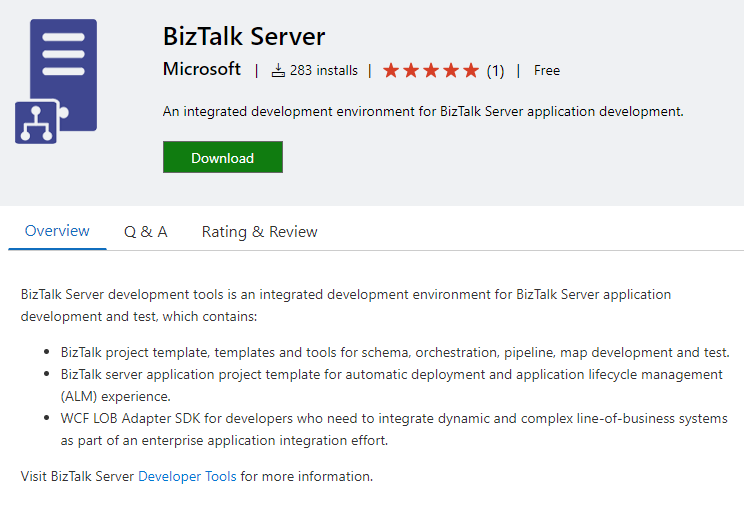
BizTalk Server development tools are an integrated development
environment for BizTalk Server application development and testing, which
contains:
BizTalk project template, templates, and tools for schema, orchestration, pipeline, map development, and test.
BizTalk server application project template for automatic deployment and application lifecycle management (ALM) experience.
WCF LOB Adapter SDK for developers who need to integrate dynamic and complex line-of-business systems as part of an enterprise application integration effort.
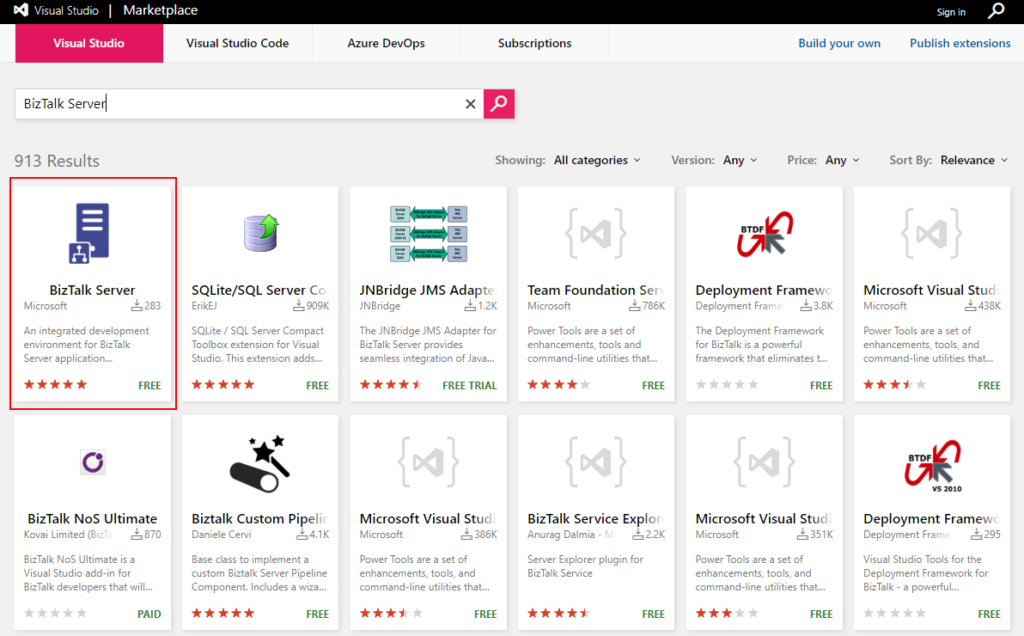
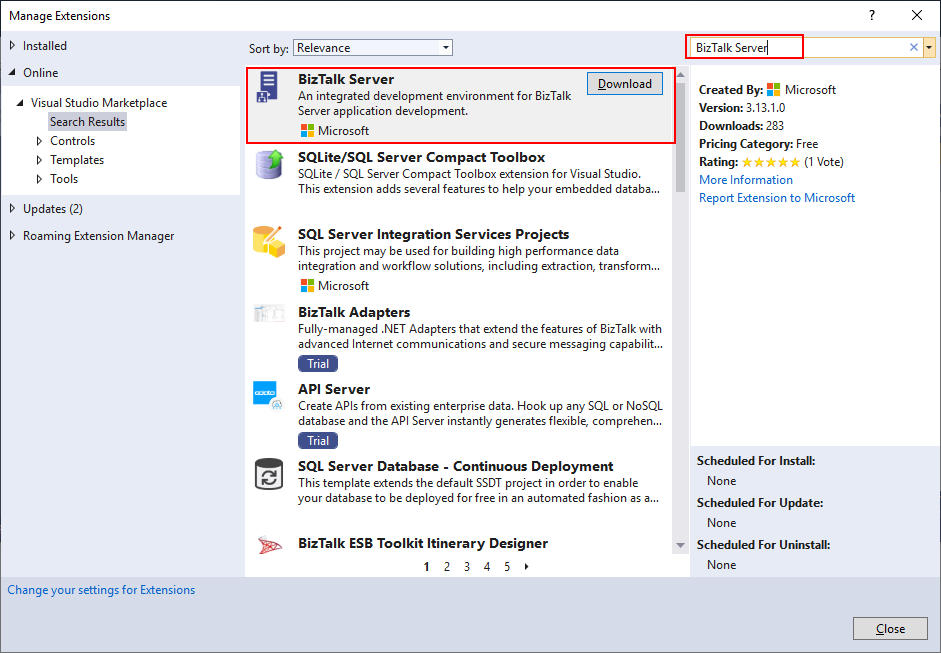
Search for BizTalk Server and download the BizTalk Server development tools provided by Microsoft.
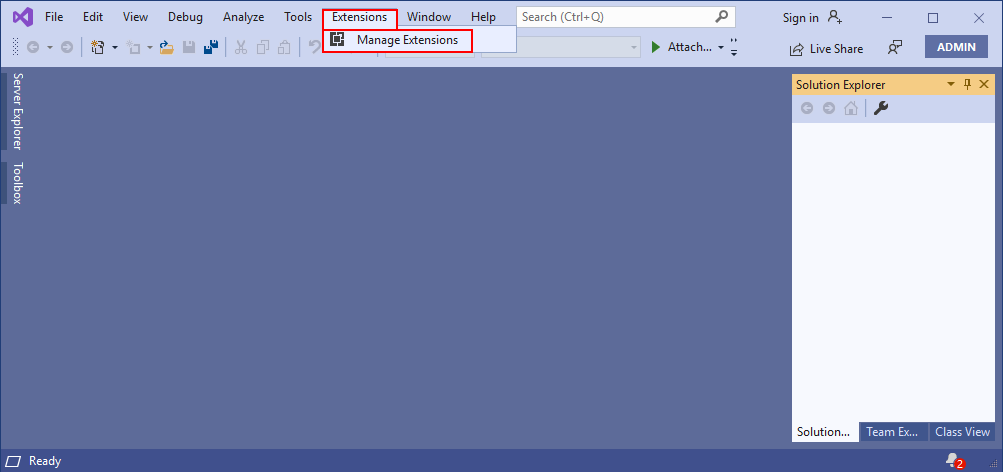
Or directly thru Visual Studio:
Open Visual Studio and use the Manage
Extensions dialog box to install and manage Visual Studio extensions.
To open the Manage
Extensions dialog, choose Extensions à Manage Extensions. Or, type Extensions in the search box and choose Manage
Extensions.
On the Search, type BizTalk
Server and chose to download the BizTalk Server development tools
provided by Microsoft.
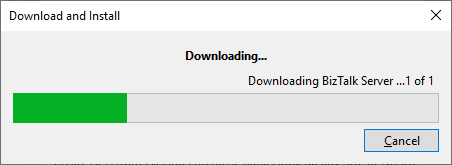
It will automatically download
and install these components.
To finalize you need to close
all Microsoft Visual Studio windows that are open. And next time you will open
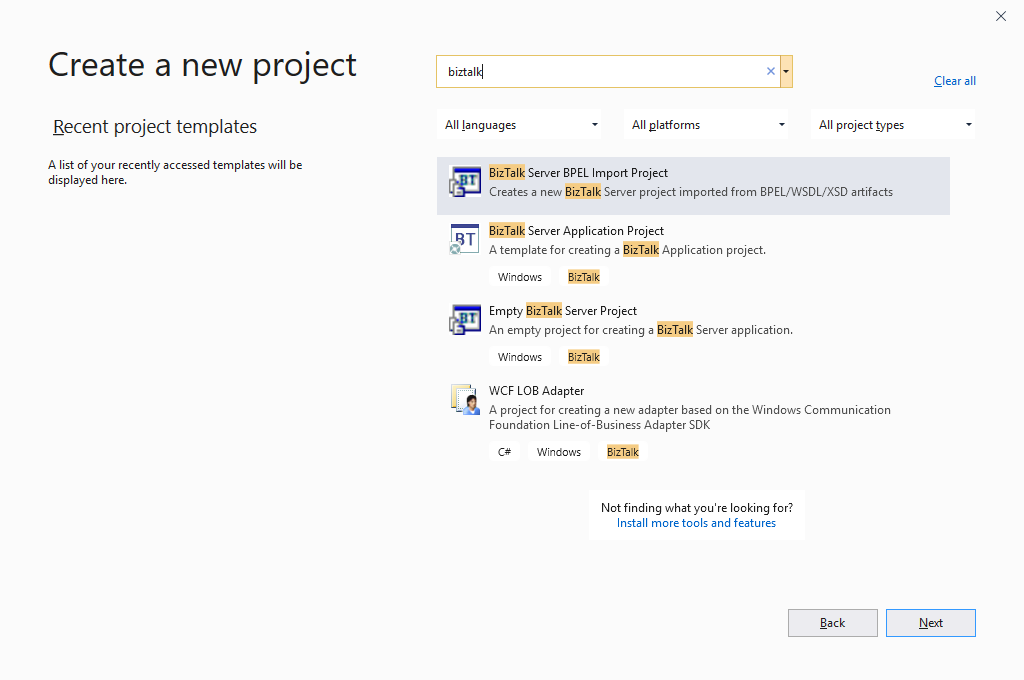
Visual Studio, the BizTalk Server project template will be available for you to
start developing your solutions.
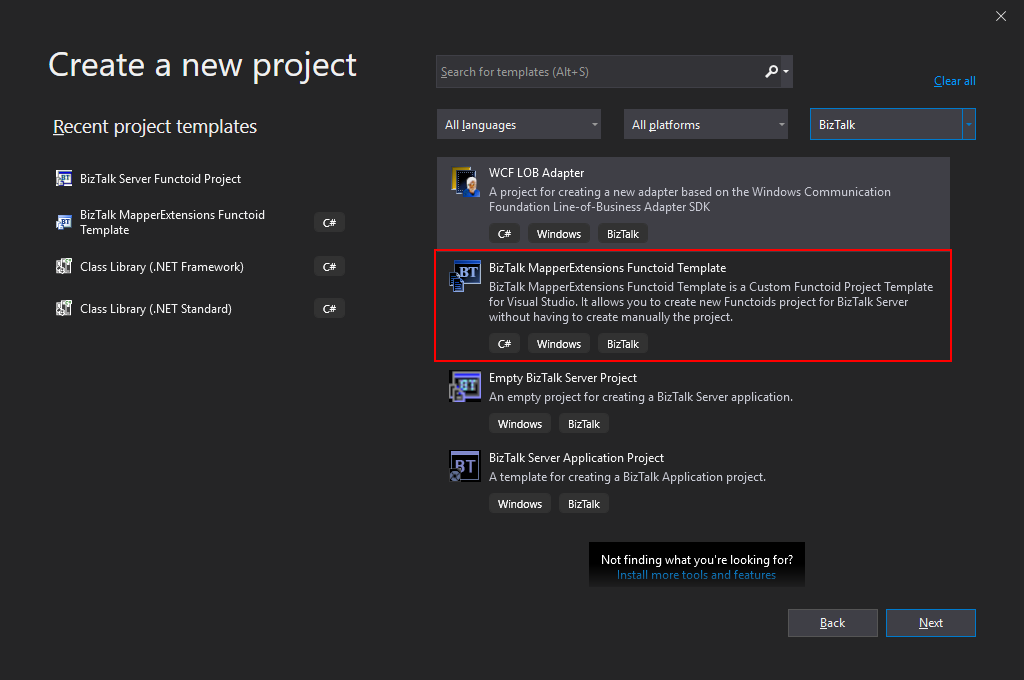
BizTalk Server 2020 – 20 days, 20 posts – day 6. In the last post, I published the BizTalk MapperExtensions Functoid Wizard to be compatible with BizTalk Server 2020 and Visual Studio 2019 but I reference that Visual Studio 2019 has a completely different look and fill and you will not be able to see this project under “BizTalk” projects in your Visual Studio 2019, instead, you need to search for it or scroll down to find it. So I decided to develop an alternative approach: BizTalk MapperExtensions Functoid Project Template.
BizTalk MapperExtensions Functoid Project Template is a Custom Functoid Project Template for Visual Studio 2019. It allows you to create new Functoids project for BizTalk Server 2020 without having to create manually the project, in other words, having to manually create:
A new class library project in Visual Studio;
Add a reference to the Microsoft.BizTalk.BaseFunctoids assembly;
Add New Class and having to code the entire class;
This Template will automatically create a project sample reference for you to create your custom Functoid. You them need to make the necessary changes and implement the required logic.
The difference between this resource (BizTalk MapperExtensions Functoid Project Template) and the BizTalk MapperExtensions Functoid Wizard are:
You don’t required to install nothing, you just need to copy this resouce to a specific folder (explain bellow);
There is no Wizard involved to customize the project, instead a sample project will be created and you need to implememet all the required changes;
You can filter on the Visual Studio menu for BizTalk project and this template will appear, that doesn’t happen with the wizard;
Installation
To use this project template just download the BizTalk MapperExtensions Functoid Template.zip file (without unzip) and copy to the following location:
C:Users<your-account>DocumentsVisual Studio 2019TemplatesProjectTemplates
BizTalk Server 2020 – 20 days, 20 posts – day 5. I will finish my challenge regardless of all these constraints we are facing, and that limits our free time. So, while my wife was sleeping our cute little monster yesterday, I was able to migrate this tool and test it to be compatible with BizTalk Server 2020. Today while she is doing the same, I’m publishing this productivity tool for those that love BizTalk Mapper as I do: BizTalk MapperExtensions Functoid Wizard. Once again, I hope you enjoy and find this tool useful.
BizTalk MapperExtensions Functoid Wizard
BizTalk MapperExtensions Functoid Wizard is a Custom Functoid Project Wizard for Visual Studio 2019. It allows you to create new Functoids project for BizTalk Server 2020 without having to create manually the project, in other words, having to manually create:
A new class library project in Visual Studio;
Add a reference to the Microsoft.BizTalk.BaseFunctoids assembly;
Add New Class and having to code the entire class;
This Wizard will do this process automatically, and used in conjunction with Item Template for Visual Studio: Custom BizTalk Functoid will facilitate and significantly expedite the development process of our projects.
To use this project template download the executable files available on the Installation Files folder and run the setup file.
Once you run the setup file follow these steps:
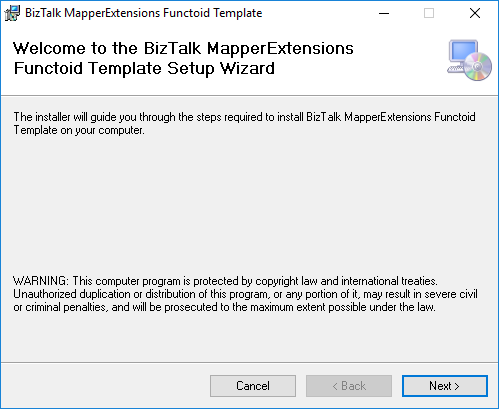
On the Welcome to the BizTalk MapperExtensions Functoid Template Setup Wizard screen, click Next.
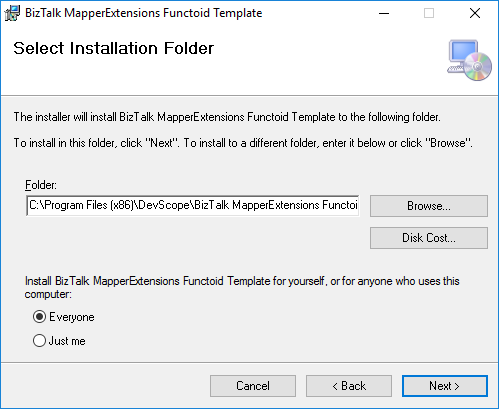
On the Select Installation Folder screen, select the folder where you want to install the Wizard and select the option Everyone. Click Next to continue.
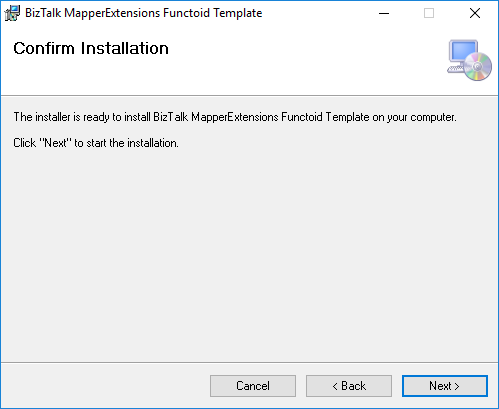
On the Confirm Installation screen, confirm your intent to install by clicking Next.
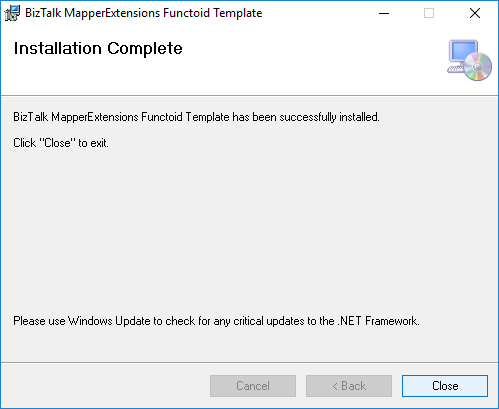
On the Installation Complete screen, click close and the installation is complete.
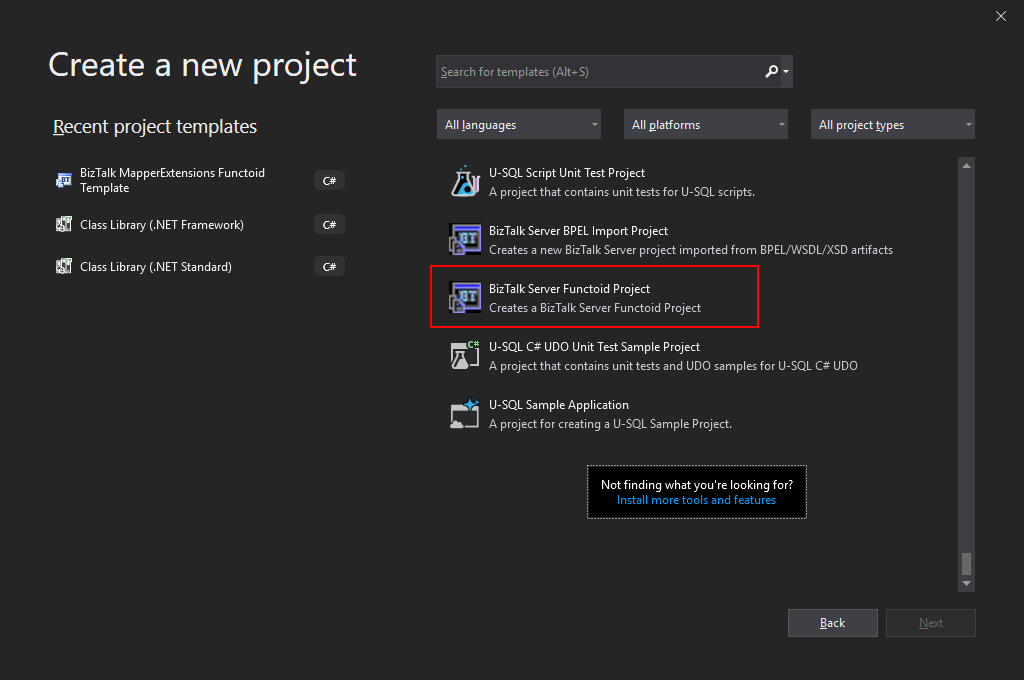
Now you can see a new BizTalk project Wizard on Visual Studio 2019. Unfortunately, Visual Studio 2019 has a completely different look and fill and you will not be able to see this project under “BizTalk” projects in your Visual Studio 2019, instead, you need to search for it or scroll down to find it.
I still need to find a way to solve this limitation or release a different approach to solve this issue and have a more friendly approach.
Create New Functoid Project
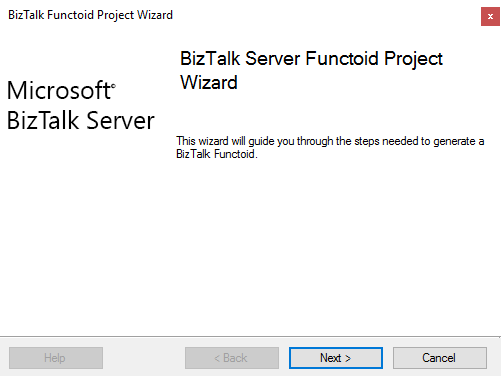
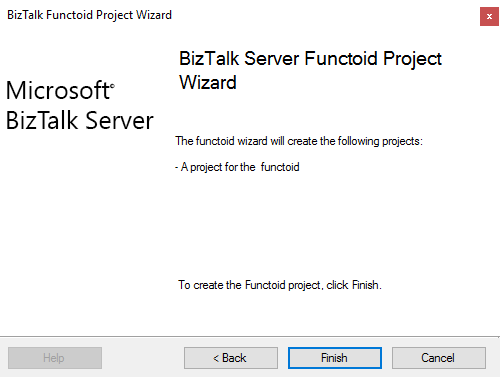
To create a new functoid using this project template choose the option BizTalk Server Functoid Project in Visual Studio 2019 and a Wizard will pop-up. Follow the requirements of this wizard to create the Functoid.
In the Start screen, click Next to continue.
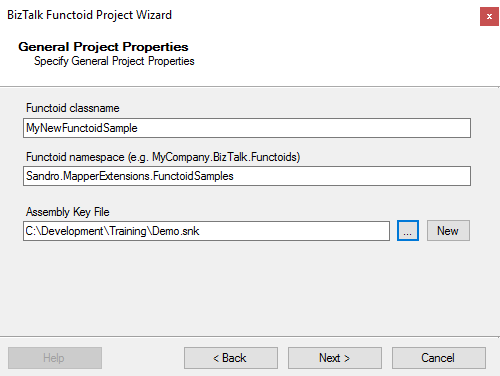
In the General Project Properties screen, fill the Functoid class name, namespace and create or select a new Strong Key (you can use an existing one). Click Next to continue.
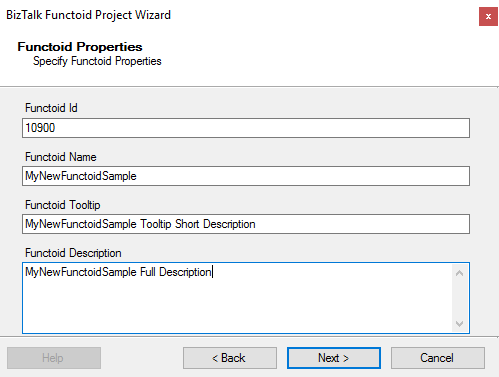
In the Functoid Properties screen, define the Functoid ID (must be greater than 10000), the functoid name, the tooltip (short description) and description (full description). Click Next to continue.
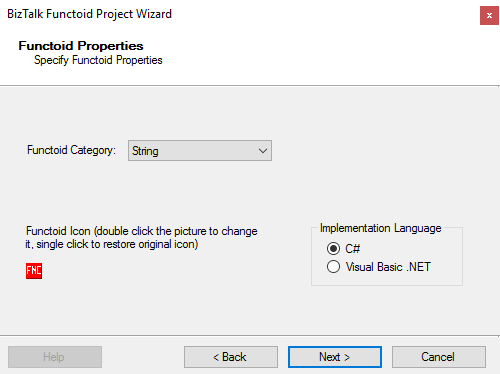
In the second Functoid Properties screen, choose the functoid category and the implementation language (the language in which you want to implement your functoid behavior code): C# or VB.NET. Click Next to continue.
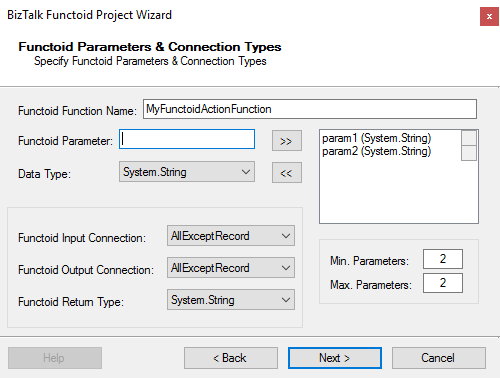
In the Functoid Parameters and Connection Type” screen, define the functoid function name, function inputs and types and output and types. Click Next to continue.
On the final screen, click Finish to create the Visual Studio project.
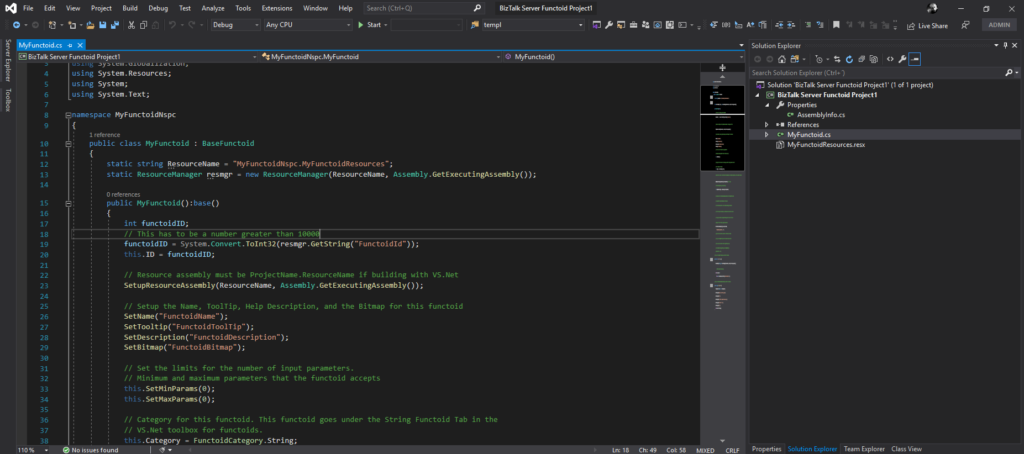
Visual Studio will create a new Project based on your implementation language and definitions provided in the Wizard.
Open the generated class and implement your code
Other versions
This tool is also available for the following BizTalk Server versions:
BizTalk Server 2020 – 20 days, 20 posts – day 4. Again a bit behind on this post, I need to recover the missing days but I will get there. Today I have chosen to migrate another productivity tool that I use often especially when I’m working with pure pub-sub solutions: BizTalk Filter Finder Tool to be compatible with BizTalk Server 2020. I hope you enjoy and find this tool useful.
BizTalk Filter Finder Tool
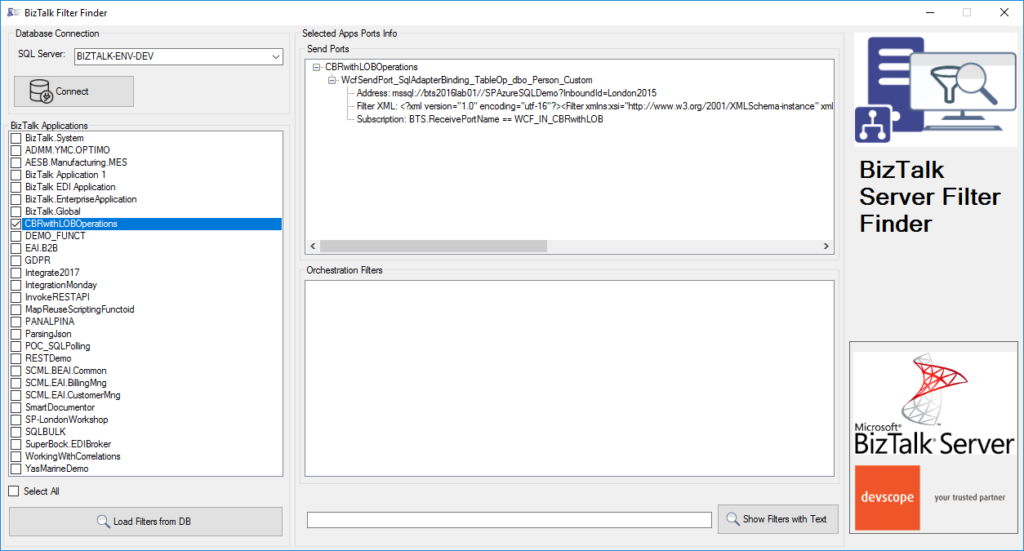
BizTalk Filter Finder Tool is a simple tool that aims to simplify the process for better understand and maintain solutions based on pub-sub and content-based routing. By allowing you to have a quick overview of all the artifacts, send ports or orchestrations that have filters associated.
This tool will extend default BizTalk Server capabilities transforming this tedious and sometimes complicate analyze a little simple, easy and fast.
This tool will extend default BizTalk Server capabilities transforming this tedious and sometimes complicate analysis a little simple, easy and fast. You can read more details about this tool in the original post here: BizTalk Filter Finder Tool.
Other versions
This tool is also available for the following BizTalk Server versions:
BizTalk Server 2020 – 20 days, 20 posts – day 3. Sorry for the delay but with this COVID-19 situation and with 3 small kids at home, sometimes it can be a challenge to find time to do community work and to write. Nevertheless, for today I have chosen to migrate another crucial and productivity tool that I really enjoy using it: BizTalk Bindings Exporter Tool to be compatible with BizTalk Server 2020. Once again, I hope you enjoy it as much as I do.
BizTalk Bindings Exporter Tool
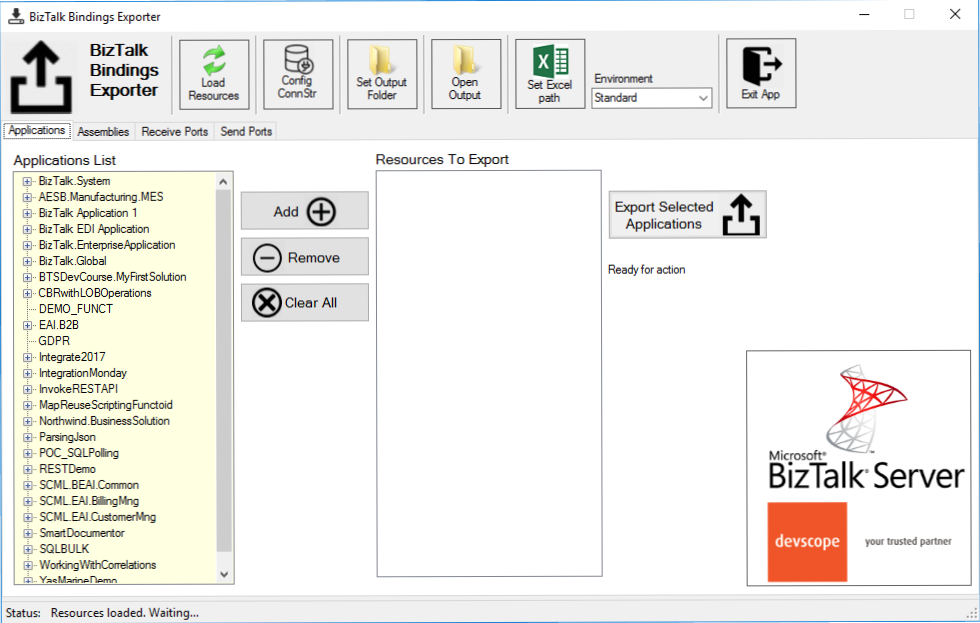
BizTalk Binding Exporter Tool is a simple tool that will suppress the absence of advanced binding file generation capabilities in the BizTalk Server Administration Console allowing you to generate and export a binding file from BizTalk Applications in an intuitive and easy way.
Exporting a BizTalk Server Application binding is, at first sight, a simple and quick task that can be done using the BizTalk Server Administration Console. But even in simple tasks, we may encounter challenges that require us to perform some monotonous and boring manual operations that consume some of our precious time and are always subject to failures.
Normally the binding exportation starts in development, but we also will need to generate the same bindings for other environments like production and for that we normally need to open the binding file and replace/fix the differences for each different environment… which is normally a tedious operation. What we need to replace is mainly:
the URI’s: it should be fixed, but it is not mandatory. If you know what you are doing, you can fix them directly on the environment after you import the Binding.
the host instances: not mandatory, if you have the same host and host instances names across all your different environments (as best practices will tell you to do).
the NT Group Name associated in the Services (Orchestrations): according to securities best practices you shouldn’t use the same BizTalk Groups in different environments, so in this case, if you follow these best practices, you need to change these parameters in your binding file.
Normally, everyone changes the URI’s but neglecting the other parameters may be causing problems during the Binding import.
This tool will extend default BizTalk Server capabilities transforming the tedious and sometimes complicate binding generation a little simple and easy.
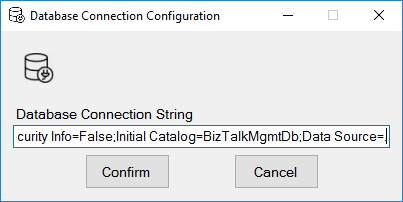
You just need to specify the connection string to the BizTalk Management database (BizTalkMgmtDb)
And this tool allows you to generate and export binding files with the following capabilities:
Export binding(s) file(s) for an entire Application or a list of Applications;
Export binding(s) file(s) from a specify Assembly or list of Assemblies;
Export binding(s) file(s) from a Receive Port or list of Receive Ports;
Export binding(s) file(s) from a Send Port or list of Send Ports;
Or Generate different binding files for each environment if you create an Excel File with the mapping for each environment ;
Other versions
This tool is also available for the following BizTalk Server versions:
BizTalk Server 2020 – 20 days, 20 posts – day 2. And for today I have chosen to migrate another crucial and productivity tool: BizTalk Server SSO to be compatible with BizTalk Server 2020. Application Configuration Tool. Some of you had already asked me if I would release a new version of this tool for this new version of the product. Well, here it is!
BizTalk Server SSO Application Configuration Tool
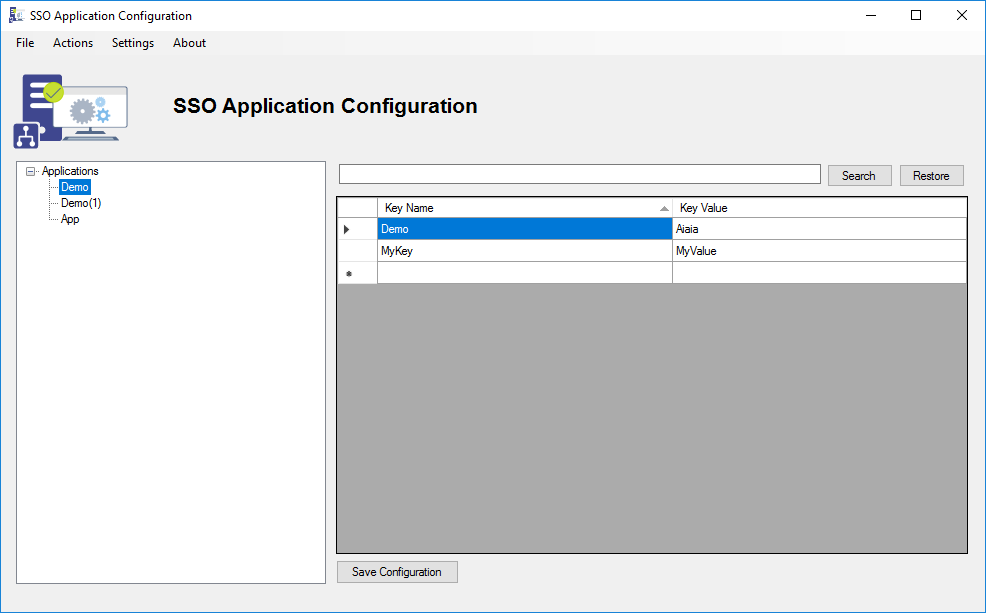
BizTalk ServerSSO Application Configuration tool provides the ability to add and manage applications, add and manage key-value pairs in the SSO database, as well as import and export configuration applications so that they can be deployed to different environments.
Fully compatible with BizTalk Server 2020
Fully resizable windows (you will understand if you are a BizTalk Developer);
You can securely export and import Application configurations and it is compatible with MSFT SSO snap-in;
You can duplicate Applications (copy and paste);
You can rename Applications;
You can easily add new key-values without the need to always perform a right-click and select a new key option;
You can easily add edit key-values without the need to always perform a double-click to open a new window;
You can refresh the Applications tree view
You can search!
Other versions
This tool is also available for the following BizTalk Server versions:
You can download BizTalk Server SSO Application Configuration Tool for BizTalk Server 2020 from: BizTalk Server SSO Application Configuration Tool for BizTalk Server 2020 (45 KB) Microsoft | TechNet Gallery
You probably wonder why I haven’t written anything significant yet about this new version of the product. And I could come up with several real reasons but that is not the point here. However, to compensate for this “delay” I will start a crazy personal challenge, which I don’t know where I will find the time, to write 20 posts focus on BizTalk Server 2020 in the next 20 days: BizTalk Server 2020 – 20 days, 20 posts.
This series of posts could be about how to do certain things, what’s new in the product, step by steps guides, tools, components, tips and so on. And to start this series of posts I have chosen to migrate the BizTalk Port Multiplier Tool to be compatible with BizTalk Server 2020.
BizTalk Port Multiplier Tool
BizTalk Port Multiplier Tool is a simple tool that aims to simplify the port “cloning” process by allowing you to quickly “clone or duplicate” any existing port: Receive Port or Send Port.
Send Ports are quite easy to archive, you only need to give a different name to the port, and you can clone it;
Receive Ports are tricky because they may contain several Receive Locations and each URI needs to be unique;
This tool will extend default BizTalk Server capabilities transforming the tedious and sometimes complicate port creation based on an existing one a little simple and easy allowing you to:
Create a new Receive Port based on an existing one;
It will also export the binding file from that new Receive Port;
Create a new Send Port based on an existing one;
It will also export the binding file from that new Send Port;
Generate different binding files for each environment
Why do I need to “clone” a Receive Port?
Sometimes you also need to create a receive port with similar configurations of an existing one, also changing only a few settings or simple the URI, and instead of manually recreating, you can have 90% of the process done automatically.
Sometimes it is practical, occasionally, or in some scenarios, it may not work, but in most cases, it will. So it is a best-effort operation and not an exact clone because they may have several Receive Locations, and each Address/URI needs to be unique. So, you then need to go to each receive location and reconfigure them.
Other versions
This tool is also available for the following BizTalk Server versions:
This release allows customers to achieve true hybrid connectivity by connecting on-premise systems to SaaS applications through Azure connectivity. In this blog, we will be discussing the new set of cloud adapters (Blob Storage, Service Bus, Event Hubs, O365 Mail, O365 Schedule, O365 Contact).
Note: All these adapter features were already built-in with the BizTalk Server 2016 Feature Packs.
Blob Storage Adapter
With the Blob storage adapter, you can send and receive files of any format (video, audio, images, XML, .pdf, .txt, .zip, .pptx, etc.) between BizTalk Server and Azure Blob Storage with very few configurations.
Create a Windows Azure Storage Account with a container
Configure AzureBlobStorage in Send Port to send message to blob /Configure AzureBlobStorage in Receive Location to receive a message from blob
Using this Blob Adapter, the administrator can have the Backup BizTalk Server Job to back up the databases and log files and easily upload that to an Azure Blob Storage account.
Scenario 1 – Send Message to Azure Blob Storage
When a file dropped into a folder, a BizTalk receive port that listens to that folder will pick up the file. It can then be routed to a send port that subscribes to the files coming in through the receive port. The send port is configured with the AzureBlobStorage adapter and will send the file to a container in Windows Azure Storage, according to its configuration.
Create a receive port using the File adapter” FileReceivePort”, map that to your receive location where the file gets dropped
Create a send port with type “AzureBlobStorage”. Update the blob details as below
Configure Azure properties – Sign in to your Subscription, Select the subscription and Resource Group that has your Azure Storage account
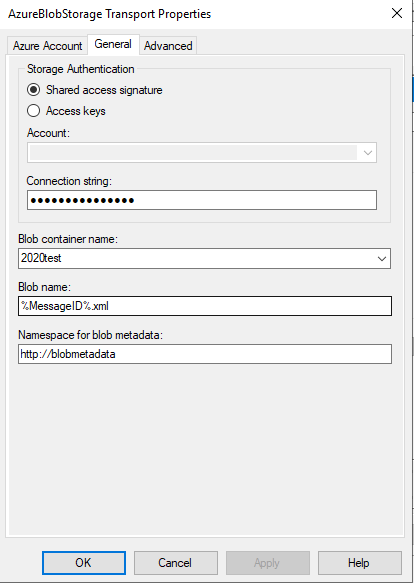
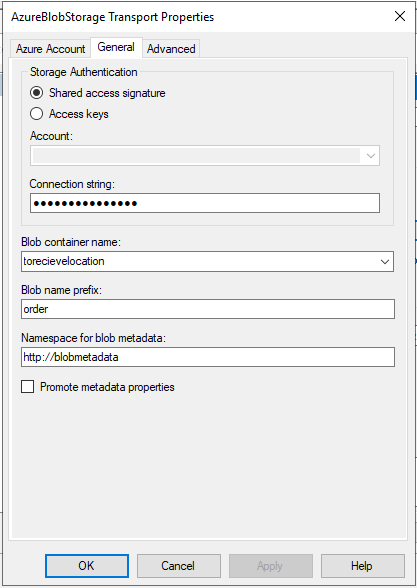
Configure General Properties – Select the Storage Authentication method Shared access signature/Access keys (The connection string will be automatically populated if you select Access Key method)
Select the Blob Container, enter the blob name, you can also use the macros and enter the namespace for blob metadata
You can set the Blob type and the write mode i.e Create new/Overwrite/Appends in the advanced properties settings
Scenario 2 – Receive Message from Azure Blob Storage
The BizTalk receive location which is configured with the AzureBlobStorage adapter will receive a file. When a file is uploaded in the Azure Blob container, it will then be routed to the subscribed send port folder location.
Create a Receive Port, add a Receive Location as type “AzureBlobStorage” and configure the blob details as below;
Configure Azure properties – Sign-in to your Subscription, Select the subscription and Resource Group that has your Azure Storage account
Configure General Properties – Select the Storage Authentication method Shared access signature/Access keys (The connection string will be automatically populated if you select Access Key method). Select the Blob Container Name, Blob Name prefix (in my case it was ‘Order’) and Namespace for blob metadata, click Apply
You can set “Polling Interval”, “Maximum messages per batch”, “Parallel download- Max number of blobs to download parallel” and “Error threshold – when the receive location reaches this number of errors, the receive location is disabled.” in advanced properties
Event Hubs Adapter
Event Hubs capture is the easiest way to load/process streaming data into Azure. You can send/receive a large volume of messages between BizTalk Server and Azure Event Hubs using Event Hub Adapter was the streaming data is captured to Azure Blob Storage.
For instance, you can save and process all your tracking data in an Event Hub using the EventHub Adapter.
You can configure the EventHub Adapter in a Send Port to send messages to Event Hub/Configure the EventHub Adapter in a Receive Location to receive a message from Event Hubs.
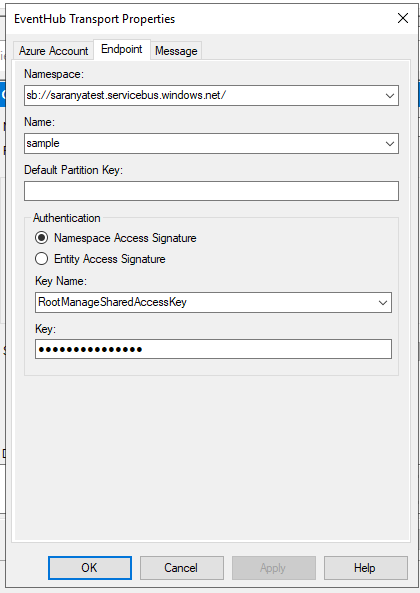
The publisher/subscriber can connect to the Event Hub by using shared access signature token
Configure the Messageproperties, the Namespace for User-Defined Message Properties and you can also promote the same
Service Bus Adapter
You can use the SB-Messaging adapter to connect to your on-premises BizTalk Server to Azure. The Service Bus (SB-Messaging) adapter is used to receive and send from Service Bus entities like Queues, Topics, and Relays.
For instance, you can send a message on a service bus queue via Postman which will be later picked up by on-premise BizTalk Server, using the SB-Messaging adapter.
Note: POP3 and SMTP adapters are now deprecated, for that Office365 adapter is set as a replacement.
You can use the Office365 Outlook adapters in BizTalk to send and receive messages between BizTalk Server and Office365 Outlook features by configuring below few steps;
Office365 account – Configure Office365 with proper credentials, which will authorize BizTalk to connect to, and access the Office365 account
Configure BizTalk TMS – which is a service that manages the Office365 OAuth tokens used by BizTalk. It refreshes these tokens periodically, ensuring that the tokens always remain valid
Office365 Outlook Email – The Office 365 Outlook Email Adapter allows you to send and receive emails from your Office 365 Outlook Email from BizTalk.
Send Mail Using a Send Port
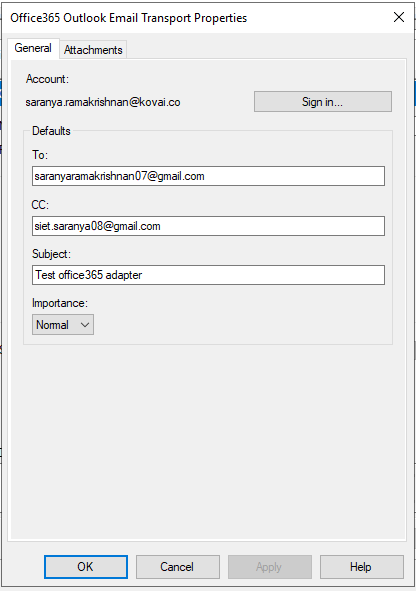
Set the following properties to transmit emails via a send port;
To, CC– separate email addresses with a semicolon (‘;’), maximum 256 characters
Subject– enter a maximum of 256 characters
Importance– select Low, Normal or High from the drop-down in the Send Port
You can also attach the files and BizTalk message parts by configuring the attachment properties.
Receive Email Using a Receive Port
Set the following properties to get office365 email to the specific folder via receive port;
Select a folder from which to retrieve email. The default folder is set as Inbox
Select a timestamp from which you want to receive emails. i.e receivedTimeStamp
Retrieve unread emails only
Select an action after the email has been read, like marking the email as read or deleting the email
Once you receive an email on a Receive Location, the Receive pipeline adds promoted properties, which you can use for routing the emails.
Office365 Calendar Adapter
You can create and receive calendar events from your Office365 Outlook Calendar by using Office365 Outlook Calendar adapter in BizTalk Server.
Create calendar event using send port: Configure the receive location such that when an XML file is received in receive folder. the send port creates an event in your Office365 Outlook calendar based on the details provided in the XML file
Receive calendar event XML: Create a FILE send port to receive messages from your Office365 Outlook Calendar and map that to an Office365 Outlook Calendar receive location (by setting send port filters)
Outlook Contact Adapter
You can create contacts in your Office365 Outlook by configuring the Outlook Contact adapter in a send port.
Note: You can only create contacts, you cannot get the contact details. i.e, the Outlook Contact Adapter is not available in receive location to get the contact details.
Conclusion
BizTalk360 is ready for BizTalk Server 2020. Why not give BizTalk360 a try! It takes about 10 minutes to install on your BizTalk environments and you can witness and check the security and productivity of your own BizTalk Environments.
Stay tuned to get more exciting blogs on BizTalk Server 2020!
Once again, I update this stencil pack with requested shapes from community members: Azure HL7 FHIR (Fast Healthcare Interoperability Resource) and Azure Synapse Analytics. The result was the addition of 16 new shapes. I hope you enjoy it.
What’s new in this version?
The main goal of this release was to provide the new icons present in the Azure Portal and update existing ones. In this version, the changes and additions are:
New shapes: New shapes added on MIS Apps and Systems Logo Stencils, Microsoft Integration Stencils, MIS Users and Roles Stencils, MIS Files Stencils, MIS Azure Others Stencils, and MIS Azure Stencils;
SVG Files: Add new SVG files, and uniform all the filenames;
Microsoft Integration, Azure, Power Platform, Office 365 and much more Stencils Pack
Microsoft Integration, Azure, Power Platform, Office 365 and much more Stencils Pack it’s a Visio package that contains fully resizable Visio shapes (symbols/icons) that will help you to visually represent On-premise, Cloud or Hybrid Integration and Enterprise architectures scenarios (BizTalk Server, API Management, Logic Apps, Service Bus, Event Hub…), solutions diagrams and features or systems that use Microsoft Azure and related cloud and on-premises technologies in Visio 2016/2013:
BizTalk Server
Microsoft Azure
Integration
Integration Service Environments (ISE)
Logic Apps and Azure App Service in general (API Apps, Web Apps, and Mobile Apps)
Azure API Management
Messaging: Event Hubs, Event Grid, Service Bus, …
Azure IoT and Docker
AI, Machine Learning, Stream Analytics, Data Factory, Data Pipelines
SQL Server, DocumentDB, CosmosDB, MySQL, …
and so on
Microsoft Power Platform
Microsoft Flow
PowerApps
Power BI
Office365, SharePoint,…
DevOps and PowerShell
Security and Governance
And much more…
… and now non-related Microsoft technologies like:
SAP Stencils
The Microsoft Integration Stencils Pack is composed of 27 files:
Microsoft Integration Stencils
MIS Additional or Support Stencils
MIS AI and Machine Learning Stencils
MIS Apps and Systems Logo Stencils
MIS Azure Additional or Support Stencils
MIS Azure Mono Color
MIS Azure Old Versions
MIS Azure Others Stencils
MIS Azure Stencils
MIS Buildings Stencils
MIS Databases and Analytics Stencils
MIS Deprecated Stencils
MIS Developer Stencils
MIS Devices Stencils
MIS Files Stencils
MIS Generic Stencils
MIS Infrastructure Stencils
MIS Integration Fun
MIS Integration Patterns Stencils
MIS IoT Devices Stencils
MIS Office365
MIS Power BI Stencils
MIS PowerApps and Flows Stencils
MIS SAP Stencils
MIS Security and Governance
MIS Servers (HEX) Stencils
MIS Users and Roles Stencils
That you can use and resize without losing quality, in particular, the new shapes.
I am always paying attention to requests from members of the community, and whenever I can, I update this stencil pack with requested shapes or functionalities. And this is one of these cases, Josh asked me to add DevOps offerings stencils in special: Boards, Repos, Pipelines, Test Plans, and Artifacts.
The result was this. I hope you enjoy it.
What’s new in this version?
The main goal of this release was to provide the new icons present in the Azure Portal and update existing ones. In this version, the changes and additions are:
New shapes: New shapes added on MIS Developer Stencils;
SVG Files: Add new SVG files, and uniform all the filenames;
Microsoft Integration, Azure, Power Platform, Office 365 and much more Stencils Pack
Microsoft Integration, Azure, Power Platform, Office 365 and much more Stencils Pack it’s a Visio package that contains fully resizable Visio shapes (symbols/icons) that will help you to visually represent On-premise, Cloud or Hybrid Integration and Enterprise architectures scenarios (BizTalk Server, API Management, Logic Apps, Service Bus, Event Hub…), solutions diagrams and features or systems that use Microsoft Azure and related cloud and on-premises technologies in Visio 2016/2013:
BizTalk Server
Microsoft Azure
Integration
Integration Service Environments (ISE)
Logic Apps and Azure App Service in general (API Apps, Web Apps, and Mobile Apps)
Azure API Management
Messaging: Event Hubs, Event Grid, Service Bus, …
Azure IoT and Docker
AI, Machine Learning, Stream Analytics, Data Factory, Data Pipelines
SQL Server, DocumentDB, CosmosDB, MySQL, …
and so on
Microsoft Power Platform
Microsoft Flow
PowerApps
Power BI
Office365, SharePoint,…
DevOps and PowerShell
Security and Governance
And much more…
… and now non-related Microsoft technologies like:
SAP Stencils
The Microsoft Integration Stencils Pack is composed of 27 files:
Microsoft Integration Stencils
MIS Additional or Support Stencils
MIS AI and Machine Learning Stencils
MIS Apps and Systems Logo Stencils
MIS Azure Additional or Support Stencils
MIS Azure Mono Color
MIS Azure Old Versions
MIS Azure Others Stencils
MIS Azure Stencils
MIS Buildings Stencils
MIS Databases and Analytics Stencils
MIS Deprecated Stencils
MIS Developer Stencils
MIS Devices Stencils
MIS Files Stencils
MIS Generic Stencils
MIS Infrastructure Stencils
MIS Integration Fun
MIS Integration Patterns Stencils
MIS IoT Devices Stencils
MIS Office365
MIS Power BI Stencils
MIS PowerApps and Flows Stencils
MIS SAP Stencils
MIS Security and Governance
MIS Servers (HEX) Stencils
MIS Users and Roles Stencils
That you can use and resize without losing quality, in particular, the new shapes.