by Gautam | Oct 7, 2018 | BizTalk Community Blogs via Syndication
Do you feel difficult to keep up to date on all the frequent updates and announcements in the Microsoft Integration platform?
Integration weekly update can be your solution. It’s a weekly update on the topics related to Integration – enterprise integration, robust & scalable messaging capabilities and Citizen Integration capabilities empowered by Microsoft platform to deliver value to the business.
If you want to receive these updates weekly, then don’t forget to Subscribe!
Feedback
Hope this would be helpful. Please feel free to reach out to me with your feedback and questions.

by Sandro Pereira | Oct 4, 2018 | BizTalk Community Blogs via Syndication
To end these week contributions, tomorrow is national holiday in Portugal, BizTalk Pipeline Components Extensions Utility Pack community project for BizTalk Server 2016 got a new update. A new component that you can use in your custom BizTalk Server Send pipelines is now available: Remove XML Namespace Pipeline Component.
Remove XML Namespace Pipeline Component
The XML Remove Namespace pipeline component was developed in the old days by Johan Hedberg for BizTalk Server 2006 – you can check the original post here – that I now migrate to BizTalk Server 2016 with his permission and it can be used to remove XML namespaces from XML documents inside custom pipelines.
This has the availability to transform the root of the message from this:
<ns0:Blah xmlns:ns0="http://RemoveXmlNamespace.BTS.BlahMessage">
Into this:
<Blah>
As Johan mention in his original post, you shouldn’t remove the namespace from the messages, however, we don’t leave in a perfect world and we need to deal with legacy systems and sometimes they required, for unknown reasons for me, that we deliver messages without namespace.
To use this pipeline component in your projects you just copy the “RemoveXmlNamespace.PipelineComponents.dll” file into “Pipeline Components“ folder that exists in BizTalk Server Installation directory: “..Program Files (x86)Microsoft BizTalk Server <version>Pipeline Components” on every server.
You do not need to add a custom pipeline component to be used by the BizTalk Runtime to the Global Assembly Cache (GAC).
What is BizTalk Pipeline Components Extensions Utility Pack?
BizTalk Pipeline Components Extensions Utility Pack is a set of custom pipeline components (libraries) with several custom pipeline components that can be used in received and sent pipelines, which will provide an extension of BizTalk out-of-the-box pipeline capabilities.

The project is available on BizTalk Server Open Source Community repository on GitHub (https://github.com/BizTalkCommunity) and everyone can contribute with new pipeline components that can be extended or improve the existing BizTalk Server capabilities.
At the moment it is only available for BizTalk Server 2016 but it will soon be compiled and available for previous versions of the product.
Where to download it?
You can download BizTalk Pipeline Components Extensions Utility Pack from GitHub here:
 BizTalk Pipeline Components Extensions Utility Pack
GitHub
Author: Sandro Pereira
Sandro Pereira lives in Portugal and works as a consultant at DevScope. In the past years, he has been working on implementing Integration scenarios both on-premises and cloud for various clients, each with different scenarios from a technical point of view, size, and criticality, using Microsoft Azure, Microsoft BizTalk Server and different technologies like AS2, EDI, RosettaNet, SAP, TIBCO etc. He is a regular blogger, international speaker, and technical reviewer of several BizTalk books all focused on Integration. He is also the author of the book “BizTalk Mapping Patterns & Best Practices”. He has been awarded MVP since 2011 for his contributions to the integration community. View all posts by Sandro Pereira
by Lattetapriyanka Vishu | Oct 4, 2018 | BizTalk Community Blogs via Syndication
Recently, we released BizTalk360 v8.9. As always, each new release of BizTalk360 has completely new features in it, according to the customer feedback and suggestions we received. Keeping up with the business needs of our customers, version 8.9 has many beneficial features.
Along with the new features, we have enhanced quite a few features in BizTalk360. In our previous blog, we have covered few of these enhancements. In this blog post, I would like to provide a brief description about the following enhancements:
- ESB Service Name as a new filter option
- A new column “Resource Group” is introduced in Logic Apps (Operations & Monitoring)
- Data Monitoring Service Instances grouped by Error Description in Email Alerts
- Increased number of characters allowed in Alarm descriptions
- Ability to set Threshold Alert’s Start Time and End Time between 23.30 to 23.59 hours
- BizTalk360 v8.9 installer changes
ESB Service Name as a new filter option
In the ESB Exception Data feature, a query builder is available to fetch the precise data on a particular condition.
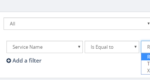
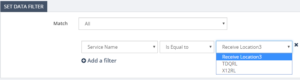
In version 8.9, we have added another filter property, namely Service Name. Choosing the Service Name in the filter properties will list the available service names as an option and the user can select the required option from the list. Thus, execution of the query will list the precise data in the grid. For even more detailed filtering, multi-combination of filter properties can be set.
We have implemented the same for ESB Data Monitoring; under the section Set Data Filter, the Service Name Property has been added. Selecting the Service Name in the filter will list the related options, so the Service Name can now be used for your ESB Exceptions Data Monitoring
Resource Group in Logic Apps
The Resource Group column has been implemented in the Logic Apps section, to have a clear picture over the Logic Apps being created under different Resource Groups in the same Azure Subscription.
In the previous version, all the Logic Apps under a subscription were listed. Quite often, a subscription will have different Resource Groups and each Resource Group can have their own set of Logic Apps.
There was an issue while display Logic Apps which are created in different Resource Groups, but with the same name. With the introduction of the Resource Group column, Logic Apps are now grouped by Resource Group in each configured Azure subscription.
Resource Group implementation is done in three areas, Operations, Monitoring and Data Monitoring.
Resource Group implementation in Operations and Monitoring
In the Operations section the Logic Apps are listed in the grid, based on their Azure subscription. This may lead to Logic App Name duplication, and to confusion in finding out to which Resource Group the Logic App is associated.
This is sorted in BizTalk360 v8.9, by adding the Resource Group column in the grid. Thus, once the Azure subscription is configured, the Logic Apps will be listed in the grid, along with the Resource Group to which they are associated. So, it will be easier to manage the Logic Apps by knowing their Resource Groups.
The Resource Group column is also implemented in the Monitoring Section, under Manage Mapping. When an alarm is set to monitor Logic Apps, it avoids name duplication, since Logic Apps are associated to the Resource Group.
Resource Group implementation in Data Monitoring
The implementation of Resource Groups in Data Monitoring helps in segregating the Logic Apps present under the associated Resource Groups.
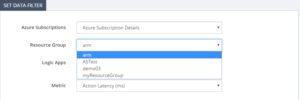
In Logic App Data Monitoring, the Resource Group field is added under Set Data Filter. By filtering on Resource Group, only the associated Logic Apps will be listed and monitored.
Group By Error Description
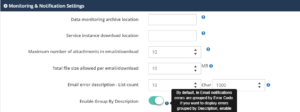
In the Message Box Data monitoring section, the instance details were sent in the notification email, by grouping them based on the Error Code. In BizTalk360 v8.9, we have added the capability to group the instances by Error Description. This is done by implementing as a small feature under Settings / System Settings / Monitoring & Notification section, where you can find an ‘Enable Group By Description’ toggle button.
By default, Email notification errors are grouped by Error Code. Enabling this toggle button will result in grouping by the Error Description.
The Data Monitoring alert gets populated, grouping the instance details by the Error Description and list the count of it, along with its description.
As shown in the sample mail alert, having the grouping of description helps the user to have a very clear and precise clarity in the email alert for the suspended instances.
Increased the number of characters allowed in alarm descriptions
As you will probably know, the Alarm screen, in the Monitoring section, holds a Description field in which the user can feed up to 300 characters for providing a short description related to the alarm. This helps the customer to have a clarity over the alarm popped.
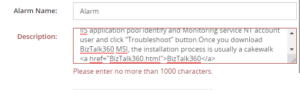
We now increased this limitation to 1000 characters, that in turn helps the customer to give a detailed description on the alarm. Exceeding the 1000 character will lead to a validation warning.
Hyperlink in Alarm Description
As an added advantage along with the 1000 characters, the Description field now accepts a Hyperlink and validates the HTML hyperlink tag. The field not only validates the hyperlink, it also validates basic HTML tags too.
Any syntax errors found in the hyperlink, will lead to a validation warning. By including the hyperlink tag, the customers can provide any necessary link which is related to the alarm.
We mainly have provided the hyperlink tag to comfort the user by allowing them to give more detail via a web page over the alarm created.
Threshold Alert’s Start Time and End Time increased to 23.59 pm
BizTalk360 has the capability to configure a threshold to trigger within certain time limits. The alarm configuration has a check field, “Set Alerts on Set day(s) and Time(s) only”. Once this check box is enabled, it will allow the user to access the Days Check and Time Selection, to precisely set the threshold time to trigger the alert emails during the particular days and times.
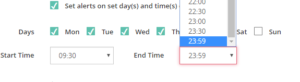
Any weekday can be selected, meanwhile timing for the day can be set by selecting the values in the Start Time and End Time dropdown boxes. The Start and End Time’s time value increases by 30 min, so any time can be set according to the need, under the condition “*Must be 60 mins later than start time”.
The lag was that, the Start Time and End time can be set only up to 23.30 pm. So, we were not able to fetch persisting violation details which occurred between 23.30 pm-23.59 pm.
As a solution to it, in the version 8.9, the End Time duration has been increased from 23.30 pm to 23.59 pm. By exceeding the End Time to 23.59 pm, the user will not find any lag in getting the violation alert. This way, the mapped artifacts of the Threshold alarm(s) can be monitored for the entire day.
BizTalk360 v8.9 Installer changes
The Installer is a facet of most software products. It is important to every Product organization to improve the installer from time to time, to provide a seamless installation experience. In our latest version, we made improvements in various aspects of the installer.
Rethinking the upgrade credential screen
The BizTalk360 installation package consists of three components:
- Web services
- Windows NT services (Monitoring, Analytics)
- Database
Users have the liberty to install the preferred components as per the business need. For an instance, the web component can be installed in a separate machine and the same counts for the other components.
Here is an interesting change we made in the Credentials update screen, for the upgrade scenario. What is the change? Previously, during the upgrade scenario, if all the components are installed in the same server, the user must provide passwords for all the components, even though all the components are using the same set of credentials. We have revisited this logic and made our installer to determine by itself whether all the installed components are using same credentials or different ones.
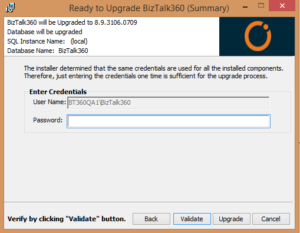
Let’s consider all the components are using the same credentials (User Name and Password). In that case, the installer will show only one section with the username and password. This reduces the user activity to enter the same password for the all the components.
Support for SQL authentication upgrade
Until the previous release, BizTalk360 did not support the upgrade, for the SQL authentication mode. In v8.9, the installer has been enhanced to support SQL authentication upgrade.
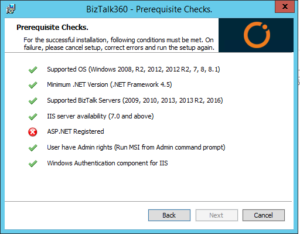
3.5 .NET dependency removal
For smooth functioning of the Azure services in BizTalk360, at a minimum .NET version 4.5 is recommended for BizTalk360 version v8.1 and later. The Installer blocks the installation if .NET 3.5 has not been installed in the machine. This restriction made users to install the .NET version 3.5. Now, this limitation has been removed.
Persisting config files during the update
To deploy BizTalk360 on HTTPS, your IIS must be enabled for HTTPS/SSL. To access BizTalk360 through HTTPS, there are few changes that need to be done in the BizTalk360 web.config file. Until our previous version, during the upgrade process, those changes were not persisted. After every upgrade, users had to do the changes again and again in the web.config files. As of the v8.9 upgrade, the changes made in the web.config files will be persisted.
Conclusion
We provided these improvements, hoping they will be helpful to you and make you feel easy while using BizTalk360. Happy migrating and try BizTalk360!!!

by Sandro Pereira | Oct 3, 2018 | BizTalk Community Blogs via Syndication
And once again, BizTalk Pipeline Components Extensions Utility Pack community project for BizTalk Server 2016 got a new update. A new component that you can use in your custom BizTalk Server Send pipelines is now available: Zip Pipeline Component.
Zip Pipeline Component
The Zip Pipeline Component is a pipeline component for BizTalk Server which can be used in a send pipeline (encode stage) and is intended to compress (zip/gzip) outgoing messages.
- The capabilities are similar to those available in compression software such as WinZip or 7-zip:
- This component requires two configurations that are:
- the “FileExtension” where you can specify if you want for example a .zip or .gz file.
- and “Enabled” that is a true or false value to activate the compression.
No compression/decompression software needs to be installed in the BizTalk Server machines.
This was an old component that I had that I now updated and improved to BizTalk Server 2016 with the help with my internal team at DevScope, in special, Pedro Almeida.
To use this pipeline component in your projects you just copy the “BizTalk.PipelineComponents.ZipFile.dll” file into “Pipeline Components“ folder that exists in BizTalk Server Installation directory: “..Program Files (x86)Microsoft BizTalk Server <version>Pipeline Components” on every server.
You do not need to add a custom pipeline component to be used by the BizTalk Runtime to the Global Assembly Cache (GAC).
What is BizTalk Pipeline Components Extensions Utility Pack?
BizTalk Pipeline Components Extensions Utility Pack is a set of custom pipeline components (libraries) with several custom pipeline components that can be used in received and sent pipelines, which will provide an extension of BizTalk out-of-the-box pipeline capabilities.

The project is available on BizTalk Server Open Source Community repository on GitHub (https://github.com/BizTalkCommunity) and everyone can contribute with new pipeline components that can be extended or improve the existing BizTalk Server capabilities.
At the moment it is only available for BizTalk Server 2016 but it will soon be compiled and available for previous versions of the product.
Where to download it?
You can download BizTalk Pipeline Components Extensions Utility Pack from GitHub here:
BizTalk Pipeline Components Extensions Utility Pack
GitHub
Author: Sandro Pereira
Sandro Pereira lives in Portugal and works as a consultant at DevScope. In the past years, he has been working on implementing Integration scenarios both on-premises and cloud for various clients, each with different scenarios from a technical point of view, size, and criticality, using Microsoft Azure, Microsoft BizTalk Server and different technologies like AS2, EDI, RosettaNet, SAP, TIBCO etc. He is a regular blogger, international speaker, and technical reviewer of several BizTalk books all focused on Integration. He is also the author of the book “BizTalk Mapping Patterns & Best Practices”. He has been awarded MVP since 2011 for his contributions to the integration community. View all posts by Sandro Pereira
by Sandro Pereira | Oct 2, 2018 | BizTalk Community Blogs via Syndication
Welcome back to my blog post series “BizTalk Server Tips and Tricks” for developers, administrators or business users. Not all tips and tricks are sophisticated or quite robust and ingenious, some of them are quite simple. Some of them are in front of us all the time without us noticing, this is one of these cases.
Today there is a lot more information than in the past, but normally when we start BizTalk Server tutorials about schemas, they tend to say that if you want to specify how many times a record or an element will occur, you should configure the below values:
- The Max Occurs property to specify the maximum occurrences of this node (record or element). The default value is ‘1’ and cannot be less than the Min Occurs property
- The Min Occurs property to specify the minimum occurrences of this node. The default value is ‘1’ and cannot be greater than the Max Occurs property
What this type of tutorial also tells you, is that if you want to specify that a specific node can appear an unlimited number of times, at the Max Occurs property, you should type the value: “unbounded”
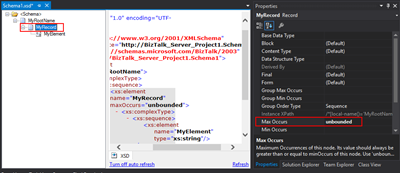
So, we tend to manually write the word “unbounded”, each time we want to set a node to appear an unlimited number of times… I think, I can write this word better than my personal name, so many are the times I’ve written it over the years. But to be honest, this can be a little time consuming. Especially if we type it wrongly, newbies need to remember this word – there are other words with the same meaning as unlimited – and sometimes is just a little boring.
Well, guess what, if you are at this point of the post wondering what is the alternative, in the future you should spend a little time reading the description of property inside Visual Studio; the alternative has been there in front of you all the time:
- Maximum Occurrences of this node. Its value should always be greater than or equal to minOccurs of this node. Use ‘unbounded’ or ‘*’ (asterisk) to indicate unlimited occurrences. The default value is ‘1’.
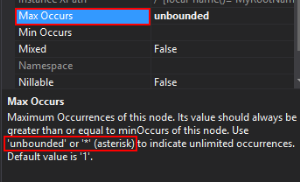
Which means that if we type * (asterisk), this will be automatically translated to “unbounded”.

Quick, simple and practical
Stay tuned for new tips and tricks!
Author: Sandro Pereira
Sandro Pereira is an Azure MVP and works as an Integration consultant at DevScope. In the past years, he has been working on implementing Integration scenarios both on-premises and cloud for various clients, each with different scenarios from a technical point of view, size, and criticality, using Microsoft Azure, Microsoft BizTalk Server and different technologies like AS2, EDI, RosettaNet, SAP, TIBCO etc. View all posts by Sandro Pereira

by Sandro Pereira | Oct 2, 2018 | BizTalk Community Blogs via Syndication
BizTalk Pipeline Components Extensions Utility Pack community project for BizTalk Server 2016 got a new update and now it has another new component that you can use in your custom BizTalk Server pipelines: Carry SOAPHeader To WCF-BasicHttp Pipeline Component.
Carry SOAPHeader To WCF-BasicHttp Pipeline Component
The Carry SOAPHeader To WCF-BasicHttp is a pipeline component for BizTalk Server which can be used in a send pipeline and is intended to carry forward the received custom SOAP Header to the outgoing message, in other words:
- This component will read the Custom SOAPHeader from the Message Context Properties
- The custom header name will be defined on the component configuration and we can read it from the target “http://schemas.microsoft.com/BizTalk/2003/SOAPHeader”
- and will configure this custom header in the OutboundCustomHeaders property used by the WCF-BasicHTTP Adapter.
The OutboundCustomHeaders property is used if you want to specify the custom SOAP headers for outgoing messages. When this property is used, the property must have the <headers> element as the root element. All of the custom SOAP headers must be placed inside the <headers> element
- If the custom SOAP header value is an empty string, you must assign <headers></headers> or <headers/> to this property
This component is useful if you are implementing CBR operations on legacy service (SOAP – .asmx) using the new WCF-Adapters in BizTalk Server. Notice that the SOAP adapters, still present in BizTalk Server 2016, are obsolete and discontinued.
To use this pipeline component in your projects you just copy the “CarrySOAPHeader.dll” file into “Pipeline Components“ folder that exists in BizTalk Server Installation directory: “..Program Files (x86)Microsoft BizTalk Server <version>Pipeline Components” on every server.
You do not need to add a custom pipeline component to be used by the BizTalk Runtime to the Global Assembly Cache (GAC).
What is BizTalk Pipeline Components Extensions Utility Pack?
BizTalk Pipeline Components Extensions Utility Pack is a set of custom pipeline components (libraries) with several custom pipeline components that can be used in received and sent pipelines, which will provide an extension of BizTalk out-of-the-box pipeline capabilities.

The project is available on BizTalk Server Open Source Community repository on GitHub (https://github.com/BizTalkCommunity) and everyone can contribute with new pipeline components that can be extended or improve the existing BizTalk Server capabilities.
At the moment it is only available for BizTalk Server 2016 but it will soon be compiled and available for previous versions of the product.
Where to download it?
You can download BizTalk Pipeline Components Extensions Utility Pack from GitHub here:
BizTalk Pipeline Components Extensions Utility Pack
GitHub
Author: Sandro Pereira
Sandro Pereira lives in Portugal and works as a consultant at DevScope. In the past years, he has been working on implementing Integration scenarios both on-premises and cloud for various clients, each with different scenarios from a technical point of view, size, and criticality, using Microsoft Azure, Microsoft BizTalk Server and different technologies like AS2, EDI, RosettaNet, SAP, TIBCO etc. He is a regular blogger, international speaker, and technical reviewer of several BizTalk books all focused on Integration. He is also the author of the book “BizTalk Mapping Patterns & Best Practices”. He has been awarded MVP since 2011 for his contributions to the integration community. View all posts by Sandro Pereira
by Gautam | Sep 30, 2018 | BizTalk Community Blogs via Syndication
Do you feel difficult to keep up to date on all the frequent updates and announcements in the Microsoft Integration platform?
Integration weekly update can be your solution. It’s a weekly update on the topics related to Integration – enterprise integration, robust & scalable messaging capabilities and Citizen Integration capabilities empowered by Microsoft platform to deliver value to the business.
If you want to receive these updates weekly, then don’t forget to Subscribe!
Feedback
Hope this would be helpful. Please feel free to reach out to me with your feedback and questions.
by Sivaramakrishnan Arumugam | Sep 27, 2018 | BizTalk Community Blogs via Syndication
In very few days, we will release BizTalk360 version 8.9. As everyone is excited, I’m excited too as, in every release of BizTalk360, we constantly improve and include features based on the customer’s feedback and business needs. In the upcoming version, we have implemented a few features purely based on the customer’s feedback.
Here is the list of features which I’m going to cover in this blog:
- PDF Download
- Restore System Email XSLT Template
- Monitoring IBMMQ and Azure Service Bus Queues using Message Age
- Performance improvements
PDF Download
Based on the existing implementation in the Analytics reporting module, many of our customers requested the PDF download feature. We have implemented the PDF Download capability for the following modules:
- Graphical Flow (Tracking)
- Messaging Patterns
- Operations Dashboard
- Monitoring Dashboard
- Analytics Dashboard
In Graphical Flow (Tracking)
The user views the entire flow of the message from where it entered the BizTalk server to the point where it left the BizTalk Server environment. All the message flows are indicated by arrow marks between the nodes, which will provide a clear indication of the message transactions.
Say, in a message flow a message is not sent to the expected node; this will become clear in the Graphical Flow (Tracking) feature.
Example: The Viewer shows you what messages a service instance (pipeline or orchestration) sent and received, and details such as the URL, port, and party used. You can also see which preceding service instances handled the messages coming into the service instance you are currently viewing.
You can link back to these instances and see the messages coming into and going out of these instances.You can also see the subsequent service instances that received messages from the service instance you are currently viewing, and link forward to these instances to see the messages coming into and going out of these instances.
In other words, you can walk through the entire path of an activation message through your business process.
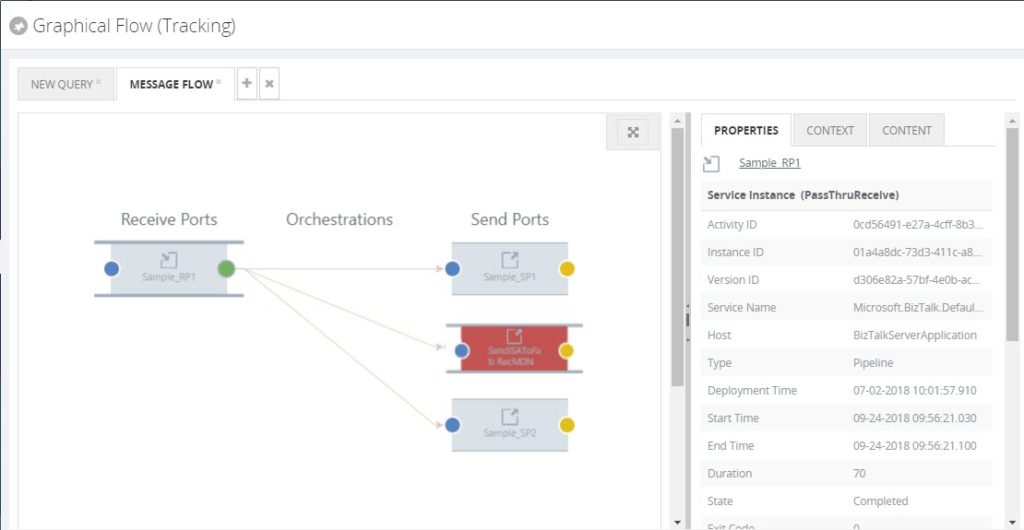
In such cases, the new PDF download implementation will be helpful to download the flow and escalate the problem to the required team.
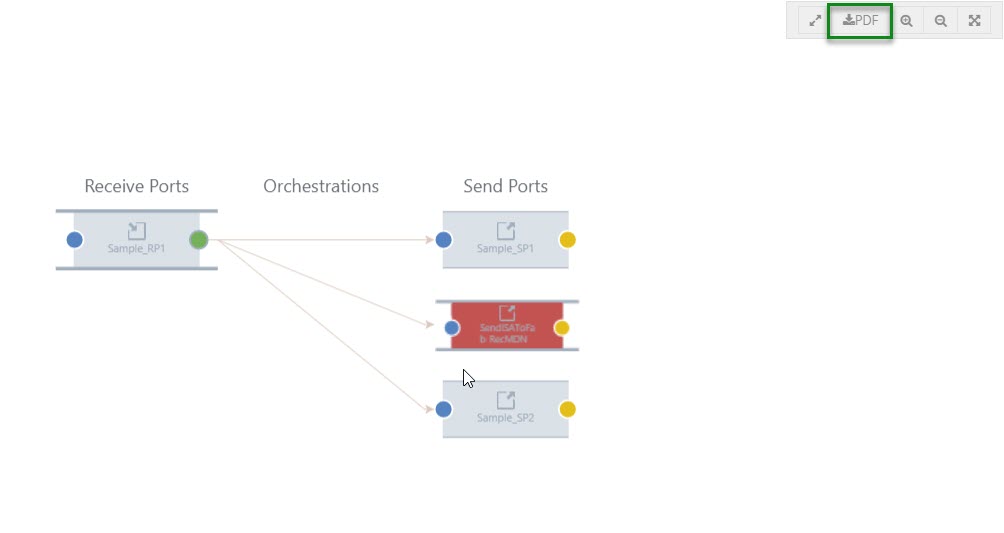
To capture the full message pattern, you can choose the full-screen view. Along with the zoom in and zoom out capability, we have introduced a new option PDF download feature.
The PDF will get downloaded and be given the name of a pipeline of the selected port. Say for example, in the graphical flow, if you choose a Receive Port and select the download option, the PDF will be downloaded and be given the name of the Receive Port pipeline.
Messaging Patterns
As you are aware, the message patterns are the unique flows that get recorded for the message transfers. To capture a message flow, choose the full-screen view option. Along with the zoom in and zoom out options, the PDF download button will now be visible
When the user wants to see a message flow, we display it as a graphical pattern with the artifacts involved.
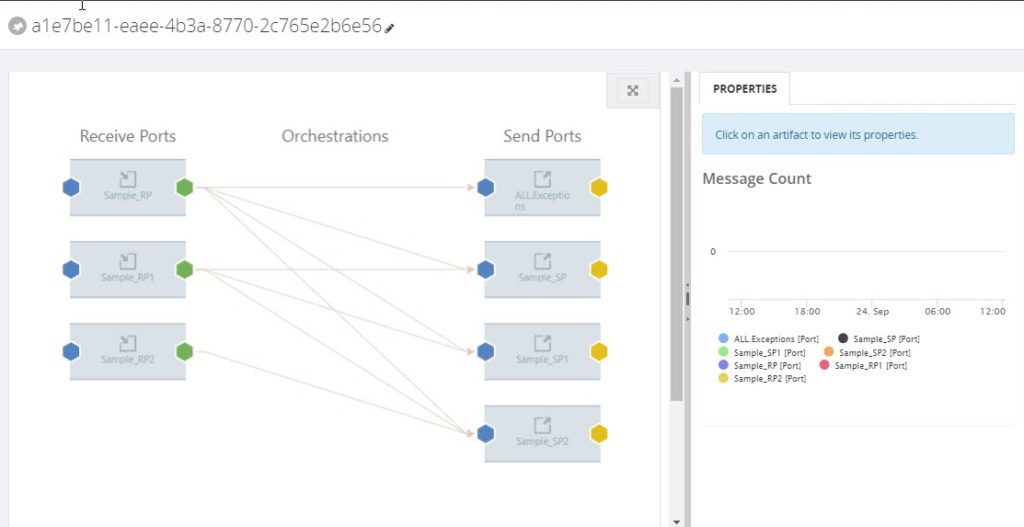
Example: A message can be received by a receive port, split up and processed in separate orchestrations, after which the processed messages are being sent to external processes/systems. To capture a unique message flow and use it for reference in the future, the PDF download will be helpful.
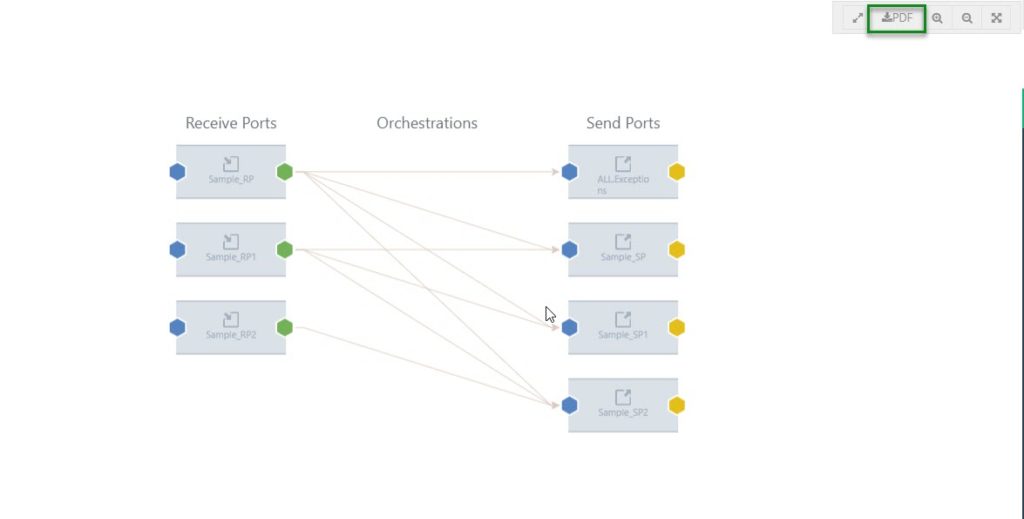
Messaging Patterns will be downloaded with the name of the message pattern.
Operations Dashboard
BizTalk360 has a capability to add default widgets and create your own custom widgets. In such cases, you have configured important widgets into the dashboard.
Even though you have an option to make the dashboard as global, when you want to share within the team you would have to make screenshots. To avoid creating screenshots again, we have implemented the PDF download option.
When you navigate to the Operations Dashboard, at the top right corner, next to the Refresh button, the PDF button will be available.
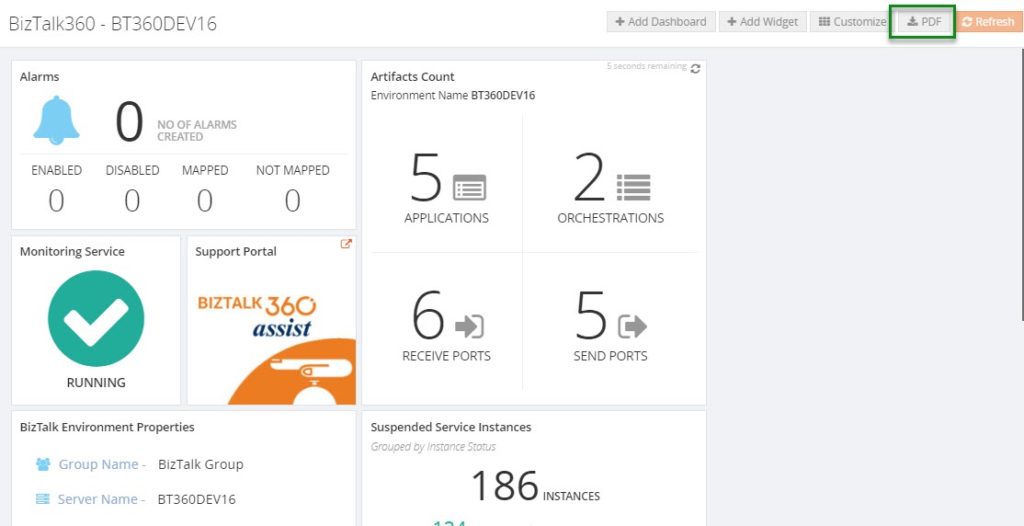
When you download the Operations Dashboard, the PDF will get downloaded with the name of the dashboard.
Monitoring Dashboard
You may get the status of an alarm via notifications from BizTalk360 whenever the port goes down. You can also receive the complete status of the monitored artifacts, with the help of a regular health check alarm for each hour. But, when you want to share the immediate status of the alarm the PDF download option will be helpful.
The download option will be enabled, similar to the Messaging Patterns for the Operations Dashboard. You can choose the full-screen view option. Along with the zoom in and zoom out buttons, the PDF download button will now be visible.
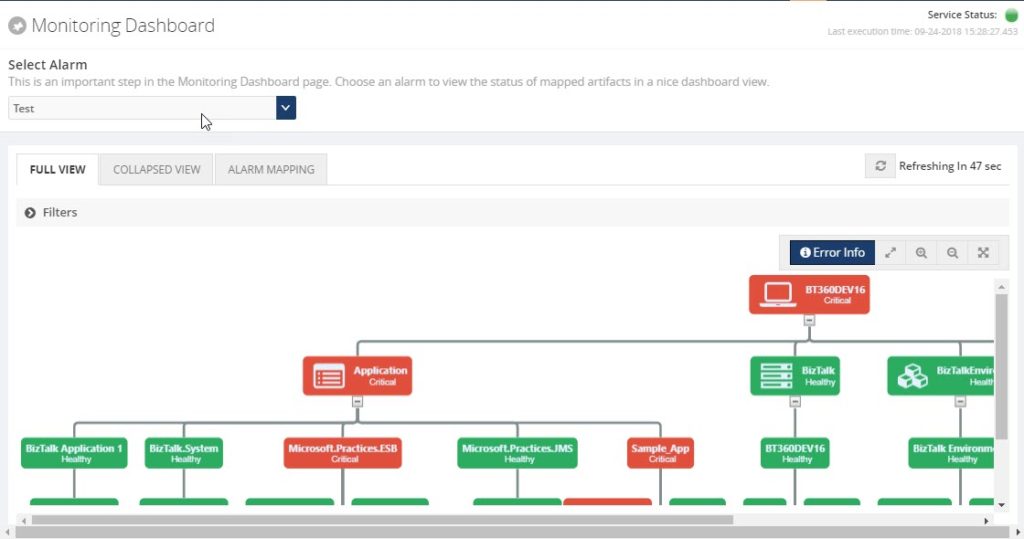
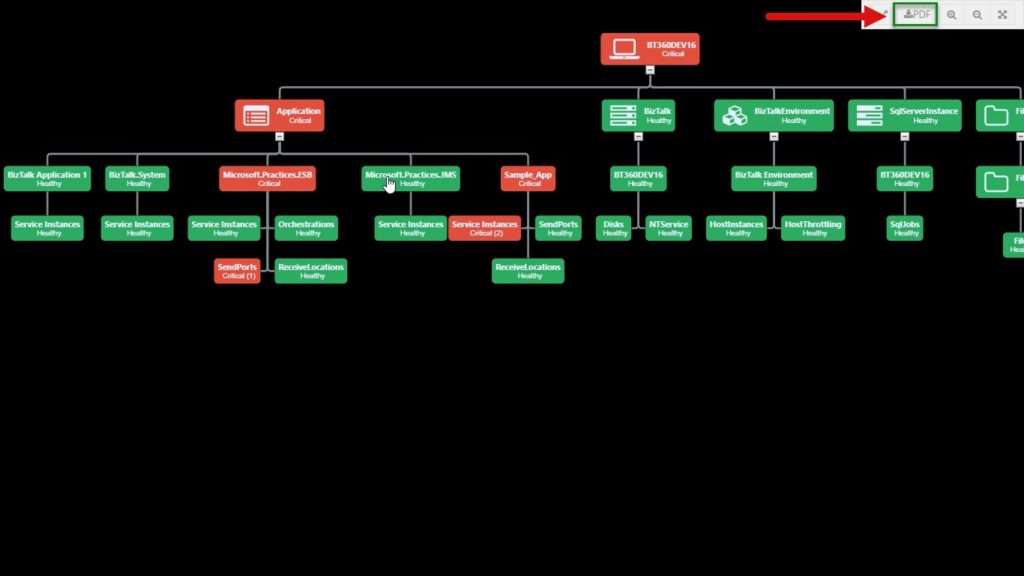
As seen in the messaging pattern, when you download the monitoring dashboard, the PDF will be saved with the alarm name which you were viewing.
Analytics Dashboard
Like the Operations Dashboard, in the Analytics Dashboard, at the top right corner, next to the Refresh button, the PDF download button will be available.
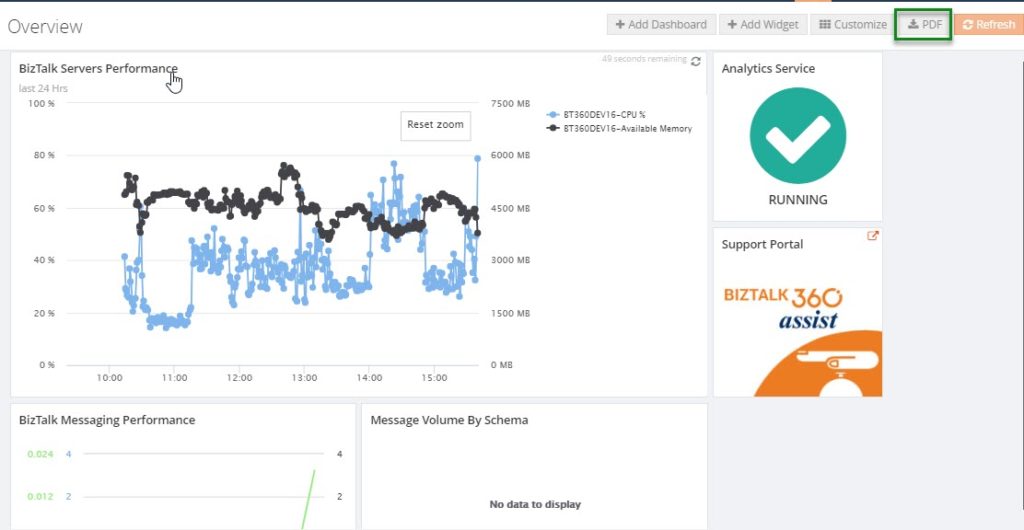
When you download the PDF, it will get downloaded with the name of the dashboard.
Restore System XSLT
We constantly improve the email templates based on the customer requests and we provide the templates directly to the customers. After that, we make the changes on the default email template in the very next release.
To make use of the newly improved email template in both default and custom email templates which are already created, until now people had to update their template(s) manually. While doing the manual changes, there may be a chance of misconfiguring the template. To avoid the manual changes, we brought this new capability “Restore System XSLT”, directly from the user interface.
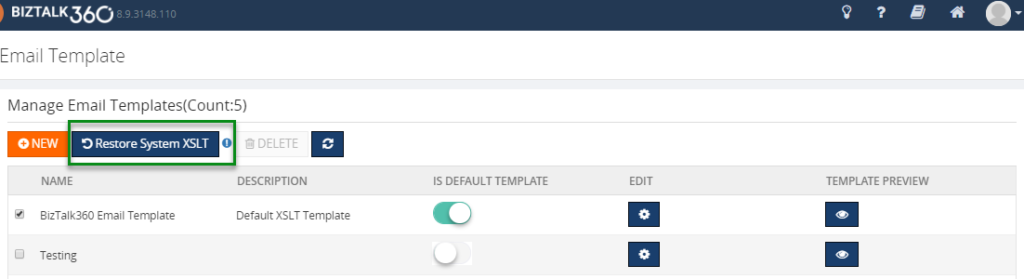
Monitor with Message Age
Another most requested capability is monitoring IBMMQ and Azure Service bus queues with message age.
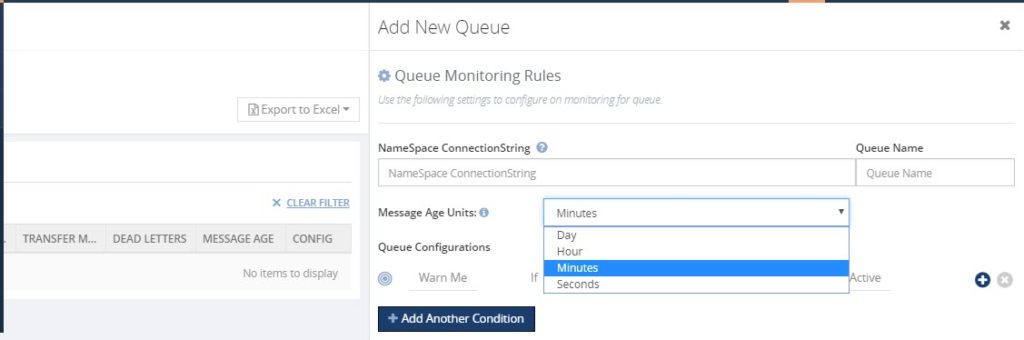
Message age is the time a message exists in a Queue. Using the message age parameter, you can monitor the queue messages along with the time messages exist in a queue.
In a real-time scenario, a message should be processed and send out, as the queues serve as first in first out. If it is not being processed and still pending in the queues over a particular period, you will get notified with the implementation of Message Age parameter.
We have implemented Message Age parameter as an additional monitoring filter option, in two places.
- Azure Service Bus queues
- IBM MQ
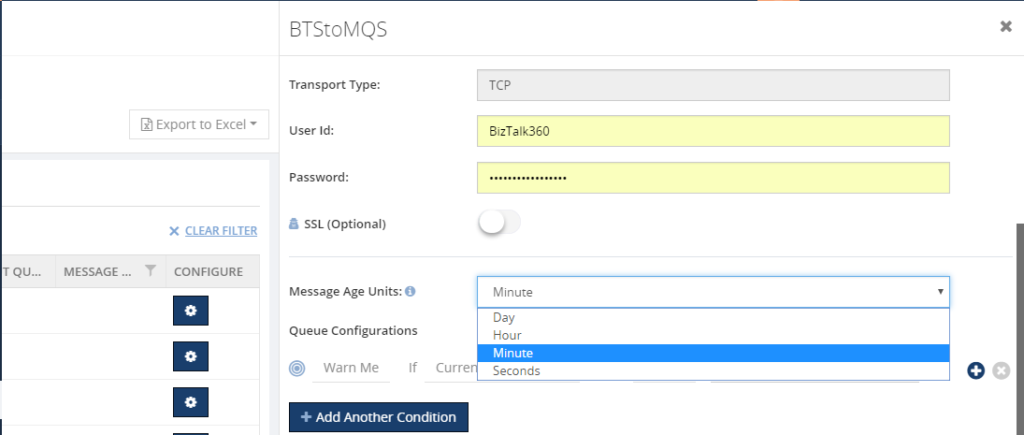
As of now, using the Message Age parameter, you can monitor the message age from few seconds to 24 hours Say, for example, if you want to monitor a queue using the message age parameter, you can monitor the queue messages along with the time of the message when it is created.
Performance Improvement
For the table “b360_BizTalkDB_Tbl_sizes”, every minute a stored procedure in BizTalk360 will clear a table of old records and insert new records.
One of our customers started facing problems, that due to high CPU usage because of that query is being executed every minute. Also, while deleting an entry, a full table scan is done, every time the query is executed. In an environment, this causes 2 seconds of CPU usage and half a million of I/O’s per query. Also, there were duplicate entries in the table for different regional settings.
The cleaning takes place on both the MessageBox and the Tracking database. It causes 4 statements per minute, like the one above, and it leads to high CPU usage.
We found that a table index is missing for the table b360_BizTalkDB_Tbl_sizes. So, we have created an index for the table and also tuned the query for making entries. This will help to reduce the CPU usage.
Conclusion
We always keep track of our Feedback Portal and take up the valid suggestions and feedback. Now, it is your turn to fill your business scenarios and features you are expecting to have in BizTalk360; please fill this questionnaire. Your valuable suggestions will help us to prioritize the next set of feature for upcoming releases.
Author: Sivaramakrishnan Arumugam
Sivaramakrishnan is our Support Engineer with quite a few certifications under his belt. He has been instrumental in handling the customer support area. He believes Travelling makes happy of anyone. View all posts by Sivaramakrishnan Arumugam

by Sandro Pereira | Sep 26, 2018 | BizTalk Community Blogs via Syndication
A few days ago, I publish the first version of the community project BizTalk Pipeline Components Extensions Utility Pack for BizTalk Server 2016. Today I please to announce that a new pipeline component was added to this project: Multi-Part Message Attachments Zipper Pipeline Component.
This was an old component that I had published in the past for BizTalk Server 2006/2006 R2/2009 and 2010 that I now updated and improved to BizTalk Server 2016 with the help with my internal team at DevScope, in special, Pedro Almeida.
What is BizTalk Pipeline Components Extensions Utility Pack?
BizTalk Pipeline Components Extensions Utility Pack is a set of custom pipeline components (libraries) with several custom pipeline components that can be used in received and sent pipelines, which will provide an extension of BizTalk out-of-the-box pipeline capabilities.

Multi-Part Message Attachments Zipper Pipeline Component
The BizTalk Multi-Part Message Attachments Zipper is a pipeline component for BizTalk Server which can be used in a send pipeline and is intended to replace all attachments of a multi-part message for its zipped equivalent.
The capabilities are similar to those available in compression software such as WinZip or 7-zip:
- Attachments Compression – Extracts, in a send pipeline, all message parts include in a multi-part message that is not included in the message body (Message Body Part = False), compresses it and attaches the compressed attachment back to the message.
- This component requires one configuration that is the FileExtension where you can specify if you want for example a .zip or .gz file.
No compression/decompression software needs to be installed in the BizTalk Server machines.
To use this pipeline component in your projects you just copy the “PipelineComponentMultipartMsgZipAttach.dll” file into “Pipeline Components“ folder that exists in BizTalk Server Installation directory: “..Program Files (x86)Microsoft BizTalk Server <version>Pipeline Components” on every server.
You do not need to add a custom pipeline component to be used by the BizTalk Runtime to the Global Assembly Cache (GAC).
The project is available on BizTalk Server Open Source Community repository on GitHub (https://github.com/BizTalkCommunity) and everyone can contribute with new pipeline components that can extend or improve the existing BizTalk Server capabilities.
At the moment it is only available for BizTalk Server 2016 but it will soon be compiled and available for previous versions of the product.
Where to download?
You can download BizTalk Pipeline Components Extensions Utility Pack from GitHub here:
BizTalk Pipeline Components Extensions Utility Pack
GitHub
Author: Sandro Pereira
Sandro Pereira lives in Portugal and works as a consultant at DevScope. In the past years, he has been working on implementing Integration scenarios both on-premises and cloud for various clients, each with different scenarios from a technical point of view, size, and criticality, using Microsoft Azure, Microsoft BizTalk Server and different technologies like AS2, EDI, RosettaNet, SAP, TIBCO etc. He is a regular blogger, international speaker, and technical reviewer of several BizTalk books all focused on Integration. He is also the author of the book “BizTalk Mapping Patterns & Best Practices”. He has been awarded MVP since 2011 for his contributions to the integration community. View all posts by Sandro Pereira
by Sandro Pereira | Sep 25, 2018 | BizTalk Community Blogs via Syndication
PIP name specified does not match the PIP specification, this is the last RosettaNet error that tries to make my life a little bit difficult.
Fortunately, to date, Microsoft documentation has significantly improved, moving to DOCS was a good approach and community members now have the availability to help to improve the product documentation. Nevertheless, there are still some topics that the existing the documentation is obsolete, scarce or simply non-existent. One of these topics is Microsoft BizTalk Accelerator for RosettaNet.
I was receiving this error on the PublicResponderProcess orchestration, for those who are not familiar with Microsoft BizTalk Accelerator for RosettaNet (BTARN), this is a default artifact developer by Microsoft that compose a BizTalk Solution that handles PIP messages:
- When a responder receives a request message, BTARN routes the request message from the public-process orchestration, to the private-process orchestration, to the line-of-business (LOB) program. The responder requires the response service content from the LOB program to generate a RosettaNet response message back to the initiator. Many of the elements in the response message are populated using the values from the request message. As a result, you can incorporate a map in the responder private-process orchestration to help the LOB program generate the response service-content message in the required format.
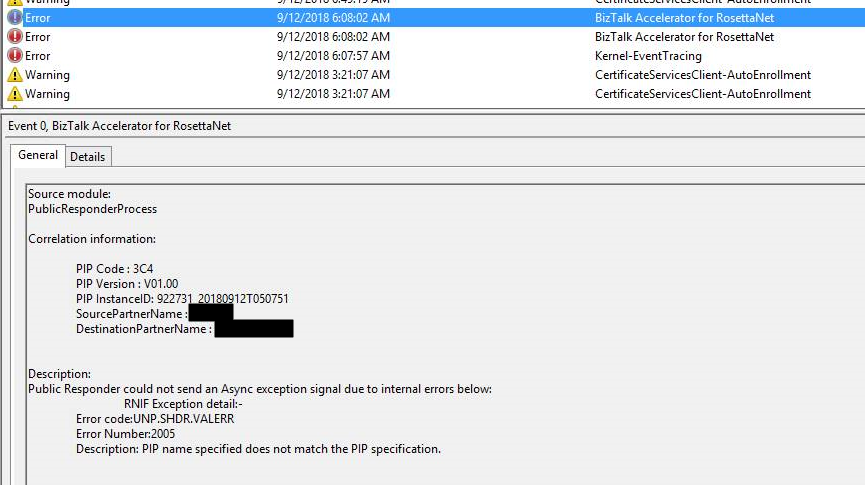
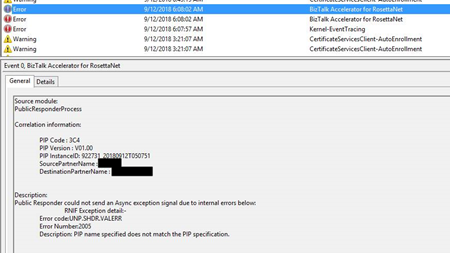
The difficult part is to “debug”/track these errors to understand what and why this is happening. The full error message in the event log was:
Source module:
PublicResponderProcess
Correlation information:
PIP Code : 3C4
PIP Version : V01.00
PIP InstanceID : 922731_20180912T050751
SourcePartnerName :
DestinationPartnerName:
Description:
Public Responder could not send an Async exception signal due to internal errors bellow:
RNIF Exception detail:-
Error code:UNP.SHDR.VALERR
Error Number:2005
Description: PIP name specified does not match the PIP specification.
Note: this same error can occur in previous or new versions of BizTalk Server.
Cause
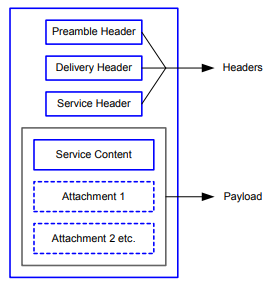
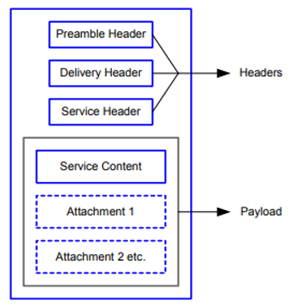
Again, it was difficult to understand all the internal behaviors developed by Microsoft for BTARN but basically, when you receive a PIP message you will end up receiving 4 parts:
- The Preamble:
- All RosettaNet messages must have a Preamble. It is specified with a DTD that is common across all messages.
- The Preamble section of the MIME message contains elements that are global to the RosettaNet service and others that are common to the Service Header and Service Content; for example, the message standard and version used in the message.
<Preamble xmlns="http://schemas.microsoft.com/biztalk/btarn/2004/Preamble_MS_V02_00.dtd">
    <standardName>
        <GlobalAdministeringAuthorityCode>
            RosettaNet
        </GlobalAdministeringAuthorityCode>
    </standardName>
    <standardVersion>
        <VersionIdentifier>
            V02.00
        </VersionIdentifier>
    </standardVersion>
</Preamble>
- The Delivery Header
- The delivery header is new in RNIF 2.0 and facilitates the routing of messages through hubs. It contains the following attributes:
- Elements for the sending and receiving of trading partner identities
- Message date and time stamp
- Globally unique tracking ID
<DeliveryHeader xmlns="http://schemas.microsoft.com/biztalk/btarn/2004/DeliveryHeader_MS_V02_00.dtd">
    <isSecureTransportRequired>
        <AffirmationIndicator>
            Yes
        </AffirmationIndicator>
    </isSecureTransportRequired>
    <messageDateTime>
        <DateTimeStamp>
            20180912T050743.000Z
        </DateTimeStamp>
    </messageDateTime>
    <messageReceiverIdentification>
        <PartnerIdentification>
            <GlobalBusinessIdentifier>
                xxxx
            </GlobalBusinessIdentifier>
        </PartnerIdentification>
    </messageReceiverIdentification>
    <messageSenderIdentification>
        <PartnerIdentification>
            <GlobalBusinessIdentifier>
                yyyyy
            </GlobalBusinessIdentifier>
        </PartnerIdentification>
    </messageSenderIdentification>
    <messageTrackingID>
        <InstanceIdentifier>
            922730_20180912T050744**00**
        </InstanceIdentifier>
    </messageTrackingID>
</DeliveryHeader>
-
- The Service Header is specified with a DTD that is common across all messages. A separate DTD and/or XML schema for each message validates the body of the messages.
- The Service Header helps identify the following items:
- The PIP
- The activity and the action to which the message belongs
- The PIP instance
- Information about the sender of the message
- Information about the recipient of the message
- The date and time at which the message was sent
- Whether the message is a Test message or a Production message
- Whether the sender is to be treated as an “unknown partner”
- The Service Header format is fixed and independent of the specifics of the message contained in the payload. However, the Service Content could change based on the variance in the business content.
<ServiceHeader xmlns="http://schemas.microsoft.com/biztalk/btarn/2004/ServiceHeader_MS_V02_00.dtd">
    <ProcessControl>
        <ActivityControl>
            <BusinessActivityIdentifier>
                Notify Of Invoice Reject
            </BusinessActivityIdentifier>
            <MessageControl>
                <fromRole>
                    <GlobalPartnerRoleClassificationCode>
                        Invoice Reject Provider
                    </GlobalPartnerRoleClassificationCode>
                </fromRole>
                <fromService>
                    <GlobalBusinessServiceCode>
                        Invoice Reject Provider Service
                    </GlobalBusinessServiceCode>
                </fromService>
                <Manifest>
                    <numberOfAttachments>
                        <CountableAmount>
                            0
                        </CountableAmount>
                    </numberOfAttachments>
                    <ServiceContentControl>
                        <ActionIdentity>
                            <GlobalBusinessActionCode>
                                Invoice Reject Notification Action
                            </GlobalBusinessActionCode>
                        </ActionIdentity>
                    </ServiceContentControl>
                </Manifest>
                <toRole>
                    <GlobalPartnerRoleClassificationCode>
                        Invoice Reject Receiver
                    </GlobalPartnerRoleClassificationCode>
                </toRole>
                <toService>
                    <GlobalBusinessServiceCode>
                        Invoice Reject Receiver Service
                    </GlobalBusinessServiceCode>
                </toService>
            </MessageControl>
        </ActivityControl>
        <GlobalUsageCode>
            Test
        </GlobalUsageCode>
        <pipCode>
            <GlobalProcessIndicatorCode>
                3C4
            </GlobalProcessIndicatorCode>
        </pipCode>
        <pipInstanceId>
            <InstanceIdentifier>
                922730_20180912T050744
            </InstanceIdentifier>
        </pipInstanceId>
        <pipVersion>
            <VersionIdentifier>
                V01.00
            </VersionIdentifier>
        </pipVersion>
        <KnownInitiatingPartner>
            <PartnerIdentification>
                <GlobalBusinessIdentifier>
                    XXXXXX
                </GlobalBusinessIdentifier>
            </PartnerIdentification>
        </KnownInitiatingPartner>
    </ProcessControl>
</ServiceHeader>
- And the Service Content
- Service Content is specified in individual PIPs. Each PIP has one or more business actions that are described by means of individual DTDs or schema.
- The payload part of a RosettaNet Business Message—that is, the actual business content—is a message in XML format.
For this problem, the things you need to know about the PublicResponderProcess orchestration is that:
- It will call a method “GetRuntimeConfig” on the “GetRNConfig” shape that will get the process/agreement configuration;
rnConfig = Microsoft.Solutions.BTARN.ConfigurationManager.RuntimeConfigGenerator.GetRuntimeConfig
  (destinationPartyID, sourcePartyID, pipCode, pipVersion,
    false, true
 );
- And it will call a method “IsActionMessageValid” on the “ValidateMessage” shape that will validate if the message received a match to any process/agreement active in the system
rnConfig.IsActionMessageValid( inRNIFMessage, out exceptionInfo );
-
- This last method calls an additional method call “ValidateActionServiceHeader”, here a piece of the code:
...
if (propertyValue != base.GetPIPConfigValue("PIP_Name"))
{
   str = str + StringResources.GetString(StringResourceIDNames.rtcV11InvalidPipName);
}
...
-
-
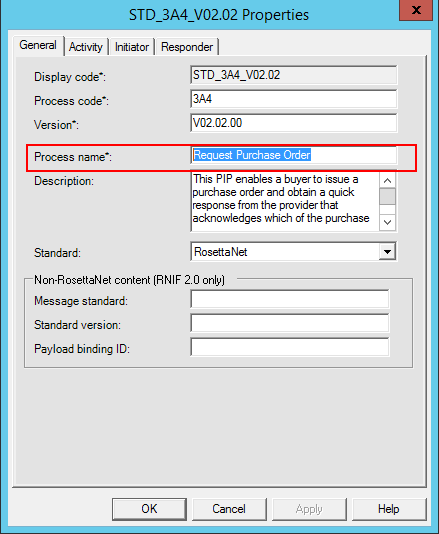
- “GetPIPConfigValue(“PIP_Name”)” comes from the RosettaNet process
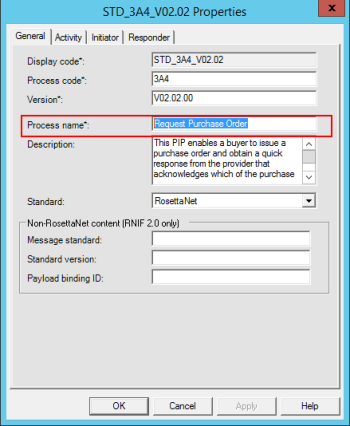
-
-
- The other comes from the Service Header message part in the BusinessActivityIdentifier element
- Both need to be equal – case sensitive!
My problem was that:
- the RosettaNet process name was: Notify of Invoice Reject
- and the Service Header was: Notify Of Invoice Reject
Solution
To solve this issue you must.
- Ensure that the process name is equal to the BusinessActivityIdentifier element in the Service Header message part
Author: Sandro Pereira
Sandro Pereira lives in Portugal and works as a consultant at DevScope. In the past years, he has been working on implementing Integration scenarios both on-premises and cloud for various clients, each with different scenarios from a technical point of view, size, and criticality, using Microsoft Azure, Microsoft BizTalk Server and different technologies like AS2, EDI, RosettaNet, SAP, TIBCO etc. He is a regular blogger, international speaker, and technical reviewer of several BizTalk books all focused on Integration. He is also the author of the book “BizTalk Mapping Patterns & Best Practices”. He has been awarded MVP since 2011 for his contributions to the integration community. View all posts by Sandro Pereira