by community-syndication | Sep 4, 2009 | BizTalk Community Blogs via Syndication
This is the sixth in a series of blog posts I’m doing on the upcoming VS 2010 and .NET 4 release.
Today’s post covers another useful improvement in VS 2010 – HTML/ASP.NET/JavaScript snippet support. Snippets allow you to be more productive within source view by allowing you to create chunks of code and markup that you can quickly apply and use in your application with a minimum of character typing.
Visual Studio has supported the concept of “snippets” for VB and C# in previous releases – but not for HTML, ASP.NET markup and JavaScript. With VS 2010 we now support snippets for these content types as well.
Using ASP.NET Snippets
Let’s walkthrough how we can use snippets to quickly implement a common security scenario. Specifically, we’ll implement the functionality necessary to display either a “[ Login ]” link or a “[ Welcome UserName ]” message at the the top right of a site depending on whether or not the user is logged in:
The above functionality is automatically added for you when you create a project using the new ASP.NET Project Starter Template in VS 2010. For the purpose of this walkthrough, though, we’ll assume we are starting with a blank master page and will build it entirely from scratch.
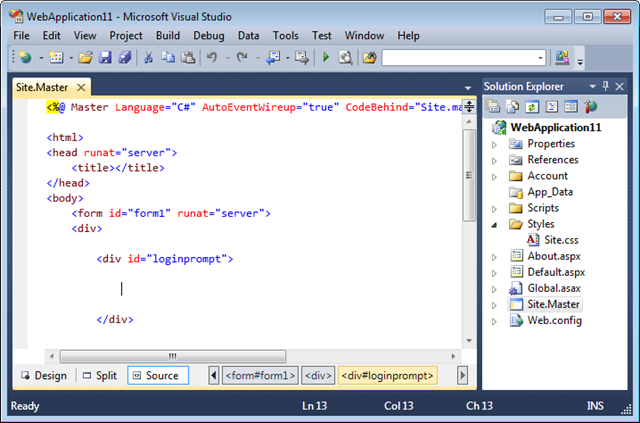
We’ll start by adding a standard <div> element to a master page, and then position our cursor within it:

We are going to use the built-in <asp:loginview> control to help implement our scenario. The <asp:loginview> control is a templated control (first introduced with ASP.NET 2.0) that allows us to easily switch between “Anonymous” and “LoggedIn” templates that automatically display depending on whether the user is authenticated. Rather than type the <asp:loginview> markup manually, we’ll instead use the new snippet support in VS 2010.
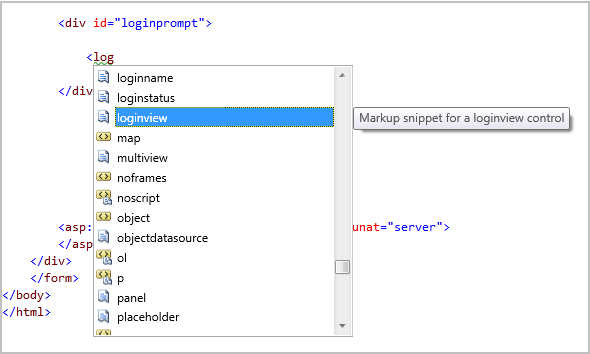
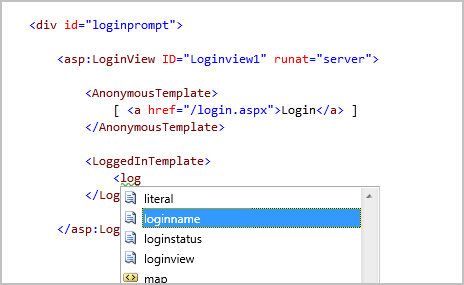
Typing in “<log” in the editor will bring up intellisense and display available elements, controls and code snippets that start with those characters.

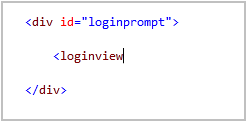
We’ll select the built-in “loginview” code snippet from the above list and hit the “tab” key to complete it:

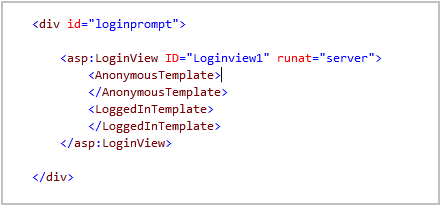
Now that we’ve selected the snippet we want to use, we can hit the “tab” key again to execute the snippet – which will cause it to immediately replace the snippet name with the markup below. Notice below the snippet added a new <asp:loginview> control for us and automatically defined the two most commonly used templates on it. We were able to implement that all with just 6 keystrokes (4 keystrokes to type “<log”, and then 2 tab keystrokes).

We’ll now implement the “AnonymousTemplate”.
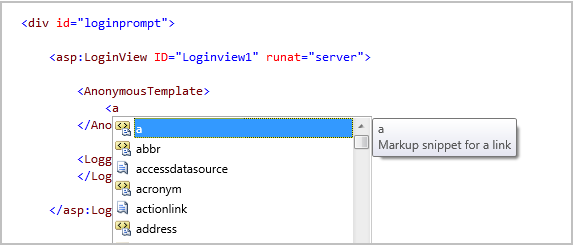
Typing in “<a” in the editor will being up intellisense and display available elements and code-snippets we can use:
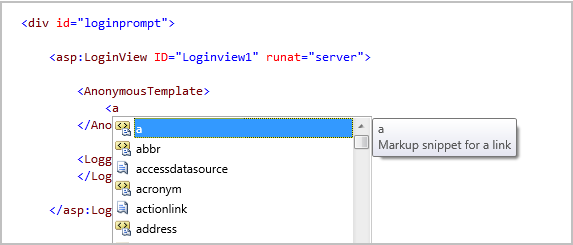
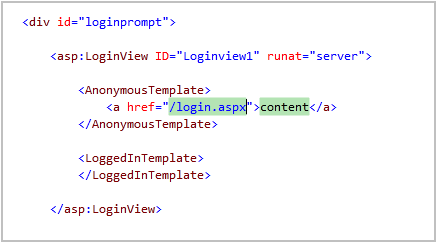
We’ll select the built-in “a” code snippet from the above list and hit the “tab” key to complete it. When we hit tab again it will execute the snippet – which will cause it to replace the snippet name with the markup below:

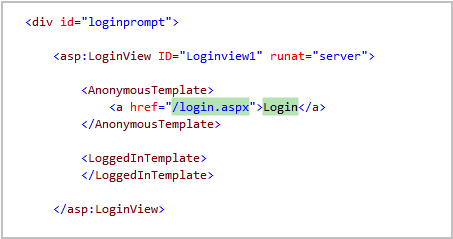
The “href” attribute attribute value and the inner content of the <a> element above are highlighted with a green background color. This indicates that these values are replaceable parameters and that we can automatically tab between them when filling them out – avoiding the need to use the cursor keys or touch the mouse (making things much faster).
Without having to move our cursor or mouse, we can begin typing the login page URL we want to send users to if they are not authenticated on the site:

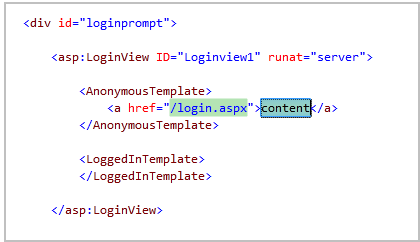
When done, we can hit the “tab” key and VS will automatically highlight the second content parameter in the editor for us (no manual cursor movement or mouse action required):

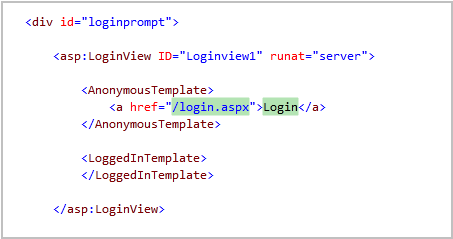
We can then type the text we want displayed (again without having to move the mouse or touch a cursor key):
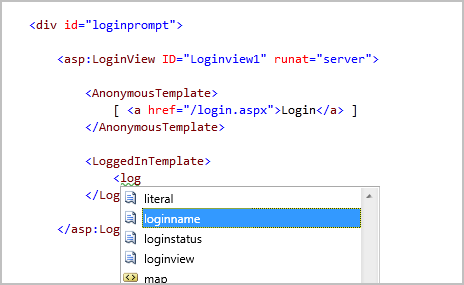
Once done with the “<AnonymousTemplate>” we can move onto the "<LoggedInTemplate>”. We’ll type “<log” in the editor to bring up intellisense – and select the built-in “loginname” snippet:
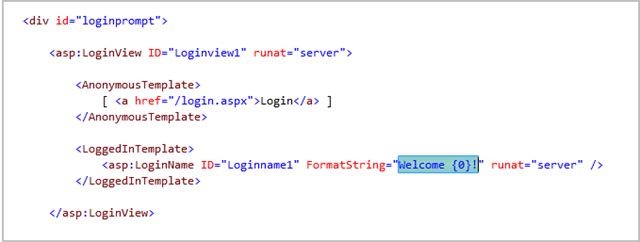
When we hit tab it will execute the snippet – which will cause it to replace the snippet with the markup below:

The “FormatString” property value above was automatically populated for us with a default welcome text message. The value is also automatically highlighted in case we want to change it (without having to move the mouse or cursor keys). For this sample we’ll just keep the default text.
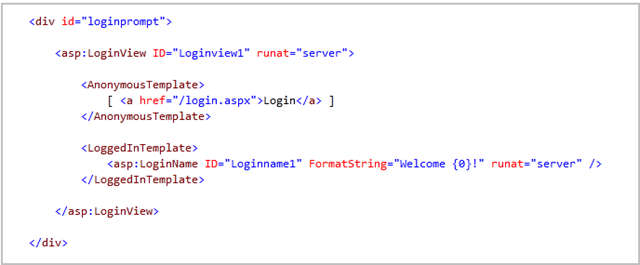
Our final markup then looks like below:

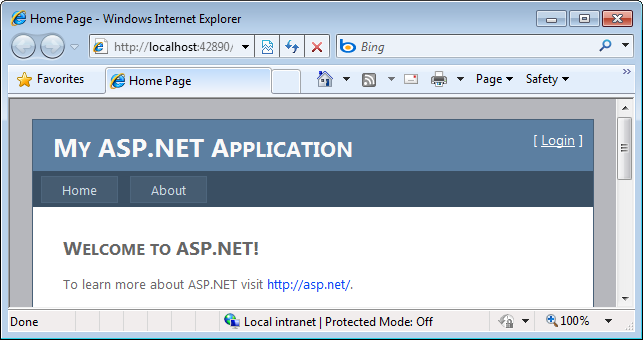
When we run our application the above markup will display a “[Login]” link when we aren’t authenticated:
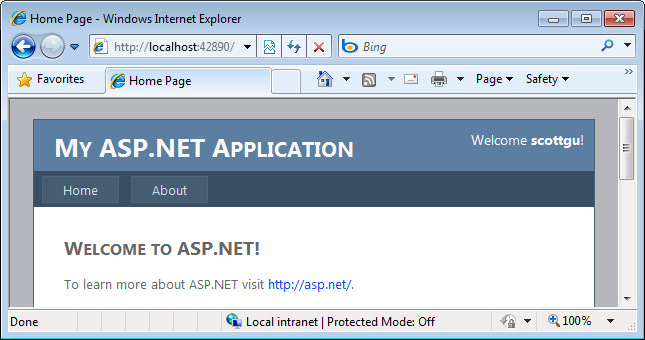
When we are logged in we’ll see a welcome string like below:
The total number of key strokes to implement this entire scenario is less than 15% of what we would previously have had to type. Typing fast, I found I could implement the entire scenario in less than 15 seconds 🙂
ASP.NET MVC Snippets
Built-in snippets are available for all ASP.NET controls and HTML markup elements.
Built-in snippets are also available for common ASP.NET MVC view scenarios, and for the built-in ASP.NET MVC HTML helpers.
For example, we can type “<act” within a ASP.NET MVC view and select the “actionlink” snippet:
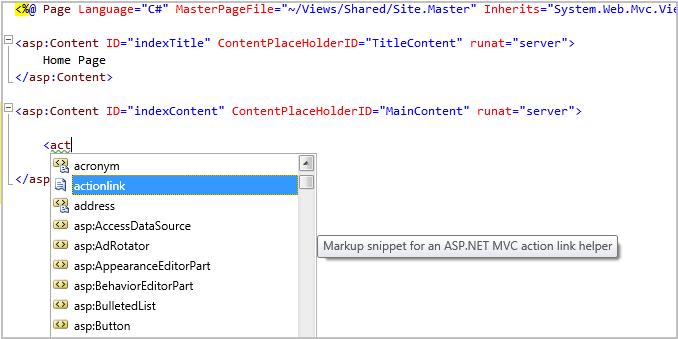
When we complete it and hit the “tab” key the snippet will execute – which will cause it to replace the snippet name with the markup below:
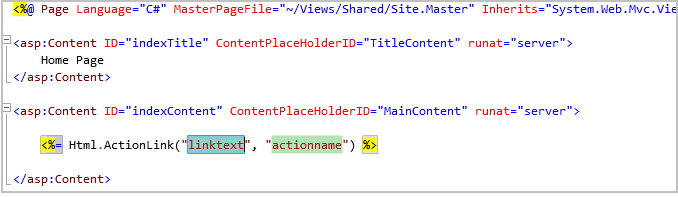
Notice that the “linktext” and “actionname” values are marked as snippet parameters – which means we can easily replace them without having to use the cursor keys or touch the mouse. The first linktext parameter value is selected by default – which means we can just type to immediately replace the value, then hit tab to immediately select and replace the second actionname parameter:

Custom Snippets
Visual Studio 2010 will include more than 200 built-in snippets that you can immediately use when you install the product.
What is really nice is that you are not limited to only using the built-in snippets. You can also easily create your own snippets (complete with replaceable parameters) and both import them into VS 2010, as well as easily share them with other developers. This makes it easy for you to quickly automate your own common tasks.
This article describes the snippet support that already exists in VS 2008, and provides a little more context on how to create and manage custom snippets.
Summary
Snippets are a useful feature that enable you to reduce keystrokes within the editor, and allow you to complete scenarios and tasks much faster. Having snippets now enabled in not just VB and C#, but also in HTML, ASP.NET and JavaScript files, makes this capability even more useful – and can make you even more productive.
Hope this helps,
Scott
P.S. In addition to blogging, I have been using Twitter more recently to-do quick posts and share links. You can follow me on Twitter at: http://www.twitter.com/scottgu (@scottgu is my twitter name)

by community-syndication | Sep 3, 2009 | BizTalk Community Blogs via Syndication
It’s been along time since I posted anything about BizTalk :) It really
wasn’t accidental, honestly it appeared for quite a while that the product known as
BizTalk was probably not going to survive at Microsoft. Turns out that
rumors of BizTalk’s demise where premature.
It appears that Microsoft is stewarding BizTalk quite nicely and I expect to see many
good things come down the pike.
One of my favorite (but not my most popular) tools for BizTalk was the Patter
Wizard (see my first post about it here).
I’ve just now updated it for BizTalk 2009 (which means Visual Studio 2008) – hopefully
people will continue to find it useful. If anyone has feedback on it I’d love
to hear it.
Download the new bits here:
http://patternwizard.codeplex.com/

Check out my new book on REST.
by community-syndication | Sep 3, 2009 | BizTalk Community Blogs via Syndication
This has happened now three times to me, and I just received an email from a friend about this.
When you install the HL7 accelerator on a 64bit machine, you need to create a 32bit host; as the HL7 DASM and ASM are 32bit only.
A hint as to what kind of host needs to be set up is found in the root drive:
To do this, you need to create a 32 bit host:
Create the Host Instance:
Create a new send and receive handler using the new 32 bit host that is just created:
Which ends up looking like this:
And now to change the actual receive or send port to use the 32 bit host instance
by community-syndication | Sep 3, 2009 | BizTalk Community Blogs via Syndication
Great to see some public information surfacing around SharePoint 2010 and development.
To get started (if you’re not already) here’s the SDK with a CHM file and PDF/XPS
on “how to customise the ribbon”.
http://www.microsoft.com/downloads/details.aspx?familyid=94AFE886-3B20-4BC9-9A0D-ACD8CD232C24&displaylang=en
Doing a little digging in the CHM file, you can see (below) all the different Content
categories with some special areas to note:
-
There appears to be a Visio Server – I guess like InfoPath + Excel Services as they
currently stand in 2007.
-
AJAX + JSON seem to make an appearance at the foundational core – yay! less page reloads.
-
WCF Services used (*.SVC) as expected and simplified. Also it appears that BDC systems
are accessible via a SharePoint custom WCF Binding, making it possible to work on
BDC based data from various applications within SharePoint. SharePoint might become
the hub ’repository’ for this sort of information.
Bear in mind *alot* of this information is ’subject’ to change.
Certainly going fwd it should be very exciting to see what actually ships and whether
some of the immediate constraints are dealt with.
Looks like we’re up for another Ribbon experience in this Version of SharePoint from
within the Browser.
by community-syndication | Sep 2, 2009 | BizTalk Community Blogs via Syndication
To summarize what they are using to migrate gigabytes of data is:
- 5 hours before the actual move, they make a full backup of their data in the database (SQL Server 2000)
- They use RoboCopy in triplicate to move the more than 20gb of data from one server to another
- They restore the data
- They do a differential of the last few hours of data
The entire process takes about two hours to fully migrate. The reason why they have allocated an additional 3 hours is so that if there is any problems during the migration, they have enough time to analyze the data and run a complete migration again.
Some of the things that they are looking at and testing is Virtualization using Hyper-V or VMWare to break their dependence on hardware.