by community-syndication | Aug 23, 2006 | BizTalk Community Blogs via Syndication
Explanation
The execution mode value defined for some stage in the policy file is None.
The value None is not available for execution mode, the available values are FirstMatch or All only.
User Action
All pipeline templates have an associated policy file that determines pipeline’s stages,
the number of components allowed per stage, and the execution mode of each stage,
among others. To specify that one stage can not execute components, use minimum and
maximum occurs instead of execution mode.
To resolve this problem is necessary to edit the pipeline’s policy file. The file
name can be found in pipeline’s properties windows in Visual Studio 2005 (see figure
below), this policy file is stored in <Biztalk Server Installation Directory>\Developer
Tools\Pipeline Policy Files directory.
After the file is opened, you must change the value for execution mode in policy file
to All or FirstMatch.
Changing the execution mode value
The execution mode is represented in the policy file by the execMethod attribute;
it is in the node /Document/Stages/Stage. Open the pipeline’s policy file and
identify where this attribute is with value equals to None and replace it by All or FirstMatch as
we shown:
Before:
<?xml version="1.0" encoding="utf-8"?>
<Document xmlns:xsd="" xmlns:xsi="" CategoryId="" FriendlyName="">
<Stages> <Stage Name="Decode" minOccurs="0" maxOccurs="-1" execMethod="None"></Stage>
</Stages> </Document>
After:
<?xml version="1.0" encoding="utf-8"?>
<Document xmlns:xsd="" xmlns:xsi="" CategoryId="" FriendlyName="">
<Stages> <Stage Name="Decode" minOccurs="0" maxOccurs="-1" execMethod="All"></Stage>
</Stages> </Document>
At last, close and open the pipeline file in Visual Studio 2005 to see these changes
replicated. The following is the explanation step by step.
One way, but not the right way
If you want that one stage can not execute any component, you must setting the
minimum and maximum occurs to 0 for the specific stage or simply delete it from the
policy file.
CAUTION: if you change any of the following
values, the next pipelines files that you create based on the current policy files
will be affected.
Delete the stage tag
Identify the specific tag, and delete the complete <Stage /> tag from the policy
file.
Setting the minOccurs and maxOccurs to 0
Identify the specific stage and set new values for the minOccurs and maxOccurs attributes
to 0:
Before:
<?xml version="1.0" encoding="utf-8"?>
<Document xmlns:xsd="" xmlns:xsi="" CategoryId="" FriendlyName="">
<Stages> <Stage Name="Decode" minOccurs="0" maxOccurs="-1" execMethod="All"></Stage>
</Stages> </Document>
After:
<?xml version="1.0" encoding="utf-8"?>
<Document xmlns:xsd="" xmlns:xsi="" CategoryId="" FriendlyName="">
<Stages> <Stage Name="Decode" minOccurs="0" maxOccurs="0" execMethod="All"></Stage>
</Stages> </Document>
ps. this post was published using Windows
Live Writer Beta.
by community-syndication | Aug 23, 2006 | BizTalk Community Blogs via Syndication
The limitation doesn’t apply to distiguished fields.
Thanks to another blogger, I didn’t waste a lot of time on this, and as he points out, it’s documented. Still, it’s one of those things that can trip you up. The error you get is:
There was a failure executing the receive pipeline: “Microsoft.Biztalk.DefaultPipelines.XMLReceive”. Source: “XML Disassembler” Receive Location: “C:\ReceiveLocation” The property ‘propertyname’ has a value with length greater than 256 characters
According to the help,
ms-help://BTS_2004/SDK/htm/ebiz_sdk_editor_props_simn.htm
If you try to assign a string >256 characters in the midst of an orchestration, you get this, instead:
Uncaught exception terminated service Project.Orchestration(GUID1), instance GUID2
The value assigned to property ‘http://namespace:propertyname’ is not valid: ‘longstring‘.
Exception type: InvalidPropertyValueException
Source: Microsoft.XLANGs.BizTalk.Engine
Target Site: Microsoft.BizTalk.Agent.Interop.IBTMessage PrepareMessage(Microsoft.XLANGs.BaseTypes.XLANGMessage, System.Collections.IList, System.Collections.IList)
Help Link:
Additional error information:
The property ‘propertyname’ has a value with length greater than 256 characters.
Exception type: COMException
Source:
Target Site: Void Promote(System.String, System.String, System.Object)
by community-syndication | Aug 23, 2006 | BizTalk Community Blogs via Syndication
MessageBox_DeadProcesses_Cleanup_BizTalkMsgBoxDb
Detects when a BizTalk Server host instance (BTSNTSvc.exe) has stopped responding. The job then releases the work from the host instance so a different host instance can finish the tasks.
MessageBox_Message_Cleanup_BizTalkMsgBoxDb
Removes all messages that are not referenced by any subscribers in the BizTalk MessageBox (BizTalkMsgBoxDb) database tables.
MessageBox_Parts_Cleanup_BizTalkMsgBoxDb
Removes all message parts that are no longer referenced by a message in the BizTalkMsgBoxDb database tables. All messages are composed of one or more message parts that contain the message data.
PurgeSubscriptionsJob_BizTalkMsgBoxDb
Purges unused subscription predicates from the BizTalkMsgBoxDb database.
TrackedMessages_Copy_BizTalkMsgBoxDb
Copies the message bodies of tracked messages from the BizTalkMsgBoxDb database to the Tracking (BizTalkDTADb) database.
TrackingSpool_Cleanup_BizTalkMsgBoxDb
Purges inactive tracking spool tables to free database space.

by community-syndication | Aug 23, 2006 | BizTalk Community Blogs via Syndication
I had to do this today in .NET 2.0. (Visual Studio 2005) Found an example on David Hayden’s blog:
Configuration config = ConfigurationManager.
   OpenExeConfiguration(ConfigurationUserLevel.None);

ConfigurationSection section =
    config.GetSection(“connectionStrings“);

if (section != null)

{

    if (!section.IsReadOnly())

    {

        section.SectionInformation.ProtectSection
             (“RsaProtectedConfigurationProvider“);

        section.SectionInformation.ForceSave = true;

        config.Save(ConfigurationSaveMode.Full);

    }

}

by community-syndication | Aug 23, 2006 | BizTalk Community Blogs via Syndication
Recently I ran into an issue with the SOAP adapter giving me the error ‘Failed to Serialize the Message Part ‘Foo” ever so often. If I sent 20k messages through I was maybe getting about 100 messages suspended for this error. Now I spend about an hour looking at the messages that failed and I realized the problem really had ‘nothing’ to do with BizTalk and it was a serialization issue. I basically took the messages that failed and attempted to de-serialize them using a utility in .NET which is what the SOAP adapter is doing once the message is sent there. Needless to say I was getting the same message but this time I could see what field was causing the issue. It was a datetime type and it was blank.
So if your receiving this message please try to de-serialize the into a .NET type and see if you’re getting the same error. There is something either missing or wrong about the data in your message. I just wish that the error message returning from BizTalk was a little more helpful here, like explaining what field is having the problem. Unfortunately I think that’s a .NET issue and not a BizTalk one.
by community-syndication | Aug 22, 2006 | BizTalk Community Blogs via Syndication
The following white paper gives you a high level overview of Business Rule Engine (BRE):
http://www.microsoft.com/technet/prodtechnol/biztalk/biztalk2004/planning/business-rules-framework-overview.mspx
by community-syndication | Aug 22, 2006 | BizTalk Community Blogs via Syndication
After running across this topic several times (and in several different places) over the past few weeks, I thought it would be worth writing up a quick blurb about it. This topic I’ve run into revolves around the parallel shape in BizTalk orchestrations and whether or not it actually provides you with parallel processing.
The answer is NO!
It’s a common (and understandable) misconception that the parallel shape in BizTalk orchestrations is there to allow you to setup and run concurrent processes. After all, one would think that that if we have a parallel shape, then we’d be able to setup parallel processing. I’ve seen several clients and partners try and use this shape to increase performance by processing large messages using parallel activities. This is NOT what the shape is intended for as it does not result in your activities being performed in parallel. Activities that you put in parallel branches will still execute one at a time, however they will not have to execute in any specific order. I.e. a process involving steps A, B, C could execute as BCA or CAB or ABC.
Now it is understandable if this seems odd. It would seem obvious that a parallel shape should result in parallel processing. The trick here is to understand that what the parallel shape is referring to is a parallel activity in a business process and not a parallel activity in your computer program. The parallel shape isn’t designed to instruct the system to run multiple threads, it is designed to allow multiple business activities to occur independently of each other without one having to wait for the other to complete.
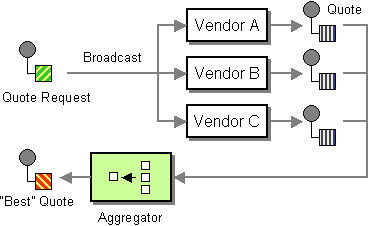
A great example of this would be something like an online insurance quotation website. This site would likely want to use BizTalk to implement a scatter-gather pattern. Following this pattern, our online web application would submit a single message to BizTalk. This message would contain all of the information required to generate a quote for our end user. A BTS orchestration would be required to broadcast this message out to multiple external insurance companies and then wait for a message to come back from each one. (Example shown below).
(Note: I’ve borrowed this picture from www.enterpriseintegrationpatterns.com a great site)
Now because our orchestration will be waiting for external systems to respond, we won’t have any control over the order in which each of these vendors will respond. You wouldn’t want to create an orchestration that laid our your three receive shapes in sequence. Instead we’ll use a parallel shape and put each of our receive functions in a separate branch. This will allow the orchestration to receive the return messages in whatever order they occur. We will still be receiving the messages one at a time, but we will be able to receive them in any order.
So keep this example in mind when using the parallel shape. You can’t think of it as a low level instruction to BizTalk to launch two processing threads. You need to be thinking at a higher level in the processes stack and remember that the parallel shape is referring to the activities happening with the business process.
It is an important concept to understand as it can have performance impacts. In my next post, I’ll look at a scenario where improperly using the parallel shape will actual decrease your performance instead of increasing it!
Cheers and keep on BizTalk.
Peter
by community-syndication | Aug 22, 2006 | BizTalk Community Blogs via Syndication
New Page 1
I was writing a
custom tracking service for the Windows Workflow engine for my client that will
be used to track the rules that fired. One of the things that I wanted to do
was to track the values of the properties that my rules would touch. I would
then create an xml document which would be stored in a row in my tracking
database.
The challenge
was to find a way to get the internal tracking functionality to grab these
property values. In addition, I only wanted the properties that I was
interested in and not every property on the class. I found that the tracking
infrastructure provides this functionality in the WorkFlowDataExtract class.
I did a search
using my favorite search engine to see if there was anything documented on this
subject. I was surprised at the lack of information on this functionality.
There was one post on the WF
Forums, which is a great resource and I highly recommend looking at these
posts for information, but, unfortunately, it didn’t expand on this class.
Therefore, this seemed like the perfect opportunity for a blog entry.
First,
lets look at what the class does. There are actually two classes that provide
TrackingExtract functionality. They are the WorkflowDataTrackingExtract
class and the ActivityDataTrackingExtract class. These classes take the
name of a property or field that should be extracted from the root activity of
the workflow and sent to the tracking service when a tracking point is matched.
The difference
between these two classes is that the ActivityDataTrackingExtract class is bound
directly to a specific activity whereas the WorkflowDataTrackingExtract can be
assigned anywhere across the workflow. Remember though that these classes are
‘bound’ to the tracking point and can be used in either the Extracts properties
of either the UserTrackPoint or ActivityTrackPoint classes.
The data that is
extracted is placed in either the ActivityTrackingRecord or the
UserTrackingRecord.
Use the Member
method to specify the field or property to extract. You can also associate
additional information with the extracted data by using the Annotations
functionality.
So, I wanted to
accept a list of properties that were important to the workflow developer, in
this case I used the List<string> generic type, which was passed in when
instantiating the RulesTrackingService. This list gets created in the
program.cs file in the Main method as listed in the following code:
static
void
Main()
{
WorkflowRuntime workflowRuntime =
new
WorkflowRuntime();
string connectionString =
"Initial Catalog=TrackingStore;Data Source=localhost; Integrated Security=SSPI;";
List<string>
trackedProperties = new
List<string>();
trackedProperties.Add("orderValue");
trackedProperties.Add("discount");
workflowRuntime.AddService(new
RulesTrackingService(connectionString,trackedProperties));
……………
}
Once the
RulesTrackingService gets instantiated there are two interesting pieces of code.
The first is the GetTrackingChannel method. This returns a
RuleTrackingChannel object (which inherited TrackingChannel) which is where you
will provide the code to operate on the tracking data. In my case, I took
the object data and serialized it into XML so that I could place it in a row in
the database. The second is the the GetProfile method. Within this method,
I have a foreach loop where I cycle through the List<> and for each entry I
create a new WorkflowDataTrackingExtract object passing the property on the
constructor and then add the extract object to the userTrackPoint.Extracts
collection as shown in the code below.
public
class
RulesTrackingService : TrackingService
{
………..
………..
public RulesTrackingService(string
connectionString, List<string>
TrackedProperties)
{
this._connectionString
= connectionString;
trackedProperties = TrackedProperties;
}
protected
override
TrackingChannel GetTrackingChannel(TrackingParameters parameters)
{
if (trackedProperties !=
null)
{
return
new
RuleTrackingChannel(parameters,
this._connectionString,
trackedProperties);
}
else
{
return
new
RuleTrackingChannel(parameters,
this._connectionString);
}
}
private
static TrackingProfile GetProfile()
{
TrackingProfile profile = new
TrackingProfile();
profile.Version = new
Version("1.0.0");
UserTrackPoint userTrackPoint =
new UserTrackPoint();
UserTrackingLocation userLocation =
new
UserTrackingLocation();
……….
……….
userTrackPoint.MatchingLocations.Add(userLocation);
foreach (string trackedProp
in trackedProperties)
{
WorkflowDataTrackingExtract wkflowExtract =
new
WorkflowDataTrackingExtract(trackedProp);
userTrackPoint.Extracts.Add(wkflowExtract);
}
profile.UserTrackPoints.Add(userTrackPoint);
return profile;
}
}
The data that is
returned from the tracking point for each of the tracked properties represents
the data before the rule runs. This was great for the ‘before’ snapshot
but I also needed to see the ‘after’ snapshot. For this functionality, I
added a Code activity onto my workflow after the Policy activity. In this
activity I pass the object (in this case it is crr) that the rules operate on to
the TrackData property which creates a UserTrackingRecord as shown in the code
below.
private
void
codeActivity1_ExecuteCode(object
sender, EventArgs e)
{
this.TrackData("WholeObject",
crr);
}
Earlier I talked
about the TrackingChannel functionality. In this class I check to see if
the tracking object is my custom type or if it is a base UserTrackingRecord
(which is what the .TrackData creates). If it is the UserTrackingRecord I
again serialize and place this in a different table in my database. I
place it in a different table since there will be one of these for each policy
whereas there will be many records for the rules tracking records. I place
keys on the tables so that they can be related and selected at a later time to
actually investigate what occurred in the rules processing.
I now have a
tracking service that tracks each rule that fires, including the before
shapshot, as well an entry for the data after all of the rules have fired on the
object.
by community-syndication | Aug 22, 2006 | BizTalk Community Blogs via Syndication
One question I have been asked often is how to only produce one acknowledgement from within BizTalk. This is a common requirement of many HL7 applications, only to recieve one ACK. If there is an error, you want the pipeline component to create the NAK and then send back the NAK, otherwise, you want to […]
by community-syndication | Aug 22, 2006 | BizTalk Community Blogs via Syndication
When using XML as your Fact and your Schema resides on a local drive, you may run into problems when moving between environments (Dev, Stage, Prod) as the BRE may have difficulty locating these schemas unless you:
- Deploy schema at the same file location on all environments.
- Deploy schema at a shared file location on all environments.
- Publish the schema on a web server reachable from BizTalk (i.e. http://schema.bigco.com/project_abc.xsd)
If you choose option #2, or #3, there may be further complication with once you have more than one version of schema.
To overcome that, method #3 should be used and you can trick the computer by modifying the hosts file on each of the environment to match the different servers.
dev : dev_schema.bigco.com
stage: stage_schema.bigco.com
qa: qa_schema.bigco.com
uat: uat_schema.bigco.com
prod: schema.bigco.com
