I am always paying attention to requests from members of the community, and whenever I can, I update this stencil pack with requested shapes or functionalities. And this is one of these cases. One of the most common complaints about this stencil pack was/is text annotations. When you try to add a legend on the stencil, the text is in the middle of the icon, instead of underneath. And sometimes the text is white, which doesn’t help also.
Another recent aspect that came to my attention was the fact that was missing proper connector points, which make it hard to properly connect shapes in a diagram.
Of course, all of these you can manually fix by move the text to the bottom of each shape, change the color of the text and add connector points. But some of these tasks required a more deep knowledge of working with Visio and they are time-consuming. Luckily this work is being made, it may take a while since this package has more than 2000 shapes!
What’s new in this version?
Today I can announce that the first phase is done and the first file, and probably the most important, of this package is fixed:
Microsoft Azure (MIS Azure Stencils.vssx): This package contains stencils of Azure Services (original icons) that are available thru the Azure Portal.
The main goal of this release was to solve or improve the user experience regarding text annotations and connector points. In this version, the changes and additions are:
Text annotationsissue solved: This issue was solved on the stencils present on the Microsoft Azure (MIS Azure Stencils.vssx) file;
Proper connector points added: This improved feature was added on stencils present on the Microsoft Azure (MIS Azure Stencils.vssx) file;
Fixed some minor stencils layouts;
New shapes: New shapes added on Microsoft Azure (MIS Azure Stencils.vssx) and Microsoft Azure: Others (MIS Azure Others Stencils.vssx);
Microsoft Integration, Azure, Power Platform, Office 365 and much more Stencils Pack
Microsoft Integration, Azure, Power Platform, Office 365 and much more Stencils Pack it’s a Visio package that contains fully resizable Visio shapes (symbols/icons) that will help you to visually represent On-premise, Cloud or Hybrid Integration and Enterprise architectures scenarios (BizTalk Server, API Management, Logic Apps, Service Bus, Event Hub…), solutions diagrams and features or systems that use Microsoft Azure and related cloud and on-premises technologies in Visio 2016/2013:
BizTalk Server
Microsoft Azure
Integration
Integration Service Environments (ISE)
Logic Apps and Azure App Service in general (API Apps, Web Apps, and Mobile Apps)
Azure API Management
Messaging: Event Hubs, Event Grid, Service Bus, …
Azure IoT and Docker
AI, Machine Learning, Stream Analytics, Data Factory, Data Pipelines
SQL Server, DocumentDB, CosmosDB, MySQL, …
and so on
Microsoft Power Platform
Microsoft Flow
PowerApps
Power BI
Office365, SharePoint,…
DevOps and PowerShell
Security and Governance
And much more…
… and now non-related Microsoft technologies like:
SAP Stencils
The Microsoft Integration Stencils Pack is composed of 27 files:
Microsoft Integration Stencils
MIS Additional or Support Stencils
MIS AI and Machine Learning Stencils
MIS Apps and Systems Logo Stencils
MIS Azure Additional or Support Stencils
MIS Azure Mono Color
MIS Azure Old Versions
MIS Azure Others Stencils
MIS Azure Stencils
MIS Buildings Stencils
MIS Databases and Analytics Stencils
MIS Deprecated Stencils
MIS Developer Stencils
MIS Devices Stencils
MIS Files Stencils
MIS Generic Stencils
MIS Infrastructure Stencils
MIS Integration Fun
MIS Integration Patterns Stencils
MIS IoT Devices Stencils
MIS Office365
MIS Power BI Stencils
MIS PowerApps and Flows Stencils
MIS SAP Stencils
MIS Security and Governance
MIS Servers (HEX) Stencils
MIS Users and Roles Stencils
That you can use and resize without losing quality, in particular, the new shapes.
And the most expected email arrived once again on 1st July, thank you Microsoft for this amazing award. Once again, I’m delighted to share that I was renewed as a Microsoft Azure MVP (Microsoft Most Valuable Professional). This is my 10th straight year on the MVP Program, an amazing journey, and experience that started in 2011 as BizTalk MVP, which gave me the opportunity, and still does, to travel the world for speaking engagement, share the knowledge, and to meet the most amazing and skilled people in our industry.
I would like to thank the MVP Team, my MVP Lead Cristina Herrero, all my fellow MVPs, my beautiful family, my coworkers at DevScope, and in special all my blog readers, friends, members of Microsoft Enterprise Integration Community for their support during these years.
It’s a big honor to be in the program and be one of this amazing worldwide group of technicians and community leaders who actively share their high quality and real-world expertise with other users and Microsoft. I’m looking forward to another great year!
A few months ago, my dear friend Wagner Silveira asked me if I was interested in giving a talk at the Auckland Connected Systems User Group since they were planning to start doing online events in the user group because of COVID-19 and they were planning to invited speakers from overseas, since now this was an online event, and that one of the first names that were dropped was mine.
I usually never say no to these invites, I love doing talks about topics I care and love, especially doing it locally in person, but in this case, and the way the invite was made, I couldn’t refuse… but be aware I still plan to visit New Zealand in the future!
Nevertheless, it will be a challenge. I need to be awake at 6 AM to deliver this session! I can’t say that this will be the first time I will deliver a session with a coffee cup in the hand because I still remember the first time I went to Norway, in the old days of the BizTalk Crew, and because of a problem in Oslo airport, my flight was forced to land in Sweden. So, I had to travel all night without sleeping to be in Stavanger at 9 AM to know that the schedule was changed, and I was delivering the first session! Since that day, I question myself if Tord Nordahl is my friend.
Logic Apps: Best practices, tips and tricks
I would like you to invite you to join us at the Auckland Connected Systems User Group meeting that will happen on June 30, 2020. This will be the first time I will be delivering a session in the user group but I hope it will be the first of many.
Abstract: Logic Apps: Best practices, tips and tricks
Azure Logic Apps helps you build powerful integration solutions by automating your workflows without writing a single line of code. In this session, I will be highlighting 10 tips you should know for being more productive and building more reliable, effective Logic Apps. We will also do a reflection to your existing Logic Apps processes and will go through a list of must-have best practices, tips, and tricks that will allow you to build more reliable and effective workflows. At the same time, these will allow you to be more productive and document your workflows from the beginning
It was with great pleasure that I presented, last May, 25 another session in the Integration Monday series this time about Logic Apps: Best practices, Tips, and Tricks, this was my eleventh talk in this community in 4 years of existence. I can say that I am one of the most regular speakers at the Integration User Group only behind Michael Stephenson that has 13 talks.
Logic Apps: Best practices, tips, and tricks
Azure Logic Apps helps you build powerful integration solutions by automating your workflows without writing a single line of code. In this session, I will be highlighting 10 tips you should know for being more productive and building more reliable, effective Logic Apps. We will also do a reflection to your existing Logic Apps processes and will go through a list of must-have best practices, tips, and tricks that will allow you to build more reliable and effective workflows. At the same time, these will allow you to be more productive and document your workflows from the beginning.
I hope you enjoy and find it an interesting session. Also, I advise you to visit and view the history of sessions that have taken place every Monday in the Integration User Group – Integration Monday series.
My other talks at Integration Monday – Integration User Group
Due to the world COVID-19 pandemic, last Saturday, April 25, was held the first Virtual Global Azure Bootcamp, an event that normally happens in several cities across the world in simultaneous. The restrictions we are facing dictated that this year the format would have to be different. If, on one hand, the social aspect of the event was missing, on the other hand, it opened the door to a wider universe of people to be able to attend. Nevertheless, for me, this event was an amazing success and it was a great pleasure to be once again presenting on this event that I have a special affection for.
I think I’ve been present since the first edition of this event.
Today I’m happy to share with you the slides and the video of the session.
Logic Apps: Best practices, tips, and tricks
10 tips you should know for being more productive and building more reliable, effective Logic Apps. In this session, we will do a reflection to your existing Logic Apps processes and when thru a list of must-have best practices, tips, and tricks that will allow you to build more reliable and effective workflows. At the same time, these will allow you to be more productive and document your workflows from the beginning.
Due to the world pandemic that we are facing this year, the Global Azure Bootcamp which is usually done in several cities at the same time will be for the first time an online event. And I would like you to invite to join us on the Virtual Global Azure Lisbon that will happen next Saturday – 25th April.
Logic Apps: Best practices, tips, and tricks
I’m thrilled to present once again on this fantastic event! In 2015 I spoke for the first time about Logic Apps, this year I return to the same topic in a session about Logic Apps: Best practices, tips, and tricks!
Abstract: Logic Apps: Best practices, tips, and tricks
10 tips you should know for being more productive and building more reliable, effective Logic Apps. In this session, we will do a reflection to your existing Logic Apps processes and when thru a list of must-have best practices, tips, and tricks that will allow you to build more reliable and effective workflows. At the same time, these will allow you to be more productive and document your workflows from the beginning.
Virtual Global Azure 2020 – Lisbon
This year we will have 7 top Microsoft Azure speakers Livestreamed for free. What are you waiting for? Get your free seat NOW here.
The agenda will be:
9:30 – 10:00 – Welcome
10:00 – 11:00 – Azure Monitor by Pedro Sousa
11:00 – 12:00 – Exciting features of the relational engine of Azure Synapse Analytics (Azure SQL DW) by Niko Neugebauer
12:00 – 13:00 – AKS and Apps by Virgilio Esteves
13:00 – 14:00 – Lunch Break
14:00 – 15:00 – Supercharge your App Service to Global scale by Tiago Costa
15:00 – 16:00 – Extend your Identity to the Cloud by Nuno Árias Silva
16:00 – 17:00 – Logic Apps: Best practices, tips, and tricks by Sandro Pereira
17:00 – 18:00 – Best Practices for Architecture and Real-time Data by Viviane Ribeiro
18:00 – Closing
Again, due to COVID-19, our event has been moved to virtual. We will share a link to Microsoft Teams with all the registered attendees. Join us, and reserve your presence here.
Once again, I update this stencil pack with requested shapes from community members: Azure HL7 FHIR (Fast Healthcare Interoperability Resource) and Azure Synapse Analytics. The result was the addition of 16 new shapes. I hope you enjoy it.
What’s new in this version?
The main goal of this release was to provide the new icons present in the Azure Portal and update existing ones. In this version, the changes and additions are:
New shapes: New shapes added on MIS Apps and Systems Logo Stencils, Microsoft Integration Stencils, MIS Users and Roles Stencils, MIS Files Stencils, MIS Azure Others Stencils, and MIS Azure Stencils;
SVG Files: Add new SVG files, and uniform all the filenames;
Microsoft Integration, Azure, Power Platform, Office 365 and much more Stencils Pack
Microsoft Integration, Azure, Power Platform, Office 365 and much more Stencils Pack it’s a Visio package that contains fully resizable Visio shapes (symbols/icons) that will help you to visually represent On-premise, Cloud or Hybrid Integration and Enterprise architectures scenarios (BizTalk Server, API Management, Logic Apps, Service Bus, Event Hub…), solutions diagrams and features or systems that use Microsoft Azure and related cloud and on-premises technologies in Visio 2016/2013:
BizTalk Server
Microsoft Azure
Integration
Integration Service Environments (ISE)
Logic Apps and Azure App Service in general (API Apps, Web Apps, and Mobile Apps)
Azure API Management
Messaging: Event Hubs, Event Grid, Service Bus, …
Azure IoT and Docker
AI, Machine Learning, Stream Analytics, Data Factory, Data Pipelines
SQL Server, DocumentDB, CosmosDB, MySQL, …
and so on
Microsoft Power Platform
Microsoft Flow
PowerApps
Power BI
Office365, SharePoint,…
DevOps and PowerShell
Security and Governance
And much more…
… and now non-related Microsoft technologies like:
SAP Stencils
The Microsoft Integration Stencils Pack is composed of 27 files:
Microsoft Integration Stencils
MIS Additional or Support Stencils
MIS AI and Machine Learning Stencils
MIS Apps and Systems Logo Stencils
MIS Azure Additional or Support Stencils
MIS Azure Mono Color
MIS Azure Old Versions
MIS Azure Others Stencils
MIS Azure Stencils
MIS Buildings Stencils
MIS Databases and Analytics Stencils
MIS Deprecated Stencils
MIS Developer Stencils
MIS Devices Stencils
MIS Files Stencils
MIS Generic Stencils
MIS Infrastructure Stencils
MIS Integration Fun
MIS Integration Patterns Stencils
MIS IoT Devices Stencils
MIS Office365
MIS Power BI Stencils
MIS PowerApps and Flows Stencils
MIS SAP Stencils
MIS Security and Governance
MIS Servers (HEX) Stencils
MIS Users and Roles Stencils
That you can use and resize without losing quality, in particular, the new shapes.
I am always paying attention to requests from members of the community, and whenever I can, I update this stencil pack with requested shapes or functionalities. And this is one of these cases, Josh asked me to add DevOps offerings stencils in special: Boards, Repos, Pipelines, Test Plans, and Artifacts.
The result was this. I hope you enjoy it.
What’s new in this version?
The main goal of this release was to provide the new icons present in the Azure Portal and update existing ones. In this version, the changes and additions are:
New shapes: New shapes added on MIS Developer Stencils;
SVG Files: Add new SVG files, and uniform all the filenames;
Microsoft Integration, Azure, Power Platform, Office 365 and much more Stencils Pack
Microsoft Integration, Azure, Power Platform, Office 365 and much more Stencils Pack it’s a Visio package that contains fully resizable Visio shapes (symbols/icons) that will help you to visually represent On-premise, Cloud or Hybrid Integration and Enterprise architectures scenarios (BizTalk Server, API Management, Logic Apps, Service Bus, Event Hub…), solutions diagrams and features or systems that use Microsoft Azure and related cloud and on-premises technologies in Visio 2016/2013:
BizTalk Server
Microsoft Azure
Integration
Integration Service Environments (ISE)
Logic Apps and Azure App Service in general (API Apps, Web Apps, and Mobile Apps)
Azure API Management
Messaging: Event Hubs, Event Grid, Service Bus, …
Azure IoT and Docker
AI, Machine Learning, Stream Analytics, Data Factory, Data Pipelines
SQL Server, DocumentDB, CosmosDB, MySQL, …
and so on
Microsoft Power Platform
Microsoft Flow
PowerApps
Power BI
Office365, SharePoint,…
DevOps and PowerShell
Security and Governance
And much more…
… and now non-related Microsoft technologies like:
SAP Stencils
The Microsoft Integration Stencils Pack is composed of 27 files:
Microsoft Integration Stencils
MIS Additional or Support Stencils
MIS AI and Machine Learning Stencils
MIS Apps and Systems Logo Stencils
MIS Azure Additional or Support Stencils
MIS Azure Mono Color
MIS Azure Old Versions
MIS Azure Others Stencils
MIS Azure Stencils
MIS Buildings Stencils
MIS Databases and Analytics Stencils
MIS Deprecated Stencils
MIS Developer Stencils
MIS Devices Stencils
MIS Files Stencils
MIS Generic Stencils
MIS Infrastructure Stencils
MIS Integration Fun
MIS Integration Patterns Stencils
MIS IoT Devices Stencils
MIS Office365
MIS Power BI Stencils
MIS PowerApps and Flows Stencils
MIS SAP Stencils
MIS Security and Governance
MIS Servers (HEX) Stencils
MIS Users and Roles Stencils
That you can use and resize without losing quality, in particular, the new shapes.
I
have an insane roadmap of things to be published but if I didn’t have this week
was fertile in providing me with new content. Full week troubleshooting and
fixing issues in several clients… what an amazing week! But the best one
arrived almost on the last day.
Do
you know the feeling when you develop a solution that has been working properly
for a while and stops working for no logical reason? I bet you do. And this happened
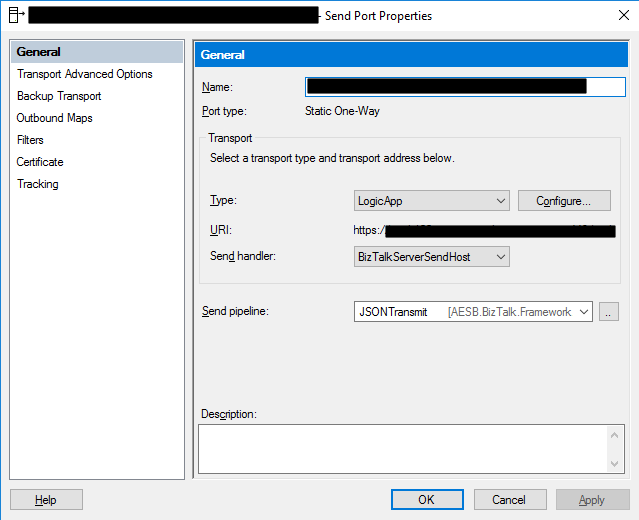
to me this week at a client where we are using the BizTalk Server Logic App
Adapter to extend part of our logical business to the cloud. And without we
make any changes to the Logic Apps or any changes in our BizTalk Server environment
(aka no new development installed, no patch’s or hotfixes installed, no
restarts, …) everything stops to work, we were not receiving any new messages
on our Logic Apps.
When
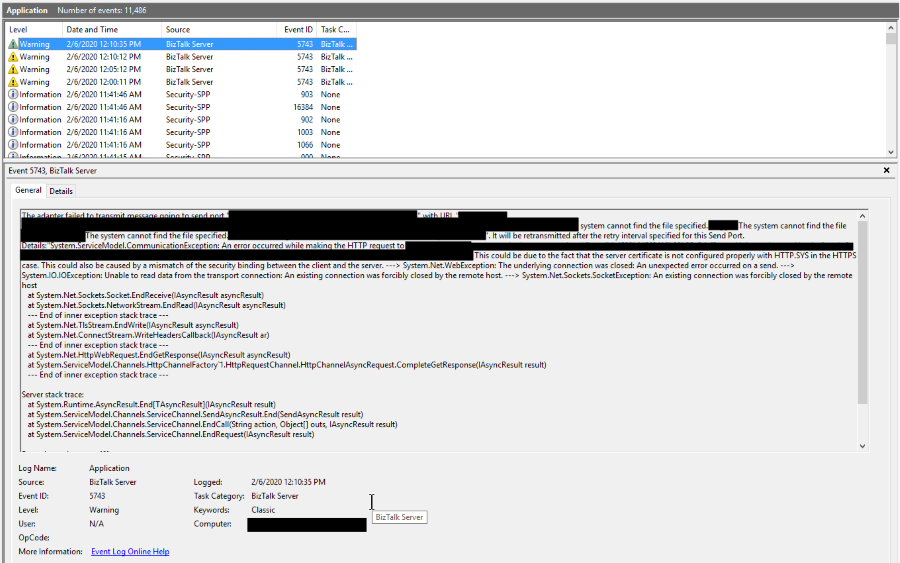
I access to BizTalk Server environment, I realize that all the requests were
suspended with the following error:
System.ServiceModel.CommunicationException: An error occurred while making the HTTP request to https://prod-….logic.azure.com/workflows/…/triggers/manual/paths/invoke?queryparameters . This could be due to the fact that the server certificate is not configured properly with HTTP.SYS in the HTTPS case. This could also be caused by a mismatch of the security binding between the client and the server. —> System.Net.WebException: The underlying connection was closed: An unexpected error occurred on a send. —> System.IO.IOException: Unable to read data from the transport connection: An existing connection was forcibly closed by the remote host. —> System.Net.Sockets.SocketException: An existing connection was forcibly closed by the remote host at System.Net.Sockets.Socket.EndReceive(IAsyncResult asyncResult) at System.Net.Sockets.NetworkStream.EndRead(IAsyncResult a
The adapter failed to transmit message going to send port “LOGICAPP_SEND_PORT” with URL “https://prod-….logic.azure.com/workflows/…/triggers/manual/paths/invoke?queryparameters“. It will be retransmitted after the retry interval specified for this Send Port. Details:”System.ServiceModel.CommunicationException: An error occurred while making the HTTP request to https://prod-….logic.azure.com/workflows/…/triggers/manual/paths/invoke?queryparameters. This could be due to the fact that the server certificate is not configured properly with HTTP.SYS in the HTTPS case. This could also be caused by a mismatch of the security binding between the client and the server. —> System.Net.WebException: The underlying connection was closed: An unexpected error occurred on a send. —> System.IO.IOException: Unable to read data from the transport connection: An existing connection was forcibly closed by the remote host. —> System.Net.Sockets.SocketException: An existing connection was forcibly closed by the remote host
at System.Net.Sockets.Socket.EndReceive(IAsyncResult asyncResult)
at System.Net.Sockets.NetworkStream.EndRead(IAsyncResult asyncResult)
— End of inner exception stack trace —
at System.Net.TlsStream.EndWrite(IAsyncResult asyncResult)
at System.Net.ConnectStream.WriteHeadersCallback(IAsyncResult ar)
— End of inner exception stack trace —
at System.Net.HttpWebRequest.EndGetResponse(IAsyncResult asyncResult)
at System.ServiceModel.Channels.HttpChannelFactory`1.HttpRequestChannel.HttpChannelAsyncRequest.CompleteGetResponse(IAsyncResult result)
— End of inner exception stack trace —
Server stack trace:
at System.Runtime.AsyncResult.End[TAsyncResult](IAsyncResult result)
at System.ServiceModel.Channels.ServiceChannel.SendAsyncResult.End(SendAsyncResult result)
at System.ServiceModel.Channels.ServiceChannel.EndCall(String action, Object[] outs, IAsyncResult result)
at System.ServiceModel.Channels.ServiceChannel.EndRequest(IAsyncResult result)
Exception rethrown at [0]:
at System.Runtime.Remoting.Proxies.RealProxy.HandleReturnMessage(IMessage reqMsg, IMessage retMsg)
at System.Runtime.Remoting.Proxies.RealProxy.PrivateInvoke(MessageData& msgData, Int32 type)
at System.ServiceModel.Channels.IRequestChannel.EndRequest(IAsyncResult result)
at Microsoft.BizTalk.Adapter.Wcf.Runtime.WcfClient`2.RequestCallback(IAsyncResult result)”.
The other curious thing was that all my environments DEV, QA, and PROD were with the same symptom and all of them start at the same time which made this problem even more intriguing.
However,
I was able to connect with the adapter, see and select all the Logic Apps in my
subscription.
To
demystify if that was a problem with the adapter, I switch to the HTTP adapter
in order to try. Nevertheless, I got identical problems that made me dismiss
the idea that there could be something wrong with the adapter.
The
next step was to see if there was a network issue, maybe a firewall or proxy, which
should be because there was no intervention in the environment, but it is
always worth testing. To do that, I used one of my favorite tools, postman, and
to my surprise, everything was working fine. I was able to communicate and send
requests to all my Logic Apps in all my environments!
Cause
If you don’t are really
familiar with this type of problem, you may be pointed for a certificate issue,
but in our case, we were not using any kind of certificates to call our Logic
Apps and no additional type of authentication.
But I was sure that I had
already seen that error in the past, and I was related to security protocol (TLS
1.0 or TLS 1.2) used on the HTTPS communication and yes HTTPS because
all Logic Apps endpoints are in HTTPS.
BizTalk
Server came out-of-the-box and works very well with SSL (Secure Socket Layer)
3.0 or TLS (Transport Layer Security) 1.0, and these are the security
protocol used. New versions of BizTalk Server allow us to use TLS 1.2, but that
required extra manual configurations that we need to do in the environment and I
know that everyone is deprecating TLS 1.0 and 1.1 because of the well know vulnerabilities,
nevertheless, everything was working fine I have been doing this kind of hybrid
solution connecting with Logic Apps.
What
I discovered on the official documentation was that they say that: The
Request trigger supports only Transport Layer Security (TLS) 1.2 for incoming
calls. Outgoing calls continue to support TLS 1.0, 1.1, and 1.2.
Nevertheless,
that wasn’t true until a few days ago, and my guess is that they actually discontinue
support for TLS 1.0 and 1.1 on the incoming calls without any notice, something
that, in my opinion, you shouldn’t do.
Solution
The solution was very simple,
we just need to specify that the default security protocol on BizTalk Server is
TLS 1.2. And to do that you need:
To
make some changes on the registry to set TLS 1.2 as default security protocol TLS1.2;
Or
creating a Custom BizTalk Server behavior;
I
choose the first option, making some changes to the registry. And to accomplish
that we need to add the below DWORD values in our registry:
On the [HKEY_LOCAL_MACHINESYSTEMCurrentControlSetControlSecurityProvidersSCHANNELProtocolsTLS 1.2Client]
Create the following DWORD (32-bit) values
Name: DisabledByDefault
Value Data: 0
Name: Enabled
Value Data: 1
On the [HKEY_LOCAL_MACHINESYSTEMCurrentControlSetControlSecurityProvidersSCHANNELProtocolsTLS 1.2Server]
Create the following DWORD (32-bit) values
Name: DisabledByDefault
Value Data: 0
Name: Enabled
Value Data: 1
On the [HKEY_LOCAL_MACHINESOFTWAREMicrosoft.NETFrameworkv4.0.30319]
Create the following DWORD (32-bit) values
Name: SchUseStrongCrypto
Value Data: 1
On the [HKEY_LOCAL_MACHINESOFTWAREWow6432NodeMicrosoft.NETFrameworkv4.0.30319]
Create the following DWORD (32-bit) value
Name: SchUseStrongCrypto
Value Data: 1
If
you try resending a message to your Logic App, everything should work properly
again.
Microsoft has been discontinuing some actions for some time or at least
running side by side different versions, don’t get me wrong. But they were never
extremely good at providing proper documentation, even in the old days that we
had software releases every two or three years, now imagine in this crazy fast
delivery world that we are leaving! What you see is:
A big gap between the documentation and the features that we have available or not properly documented in terms of how they work;
There is nothing that tells you what was change or how certain task that was possible to do in previous versions of action can now be done.
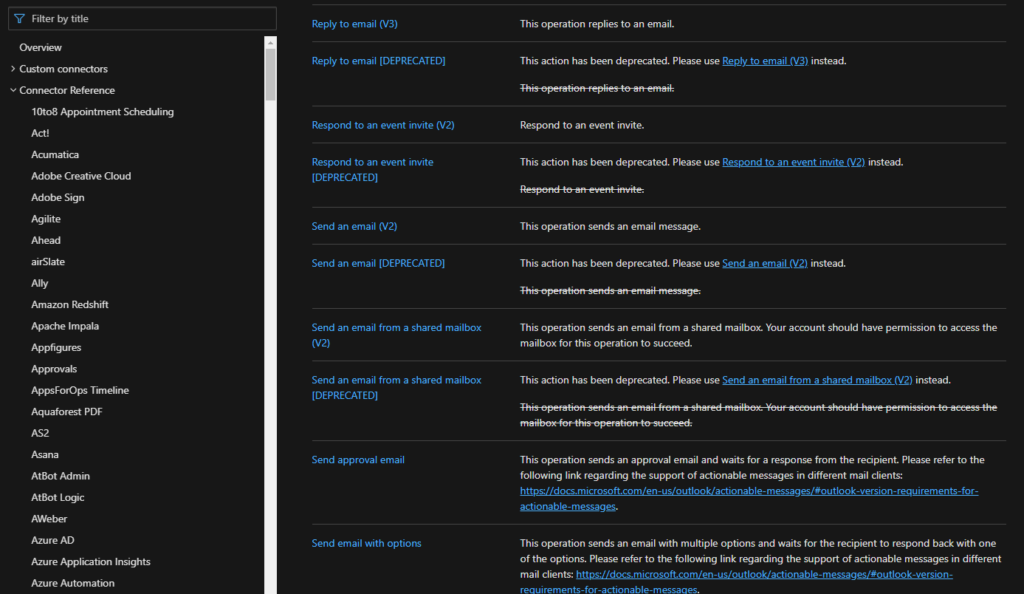
When I say that for the first time that Microsoft deprecated connection
actions, I mean actual remove from the list of actions on the Logic App design,
taking from the example the two connectors mention above you can’t see
the deprecated action on the Logic App designer anymore:
But don’t be alarmed, your existing logic apps that still use these
deprecated actions continue to work properly.
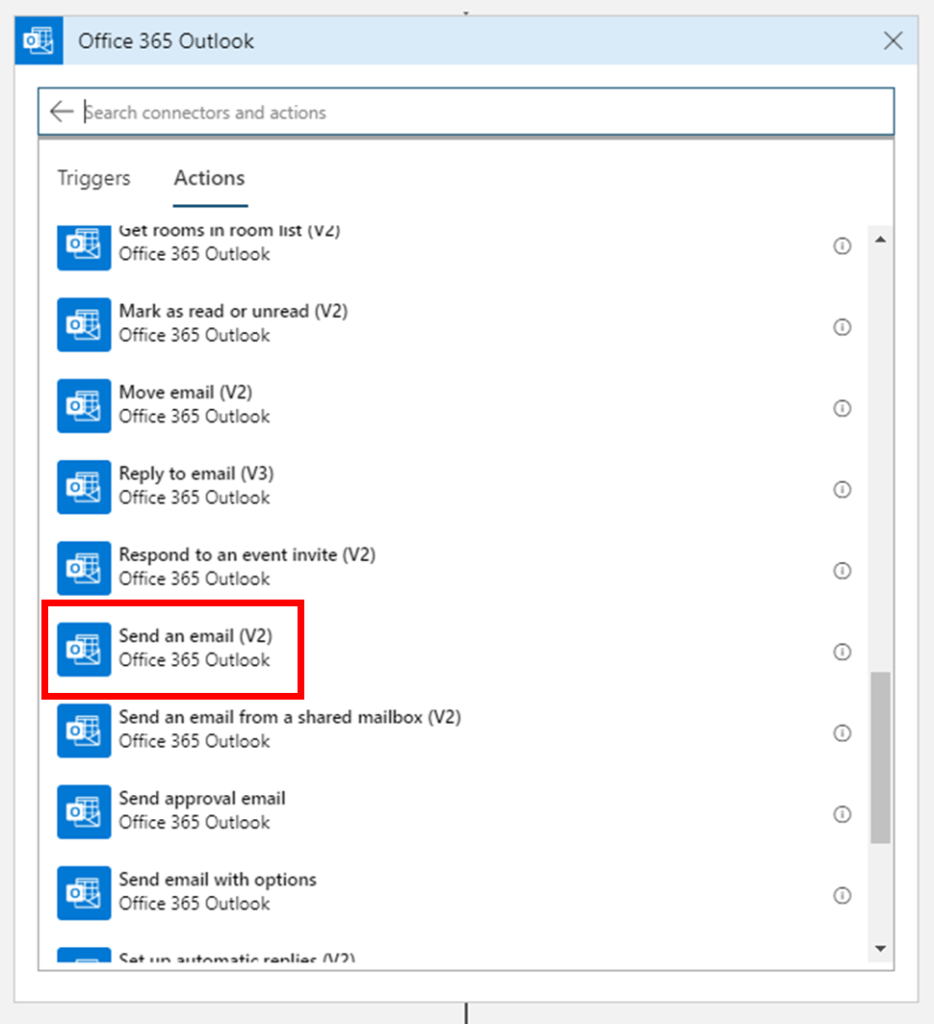
In this article, we will address the Office 365 Outlook connector and especially the Send an Email V2 action because Send an Email action is now deprecated. So the question here is:
How to send a well-formatted custom HTML Email using Send an Email V2 action available on the Office 365 Outlook connector?
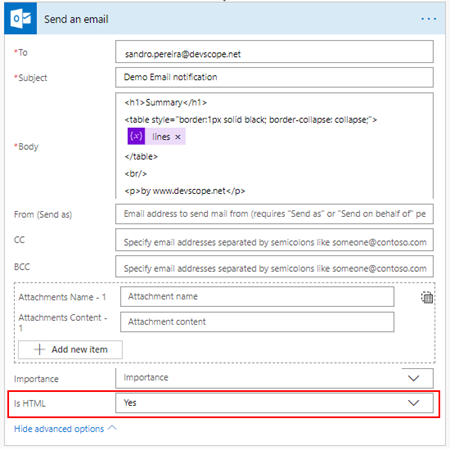
I personally liked the Send
an Email action because we were able to directly put HTML code on the body
property and define that the email body format would be HTML bt setting the
property Is HTML to true.
Quite simple to use and
efficient.
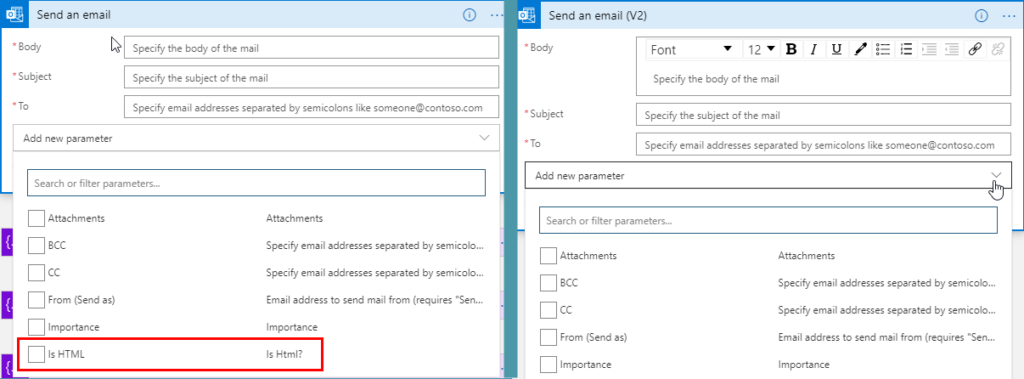
However, Send an email (V2) action has totally different
behavior. First of all, it owns fewer properties:
Is HTM property was removed from this action;
And a completely new look
and feel of the Body property as you see in the picture below:
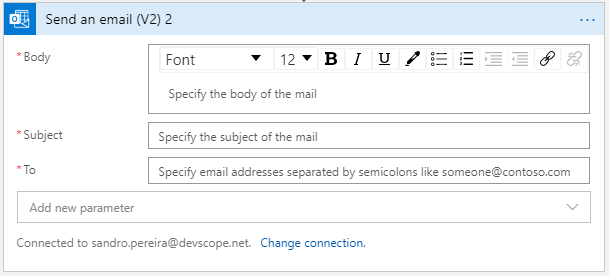
With a powerful editor similar to what we have in our office tools (Word, Outlook, …)
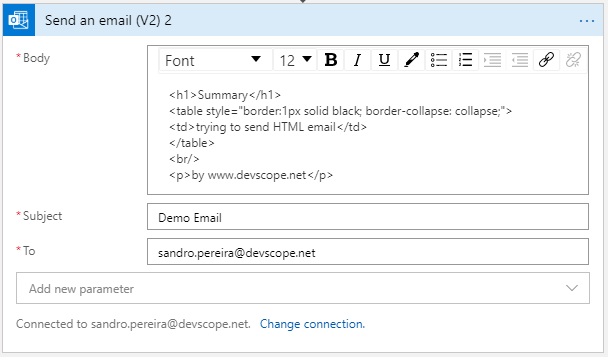
That also means that we no longer have the possibility to directly insert HTML code into the body property of the message as we did earlier with the previous version. Well, we can write HTML code on the body of this action:
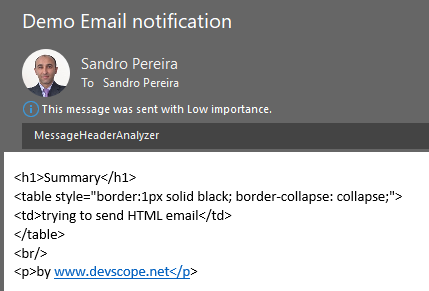
But the end result will not be what you expect:
Unluckily Power Automate designer, we don’t have a Code View button (</>) on the Body property editor, I will be blogging about this feature soon on Serveless360 blog. So, who we are able to send a proper well-formatted HTML Email using Send an email V2 action?
The answer is: unfortunately, at least in my opinion, we need to build the HTML in an action beforehand in a composite action or in a variable. And then put the compose output or variable as the send mail body property, and the action will render correctly the output as an HTML.
To do that we need:
On
the Logic App designer, add the next step by clicking the +New step
button
On
the Choose an action window, enter Variables and select the
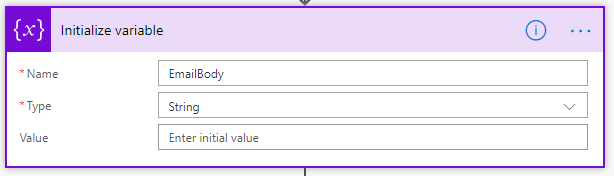
action Initialize variable
On
the Variable action configuration:
On
the Name property, type “EmailBody”
On
the Type property, specify the type as “String”
On
the Value property leave it blank
On
the Logic App designer, add the next step by clicking the +New step
button
On
the Choose an action window, enter Variables and select the
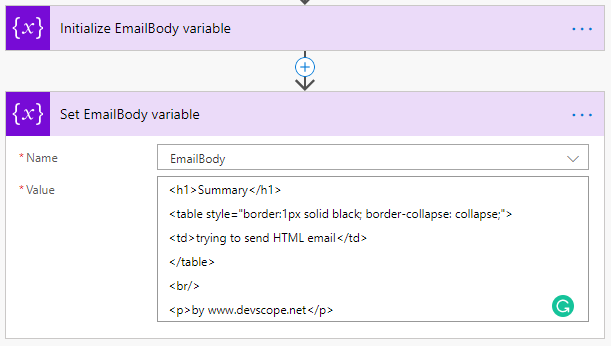
action Set variable
On
the Variable action configuration:
On
the Name property, select “EmailBody” variable
On
the Value property, type your custom HTML
Note: you can take as example this fancy HTML Template that I created specifically for this article here: HTML Notification Template to use Logic App or Power Automate Outlook connector and not this basic HTML that you are seeing on the picture.
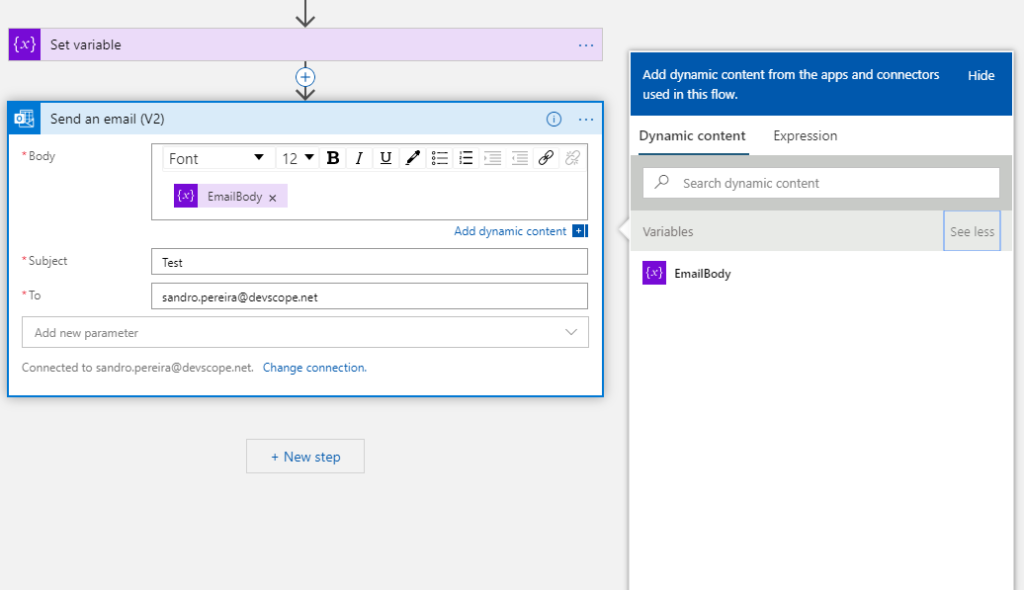
And then define directly on the Body editor (without switching to Code View) that the body will be the content of the variable we created earlier:
And you will see that you
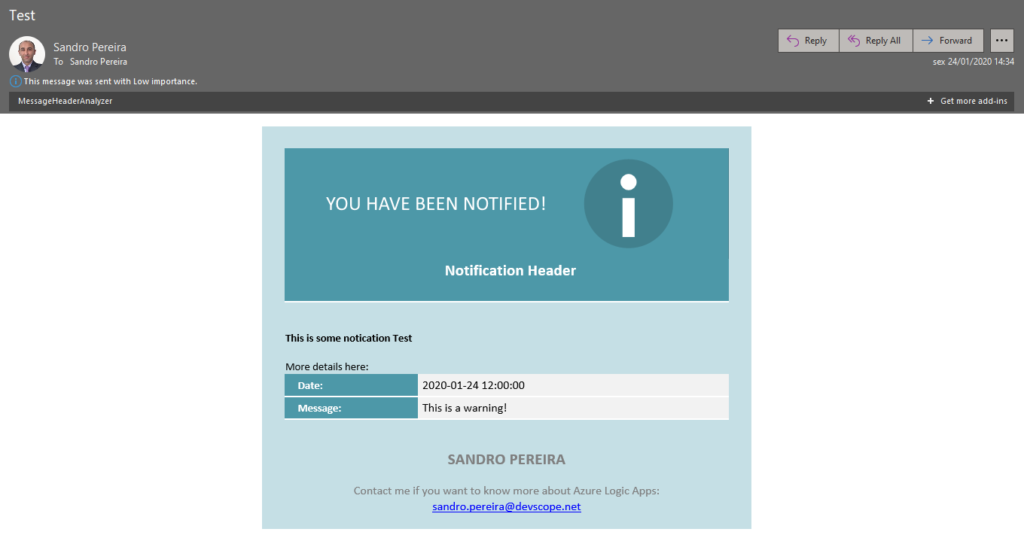
will be receiving also a well-formatted HTML email on your mailbox:
Thanks Thiago Almeida for the help and credits to Pedro Rosa that helped me creating this HTML Template and most important to be compatible with Outlook because not all the stylesheets that we can apply aren’t compatible.



 Microsoft Integration, Azure, Power Platform, Office 365 and much more Stencils Pack for Visio