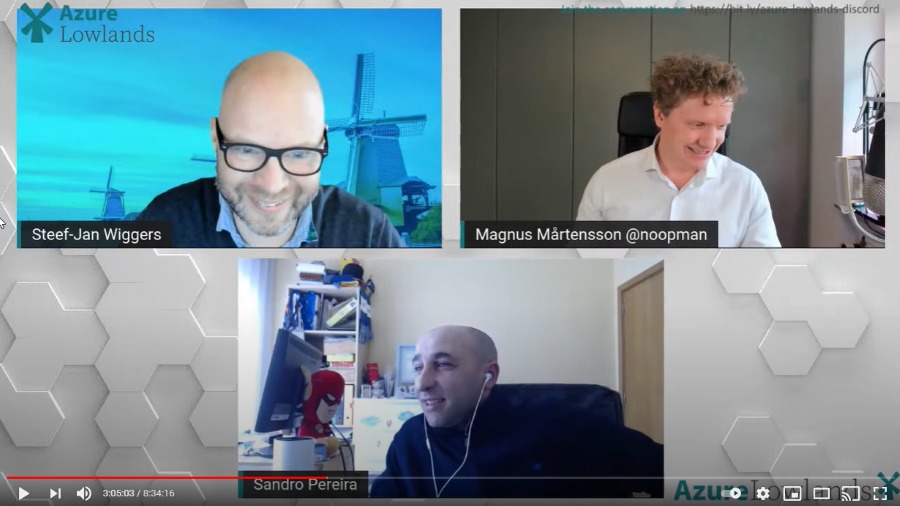
It was with great pleasure that I presented for the first time on January 29, 2020, a session at the Azure Lowlands event, this time about How to create robust monitor solutions with PowerShell, Azure Functions, and Logic Apps.
First of all, I want to congratulate the organizers on a very well organized event!
About the session
Session name: How to create robust monitor solutions with PowerShell, Azure Functions and Logic Apps
Abstract: Monitoring your systems or platforms is a crucial aspect of any organization. Based on my experience, all your clients will tell you that all the platforms or applications are being monitoring by external partners or internally. Nevertheless, when disasters occur or are in the process of happening, guess what? Your team will be the last to know. This session will address and present how you can easily and quickly create a robust monitoring solution on your platforms using PowerShell, Functions app, and Logic Apps or Power Automate Flows.
How to create robust monitor solutions with PowerShell, Azure Functions and Logic App Slides
How to create robust monitor solutions with PowerShell, Azure Functions and Logic App Video
For any reason, you could not be present at this online event, or if you want to review it again, you can now do it here: https://youtu.be/vf9cmfEb3Z8?t=10886
Sessions, sessions, and more sessions this has been my frantic start to the year in terms of contributions to the community, four different presentations delivered in January where Logic Apps was the only common factor:
Logic Apps: Development experiences at Azure User Group Portugal with Pedro Almeida (video not yet available)
How to create robust monitor solutions with PowerShell, Azure Functions and Logic Apps at Azure Lowlands (video not yet available)
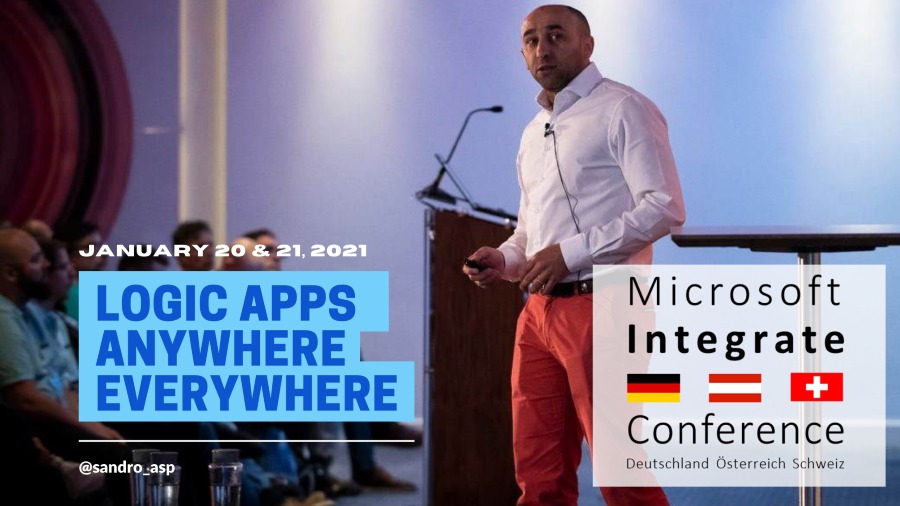
and Logic Apps: Anywhere, Everywhere at Microsoft Integrate Conference DACH
Today I’m happy to share with you the slides and the video of this last session are now available online for those who want to see them.
About the session
Session name: Logic App: Anywhere, Everywhere.
Abstract: A walk-thru session on how and where we can or should use Logic Apps and start building fantastic business processes. We will be addressing topics like: what tools should you use: Azure Portal, Visual Studio, or Visual Studio Code. What kind of solutions you can create, cloud integration, hybrid integration, or on-premises integration. Along with some best practices and what are the advantages and drawbacks of each approach.
For any reason, you could not be present at this online event, or if you want to review it again, you can now do it here:
It was a pleasure to deliver a presentation on this event, and most important, by doing that, I was able to raise and give away 1000€ to a non-profit organization.
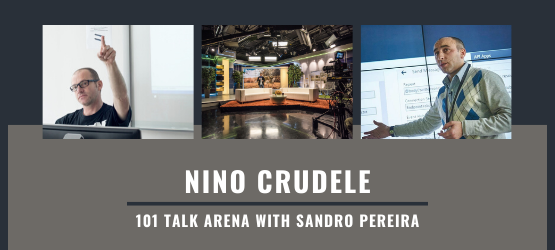
Last January 14, I had the pleasure to be the first guest of 101 Talk Arena chat with Nino Crudele on a talk about integration without any filters, and it was amusing!
Now I’m happy to announce that the record is online and available for all of you to watch on youtube:
Azure Lowlands is a single-day event with three tracks around Microsoft Azure Platform as a Service (PaaS) offerings, ranging from containers, data, integration all the way to DevOps, IoT, and AI.
It was the first time I submit a session to this event, and I’m honored to be accepted and allowed to speak at this event on a session about: How to create robust monitor solutions with PowerShell, Azure Functions and Logic Apps. Azure Lowlands will take place on January 29th, 2021, and once again due to the current pandemic situation, the event will be completely virtual and free! So make sure to tune in and join us for a day full of exciting sessions.
How to create robust monitor solutions with PowerShell, Azure Functions and Logic Apps
Monitoring your systems or platforms is a crucial aspect of any organization and my session will be all about this! How you can create a robust monitor solution using tools and technologies like PowerShell, Azure Functions, and Logic Apps.
Session name: How to create robust monitor solutions with PowerShell, Azure Functions and Logic Apps
Abstract: Monitoring your systems or platforms is a crucial aspect of any organization. Based on my experience, all your clients will tell you that all the platforms or applications are being monitoring by external partners or internally. Nevertheless, when disasters occur or are in the process of happening, guess what? Your team will be the last to know. This session will address and present how you can easily and quickly create a robust monitoring solution on your platforms using PowerShell, Functions app, and Logic Apps or Power Automate Flows.
Join us and reserve your presence at the Azure Lowlands virtual event, it is free!
Microsoft Integrate ConferenceDACHis one if not the most important event on Microsoft Integration in German-speaking countries, and I’m honored to be invited for the first time to this event.
I’m super excited about presenting at this event alongside great speakers and well-known Microsoft names like Clemens Vasters and Jon Fancey. I had presented in several places all over Europe and North America, but I never had a chance to deliver a session on the Alpine Countries. Unfortunately for me, it will be an online event to do this COVID-19 pandemic. Otherwise, I could revisit these countries that I know a little. In the past, I spent six months in Switzerland and visited Germany a few times.
This will be a two-day virtual event and I will be there on the second day presenting a session about Logic Apps. The title of my session will be Logic Apps: Anywhere, Everywhere.
Logic Apps: Anywhere, Everywhere
As I mentioned before, my session will be all about where and how we can use Logic Apps to address our integration needs .
Session name: Logic App: Anywhere, Everywhere.
Abstract: A walk-thru session on how and where we can or should use Logic Apps and start building fantastic business processes. We will be addressing topics like: what tools should you use: Azure Portal, Visual Studio, or Visual Studio Code. What kind of solutions you can create, cloud integration, hybrid integration, or on-premises integration. Along with some best practices and what are the advantages and drawbacks of each approach.
I’ve known Nino for many years, he is like a brother to me, and for that reason, I can’t say no to him and his crazy ideas. When he invited (challenged) me to have a 101 talk about Integration, obviously, I said yes!
It is already next Wednesday, January 14, 2021, that I will have an open conversation about Enterprise Integration and Azure:
A conversation about Enterprise Integration like BizTalk Server, Logic App, API Management, Service Bus, Azure Functions…
Is still worth using BizTalk Server?
What about the new Integration stack offered by Microsoft?
Azure RAD vs BizTalk Server, when, where, and why?
What about migration from BizTalk Server to Azure?
And other topics with Nino Crudele, and I will invite all of you to join us it is free. This is a one to one talk without filters, no marketing, nothing planned, and where people can also jump in with any question.
You can see more about the event on Nino Crudele’s website: 101 Talk Arena with Sandro Pereira – What about integration now?
Sometimes I have the need to have a Logic App (LA) disabled when I deploy it. For instance, when deploying to Production, I like to have my LAs disabled, because I want to double check everything before starting the process.
This is helpful because usually, when using the “Recurrence” trigger, the LA will start immediately. If for some reason, a connector has the wrong configuration or is broken or the end system is offline, the execution will fail. Other scenarios can happen as well, but that’s another story.
An interesting fact is that you don’t have a proper way to control this in the Portal. You can add the control line to the code, but you won’t be able to control it with CI CD.
So, in comes Rocket science (or not).
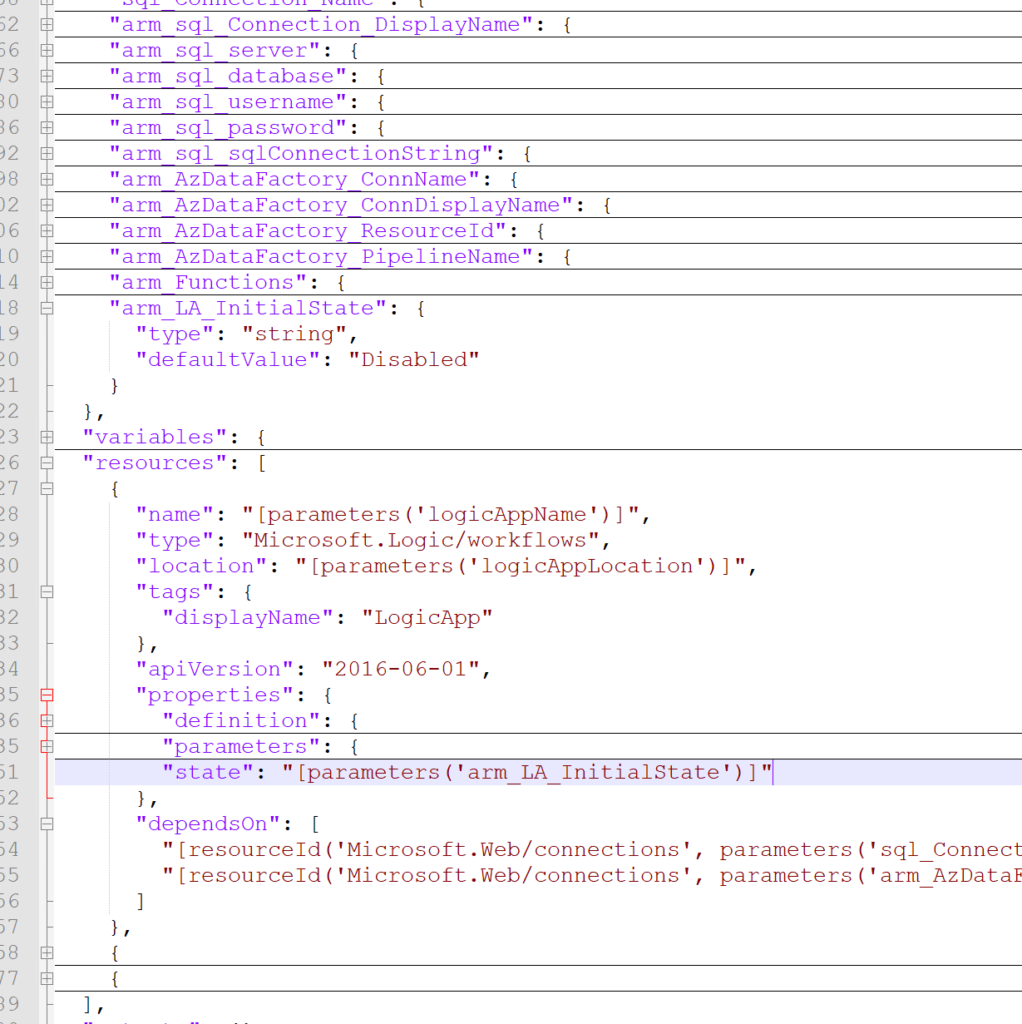
The resource code contains a property that will allow you to control the state of a LA and it’s quite easy to set. If you do not specify this property, the LA will start enabled and will trigger if it can.
The property is called “state” and lies within the “properties” node. Setting this property as a global parameter, allows you to prepare your CI/CD pipeline also allowing to parameterize this in your release.
This is quite and easy and simple insert, that should take no more than 5 minutes for you to configure.
If you choose the “Disabled” state, the LA will not start unless you specifically activate it.
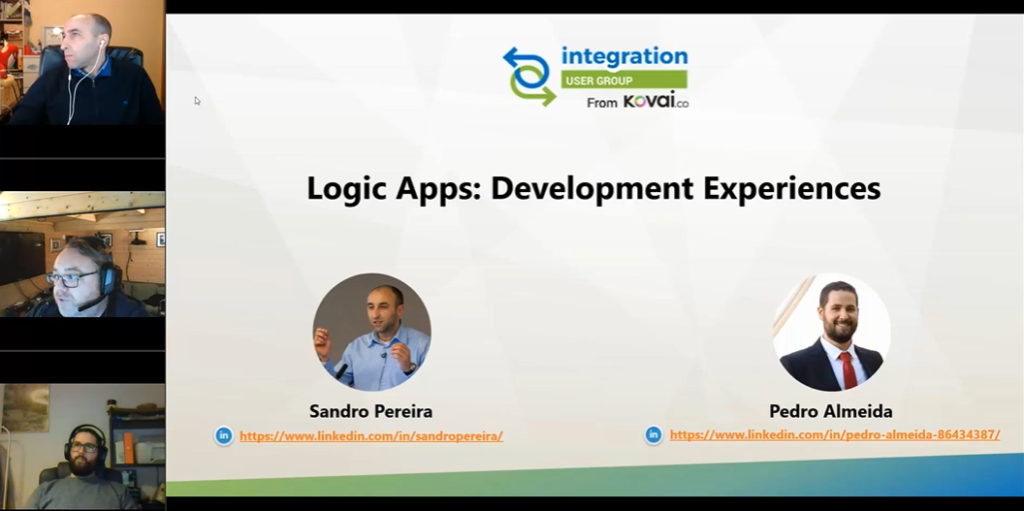
It was with great pleasure that I presented on December 7, 2020, another session in the Integration Monday series, this time about Logic Apps: Development Experiences. I had the pleasure to be accompanied as a co-presenter for the first time by my team member, Pedro Almeida.
Logic Apps: Development Experiences
How can I start developing Logic Apps? What are the different tools I can use? What are the advantages and drawbacks of each developer approach? What are the deployment options that I have? These are some of the questions that we will answer in this session, along with several tips that will improve your Logic Apps development experience.
I hope you enjoy it and find it an interesting session. Also, I advise you to visit and view the history of sessions that have taken place every Monday in the Integration User Group – Integration Monday series.
My other talks at Integration Monday – Integration User Group
Azure Logic Apps adapter is used by BizTalk Server to communicate with the Azure Logic Apps. This could also be possible using the HTTP adapter, but the Logic App adapter provides a better and straightforwardly experience.
You may be thinking that I’m out of my mind. Logic App Adapter was already available in BizTalk Server 2016. Indeed you are right. However, the Logic App adapter was an optional feature and a separate download in BizTalk Server 2016. You can know more about how to install it on this white paper I wrote some time ago: Step-by-Step Logic App Adapter Installation Guide. But it is now installed with the BizTalk Server 2020 default installation process, so you do not need to install it and configure it manually. Everything or almost everything will be already configured for you automatically.
The Logic App Adapter is one of the adapters that support two-way communications:
The Logic App Receive Adapter that is responsible for receiving messages from Logic Apps and delivering them to BizTalk is, in fact, a WCF Service that runs inside Internet Information Services (IIS).
Install and Configure an On-premises Data Gateway;
Click the Test Settings button to verify the application pool identity and pass the authentication and authorization tests.
Click the OK button to save the changes.
Open BizTalk Server Administration, expand BizTalk Server Administration à BizTalk Group > Applications, and expand our application.
Right-select Receive Ports, select New, and select One-way Receive Port.
In the Receive Port properties window, enter the following configurations:
Name: Enter a name for the receive port.
Select Receive Locations, and select New
In the Receive Location properties window, enter the following configurations:
Enter a Name for the receive location
For the Type, select LogicApp from the list, and select the Configure button.
In the General tab, configure the endpoint address for your logic app:
Address: Required. Enter the BizTalk ReceiveService IIS application URL. In our case: /LogicAppTestService/Service1.svc
Public Address: Required. This is the public full URL of the service. In our case: http:///LogicAppTestService/Service1.svc
In the Binding tab, you can configure any timeout and encoding-related properties of the underlying WCF-WebHttp binding. These properties are helpful when dealing with large messages.
In the Security tab, configure any security properties.
Click the OK button, to save your configurations.
For the Receive handler, select PassThruReceive from the list and select OK to save your configurations.
And finally, create our Logic App to send messages to BizTalk Server
Sign in to the Azure portal. Create a blank logic app.
After Logic App Designer opens, in the search box, enter Request as your filter, and from the triggers list, select the When a HTTP request is received trigger
Select + New step
In the search box, enter BizTalk Server as your filter
From the connector list, select the Send message action form the BizTalk Server connector
Once the action is added to your logic app, you need to setup the connections, perform the following actions:
Select the option Connect via on-premises data gateway and on the gateway properties, select the Subscription and the desired Connection Gateway.
On the Connection Name property, provide a proper name for your connector
On the BizTalk Server URL property, provide a public UTL for the Management Application on the BizTalk Server IIS
On the Authentication Type property, set Windows and provide a proper Username and Password to access the above service (BizTalkManagementService)
Select Create
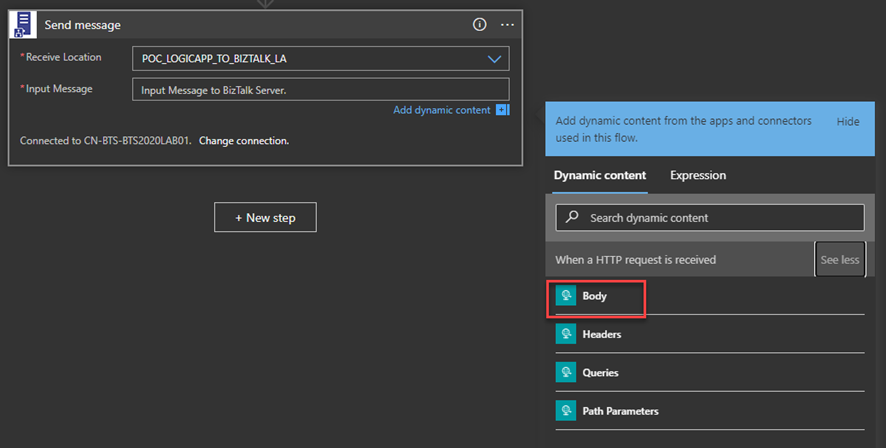
Once you create the connector, the Send message action will appear on the Logic App designer
From the Receive Location list, select the receive location we just create above
On the Input Message, specify the Body token of the When a HTTP request is received trigger
The Logic App Send Adapter is responsible for sending messages from BizTalk Server to Logic Apps.
We need to first create a Logic App in our Azure Subscription has as a trigger the When a HTTP request is received present in the Request built-in Connector.
Note: The Logic App adapter doesn’t support the new Logic App (preview) that are hosted on Azure Function runtime.
We need to configure TLS 1.2 as the default security protocol on BizTalk Server.
And finally, create a BizTalk Server Application to send message to Logic App
Right-select Send Ports, select New, and select Static One-way Send Port
In the Send Port properties, enter the following:
Name for the send port. For example, enter POC_SEND_MSG_LOGIC_APP.
For the Type, select LogicApp from the list, and select the Configure button
In the General tab, configure the Callback URI of your logic app trigger by selecting Configure…
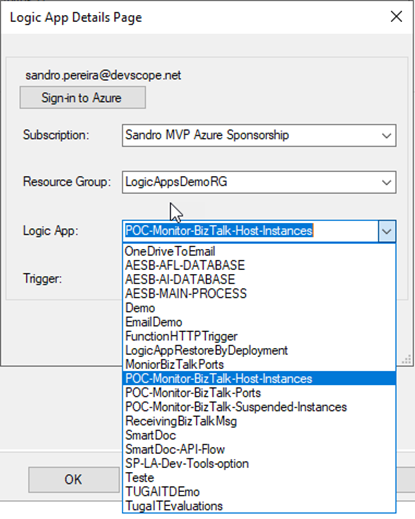
On the Logic App Details Page, select Sign-in to Azure and authenticate with an Azure account
After you authenticate, you can be able to access your Azure and select the Subscription, the Resource Group that contains the Logic Apps, and finally the Logic App and the Trigger
The Trigger will be always manual
Select OK to save your configurations.
In the Messages tab, set the content-type header as:
Content-Type:application/json
Setting up the BizTalk Server 2020 Logic App adapter
I told above that almost everything will be already configured. However, there is a critical bug in the default installation of the Logic App adapter that will affect the process of receiving messages from Logic Apps using the BizTalk Server Connector.
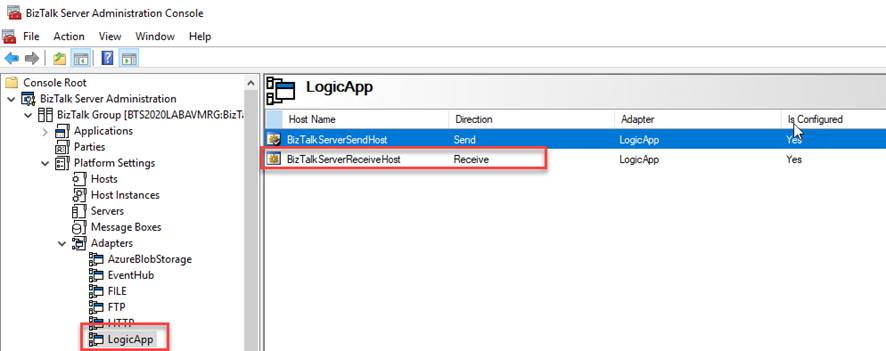
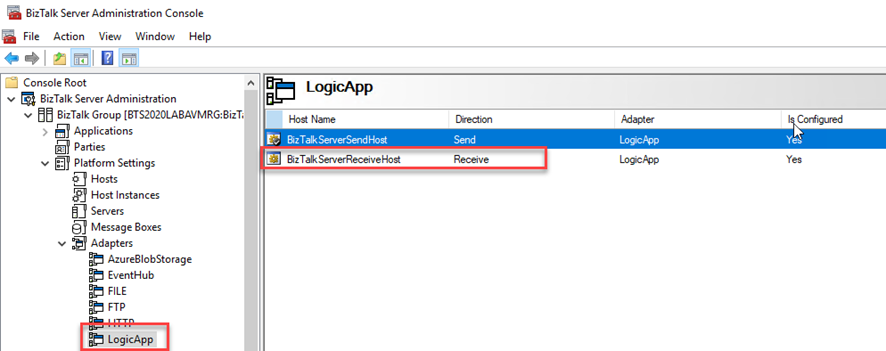
The Logic App Receive handler, or what we normally call the Logic App Receive adapter is by default configured to use the default In-Process Host, normally the BizTalkServerApplication, in this case as you saw in the picture bellow BizTalkServerReceiveHost.
If you leave this configuration, you will end up having errors when trying to activate a Receive Location that uses the Logic App adapter:
The receive location “Receive Location name” with URL “/iis-application-name/Service1.svc” is shutting down. Details
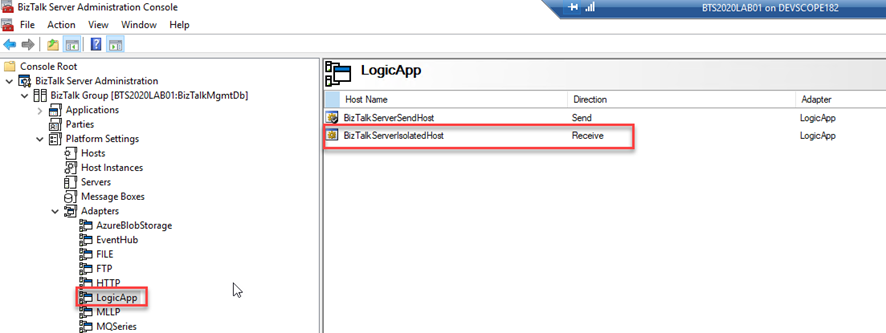
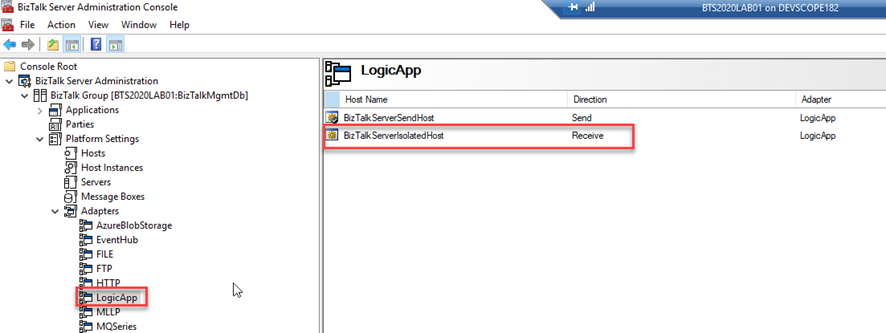
This happens assigned because the Receive handler is associated with the In-process Host and it should be bound to the Isolated Host.
To fix this bug we need to:
Remove the adapter from all assigned send ports and receive locations in my applications
Therefore, is important to do this immediately after the installation and configuration of your BizTalk Server environment. Otherwise, it will affect your existing application that uses the Logic App adapter to send messages to Logic Apps.
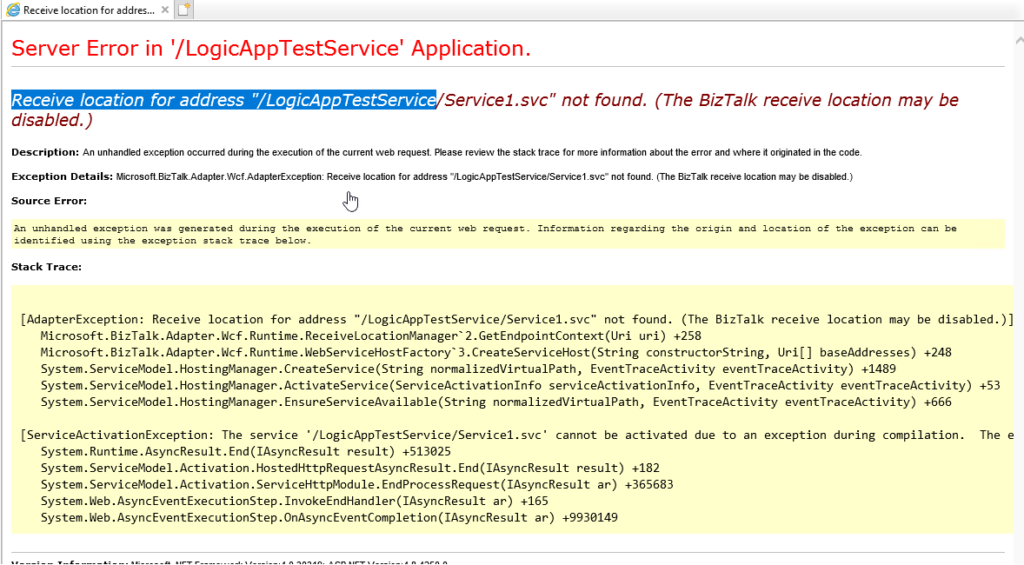
Until now, I usually have used the Logic App adapter to send messages to Azure Logic Apps and extend the BizTalk Server capabilities with the Azure Services. Yesterday, once I was trying the inverse capabilities, i.e., receiving a message from Logic App into BizTalk Server using the Logic App Adapter and, of course, the BizTalk Server Connector available on Logic App. I was surprised with the following error while I was trying to access the exposed service to receive messages from Logic App:
Receive location for address “/LogicAppTestServoce/Service1.svc” not found. (The BizTalk receive location may be disabled.)
This is a common error. It means that the Receive Location doesn’t exist or it is disabled. So I went to the BizTalk Server Administration Console and Enabled the Receive Location, but it automatically disabled again.
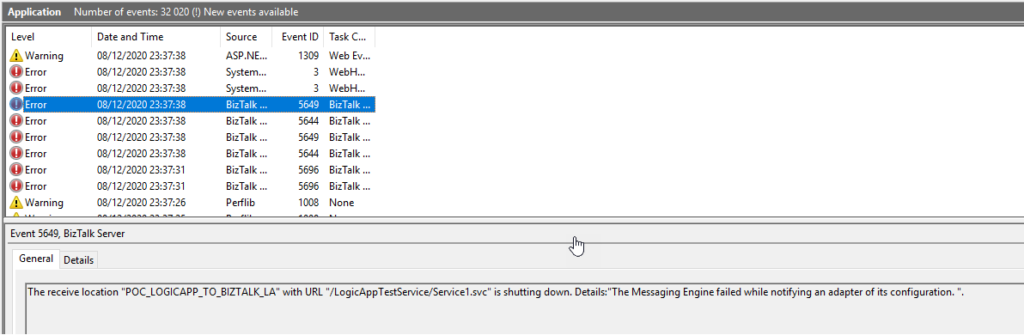
Once I check the Event Viewer for errors I found the 3 following errors:
The Messaging Engine encountered an error when creating the receive adapter “LogicApp”. The Assembly is: “Microsoft.BizTalk.Adapter.LogicApp.Runtime.LogicAppReceiver, Microsoft.BizTalk.Adapter.LogicApp.Runtime”. The error occurred because the component does not implement the mandatory interface “IBTTransportControl”.
The Messaging Engine failed to add a receive location “POC_LOGICAPP_TO_BIZTALK_LA” with URL “/LogicAppTestService/Service1.svc” to the adapter “LogicApp”. Reason: “80070057”.
The receive location “POC_LOGICAPP_TO_BIZTALK_LA” with URL “/LogicAppTestService/Service1.svc” is shutting down. Details:”The Messaging Engine failed while notifying an adapter of its configuration. “.
Cause
There is a critical bug in the default installation of the Logic App adapter that will affect the process of receiving messages from Logic Apps using the BizTalk Server Connector.
The Logic App Receive handler, or what we usually call the Logic App Receive adapter, is, by default, configured to use the default In-Process Host, normally the BizTalkServerApplication, in this case, as you saw in the picture bellow BizTalkServerReceiveHost.
Like what happens with the HTTP adapter, the Logic App Adapter is one of the adapters that support two-way communications. Still, unlike other adapters, this adapter has two characteristics that define it:
The Logic App Receive Adapter that is responsible for delivering messages to BizTalk is, in fact, a WCF Service that runs inside Internet Information Services (IIS).
And for that reason, it must be configured in IIS – it is not there out-of-the-box.
This means that when we create and configure a receive location that uses the Logic App adapter inside the BizTalk Server Administration Console, this receive location uses an application within IIS.
So, if you leave this Logic App Adapter default configuration, you will end up having the above errors when trying to activate a Receive Location. This happens assigned because the Receive handler is associated with the In-process Host and it should be bound to the Isolated Host.
Solution
To fix this bug we need to:
Remove the adapter from all assigned send ports and receive locations in my applications
Therefore, it is essential to do this immediately after the installation and configuration of your BizTalk Server environment. Otherwise, it will affect your existing application that uses the Logic App adapter to send messages to Logic Apps.