Once again, I update this stencil pack with requested shapes from community members: Azure HL7 FHIR (Fast Healthcare Interoperability Resource) and Azure Synapse Analytics. The result was the addition of 16 new shapes. I hope you enjoy it.
What’s new in this version?
The main goal of this release was to provide the new icons present in the Azure Portal and update existing ones. In this version, the changes and additions are:
New shapes: New shapes added on MIS Apps and Systems Logo Stencils, Microsoft Integration Stencils, MIS Users and Roles Stencils, MIS Files Stencils, MIS Azure Others Stencils, and MIS Azure Stencils;
SVG Files: Add new SVG files, and uniform all the filenames;
Microsoft Integration, Azure, Power Platform, Office 365 and much more Stencils Pack
Microsoft Integration, Azure, Power Platform, Office 365 and much more Stencils Pack it’s a Visio package that contains fully resizable Visio shapes (symbols/icons) that will help you to visually represent On-premise, Cloud or Hybrid Integration and Enterprise architectures scenarios (BizTalk Server, API Management, Logic Apps, Service Bus, Event Hub…), solutions diagrams and features or systems that use Microsoft Azure and related cloud and on-premises technologies in Visio 2016/2013:
BizTalk Server
Microsoft Azure
Integration
Integration Service Environments (ISE)
Logic Apps and Azure App Service in general (API Apps, Web Apps, and Mobile Apps)
Azure API Management
Messaging: Event Hubs, Event Grid, Service Bus, …
Azure IoT and Docker
AI, Machine Learning, Stream Analytics, Data Factory, Data Pipelines
SQL Server, DocumentDB, CosmosDB, MySQL, …
and so on
Microsoft Power Platform
Microsoft Flow
PowerApps
Power BI
Office365, SharePoint,…
DevOps and PowerShell
Security and Governance
And much more…
… and now non-related Microsoft technologies like:
SAP Stencils
The Microsoft Integration Stencils Pack is composed of 27 files:
Microsoft Integration Stencils
MIS Additional or Support Stencils
MIS AI and Machine Learning Stencils
MIS Apps and Systems Logo Stencils
MIS Azure Additional or Support Stencils
MIS Azure Mono Color
MIS Azure Old Versions
MIS Azure Others Stencils
MIS Azure Stencils
MIS Buildings Stencils
MIS Databases and Analytics Stencils
MIS Deprecated Stencils
MIS Developer Stencils
MIS Devices Stencils
MIS Files Stencils
MIS Generic Stencils
MIS Infrastructure Stencils
MIS Integration Fun
MIS Integration Patterns Stencils
MIS IoT Devices Stencils
MIS Office365
MIS Power BI Stencils
MIS PowerApps and Flows Stencils
MIS SAP Stencils
MIS Security and Governance
MIS Servers (HEX) Stencils
MIS Users and Roles Stencils
That you can use and resize without losing quality, in particular, the new shapes.
I am always paying attention to requests from members of the community, and whenever I can, I update this stencil pack with requested shapes or functionalities. And this is one of these cases, Josh asked me to add DevOps offerings stencils in special: Boards, Repos, Pipelines, Test Plans, and Artifacts.
The result was this. I hope you enjoy it.
What’s new in this version?
The main goal of this release was to provide the new icons present in the Azure Portal and update existing ones. In this version, the changes and additions are:
New shapes: New shapes added on MIS Developer Stencils;
SVG Files: Add new SVG files, and uniform all the filenames;
Microsoft Integration, Azure, Power Platform, Office 365 and much more Stencils Pack
Microsoft Integration, Azure, Power Platform, Office 365 and much more Stencils Pack it’s a Visio package that contains fully resizable Visio shapes (symbols/icons) that will help you to visually represent On-premise, Cloud or Hybrid Integration and Enterprise architectures scenarios (BizTalk Server, API Management, Logic Apps, Service Bus, Event Hub…), solutions diagrams and features or systems that use Microsoft Azure and related cloud and on-premises technologies in Visio 2016/2013:
BizTalk Server
Microsoft Azure
Integration
Integration Service Environments (ISE)
Logic Apps and Azure App Service in general (API Apps, Web Apps, and Mobile Apps)
Azure API Management
Messaging: Event Hubs, Event Grid, Service Bus, …
Azure IoT and Docker
AI, Machine Learning, Stream Analytics, Data Factory, Data Pipelines
SQL Server, DocumentDB, CosmosDB, MySQL, …
and so on
Microsoft Power Platform
Microsoft Flow
PowerApps
Power BI
Office365, SharePoint,…
DevOps and PowerShell
Security and Governance
And much more…
… and now non-related Microsoft technologies like:
SAP Stencils
The Microsoft Integration Stencils Pack is composed of 27 files:
Microsoft Integration Stencils
MIS Additional or Support Stencils
MIS AI and Machine Learning Stencils
MIS Apps and Systems Logo Stencils
MIS Azure Additional or Support Stencils
MIS Azure Mono Color
MIS Azure Old Versions
MIS Azure Others Stencils
MIS Azure Stencils
MIS Buildings Stencils
MIS Databases and Analytics Stencils
MIS Deprecated Stencils
MIS Developer Stencils
MIS Devices Stencils
MIS Files Stencils
MIS Generic Stencils
MIS Infrastructure Stencils
MIS Integration Fun
MIS Integration Patterns Stencils
MIS IoT Devices Stencils
MIS Office365
MIS Power BI Stencils
MIS PowerApps and Flows Stencils
MIS SAP Stencils
MIS Security and Governance
MIS Servers (HEX) Stencils
MIS Users and Roles Stencils
That you can use and resize without losing quality, in particular, the new shapes.
Back to one of my favorite topics: Errors and Warnings, Causes, and Solutions since I have several issues to report in my internal OneNote. But in fact, this one happened today while I was implementing a new RosettaNet PIP on a client… nevertheless, this is not specific to RosettaNet.
I
was making a small improvement to an existing process/project to allow specific
orchestrations to be activated based on some properties promoted from the
message by applying a filter on the activate Receive Message shape. Everything
was going peacefully well until I tried to redeploy the Visual Studio solution.
Once I try to redeploy the BizTalk Server Visual Studio solution from Visual
Studio, I got the following error:
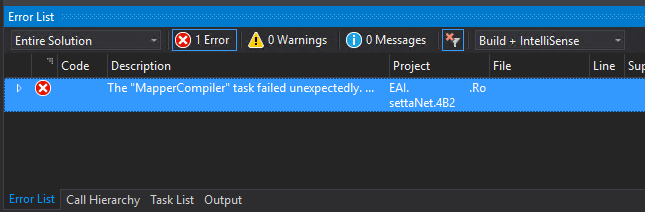
Error The “MapperCompiler” task failed unexpectedly.
System.UnauthorizedAccessException: Access to the path ‘C:……MapsmapNotifyOfShipmentReceipt_To_PIP4B2.btm.cs’ is denied.
at Microsoft.VisualStudio.BizTalkProject.BuildTasks.MapperCompiler.Execute()
at Microsoft.Build.BackEnd.TaskExecutionHost.Microsoft.Build.BackEnd.ITaskExecutionHost.Execute()
at Microsoft.Build.BackEnd.TaskBuilder.<ExecuteInstantiatedTask>d__26.MoveNext() EAI.RosettaNet.4B2.
The funny part was that this was a small change that I did in an existing solution that already was running fine in the environment… and the change was a small improvement in the orchestration, not on the map!
Cause
Well,
I don’t know why the compiler decided to pick the mapper to complain. But This
issue is not related to any kind of maps you may have in your solution.
And
yes, the user that I was using to open, and build the solution had full rights
to access the file in question, all full rights to deploy stuff to the BizTalk
Server environment.
There are several possible causes for you to get such Access Denied errors when deploying BizTalk solutions directly from Visual Studio. Most common is that you don’t have the right BizTalk privileges to deploy artifacts, or in other words, you are not a local Administrator.
But most of the time is simpler than that and indeed is related to additional securities setting present in recent Windows Server versions. For you to be able to successfully deploy a BizTalk Server solution directly from Visual Studio, you must run Visual Studio as an Administrator, or with elevated permissions, because BizTalk assemblies need to be deployed into the GAC. What normally happens, is that if you have User Account Control (UAC) activated, or sometimes even deactivated, there are some additional securities setting present in recent Windows Server versions that, by default, doesn’t run Visual Studio with elevated permissions.
This
was indeed one of these cases, Visual Studio was not open with elevated
permissions.
Solution
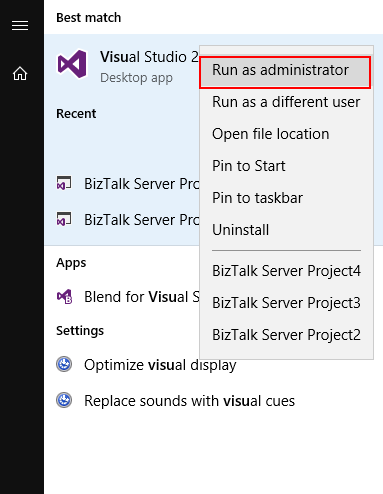
The quick solution is for you to run
Visual Studio as an Administrator by simply run below step:
Right-click
under Visual Studio and choose Run as administrator option.
The problem with this approach is that
you need to remember yourself to do it every time you want to run Visual Studio.
Otherwise, the next time you try to deploy the solution, it will fail again
with the same error.
If you try now to deploy your solution, you will see that this problem goes aways and you will be able to deploy it successfully (assuming that the solution does not actually have errors).
Another error
and warnings, cause and solutions blog post. This time on a small issue that I got
during an application configuration in a developing environment.
Well, I
think I will not tell you anything new, but when you are generating Schemas
from a SQL database, regardless of whether they are actions directly on tables
or invoking stored procedures, a binding file is automatically created on your
BizTalk Server Visual Studio solution. And you can use it to easily create the
necessary ports to communicate with your SQL database. You don’t need to create
them manually.
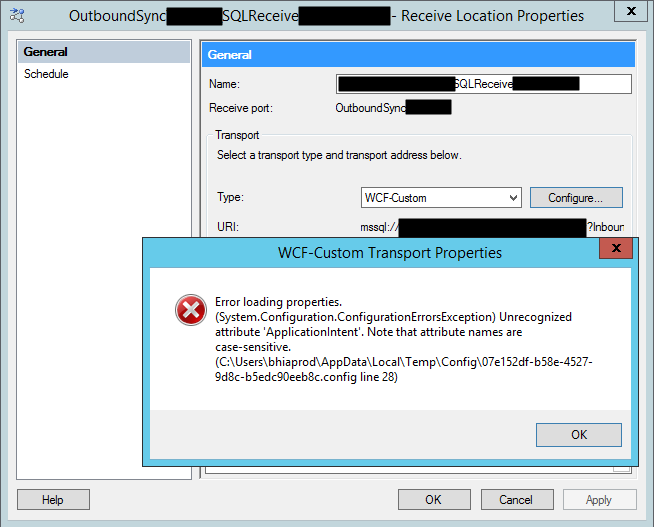
On one of these occasions, as I did thousands of times before, I successfully import my binding file containing the receive ports for my SQL database. But to my surprise every time I was trying to open the port configuration to change the attributes, I was getting the following error:
Error loading properties. (System.Configuration.ConfigurationErrorsException) Unrecognized attribute ‘Attribute-Name’. Note that attribute names are case-sensitive.
For a better context, why this error was happening, I was working with the BizTalk Server 2013 R2 version.
Cause
Although I didn’t initially understand why it
happened, the error is quite clear. The attribute name, in my case ApplicationIntent
was invalid.
Only thing I was sure:
It
wasn’t a case-sensitive issue I was sure about that because this was an auto-generated
binding file and the only thing I did was to change the receive port and
receive location names
To demystify the problem, I ended up:
Manually
creating the receive port;
Export
the bindings;
And
compare the bindings;
And what I noticed was that the bindings were different, this last one, that was working, didn’t contain the ApplicationIntent attribute and two other additional attributes like MultiSubnetFailover attribute.
I end up realizing that, because I didn’t have access to the client and I was with limit access to my dev machines, I end up creating the Schemas and the transformations using a different version: BizTalk Server 2016.
The schemas and almost artifacts, even if you
developer in a higher version, it will work well on BizTalk Server 2013 R2, you
just need to compile with a different network. Nevertheless, I will not advise doing
that. However, the binding files are different and not compatible between these
two versions for this adapter.
Solution
The solution is easy and you have three options:
Manually remove, fixing the binding file, for example, open in notepad and remove the ApplicationIntent=”ReadWrite”;
I will not recommend that approach;
You will find other issues that you need to solve;
Regenerate the schemas and bindings in your correct Visual Studio solution;
It may give you additional work on redeploying the solution;
But it is the most consistent option, everything will be updated and you sure that you have all the correct resources.
Manually create the ports on the BizTalk Server Administration Console;
Make sure to generate the binding files and update them in our Visual Studio solution;
Recently my team and I developed and released several tools that extend the out-of-box capabilities of BizTalk Server 2016 for developer and administration teams to be more productive, saving times in some simple but time-consuming tasks that should d supposed to be. One of these tools was BizTalk Bindings Exporter Tool.
Because many clients still are using BizTalk Server 2013 R2, and because I had received some requests from the community, I will be releasing these tools for BizTalk Server 2013 R2 also. And today, we will stat with the BizTalk Bindings Exporter Tool
BizTalk Bindings Exporter Tool
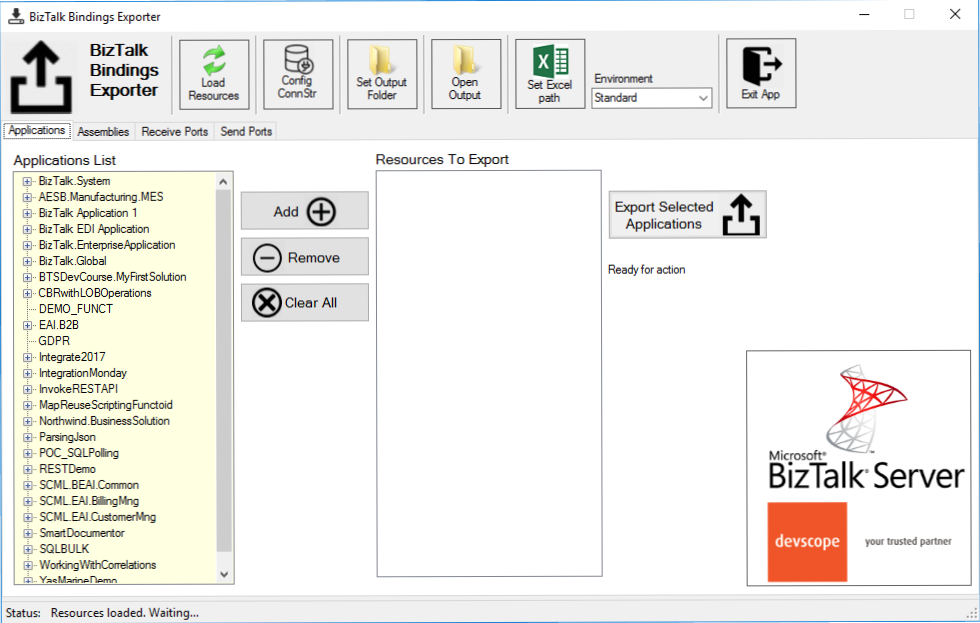
BizTalk Binding Exporter Tool is a simple tool that will suppress the absence of advanced binding file generation capabilities in the BizTalk Server Administration Console, allowing you to generate and export a binding file from BizTalk Applications in an intuitive and easy way.
Exporting a BizTalk Server Application binding is, at first sight, a quick and straightforward task that can be done using the BizTalk Server Administration Console:
Click Start, click All Programs, click Microsoft BizTalk Server 20xx, and then click BizTalk Server Administration
In the console tree, expand BizTalk Server Administration, expand the BizTalk Group, and then expand Applications
Right-click the application whose bindings you want to export, point to Export, and then click Bindings…
On the Export Bindings page, in Export to file, type the absolute path of the .xml file to which to export the bindings
Ensure that Export all bindings from the current application option is selected, and then click OK
But even in simple tasks, we may encounter challenges that require us to perform some monotonous and boring manual operations that consume some of our precious time and are always subject to failures. Because out-of-the-box BizTalk Administration Console doesn’t allow you to:
Export a Binding file of a specif Receive Port or list of Receive Ports;
Export a Binding file of a specif Send Port or list of Send Ports;
Export a Binding file of a specif Assembly or list of Assemblies;
And these are just a few scenarios. You can only fully Export the binding files of an entire application, which will lead you to sometimes extensive and fallible manual work to clean the binding files.
Usually, the binding exportation starts in development. Still, we also need to generate the same bindings for other environments like production, and for that, we usually need to open the binding file and replace/fix the differences for each different environment… which usually is a tedious operation. What we need to replace is mainly:
the URI’s: it should be fixed, but it is not mandatory. If you know what you are doing, you can fix them directly on the environment after you import the Binding.
the host instances: not mandatory, if you have the same host and host instances names across all your different environments (as best practices will tell you to do).
the NT Group Name associated in the Services (Orchestrations): according to securities best practices you shouldn’t use the same BizTalk Groups in different environments, so in this case, if you follow these best practices, you need to change these parameters in your binding file.
Normally, everyone changes the URI’s but neglecting the other parameters may be causing problems during the Binding import.
Once again, this tool will extend default BizTalk Server capabilities transforming the tedious and sometimes complicate binding generation a little simple and easy.
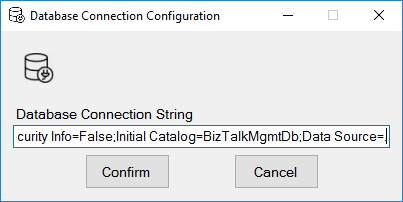
You just need to specify the connection string to the BizTalk Management database (BizTalkMgmtDb)
And this tool allows you to generate and export binding files with the following capabilities:
Export binding(s) file(s) for an entire Application or a list of Applications;
Export binding(s) file(s) from a specify Assembly or list of Assemblies;
Export binding(s) file(s) from a Receive Port or list of Receive Ports;
Export binding(s) file(s) from a Send Port or list of Send Ports;
Or Generate different binding files for each environment if you create an Excel File with the mapping for each environment ;
Credits also to my team member at DevScope, Pedro Almeida that collaborated in the development of this tool.
Following my commitment with the attendees at Integrate 2019 London and US that shared with me the same headaches and concerns, and following my series of posts about “BizTalk Bindings Exportation” published on BizTalk360 blog. I’m happy to announce the birth of a new BizTalk Server tool: BizTalk Bindings Exporter Tool.
“BizTalk Binding Exporter Tool” is a simple tool which will suppress the absence of advanced binding file generation capabilities in the BizTalk Server Administration Console allowing you to generate and export a binding file from BizTalk Applications in an intuitive and easy way.
Exporting a BizTalk Server Application binding is, at first sight, a simple and quick task that can be done using the BizTalk Server Administration Console:
Click Start, click All Programs, click Microsoft BizTalk Server 20xx, and then click BizTalk Server Administration
In the console tree, expand BizTalk Server Administration, expand the BizTalk Group, and then expand Applications
Right-click the application whose bindings you want to export, point to Export, and then click Bindings…
On the Export Bindings page, in Export to file, type the absolute path of the .xml file to which to export the bindings
Ensure that Export all bindings from the current application option is selected, and then click OK
But even in simple tasks, we may encounter challenges that require us to perform some monotonous and boring manual operations that consume some of our precious time and are always subject to failures. Because out-of-the-box BizTalk Administration Console doesn’t allow you to:
Export a Binding file of a specif Receive Port or list of Receive Ports;
Export a Binding file of a specif Send Port or list of Send Ports;
Export a Binding file of a specif Assembly or list of Assemblies;
And these are just a few scenarios. You can only fully Export the binding files of an entire application which will lead you sometimes an extensive and fallible manual work to clean the binding files.
Normally the binding exportation starts in development, but we also will need to generate the same bindings for other environments like production and for that we normally need to open the binding file and replace/fix the differences for each different environment… which is normally a tedious operation. What we need to replace is mainly:
the URI’s: it should be fixed, but it is not mandatory. If you know what you are doing, you can fix them directly on the environment after you import the Binding.
the host instances: not mandatory, if you have the same host and host instances names across all your different environments (as best practices will tell you to do).
the NT Group Name associated in the Services (Orchestrations): according to securities best practices you shouldn’t use the same BizTalk Groups in different environments, so in this case, if you follow this best practices, you need to change these parameters in your binding file.
Normally, everyone changes the URI’s but neglecting the other parameters may be causing problems during the Binding import.
Once again, this tool will extend default BizTalk Server capabilities transforming the tedious and sometimes complicate binding generation a little simple and easy.
You just need to specify the connection string to the BizTalk Management database (BizTalkMgmtDb)
And this tool allows you to generate and export binding files with the following capabilities:
Export binding(s) file(s) for an entire Application or a list of Applications;
Export binding(s) file(s) from a specify Assembly or list of Assemblies;
Export binding(s) file(s) from a Receive Port or list of Receive Ports;
Export binding(s) file(s) from a Send Port or list of Send Ports;
Or Generate different binding files for each environment if you create an Excel File with the mapping for each environment ;
Credits also to my team member at DevScope, Pedro Almeida that collaborated in the development of this tool.
In this blog post, we will explain how different stakeholders within your organization can be involved in operating the BizTalk environment and managing BizTalk interfaces, by smartly, but safely deploy BizTalk360.
The BizTalk Administrators – the primary users of BizTalk360
Primarily, BizTalk360 will mainly be used by BizTalk administrators. They will use the product in their day to day operations and will probably be the ones who firstly receive notifications of threshold violations and daily health check reports.
These administrators are responsible for the day to day operations of the BizTalk group(s) and will be the main group of users of BizTalk360. Therefore, they need all the authorizations so they will have Super User accounts in BizTalk360. They will also be responsible for creating and maintaining User Access Policies.
After installation of the product, they will set up alarms for the BizTalk platform and the BizTalk applications it contains and receive notifications which are generated by the alarms.
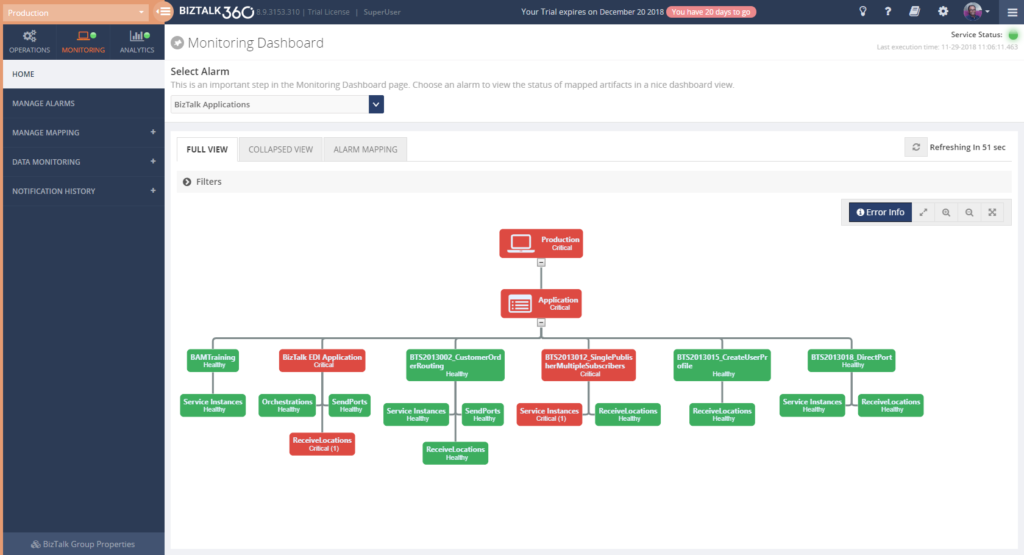
The way they configure monitoring of their BizTalk environments with BizTalk360, might evolve like this:
Basic Threshold/Health Check monitoring with email notification
BizTalk Platform – Monitor platform components like Host Instances, SQL Server jobs, NT Services, BizTalk Health Monitor
BizTalk Applications – Monitor application artifacts like Receive Locations, Orchestrations, Send Ports, Instance states
Data monitoring – Monitor interface processing, automate resuming and terminating of service instances
Enterprise notification channels – Receive notifications via HP Operations Manager, Slack, ServiceNow, Microsoft Teams, Webhook, PowerShell
In case of any issues, the (team of) BizTalk administrators will fix these issues themselves, or they contact other stakeholders to discuss how the issues need to be fixed.
Improve your business processes by extending the reach of BizTalk360
The power of BizTalk360 lies in the fact that it provides a rich user interface with many different dashboards for many different purposes, both from a technical and a functional perspective. In contrast with the tools which come out-of-the-box with BizTalk Server, all the capabilities in BizTalk360 are protected by User Access Policies and Auditing. This enables you to give any person exactly that set of permissions that they need to be able to do their job.
When the BizTalk administrators feel comfortable with the product and with BizTalk administration in general, or when the organization requires it, BizTalk360 can be deployed to other parts of the IT department or business departments.
Involve stakeholders by sending notifications and providing access to BizTalk360
By sending alerts to stakeholders directly, you improve information management as your BizTalk Administrators don’t need to send separate emails or contact these stakeholders based on issues that have occurred. Although in many cases, email will be the primary means of sending notifications from BizTalk360, the product also contains the following Notification channels:
• Microsoft Teams • ServiceNow • Slack • PowerShell • Webhook
These channels can be configured on each BizTalk360 alarm and enable you to receive the notifications where it is most convenient for you. You can also use a simple to use SDK to develop your own custom Notification channel. Read more about Notification channels in our Documentation Portal.
But you can go even further, BizTalk360 allows you to give stakeholders secure and limited access to BizTalk360. This kind of access can reach from read-only access to particular parts of the BizTalk platform to the capability to act on certain issues.
Deployment of BizTalk360 to your organization can be done in the pace you and your organization feel comfortable with. By sending notifications to the stakeholders and provide access to BizTalk360, you can keep the stakeholders informed of any issues, improve the availability of your business processes and meanwhile spreading the workload between all the stakeholders.
Think of the following scenarios which could be achieved:
Sending alerts to the help desk – This enables the help desk engineers to analyze any issues at hand and take countermeasures
Informing your administrators directly of any issues – Think of your System Administrators or DBA’s who receive alerts about server or database issues
Automated creation of support tickets in your ticketing system – This takes away the need to have an administrator to do it manually
Inform business users of issues – Think of batches which are not processed (non-events) or faulty processing of their messages
Provide access to dashboards/portals – Give your stakeholders access to portals like the BAM portal, ESB portal, Business Rules Composer, (Data) Monitoring/Analytics dashboard, etc. etc.
Identifying stakeholders
When it comes to deploying BizTalk360 throughout an organization, you can identify the following roles:
IT Support personnel
SQL Server DBA’s, System Administrators and BizTalk developers
Business Users
Let’s have a look at the roles mentioned above and their potential responsibilities with regards to BizTalk Server/BizTalk360.
IT Support personnel
To have a good eye watching on your BizTalk environment, you could involve the IT Support staff of your organization. Depending on your organization, they might be available 24/7. So it makes sense to send notifications of unexpected behavior happening on the platform level, as they might be able to act before BizTalk Administrators can. Besides sending them notifications, you could give the IT Support staff read-only access to BizTalk, so they can explore any issues and maybe help you fix them, while you might be at home, having weekend.
SQL Server DBA’s, System Administrators and BizTalk developers
Since operating BizTalk involves more than just the BizTalk Server product itself, but also components like SQL Server databases and all kind of Windows Server components, you might consider involving System Administrators and SQL Server DBA’s in BizTalk operations by sending them notifications which might be relevant for them.
A few examples are:
SQL Server Administrators can receive notifications in case the BizTalk related SQL Server jobs fail
System Administrators can receive notifications when the BizTalk servers are running out of disk space
BizTalk Developers can receive notifications in case issues arise with upgraded or newly deployed BizTalk applications
As a next step, you might give these administrators and developers access to BizTalk360. This ranges from providing read-only access to particular features to giving them full operational access to the parts of their interest.
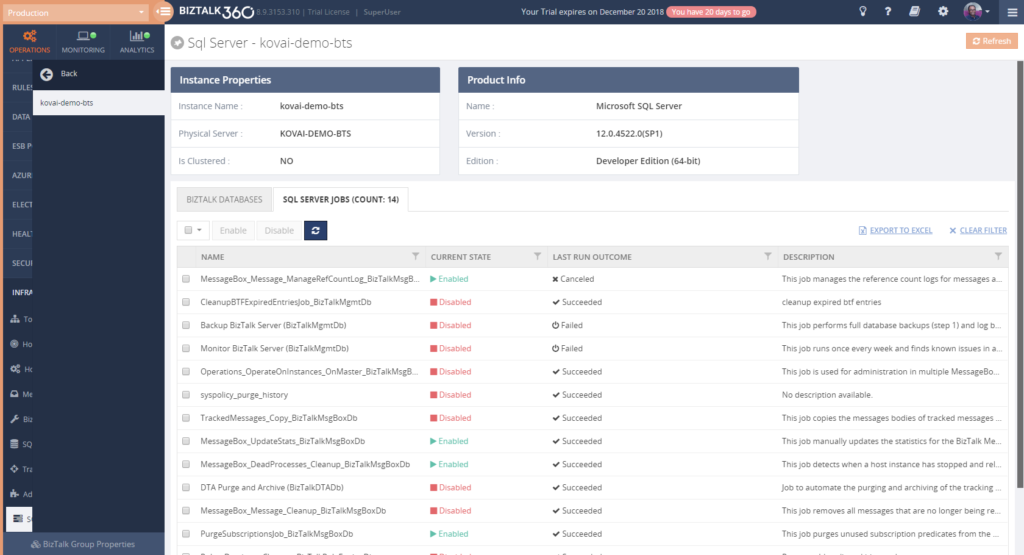
If you give any of the stakeholders access to BizTalk360, it is also helpful to use the BizTalk360 Knowledge Base. When you properly maintain the Knowledge Base, your support people will have the help they need at their fingertips and be able to solve known issues quickly. The Knowledge Base associates Knowledge Base articles to Service Instances, EventLog entries, ESB Exceptions, and Throttling data. Read more about its capabilities in our Documentation portal.
You might consider providing System Administrators, SQL Server DBAs and BizTalk developers with the following authorizations:
System Administrators
Advanced Event Viewer
BizTalk Health Monitor
Topology
Host/Host Instances
BizTalk/SQL Servers
Manage BizTalk/SQL NT Services
Tracking Manager
Adapters
Backup/DR Visualizer
SQL Server DBA’s
Secure SQL Queries
Advanced Event Viewer
BizTalk Health Monitor
Message Boxes
SQL Servers
Manage SQL NT Services
SQL Server Instances
Manage SQL Jobs
Backup/DR Visualizer
BizTalk developers
MessageBox queries (with/without access to content/context)
Tracking Queries
Advanced Event Viewer
Tracking Manager
Secure SQL Queries
BAM portal
ESB Exception portal
EDI Reports
Messaging Patterns
Business Users
This category of users might exist both inside as outside your organization. Depending on that, it will differ how they are involved in managing the interfaces. Normally, they will not take part in managing the BizTalk platform itself.
Internal business users can be informed about the processing, by providing them with notifications of disruptions in the processing of their interfaces, i.e., inform them of suspended instances, transmission failures, and failing process monitoring.
When you want to give business users access to BizTalk360, you can think of the following features:
– Specific BizTalk applications – Message Box (Queries) – Graphical Flow (Tracking) – Business Rules Composer – EDI Reports, parties and agreements – ESB Portal – Business Activity Monitoring – Messages Content/Context – Secure SQL Queries
In case external business users are involved in certain interfaces, you might send them the same notifications as internal business users. As the external business users will be outside your organization, you normally will not give them access to the BizTalk360 User Interface.
Conclusion
We often see, that BizTalk Server is considered as a black box and deep BizTalk knowledge is needed to be able to find out what’s all happening inside that box. By using BizTalk360, we make it easy to gain that insight, even with little BizTalk expertise. Furthermore, by deploying BizTalk360 outside the BizTalk administrators team, you can give your middleware a face and achieve much more transparency about all the processing taking place in your BizTalk environment.
By using BizTalk360 outside the admin team, it is easier to notify other stakeholders by sending them notifications directly from BizTalk360. Even further, besides sending notifications to these stakeholders within (or outside) your organization, you can give people (limited) access to BizTalk360. This way they can view for themselves how all the processing is taking place or check the wellbeing of the environment, without the need of contacting the BizTalk Administrators team.
All in all, it must be clear, that by extending the use of BizTalk360 outside the admin team, you will have a better ROI of the product. If you would like to know more about how BizTalk360 can help your organization to manage your BizTalk Server middleware platform, feel free to contact us.
Author: Lex Hegt
Lex Hegt works in the IT sector for more than 25 years, mainly in roles as developer and administrator. He works with BizTalk since BizTalk Server 2004. Currently he is a Technical Lead at BizTalk360. View all posts by Lex Hegt
In the last post, we try to demystify the reason and cause of the error: Invalid type name. The root node type has to be a valid C# identifier when you are working with a schema with a single root node.
In this second part of the post, we will address what happens If we are working with a schema with multiple root nodes, and two or more root nodes contains hyphens (-) or any other punctuation characters?
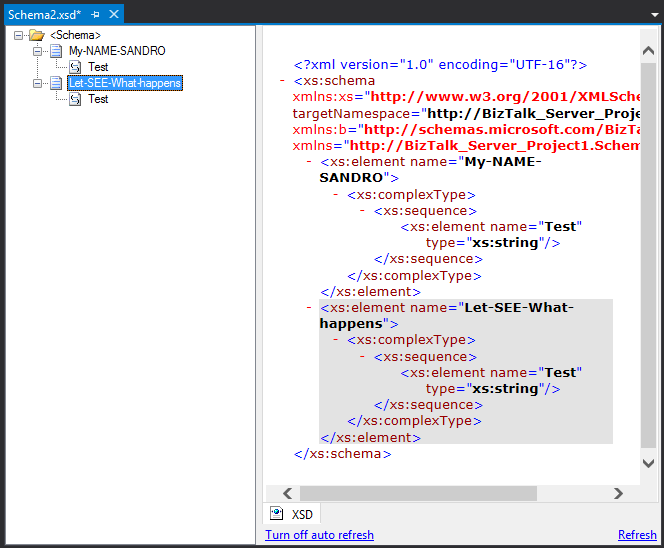
Let’s take the following example, where we have:
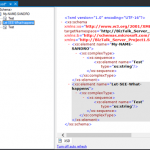
The root node “My-NAME-SANDRO” with the “RootNode TypeName” property set as “My-NAME-SANDRO”
And the root node “Let-SEE-What-happens” with the “RootNode TypeName” property set as “Let-SEE-What-happens”
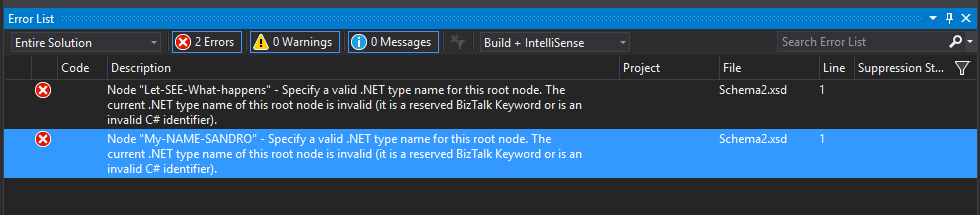
If we try to build our BizTalk Server solution within Visual Studio it will fail with the following errors:
Severity
Code
Description
Project
File
Line
Suppression State
Error
Node “My-NAME-SANDRO” – Specify a valid .NET type name for this root node. The current .NET type name of this root node is invalid (it is a reserved BizTalk Keyword or is an invalid C# identifier).
c:users…documentsvisual studio 2015ProjectsBizTalk Server Project1BizTalk Server Project1Schema2.xsd
1
Error
Node “Let-SEE-What-happens” – Specify a valid .NET type name for this root node. The current .NET type name of this root node is invalid (it is a reserved BizTalk Keyword or is an invalid C# identifier).
c:users…documentsvisual studio 2015ProjectsBizTalk Server Project1BizTalk Server Project1Schema2.xsd
1
Cause
Official Microsoft documentation state that The Type Name property of this schema file is not valid. Because the value of the Type Name property is used as the name of an automatically generated C# class name, it must be a valid C# identifier and cannot be a reserved BizTalk keyword.
And in this case – when working with multiple root nodes in a single schema – it is not allowed the use of hyphens or other punctuations like “.”, “!” and so on, with the exception for the underscore (_).
We saw in the previous post that we could work around this “limitation” in schemas with a single root node by open the Schema with XML (Text) Editor and fix the “rootTypeName” for the value you want. In this case, it will not work.
Solution
As hyphens, or any other punctuation characters, are not allowed, the only solution you have is to change it from the “RootNode TypeName” property. For example:
For the node “My-NANE-SANDRO” the “RootNode TypeName” value can be “MyNAMESANDRO” or “My_NAME_SANDRO” instead of “My-NAME-SANDRO”
And for the node “Let-SEE-What-happens” the “RootNode TypeName” value can be “LetSEEWhathappens” or “Let_SEE_What_happens” instead of “My-NAME-SANDRO
By removing all hyphens, or any other punctuation characters, from this property in all schemas you will guarantee that you will not face this issue again at least in this project.
Conclusion
As a best practice you should use hyphens, or any other punctuation characters in the “RootNode TypeName”, nevertheless:
The use of hyphens or any other punctuation characters is allowed in schemas with a single root node;
The use of hyphens or any other punctuation characters is not allowed in schemas with multiple single root node;
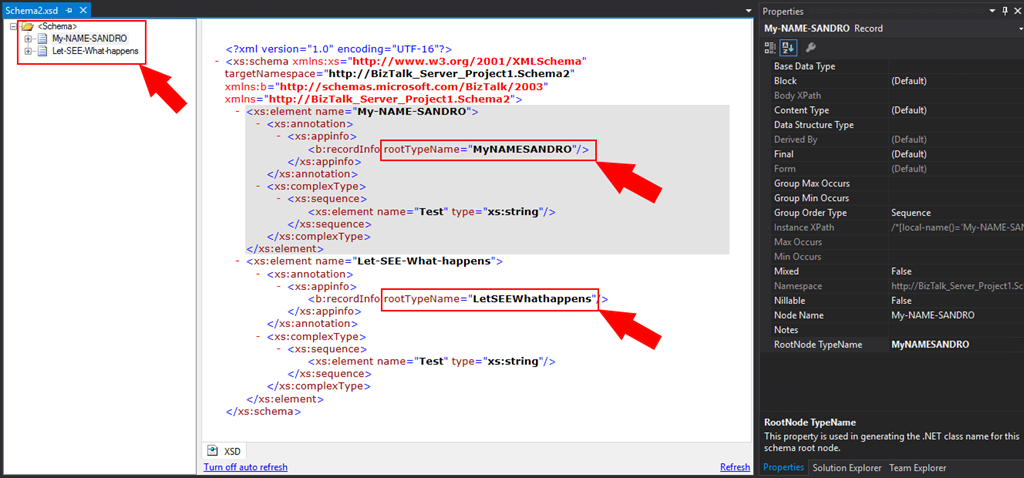
And by the way, can my root node name still contain hyphens or any other punctuation characters?
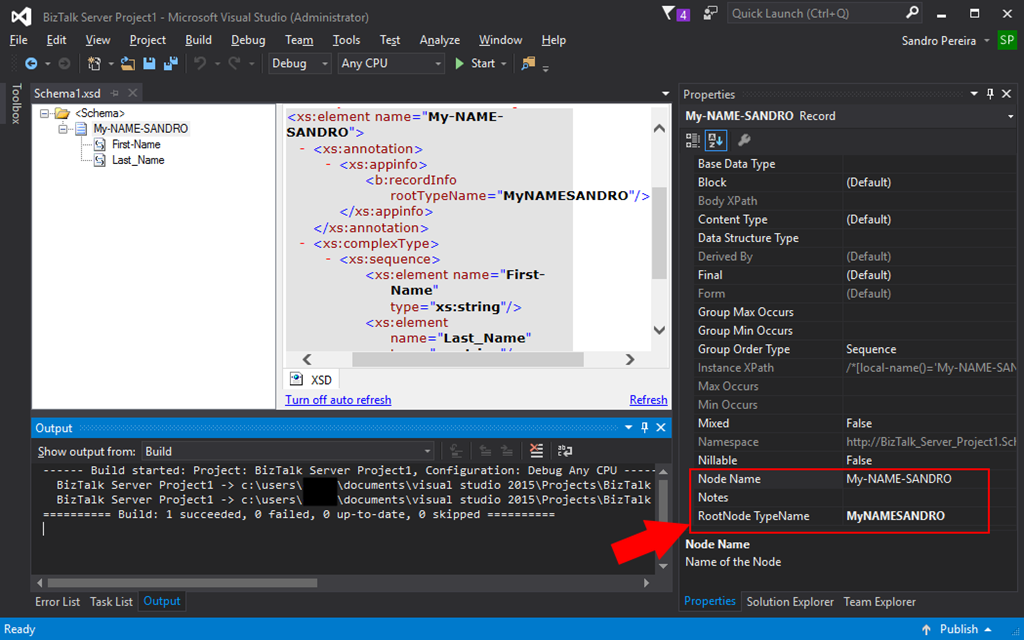
Yes, it can. In all scenarios as long the root “RootNode TypeName” property doesn’t contain any of them as you will see in the picture below:
Author: Sandro Pereira
Sandro Pereira lives in Portugal and works as a consultant at DevScope. In the past years, he has been working on implementing Integration scenarios both on-premises and cloud for various clients, each with different scenarios from a technical point of view, size, and criticality, using Microsoft Azure, Microsoft BizTalk Server and different technologies like AS2, EDI, RosettaNet, SAP, TIBCO etc. He is a regular blogger, international speaker, and technical reviewer of several BizTalk books all focused on Integration. He is also the author of the book “BizTalk Mapping Patterns & Best Practices”. He has been awarded MVP since 2011 for his contributions to the integration community. View all posts by Sandro Pereira
A few days ago, while trying to compile a BizTalk Server solution I got the following error: Invalid type name. The root node type has to be a valid C# identifier. I end up solving this problem but while I was preparing this post the reason I realize that the cause and respective solution that I thought to be behind this error was, in fact, incomplete and not accurate.
Most of the documentation available state that:
The .Net framework doesn’t allow the “-” within TypeNames because the “-” is reserved.
The use of a hyphen (-) in RootNode TypeName is not allowed.
And that statement is incorrect or at least incomplete!
1)What happens if I create a root node with hyphens (-)?
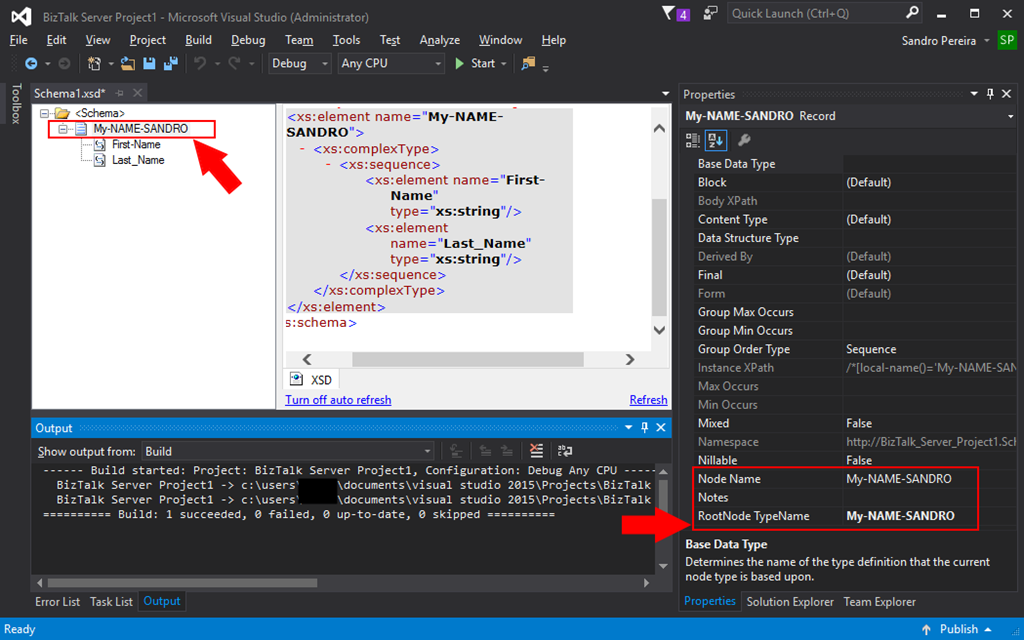
If we create a root node with hyphens, let’s say “My-NAME-SANDRO”, by default the:
The “NodeName” property will be set as “My-NAME-SANDRO”;
And the “RootName TypeName” property will also be set as “My-NAME-SANDRO”;
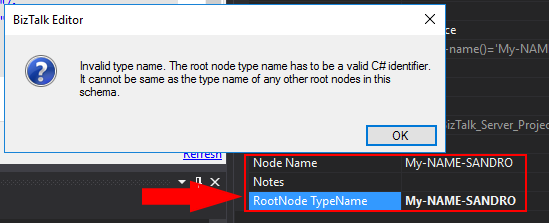
And as you can see in the picture below, you will be able to create a schema with a one or more hyphens (-) on the root node name and type name, in fact, they should be the same if you only have one root node in the schema.
And again, as you see in the picture you will be able to build and deploy it with success.
But, let’s play a little in order to demystify this Invalid type error that sometimes happens.
2)What happens if we try to change the “RootNode TypeName” property to other value like “MyNAMESANDRO” – without any hyphens (-)?
Nothing will happen, we will still be able to compile and successfully deploy our schema.
In fact, this is the best approach.
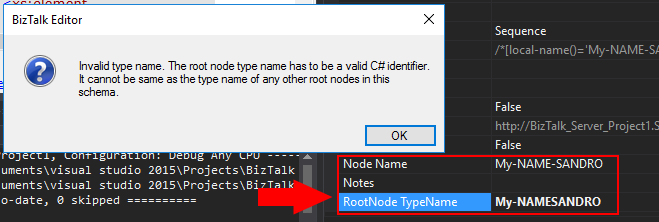
3)Now, what happens if we try to change the “RootNode TypeName” property to other value like “My-NAMESANDRO” – with hyphens (-)?
Note, that we are changing to a “RootNode TypeName” property to a different value than the “Node Name” but this time including one or more hyphens (-).
If we try to do that we will receive the following error:
Invalid type name. The root node type name has to be a valid C# identifier. It cannot be same as the type name of any other root nodes in this schema
Cause
Official Microsoft documentation state that the Type Name property of this schema file is not valid. Because the value of the Type Name property is used as the name of an automatically generated C# class name, it must be a valid C# identifier and cannot be a reserved BizTalk keyword.
In fact, it will not allow, any hyphens or other punctuations like “.”, “!” and so on with the exception of the underscore (_)… directly from the BizTalk Editor – we will get that sorted out (properly cleared) later.
Solution
As hyphen, or any other punctuation characters, are “not allowed”, you should “removed it” from the “RootNode TypeName” property. For example:
For the node “My-NANE-SANDRO” the “RootNode TypeName” value can be “MyNAMESANDRO” or “My_NAME-SANDRO” instead of “My-NAMESANDRO” or event “My-NAME_SANDRO”
By removing all hyphens, or any other punctuation characters, from this property in all schemas you will guarantee that you will not face this issue again at least in this project.
4)I change to “MyNAMESANDRO”, what happens if we try to roll back and change the “RootNode TypeName” property again to the original “My-NAME-SANDRO”?
Here’s where the story becomes funny, it will fail!
Humm… what? How that’s possible if in point 1 we saw that if the root node name and type name is the same it should work, and it did work before?
Cause
Again, official Microsoft documentation state that the Type Name property of this schema file is not valid. Because the value of the Type Name property is used as the name of an automatically generated C# class name, it must be a valid C# identifier and cannot be a reserved BizTalk keyword.
In fact, once you change the name for something else without hyphens or any other punctuation characters, you cannot rollback to the origin (or default) RootName TypeName “My-NAME-SANDRO”.
Solution
The same solution here, as a hyphen, or any other punctuation characters, are “not allowed”, you should “removed it” from the “RootNode TypeName” property. For example:
For the node “My-NANE-SANDRO” the “RootNode TypeName” value can be “MyNAMESANDRO” instead of “My-NAMESANDRO” or event “My-NAME_SANDRO”
However, if you want to rollback to the default RootNode TypeName value, you need to delete the root node and recreate from the scratch, at least directly from the BizTalk Schema Editor.
What is actually the Cause
I think at some point in the past this was a limitation, or maybe a limitation in certain scenarios (we will check this on Part II later on in a different blog) but not really at the moment or in this case: a schema with a single root node.
So, if it worked in the first approach – point 1 – why doesn’t work in the other approaches – point 3 and 4?
Well, in this case, this is just a BizTalk Schema Editor limitation or bug, but let’s call it a limitation.
What is actually the Solution
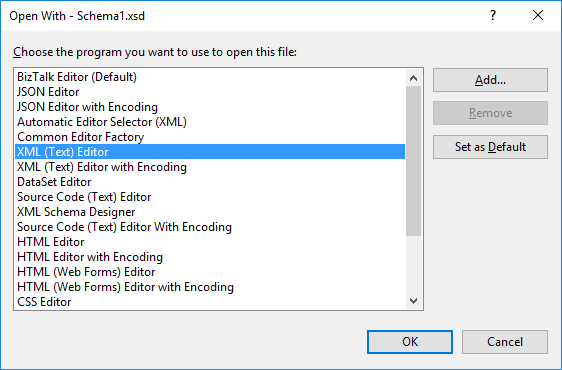
To solve point 3 and 4 you just need to open the Schema with XML (Text) Editor:
And fix the “rootTypeName” for the value you want: “My-NAMESANDRO” or back to “My-NAME-SANDRO”
Save it, you now can open it again with BizTalk Schema Editor, compile it and deploy it with any problem.
Keep posted for Part II of this blog post.
Author: Sandro Pereira
Sandro Pereira lives in Portugal and works as a consultant at DevScope. In the past years, he has been working on implementing Integration scenarios both on-premises and cloud for various clients, each with different scenarios from a technical point of view, size, and criticality, using Microsoft Azure, Microsoft BizTalk Server and different technologies like AS2, EDI, RosettaNet, SAP, TIBCO etc. He is a regular blogger, international speaker, and technical reviewer of several BizTalk books all focused on Integration. He is also the author of the book “BizTalk Mapping Patterns & Best Practices”. He has been awarded MVP since 2011 for his contributions to the integration community. View all posts by Sandro Pereira
With all these new security features present on the latest Microsoft operating systems, don’t get me wrong they are good, sometimes our life as BizTalk Developers seems like it’s reversing and becoming a nightmare, especially if you are a consultant working with multiple different clients, environments, and projects.
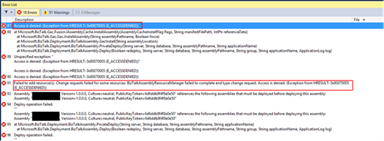
Most of the times I start developing a new project at a new client, the first time I try to deploy a solution I get an “Error 87 Access is denied. (Exception from HRESULT: 0x80070005 (E_ACCESSDENIED))…” error message.
There are several possible causes for you to get such Access Denied errors when deploying BizTalk solutions directly from Visual Studio. Most common is that you don’t have the right BizTalk privileges to deploy artifacts, or in other words, you are not a local Administrator.
But most of the time is simpler than that and indeed is related with these additional securities setting present in recent Windows Server versions. For you to be able to successfully deploy a BizTalk Server solution directly from Visual Studio, you must run Visual Studio as an Administrator, or with elevated permissions, because BizTalk assemblies need to be deployed into the GAC. What normally happens, is that if you have User Account Control (UAC) activated, or sometimes even deactivated, there are some additional securities setting present in recent Windows Server versions that, by default, doesn’t run Visual Studio with elevated permissions.
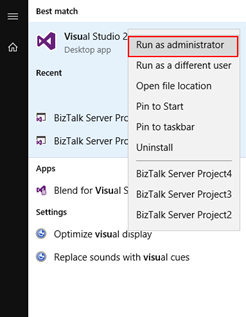
The quick solution is for you to run Visual Studio as an Administrator by simply run below step:
Right-click under Visual Studio and choose “Run as administrator” option.
The problem with this approach is that you need to remember yourself to do it every time you want to run Visual Studio, otherwise the next time you try to deploy the solution it will fail again with the same error.
How to properly address this problem?
Actually, this problem can be simply addressed by:
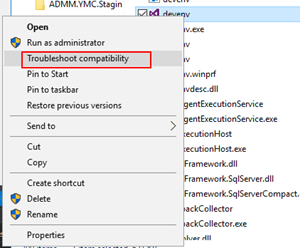
Access the devenv.exe file on the file system, which is by default installed in: “C:Program Files (x86)Microsoft Visual Studio 14.0Common7IDE”
Right-click devenv.exe and select “Troubleshoot compatibility”
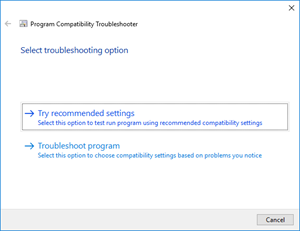
On the “Select troubleshooting option” page, select “Troubleshoot compatibility” option
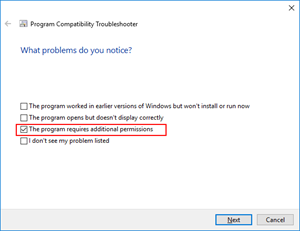
On the “What problems do you notice?” page, select the “The program requires additional permissions” option and then click “Next”
On the “Test compatibility settings for the program” page, click “Test the program…”, wait for the program to launch and then click “Next”
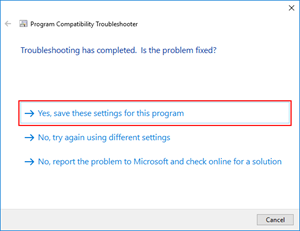
Select “Yes, save these settings for this program”
Click “Close”
You will never face this problem again… at least at that client.
Sandro Pereira is an Azure MVP and works as an Integration consultant at DevScope. In the past years, he has been working on implementing Integration scenarios both on-premises and cloud for various clients, each with different scenarios from a technical point of view, size, and criticality, using Microsoft Azure, Microsoft BizTalk Server and different technologies like AS2, EDI, RosettaNet, SAP, TIBCO etc. View all posts by Sandro Pereira




 Microsoft Integration, Azure, Power Platform, Office 365 and much more Stencils Pack for Visio


 The way they configure monitoring of their BizTalk environments with BizTalk360, might evolve like this: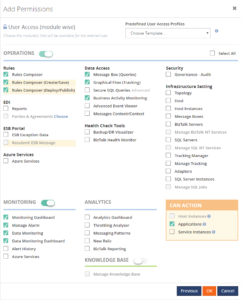
 If you give any of the stakeholders access to BizTalk360, it is also helpful to use the BizTalk360 Knowledge Base. When you properly maintain the Knowledge Base, your support people will have the help they need at their fingertips and be able to solve known issues quickly.