
by Praveena Jayanarayanan | Jan 14, 2020 | BizTalk Community Blogs via Syndication
BizTalk360 Product Support – Every year brings a new learning and new experience. We receive support tickets through different channels like emails, support portal, feedback widget. It is the responsibility of every support engineer to make sure the support case is taken care of and resolved on time, thereby aiming for 100 % customer satisfaction.

2019, of course, was a better year than before. A lot of customer relationship calls, best practice sessions, customer demos and much more. We are happy to share the stats of the support cases handled by us in 2019. This is the result of our continuous hard work and dedication which has resulted in some really positive numbers in BizTalk360 Customer Support.
- Total tickets received for technical product support – 1274
- No of tickets closed – 1064
- Nearly 75% of the tickets resolved within SLA
- January and September were busiest months which had the highest number of tickets received
Customer Satisfaction Report
This is another interesting factor which helps to know the rating of customer satisfaction. For every support ticket that is getting closed, there is a customer survey that gets attached to the closure response where they rate the resolution provided by the support engineers.
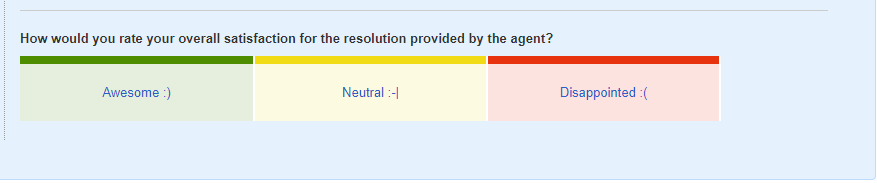
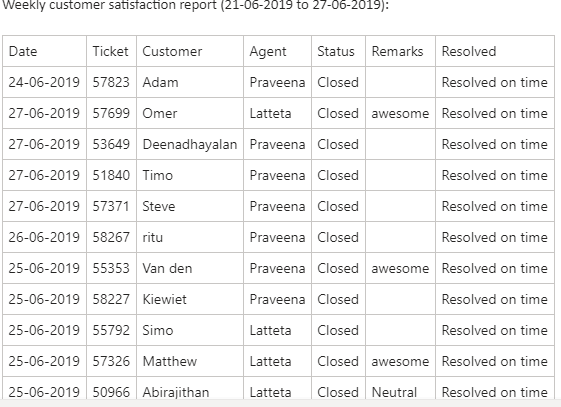
The rating may be awesome, neutral or disappointed. The customers can provide their comments as per the resolution provided. The customer satisfaction reports help us improve our support based on the ratings and comments that we receive from the customers. This report is taken every week. We are happy to inform that most of the responses we received were of ‘Awesome’ rating and very few had the other ratings.

Here are some of the customer quotes the BizTalk360 Support team has received in the past few months:
“Your support is amazing. It will definitely be a selling point here :-).”
“Fantastic support. Thank you!”
“Thanks for the quick and effective solution for monitoring this scenario. It is working for us. Really appreciate it!”
“Felt good to get a resolution which exactly solved our problem  well done “
“Quick, friendly and very knowledgeable support! very happy with the service :)”
These kinds of comments motivate us to do more and thereby providing the best customer support.
Here is a one such customer satisfaction report:
Major Releases in 2019
The feedback portal is one place where the customers can provide their suggestions and valuable feedback on the features that they already use and also features that they expect in BizTalk360. It is based on these feedback and customer votes; the features are selected for every release.
In 2019, we had 5 major releases, 8.9.5, 8.9.6, 9.0 Phase 1, 2 and 3.
For the list of new features and enhancements shipped in each release, refer to the release notes.
Some of the highlighting features added in 2019 are:
- SQL cluster monitoring
- Clustered host instance monitoring
- Dynatrace integration for Analytics
- BizTalk360 Activities Auditing
- BizTalk Group Dashboard
- Configuring polling interval for monitoring
- Database size monitoring
- SMTP Notification channel
- Quick alarm configuration
For more details on the top 10 features in 2019, refer to the link. Also, the release includes enhancements as well as bug fixes. We always recommend the customers to upgrade to the latest version so that they are in line with our releases. This will avoid the issues with the product and helps us in the support as well.
In addition to the CR calls, to help customers in all aspects and understand their challenges, the client relationship team introduced the Quarterly health check session this year. In this session, we, the technical support engineers, would assist the customers in the upgrade process if they require assistance and understand their challenges in using BizTalk360 and provide resolutions.
This makes us understand the customers’ expectations better and help in improving the product to cater to the needs of the customer. As the saying goes, ‘Every ending has a new beginning’, the end of 2019 has brought us new lessons and experiences with various customers and new processes. Every support case has a lesson in it, be it the customer scenario, their infrastructure settings or our way of troubleshooting the case, our responses. We make sure that we improve our support, thereby making our customers happy and working more efficiently.
As part of the customer services, we also have the on-site BizTalk360 consultancy. Sometimes it would be more convenient to speak to somebody in person and with your BizTalk environment at hand. For such scenarios, we provide our customers with the opportunity to have an experienced BizTalk360 Product Consultant visit you at your premises.
The client relationship calls done every quarter helps us understand the pain points of the customers and the most used features in BizTalk360. The resolutions would be provided immediately in the call if possible or separate tickets would be raised for the issues so that it would be easy for tracking.
In 2020
2020 is, of course, going to be a very great year, with no doubt at all, the important reason being BizTalk 2020 will be announced by Microsoft which in turn sets the pace for the new features to be included in BizTalk360.
The most awaited event in the Microsoft Integration space, Integrate2020 is on the way. The dates and venues are finalized. Grab the early bird offer which ends by March 31st, 2020.
We have an upcoming webinar on “BizTalk360 Product v9.x product walkthrough”. Please register for the same here. More webinars to come on the way.
Conclusion
We would like to request you, our customers, so please take the time to fill this questionnaire. This helps us to prioritize the next upcoming feature tasks and will let us know what your main pain points are. In case of any queries, you can always write to [email protected], so that we can immediately get your queries answered and resolve the issues. Happy monitoring with BizTalk360!
Every ending has a new beginning. Let’s hope and pray for 2020 to bring loads of wonders and happiness.
The post A Look Back on the BizTalk360 Technical Support 2019 appeared first on BizTalk360.

by Sivaramakrishnan Arumugam | Aug 28, 2018 | BizTalk Community Blogs via Syndication
Support deliberation is a process of discussing the challenges we faced in support handling. It is an initiative which our CEO suggested, and we are following this to transfer the knowledge to the team. With the different levels of support, it is important to share the knowledge between the team members, so that it would help them to resolve customer issues efficiently, when they come across similar kind of issues. It’s not only for the support team, the entire product team, including the developers, QA and the documentation teams take part in this deliberation.
I would like to narrate this blog as a Q&A session, so that I can explain in detail.
What is deliberation?
As deliberation defines, it’s a place where we discuss in detail about the support process and the challenges we faced in resolving the issues related to the product. Every participant will share their view and add points to the discussion.
Who are all the stakeholders?
Everyone who is inside/part of the product will take part. People from Development, QA, Document and Support. The thumb rule is no one should skip the meeting. It is important for every team member to attend this meeting, because it would be helpful for everyone to gather more information about the product, as well as the customer’s expectations and queries.
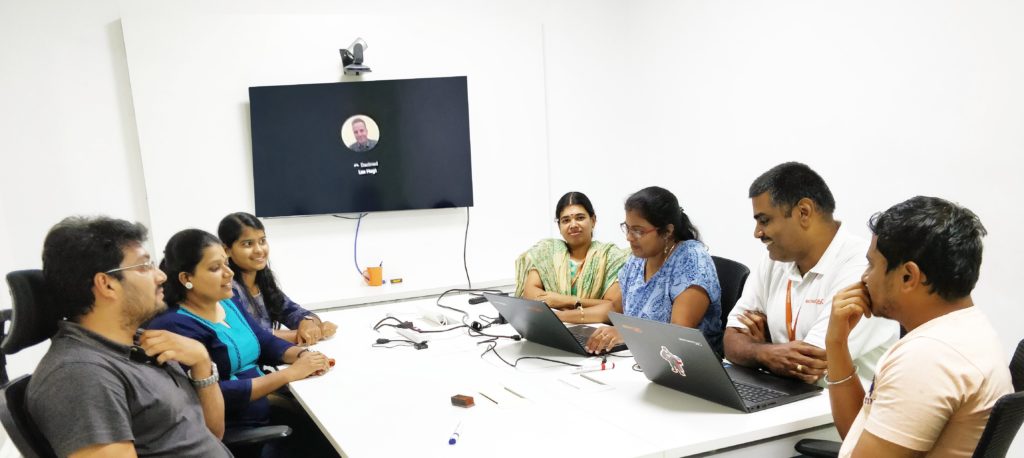
Yes…!! We are the stakeholders of BizTalk360
What do we discuss?
At first, we used to conduct this meeting twice in a month for 30 minutes. We thought that we were delaying the process and for providing immediate attention to the support tickets, we cut down the days and currently we are conducting every week, Tuesday from 03:00 to 03:30 PM IST, sometimes it may extend a bit longer.
Each support person would come up with a list of interesting and challenging support tickets they had resolved the past week. The challenges include the support tickets, support articles, blogs, new feature requests and enhancements which were raised by customers.
What is the process?
The process is simple and clear, we will follow the below Agenda:
- Discussing past one week important/challenging support cases
- Discussing the solution provided
- Gather inputs from the team members
- What needs to be improved
- Key Takeaways
Simple isn’t it?
What’s the flow?
We start with the updates and actions taken on what we discussed for the previous week, based on the key takeaways from the meeting. Then we will discuss the current week challenges.
What did we discuss in the present week?
Well, let’s dive deep into this. We will take past 7 days tickets for the discussion.
Interesting/challenging support tickets
We started the meeting with the interesting/challenging support tickets which we handled that week. Let’s take a support case.
When a customer tried to install BizTalk360 on a stand-alone machine, they faced below exception during BizTalk360 database creation.

At an initial stage, we thought it might be a permission issue. Later, after a lot of effort we found it’s due to the TLS versions enabled in that machine.
Key Takeaway
The development team would only have more knowledge about the product functionality, but they would be unaware of the security configuration at the customer end. This discussion will give them a better insight into the customer scenarios. As a takeaway, we have conveyed this to the developer team and testing team. So, that they will know the dependency of the installer and work/test accordingly.
Bugs
There is no perfect product and there is always more scope for the development of the product in the form of either bugs or enhancements. As BizTalk server is an ocean, we are trying to cover most of the functionality. Very recently we faced an issue with the customer side on Business Activity Monitoring (BAM). When they added a column, they received an error.
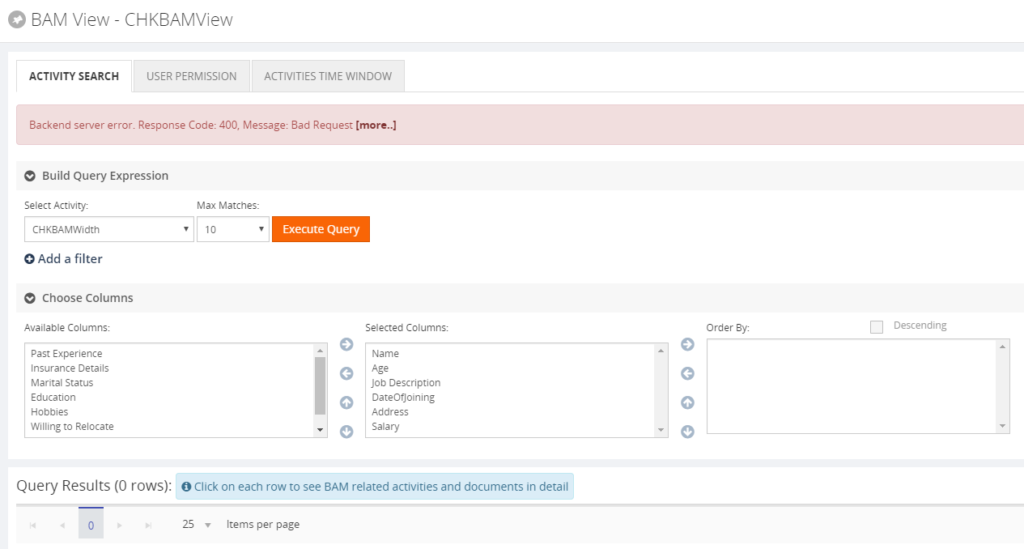
This issue happens when the end date column has NULL values and it was selected in the BAM query in BizTalk360.
Key Takeaway
We have passed this scenario to our team so that both developers and test engineers will be aware of it and they will include these scenarios in their test case checklist.
Creating team awareness
This topic is something interesting; even though it will be out of BizTalk360, it is still relevant.
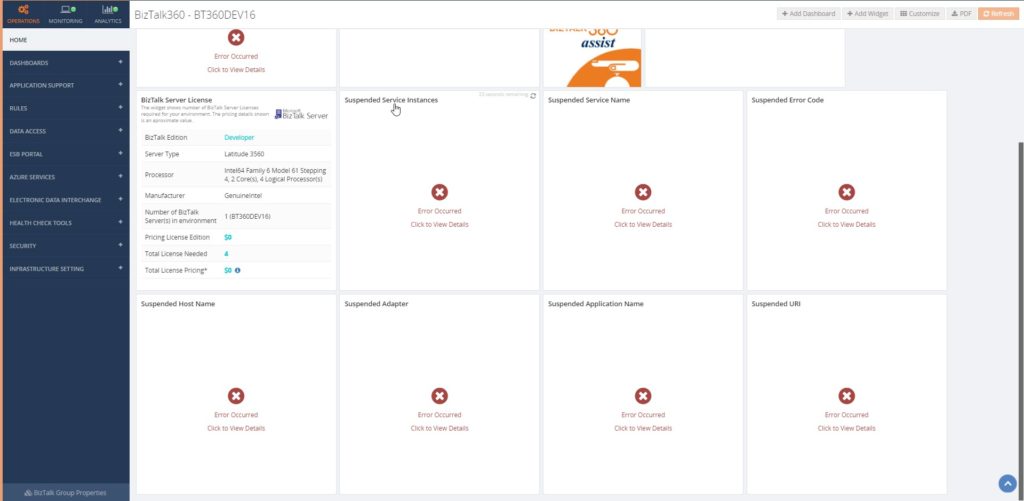
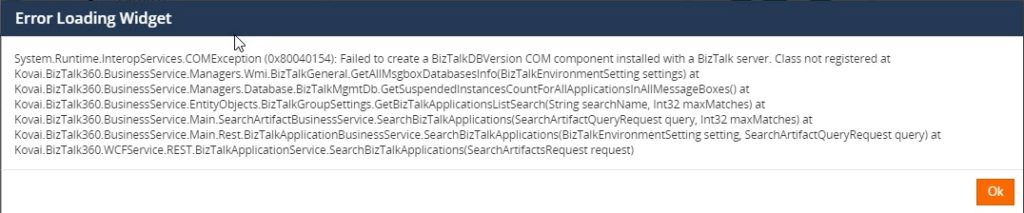
Most of our customers started to face an exception in BizTalk360, once after installing a Windows Security patch update. We found the root cause, that not only BizTalk360 shows the exception, it is because BizTalk Server facing an exception, which is reflected in BizTalk360. We recommended removing the patch update and that solved their problem. Luckily Microsoft has re-issued the updated patch for the same on July 30, 2018.
Key Takeaway
Interesting isn’t it? We have conveyed to the team, so that they will be aware of the issue. If they face the same problem with BizTalk server, they will not wait for our system engineer to repair, but they will try to fix the issue in BizTalk Server. After that, the problem will most likely be fixed in BizTalk360 as well.
Improvement tickets
At BizTalk360, we evolve the product based on feedback we get from different forums like:
- Support tickets
- Customer relationship calls
- Feedback portal
- Direct feedback
Based on the customer’s feedback, the tickets will be discussed. The feedback may concern an existing feature enhancement, a new feature or a feature document.
Key Takeaway
Based on the discussion the action will be performed. Say for example, if the feedback comes to a documentation enhancement, one of us (as we are DevOps) will be assigned to complete the necessary changes.
For an existing feature enhancement or a new feature, we will discuss with the team. Based on the team members feedback, we will add the feature in the Feedback portal and make other customers vote for it. Based on the number of votes, we will include in the product or if it is already available in the portal, we will wait for the interest of other customers. If the team agrees to accept the feature for development, one of the persons will be assigned to develop or to improve the feature.
The Brainstorming session
This is an interesting part for me. We don’t want to run the session like a normal Knowledge Transfer session with the team and we always prefer an interactive session. So once after explaining the problem faced by the customer, we will ask the team what the best solution would be and what the necessary steps are to solve the problem.
Key Takeaway
The first point is to make the team understand the problem and get their opinion. It will help us to get the solution and their point of view and may provide a better dimension of that case. We have received a better suggestion from the team, every time.
Hidden fact, it helps themselves, while developing, testing or documenting a feature. They will always be aware of how the customer is using a feature and act accordingly.
Minutes of Meeting (MOM)
Each meeting ends up with the key takeaways and MOM. This will help us to follow up and take necessary actions. During the next deliberation meeting, we start up with the past week’s MOM or with the tickets what we have discussed.
Why we started this process?
We wanted to break the dependency of individuals like Module owners and get more knowledge from our higher levels. As DevOps, we should be ready to accept any challenge while working in different roles . It’s also important to understand and be aware of the customer environment and business requirements.
I want to take this opportunity once again to thank everyone in and out of BizTalk360 for this wonderful opportunity and believing in us. We are looking forward, for much more opportunities.
Author: Sivaramakrishnan Arumugam
Sivaramakrishnan is our Support Engineer with quite a few certifications under his belt. He has been instrumental in handling the customer support area. He believes Travelling makes happy of anyone. View all posts by Sivaramakrishnan Arumugam
by Sivaramakrishnan Arumugam | Aug 23, 2018 | BizTalk Community Blogs via Syndication
I can say last month was one another interesting month for me as a Support and Test engineer, as we have received quite a few interesting tickets.
Every support ticket gives us a different experience in its own way. But, some of the support tickets seem interesting, because it helps us to explore and learn new things. One of such tickets was related to the Slack Notification Channel.
Short intro about Notification Channels
BizTalk360 is embedded with a feature called Notification Channel. Not only does BizTalk360 support internal notification like emails and SMS, along with it, we support external notifications so that customers can write their own code to send alerts to the Notification Channel they use as per their organization policy.
External Notification Channel is another customer’s feature request, which we have developed and included in our product. As it can be very helpful to Support teams, we decided to create some inbuilt Notification Channels. Further, customers can create their own Notification Channel using their own code. Kindly find the blog for Custom Notification channel.
Feedback from the customer about custom Notification Channel
We have got very positive feedback from our customers about external Notification Channels and received quite a few requests to include some of the Notification Channels as an inbuilt feature. And we did so.
Also, we haven’t kept support aside; whenever customers face challenges with Notification Channels, we helped them to solve the issue at hand to our best. One such classic case is ‘Using BizTalk360’s Notification Channel to perform some action via a PowerShell script’.
Default Notification Channels
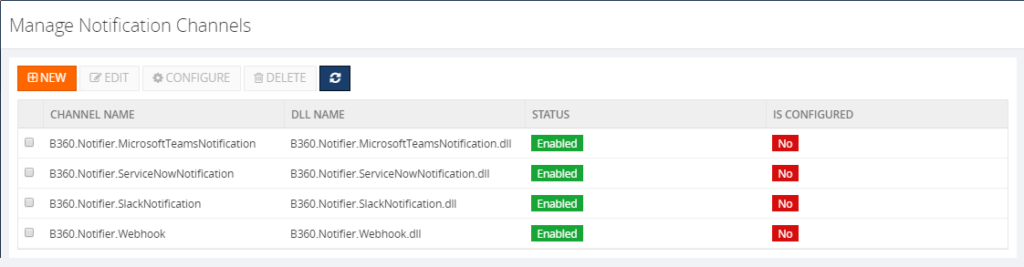
During the initial point of time, along with the version 8.0, we have provided BizTalk360 with some inbuilt Notification Channel such as:
1. Slack and
2. Webhook Notification Channel
Later as per the customer’s request, we have included two more Notification Channels and we have 4 now.
3. ServiceNow
4. Teams
Notification channel configuration in our latest version 8.8 looks like below.
Also, we have enhanced the Notification Channel feature as per the customer’s request. Such as,
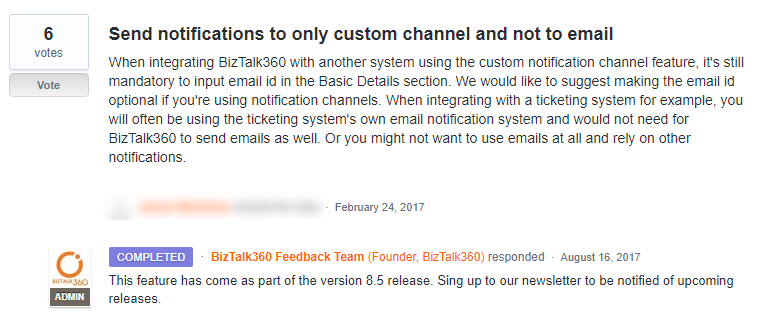

Challenge in External notification #Slack
Last month, we received a support case regarding the Slack Notification Channel, that it’s not receiving any notifications from BizTalk360 and they faced the below exception in the log file:
2018-06-08 12:01:40 ERROR – Unable to connect to the remote server
We started to approach the case with the basic troubleshooting steps such as:
• Does the user have proper credentials?
• Any ports are blocked?
• Any security tools are blocking the connection?
• The URL what they used to connect slack?
•Does the proxy is blocking the internet connectivity?
The basic troubleshooting did not help us to solve the problem. So, we went into the screen-sharing session to investigate furthermore. At that point of time, we found that admin scope is missing for the application.
To give more insight about Slack:
In Slack,
• Groups are considered as #Channels
• Applications are predefined functionality, that is considered as #Apps
• Permissions are called as #Scopes
The flow is like:
1. You must create a Channel inside Slack
2. App creation will be followed by channel
3. Add necessary permissions/scopes to the created app
4. Generate Access Key/Token for the app
5. Add app inside the channel
6. Add the Access token for the app inside BizTalk360
We asked the customer to provide the admin scope and left the call. After few days customer came back with the same problem even though they have provided admin scope.
Creation of test environment
For Testing purposes, I have created a new Slack account and Channel, tested from the scratch and we have provided the same permission as the customer had.We got the same issue as the customer encountered, though the application has the scope admin.
What our code does?
We have analyzed with the source code level to find if anything is missing at our side. But found, the code is written in a generic way to push the plaintext message to any Notification Channel. So that, it could be sent to any platform. we have found that it is not a problem with sending a notification from BizTalk360, but it could be a permission issue.
After some testing and researching, we were not able to find the minimum permission what needs to be provided for the application in order to solve the customer issue. Later, we have decided to seek help from the Slack support team for further investigation.
Working with Slack Support
Daniel from the slack support team who worked with me throughout the way. I have created the support ticket along with the sample test application which had been created for testing. The conversation started with the basic questionaries and made sure the basic configuration is configured as per the actual expectation. However, everything is correct, still, we couldn’t make the app work. The direction of an investigation gone little deep and we will look it in the coming section in detail.
Troubleshooting with the permissions
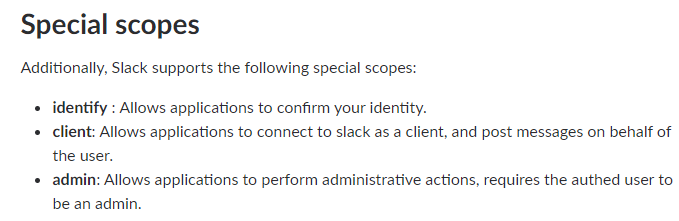
Daniel conveyed, installed app in the test workspace has a valid token. But, looking through the logs, the application has enough permission (both admin & User identity) to receive the messages. Permissions are as below,
- https://api.slack.com/scopes/admin – Got Admin scope
- https://api.slack.com/scopes/identify – And got Identify Scope
Additionally, he suggested providing
- Conversiontions:write &
- Converstions:read scopes
After following the suggestion, the app was not working. But the next suggestion made a trick.
What is the trick?!!
Later, we got a reply from Daniel “I took a closer look at your app, and it appears you haven’t added the chat: write scope. You’ll need this to make any chat:postMessage (https://api.slack.com/methods/chat.postMessage) calls with your app.”
Providing the chat: write permission to the application indeed did the trick! The application writes a message in the Slack from BizTalk360. I have updated the same to the customer and that helped them to resolve their issue.
Satisfaction does it!
This was another support case which was interesting for me as it helped me to understand the code of Notification Channel from a Developer perspective. I have explored Slack along with BizTalk360 which provided more insight from the Tester perspective. Working along with the customer and Slack Support team gave satisfaction as a Support engineer. I have received “an Awesome” review from the customer side 😊
Author: Sivaramakrishnan Arumugam
Sivaramakrishnan is our Support Engineer with quite a few certifications under his belt. He has been instrumental in handling the customer support area. He believes Travelling makes happy of anyone. View all posts by Sivaramakrishnan Arumugam

by Rochelle Saldanha | Feb 8, 2018 | BizTalk Community Blogs via Syndication

The stats are in. Our continuous striving for improvement and dedication have resulted in some really positive numbers in BizTalk360 Customer Support. Here’s some statistics that we are happy to share. These statistics are taken from data provided by our customer support platform – Freshdesk.
- 5514 customer queries addressed in 2017
- Tickets ranging across technical support, licensing and sales enquiries
- The busiest month for the team was the month of May 2017. We received about 1300 support tickets.
- We managed to respond to 97% of the tickets and resolve 84% of the tickets within the SLA
- We resolved 73% of the tickets with just one response to the customer
- Our top performing support agent was Praveena Jayanarayanan
- We received support tickets on
- Email
- Support Portal
- Feedback widget
- 86% of our customers rated our support as awesome and were happy with the support offered to them
What’s coming in 2018?
Here’s what is expected from BizTalk360 in 2018 –
- Launch of two new products – Atomic Scope and Document360
- INTEGRATE 2018 – June 4 – 6 at etc.Venues, 155 Bishopsgate, London. Registrations are open. Grab your tickets today.

Video
Here’s a short video on our customer support statistics.
Author: Rochelle Saldanha
Rochelle Saldanha is currently working in the Customer Support & Client Relationship Teams at BizTalk360. She loves travelling and watching movies. View all posts by Rochelle Saldanha
by Praveena Jayanarayanan | Sep 27, 2017 | BizTalk Community Blogs via Syndication
Biztalk360 comes with a lot of exciting features in every release. One of the important functionalities in BizTalk360 is the monitoring with the autocorrect options. BizTalk360 is the one-stop monitoring solution for BizTalk server. We can not only monitor the artefacts, but also the SQL jobs. Yes, the SQL jobs present in the SQL server can also be monitored. We can also set the autocorrect (enable/disable) functionality for the SQL jobs.
There may be separate servers for BizTalk databases and BizTalk360 database or even single server hosting all the databases. The jobs in all these servers can be monitored via BizTalk360. But then, can all the users have access to monitor and autocorrect the SQL jobs? In this blog, I am going to explain about the permissions required by the users for monitoring SQL jobs and setting autocorrect functionality which we learnt from one of the support tickets.
Customer’s case:
Our support team often get some interesting tickets which do not directly deal with the functionality and features of BizTalk360. Some tickets may be related to performance, access permissions, AD users etc. Each ticket experience is a new learning for our support engineers. Let’s see one such case of a customer related to the access permission for the databases in the SQL server.
The customer got the below exception when they tried to set up monitoring for SQL jobs.
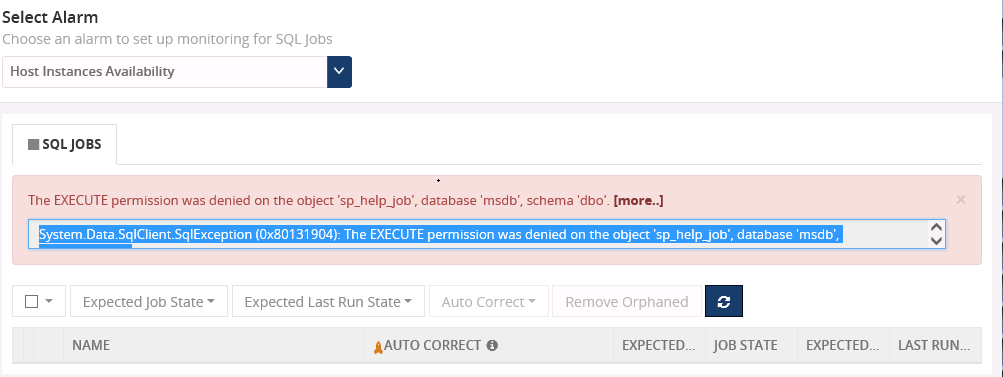
The sp_help_job is the stored procedure used to list the SQL jobs running in the server. This job returns information about jobs that are used by SQL Server Agent to perform automated activities in SQL Server. There are SQL jobs that get installed and scheduled automatically to maintain the health of the BizTalk environment.
BizTalk360 allows to set the threshold for SQL jobs (Monitoring -> Manage Mapping ->SQL Server Instances ->SQL Jobs) to list out those SQL jobs and perform the automatic operation this “sp_help_job” job is being used.
The exception in the above screenshot comes because of a missing permission for the BizTalk360 service account while accessing the SQL server. We have our support article in place which describes about the permissions for the SQL jobs. The customer has given the permission according to this article. But they were facing the error again when trying to enable autocorrect feature for SQL jobs.
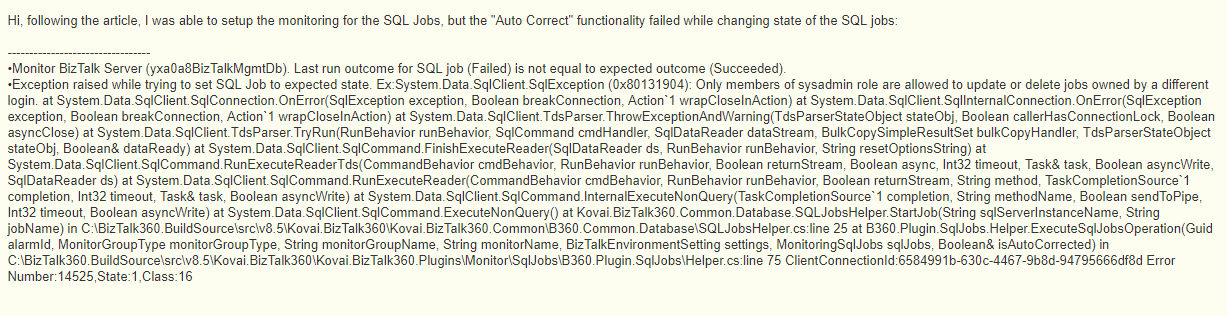
In this error message, it says “Only members of sysadmin role are allowed to update or delete jobs owned by a different login”
This means that only if the service account has the SYSADMIN permission, then it can enable/disable the sql jobs from BizTalk360. But some of the customers would not prefer to provide SYSADMIN permission for the service account due to some security policies. So, what happens in such case? Let’s go ahead and check the resolution given. Before that lets have a quick glance at SQl jobs and permissions.
The SQL jobs:
A job is a series of operations performed by SQL Server Agent sequentially. A job can run on one local server or on multiple remote servers. The jobs are used to define administrative tasks that can be run one or more times and monitored for success or failure. SQL server agent runs these scheduled jobs. A job can be edited only by its owner or by the members of the sysadmin role.
The SQL job permissions:
SQL server has the following msdb database fixed roles through which the SQL server can be accessed and controlled. The roles from least to most privileged are:
- SQLAgentUserRole
- SQLAgentReaderRole
- SQLAgentOperatorRole
Can we have a brief look at each one of them?
SQLAgentUserRole:
This is the least privileged role. It has permissions on only operators, local jobs, and job schedules. Members of SQLAgentUserRole have permissions on only local jobs and job schedules that they own. They cannot use multi-server jobs (master and target server jobs), and they cannot change job ownership to gain access to jobs that they do not already own.
SQLAgentReaderRole:
This role includes all the SQLAgentUserRole permissions as well as permissions to view the list of available multi-server jobs, their properties, and their history. Members of this role can also view the list of all available jobs and job schedules and their properties, not just those jobs and job schedules that they own. SQLAgentReaderRole members cannot change job ownership to gain access to jobs that they do not already own.
SQLAgentOperatorRole:
This is the most privileged role which includes all the permissions of the above-mentioned roles. They have additional permissions on local jobs and schedules. They can execute, stop, or start all local jobs, and they can delete the job history for any local job on the server. They can also enable or disable all local jobs and schedules on the server. SQLAgentOperatorRole members cannot change job ownership to gain access to jobs that they do not already own.
The below table summarizes some of the properties for all these roles.
| Database Role |
Action – Create/modify/delete
Action – Enable/Disable
|
|
Local Jobs |
Multiserver jobs |
Job schedules |
| SQLAgentUserRole |
Yes
Yes
(Owned jobs)
|
No
No
|
Yes
Yes
(Owned schedules)
|
| SQLAgentReaderRole |
Yes
Yes
(Owned jobs)
|
No
No
|
Yes
Yes
(Owned schedules)
|
| SQLAgentOperatorRole |
Yes
Yes
|
No
No
|
Yes (Owned schedules)
Yes
|
Of all the above-mentioned SQL database roles, the SYSADMIN is the highest privileged role which has the administrator rights on the SQL server.
The resolution provided:
As mentioned earlier, the BizTalk360 service account would require the SYSADMIN permission to monitor and autocorrect the SQL jobs. But in some customer scenarios, they would not prefer to provide the SYSADMIN permissions. In that case, we need to see what is the minimum level of permission that we can provide to the service account for monitoring the SQL jobs.
Our support team did an extensive testing to check for various scenarios and permissions for the service account. The outcome of the testing is given below:
As the table summarizes, when the BizTalk360 service account is given the permissions as SQLAgentUserRole or SQLAgentReaderRole, it can only view the SQL jobs and cannot perform any operations on them. But when the SQLAgentOperatorRole is given for the service account, the auto correct functionality will work for the SQL jobs. The SYSADMIN permission is not required for this. This role is the highest privileged role next to the SYSADMIN.
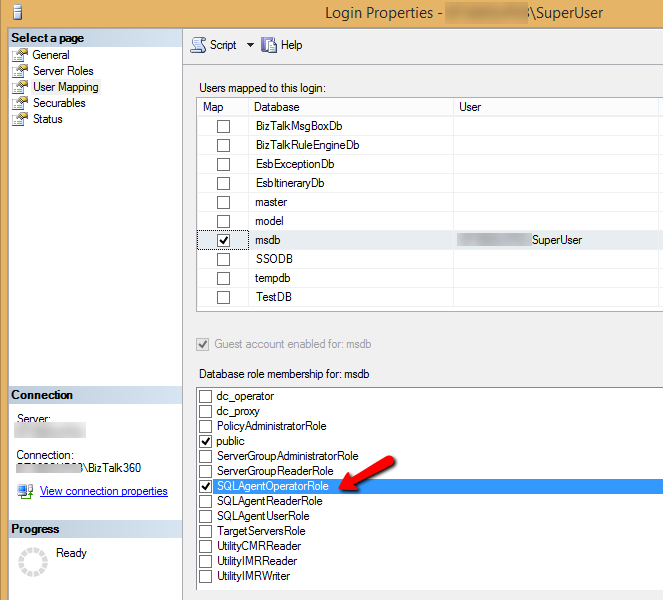
Conclusion:
Hence, for setting the autocorrect functionality (enable/disable) the SQL jobs, the BizTalk360 service account needs to be given the SQLAgentOperatorRole permission to the system database, if SYSADMIN permission is not preferred to be given.
PS: BizTalk360 will not do any operation by itself until monitoring has configured for any of the available SQL Jobs and enable the Auto-correction ability. In case, you don’t wish to monitor the SQL jobs you can avoid the permissions shown in the above image.
If you have any questions, contact us at [email protected]. Also, feel free to leave your feedback in our forum.
Author: Praveena Jayanarayanan
I am working as Senior Support Engineer at BizTalk360. I always believe in team work leading to success because “We all cannot do everything or solve every issue. ‘It’s impossible’. However, if we each simply do our part, make our own contribution, regardless of how small we may think it is…. together it adds up and great things get accomplished.” View all posts by Praveena Jayanarayanan

by Praveena Jayanarayanan | May 23, 2017 | BizTalk Community Blogs via Syndication
BizTalk360 v8.4 is now released for public with lots of exciting new features and enhancements. Many of our customers have upgraded to the latest version and started enjoying the new features. We at BizTalk360 support get a lot of queries in the form of tickets. Many customers are asking for the installation path, few raise some clarifications and others may be issues. We categorize the tickets as a clarification, feature requests, and bugs.
Our support team often get some strange issues which did not belong to either of these categories. I am here to explain about one such interesting case and how we identified the root cause and resolved it. As per the below quote,
“The job isn’t to just fix the problem. It is also to restore the customer’s confidence. DO BOTH!” – Shep Hyken
we, the BizTalk360 support team, always work hard to resolve the customers’ issues and achieve customer satisfaction.
The original case stated by the customer
There was a ticket from the customer stating that “Send port is not showing on BT360 Application portal”. In BizTalk360 console, the artifacts get listed when we navigate to Operations -> Application Support -> Applications. The case was that a send port was not getting listed here. But all the send ports were getting listed at the time of assigning alarm for monitoring activity. There was no issue with the other artifacts and they were getting listed properly.
Backtracking and Analyzing the case with the Network Response
Generally, when there is any issue related to UI, we ask for the JSON response from the Network tab in the Developer’s console of the browser. By pressing F12, we can open the browser console and check for any exceptions in the service calls. In the Network tab of the console, the service calls for each operation gets listed from which we can get the request headers and JSON response. This way we can check for the exception details and work on the same. So, we replied to the ticket asking for the network response. But we did not get the required information from the JSON response. The next step was to go on a call with the customer involving one of our technical team members through the web meeting with a screen sharing session.
In the web meeting, we tried different scenarios to check for the send ports. We tried in the Search Artifacts section and it was getting listed without any problem. But there was a weird thing seen. There were multiple entries for the same send port with different URI configured. This is the first time we have come across such an issue. But will this be the issue for the send port not getting listed? Let’s see what’s happening.
Discrepancy in the Send Port information
We exported the send port data from the customer and checked it. There were multiples entries for the same send port but with different transport type and protocols configured. But in BizTalk server, it does not allow us to create send ports with duplicate names. Then how come this would happen at the customer end? We started our investigation further. Then we found that the multiple entries were due to the backup transport configured for the send ports. But this was not the cause of the issue. What a strange issue? Shall we move further with the analysis?
Was the DB2 Adapter causing the real problem
On further analysis on this case, we found that DB2 adapter was being used in one of the send ports and it is not a standard BizTalk adapter. The BizTalk Adapter for DB2 is a send and receive adapter that enables BizTalk orchestrations to interact with host systems. Specifically, the adapter enables to send and receive operations over TCP/IP and APPC connections to DB2 databases running on a mainframe, AS/400, and UDB platforms. Based on Host Integration Server (HIS) technology, the adapter uses the Data Access Library to configure DB2 connections, and the Managed Provider for DB2 to issue SQL commands and stored procedures.
The trace logs also indicated a NULL assignment for the Transport type for the send port with this adapter. It’s a prerequisite for BizTalk360, that BizTalk Admin components must be installed in the BizTalk360 server, in case of the BizTalk360 standalone installation. Since DB2 adapter comes with HIS, it was suggested to the customer to install HIS in the BizTalk360 server and observe for the send ports listing. But even after installing HIS, the same issue persisted. We also tried to replicate the same scenario by installing HIS with the DB2 adapter in a BizTalk360 standalone server. The send ports with different combinations of adapters in the transport types were created and tested. But the issue was not reproducible. So, we concluded that the DB2 adapter was not the real cause of the problem.
The Console App made the trick
Sometimes, the issue may seem to be simple. But identifying the root cause of the issue is very difficult. And that too for some strange issues, it would be extremely difficult if the issue is not reproducible. It might not be good to disturb the customers often since they might be busy. Our next plan was to provide a console app to get the complete details of the send ports configured. This app was quite helpful for us to find the root cause. Read further to know the real cause.
The console app was given to the customer to get the complete details of the send ports. The app would give the result in the JSON format with all the details like the name, URI configured, transport type, send handlers etc., The BizTalk application which contained the send port and the database details must be entered in the app to fetch the response.
From the screenshot, we can see that the sendHandler for the secondaryTransport
does not contain the value of transport type. This was the cause for the send port not getting displayed. It was causing the exception.
Finally, the Backup Transport configuration was the cause
We probed further into the case as to why the sendHandler details were not coming up. The Backup transport was configured to “None” in the BizTalk admin console for that send port. Even though it was configured to None, we again asked them to update it again to None and then save it. This time, the issue was resolved and the send port got listed in BizTalk360 UI. It might have happened when importing the send port configuration, back up Transport Type is set to other than “None”. (Type can be empty or NULL).
If Transport type is other than None, then the code will generate the send handler and look for Transport Type. But it could not find the transport type and hence throws an error. The same issue happened in the production environment also and got resolved the same way.
Conclusion
When we import the send port configuration, we must make sure that the Backup transport type data is properly set to None. It should not be set to NULL or empty. This way we can make sure that all the send ports are getting listed in the BizTalk360 UI without any problem. We could identify this with the help of the console app.
Author: Praveena Jayanarayanan
I am working as Senior Support Engineer at BizTalk360. I always believe in team work leading to success because “We all cannot do everything or solve every issue. ‘It’s impossible’. However, if we each simply do our part, make our own contribution, regardless of how small we may think it is…. together it adds up and great things get accomplished.” View all posts by Praveena Jayanarayanan

by Sivaramakrishnan Arumugam | May 10, 2017 | BizTalk Community Blogs via Syndication
For any product, customer support will be considered as the face of the product and company. They deal with the customers and try to solve the problems which customers are facing. As a test and product support engineer of BizTalk360, I would like to share some of my experiences.
Let’s start with a support ticket which I handled and learnt from. A year back we received a support ticket from one of our customers. They were trying to renew their BizTalk360 license, for which they had to send their environment details to issue new license key (for 7.10 version). It’s a very simple process, the customer needs to select the environment and Generate License code using the Generate License Request button. But after selecting the environment, the ‘Generate Request’ button was not enabled. We found that the customer was missing some steps in between the process because the page was not used frequently by customers and at last we helped him to generate new keys after which they upgraded to the latest version (8.0).
Also, read Challenges in BizTalk360 Licensing after Environment Changes.
Issue faced by the customer after upgrade
After the upgrade to the latest version, customers must use the newly provided License keys to activate the environment so that they will be able to use the product. But unfortunately, this customer was stuck in the Settings page, it was loading for hours and no result. This case was very strange to us because we didn’t face the same problem anywhere in our testing although our testing team put lots of efforts in testing migrations. So, we planned to help them immediately by a web meeting, even though it was a Non-production environment.
Once after upgrading to the 8.0 version, we observed that the database table “b360_admin_BizTalkEnvironment” was empty and hence the environment details were not reflected in the BizTalk360 application UI, without which they cannot move forward in the application.
Our foremost task was to make the application up and running so that the customer can explore the new features available. We asked the customer to confirm if they had by any chance deleted/modified the table but he was not sure about it. But we were sure that without any manual changes those data will not get truncated.
Also, read Our experience solving a Culture Variant Issue in BizTalk360.
Approaching the case with the different plans
There were two options available to resolve the case. Plan A was to restore the database and then move on with the upgrade. Plan B was to proceed with the fresh installation, in case if no backup is available. We suggested plan A first, to restore the database if they have taken any backup before the upgrade. If so, we can restore the database and then update to the latest one, so that we can find out the root cause of the problem. But unfortunately, they did not have any backup before the upgrade process and the one they had was very old (taken early in 2014 exactly 3 years old), but they had taken the whole machine backup. With the least hope we requested to restore if possible and closed the call.
What happened during the web meeting?
The next day we received a mail that they were not able to restore the whole server as it contained lot of data and conveyed that they got a backup of BizTalk360 database. So, we thought to get into the call once again with plan A, i.e. to restore the database. We asked them to restore before the call. During the 2nd call we understood that the customer was very frustrated because of the launching issue and they didn’t restore it. Then we came to know that the database backup was the very old one. We conveyed to the customer that the backup will not be useful as it was very old. By this time, the customer got more frustrated as it was very hard to find and get database backup. We have no other go to, so we decided to go with the very old database restore, which took 2:00 hours of time to restore after we found that the database belonged to BizTalk360 7.0.
It took 2:00 hours of time to restore the backup of Database without my involvement and I was there in the call. 🙁
Finally, with the restoration of the database backup, we were now ready to set the application up and running with the following steps:
- We uninstalled the current version and we installed the version 7.0 with the temporary Database name
- Deleted the newly created database
- Renamed the old one with the new name so that UI will be linked to the old database.
- It helped us to check if BizTalk360 was working properly with that and we found that the environment details were also available
- Followed by 7.0 we installed 7.2, 7.8 and 8.0 for the proper upgrade and we resolved the problem.
But, the call took 3 hours and 9 minutes exactly, involving one of our Product Leads.
Do’s and Don’ts in Support Call Handling
I was very proud for resolving the case and satisfying the customer who was frustrated due to the long call, and the customer was happy too! Then I came to know what I should and shouldn’t have done in the call.
- If something needs to be done on customer side, we should give them time to do what they want and should request to complete it – Restoring the database took 2:00 hours of time without my involvement while I was there in the call
- If anything is not really important and there is less chance to work, we should say directly to the customer – Very old database backup
- If we are not confident about some suggestions, we should not take the risk. Without knowing which version the old database supports, I restored the old database. At that time, if it did not match with the UI and had some issues, the customer would have got even more frustrated
- Should always approach the best way – Reinstalling the current version.
- Should convey the best approach to the customer even though the customer becomes frustrated.
We have taken these points seriously from that day and we do some basic homework before the call, like what need to be discussed and what all the information we need from the customer side. Now this makes our troubleshooting during the web meeting very short and edge, so that saves both customer’s and our time.
You can write to us at [email protected] or visit our support portal. Have a try at our latest version by downloading a 14-day free trial of BizTalk360.
Author: Sivaramakrishnan Arumugam
Sivaramakrishnan is our Support Engineer with quite a few certifications under his belt. He has been instrumental in handling the customer support area. He believes Travelling makes happy of anyone. View all posts by Sivaramakrishnan Arumugam
by Praveena Jayanarayanan | May 3, 2017 | BizTalk Community Blogs via Syndication
In my previous blog, I have explained about the BizTalk360 support process and the different steps we have taken to resolve the ticket raised by the customer. It includes sending emails, getting into calls with the customer with screen sharing sessions, internal tracking of the tickets in case of a bug and escalating to the next level senior technical members.
In this blog, I will explain about the responsibilities of the support engineers, different levels of Support and how we are working hard to extend the support journey to the next level by making it happen 24 x 7.
Let’s get the real picture of support. Here we go!!!
The BizTalk360 Support team:
We have two teams working in support, one from India office and the other from UK office. This way we make sure that the customer tickets are taken care, irrespective of time and time zone.
We receive support tickets through many channels.
- Directly from BizTalk360 application. We have the question mark icon on the top right corner of the application UI. In case of any issues, the customer can directly create support tickets by clicking on that link.
- Through feedback forums. The customers can post their valuable suggestions and feedback in that forum. Also, for any enhancements, which are required from customer end, we do have an option of posting enhancements/ feature requests in our user-voice portal http://feedback.biztalk360.com/ where we collect all requirements in a single place and we pick the popular features to be implemented based on the voting done by various customers.
- The sales and marketing teams also get queries and issues that the customer raise through a mailing to them. They can also create support tickets and assign to us.
- Finally, we get the support tickets directly through our support channel.
When a customer finds an issue with BizTalk360, they can either send an email to [email protected] or log in to the Support portal and create the ticket. Our support engineers will get an email notification for the same. The support assist portal gives a clear picture of the number of tickets raised and which agent is working on which ticket. So, once an email notification is received by the agent, they go to the portal and check the ticket.
Escalation Levels:
There are three levels of the support team at BizTalk360. The ticket once raised gets assigned to a level 1 (L1) support engineer. They do the first level of analysis and respond to the customer if the resolution is available. BizTalk360 Support Portal consists of more than 500 articles explaining about the functionality of each module. We also forward articles to customers, if they are relevant to the issue. The conversations move between the support engineer and the customer till the issue is resolved and the ticket is closed after customer’s confirmation.
We will segregate the ticket as clarification, bug and feature request.
What if the case is clarification?
If the customer has raised a ticket asking for some clarification regarding the functionality of a feature, or some issues in loading the application, we ask for the setup details from the customer, like the environment configuration. There may be back and forth communication happening with the details. Our support portal consists of numerous articles with detailed steps for resolving certain issues and details about the functionality of each module. Hence we also point to the relevant assist document that may resolve the issue reported.
What if the case raised is a bug?
We test the cases raised and if we can reproduce them, then they are considered as bugs which need to be fixed in the releases, based on the severity and priority. We have an internal tracking system to take care of the bugs with the defined workflow. You might have already guessed it: Yes, it’s JIRA! Some cases may be issues, but not reproducible. In that scenario, we ask for the web meeting with the customer and check it at their environment with the screen sharing session.
After the first step analysis of the L1 team, what if they are not able to find the cause of the issue? Here comes the L2 team for support!!!! We would escalate the issue to the L2 team which consists of the technical team. They would analyze the case and provide their inputs as a reply to the ticket. From the start of the ticket raised, till it’s getting closed, is taken care by the L1 team. We send the meeting invite on behalf of the L2 team in case a call is required with the customer. From the ticket raised till it’s getting closed, it’s the responsibility of the L1 support engineer to see if the ticket is properly followed up and getting closed. This prevents that the customer gets confused as otherwise, they would have to deal with different support agents.
What if the case raised is a feature request?
Most of the customers give their valuable suggestions and feedback regarding the features in BizTalk360. They may also request for additional features to be included. The ideas are collected and posted in the feedback portal and later taken into development based on the priority of voting by the customers.
Handover process:
As mentioned earlier, we have two support teams working in different time zones. To keep track of the tickets and to see that they are responded in time, we have a handover process maintained in our support. We send the handover mail from one to another at the end of the day. The mail will contain the details of the ticket number, the agent working on, the status of the ticket and the instructions to be followed during the follow-up. So, the agent following the ticket will take necessary action based on the comments.
Since about half a year we started using Microsoft Teams as an alternative to Skype and Outlook. This creates a clear visibility to all the team members about the tasks we do and the tickets worked upon. The handover process is also continued in the Teams. During the end of the day, each team will be sending the details of the follow-up tickets.
We do conduct catch up meetings twice a day to discuss the tickets that require technical assistance. This is also posted in Teams. This way we make sure that the tickets are responded with the relevant details and properly tracked.
Conclusion
We are aiming to extend the support to make it 24/7 so that the tickets raised by all our customers over the globe are tracked and responded appropriately. This way we can achieve 100% customer satisfaction and contribute to the growth of the company.
Author: Praveena Jayanarayanan
I am working as Senior Support Engineer at BizTalk360. I always believe in team work leading to success because “We all cannot do everything or solve every issue. ‘It’s impossible’. However, if we each simply do our part, make our own contribution, regardless of how small we may think it is…. together it adds up and great things get accomplished.” View all posts by Praveena Jayanarayanan
by Sivaramakrishnan Arumugam | Mar 9, 2017 | BizTalk Community Blogs via Syndication
In BizTalk360 support, we often face a lot of interesting issues and we thought we would bring out a series to discuss the different cases that come our way and how we dealt with them. A previous blog by my colleague spoke on the Culture variant issue, a very unique case. Recently we came across a very interesting support case.
The customer was not able to view BizTalk applications due to the reason that BizTalk admin group name present in BizTalk360 License information did not match with the customer’s domain BizTalk Administrator’s group.
What happens during the activation of License in BizTalk360?
During the activation of an environment in BizTalk360, BizTalk360 License will fetch the information about BizTalk Admin Group, BizTalk server Management SQL Instance, Management Database name and BizTalk version information from customer’s environment. These details are stored into BizTalk360 license database and are embedded with the License after activation. If anything has changed at the BizTalk environment level, it will reflect in BizTalk360 UI or in performance.
Say for example: BizTalk servers were removed/added, changing BizTalk Admin Group name, BizTalk Server Management SQL Instance name, Management Database name, upgrading BizTalk server in one machine in multi-server environment., these changes will not be reflected with the BizTalk360 License information that is stored in the License database and hence it will display an exception message in BizTalk360 UI.
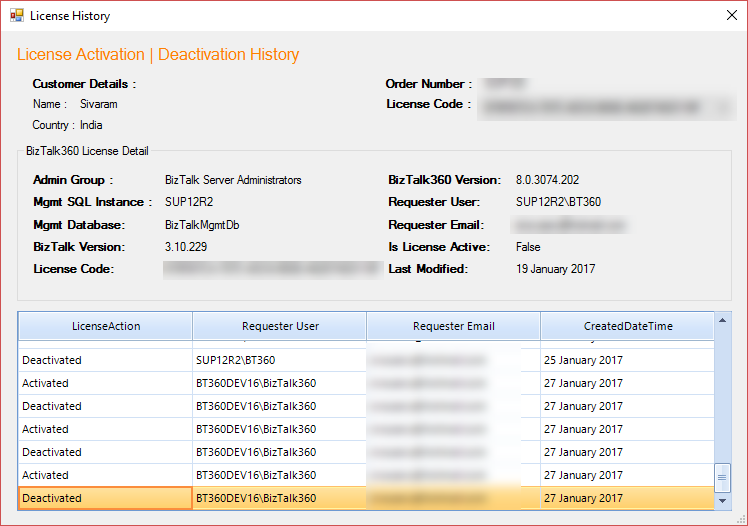
Screenshot of License history from BizTalk360 License application manager
It is always recommended that before making any environment related changes, you need to perform the license deactivation or else to contact our BizTalk360 support team for updating the changes into the License information and also for any guidance required.
Say for example: If the customer was not sure about moving the BizTalk360 database from one server to another server as a part of migration, we request our customers to contact our support team for the guidance.
Prologue to this story
From the BizTalk360 version 8.0 onwards, you will not be allowed to perform any action in BizTalk360 UI without activating the License.
The problem faced by the customer was that the name of the BizTalk Administrator group didn’t match with the information in the license.
- BizTalk Environment Domain: BT360BizTalk360-SG-Kovai-Biztalk Administrators-Dev,
- License Key Domain: BT360BizTalk360-SG-?Kovai-Biztalk Administrators-Dev
BizTalk Administrators group has the least privileges necessary to perform most administrative tasks. Members of that group can perform administrative tasks through the BizTalk Administration console or directly using the WMI provider and can deploy solutions, manage applications, and resolve message processing issues. Users will be added into the BizTalk Administrator’s group so that they can perform these administrative tasks.
Customer can change the name of the BizTalk Administrators group from BT360BizTalk360-SG-Kovai-Biztalk Administrators-Dev to BT360BizTalk360-SG-?Kovai-Biztalk Administrators-Dev which may resolve their problem. But, if they make any changes in BizTalk Administrators group, it may affect the BizTalk server process via the users who are added to that group to perform any operations.
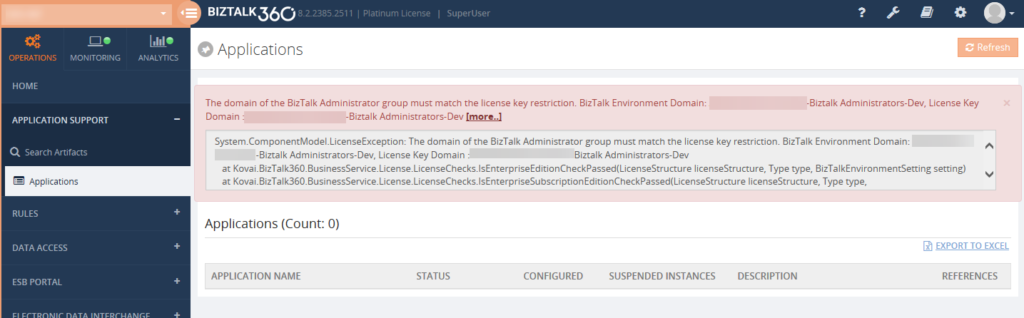
Screenshot of the exception from BizTalk360 UI
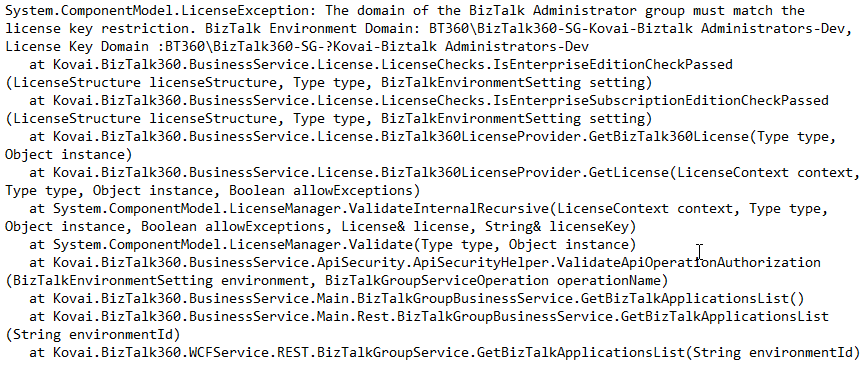
The exception what the customer exactly faced
We noticed that there was a question mark added in between the domain name and the BizTalk Administrator’s group (Domain: BT360BizTalk360-SG-? -Biztalk Administrators-Dev). The customer conveyed that they worked with the domain admin team and removed the question mark symbol. But we are very sure windows server/operating system doesn’t allow to create a name with ‘?’ question mark while creating the group or a user.
We wanted to investigate within customer environment and so we requested a screen sharing session to see what’s happening and from where the name was taken from. Before going to any customer call, we would prepare a list of questions related to the necessary information we wanted from the customer end and where all we want to check. Also, we will try to reproduce the same at our end.
How did we back track the case?
During the testing, we tried to replicate the same. So we just copied the same BizTalk Administrator’s group ‘BT360BizTalk360-SG- Kovai-Biztalk Administrators-Dev’ name from the exception and created a group in our test machine and we added to BizTalk360. Once after adding as a NT Group in BizTalk360 we found a strange thing it got created with a special character ‘?’ question mark BT360BizTalk360-SG-?Kovai-Biztalk Administrators-Dev. Then we checked by using PowerShell command, found a special character added which was like a mobile phone character.
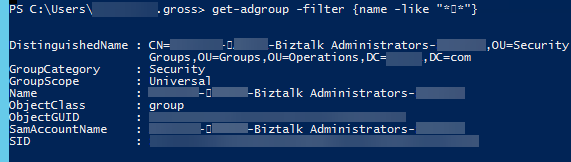
Screenshot of the BizTalk Admin group by using PowerShell
We asked the customer to change the Group name manually in all places in the database and in Windows Groups as well. But, it still showed the same exception even after the changes made by the customer. We requested for the desktop sharing session and checked all the places where the fault might be. But, we did not get any clue.
The idea was to verify the group name by editing and checking each and every individual character in the name by moving the cursor (that’s how we found special character during the testing). But we were not able to find the special character in the database and in Windows Groups.
Finally, in the properties of BizTalk Groups at BizTalk server we checked the BizTalk Administrator Group by each individual character by moving the cursor and we found the special character was still persisting. We asked the customer to remove the special character. They contacted their admin to change/modify the name, after which the exception was gone. BizTalk360 started working and the customer was able to view the applications without any problem.
What needs to be avoided?
We should try to avoid copy/paste while creating the group/user names most of the time instead type the name manually. Sometimes, while copying from a clipboard and pasting it in a password field may show some mismatch error due to the addition of special characters.
This was a good experience as a support engineer and had a different experience to learn as well.
The post Challenges in BizTalk360 Licensing after Environment Changes appeared first on BizTalk360.

by Rochelle Saldanha | Mar 3, 2017 | BizTalk Community Blogs via Syndication
Client Relationship is an approach to managing a company’s interaction with current and potential future customers, which tries to analyse data about customers’ history with a company and to improve business relationships with customers, specifically focusing on customer retention.
Building customer relationships is one of the main customer retention strategies you can use to improve customer service and reduce customer churn.
We at BizTalk360 want to learn more about our existing customers, we want to make them feel appreciated. Hence this new initiative – ‘Client Relationship Management’ to look after our customers.

The main idea is to build a rapport with the customer and understand their needs.
We aim to stay close to our customers after they have purchased our product, ensuring they use BizTalk360 to its full capacity and helping them overcome any obstacles that may arise. By maintaining this relationship and close collaboration, we can make BizTalk360 better together.
One of the best comments we received from a customer via support feedback was,
“I am glad that the BizTalk360 support team keep up the pace and put their best efforts to help customers out to resolve their issues. We are not left alone like other integration tool vendors in the market.”
The Client Relationship process has just begun but already we are getting lots of helpful information such as – common customer issues, how the product is being put to use at the customer end, feedback on the existing features and request for new features. We can now direct our efforts at resolving those issues and also maximizing the satisfaction of our customers by giving them what they need. (e.g. one customer required MSMQ monitoring but didn’t know it was available on BizTalk360 until we pointed it out; result – one happy client).
We always try to make communication as seamless as possible, acknowledging, acting on and following up on the feedback where necessary (by discussing with the Technical Team the feasibility of customer requests and issues and providing alternative solutions).
Today’s customers are no longer passive and they want to be listened to.
The key to maintaining a good relationship with our customers is to stay in regular contact. We look after our customers so they stay with us for a long period of time. We have touch points throughout the subscription at regular intervals.
What we are trying to achieve via these sync ups is quite simple –

- We arrange a call with the customer to understand how they are using the product, get real case scenarios of how the customers use the product (which areas of the product they are using) Are they having any issues? If so, we always have a technical member on hand to provide any solutions if possible. We also advise on how the product can be used better.
- We enquire how was their experience dealing with the support, licensing teams of BizTalk360 – so we can improve our interactions and customer support.
- We provide a lot of information regarding company news.
- Inform the customers about our roadmap.
- We are an innovative product company and from time to time we add new products to our repertoire. We take this opportunity to inform our customers of such additions. (ex. recently we launched our new product ServiceBus360).
- We keep them updated with the latest releases and encourage them to upgrade to the latest version. We are currently sending out Webinar invites for the 8.3 release to inform our customers of the new product features.
- We inform our customers of forthcoming events (ex: Integrate 2017).
- We set up another follow up call in the next quarter to discuss any issues to be brought to our attention. In such calls we ensure we keep updated with any changes in client structure and personnel. In many of our calls, the clients were happy to talk and had lots of feedback but due to daily priorities they were unable to approach us. This different approach where we reach out to them now gives them a platform to discuss issues.

In conclusion, BizTalk360 is always innovating; not only the product but also our customer support to enable us to keep our clients happy.
The post BizTalk360’s New Approach To Client Relationship appeared first on BizTalk360.



