by Sandro Pereira | Feb 16, 2021 | BizTalk Community Blogs via Syndication
I previously wrote several posts about how you can Check/Get a list of BizTalk Server Cumulative Updates installed in your machines for previous versions of the product:
Now it is time to update this script to BizTalk Server 2020.
Checking what CU is installed is not a difficult task to do, but without a doubt, it is one of the most annoying tasks to do as an administrator because, and once again:
- you can do it manually by checking “Control PanelProgramsPrograms and Features” and then view the “Installed Updates”, try to find them in the list can be sometimes very confusing because they are not organized in a category BizTalk;
- Or rely on tools like BizTalk MsgBoxViewer, which sometimes are not up to date, to check and provide that information;
Probably there are other ways, nevertheless, this simple task should be simple, extremely easy and fast to do, what you really want to know is what are the BizTalk Cumulative Updates installed like:
This is the list of BizTalk Server Cumulative Updates installed in this machine: BTS2020LAB01
- Microsoft BizTalk Server 2020 Cumulative Update 1
To check if the last Cumulative is installed or not.
PowerShell script overview
So how can we easily automate tasks? and reuse them whenever necessary and at the same time saving significant time for other tasks?
Using PowerShell is a good option. Windows PowerShell is a Windows command-line shell designed especially for system administrators and can be used by BizTalk administrators to help them in automating repetitive tasks or tasks that are time-consuming to perform manually.
This is a simple script that allows you to configure the template name of the cumulative updates, that will change from version to version, and will give you the list of all BizTalk Server 2016 cumulative updates installed on your server:
$keyResults = Get-ChildItem -path HKLM:SOFTWAREWow6432NodeMicrosoftWindowsCurrentVersionUninstall -Recurse -ErrorAction SilentlyContinue | where { $_.Name -match $CUNameTemplate}
...
foreach($keyItem in $keyResults)
{
if ($keyItem.GetValue("DisplayName") -like "*$CUNameTemplate*")
{
write-host "-" $keyItem.GetValue("DisplayName").ToString().Substring(0,$keyItem.GetValue("DisplayName").ToString().IndexOf(" Update")+9)
#write-host "-" $keyItem.GetValue("DisplayName")
}
}
THIS SQL SCRIPT IS PROVIDED “AS IS”, WITHOUT WARRANTY OF ANY KIND.
 Check what BizTalk Server 2020 Cumulative Updates are installed with PowerShell
Microsoft | GitHub
The post How to check what BizTalk Server 2020 Cumulative Updates are installed in your Servers with PowerShell appeared first on SANDRO PEREIRA BIZTALK BLOG.
by Sandro Pereira | Nov 14, 2018 | BizTalk Community Blogs via Syndication
In the past, I release this PowerShell in order that any BizTalk Administrator to check and control which BizTalk Server Feature Pack was installed in your BizTalk environment. However, recently Niclas Öberg, another fellow “BizTalker” that I meet in London Integrate event warn me that my script didn’t recognize the existence of FP3… and he was correct
An alternative was to use BHM but the current version of BHM is also not checking for FP3 (only 1 or 2 – this limitation for sure will be fixed in next versions of BHM), you may get a warning messages saying that no CU or FP is installed, or you may get an FP2 warning messages like me:
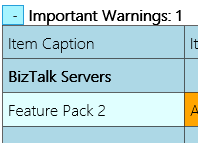
Nevertheless, I have installed FP3 in my environment.
Of course, once again you can easily check this manually in the “Control PanelProgramsPrograms and Features” and then view the “View Installed Updates”, although this can be a very annoying task.
So, I decided to fix my PowerShell script and release a new version that will solve this problem. Now, if you run the script you will be able to receive the following output describing what FP was or is installed in your environment:
Microsoft BizTalk Server 2016 Feature Pack 1 is installed
Microsoft BizTalk Server 2016 Feature Update 2 with CU3 [KB4054819]LDR is installed
Microsoft BizTalk Server 2016 Feature Update 2 with CU4 [KB4077058]LDR is installed
Microsoft BizTalk Server 2016 Feature Update 3 [KB4103503]LDR is installed
The beauty of this script is that now it is prepared for detecting any other future PF that may be released by Microsoft, without the need for you to change the script.
...
    foreach ($Property in $key.Property)
    {
        if ($Property -like '*Microsoft BizTalk Server 2016 Feature Update *')
        {
            $findF2 = 1
            Write-Host "$($Property) is installed"
        }
    }
...
This script follows the sequence of scripts that I release in the past to check what Cumulative Updates where installed in the machines.
THIS POWERSHELL SCRIPT IS PROVIDED “AS IS”, WITHOUT WARRANTY OF ANY KIND.
Check which BizTalk Server 2016 Feature Packs installed with PowerShell (2 KB)
Microsoft | TechNet Gallery
Author: Sandro Pereira
Sandro Pereira lives in Portugal and works as a consultant at DevScope. In the past years, he has been working on implementing Integration scenarios both on-premises and cloud for various clients, each with different scenarios from a technical point of view, size, and criticality, using Microsoft Azure, Microsoft BizTalk Server and different technologies like AS2, EDI, RosettaNet, SAP, TIBCO etc. He is a regular blogger, international speaker, and technical reviewer of several BizTalk books all focused on Integration. He is also the author of the book “BizTalk Mapping Patterns & Best Practices”. He has been awarded MVP since 2011 for his contributions to the integration community. View all posts by Sandro Pereira
by Sandro Pereira | Jul 28, 2017 | BizTalk Community Blogs via Syndication
Why checking if Windows Defender is running on BizTalk Server, or another anti-virus, is important? I have been creating several BizTalk Server 2016 Developer environments on Azure using Azure Virtual Machines, normally I tend to be careful in choosing the VM Disk type – SSD can be expensive – and the size of the virtual machine – I would love to use a 4-core machine with 28GB but still using a HHD disk it will cost me near 430€ per month – so, because of the pricing I’m usually choose a modest machine from 1-core and 3.5 GB RAM or up to 4-core and 8GB RAM.
They tend to be a little slow, so tuning it well is important for archive a better performance and by default Windows Defender is configured on that machines. Not only as a negative impact in the general performance of the machine but also can have a huge impact on BizTalk Server performance.
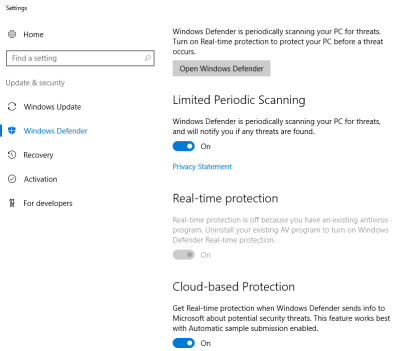
Indeed, anti-virus can have a huge impact on BizTalk Server performance and normally the best approach for BizTalk Server environment and anti-virus software is using a perimeter based approach, where you normally don’t run the anti-virus software on the machine itself but protect the boundaries.
I like to use this approach but if not possible, at least you should configure antivirus software to avoid real-time scanning of BizTalk Server executables and file drops. Antivirus software real-time scanning of BizTalk Server executable files and any folders or file shares monitored by BizTalk Server receive locations can negatively impact BizTalk Server performance. If antivirus software is installed on the BizTalk Server computer(s), disable real-time scanning of non-executable file types referenced by any BizTalk Server receive locations (usually .XML, but can also be .csv, .txt, etc.) and configure antivirus software to exclude scanning of BizTalk Server executable Files.
In this post, I will not address how you can disable Windows Defender, I will live it to another post and I will not address also all the possible existing Anti-virus in the market, instead, here I will focus only in Windows Defender for a simple reason: that this is the anti-virus installed by default in the BizTalk Server 2016 Developer Virtual Machines template on Azure. Neither to configure Anti-virus exclusions that you should do for BizTalk, for that a good blog post from MSFT: BizTalk Server Anti-Virus Exclusions
However, one of the first steps while doing one BizTalk environment performance, or even a basic, assessment is to find out if there is any Anti-virus running on your BizTalk Server.
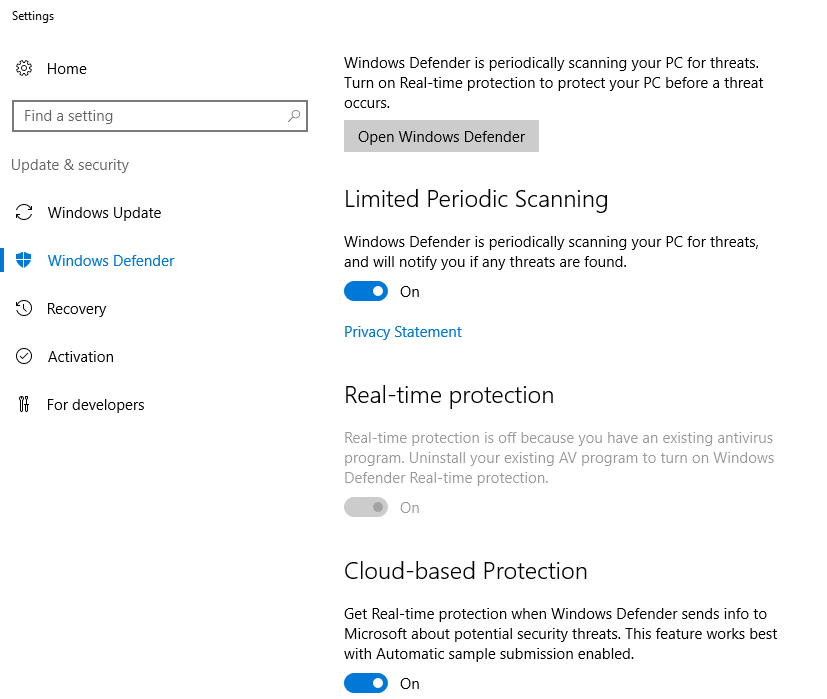
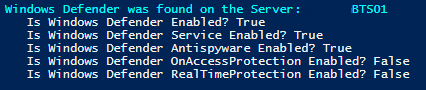
So, I create this simple PowerShell script to use in all my environments just to check is Windows Defender that is installed and enabled by default in Windows Server 2016 is running on the Server:
Try
{
    $defenderOptions = Get-MpComputerStatus

    if([string]::IsNullOrEmpty($defenderOptions))
    {
        Write-host "Windows Defender was not found running on the Server:" $env:computername -foregroundcolor "Green"
    }
    else
    {
        Write-host "Windows Defender was found on the Server:" $env:computername -foregroundcolor "Cyan"
        Write-host "   Is Windows Defender Enabled?" $defenderOptions.AntivirusEnabled
        Write-host "   Is Windows Defender Service Enabled?" $defenderOptions.AMServiceEnabled
        Write-host "   Is Windows Defender Antispyware Enabled?" $defenderOptions.AntispywareEnabled
        Write-host "   Is Windows Defender OnAccessProtection Enabled?"$defenderOptions.OnAccessProtectionEnabled
        Write-host "   Is Windows Defender RealTimeProtection Enabled?"$defenderOptions.RealTimeProtectionEnabled

        if($defenderOptions.RealTimeProtectionEnabled)
        {
            $windowsShell = new-object -comobject wscript.shell
            $questionResult = $windowsShell.popup("Do you want to disable Real Time Protection?", 0,"Not at this moment.",4)
            If ($questionResult -eq 6) {
                    Set-MpPreference -DisableRealtimeMonitoring $true
                Write-host "Windows Defender Real Time Protection was successfully disabled" -foregroundcolor "Green"
                Write-host "Nevertheless Windows Defender is still running"
            }
        }
    }
}
Catch
{
    Write-host "Windows Defender was not found running on the Server:" $env:computername -foregroundcolor "Green"
}
Output type:
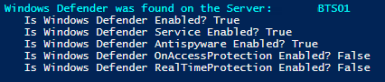

The script, not only allows you to check if Windows Defender is running on BizTalk Server but, if the Windows Defender is running and you have Real Time Protection enabled it will allow you to disable this feature if you want – nevertheless, by disabling it the Windows Defender will still be running, the only thing is not doing is a real-time protection to scan everything you download or run on Server.
THIS POWERSHELL IS PROVIDED “AS IS”, WITHOUT WARRANTY OF ANY KIND.
The script to check if Windows Defender is running on BizTalk Server can be found and download on Microsoft TechNet Gallery:
PowerShell to Check if Windows Defender is running on the Server (2 KB)
Microsoft | TechNet Gallery
Author: Sandro Pereira
Sandro Pereira lives in Portugal and works as a consultant at DevScope. In the past years, he has been working on implementing Integration scenarios both on-premises and cloud for various clients, each with different scenarios from a technical point of view, size, and criticality, using Microsoft Azure, Microsoft BizTalk Server and different technologies like AS2, EDI, RosettaNet, SAP, TIBCO etc. He is a regular blogger, international speaker, and technical reviewer of several BizTalk books all focused on Integration. He is also the author of the book “BizTalk Mapping Patterns & Best Practices”. He has been awarded MVP since 2011 for his contributions to the integration community. View all posts by Sandro Pereira