by Sandro Pereira | Jul 18, 2019 | BizTalk Community Blogs via Syndication
Due to personal requests from some members of the community, I decided to release another minor version of my stencils pack that will include the following features:
- New shapes: new shapes were added to existing modules like:
- Logic App Inline Code (square – original that you can find in Logic App design)
- Logic App Inline Code JS (square – original that you can find in Logic App design)
- Logic App Inline Code (Custom shape version 1)
- Logic App Inline Code (Custom shape version 2)
- Secure Message Input
- Secure Message Output

Microsoft Integration, Azure, Power Platform, Office 365 and much more Stencils Pack it’s a Visio package that contains fully resizable Visio shapes (symbols/icons) that will help you to visually represent On-premise, Cloud or Hybrid Integration and Enterprise architectures scenarios (BizTalk Server, API Management, Logic Apps, Service Bus, Event Hub…), solutions diagrams and features or systems that use Microsoft Azure and related cloud and on-premises technologies in Visio 2016/2013:
- BizTalk Server
- Microsoft Azure
- Integration
- Integration Service Environments (ISE)
- Azure App Service (API Apps, Web Apps, Mobile Apps, and Logic Apps)
- Event Hubs, Event Grid, Service Bus, …
- API Management
- IoT, and Docker
- Machine Learning, Stream Analytics, Data Factory, Data Pipelines
- and so on
- Microsoft Power Platform
- Microsoft Flow
- PowerApps
- Power BI
- PowerShell
- Infrastructure, IaaS
- Office 365
- And many more…
- … and now non-related Microsoft technologies like:
You can download Microsoft Integration, Azure, BAPI, Office 365 and much more Stencils Pack for Visio from:
 Microsoft Integration, Azure, Power Platform, Office 365 and much more Stencils Pack for Visio
GitHub
Or from:
Microsoft Integration and Azure Stencils Pack for Visio 2016/2013 v4.0.2 (22,6 MB)
Microsoft | TechNet Gallery
The post New Logic App Inline Code icons are now included in Microsoft Integration (Azure and much more) Stencils Pack v4.0.2 for Visio appeared first on SANDRO PEREIRA BIZTALK BLOG.

by Sandro Pereira | Jul 5, 2019 | BizTalk Community Blogs via Syndication
On 1st January 2011, I was awarded for the first time Microsoft Most Value Professional (MVP), back them as a BizTalk Server MVP, joining an amazing worldwide group of technicians and community leaders who actively share their high quality and real-world expertise with other users and Microsoft. And since then I was re-award in:
- 2012, again as BizTalk Server MVP;
- From 2013 to 2015, I was rebranded as Microsoft Integration MVP;
- In 2017, Integration become part of Azure category, so I was awarded for the first time as Azure MVP
- And in the middle of 2017, I was Award in two categories, Azure and Visio MVP;
- In 2018, I was rewarded Azure MVP
And today, still with all the same pride, honor and enthusiasm than the first time, I’m delighted to share with you that in July 1st I was renewed as a Microsoft Azure MVP (Microsoft Most Valuable Professional) for one more year.

It is with great pride we announce that Sandro Pereira has been awarded as a Microsoft® Most Valuable Professional (MVP) for 7/1/2019 – 7/1/2020. The Microsoft MVP Award is an annual award that recognizes exceptional technology community leaders worldwide who actively share their high quality, real world expertise with users and Microsoft. All of us at Microsoft recognize and appreciate Sandro’s extraordinary contributions and want to take this opportunity to share our appreciation with you.
With just over 3,000 awardees worldwide, Microsoft MVPs represent a highly select group of experts. MVPs share a deep commitment to community and a willingness to help others. They represent the diversity of today’s technical communities. MVPs are present in over 90 countries, in more than 40 languages, and across numerous Microsoft technologies. MVPs share a passion for technology, a willingness to help others, and a commitment to community. These are the qualities that make MVPs exceptional community leaders. MVPs’ efforts enhance people’s lives and contribute to our industry’s success in many ways. By sharing their knowledge and experiences, and providing objective feedback, they help people solve problems and discover new capabilities every day. MVPs are technology’s best and brightest, and we are honored to welcome Sandro as one of them.
This is my 9th straight year on the MVP Program, an amazing journey, and experience that, again, started in 2011, and that gave me the opportunity, and still does, to travel the world for speaking engagement, share the knowledge, and to meet the most amazing and skilled people in our industry.
As usual, I would like to thank all of you! And special to my wife Fernanda and my three kids: Leonor, Laura, and José. And to all members of my beautiful family. THANKS for all the support during these last years! You guys are my inspiration!
And a special thanks to my MVP Lead Cristina Herrero for all the support, to Microsoft Integration Team and Azure Teams, to all my fellow Microsoft Azure (Integration) MVP’s and to DevScope (my company) and all my coworkers (no names here because all of them are amazing professionals)
It’s a big honor to be in the program and I’m looking forward to another great year!
The post Thanks! Awarded as Microsoft Azure MVP 2019-2020 appeared first on SANDRO PEREIRA BIZTALK BLOG.

by Sandro Pereira | Feb 15, 2019 | BizTalk Community Blogs via Syndication
Microsoft Integration, Azure, BAPI, Office 365 and much more Stencils Pack it’s a Visio package that contains fully resizable Visio shapes (symbols/icons) that will help you to visually represent On-premise, Cloud or Hybrid Integration and Enterprise architectures scenarios (BizTalk Server, API Management, Logic Apps, Service Bus, Event Hub…), solutions diagrams and features or systems that use Microsoft Azure and related cloud and on-premises technologies in Visio 2016/2013:
- BizTalk Server
- Microsoft Azure
- Azure App Service (API Apps, Web Apps, Mobile Apps, and Logic Apps)
- Event Hubs, Event Grid, Service Bus, …
- API Management, IoT, and Docker
- Machine Learning, Stream Analytics, Data Factory, Data Pipelines
- and so on
- Microsoft Flow
- PowerApps
- Power BI
- PowerShell
- Infrastructure, IaaS
- Office 365
- And many more…
- … and now non-related Microsoft technologies like:

What’s new in this version?
- New shapes: new shapes were added to existing modules like Generic, Azure, AI, Developer, Files or Users. But in particular a new module was born:
- MIS SAP Stencils contains stencils that will represent some SAP services

You can download Microsoft Integration, Azure, BAPI, Office 365 and much more Stencils Pack for Visio from:
Microsoft Integration, Azure, BAPI, Office 365 and much more Stencils Pack for Visio (18,6 MB)
GitHub
Or from:
Microsoft Integration and Azure Stencils Pack for Visio 2016/2013 v3.1.0 (18,6 MB)
Microsoft | TechNet Gallery
Author: Sandro Pereira
Sandro Pereira lives in Portugal and works as a consultant at DevScope. In the past years, he has been working on implementing Integration scenarios both on-premises and cloud for various clients, each with different scenarios from a technical point of view, size, and criticality, using Microsoft Azure, Microsoft BizTalk Server and different technologies like AS2, EDI, RosettaNet, SAP, TIBCO etc. He is a regular blogger, international speaker, and technical reviewer of several BizTalk books all focused on Integration. He is also the author of the book “BizTalk Mapping Patterns & Best Practices”. He has been awarded MVP since 2011 for his contributions to the integration community. View all posts by Sandro Pereira

by Sandro Pereira | Feb 13, 2019 | BizTalk Community Blogs via Syndication
Finally, I will be in Australia and New Zealand but unfortunately not in person, maybe next time, but instead remotely. Nevertheless, it will be a pleasure to present in this amazing community for the first time and it’s tomorrow already on a session about How we at DevScope are using Microsoft Integration features and related Azure technologies to improve our processes and by doing so engaging customers to also adopt some of these Microsoft Integration features.

Session Name: “How we are using Microsoft Integration features and related Azure technologies to improve our processes”
Session Overview: In this session, I will show you real live scenarios on how we at DevScope are using Microsoft Integration features (Logic Apps, API Management, API’s) and related Azure technologies like PowerApps, Flows and Power BI to:
- First, improve our internal processes like expenses reports, time reports and so on;
- And, secondly, how the first step helps us out to extend our product and our business by exporting these same approaches and concepts to our clients
This will be a lightweight talk addressing some real scenarios and show them in action.
I invite you all to join us tomorrow morning or in the afternoon depending on where you are from. Grab your “seat” by registering in this session here.
Author: Sandro Pereira
Sandro Pereira lives in Portugal and works as a consultant at DevScope. In the past years, he has been working on implementing Integration scenarios both on-premises and cloud for various clients, each with different scenarios from a technical point of view, size, and criticality, using Microsoft Azure, Microsoft BizTalk Server and different technologies like AS2, EDI, RosettaNet, SAP, TIBCO etc. He is a regular blogger, international speaker, and technical reviewer of several BizTalk books all focused on Integration. He is also the author of the book “BizTalk Mapping Patterns & Best Practices”. He has been awarded MVP since 2011 for his contributions to the integration community. View all posts by Sandro Pereira

by Sandro Pereira | Jan 28, 2019 | BizTalk Community Blogs via Syndication
What started to be a Microsoft Integration Stencil Packs is now almost a full Microsoft stack stencil package that includes Microsoft Integration, Azure, BAPI, Office365, devices, products, competing technologies or partners and much more Stencils Pack it’s a Visio package.
This package contains fully resizable Visio shapes (symbols/icons) that will help you to visually represent On-premise, Cloud or Hybrid Integration and Enterprise architectures scenarios (BizTalk Server, API Management, Logic Apps, Service Bus, Event Hub…), solutions diagrams and features or systems that use Microsoft Azure and related cloud and on-premises technologies in Visio 2016/2013:
- BizTalk Server
- Microsoft Azure
- Azure App Service (API Apps, Web Apps, Mobile Apps, and Logic Apps)
- Event Hubs, Event Grid, Service Bus, …
- API Management, IoT, and Docker
- Machine Learning, Stream Analytics, Data Factory, Data Pipelines
- and so on
- Microsoft Flow
- PowerApps
- Power BI
- PowerShell
- Infrastructure, IaaS
- Office 365
- And many more
This new small update includes the new Office365 icons that were recently announced by Microsoft. It includes an additional of 19 new shapes and some reorganization.
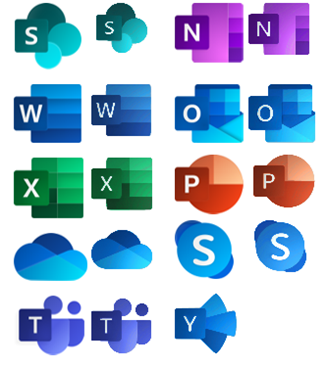
The Microsoft Integration Stencils Pack v3.1.1 is composed of 22 files:
- Microsoft Integration Stencils v3.1.0
- MIS Additional or Support Stencils v3.1.0
- MIS Apps and Systems Logo Stencils v3.1.0
- MIS AI Stencils v3.1.0
- MIS Azure Additional or Support Stencils v3.1.0
- MIS Azure Others Stencils v3.1.0
- MIS Azure Stencils v3.1.0
- MIS Buildings Stencils v3.1.0
- MIS Databases Stencils v3.1.0
- MIS Deprecated Stencils v3.1.0
- MIS Developer Stencils v3.1.0
- MIS Devices Stencils v3.1.0
- MIS Files Stencils v3.1.0
- MIS Generic Stencils v3.1.0
- MIS Infrastructure Stencils v3.1.0
- MIS Integration Patterns Stencils v3.1.0
- MIS IoT Devices Stencils v3.1.0
- MIS Office365 v3.1.1
- MIS Power BI Stencils v3.1.0
- MIS PowerApps and Flows Stencils v3.1.1
- MIS Servers (HEX) Stencils v3.1.0
- MIS Users and Roles Stencils v3.1.0
You can download Microsoft Integration, Azure, BAPI, Office 365 and much more Stencils Pack for Visio from:
Microsoft Integration, Azure, BAPI, Office 365 and much more Stencils Pack for Visio (18,6 MB)
GitHub
Or from:
Microsoft Integration and Azure Stencils Pack for Visio 2016/2013 v3.1.1 (18,6 MB)
Microsoft | TechNet Gallery
Author: Sandro Pereira
Sandro Pereira lives in Portugal and works as a consultant at DevScope. In the past years, he has been working on implementing Integration scenarios both on-premises and cloud for various clients, each with different scenarios from a technical point of view, size, and criticality, using Microsoft Azure, Microsoft BizTalk Server and different technologies like AS2, EDI, RosettaNet, SAP, TIBCO etc. He is a regular blogger, international speaker, and technical reviewer of several BizTalk books all focused on Integration. He is also the author of the book “BizTalk Mapping Patterns & Best Practices”. He has been awarded MVP since 2011 for his contributions to the integration community. View all posts by Sandro Pereira
by Bill Chesnut | Aug 22, 2018 | BizTalk Community Blogs via Syndication
By Bill Chesnut
This is the third post in a multi part series on the features of Azure API Management.
As with the previous posts where I demonstrated publishing a SOAP Services with pass-through and SOAP to REST, this time I am going to demonstrate how you can connect Azure API Management to Azure Application Insights, to monitor the call to APIM and the dependent APIs. This post will not go into how or why to use Azure Application Insights, just how to configure APIM to use it.
By connecting APIM to Application Insights, information from APIM sent to Application Insights will include the request and response from APIM, the backend request and response and any Exception information. This will give end-to-end monitoring capabilities to the APIs that are being exposed in APIM if those APIs are also using Application Insights for monitoring.
As with any telemetry gathering system, there are some performance implications, APIM has recently added the ability to control this with a much finer grain as we will see later in the configuration screens.
To get started with Application Insights for APIM, you will need an Application Insights instance, I am not going to cover how to create that in this blog post, but you can find the instructions here: https://docs.microsoft.com/en-us/azure/api-management/api-management-howto-app-insights
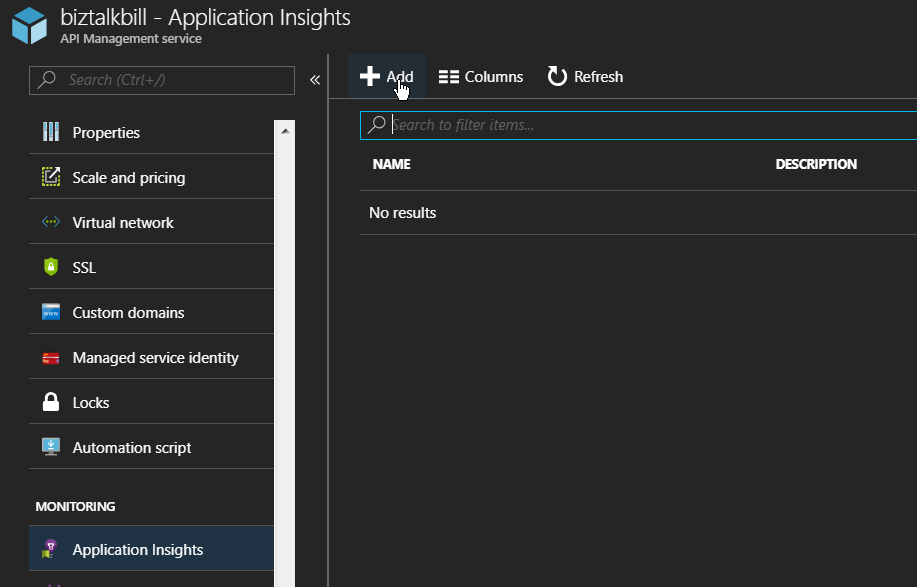
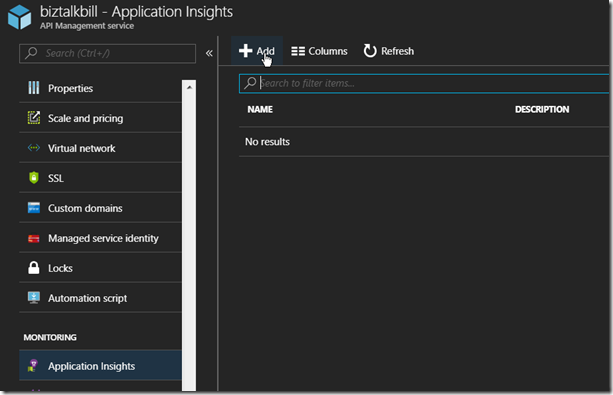
Once the Application Insights instance has been created (you can also use an existing instance if you want), lets connect Application Insights to APIM, go to the ‘Application Insights’ tab in the Azure Portal for APIM.
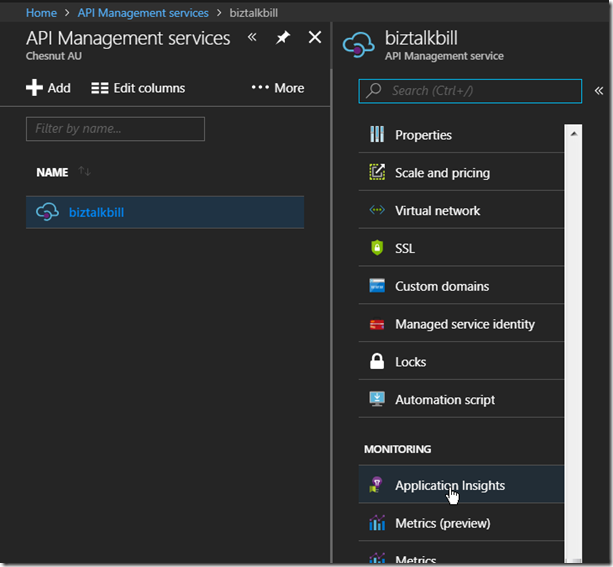
Then Click ‘+ Add’
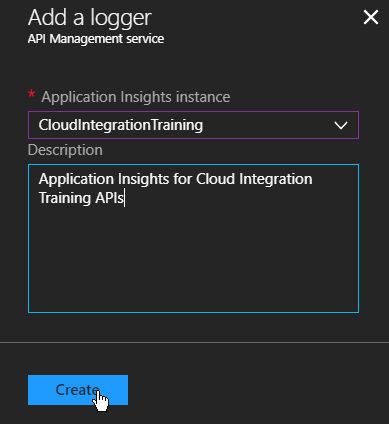
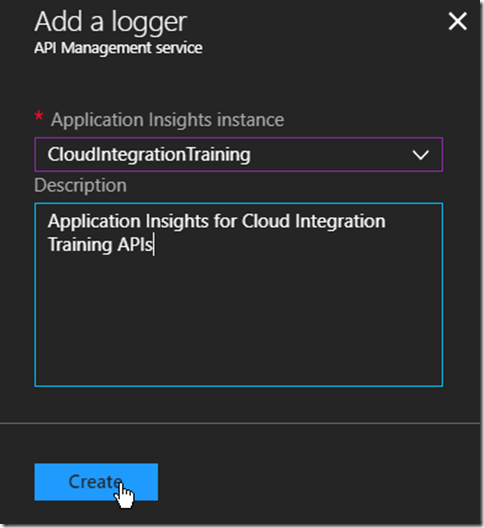
Select the instance of Application Insight that you want to configure, optionally add a description and Click ‘Create’
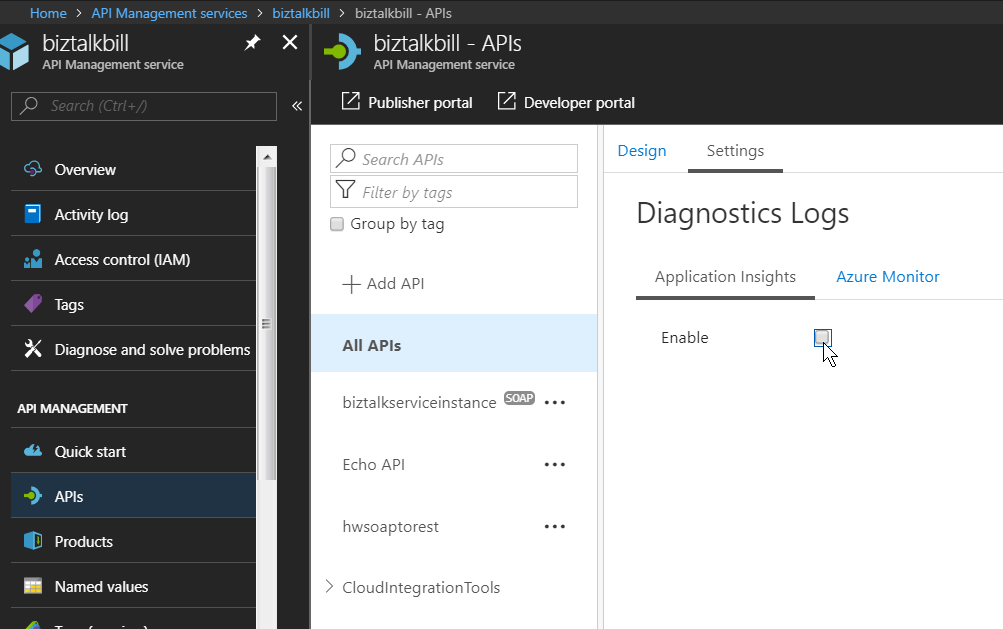
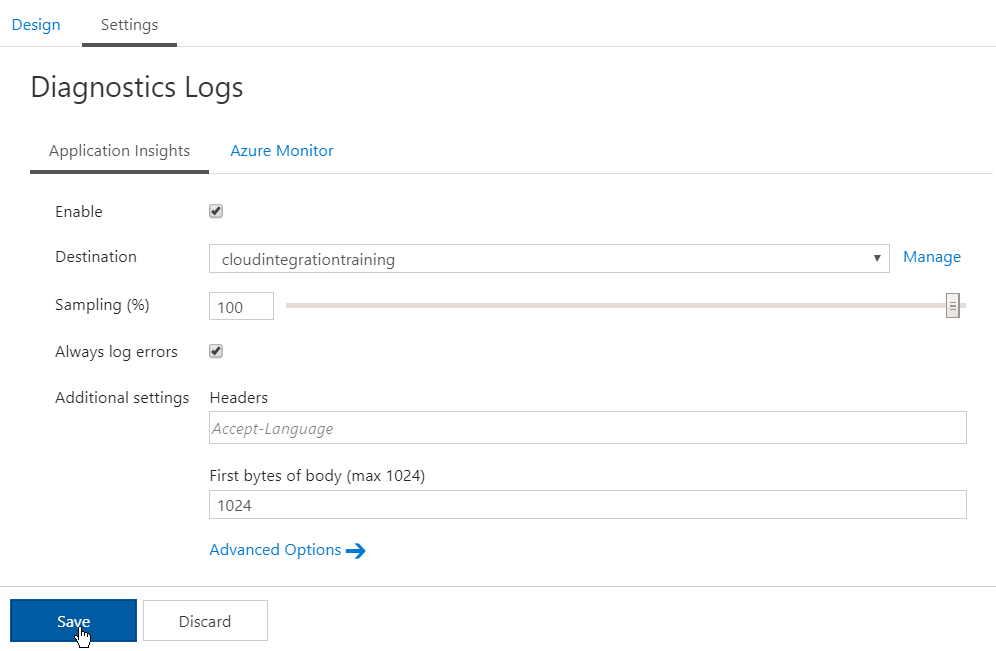
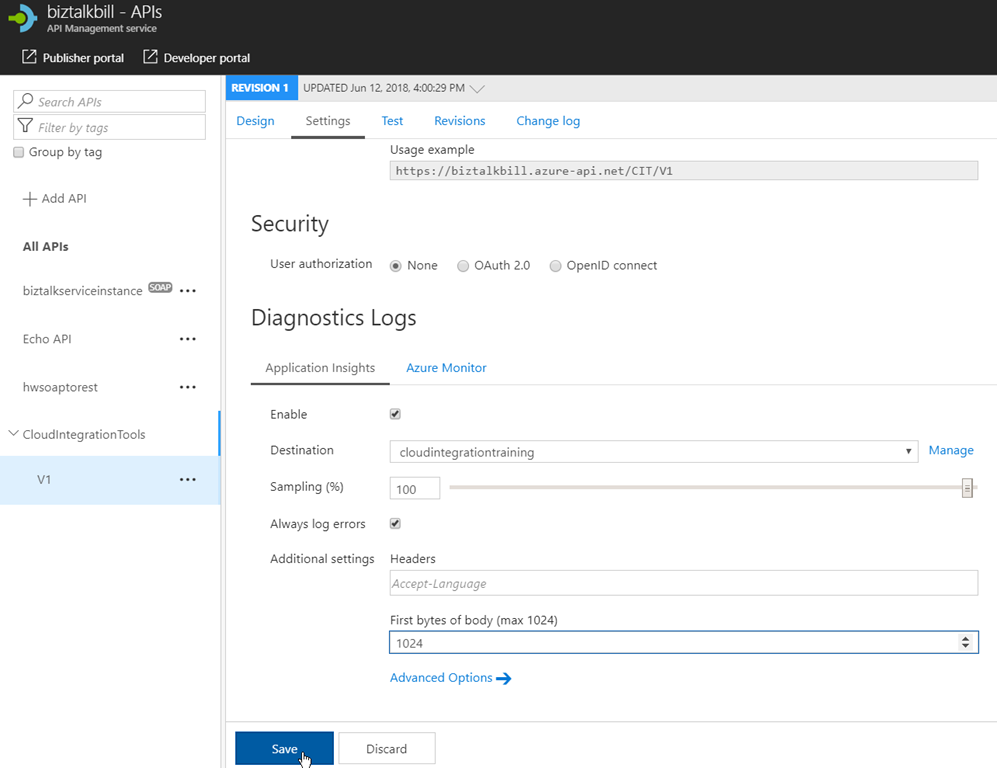
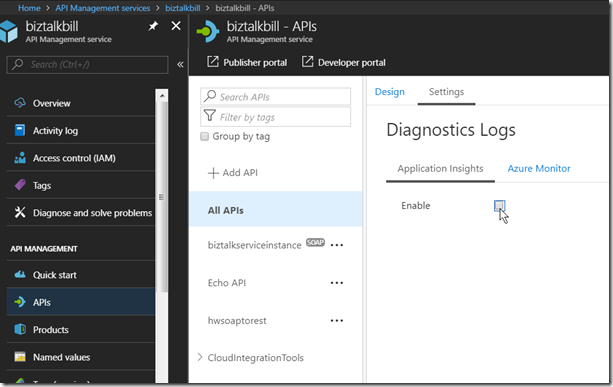
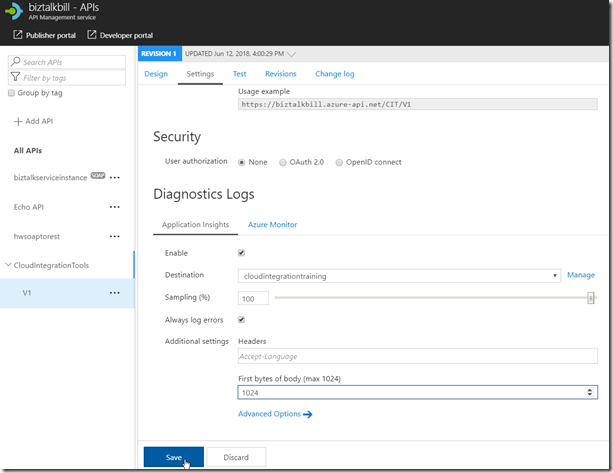
You can have multiple instances of Application Insights connected to APIM, now we need to configure how this instance of Application Insights is used, it can be the default for all APIs in APIM or just used for specific APIs, to use it as the default instance, Click ‘APIs’, Click ‘All APIs’, Click Settings and to enable Click the ‘Enable’ check box
Configure the destination (instance of Application Insights), Sampling (there are some performance implication with the sampling %, see the this link – https://docs.microsoft.com/en-us/azure/api-management/api-management-howto-app-insights#performance-implications-and-log-sampling ), Always log errors (recommended) and First bytes of body (if necessary). Click ‘Save’
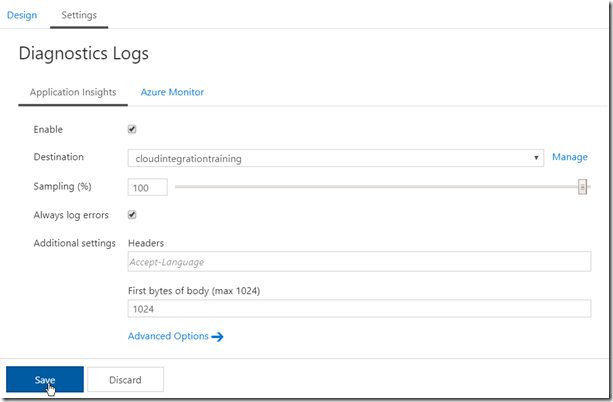
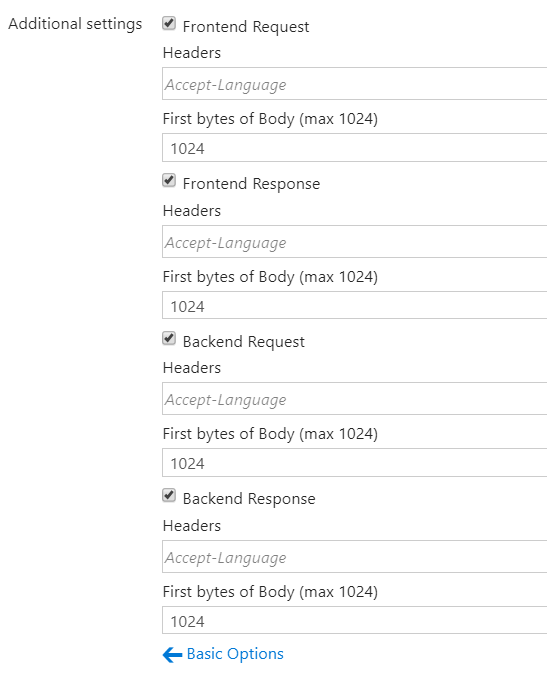
The Advanced Options allow you to control which Request are logged and headers and body logging
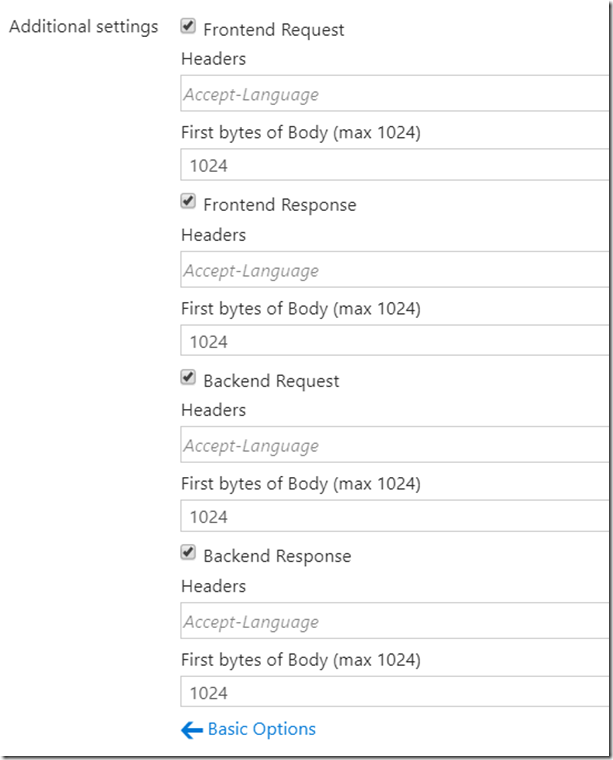
If you do not want to use the same instance of Application Insights for all APIs, you can select the API and configure Application Insights just like above for the particular APIs
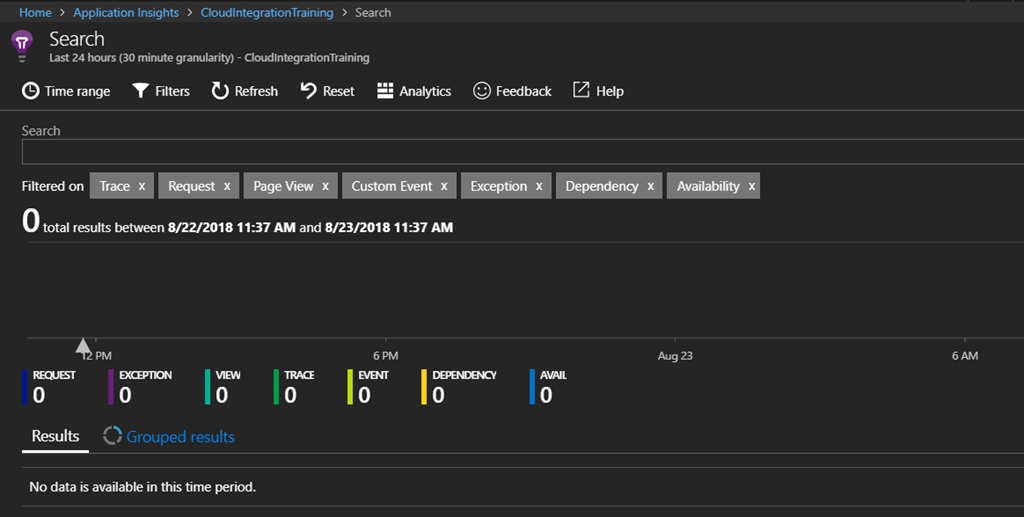
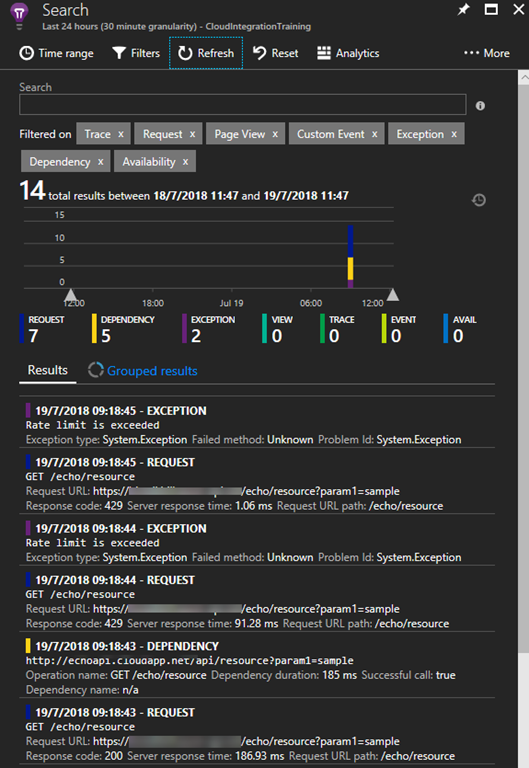
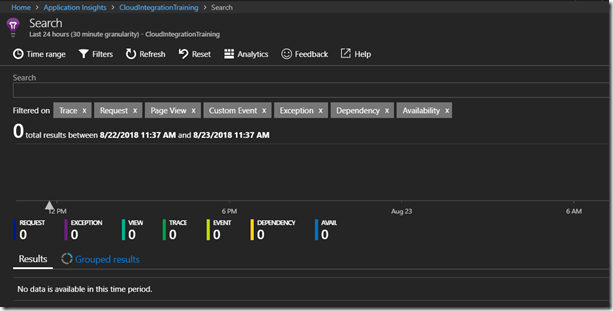
Now lets open Application Insights, Click ‘Search’, then in the Search, Click ‘Refresh’, the results are empty since we have not made any calls to the API yet. If this was an existing instance of Application Insight, there may already be some telemetry from the other services
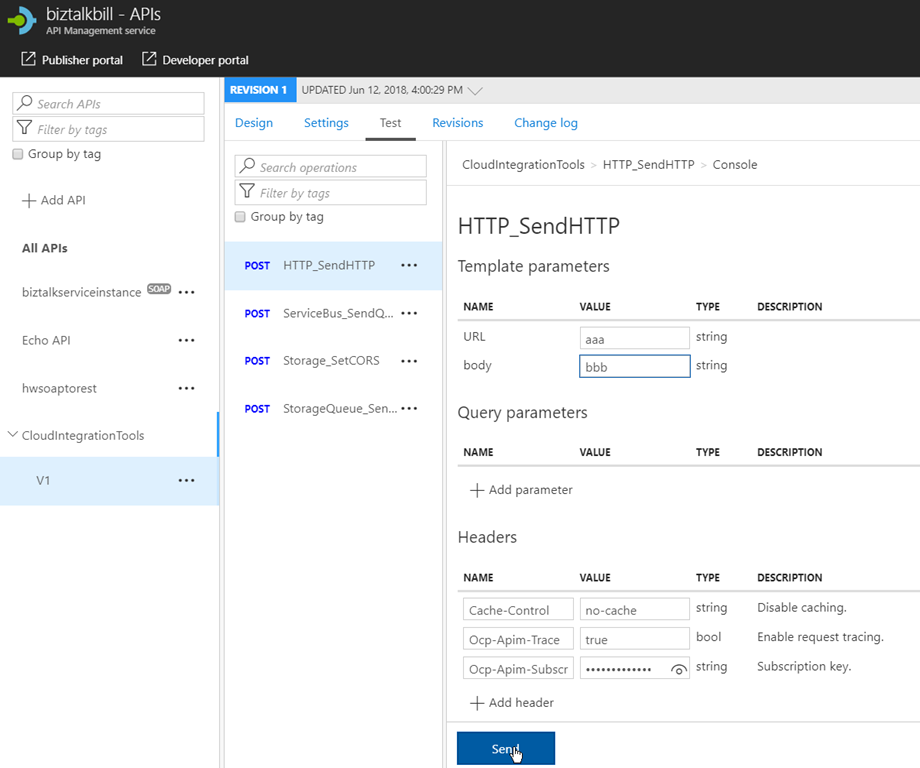
Now lets go back to APIM and run some tests, Select and Operation, enter the required data (in this case, an invalid URL to see the exception processing) and Click ‘Send’
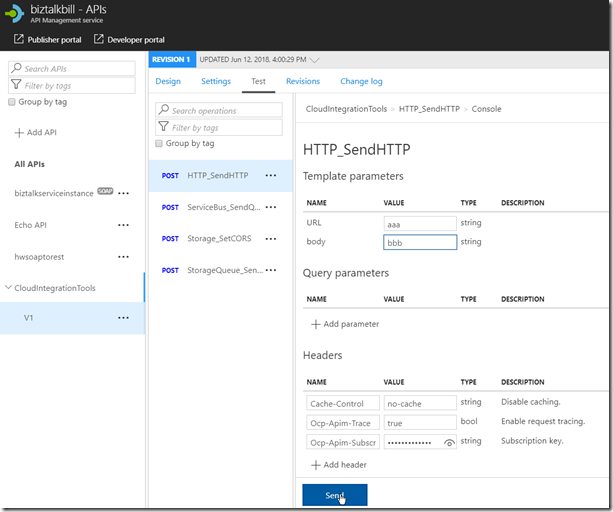
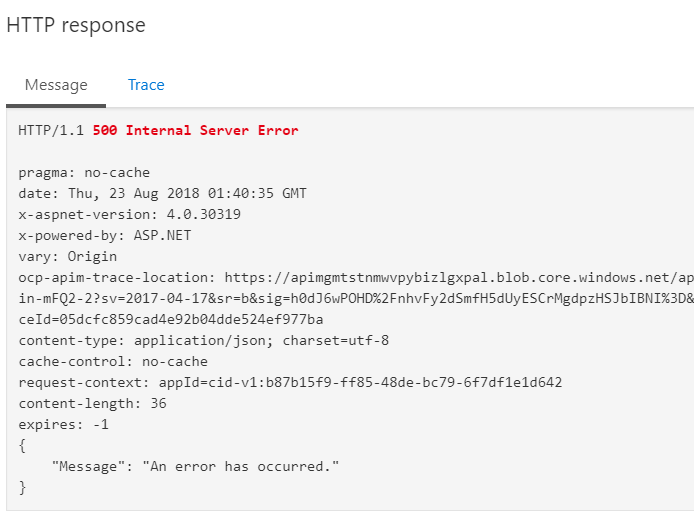
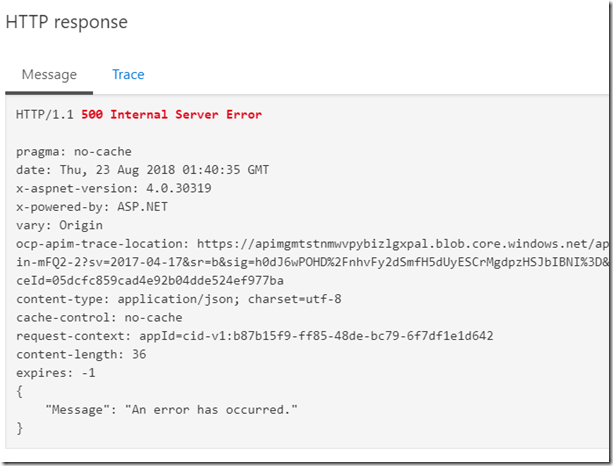
The result is a 500 Internal Server Error
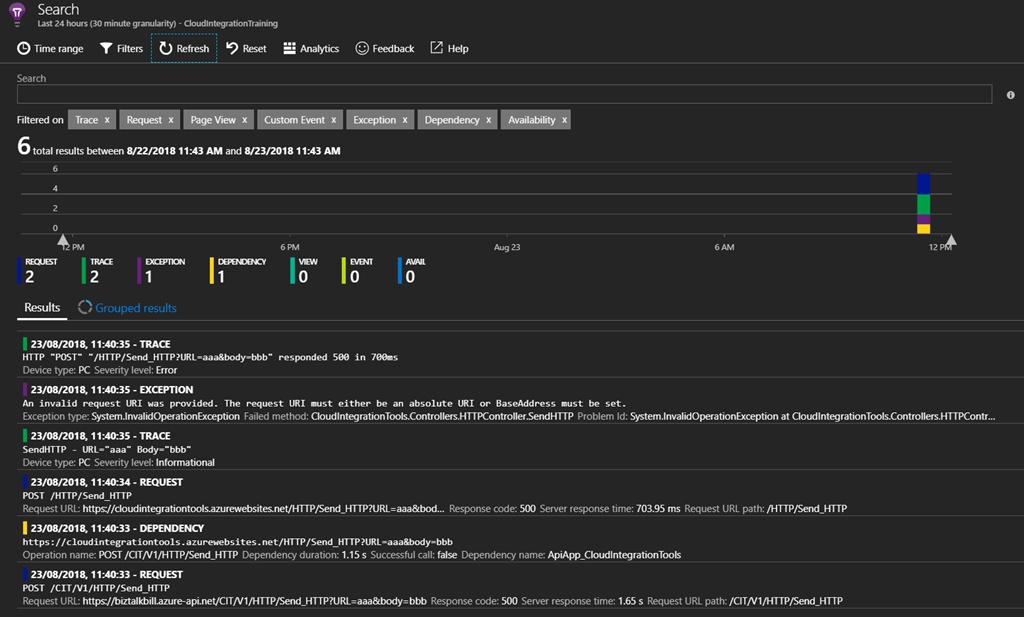
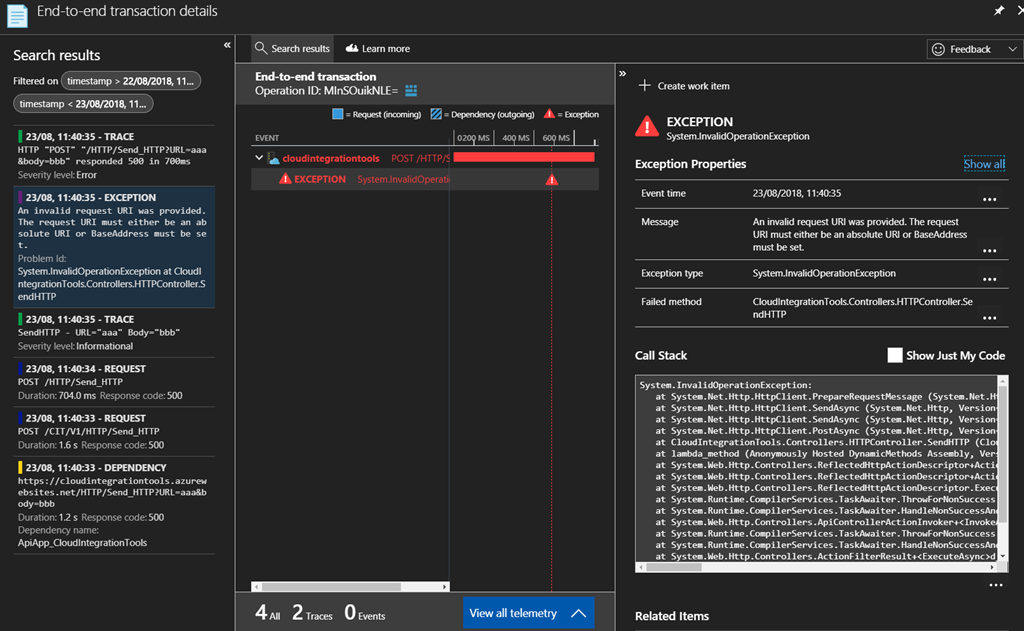
Switch to Application Insights and Click ‘Refresh’, There is now data in Application Insights, 2 Request, 2 Trace, 1 Exception and 1 Dependency.
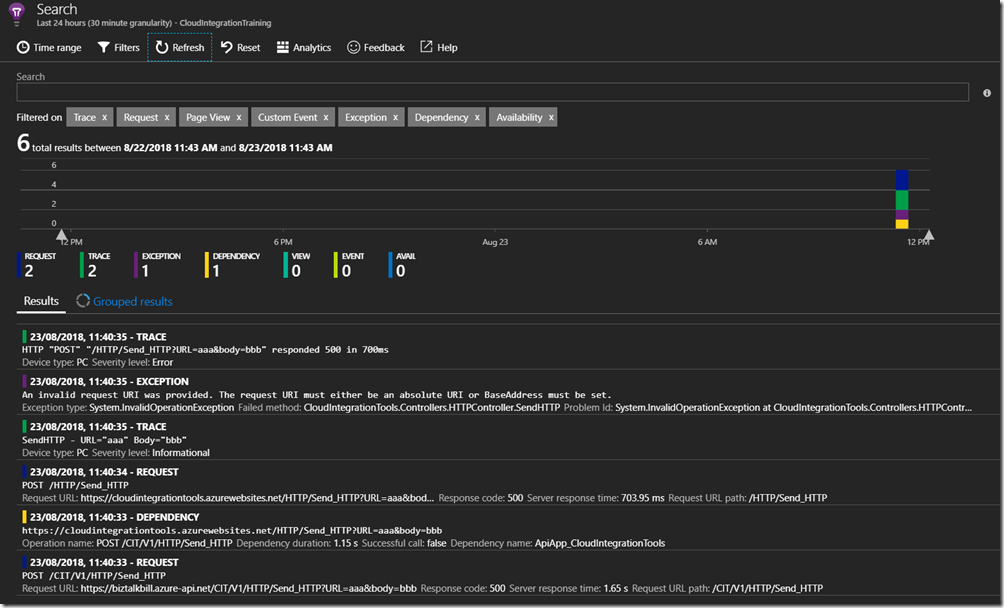
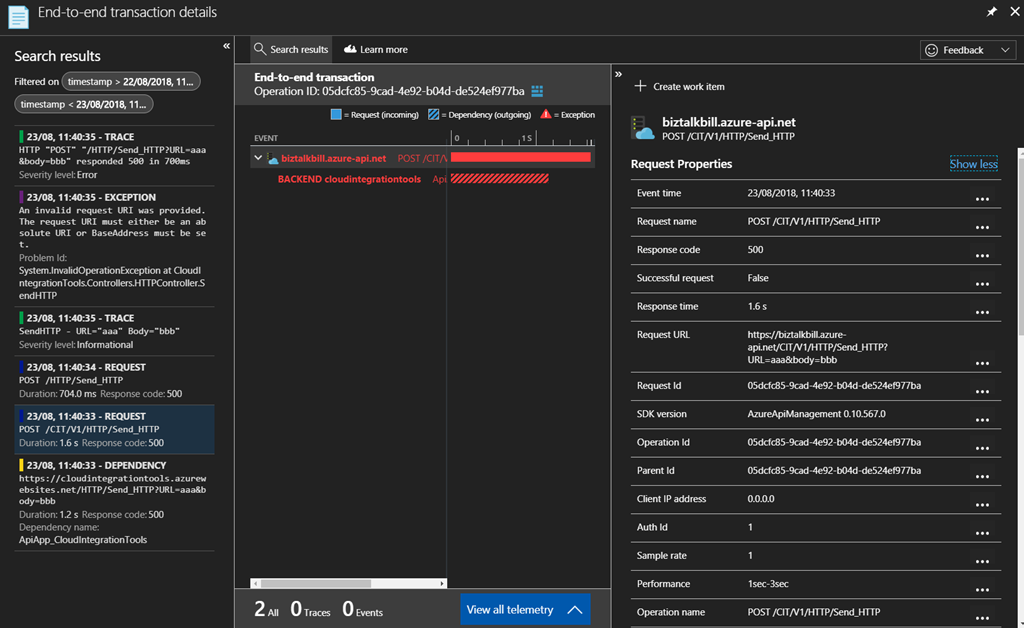
For this particular API, Application Insights is also setup on the API, so we can have end-to-end Application Insights information. Click on one of the entries to get the details
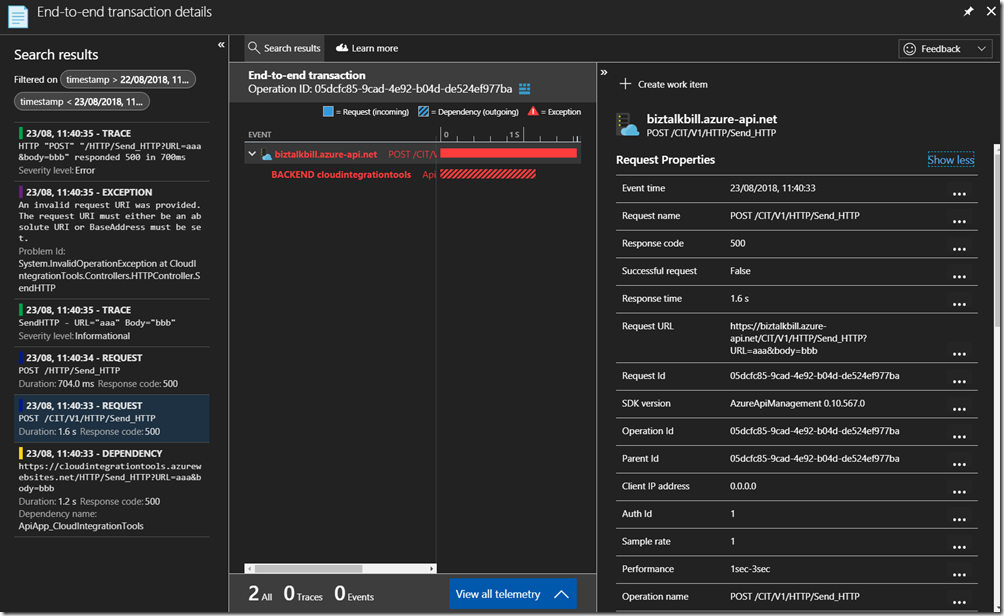
The details for the Request are contained in the view above and you can see the related Application Insights entries on the left and the particular details for the request on the right. If we want to get more details on the Exception, other than the 500 Response code we see in this entry, click on the Exception entry on the left
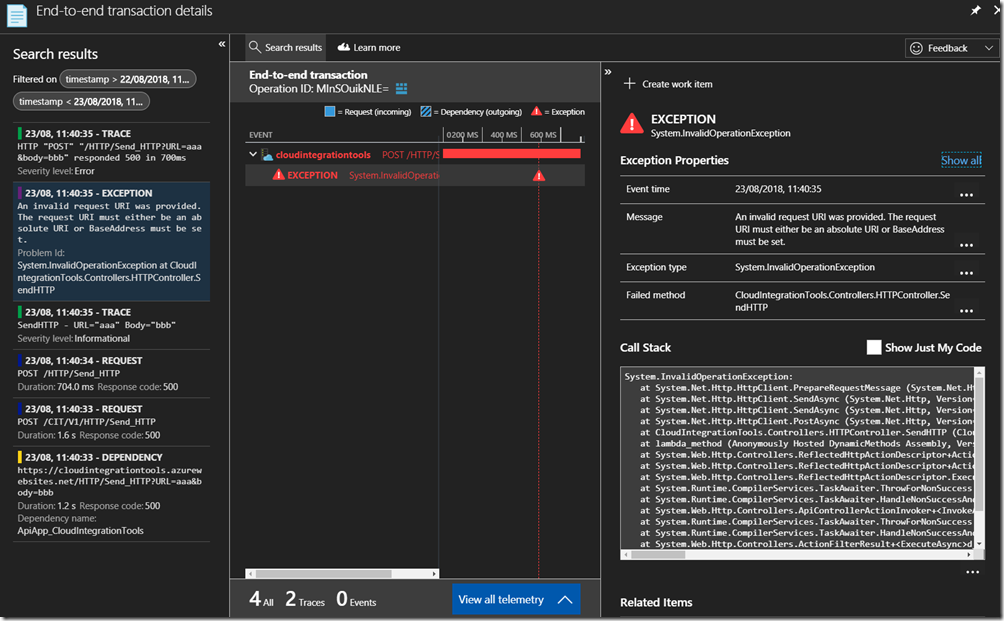
By configuring Application Insights for APIM, the full end-to-end flow of requests can be seen, the percentage of requests that are captured in Application Insights depends on your sampling, in a Development or Testing environment you can set this to 100% but in Production environments if the APIs are very active this may introduce too much overhead and require a lower sampling rate to prevent performance degradation.
Hopefully this has given you a quick demonstration on how to connect Application Insight to APIM.
Cross Posted on http://www.sixpivot.com.au
by Bill Chesnut | Aug 5, 2018 | BizTalk Community Blogs via Syndication
By Bill Chesnut
This is the second post in a multi part series on the features of Azure API Management.
As with the previous post where I demonstrated publishing a SOAP Services with pass-through, this time I am going to demonstrate publishing the same SOAP Service as REST, using the SOAP to REST feature of API Management, I consider this feature very important to APIM, in the past many of my clients have built intermediate services using either BizTalk or .Net.
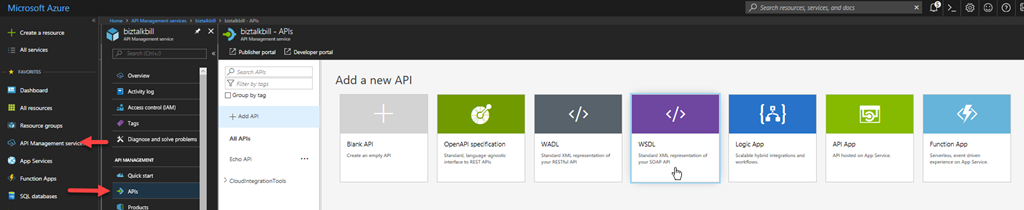
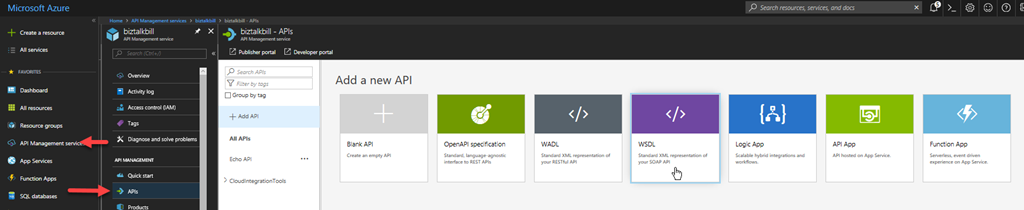
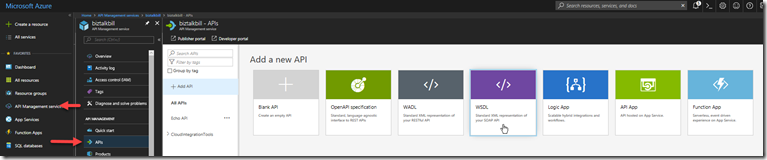
For this blog post I am going to demonstrate how you publish a BizTalk SOAP service as REST in APIM. With APIM you can publish SOAP services by importing the WSDL (this can be either via the URL or by uploading the WSDL file), In APIM Click the “API” menu item on the left, then Click “WSDL”
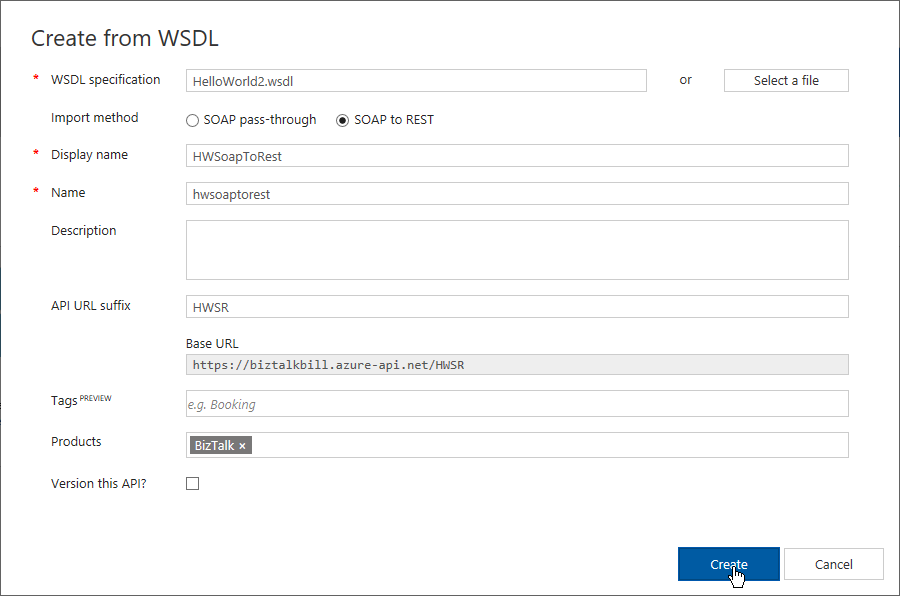
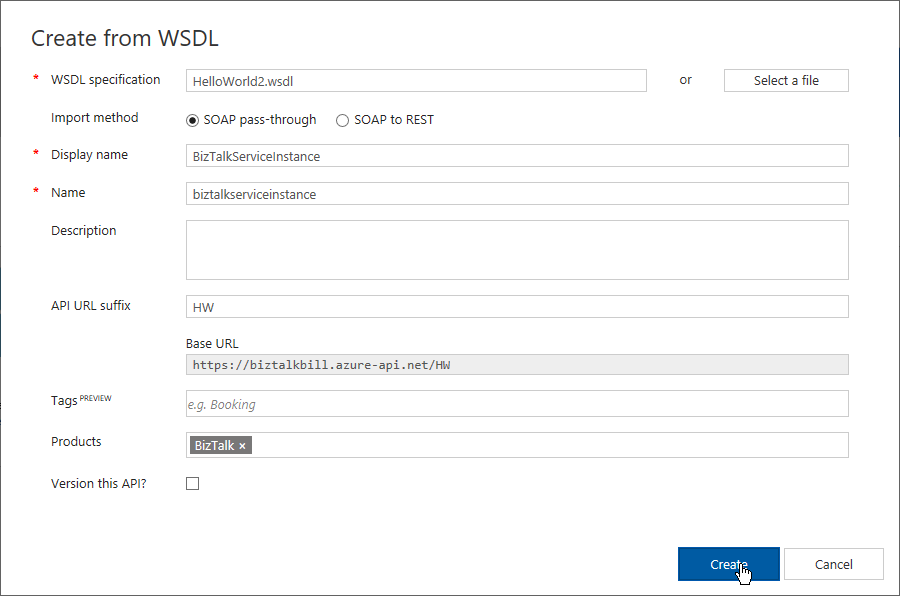
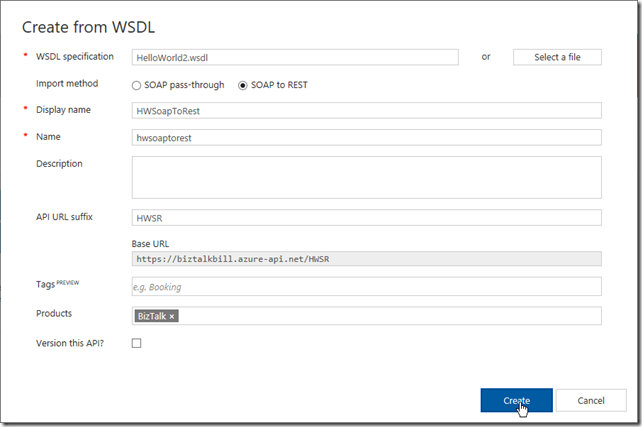
In this demonstration I am going to use an uploaded file, this is the WSDL from a BizTalk orchestration exposed as a WCF Request/Response Service, it only has a single operation ‘submit”. I am using an uploaded file because the BizTalk server is hosted in an Azure Virtual Machine and I have changed the URL to reflect the DNS name of the Virtual Machine. I could have also changed the name in APIM after the WSDL was imported. Select “SOAP to REST” and configure as shown and click “Create”
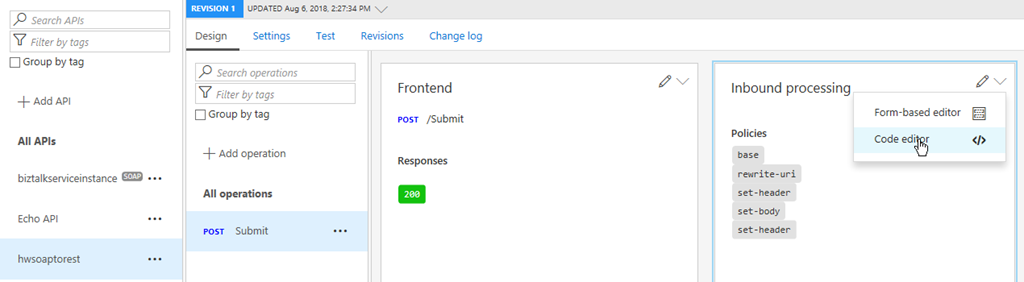
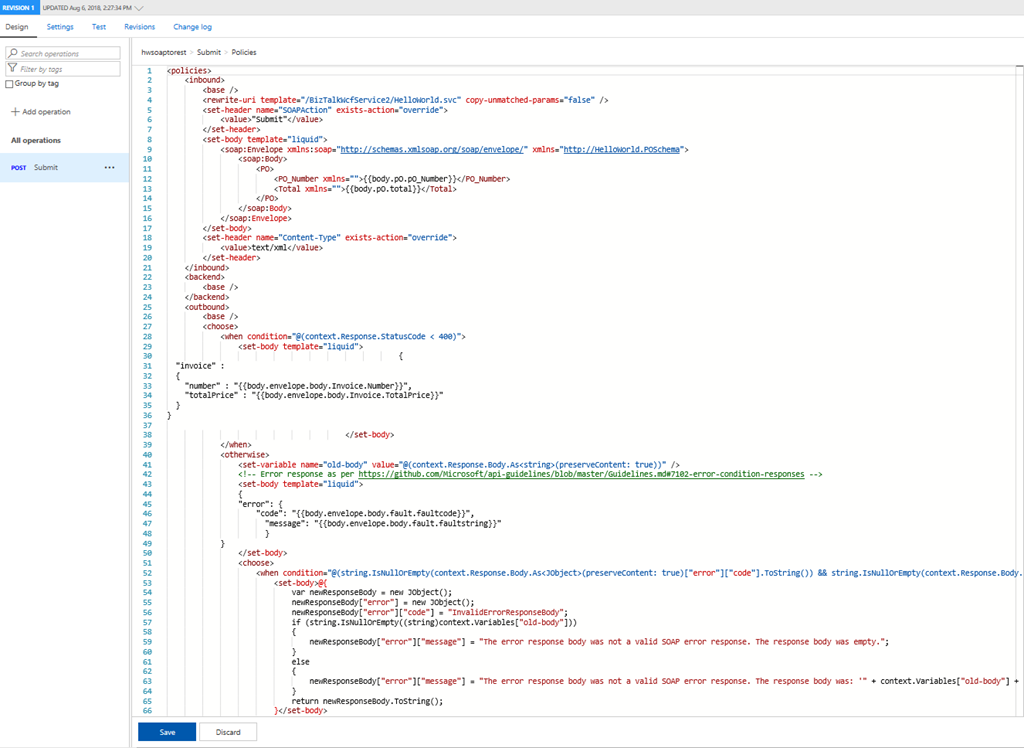
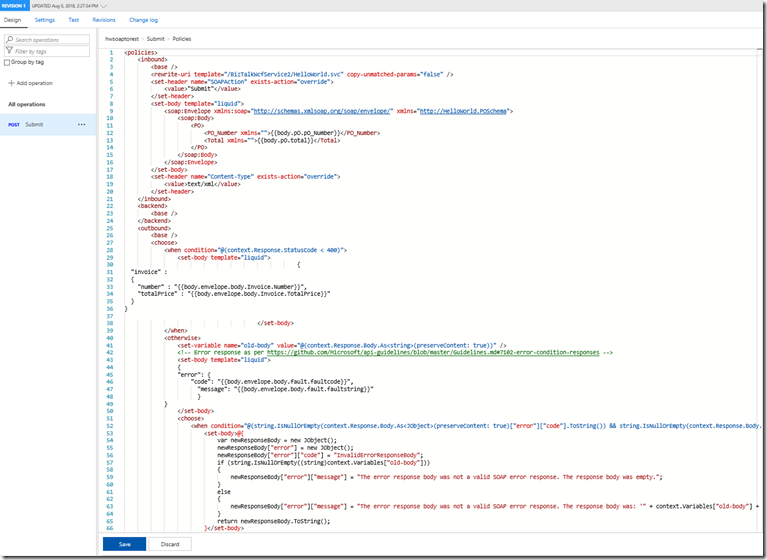
Once the WSDL import is complete, we can now see the API and it’s operations, now let click settings to look at the API settings, this is where we can change the URL to the BizTalk Server hosting our SOAP Service. Click the “submit” operation, then click the “policy editor”
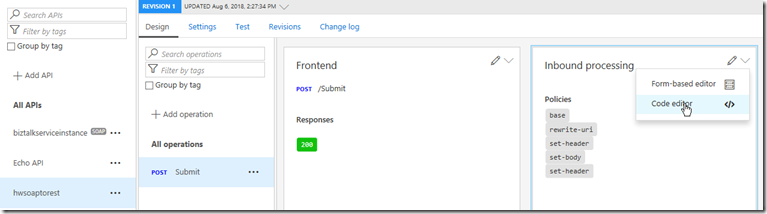
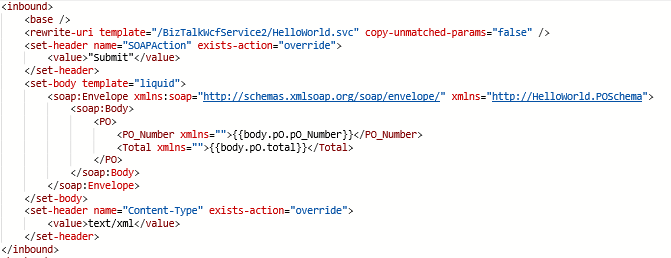
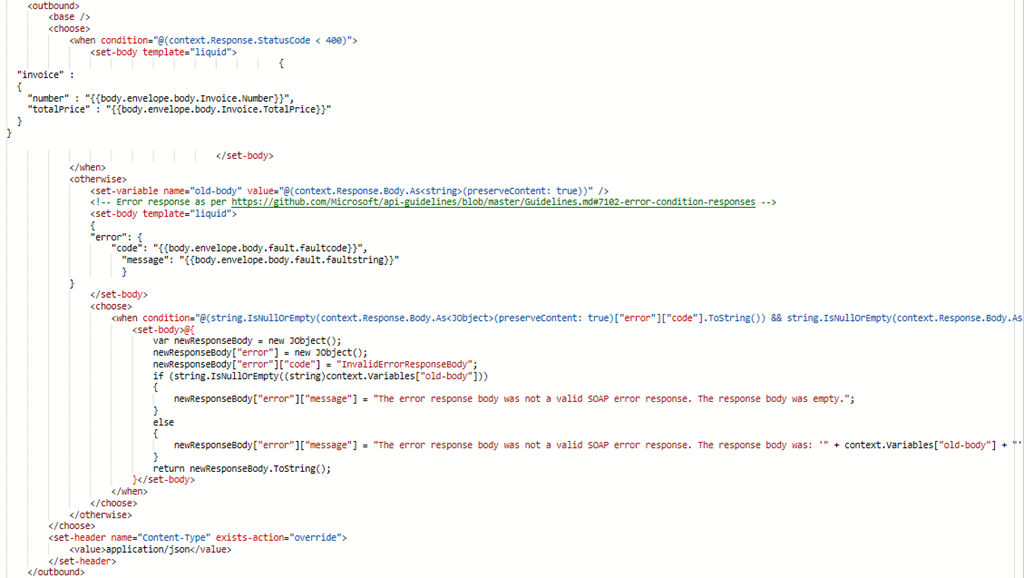
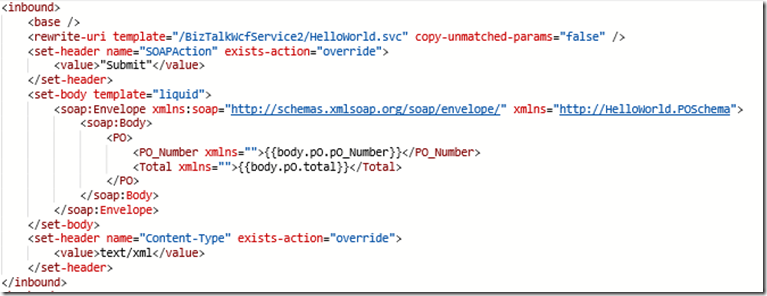
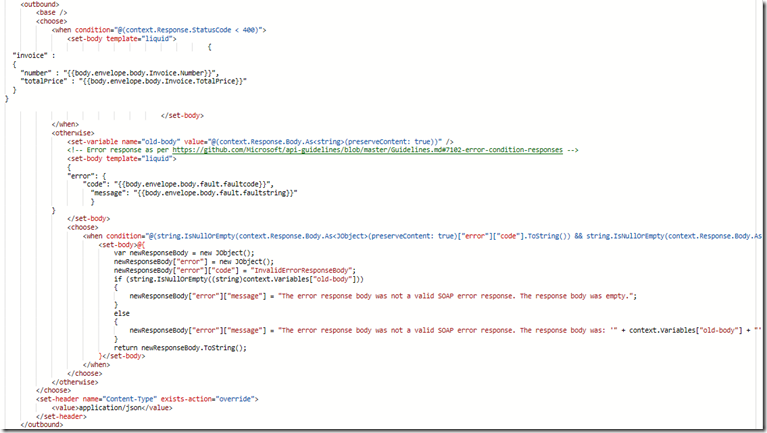
Now look at the policy that does the transformation from REST/JSON to SOAP/XML.
Inbound
Outbound
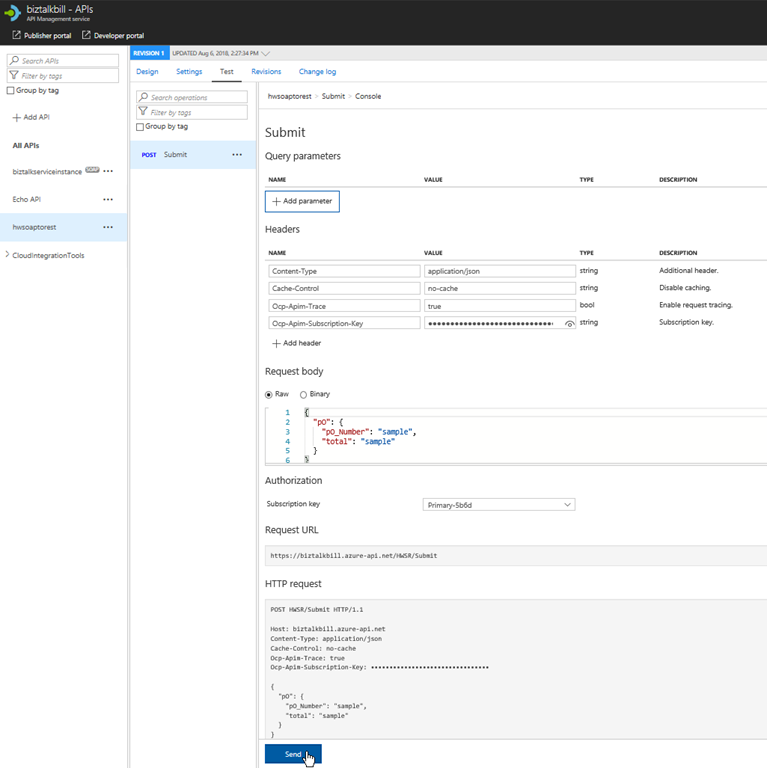
Now lets click the “Test” menu, this is where we can test our API Operation, before we release them to our consumers
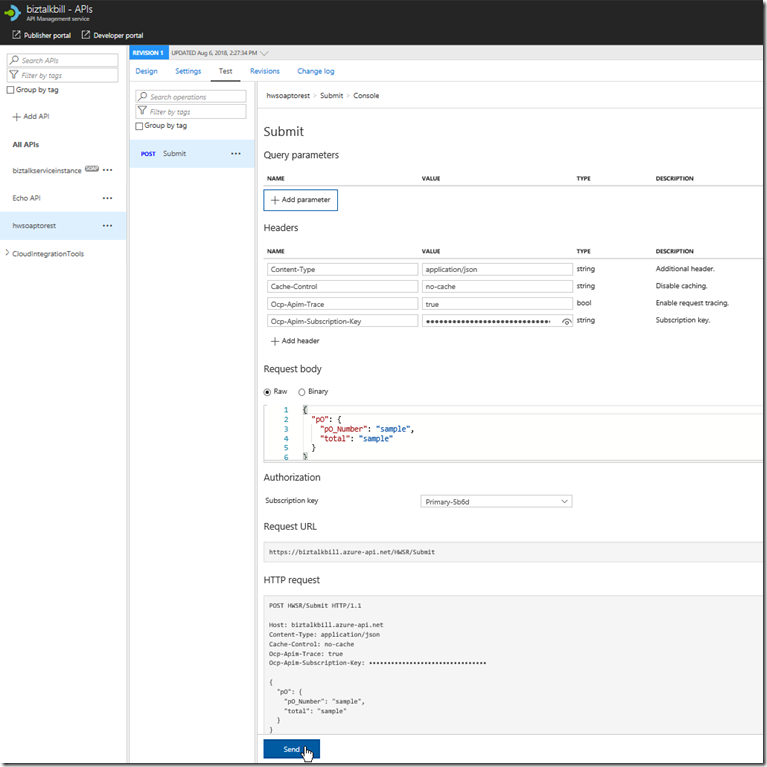
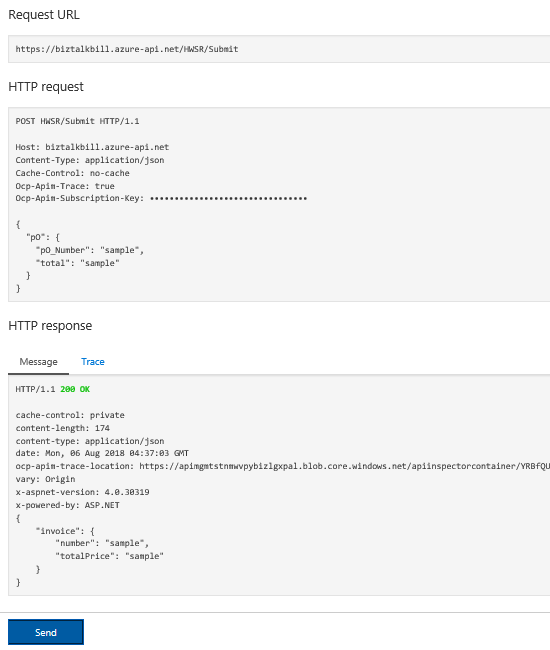
APIM fills in all the details to test the API, notice that the payload for the API is JSON, this is because we chose SOAP to REST, SOAP services are XML based, but the above policy we looked at does the conversion from JSON to XML. Click “try it”
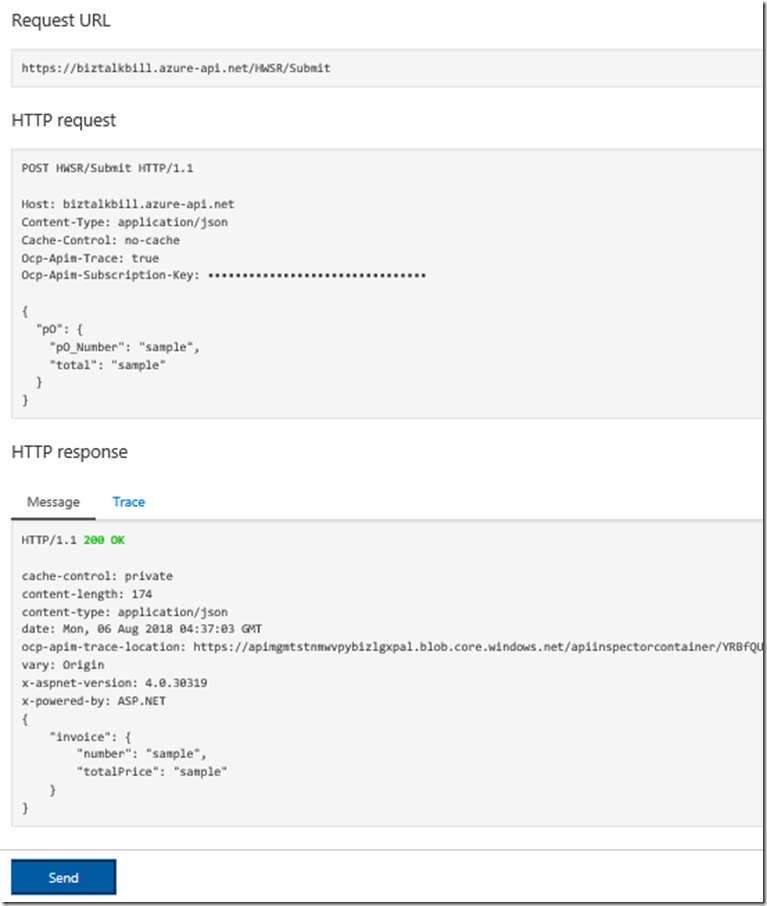
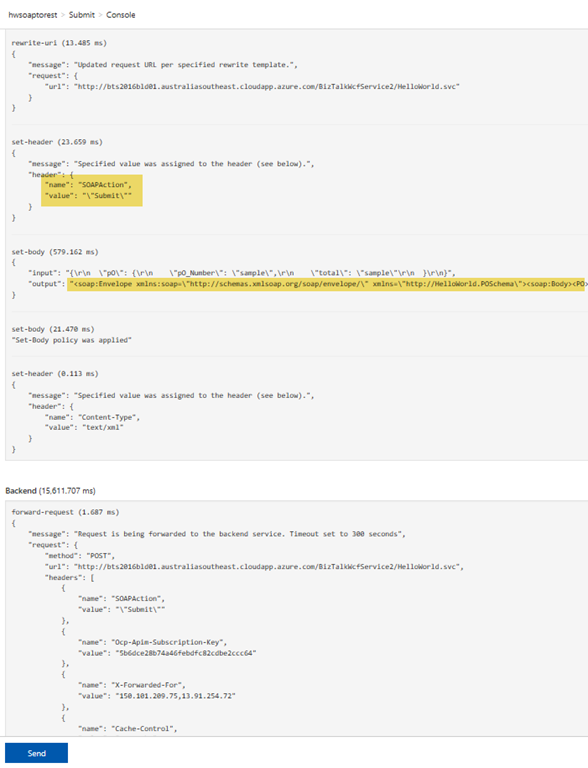
You can now see the results of our call to the BizTalk hosted SOAP Service, the results are in JSON again the policy is doing the conversion, now lets click the “trace” tab, this will give us everything that has taken place in APIM as part of our call to the BizTalk SOAP service. You can notice that the policy has set the SOAPAction and converted the JSON body to XML
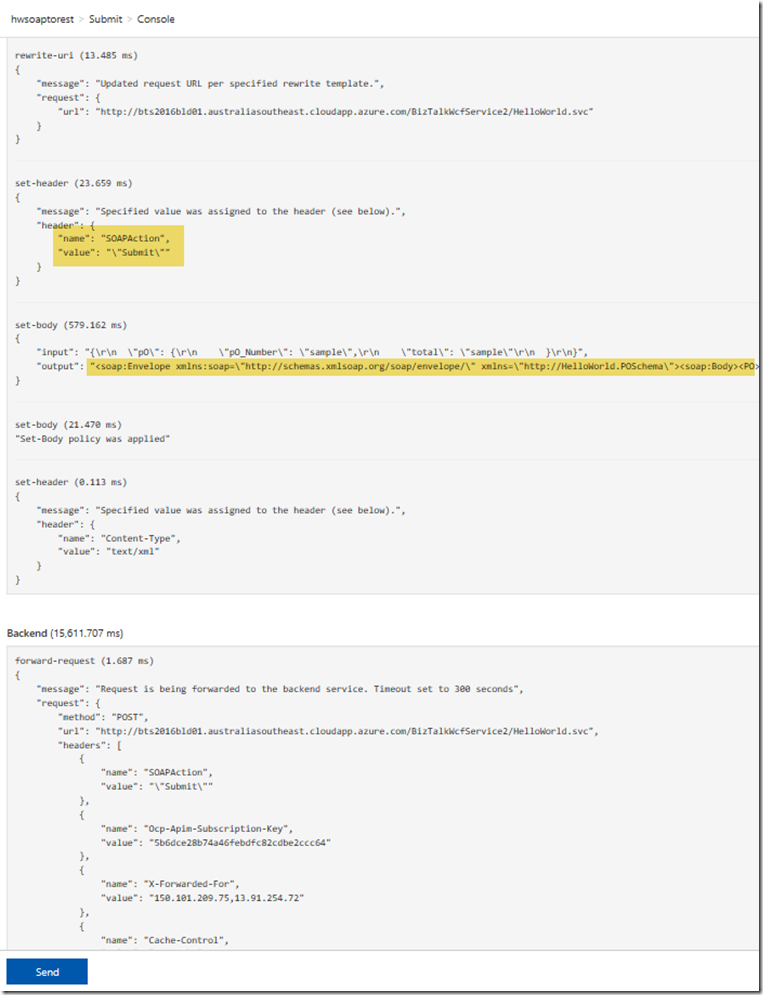
The Policy for the SOAP to REST feature is using Liquid Template Language to do the JSON to XML and XML to JSON transforms, these templates can be use to transform from JSON to XML, XML to JSON, XML to XML and JSON to JSON, this allow not only the scenario for SOAP to REST, but the ability to manipulate both inbound and outbound payload for maximum flexibility.
Hopefully this has given you a quick demonstration on how to expose your SOAP Services as REST with APIM.
Cross Posted on http://www.sixpivot.com.au
by Bill Chesnut | Jul 31, 2018 | BizTalk Community Blogs via Syndication
By Bill Chesnut
This is the first post in a multi part series on the features of Azure API Management.
When companies embark on a migration to Azure, they tend to have lots of legacy application, when they start using Azure API Management (APIM), they also want to expose some of these legacy applications, that is where the SOAP pass-through feature of APIM helps out. This feature allow you to publish these SOAP services in APIM.
For this blog post I am going to demonstrate how you publish a BizTalk SOAP service in APIM. With APIM you can publish SOAP services by importing the WSDL (this can be either via the URL or by uploading the WSDL file), In APIM Click the “API” menu item on the left, then Click “WSDL”
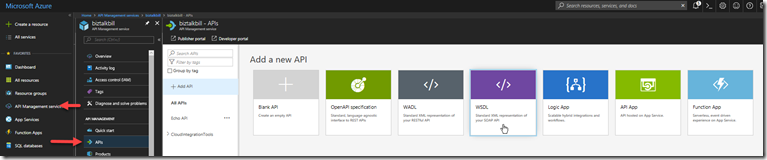
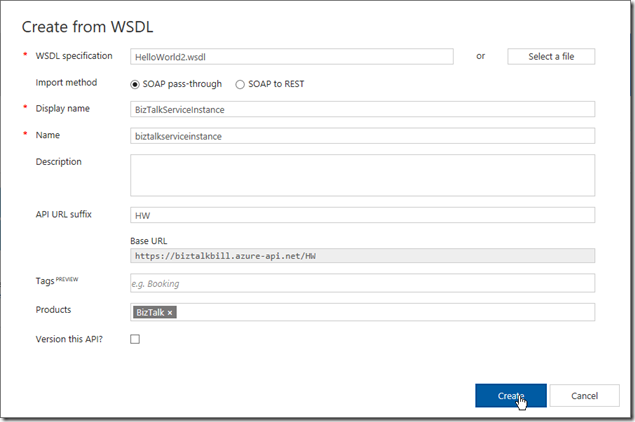
In this demonstration I am going to use an uploaded file, this is the WSDL from a BizTalk orchestration exposed as a WCF Request/Response Service, it only has a single operation ‘submit”. I am using an uploaded file because the BizTalk server is hosted in an Azure Virtual Machine and I have changed the URL to reflect the DNS name of the Virtual Machine. I could have also changed the name in APIM after the WSDL was imported. Configure as shown and click “Create”
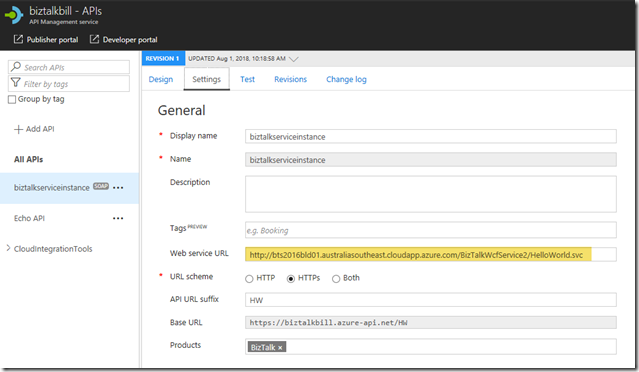
Once the WSDL import is complete, we can now see the API and it’s operations, now let click “Settings” to look at the API settings, this is where we can change the URL to the BizTalk Server hosting our SOAP Service, instead of inside the WSDL file as I have done.
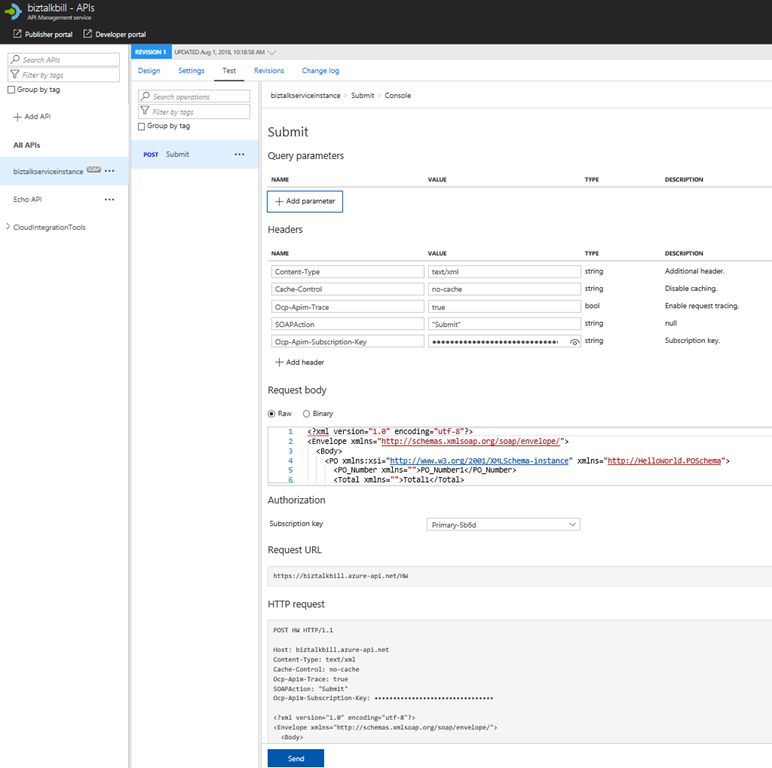
Now lets click the “Test” tab, this is where we can test our API Operation, before we release them to our consumers
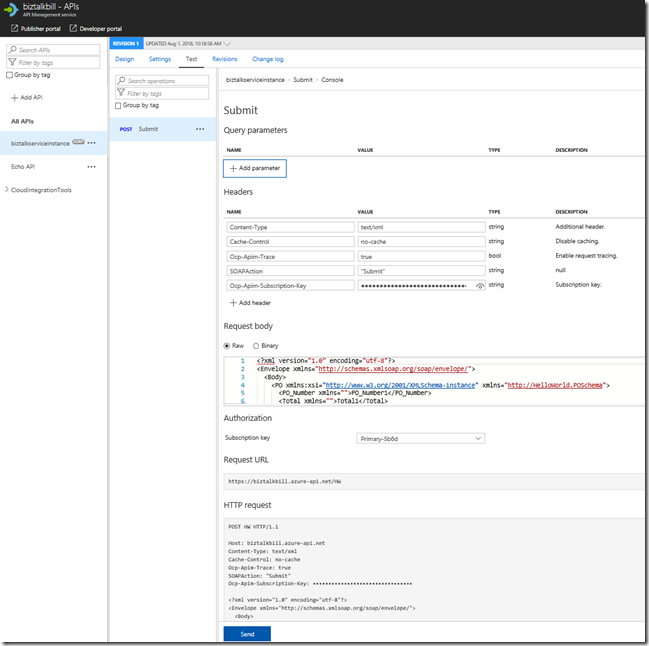
APIM Fills in all the details to test the API, notice that the payload for the API is XML, this is because we chose SOAP pass-through, SOAP services are XML based. Click “Send”
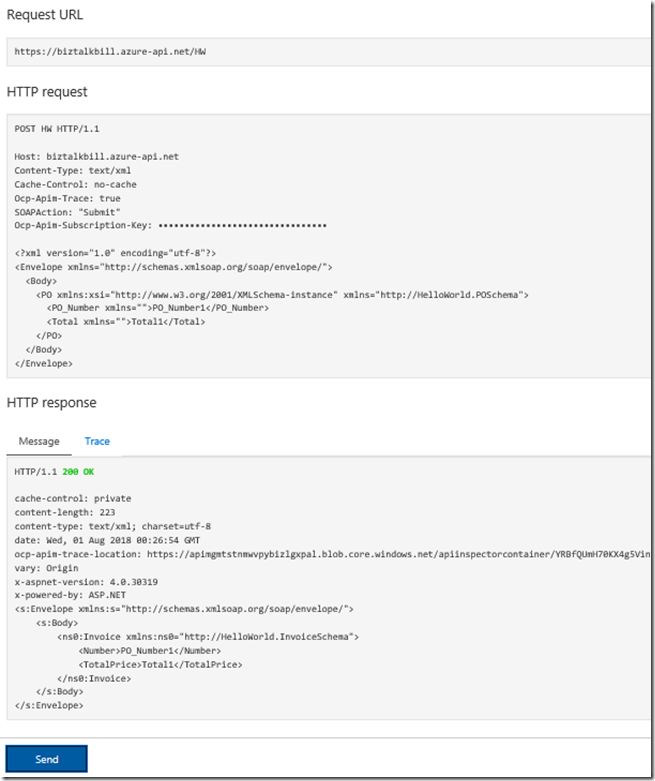
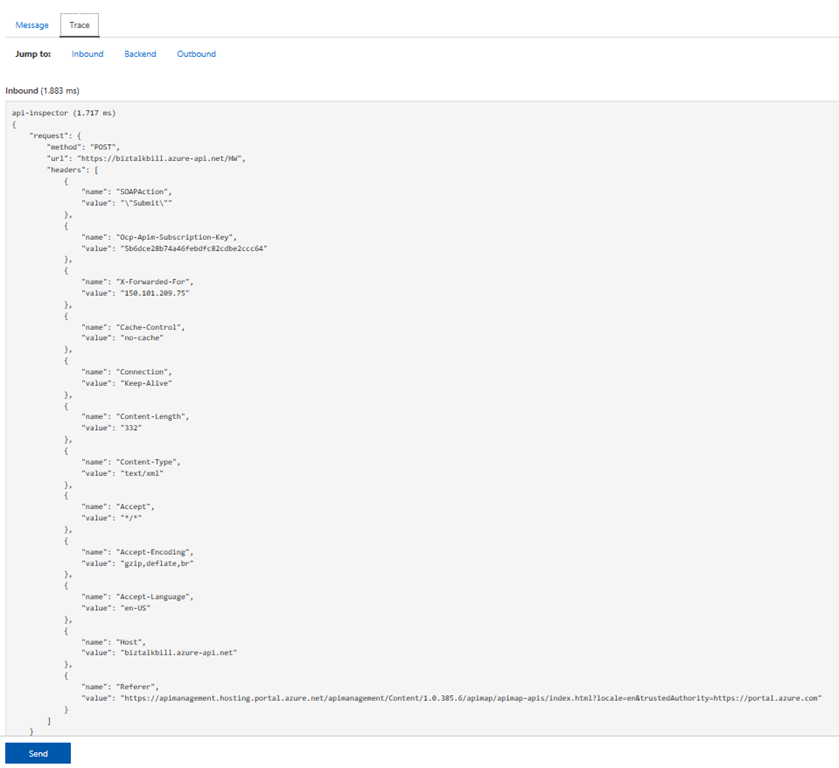
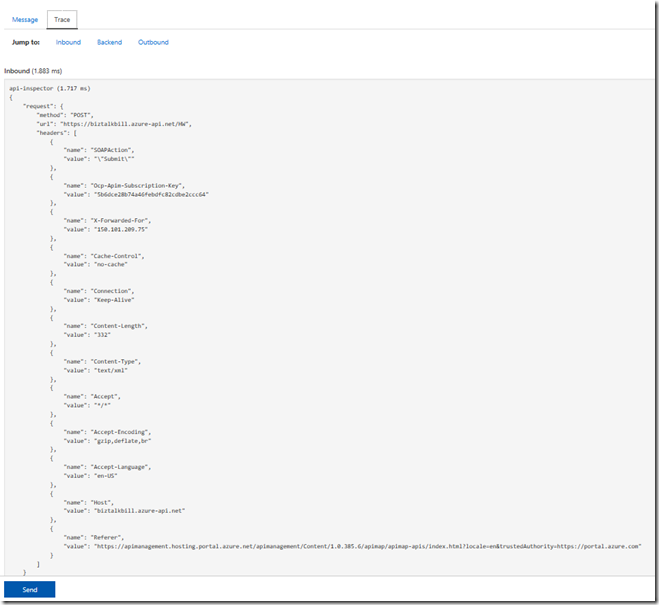
You can now see the results of our call to the BizTalk hosted SOAP Service, the results are in XML, now lets click the “Trace” tab, this will give us everything that has taken place in APIM as part of our call to the BizTalk SOAP service. Scroll down to see the full Trace.
Hopefully this has given you a quick demonstration on how to expose your SOAP Services with APIM.
Cross Posted on http://www.sixpivot.com.au

by Bill Chesnut | Jul 24, 2018 | BizTalk Community Blogs via Syndication
By Bill Chesnut
This is the 1st of a multipart series of Blog Posts to help companies understand Migrating BizTalk to Azure Integration Platform as a Service (IPaaS).
Should I be migrating from BizTalk to Azure iPaaS? This is a question I am being ask more and more lately for a couple of different reasons.
BizTalk development has always been a very specialized skill set with a limited number of resources available in the market, so companies are now starting to look at Azure iPaaS as a viable alternative to BizTalk in terms of finding developers with the correct skill sets.
There are 3 other reasons many companies are looking at moving from BizTalk to Azure iPaaS:
- cost, consumption pricing instead of product licensing;
- location of data, many companies are dealing with their consumers over the internet, so having their integration resources in Azure makes more sense;
- Infrastructure, companies are seeing the advantages of not having to maintain their own infrastructure and using Platform as a Service (PaaS) and Software as a Service (SaaS) offerings as a cost-effective alternative.
Unlike the BizTalk middleware products that covered most features required for all integration scenarios, Azure iPaaS is a collection of Azure services that may or may not be utilised for each scenario.
The base components that make up Azure iPaaS are Service Bus, Logic Apps, API Management and Event Grid. For some integration scenarios you may also use services like but not limited to: SQL Database, Storage, Function App, Web Site (hosing your WebAPI or WebJobs), Cosmos Db and Virtual Machines. In this series of blog posts, I will look at the different scenarios and the Azure services required.
Instead of spending time here to explain each of the Azure iPaaS services, I have included links to Azure documentation on each product/service mentioned:
All Azure Product/Services can be found here: https://docs.microsoft.com/en-us/azure/#pivot=products
Before you jump full steam into migrating from your on-premises (or cloud hosted) BizTalk to Azure iPaaS, there are a few things that you need to look at to see if the migration makes sense:
- Location of your data
- Sensitivity of your data
- Security Policies for accessing cloud-based resources
- Location of consumers/partners
Let’s look at each of these items in detail:
Location of your data, if most of your data currently used by BizTalk is located inside of your data center it would be hard to justify moving all of that data to and from Azure to use Azure iPaaS.
If your data is from your consumers/partners and it is coming in and going out via the internet, iPaaS can be a great solution in terms of cost, scalability and availability.
Sensitivity of your data, again this will relate back to the first item, if the data is coming in and going out over the internet, your company has already accepted the risk, so iPaaS will be a viable solution, otherwise, a risk assessment will need to be undertaken.
Security Policies for accessing cloud based resources can sometimes be one of the hardest nuts to crack, it requires educating your management to the benefits and security safe guards of Azure. It also means designing your iPaaS solution to use some of the additional security features available in Azure. The final point to look at is location of consumers/partners, again if everyone using the integration service of BizTalk are located inside of your data center, having them traverse to Azure and back for data does not make sense, but if many of your consumers/partners are outside of your offices or mobile users, Azure make perfect sense for availability and scale.
Once a company has decided that moving to Azure iPaaS makes sense, the next item to consider is the structure of their existing BizTalk integration solution, does the existing BizTalk solutions follow best practice:
- having incoming data mapped to an internal/canonical format
- processed in BizTalk using the internal/canonical format
- then mapped back to the outbound format before leaving BizTalk
if so, this will make the migration to Azure iPaaS a less disruptive and staged process.
This series will continue with the following blog posts:
- Migrating inbound messaging to Azure using Logic Apps, Event Grid, Service Bus and the BizTalk Claim Check Pipeline component that I have built.
- Migrating outbound messaging to Azure, using the same tooling as inbound
- Choices for message archiving in Azure
- End to End Monitoring of Azure iPaaS
- EDI (EDIFACT, X12 & AS2) Capabilities of Azure iPaaS
- Azure iPaaS CI/CD
Thanks for taking the time to view this blog post.
Cross Posted on: http://www.sixpivot.com.au
by Bill Chesnut | Jul 22, 2018 | BizTalk Community Blogs via Syndication
By Bill Chesnut
Being a big fan of Azure API Management (APIM), I get ask often “why should you use Azure API Management to publish my APIs? They are in Azure in an App Service as WebAPI”. To address this question we are going to go through the components and features of APIM. One thing I will not be coving is cost, too many times people first look at the cost of a product/service before they look at the features, I will leave the cost analysis to later and concentrate on the features.
There are 3 main components of APIM: API gateway, Azure Portal and Developer Portal, let’s talk quickly about each of these. Complete details can be found here: https://docs.microsoft.com/en-us/azure/api-management/api-management-key-concepts
API gateway
This is the gatekeeper, it accepts calls, routes them to the location of your API, verifies access, enforces quotas and rate limits, caches backend responses, manipulates the requests and responses and provides logging and analytics. There is nothing in the gateway that you could not do in your own code, but I strongly believe that you should not try to reinvent the wheel, concentrate on your code functionality not the plumbing.
Azure Portal / Management APIs
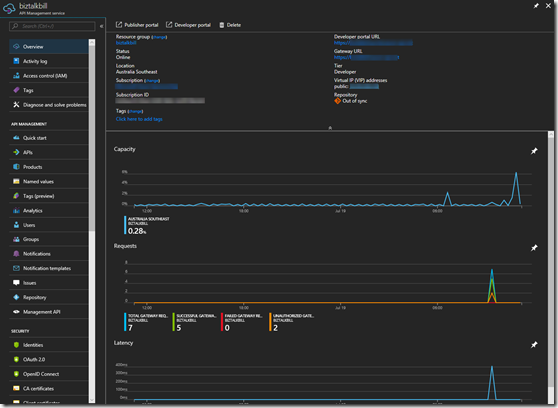
Originally when Microsoft purchased APIM, there was a Publisher Portal where all the management of your APIs was done. In the last year or so Microsoft have migrated all of this functionality to the Azure Portal, offering the added benefit of RBAC (Resource Based Access Control). As I am talking about the Azure Portal, almost all of the portal functionality is available via the management APIs. The Azure portal allows the definition or import of the API schemas, the packaging of the APIs into products, configuration of policies, and the management of users and analytics. They have also recently added the ability to test APIs directly from the Azure portal.
Developer Portal
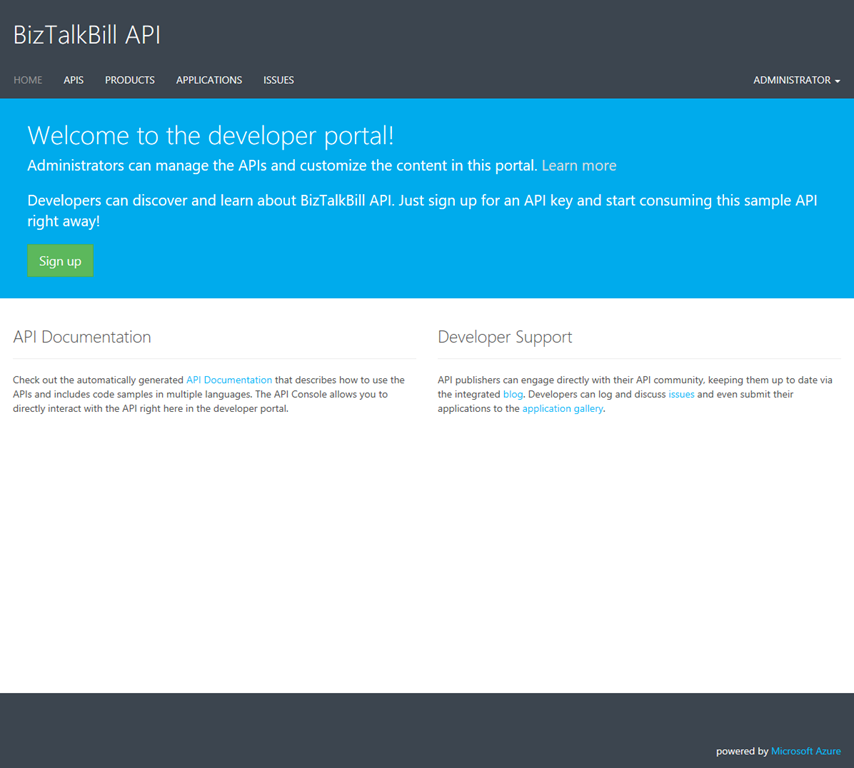
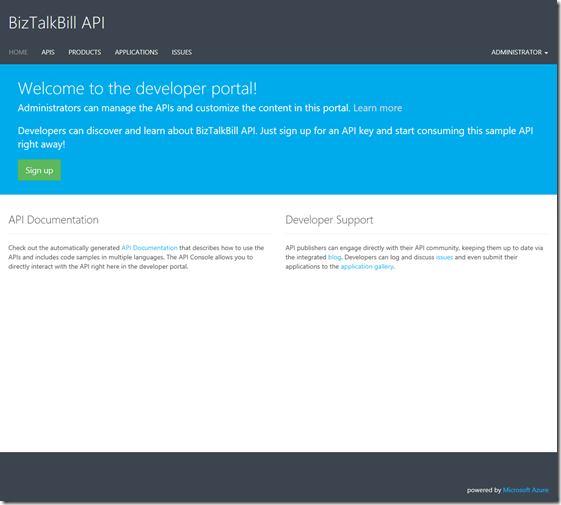
This is the main entry point for developers that want to use your API. The developers register themselves on the developer portal, you can decide if you want to approve their registration and what method you want them to use to register: Username & Password, Azure Active Directory, Azure Active Directory B2C, Facebook, Google, Microsoft Account or Twitter. The developer portal allows the user to discover your Product (which is made up of your APIs), manage their subscriptions to your Products, test the APIs, get sample code to call the API in different languages (Curl, #, Java, JavaScript, ObjC, PHP, Python and Ruby) and view the analytics of their own usage.
To really start talking about the answer to the question “why should you use APIM”, we need to start looking at the features of APIM. Not every company has the same requirements for publishing APIs, so there are features of APIM that your company may or may not use.
When you start looking at feature, one of the things you need to look at is are your APIs going to be Public or Private. If you need them available to external parties including partners & customers, they will need to be public. If they are indented for internal developer use only, they can be private. I would actually argue that they should all be public It is amazing the number of times I have seen companies build APIs for internal use only to then have to figure out how to make them public after the fact. Public does not mean available to everyone, public typically means available to partners or customers.
The feature that I will look at in some depth are: Security, Policies, Importing APIs, Analytics/Logging and Versioning/Revisions
Security
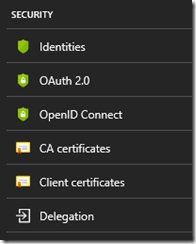
Now that we have decided to publish our APIs, how are we going to protect them? There are several security layers and ways to protect your APIs. The first is Azure API Management subscriptions, by default in APIM each set of APIs are part of a Product and users of a Product get a subscription to that Product, The subscription has a primary and secondary key and one of these needs to be passed in the header of the request to the APIM. This protects your API from being called by anyone without a subscription key. Request without a key are stopped at the APIM gateway, never reaching your API backend. The 2nd layer that you can choose is OAuth 2.0 or OpenID Connect, of which there are many providers. When you configure your APIs to use either OAuth 2.o or OpenID Connect, the caller would need to supply a valid authorization token in the request header. The final layer of security is between APIM and your APIs and there are several options for this, you can pass the OAuth 2.0 or OpenID Connect token through, you can using Client Certificates, you can user Basic Authentication and finally you can use the static IP address of your APIM instance.
Policies
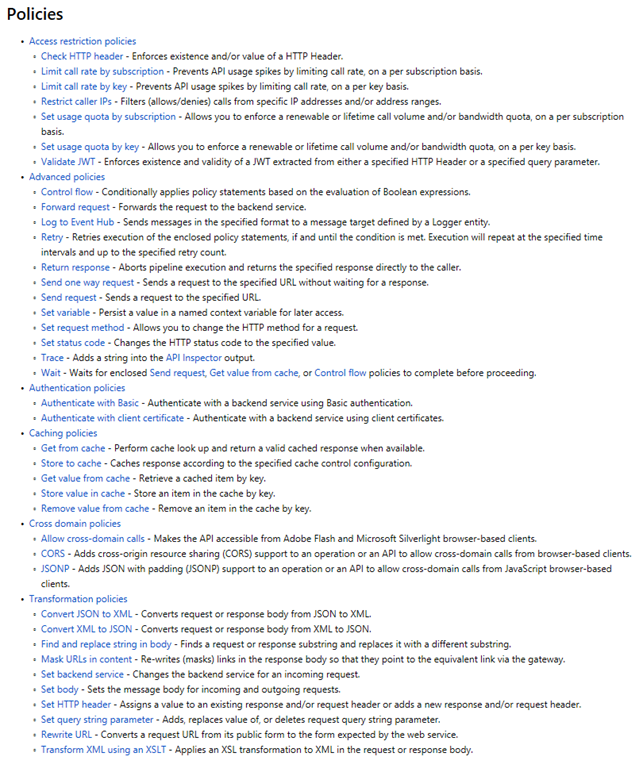
One of the biggest reasons I point out to clients thinking about APIM is the power of the polices. There is so much you can do with APIM policies, they can be implement at the Product level, so they apply to all APIs that are part of the Product (Note: APIs can be in multi Product). They can be implemented at API level so they apply to all operation in the API, or they can be implemented for a single operation. There are 6 categories of polices:
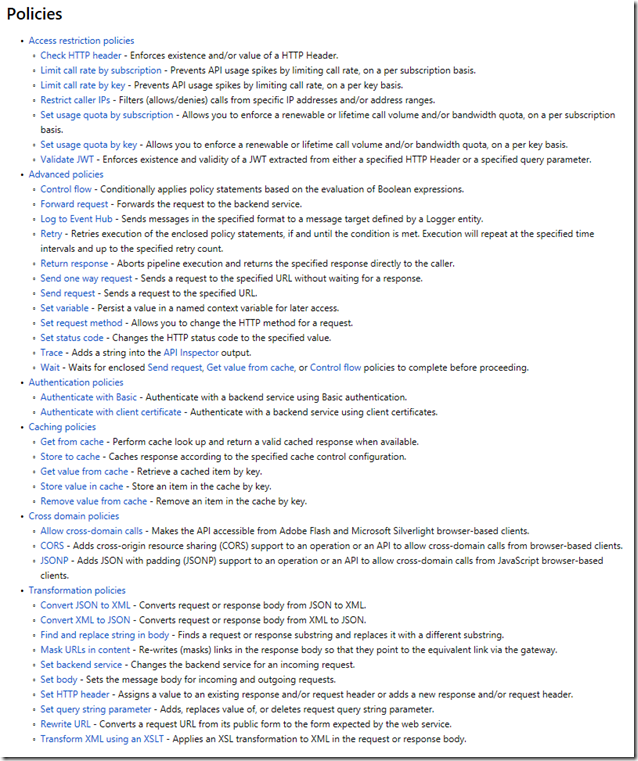
I would like to call out a few of my favourites:
- Validate JWT – Enforces existence of validity of a JWT
- Control flow – Conditionally applies policy statements based on the evaluation of Boolean expressions
- Log to Event Hub – Send message in the specified format to a message target defined by the Logger entity
- The whole set of Caching polices – being able to add caching to your APIs without touching the code
- Convert JSON to XML and Convert XML to JSON
- Set body (specifically using a Liquid template) – used primarily for the REST to SOAP, but not limited to that
That is a small number of the available polices, but do give you a good idea of the power of polices in APIM
Importing APIs
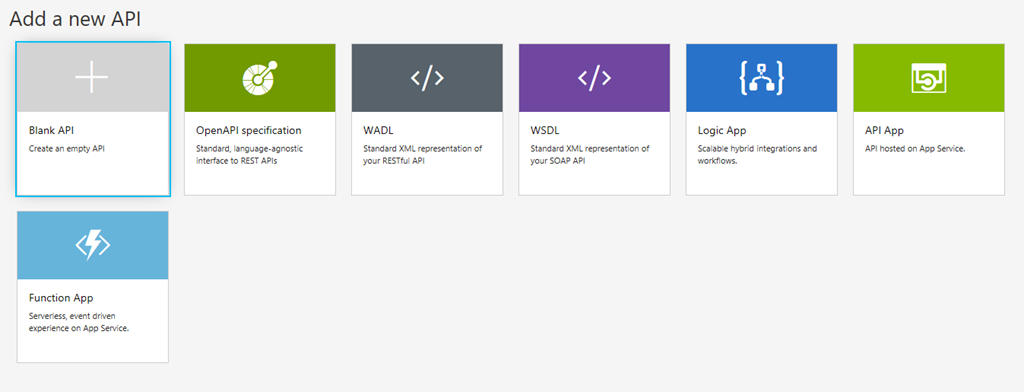
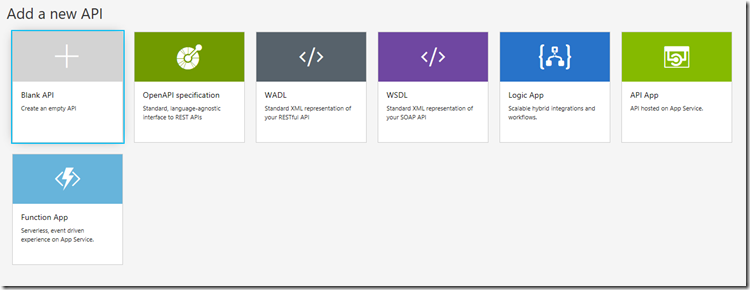
This feature makes it easy to get started with APIM, it is how you get your APIs into APIM. Microsoft have just implemented a couple of standards here but they have made it quick and easy by giving you lots of options. These are the available options:
Analytics/Logging
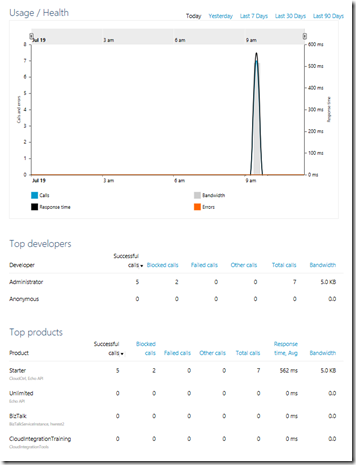
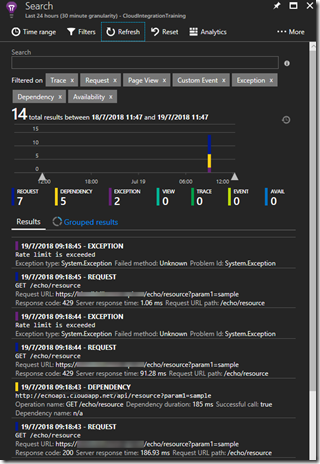
Analytics and Logging are 2 distinct types of data that needs to be collected from your APIs. I have typically seen very good logging in API code, but rarely good Analytics. I know I have spent my fair share of time in IIS logs trying to figure out some usage analytics. Analytics gives you access to usage, health and activity data around your APIs. This can be viewed in the APIM Publisher Portal (still to be migrated to the Azure Portal) or in Azure Portal under Azure Monitor. If you need to log data in APIM before or after your API call, you can use the Log to Event Hub policy to capture that information, very helpful in the SOAP to REST scenarios. The final piece is a bit of a mixture, Microsoft have recently enabled the ability to connect Application Insights to APIM. Application Insights provides insights into the request, exceptions and dependencies.
Versioning/Revisions
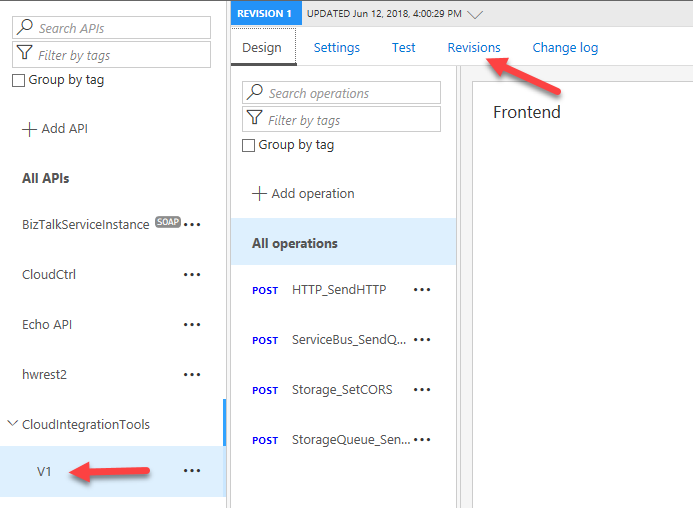
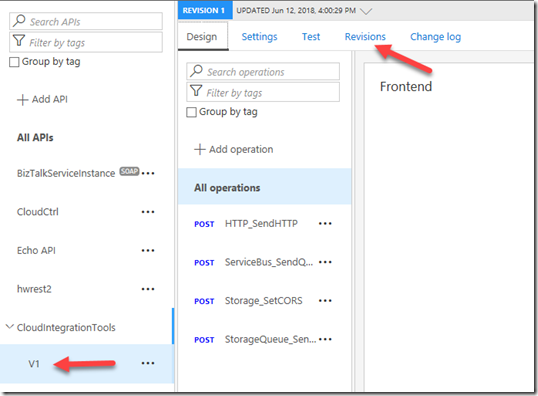
These are 2 very helpful features of APIM, Many of us start our our API journey without thinking about how we are going to manage change. If we were to go back to the early days of COM programing the rule was never change the interface, you can change the code but never the interface. In the real world interfaces need to change, so how we manage that change is the important. With APIM, if we originally published our APIs without versioning this feature will allow you to maintain the original without a version but then add a new versioned copy of the same API. With versioning there may also be a need to maintain several version of the same API because of different usage scenarios, APIM will allow each version to point to a different backend set of APIs, or you can use policies to update earlier version to conform to the new backend. APIM supports the version in either the path, header or query string. Revisions are useful when you change the code behind your API but not the interface. Revisions allow you deploy and test the new revision without making it the active revision of your API.
There are a few other things that may help to make your decision to publish your APIs in APIM:
- APIM instances have a static IP address
- All APIM instances above developer are highly available
- APIM Developer and Premium can be connected to a Virtual Network for VPN connectivity
- APIM Premium can have instances in multiple Azure Regions and includes an internal Traffic Manager and shared configuration
- APIM standard instance can be placed behind Traffic Manager, but configuration is not shared
I hope the information provide in this blog post can help you decide if APIM is the right solution for publishing your APIs.
Cross Posted to http://www.sixpivot.com.au