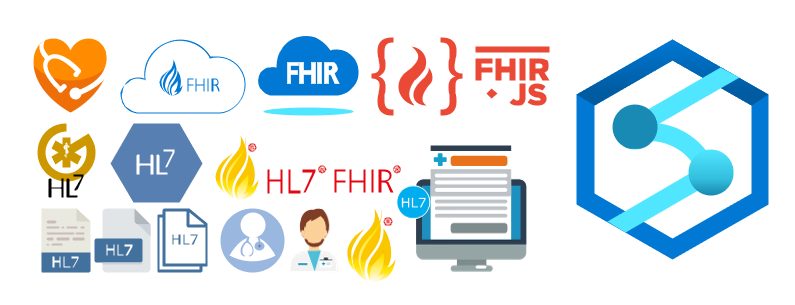
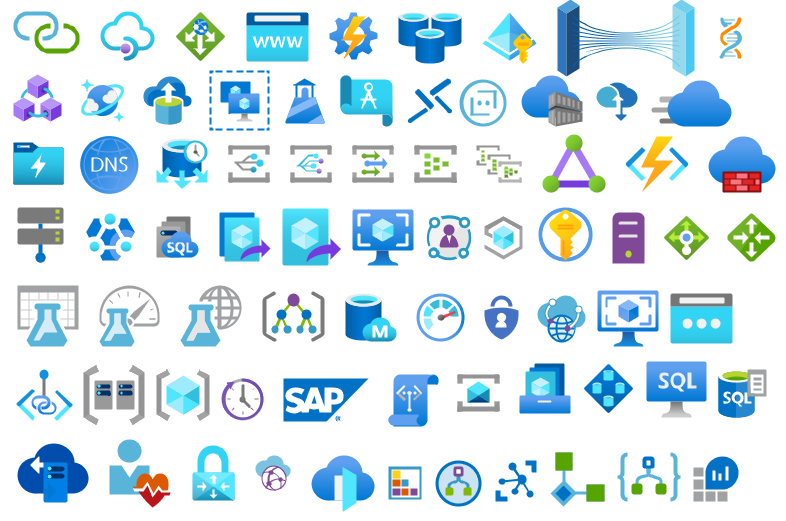
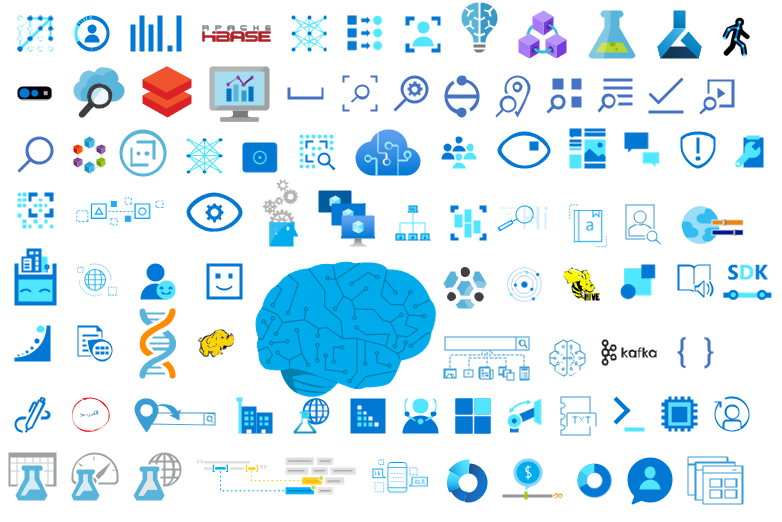
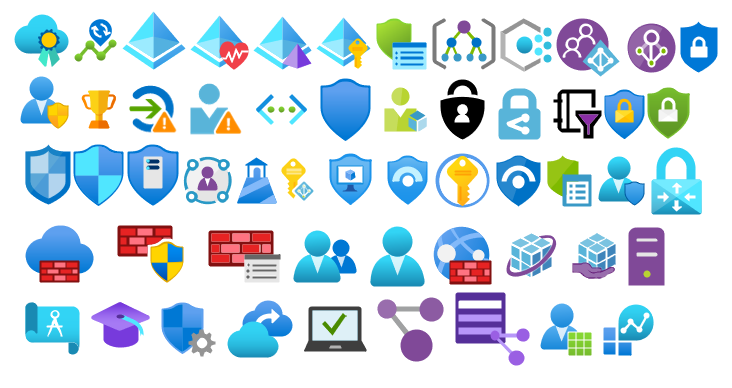
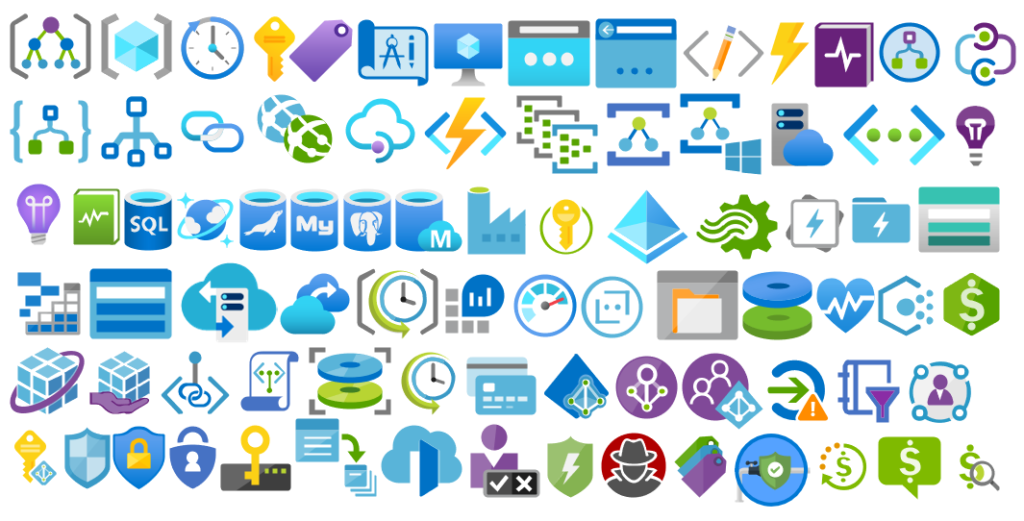
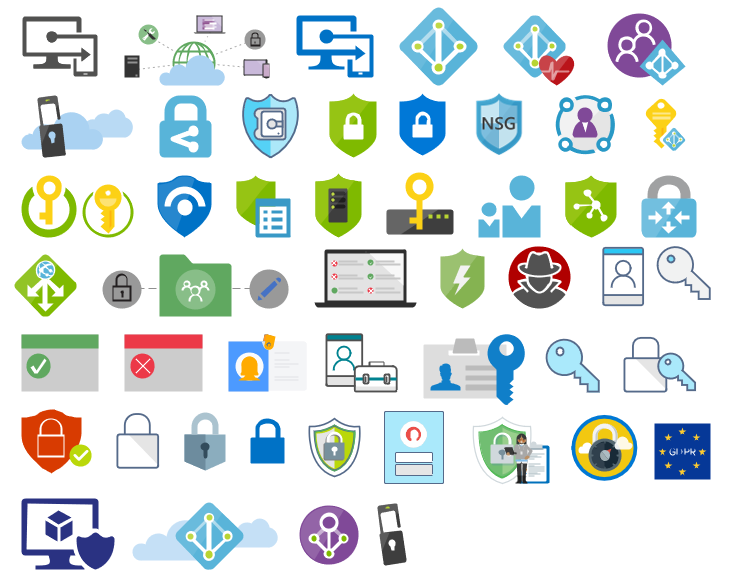
It came to my attention that there were some Azure icons missing on this package like Azure Synapse Analytics, so I decide to make a refresh on this package and add some missing and new icons available on the Azure Portal.
What’s new in this version?
32 new icons added on the following files:
Microsoft Azure (MIS Azure Stencils.vssx): This package contains stencils of Azure Services (original icons) that are available thru the Azure Portal.
Microsoft Azure: Others (MIS Azure Others Stencils.vssx): This package contains other less important (or secondary features) and related stencils.
MIS: Security and Governance (MIS Security and Governance.vssx): This package contains stencils that will represent Security and Governance.
Continuing the process of improving the user experience regarding text annotations and connector points.
Microsoft Integration, Azure, Power Platform, Office 365 and much more Stencils Pack
Microsoft Integration, Azure, Power Platform, Office 365 and much more Stencils Pack it’s a Visio package that contains fully resizable Visio shapes (symbols/icons) that will help you to visually represent On-premise, Cloud or Hybrid Integration and Enterprise architectures scenarios (BizTalk Server, API Management, Logic Apps, Service Bus, Event Hub…), solutions diagrams and features or systems that use Microsoft Azure and related cloud and on-premises technologies in Visio 2016/2013:
BizTalk Server
Microsoft Azure
Integration
Integration Service Environments (ISE)
Logic Apps and Azure App Service in general (API Apps, Web Apps, and Mobile Apps)
Azure API Management
Messaging: Event Hubs, Event Grid, Service Bus, …
Azure IoT and Docker
AI, Machine Learning, Stream Analytics, Data Factory, Data Pipelines
SQL Server, DocumentDB, CosmosDB, MySQL, …
and so on
Microsoft Power Platform
Microsoft Flow
PowerApps
Power BI
Office365, SharePoint,…
DevOps and PowerShell
Security and Governance
And much more…
… and now non-related Microsoft technologies like:
SAP Stencils
The Microsoft Integration Stencils Pack is composed of 27 files:
Microsoft Integration Stencils
MIS Additional or Support Stencils
MIS AI and Machine Learning Stencils
MIS Apps and Systems Logo Stencils
MIS Azure Additional or Support Stencils
MIS Azure Mono Color
MIS Azure Old Versions
MIS Azure Others Stencils
MIS Azure Stencils
MIS Buildings Stencils
MIS Databases and Analytics Stencils
MIS Deprecated Stencils
MIS Developer Stencils
MIS Devices Stencils
MIS Files Stencils
MIS Generic Stencils
MIS Infrastructure Stencils
MIS Integration Fun
MIS Integration Patterns Stencils
MIS IoT Devices Stencils
MIS Office365
MIS Power BI Stencils
MIS PowerApps and Flows Stencils
MIS SAP Stencils
MIS Security and Governance
MIS Servers (HEX) Stencils
MIS Users and Roles Stencils
That you can use and resize without losing quality, in particular, the new shapes.
I am always paying attention to requests from members of the community, and whenever I can, I update this stencil pack with requested shapes or functionalities. And this is one of these cases. One of the most common complaints about this stencil pack was/is text annotations. When you try to add a legend on the stencil, the text is in the middle of the icon, instead of underneath. And sometimes the text is white, which doesn’t help also.
Another recent aspect that came to my attention was the fact that was missing proper connector points, which make it hard to properly connect shapes in a diagram.
Of course, all of these you can manually fix by move the text to the bottom of each shape, change the color of the text and add connector points. But some of these tasks required a more deep knowledge of working with Visio and they are time-consuming. Luckily this work is being made, it may take a while since this package has more than 2000 shapes!
What’s new in this version?
Today I can announce that the first phase is done and the first file, and probably the most important, of this package is fixed:
Microsoft Azure (MIS Azure Stencils.vssx): This package contains stencils of Azure Services (original icons) that are available thru the Azure Portal.
The main goal of this release was to solve or improve the user experience regarding text annotations and connector points. In this version, the changes and additions are:
Text annotationsissue solved: This issue was solved on the stencils present on the Microsoft Azure (MIS Azure Stencils.vssx) file;
Proper connector points added: This improved feature was added on stencils present on the Microsoft Azure (MIS Azure Stencils.vssx) file;
Fixed some minor stencils layouts;
New shapes: New shapes added on Microsoft Azure (MIS Azure Stencils.vssx) and Microsoft Azure: Others (MIS Azure Others Stencils.vssx);
Microsoft Integration, Azure, Power Platform, Office 365 and much more Stencils Pack
Microsoft Integration, Azure, Power Platform, Office 365 and much more Stencils Pack it’s a Visio package that contains fully resizable Visio shapes (symbols/icons) that will help you to visually represent On-premise, Cloud or Hybrid Integration and Enterprise architectures scenarios (BizTalk Server, API Management, Logic Apps, Service Bus, Event Hub…), solutions diagrams and features or systems that use Microsoft Azure and related cloud and on-premises technologies in Visio 2016/2013:
BizTalk Server
Microsoft Azure
Integration
Integration Service Environments (ISE)
Logic Apps and Azure App Service in general (API Apps, Web Apps, and Mobile Apps)
Azure API Management
Messaging: Event Hubs, Event Grid, Service Bus, …
Azure IoT and Docker
AI, Machine Learning, Stream Analytics, Data Factory, Data Pipelines
SQL Server, DocumentDB, CosmosDB, MySQL, …
and so on
Microsoft Power Platform
Microsoft Flow
PowerApps
Power BI
Office365, SharePoint,…
DevOps and PowerShell
Security and Governance
And much more…
… and now non-related Microsoft technologies like:
SAP Stencils
The Microsoft Integration Stencils Pack is composed of 27 files:
Microsoft Integration Stencils
MIS Additional or Support Stencils
MIS AI and Machine Learning Stencils
MIS Apps and Systems Logo Stencils
MIS Azure Additional or Support Stencils
MIS Azure Mono Color
MIS Azure Old Versions
MIS Azure Others Stencils
MIS Azure Stencils
MIS Buildings Stencils
MIS Databases and Analytics Stencils
MIS Deprecated Stencils
MIS Developer Stencils
MIS Devices Stencils
MIS Files Stencils
MIS Generic Stencils
MIS Infrastructure Stencils
MIS Integration Fun
MIS Integration Patterns Stencils
MIS IoT Devices Stencils
MIS Office365
MIS Power BI Stencils
MIS PowerApps and Flows Stencils
MIS SAP Stencils
MIS Security and Governance
MIS Servers (HEX) Stencils
MIS Users and Roles Stencils
That you can use and resize without losing quality, in particular, the new shapes.
And the most expected email arrived once again on 1st July, thank you Microsoft for this amazing award. Once again, I’m delighted to share that I was renewed as a Microsoft Azure MVP (Microsoft Most Valuable Professional). This is my 10th straight year on the MVP Program, an amazing journey, and experience that started in 2011 as BizTalk MVP, which gave me the opportunity, and still does, to travel the world for speaking engagement, share the knowledge, and to meet the most amazing and skilled people in our industry.
I would like to thank the MVP Team, my MVP Lead Cristina Herrero, all my fellow MVPs, my beautiful family, my coworkers at DevScope, and in special all my blog readers, friends, members of Microsoft Enterprise Integration Community for their support during these years.
It’s a big honor to be in the program and be one of this amazing worldwide group of technicians and community leaders who actively share their high quality and real-world expertise with other users and Microsoft. I’m looking forward to another great year!
Once again, I update this stencil pack with requested shapes from community members: Azure HL7 FHIR (Fast Healthcare Interoperability Resource) and Azure Synapse Analytics. The result was the addition of 16 new shapes. I hope you enjoy it.
What’s new in this version?
The main goal of this release was to provide the new icons present in the Azure Portal and update existing ones. In this version, the changes and additions are:
New shapes: New shapes added on MIS Apps and Systems Logo Stencils, Microsoft Integration Stencils, MIS Users and Roles Stencils, MIS Files Stencils, MIS Azure Others Stencils, and MIS Azure Stencils;
SVG Files: Add new SVG files, and uniform all the filenames;
Microsoft Integration, Azure, Power Platform, Office 365 and much more Stencils Pack
Microsoft Integration, Azure, Power Platform, Office 365 and much more Stencils Pack it’s a Visio package that contains fully resizable Visio shapes (symbols/icons) that will help you to visually represent On-premise, Cloud or Hybrid Integration and Enterprise architectures scenarios (BizTalk Server, API Management, Logic Apps, Service Bus, Event Hub…), solutions diagrams and features or systems that use Microsoft Azure and related cloud and on-premises technologies in Visio 2016/2013:
BizTalk Server
Microsoft Azure
Integration
Integration Service Environments (ISE)
Logic Apps and Azure App Service in general (API Apps, Web Apps, and Mobile Apps)
Azure API Management
Messaging: Event Hubs, Event Grid, Service Bus, …
Azure IoT and Docker
AI, Machine Learning, Stream Analytics, Data Factory, Data Pipelines
SQL Server, DocumentDB, CosmosDB, MySQL, …
and so on
Microsoft Power Platform
Microsoft Flow
PowerApps
Power BI
Office365, SharePoint,…
DevOps and PowerShell
Security and Governance
And much more…
… and now non-related Microsoft technologies like:
SAP Stencils
The Microsoft Integration Stencils Pack is composed of 27 files:
Microsoft Integration Stencils
MIS Additional or Support Stencils
MIS AI and Machine Learning Stencils
MIS Apps and Systems Logo Stencils
MIS Azure Additional or Support Stencils
MIS Azure Mono Color
MIS Azure Old Versions
MIS Azure Others Stencils
MIS Azure Stencils
MIS Buildings Stencils
MIS Databases and Analytics Stencils
MIS Deprecated Stencils
MIS Developer Stencils
MIS Devices Stencils
MIS Files Stencils
MIS Generic Stencils
MIS Infrastructure Stencils
MIS Integration Fun
MIS Integration Patterns Stencils
MIS IoT Devices Stencils
MIS Office365
MIS Power BI Stencils
MIS PowerApps and Flows Stencils
MIS SAP Stencils
MIS Security and Governance
MIS Servers (HEX) Stencils
MIS Users and Roles Stencils
That you can use and resize without losing quality, in particular, the new shapes.
I am always paying attention to requests from members of the community, and whenever I can, I update this stencil pack with requested shapes or functionalities. And this is one of these cases, Josh asked me to add DevOps offerings stencils in special: Boards, Repos, Pipelines, Test Plans, and Artifacts.
The result was this. I hope you enjoy it.
What’s new in this version?
The main goal of this release was to provide the new icons present in the Azure Portal and update existing ones. In this version, the changes and additions are:
New shapes: New shapes added on MIS Developer Stencils;
SVG Files: Add new SVG files, and uniform all the filenames;
Microsoft Integration, Azure, Power Platform, Office 365 and much more Stencils Pack
Microsoft Integration, Azure, Power Platform, Office 365 and much more Stencils Pack it’s a Visio package that contains fully resizable Visio shapes (symbols/icons) that will help you to visually represent On-premise, Cloud or Hybrid Integration and Enterprise architectures scenarios (BizTalk Server, API Management, Logic Apps, Service Bus, Event Hub…), solutions diagrams and features or systems that use Microsoft Azure and related cloud and on-premises technologies in Visio 2016/2013:
BizTalk Server
Microsoft Azure
Integration
Integration Service Environments (ISE)
Logic Apps and Azure App Service in general (API Apps, Web Apps, and Mobile Apps)
Azure API Management
Messaging: Event Hubs, Event Grid, Service Bus, …
Azure IoT and Docker
AI, Machine Learning, Stream Analytics, Data Factory, Data Pipelines
SQL Server, DocumentDB, CosmosDB, MySQL, …
and so on
Microsoft Power Platform
Microsoft Flow
PowerApps
Power BI
Office365, SharePoint,…
DevOps and PowerShell
Security and Governance
And much more…
… and now non-related Microsoft technologies like:
SAP Stencils
The Microsoft Integration Stencils Pack is composed of 27 files:
Microsoft Integration Stencils
MIS Additional or Support Stencils
MIS AI and Machine Learning Stencils
MIS Apps and Systems Logo Stencils
MIS Azure Additional or Support Stencils
MIS Azure Mono Color
MIS Azure Old Versions
MIS Azure Others Stencils
MIS Azure Stencils
MIS Buildings Stencils
MIS Databases and Analytics Stencils
MIS Deprecated Stencils
MIS Developer Stencils
MIS Devices Stencils
MIS Files Stencils
MIS Generic Stencils
MIS Infrastructure Stencils
MIS Integration Fun
MIS Integration Patterns Stencils
MIS IoT Devices Stencils
MIS Office365
MIS Power BI Stencils
MIS PowerApps and Flows Stencils
MIS SAP Stencils
MIS Security and Governance
MIS Servers (HEX) Stencils
MIS Users and Roles Stencils
That you can use and resize without losing quality, in particular, the new shapes.
It was only 9 days ago that I released the latest minor version of this package, on that time the goal was to update the Security and Governance stencils to please my dear friend Nino Crudele. It was then that I notice that Microsoft did again a completely redesigned on several of the symbols and of course add new services so I decided that this was the time to not only refresh the package with the new icons but also but so extra work.
What’s new in this version?
With the growing number of stencils in this package, it was becoming hard to easily find or look for the right shape/representation. So once again based on some feedback I received from the community I decide to do so rearranging. I still have many things to do in this project in terms of organization but for now, these are the changes on this major release:
New shapes: The main additions are all the new shapes on the Azure Portal. New shapes added on:
MIS Azure Stencils: containing all the main Azure Portal Services
MIS AI and Machine Learning Stencils: all shapes related to AI or Machine Learning scenarios;
MIS IoT Devices Stencils: all shapes related to IoT scenarios:
Microsoft Integration Stencils;
MIS Azure Others Stencils: containing Azure Postal Services, features of the services and other interesting shapes;
MIS Azure Additional or Support Stencils: other shapes that may be interesting in supporting Azure diagrams and designs or presentations;
MIS Azure Stencils: Complete update to this category with many new shapes added and many shapes moved to MIS Azure Others Stencils file;
MIS AI and Machine Learning Stencils: Complete update to this category with many new shapes added and updating many others to there current stencils;
Add categories:
Microsoft Integration Stencils Old Version Stencils: containing all the oldest versions of stencils (obsolete, deprecated or replaced by a new shape)
Ordered by name: I recently started to sort shapes in alphabetical order. These are the categories already sorted:
MIS Azure Stencils;
MIS Azure Others Stencils;
MIS AI and Machine Learning Stencils;
Microsoft Integration Stencils Old Version Stencils;
MIS Security and Governance;
Text Annotations: This is a requested feature and I already started to work on it but it will get some time to finish it. For now, you will see text annotations on:
MIS AI and Machine Learning Stencils
SVG Files: Add new SVG files, and uniform the name of the files;
Microsoft Integration, Azure, Power Platform, Office 365 and much more Stencils Pack
Microsoft Integration, Azure, Power Platform, Office 365 and much more Stencils Pack it’s a Visio package that contains fully resizable Visio shapes (symbols/icons) that will help you to visually represent On-premise, Cloud or Hybrid Integration and Enterprise architectures scenarios (BizTalk Server, API Management, Logic Apps, Service Bus, Event Hub…), solutions diagrams and features or systems that use Microsoft Azure and related cloud and on-premises technologies in Visio 2016/2013:
BizTalk Server
Microsoft Azure
Integration
Integration Service Environments (ISE)
Logic Apps and Azure App Service in general (API Apps, Web Apps, and Mobile Apps)
Azure API Management
Messaging: Event Hubs, Event Grid, Service Bus, …
Azure IoT and Docker
AI, Machine Learning, Stream Analytics, Data Factory, Data Pipelines
SQL Server, DocumentDB, CosmosDB, MySQL, …
and so on
Microsoft Power Platform
Microsoft Flow
PowerApps
Power BI
Office365, SharePoint,…
DevOps and PowerShell
Security and Governance
And much more…
… and now non-related Microsoft technologies like:
SAP Stencils
The Microsoft Integration Stencils Pack is composed of 28 files:
Microsoft Integration Stencils
MIS Azure Stencils
MIS Additional or Support Stencils
MIS AI and Machine Learning Stencils
MIS Apps and Systems Logo Stencils
MIS Azure Additional or Support Stencils
MIS Azure Mono Color
MIS Azure Old Versions
MIS Azure Others Stencils
MIS Buildings Stencils
MIS Databases and Analytics Stencils
MIS Deprecated Stencils
MIS Developer Stencils
MIS Devices Stencils
MIS Files Stencils
MIS Generic Stencils
MIS Infrastructure Stencils
MIS Integration Fun
MIS Integration Patterns Stencils
MIS IoT Devices Stencils
MIS Office365
MIS Power BI Stencils
MIS PowerApps and Flows Stencils
MIS SAP Stencils
MIS Security and Governance
MIS Servers (HEX) Stencils
MIS Users and Roles Stencils
Microsoft Integration Stencils Old Version Stencils
That you can use and resize without losing quality, in particular, the new shapes.
In October, I did a major rearrange and release of my stencils pack mainly because Microsoft redesigned many of the icons present in the Azure Portal, but and guess what? Microsoft didn’t stop it yet. And several of the symbols that suffer a redesigned they already have a new version. So I decide that it is time for me to update my stencils once again, but instead of spending a lot of time and release everything at the same time, like I did last time, I decided this time I will do it in small waves.
What’s new in this version?
The main goal of this release was to provide the new icons present in the Azure Portal and update existing ones. In this version, the changes and additions are:
New shapes: New shapes added on MIS Security and Governance, MIS Developer Stencils and MIS IoT Devices Stencils;
MIS Security and Governance: Complete update to this category with many unique symbols added and updating many others to there current stencils;
SVG Files: Add new SVG files, and uniform all the filenames;
Special Highlights: Azure Arc and Machines – Azure Arc
Microsoft Integration, Azure, Power Platform, Office 365 and much more Stencils Pack
Microsoft Integration, Azure, Power Platform, Office 365 and much more Stencils Pack it’s a Visio package that contains fully resizable Visio shapes (symbols/icons) that will help you to visually represent On-premise, Cloud or Hybrid Integration and Enterprise architectures scenarios (BizTalk Server, API Management, Logic Apps, Service Bus, Event Hub…), solutions diagrams and features or systems that use Microsoft Azure and related cloud and on-premises technologies in Visio 2016/2013:
BizTalk Server
Microsoft Azure
Integration
Integration Service Environments (ISE)
Logic Apps and Azure App Service in general (API Apps, Web Apps, and Mobile Apps)
Azure API Management
Messaging: Event Hubs, Event Grid, Service Bus, …
Azure IoT and Docker
AI, Machine Learning, Stream Analytics, Data Factory, Data Pipelines
SQL Server, DocumentDB, CosmosDB, MySQL, …
and so on
Microsoft Power Platform
Microsoft Flow
PowerApps
Power BI
Office365, SharePoint,…
DevOps and PowerShell
Security and Governance
And much more…
… and now non-related Microsoft technologies like:
SAP Stencils
The Microsoft Integration Stencils Pack is composed of 27 files:
Microsoft Integration Stencils
MIS Additional or Support Stencils
MIS AI and Machine Learning Stencils
MIS Apps and Systems Logo Stencils
MIS Azure Additional or Support Stencils
MIS Azure Mono Color
MIS Azure Old Versions
MIS Azure Others Stencils
MIS Azure Stencils
MIS Buildings Stencils
MIS Databases and Analytics Stencils
MIS Deprecated Stencils
MIS Developer Stencils
MIS Devices Stencils
MIS Files Stencils
MIS Generic Stencils
MIS Infrastructure Stencils
MIS Integration Fun
MIS Integration Patterns Stencils
MIS IoT Devices Stencils
MIS Office365
MIS Power BI Stencils
MIS PowerApps and Flows Stencils
MIS SAP Stencils
MIS Security and Governance
MIS Servers (HEX) Stencils
MIS Users and Roles Stencils
That you can use and resize without losing quality, in particular, the new shapes.
It was only 3 days ago that I released the latest version of this package, but someone (aka Wagner Silveira) alerted me to the existence of new shiny icons in the Azure Portal… so I decided it would be a good time to launch a new major release and here it is! I hope you guys enjoy.
Microsoft Integration, Azure, Power Platform, Office 365 and much more Stencils Pack it’s a Visio package that contains fully resizable Visio shapes (symbols/icons) that will help you to visually represent On-premise, Cloud or Hybrid Integration and Enterprise architectures scenarios (BizTalk Server, API Management, Logic Apps, Service Bus, Event Hub…), solutions diagrams and features or systems that use Microsoft Azure and related cloud and on-premises technologies in Visio 2016/2013:
BizTalk Server
Microsoft Azure
Integration
Integration Service Environments (ISE)
Logic Apps and Azure App Service in general (API Apps, Web Apps, and Mobile Apps)
Azure API Management
Messaging: Event Hubs, Event Grid, Service Bus, …
Azure IoT and Docker
AI, Machine Learning, Stream Analytics, Data Factory, Data Pipelines
SQL Server, DocumentDB, CosmosDB, MySQL, …
and so on
Microsoft Power Platform
Microsoft Flow
PowerApps
Power BI
Office365, SharePoint,…
DevOps and PowerShell
Security and Governance
And much more…
… and now non-related Microsoft technologies like:
SAP Stencils
The Microsoft Integration Stencils Pack is composed of 27 files:
Microsoft Integration Stencils
MIS Additional or Support Stencils
MIS AI and Machine Learning Stencils
MIS Apps and Systems Logo Stencils
MIS Azure Additional or Support Stencils
MIS Azure Mono Color
MIS Azure Old Versions
MIS Azure Others Stencils
MIS Azure Stencils
MIS Buildings Stencils
MIS Databases and Analytics Stencils
MIS Deprecated Stencils
MIS Developer Stencils
MIS Devices Stencils
MIS Files Stencils
MIS Generic Stencils
MIS Infrastructure Stencils
MIS Integration Fun
MIS Integration Patterns Stencils
MIS IoT Devices Stencils
MIS Office365
MIS Power BI Stencils
MIS PowerApps and Flows Stencils
MIS SAP Stencils
MIS Security and Governance
MIS Servers (HEX) Stencils
MIS Users and Roles Stencils
That you can use and resize without losing quality, in particular, the new shapes.
What’s new in this version?
I still have many things to do in this project in terms of organization and cleaning some resources but I will leave that for another occasion. The main goal of this release was to provide the new icons present in Azure Portal. In this version the changes and additions are:
New shapes: I think almost all the new shapes layout present in Azure Portal are now added in this package.
New categories: MIS Azure Mono Color, MIS Azure Old Versions, MIS Azure Others, MIS Integration Fun;
Categories Renaming: MIS Databases and Analytics and MIS AI and Machine Learning
SVG Files: The SVG files, from all these new resources, are now available on GitHub
Microsoft Integration, Azure, Power Platform, Office 365 and much more Stencils Pack it’s a Visio package that contains fully resizable Visio shapes (symbols/icons) that will help you to visually represent On-premise, Cloud or Hybrid Integration and Enterprise architectures scenarios (BizTalk Server, API Management, Logic Apps, Service Bus, Event Hub…), solutions diagrams and features or systems that use Microsoft Azure and related cloud and on-premises technologies in Visio 2016/2013:
BizTalk Server
Microsoft Azure
Integration
Integration Service Environments (ISE)
Logic Apps and Azure App Service in general (API Apps, Web Apps, and Mobile Apps)
Azure API Management
Messaging: Event Hubs, Event Grid, Service Bus, …
Azure IoT and Docker
AI, Machine Learning, Stream Analytics, Data Factory, Data Pipelines
SQL Server, DocumentDB, CosmosDB, MySQL, …
and so on
Microsoft Power Platform
Microsoft Flow
PowerApps
Power BI
Office365, SharePoint,…
DevOps and PowerShell
Security and Governance
And much more…
… and now non-related Microsoft technologies like:
SAP Stencils
The Microsoft Integration Stencils Pack is composed of 23 files:
Microsoft Integration Stencils v4.0.2
MIS Additional or Support Stencils v4.0.0
MIS AI Stencils v4.0.0
MIS Apps and Systems Logo Stencils v4.0.0
MIS Azure Additional or Support Stencils v4.0.0
MIS Azure Others Stencils v4.0.0
MIS Azure Stencils v4.0.2
MIS Buildings Stencils v4.0.0
MIS Databases Stencils v4.0.0
MIS Deprecated Stencils v4.0.0
MIS Developer Stencils v4.0.0
MIS Devices Stencils v4.0.0
MIS Files Stencilsv4.0.0
MIS Generic Stencils v4.0.0
MIS Infrastructure Stencils v4.0.0
MIS Integration Patterns Stencils v4.0.0
MIS IoT Devices Stencils v4.0.0
MIS Office365 v4.1.0
MIS Power BI Stencils v4.0.0
MIS PowerApps and Flows Stencils v4.0.0
MIS SAP Stencils v4.0.0
MIS Security and Governance
MIS Servers (HEX) Stencils v4.0.0
MIS Users and Roles Stencils v4.0.0
That you can use and resize without losing quality, in particular, the new shapes.
What’s new in this version?
I’m doing some changes in the project in terms of organization and resources but instead of taking too much time doing it from top to bottom, I will be releasing small versions until the job is done. In this version the changes and additions are:
New shapes: near 50 new shapes have been added:
3 related to Microsoft Intune – a requested from a community member;
47 related to Security and Governance;
New category: I add a new file to the project called: Security and Governance with 47 shapes;
SVG Files: I’m starting to provide also the SVG files, from all these resources. At the moment these new shapes that were released in this version are now available in SVG Files on GitHub
Recently on Serveless360, a community blog that I contribute, I explain how you able to expose an Azure Logic App as an API using Azure API Management (APIM) you can see more details about it here: How to Expose and protect Logic App using Azure API Management (Part 1) – Exposing the Logic App. Today’s question is: Can we do the same with Microsoft Flow? Can we expose a Microsoft Flow that exposes an HTTP endpoint as an API on APIM?
And the short answer is… yes yes! It not as easier as Logic Apps because you don’t have a direct and seamless way to do it, but it can manually be done. And the goal of this blog post is explained to you how to accomplish that.
What is Azure API Management?
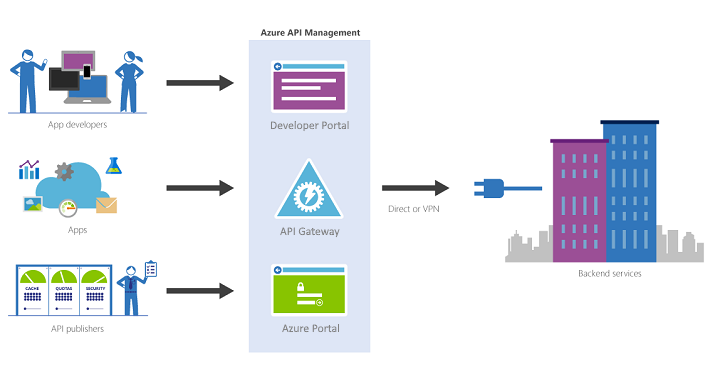
Is not the goal of this blog post but for you to be contextualized, if you are not familiar with APIM, in a simple way, Azure API Management is a fully managed service that enables customers to publish, secure, transform, maintain, and monitor APIs.
And it will allow you in a matter of a few clicks in the Azure Portal, most of the times, for you to create an API façade that acts as a “front door” through which external and internal applications can access data or business logic implemented by your custom-built backend services, running on Azure, for example, Logic Apps, App Services, or other many services or running on-premises in your organization. The APIM then will be able to handle all the tasks involved in mediating API calls, like request authentication and authorization, rate limit and quota enforcement, request and response transformation, logging and tracing, and/or API version management.
APIM is made up of the following components:
The API gateway is the endpoint that:
Accepts API calls and routes them to your backends.
Verifies API keys, JWT tokens, certificates, and other credentials.
Enforces usage quotas and rate limits.
Transforms your API on the fly without code modifications.
Caches backend responses were set up.
Logs call metadata for analytics purposes.
The Azure portal (old Publisher Portal) is the administrative interface where you set up your API program. Use it to:
Define or import API schema.
Package APIs into products.
Set up policies like quotas or transformations on the APIs.
Get insights from analytics.
Manage users.
The Developer portal serves as the main web presence for developers, where they can:
Read API documentation.
Try out an API via the interactive console.
Create an account and subscribe to get API keys.
Access analytics on their usage.
Note: in this blog post, I will not explain how you create an API Management resource on Azure.
Exposing a Microsoft Flow on Azure API Management
Triggered using an HTTP based trigger
The important thing, it needs to be triggered using an HTTP based trigger like the Request trigger.
Like Logic Apps, you can only expose a Microsoft Flow that is triggered using an HTTP based trigger like the Request trigger. Basically, that exposes an HTTP endpoint, on your APIM.
Exposing Microsoft Flow on Azure API Management
I told earlier that exposing a Microsoft Flow, it is not as easier as Logic Apps because you don’t have a direct and seamless way to do it.
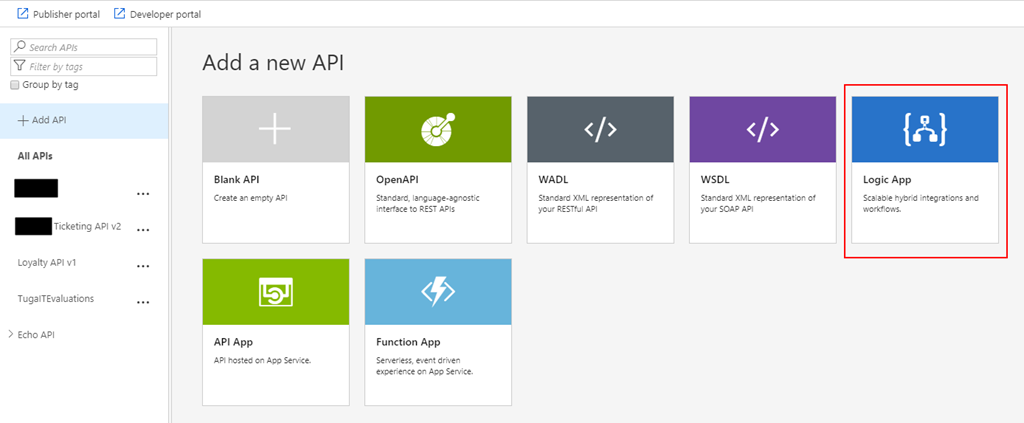
The Microsoft APIM team has done a very good job and they created an intuitive and quite easy experience that quickly allows developers or administrators to add new APIs to APIM based on an Azure Logic Apps, if you try to add a new API you will get a “wizard” that you can actually choose to import a Logic App, and it will do everything for you:
So, for us to replicate the “Add Logic App” wizard and accomplish the goal of exposing a Flow on APIM we need to:
First, we need to access to our Flow by accessing the Flow portal: https://flow.microsoft.com/ and sign in with your account
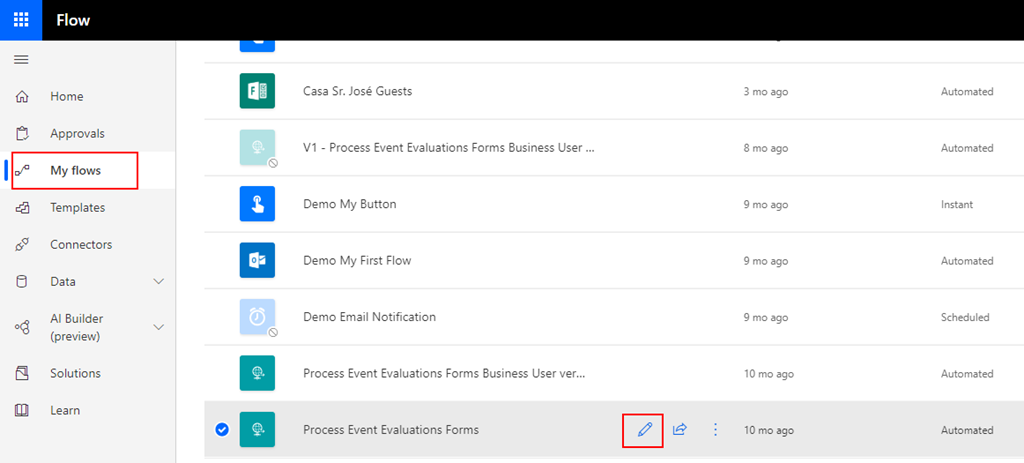
In flow.microsoft.com, select My flows in the top navigation bar, and from the list of Flows, choose the flow you want to expose on APIM and select the Edit button.
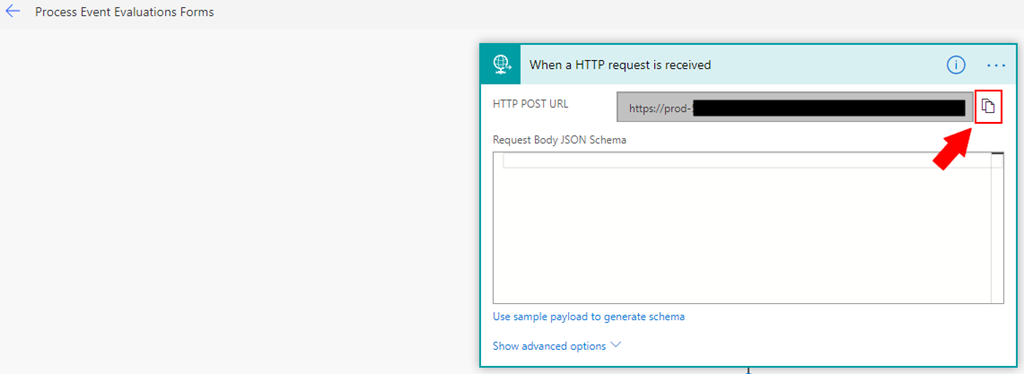
On the Flow Designer (or editor) click on top of the HTTP trigger to expand it and copy the HTTP POST URL property
We will need that URL in order to expose it in APIM.
Now that we have our Flow URL we can go ahead and start configuring our APIM:
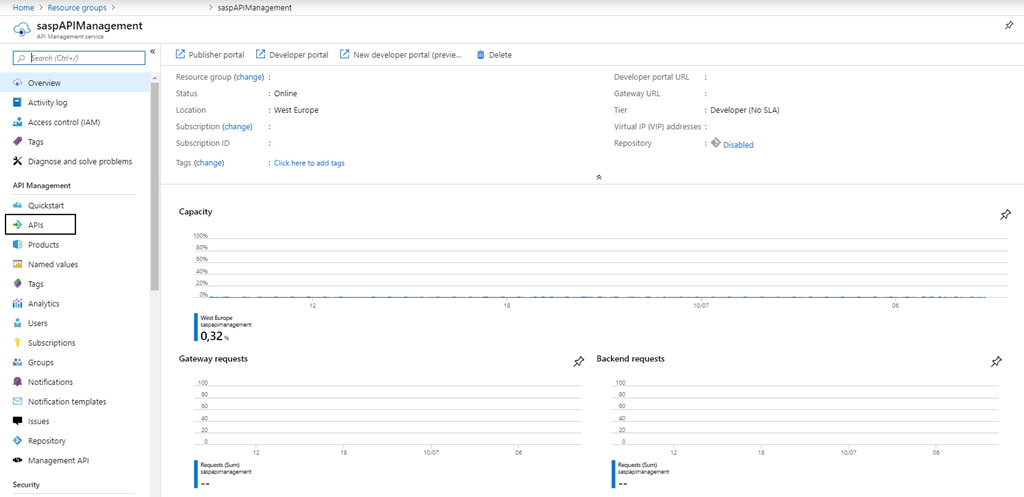
Access to your APIM on the Azure Portal (old Publisher Portal that is now built-in inside the Azure Portal;
And on the left menu, under API Management section, click the API option
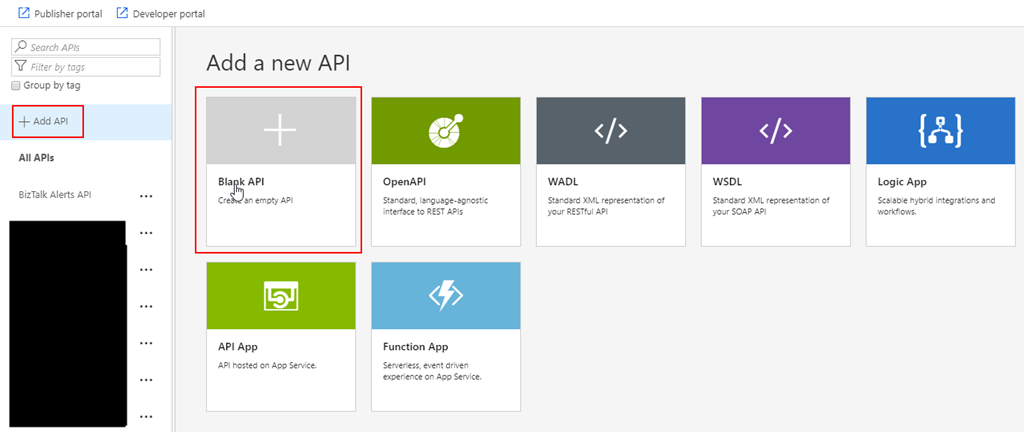
By doing that under the All APIs section you will see the list of all APIs that you are already available, and on the main panel you will find several different options to add a new API to your list:
From scratch – Blank API;
Export based on an OpenAPI, WADL or WSDL specification;
Or based on an Azure Service:
Logic App
API App
Or a Function App
In our case, we will be creating from the scratch, so go and press Blank API option
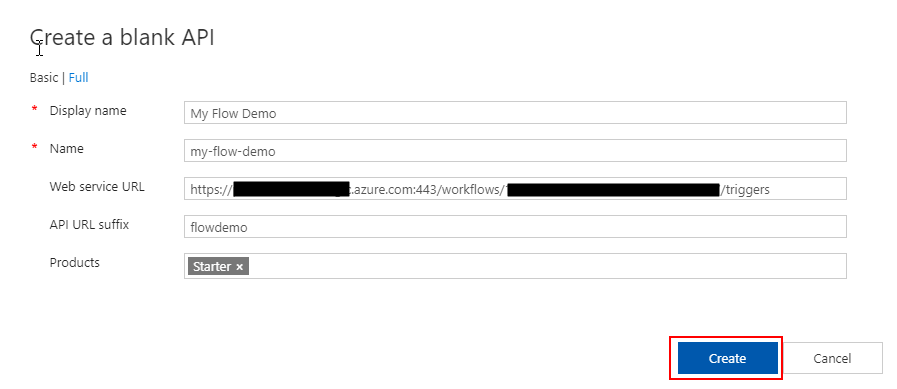
And then let’s fill the creation form like this:
On the Display name property give your API a name. I will call it “My Flow Demo”
On the Name property, you may change the “internal” name. I will suggest leaving like that: “my-flow-demo”
On the Web service URL property, paste the HTTP POST URL that we get from the Flow but only until the “triggers” word – Do not place the full
You can put the full URL, but in this post, we will try to emulate almost all the steps that the APIM Logic App wizard does
On the API URL suffix property, give a prefix to your API, for example: flowdemo
On the Products property, you can bind this API to a product at this time or leave it blank. I will set mine as “Started”
And finally, press Create
What we need to do now is create our “manual-invoke” operation, to do that we need to do:
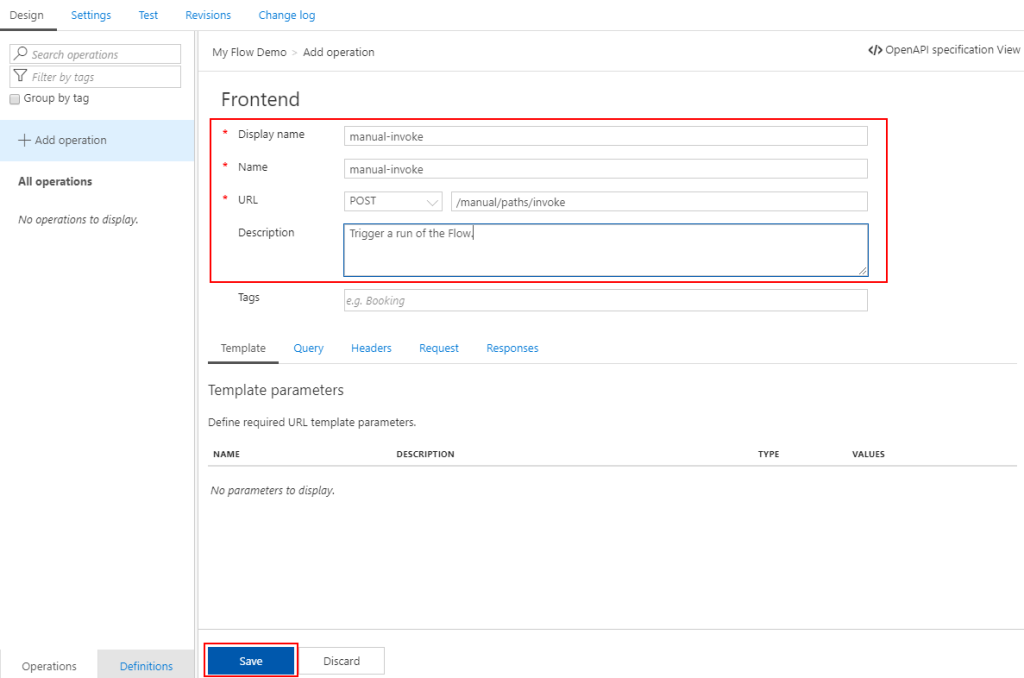
Under our “My Flow Demo” API Design section, click + Add operation button
And:
On the Display name property give a name to the operation, I will call it “manual-invoke
By the way, it doesn’t need to call this name, once again, we will use it just to emulate the API Logic App wizard behavior
On the Name property, leave the default value: “manual-invoke”
On the URL property:
Set the operation to POST
And set the URL like “/manual/paths/invoke”
On the Description property, you may give a proper description for the operation, in our case, let’s put: Trigger a run of the Flow.
Leave the rest of the configurations, we will deal with them later and go ahead and press Save
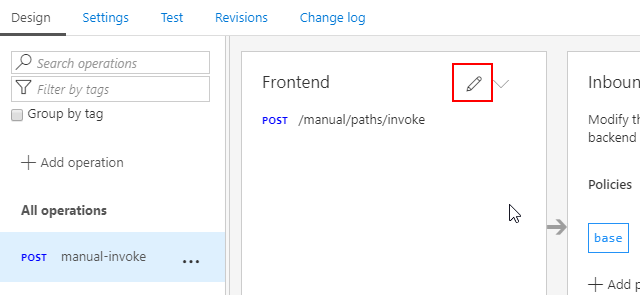
Now that we have the basic outline of our operation let’s go ahead and configure it properly. To do that we need to:
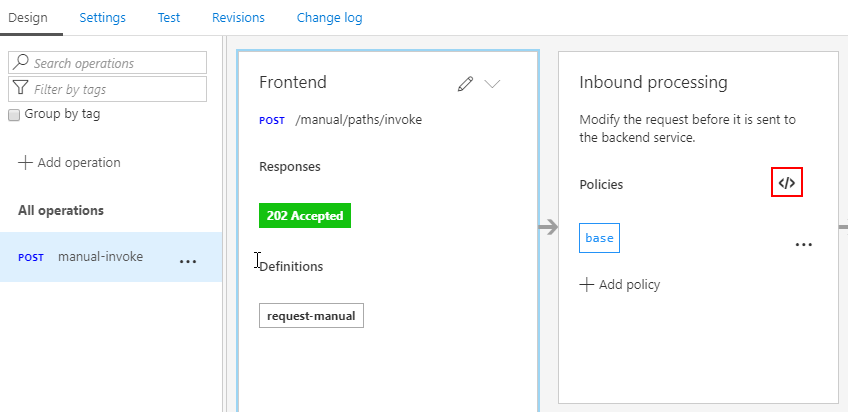
Select the “manual-invoke” operation and then click on the Frontend edit button
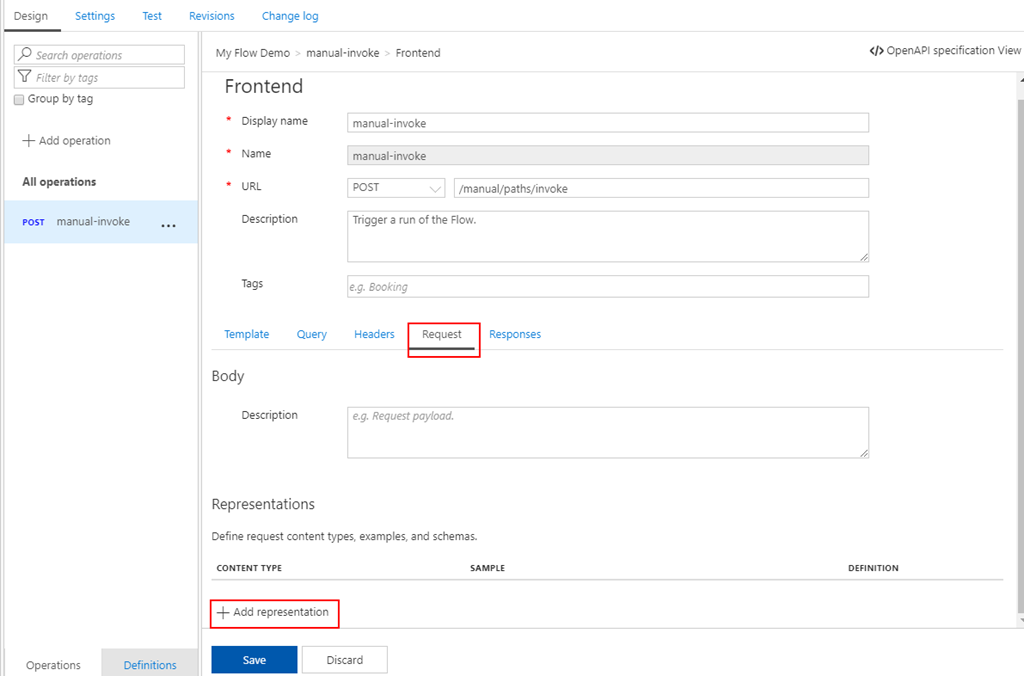
And from the Frontend panel, select the Request option and them + Add representation button
Set the Content type as “application/json”
Provide a sample request on the Sample property
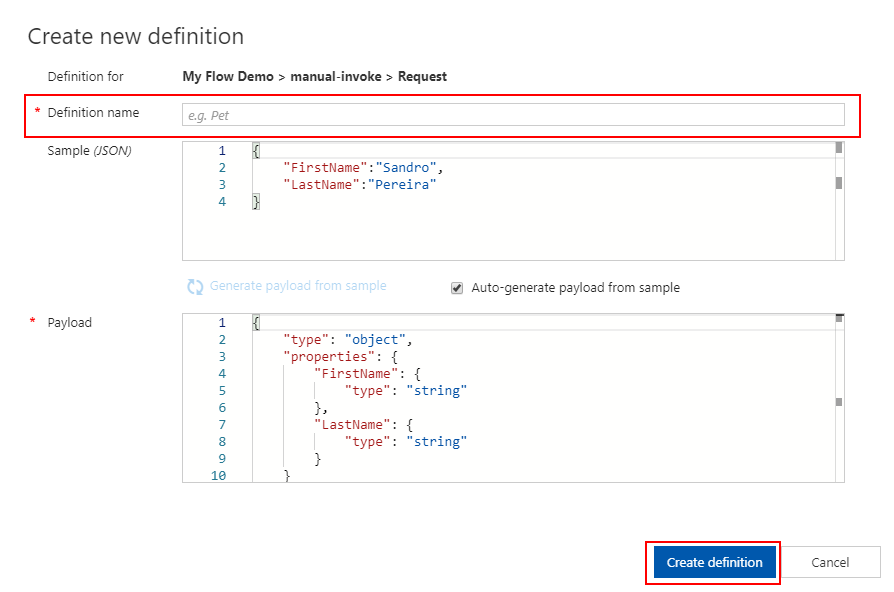
And in the Definition property, select + New definition
This will take your provide sample and generate the schema for you
Just give a definition a name on the Definition name property: request-manual
And then click Create definition button
Go ahead and press Save once again
Now let’s do the same for the Response. Once again, click on the Frontend edit button
And from the Frontend panel, select the Responses option and them + Add response button
Because my Flow doesn’t return any message back, instead of selecting the normal 200 OK HTTP Status, I will change that to be a 202 Accepted instead. So, on the response type select from the dropdown the 202 Accepted status and then press Save.
Now that we have our Request and Response defined, the only thing we need to configure our policy properly, remember that in the API URL, we didn’t configure the entire URL. To do that we need to:
Select the “manual-invoke” operation and then click on the Inbound processing Policies code editor button
And in the Inbound policy we need to rewrite the URI, here is a sample of the policy you need to implement
Note: The only thing we didn’t do that the APIM Logic App wizard does is to create a key/value containing the “sig” property of the URL
Now we are all set to test our API.
Testing the Microsoft Flow exposed in Azure API Management
After all the above steps, the next step is for us to test the Logic App expose as an API on APIM before we give access to our developers, teams, or partners. And the easier way to do that is directly on the Azure Portal.
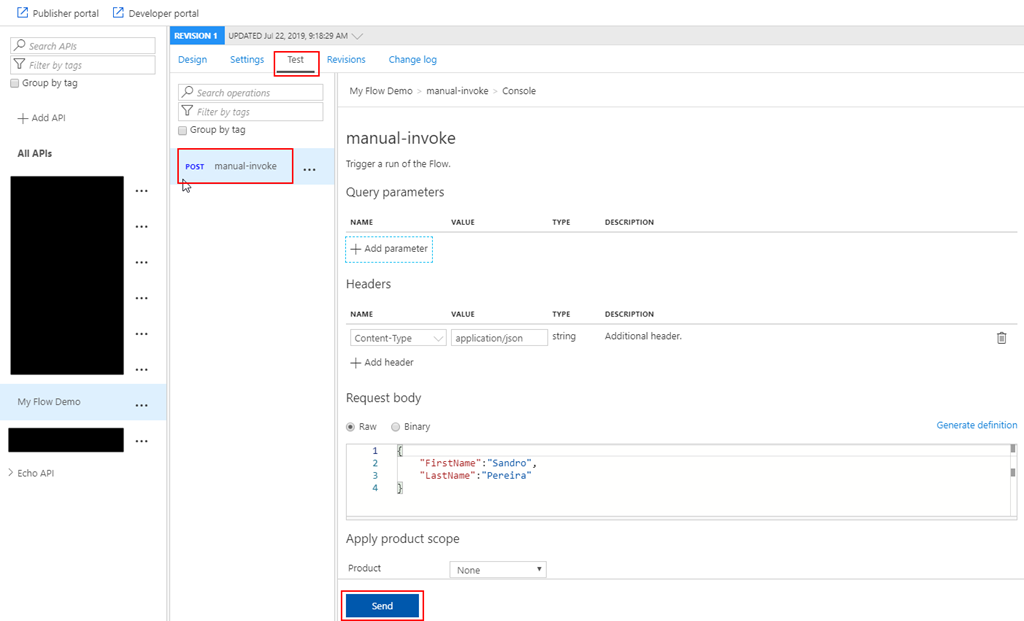
To do that you need to:
Under the API top options menu, select Test option, and in this case, there is only one operation, so automatically is selected;
On the Request body section, select Raw option and insert a valid and expected request to be sent to your Microsoft Flow;
And finally, press Send.
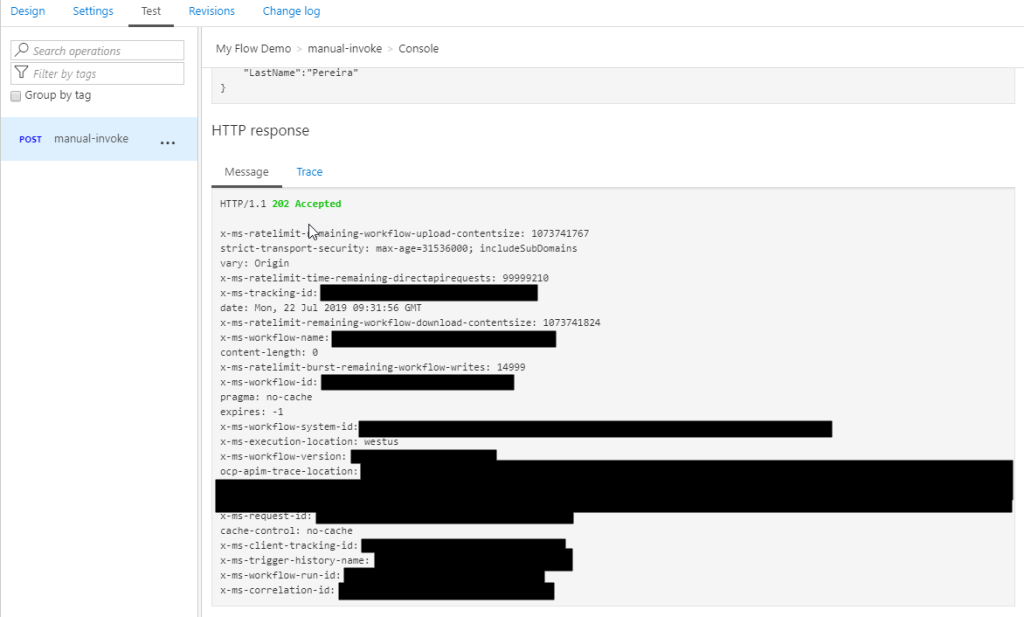
And after that, you will see an expected response from the Microsoft Flow.
And we can check that the Flow was executed.
It failed because the payload is incorrect but other that everything is ok. We successfully exposed and trigger the Microsoft Flow from Azure API Management.


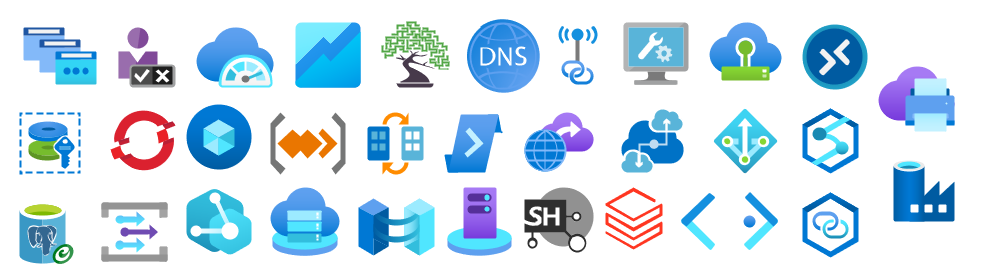

 Microsoft Integration, Azure, Power Platform, Office 365 and much more Stencils Pack for Visio