by BizTalk Team | Jun 25, 2018 | BizTalk Community Blogs via Syndication
Available now is Microsoft BizTalk Server 2016 Feature Pack 3. This update to BizTalk Server 2016 contains new and improved capabilities for integrating BizTalk Server workloads with Office 365 Outlook Email, Calendar, and Contact resources.
Office 365 Adapters
Microsoft Office 365 is a cloud-based subscription service that brings together the best tools for the way people work today. By combining best-in-class apps like Excel and Outlook with powerful cloud services like OneDrive and Microsoft Teams, Office 365 lets anyone create and share anywhere on any device.
Microsoft BizTalk Server Adapters for Office 365 enable IT professionals and enterprise developers to integrate Outlook mail, contacts, and schedules with new solutions based on BizTalk Server 2016.
Office 365 Mail Adapter
Using the BizTalk Adapter for Office 365 Mail, you can read, mark as read or delete, Outlook e-mail messages through one-way BizTalk Server receive locations. Using the Office 365 Mail Adapter, you can write e-mail message, including setting message priority, through one-way static or dynamic BizTalk Server send ports.
Office 365 Calendar Adapter
Using the BizTalk Adapter for Office 365 Calendar, you can get future calendar events through one-way BizTalk Server receive locations. Using the Office 365 Calendar Adapter, you can create calendar events, including specifying required and optional attendees, through one-way static or dynamic BizTalk Server send ports.
Office 365 Contact Adapter
Using the BizTalk Adapter for Office 365 Contact, you can create contacts, by specifying all settings, through one-way static or dynamic BizTalk Server send ports.
Licensing
by BizTalk Team | Jun 25, 2018 | BizTalk Community Blogs via Syndication
Microsoft BizTalk Server product team has released Cumulative Update 5 for BizTalk Server 2016. For more information, see Microsoft Knowledgebase Article 4132957, posted to https://support.microsoft.com/help/4132957.
Microsoft BizTalk Server Product Team

by Gautam | Jun 24, 2018 | BizTalk Community Blogs via Syndication
Do you feel difficult to keep up to date on all the frequent updates and announcements in the Microsoft Integration platform?
Integration weekly update can be your solution. It’s a weekly update on the topics related to Integration – enterprise integration, robust & scalable messaging capabilities and Citizen Integration capabilities empowered by Microsoft platform to deliver value to the business.
If you want to receive these updates weekly, then don’t forget to Subscribe!

by Dan Toomey | Jun 21, 2018 | BizTalk Community Blogs via Syndication

Photo by Tariq Sheikh
Two weeks ago I had not only the privilege to attend the sixth INTEGRATE event in London, but also the great honour of speaking for the second time. These events always provide a wealth of information and insight as well as opportunities to meet face-to-face with the greatest minds in the enterprise integration space. This year was no exception, with at least 24 sessions featuring as many speakers from both the Microsoft and the MVP community.
As usual, the first half of the 3-day conference was devoted to the Microsoft product team, with presentations from Jon Fancy (who also gave the keynote), Kevin Lam, Derek Li, Jeff Hollan, Paul Larsen, Valerie Robb, Vladimir Vinogradsky, Miao Jiang, Clemens Vasters, Dan Rosanova, Divya Swarnkar, Kent Weare, Amit Kumar Dua, and Matt Farmer. For me, the highlights of these sessions were:
- Jon Fancey’s keynote address. Jon talked about the inevitability of change, underpinning this with a collection of images showing how much technology has progressed in the last 30-40 years alone. Innovation often causes disruption, but this isn’t always a bad thing; the phases of denial and questioning eventually lead to enlightenment. Jon included several notable quotes including one by the historian Lewis Mumford (“Continuities inevitably represent inertia, the dead past; and only mutations are likely to prove durable.”) and a final one by Microsoft CEO Satya Nadella (“What are you going to change to create the future?”).
- Kevin Lam and Derek Li taking us through the basics of Logic Apps. It’s easy to become an “Integration Hero” using Logic Apps to solve integration problems quickly. Derek built two impressive demos from scratch during this session, including one that performed OCR on an image of an order and then conditionally sent an approval email based on the amount of the order.
- Jeff Hollan and his explanation of Azure Durable Functions. An extension of Azure functions, Durable Functions enable long-running, stateful, serverless operations which can execute complex orchestrations. Built on the Durable Task framework, they manage state, checkpoints and restarts. Jeff also gave some practical advice about scalable patterns for sharing code resources across multiple instances.
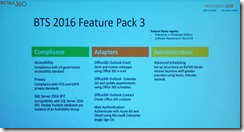 Paul Larsen and Valerie Robb with a preview of Feature Pack 3 for BizTalk Server 2016. This upcoming feature pack will include GDPR support, SQL Server 2016 SP2 support (including the long-awaited ability to deploy multiple databases per instance of an Availability Group), new Office365 adapters, and advanced scheduling support for receive locations.
- Miao Jiang and his preview of end-to-end tracing via Application Insights in API Management. This includes the ability to map an application, view metrics, detect issues, diagnose errors, and much more.
- Clemens Vasters. (Need I say more?) The genius architect behind Azure Service Bus gave a clear, in-depth discussion about the difference between messaging (which is about intents) and eventing (which is about facts). He also introduced Event Grid’s support for CNCF Cloud Events, and open standard for events.
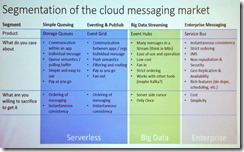 Dan Rosanova and his clear explanation of the different cloud messaging options available in Azure. His slide showing the segmentation of services into Serverless, Big Data and Enterprise provided a lot of clarity as to when to use what. He also covered Event Grid, Event Hubs, and Event Hub’s support for Kafka.
- Jon Fancey & Divya Swarnkar talking about Logic Apps for enterprise integration. It was especially nice to see support for XSLT 3.0 and Liquid for mapping, as well as the new SAP connector. Also there was an enthusiastic response from the audience when revealed there were plans to introduce a consumption based model for Integration Accounts!
- Kent Weare talking about Microsoft Flow and how it is the automation tool for Office365. Together with PowerApps. Power BI, and Common Data Services you can can build a Business Application Platform (BAP) that supports powerful enterprise-grade applications. Best of all, Flow makes it possible for citizen integrators to automate non-critical processes without the need for a professional development team. A notable quote in Kent’s presentation was “Transformation does not occur while waiting in line!”
- Divya Swarnkar and Amit Kumar Dua talking about how Microsoft IT use Logic Apps for Enterprise Integration. It is always interesting to see how Microsoft “dog foods” its own technology to support in-house processes. In this case they built a Trading Partner Migration tool to lift more than 1000 profiles from BizTalk into Logic Apps. Highlights from the lessons learnt were understanding the published limits of Logic Apps and also that there is no “exactly once” delivery option.
- Vladimir Vinogradsky with a deep-dive into API Management. Covering the topics of developer authentication, data plane security, and deployment automation, Vladimir gave some great tips including how to use Azure AD and Azure AD B2C for different scenarios, identifying the difference between key vs. JWT vs. client certificate for authorisation (as well as when to use which), and the use of granular service and API templates to improve the devops story. It was also fun watching him launch his cool demos using Visual Studio Code and httpbin.org.
- Kevin Lam and Matt Farmer’s deep-dive into Logic Apps. This session yielded an enthusiastic applause from the audience with Kevin’s announcement of the upcoming preview of Integration Service Environments. This is a true game-changer bringing dedicated compute, isolated VNET connectivity, custom inbound domain names, static outbound IPs, and flat cost to Logic Apps. There was also a demonstration by Matt of building a custom connector, and how an ISV can turn this into a “real” connector providing it is for a SaaS service you own.
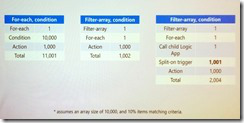 Derek Li and Kevin Lam with Logic App patterns and best practices. This session sported some great performance improving and cost saving advice by limiting the number of actions with clever loop processing logic (hint: check out the Filter Array action as per this blog post). There was also a tip on how to easily distinguish built-ins, connectors and enterprise connectors: you can filter for these when choosing a connector in the dialog.
- Jon Fancey and Matt Farmer talking about the Microsoft integration roadmap. Key messages here were Jon confirming that Logic App will be coming to Azure Stack, and that Integration Service Environments (ISE) will also eventually come to on-premises. Matt also talked about Azure Integration Services, which on the surface appears to be a new marketing name to the collection of existing services (API Management, Logic Apps, Service Bus and Event Grid). However it promises to include reference architectures, templates and other assets to provide better guidance on using these services.
This concluded the Microsoft presentations on the agenda. After a brief introduction to the BizTalk360 Partnership Program by Business Development Manager Duncan Barker, the MVP sessions began, featuring speakers Saravana Kumar, Steef-Jan Wiggers, Sandro Pereira, Stephen W. Thomas, Richard Seroter, Michael Stephenson, Johan Hedberg, Wagner Silveira, Dan Toomey, Toon Vanhoutte and Mattias Lögdberg. Highlights for me included:
- Saravana Kumar giving a BizTalk360 product update. Saravana revealed that ServiceBus360 is being renamed to Serverless360, which supports not only Service Bus queues, topics and relays, but also Event Hubs, Logic Apps and API Management. And there is an option to either let BizTalk360 host it or host on-prem in your own datacentre.
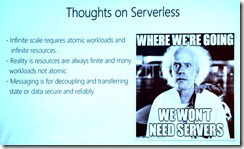 Steef-Jan Wiggers talking about Serverless Messaging in Azure. This was a great roundup of all the messaging capabilities in Azure including Service Bus, Storage Queues, Event Hubs and Event Grid. Steef-Jan explained the difference between each very clearly before launching into some very compelling demos.
- Saravana Kumar giving an Atomic Scope update. A product that provides end-to-end tracking for hybrid solutions featuring BizTalk Server, Logic Apps, Azure Functions, and App Services, Atomic Scope can reduce the time spent building this capability from 20-30% right down to 5%. Saravana affirmed that it is designed for business users, not technical users. Included in this session was a real-life testimonial by Bart Scheurweghs from Integration.Team where Atomic Scope solved their tracking issues across a hybrid application built for Van Moer Logistics.
- Sandro Pereira with his BizTalk Server lessons from the road. Sandro’s colourful presentations are always full of good advice, and this was no exception. Whilst talking about a variety of best practices from a security perspective, Sandro reminded us that the BizTalk Server platform is inherently GPDR compliant – but not necessarily the applications we build on it! He also talked about the benefits of feature packs (which may contain breaking code) and cumulative updates (which shouldn’t break code), being wary of JSON schema element names with spaces in them, REST support in BizTalk (how it doesn’t handle optional parameters OOTB), and cautioning against use of some popular patterns like singletons and sequence convoys which are notorious for introducing performance issues and zombies.
- Stephen W. Thomas and using BizTalk Server as your foundation to the cloud. Stephen talked about a bunch of scenarios that justify migration to or use of Logic Apps as opposed to BizTalk Server, including use of connectors not in BizTalk, reducing the load on on-prem infrastructure, saving costs, improved batching capability, and planning for the future. He also identified a number of typical “blockers” to cloud migration and discussed various strategies to address them.
- Richard Seroter on architecting highly available cloud solutions. One of the highlights of this event for me was Richard’s extremely useful advice on ensuring your apps are architected correctly for high-availability. Taking us through a number of Azure services from storage to databases to Service Bus to Logic Apps and more, Richard pointed out what is provided OOTB by Azure and what you as the architect need to cater for. His summary pointers included 1) only integrate with highly available endpoints, 2) clearly understand what services failover together, and 3) regularly perform chaos testing.
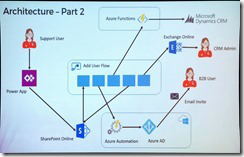 Michael Stephenson and using Microsoft Flow to empower DevOps. It was great to see Michael return to the stage this year, and his Minecraft hosted demo of an automated process for onboarding users was a real crowd-pleaser. Adhoc tasks such as these can waste time and money, but automating the process with Flow not only mitigates this but is also relatively easy to achieve if the process can be broken down to well-understood tasks.
- Unfortunately I had to miss Johan Hedberg’s session on VSTS and BizTalk Server, but by all accounts it was a demo-heavy presentation that provided lots of useful tips on establishing a CI/CD process with BizTalk Server. I look forward to watching the video when it’s out.
- Wagner Silveira on exposing BizTalk Server to the world. This session continued the hybrid application theme by discussing the various ways of exposing HTTP endpoints from BizTalk Server for consumption by external clients. Options included Azure Relay, Logic Apps, Function Proxies and API Management – each with their own strengths and limitations. Wagner performed multiple demos before summarising the need to identify your choices and needs, and “find the balance”.
- Dan Toomey and the anatomy of an enterprise integration architecture. Well… I didn’t take any notes on this one, seeing as I was onstage speaking! But you can download the slides to get an overview of how Microsoft integration technologies can be leveraged to reduce friction across layers of applications that move at different speeds.
- Toon Vanhoutte’s presentation on using webhooks with BizTalk Server. In his first time appearance at INTEGRATE, Toon gave a very compelling talk about the efficiency of webhooks over a polling architecture. He then walked through the three responsibilities of the publisher (reliability, security, and endpoint validation) as well as the five responsibilities of the consumer (high availability, scalability, reliability, security, and sequencing) and performed multiple demos to illustrate these.
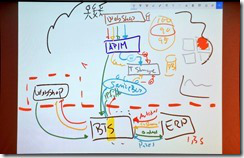 Wrapping up the presentations was Mattias Lögdberg on refining BizTalk Server implementations. Also a first-time speaker at INTEGRATE, Mattias wowed us by doing his entire presentation as a live drawing on his tablet! He used this medium to walk us through a real-life project where a webshop was migrated to Azure whilst retaining connectivity to the on-prem ERP system. A transition to a microservices-based approach and addition of Azure services enhanced the capabilities of BizTalk which still handles the on-prem integration needs.
The conference finished with a Q&A session with the principal PMs from the product group, including Jon Fancey, Paul Larsen, Kevin Lam, Vladimir Vinogradsky, Kent Weare, and Dan Rosanova as panellists. The inevitable question of BizTalk vNext came up, and there was some obvious frustration from the audience as the panellists were unable to provide a clear and definitive statement about whether BizTalk Server 2016 would be the final release or not. Considering that we are halfway through the main support period for this product, the concern is very understandable as we need to know what message to convey to our clients. Reading between the lines, many have concluded for themselves that there will be no vNext and that migration to the cloud is now becoming a critical urgency. Posts such as this one from Michael Stephenson help to put things in context and show that compared to competing products we’re not as bad off as some alarmists may suggest, but it was still disappointing to end the conference with such a vague view of the horizon. I hope that Microsoft sends out a clear message soon about what level of support can be expected for the significant investment that many of our clients have made in BizTalk recently.
One especially cool thing that the organisers did was to hire Visual Scribing to come and draw a mural of all the presentations, capturing the key messages throughout the conference:
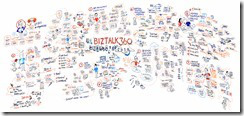
Day 1

Day 2 & 3
For more in-depth coverage of the sessions and announcements from INTEGRATE 2018, I encourage you to check out the following:
Also, keep an eye on the INTEGRATE 2018 website, as eventually the video and the slide decks will be uploaded there.
I really want to thank Saravana and his whole team at BizTalk360 for organising such a mammoth event where everything ran so smoothly. I also want to thank Microsoft and my MVP colleagues for their contributions to the event, as well as my generous employer Mexia for sending me to London to enjoy this experience!
by Praveena Jayanarayanan | Jun 19, 2018 | BizTalk Community Blogs via Syndication
With BizTalk360, the one stop monitoring solution for BizTalk server, we always understand the empathy of the customers and improve the product accordingly, by developing new features and enhancing the existing ones.
“The first step in exceeding your customer’s expectations is to know their expectations.” – Roy H. Williams
We receive customer suggestions/feedback through various channels like our support portal, the feedback forum, emails etc. We make sure that all these suggestions and feedback are being answered and that they are accommodated in the product. The outcome is a new version, being released with the new set of features, enhancements and of course several bug fixes.
“Success is not delivering a feature, it is learning how to solve the customer’s problem.” – Eric Ries
We understand the customer needs and add them to the product to make the product as suitable as possible for the user. We are delighted to announce the availability of BizTalk360 version 8.8 with the introduction of a new feature, most expected enhancements and bug fixes.
New Features
Import/Export of BizTalk360 configuration
This is the most wanted feature in BizTalk360 as suggested by most of the customers. In the earlier versions of BizTalk360, we had the ability to import and export the alarms. But there was a requirement to have the option to import/export the other features like user access, saved queries etc. In this new release of BizTalk360, we have the option to import/export the following between the BizTalk environments.
- Alarm – Already exists (Moving to the new menu in the settings side)
- User Access Policies
- Saved Queries
- MessageBox and Tracking queries
- Advanced Event Viewer queries
- ESB, BAM and EDI queries)
- Secure SQL Queries
Enhancements
The feedback portal is frequently monitored and we make sure the customers’ suggestions are heard and answered. Usually, higher vote requests are considered for the upcoming release implementation. This release of BizTalk360 includes the following enhancements, which were based on requests taken from the feedback portal.
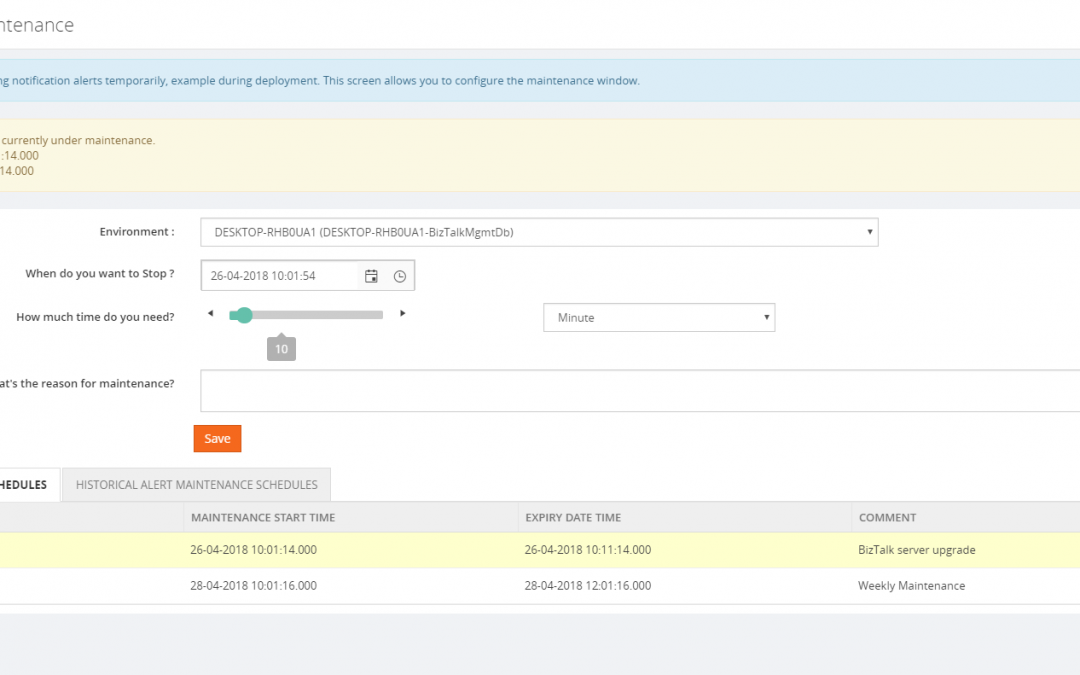
Stop alerts for maintenance:
This feature is added to allow the user to setup multiple maintenance windows in the future, so that the alarms will be disabled during that period and no notifications will be sent. The following options are available:
- Can set multiple maintenance window
- View the historical maintenance schedules
- Maintenance notification will be shown in the dashboard with maintenance details like time and date
When the maintenance period is active, the user will be alerted that the maintenance period is currently going on with an informational message, both in the Operational dashboard as well as in Stop Alerts screen. Information regarding the start and end times of the maintenance window will also be provided.
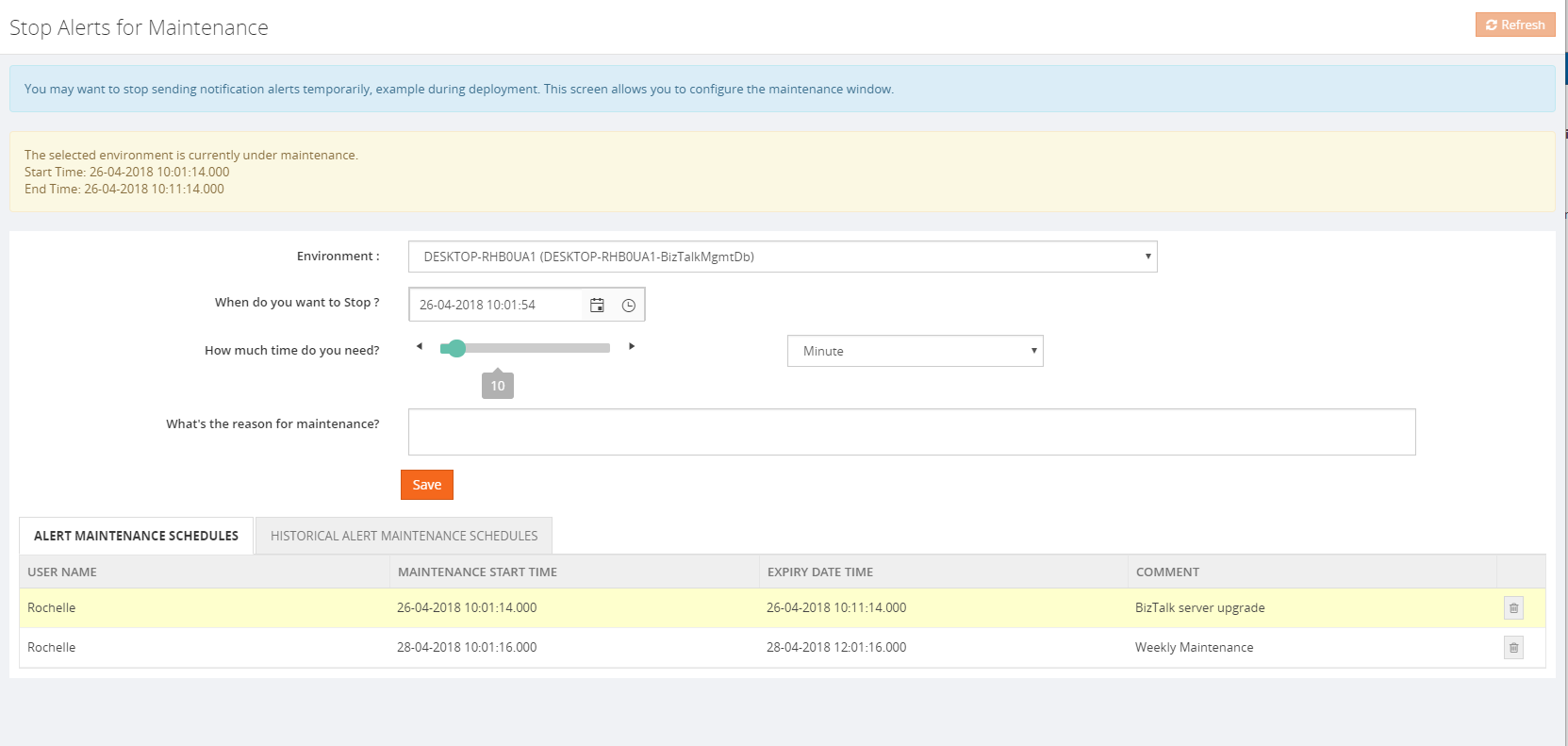
A Purging policy is also set, for managing the table size of the historical maintenance schedules.
Allow users of applications to view Policies/Rules for just their application(s)
The user can now view the business rules associated for the application in the application view under “Application support” section, irrespective of the Business Rule Composer access permission.
Grid Filter capability
In a BizTalk environment, there are various types of data flows happening through the system. BizTalk360 allows users to query all the different types of data available in the BizTalk environment from a single location and the results are displayed in grid columns.
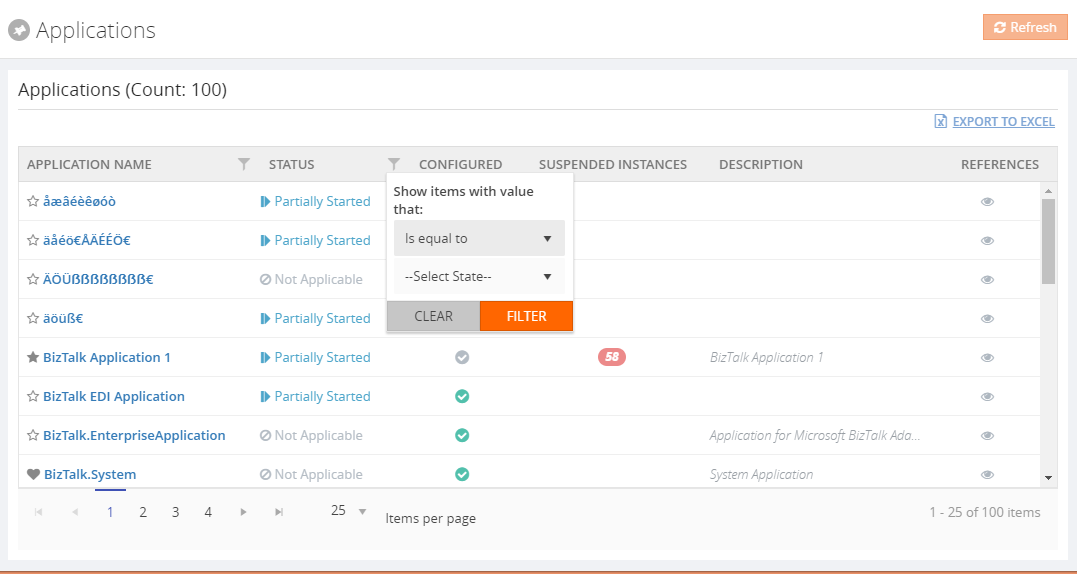
Our grid columns got a new makeover! This new capability is specially designed to improve grid performance in high-volume environments. Filtering grid columns could result in a good end-user experience and get faster desired result.
There are four types of filters namely,
- Date Time Filter
- Status Filter
- Boolean Filter
- String Filter
Pagination across all the modules
Pagination ability has been implemented across the product to improve the performance and usability of each grid view. This will divide the grid dynamically into separate pages, using the system settings configuration. A user can also change the grid page size dynamically. Based on the Max Match value, which can be configured in the System settings, a user can select a value for the pagination grid.
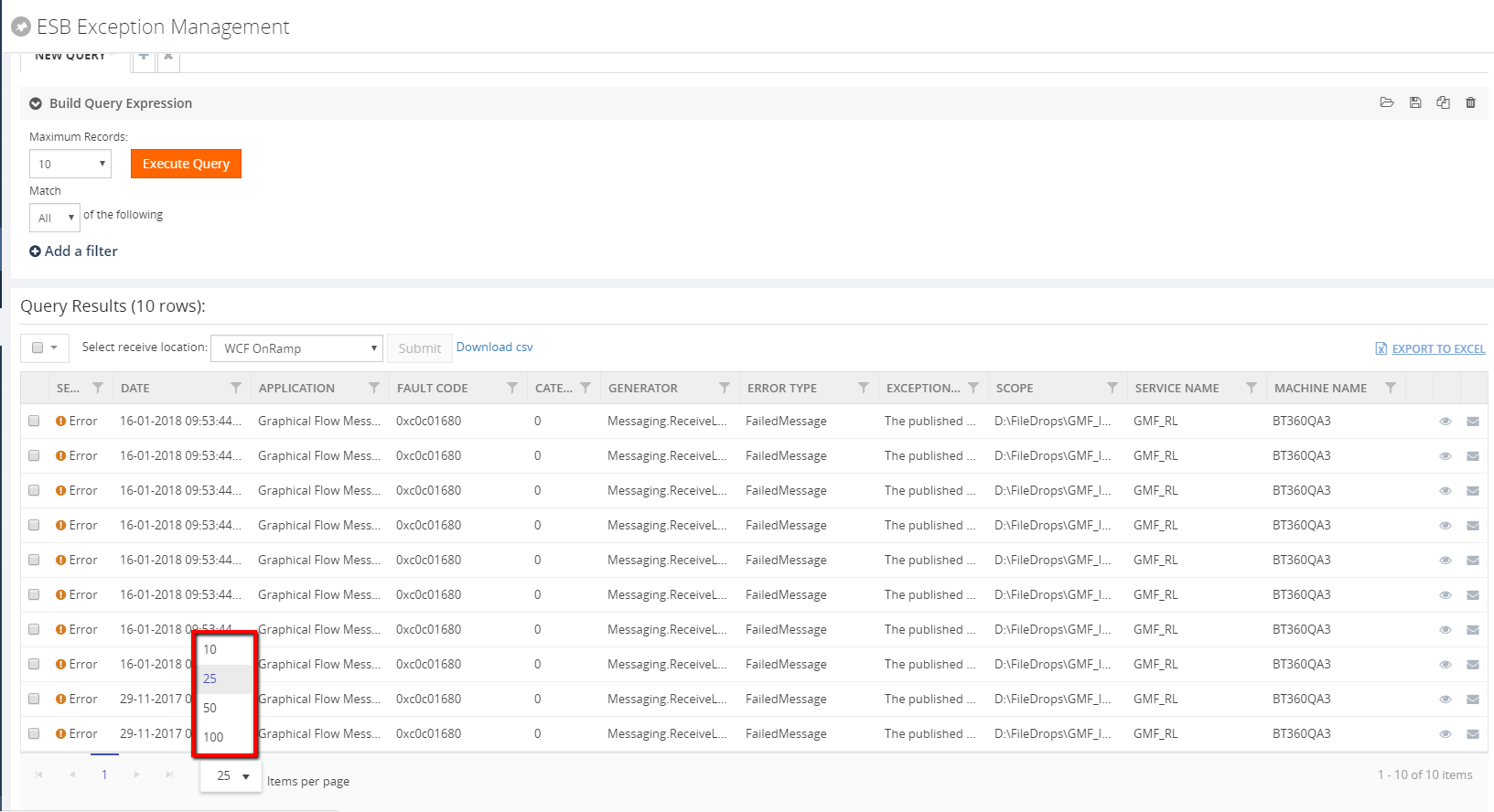
The user can switch the page by selecting the next/previous arrows and can also switch by selecting the page number directly at the bottom of the grid display. The selected page will get highlighted accordingly.
Export to Excel
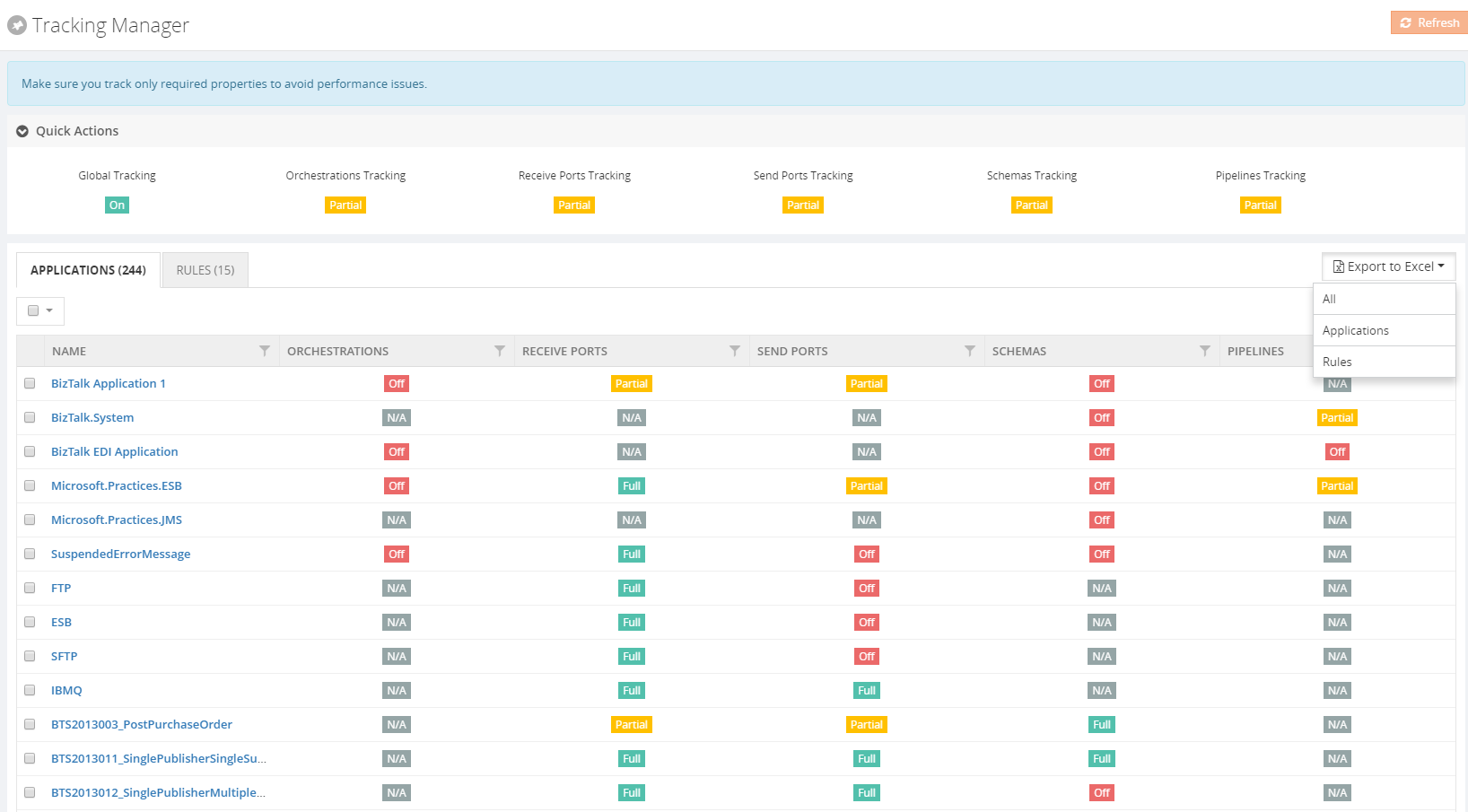
This functionality is already available in BizTalk360. In this version, it has been enhanced for better usability purpose. Now the user can export multiple grid information either in a single sheet or in separate sheets as well. The link type Export to Excel option has been modified to a dropdown in case there are multiple exportable data sources present.
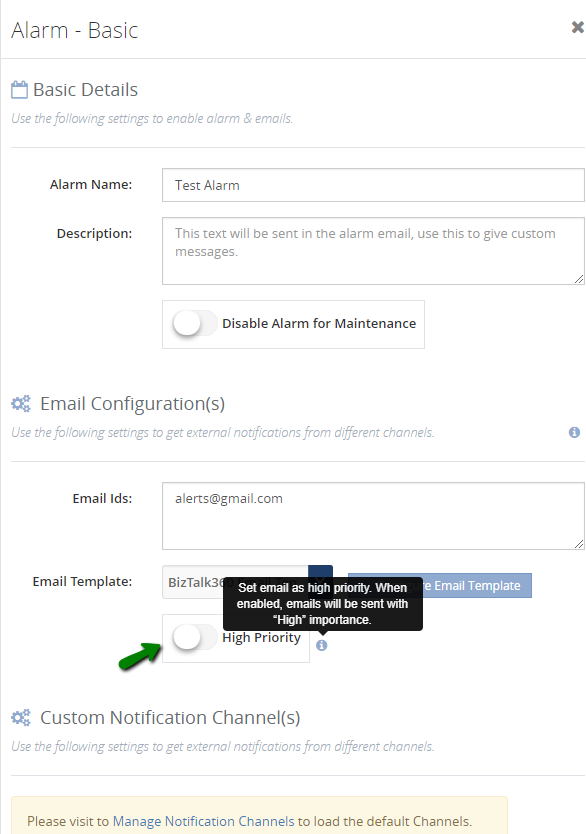
Notification emails with high importance
This is a new and powerful capability, which we have included in this version. Most of the time we receive a lot of emails and important messages. BizTalk360 notification emails may be overlooked in our long list of messages. This functionality is useful for support people to determine the priority of the emails and allowing the user to take action quickly.
BAM Enhancements
There were few changes made in BAM in our earlier release version v 8.7. This is continued in this new version as well.
- Now the user can download the message content from both the database as well as the archive folder
- Earlier, BAM data was getting displayed in the UTC date format irrespective of the user profile. Now this has been modified to display the BAM data in the user profile time format
Miscellaneous enhancements
The remaining enhancements include the following:
- Zoom in/out options for the modules Graphical Message flow /Message Patterns:
The zoom in/out option has been provided for viewing the message flows in the Graphical Message Flow and Message Patterns. This will help users to view the complete flow of messages involving complex orchestrations without any difficulty.
- Restart option for the analytics and monitoring services in the UI:
The user can now restart the analytics and monitoring services from BizTalk360 UI, without logging into the server where the services are installed. When the services are installed in high availability mode, the services will get restarted in all the servers where they are installed.
- Host Instance restart – This is a new functionality where users can restart the host instances from BizTalk360 itself
- The user can now terminate scheduled messages from BizTalk360 -> Message Box (Queries)
Issues resolved from different areas
We have closed around 70 support tickets as part of fixing the issues in different areas. Please refer the Release notes .
Conclusion
We always monitor the feedback portal and take up the suggestions and feedback. Now we would like to request you, our customers, to please take the time to fill this questionnaire to help us prioritize the next upcoming feature tasks, to let us know what are your main pain points and help us to further improve the product.
Why not give BizTalk360 a try! It takes about 10 minutes to install on your BizTalk environments and you can witness and check the security and productivity of your own BizTalk Environments. Get started with the free 30 days trial.
Author: Praveena Jayanarayanan
I am working as Senior Support Engineer at BizTalk360. I always believe in team work leading to success because “We all cannot do everything or solve every issue. ‘It’s impossible’. However, if we each simply do our part, make our own contribution, regardless of how small we may think it is…. together it adds up and great things get accomplished.” View all posts by Praveena Jayanarayanan

by Gautam | Jun 17, 2018 | BizTalk Community Blogs via Syndication
Do you feel difficult to keep up to date on all the frequent updates and announcements in the Microsoft Integration platform?
Integration weekly update can be your solution. It’s a weekly update on the topics related to Integration – enterprise integration, robust & scalable messaging capabilities and Citizen Integration capabilities empowered by Microsoft platform to deliver value to the business.
If you want to receive these updates weekly, then don’t forget to Subscribe!
Videos
Podcasts
Feedback
Hope this would be helpful. Please feel free to reach out to me with your feedback and questions.
by Sandro Pereira | Jun 17, 2018 | BizTalk Community Blogs via Syndication
Following my last blog post on how to “Processing Feedback Evaluations (paper) automagically with SmartDocumentor OCR, Logic Apps, Azure Functions & Power BI”, I mention that you can try the solution yourself, at least part of the solution – the most important part – by sending an email with your survey to [email protected] with the following subject “SmartDocumentorSurvey“ and that I had a very simple Microsoft Flow listening to this mailbox that:
- Extracts the attachment;
- Sends it to SmartDocumentor OCR
- Send file to an on-premise folder;
- And notifies you that the file was received;
In this post I will explain you can you use Microsoft Flow to easily extend any existing product, in my case, how I was able to easily extend SmartDocumentor OCR without me being an expert on that product – this DevScope team is super busy to spend to much time with me explaining me everything – jokes apart, I intension don’t want there help the product should be easy to use without requiring too much knowledge and I also want to see and try how people can easily extend and interact with the product in different ways.
For example, in this particular case we actually didn’t need any Flow because SmartDocumentor has the capability to listen to an Email but in that case, I confess that my knowledge of SmartDocumentor product and its tools are a little reduce and I will probably need the help for my coworkers to teach me how to do it. Nevertheless, I had my demo working in two different receive processing points (or locations):
- Directly from the Scan device that I used on all my presentation demos;
- Or thru a receiving folder.
I knew how to change that receive folder, I knew how I can easily connect and extract attachments using Microsoft Flow and I knew a very stupid and simple way to send that file to an “On-premise” folder using Flow… so, for me, it was a simple math operation: 1+1+1=solution!
As Logic Apps, the beauty of using Microsoft Flow’s is that provides almost all Logic Apps capabilities, once it runs on top of Logic Apps, it is part of my Office365 subscription and there for it provides a very simplify and robust way to also extend the capabilities of my OCR software but also by being very cheaper and fast to implement without requiring too much technical knowledge.
Flow’s to the help: The Solution
In order to be able to extend SmartDocumentor OCR receive processing points (or locations) with Microsoft Flow, we need to create a Flow and for that, we need to:

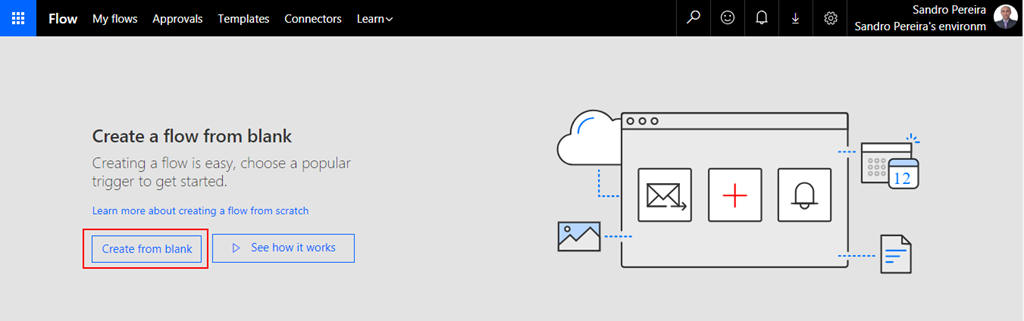
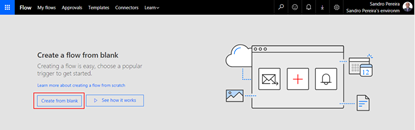
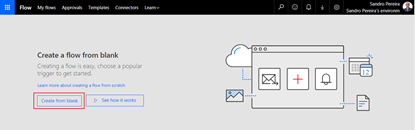
- On the “Create a flow from blank”, select “Create from blank” to start the process of creating an empty Flow
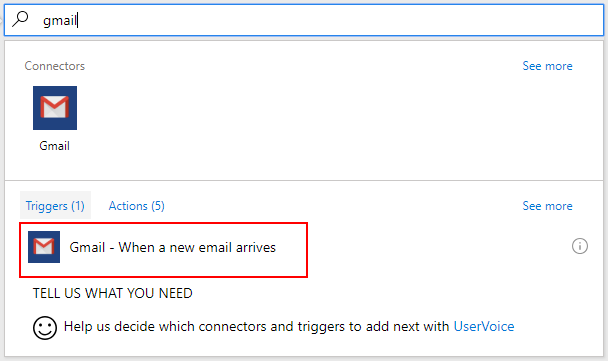
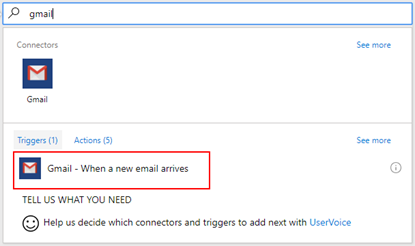
- On the Flow designer, on the Trigger event enter “Gmail” and select the option “Gmail – When a new email arrives”
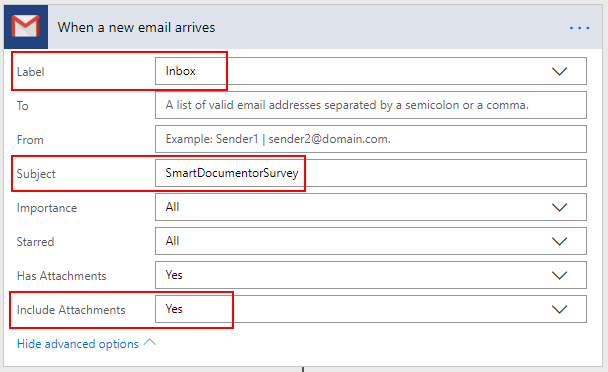
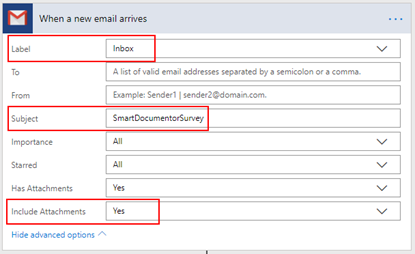
- We want that all the email received with the “Subject: SmartDocumentorSurvey” will trigger this flow, so on the Gmail Trigger configuration:
- Confirm that “Inbox” is configured in the “Label” property
- Specify the filter, in my case all email that has the “Subject” equal to “SmartDocumentorSurvey”
- And confirm that “Include Attachments” property is set to “Yes”
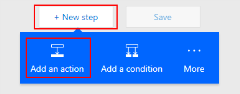
- Add the next step by clicking “+New step” button and then choose the “Add an action” option
After we receive the email we want to store/save the Survey attachment file on a specific folder where SmartDocumentor is listening, and there are several ways to archive this:
- The most common will be using the File System connector that allows you to connect to any File Systems on your local or network machines using the On-Premises Data Gateway but this is also the most technical option which needs you to configure an On-Premises Data Gateway
- Another option is to make use of Dropbox desktop client, that runs on Windows, Mac, or Linux operating systems and gives you access to your Dropbox directly through a folder on your hard drive. The advantages of this approach are that:
- You don’t need any technical skills (no need to configure an On-Premises Data Gateway) and all users knows or are familiar will Dropbox;
- We can easily store files in Dropbox using Flow;
- And once synchronize to your local machine running SmartDocumentor, SmartDocumentor will peak that file and process it (deleting that file from the folder and from Dropbox) – and there isn’t too much latency on the file synchronization, Dropbox client is actually really good.
Because we want to keep this really simple and familiar to Business users we will go with the Dropbox approach, so for that, we will need to:
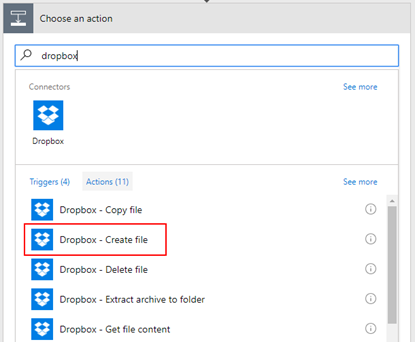
- On the “Choose an action” window, enter “Dropbox” and select the trigger “Dropbox – Create file”
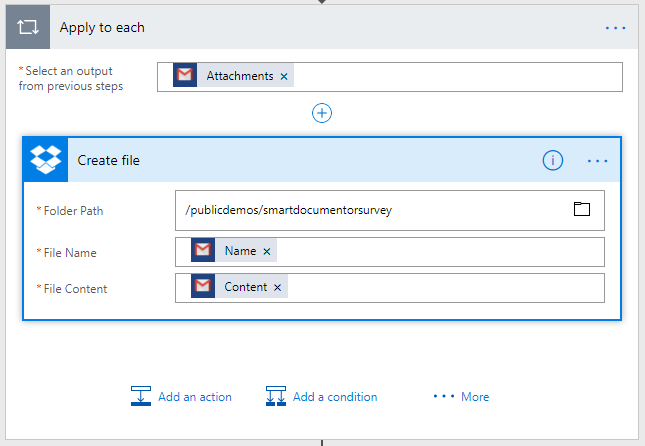
- On the Dropbox action configuration:
- Specify the folder in with you want to store the file, in my case: “/publicdemos/smartdocumentorsurvey”
- On the “File Name” property, select from the list of tokens the “Name” token from the “When a new email arrives” trigger
- On the “File Name” property, select from the list of tokens the “Content” token from the “When a new email arrives” trigger
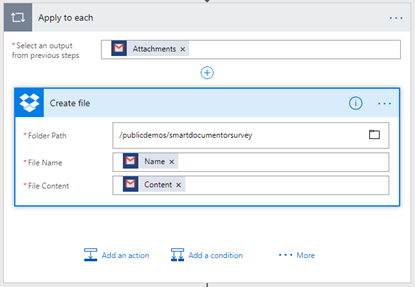
-
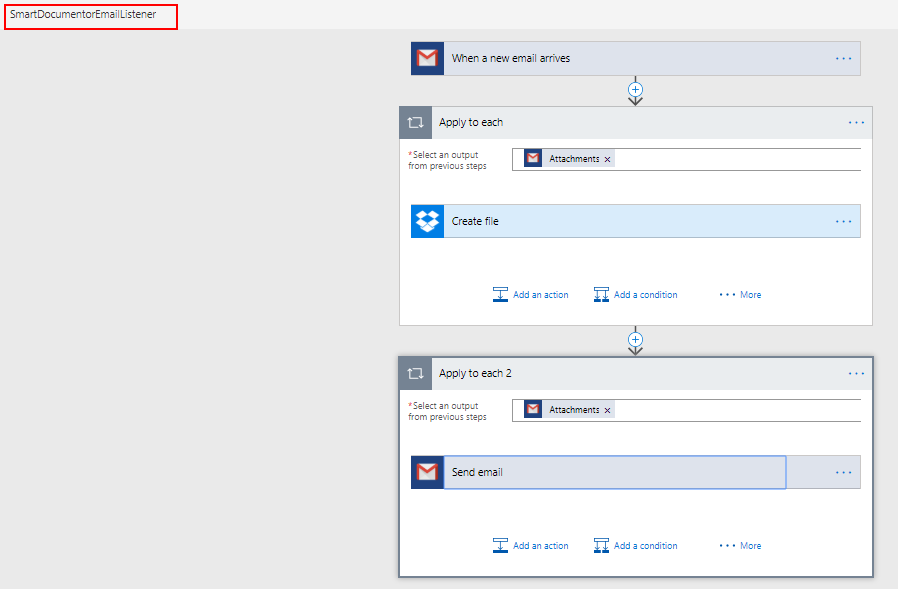
- Because we can have multiple attachments on a specific email, the Flow designer will automatically place this “Dropbox – Create file” inside a Loop that will iterate thru each attachment.
The last step we want is to notify the user that is testing the SmartDocumentor Survey solution that his email was received and is being processed, to do that we need to:
- Add the next step by clicking “+New step” button and then choose the “Add an action” option
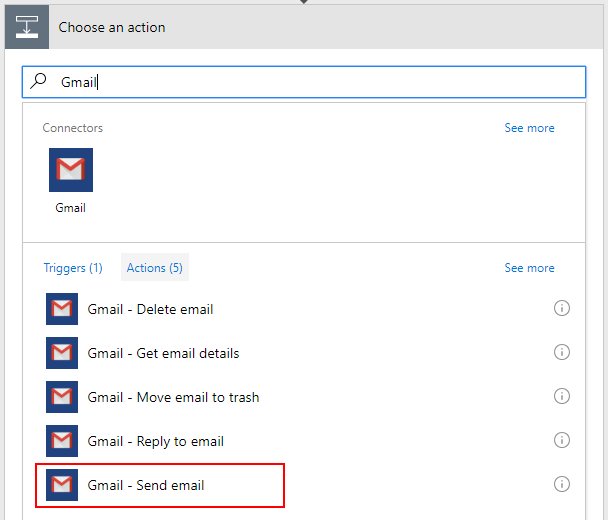
- On the “Choose an action” window, enter “Gmail” and select the trigger “Gmail – Send email”
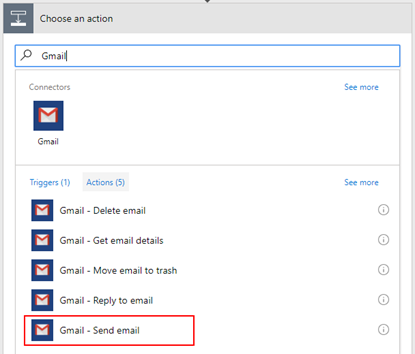
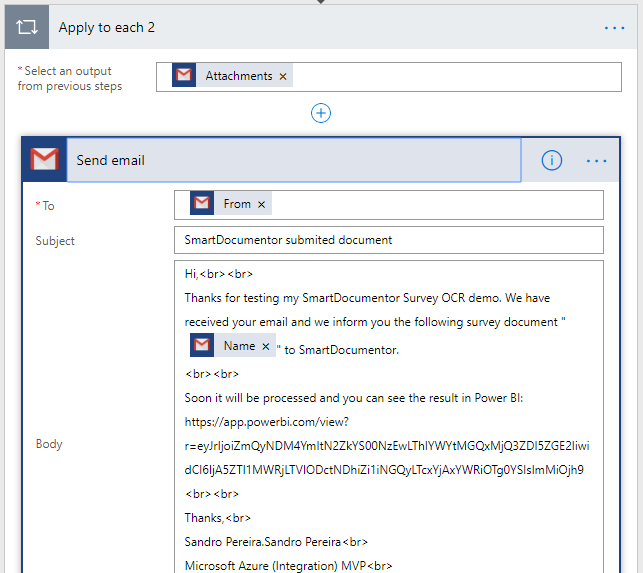
- On the Gmail action configuration:
- On the “To” property, select from the list of tokens the “From” token from the “When a new email arrives” trigger
- On the “Subject” property, specify the email subject, in my case: “SmartDocumentor submitted document”
- On the “Body” property, we will specify the name of the file we are processing as well as the URL where you can consult the Survey Report. So, we are combining static text with some tokens provide from previous actions as you will see in the picture below.
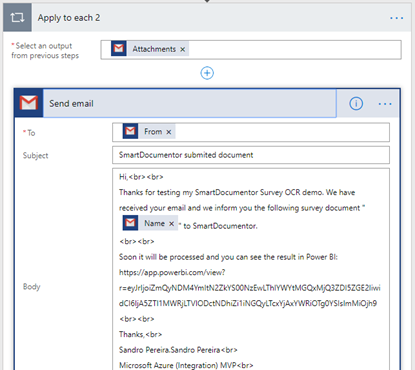
-
- Again, because we can have multiple attachments on a specific email, the Flow designer will again automatically place this “Gmail – Send email” action inside a Loop that will iterate thru each attachment.
At the end the flow will look like this:
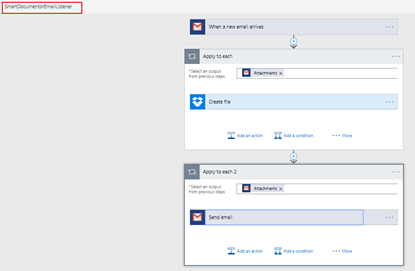
And once is triggered:
- It will copy the attachment to a Dropbox folder that is being synchronized, with the use of the Dropbox desktop client, to our local SmartDocumentor server;
- SmartDocumentor OCR will process this survey picture and it will do the process that was described in my previous post;
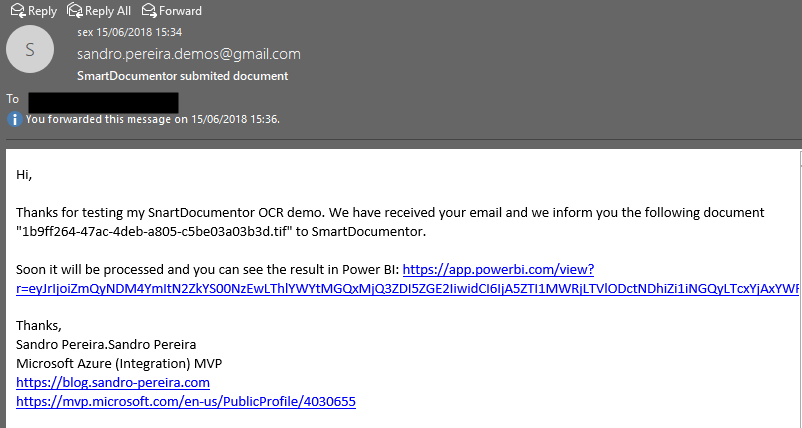
- And finally, will send an email to the user that is testing this SmartDocumentor OCR solution
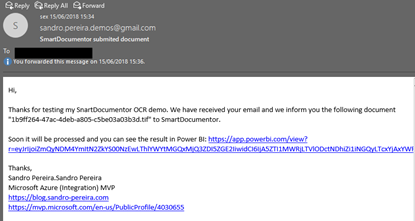
I intentional want to keep this a first simple as possible, so there are some limitations in current approach:
- You can send multiple form pictures in attach but you shouldn’t send any other type of pictures in attach (that aren’t surveys). Again, I can easily create some flow rules to validate but I didn’t implement nothing like that.
- Avoid sending email signature with pictures, the process will work but it ends up having some SmartDocumentor and Logic Apps runs with failure (didn’t implement these type of validations but it is possible)
I will improve this approach in the future, stay tuned!
Author: Sandro Pereira
Sandro Pereira lives in Portugal and works as a consultant at DevScope. In the past years, he has been working on implementing Integration scenarios both on-premises and cloud for various clients, each with different scenarios from a technical point of view, size, and criticality, using Microsoft Azure, Microsoft BizTalk Server and different technologies like AS2, EDI, RosettaNet, SAP, TIBCO etc. He is a regular blogger, international speaker, and technical reviewer of several BizTalk books all focused on Integration. He is also the author of the book “BizTalk Mapping Patterns & Best Practices”. He has been awarded MVP since 2011 for his contributions to the integration community. View all posts by Sandro Pereira

by Sandro Pereira | Jun 15, 2018 | BizTalk Community Blogs via Syndication
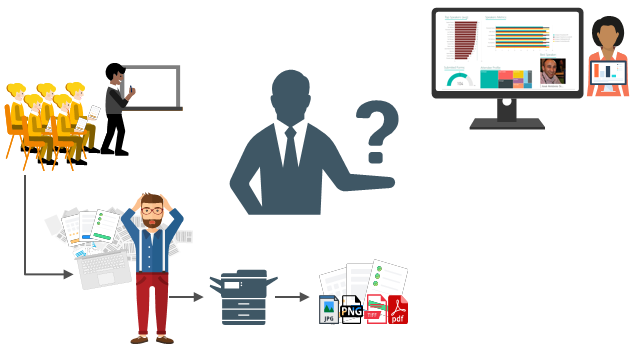
For years, paper forms have been the preferred way for people, enterprises and/or event organizers to collect data in their offices (coffee breaks or launch), in the field (inventory, equipment inspections,…) or in events. Although we are entering a Paperless era, in which the use of paper is progressively being eliminated, there are several situations in which the use of paper is still the best or a good option. Either because it is still a requirement or obligation (by legal documents) or just cheaper and more practical.
One of these scenarios can be found at Events Feedback Evaluations forms and, although it is quite simple and quick to create this kind of forms using, for example, Microsoft Forms or alternatively services like SurveyMonkey, let us be honest and analyze the facts:
- Internet access at events is usually very poor or limited and despite almost all our mobile devices have data access, if we are outside our country, in my case outside Europe, data roaming it is still quite expensive;
- Alternatively, we can send/receive an email later to evaluate the event but more likely most of the attendees will ignore it and we will end up receiving little or no feedback at all.
So, at least in my opinion, paper is still one of the best options to perform Evaluations forms and I already used this strategy in some of my last events that I organized: Oporto Global Integration Bootcamp inserted into the Global Integration Bootcamp initiative created by the Microsoft Community and supported by Microsoft, TUGA IT 2017, … and and if they are a little tired or sleepy – let be honest, it happens in all events – you can always distract a little and wake up again by filling the form
The main problem in having Evaluations forms in a physical paper is: How can we easily convert paper in data to generate additional value? How can we perform operations on it and easily gain insights?
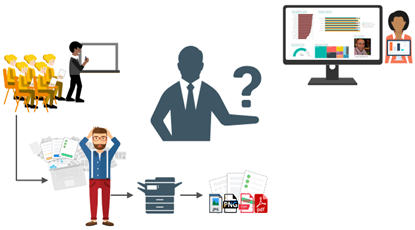
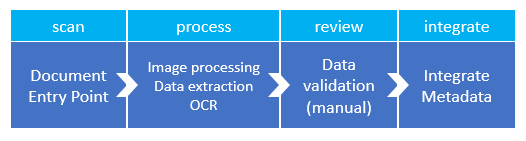
There are plenty of OCR solutions/software’s in the market – most of them are still very expensive – that can easily scan the documents from different devices and process them using algorithms to analyze and extract the data with high confidence. Some even allow the users to manually review the extracted data from the documents before they are integrated into different information systems that normally tend to be the file system or databases.
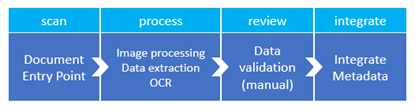
However, neither of them is prepared to connect and integrate with all of the new technologies/SaaS products/data analysis platforms that appear at today’s frantic pace, like Power BI. If you are lucky, some of these products may also allow you to “easily” extend the product to connect to another system through their custom extensibility model systems but that normally means costs and time to develop some additional connector.
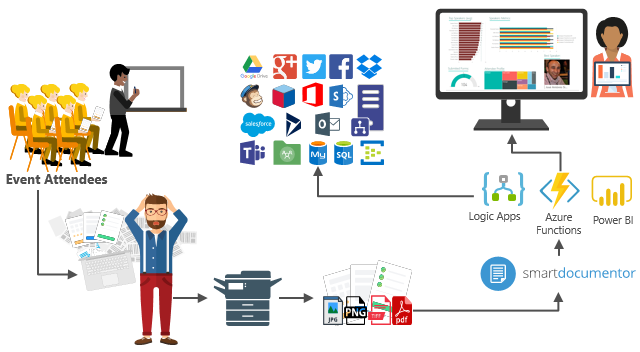
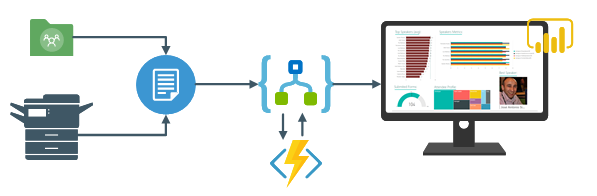
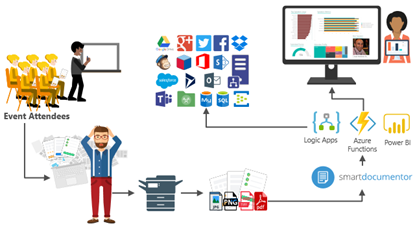
In order to solve these problems for my previous events, in which I wanted to have the evaluations forms to be processed in real-time, i.e., as the attendees handed in the forms, the results were presented in a public Power BI dashboard in a matter of seconds. I end up creating a solution composed of several products and technologies (choosing what I think to be the best tool for a particular problem) composed by:
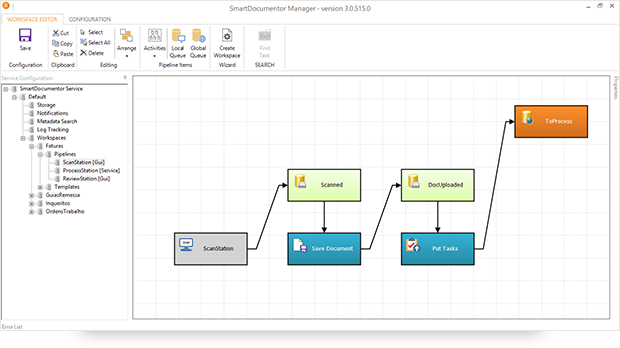
- DevScope SmartDocumentor OCR that, not also allowed me to extract the data from my Survey documents (actually it can process any king do documents like Invoices or Expenses) and easily integrate with other systems, but also to intelligently set my OCR streams (flows), defining:
-
- Different receive processing points (or locations), like Email, FTP, File Share or directly from scanner devices;
-
-
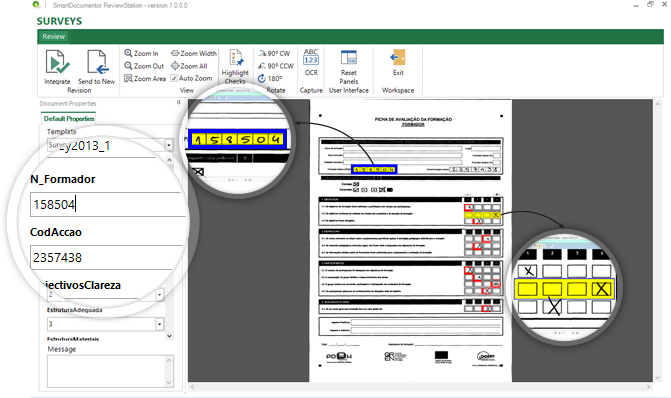
- Create/test my recognition templates and review/ validate the data which is gathered;
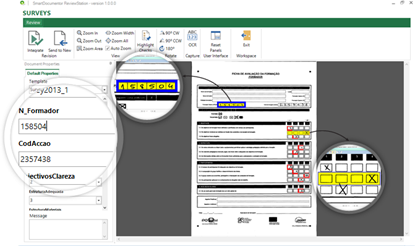
-
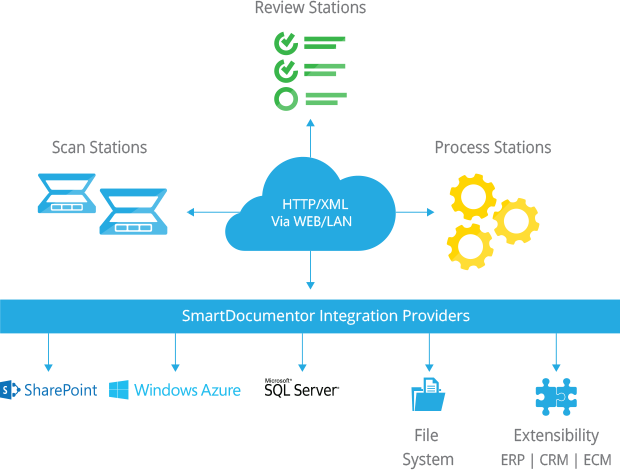
- By default, SmartDocumentor exports data and documents to multiple Enterprise Resource Planning (ERP), Customer Management (CRM) or Document Management (ECM) like Windows system files, SharePoint, Office 365, Azure and/or SQL Server. But also, enabled me to connect and send the metadata, XML or JSON, through any kind of HTTP service, and we can delegate this process/tasks to other more smart, powerful and easy to change services like Logic Apps. Of course we can connect to any other system through its extensibility model systems, for example, I could even extend SmartDocumentor by using a PowerShell provider that would enable me to execute PowerShell scripts.
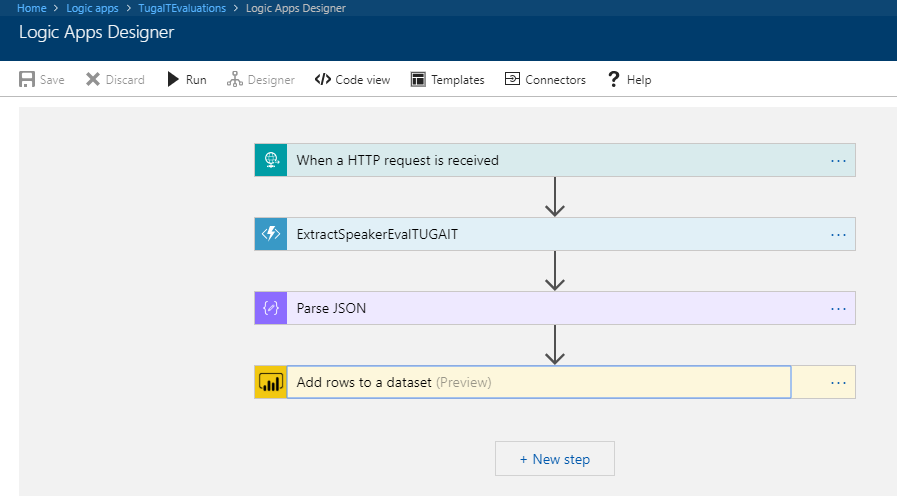
- Azure Logic Apps that provided a very simple, fast and powerful way to implement scalable integrations workflows in the cloud with an uncounted number of connectors across the cloud and on-premises, the list is growing day by day. This will allow us to quickly integrate across different services and protocols but also modify and change quickly the integration flows without requiring to modify and deploy traditional custom code – which normally require having technical human resources (like C# developer) and probably additional costs involved – not anymore with Logic Apps – changes can be performed in a matter of seconds without worrying about if your custom extension broke some product compatibility or affecting other existing OCR processes;
- Azure Functions to run custom snippets of C# to support Logic Apps flow and perform advanced JSON to JSON transformations;
- And finally, Power BI to create interactive data visualization (dashboards and reports)
The solution
SmartDocumentor: to process and extract metadata from paper
Well, I am not going to explain in details how the solution is implemented inside DevScope’s SmartDocumentor for it is not the point of this article, and if you want to know more about it, you can always contact me. However, let me contextualize you in other for you to have the full picture of the problem and the solution:
- SmartDocumentor OCR flow will be listening in two receive processing points (or locations):
- Share Folder – for testing purposes without having the need to have a scanner device;
- and directly from the scanner device – real case scenario.
- We can then specify if:
- We want to review any documents that are being processed to see if the data recognition is performed according to what we intended;
- Or we can create rules based on SmartDocumentor confidence recognition rate, for example:
- If there is a >=90% confidence that the data from the Survey where correctly recognize, skip the review process and integrate directly the document;
- Otherwise, if recognition confidence rate is <90% deliver the document to the review station for a person to validate and them Integrate the document;
- Or, in my case, because I already have confidence in the process, and is quite tested, we can configure the process to skip the review station step and directly integrate the document. This will also allow you… yes you, the reader, to test this implementation as you will see at the end of this article.
- After receiving and extract the data from the documents (paper), SmartDocumentor will send the metadata to a Logic App HTTP endpoint.

Power BI to deliver interactive data visualization (dashboards and reports)
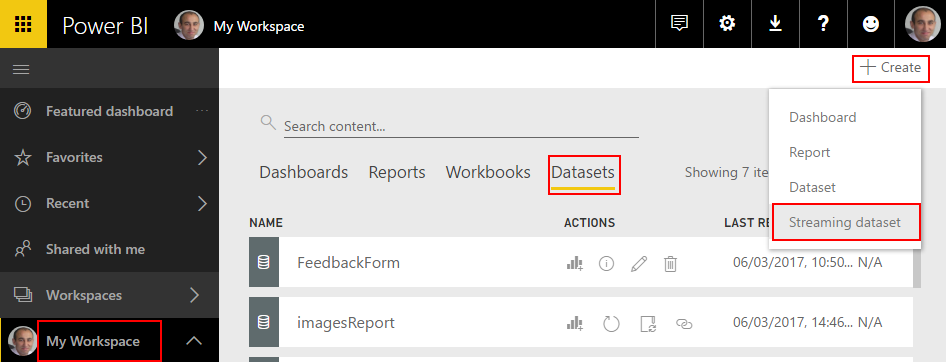
Regarding Power BI, Logic Apps Power BI connector only accepts you to use streaming datasets (this has advantages and some disadvantages that we will see further on), that allows you to easily build real-time dashboards by pushing data into the REST API endpoint. To create your streaming datasets, you should access to Power BI with your account:
- Select your ‘Workspace à Datasets’, and then on the top right corner click ‘+ Create’ and then ‘Streaming dataset’
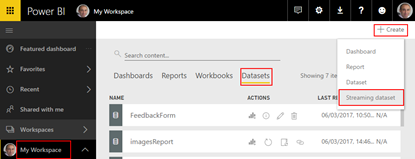
- In the ‘New streaming dataset’, select ‘API’ and then click ‘Next’
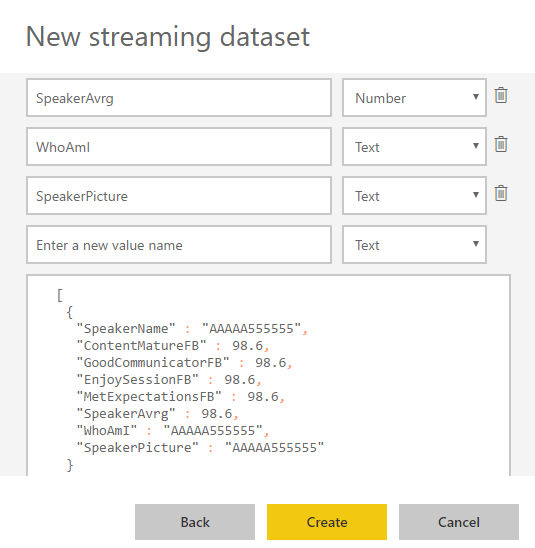
- In the second ‘New streaming dataset’, give a name to your dataset: “FeedbackForm” and then add the following elements:
- SpeakerName (Text) – represents the name of the speaker that is obtained in the evaluation form according to the session.
- ContentMatureFB (Number) – a value between 1 and 9 that is obtained in the evaluation form
- GoodCommunicatorFB (Number) – a value between 1 and 9 that is obtained in the evaluation form
- EnjoySessionFB (Number) – a value between 1 and 9 that is obtained in the evaluation form
- MetExpectationsFB (Number) – a value between 1 and 9 that is obtained in the evaluation form
- SpeakerAvrg (Number) – A simple average calculation (sum all the above metrics divide by 4)
- WhoAmI (Text) – represents the type of attendee you are (developer, architect, …) that is obtained in the evaluation form
- SpeakerPicture (Text) – picture of the speaker according to the session that is that is obtained in the evaluation form.
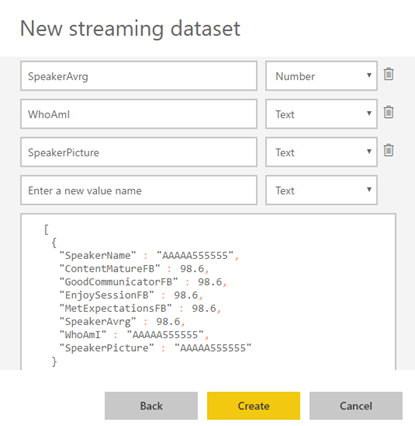
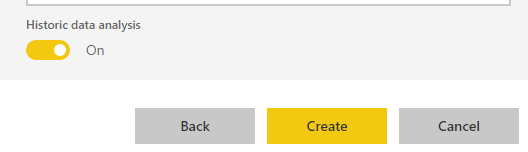
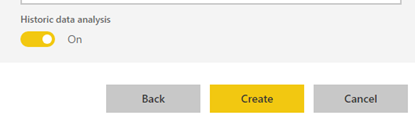
- And because we want to create interactive reports in order to have more insights from the event. We need to enable ‘Historic data analysis’ and then click ‘Create’
Limitations: Unfortunately, streaming dataset is meant to be used for real-time streaming and is a little limited in terms of want we can do with it. For example, it doesn’t allow you to combine different sources, like a “table” that can correlate speaker to get their pictures, or to make aggregations of metrics like “Speaker average”. Which means that we need to send all of this information from Logic Apps.
Azure Function to apply JSON transformations (Content Enricher, Content Filter & Name-Value Transformation Patterns)
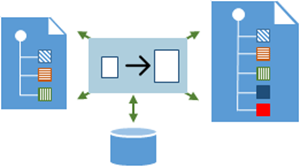
To solve and bypass these streaming dataset limitations we use an Azure Function inside Logic App that not only transforms the JSON message received from SmartDocumentor with the Evaluation metadata but also add missing information – Content Enricher Pattern. It is very common when we want to exchange messages between different systems or applications, that the target system requires more information than the source system can provide. In this case, the source system (paper) will not send the Name of the speaker, the speaker average metric and the picture of the speaker, but our target system (Power BI) expects that information.
But also, to apply a transformation pattern – Content Filter – that not only removes unnecessarily data elements but it is also used to simplify the structure of the message, i.e., ‘flattens’ the hierarchy into a simple list of elements that can be more easily understood and processed by other systems.
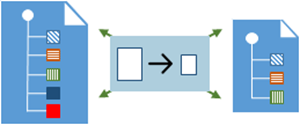
And finally transform a name-value pair (NVP), key-value pair (KVP), field–value pair, attribute–value pair or even Entity-Attribute-Value model (EAV) data representation that is widely used into a to more Hierarchical Schema.

To do that we create a “GenericWebHook-CSharp” function that accepts the name-value pair JSON message, which was originally sent by SmartDocumentor OCR, and generate a friendlier message.
#r "Newtonsoft.Json"
using System;
using System.Net;
using Newtonsoft.Json;
using Newtonsoft.Json.Linq;
public static async Task&lt;object&gt; Run(HttpRequestMessage req, TraceWriter log)
{
log.Info($"Webhook was triggered!");
string jsonContent = await req.Content.ReadAsStringAsync();
dynamic data = JsonConvert.DeserializeObject(jsonContent);
string speakerName = string.Empty;
string speakerPicture = string.Empty;
int pos = 0;
for (int i = 5; i &lt;= 8; i++)
{
if (!String.IsNullOrEmpty(data[i]["Value"].Value))
{
pos = i;
break;
}
}
switch (pos)
{
case 5:
speakerName = "Ricardo Torre";
speakerPicture = "http://blog.sandro-pereira.com/wp-content/uploads/2017/03/RicardoTorre.png";
break;
case 6:
speakerName = "José António Silva e Pedro Sousa";
speakerPicture = "http://blog.sandro-pereira.com/wp-content/uploads/2017/03/JosePedro.png";
break;
case 7:
speakerName = "João Ferreira";
speakerPicture = "http://blog.sandro-pereira.com/wp-content/uploads/2017/03/JoaoFerreira.png";
break;
case 8:
speakerName = "Sandro Pereira";
speakerPicture = "http://blog.sandro-pereira.com/wp-content/uploads/2017/03/Sandro-Pereira.png";
break;
default:
speakerName = "Unknown";
speakerPicture = "http://blog.sandro-pereira.com/wp-content/uploads/2017/03/devscope.png";
break;
}
int result = 0;
decimal avrg = (decimal)((int.TryParse(data[9]["Value"].Value, out result) ? result : 0) + (int.TryParse(data[10]["Value"].Value, out result) ? result : 0) + (int.TryParse(data[11]["Value"].Value, out result) ? result : 0) + (int.TryParse(data[12]["Value"].Value, out result) ? result : 0)) / 4;
JObject eval =
new JObject(
new JProperty("SpeakerName", speakerName),
new JProperty("SpeakerPicture", speakerPicture),
new JProperty("ContentMatureFB", data[9]["Value"].Value),
new JProperty("GoodCommunicatorFB", data[10]["Value"].Value),
new JProperty("EnjoySessionFB", data[11]["Value"].Value),
new JProperty("MetExpectationsFB", data[12]["Value"].Value),
new JProperty("SpeakerAvrg", avrg),
new JProperty("WhoAmI", data[30]["Value"].Value));
log.Info($"Webhook was Complete!");
return req.CreateResponse(HttpStatusCode.OK, new
{
MsgEval = eval
});
}
Notice that for example in the following transformation rule:
...
speakerName = "Sandro Pereira";
speakerPicture = "http://blog.sandro-pereira.com/wp-content/uploads/2017/03/Sandro-Pereira.png";
...
We are transforming the selected session in the Evaluation form to the name of the speaker and his picture. Why the picture URL? Well, as mentioned before, Power BI streaming dataset has some limitation in what we can do by default. So, in order for us to be able to present the speaker picture in the Power BI report and/or dashboard, we are forced to send a public picture URL (in this case it is stored in my blog) as an input of our dataset.
For the same reason, because we cannot make a new measure derived from the others when using streaming dataset, instead we need to send it as an input of our dataset and in order for us to calculate the average performance of a speaker, we will be using this basic formula:
...
decimal avrg = (decimal)((int.TryParse(data[9]["Value"].Value, out result) ? result : 0) + (int.TryParse(data[10]["Value"].Value, out result) ? result : 0) + (int.TryParse(data[11]["Value"].Value, out result) ? result : 0) + (int.TryParse(data[12]["Value"].Value, out result) ? result : 0)) / 4;
...
The output of the function will be again another JSON message this time something like this:
{
“MsgEval”: {
“SpeakerName”: “Nino Crudele”,
“SpeakerPicture”: “https://blog.sandro-pereira.com/wp-content/uploads/2017/05/Nino-Crudele.png”,
“ContentClearFB”: “8”,
“GoodCommunicatorFB”: “8”,
“EnjoySessionFB”: “8”,
“MetExpectationsFB”: “8”,
“GainedInsightFB”: “8”,
“SpeakerAvrg”: 8.0,
“WhoAmI”: “Other;Consultant;”
}
}
Logic Apps to create an integration process flow
The missing piece: Logic App! The tool that allows us to transform a product – in this case, SmartDocumentor OCR software – that in principle like all product seemed closed and limited in terms of features into a product without frontiers/fences. Again, we all know that normally these type of products (OCR) have extensibility model systems that allow you to extend the product with your personal requirements – like SmartDocumentor also does – but this normally means you need to have developer skills that probably will cost you time and money, or additional cost to customize the product according to your needs, something we want to avoid and we will be able to archive using Logic Apps or similar tools/products.
The beauty of using Logic App is that provides us a very simplified, robust, scalable, not expensive and fast way to extend the capabilities of my SmartDocumentor OCR software and integrate with an uncounted number of Cloud and on-premises applications or/and systems.
In order to integrate SmartDocumentor OCR with Power BI, we need to create a Logic App that:
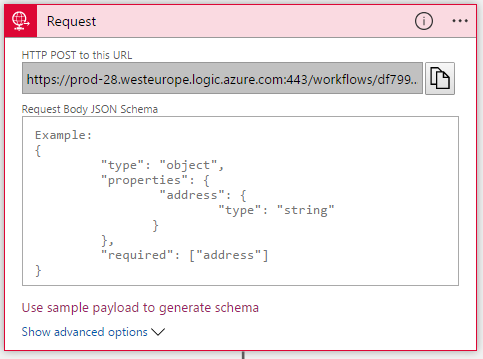
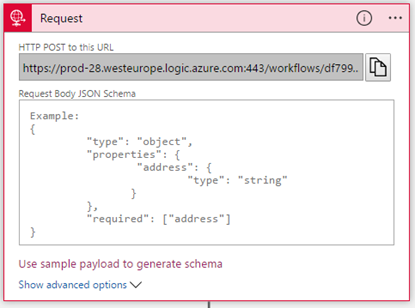
- Accept a JSON through an HTTP Post. For that, we use a ‘Request / Response – Manual’ trigger. And in this case, because we don’t need to have friendly tokens to access the elements of the message, we don’t specify a JSON Schema.
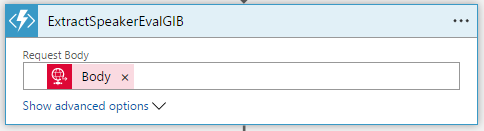
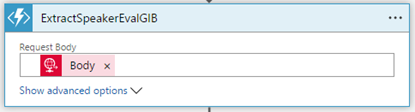
- Call an Azure Function to transform the original SmartDocumetor OCR JSON message to the expected JSON message to send to Power BI. For that, we use an ‘Azure Functions’ action, specifying the function that we created previously.
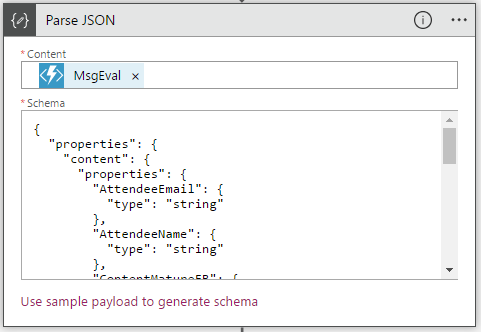
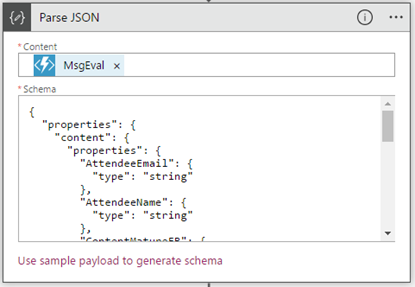
- After that, we use a ‘Parse JSON’ action, only to allow us to parse JSON content into friendly tokens (something like a quick alias to the fields) for being easily consumed in other actions of the process.
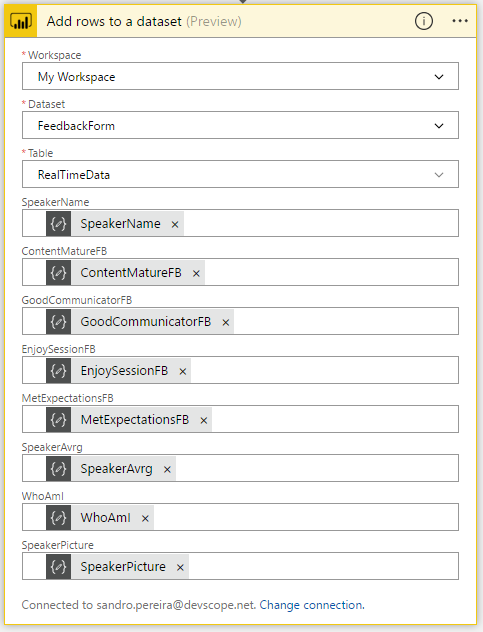
- In the last step of the Logic App: we push the data into the Power BI streaming dataset created earlier by using the new ‘Power BI’ Connector. To do this we need to:
- Add a ‘+New step’, ‘Add an action’, and then enter ‘Power BI’ into the search box. Select “Add row to streaming dataset” from the actions list.
- Select the name of the workspace and then the name of the streaming dataset
- The next step is to select the Table titled “RealTimeData”
- And finally, map the input data fields with the friendly tokens generated in the ‘Parse JSON’ action
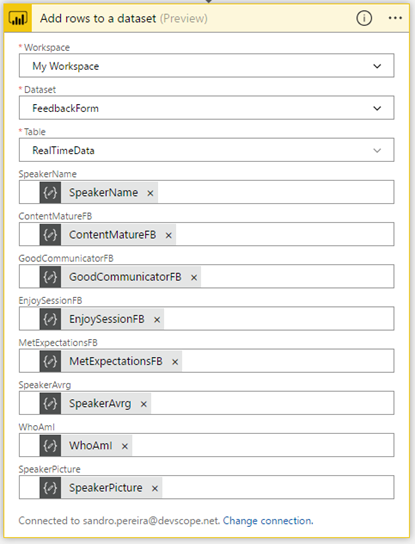
Of course, we could have more logic inside, for example, validate if you attendees, or you guys while testing, are filling all the required element and based on that rules perform some actions, but my intention, in this case, was to make and keep the process as simple as possible, normally as we explain earlier we could perform validation on the SmartDocumentor review station but again we can easily add additional validation in the Logic App without any problem.
The final result
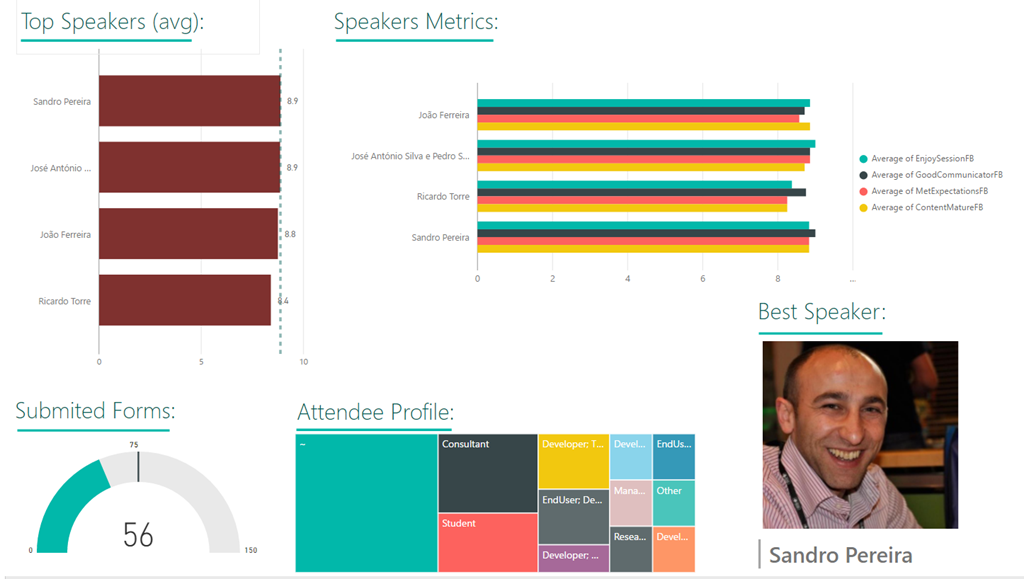
After saving the Logic App and process the Evaluation forms with SmartDocumentor OCR directly from the scanner or thru the file system, the result is this beautiful and interactive report that we can present in a monitor during the breaks of our events:
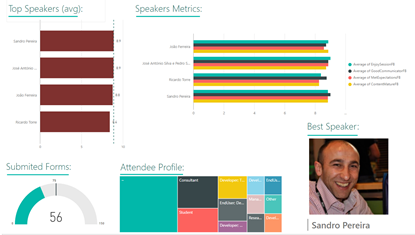
You may now under, “What do we need to do to extend the process for archiving the messages?”
That is extremely simple, just edit and change the Logic App by adding, for example, a Dropbox, OneDrive or File Connector into your process, configure it and save it! It is that easy!
How can you test the solution?
Of course, it is impossible for you to test the entire process, unfortunately, we cannot submit the paper via web… at least yet. But you can try part of this solution because by assuming that we already have the paper digitalized/scanned and we only want to try the SmartDocumentor OCR and the integration process.
So, if you want to try the solution, you need to:
- Download the Evaluation form (survey) – PNG format – here: https://blog.sandro-pereira.com/wp-content/uploads/2017/04/SpeaketForm_2017-0.png
- Open the form picture in your favorite image editor (Paint or Paint.NET) and just paint your choices, something like this.
- Again, be sure you fill all the necessary fields: session, each rate (only on time) and about you because I didn’t add any type of validation and I’m skyping the Review Sation step
- You don’t need to fill your name, email, company or phone
- You can send multiple form pictures in attach but don’t send any other type of pictures in attach. Again, I can easily create some flow rules to validate but I didn’t implement nothing like that.
- Avoid sending email signature with pictures, the process will work but it end up having some Logic Apps runs with failure (didn’t implement these type of validations but it is possible)
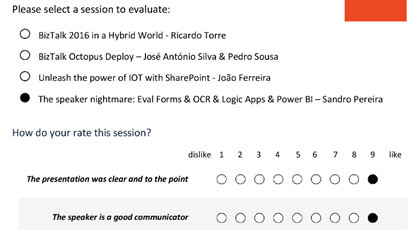
- Email your form attached to [email protected] with the following subject “SmartDocumentorSurvey“
- Wait a few minutes, because I have a very simple Microsoft Flow (we will address this process later on in another blog post) listening to this mailbox that:
- Extracts the attachment
- Sends it to SmartDocumentor OCR
- And notifies you that the file was received
- Check your email and access to this public link to see the results: https://app.powerbi.com/view?r=eyJrIjoiZmQyNDM4YmItN2ZkYS00NzEwLThlYWYtMGQxMjQ3ZDI5ZGE2IiwidCI6IjA5ZTI1MWRjLTVlODctNDhiZi1iNGQyLTcxYjAxYWRiOTg0YSIsImMiOjh9
- Unfortunately, due cache policies, updates to reports or visuals to which a Publish to web link points can take approximately half an hour to be visible to users – this is a Power BI limitation/cache policy – because the link is for a public Power BI report you may only see the results reflected, in the worst scenario, after more or less half an hour.
Author: Sandro Pereira
Sandro Pereira lives in Portugal and works as a consultant at DevScope. In the past years, he has been working on implementing Integration scenarios both on-premises and cloud for various clients, each with different scenarios from a technical point of view, size, and criticality, using Microsoft Azure, Microsoft BizTalk Server and different technologies like AS2, EDI, RosettaNet, SAP, TIBCO etc. He is a regular blogger, international speaker, and technical reviewer of several BizTalk books all focused on Integration. He is also the author of the book “BizTalk Mapping Patterns & Best Practices”. He has been awarded MVP since 2011 for his contributions to the integration community. View all posts by Sandro Pereira

by Sandro Pereira | Jun 13, 2018 | BizTalk Community Blogs via Syndication
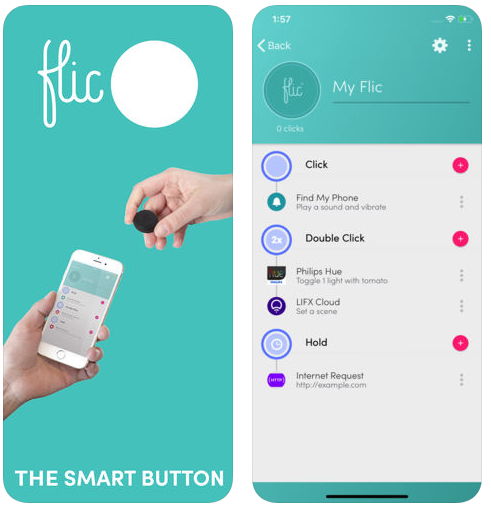
Trigger your Microsoft Flows by pressing a physical button, known as a Flic Button or Flic Smart Button provide by Shortcut Labs is quite a simple task. I was impressed by how easy and fast it was to set up and put it working, it was literally 5 minutes!
And then you can use it for fun: “Wake Up Kent Weare” (the example we will be using here) or for more realistic and interested scenarios like pressing a Flic button to track your working hours (1 click to start tracking, double-click to stop tracking), block your calendar for next next hour, count visitors at an event, notify me if I have a visitor, save geographical locations, or how is your day/are you happy with the service (one click for happy, double-click for unhappy – if you have only one button)
Of course, to do that we need to have:
- A physical Flic Smart Button

- And downloaded Flic’s Android or iOS mobile app, that you will need to use it to pair one or more Flic Buttons.
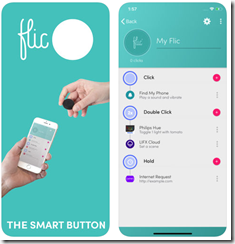
After you download the Flic mobile app, to configure the Flic Button you need to:
- Make sure that your mobile has Bluetooth activated;
- Open the Flic mobile app from your mobile phone, sign in with your credentials using Facebook, or by creating your Flic Account;
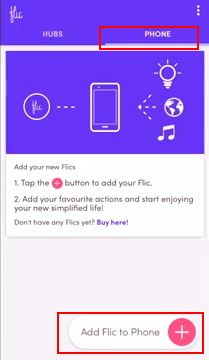
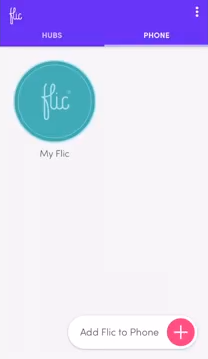
- Once you login in the app, on the phone tab, click “Add Flic to Phone” at the bottom of the screen
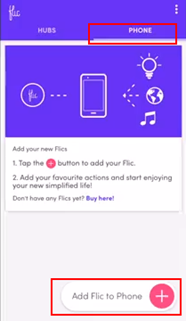
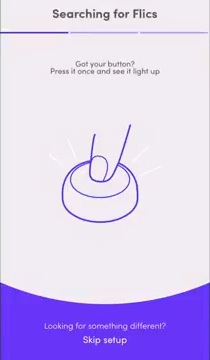
- Once the “Searching for Flics” screen appears, take or physical button an click it once to pair it with the mobile application

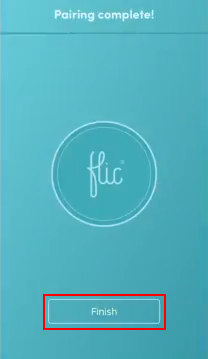
- Once the “Pairing complete!” screen appears, your button will be successfully paired with your phone. Click “Finish” to complete.
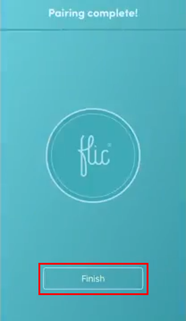
- And a button will be added to the “Phone” tab
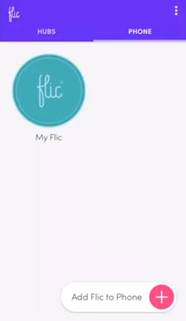
Now that the physical button is pair with our mobile phone, we need to configure the Flic’s events that the button will be triggering. For each button we can specify 3 types of events:
- click (one quick press)
- double-click (two quick presses)
- hold (one long press)
To accomplish that you need to:
- Press the “My Flic” button present in the “Phone” tab
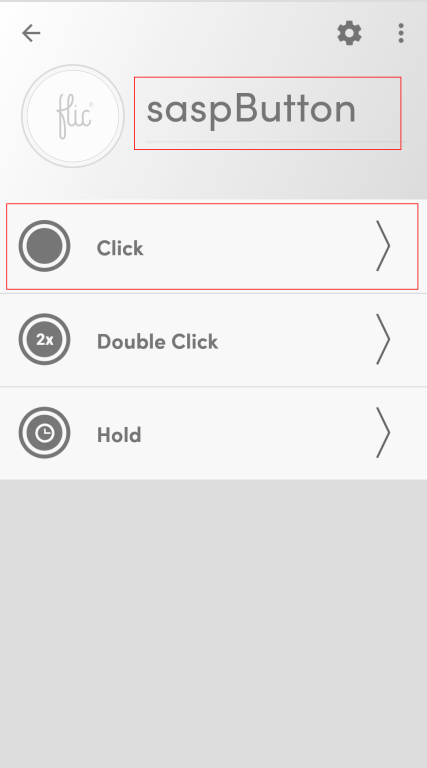
- This will open the button configuration screen, there you should:
- Change the button name
- And then configure one or all the 3 trigger events
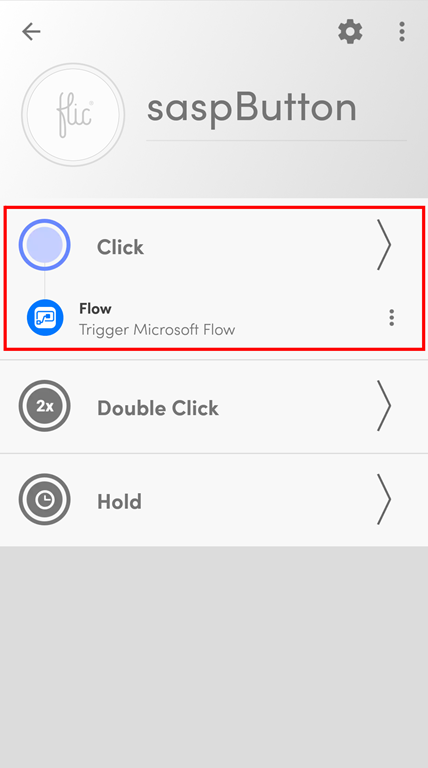
- In our case, we will configure the “Click” trigger event to be able to trigger a Microsoft Flow. For that, we need to click on the “Click” option
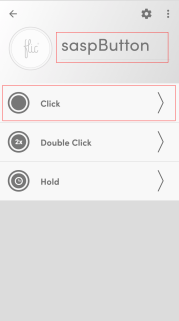
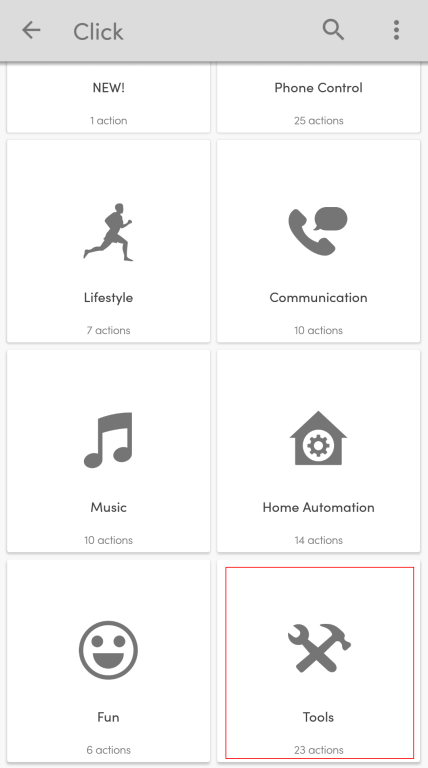
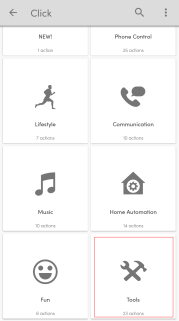
- On the “Click” trigger event list screen, select “Tools” category option
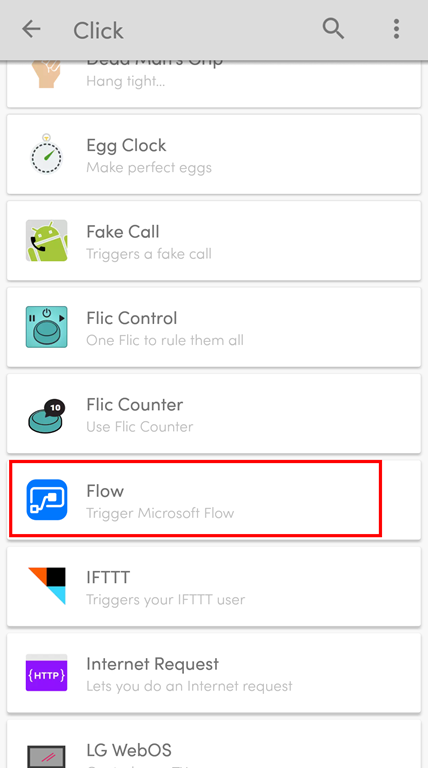
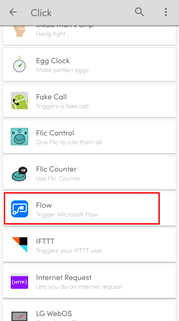
- And on the “Tools” category list screen, select “Flow” option
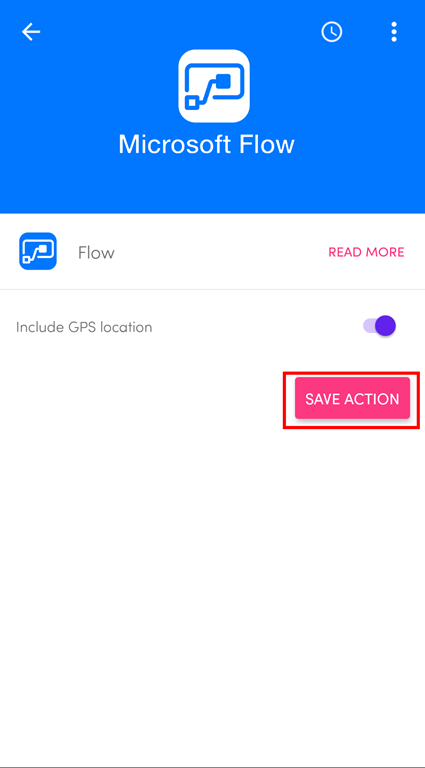
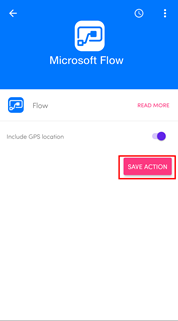
- On the Flow screen you may or may not select to include GPS location and then you need to click “SAVE ACTION” button
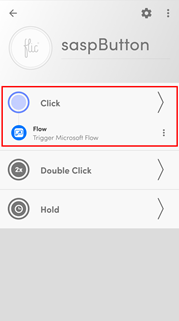
And our button will now be properly configured to trigger a Microsoft Flow once someone click (one time) the physical button
Now the only thing that is missing is for us to create a Flow that will be associated with this trigger event to fire up a Flow process.
Once again, this demo is entitled “Wake Up Kent Weare” and will be just for fun to try to annoy the dear friend Kent Weare and try to wake him up at 4 AM US (9 AM Portugal), if he didn’t forget to disable email notifications at night, simply by clicking on a button. To do that we need to:
- Sign into Microsoft Flow.
- You can create one flow from scratch
- or by typing “flic” into the search box and select one of the several templates provided by Flow team.
- Click “My flows” option on the menu and then click “+ Create from blank” to create a Flow from scratch.

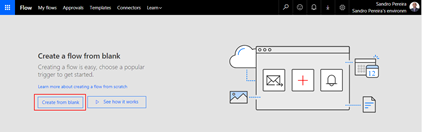
- On the “Create a flow from blank”, click “Create from blank” to start the process of creating an empty Flow
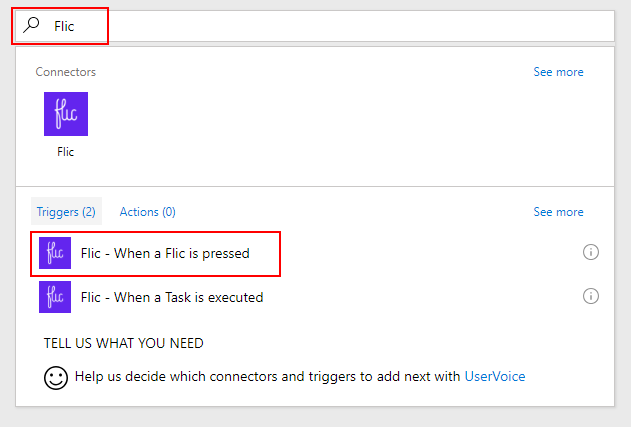
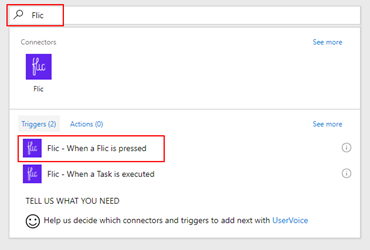
- On the Flow designer, on the Trigger event enter “Flic” and select the option “Flic – When a Flic is pressed”
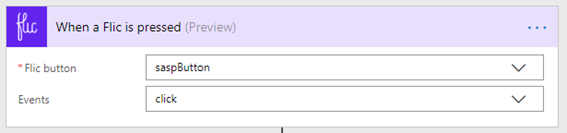
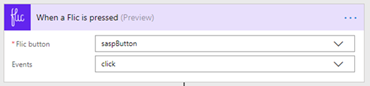
- On the Flic Trigger configuration
- On “the Flic button” combo box, select the button we add create on the Mobile App earlier
- And on the “Events” combo box, select “click” event that was the only one that we have configured
(of course, the first time you use this trigger, it will ask for permissions and you need to provide the authentication to your Flic account)
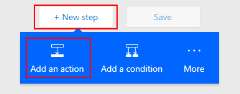
- Add the next step by clicking “+New step” button and then choose the “Add an action” option
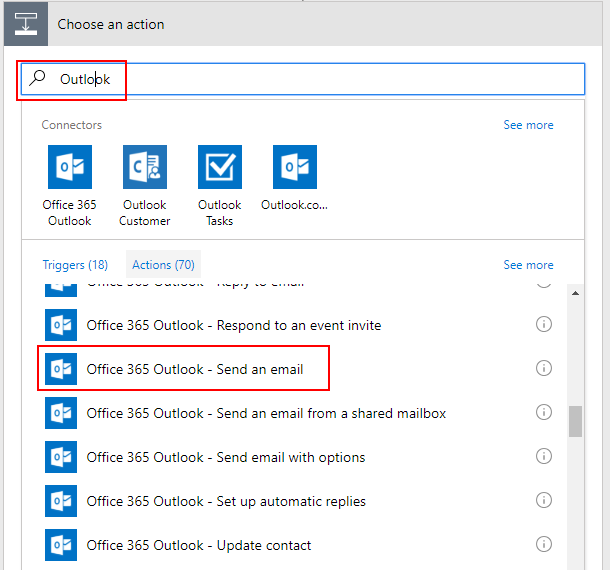
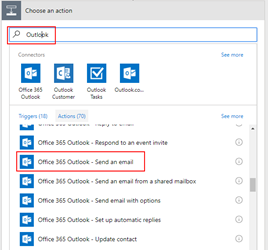
- On the “Choose an action” window, enter “Outlook” and select the trigger “Office 365 Outlook – Send an email”
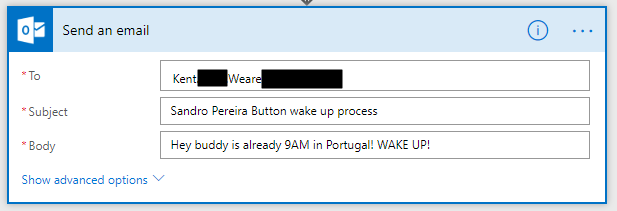
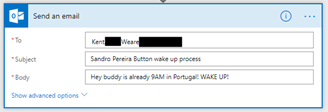
- On the Send an email action configuration, you need to specify
- The address of the recipient on the “To” property field
- The subject of the email on the “Subject” property field
- And the body of the email on the “Body” property field
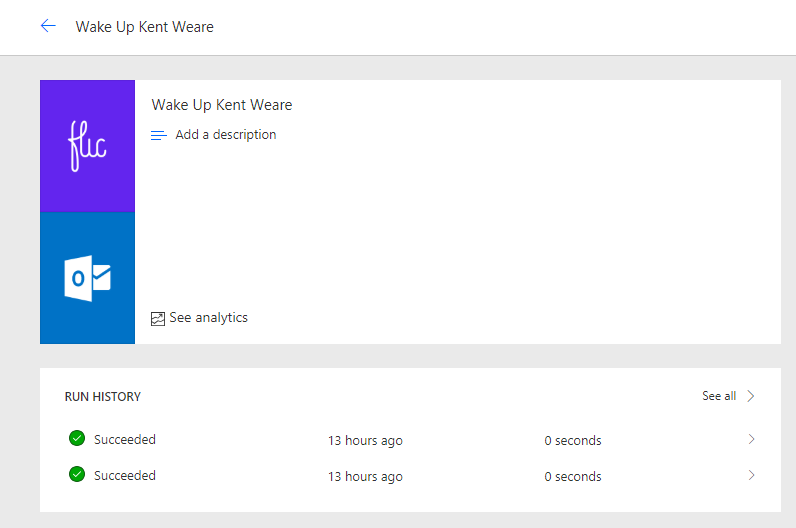
- Be sure you give a proper name to your Flow, mine will be “Wake Up Kent Weare” and save it
Now… PRESS THE BUTTON! PRESS THE BUTTON!
The Flow was successfully triggered once I press the button
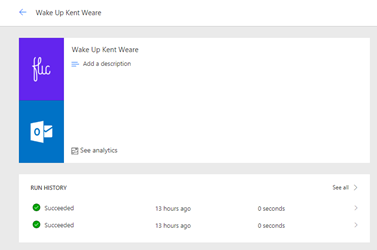
However, the result was not what I expected 🙂

Author: Sandro Pereira
Sandro Pereira lives in Portugal and works as a consultant at DevScope. In the past years, he has been working on implementing Integration scenarios both on-premises and cloud for various clients, each with different scenarios from a technical point of view, size, and criticality, using Microsoft Azure, Microsoft BizTalk Server and different technologies like AS2, EDI, RosettaNet, SAP, TIBCO etc. He is a regular blogger, international speaker, and technical reviewer of several BizTalk books all focused on Integration. He is also the author of the book “BizTalk Mapping Patterns & Best Practices”. He has been awarded MVP since 2011 for his contributions to the integration community. View all posts by Sandro Pereira

by Lex Hegt | Jun 13, 2018 | BizTalk Community Blogs via Syndication
Why do we need this feature?
One of the tools which come with BizTalk Server is the Enterprise Service Bus (ESB) Toolkit. Although the ESB Toolkit is a collection of tools that extend the service-oriented capabilities of BizTalk, the Exception Management capability is one of the most widely used features of the ESB Toolkit. This feature allows you to perform Exception Management in a centralized manner, which can be a great benefit.
What are the current challenges?
See below for a list of challenges while using the out-of-the-box ESB Toolkit portal, which comes with BizTalk Server:
- Bad quality portal
- Lack of statistic information
- No security/auditing
- No monitoring
Bad quality portal
Even though the Exception Management framework is very robust and strong, the Exception Management Portal that comes out of BizTalk Server is not that easy to configure (takes about 1 or 2 days to configure the default portal successfully).
Besides the quality of the portal, the ESB portal is yet another portal, users need to be aware of in their day to day operations with BizTalk Server.
Lack of statistic information
Further, the ESB Toolkit gives no overview of for example the amount of ESB Exceptions that occurred, the number of itineraries processed or the number of resubmissions. This kind of information can be of vital value to know if the processes are all in a healthy state.
No security/auditing
Also, no security and auditing is in place for this portal. Anybody with access to the portal can view the exceptions, edit messages and resubmit them, which exposes its own risks.
No Monitoring
To be able to keep an eye on the ESB processes, it is handy to monitor these processes. Unfortunately, with the ESB Toolkit, no such capability exists.
How BizTalk360 solves this problem?
BizTalk360 addresses these challenges in a number of ways. Firstly, the portal from the ESB Toolkit is replaced with a portal within BizTalk360. As with all features within BizTalk360, this portal is protected with security and auditing. The following policies are available:
- Using the portal
- Being able to resubmit messages
To be able to repair ESB Faults, there is an Edit and Resubmit feature. To make repair even easier, you can write and associate Knowledge Base articles to the ESB Faults. So in case of recurring problems, you can simply document the solution in such a KB article and associate it with the ESB Fault, thereby making repairs in the future easier.
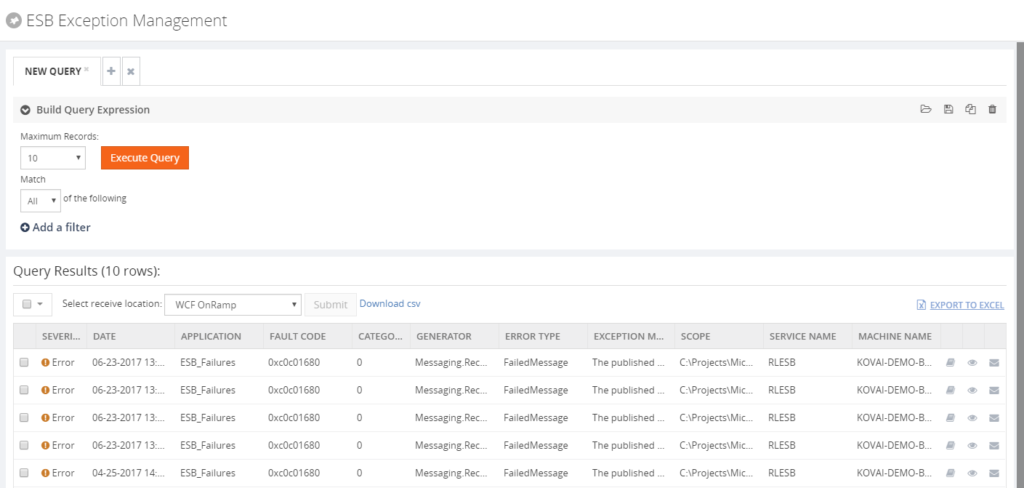 For having a good overview of the ESB processes, BizTalk360 provides a customizable ESB Dashboard. You can create dashboards based on different categories of widgets, which are:
- ESB Fault count
- ESB Resubmission
- ESB Itineraries
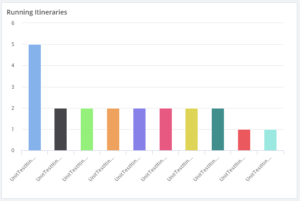
Besides the ESB Dashboard, there is also the Data Monitoring feature in BizTalk360. In case of ESB, this will help you in making sure all the ESB processes run like expected.
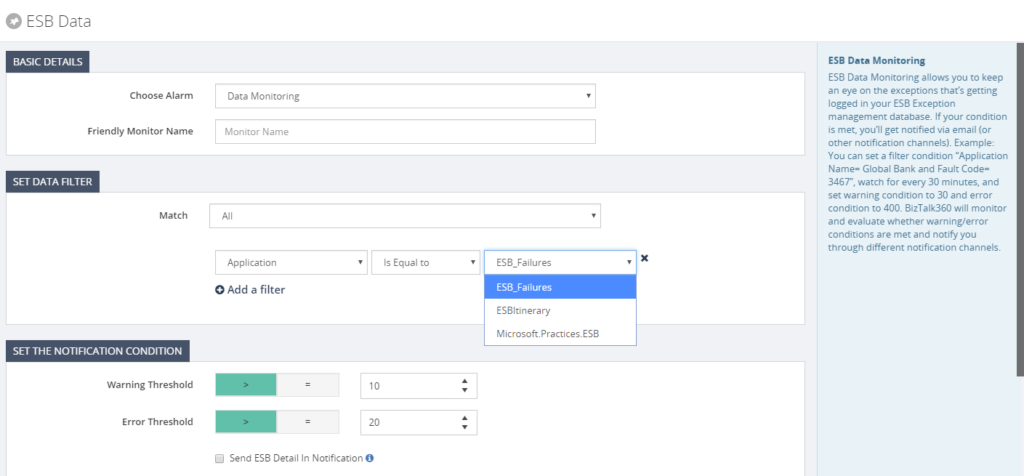
With the ESB Exception Portal and all the other ESB focussed features, we think that we have brought another good feature to the product, taking away the need to use the out-of-the box features, while empowering the users with relevant other features.
Author: Lex Hegt
Lex Hegt works in the IT sector for more than 25 years, mainly in roles as developer and administrator. He works with BizTalk since BizTalk Server 2004. Currently he is a Technical Lead at BizTalk360. View all posts by Lex Hegt